Aquos Zeta SH-01H - Smartphone SHARP - Free user manual and instructions
Find the device manual for free Aquos Zeta SH-01H SHARP in PDF.


User questions about Aquos Zeta SH-01H SHARP
0 question about this device. Answer the ones you know or ask your own.
Ask a new question about this device
Download the instructions for your Smartphone in PDF format for free! Find your manual Aquos Zeta SH-01H - SHARP and take your electronic device back in hand. On this page are published all the documents necessary for the use of your device. Aquos Zeta SH-01H by SHARP.
USER MANUAL Aquos Zeta SH-01H SHARP
INSTRUCTION MANUAL '15.10
Introduction
Thank you for purchasing "SH-01H".
Be sure to read this manual before and during use to ensure proper operation.
Checking operation method
Quick Start Guide (Basic package) (in Japanese only)
This guide describes operations of basic functions.
User's Manual (App of the handset) (in Japanese only)
This manual describes detailed guidance and operations of functions.
In the home screen, [☐] ▶ [Instruction Manual]
User's Manual (in PDF format)
This manual describes detailed guidance and operations of functions.
Download from the DOCOMO website https://www.nttdocomo.co.jp/english/support/trouble/manual/download/index.html
※ The URL and contents are subject to change without prior notice.
● The screens and illustrations in this manual are shown as examples. The actual screens and illustrations may differ.
● The explanations in this manual are based on the case when the home app is docomo LIVE UX and the setting of kisekae is [Blue]. If you change the home app, operation procedures etc. may be different from the explanations of this manual.
● Note that "SH-01H" is referred to as "handset" in this manual.
- ● This manual refers to microSD Card, microSDHC Card or microSDXC Card as "microSD Card" or "microSD".
● ● Reproduction of this manual in part or in whole without prior permission is prohibited.
● The contents of this manual are subject to change without prior notice.
Basic package
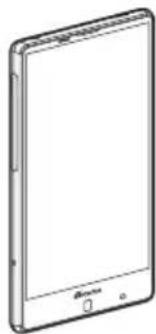
natural_image
Line drawing of a generic tablet device with no visible text or symbolsSH-01H
(includes warranty)
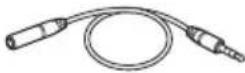
TV/Mobacas antenna cable SH01

Quick Start Guide (in Japanese only)
Notes on usage (in Japanese only)
- ● For optional parts (sold separately) compatible with the handset, refer to the DOCOMO website.
https://www.nttdocomo.co.jp/product/option/ (in Japanese only)
Contents
Using the handset....3
Precautions (ALWAYS FOLLOW THESE DIRECTIONS) . . . 4
Handling precautions 8
Waterproof/Dustproof 11
Before Using the Handset
Part names and functions .....13
docomo nano UIM card ....13
Charging 15
Turning power on/off 16
Basic operation....16
Character entry 19
Changing screen display to English .....22
Initial settings....22
Incoming/Charging lamp .....25
Screen display/Icons 25
Quick Launcher 27
Recent Apps ....28
Home applications....28
docomo LIVE UX
Home screen....29
App list screen ....30
Installing recommended apps ....33
Backing up/Restoring the home screen. . . . . . . . . . . . . . . . . . . . . . 33
Displaying all apps....33
My magazine 33
Information on apps ....33
Call
Making a call 34
Answering a call 35
Operation during a call 36
Outgoing/Incoming call history ....37
Voice/Answering memo 37
Call settings/Other 37
Phonebook 39
Mail/Web Browser
docomo mail 41
SMS....41
Email 42
Gmail ^TM 43
Early Warning "Area Mail" 44
Chrome 45
Apps
dmenu. 47
dmarket. 47
Play Store 47
Osaifu-Keitai 47
NOTTV/TV (Full-Seg/1Seg) 49
SH Camera....54
Translation finder 56
Search finder 57
Album 57
Media Player....58
GPS/Navigation 59
YouTube 60
Clock....60
Schedule....61
Memo 62
Calculator 62
SH tool 62
docomo backup 63
Handset Settings
Setting menu 65
Profile 65
Sound/notification 65
Illumination 66
Display 66
Battery & energy saving 67
Storage 67
Useful 68
Apps 70
Data usage 70
More 70
docomo service/cloud 71
Location 71
Lock & security 71
Language & input 75
Backup & reset 75
Date & time....76
Accessibility 76
Printing 77
About phone 77
File Management
Storage structure 78
Contents Manager 79
Data Communication
Bluetooth® function. 80
NFC communication 82
External Device Connection
PC connection....83
Printing/Saving by print service ....83
Home network settings .83
USB host function 84
Wireless output 84
Cooperating with Blu-ray Disc recorder .....84
VPN (Virtual Private Network) 85
International Roaming
Outline of international roaming (WORLD WING) .....86
Available services overseas .....86
Before use overseas ....86
Settings for use overseas .....86
Making/Receiving a call in your country of stay ..... 87
Setting international roaming 88
Checking after homecoming 88
Appendix/Index
Troubleshooting (FAQ) 89
Anshin Enkaku Support 91
Warranty and After-Sales Service .....92
Software update ....93
Main specifications 94
Specific Absorption Rate (SAR) of Mobile Phones .....96
Export Administration Regulations 97
Intellectual Property Right .....97
Unlocking SIM lock .99
Index 100
Using the handset
● ● The handset supports LTE, W-CDMA, GSM/GPRS and wireless LAN systems.
- Because the handset relies on radio signals, it cannot be used in a place with no signal (such as tunnels, underground or in buildings), in places with a weak signal or outside the Xi service area or FOMA service area. You may not use the handset in the upper floors of a building even with no obstructions in sight. There may also be times when the signal is strong and you are not moving but the call is interrupted.
- Because the handset uses radio waves, it is possible for a third party to listen in on a conversation. However, since the LTE, W-CDMA and GSM/GPRS systems automatically apply a private call feature to every call, a third party that tries to listen in only hears noise.
- The handset converts conversations into a digital signal and sends it to the other party over the radio. If the signal cannot be reconverted properly by such as moving to an area with a weak signal, the voice may not be heard correctly.
- Take notes of information (e.g. the phonebook, calendar, note, voice memo, answering memo) stored on the handset or save the information to external memory devices such as microSD Cards and PCs periodically. DOCOMO shall not be liable for any loss of content due to a failure, repair, model change or other handling of the handset.
- As with PCs, some user-installed apps etc. may disrupt the stability of your handset performance or unexpectedly transmit information via the Internet causing improper use of your location information, personal information stored on the handset, etc. Therefore, verify the supplier and operating conditions of the apps etc. to be used before using them.
● ● The handset supports the FOMA Plus-Area and the FOMA HIGH-SPEED Area.
- When the available space on the microSD Card or the handset is insufficient, apps in use may not work properly. In this case, delete saved data.
- ● The handset does not support connection to i-mode website (program), i-αppli, etc.
● ● The handset does not support providers other than sp-mode, mopera U and Business mopera Internet.
- In the home screen, [Settings] ▶ [Settings] ▶ [Profile] to check your phone number (own number).
● ● The handset does not support Public Mode (Drive Mode).
- Setting the handset to the manner mode does not mute sounds (camera shutter sound etc.) other than the ringtone, operation sound, and various notification sounds.
- The handset automatically performs communication for some functions, for example, to synchronize data, check the latest software version or maintain connection with the server. Also, making a communication with large-volume data such as downloading apps or watching videos will lead to higher packet communication charges. Subscription to Packet Pack/flat-rate packet communication services is highly recommended.
- Even while the Wi-Fi connection is set, packet communication charges may be incurred depending on the app and service you use.
- Software on the handset can be updated to up-to-date status (P. 93 "Software update").
- For details on software version of your handset P. 77 "About phone"
- New functions may be added to the handset or the operation method may change by upgrading the OS version. Check the DOCOMO website for the latest information on these additions and changes.
- If the OS is upgraded, some apps used in the previous OS version may not be available or some unintended bugs may occur.
- Secure the security of the handset by setting Screen lock in case you lose it (P. 71 "Lock & security").
- If your handset is lost, change your password for each account using a PC to prevent other persons from using Google™ services such as Gmail and Google Play™, and services such as SNS.
- ● Apps and their service contents are subject to change without prior notice.
- ● Read the terms of service of Google Inc. for details on Google services. Also, read each terms of service for details on other web services.
- If the terms of service etc. is displayed, follow the instructions on the screen and operate.
- Subscription to sp-mode is required to use tethering.
- Subscription to Packet Pack/flat-rate packet communication services is highly recommended to use tethering.
- ● Since NOTTV is a service that collaborates with communications, packet communication charges are incurred when using this service. Subscription to Packet Pack/flat-rate packet communication services is recommended.
● ● For details on usage fees etc., refer to the DOCOMO website. - The display is manufactured using high-precision technology, but it may contain dots that fail to light or that remain permanently lit on some areas. This is a characteristic of display and not a malfunction.
● The battery is built into the handset and you cannot replace it by yourself. - Note that DOCOMO shall not guarantee operation of commercially available optional parts.
Precautions (ALWAYS FOLLOW THESE DIRECTIONS)
- Before use, read these "Precautions" carefully and use your handset properly.
Keep this manual in a safe place for future reference.
● These precautions contain information intended to prevent bodily injury to the user and to surrounding people, as well as damage to property, and must be observed at all times.
The following symbols indicate the different degrees of injury or damage that may occur if information provided is not observed and the handset is used improperly.
 |  | This symbol indicates that “death or serious bodily injury may directly and immediately result from improper use”. |
 |  | This symbol indicates that “death or serious bodily injury may result from improper use”. |
 |  | This symbol indicates that “minor injury and/or property damage may result from improper use”. |
The following symbols indicate specific directions.
 Don't Don't | Indicates a prohibited action. |  _No wet hands _No wet hands | Indicates not to handle the device with wet hands. |
| No disassembly | Indicates not to disassemble the device. |  _Instruction _Instruction | Indicates that instructions specified are compulsory (must be followed). |
| No liquids | Indicates not to use the device near water or get it wet. |  _Unplug _Unplug | Indicates that the power cord must be unplugged from the outlet. |
No wet hands
Instruction
"Precautions" is explained in the following six sections.
● Handling the handset, adapters, docomo nano UIM card and TV/Mobacas antenna cable (general). P. 4
● Handling the handset P. 5
● Handling adapters.... P. 6
● Handling docomo nano UIM card ..... P. 7
● Handling near electronic medical equipment ..... P. 7
● Material list ...... P. 7
Handling the handset, adapters, docomo nano UIM card and TV/Mobacas antenna cable (general)

Danger

Don't
Do not use, store or leave the equipment in locations subject to high temperatures or accumulation of heat (near a fire or heating unit, in a kotatsu or bedding, under direct sunlight, inside a vehicle on a hot day, etc.). May cause fires, burns, bodily injury, electric shock, etc.

Don't
Do not place the equipment inside cooking appliances such as microwave ovens or pressure cookers.
May cause fires, burns, bodily injury, electric shock, etc.

Do not attempt to disassemble or modify the equipment.
No disassembly
May cause fires, burns, bodily injury, electric shock, etc.

Do not get the equipment wet with liquids such as water (drinking water, sweat, seawater, pet urine, etc.). May cause fires, burns, bodily injury, electric shock, etc. Refer to the following for details on waterproofness. P. 11 "Waterproof/Dustproof"

Do not allow liquids such as water (drinking water, sweat, seawater, pet urine, etc.) to get inside the charger terminal or external connector terminal. May cause fires, burns, bodily injury, electric shock, etc. Refer to the following for details on waterproofness. P. 11 "Waterproof/Dustproof"

Use only optional parts specified by NTT DOCOMO for use with the handset. May cause fires, burns, bodily injury, electric shock, etc.

Warning

Don't
Do not subject the equipment to strong force or impacts such as letting it fall, stepping on it or throwing it.
May cause fires, burns, bodily injury, electric shock, etc.

Do not allow conductive materials (such as metal objects and pencil lead) to come into contact with the charger terminal or external connector terminal or dust to get inside it. May cause fires, burns, bodily injury, electric shock, etc.

Do not cover or wrap the equipment with bedding etc. when using or charging. May cause fires, burns, etc.

Be sure to turn off the handset and not to charge the battery in locations such as gas stations where flammable gas may be generated.
May cause a gas explosion or fire. To use Osaifu-Keitai in locations such as gas stations, be sure to turn off the power in advance (If NFC/Osaifu-Keitai lock is set, disable the lock before turning off the power).
| !Instruction | If you notice anything unusual, such as an unusual odor, unusual noise, smoking, overheating, discoloration or deformation during use, charging or storage, follow the instructions below.● Unplug the power plug from the outlet or cigarette lighter socket.● Turn off the handset.May cause fires, burns, bodily injury, electric shock, etc. if you do not follow the instructions above. |
Caution
| Don't | Do not leave the equipment on unstable surfaces, such as on a wobbly table or sloped surface.May fall and cause injury etc. |
| Don't | Do not store the equipment in locations that are subject to humidity, dust or high temperatures.May cause fires, burns, electric shock, etc. |
| Instruction | If being used by a child, have a guardian teach him/her the proper handling procedures. In addition, check that the child is using the equipment as directed.May result in bodily injury etc. |
| Instruction | Keep the equipment out of the reach of young children.A young child may swallow the equipment, or suffer bodily injury, electric shock, etc. |
| Instruction | Be careful when using the handset continuously for a long time or charging. Also, be careful not to touch it unintentionally for a long time when you fall asleep etc.The handset or adapter may become warm when using an app, a call, data communication, watching TV or video, etc. for a long time or charging.Directly touching a warmed part for a long time may cause redness, itching, rashes, etc. on your skin, or result in low-temperature burns etc. depending on your constitution or health condition. |
Handling the handset
The following is the type of the internal battery built into the handset.
| Label Battery type | |
| Li-ion00 Lithium-ion |
Danger
| Don't | Do not throw the handset into a fire or heat it.May cause fires, burns, bodily injury, etc. because ofcatching fire, exploding, overheating or leaking of theinternal battery. |
| Don't | Do not apply excessive force on the handset suchas by puncturing it with a nail (sharp object), hittingit with a hammer (hard object) or stepping on it.May cause fires, burns, bodily injury, etc. because ofcatching fire, exploding, overheating or leaking of theinternal battery. |
| Instruction | If the battery fluid etc. comes into contact with youreyes, do not rub your eyes but immediately rinseyour eyes with clean water. Then seek promptmedical treatment. |
May result in loss of eyesight etc.
Warning
| Don't | Do not point the illuminated light directly at someone's eyes. Especially when you shoot still pictures or videos of young children, keep 1 m or more distance from them.Do not use Mobile light near people's faces. Eyesight may be temporarily affected leading to accidents etc. |
| Don't | Do not allow water or other liquids, metal, flammable material or other foreign object to enter the docomo nano UIM card slot or microSD Card slot on the handset.May cause fires, burns, bodily injury, electric shock, etc. |
| Don't | Do not shine the mobile light at anyone driving a car or other vehicles.May prevent a driver from driving safely and cause a traffic accident. |
| Don't | If any trouble such as an unusual odor, overheating, discoloration or deformation is found, immediately stop using it and move it away from any naked flames or fire.May cause fires, burns, bodily injury, etc. because of catching fire, exploding, overheating or leaking of the internal battery. |
| Instruction | Turn off the handset or set it to Airplane mode before going aboard an airplane.Since using the handset on airplanes is restricted, follow the instructions given by the respective airlines.May interfere with the operation of electronic devices installed on the airplane.If you commit a prohibited act while using the handset on an airplane, you may be punished by law. |
| Instruction | Follow the instructions given by the respective medical facility regarding the use of the handset in a hospital.Turn off the handset in areas where the use of mobile phones is prohibited.May interfere with the operation of electronic devices and electronic medical equipment. |
| Instruction | Keep the handset away from the ears during a call in which hands-free is set or while the ringtone is ringing.When you attach the earphone/microphone etc. to the handset to play games, music, etc., do not make the volume too loud.Excessively high volume may damage your hearing etc.Also, it may prevent you from hearing ambient sounds and cause an accident. |
| Instruction | If you have a weak heart, take extra precautions when setting functions such as the vibrator and ringtone volume for incoming calls.May have harmful effects on your heart. |
| Instruction | If you are using electronic medical equipment etc., contact the respective manufacturer or dealer to check whether the operation of the equipment is affected by signals.May interfere with the operation of electronic medical equipment etc. |
| Instruction | Turn off the handset near high-precision electronic devices or devices that use weak electronic signals.May interfere with the operation of electronic devices.※ Take particular care with the following devicesHearing aids, implanted cardiac pacemakers, implanted cardioverter-defibrillators or other electronic medical equipment. Fire alarms, automatic doors, and other equipment controlled by electronic signals. If you use an implanted cardiac pacemaker, implanted cardioverter-defibrillator or other electronic medical equipment, contact the respective manufacturer or dealer to check whether the operation of the equipment is affected by signals. |
| Instruction | If the display part, back part or camera lens is damaged, be careful of broken glass and the exposed inside of the handset.Tape is pasted on the back surface of the display while the surface of the display and back surface of the back part are covered by protective films so as to minimize the possibility of glass scattering. However, touching the broken or exposed parts may cause bodily injury etc. |
| Instruction | If the internal battery leaks or emits an unusual odor, immediately stop using the handset and move it away from any naked flames or fire.The battery fluid is flammable and could ignite, causing a fire, explosion, etc. |
| Caution | |
| Don't | Do not use a damaged handset.May cause fires, burns, bodily injury, electric shock, etc. |
| Don't | For using a motion sensor and geomagnetic sensor, check the safety around, hold the handset and do not swing it more than necessary.May cause an accident such as bodily injury. |
| Don't | If the display is broken and the internal substance etc. then leaks, do not get it on your skin (face, hands, etc.).May result in loss of eyesight or harm to your skin.If the internal substance etc. comes into contact with your eyes or mouth, immediately rinse the contacted area with clean water and seek medical treatment.If it comes into contact with your skin or clothes, immediately wipe it off with alcohol etc., and rinse the contacted area with soap etc. |
| Don't | The surface of the display is covered with a protective film for ensuring the security(shatterproof property of reinforced glass panel) against any damages caused by the handset being dropped or receiving a strong impact etc. Do not remove the film forcibly or damage it.Using the handset with the film removed may cause bodily injury if the display gets damaged. |
| Don't | Do not dispose of the handset in ordinary garbage.May cause fires or damage to the environment. Take the unnecessary handset to a sales outlet such as a docomo Shop or follow the instructions by a local institution that handles used handsets. |
| Instruction | If you use the handset in a vehicle, contact the vehicle manufacturer or dealer to check whether the operation of the vehicle is affected by signals.May interfere with the operation of electronic equipment in some vehicle models. In this case, stop using the handset. |
| Instruction | Use of the handset may cause itching, rashes, eczema, etc. depending on your constitution or health condition. If this occurs, immediately stop using the handset and seek medical treatment.For details on materials of each part P. 7 “Material list” |
| Instruction | Look at the display in a well-lit place, keeping a certain distance from the screen.Otherwise, eyesight may be weakened etc. |
| Instruction | If the battery fluid etc. leaks, do not get the liquid on your skin (face, hands, etc.).May result in loss of eyesight or harm to your skin.If the liquid etc. comes into contact with your eyes, mouth, skin or clothes, immediately rinse the contacted area with clean water.If the liquid etc. comes into contact with your eyes or mouth, seek medical treatment immediately after rinsing the contacted area. |
Handling adapters
| Warning | |
| Don't | Do not use if the cord of the adapter is damaged.May cause fires, burns, electric shock, etc. |
| Don't | Never use the adapter in humid locations such as a bathroom.May cause fires, burns, electric shock, etc. |
| Don't | The DC adapter should only be used in negative grounded vehicles. Never use it in positive grounded vehicles.May cause fires, burns, electric shock, etc. |
| Don't | Do not touch adapters if you hear thunder.May cause electric shock etc. |
| Don't | Do not short-circuit the charger terminal when connected to an outlet or cigarette lighter socket.Also, do not allow any part of your body (hands, fingers, etc.) to come into contact with the charger terminal.May cause fires, burns, electric shock, etc. |
| Don't | Do not place heavy objects on the cord of the adapter.May cause fires, burns, electric shock, etc. |
| Don't | When plugging/unplugging an AC adapter into/from the outlet, do not allow metallic straps or other metallic objects to come into contact with the prongs of the plug.May cause fires, burns, electric shock, etc. |
| Don't | Do not connect the voltage converter for overseas travel (travel converter) to the AC adapter.May catch fire, or cause overheat, electric shock, etc. |
| Don'tDon't | Do not apply excessive force on the connection part with the adapter connected to the handset.May cause fires, burns, bodily injury, electric shock, etc.Never try to connect the microUSB plug when the handset or AC adapter is wet or dirty.The AC adapter does not provide waterproof/dustproof performance though the handset provides them. Inserting the microUSB plug while the equipment is wet or dirty may cause short circuit when you charge the battery and lead to abnormal overheat, malfunction, fires or burns due to water, foreign object, etc. adhering to the handset or microUSB plug. |
| No wet hands | Do not handle the cord, charger terminal or power plug of the adapter with wet hands.May cause fires, burns, electric shock, etc. |
| Instruction | Always use the specified power supply and voltage.When using overseas, use the AC adapter that is available overseas.Using the incorrect power supply and voltage may cause fires, burns, electric shock, etc.AC adapter: 100V AC (Connect only with a household AC outlet)AC adapter available overseas: 100 to 240V AC (Connect only with a household AC outlet)DC adapter: 12/24V DC (for negative grounded vehicles only) |
| Instruction | If the fuse in the DC adapter blows, always replace it with a specified fuse.May cause fires, burns, electric shock, etc. if you use the fuse other than specified one. Refer to the respective manuals for information on specified fuses. |
| Instruction | Wipe off any dust on the power plug.May cause fires, burns, electric shock, etc. if you use the power plug with dust adhering. |
| Instruction | Fully plug the adapter into the outlet or cigarette lighter socket.May cause fires, burns, electric shock, etc. if you do not insert the adapter securely. |
| Instruction | Always grasp the adapters when unplugging the power plug from the outlet or cigarette lighter socket. Do not apply excessive force on it such as pulling the cord of the adapter.May cause fires, burns, electric shock, etc. since the cord of the adapter is damaged by pulling it. |
| Instruction | When plugging/unplugging an adapter into/from the handset, plug/unplug the adapter straightly toward the terminal to connect, not applying excessive force on it such as pulling the cord.May cause fires, burns, bodily injury, electric shock, etc. if you do not plug/unplug the adapter correctly. |
| Unplug | Unplug the power plug of the adapter from the outlet or cigarette lighter socket when not using.May cause fires, burns, bodily injury, electric shock, etc. if you leave the power plug with plugging to the outlet or cigarette lighter socket. |
| Unplug | Should water or other liquids (drinking water, sweat, seawater, pet urine, etc.) enter the equipment, remove the power plug from the outlet or cigarette lighter socket.May cause fires, burns, electric shock, etc. |
| Unplug | Always unplug the power plug from the outlet or cigarette lighter socket before cleaning the equipment.May cause fires, burns, electric shock, etc. |


Don't
Do not touch the adapter for a long time when connected to an outlet or cigarette lighter socket. May cause burns etc.
Handling docomo nano UIM card


Instruction
Be careful with the cutting surface when handling the docomo nano UIM card. May cause bodily injury etc.
Handling near electronic medical equipment


Instruction
If you have electronic medical equipment such as an implanted cardiac pacemaker or an implanted cardioverter-defibrillator, always carry or use your handset at least 15 cm away from your implant. Electromagnetic signals may have harmful effects on the operation of the electronic medical equipment.

Instruction
Patients receiving medical treatment away from a medical facility (e.g. home treatment) who are using electronic medical equipment other than implanted cardiac pacemakers or implanted cardioverter-defibrillators should consult the respective manufacturers etc. for information regarding the effects of signals on the equipment. Electromagnetic signals may have harmful effects on the operation of the electronic medical equipment.

Instruction
If there is any chance that the distance between the handset and a person closest to you may get shorter than 15 cm such as when you cannot freely move around, set the handset not to emit radio wave in advance (by setting Airplane mode, turning the power off, etc.). Somebody nearby may be equipped with electronic medical equipment such as an implanted cardiac pacemaker or an implanted cardioverter-defibrillator. Electromagnetic signals may have harmful effects on the operation of the electronic medical equipment.

Instruction
Follow the instructions given by the respective medical facilities regarding the use of the handset on their premises.
Material list
Handset
| Part Material/Surface treatment | |
| Display side | Reinforced glass/Shatterproof sheet of surface |
| Surrounding area of display side Aluminum/Anodizing | |
| Upper surface Aluminum/Anodizing | |
| Edge of upper surface | PC resin/UV coating for surface, Deposition |
| Bottom surface Aluminum/Anodizing | |
| Sides Aluminum/Anodizing | |
| Grip sensor Acryl | |
| Incoming/Charging lamp | PC resin/UV coating for surface, Deposition |
| Back | Reinforced glass/Printing on the back |
| Surrounding area of back | PA resin/UV coating for surface |
| docomo nano UIM card slot SUS/Ni plating | |
| microSD Card slot SUS/Ni plating | |
| docomo nano UIM card/microSD Card slot cover | PC resin/UV coating for surface, Deposition |
| Gasket of docomo nano UIM card/microSD Card slot cover | Silicon rubber, SUS |
| Tray for inserting docomo nano UIM card | POM resin |
| IMEI plate PET resin | |
| Surrounding area of earphone/ microphone terminal | PC resin |
| Power key Aluminum/Anodizing | |
| Side key Aluminum/Anodizing | |
| Camera panel | Reinforced glass/Printing on the back |
| Decoration of camera Aluminum/Anodizing | |
| Fingerprint sensor Polyimide/UV coating | |
| Decoration of fingerprint sensor Aluminum/Anodizing | |
| External connector terminal | SUS/Sn plating, Copper alloy/ Gold plating |
TV/Mobacas antenna cable SH01
| Part Material/Surface treatment | |
| Earphone/Microphone terminal (Resin section) | Styrene system elastomer |
| Earphone/Microphone terminal (Metal section) | Ni base, Brass/Gold plating |
| Cord Olefin system elastomer | |
| Connector | Styrene system elastomer |
| Connector (Connection) | POM resin |
| Plug (Metal section) | Ni base, Brass/Gold plating |
| Plug (Resin section) | PP resin |
Handling precautions
General notes
- SH-01H is waterproof/dustproof, however, do not allow foreign object such as liquid or dust to get inside the handset and do not allow foreign object such as liquid or dust to adhere to accessories or optional parts. The adapter, docomo nano UIM card and TV/Mobacas antenna cable are not waterproof/dustproof. Do not use in humid or steamy areas such as bathrooms and avoid exposing to rain and other forms of moisture. If they are carried close to the skin, perspiration may cause internal components to corrode and result in malfunction. Note that if a problem is found to be due to moisture, the handset and parts are not covered by warranty and in some cases may be irreparable. Even when repairs are possible, repair charges will be incurred, since the damage is not covered by warranty.
- Clean only with a soft and dry cloth (such as the type used for eyeglasses).
- Forceful rubbing of the display with a dry cloth etc. may scratch its surface.
- Water drops, dirt, etc. left on the display may cause stains to form on its surface.
- Never use chemicals such as alcohol, thinners, benzene or detergents, as these agents may erase the printing or cause discoloration.
- Occasionally clean terminals with a dry cotton swab etc. Dirty terminals may result in poor connections and loss of power or insufficient battery charge. Keep the terminals clean with a dry cotton swab etc. Be careful with the terminals while cleaning them.
- Do not place the equipment near an air conditioning vent. Condensation formed due to rapid changes in temperature may cause internal corrosion and lead to a malfunction.
- Do not apply excessive force on the handset etc. when using it.
Carrying the equipment in a tightly packed bag or sitting on it put in your pocket may cause damage to the display, internal components, etc. or result in a malfunction.
Keeping an external connector device plugged into the external connector terminal or earphone/microphone terminal may cause damage or a malfunction.
- ● Do not rub or scratch the display with metal etc.
May scratch it and cause a malfunction or damage.
- Read the respective user's guides supplied with supported optional parts carefully.
Notes about the handset
- Do not forcefully press the surface of the touch panel or operate with a pointed object such as a fingernail, ballpoint pen or pin.
May damage the touch panel.
- Avoid using the handset in extremely high or low temperatures.
Use the handset within the range of a temperature between 5^ C and 35^ C and a humidity between 45% and 85%.
- Using the handset close to land-line phones, TVs, radios, etc. may have harmful effects on the operation of such equipment. Move as far away as possible from such items before use.
- Keep a separate memo noting information stored on the handset.
DOCOMO shall not be liable for any loss of content.
- Do not drop or otherwise subject the handset to severe impact.
May cause a malfunction or damage.
- When connecting an external connector device to the external connector terminal or earphone/microphone terminal, do not put it in obliquely and do not pull it while it is plugged in. May cause a malfunction or damage.
● The handset becomes warm during use or charging but this is not a malfunction.
- Do not leave the camera in direct sunlight. May cause discoloration or burn-in of pixels.
- Use the handset with the docomo nano UIM card/microSD Card slot cover closed. Dust, water, etc. may get inside and cause a malfunction.
- Do not give a strong impact on the fingerprint sensor or scratch the surface.
May cause not only malfunction of the fingerprint sensor but also disabling authentication.
- Clean the fingerprint sensor with a soft and dry cloth (such as the type used for eyeglasses).
When the fingerprint sensor is dirty or gets wet on the surface, it cannot read the fingerprint and may degrade the authentication performance or cause an error.
● ● While using a microSD Card, do not remove the card or turn off the handset.
May cause data loss or a malfunction.
● ● Never place a magnetic card near the handset.
The stored magnetic data in cash cards, credit cards, telephone cards, floppy disks, etc. may be erased.
● ● Never place magnetized items near the handset.
Putting highly magnetized items closer may cause an error.
● The internal battery is a consumable product.
Though the battery life varies with use, change the battery if the battery life is extremely short even after being fully charged. For details on replacing the internal battery, contact the number listed in "Repairs" (in Japanese only) on the last page or a repair counter that DOCOMO specifies.
- Charge battery in areas where ambient temperature is between 5°C and 35°C.
● The battery life depends on the usage and deterioration of the battery.
- Avoid the following situations when the handset is stored.
■ ● Storage with the internal battery fully charged (immediately after charging is completed)
■ ● Storage with no battery level (cannot turn the handset on) May lower the performance or shorten the usable life of the internal battery.
Approximately 40% is recommended as the proper battery level for storage.
● The surface of the handset uses the aluminum material. Note that dent and abrasion are easily remained as aluminum is a soft material.
Notes about adapters
- Charge the battery in areas where the ambient temperature is between 5°C and 35°C.
- Do not charge the internal battery in the following locations.
■ ● Areas with high humidity or dust, or in areas exposed to frequent vibrations
■ ● Close to land-line phones, TVs, radios, etc.
- ● Adapters may become warm during charging but this is not a malfunction.
- Do not use the DC adapter to charge the battery when the car engine is not running.
May cause the car battery to run down.
- When using an outlet with a feature to prevent the plug from being removed accidentally, follow the instructions in the outlet user's guide.
- Do not subject to strong impacts. Also, do not deform the charger terminals.
May cause a malfunction.
Notes about docomo nano UIM card
- Do not apply unnecessary force when inserting/removing the docomo nano UIM card.
- Customer is responsible for malfunctions arising from inserting docomo nano UIM card into a different IC card reader/writer etc.
● ● Always keep IC area clean.
- Clean only with a soft and dry cloth (such as the type used for eyeglasses).
- Keep a separate memo and note information stored on the docomo nano UIM card.
DOCOMO shall not be liable for any loss of content.
- To protect the environment, please take any unneeded docomo nano UIM cards to a sales outlet such as a docomo Shop.
- Do not damage, touch haphazardly or short-circuit the IC. May cause data loss or a malfunction.
- Do not drop or otherwise subject the docomo nano UIM card to severe impact. May cause a malfunction.
- ● Never bend the docomo nano UIM card or place heavy objects on it.
May cause a malfunction.
- Do not insert the docomo nano UIM card to the handset with a label, sticker, etc. attached on the card.
May cause a malfunction.
Notes on using Bluetooth function
- The handset supports the security function that meets the Bluetooth specification for security during communication using Bluetooth functions. However, the security may not be sufficient depending on the configuration etc. Take care of the security while making communication using Bluetooth function.
- Even if any leak of data or information occurs while making communication using Bluetooth function, DOCOMO shall not be liable for any loss of content.
- Radio frequencies In the home screen, [☐] ▶ [Settings] ▶ [About phone] ▶ [Authentication] to confirm the radio frequencies the Bluetooth function of the handset uses. The followings are the descriptions:
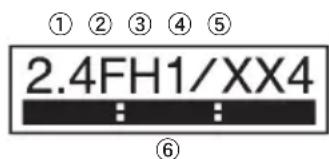
① 2.4: This radio equipment uses the 2,400 MHz band.
② FH: The modulation system is the FH-SS system.
③ 1: The estimated coverage distance is 10 m or less.
④ XX: Another modulation system is used.
⑤ 4: The estimated coverage distance is 40 m or less.
⑥ All radio frequencies between 2,400 MHz and 2,483.5 MHz are used and the frequencies for mobile object identifiers cannot be avoided.
- Cautions on using Bluetooth devices Bluetooth operates at radio frequencies assigned to the in-house radio stations for a mobile object identifier that have to be licensed and are used in production lines of a factory, specific unlicensed low power radio stations, and amateur radio stations (hereafter, referred to as “another radio station”) in addition to industrial, scientific and medical devices or home electric appliances such as microwave ovens.
-
Before using the handset, make sure that "another radio station" is not operating nearby.
-
If radio interference between the handset and "another radio station" occurs, avoid interference by moving immediately to another place or "turning off the power".
-
Contact the number listed in "General Inquiries" on the last page for further details.
Notes about wireless LAN (WLAN)
- Wireless LAN (WLAN) uses radio waves to communicate information. Therefore, it has an advantage of freely connecting to the LAN within the service area. On the other hand, if security setting is not set, it is possible for a malicious third party to intercept the communication contents or hack. It is recommended to set security setting at your own risk and judgement.
● ● Wireless LAN
Do not use wireless LAN near magnetic devices such as electric appliances or AV/OA devices or in radio waves.
- Magnetism or radio waves may increase noises or disable communications (especially when using a microwave oven).
- When used near TV, radio, etc., reception interference may occur or channels on the TV screen may be disturbed.
- If there are multiple wireless LAN access points nearby and the same channel is used, search may not work correctly.
● ● Radio frequencies
In the home screen, [Settings] ▶ [About phone] ▶ [Authentication] to confirm the radio frequencies the WLAN-installed devices use. The followings are the descriptions:
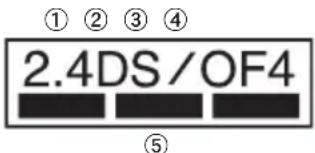
① 2.4: This radio equipment uses the 2,400 MHz band.
② DS: The modulation system is the DS-SS system.
③ OF: The modulation system is the OFDM system.
④ 4: The estimated coverage distance is 40 m or less.
⑤ All radio frequencies between 2,400 MHz and 2,483.5 MHz are used and the frequencies for mobile object identifiers can be avoided.
Available channels for the handset's wireless LAN are between 1 and
13. Note that other channel access points cannot be connected.
Available channels may vary depending on the country.
For use in an aircraft, contact the airline beforehand.
● ● Cautions on using 2.4 GHz devices
WLAN-installed devices operate at radio frequencies assigned to the in-house radio stations for a mobile object identifier (radio stations requiring a license) used in production lines of a factory, specific low power radio stations (radio stations requiring no license), and amateur radio stations (radio stations requiring a license) in addition to industrial, scientific and medical devices or home electric appliances such as microwave ovens.
- Before using this device, make sure that the in-house radio stations for a mobile object identifier, specific low power radio stations and amateur radio stations are not operating nearby.
- If the device causes harmful radio interference to the in-house radio stations for a mobile object identifier, immediately change the radio frequency or stop use, and contact the number listed in "General Inquiries" on the last page for crosstalk avoidance, etc. (e.g. partition setup).
- If the device causes radio interference to specific low power radio stations for a mobile object identifier or amateur radio stations, contact the number listed in "General Inquiries" on the last page for further details.
● Cautions on using 5 GHz devices
In the 5 GHz frequency band, three bands of 5.2 GHz/5.3 GHz/5.6 GHz band (W52/W53/W56) are available.
W52 (5.2 GHz band/36, 40, 44, 48 ch)
W53 (5.3 GHz band/52, 56, 60, 64 ch)
- W56 (5.6 GHz band/100, 104, 108, 112, 116, 120, 124, 128, 132, 136, 140 ch)
Using 5.2 GHz/5.3 GHz band wireless LAN (W52/W53) outdoors is prohibited by the Radio Law.
FeliCa and NFC reader/writer
● The FeliCa, NFC reader/writer and P2P function of the handset use weak radio waves whose handling does not require a license of radio station.
- The frequency in use is the 13.56 MHz band. When another reader/writer or P2P function is being used nearby, keep enough distance from it. Make sure that there is no radio station using the same frequency band in the nearby area.
- For use in an aircraft, contact the airline beforehand. Use of the function may be restricted in some countries.
Check conditions such as regulations of the country/region to use the function.
Caution
- ● Never use the handset that is modified. Using a modified device violates the Radio Law and/or the Telecommunications Business Law.
The handset follows the regulations regarding the certification of conformity with technical regulations for specific radio stations etc. based on the Radio Law and authentication of conformity with technical regulations for devices etc. based on the Telecommunications Business Law, and the "Technical Conformity Mark" can be displayed on the electronic nameplate of the handset as a proof. You can see it by operating as follows. In the home screen, [Settings] ▶ [About phone] ▶ [Authentication]
If the screws of the handset are removed and a modification is given to the inside, the certification of conformity with technical regulations etc. will become invalid. Never use the handset without the valid certification etc. Doing so violates the Radio Law and/or the Telecommunications Business Law.
- Be careful when using the handset while driving a motor vehicle.
Using the handset in hand while driving is regarded as a punishable act. However, the punishment has no application in some cases such as when rescuing sick and injured people or maintaining public safety.
- The FeliCa and NFC reader/writer function of the handset conform to the domestic radio wave standards. When you use it overseas, check conditions such as regulations of the country/region in advance.
- ● Never change the basic software improperly.
This may be regarded as a conversion of software and repairs may be refused.
Waterproof/Dustproof
SH-01H is waterproof to IPX5 ^*1 and IPX8 ^*2 standards, and dustproof to IP5X ^*3 standard if the docomo nano UIM card/microSD Card slot cover is securely closed.
*1 IPX5 means that phone keeps functioning after being subjected to a jet flow (12.5 liters/min) discharged from a nozzle (inner diameter: 6.3 mm), from all directions (approximately 3 m from the handset) for 3 minutes or more.
*2 IPX8 means that SH-01H phone keeps functioning after it is slowly submerged to depth of 1.5m in static tap water at room temperature, left there for approximately 30 minutes and then taken out.
*3 IP5X means the level of dust protection. Phone keeps functioning in safety after it is left in the device containing dust (diameter: 75 μm or smaller) for 8 hours, agitated and then taken out.
What you can do with waterproof/dustproof of SH-01H
- ● You can call without using an umbrella in the rain (for rainfall of approximately 20 mm per hour).
- ● You can rinse dirt off from the handset. Wash the handset with low-pressure water flow (6 liters/min or lower and tap water at room temperature (between 5°C and 35°C)), holding it approximately 10 cm below faucet or shower head. Wash by using only your hands, not a brush or sponge, with the docomo nano UIM card/microSD Card slot cover held in position. Drain the handset before use (P. 12 "Draining water when the handset gets wet").
- ● You can use the handset at a poolside. Do not throw water in a swimming pool on the handset or soak the handset in the water of a swimming pool.
Things to keep in mind
To maintain waterproof/dustproof performance, check the followings.
- Securely close the docomo nano UIM card/microSD Card slot cover. Be careful not to apply excessive force on the rubber gasket when opening and closing.
- Make sure that the docomo nano UIM card/microSD Card slot cover is completely closed without floating.
- To maintain waterproof/dustproof performance, the handset has the docomo nano UIM card/microSD Card slot cover that allows you to close securely. Note that opening it forcibly may cause injuries to your nails, fingers, etc.
- For details on how to open/close the docomo nano UIM card/microSD Card slot cover P. 14 "Inserting docomo nano UIM card"
- To maintain waterproof/dustproof performance, replacement of parts is recommended every 2 years regardless of whether the handset appears normal or abnormal. DOCOMO replaces the parts as a chargeable service. Bring the handset to a repair counter that DOCOMO specifies.
Precautions
- When your hands are wet or water/foreign object adheres to the handset, do not open/close the docomo nano UIM card/microSD Card slot cover.
- ● Close the docomo nano UIM card/microSD Card slot cover securely. Even a fine obstacle (one hair, one grain of sand, tiny fiber, etc.) put between contact surfaces may allow liquids or dust to get inside.
- If the handset gets wet with water or other liquids with the docomo nano UIM card/microSD Card slot cover opened, the liquid may get inside causing electric shocks or malfunction. Stop using the handset, turn off the power and contact a repair counter that DOCOMO specifies.
- The rubber gasket of the contact surface between the main body and docomo nano UIM card/microSD Card slot cover plays an important role in maintaining waterproof/dustproof performance. Do not remove or scratch it. Also, prevent dust from adhering to it. If the rubber gasket is damaged or deformed, replace it at a repair counter that DOCOMO specifies.
- Do not insert a pointed object through the docomo nano UIM card/microSD Card slot cover gaps. It may cause damage to the rubber gasket and allow liquids or dust to get inside.
- Do not use the handset underwater (including key operations). May cause malfunction.
- Do not directly apply water flow stronger than allowed (over 6 liters/min). May cause malfunction though SH-01H provides waterproof performance of IPX5.
- Do not let the handset get wet with liquids other than water at room temperature (between 5^ and 35^ ) or do not soak the handset in the liquids. If you let the handset get wet with liquids other than water at room temperature or soak the handset in the liquids, stop using the handset and wash it with water at room temperature.
- Do not wash the handset in a washing machine etc.
- To prevent condensation, do not bring the handset from a cold place to a warm place without letting the handset warmed to room temperature.
- ● Never soak the handset in hot spring water or water containing soap, detergent or bath powder.
- Do not soak the handset in hot water, use it in a sauna or apply hot air (from a hair dryer etc.) to it.
- Do not soak the handset in seawater.
- ● Do not put the handset directly on sand/dirt.
- If foreign object such as salt water, seawater, drink, seasoning, food, dirt or soil adheres to the handset, rinse it off immediately. If it becomes dry and hard, it is difficult to remove it and may cause damage or malfunction.
- Do not leave the handset wet. In cold places, water may freeze and cause malfunction.
● ● The handset does not float on water. - Do not let the handset fall. It may become scratched and cause the waterproof/dustproof performance to degrade.
- Do not leave water on the mouthpiece, earpiece, speaker, microphone or earphone/microphone terminal. Such water may interfere with talking.
- Do not poke the mouthpiece, earpiece, speaker, microphone, air vent, external connector terminal, earphone/microphone terminal, etc. with a pointed object.
- Do not insert an earphone/microphone to the handset while the handset is wet. May cause malfunction.
- Accessories and optional parts are not waterproof/dustproof. Do not use them in rooms where water is regularly in use such as bathroom, shower room, kitchen or lavatory.



Soap/Detergent/ Seawater Swimming pool Bath powder
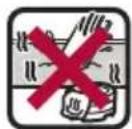

Hot spring Sand/Dirt
- ● DOCOMO does not guarantee actual operations under all states. Malfunctions deemed to be caused by inappropriate operation by the customer are not covered by the warranty.
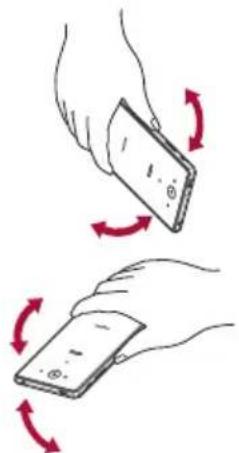
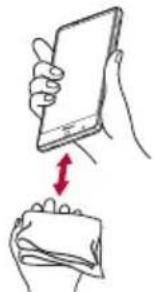
Draining water when the handset gets wet
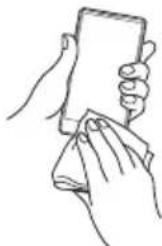
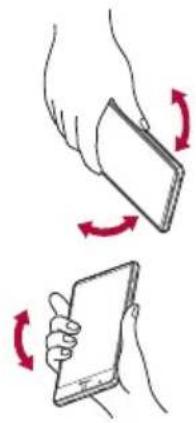
When the handset is wet, water may flow out after wiping it off. Drain the water by following the steps below.
1 Wipe off water on the handset surface with dry and clean cloth etc.
natural_image
Line drawing of a hand holding a smartphone and cleaning a cloth (no text or symbols)2 Shake the handset approximately 20 times, securely holding it, until there is no more water splattering
natural_image
Illustration of two hands holding a smartphone, showing the left and right turn gestures (no text or symbols)To drain water off the speaker, shake the handset with the speaker turned down
natural_image
Illustration of two hands holding a smartphone with red circular arrows indicating rotation (no text or symbols)To drain water off the earpiece, shake the handset with the earpiece turned down
3 Softly press the handset against dry and clean cloth etc. to wipe off water remaining in the grooves of the mouthpiece, earpiece, speaker, microphone, keys, air vent, external connector terminal, earphone/microphone terminal, etc.
- Pat the opening with cloth etc. to remove water because there may be any water remaining in the grooves of each part.
natural_image
Illustration of a hand holding a smartphone and a cloth, with a red arrow indicating compression or disassembly (no text or symbols)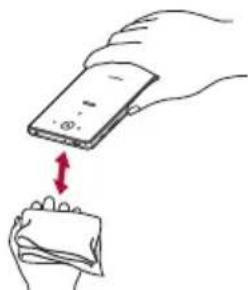
natural_image
Illustration of a hand holding a smartphone and a card, with a red arrow indicating the download (no text or symbols present)4 Wipe off water oozing from the handset with dry and clean cloth etc. and leave it for a while to dry it
- Water, if any, remaining in the main body may ooze after wiping off.
- Pat the opening with cloth etc. again to remove water because you may not be able to hear sounds well if drainage is insufficient.
Charging
Accessories and optional parts are not waterproof/dustproof. Check the followings before and after charging.
● Make sure that there is no water or foreign object on the handset. If foreign object adheres to the handset, immediately rinse it off. Also, if the handset is wet or after the handset is wet, adequately drain it and wipe off water with dry and clean cloth etc. then leave it for a while to dry it before opening the docomo nano UIM card/microSD Card slot cover.
Warning
Never try to connect the microUSB plug when the handset is wet or foreign object adheres to the handset.
● The AC adapter (sold separately) does not provide waterproof dustproof performance though the handset provides them. Inserting the microUSB plug while the equipment is wet or dirty may cause short circuit when you charge the battery and lead to abnormal overheat, malfunction, fires or burns due to water, foreign object, etc. adhering to the handset or microUSB plug.
- Do not touch an AC adapter with your hands wet. May cause electric shock.
- Do not use the AC adapter in a place subject to water. Do not use it in rooms where water is regularly in use such as bathroom, shower room, kitchen or lavatory. May cause fires or electric shock.
Before Using the Handset
Part names and functions
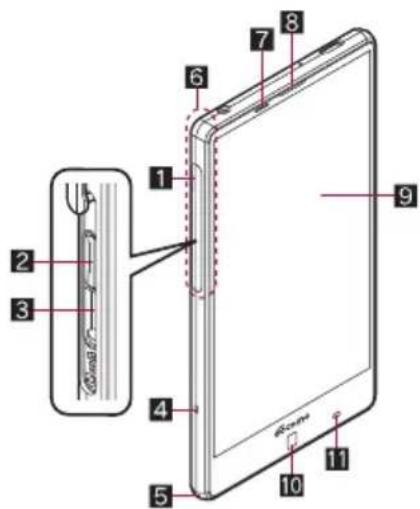
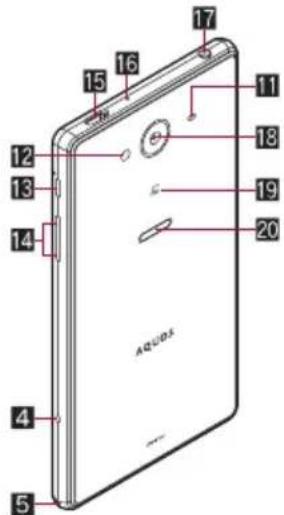
1docomo nano UIM card/microSD Card slot cover
2docomo nano UIM card slot
● ● The tray for inserting the docomo nano UIM card is stowed.
3microSD Card slot
4 Grip sensor
5Incoming/Charging lamp
6GPS/TV antenna*1
7 Proximity sensor (upper part of the display)/Brightness sensor ^2
● The proximity sensor (upper part of the display) detects the distance to the face and prevents inadvertent operation of touch panel during a call.
● The brightness sensor detects the brightness of the surrounding area and adjusts the brightness of the backlight.
8 Earpiece
9 Display/Touch panel *3
10 Front camera
11 Proximity sensor for Grip Magic (lower part of the display/back) ^2
- Detects the distance to the object and prevents inadvertent operation of Grip Magic.
12 Mobile light
13 | (●): Power key
- Use to turn the power on/off, etc.
- Use to turn the display on/off.
14(+)//(-): Volume UP/DOWN key
- ● Adjusts the volume in each function.
15 External connector terminal
16 Microphone
- Use when recording videos.
- Use to measure ambient noises for communicating by making your voices sound clear when using Clear talk.
17 Earphone/Microphone terminal
18 Back camera
19 mark
- IC card is contained (It cannot be removed).
20Fingerprint sensor
- Use to unlock the touch panel etc. by fingerprint authentication.
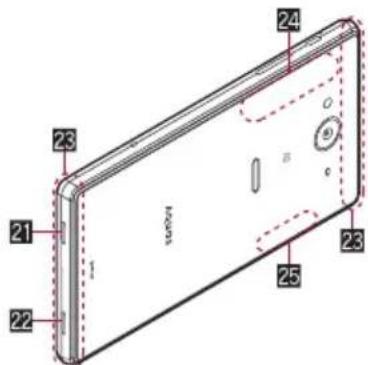
21 Mouthpiece/Microphone/Air vent
- Use as a microphone when recording videos or talking to emopa.
● ● A vent to remove excess air from the handset.
22Speaker
● Ringtone, music, etc. can be heard from here.
● The other party's voice can be heard from here during a hands-free call.
23FOMA/Xi antenna *1
24Wi-Fi/Bluetooth antenna*1
25Wi-Fi antenna *1
*1 The antenna of back is built into the main body. At sides of the handset, the metal sections of surface are used as the antenna. Covering the antenna area with your hand may influence the quality.
*2 Do not cover the sensor area with your hand or paste a sticker etc. on the sensor area. The sensor may not work properly.
*3 If the handset is equipped with a commercially available corresponding flip cover, you can turn the display on/off by opening/closing the flip cover. If you close the equipped flip cover obliquely, the display may not be turned off.
Microphone
- When using functions which support the microphone, do not cover the hole of the microphone.
docomo nano UIM card
A docomo nano UIM card is an IC card that records personal information, such as your phone number.
- ● You cannot use functions such as the phone or packet communication without inserting a docomo nano UIM card.
- In Japan, you cannot call to the emergency number (110, 119 or 118) without inserting a docomo nano UIM card.
- A docomo nano UIM card has a security code called PIN code (P. 73 "PIN code").
- The handset supports only docomo nano UIM card. If you have a docomo mini UIM card, UIM or FOMA card, bring it to a docomo Shop to replace.
- Before inserting or removing the docomo nano UIM card, turn off the power. Hold the handset securely with your hand.
- Inserting docomo nano UIM card
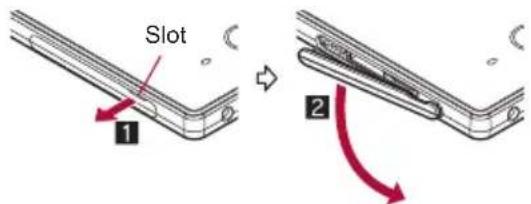
1 Open the docomo nano UIM card/microSD Card slot cover
- Hook the tip of a finger into the slot and pull out it forward (1), and then rotate it in the direction of the arrow to open (2).
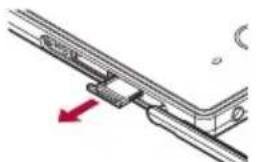
2 Remove the tray from the docomo nano UIM card slot
- Hook the tip of a finger into the tray to remove it by slowly pulling it straight out.
natural_image
Mechanical assembly diagram showing a bracket with a red arrow indicating direction (no text or symbols)3 Hold the docomo nano UIM card with the IC (gold) side turned up and set it on the tray
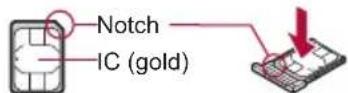
4 Insert the tray slowly into the docomo nano UIM card slot
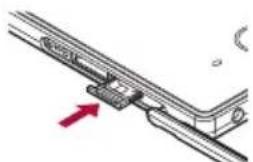
natural_image
Mechanical assembly diagram showing a lever mechanism with a red arrow indicating motion direction (no text or symbols)- The docomo nano UIM card slot is at the right side of the microSD Card slot. When you insert the tray, be careful not to insert it to the microSD Card slot.

docomo nano UIM card slot (right side)
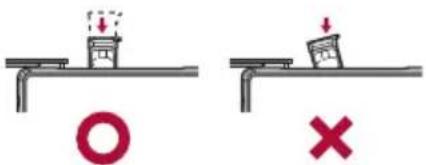
- Do not forcibly insert the tray at an angle or with the wrong side up. The docomo nano UIM card slot or tray may be damaged.
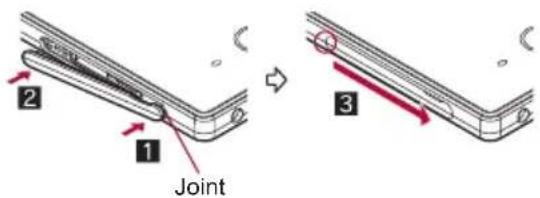
5 Close the docomo nano UIM card/microSD Card slot cover
- Stow the joint of the docomo nano UIM card/microSD Card slot cover (1) and push the cover in the direction of the arrow to close it so that gaps are not left between the handset and the cover (2). When closing it, push securely like tracing it from ○ areas to the joint (3).
■ Removing docomo nano UIM card
1 Open the docomo nano UIM card/microSD Card slot cover
2 Remove the tray from the docomo nano UIM card slot
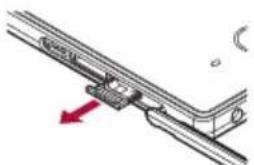
natural_image
Mechanical assembly diagram showing a lever mechanism with a red arrow indicating motion direction (no text or symbols)3 Remove the docomo nano UIM card from the tray
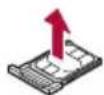
4 Insert the tray slowly into the docomo nano UIM card slot
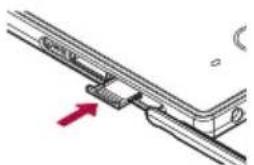
natural_image
Mechanical assembly diagram showing a lever mechanism with a red arrow indicating motion direction (no text or symbols)5 Close the docomo nano UIM card/microSD Card slot cover
- Do not allow the docomo nano UIM card or tray to fall when removing them.
● Make sure not to touch or damage the IC (gold) of the docomo nano UIM card when handling it. Also, note that inserting or removing the docomo nano UIM card forcibly may damage it or deform the tray. - Refer to the docomo nano UIM card user's guide for more information on the docomo nano UIM card.
- Do not misplace the docomo nano UIM card once it is removed.
IMEI plate
● A plate on which the IMEI number (International Mobile Equipment Identifier) is printed is stowed near the microSD Card slot. The IMEI number is required when you contact a repair counter that DOCOMO specifies, so do not pull it out.
● Note that pulling out the IMEI plate forcibly or adding forces on it may damage the plate.
- If you accidentally pull out the IMEI plate, slowly return the IMEI plate to the original position while taking care not to insert it too deep.
Charging
The internal battery is not fully charged at the time of purchase. Be sure to charge the battery before use.
■ Cautions while charging
- For details on the estimated charge time P. 94 "Main specifications"
- ● The battery can also be charged with the handset turned on (While charging, the battery icon appears with [✗] superimposed).
- Do not charge for a long time with the power left turned on. If the handset is left turned on after charging is complete, the internal battery charge level decreases.
In this case, an AC or DC adapter (sold separately) charges the battery again. However, depending on the time when the handset is disconnected from the AC or DC adapter, the battery charge level may be low or the battery may only be usable for a short time.
- If the handset is left for a long time even after the charging is completed, the battery level may decrease.
- When the battery is empty and the handset is being charged, the charging lamp may not illuminate immediately. However, charging is in progress.
- If the battery empty alert is displayed and the power cannot be turned on, charge the battery for a while.
● While charging, the handset may not be turned on even when the charging lamp is illuminated in red. Charge longer and try turning the power on again. - Frequently recharging the battery when its power is still remaining enough may shorten the usable life of the internal battery. It is recommended to use the battery to a certain level (e.g. after the battery level decreases) before recharging.
- When the battery becomes warm, charging may automatically stop even if the battery has not been fully charged. Charging automatically resumes after the temperature lowers to an appropriate temperature.
- If you watch NOTTV, receive content, etc. while charging, move the handset as far away as possible from the power plug section of the AC adapter.
■ Estimated battery life when fully charged
| Continuous talk time | FOMA/3GApprox. 840 minGSMApprox. 850 minVoLTE (Voice call)Approx. 1,300 min |
| Continuous stand-by time | FOMA/3GAt rest: Approx. 550 hr (Preferred network type: LTE/3G/GSM(Auto))GSMAt rest: Approx. 430 hr (Preferred network type: LTE/3G/GSM(Auto))LTEAt rest: Approx. 490 hr (Preferred network type: LTE/3G/GSM(Auto)) |
| NOTTV watching time | Approx. 480 min |
| TV watching time | Full-Seg: Approx. 410 min1Seg: Approx. 560 min |
- For details on the battery life ☑ P. 94 "Main specifications"
Internal battery usable life
- Internal battery is a consumable product. Battery life per charge is gradually reduced every time the battery is charged.
- When battery life per charge is reduced to approximately half of the default time, this means that the internal battery is approaching the end of its usable life. In this case, it is recommended to replace the battery as soon as possible. For details on replacing the internal battery, contact the number listed in “Repairs” (in Japanese only) on the last page or a repair counter that DOCOMO specifies.
- If you watch TV etc. while charging for a long time, the usable life of the internal battery may become shorter than estimated.

Li-ion00
AC adapter and DC adapter
- Refer to user's guide of AC Adapter 05 (sold separately) or DC Adapter 04 (sold separately).
● ● AC Adapter 05 covers from 100 to 240V AC. - The shape of the plug for the AC adapter is for 100V AC (for domestic use). To use the AC adapter of 100 to 240V AC overseas, a conversion plug adapter applicable to your country of stay is required. Do not use a voltage converter for overseas travel to charge the battery.
Charging with AC adapter/DC adapter
[Read the user's guides of AC Adapter 05 (sold separately) and DC Adapter 04 (sold separately)]
- Following operations describe how to charge with AC Adapter 05 or DC Adapter 04.
1 Insert the microUSB plug of the AC adapter/DC adapter horizontally into the external connector terminal on the handset with the side marked with "B" turned up
- Check the direction (front or rear) of the microUSB plug and insert it horizontally.
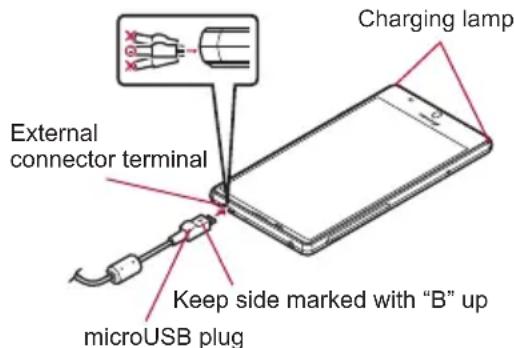
2 When you erect the AC adapter power plug and insert it into an outlet or insert the DC adapter power plug into a car cigarette lighter socket, the charging lamp illuminates and charging starts
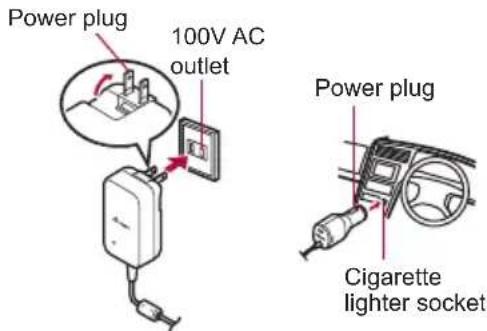
AC adapter DC adapter
3 When charging is complete, the charging lamp turns off
4 Remove the AC adapter power plug from the outlet, or remove the DC adapter power plug from the car cigarette lighter socket
5 Remove the microUSB plug of the AC adapter/DC adapter horizontally from the external connector terminal
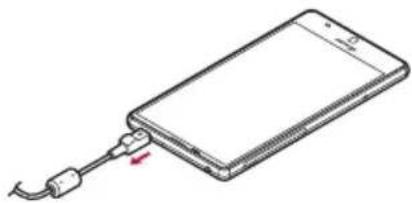
natural_image
Line drawing of a smartphone with a cable inserted, showing the cable being inserted (no text or symbols present)Note that inserting or removing the equipment forcibly may cause damage to the external connector terminal and the microUSB plug or result in a malfunction.
When using a DC adapter
● The DC adapter should only be used in negative grounded vehicles (12 and 24V DC).
- Do not use with the car engine shut off. May drain the car battery.
● The DC adapter fuse is a consumable product. For replacement, purchase a new fuse at a nearest auto parts retailer etc.
● Refer to the user's guide of DC Adapter 04 for details.
Charging with Micro USB Cable 01
You can charge the handset by connecting the handset to a PC with Micro USB Cable 01 (sold separately).
- For details on connecting to a PC P. 83 "Connecting the handset and PC"
Turning power on/off
Turning power on
1 (for at least 2 seconds)
- When you turn the power on for the first time, make the initial settings (P. 22 "Initial settings").
Turning power off
1 ☐(☐) (for at least 1 second) ▶ [Power off] ▶ [OK]
■ Turning power off forcibly
You can forcibly turn the power off if the screen does not respond or the power cannot be turned off.
1 (for at least 8 seconds)
- Release your finger after the vibrator is activated to turn the power off.
■ Turning display on/off
The display is turned off when 0(0) is pressed or the handset is not in use for a set length of time.
Press 0(0) while the display is turned off to turn it on.
Touch panel lock
When the power or the display is turned on, the touch panel is locked.
Touch [💡] to unlock.
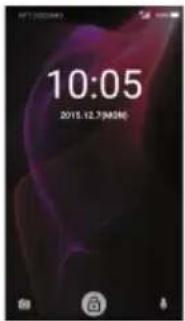
Operations in touch panel lock screen
● To set/disable the manner mode: (-) (for at least 2 seconds)
● To turn on/off the mobile light: (±) (for at least 2 seconds)
● ● To activate SH Camera: [☐]
- To activate しゃべってコンシェル (Shabette-Concier): [☐]
● ● To display the detailed information on notifications: Drag the clock down
● ● To display the status panel: Drag the status bar down
The notifications are displayed in the lock screen of the touch panel. You can make settings for displaying of notifications in [When device is locked] (P. 65 "Sound/notification").
- If you set [エモパー設定] (emopa settings) to ON, various information delivered by emopa is displayed under the clock. Depending on the information, you can check the related information or details by touching it twice.
Also, in the place emopa memo is enabled, you can use emopa memo in the lock screen of the touch panel.
- For details on emopa P. 68 "emopa"
Mobile light
● The mobile light may be automatically turned off if you use the handset for a long time or the handset becomes warm after the mobile light is turned on. Also, you may not be able to use the mobile light if the handset is warm.
Basic operation
The followings describe basic operations of the handset such as operations of the touch panel and navigation keys, and operations for shooting screenshot.
Operation of touch panel
The followings describe the operations to use the display (touch panel).
● ● Operations may differ depending on the function and screen in use.
Cautions when using the touch panel
- The touch panel is designed to be lightly touched with your finger. Do not forcefully press with your finger or a pointed object (fingernail, ballpoint pen, pin, etc.).
- In the following cases, the touch panel may not work even if you touch it. May cause a malfunction.
■ ● Operation with a gloved finger
■ ● Operation with the tip of a fingernail
■ ● Operation with foreign object placed on the operation pad
- Operation on the touch panel on which a protective sheet, sticker, etc. is put
■ ● Operation while the touch panel is wet
■ ● Operation with fingers wet with sweat, water, etc.
■ ● Operation under water
* When [glove mode] is set to ON, you can operate the touch panel with a glove on (P. 66 "Display").
● Operations may be interrupted if you touch an area other than a confirmation screen or the status bar while the confirmation screen etc. is displayed.
Touch
Touch a key or an item displayed on the screen and then release your finger from it to select or set it.
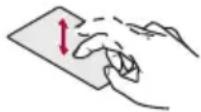
Touch and hold
When you keep your finger on the touch panel, a menu may appear depending on the function and screen in use.
Slide (Swipe)/Drag
Move your finger while keeping it on the touch panel to scroll the screen or move an icon, a widget, etc. to the desired position. In addition, when you touch a menu or an item by mistake, move your finger away from it to cancel the selection.
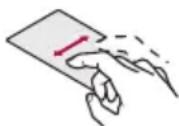
Flick
Move your finger like sweeping the touch panel in the home screen etc. to switch pages.

Pinch out/Pinch in
You may be able to zoom the screen in/out etc. by putting two fingers on the touch panel and moving them with putting a distance between two fingers apart (pinch out)/closer (pinch in) depending on the function and screen in use.

Operation while using function
Navigation keys
Use the navigation keys displayed at the bottom of the screen to perform the basic operations.
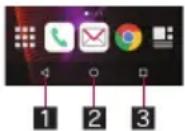
1 ◀/▽: Back key/Close key
- ● Return to the previous screen.
- ● Close the keyboard.
20: Home key
● ● Display the home screen.
3□: Recent Apps key
- Display Quick Launcher or Recent Apps (P. 27 "Quick Launcher", P. 28 "Recent Apps").
Using user-aid function
You can quickly activate a corresponding app by sliding a navigation key up.
1 Slide any of the navigation keys up ▶ slide it to the left/right until [Google] is displayed
- If there are multiple apps supporting the user-aid function, [Q] is displayed and you can select an app to activate.
Full-screen shrink mode
You can reduce the screen to operate the handset with one hand.
1 Slide any of the navigation keys up ▶ slide it to the left/right until [☐]/[☐] is displayed
- Repeat the same operation as that done when reducing the screen to return it to the original size.
- Touch [💡] to move the reduced screen or change the size.
- ● You may not be able to reduce the screen depending on the screen being displayed.
● The Full-screen shrink mode is disabled if you switch to horizontal display or the display is turned off while the Full-screen shrink mode is set.
Retrieving menu
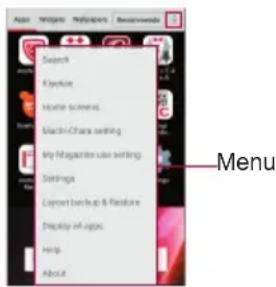
When you touch []/[_cc]/[] etc., slide the left edge of the screen to the right or touch and hold the screen, functions (menus) available in that screen appear.
Example: App list screen
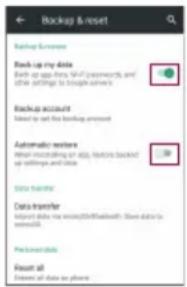
Switching the settings
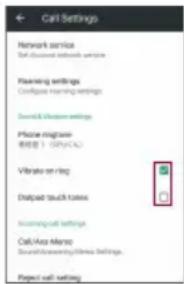
When a check box etc. is displayed beside the setting item, you can set it enabled/disabled or ON/OFF by touching it.
Example: Call settings screen, Backup & reset screen
● [☑]: Enabled, [☐]: Disabled
• [○●]: ON, [○○]: OFF
■ Vertical/Horizontal display
The screen display is switched when you tilt the handset.
- Vertical/Horizontal display may not be switched even if the handset is turned depending on the screen being displayed.
- ● Vertical/Horizontal display is not switched if the handset is turned while it is positioned parallel to the ground.
- ● The screen display may not be switched properly when a sound or a vibration is being activated.
- Vertical/Horizontal display may not be switched properly right after the display or power is turned on.
- ● You can set the display not to automatically switch (P. 18 "Grip Magic", P. 66 "Display").
- Screens may be displayed in the full screen depending on the app when you switch from vertical display to horizontal display.
Shooting screenshot
Hold () + (-) down for at least 1 second to shoot the screen being displayed as an image.
- ● Shot images are saved on the handset memory and you can check them by using Album etc.
- Alternatively, you can shoot the screenshot by using Clip Now (P. 69 "Clip Now").
● Data cannot be saved while displaying NOTTV, TV, home network, e-books, etc.
● Data may not be saved completely or partially depending on the app.
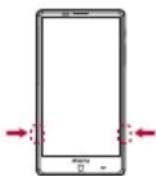
Grip Magic
You can turn the display on, minimize the ringtone volume and activate the vibrator, etc. using function of Grip sensor or the proximity sensor by holding the handset.
1 In the home screen, [☐☐☐] ▶ [Settings] ▶ [Useful] ▶ [Grip magic]
- The notification icon for Grip Magic appears on the status bar by default. You can make settings for Grip Magic by opening the status panel and touching the notification.
2 Set to On
3 Select an item
■ Turn screen on by holding: Set whether to turn the display on when you hold the handset while the display is turned off.
■ Volume down for incoming calls: Set whether to minimize the ringtone volume and activate the vibrator by holding the handset during an incoming call.
■ Deterrence rotate screen: Set whether to keep the screen displayed vertically while holding the handset.
- Let's Try!: Try functions or check how to use with a video tutorial by using "Let's Try!".
■ Adjustment of Gripsensor: Carry out sensitivity adjustment of Grip sensor according to the usage condition.
- Grip sensor (P. 13 "Part names and functions") responds when you touch both the right and left sides. Hold the handset with the both sides touched to use Grip sensor since Grip sensor does not respond when you touch only one side. Also, when you release your fingers, keep your fingers away from both sides of the sensor. Letting your fingers remain touching only one side keeps the sensor responding.
- ● You can also use [Simple secrecy for incoming calls] which enables you to hide the other party's name and image until holding the handset when receiving a call (P. 37 "Call settings/Other").
[Turn screen on by holding]
- If the proximity sensor (upper part of the display) is covered with a hand, an object, etc., the display cannot be operated by touching to prevent inadvertent operations although the display is turned on. Also, the display may be turned off regardless of the setting of the handset.
- The display may not be turned on even when you hold the handset immediately after the display is turned off by pressing .
- If the proximity sensor for Grip Magic (lower part of the display/back) is not covered, hold the handset with tilting it to turn the display on even when you do not touch Grip sensor. Depending on the angle or speed, the display may not be turned on even when you hold the handset.
[Deterrence rotate screen]
- This function may not follow the setting depending on the app in use.
Cautions when using Grip Magic
- In the following cases, Grip Magic may not work properly. May cause a malfunction.
- Operation while the handset is equipped with a cover etc.
- Operation while the handset is wet
■ ● Operation while dirt etc. adheres to the sensor
■ ● Operation while strong light shines on the sensor
■ ● Adjustment of Gripsensor while touching the sensor
■ ● Adjustment of Gripsensor while strong light shines on the sensor
* Depending on the cover, you may be able to use Grip Magic with the handset equipped with it.
Emergency mode
You can save the internal battery by restricting settings and functions on the handset.
1 ☐(☐) (for at least 1 second) ▶ [Emergency mode] ▶ [OK]
- The handset restarts and it switches to Emergency mode.
■ Disabling Emergency mode
1 (○) (for at least 1 second) ▶ [Emergency mode] ▶ [OK]
- Alternatively, in the Emergency mode screen, [Stop saving] ▶ [OK] to disable Emergency mode.
- The handset restarts and Emergency mode is disabled.
Searching information on the handset and websites
1 In the home screen, select "Google" folder ▶ [Google]
- If the confirmation screen for Google Now ^™ is displayed, check the content, follow the instructions on the screen and operate.
- Quick search box appears.
2 Enter the keyword
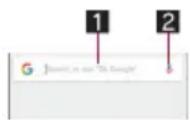
1 Search box
- Enter the keyword to search with.
- When the keyword is entered, apps, data, etc. whose names start with the entered characters are searched and displayed as a list.
2Switch to Voice Search
- Alternatively, say "Ok Google" at the microphone to switch to Voice Search.
- When [Search, or say "Ok Google"] is displayed in the search box etc., the operation is available.
3 Select the search result
- When a search result is an app, the corresponding app is activated.
- If [IMAGES] etc. is displayed, you can search by selecting a genre.
- When you cannot see search results hidden behind the keyboard, touch [▽] to close the keyboard.
- When [≡] is displayed in the search results screen etc., touch [≡] to set the search.
Character entry
You can enter characters using the QWERTY keyboard, 12 keyboard, voices and kuten codes.
- When entering characters, touch [☐] at the bottom of the screen to set the input software to use. The explanations are based on the case when [S-Shoin] is set here.
Keyboard layouts
- ● You can use the following two types of the keyboards.
| QWERTY keyboard | You can enter a displayed character by touching the character entry key. Use romaji for entry. |
| 12 keyboard Several characters are assigned to one character entry key. Enter characters by flicking a character entry key up/down or to the left/right.● ● You can enter characters by touching a character entry key until a character which you want to enter is displayed. | |
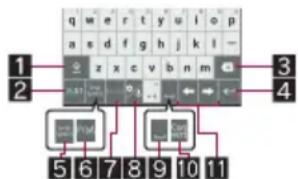
QWERTY keyboard
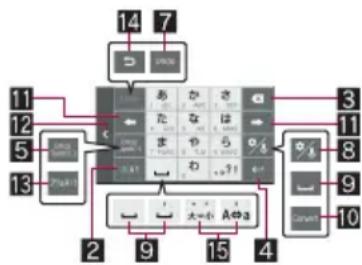
※Each key may change depending on the settings and the condition.
1 Shift key
- Touch to switch between upper/lower case characters etc.
- When [♠] is displayed, lower case characters are entered. When [♠] is displayed, the first character to be entered becomes upper case one. When [♠] is displayed, upper case characters are entered.
- Symbols that can be entered using the keyboard change when you switch the upper/lower case characters.
② Input mode switching key
- Switch input modes.
- Touch to switch input modes in the order of Half Numeric → Hiragana/Kanji → Half Alphabet. Slide to the right to switch input modes in the order of Hiragana/Kanji → Half Numeric → Half Alphabet.
- Slide up to select an input mode other than Hiragana/Kanji, Half Alphabet and Half Numeric as well.
• The keyboard set in each input mode is displayed.
3 Delete key
- Delete characters displayed in a direction set in Delete key behavior.
4 Enter key
- Insert a line feed.
● ● Determine the entered characters. - ● Execute operations entered in an entry field such as the search box.
- Move to the next entry field.
- Touch and hold to close the keyboard.
5 Symbol key
● ● Display the pictogram/Deco-mail pictogram/symbol/emoticon list.
- You cannot enter these symbols in some apps.
- Slide to the right to display Quote apps list.
6 Katakana and alphabet key
- ● Display katakana of the entered characters or conversion candidates (katakana and alphabet conversion candidates) of alphabets or symbols assigned to a touched key.
- Slide to the right to display Quote apps list.
7 Undo key
- - Undo the previous operation.
8 Setting key
● ● Display setting menu.
9 Space key
- Enter a space.
10 Conversion key
- Convert the input characters.
11 Cursor key
- Move the cursor or change the range of characters to be converted.
12Move position
- Touch [<<]/[>>] to move the keyboard, conversion candidates field, etc. to the left/right.
13 Katakana and alphanumeric key
- Display katakana of the entered characters or conversion candidates (katakana and alphanumeric conversion candidates) of alphanumeric or symbols assigned to a touched key.
- Slide to the right to display Quote apps list.
14 Reverse toggle key
- ● Display characters assigned to the same key in the inverse order.
15 Character switching key
- Touch to switch the upper/lower case characters.
- Touch to add dakuten/handakuten.
Switching keyboards
Example: In Hiragana/Kanji input mode on vertical display
1 In the character entry screen, [%] ▶ [Input UI] ▶ [QWERTY keyboard]/[12 keyboard]
- Alternatively, slide [%] up to switch keyboards.
Setting character entry
Display/Layout
1 In the character entry screen, [%] ▶ [Display / Layout]
2 Select an item
■ Keyboard layout: Make settings for the keyboard size, the number of lines of the conversion candidates field, alignment, the key top guides and design.
■ Emoji/Symbol list rows: Set the number of columns of pictograms list/symbols list.
■ Key input guide: Set whether to zoom in the selected key and to display the guide of flick input.
■ Software keyboard display setting: Set whether to display the character entry screen when you connect a commercially available keyboard using the Bluetooth function etc. and enter characters.
Input assistance
1 In the character entry screen, [%] ▶ [Input assistance]
2 Select an item
■ Flick sensitivity: Set the sensitivity of the keyboard for when selecting characters with flick input.
■ Guide display speed: Set how fast the guide is displayed while entering characters with flick input.
- Toggle input: Set whether to use the toggle input.
■ Sound on key press: Set whether or not to enable operation sounds of entering characters.
■ Vibrate on key press: Set whether to activate the vibrator when entering characters.
■ Vibration time on key press: Set how long Vibrate on key press keeps the vibrator activated.
■ Voice input provider: Set where to connect when using the voice input.
■ Delete key behavior: Set the operations of the delete key.
■ Romaji input assistance: Set to prevent unnecessary keys from being touched when entering Japanese with romaji.
■ Auto cursor move: Set the speed for the cursor to automatically move to the right side after entering characters.
■ Emoji/Symb/:) continuous input: Set whether to keep the pictogram/symbol/emoticon list displayed after selecting a candidate from it.
[Delete key behavior]
- When the cursor is on a character, delete the character. When [Left-delete (Backspace)] is set and the cursor is at the beginning of a text, you can delete characters on the right side of the cursor. When [Right-delete (Clear)] is set and the cursor is at the end of a text, you can delete characters on the left side of the cursor.
Conversion
1 In the character entry screen, [%] ▶ [Other settings] ▶ [Conversion]
2 Select an item
■ Word prediction: Set whether to use the predictive conversion.
■ Next word guess: Display relational predictive candidates immediately after an entry is determined.
■ Wildcard prediction: Set whether to use the wildcard prediction.
■ Typing error correction: Set Typing error correction.
■ Beginning prediction for mail: Display text candidates to use at the beginning of a message when entering the message for a mail.
■ Internet conversion engine: Display conversion candidates by using a conversion engine on the Internet.
■ Auto capitalization: In half-width alphabet entry, enter an initial character at the head of a text with upper case one.
■ Auto space input: In half-width alphabet entry, automatically insert a half-width space after selecting an English word.
[Auto capitalization]
- This function may not follow the setting depending on the app in use.
Dictionary
1 In the character entry screen, [%] ▶ [Other settings] ▶ [Dictionary]
2 Select an item
■ ● User dictionary: Edit words in the user dictionary.
- Download dictionary: Register/Cancel/Delete downloaded dictionaries.
- Update conversion dictionary: Update or download conversion dictionaries.
- Contacts name collaboration: Add name data of the phonebook to the dictionary or reset the name data in the dictionary.
Slide operation
1 In the character entry screen, [%] ▶ [Other settings] ▶ [Slide operation]
2 Select an item
■ Upward slide: Set the operations available when you slide the keyboard from its bottom to top.
■ Downward slide: Set the operations available when you slide the keyboard from its top to bottom.
■ Rightward slide: Set the operations available when you slide the keyboard from its left edge to right edge.
■ Leftward slide: Set the operations available when you slide the keyboard from its right edge to left edge.
Reset
1 In the character entry screen, [%] ▶ [Other settings] ▶ [Reset]
2 Select an item
- Set the default settings: Reset the settings of S-Shoin.
■ Clear learning dictionary: Reset the learning dictionary.
■ Reset facemark list: Reset the contents of the emoticon list.
Entering characters
Example: When entering “文字”
1 In the character entry screen, enter “もじ”
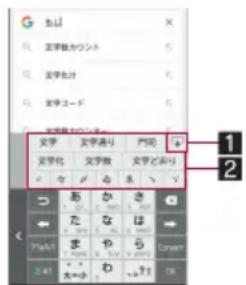
● ● Enlarge/Reduce the conversion candidates field.
2 Conversion candidates field
● ● Displayed when [Word prediction] is enabled.
- Touch one of conversion candidates to enter.
- If you set an Internet conversion engine, [Net conv] is displayed. Touch it to display conversion candidates searched by the conversion engine on the Internet.
2 [Convert]
3 In the conversion candidates field, select “文字”
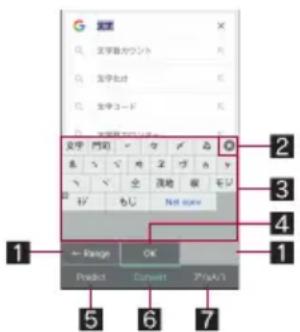
1 Range reduction/Range enlargement
- Reduce/Enlarge the range of characters to convert.
● ● Displayed only when available.
2 Close
- ● Close the conversion candidates field.
3 Conversion candidates field
- Touch one of conversion candidates to enter.
- If you set an Internet conversion engine, [Net conv] is displayed. Touch it to display conversion candidates searched by the conversion engine on the Internet.
4 Determine
● ● Determine the conversion.
5Predictive candidates
● ● Predictive candidates are displayed.
6 Conversion candidates
- Conversion candidates are displayed.
7 Katakana and alphanumeric
- ● Katakana and alphanumeric conversion candidates are displayed.
■ Wildcard prediction
Conversion candidates are predicted according to the number of the entered characters and appear.
- Enable [Wildcard prediction] in advance (P. 20 "Conversion").
- ● This function is available in the Hiragana/Kanji input mode and the Half Alphabet input mode.
1 In the character entry screen, enter “あな”
2 [→]▶[→]▶[→]
- Each time you touch [→], [*] is entered and the predictive candidates appear according to the number of characters.
3 In the conversion candidates field, select “アナウンス”
- Inputting with kuten codes
You can use four-digit kuten codes assigned to each character for entering kanji, hiragana, katakana, symbol, alphanumeric characters, etc.
1 In the character entry screen, slide the input mode switching key up ▶ [Character Code]
2 Input a kuten code
• After the fourth digit is entered, the corresponding character appears.
- After the fourth digit is entered, the input mode is switched to the previous one.
- Inputting with voices
You can enter characters with voices.
1 In the character entry screen, [%] ▶ [Input UI] ▶ [Voice Input]
- Alternatively, slide [ˈɛʃ] to the right while the QWERTY keyboard is used or slide [ˈɛʃ] down while the 12 keyboard is used to switch to the voice input.
2 Speak at the microphone
- In the following cases, the voice input may not work properly.
■ ● When the voice is too loud
■ ● When the surrounding noise is big
■ ● When the phonation is not clear
■ ● When the phonation is not natural
■ ● When the pronunciation is too fast
■ ● When any key is pressed or the microphone is touched
Editing characters
You can perform operations such as cutting, copying or pasting by selecting the entered characters.
1 Touch and hold the entered characters
2 Edit the characters
- To specify the selection range: Drag [☐]/[☐] or [☐]/[☐]
- To display the history of cut and copied characters: [%] ▶ [Quote apps] ▶ [Copy History SH]
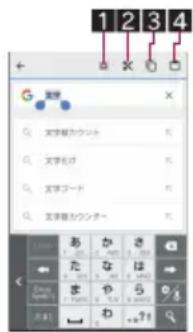
- Select all the entered characters.
2Cut
● ● Cut the selected characters.
3 Copy
● ● Copy the selected characters.
4 Paste
- Paste the cut or copied characters.
● ● Alternatively, touch and hold the character entry field ▶ [PASTE] to paste them. -
Touch and hold the character entry field ▶ [CLIPBOARD] ▶ select characters to enter to paste them from the history.
-
Up to 10 history items of cut and copied characters can be saved.
- If the number of history items of cut and copied characters exceeds the maximum number to be saved, they are deleted from the oldest one.
Changing screen display to English
1 In the home screen, [■■] ▶ [設定] (Settings) ▶ [言語と文字入力] (Language & input) ▶ [言語(Language)を選択] (Select language) ▶ [English]
Initial settings
When you turn the power on for the first time, the initial settings screen is displayed. Follow the instructions on the screen and set.
- ● The following items can be set. However, items to be displayed may differ depending on the Google account settings.
■ ● Language setting
■ Wi-Fi settings (P. 23 "Wi-Fi settings")
■ ● Google account settings by Tap & Go
■ Google account settings (P. 24 "Setting up Google account etc.")
■ ● Set up payment info
■ ● Get your apps & data
■ ● Owner's name of the handset
■ ● Protect your phone
■ ● Google services
■ ● Google Now setting
- ● The confirmation screens for sending device error information and for software update are also displayed.
■ Initial settings for docomo service
1 When the initial settings screen for docomo service is displayed, [Agree to all] ▶ [Start settings]
2 Make the initial settings
•The following items can be set.
■ ●docomo ID (d ACCOUNT)
■ ●docomo cloud
■ ●docomo apps password
■ ●docomo location information
■ Remote Initialization Service
■ ● Install all apps
* This is not displayed when you have not set a docomo apps password.
3 [Start using]
- From December 2015, the name of "docomo ID" changes to "d ACCOUNT".
Setting an access point
An access point (sp-mode) for Internet connection is registered by default. You can add other access points and change them if necessary.
For details on sp-mode, refer to the DOCOMO website.
If you want to use mopera U or Business mopera Internet, add an access point of either provider manually.
For details on mopera U, refer to the mopera U website.
- Checking an access point in use
1 In the home screen, [☐☐☐] ▶ [Settings] ▶ [More] ▶ [Cellular networks] ▶ [Access Point Names]
Setting additional access points
- ● Never set the MCC to a figure other than 440 or the MNC to a figure other than 10. Otherwise the added access point disappears from the screen.
1 In the home screen, [☐☐☐] ▶ [Settings] ▶ [More] ▶ [Cellular networks] ▶ [Access Point Names] ▶ [⊕]
2 [Name] ▶ enter the name of the network profile to create ▶ [OK]
3 [APN] ▶ enter the access point name ▶ [OK]
4 Enter other items required by network operators ▶ [ ◦ ] ▶ [Save] - If the settings of MCC and MNC are changed and the added access point disappears from the screen, reset the settings or set the access point manually.
Resetting an access point
Reset an access point to default setting.
1 In the home screen, [☐] ▶ [Settings] ▶ [More] ▶ [Cellular networks] ▶ [Access Point Names]
2 [☐]▶ [Reset to default]
- When sp-mode is not subscribed or if you fail to make automatic setting of an access point due to signal status such as outside the service area, you are required to set the access point again manually.
Wi-Fi settings
If you use Wi-Fi function of the handset, you can use mail or Internet by connecting to access points of your home, corporate network or public wireless LAN service.
Radio interference with Bluetooth devices
- Wireless LANs (IEEE 802.11b/g/n) use the same frequency band (2.4 GHz) as Bluetooth devices. Therefore, using the wireless LAN device near a Bluetooth device may cause radio interference, lowering of communication speed, noise or connection failure. In this case, turn off the Bluetooth device or keep the handset and the wireless LAN device at least approximately 10 m away from the Bluetooth device.
- Packet communication is also available while [Wi-Fi] is set to On. Wi-Fi connection is prioritized while Wi-Fi connection is set, but the connection is automatically switched to that of LTE/3G/GPRS network once Wi-Fi connection is terminated. Note that packet communication charges may be incurred in this case.
- Refer to the manual of your wireless LAN base unit when using the access point at home etc.
- Operate access point registration near the access point.
-
If you use the docomo service by using Wi-Fi function, set a docomo ID (d ACCOUNT) in advance. In the home screen, [Settings] ▶ [docomo service/cloud] ▶ [docomo ID設定] (Set docomo ID) to set it.
1 In the home screen, [☐] ▶ [Settings] ▶ [Wi-Fi]
2 Set to On
3 Select an access point -
If you select an access point protected by security, enter the password (security key) and select [CONNECT].
- To register access points manually: [ ] ▶ [Add network] ▶ enter the network name ▶ set security ▶ [SAVE]
- WPS compatible access points can be easily registered. In the home screen, [☐] ▶ [Settings] ▶ [Wi-Fi] ▶ [☐] ▶ [Easy Settings] ▶ [WPS Push Button]/[WPS Pin Entry] to register an access point.
-
Alternatively, in the home screen, [☐] ▶ [Settings] ▶ [Wi-Fi] ▶ [☐] ▶ [Easy Settings] ▶ [AOSS] to connect to an access point. Follow the instructions on the screen and operate after this step.
-
When you select an access point and connect to it with a wrong password (security key), [IP Configuration Failure], [WiFi Connection Failure], [Authentication problem] or [Connected (Limited)] is displayed. Confirm the password (security key). When [IP Configuration Failure] or [Connected (Limited)] is displayed after entering the correct password (security key), you may not have acquired the correct IP address. Connect to the access point again after confirming signal status.
- The registration process using WPS takes a few minutes. After completion of the registration of the access point, check that the proper connection to the access point is acquired.
- As for the manual registration of an access point, this function supports WEP, WPA/WPA2 PSK and 802.1xEAP as the security setting.
- If you connect to an access point which is not connected to the Internet, [💡] is displayed and the communication may be made by mobile networks, not Wi-Fi connection. To make Wi-Fi communication by using such an access point, enable [Using this AP without internet connection] of Advanced options before connecting to the access point.
Detailed settings
1 In the home screen, [☐☐☐] ▶ [Settings] ▶ [Wi-Fi]
2 [◦]▶ [Advanced]
3 Select an item
■ Network notification: Set whether to display a notification icon when an open network is detected.
- Set it after setting [Wi-Fi] to On.
■ Scanning always available: Set whether to scan networks by the location information service and other apps even when [Wi-Fi] is set to Off.
■ Wi-Fi sleep policy: Set whether to disconnect Wi-Fi when the display is turned off.
■ Avoid poor connections: Set whether to use the Wi-Fi function only when stable Internet connections are available.
■ Wi-Fi frequency band: Set the frequency band to use.
■ Handover: Set whether to automatically switch access points to use if you use the handset while moving.
- Mobile/Wi-Fi simultaneous use: Make settings for simultaneous use of mobile and Wi-Fi networks.
■ ● Install certificates: Install certificates.
■ ● Wi-Fi Direct: Make settings for Wi-Fi Direct.
- ●Passpoint: Set whether to automatically connect to the available Passpoint compatible access points when [Wi-Fi] is set to On.
■ ● MAC address: Confirm the MAC address.
■ ● IP address: Confirm the IP address.
[Handover]
- ● You can set it only when Wi-Fi frequency band is set to [5 GHz only] or [2.4 GHz only] and Simultaneous use mode setting is set to [Setting OFF].
■ Mobile/Wi-Fi simultaneous use
You can make settings for the function to automatically switch to mobile networks when communications with Wi-Fi access points slow down (Smooth change mode) or the function to download content at high speed using mobile and Wi-Fi networks at the same time (Dual Speed mode).
- ● Set [Wi-Fi] to On and connect to an access point in advance. - ● Since packet communication is also used when you use mobile and Wi-Fi networks at the same time, packet communication charges may be incurred.
1 In the home screen, [☐☐☐] ▶ [Settings] ▶ [Wi-Fi]
2 [◇] ▶ [Advanced]
3 [Mobile/Wi-Fi simultaneous use]
4 Select an item
- Simultaneous use mode setting: Set a mode to use.
■ Advanced settings: Make settings for applicable access points and apps, and inapplicable servers.
■ ● Notes: Check the precautions. - Touch [?] of an item to display its explanations.
Disconnecting
1 In the home screen, [☐☐☐] ▶ [Settings] ▶ [Wi-Fi]
2 Select the connected access point ▶ [DISCONNECT]
- Disconnect with the password retained. The access point may be automatically connected again such as when the display is turned on.
Tethering
You can use the tethering function that connects Wi-Fi compatible devices, or PCs etc. connected via Micro USB Cable 01 (sold separately) or Bluetooth communication to the Internet by using the handset as an access point.
- ● You can connect up to 16 devices in total at the same time: a PC connected via Micro USB Cable 01, 10 Wi-Fi compatible devices and five Bluetooth devices.
● ● The handset supports dial-up connections via DUN profile. - Before using Bluetooth tethering, register the other party's Bluetooth device in advance (P. 81 "Using Bluetooth function").
As for the settings on the Bluetooth device, refer to its manual.
1 In the home screen, [☐] ▶ [Settings] ▶ [More] ▶ [Tethering]
2 Select an item
■ USB tethering: Set whether to use the USB tethering.
■ Wi-Fi tethering: Set whether to use the Wi-Fi tethering.
■ Set up Wi-Fi hotspot: Make settings for Wi-Fi tethering such as network name and security.
■ Wi-Fi tethering Easy Connection: Set whether to use the tethering by connecting to WPS compatible access points.
■ Bluetooth tethering: Set whether to use the Bluetooth tethering.
[USB tethering]
● The tethering function is available on Windows Vista, Windows 7, Windows 8, Windows 8.1, Windows 10 and Linux.
● A microSD Card inserted in the handset cannot be mounted on a PC during USB tethering.
- For details on USB tethering, refer to the following website. http://www.android.com/tether#usb
[Wi-Fi tethering]
● While the handset is functioning as an access point, it cannot access the Internet via Wi-Fi connection.
● Make settings for Wi-Fi access points in [Set up Wi-Fi hotspot].
- For details on Wi-Fi tethering, refer to the following website. http://www.android.com/tether#wifi
[Set up Wi-Fi hotspot]
- At the time of purchase, Network name is set to [SH-01H_AP] and Security is set to [WPA2 PSK] while Password is set randomly. Change the settings if necessary.
Setting up mail account
1 In the home screen, [☐] ▶ [Email]
- Only when an account is not set up, the account setup screen appears.
2 Enter mail address ▶ [▶]
3 Enter password ▶ [▶]
- Provider information is preset for some mail accounts, and a receiving mail server and a sending mail server are automatically set.
- When you use an account whose provider information is not preset, it is necessary to set a receiving mail server and a sending mail server manually. For details on those settings, contact the Internet service provider you use.
4 Set up an account ▶ [▶]
5 Enter an account name and your name ▶ [▶]
Setting up Google account etc.
1 In the home screen, [000] ▶ [Settings] ▶ [Accounts] ▶ [Add account]
2 Select an account type
3 Set up an account
- In the home screen, [Settings] ▶ [Settings] ▶ [Accounts] to find the added account on the displayed menu.
- When activating the app that requires an account without setting one up, the account setup screen appears.
- Keep a separate memo of the set account and password.
■ Deleting your account
1 In the home screen, [☐☐☐] ▶ [Settings] ▶ [Accounts]
2 Select an account ▶ [☐] ▶ [Remove account] ▶ [REMOVE ACCOUNT]
- Operation methods may differ depending on the account.
■ Retrieving your Google account password
If you forget your Google account password, retrieve it.
1 In the home screen, [9]
2 Enter "https://www.google.com/ncr" in the URL entry field ▶ [Go] ▶ [Sign in] ▶ [Need help?] ▶ follow the instructions on the screen and operate
Synchronizing data
You can synchronize data between the handset and online services. You can access the same personal information as those stored in online services from the handset and PC, and you can use and update data by synchronizing them.
When synchronizing automatically
Set whether to automatically synchronize items set in each account.
1 In the home screen, [☐☐☐] ▶ [Settings] ▶ [Accounts]
- To set items to synchronize: Select an account type ▶ select an account ▶ select an item
2 [○]▶[Auto-sync data]▶[OK]
- Register a Google account in advance when you synchronize the phonebook of the handset memory with contacts on the online services even if you synchronize with an account other than Google account.
When synchronizing manually
- When Auto-sync data is disabled, you can synchronize selected items manually.
1 In the home screen, [☐☐☐] ▶ [Settings] ▶ [Accounts]
2 Select an account type ▶ select an account
3 Select items to be synchronized
Importing/Exporting phonebook
- Importing from docomo nano UIM card
1 In the home screen, select “ドコモクラウド” (docomo cloud) folder ▶ [docomo phonebook] ▶ [Contacts]
2 [::]▶[SD card/SIM card/common]
3 [Restore from SIM card]
- If there are multiple accounts, the screen for selecting to which account to register is displayed.
4 Select the contact to import
- To import all contacts: [⋮] ▶ [Import all]
- Importing from/Exporting to microSD Card
1 In the home screen, select “ドコモクラウド” (docomo cloud) folder ▶ [docomo phonebook] ▶ [Contacts]
2 [::]▶[SD card/SIM card/common]
3 [Activate docomo backup app]
- docomo backup is activated. For details on backing up/restoring the phonebook by using docomo backup P. 64 "Backing up to/Restoring from a microSD Card"
Incoming/Charging lamp
The incoming/charging lamp notifies you that there is a missed call, the handset is being charged, etc. by illuminating/ flashing.
| State of lamp | Color State of handset | |
| Illuminating Ruby | (Red) Charging | in progress (Battery level is approx. 94% or less) |
| Illuminating Emerald | (Green) Charging | in progress (Battery level is approx. 95% or more) |
| Flashing Ruby | (Red) Charging | available |
| Flashing Crystal | (Light sky blue) | During an incoming call/Call missed |
| Flashing Prism | (White) New mail received | |
| Flashing Sapphire | (Blue) New doc | como mail received |
- When the display is on, the incoming lamp which notifies you of missed calls, new mails and new docomo mails does not flash. Check them with notification icons. When notification icons do not appear since you play videos with Media Player etc., check them on a screen with the status bar appearing.
Screen display/Icons
Icons displayed on the status bar at the top of the screen give you various kinds of information, such as the status of the handset or the presence of missed calls. You can check the detailed information by displaying the status panel.
Viewing icons
● Two kinds of icons are displayed.
- ● Notification icon: Notifies you of missed calls, new mails, etc.
- Status icon: Display the status of the handset such as the battery level or the signal status.

■ Main notification icon list
- Some notification icons appear with their number superimposed.
: Missed call
😊: New SMS
: New mail
: New Gmail
": New message from Hangouts
(415): New Area Mail
⚠: Error
● ● Displayed when an error has occurred.
ID: Authentication of docomo ID (d ACCOUNT) failed
◎: Data communication disabled
● Displayed when a data communication limit has been reached.
©: Alarm sounding/Snooze enabled/Missed alarm
: Schedule notification from Calendar
TV information
to: Watching/Receiving
: Recording
: Recording reservation (appears 5 minutes before recording)
♪: Playing music with Media Player
: Making a call/Receiving a call/Talking on the handset/Putting a call on hold
: Answering memo
: Voice mail message
microSD Card
: Preparing microSD Card
☐: Unmounted
☐: Available space on the handset memory being run out
: Omakase Lock set
Bluetooth
: Receiving registration/connection request from Bluetooth device
※: Data reception request
※: DUN connection request/DUN connecting
ψ: USB connection (in Card reader mode connecting)
Data transmission and reception
↑: Transmission
↓: Reception
App
: App update available
: Finished installing app
Wi-Fi
?: Open network
: Wi-Fi connection restriction
Ψ: [USB tethering] enabled
: [Wi-Fi tethering] enabled
: [Bluetooth tethering] enabled
○: Multiple tethering enabled
: Bright Keep set to [ON (Notify)]
Home network
○: Suspending
○: Running
(1): Preparing
: VPN connected
↓: Software update available
NOTTV signal strength
: Level 4
: Level 3
: Level 2
(1): Level 1
: Outside the service area
: Smart Lock
☐: [glove mode] enabled
: Notification icon (not appearing)
Main status icon list
: Alarm set
Battery level
to Approx. 100 to 6%
☐: Approx. 5% or less
- While charging, the battery icon appears with [§] superimposed.
- Percentage of the remaining battery level appears on the left side of the battery icon. Display/Hide the percentage with [Display left percents of Battery] (P. 66 "Display").
Signal strength
□: Level 4
□: Level 3
□: Level 2
: Level 1
: Level 0
: Outside the service area
Airplane mode
3G data communication status
3G: 3G available
: Receiving data via 3G
: Sending data via 3G
: Sending and receiving data via 3G
GSM data communication status
: GSM available
^6 : Receiving data via GSM
: Sending data via GSM
: Sending and receiving data via GSM
LTE data communication status
LTE: LTE available
: Receiving data via LTE
: Sending data via LTE
LTE: Sending and receiving data via LTE
HSPA data communication status
H: HSPA available
H: Receiving data via HSPA
H: Sending data via HSPA
H: Sending and receiving data via HSPA
R: International roaming
NFC/Osaifu-Keitai lock status
: Handset or docomo nano UIM card locked
IC: Handset and docomo nano UIM card locked
Omakase Lock status
: Handset or docomo nano UIM card locked by remote control
: Handset and docomo nano UIM card locked by remote control
: [Reader/Writer, P2P] enabled
Character input mode
あ: Hiragana/Kanji
AB: Half Alphabet
12: Half Numeric
A: Full Alphabet
①: Full Numeric
区: Character Code
☆: [Allow only priority interruptions] set
Manner mode status
: Standard manner
: Standard manner ([Allow only priority interruptions] set)
: Silent manner
: Talking with a speaker
: Mute set
Wi-Fi signal strength
: Level 4
: Level 3
: Level 2
: Level 1
: Level 0
- The Wi-Fi signal strength icon appears with [ ] superimposed like [ ] while you connect to an access point which is not connected to the Internet.
Simultaneous use of mobile and Wi-Fi networks
: [Smooth change mode] enabled
: [Dual Speed mode] enabled
Bluetooth
: Connection stand-by
: Connected
: Measuring location information frequently
Answering memo
☐: No answering memo when the answering memo is set
☐: One to nine answering memos when the answering memo is set
: 10 answering memos when the answering memo is set
Using the status panel
1 Drag the status bar down with your two fingers at the same time
- Alternatively, touch and hold [☐] to display the status panel.
2 Use the status panel
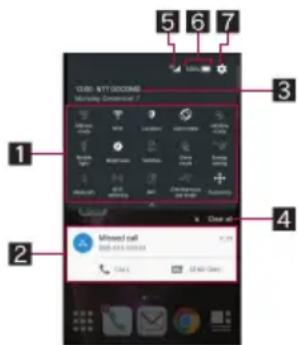
1 Function button
● Make settings for use of the manner mode, Wi-Fi
function, location information, etc. Touch [Customize] to rearrange, add and delete the function buttons.
- If you touch [Location], the confirmation screens for the use of location information are displayed. The mode to be set may differ depending on whether you select [DISAGREE] or [AGREE] (P. 71 "Location"). [♡] is displayed when Mode is set to [High]/[Device only] while [♡] is displayed when Mode is set to [Battery saving].
- Slide the screen up/down or touch the top of the screen to display/hide function buttons after second line.
2Detailed information on notifications
-
● You can check the state of the handset or content of notifications.
● ● The following operations are available depending on the type of detailed information. -
To activate or operate a corresponding app: Touch the detailed information or the function
- To switch detailed display/simplified display*: Slide the detailed information up/down with your two fingers at the same time or pinch out/in
- To delete detailed information: Flick the detailed information to the left/right
- To set [App notifications]: Touch and hold the detailed information ▶ [i]
* This operation is available when function buttons after second line are hidden.
3 Network operator
- Connected network operator is displayed.
4 Clear all
- Delete the detailed information on notifications and notification icons. Depending on the content of detailed information on notification, it cannot be deleted.
5Signal status
- Check the signal status.
6 Battery level
- Check the battery usage etc. by touching it while function buttons after second line are being displayed.
7 Settings
- Activate the "Settings" app.
- If the number of missed calls is one, [CALL] and [SEND SMS] are displayed by switching the detailed information on notification to detailed display. You can make a call or send an SMS by touching them.
Quick Launcher
You can quickly use app usage history items, the apps/ shortcuts/function buttons set in Favorites or mini apps/ widgets by switching tabs.
- ● Set Recent apps key to [Quick Launcher] in advance (P. 68 "Useful").
History
You can activate apps by displaying the history of recently used apps.
1 [☐] ▶ [History]
2 Use a history item
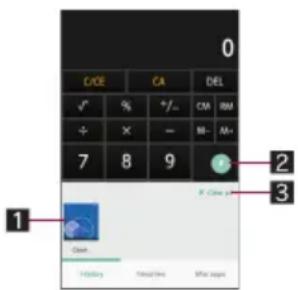
1 App usage history item
- Touch it to activate the app.
- ● Flick it down to delete the history item.
- Touch and hold it to delete the history item and check information on the app.
2Screen pinning
- This is displayed when [Screen pinning] is set to On. For details on Screen pinning P. 71 "Lock & security"
- Touch it to restrict the use of apps other than the app being displayed.
- To disable Screen pinning: Touch and hold [◀] + [□]
3 Clear all
- Touch it to delete all app usage history items.
- Some apps may not be displayed in the history.
- If you delete the history item of the running app, you can end the app.
Favorites
You can quickly activate apps or switch settings on the handset just by touching apps, shortcuts and function buttons set in Favorites.
1 [☐] ▶ [Favorites]
2 Select an app/a shortcut/a function button
■ Adding apps/shortcuts/function buttons
1 [☐] ▶ [Favorites]
2 [+]
3 Select an app/a shortcut/a function button to add
■ Moving apps/shortcuts/function buttons
1 [☐] ▶ [Favorites]
2 Touch and hold an app/a shortcut/a function button ▶ drag it to the destination
■ Managing apps/shortcuts/function buttons
1 [☐] ▶ [Favorites]
2 Touch and hold an app/a shortcut/a function button
- Release your finger to display the menu.
3 Select an item
- Delete application: Uninstall the app.
- Peel off: Hide the app, shortcut or function button.
Mini app/Widget
You can use mini apps and widgets which enable you to watch TV, videos, YouTube, etc. while using another app.
1 [☐] ▶ [Mini apps]
2 Select a mini app/widget
3 Use the mini app/widget
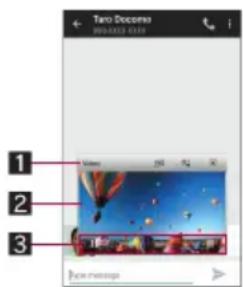
1 Title bar
- Drag it to the destination to move the mini app/widget.
● ● The following operations are available with displayed keys.
• To activate a usual app: [☐]
- To minimize the mini app/return it to the original size: [☐]/[☐]
• To end the mini app/widget: [✗]
* As for the mini TV or mini video, touch [☐]/[☐] to return it to the mini app.
2 Mini app/Widget display
- Touch it to display the title bar and controller when they are not displayed.
- Touch and hold it and drag it to another app such as the "Email" app while the app is running to copy characters, images, etc. and paste them.
3 Controller
- ● The following operations are available with displayed keys.
- To change the size of the mini app/widget: Drag [A]
- To select a station with UP/DOWN: [CH▶]/[◀CH]
- To set the receiving method: [AUTO]/[ONE]/[FULL] ▶ select an item
- When you play videos with another app while a mini app is being used, videos may not be displayed properly.
- Touch [Add from Play Store] to download an uninstalled mini app again.
1 [☐] ▶ [Mini apps]
2 Touch and hold a mini app/widget ▶ drag it to the destination
- Delete application: Uninstall the app.
- Peel off: Hide the mini app or widget.
■ ● Change name: Change the name of the widget.
Recent Apps
You can activate apps by displaying the history of recently used apps.
- Set Recent apps key to [Recent applications] in advance (P. 68 "Useful").
1 [☐]
2 Use a history item
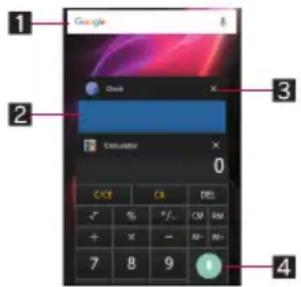
1 Search
- Touch it to use quick search box (P. 19 "Searching information on the handset and websites").
2 App usage history item
- Touch it to activate the app.
- ● Flick it to the left/right to delete the history item.
3 Delete history item
- Touch it to delete app usage history item.
4 Screen pinning
- This is displayed in the latest history item when [Screen pinning] is set to On. For details on Screen pinning P. 71 "Lock & security"
- Touch it to restrict the use of apps other than selected app.
- To disable Screen pinning: Touch and hold [◀] + [□]
- Some apps may not be displayed in the history.
- If you delete the history item of the running app, you can end the app.
Home applications
Switch lock screens or home apps to use.
- ● The following home apps are registered on the handset by default.
■ ●docomo LIVE UX
A home app optimized for smartphones provided by DOCOMO.
■ ●docomo Simple UI
A home app which is designed to enable customers having been using i-mode mobile phones (feature phones) to use smartphones easily.
■ ● Feel Home
A home app which enables you to find intended apps quickly and operate the handset intuitively. Just by flicking your finger to the left/right, you can choose and use whichever sheet that fits your preferences from between Desktop Sheet or Apps Sheet.
■ ● Google Now Launcher
You can check Google Now in the home screen when you use Google Now. Also, you can use voice search just by saying "Ok Google" while the home screen is displayed.
1 In the home screen, [☐☐☐] ▶ [Settings] ▶ [Home applications]
2 Select an item
■ Batch change lock screen/ home application: Switch lock screens and home apps.
■ ● Home applications: Switch home apps.
docomo LIVE UX
Home screen
Home screen layout
In the home screen, you can activate apps by selecting apps or the quick menu or use widgets.
- If you install a new app, its icon is added to the home screen.
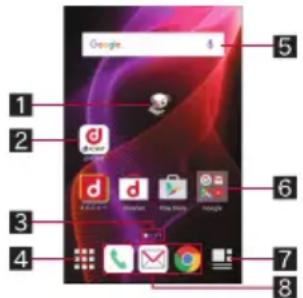
“ひつじのしつじくん®” (Butler Sheep) ©NTT DOCOMO
1 Machi-Chara
2App
3 Indicator
- Indicates the number of the home screen pages and present display position.
4 App button
● ● Display the app list screen.
5Widget
- Use simple functions such as a calendar or pedometer.
6 Folder
- When a folder is added, you can store apps into the folder.
7 My magazine button
- Use My magazine (P. 33 "My magazine").
8Quick menu
- ● Quickly activate an app from any page of the home screen.
● Pinch in on the home screen to display the home screen list.
- ● Flick the home screen to the left/right to switch the pages.
- ● Flick the home screen down to display the app list screen.
- ● Flick the home screen up to use My magazine.
Managing the home screen
Setting the home screen
1 Touch and hold the home screen
2 Select an item
■ Show apps: Display the Apps tab of the app list screen.
■ Show widgets: Display the Widgets tab of the app list screen.
■ ● Create folder: Add a folder.
■ Change Kisekae: Change the kisekae. For details on kisekae P. 29 "Changing kisekae"
■ Change wallpaper: Display the Wallpapers tab of the app list screen. For details on wallpapers ☑ P. 29 “Changing wallpapers”
■ Machi-Chara setting: Make settings for Machi-Chara. For details on Machi-Chara setting ☑ P. 30 “Machi-Chara display method”
■ Home screens: Display the home screen list. For details on the home screen list P. 30 "Managing pages"
■ Moving apps etc.
1 In the home screen, touch and hold an app etc.
2 Drag it to the destination
- If you drag it to the end of the page, the previous/next page is displayed and you can move it to the previous/next page.
- Drag an app onto another one to create a folder storing the two apps.
■ Restoring apps to the app list screen
1 In the home screen, touch and hold an app
2 Drag it to [Back to apps list]
- Deleting widgets etc.
1 In the home screen, touch and hold a widget etc.
2 Drag it to [Remove from Home]
- Apps are not uninstalled even if the folder storing the apps is deleted.
Uninstalling apps
1 In the home screen, touch and hold an app
2 Drag it to [Uninstall] ▶ [OK]
Renaming folders
1 In the home screen, select a folder
2 Touch the folder name
3 Enter a folder name
Setting quick menu
You can set apps etc. in the quick menu.
- ● You can set up to three apps etc. in the quick menu.
1 In the home screen, touch and hold an app etc.
2 Drag it to the quick menu
Changing kisekae
1 Touch and hold the home screen ▶ [Change Kisekae]
2 Select kisekae ▶ [SET]
Changing wallpapers
1 Touch and hold the home screen ▶ [Change wallpaper]
2 Select data ▶ [OK]
- Touch [See more wallpapers] to select a wallpaper from among photos, images and other apps.
- As for [Contents Manager], [Album] or [Photos], set each item and select [OK].
- As for [Wallpapers] or [Wallpaper gallery], select [Set wallpaper].
• As for [Live Wallpapers], select [SET WALLPAPER]. - As for [Contents Manager(wallpaper)] or [Album(wallpaper)], select the parts to cut and select [SAVE].
- As for [Preset wallpaper], select [SET TO WALLPAPER].
- Touch [See Kisekae] to change the kisekae.
Machi-Chara display method
1 Touch and hold the home screen ▶ [Machi-Chara setting]
2 [表示する] (Display)/[表示しない] (Hide) of “キャラ表示” (Machi-Chara display)
Managing pages
Adding pages
- ● You can add up to seven pages.
1 In the home screen, pinch in
- Alternatively, touch and hold the home screen ▶ [Home screens] to display the home screen list.
2 [+]
Sorting pages
1 In the home screen, pinch in
- Alternatively, touch and hold the home screen ▶ [Home screens] to display the home screen list.
2 Touch and hold a thumbnail
3 Drag it to the destination
- Deleting pages
1 In the home screen, pinch in
- Alternatively, touch and hold the home screen ▶ [Home screens] to display the home screen list.
2 [×]
App list screen
App list screen layout
Loaded apps that are not added to the home screen are displayed as icons in the app list screen. Select an icon to activate an app. Also, you can add widgets and change wallpapers.
- If you uninstall an app, its icon is deleted.
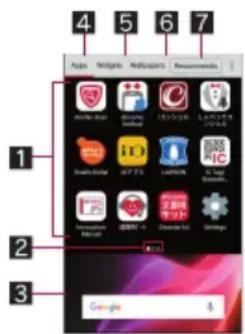
1 List of app
- ● Flick the screen to the left/right to switch the display positions.
2Indicator
- Indicates the number of the app list screen pages and present display position.
3Home screen
● ● Part of the home screen remains to be displayed.
- ● Flick it up to display the home screen.
4 Apps tab
● ● Display apps that are not added to the home screen.
5Widgets tab
- Add widgets to the home screen.
6 Wallpapers tab
- Change wallpapers.
7 Recommends button
● ● Display apps recommended by DOCOMO.
App list
- ● A separate paid subscription will be required for using some apps.
● ● The followings are the apps installed by default.
| Icon App Description | ||
 | Album Sort images and videos by event and location and use them (P. 57 “Album”). | |
 | Anshin Scan*1, 2 | An app to use smartphones safely by detecting viruses, checking apps which deal with personal data, giving you a warning when you try accessing offensive websites, etc. |
 | Calculator | Use a calculator (P. 62 “Calculator”). |
 | Calendar Manage the schedule. | |
 | Camera Shoot with the camera provided by Google. | |
 | Chrome Display websites via packet communication or Wi-Fi function (P. 45 “Chrome”). | |
| [KBXW] | Clip Now Check the image (archival screenshot) or URL shot by Clip Now (P. 69 “Clip Now”). | |
| [xxxx] | Clock Use alarm, world clock, timer and stopwatch (P. 60 “Clock”). | |
 | Contents Manager | Manage data stored on the handset memory and the microSD Card (P. 79 “Contents Manager”). |
 | d book MyShelf*1 | An app to read comics, novels, practical books, etc. which you have purchased in electronic bookstore of DOCOMO. Also, you can browse some books for free. |
| [OSB4] | Disaster kit An | app to use Disaster Message Board, Disaster Voice Messaging and Early Warning “Area Mail”. |
 | dmarket*1 | An app which handles digital contents such as music, videos and books and provides you with various services such as shopping websites and travel reservation websites (P. 47 “dmarket”). |
| [TDS2] | d POINT*1 | An app to “check”, “save” and “use” d POINT. |
| [hexal] | docomo backupdocomo mail*1,2 | An app to back up to/restore from “Data Storage Box” or “microSD Card” (P. 63 “docomo backup”).Send and receive mails using mail address of DOCOMO (@docomo.ne.jp). Data can be easily transferred when you have changed models or restored when you have lost the handset since sent and received mails are saved on the docomo mail server. Also, you can send, receive and view mails using the same mail address from multiple devices such as a tablet, PC browser, etc. if you use a docomo ID (d ACCOUNT)(P. 41 “docomo mail”). |
| docomo phonebook | A phonebook app provided by DOCOMO. You can manage phonebook data of “docomo account” in cloud computing(P. 39 “Phonebook”). | |
| Downloads Manage data such as images downloaded from websites. | ||
| Drive Save images, videos, etc. on Google DriveTM or share them. | ||
| dメニュー (dmenu)*1 | A shortcut app to “dmenu”. In dmenu, you can easily access websites or convenient apps recommended by DOCOMO(P. 47 “dmenu”). | |
| Email Use Email (P. 42 “Email”). | ||
| Gmail Use a mail service provided by Google or Email provided by general service providers (P. 43 “Gmail”). | ||
| Google Use quick search box(P. 19 “Searching information on the handset and websites”). | ||
| Google Now Launcher*3 | A home app which enables you to check Google Now in the home screen when you use Google Now. Also, you can use voice search just by saying “Ok Google” while the home screen is displayed. | |
| Google Settings | Make settings for various Google services collectively. | |
| Google+ Use Google+TM. | ||
| Hanashite Hon'yaku*2 | An app to translate your messages into the language the other party speaks. You can enjoy communication with other people who speak a different language. | |
| Hangouts Use chat (talk using characters), voice chat, etc. | ||
| IC Tag/Barcode Reader | An app to read information written on IC tags and bar codes. | |
| iDアプリ (iD appli)*1 | An app to use electronic money “iD” provided by DOCOMO. You can pay easily and conveniently by holding an Osaifu-Keitai in which “iD” is set over scanning devices at stores (P. 49 “iD appli”). | |
| Icon A | App Description | |
| Instruction Manual*1, 2 | Instruction manual for the handset. You can also activate the functions to use directly from the explanations on the manual. | |
| i コンシェル (i-concier)*1 | A service to have your smartphones support your life like a “butler” or “concierge”. According to your schedule, home area or present location, it delivers useful information in everyday life such as a rain cloud alarm, rail transit information or outgoing spot at better timing. | |
| LAWSON *1 | An official app of LAWSON. The handset substitutes for a membership card. You can display it as a digital membership card, search stores or check an economical trial coupon. | |
| Maps Measure | your present location, use the navigation function to check how to get to your destination in detail, etc. (P. 59 “Maps”). | |
| Media Player A | An app to play music and videos (P. 58 “Media Player”). | |
| Memo An app | to create and manage memos (P. 62 “Memo”). Its data is shared with the Schedule app. The i-concier is supported. | |
| Messaging | Use SMS (P. 41 “SMS”). | |
| Music Play music. The handset supports playback with high resolution audio *4. | ||
| My Magazine *5 | A search service to display articles of genres you choose. It helps you set search keywords by guessing your preferences from the history of articles you have read or from information on your profile to make the settings come to match your preferences (P. 33 “My magazine”). | |
| NOTTV*1 | An app to watch “NOTTV” which is a broadcasting service for smartphones. You can enjoy content items such as a program or magazine of each genre (P. 50 “NOTTV”). | |
| OfficeSuite Use | OfficeSuite.● For details on supported files, in the home screen, [ ] ▶ [OfficeSuite] ▶ [ ] ▶ [Settings] ▶ [Help] to refer to help. | |
| Osaifu-Keitai | Use Osaifu-Keitai (P. 48 “Using “Osaifu-Keitai compatible services””). | |
| Phone | An app to use the phone and make settings for calls (P. 34 “Call”). | |
| Photos | Manage images and videos. | |
| Play Books | Purchase e-books, read the purchased e-books or browse samples by connecting to Google Play. | |
| Play Games | Search for new games or play favorite games. | |
| Icon App Description | ||
| Play Movies & TV | Rent and watch movies. | |
| Play Music Play music. | ||
| Play Store | Use Google Play (P. 47 “Play Store”). | |
| PrintSmash*1,2 | An app to print images or PDF data that the handset stores with a multi-functional copy machine of SHARP located at convenience stores by using Wi-Fi communication. | |
| Schedule An app to create and manage schedules (P. 61 “Schedule”). Its data is shared with the Memo app. The i-concier is supported. | ||
| Search finder Search related words/videos/images by dragging characters being displayed on the screen over which the camera is held. Search results are displayed around the dragged characters and you can see them on the Search finder screen (P. 57 “Search finder”). | ||
| Settings Make various settings for the handset (P. 65 “Setting menu”).● ● The same operation can be performed as in the home screen, [ ][ ][ Settings]. | ||
| SH Camera | Shoot with SH Camera (P. 54 “SH Camera”). | |
| SHSHOW*1 | An app to introduce various information or content for handling AQUOS smartphones/tablets. | |
| SH tool Use con convenient functions such as the pedometer and dictionaries (P. 62 “SH tool”). | ||
| Translation finder | Have English texts translated into Japanese in real time just by holding the camera over English texts. You can also shoot what you can see in Translation finder and select characters to search them with the dictionary or via the Internet (P. 56 “Translation finder”). | |
| TV | Use TV (Full-Seg/1Seg) (P. 52 “TV (Full-Seg/1Seg)”). | |
| Twitter An official client app of Twitter. You can communicate with other people by sharing short messages on websites. | ||
| Voice Search Search information of websites by voice (P. 19 “Searching information on the handset and websites”). | ||
| YouTube | Use YouTube (P. 60 “YouTube”). | |
| 遠隔サポート (Remote support)*1 | An app to use “Anshin Enkaku Support”. “Anshin Enkaku Support” is a service that gives you operational support by having the handset screen you are using checked by special staff at a call center remotely (P. 91 “Anshin Enkaku Support”). | |
| Icon A | App Description | |
 | しゃべってコンシェル(Shabette-Concier)*1 | An app to figure out what you really want to know just by telling it and then allows you to search weather or transfer information of the public transport, make a call, set an alarm, etc. easily. Also, you can enjoy conversation with plenty of mascots. |
 | データ保管BOX (Data Storage Box)*1, 2 | An app to use Data Storage Box. Data Storage Box is a service which enables you to upload necessary files and easily manage them in cloud computing. |
 | トルカ(ToruCa)*1 | An app which enables you to store economical coupons of your favorite shops, useful information, etc. in one place (P. 49 “ToruCa”). |
| [HSH2] | フォトコレクション(Photo Collection)*1, 2 | A service to back up photos and videos of up to 5 GB to cloud computing for free and access them from smartphones, tablets, PCs, etc. |
*1 This is provided in Japanese.
*2 When you use this app for the first time, you need to download it. Packet communication charges are incurred separately for downloading apps.
*3 This is displayed when the home app is an item other than Google Now Launcher.
*4 A commercially available headphone or speaker supporting high resolution is needed.
The file formats of playable music data are WAV/FLAC at frequencies of 192 kHz/24 bit or less content.
*5 This is displayed when the home app is an item other than docomo LIVE UX.
- Some of the apps installed by default can be uninstalled. You may be able to download uninstalled apps again from Play Store (P. 47 "Play Store") etc. Check the following website. http://k-tai.sharp.co.jp/support/checkdev.html (in Japanese only)
- If [High-speed display] in Apps is enabled, you can display the screen smoothly (P. 70 "Apps").
Managing apps
■ Moving apps to the home screen
1 In the home screen, [☐]▶ touch and hold an app
2 Drag it to the home screen
Moving apps
1 In the home screen, [□□□] ▶ touch and hold an app
2 Drag it to the destination
Uninstalling apps
1 In the home screen, [□□□] ▶ touch and hold an app
2 Drag it to [Uninstall] ▶ [OK]
Installing recommended apps
Apps recommended by DOCOMO are displayed when you touch the Recommends button of the app list screen.
1 In the home screen, [RECOMMENDS]
- When you use this for the first time, select [おすすめアプリを見る] (See recommended apps).
2 Select an app
- The screen for downloading the app is displayed.
- If you touch [おすすめアプリをすべて見る] (See all the recommended apps), Chrome is activated and recommended apps are displayed.
Backing up/Restoring the home screen
You can restore the positions of apps, widgets, etc. in the home screen using data of docomo LIVE UX backed up to docomo cloud. At the time of restoration, a page for docomo service is added at the end of the home screen.
■ Backing up the home screen
1 In the home screen, [☐] ▶ [☐] ▶ [Layout backup & Restore]
2 [icon]
3 [BACKUP]
■ Restoring the home screen
1 In the home screen, [☐] ▶ [☐] ▶ [Layout backup & Restore]
2 Select an item
- Restore the latest backup data: Restore the home screen backed up last time.
■ Restore from backup data list: Select and restore a home screen from the backup data list.
Displaying all apps
This is a function to search an app's position.
1 In the home screen, [☐] ▶ [☐] ▶ [Display all apps]
2 Select an app
- The home screen/The app list screen that selected app is placed in is displayed.
My magazine
This is a search service to display articles of genres you choose. The more you use it, the more it makes the settings come to match your preferences by guessing your preferences from the history of articles you have read or from information on your profile. Also, you can set whether to use customize of My magazine which is using notification, location data, docomo service subscription information, etc.
1 In the home screen, [☐]
- When you activate this for the first time, the genre selection screen is displayed. You can set genres to display by selecting ones and touching [OK].
- An article list screen sorted by genre is displayed.
2 Select an article
- To set My magazine: [ˈdʒ] ▶ [My Magazine settings]
- To use help: [ ] ▶ [Help]
Setting genres
1 In the home screen, [icon]
2 [☐]▶ [Display category setting]
3 Select genres ▶ [OK]
Viewing articles
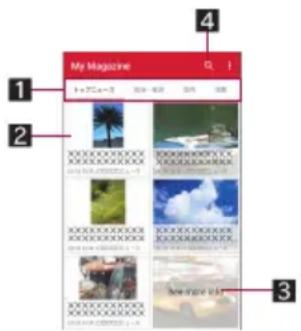
1 Genres to display
● ● Display articles of a selected genre.
- Slide it to the left/right to switch displays of genre.
2 Article
- Display articles.
3 See more info
- ● Display articles which are not displayed in the article list screen as a list.
4 Search
Information on apps
1 In the home screen, [☐☐☐] ▶ [☐:] ▶ [About]
Call
You can use the phone and phonebook, and make settings for call, voice/answering memo, operations available when calls are received, etc.
Making a call
1 In the home screen, [ north] ▶ [Dial]
2 Enter a phone number
- Always enter the city code, even when it is a local number.
- You can set to notify/not to notify the other party of your phone number for each call by adding "186"/"184" to the head of the phone number.
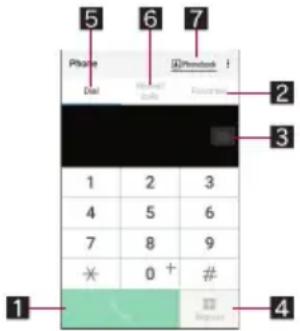
1 Call
- Make a call. Also, if there are outgoing call history items, touch it to enter the latest one when the phone number has not been entered.
2 Favorites
● ● Display the contacts set as favorites.
3 Delete
- Delete an entered number.
- Touch and hold it to delete all the entered numbers.
4 Register
5 Dial
● ● Display the dial screen.
6Outgoing/Incoming call history
7Phonebook
● ● Display the phonebook.
3 [ ]
- To make a video call: [::] ▶ [Video call]
4 [END CALL] to end the call
- If you talk on the handset with your hair put between the earpiece and your ear, the proximity sensor (upper part of the display) may not work properly. The screen may be kept turned on and the call may be interrupted when the screen is touched accidentally.
VoLTE
- VoLTE enables you to use call and video call of high quality.
- When you use VoLTE, the handset and the other party's device need to satisfy the following conditions.
■ ● They are VoLTE compatible models
■ ● They are inside the VoLTE available area - Preferred network type is set to [LTE/3G/GSM(Auto)]/[LTE/3G] (P. 86 "Preferred network type")
■ Call mode setting is set to [VoLTE ON] (P. 37 "Call settings/Other")
Entering touch-tone signals
When using services in which you are required to enter numbers additionally during a call, such as inquiry about the balance in your bank account or ticket reservation, enter pause (,) / wait (;) after entering a phone number to make a call with an additional number added to the main phone number.
■ Adding 2 seconds pause
After making a call to a main phone number, the handset automatically pauses for 2 seconds and an additional number is sent.
1 In the home screen, [☐] ▶ [Dial]
2 Enter a phone number ▶ [::] ▶ [Add 2-sec pause]
3 Enter a number to send ▶ [ telephone]
Adding wait
After making a call to a main phone number, the handset automatically waits and then a screen asking whether to send an additional number is displayed. Touch [YES] to send an additional number.
1 In the home screen, [☐] ▶ [Dial]
2 Enter a phone number ▶ [⋮] ▶ [Add wait]
3 Enter a number to send ▶ [☐]
4 [YES] during the call
Video call
By using video call, you and the other party can talk on the handset while seeing each other's image. Also, you can switch between voice call and video call while talking on the handset.
- Call charges and packet communication charges are incurred when making a video call. In addition, packet communication charges are incurred also when receiving a video call.
● Quality of image may differ depending on the usage environment because suitable communication levels are applied according to the usage condition. - If you cannot switch to a video call during a voice call, [Switching to video call failed] is displayed and the voice call continues.
- Be careful not to cover the speaker section during a video call. The other party's voice may not be heard well.
● While using video call in the background, your image is not sent to the other party. - As for image displayed during a video call, since processes for displaying image may differ depending on the model to use, ranges of your image displayed on the handset may differ from those displayed on the other party's device.
Emergency call
| Emergency calls Phone number | |
| Police 110 | |
| Fire and ambulance 119 | |
| Marine emergency 118 | |
- The handset supports “Emergency call location notification”. When you make a call to an emergency number such as 110, 119 and 118, the information of your location (location information) is automatically notified to the agency that has received the emergency call (e.g. the police station). Depending on your location and the reception status of the signal, the agency that has received the emergency call may not be able to confirm the exact location. If you are not sending your caller ID by calling with “184” added or other means, your location information and phone number are not notified. However, if the agency that has received the emergency call considers your location information and phone number necessary for important purposes, such as life saving, the agency may retrieve them regardless of your settings. In addition, the area/timing to introduce “Emergency call location notification” depends on the state of preparation in each agency that receives emergency calls.
- In Japan, you cannot make a call to the emergency number (110, 119 or 118) when a docomo nano UIM card is not inserted, while the PIN code is locked, from the PUK (PIN Unlock Key) entry screen.
- When calling 110, 119 and 118 from your handset, the police or fire stations may return your call for verification purposes. State that you are calling from a mobile phone, and give your phone number and exact present location.
Remain stationary to ensure that the call is not disconnected while you are on the line, and keep the handset turned on to receive calls for approximately 10 minutes afterwards.
● Depending on the region, calls to the police or fire station of the local area may not be made. - When you make a call to the emergency number (110, 119 or 118) while Reject call setting is set, items of Reject call setting are set to [OFF].
Emergency call may not be available in some networks. - ● You cannot make a video call to the emergency number (110, 119 or 118).
International call (WORLD CALL)
WORLD CALL is an international calling service available from DOCOMO devices in Japan.
- ● The caller ID may not be notified or displayed correctly depending on overseas network operators. In this case, making a call with incoming call history is not available.
[Calling Method]
- When calling to a land-line phone: 010 ▶ country code ▶ area code (city code) ▶ the other party's phone number ▶ [💡]
- When calling to a mobile phone: 010 ▶ country code ▶ the other party's mobile phone number ▶ [💡]
- As for the other parties' mobile phone numbers and area codes (city codes) that begin with "0", omit the first "0" when entering (except some countries or regions such as Italy).
- Alternatively, enter "009130-010" as usual or "+" instead of "010".
Answering a call
1 When a call is received, the ringtone sounds and the incoming lamp flashes
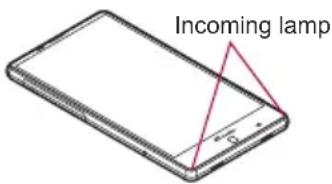
2 Answer the call
- Operate after touching [6].
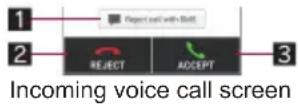
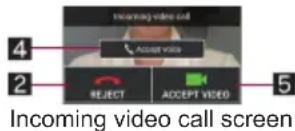
1 Reject call with SMS
- Reject the incoming call and send a selected SMS message to the other party.
2Reject
- Reject the incoming call.
3Accept
- Answer the call.
4 Accept voice
● ● Answer the call using voice call.
5Accept video
● ● Answer the call using video call.
3 [END CALL] to end the call
■ Answering a call while display is turned on
When a call is received while a screen other than lock screen of the touch panel is displayed, the incoming notification is displayed. You can answer the call by using the notification.
1 When a call is received, the incoming notification is displayed at the top of the screen
2 [ACCEPT]
- Touch the incoming notification to display incoming voice call/video call screen.
- Flick the incoming notification to the left/right to hide the notification.
Placing a call on hold
1 When a call is received, the ringtone sounds and the incoming lamp flashes
2 [☐] ▶ [Put a caller on hold]
■ Answering a video call without sending your own image
1 When a video call is received, the ringtone sounds and the incoming lamp flashes
2 [☐]▶ [Camera OFF response]
■ Answering by answering memo
1 When a call is received, the ringtone sounds and the incoming lamp flashes
2 [◦]▶[Absence Memo]
Playing an answering memo
1 In the home screen, [☐]
2 [::]►[Call settings]
3 [Call/Ans Memo]
4 [Answering Memo List]
5 Select an answering memo
Operation during a call
You can carry out operations such as using a hands-free call and adjusting the in-call volume according to the usage condition during a call.
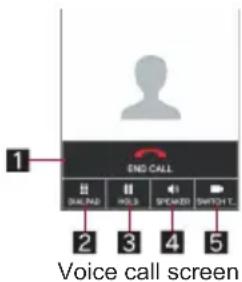
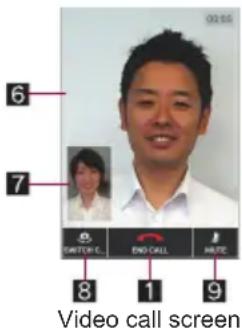
1 End call
● ● End a call.
2 Dialpad
● ● You can enter touch-tone signals.
3Hold
● ● Hold/Unhold a current call.
4 Speaker
● ● You can talk with hands-free.
- ● When a Bluetooth device is connected, you can switch audio output ports.
5 Switch to video
- Switch to a video call.
6 The other party's image
- If you cannot receive the other party's image, [☐] is displayed.
7 Your own image
8 Switch camera
- Switch to the front camera/back camera.
9Mute
- ● Enable or disable the mute setting on a current call.
● Note the followings to use hands-free or video call.
- Speak approximately 20 to 40 cm away from the mouthpiece. When the surroundings are noisy, the sound may break up and the call may not be satisfactory.
- When calling outdoors, in a location where surroundings are noisy or where the sound echoes loudly, use an earphone/microphone.
- If the sound breaks up during a hands-free call, lower the in-call volume.
- In the following cases, [(high-quality sound)] is displayed.
■ ● While receiving a voice call/During a voice call in VoLTE
■ ● While making a video call or receiving a video call/During a video call
■ Adjusting the in-call volume
1 (+) / (-) during a call
■ Switching to full screen display
Switch the video call screen to the full screen display.
1 Touch the screen during a call
- To disable the full screen display: Touch the screen
Using mute
Enable or disable the mute setting on a current voice call.
1 [◦] during a call ▶ [Mute]
Adding a call
Place a current voice call on hold and make a call to another party.
- Subscription to Call Waiting Service is required to add a call.
1 [...] during a call ▶ [Add call]
2 Enter a phone number ▶ [ ]
- Touch the other party put on hold to switch to whom you talk.
■ Switching to voice call
Switch to a voice call during a video call.
1 [ˈɔː] during a call ▶ [Switch to voice call]
■ Displaying dialpad
Display the dialpad during a video call.
1 [ˈɔː] during a call ▶ [Dialpad]
Using Clear talk
When [Clear talk] is enabled, you can measure ambient noises using the microphone and communicate by making your voices sound clear during a call.
1 [°] during a call ▶ [Clear talk]
- Clear talk processes voices to make conversations sound clear. Sound quality may vary depending on the surrounding noises and the tone of the voice.
- When using Clear talk, make sure not to cover the hole of the microphone and move the mouthpiece as close to your mouth as possible for speaking.
- Clear talk is not available in the case that the other party's voice is not emitted from the earpiece, such as during a hands-free call.
Using Slow Talk
When [Slow talk] is enabled, the speed of the other party's voice is slowed down during a call and you can hear the voice well.
1 [☐] during a call ▶ [Slow talk]
■ Switching audio output port
Set whether to talk with hands-free during a video call. When a Bluetooth device is connected, you can switch audio output ports.
1 [☐] during a call ▶ [Switch audio output destination]
2 Select an audio output port
■ Switching image of camera
Set whether to send your own image during a video call.
1 [☐] during a call ▶ [Camera OFF]/[Camera ON]
Switching image area
Switch displaying area of the other party's/your own image during a video call.
1 [☐] during a call ▶ [Switch video area]
Voice memo
1 [☐] during a call ▶ [Sound Memo]
2 [STOP]
■ Displaying phonebook
1 [☐] during a call ▶ [Address Book]
- Checking your own phone number
1 [☐] during a call ▶ [My profile]
Outgoing/Incoming call history
The handset memory keeps a record of the 500 most recent outgoing and incoming call history items in total.
1 In the home screen, [图标] ▶ [Recent calls]
2 [All]/[Incoming]/[Outgoing] ▶ select a history item
• Information on whether the outgoing/incoming call history items are of voice call or video call is not displayed.
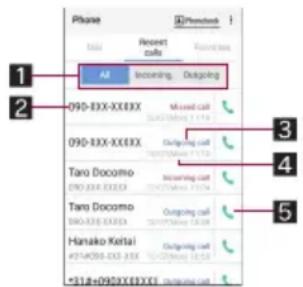
1 Switch displays of history
- Switch among all history, only incoming history and only outgoing history.
2The other party's name/phone number
3Outgoing call/Incoming call/Missed call
4 Date and time of outgoing/incoming call
5Outgoing call icon
- Touch to make a voice call.
3 [Call]
- To register to the phonebook: [Register] ▶ select a destination ▶ set each item ▶ [Save]
- To compose and send SMS: [Send SMS] ▶ compose and send SMS
• To make a video call: [Video call]
Deleting outgoing/incoming call history
1 In the home screen, [图标] ▶ [Recent calls]
2 [All]/[Incoming]/[Outgoing] ▶ [:] ▶ [Delete log]
3 Select a history item ▶ [Delete] ▶ [Delete]
- To delete all history items: [Select all] ▶ [Delete] ▶ [Delete]
Voice/Answering memo
You can play or set the voice/answering memo. If you set the answering memo, the handset answers a call and records the caller's message when you cannot answer.
1 In the home screen, [图标]
2 [::] ▶ [Call settings]
3 [Call/Ans Memo]
4 Select an item
■ ● Answering Memo List: Play or delete answering memos etc.
■ ● Voice Memo List: Play or delete voice memos etc.
■ Answering memo setting: Make settings for operations of the answering memo.
■ Answering message setting: Make settings for the reply message of the answering memo.
■ Answer time setting: Make settings for how long before the answering memo answers a call.
- Up to 10 answering memos and voice memos (approximately 60 seconds per memo) can be recorded respectively.
- If a video call is answered by the answering memo, it automatically switches to a voice call and the message is recorded.
- If the number of saved answering memos exceeds the maximum number to be saved, answering memos which have been played are deleted from the oldest one. If no answering memo has been played, the handset does not answer calls by the answering memo.
- If the number of saved voice memos exceeds the maximum number to be saved, they are deleted from the oldest one.
Call settings/Other
You can make settings for call such as voice mail and call rejection.
1 In the home screen, [图标]
2 [::] ▶ [Call settings]
- Alternatively, in the home screen, [☐] ▶ [Settings] ▶ [Call] to make settings for call.
3 Select an item
■ Network service: For details ☐ P. 38 "Network service"
■ Roaming settings: For details 📞 P. 88 "Roaming settings"
■ ● Phone ringtone: Set the ringtone.
■ Vibrate on ring: Set whether to activate the vibrator when receiving a call.
■ Dialpad touch tones: Set whether or not to enable dialing sounds.
■ Call/Ans Memo: For details ☑ P. 37 "Voice/Answering memo"
■ Reject call setting: For details 📞 P. 38 "Reject call setting"
■ Rejection SMS: Edit texts to use for Reject call with SMS.
■ Simple secrecy for incoming calls: Set whether to hide the other party's name and image until holding the handset when receiving a call.
■ Sub address settings: Set whether to use “*” included in a phone number as a separator for the sub address.
- Prefix settings: Make settings for the prefix number.
■ Call mode setting: Set a network to use during a call.
■ Call time: For details 📄 P. 38 "Call time"
■ Contact docomo: For details 📞 P. 38 "Contacting docomo"
■ ● Open source licenses: Display the open source licenses.
Network service
1 In the home screen, [☐]
2 [::] ▶ [Call settings]
3 [Network service]
4 Select an item
■ Voicemail service: A service to answer calls with a reply message and record callers' messages for you.
- Call forwarding service: A service to forward calls.
■ Call waiting: A service to place the current call on hold and answer a new incoming call when receiving a call during another call.
- Caller ID notification: Display your phone number on the other party's phone when you make a call.
■ Nuisance call blocking service: Register and reject phone numbers of “nuisance calls” such as prank calls.
- Caller ID display request service: Answer calls without notifications of phone number and play the guidance for asking notifications of the numbers.
■ Second call settings: Set whether to notify you of receiving a call during another call.
■ Call notification: Notify you of incoming call information with SMS.
■ English guidance: Play the guidance for setting each network service and the voice guidance stating that the handset is outside the service area etc. in English.
■ Remote operation settings: Operate Voice Mail Service, Call Forwarding Service, etc. from a touch-tone land-line phone, pay phone, mobile phone provided by DOCOMO, etc.
■ Public mode (power OFF) settings: Play a message stating that you are unable to answer because you are in a place that does not allow the use of mobile phone and automatically disconnect the call when receiving a call with the handset turned off.
● The following items are not available in video call.
■ Voicemail service
■ ● Call forwarding service
■ ● Call waiting
■ ● Second call settings
Reject call setting
1 In the home screen, [图标]
2 [::] ▶ [Call settings]
3 [Reject call setting]
4 Enter the passcode ▶ [OK]
5 Select an item
■ Reject specified numbers call: Set to reject incoming calls only from the specified callers.
- To edit a specified number: [©] ▶ [Edit] ▶ edit the phone number
■ Reject unregistered call: Set to reject incoming calls from callers not registered in the phonebook.
■ Reject anonymous call: Set to reject incoming calls from callers not notifying their phone numbers.
■ Reject call from pay phone: Set to reject incoming calls from pay phones.
■ Reject unknown call: Set to reject incoming calls from callers whose phone numbers cannot be notified.
[Reject unregistered call]
- Even if you set Reject unregistered call, calls from contacts for whom the secrecy setting is set are received. The names and images registered in the phonebook do not appear and only the phone numbers appear.
Call time
1 In the home screen, [图标]
2 [::] ▶ [Call settings]
3 [Call time]
4 Select an item
■ ● Cumulated call time: Display the cumulated call time.
■ Reset cumulated call time: Reset the cumulated call time.
■ Auto-reset: Set whether to automatically reset the cumulated call time on the first day of every month.
Contacting docomo
1 In the home screen, [图标]
2 [::] ▶ [Call settings]
3 [Contact docomo]
4 Select an item
■ ドコモ故障問合せ (Inquiries to DOCOMO about malfunctions): Make a call for inquiries about malfunctions.
■ ドコモ総合案内・受付 (General inquiries to DOCOMO): Make a call for general inquiries.
- 海外紛失・盜難等 (Inquiries about loss, theft, etc. while overseas): Make a call for inquiries about loss, theft, etc. from overseas.
- 海外故障 (Inquiries about malfunctions while overseas): Make a call for inquiries about malfunctions from overseas.
Phonebook
You can manage phonebook data of "docomo account" in cloud computing or check My profile.
Adding contacts to phonebook
1 In the home screen, select “ドコモクラウド” (docomo cloud) folder ▶ [docomo phonebook] ▶ [Contacts]
- When the confirmation screen for using cloud computing is displayed, check the content and select [Use]/[Not use].
2 [Register]
3 Set each item
• Information which can be registered may differ depending on the account type.
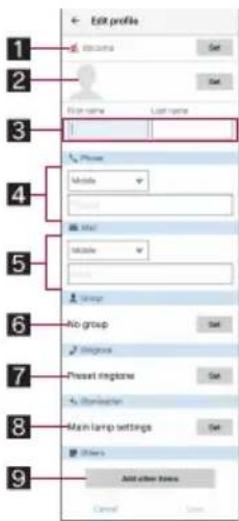
1 Account
- ● Set to which account to register.
2Image
- Register an image to display when making and receiving a call or checking the contact.
3First name, Last name
4 Phone
5Mail
6 Group
● ● Displayed only when you are using the group function.
7 Ringtone
8 Illumination
9 Add other items
- Add items such as the address and organization.
4 [Save]
Checking/Using phonebook
You can retrieve registered contacts from the phonebook to make calls and send mails.
1 In the home screen, select “ドコモクラウド” (docomo cloud) folder ▶ [docomo phonebook] ▶ [Contacts]
2 Select a name
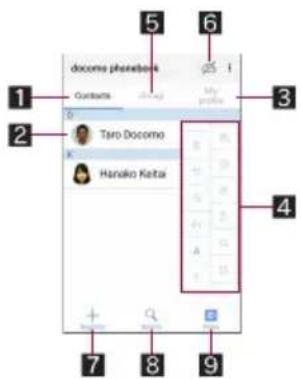
1 Contacts
2Image
3 My profile
● ● Display your phone number registered on the docomo nano UIM card.
4 Index bar
- Move to the touched heading.
5Group
6 Use cloud computing
7 Register
8 Search
9Index
● ● Display the index bar.
3 Check/Use registered information
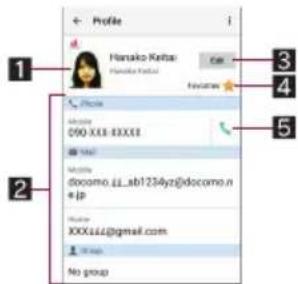
1 Image
2 Registered contents
- Check or use the registered contents.
3 Edit
4 Favorites
- ● Set the contact as a favorite.
- Check the contacts set as favorites in [Favorites] of Group.
- ● It is not available on contacts created with some accounts.
5 Call
■ Selecting accounts to display
1 In the home screen, select “ドコモクラウド” (docomo cloud) folder ▶ [docomo phonebook] ▶ [Contacts]
2 [::] ▶ [Settings] ▶ [Accounts to display]
3 Select an item ▶ [OK]
- To customize an account to display: [Customize...] ▶ select accounts ▶ select groups ▶ [OK]
Deleting phonebook
1 In the home screen, select “ドコモクラウド” (docomo cloud) folder ▶ [docomo phonebook] ▶ [Contacts]
2 [::] ▶ [Delete]
3 Select names ▶ [OK] ▶ [OK]
• To delete all items: [Select all] ▶ [OK] ▶ [OK]
Editing phonebook
1 In the home screen, select “ドコモクラウド” (docomo cloud) folder ▶ [docomo phonebook] ▶ [Contacts]
2 Select a name
3 [Edit]
4 Set each item ▶ [Save]
- For details on each item that can be set ☑ P. 39 "Adding contacts to phonebook"
Using groups
1 In the home screen, select “ドコモクラウド” (docomo cloud) folder ▶ [docomo phonebook] ▶ [Group]
2 Use groups
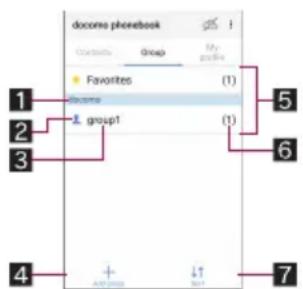
1 Account
2Group icon
3 Group name
4 Add group
- Add a group.
5Groups
6 Number of contacts registered in the group
7Sort
- ● You cannot sort groups other than ones created with a docomo account.
■ Grouping/Ungrouping contacts
1 In the home screen, select “ドコモクラウド” (docomo cloud) folder ▶ [docomo phonebook] ▶ [Group]
2 Select a group
3 [Delete member]/[Add member]
4 Select names ▶ [OK] ▶ [OK]
- The group function is available on contacts created with a docomo/Google account etc.
My profile
You can display your phone number registered on the docomo nano UIM card. You can also register your name, mail addresses, etc.
1 In the home screen, select “ドコモクラウド” (docomo cloud) folder ▶ [docomo phonebook] ▶ [My profile]
2 Check/Use the profile
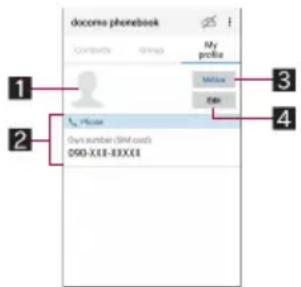
1Image
2 Registered content
3 Notice
● Make settings for Friends notice.
● Available only when you are using cloud computing.
4 Edit
Editing My profile
1 In the home screen, select “ドコモクラウド” (docomo cloud) folder ▶ [docomo phonebook] ▶ [My profile]
2 [Edit]
3 Set each item ▶ [Save]
Backing up/Restoring phonebook
You can back up/restore the phonebook by using docomo backup.
- For details on backing up/restoring phonebook by using docomo backup P. 64 "Backing up to/Restoring from a microSD Card"
Mail/Web Browser
You can send and receive messages using docomo mail, SMS, Gmail, etc., and display websites using Chrome.
docomo mail
You can send and receive mails using mail address of DOCOMO (@docomo.ne.jp). Data can be easily transferred when you have changed models or restored when you have lost the handset since sent and received mails are saved on the docomo mail server. Also, you can send, receive and view mails using the same mail address from multiple devices such as a tablet, PC browser, etc. if you use a docomo ID (d ACCOUNT).
- ● For details on docomo mail, refer to the DOCOMO website.
1 In the home screen, [✉]
- Follow the instructions on the screen and operate after this step.
SMS
You can send and receive text messages with mobile phone numbers serving as destinations.
※For details on the number of characters which can be sent and received etc., refer to "Short Message Service (SMS)" on the DOCOMO website.
- ● You can also exchange messages with those who use network of overseas network operators. Refer to the DOCOMO website for information on countries where this service is available and available overseas network operators.
1 In the home screen, [☐] ▶ [Messaging]
2 [=+]
3 Enter the destination and message ▶ [▶]
- ● You can switch Default SMS app to Hangouts (P. 70 "More").
- If destinations are devices owned by those who use network of overseas network operators, enter “+”, the country code and the recipient's mobile phone number. If the phone number begins with “0”, omit the first “0”. Alternatively, enter “010”, the country code and the phone number.
● Half-width katakana and special symbols in SMS messages may not appear correctly for recipient. - SMS cannot be sent when "186" or "184" is added.
Displaying message
1 In the home screen, [☐] ▶ [Messaging]
2 Select a thread
- Messages are grouped into threads according to their destinations/senders and displayed.
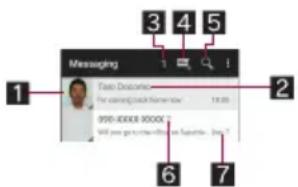
1 Image
● Displayed if an image of the other party is registered in the phonebook. Touch to display the registered content of the phonebook. If the person is not registered in the phonebook, you can register the person in the phonebook after touching it.
2Destination/Sender
3Number of unread messages
4 New message
5Mail search
6 Number of messages in thread
7 Date and time of the message exchange
3 Check the message
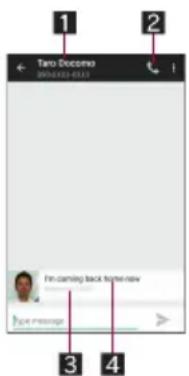
1 Destination/Sender
2Phone call
3Date and time of the message exchange
4 Message
Replying message
1 In the home screen, [☐☐☐] ▶ [Messaging]
2 Select a thread
3 Enter the message ▶ [▶]
Forwarding message
1 In the home screen, [☐☐☐] ▶ [Messaging]
2 Select a thread
3 Touch and hold a message ▶ [Forward]
4 Enter the destination and message ▶ [▶]
Deleting message
1 In the home screen, [☐☐☐] ▶ [Messaging]
2 Select a thread
3 Touch and hold a message ▶ [Delete] ▶ [DELETE]
Deleting thread
1 In the home screen, [☐☐☐] ▶ [Messaging]
- To delete all threads: [ˈɒt] ▶ [Delete all threads] ▶ [DELETE]
2 Touch and hold a thread ▶ [☐] ▶ [DELETE]
Setting Messaging
1 In the home screen, [☐] ▶ [Messaging]
2 [☐] ▶ [Settings]
3 Select an item
■ ● SMS Enabled: Set an app to send and receive SMSs with.
■ Delete old messages: When the number of saved messages reaches its limit, messages are automatically deleted from the oldest one.
■ Text message limit: Set the number of messages to be saved by thread.
■ Delivery reports: Notify you that sent messages have been received every time a message is received.
- Manage SIM card messages: Manage messages saved on the docomo nano UIM card.
■ Notifications: Notify you that messages have been received on the status bar.
■ Sound: Set the ringtone to be rung when a message is received.
■ Vibrate: Set the vibrator to be activated when a message is received.
[Delivery reports]
- When you send a message to mobile phones of other carriers, the notification for confirming that it has been received may not be sent to you.
You can send and receive mails by setting up a mail account provided by a service provider.
- Set up an account in advance (P. 24 "Setting up mail account").
1 In the home screen, [☐] ▶ [Email]
2 [●]
3 Compose a mail
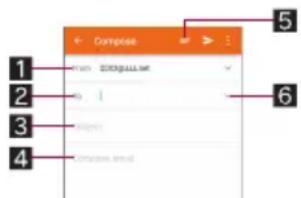
1 Account
- ● If you set up multiple accounts, you can switch accounts.
2 Destination
- When you enter part of a mail address or a name registered in the phonebook, destination candidates are displayed.
3Subject
4 Message
5File attachment
6 Add destinations
- Touch it to add Cc or Bcc.
4 [▶]
- Some receiving side models may not be able to receive the subject completely.
- Mails sent from a Gmail account are treated as ones from a PC. When receiving side models set PC-mail rejection, mails cannot be sent.
- Mails that could not be sent for any reason will be saved in Unsent folder as unsent mails.
- Depending on the signal status etc., characters may not appear correctly on the screen of the other party's device.
Attaching file
- Files of up to approximately 5 MB can be attached. There are no limits to the number of files to be attached.
- Depending on the receiving side device, files may not be received or correctly displayed/played. Also, the quality of videos may deteriorate or videos may be converted to continuous still pictures.
Displaying mail
- ● The screen may appear different depending on the account to use.
1 In the home screen, [☐☐☐] ▶ [Email]
2 Select a mail
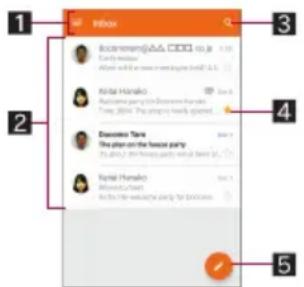
1 Box name/Folder name being displayed
- Touch [≡] to switch or set folders/accounts.
2 Mails
● The characters of sender or subject are displayed in thin characters when a mail is read.
- Touch images to checkmark the mails and you can set them to be deleted/unread/read etc. collectively.
3 Mail search
4 Star icon
- Use it as a mark indicating that the mail is special or supposed to be dealt with later.
- ● You can check starred mails in the Starred folder.
5 Newly compose mail
3 Check the mail
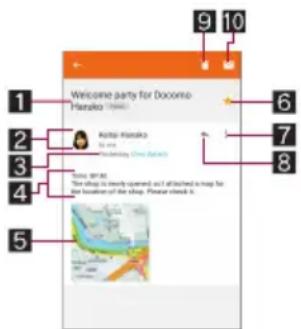
1 Subject
2Sender/Destination
- If the sender is registered in the phonebook, the registered information of the phonebook is displayed after touching the image. If the person is not registered in the phonebook, you can register the person in the phonebook after touching the image.
3 Date and time of reception
- Touch to display/hide the details of sender, destination or date and time of reception.
4 Message
5 Attached file
6 Star icon
- Use it as a mark indicating that the mail is special or supposed to be dealt with later.
- ● You can check starred mails in the Starred folder.
7 Menu of each mail
- Touch to reply to all, forward or print by mail.
8Reply
9 Delete
10Unread
Replying/Forwarding mail
1 In the home screen, [☐] ▶ [Email]
2 Select a mail
3 [←]
- To reply to all: [::] of each mail ▶ [Reply all]
- To forward: [::] of each mail ▶ [Forward]
4 Compose a mail
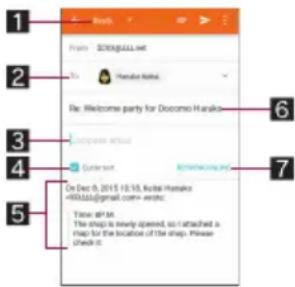
1 Reply type
- Touch to switch Reply/Reply all/Forward.
2Destination
3Message
4 Quote text
- Touch to display/hide the mail of the sender.
- ● You cannot operate it when forwarding mails.
5 Mail of sender
6Subject
7 Respond inline
- Enter the mail of the sender in the message.

Deleting mail
1 In the home screen, [☐☐☐] ▶ [Email]
- To delete selected mails: Touch the images of mails ▶ [☐] ▶ [OK]
2 Select a mail
3 [图标] ▶ [OK]
Setting Email
1 In the home screen, [☐] ▶ [Email]
2 [≡] ▶ [Settings]
3 Select an item
■ General settings: Make settings for the whole Email.
■ ● Add account: Add account.
■ ● Privacy policy: Check the privacy policy.
- Select an account to make settings for the details on the account such as Signature and Email notifications.
Gmail
You can use a mail service provided by Google or Email provided by general service providers.
- If you have not set up a Google account or Email account, follow the instructions on the screen and set.
1 In the home screen, select "Google" folder ▶ [Gmail]
2 [●]
3 Compose a mail
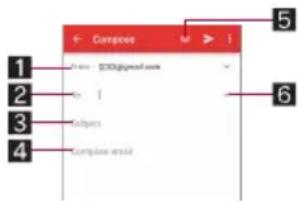
1 Account
- If you set up multiple accounts, you can switch accounts.
2Destination
- When you enter part of a mail address or a name registered in the phonebook, destination candidates are displayed.
3Subject
4 Message
5File attachment
6 Add destinations
- Touch to add Cc or Bcc.

Displaying mail
1 In the home screen, select "Google" folder ▶ [Gmail]
2 Select a thread
- In Gmail, mails are grouped into threads by reply and displayed. If new mails are replied ones of an existing mail, they are grouped into the same thread. A new thread is created for newly composed mails or mails whose subjects have been changed.
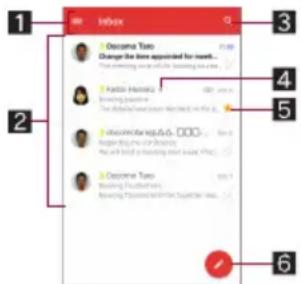
1 Box name/Label name being displayed
- Touch [☐] to switch or set displaying types/accounts.
2Threads
- The characters of destination/sender or subject are displayed in thin characters when all mails in thread are read.
- Touch images to checkmark the threads and you can set them to be archived/deleted/unread/read etc. collectively.
3 Mail search
4 Number of mails in thread
5 Star icon
- Use it as a mark indicating that the thread is special or supposed to be dealt with later.
- ● You can check starred threads in the Starred folder.
6 Newly compose mail
3 Check the mail
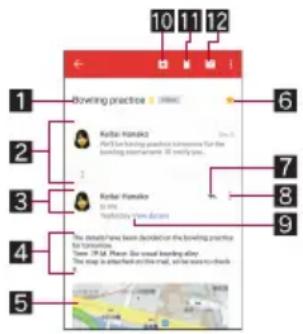
1Subject
2Grouped messages
- Touch to display grouped mails.
3Sender/Destination
- If the sender is registered in the phonebook, available apps supporting the registered content of the phonebook are displayed after touching the image.
- Touch the sender to switch detailed display/simplified display.
4 Message
5 Attached file
6 Star icon
- Use it as a mark indicating that the thread is special or supposed to be dealt with later.
- ● You can check starred threads in the Starred folder.
7 Reply
8 Menu of each mail
- Touch to reply to all, forward, starred/unstarred or print by mail.
9Date and time of reception
- Touch to display/hide the details of sender, destination or date and time of reception.
10 Archive
11 Delete
12Unread
Replying/Forwarding mail
1 In the home screen, select "Google" folder ▶ [Gmail]
2 Select a thread
3 [←]
- To reply to all: [⋮] of each mail ▶ [Reply all]
- To forward: [::] of each mail ▶ [Forward]
4 Compose a mail
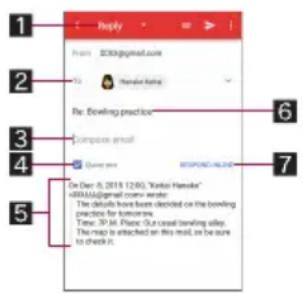
1 Reply type
- Touch to switch Reply/Reply all/Forward.
2 Destination
3 Message
4 Quote text
- Touch to display/hide the mail of the sender.
- ● You cannot operate it when forwarding mails.
5 Mail of sender
6Subject
7 Respond inline
- Enter the mail of the sender in the message.
5 [≥]
Deleting thread
1 In the home screen, select "Google" folder ▶ [Gmail]
- To delete selected threads: Touch the images of threads ▶ [☐]
2 Select a thread
3 [图标]
Setting Gmail
1 In the home screen, select "Google" folder ▶ [Gmail]
2 [≡] ▶ [Settings]
3 Select an item
■ ● General settings: Make settings for the whole Gmail.
■ ● Add account: Add account.
- Select an account to make settings for the details on the account such as Notifications and Signature.
Early Warning "Area Mail"
Area Mail is an app to receive Early Warning "Area Mail" and check the received Area Mail.
- ● Area Mail is a service which enables you to receive earthquake early warnings or tsunami warning sent from the Japan Meteorological Agency or disaster and evacuation information sent from national and local governments without being influenced by congestion of the line.
- When an Area Mail is sent to you, it is automatically received and the contents of it are displayed whether or not the display is turned on or whether or not Screen lock is set.
● ● Area Mail may not be received or automatically displayed depending on the condition of the handset.
• In the following cases, you cannot receive Area Mail.
■ ● During a call
■ ● While the power is turned off
■ ● While outside the service area
■ ● During international roaming
■ In Airplane mode
* Voice calls in VoLTE can be received.
- In the following cases, you may not be able to receive Area Mail.
■ ● During packet communication
■ ● During Wi-Fi tethering
■ ● During USB tethering
■ During software update
- In the following cases, you can receive Area Mail but it may not be automatically displayed.
■ ● During packet communication
■ ● During software update
● ● Area Mail is a free service that does not require a subscription.
1 Automatically receive an Area Mail
2 When the Area Mail is received, the special buzzer or special ringtone sounds and its message is displayed
- Checking received Area Mail later
1 Drag the status bar down ▶ select the received Area Mail
- Alternatively, in the home screen, [DISaster kit] ▶ [Early Warning "Area Mail"] to check received Area Mail.
- ● You can receive Area Mail without subscription to sp-mode.
- ● You cannot receive the Area Mail (earthquake early warning) that failed to be received again.
It is possible to receive the Area Mail (tsunami warning, and disaster and evacuation information) that failed to be received again because it is resent.
- ● You can save up to 50 Area Mails.
- If the number of Area Mails saved on the handset memory exceeds the maximum number to be saved, they are deleted from the oldest one.
Deleting Early Warning "Area Mail"
1 In the home screen, [☐] ▶ [Disaster kit]
2 [Early Warning "Area Mail"]
3 Select a mail
• To select all Area Mails: [Select all]
4 [Delete] ▶ [OK]
Setting Early Warning "Area Mail"
Whether to receive Area Mail, operations for when receiving Area Mail, etc. can be set.
1 In the home screen, [☐☐☐] ▶ [Disaster kit]
2 [Early Warning "Area Mail"]
3 [:]▶ [Settings]
4 Select an item
■ Receive setting: Set whether to receive Area Mail.
■ Beep tone: Make settings for the ring duration and operations in the manner mode.
■ Check screen image and beep tone: Confirm the reception screen and the ringtone for earthquake early warning, tsunami warning, and disaster and evacuation information.
■ ● やさしい日本語表示 (Display with simple Japanese): Set whether to display earthquake early warning and tsunami warning with simple Japanese.
● Settings of the earthquake early warning buzzer, ringtone dedicated to tsunami warning, and disaster and evacuation information, ringtone volume and vibrator cannot be changed.
Chrome
You can display websites via packet communication or Wi-Fi function.
Displaying websites
1 In the home screen, [9]
- Some websites may not appear properly.
Searching websites
1 Touch the URL entry field
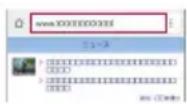
2 Enter a keyword ▶ select a keyword
- Keywords that include the entered characters are displayed as a list.
- Alternatively, enter the entire keyword and [Go] to search websites.
- To reload the page: In the Chrome screen, [::] ▶ [C]
Opening new tabs
1 In the Chrome screen, [::] ▶ [New tab]
- Chrome is displayed by tab in [History] of Quick Launcher. You can switch or delete tabs in [History] of Quick Launcher (P. 27 "History").
■ Opening incognito tabs
You can display websites without your browsing history and search history being recorded.
1 In the Chrome screen, [::] ▶ [New incognito tab]
- When you display websites on an incognito tab, the surrounding area of the URL entry field is displayed in gray.
2 Touch the URL entry field
3 Enter a keyword ▶ [Go]
- Incognito tabs of Chrome are displayed in [History] of Quick Launcher as with usual tabs. You can switch or delete tabs in [History] of Quick Launcher (P. 27 "History").
- The websites opened on incognito tabs are not recorded in history of Chrome (P. 46 "Displaying websites from history"). Also, if you delete all incognito tabs from Quick Launcher, information such as Cookie is deleted. Downloaded files and bookmarked websites from incognito tabs can be saved, too.
■ Searching characters in the page
1 In the Chrome screen, [☐] ▶ [Find in page]
2 Search
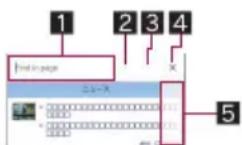
1 Keyword entry field
- Enter the keyword to search with.
2Previous
3 Next
4 End search
5 Search results bar
- Move to the search result at the touched position.
■ Copying characters
1 In the Chrome screen, touch and hold characters to copy
2 Drag your finger from the start position to the end position
- To change the copy range: Drag [☐]/[☐]
3 [□]
■ Convenient functions
You can display a link with a new tab or download data such as images.
1 In the Chrome screen, touch and hold a link/an image ▶ select a function to use
Setting Chrome
1 In the Chrome screen, [☐] ▶ [Settings]
2 Select an item
■ Sign in to Chrome: Sign in to Chrome with your Google account. You can synchronize information such as tabs, bookmarks and history saved when you used Chrome with the same account.
■ Search engine: Set a search engine to use when searching in the URL entry field.
■ Merge tabs and apps: Set whether to switch tabs in Chrome by “☐”. Set to Off to display numbers of opening tabs on the right side of the URL entry field and touch to switch tabs.
■ Autofill forms: Set information on your address or credit card to use when automatically filling out forms.
■ Save passwords: Make settings for saving passwords.
■ ● Home page: Set a home page.
■ Privacy: Make settings for the functions that use your browsing information to improve user-friendliness.
■ Accessibility: Make settings for the display such as font size and zoom.
■ Site settings: Make settings for displaying websites and the information that they can use to improve user-friendliness.
- Data Saver: Set whether to suppress the data communication volume.
■ ● About Chrome: Check information on Chrome.
Using bookmark and history
Saving bookmarks
1 In the Chrome screen, [::] ▶ [☆]
2 [Save]
■ Displaying websites from bookmarks
1 In the Chrome screen, [::] ▶ [Bookmarks]
2 Select a bookmark
■ Displaying websites from history
1 In the Chrome screen, [⋮] ▶ [History]
2 Select a history item
Apps
dmenu
In dmenu, you can easily access websites or convenient apps recommended by DOCOMO.
1 In the home screen, [dメニュー] (dmenu)
- Internet connection via packet communication (LTE/3G/GPRS) or Wi-Fi is required to use dmenu.
- Packet communication charge is incurred separately for connecting to dmenu and downloading apps introduced on dmenu. Some downloaded apps automatically perform packet communication.
- Apps introduced on dmenu include charged ones.
dmarket
An app which handles digital contents such as music, videos and books and provides you with various services such as shopping websites and travel reservation websites.
1 In the home screen, [dmarket]
- For details on dmarket, refer to the DOCOMO website.
Play Store
By using Google Play, you can download and install useful apps or fun games to the handset.
- Set up a Google account in advance (P. 24 "Setting up Google account etc.").
1 In the home screen, [Play Store]
- To display help: [≡] ▶ [Help & Feedback]
- Be sure to check the security of app, then install it at your own risk. The handset may be infected with a virus, data may be damaged, etc.
- Note that DOCOMO shall not be liable for malfunctions caused by the app etc. you installed.
- Note that DOCOMO shall not be liable for any disadvantage brought to you or any third party due to the app etc. you installed.
Purchasing apps
1 In the Google Play screen, select an app to purchase
2 Touch the price
- Follow the instructions on the screen and operate after this step.
- When the app is free: [INSTALL]
- If you make a purchase for the first time, select a payment method. You need to sign in to your Google Wallet account depending on the payment method.
-
You can ask for a refund within a specified time after purchasing an app. The app is deleted and you are not charged. In addition, note that a refund request is available for each app only once. If you requested a refund for a purchased app in the past and purchase the same app again, a second refund request is not available. In the Google Play screen, [≡] ▶ [Help & Feedback] for details on the payment method when purchasing an app, the terms on refund requests, etc.
-
Once you accept installation of an app, you are responsible for the results of using the app. Be very cautious about installation of apps that access many functions or a significant amount of data.
- Some downloaded apps automatically perform packet communication. Note that the packet communication charges may be higher.
- You need to pay for an app only once. Re-downloading apps which you previously uninstalled after first downloading will not be charged.
- If you have multiple Android devices that use the same Google account, you can download a purchased app to all of them at no additional cost.
● Note that DOCOMO provides no assistance for purchase of apps, refund, etc. from Google Play.
Uninstalling apps
1 In the Google Play screen, [≡] ▶ [My apps]
2 Select an app to uninstall
3 [UNINSTALL] ▶ [OK]
Osaifu-Keitai
Osaifu-Keitai is a function for using “Osaifu-Keitai compatible services” which enable you to pay, use the handset as coupons, etc. by simply holding it over scanning devices at stores etc. and using “Kazashite-Link compatible services” which enable you to access information by holding the handset over home electric appliances, smart posters, etc. You can save electronic money, points, etc. on the IC card or docomo nano UIM card.
In addition, you can deposit electronic money, check the balance and the remaining points, etc. while you can lock Osaifu-Keitai functions in case of theft or loss.
For details on Osaifu-Keitai, refer to the DOCOMO website.
※To use Osaifu-Keitai compatible services, settings are necessary on a website or an app.
Using Osaifu-Keitai compatible handset
- The handset malfunctions may cause data on the IC card, data on the docomo nano UIM card ^2 to be lost or changed (Note that as a rule, you will be asked to delete data when leaving your handset for repairs etc., since we cannot keep your handset with such data still remaining in it). For the service such as a reissue, restoration, temporary keeping or transference of the data, contact a provider of the Osaifu-Keitai compatible service you use. Be sure to use the Osaifu-Keitai compatible service including a backup service for important data.
- To use the Osaifu-Keitai compatible service by using data on the docomo nano UIM card, you need to install an app from a provider of the Osaifu-Keitai compatible service and set it even if you continue to use same docomo nano UIM card as before model change.
- ● DOCOMO shall not be liable for any loss or change of data on the IC card, data on the docomo nano UIM card or other damages related to Osaifu-Keitai compatible services caused by any reason such as malfunctions and model changes.
- When the handset is stolen or lost, immediately contact a provider of the Osaifu-Keitai compatible service you use for handling methods.
*1 The data saved on the built-in IC card of the Osaifu-Keitai compatible handset
*2 The data saved on the docomo nano UIM card
Using "Osaifu-Keitai compatible services"
- To use Osaifu-Keitai compatible services, download the Osaifu-Keitai compatible app from Osaifu-Keitai compatible websites and make the setting. Some services do not require the download of the Osaifu-Keitai compatible app.
1 In the home screen, [☐☐☐] ▶ [Osaifu-Keitai]
- If the initial settings are not completed, the initial settings screen appears. Follow the instructions on the screen and operate.
2 Select a service
- Make settings on the website of the service or after downloading the app compatible with the service.
3 Hold the 🔒 mark of the handset over the scanning device
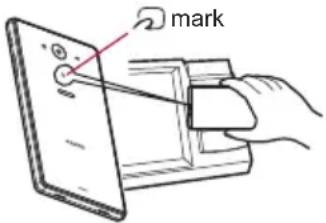
- You cannot use Osaifu-Keitai compatible services in the following situations. However, you can pay by holding the handset over a scanning device.
■ ● In Airplane mode - When you are charging the handset, connecting Micro USB Cable 01 (sold separately) to it or connecting an earphone/microphone to it while the docomo nano UIM card is not inserted/when the handset has never received radio wave
- Osaifu-Keitai compatible services are available even if you cannot unlock the PIN code of the docomo nano UIM card or the PIN code is locked.
- If you have not subscribed to sp-mode, you may not be able to use some functions of an Osaifu-Keitai compatible service.
● The handset can communicate with scanning devices without activating Osaifu-Keitai compatible app. - Communicating with the scanning device is available even if you turn the power off. However, you may not be able to use it if the power remains turned off for a long time or the battery level is insufficient.
- Some Osaifu-Keitai compatible services are not available during Emergency mode (P. 19 "Emergency mode").
- Depending on the installed Osaifu-Keitai compatible app or app's settings, Osaifu-Keitai compatible services may not be used by holding the handset over the scanning device while the Screen lock is set, the display is turned off or power is turned off.
Using "Kazashite-Link compatible services"
- Enable [Reader/Writer, P2P] in advance (P. 48 "NFC/Osaifu-Keitai settings").
1 Hold the 🔒 mark of the handset over a device into which an NFC module is built, smart poster, etc.
Precautions about holding over the other device
- Pay attention to the following points when holding the Ⓞ mark over the other device such as a scanning device or device into which an NFC module is built.
- Do not let the handset strongly clashed with the other device but slowly bring the handset close to the other device when holding the Ⓤ mark over it.
■ Hold the Ⓜ mark over the center of the other device and in parallel with it. If the other device does not recognize the built-in IC card even when you do so, slightly move the handset away from the other device or move the handset around. - The other device may not recognize the built-in IC card if there are metallic objects between the Ⓜ mark and the other device. Remove the handset from its cover or case if the other device does not recognize the built-in IC card, since equipping the handset with it may influence the communication performance.
NFC/Osaifu-Keitai lock
You can restrict the use of the functions and services of Osaifu-Keitai by setting NFC/Osaifu-Keitai lock.
- NFC/Osaifu-Keitai lock differs from Screen lock of the handset and Set up SIM card lock.
1 In the home screen, [☐☐☐] ▶ [Settings] ▶ [More] ▶ [NFC/Osaifu-Keitai settings] ▶ [NFC/Osaifu-Keitai lock]
- Alternatively, in the home screen, [☐] ▶ [Osaifu-Keitai] ▶ [Lock Settings] to set NFC/Osaifu-Keitai lock.
2 Follow the instructions on the screen and enter the NFC/Osaifu-Keitai lock number
- While NFC/Osaifu-Keitai lock is set, [icon] or [icon] is displayed on the status bar.
- When the battery runs out while NFC/Osaifu-Keitai lock is set, NFC/Osaifu-Keitai lock cannot be disabled. Be aware of the battery level. If the battery runs out, disable NFC/Osaifu-Keitai lock after charging the battery.
- To use the menu of Osaifu-Keitai while NFC/Osaifu-Keitai lock is set, disable NFC/Osaifu-Keitai lock.
● The NFC/Osaifu-Keitai lock number is not deleted even if you initialize the handset. - When disabling NFC/Osaifu-Keitai lock, insert the docomo nano UIM card which had been inserted into the handset when NFC/Osaifu-Keitai lock was set.
NFC/Osaifu-Keitai settings
1 In the home screen, [☐☐☐] ▶ [Settings] ▶ [More] ▶ [NFC/Osaifu-Keitai settings]
2 Select an item
■ NFC/Osaifu-Keitai lock: For details ☎ P. 48 "NFC/Osaifu-Keitai lock"
■ Reader/Writer, P2P: Set whether to use the Reader/Writer, P2P function.
■ Android Beam: Perform data communication using Android Beam.
- For details on Android Beam P. 82 "Android Beam"
■ NFC Type setting: Select an NFC type to use from among "FeliCa/Type A/Type B (Standard)", "FeliCa/Type A" or "FeliCa/Type B".
■ Tap & Pay: For details 📞 P. 49 "Tap & Pay"
- Lock No. change: Change the lock number of NFC/Osaifu-Keitai lock.
Tap & Pay
You can enable/disable available services by holding the handset over the scanning device such as Osaifu-Keitai compatible services.
1 In the home screen, [☐] ▶ [Settings] ▶ [More] ▶ [NFC/Osaifu-Keitai settings] ▶ [Tap & Pay]
- Alternatively, in the home screen, [☐] ▶ [Osaifu-Keitai] ▶ [☐] ▶ [Change setting of credit card etc.] to activate it.
2 Select a service
- Follow the instructions on the screen and operate after this step.
- To display help: [☐] ▶ [Help] (in Japanese only)
ToruCa
ToruCa is an app which enables you to store economical coupons of your favorite shops, useful information, etc. in one place. You can retrieve one with various ways such as downloading from mail or website, Bluetooth function or IC tag. Retrieved information for ToruCa can be easily updated to the latest.
For details on ToruCa, refer to the DOCOMO website.
1 In the home screen, [■■] ▶ [トルカ] (ToruCa)
- Packet communication charges may be incurred for retrieving, displaying or updating ToruCa.
- When you retrieve ToruCa by using the Bluetooth function, you need to set [Bluetoothでトル力を増やす] (Increase ToruCa via Bluetooth) to ON.
- When you retrieve ToruCa from IC tag, you need to enable [Reader/Writer, P2P] (P. 48 "NFC/Osaifu-Keitai settings").
● The following functions may not be available depending on the settings of the content provider.
■ ● Updating
■ ● Sharing ToruCa
■ ● Displaying a map
■ ● Retrieving from a scanning device - If the initial settings of Osaifu-Keitai have not been made, ToruCa may not be retrieved from a scanning device.
iD appli
“iD” is electronic money provided by DOCOMO. You can pay easily and conveniently by holding an Osaifu-Keitai in which “iD” is set over scanning devices at stores. Two types of card information can be registered and you can switch them according to the benefits etc.
- ● For using iD with Osaifu-Keitai, setting of iD appli is required.
- Expense (annual fee etc.) for using iD service may vary depending on the credit card company.
- ● For setting and checking iD appli overseas, packet communication charges differ from those in Japan.
- ● For information on iD, refer to iD website. http://id-credit.com/ (in Japanese only)
NOTTV/TV (Full-Seg/1Seg)
NOTTV
NOTTV is a broadcasting service for smartphones. You can use two watching styles. One of the two is broadcasting in real time style that allows you to watch programs in real time. The other one is broadcasting in storage style that allows you to enjoy content items such as music, magazines or apps as well as movies and dramas anytime and anywhere. Also, you can enjoy new broadcasting services such as the collaboration with social services using the communication function of the handset.
For details on the service, refer to the NOTTV website.
NOTTV: http://www.nottv.jp/ (in Japanese only)
- “NOTTV” is a generic name of a broadcasting service for mobile phones which is provided by mmbi, Inc. and other broadcast stations.
- In NOTTV, there are “Real Time” service that allows you to enjoy watching programs by broadcasting in real time style and “Shift Time” and “NOTTV Books” services which are used broadcasting in storage style.
Using NOTTV
● A separate pay-TV subscription to the broadcast station is required to use NOTTV.
- ● You cannot receive and watch broadcasts without the docomo nano UIM card being inserted to the handset.
● NOTTV is a broadcasting service provided in Japan.
● Available space on the handset memory or a microSD Card is required to use broadcasting in storage style or record videos. It is recommended to use a microSD Card on Class 4 or higher level. Also, you can set the save destination (P. 51 "Advanced settings of NOTTV").
TV (Full-Seg/1Seg)
TV is an app with which you can watch either Full-Seg or 1Seg by switching them according to the reception status of broadcast wave. In addition, it can receive data broadcasting with image and audio, and an interactive service adopting a communication function for mobile devices and detailed information available via communication can also be used.
Full-Seg enables you to watch a terrestrial digital TV broadcasting service with HD image quality.
1Seg enables you to watch a terrestrial digital TV broadcasting service for mobile devices.
For details on the “Full-Seg/1Seg” service, see the website below. The Association for Promotion of Digital Broadcasting: http://www.dpa.or.jp/english/
Using Full-Seg/1Seg
Full-Seg/1Seg is a service provided by TV broadcasters (broadcast stations) etc. Communication charges are not incurred for receiving image and audio. Contact NHK for details on viewing fees of NHK. Available information in the area of the data broadcasting is “data broadcasting” information and “data broadcasting website” information.
“Data broadcasting” information is carried by broadcast wave together with image and audio. “Data broadcasting website” information is used to access and display websites provided by TV broadcasters (broadcast stations) etc. from the information on data broadcasting.
Packet communication charges are incurred when accessing a website such as a "data broadcasting website".
Some websites require information charges to use.
Precautions about Full-Seg
- ● The handset adopts “The Software Based RMP System” to protect the copyrights of terrestrial digital TV broadcasting content. Therefore, a B-CAS card etc. is not necessary.
● Full-Seg programs recorded by the handset cannot be played on other devices. - ● For inquiries about “The Software Based RMP System”, contact the RMP Administration Center for Terrestrial Broadcasting Content.
Website: http://www.trmp.or.jp/
Mail address: info-trmp-en@trmp.or.jp
Precautions about using Full-Seg data broadcasting
- ● Note that DOCOMO shall not be liable for damages and disadvantages incurred on the users due to partial or complete changes/losses of information such as personal information and points recorded on the handset by an interactive communication etc. of data broadcasting.
- ● Accumulated data from data broadcasting may not be transferred in another area even when the data is from data broadcasting of a same program.
● Full-Seg data broadcasting can only be operated by the remote controller or gesture operations.
■ Broadcast wave and service area
The radio wave received via NOTTV/Full-Seg/1Seg differs from that received via Xi services and FOMA services. Also, the radio waves received via NOTTV, Full-Seg and 1Seg differ from one another. Therefore, it cannot be received at a place where the broadcast wave for NOTTV/Full-Seg/1Seg does not reach or while the broadcasting is out of service, regardless of whether the handset is outside or inside the Xi service or FOMA service area. Also, in the following places etc., the reception status may become weak or the signal may not be received even if the handset is inside the area of a NOTTV broadcasting/terrestrial digital TV broadcasting service.
- Place that is far from the base station/radio tower which sends the signal
- Place where the signal is interrupted due to the landscape or buildings such as mountainous areas or behind a building
- Place where the signal is weak or does not reach, such as a tunnel, basement or an inner area of a building
TV/Mobacas antenna cable
When you use (watch/record/receive in Shift Time) NOTTV or use (watch/record) TV, connect included TV/Mobacas antenna cable SH01 to the earphone/microphone terminal of the handset.
Using an earphone/microphone
If you want to use an earphone/microphone while using TV/Mobacas antenna cable, connect the handset and a commercially available earphone/microphone with the TV/Mobacas antenna cable.
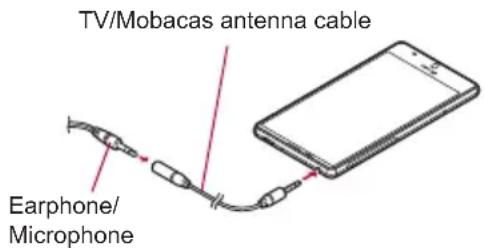
■ Improving reception status
Change the direction of the TV/Mobacas antenna cable, keep the handset apart from your body or move to another place so that the reception status may become better.
NOTTV
Real Time
1 In the home screen, [NOTTV]
2 [リアルタイム] (Real Time)
3 Select a channel/program
4 Watch the channel/program
- Flick the image to the left/right to switch channels/programs.
- To display the screen horizontally: [☐]/Tilt the handset horizontally
- To record: Touch an image ▶ [錄画] (Record)
- To display detailed information on the program: Touch an image ▶ [詳細情報] (Detailed information)
Shift Time/NOTTV Books
1 In the home screen, [NOTTV]
2 [シフトタイム] (Shift Time)/[NOTTVブックス] (NOTTV Books)
- If there are no available content items or release schedules of content items, [シフトタイム] (Shift Time)/[NOTTVブックス] (NOTTV Books) is not displayed.
3 Select a content item
- “NOTTVブックス” (NOTTV Books) of viewer app is required to use “NOTTVブックス” (NOTTV Books) content.
- Expiration date is decided to content items. Also, expiration date may differ depending on the content items. Content items whose expiration date has passed will be automatically deleted from the handset memory/the microSD Card.
■ Searching from program guide (Real Time)
You can watch Real Time programs using the program guide.
1 In the home screen, [NOTTV]
2 [番組表] (Program guide)
3 Select a program
- Advanced information appears on the programs which cannot be watched immediately.
■ Searching by specifying conditions
1 In the home screen, [NOTTV]
2 [メニュー] (Menu)
3 [番組・コンテンツ一覧] (Programs/Contents list)
- Alternatively, you can search by entering a keyword in the keyword entry field.
- You can register entered keywords after searching (keyword reservation). If you register keywords, related programs/content items are automatically made watching/ recording reservation or receiving reservation.
4 Select an item
5 Select a program/content item
Watching/Recording reservation from program guide (Real Time)
1 In the home screen, [NOTTV]
2 [番組表] (Program guide)
3 Select a program to make watching/recording reservation
• The detailed information is displayed.
4 [視聴予約する] (Watching reservation)/[録画予約する] (Recording reservation)
- In the following cases, programs may not be watched/recorded.
- When the time for a program to be broadcast arrives with the handset turned off
■ ● When the battery level is insufficient - When the handset is in a poor reception status of broadcast wave such as when it is out of the NOTTV service area
■ ● When a microSD Card is not inserted - When available space on the handset memory/the microSD Card is insufficient
- Programs recorded on the handset memory/a microSD Card can be watched only on the handset and docomo nano UIM card being used.
- Some programs cannot be recorded.
- The series reservation may not be available depending on the program/channel. In this case, use the keyword reservation (P. 50 "Searching by specifying conditions").
Receiving reservation from schedule (Shift Time/NOTTV Books)
1 In the home screen, [NOTTV]
2 [シフトタイム] (Shift Time)/[NOTTVブックス] (NOTTV Books)
3 [予定表] (Schedule)
- The list of content items that will be broadcast is displayed.
4 Select a content item
• The detailed information is displayed.
5 [予約する] (Reserve)
6 [1回のみ予約する] (Reserve only once)/[シリーズ予約する] (Reserve series)
- If you enable [自動予約] (Automatically reserve), recommended Shift Time/NOTTV Books content items are automatically reserved in NOTTV (P. 51 "Setting NOTTV").
- In the following cases, content items may not be received.
- When the time for a content item to be broadcast arrives with the handset turned off
■ ● When the battery level is insufficient
■ ● When the handset is in a poor reception status of broadcast wave such as when it is out of the NOTTV service area - When available space on the handset memory/the microSD Card is insufficient
■ ● When a microSD Card is not inserted
- If you set 自動補完 (Automatically complement) to [ON], data may be automatically complemented using packet communication when content items fail to be completely received because of the reception status of broadcast wave etc. (P. 51 "Setting NOTTV").
Setting NOTTV
1 In the home screen, [NOTTV]
2 [メニュー] (Menu)
3 [設定] (Settings)
4 Select an item
■●音声切替 (Switch audio): Make settings for main/sub audio channel.
■ ● 字幕表示切替 (Display subtitles): Make settings for displaying subtitles.
■ ● バックグラウンド再生 (Background playback): Set whether to play NOTTV in the background.
■ ● 自動予約 (Automatically reserve): Set whether to automatically make receiving reservation of recommended content items.
■ ● 自動補完 (Automatically complement): Make settings for the function to automatically complement data when the data has failed to be completely received.
■ 番組表情報自動取得 (Automatically acquire information on program guide): Set the time when information of the program guide is automatically acquired.
■ 新着情報表示 (Display new information): Set whether to display new information for programs/content items which have been made recording/receiving reservation on the status bar.
■ ● おすすめ表示 (Display recommended information): Set whether to display recommended information from broadcast station on the status bar.
■ ● おすすめ設定 (Recommendation settings): Set your gender, age and genres used for recommendation.
■ 視聴年齢制限 (Restrict watching age): Set whether to make programs with watching age restriction unavailable.
■ ● 年齡設定 (Set age): Set at what age watching restriction starts to be applied.
■ パスワード変更 (Change passwords): Set a parental control password.
■ Twitter連携解除 (Disable linkage to Twitter): Disable the linkage to Twitter.
- 詳細設定 (Advanced settings): Make settings for detailed items. For details on 詳細設定 (Advanced settings)
P. 51 “Advanced settings of NOTTV”
Advanced settings of NOTTV
1 In the home screen, [NOTTV]
2 [メニュー] (Menu)
3 [設定] (Settings)
4 [詳細設定] (Advanced settings)
5 Select an item
■ 視聴可能チャンネル優先表示 (Display available channels preferentially): Set whether to preferentially display the registered channel in Real Time or program guide.
■ ● ラストカテゴリ設定 (Last category setting): Set whether to display the category which you have been viewing when you end the app on the start-up screen.
■ ● チューナ起動 (Activate tuner): Set whether to automatically display Real Time program.
■ ● 表示形式变更 (Change display format): Make settings for the display format of programs or content items.
■ 重複錄画防止 (Prevent simultaneous recording): Set whether to prevent simultaneous recording of a same program from being carried out when you reserve programs by specifying series or keywords.
■ 重複録画削除サポート (Support deletion of simultaneous recording): Check whether a same program has not been recorded simultaneously when you delete the recorded programs.
- ● ロック画面通知 (Notify on lock screen): Set whether to notify you when a recording starts.
■ ● ストレージ選択 (Select storage): Set a save destination for recorded programs or received content items.
■ ● ログ送信 (Send log): Set whether to send logs of using apps.
■ ● 文字スーパー (Telop): Set whether to display telops.
- When you change the settings, the data is transferred.
[文字スーパー](Telop)
- Even if [文字スーパー] (Telop) is disabled, telops may be displayed.
TV (Full-Seg/1Seg)
Creating channel lists
To watch TV, you need to create one or more channel lists and select one in advance.
- ● You can register up to three channel lists. You can register up to 12 stations in a channel list.
- Create channel lists inside the area of a terrestrial digital TV broadcasting service and after connecting the TV/Mobacas antenna cable.
1 In the home screen, [☐☐☐] ▶ [TV]
- Only when channels are not set, the channel list creating screen appears.
- To add a channel list: In the TV watching screen, [☐] ▶ [Channel settings] ▶ [Edit channel list] ▶ [NEW]
2 Select an item
■ Create by selecting the area: Search for broadcast stations set in each area.
■ Create by searching channels: Search for channels available in the present location.
3 [SET]
● You cannot watch TV overseas, since the broadcasting format and the broadcasting frequency are different.
Watching TV
Watch TV.
1 In the home screen, [TV]
2 Watch TV
• To adjust the volume: (+) / (-)
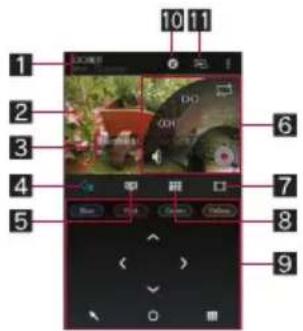
TV watching screen (Full-Seg vertical display)
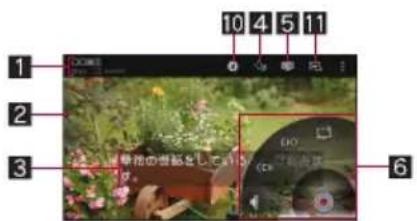
TV watching screen (Full-Seg horizontal display)
1 Program information
● The program name, whether you are watching Full-Seg or 1Seg and broadcast station name are displayed.
2Image
- Touch it to display/hide the controller etc.
- ● Flick your finger to the left/right to select a station with UP/DOWN.
3 Subtitle
4 Remote controller
● ● Display the remote controller.
● ● The following operations are available with displayed keys.
- To select an item: [Blue]/[Red]/[Green]/[Yellow]
- To return to the previous page: [◀]
- To select an item to which the cursor is pointed: [◎]
• To use the numeric keypad: [☐]
• To display Gesture operation guide: [Guide]
* Displayed only on horizontal display.
5 Channel switching key
● ● Display the channel switching screen.
6 Controller
● ● The following operations are available with displayed keys.
• To switch to 1Seg/Full-Seg: [☐]
- To select a station with UP/DOWN: [CH]/[<CH]*1
- To enable or disable the mute setting: [] / []^*2
• To start/stop recording: [◎]/[◎]
*1 Touch and hold the key to select a station by searching a frequency.
*2 Touch and hold the key to display the volume bar. Drag it to adjust the volume.
7 Recorded file list key
● ● Display the recorded file list.
8 Program list key
● ● Display the program list of the broadcast station whose program you are watching.
- Touch a program to display the program details screen. Watching/Recording reservation is also available in the program details screen.
9 Information displaying area
10 Data broadcasting key
● ● Display data broadcasting.
11 Mini TV
- Switch to the mini TV. You can watch TV while using another app (P. 27 "Mini app/Widget").
● While watching TV, colors in the screen may appear different.
● Even if the home screen is displayed while activating TV, information of data broadcasting/data broadcasting websites may be automatically updated, since TV is kept activated. Note that packet communication charges may be incurred.
- If you receive a call while watching TV, TV will resume after the call is terminated. While recording TV, recording continues in the background.
- When you play videos with another app while the mini TV is being used, videos may not be displayed properly.
Recording of TV (Full-Seg/1Seg)
You can record TV and save the recorded programs on the handset memory or a microSD Card.
● Record TV in a good reception status.
- You can set where to save recorded Full-Seg (P. 54 "Setting TV (Full-Seg/1Seg)"). 1Seg can be saved only on the handset memory.
Estimated number of savable videos and recording time
| Save destination | Number of savable videos | Recording time |
| Handset memory Up to 99 * | Full-Seg: Up to approx.187 min1Seg: Up to approx.6,600 min | |
| microSD Card (200 GB) | Up to 99 Full-Seg: Up to approx.1,680 min | |
* This is the respective number of Full-Seg and 1Seg videos.
- ● The followings are the maximum recording size/time for each recording. Even if the available space on the handset memory or a microSD Card is sufficient, the video being recorded up to that point is saved and recording ends once the maximum recording size/time is reached.
■ ● Full-Seg recording: Up to approx. 171 GB/Up to approx. 1,440 min
■ 1Seg recording: Up to approx. 2 GB/Up to approx. 600 min
- When you run out of available space on the handset memory or a microSD Card, recording automatically ends, and the video being recorded up to that point is saved.
1 In the TV watching screen, [◎]
2 Select a recording time
- When the set recording time has passed, recording ends and the video is automatically saved.
• To end recording: [☐] ▶ [OK]
• The video is automatically saved.
● Recording of some programs may be prohibited.
- When the time set for recording arrives while another TV is being recorded, the recording of the latest timer-set program starts. The recording in progress up to that point ends, and the recorded program is saved.
Playing recorded video of TV (Full-Seg/1Seg)
Play a recorded video saved on the handset memory or a microSD Card.
- Basic operations in video playback screen are the same as those in TV watching screen. Operations that differ are explained here.
1 In the TV watching screen, [☐]
2 Select a video
- To delete a recorded video: Touch and hold a video ▶ [☐] ▶ [OK]
3 Watch the video
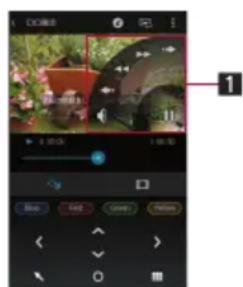
1 Controller
- ● The following operations are available with displayed keys.
• To pause/play: [☐☐]/[▷] - To fast reverse/forward: [<]/[>]^*1
- To return to a location of approx. 5 seconds ago/skip to a location of approx. 15 seconds later: [◀]/[◀>]
- To enable or disable the mute setting: [] / []^*2
• To play from the beginning: [K]^3
*1 Every time you touch it, the playback speed is switched.
*2 Touch and hold the key to display the volume bar. Drag it to adjust the volume.
*3 Displayed when the playback is finished.
● While a video is being played, recorded data broadcasting can also be displayed.
As for Full-Seg, you can set whether to record data broadcasting in [Record Full-Seg data broadcast] of Recording setting.
TV link
You can register memo information and URLs of related websites as TV link in some data broadcasting. If they are registered as TV link, you can check them from the TV link screen.
● ● You can register up to 50 TV links.
● ● Procedures for registering TV links may differ depending on the program.
1 In the TV watching screen, [☐] ▶ [TV Links]
- Display the registered TV links.
2 Select a TV link
Deleting TV links
1 In the TV watching screen, [☐] ▶ [TV Links]
2 Touch and hold a TV link ▶ [☐] ▶ [OK]
Watching/Recording reservation of TV (Full-Seg/1Seg)
You can set a timer for watching or recording TV. In addition, you can check the reservation status, result, etc.
● Record TV in a good reception status.
- ● You can save up to 30 timer settings for watching and recording TV.
- Multiple programs cannot be watched/recorded simultaneously. If the reservation period you are about to set overlaps with that of an existing timer-set program, a confirmation screen for registration appears. Check the content of the message, and then perform registration.
1 In the TV watching screen, [☐] ▶ [Timer]
- To delete a reservation: Select a reservation ▶ [💡] ▶ [OK]
- To display the reservation result list: [Timer] ▶ [Results of timer]
2 [NEW TIMER] ▶ [Set a timer manually]
- To reserve from the program guide: [NEW TIMER] ▶ [Set a timer from G-GUIDE] ▶ reserve
![SHARP Aquos Zeta SH-01H - [NEW TIMER] ▶ [Set a timer manually] - 1](/content/2026/05/1051931/images/b016038c1784c5023a0176619890142ba998af2667ecc7fc6fda2f2ee689557f.jpg)
Set each item
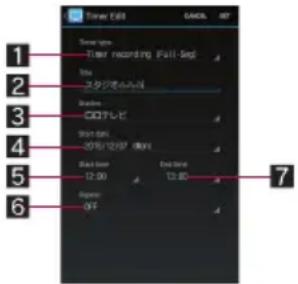
1 Timer type
- Switch timer types.
2 Title
- Enter a title.
3 Station
- ● Set a broadcast station.
4 Start date
- ● Set the start date.
5 Start time
- ● Set the start time.
6 Repeat
● Make settings for the repetition of the reservation.
7 End time
- ● Set the end time.

[SET]
- Depending on usage of the handset, available space on the handset memory or a microSD Card, the program type, etc., you may not be able to watch/record the program or recording may end even if it is not finished yet.
Setting TV (Full-Seg/1Seg)
You can make settings for data broadcasting, auto exit time of TV, etc.
1 In the TV watching screen, [☐] ▶ [General settings]
![SHARP Aquos Zeta SH-01H - In the TV watching screen, [☐] ▶ [General settings] - 1](/content/2026/05/1051931/images/00ec3e7777bcf499bba54da36f85ab3b388116a21407cd91dffd1958344b9b46.jpg)
Select an item
■ Controller display position: Set the controller to be displayed on the left/right side.
■ One-Seg/Full-Seg reception setting: Set how to receive 1Seg/Full-Seg.
■ ● Text superimpose display: Make settings for telops.
■ Audio settings: Make settings for the sound quality.
■ Data broadcasting settings: Make settings for data broadcasting.
■ Alarm settings: Make settings for the alarm activated when a reserved program starts.
■ TV off timer: Set how long TV will remain activated before it automatically ends.
■ Recording setting: Set where to save recorded Full-Seg or whether to record data broadcasting at the same time when recording Full-Seg.
■ Initialize CAS information: Reset information saved when receiving Full-Seg.
■ ● Product information: Confirm the version of this app or privacy policy.
[Data broadcasting settings]
- When [Confirmation] is disabled, the confirmation screen for data broadcasting does not appear and information of data broadcasting/data broadcasting websites may be automatically updated. Note that packet communication charges may be incurred.
[TV off timer]
- When the set time arrives while you are recording TV, the confirmation screen for ending the recording is displayed.
![SHARP Aquos Zeta SH-01H - [TV off timer] - 1](/content/2026/05/1051931/images/c9e55509a3d726408ffda1b7a132fe62c11214d6d0dd80e0a02086eaf1dfd6cc.jpg)
Video/Audio/Subtitles settings
You can set subtitles to be displayed or change spoken language while watching TV.
- Some functions may not be available depending on the program.
1 In the TV watching screen, [☐] ▶ [Video/Audio/Subtitles]
![SHARP Aquos Zeta SH-01H - In the TV watching screen, [☐] ▶ [Video/Audio/Subtitles] - 1](/content/2026/05/1051931/images/ca6922e24bfd1c0da8953acec9151a3d6d49f170d9a5d38a22d8b7c2710e6646.jpg)
Select an item
■ ● Switch videos: Switch images.
■ ● Switch audio: Set spoken language.
■ Switch sound-multiplex: Make settings for main/sub audio channel.
■ Switch subtitles: Make settings for subtitles to display.

SH Camera
You can shoot still pictures and videos. Also, you can switch settings of the camera according to the object to shoot.
Before using camera
- If dirt such as fingerprint or fat adheres on the lens part, images may be out of focus or blur. Wipe the lens with a soft cloth before shooting images.
- ● You cannot shoot when the battery level is insufficient. When you use the camera, charge the battery sufficiently in advance.
- Although the camera is made with high-precision technology, some pixels or lines look constantly dark or bright. Further, white lines and other noise increase in images especially when shooting images in dimly lit surroundings.
- If the camera lens part is exposed to direct sunlight for a long time, the internal color filter may discolor, creating a discoloration of shot images.
● ● The quality of images may deteriorate when shot or saved after the handset has been left in a warm location for a long time.
● Images shot in shooting conditions which include strong light source such as the sun or a lamp may appear dark or distorted.
● ● Shooting the sun directly may impair the performance of the CMOS. - If you continue to use the camera in a state that internal temperature is high, the warning screen appears and the camera automatically ends after saving shot data.
- When [Focus Setting] is switched, sounds are heard from the camera lens. This is not a malfunction.
● The color and brightness of the object in images shot with the camera may differ from the actual color and brightness.
● Make sure that your fingers, hair, etc. do not obscure the camera lens when shooting images. - Because a larger picture size requires more data, movement in the image on the handset display may appear slow.
- ● Indoor fluorescent lighting etc. may create flickering or streaky shading on the screen. This flickering or shading may be reduced by changing the lighting conditions and brightness of the room or adjusting the camera brightness and white balance.
- ● Shot still pictures are saved in DCF1.0 (ExifVer.2.3, JPEG) format.
● ● The camera is not available while watching NOTTV or TV.
Copyrights and rights of portrait
Images and audio recorded with the handset are for personal use and must not be used for any other purposes without the consent of the rightful person in accordance with the Copyright Act.
Please note that acts such as the use or defacement of the likeness or name of other individuals without their consent may infringe on an individual's rights of portrait. Please be aware of copyrights and rights of portrait when posting images and audio recorded with the handset on the Internet or similar media. The recording of images or audio may be restricted at stage performances, shows, exhibitions, etc. even when the images or audio is recorded for personal use etc. Do not use the handset to send copyrighted images for uses other than those permitted under the Copyright Act.
If you cause the public any trouble using the handset, you may be punished under law or regulations (for example, nuisance prevention ordinance).
Please be considerate of the privacy of individuals around you when shooting and sending pictures using camera-enabled devices.
Operations while using camera
- If no operations are performed for approximately 3 minutes while activating the camera, the camera automatically ends. If characters etc. have been scanned, the scan results are deleted.
● ● The shutter sound volume cannot be changed.
Picture size of camera
● ● The following picture sizes are available.
| Shooting mode Picture size | |
| Shoot still picture | 4K2K: 3840×2160 |
| FULL HD: 1920×1080 | |
| 13M: 4128×3096 | |
| 6M: 3264×1836* | |
| 8M: 3264×2448* | |
| 3M: 2048×1536 | |
| VGA: 640×480 | |
| Shoot video | 4K2K: 3840×2160 |
| FULL HD: 1920×1080 | |
| HD: 1280×720 | |
| VGA: 640×480 | |
| QVGA: 320×240 | |
* Available only when you use the front camera.
■ Shooting screen layout
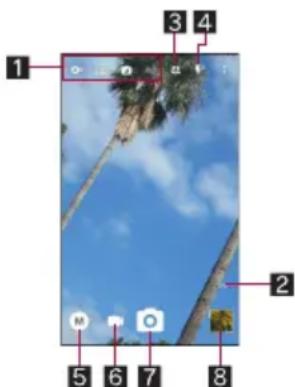
1 Setting icon displaying area
- Touch a displayed icon to change settings.
2 Remaining number for shooting
● ● Displayed when the remaining number for shooting decreases to 99 or less.
- Even after shooting a still picture/video, the number may not be changed.
3 Switching front camera/back camera
- ● Set to shoot with the front camera or back camera.
- Using some functions or changing settings are not available while you use the front camera.
4 Mobile light
- Switch settings of the mobile light.
5 Shooting mode
- Switch shooting modes (P. 56 "Switching shooting modes").
6 Shooting videos
7 Shooting still pictures
8 Album/Thumbnail
- Activate Album or display the still picture or video you have just shot.
Shooting still pictures
1 In the home screen, [SH Camera]
2 Turn the camera of the handset (back camera) to an object
- To adjust the brightness: Slide your finger up/down
- To zoom: Slide your finger to the left/right or pinch out/in
-
Maximum magnification (zoom step) is approximately 8.0-fold (90 steps).
• To lock the focus: Touch the object -
Touch anywhere other than focus mark to cancel the focus lock.
- The focus cannot be locked if Focus Setting is set to [AF OFF].
3 [图标]/☐(+)☐(一)
- Alternatively, you can shoot still pictures by touching the focus mark while the focus is locked.
- Touch and hold [◎] or hold (+) /□(—) down for at least 1 second to shoot multiple still pictures in a row.
- As for the focus lock, the object's movements are detected mainly on basis of the colors. Therefore, the object may not be detected properly if its color is faint or similar to the background color.
Shooting videos
1 In the home screen, [SH Camera]
2 Turn the camera of the handset (back camera) to an object
- To adjust the brightness: Slide your finger up/down
- To zoom: Slide your finger to the left/right or pinch out/in
- Maximum magnification (zoom step) is approximately 8.0-fold (90 steps).
3 [☐]
• To lock the focus: Touch the object
- Touch anywhere other than focus mark to cancel the focus lock.
- Touch the focus mark to shoot a still picture.
- The focus cannot be locked if Focus Setting is set to [AF OFF].
4 [☐]
- As for the focus lock, the object's movements are detected mainly on basis of the colors. Therefore, the object may not be detected properly if its color is faint or similar to the background color.
Camera settings
- Some functions are not available depending on the shooting mode being used etc.
■ Settings on shooting still pictures
1 In the home screen, [SH Camera]
2 [☐]
3 [PICTURE]
4 Select an item
■ Picture Size: Switch picture sizes of still pictures.
■ Framing Advisor: Switch division lines for compositions and types of guide according to the scene for shooting.
■ HDR: Set whether to reduce blown out highlights when you shoot still pictures in a high contrast scene such as when you shoot against the light.
■ NightCatch: Set whether to shoot bright still pictures in a dark scene.
■ ISO Sensitivity: Set the sensitivity for incorporation of light according to the ambient brightness.
■ Shutter Mode: Set whether to automatically shoot the object when he/she smiles or looks back on the camera if Focus Setting is set to [Face AF].
■ One Touch Shutter: Set whether to shoot still pictures by touching the screen.
[ISO Sensitivity]
- If you set ISO Sensitivity to high sensitivity, the shutter speed becomes fast. Therefore, it is possible to reduce object shake and camera shake or shoot clear images of an object in a dark place. However, the quality of still pictures deteriorates.
■ Settings on shooting videos
1 In the home screen, [SH Camera]
2 [ ]
3 [VIDEO]
4 Select an item
■ ● Video Size: Switch picture sizes of videos.
■ NightCatch: Set whether to shoot bright videos in a dark scene.
■ Mic Setting: Set whether to use the microphone.
■ Common settings on shooting still pictures/videos
1 In the home screen, [SH Camera]
2 [☐]
3 [COMMON]
4 Select an item
■ White Balance: Set the color tone correction which is suitable for the ambient light source.
■ Focus Setting: Set the focus according to the object.
- If you set [Face AF], detect faces of people.
■ Self-timer: Set whether to automatically shoot with a timer set.
- Touch [☐]/[☐]/[☐] when using the front camera to set/disable the timer.
■ Anti Flicker: Set to make the screen less susceptible to striped patterns when you shoot in a place with fluorescent lighting.
- Save To: Set a save destination.
- Add Location Information: Set whether to add location information.
■ Help: Check the functions of icons displayed on the shooting screen, operations on the touch panel or how to use functions.
■ Function Information: Check how to use with a video tutorial by using "Let's Try!".
■ ● Reset Settings: Reset settings.
■ Switching shooting modes
You can switch shooting modes to shoot with according to the shooting condition and object.
1 In the home screen, [SH Camera]
2 [■]
3 Select an item
■ Easy auto: A mode to automatically adjust the camera according to the object.
■ Manual: A mode to adjust settings on shooting according to the object.
■ High speed record: A mode for shooting videos in High speed record. The shot video can be checked in Album (P. 57 "Playing high speed videos").
■ Time Laps: Make a video by connecting still pictures that are shot at regular intervals.
■ ● Monochrome: A mode for monochrome shot.
■ Bleach bypass: A mode for shooting while making shady parts appear darker and stressing chromatic contrast.
■ DeFocus: Set the focus on a nearby object and shoot photos with its background blurred.
■ Photo Sphere: Activate the "Camera" app provided by Google and shoot panoramic photos with a viewpoint above/below you, of right/left of you and of 360° around you.
- ● Camera Reader: Activate Camera reader.
- When you use this app, you need to download it.
■ ● Translation: For details on Translation finder P. 56 "Translation finder"
■ Search Finder: For details on Search finder ☐ P. 57 "Search finder"
■ Hand Mirror: A mode for reflecting yourself like a hand mirror using the front camera (shooting is not available).
■ SHSHOW: Connect to the SHARP website and download an app for utilizing the camera.
- Icons of shooting modes that you have recently used appear at the top of the screen. Also, you can switch shooting modes by touching the icon.
Translation finder
You can have English texts translated into Japanese in real time just by holding the camera over English texts.
1 In the home screen, [□□□] ▶ [Translation finder]
- Alternatively, in the home screen, [SH Camera] ▶ [◎] ▶ [Translation] to activate it.
2 Display English texts to translate on the screen
- Translated Japanese texts are displayed.
- Make sure that the entire English texts to translate are displayed on the screen.
3 [©]
- The shutter sounds and the untranslated and translated still pictures are automatically saved.
- To display/hide translated texts: [ˈxɪə]
• To zoom in/out: Pinch out/in
- To adjust angles of the characters: Put two fingers on the touch panel and move the still picture to get the characters laid out horizontally
- To search: Touch the translated Japanese texts or untranslated English texts ▶ [Net dict.]/[E/J dict.]/[Search]
- To copy the characters: Touch and hold the translated Japanese texts or untranslated English texts ▶ [Copy]
- To share the characters: Touch and hold the translated Japanese texts or untranslated English texts ▶ [Share] ▶ select an item
- ● You can only have English texts translated into Japanese.
- Texts may not be scanned or translated correctly depending on the English font, background, text color, text size, layout, etc.
- Texts which are not translated into Japanese cannot be searched, copied or shared.
- ● You may be able to have characters translated correctly by adjusting angles to get the characters laid out horizontally.
Setting Translation finder
1 In the Translation finder screen, [◎] ▶ [◎]
2 Set each item
Search finder
You can search characters in magazines, newspapers, etc. by holding the camera over them.
1 In the home screen, [☐] ▶ [Search finder]
- Alternatively, in the home screen, [SH Camera] ▶ [SB] ▶ [Search Finder] to activate it.
2 Display characters to search ▶ trace the characters
- To pause/unpause displayed image: [◯]/[⑪]
3 Select a search result
- Select a search result to activate an app supporting the content.
- To narrow down search results by type: [∅]/[∅]/[∅]
- To edit the characters to search: Touch the light blue area ▶ edit the characters ▶ [OK]
- Texts may not be scanned depending on the font, background, text color, text size, layout, etc. to search.
Setting Search finder
1 In the Search finder screen, [◎] ▶ [◎]
2 Set each item
Album
You can sort images and videos by event and location and use them.
1 In the home screen, [Album] ▶ [Album]
2 [≡]▶ select a category
3 Select data
- To delete data: Touch and hold data ▶ [Delete] ▶ [YES]
4 Confirm the data
- If files are not displayed, they may be displayed normally by deleting a database file of Album. Connect the handset to a PC using Micro USB Cable 01 (sold separately) and delete ¥PRIVATE¥SHARP¥PM¥DATABASE folder on the handset memory or a microSD Card to use. If you delete the database file, created information of event, location, etc. are also deleted. Take extra precautions and check when deleting.
Sorting data
You can sort images and videos by created group.
Sorting by event
1 In the Album screen, [≡] ▶ [Event]
2 [Not set]
3 [☐]▶ [Create new event]
4 Select data to classify ▶ [Create]
5 [INPUT NEW EVENT.] ▶ enter an event name ▶
[OK] ▶ [Create]
Sorting by location
- ● The data with location information attached is automatically sorted on a map.
1 In the Album screen, [≡] ▶ [Map]
2 [☐]▶ [Location settings]
3 Touch and hold the data to classify ▶ drag the data to the point to register it onto ▶ [OK]
Playing high speed videos
The videos shot by High speed record can be played smoothly or slowly. "120fps" or "210fps" is displayed in the thumbnail of the videos shot by High speed record.
■ Playing high speed videos smoothly
- Enable [High-speed display] of the app to use in advance (P. 70 "Apps").
1 In the Album screen, select data
2 [▶]
- When the app selection screen is displayed, select the app to use.
■ Playing high speed videos slowly
1 In the Album screen, select data
2 [SLOW]
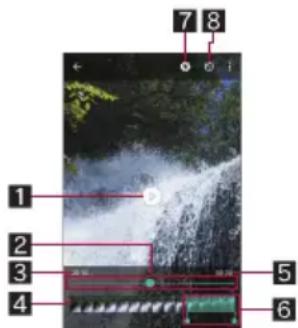
1Play/Pause
2 Seek bar
● ● The parts set to slow playback range are displayed in green.
3Playback time
4 Thumbnail
5 Total playback time
6 Slow playback range
● ● Appears during pause.
- Touch the thumbnail to add the range to play slowly.
- Drag [☐] to change the range to play slowly.
7 Still picture capture
● ● Touch it to save the image being displayed as a still picture.
8 Change slow speed
Export
You can save a video that slow playback range is played slowly. The saved video can be played in other player.
1 In the slow playback screen, [◦]▶ [Export]
2 Select an item
■ ● Export entire video: Export the entire video.
- ● Export slow ranges: Export only the slow playback range.
Media Player
Play music data and video data saved on the handset memory or a microSD Card.
● The followings are the main file formats of playable music data. AAC LC, AAC+, enhanced AAC+, enhanced low delay AAC, AMR-NB, AMR-WB, FLAC, MP3, MIDI, Vorbis, PCM/WAVE, WMA, Opus
- The followings are the main file formats of playable video data. However, some files may not be displayed/played or may become intermittent.
H.263, H.264, H.265, MPEG-4, WMV, WEBM
1 In the home screen, [☐] ▶ [Media Player]
- If the confirmation screen asking whether to read the usage explanations of Media Player appears, select [使い方の説明を見る] (See the usage explanations)/[使ってみる] (Try to use).
2 Select data
- Slide the data list screen down to display the search box of content.
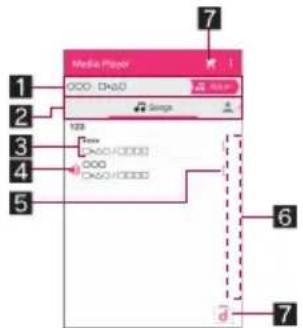
Music data list screen
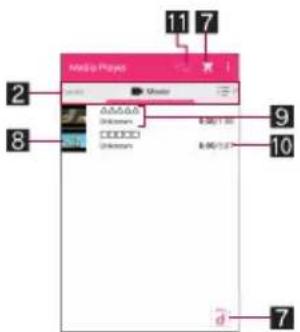
Video data list screen
1 Data being played/paused
2 Tab bar
- Slide it to the left/right to switch displays of category.
3 Title/Artist name/Album title
4 Icon indicating the data is being played/paused
5 Music data settings
- Touch it to set the music as a ringtone, add the music to a playlist or delete the music.
6Index
- Slide the index up/down to move to the selected heading.
7 dmarket
- Activate dmarket.
8 Thumbnail
9 Title/Artist name
10Playback time/Total playback time
11 Miracast settings
- ● Play videos on a TV with a wireless connection function etc. For details on Wireless output P. 84 "Wireless output"
3 Play music/video
• To adjust the playback volume: (+) / (-)
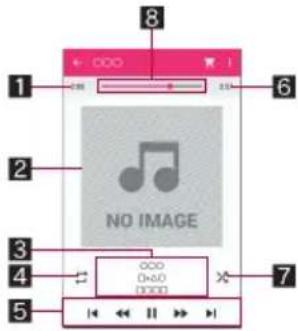
Music playback screen
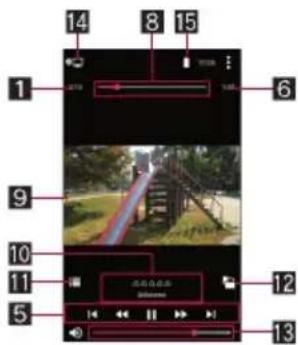
Video playback screen
1Playback time
2 Jacket image
● ● Touch it to display the volume bar etc.
3 Title/Artist name/Album title
4 Repeat
- When [1] is superimposed, repeat only one song.
5Operation panel
- ● The following operations are available with displayed keys ^1 .
- To play previous data/return to the beginning of the data: [|◀]*2
• To play next data: [▶]
- To return to a location of approx. 10 seconds ago/skip to a location of approx. 10 seconds later: [◀◀]/[▶▶]
- To play/pause the data: [▶]/[■]
*1 In the video playback screen, the keys are displayed in white.
*2 When the playback time is less than approximately 2 seconds: Play previous data When the playback time is approximately 2 seconds or more: Return to the beginning of the data
6 Total playback time
7 Shuffle
8 Seek bar
- Drag the seek bar to change the playback position.
9Image
10 Title/Artist name
11 Data list screen
12 Auto-rotation lock of the screen
13Volume bar
14 Miracast settings
- Play videos on a TV with a wireless connection function etc. For details on Wireless output P. 84 "Wireless output"
15 Battery level
Sorting tabs
1 In the data list screen, [☐] ▶ [Settings]
2 [Arrange tabs]
3 Drag [⇐] to the point to sort into ▶ [Done]
Managing playlists
Creating playlists
1 In the data list screen, [Playlist]
2 [Add] ▶ enter a playlist name ▶ [OK]
3 Select music data ▶ [Done]
4 [Save] ▶ [OK]
Editing playlists
1 In the data list screen, [Playlist]
2 Select a playlist
3 [Edit]
- To rename the playlist: [Edit title] ▶ enter a playlist name ▶ [OK]
- To sort music data: Drag [⇨] appearing alongside the song to sort to the point to sort into
- To delete music data: Select music data ▶ [Delete selected songs]
4 [Save] ▶ [OK]
- Deleting playlists
1 In the data list screen, [Playlist]
2 [Reorder/Delete]
3 Select playlists ▶ [Save] ▶ [OK]
GPS/Navigation
You can display Street View and search for routes using Maps. You can also search for facilities near a location on the map being displayed by genre.
Using GPS function
- GPS is a function to retrieve location information of devices by receiving radio wave from GPS satellites. It is necessary to set [Location] to On to measure the present location (P. 71 "Location").
- You cannot use the handset as a navigation system for professional use of aircrafts, vehicles, person, etc. or surveying GPS of high accuracy. Note that DOCOMO shall not be liable for the pure economic losses such as ones caused by using the GPS for these purposes or by failing to confirm a positioning result or to communicate due to handset failure, malfunction or external factors such as power failure (including battery exhaustion).
● GPS is a service administered by the U.S. Department of Defense. Therefore, GPS radio wave condition may be controlled (accuracy degradation, radio wave abort, etc.) for US national security reasons. In addition, the same results may not be retrieved even when positioned in the same location and environment, since the radio wave conditions may change depending on the location of the GPS satellites.
- Note that GPS uses the radio waves from artificial satellites, therefore the following conditions may prevent the radio waves from being received or prevent the reception status of the radio waves from being satisfactory, resulting in an error of 300 m or more for location information.
■ In or under a dense forest, in density area with buildings or residence
■ ● In or under buildings
■ In a basement, tunnel, underground or underwater
- Near high-tension line
■ ● Inside cars, trains, etc.
■ ● In bad weather with heavy rain/snow etc.
■ In bags or boxes
■ ● When people or objects are blocking the handset
■ ● When hands are covering the GPS antenna area
- When using a GPS function overseas, the displayed map based on the acquired location information (latitude and longitude information) may not be accurate because of the legal system etc. in each country and the area.
- Packet communication charges may be incurred, since assisted GPS data such as satellite information is automatically retrieved when you measure present location.
- Packet communication charges are incurred when you display a map based on location information etc.
Maps
You can measure your present location, use the navigation function to check how to get to your destination in detail, etc.
- ● It is necessary to set [Location] to On to measure the present location (P. 71 "Location").
1 In the home screen, select "Google" folder ▶ [Maps]
2 Use Maps
- To rotate the map: Keep a finger on the touch panel and turn the map to the desired direction with another finger
- To display sterically: Slide up with your two fingers at the same time
• To measure present location: [◎]
Street View
1 In the Maps screen, touch and hold any place ▶ touch the address, name of place or facility, etc.
2 [Street View]
- To change a displayed direction: Slide the screen up/down or to the left/right
-
To move a displayed place: Touch an arrow
• To switch to the compass mode: [∅] -
Some areas are not supported by Street View.
- When the compass mode is used, the geomagnetic compass of the handset and the direction displayed by Street View are associated with each other.
Searching for routes
You can search for a route from a start point to an end point.
1 In the Maps screen, [◇]
2 Select how to get to the end point ▶ touch the search box above
- The present location is entered while it is being measured.
3 Enter a start point
4 Touch the search box below
5 Enter an end point
- Follow the instructions on the screen and operate after this step.
■ Searching for facilities nearby
You can search for facilities near a location on the map being displayed by genre.
1 In the Maps screen, touch the search box
2 Select a genre of facilities to search
- Alternatively, you can search by entering a name of place to search in the search box.
3 Use the search result
- To display detailed information: Select an address, a name of place or facility, etc.
- If there are two or more search results, touch a marker or slide an address, a name of place or facility, etc. to the left/right to display the other search results. Also, touch [LIST RESULTS] to display the search results as a list.
YouTube
YouTube is a free online video streaming service. You can play, search and upload videos.
1 In the home screen, select "Google" folder ▶ [YouTube]
2 Select a video
• To display the search box: [Q]
Clock
You can use alarm, world clock, timer and stopwatch.
Alarm
Activate an alarm tone or vibrator at the specified time.
1 In the home screen, [☐☐☐] ▶ [Clock] ▶ [☐☐]
2 Touch a time of register destination
• To add a register destination: [⊕]
3 Select a time ▶ [OK]
4 Set each item
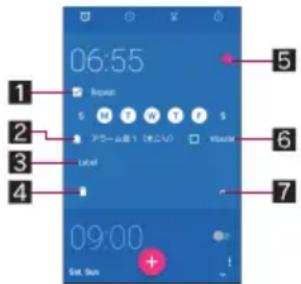
1 Repeat
- ● Set the repetition of the alarm.
2Alarm sound
- ● Set the alarm sound.
3 Label
- Enter the label.
4 Delete
- Delete the alarm.
5 Alarm ON/OFF
- Enable/Disable the alarm.
6Vibration
- ● Set whether to use the vibrator.
7 Switch displays
● An alarm is not activated when the handset is turned off at the set alarm time.
- When the set alarm time arrives during a call, the other party's voice and notification sound are heard at the same time.
Stopping an alarm
Activate an alarm tone or vibrator at the set alarm time.
1 Slide [💡] to [💡] while an alarm is ringing
- To use a snooze: slide [∅] to [^2z_2]
Stopping an alarm while display is turned on
When the set alarm time arrives while a screen other than lock screen of the touch panel is displayed, the alarm notification is displayed. Stop the alarm by using the notification.
1 [DISMISS] while an alarm is ringing
•To use a snooze: [SNOOZE]
■ Adjusting an alarm volume
1 In the alarm screen, [ ] ▶ [Settings]
2 [Alarm volume] ▶ adjust the volume ▶ [OK]
World clock
Display clocks for cities around the world.
1 In the home screen, [☐☐☐] ▶ [Clock] ▶ [☐☐]
2 [●]
3 Select a city
Timer
Activate an alarm tone after the specified length of time passes.
1 In the home screen, [☐] ▶ [Clock] ▶ [☒]
2 Enter the time ▶ [▶]
• To add 1 minute: [+1']
• To stop the countdown: [⑪]
• To reset the countdown: [○]
- The alarm sound is activated after the specified length of time passes.
• To stop the alarm sound: [☐]
Changing a name
1 In the timer screen, [Label]
2 Enter a name ▶ [OK]
■ Adding a timer
1 In the timer screen, [×+]
- Deleting a timer
1 In the timer screen, [☐]
Stopwatch
You can measure the time using stopwatch. Also, you can measure the lap time (elapsed time)/split time (total elapsed time).
1 In the home screen, [☐] ▶ [Clock] ▶ [☐]
2 [▶]
- To measure the lap time and split time: [◎]
3 [⑪]
• To reset the measuring result: [○]
- ● You can record up to 98 history items of lap time and split time.
Schedule
Create and manage schedules.
1 In the home screen, select “ドコモクラウド” (docomo cloud) folder ▶ [Schedule]
2 Check schedules
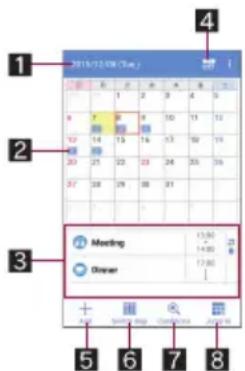
1 Selected date, name of holiday
2 Registered schedule
● ● The number of registered items is displayed.
3 Schedules for selected date
4 Search i-schedule
- Use i-schedule.
5 Add
- The method for registering schedules is the same as creating memos (P. 62 "Memo").
6 Switch displays - Switch display methods of the calendar.
7 Conditions - ● Set conditions of schedules to be displayed. Also, you can search for schedules.
8 Jump to any date
Setting Schedule
1 In the Schedule screen, [☐] ▶ [Settings]
2 Select an item
■ "Today's schedule" setting: Set to notify the schedules of the day at the specified time.
- Alarm: Make settings for the alarm.
■ Initial screen: Set a screen shown when Schedule is activated.
■ Starting day: Set the starting day of a week on the calendar.
■ Update birthday data: Apply birthday data in the phonebook to the calendar.
- Change account: Set an account used when creating schedules.
■ ● Cloud setting: Set whether to use cloud computing.
■ Deleting a schedule
1 In the Schedule screen, touch and hold a schedule
2 [Delete one] ▶ [DELETE]
Memo
Create and manage memos.
1 In the home screen, select “ドコモクラウド” (docomo cloud) folder ▶ [Memo]
2 [Add]
3 Set each item
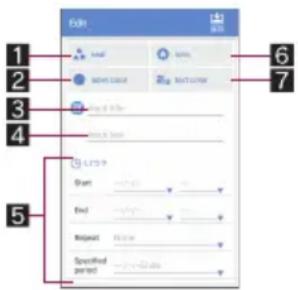
1 Sticker
- ● You can paste and remove stickers (Deco-mail pictogram/pictogram) which decorate memos nicely.
2 Label color
- Change label colors.
3 Title
4 Text
5 Edit details
- ● You can set the details such as date and time or attach images.
6 Icon
- Change icons.
7 Text color
- Change text colors of the title.
4 [保存] (Save)
Calculator
1 In the home screen, [☐] ▶ [Calculator]
2 Calculate
- To copy the calculation result: Touch and hold the calculation result ▶ [copy]
● Results or history information may be deleted while Calculator is activated in the background.
SH tool
You can use convenient functions such as the pedometer and dictionaries.
- For details on AV Device Link ☑ P. 84 "Using AV Device Link"
- For details on Contents Manager 📞 P. 79 "Contents Manager"
- When you use Voice Recorder or Camera reader for the first time, you need to download it.
- The icon of Camera reader is not displayed in the app list screen even after it is downloaded. Activate it from SH tool or SH Camera.
Pedometer
You can record the number of steps, walking distance, calories burnt, etc.
You can also display the history of the number of steps as graph and compare it on an hourly basis etc.
1 In the home screen, [☐☐☐] ▶ [SH tool] ▶ [Recommendation] ▶ [Pedometer/ calories]
2 [YES]
3 [User Information]
- At the time of purchase, temporary figures are registered for User Information. Set User Information properly before use.
4 Enter the passcode ▶ [OK]
5 Set each item ▶ [◀]
6 [Pedometer On] ▶ [◀]
- The number of steps is always counted while the power is turned on.
- The display of the pedometer is reset once a day.
Cautions when counting the number of steps
- In the following cases, the number of steps may not be counted correctly.
■ ● When the handset shakes irregularly
- When a bag etc. which contains the handset shakes irregularly by hitting legs or hip
- When you are dangling the handset from your waist, bag, etc.
■ ● When you walk irregularly
- When you walk with your feet sliding or when you walk irregularly wearing sandals, geta, slippers, etc.
- When a disarray of walk occurs such as by walking in the crowded place
- When the handset is used in a place with up-and-down movement or frequent vibration
- When you stand up or sit down
- When you play sports
- When you walk up/down stairs or steep slope
- When the handset is being wobbled in a vehicle (bicycle, car, train, bus, etc.)
• While sounds are being emitted from the speaker
• While the vibrator is being activated
■ ● When you walk extremely slowly
- When carrying the handset in Carry Case 02 (sold separately), put the Carry Case 02 on a belt etc.
- When carrying the handset in a bag, pouch, etc., place it in a stable space such as in a pocket or compartment.
- The number of your first steps made for approximately 4 seconds is counted, but it will not be displayed as counted steps. Keep walking, and then the total number of steps including it will be displayed as counted steps.
Pedometer screen layout
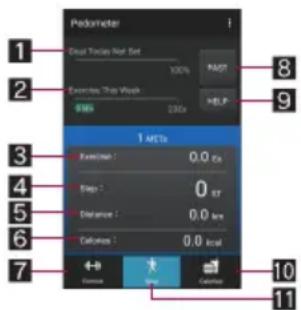
1 Achievement rate (available only when you set your goal)
2Volume of exercise done this week
3 Volume of exercise done today
4 Number of steps made today
5Distance walked today
6 Calories burnt today
7 Exercise mode
8 History of the pedometer
- Touch [Hour]/[Day]/[Week]/[Month] at the bottom of the screen after touching the history key to switch displays.
9 Help
10 Calories mode
11 Step mode
■ Disabling the pedometer
1 In the pedometer screen, [ ] ▶ [Settings]
2 [Pedometer On]
■ Changing the user information
1 In the pedometer screen, [◦] ▶ [Settings]
2 [User Information]
3 Enter the passcode ▶ [OK]
4 Set each item
Setting the pedometer reset time
1 In the pedometer screen, [◦] ▶ [Settings]
2 [Pedometer Reset Time]
3 Enter the time ▶ [SET]
Setting goal
1 In the pedometer screen, [◦] ▶ [Set Goal]
2 Set each item
Resetting data
1 In the pedometer screen, [☐] ▶ [Reset Data] ▶ [YES]
- Checking total data
1 In the pedometer screen, [☐] ▶ [Total Data]
Dictionary
Built-in dictionary
You can search the word meaning by using built-in dictionaries.
- By default, the following e-dictionaries are built in the handset (Part of the dictionaries may differ from printed versions due to computerization).
■●“明鏡国語辞典MX 第二版” (Meikyo Japanese Dictionary MX (2nd edition)) ©KITAHARA Yasuo and Taishukan, 2012
■●“ジーニアス英和辞典MX 増補版” (Genius EJ Dictionary MX (expanded edition)) ©MINAMIDE Kosei, NAKAMURA Mitsuo and Taishukan, 2012
■●“ジーニアス和英辞典MX 第2版” (Genius JE Dictionary MX (2nd edition)) ©MINAMIDE Kosei, NAKAMURA Mitsuo and Taishukan, 2012
1 In the home screen, [☐☐☐] ▶ [SH tool] ▶ [Dictionary]
2 [Japanese dictionary]/[English-Japanese dictionary]/[Japanese-English dictionary]
3 Enter a word/phrase ▶ select the word
- Corresponding candidate words are displayed every time a character is entered.
• To search another word: [Home]
• After this, enter a word/phrase and search again. - To check history: [History] ▶ select a history item
• To add word card: [Add word card]
- To check word card: [icon] ▶ select a word card
Word test
1 In the built-in dictionary screen, [Word test]
2 Select the numbers of words and start test
3 [Show]/[Next]
• To end test before completion: [Exit]
4 [QUIT]/[AGAIN] after ending the test
Net dictionary
You can search the word meaning by using online dictionaries.
1 In the home screen, [☐☐☐] ▶ [SH tool] ▶ [Dictionary]
2 [Net dictionary]
3 Enter a word/phrase ▶ [SEARCH] ▶ select the search result
• To search another word: [Home]
• After this, enter a word/phrase and search again.
- To check history: [History] ▶ select a history item
docomo backup
You can back up to/restore from "Data Storage Box" or "microSD Card".
Backing up to/Restoring from Data Storage Box
You can move and back up data such as music data and call logs by using Data Storage Box.
- ● The following data can be backed up to/restored from Data Storage Box.
■ ● Music data
■ ● Call log
■ ● User dictionary
1 In the home screen, [□□□□□□□□] ▶ [docomo backup]
2 [Backup/restore to docomo cloud]
■ Backing up data to Data Storage Box
1 In the screen for backing up to/restoring from Data Storage Box, [Backup]
- If the confirmation screen for login is displayed, follow the instructions on the screen and operate.
2 Select the data categories to save ▶ [Start backup] ▶ [Backup]
3 Enter the docomo apps password ▶ [OK]
4 [Back to top]
- Periodical backup enables you to automatically back up relevant data selected in advance to Data Storage Box every month.
- Note that the packet communication charges may be higher if you use Periodical backup.
■ Restoring data to the handset
1 In the screen for backing up to/restoring from Data Storage Box, [Restore]
- If the confirmation screen for login is displayed, follow the instructions on the screen and operate.
2 [Select] of a data category to restore
3 Select a backup file ▶ [Select]
4 [Add]/[Overwrite] ▶ [Start restore] ▶ [Restore]
5 Enter the docomo apps password ▶ [OK]
6 [Back to top]
- When you restore data from Data Storage Box, data is restored to the save destination from which it was backed up. If you change models etc., data may be restored to a save destination different from the location from which it was backed up.
Backing up to/Restoring from a microSD Card
You can move and back up data such as phonebooks and docomo mails by using an external memory device such as a microSD Card.
- ● The following data can be backed up to/restored from a microSD Card.
■ ● Phonebook
■ ●docomo mail
■ ● Image
■ ● Video
■ ● Music data
■ ● Call log
■ ● User dictionary
■ ● ToruCa
■ Schedule/Memo
- When a microSD Card is not inserted, images, videos, music data, etc. are saved on the handset memory. When you use Backup/restore to microSD, only the data saved on the handset memory are backed up. The data saved on a microSD Card are not backed up.
1 In the home screen, [■■] ▶ [docomo backup]
2 [Backup/restore to microSD]
- Do not remove the microSD Card from the handset while backing up or restoring data. Data on the handset may be damaged.
- When the battery level is insufficient, backup or restoration may not be available. In this case, back up or restore again after charging the handset.
■ Backing up data to a microSD Card
- Insert a microSD Card in advance.
1 In the screen for backing up to/restoring from the microSD Card, [Backup]
2 Select the data categories to save ▶ [Start backup] ▶ [Backup]
3 Enter the docomo apps password ▶ [OK]
4 [Back to top]
- When you back up phonebook to a microSD Card, you cannot copy phonebook data without name.
- When the available space on the microSD Card is insufficient, backup may not be available. In this case, secure enough space by deleting unnecessary files from the microSD Card.
■ Restoring data to the handset
- Insert a microSD Card that includes backup files created via Backup/restore to microSD in advance.
- When restoring phonebooks, you can also restore files created with PhoneBookCopy or with a function in an i-mode-enabled device which allows you to back up data to a microSD Card.
1 In the screen for backing up to/restoring from the microSD Card, [Restore]
2 [Select] of a data category to restore
3 Select backup files ▶ [Select]
4 [Add]/[Overwrite] ▶ [Start restore] ▶ [Restore]
5 Enter the docomo apps password ▶ [OK]
6 [Back to top]
■ Copying phonebook of Google account to docomo account
1 In the screen for backing up to/restoring from the microSD Card, [Phonebook account copy]
2 [Select] of a phonebook of Google account ▶ [Overwrite]/[Add] ▶ [OK]
- If the name of a phonebook item (phone number etc.) on other devices differs from that on your handset, the name of the item may be changed or deleted. Also, characters which can be registered to phonebook differ among devices, so the characters may be deleted at the copy destination.
Handset Settings
Setting menu
In the home screen, [☐] ▶ [Settings] to display the menu and make various settings for the handset.
- [Q] while Settings is displayed ▶ enter a keyword to search with to search the setting items.
| Profile Display your phone number registered on the docomo nano UIM card and register a name, mail address, etc. | |
| Sound/ notification | Make settings for the manner mode, ringtone, notification sound, etc. |
| Illumination Set when to make the incoming/charging lamp flash. You can set a flashing pattern or a flashing color for when receiving a call. | |
| Display Make settings for the screen display etc. | |
| Battery & energy saving | Activate Energy saving settings or Energy save standby, check the battery usage, etc. |
| Home applications | Switch lock screens or home apps to use. |
| Call Make settings for call such as voice mail and call rejection. | |
| Storage Check the available space on a microSD Card, the handset, etc., manage files, etc. | |
| Useful | Make settings for エモパー(Japanese only) (emopa (Japanese only)), Clip Now, Grip magic, On/off with motion, View with flip cover or Recent apps key, or perform Self check. |
| Apps Check names, versions, memory usage, etc. of apps, enable/disable apps, uninstall them, etc. | |
| Wi-Fi Make settings for the Wi-Fi function. | |
| Bluetooth Connect the handset and Bluetooth devices wirelessly. | |
| Data usage Measure the volume of data communicated via mobile networks and display it on a diagram. | |
| More Make settings for other functions in Wireless & networks. | |
| docomo service/cloud | Make settings for the docomo service. |
| Location Make settings for measuring location information. | |
| Lock & Security Make settings for the security lock. | |
| Language & input | Make settings for the language displayed on the screen, character entry, text-to-speech, etc. |
| Backup & reset Back up data using a Google account, transfer data to/from among devices, perform Reset all, etc. | |
| Accounts Add/Set accounts or make settings for data synchronization. | |
| Date & time | Make settings for the date and time and their format. |
| Accessibility | Make settings for accessibility options. |
| Printing | Print with an app supporting the print function by installing a print app (plug-in). |
| About phone | Check the information about the handset. |
Profile
You can display your phone number registered on the docomo nano UIM card and register a name, mail address, etc.
1 In the home screen, [☐☐☐] ▶ [Settings] ▶ [Profile]
2 [Edit]
3 Set each item ▶ [Save]
Sound/notification
You can make settings for the manner mode, ringtone, notification sound, etc.
1 In the home screen, [☐☐☐] ▶ [Settings] ▶ [Sound/notification]
2 Select an item
■ Mode settings: For details ☑ P. 66 "Mode settings"
■ Media volume: Set the volume of the media playback sound.
- Alarm volume: Set the volume of the alarm.
■ ● Ring volume: Set the volume of the ringtone.
■ エモパー volume (Volume of emopa): Set the volume of emopa.
■ For Incoming call: Make settings for operations for when receiving calls.
■ Interruptions: Set whether to ring the ringtone and notification sound.
■ For notification: Make settings for operations for receiving notifications.
■ When device is locked: Make settings for the notification displayed in the lock screen of the touch panel.
■ App notifications: Set to display/hide notifications or make settings for Priority of notifications by app.
■ Notification access: Check available apps to access the notification.
■ Other sounds: Set whether to activate the vibrator when a specific key operation etc. is carried out or set whether or not to enable operation sounds for when touching menus etc.
[When calls and notifications arrive] of Interruptions
● The following items can be set.
- Always interrupt: Activate a ringtone or notification sound.
- If Standard manner mode is set, the vibrator is activated.
- Allow only priority interruptions: Activate a ringtone or notification sound according to the settings of Priority interruptions of [Interruptions] or the settings of Priority of [App notifications].
- If Standard manner mode is set, the vibrator is activated.
- Don't interrupt: Set not to activate ringtone or notification sound.
- [Don't interrupt] and Silent manner mode are associated with each other. If you change either setting, another setting is changed.
[When device is locked]
● The following items can be set.
■ ● Show all notification content: Set to display the notifications in the lock screen.
- Hide sensitive notification content: Set not to display details such as the other party's phone number or the number of notifications in the lock screen.
- You can use this item when Screen lock is set to an item other than [None] or [Swipe or Touch].
- Don't show notification at all: Set not to display the notifications in the lock screen.
Mode settings
You can set to avoid disturbing others when in public.
1 In the home screen, [Settings] ▶ [Sound/notification] ▶ [Mode settings]
- Alternatively, ⏻(_) (for at least 1 second) ▶ [◀×]/[◀]/[◀] to enable/disable the manner mode.
2 Select the type of the manner mode
- Standard manner mode: The ringtone and operation sound are silenced, and the vibrator is activated when receiving a call or others. When Answering memo setting is set to [Mannermode], the answering memo is enabled and operated according to its setting.
■ Silent manner mode: The ringtone and operation sound are silenced, and even the vibrator is not activated when receiving a call or others. When Answering memo setting is set to [Mannermode], the answering memo is enabled and operated according to its setting.
■ ● OFF: Disable the manner mode.
● The following sounds are not silenced even when the manner mode is set.
■ ● Shutter sound of shooting still pictures
■ ● Focus locking sound of shooting still pictures
■ ● Record start/end sound of shooting videos
■ ● Media playback sound (music, video, NOTTV, TV, etc.)
- The manner mode is disabled if you turn the ringtone volume up while the manner mode is set. The manner mode is set if you set the ringtone volume to "0" when the manner mode is not set.
Illumination
You can set when to make the incoming/charging lamp flash. You can set a flashing pattern or a flashing color for when receiving a call.
1 In the home screen, [☐☐☐] ▶ [Settings] ▶ [Illumination]
2 Select an item
■ For incoming call: Set whether to make the illumination flash when receiving a call.
■ Illumi pattern/color for incoming call: Make settings for a flashing pattern or a flashing color for when receiving a call.
■ Notification: Set whether to make the illumination flash when receiving a notification.
■ When start charging: Set whether to make the illumination flash when charging starts.
■ When unlocking: Set whether to make the illumination flash when unlocking the touch panel.
Display
You can make settings for the screen display etc.
1 In the home screen, [☐] ▶ [Settings] ▶ [Display]
2 Select an item
■ ● Wallpaper: Set an image for the home screen.
■ Welcome Sheet: Make settings for the screen displayed when the touch panel is locked.
■ EDGEST Effect: Make settings for the effect on edges of the screen shown when the display is turned on, during an incoming call, etc.
■ Brightness level: For details ☑ P. 66 "Brightness level"
■ Screen timeout: Set the light duration of the backlight.
■ ● Quality mode: Make settings for the picture quality.
■ glove mode: Set whether to make it possible to operate by touching the screen while wearing a glove.
■ When device is rotated: Set whether to switch the screen to horizontal/vertical display when rotating the handset 90° to the left/right.
■ Font Settings: Make settings for the text size or text font.
■ VeilView: For details 📋 P. 66 "VeilView"
■ ● Daydream: Set whether to use the screen saver.
■ Display left percents of Battery: Set whether to display the percentage of the remaining battery level on the status bar.
[Welcome Sheet]
- ● You can set it only when [Feel Home] is selected in Batch change lock screen/ home application.
[Screen timeout]
- Note that the continuous stand-by time is shortened when increasing the light duration.
[glove mode]
- Touching operation may not be available depending on materials for the glove.
- Sweep ON (P. 69 "On/off with motion") is not available while wearing a glove although [glove mode] is set to ON.
- Set [glove mode] to OFF when you are not wearing a glove.
[When device is rotated]
● This function may not follow the setting depending on the app in use.
[Font Settings]
● ● Font may not appear correctly when activating an app downloaded from Google Play etc.
Brightness level
1 In the home screen, [☐☐☐] ▶ [Settings] ▶ [Display] ▶ [Brightness level]
2 Select an item
■ Automatic brightness: Set whether to automatically adjust brightness of the backlight. When not automatically adjusting, set the brightness manually.
■ Brighten while charging: Set whether to brighten the display while charging.
3 [OK]
[Automatic brightness]
● Note that the continuous stand-by time is shortened when increasing the brightness of the display.
VeilView
You can prevent others from seeing the display.
1 In the home screen, [☐☐☐] ▶ [Settings] ▶ [Display] ▶ [VeilView]
2 Select an item
■ ● VeilView: Set whether to enable VeilView.
■ Switching by motion: Set whether to make VeilView able to be enabled/disabled by putting your hand over the upper part of the display side for approximately 2 seconds.
■ ● Pattern setting: Set the display pattern.
■ Density setting: Make an adjustment for the effect (shading) to prevent others from seeing the display.
[VeilView]
● [VeilView] is disabled if the power is turned off.
[Switching by motion]
Note that this function may be operated in the following cases.
- When the upper part of the display side is covered while you are carrying the handset in a bag, pocket, etc.
■ ● When you put the handset with the display side turned down
- When you place an object on the upper part of the display side
- This function may not be operated on horizontal display, during a call, etc.
- If you enable [Switching by motion] while [Turn off by putting in pocket] of On/off with motion is enabled, [Turn off by putting in pocket] is disabled.
[Pattern setting]
● The effect of preventing others from seeing may differ depending on the selected patterns.
Battery & energy saving
You can activate Energy saving settings or Energy save standby, check the battery usage, etc.
1 In the home screen, [☐] ▶ [Settings] ▶ [Battery & energy saving]
2 Select an item
■ Energy saving settings: For details ☑ P. 67 "Energy saving settings"
■ Energy save standby: For details ☐ P. 67 "Energy save standby"
■ ● Battery: Check the battery usage etc.
Energy saving settings
You can register settings for the various functions while checking the energy saving effect (Eco level) available when enabling Energy save.
If you enable Energy save, the registered settings are applied and you can save the battery power. You can also set to switch to Energy save according to the battery level and the time.
1 In the home screen, [Settings] ▶ [Battery & energy saving] ▶ [Energy saving settings]
2 Set
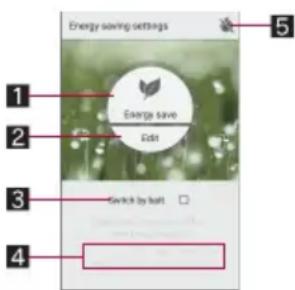
1 Energy save
- Switch to Energy save.
2 Edit
- ● Set the functions to save energy for individually such as Energy saving standby.
3 Switch by batt.
- ● Set whether to switch to Energy save when the battery level reaches the specified level.
4 Battery level to switch
- ● Set the battery level to switch to Energy save at.
5Switch time
- ● Set whether to switch to Energy save when specified time arrives.
- When Energy saving standby is set to [ON], it controls the apps that operate in the background while the display is turned off.
- The apps that communicate periodically may not start the communication even if Energy saving standby is set to [OFF]. In this case, set the corresponding app again.
● Some settings for saving energy are disabled during charging.
When [Energy save] is enabled by Switch by batt.
● [Energy save] is not disabled even when the time set for Switch time arrives.
● [Energy save] is disabled when the battery level exceeds the battery level to switch.
● [Energy save] is not disabled even if [Switch by batt.] is disabled.
Energy save standby
You can control the apps that operate in the background while the display is turned off.
1 In the home screen, [☐☐☐] ▶ [Settings] ▶ [Battery & energy saving] ▶ [Energy save standby]
2 Set
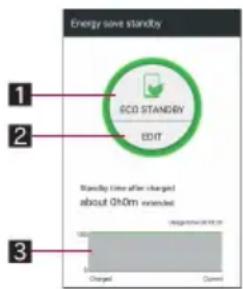
1 Eco standby
- Switch to eco standby.
2 Edit
- ● Set apps to control.
3 Battery usage status
- Check the battery usage etc.
Storage
You can check the available space on a microSD Card, the handset, etc., manage files, etc.
1 In the home screen, [☐☐☐] ▶ [Settings] ▶ [Storage]
2 Select an item
■ Mount microSD/Unmount microSD: Mount/Unmount the microSD Card.
■ ● Erase microSD: Format the microSD Card.
■ Encrypt microSD/Release microSD encryption: Encrypt/Decrypt the microSD Card.
■ ● Unmount USB memory: Unmount the USB memory.
■ ● File Management: Manage data saved on the USB memory etc.
[Unmount microSD]
- Unmount the microSD Card before removing it.
[Erase microSD]
- Note that all the data on the microSD Card will be deleted when formatted.
[Encrypt microSD], [Release microSD encryption]
- Carry out the operations while charging the battery with its battery level still left sufficiently.
-
Set Screen lock to Lock No. or Password in advance (P. 71 "Lock & security").
-
When the available space on the microSD Card is insufficient, encryption/decryption is not available.
● Data on the encrypted microSD Card is not available in devices other than the handset used for encrypting it. - ● You can use the microSD Card that has been encrypted as usual by decrypting it.
- Note that when you have carried out Reset all with microSD Card encrypted, you cannot use the data on the microSD Card. Release the encryption before carrying out Reset all.
- If you insert a microSD Card into the handset that has been used for encrypting another microSD Card, the handset can only read data on it.
● The handset can write data into the read-only microSD Card after encrypting the microSD Card. - Encrypting/Decrypting a microSD Card may take time. Do not stop charging the battery or do not remove the microSD Card while it is being encrypted. Data on it may be lost if the encryption is interrupted.
[Unmount USB memory]
- Unmount the USB memory before removing it.
USB connection
You can change the settings for connecting the handset to a PC using Micro USB Cable 01 (sold separately).
1 In the home screen, [☐☐☐] ▶ [Settings] ▶ [Storage]
2 [☐]▶ [USB connection]
3 Select an item
■ MTP mode: This is a mode for transferring data to the handset memory or a microSD Card using a PC compatible with MTP.
■ PTP mode: This is a mode for transferring still pictures to the handset memory using a PC compatible with PTP.
■ Card reader mode: This is a mode for using a microSD Card inserted into the handset as an external memory for a PC.
■ Tethering settings: Make settings for the tethering. For details ☑ P. 24 "Tethering"
■ ● Continuation of last connection mode: Set whether to continue to use the previous connection mode.
- When you transfer a great deal of data, the transference may be interrupted. In this case, split the data into several files and send them separately.
Useful
You can make settings for エモパー(Japanese only) (emopa (Japanese only)), Clip Now, Grip magic, On/off with motion, View with flip cover or Recent apps key, or perform Self check.
1 In the home screen, [☐] ▶ [Settings] ▶ [Useful]
2 Select an item
■ エモパー(Japanese only) (emopa (Japanese only)): For details ☎ P. 68 "emopa"
■ Clip Now: For details 📋 P. 69 "Clip Now"
■ Grip magic: For details 📋 P. 18 "Grip Magic"
■ On/off with motion: For details ☑ P. 69 "On/off with motion"
■ View with flip cover: Set whether to display the screen for the small window when the handset is equipped with a flip cover which is equipped with a small window.
■ Recent apps key: Set a function to use when you touch [☐]. For details ☐ P. 17 "Navigation keys"
■ Self check: For details ☑ P. 70 "Self check"
[View with flip cover]
- Set [glove mode] to OFF when using the screen for the small window (P. 66 "Display").
emopa
Based on your information and settings of emopa registered in advance, the handset delivers various information through voice or the screen display in the lock screen of the touch panel. emopa responds by its voice or the screen display if you answer emopa's voice with your voice.
Also, when you tell emopa the content what you want to take a memo such as a schedule, emopa memorizes and delivers it according to the schedule (emopa memo).
The handset will get to deliver information at better timing by learning the usage conditions of your handset.
- Packet communication charges are incurred when you use emopa.
- The present location may be measured so that emopa can recognize your home, information of nearby facilities, etc. It is necessary to set [Location] to On to measure the present location. Set Mode of Location to [High accuracy]. If [Location] is set to Off or Mode is set to [Battery saving], emopa cannot deliver information requiring measurement of the present location (P. 71 "Location").
1 In the home screen, [☐☐☐] ▶ [Settings] ▶ [Useful] ▶ [エモパー(Japanese only)] (emopa (Japanese only))
- If the initial settings are not completed, the initial settings screen appears. Follow the instructions on the screen and operate.
- It is recommended to make settings for 職場・学校 (Workplace and school) by [あなたについて] (About you) after completing the initial settings.
- If the initial settings are completed, the emopa screen is displayed. You can check the state of emopa and your information.
Settings of emopa
1 In the emopa screen, [💡]
2 Select an item
■ ● エモパー選択 (Select emopa): Set emopa and its name. Also, add emopa from the website.
■ ● 基本動作について (About basic operation): Make settings for the basic operations such as the volume of emopa and the timing that emopa starts to talk.
■ あなたについて (About you): Make settings for your information such as your nickname, home, workplace and school.
■ ● エモパーの話題 (Topics of emopa): Set what kind of information emopa delivers.
■ ● エモパーメモ (emopa memo): Set the place to use the emopa memo etc.
■ ● エモパーの記憶 (Memories of emopa): Save, delete or restore information registered for emopa or contents learned by emopa.
■ 初期設定 (Initial settings): Make initial settings for emopa.
■ ● 注意事項 (Precautions): Check the emopa version, terms of service, privacy policy, etc.
■ FAQ: Access the “よくある質問 (FAQ)” (Frequently asked questions) of the official emopa information website, emopark (in Japanese only).
Timing for emopa to talk
- ● If you put down the handset horizontally etc. while the lock screen is displayed or while the display is turned off in a place which you set for [自宅] (Home) or [自宅のほかにお話しできる場所] (The place emopa can talk other than your home) of あなたについて (About you), emopa starts to talk.
● While connecting an earphone to the handset, emopa talks to you regardless of the place or time.
● ● emopa starts to talk by shaking the handset several times (approximately 2 seconds) in the lock screen.
Using emopa memo
If you touch the screen twice while the display is turned off or the lock screen is displayed and tell emopa about a schedule etc., emopa memorizes and delivers it according to the schedule.
- In the lock screen, touch the area where a clock, icon, information etc. is not displayed.
- If [外出先でメモ] (Take a memo outside your home) of エモパーメモ (emopa memo) is enabled, you can use emopa memo anyplace as well as the place you have set for [自宅] (Home) or [自宅のほかにお話しできる場所] (The place emopa can talk other than your home) of あなたについて (About you).
- When you tell emopa outside, put the earpiece to your ear like making a call.
● A memo emopa memorized is registered in Calendar. If you tell emopa including the word to express time such as “明日” (tomorrow), “今週” (this week) or “そろそろ” (soon), emopa delivers information at the timing you have told with the memo.
- When you make initial settings for emopa, [Pedometer On] is enabled (P. 62 "Pedometer").
- You can adjust the volume by pressing (+)/ (-) while emopa is talking.
● emopa does not talk from 2:00 a.m. to 5:00 a.m.
● emopa supports only Japanese.
● Information delivered by emopa may not accurately correlate to the usage conditions of your handset. - If an earphone is not connected to the handset and the handset is put down with its display turned down, emopa does not talk.
● Information delivered by emopa is restricted overseas.
● emopa may be updated from Play Store for improving and changing how to use it, increasing variations of talking, etc. For information on emopa, refer to the official emopa information website, emopark, since emopa is subject to change from the contents of this manual.
http://k-tai.sharp.co.jp/dash/emopa/index.html (in Japanese only)
Clip Now
You can shoot the screen being displayed as an image (archival screenshot) by tracing the edge of the screen with your finger. You can save the URL with the archival screenshot when shooting a Chrome screen.
Also, you can use a screenshot for a temporary memo which can be saved temporarily.
1 In the home screen, [R]/[Settings]/[Useful]/[Clip Now]
2 Select an item
- Clip Now: Set whether to use Clip Now.
■ ● Help: Display the explanation of Clip Now.
■ Slide operation settings: Set operations when tracing the screen.
■ Delete All: Delete all archival screenshots you have shot.
● Data may not be saved completely or partially depending on the app.
■ Shooting archival screenshots
1 Display the screen to save/trace the edge of the screen to the right from upper left of the screen or left from upper right of the screen
- The URL is also saved when shooting a Chrome screen. In the home screen, [R]/[Clip Now] to check the saved URL.
■ Shooting screenshots for a temporary memo
1 Display the screen to save temporarily/trace the edge of the screen down from upper left or upper right of the screen
- To check a temporary memo: Drag part of a temporary memo displayed on the left edge or right edge of the screen to the center of the screen
- To delete a temporary memo: Drag a temporary memo to [☐]
On/off with motion
You can make settings for the functions to turn the display on/off with motions such as when you hold the handset with your hand, when you put it into your pocket or when you slide the touch panel with your finger.
1 In the home screen, [R]/[Settings]/[Useful]/[On/off with motion]
2 Select an item
■ Bright Keep: Set whether to set the display not to be turned off while holding the handset with your hand.
■ Turn off by putting flatly: Set whether to set the display to be turned off when placing the handset on a place nearly parallel to the ground regardless of the setting of Screen timeout.
■ Turn off by putting in pocket: Set whether to set the display to be turned off when putting the handset in your pocket.
■ Sweep ON: Set whether to set the display to be turned on by sliding the touch panel with your finger while the display is turned off.
- Let's Try!: Try functions or check how to use with a video tutorial by using "Let's Try!".
[Bright Keep]
- If you do not move or operate the handset for a certain period of time, the display may be turned off even while Bright Keep is set and you are holding the handset with your hand.
- When Bright Keep is set to [ON (Notify)], [] is displayed on the status bar.
[Turn off by putting flatly]
- This function is available when Bright Keep is set to [ON (Notify)]/[ON (Not notify)].
- This function may not follow the setting depending on the app in use.
[Turn off by putting in pocket]
● This is activated when the lock screen of the touch panel is displayed, or while a home app is being used.
- If you enable [Turn off by putting in pocket] while [Switching by motion] of VeilView is enabled, [Switching by motion] is disabled.
[Sweep ON]
- If the proximity sensor (upper part of the display) is covered with a hand, an object, etc., the display cannot be operated by touching to prevent inadvertent operations although the display is turned on. Also, the display may be turned off regardless of the setting of the handset.
Self check
You can perform Self check of the handset.
1 In the home screen, [☐☐☐] ▶ [Settings] ▶ [Useful] ▶ [Self check]
2 [START CHECKING]
- To restart the handset in safe mode: [REBOOT WITH SAFE MODE] ▶ [OK]
3 [SELECT FROM PHONE SYMPTOMS]/[SELECT FROM PHONE FUNCTIONS]
4 Select an item
- As for [SELECT FROM PHONE FUNCTIONS], select items and touch [Next]. Touch [?] of an item to display help about the diagnosis.
5 [Next]
6 [Start diagnosis]
- To stop a diagnosis: [Cancel] ▶ [NEXT ITEM]/[YES]
- Touch the history items of the diagnoses to check the results.
Apps
You can check names, versions, memory usage, etc. of apps, enable/disable apps, uninstall them, etc.
1 In the home screen, [☐] ▶ [Settings] ▶ [Apps]
2 Select an app
[High-speed display]
- When [High-speed display] is enabled, the screen can be displayed smoothly.
- Some apps may not obtain the effect. In this case, disable [High-speed display].
Also, the effect may not be obtained depending on the battery level or handset temperature.
- If you change the setting of [High-speed display] while activating the app, it may not work properly. In this case, end the app once.
■ Disabling an app
Terminate operations of an app and set it not to be displayed on the app list screen without uninstalling it.
- ● You can disable apps which cannot be uninstalled.
1 In the home screen, [☐] ▶ [Settings] ▶ [Apps]
2 Select an app
3 [DISABLE] ▶ [OK]
- If you disable an app, other apps which link up with the disabled app may not work properly. In this case, enable the app.
Enabling an app
1 In the home screen, [☐] ▶ [Settings] ▶ [Apps]
2 Select an app
3 [ENABLE]
Data usage
You can measure the volume of data communicated via mobile networks and display it on a diagram. Also, you can set the handset to give you a warning or make data communication no longer available once the communication volume reaches its set limit.
1 In the home screen, [☐☐☐] ▶ [Settings] ▶ [Data usage]
2 Check the data communication volume
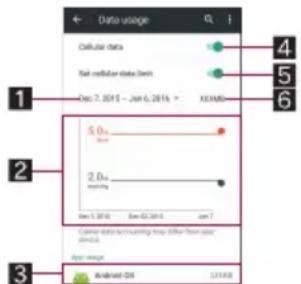
1 Data usage cycle
- ● Set the date on which the display of the data communication volume will be reset.
2Diagram
- ● Display the data communication volume. - ● Warning line or limit line can be set.
3App having used data communication
4 Cellular data
- ● Set whether to use data communication.
5 Set cellular data limit
- ● Set the limit on the data communication volume and suspend data communication once the limit is reached. - In the Data usage screen, [0] ▶ [Restrict background data] ▶ [OK] to restrict data communications made by apps running in the background.
6 Data communication volume during a set period
More
You can make settings for other functions in Wireless & networks.
1 In the home screen, [☐☐☐] ▶ [Settings] ▶ [More]
2 Select an item
■ Airplane mode: Restrict the use of some functions using communication such as call/mail function.
■ Default SMS app: Set an app to send and receive SMSs with.
■ Tethering: For details ☑ P. 24 "Tethering"
■ NFC/Osaifu-Keitai settings: For details ☑ P. 48 "NFC/Osaifu-Keitai settings"
■ Wireless output: For details ☐ P. 84 "Wireless output"
■ Home network settings: For details ☐ P. 83 "Home network settings"
■ VPN: Make settings for VPN. For details 📄 P. 85 "Adding VPN"
- ● Cellular networks: Make settings for use overseas. For details 📋 P. 86 “Settings for use overseas”
■ ● Proxy settings: Set to connect to the network via proxy.
[Airplane mode]
- When [Lock SIM card] is enabled, you cannot call to the emergency number (110, 119 or 118). When [Lock SIM card] is disabled, you can call to the emergency number (110, 119 or 118) even in Airplane mode. If you call to the emergency number, [Airplane mode] is OFF and the call is made.
● [Wi-Fi] and [Bluetooth] can be set to On even when [Airplane mode] is ON.
docomo service/cloud
You can make settings for the docomo service.
1 In the home screen, [☐☐☐] ▶ [Settings] ▶ [docomo service/cloud]
2 Select an item
■docomo ID設定 (Set docomo ID): Set a docomo ID (d ACCOUNT) to use in docomo apps. Also, you can set a docomo ID (d ACCOUNT) authentication which uses biological information (fingerprint) registered in the handset.
■ ●docomo cloud: Make settings for docomo cloud.
■ ●docomo apps management: Make settings for the confirmation for updating apps etc.
■ Osusume App: Set whether to notify you of apps that fit you from among apps provided by DOCOMO.
■ ●docomo apps password: Set a password to use for apps provided by DOCOMO.
■ ● AUTO-GPS: Make settings for AUTO-GPS.
■docomo location information: Make settings for the location information service function of imadoco search, imadoco kantan search and Keitai-Osagashi Service.
■ Send device error information: Set whether to send error information to the server.
■ Remote Initialization Service: Make settings to use services which enable you to initialize data on the handset etc. by remote control.
■ Profile setting: Check or change your profile used in the docomo service.
■ docomo service initial settings: Carry out the initial settings of docomo service.
- Switch USB debugging: Set whether to enable USB debugging.
■ ● Open source licenses: Display the open source licenses.
- Some apps displayed in docomo service/cloud can be disabled. The disabled apps may not be displayed in docomo service/cloud.
- When you newly download apps provided by DOCOMO, the downloaded apps may be displayed in docomo service/cloud.
[docomo apps password]
• ● docomo apps password is set to [0000] by default.
Location
You can make settings for measuring location information.
1 In the home screen, [☐☐☐] ▶ [Settings] ▶ [Location]
2 Set to On
- When the confirmation screens for the use of location information are displayed, select [DISAGREE]/[AGREE].
3 Select an item
■ Mode: Set a mode to measure location information with using GPS satellites, access points of Wi-Fi or base stations for mobile phones.
■ Google Location History: Display location histories if you have registered your Google account on the handset.
- If there are recent location requests, touch one of them to check the information on the app.
- It is necessary to set [Location] to On to measure the present location. Some apps require that settings be made for location information by using the apps.
[Mode]
● Power consumption of the handset may increase depending on the set mode.
- If you set [Location] to On, the confirmation screens for the use of location information are displayed. The mode to be set may differ depending on whether you select [DISAGREE]/[AGREE].
Lock & security
You can make settings for the security lock.
1 In the home screen, [☐☐☐] ▶ [Settings] ▶ [Lock & Security]
2 Select an item
■ Screen lock: Make settings for the unlock method of the touch panel for when the power or display is turned on or the notification to be displayed on the lock screen of the touch panel.
■ Owner info: Make settings for the owner's information to be displayed on the lock screen of the touch panel.
■ Smart Lock: Set to unlock the touch panel by swiping or touching when Screen lock is set to an item other than [None], [Swipe or Touch] or [Fingerprint] and the handset confirms the trusted device, place, face, etc.
■ Application lock: For details ☑ P. 72 "Application lock"
■ Fingerprint settings: Register or delete your fingerprint used for fingerprint authentication, or change the registered name. Also, set whether to use a shortcut which is carried out to activate an app etc. by fingerprint. For details on fingerprint authentication P. 73 "Fingerprint authentication"
■ Secrecy settings: For details ☑ P. 72 "Secrecy settings"
■ Contacts data access monitor: Restrict apps or services which use the phonebook information.
■ Set up SIM card lock: For details ☑ P. 74 "Setting up SIM card lock"
■ Encrypt phone: For details 📋 P. 74 "Encrypting phone"
■ Visible passwords: When you enter the PIN code etc., you can display the entered characters before they turn into [·]
■ Device administrator: Set a device management function of apps. Some apps may not be available if the device management function is disabled.
■ Unknown sources: Allow installation of apps received via websites other than Google Play, mails, etc.
■ ● Storage type: Display the storage type.
■ Use secure credentials: Allow access to secure certificates and other credentials.
■ Install certificates: Install encrypted certificates.
- ● Clear credentials: Delete all credentials.
■ Trust agents: Make settings for apps (agents) that unlock the touch panel.
■ Screen pinning: Restrict the use of apps other than selected one.
- Operation methods may differ depending on the setting of [Recent apps key]. For details on each operation method P. 27 "History", P. 28 "Recent Apps"
■ Apps with usage access: Set apps that can access the data of app usage history item.
[Screen lock]
● The following items can be set.
■ ● None: The lock screen of the touch panel is not displayed.
- Swipe or Touch: Set the touch panel to be unlocked by touching [☐]. When [Feel Home] is selected in Batch change lock screen/ home application, slide [☐] to unlock.
- Pattern: Set a pattern which forms by linking four or more dots.
■ ● Lock No.: Set four- to sixteen-digit number.
- Password: Set four to sixteen alphanumeric or half-width symbols including at least one alphabet.
• Some half-width symbols are not available.
■ ● Fingerprint: Set to fingerprint authentication.
- Register your fingerprint in [Fingerprint settings] in advance (P. 73 "Registration of fingerprint").
- If you enter wrong patterns, time during which you cannot enter the pattern gets longer according to how many times you have entered wrong patterns.
■ ● Five times in a row: 30 seconds
■ ● 10 times in a row: 1 minute
■ ● 15 times in a row: 15 minutes
■ ● 20 times in a row: 60 minutes
After you have entered wrong patterns 20 times or more in a row, you cannot enter the pattern for 60 minutes each time you enter wrong patterns five times in a row. If you enter the correct pattern, the count is reset.
- If you have carried out Encrypt phone and set Screen lock to an item other than [None], [Swipe or Touch] or [Fingerprint], you can set whether to display the password entry screen for decrypting the storage every time the power is turned on.
● The following items in Lock & Security may be displayed/hidden depending on the settings in Screen lock.
■ Make pattern visible: Display tracks of the entered pattern with line.
■ ● Automatically lock: Set how long it takes the touch panel to be locked.
■ Power key to lock instantly: Set whether to lock the touch panel regardless of the time set in Automatically lock when you turn off the display by pressing ⏻(⊕).
- If you have set your Google account to the handset, you can set the lock by password from PC, tablet, etc.
When you have lost your handset etc., connect to the following website and sign in with your Google account set to the handset.
https://www.google.com/android/devicemanager
[Smart Lock]
- When using Smart Lock, touch and hold the unlock icon such as [â] in the lock screen of the touch panel to temporarily disable Smart Lock.
- If Batch change lock screen/ home application is set to [Feel Home], you cannot temporarily disable Smart Lock.
[Unknown sources]
- Apps you download from the websites may be of unknown origin. To protect your handset and personal data, download apps only from trusted sources such as Google Play.
[Use secure credentials]
- If you delete a certificate, you cannot refer to the certificate from [Use secure credentials] but it can be referred to from other functions. If you want to delete the certificate completely, carry out Clear credentials.
[Clear credentials]
- Settings for VPN are also deleted.
Application lock
1 In the home screen, [■■] ▶ [Settings] ▶ [Lock & Security] ▶ [Application lock]
2 Enter the passcode ▶ [OK]
3 Select an item
■ ● Restrict calls: Restrict making calls.
■ Make pattern visible: Display tracks of the entered pattern with line.
■ Haptic feedback: Activate vibration on entering the pattern, passcode and password.
■ Change security key: For details ☑ P. 74 “Changing security key”
- If you have set Restrict calls, you need to enter the security key to temporarily disable the restriction.
- ● You can call to the emergency number (110, 119 or 118) even when you set Restrict calls.
Secrecy settings
You can set contacts in the phonebook not to be displayed in the phonebook, outgoing/incoming call history, etc. by setting the secrecy setting for the contacts.
- When you temporarily disable the secret mode, both normal contacts and contacts for which the secrecy setting is set are displayed.
- If the display is turned off while the secret mode is temporarily disabled, the secret mode is enabled.
1 In the home screen, [☐] ▶ [Settings] ▶ [Lock & Security] ▶ [Secrecy settings]
2 Enter the passcode ▶ [OK]
- The secret mode is temporarily disabled.
3 Select an item
■ Set contact secrecy: Set the secrecy setting for contacts in the phonebook.
- Disable secret mode temporarily: Make settings for temporary cancellation of the secret mode.
■ Guide: Display how to temporarily disable the secret mode and explanation for contacts in the phonebook for which the secrecy setting is set.
Disabling the secret mode temporarily
1 Drag the status bar down
2 Touch and hold [💡]
3 Enter the passcode ▶ [OK]
Security codes used on the handset
Some functions for convenient use of the handset require security codes. In addition to security code used for various handset operations, use security codes such as the network security code when using network services. Use security codes properly according to the purposes to fully utilize the handset.
- ● Entered security code for various functions and PIN code turn into [·].
Precautions about various security codes
- Do not use easily predictable numbers for security codes to be set such as “birthday”, “part of a phone number”, “address or room number”, “1111” or “1234”. Keep a separate memo of security codes.
- Keep security codes private. If the security codes are found and improperly used by others, DOCOMO shall not be liable for any damages incurred on the users.
- If you forget your security codes, you are required to bring your identification (a driver's license etc.), your handset and your docomo nano UIM card to a docomo Shop.
For details, contact the number listed in "General Inquiries" on the last page. - ● PUK (PIN Unlock Key) is described in the agreement form (customer copy) you received at the time of subscription at a docomo Shop. If you made a subscription at a shop other than a docomo Shop, bring your identification (a driver's license etc.) and your docomo nano UIM card to a docomo Shop or contact the number listed in "General Inquiries" on the last page.
■ Security key (security code for various functions)
If you set any restrictions, you need to enter the security key to temporarily disable them. [Passcode] ([0000]) is set as a security key by default but you can change it (P. 74 "Changing security key").
- If you enter wrong security keys five times continuously when the security key is set to an item other than [Fingerprint authentication], you cannot enter it for 30 seconds.
- If the security key has been set to [Fingerprint authentication] and fingerprint sensor fails to read your fingerprint five times, the fingerprint authentication is not available. Enter the security keys set together with your fingerprint.
Network security code
Network security code is a four-digit code required for confirming the subscriber's identity when an order is received at a docomo Shop, docomo Information Center or "お客様サポート" (Support), used for accessing various network services, etc. You can set any code at the time of subscription but you can change the code.
- ● For details on network security code, refer to the DOCOMO website.
PIN code
A docomo nano UIM card has a security code called PIN code. This security code is set to [0000] by default but you can change the code (P. 74 "Setting up SIM card lock").
The PIN code is a four- to eight-digit security code that needs to be entered for recognizing the user of the handset every time a docomo nano UIM card is inserted or when a device is turned on to prevent unauthorized use of the docomo nano UIM card by a third party. Making/Receiving a call and the device operation are enabled by entering PIN code.
- Use the previously set PIN code when inserting a docomo nano UIM card that has been used in another device. It is [0000] if the setting has not been changed.
- If you enter wrong PIN codes three times continuously, it is locked and the docomo nano UIM card becomes unavailable. In this case, unlock with "PUK" (PIN Unlock Key).
■ PUK (PIN Unlock Key)
PUK (PIN Unlock Key) is an eight-digit number used to disable the PIN code lock. You cannot change the code.
- If you enter wrong codes 10 times continuously, the docomo nano UIM card is completely locked. In this case, contact a docomo Shop.
Fingerprint authentication
Fingerprint authentication is an authentication function to operate by tracing the fingerprint sensor with a finger. You can unlock the touch panel etc.
■ Cautions when using fingerprint authentication function
- Fingerprint authentication is carried out using characteristics information of a fingerprint image. If your fingerprint image has only a few characteristics information, you may not be able to use fingerprint authentication.
- Authentication performance (performance for authenticating your fingerprint when you trace the fingerprint sensor with your finger properly) depends on your usage of the handset. If your finger is in any of the following conditions, registration of a fingerprint may be difficult or authentication performance may degrade. You may be able to improve authentication performance when you deal with the situations according to the conditions of your finger such as by washing or drying your hands or putting another finger.
■ ● Your finger gets wrinkled after taking a bath etc.
■ ● Your finger is dry
■ ● The grooves of your fingerprint are filled up with sweat or fat on your finger
■ ● Your finger is dirty with mud or grease
■ ● Your finger is wet with sweat etc.
- Your finger is rough or injured (cut, inflammation, etc.)
■ ● Your fingerprint is faint by attrition
■ ● The shape of your fingerprint has changed because you get fat or thin
■ ● The surface condition of your finger is extremely different from when you have registered your fingerprint
- Personal authentication and identification are not completely guaranteed by fingerprint authentication technology. Note that DOCOMO shall not be liable for any damage incurred due to a misuse by a third party and what you have not been able to use the handset.
■ Cautions when using fingerprint sensor
- Do not let the handset hit or subject to strong impacts. May cause a malfunction or damage. Do not scratch the surface of the sensor or poke it with a pointed object such as a ballpoint pen or pin.
- Do not put a sticker etc. on the surface of the fingerprint sensor or daub it with ink etc.
- If dust such as dirt or fat etc. adheres to the sensor, reading of a fingerprint may be difficult or authentication performance may degrade. Occasionally clean the surface of the fingerprint sensor.
- ● Your fingerprint cannot be authenticated properly if tracing speed is too fast or too slow. Trace the fingerprint sensor straight so that the center of your fingerprint passes over the center of the fingerprint sensor.
- If you start registration or authentication of your fingerprint while touching the fingerprint sensor with your finger, you may not be able to activate the function. Release your finger and try again.
Registration of fingerprint
You can register your fingerprint used for fingerprint authentication. Also, when a shortcut which is carried out to activate an app etc. is set to fingerprint, unlock the touch panel by fingerprint authentication to use the shortcut.
You can set the shortcut by fingerprint.
- ● You can register up to five fingerprints.
- If fingerprint sensor fails to read your fingerprint, trace the fingerprint sensor with your finger while pressing it against the sensor a little stronger. Also, you may be able to improve the authentication performance by using another finger.
- ● Set the unlock method to Fingerprint in Screen lock etc. after registering your fingerprint to use the fingerprint authentication function.
1 In the home screen, [☐] ▶ [Settings] ▶ [Lock & Security] ▶ [Fingerprint settings]
- If you register one or more fingerprints, you need to enter the security key. Follow the instructions on the screen and enter the key.
2 Select a destination
- To delete a registered fingerprint: Touch the registered fingerprint ▶ [Delete fingerprint] ▶ [OK]
3 Trace the center of the fingerprint sensor with your entire finger ball
- Trace it repeatedly until the percentage indicator becomes 100%.
4 [Continue to register shortcut next]/[Not now]
- If you select [Continue to register shortcut next], a shortcut activated by the registered fingerprint can be set.
5 [DONE]
- If the setting screen of the security key used when fingerprint authentication is unavailable is displayed, operate by following the instructions on the screen. The security key is set to fingerprint authentication.
Changing a shortcut
1 In the Fingerprint settings screen, select a registered fingerprint ▶ [Edit shortcut]
- To delete a shortcut: [Delete shortcut] - To change a registered name: [Rename] ▶ enter the name ▶ [OK]
2 Select a shortcut to set
3 [DONE]
■ Using fingerprint authentication function
1 In the lock screen of the touch panel/the fingerprint authentication screen, trace the center of the fingerprint sensor with your entire finger ball
- If your fingerprint cannot be authenticated properly, release it from the fingerprint sensor and try again.
Changing security key
- ● If you set the security key to Fingerprint authentication, register your fingerprint in [Fingerprint settings] in advance (P. 73 "Registration of fingerprint").
1 In the home screen, [☐] ▶ [Settings] ▶ [Lock & Security] ▶ [Application lock]
2 Enter the passcode ▶ [OK]
3 [Change security key]
4 Select an item
■ Pattern: Set a pattern which forms by linking four or more dots.
■ Fingerprint authentication: Set to fingerprint authentication. Also, set a security key used when fingerprint authentication is unavailable.
■ ● Passcode: Set four- to sixteen-digit number.
■ Password: Set four to sixteen alphanumeric or half-width symbols including at least one alphabet.
Setting up SIM card lock
You can make settings for the PIN code.
1 In the home screen, [☐☐☐] ▶ [Settings] ▶ [Lock & Security] ▶ [Set up SIM card lock]
2 Select an item
■ Lock SIM card: Set whether to enter the PIN code when the power is turned on.
■ ● Change SIM PIN: Change the PIN code.
- In Japan, you cannot make a call to the emergency number (110, 119 or 118) when a docomo nano UIM card is not inserted, while the PIN code is locked or from the PUK (PIN Unlock Key) entry screen.
● The setting is saved on the docomo nano UIM card.
Disabling PIN lock
1 In the PIN locking screen, enter PUK (PIN Unlock Key)
2 Enter a new PIN code
3 Enter the new PIN code again
Encrypting phone
You can encrypt data on the handset.
- Carry out Reset all to disable Encrypt phone (P. 76 "Resetting all").
- Carry out the operations while charging the battery with its battery level still left sufficiently.
1 In the home screen, [☐☐☐] ▶ [Settings] ▶ [Lock & Security] ▶ [Encrypt phone]
2 [ENCRYPT PHONE]
- If Screen lock is set to an item other than [None] or [Swipe or Touch], unlock by method set in Screen lock.
3 [ENCRYPT PHONE]
- If Screen lock is set to an item other than [None], [Swipe or Touch] or [Fingerprint], the password entry screen for decrypting the storage is displayed when the power is turned on. Unlock by method set in Screen lock. - When you make settings for Screen lock, you can select whether to display the password entry screen for decrypting the storage every time the power is turned on (P. 71 "Lock & security").
- Note that all data on the handset are deleted if Encrypt phone is interrupted.
- If you enter wrong patterns/lock numbers/passwords 10 or 20 times in a row when decrypting the storage, you cannot enter them until turning the power on again. Note that if you enter wrong ones 30 times in a row, the handset is initialized.
Language & input
You can make settings for the language displayed on the screen, character entry, text-to-speech, etc.
1 In the home screen, [☐] ▶ [Settings] ▶ [Language & input]
2 Select an item
■ Current selected keyboard: Set the input software to use when entering characters.
- Touch [CHOOSE KEYBOARDS] to switch ON/OFF of the input software using on the handset.
■ Google Keyboard: Make settings for Google Keyboard.
■ S-Shoin: Make settings for S-Shoin. For details on each item that can be set ☑ P. 20 "Setting character entry"
■ Google voice typing: Make settings for Google voice typing.
■ Moji-Henshu: Check information on the app of Moji-Henshu.
■ ● Select language: Select Japanese/English.
■ ● Voice input: Make settings for the voice input.
■ Text-to-speech output: Make settings for the voice for reading the characters displayed on the handset.
- Spell checker: Make settings for Spell checker.
■ Personal dictionary: Register any words into Personal dictionary and display them as conversion candidates when you enter characters with Google Keyboard.
- ● Pointer speed: Set the speed of the pointer.
■ Character code setting: Set a character code to use when sending data from an app.
Keyboard
- When you enter Japanese, use S-Shoin.
[Google Keyboard], [S-Shoin], [Google voice typing], [Moji-Henshu]
● These are displayed/hidden depending on the settings of [CHOOSE KEYBOARDS] in Current selected keyboard.
[Spell checker]
● Japanese is not supported.
Backup & reset
You can back up data using a Google account, transfer data to/from among devices, perform Reset all, etc.
1 In the home screen, [☐] ▶ [Settings] ▶ [Backup & reset]
2 Select an item
■ Back up my data: Set whether to automatically back up app data, Wi-Fi passwords, etc. using a Google account.
■ Backup account: Set a Google account to use when backing up data.
■ Automatic restore: Set whether to restore backed up data, settings, etc. of an app when you re-install the app.
■ Data transfer: For details ☐ P. 75 "Data transfer"
■ Reset all: For details ☑ P. 76 "Resetting all"
Data transfer
You can import data or back up/restore data on the handset using a microSD Card. In addition, you can import phonebook data on other devices using the Bluetooth function.
- ● The following data can be backed up to/restored from a microSD Card.
■ ● Phonebook
■ ● SMS
■ ● Bookmark
■ ● Calendar
■ ● Notepad
■ ● User/Learning dictionary (S-Shoin)
■ ● emopa
* You need to download the app separately.
- While you are backing up data to a microSD Card, [Airplane mode] is set to ON.
- ● When the available space on the handset memory is less than 11 MB, you cannot back up data to a microSD Card.
- Insert a microSD Card in advance when using one.
1 In the home screen, [☐☐☐] ▶ [Settings] ▶ [Backup & reset] ▶ [Data transfer]
- Alternatively, in the home screen, [データ引継] (Data transfer) to activate it.
2 Select an item
■ Data import: Import data using a microSD Card or the Bluetooth function.
- Save data to microSD: Save data on a microSD Card.
■ Function information: Check how to use with a video tutorial.
Saving backup file
1 In the home screen, [☐☐☐] ▶ [Settings] ▶ [Backup & reset] ▶ [Data transfer]
2 [Save data to microSD]
3 Enter the passcode ▶ [OK]
4 Select the data categories to save
- If you select [Address Book], the screen for selecting which account to save is displayed.
5 [Save] ▶ [YES]
6 [Complete]
- ● You cannot save the data when the battery level is insufficient.
Restoring backup file
1 In the home screen, [☐☐☐] ▶ [Settings] ▶ [Backup & reset] ▶ [Data transfer]
2 [Data import]
3 [Import]
4 Enter the passcode ▶ [OK]
5 Select backup files to restore ▶ [Add registration]/[Delete and register]
- The confirmation screen appears. Follow the instructions on the screen and operate after this step.
- ● You cannot restore the data when the battery level is insufficient.
Note that, when you restore User/Learning dictionary (S-Shoin) data, User/Learning dictionary (S-Shoin) data saved on the handset memory is deleted even if you select [Add registration].
Setting/Managing backup file
1 In the home screen, [☐] ▶ [Settings] ▶ [Backup & reset] ▶ [Data transfer]
2 [::] ▶ [Setting]
3 Select an item
- Organize backup files: Delete saved backup data.
- ● Addr.book pic backup: Set whether to back up images registered in a phonebook when backing up the phonebook.
- View result screen: Display the latest result of saving/restoring backup files.
- Importing phonebook data using Bluetooth function
1 In the home screen, [☐☐☐] ▶ [Settings] ▶ [Backup & reset] ▶ [Data transfer]
2 [Data import]
3 Select the type of a device from which you import data
- When the screen asking whether to use the backup data on the microSD Card is displayed, select [Import phonebook data from smartphone.].
4 [Next]
5 Enable the Bluetooth function of the device from which you import data ▶ [Next]
- When the device from which you import data is Android, set the device to be displayed on the handset.
6 Select the device from which you import data
7 [Start]
- When the confirmation screen about the settings on pairing appears, select [PAIR].
8 [NEXT]
9 [Add registration]/[Delete before registration] ▶
[OK]
- If you set up multiple accounts, the screen for selecting to which account to register is displayed.
10 [OK]
Resetting all
You can erase all data on the handset memory.
1 In the home screen, [☐] ▶ [Settings] ▶ [Backup & reset] ▶ [Reset all]
2 [RESET PHONE]
- You can also erase data on a microSD Card at the same time by enabling [Delete data in microSD as well.].
3 Enter the passcode ▶ [OK]
4 [ERASE EVERYTHING]
● The following data are erased.
■ ● Data that are created, saved or registered
■ ● Contents that are set in the "Settings" app
■ ● Downloaded apps
Date & time
You can make settings for the date and time and their format.
1 In the home screen, [☐☐☐] ▶ [Settings] ▶ [Date & time]
2 Select an item
■ Automatic date & time: Set whether to automatically adjust the date and time.
■ Auto timezone: Set whether to use the time zone provided via a network.
■ ● Set date: Set the date manually.
■ ● Set time: Set the time manually.
- Select time zone: Set the time zone manually.
■ Use 24-hour format: Switch 12-hour format/24-hour format.
When [Automatic date & time] is enabled
- If the handset does not adjust the time for a while after the power is turned on, turn off the power and restart it.
● Time may not be adjusted depending on the signal status.
● The clock may gain or lose a few seconds.
Accessibility
You can make settings for accessibility options.
1 In the home screen, [☐☐☐] ▶ [Settings] ▶ [Accessibility]
2 Select an item
■ ● Captions: Make settings for captions to display.
■ ● Magnification gestures: Set whether to zoom in/out the screen by touching the display three times.
■ Large text: Set whether to display fonts on the handset in large size.
■ High contrast text: Set whether to display text colors on the handset in high contrast.
■ Power button ends call: Set whether to end a call by pressing ⏻(⏻).
■ Auto-rotate screen: Set whether to switch the screen to horizontal/vertical display when rotating the handset 90° to the left/right.
■ Speak passwords: Set whether to use voice output for passwords.
■ Accessibility shortcut: Set whether the accessibility functions can be enabled quickly.
■ Text-to-speech output: Make settings for the voice for reading the characters displayed on the handset.
■ Touch & hold delay: Set how long you need to keep touching.
■ Color inversion: Set whether to invert colors displayed on the screen.
■ Color correction: Make settings for the adjustment of colors displayed on the screen.
[Power button ends call]
- If the display is turned off according to the setting of [Screen timeout], press 0(0) to turn it on. Press 0(0) while the display is turned on to end the call.
Printing
You can print with an app supporting the print function by installing a print app (plug-in). To change settings on the installed print app (plug-in), carry out the following operations.
- Install a print app (plug-in) supporting a printer to use in advance.
1 In the home screen, [☐] ▶ [Settings] ▶ [Printing]
2 Select a print service
- Follow the instructions on the screen and operate after this step.
About phone
You can check the information about the handset.
1 In the home screen, [☐] ▶ [Settings] ▶ [About phone]
2 Select an item
■ ● Build number: Check the build number.
■ Status: Check the battery level, network in use, etc.
■ ● Adjust touch panel: Adjust the touch panel.
■ Adjust sensitivity of sensor: Adjust the accuracy of retrieval by the motion sensor and geomagnetic sensor.
■ Software Update: For details ☑ P. 93 "Software update"
■ Legal information: Check copyright notice, terms of service, etc.
■ Authentication: Check information such as the certification of conformity with technical regulations.
■ ● Model number: Check the model number.
■ ● Android version: Check the Android version.
■ ● Baseband version: Check the baseband version.
- ● Kernel version: Check the kernel version.
[Adjust touch panel]
- Do not touch the touch panel (display) or () , while [DO NOT TOUCH the display.] is displayed. The adjustment may be failed since the sensitivity adjustment for the whole touch panel is being performed.
[Adjust sensitivity of sensor]
● Make the adjustment approximately 10 seconds after the adjustment screen appears.
- Adjustment may be failed depending on surroundings or other simultaneously running apps. Change the place where you make adjustment, end running apps, etc.
File Management
Storage structure
Handset memory (internal storage)
The folder structure, types of data to be saved in each folder, etc. of the default handset memory are as follows.
| Alarms Alarm tones etc. are saved. | |
| Android Temporary files etc. of installed apps are saved. | |
| DCIM Still pictures and videos shot with the handset are saved. | |
| Download Files downloaded on Chrome are saved. | |
| Movies Videos etc. are saved. | |
| Music Music data etc. is saved. | |
| Notifications Notification sounds etc. are saved. | |
| Pictures Still pictures etc. are saved. | |
| Podcasts Music data etc. transferred from a podcast is saved. | |
| PRIVATE | Still pictures, videos, music data, etc. are saved. |
| Ringtones | Ringtones etc. are saved. |
microSD Card (external storage)
You can save data on the handset to microSD Card or import data on microSD Card to the handset.
- SH-01H is compatible with commercially available microSD Card of up to 2 GB, microSDHC Card of up to 32 GB and microSDXC Card of up to 200 GB. Also, as for Speed Class*, Class 10 or lower is available (as of October 2015).
* Speed Class as stated above indicates the performance of a microSD Card. Note that all the operations related to the performance indicated by Speed Class are not completely guaranteed.
For information on the microSD Card, refer to the following website.
http://k-tai.sharp.co.jp/support/d/sh01h/peripherals.html#!/ microsd_support (in Japanese only)
- The size of a file that can be used is up to 2 GB. For details on recorded TV files P. 53 "Recording of TV (Full-Seg/1Seg)"
- Do not turn off the handset immediately after inserting the microSD Card in the handset (while writing information needed for the handset operation) or while editing data on the microSD Card. Data may be damaged or the handset may not work properly.
- Format unformatted microSD Cards on the handset before use (P. 67 "Storage"). microSD Cards formatted by PCs or other devices may not be used properly on the handset.
● Data saved on the microSD Cards from other devices may not be displayed or played on the handset. Some data saved on the microSD Card from the handset may not be displayed or played on other devices.
- microSDXC Card can be used only on the devices compatible with SDXC. If you insert a microSDXC Card to devices not compatible with SDXC, data saved on the microSDXC Card may be damaged etc., so do not insert it.
- For using a microSDXC Card with its data damaged again, formatting the microSDXC Card by devices compatible with SDXC is required (all the data will be deleted).
- For copying data to/from among devices not compatible with SDXC, use a card which conforms to the standard of the devices you copy the data to/from such as microSDHC Card or microSD Card.
- Back up the data saved on a microSD Card and store in another place. DOCOMO shall not be liable for any loss or change of the saved data.
● ● Hold the handset securely with your hand when inserting or removing the microSD Card.
- Inserting microSD Card
1 Open the docomo nano UIM card/microSD Card slot cover (P. 14 "Inserting docomo nano UIM card")
2 Insert the microSD Card slowly into the microSD Card slot with the metal terminal side turned down

microSD Card slot (left side)
- Insert the microSD Card slowly with your finger until a click is heard.
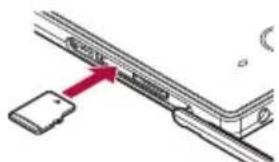
natural_image
Diagram showing a device interacting with a rail track, with a red arrow indicating direction (no text or symbols present)- Do not force the microSD Card in at an angle or with the wrong side up. The microSD Card slot may be damaged.
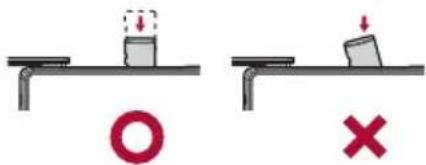
3 Close the docomo nano UIM card/microSD Card slot cover (P. 14 "Inserting docomo nano UIM card")
Removing microSD Card
- Unmount the microSD Card in advance (P. 67 "Storage"). If you do not unmount the microSD Card, data may be damaged or it may not work properly.
1 Open the docomo nano UIM card/microSD Card slot cover (P. 14 "Inserting docomo nano UIM card")
2 Gently push the microSD Card towards inside
- Push the microSD Card until a click is heard. It will come out towards you. Pulling it forcibly may damage the handset or the microSD Card.
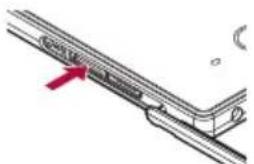
natural_image
Technical diagram of a mechanical assembly with a red arrow indicating a specific component (no text or symbols present)3 Remove the microSD Card
- Remove the microSD Card by slowly pulling it straight out.
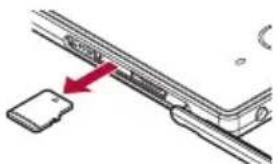
natural_image
Diagram showing a device interacting with a rail track, with a red arrow pointing to the component (no text or symbols present)4 Close the docomo nano UIM card/microSD Card slot cover (P. 14 "Inserting docomo nano UIM card")
Contents Manager
You can manage the data saved on the handset memory or a microSD Card, classify them by type and display them.
1 In the home screen, [☐] ▶ [Contents Manager]
- Alternatively, in the home screen, [☐] ▶ [SH tool] ▶ [Recommendation] ▶ [Contents Manager] to activate it.
2 Select data
- When a corresponding app has already been installed, select the data to display it.
- When there are multiple corresponding apps installed on the handset, the app selection screen may appear. Select an app to display the data.
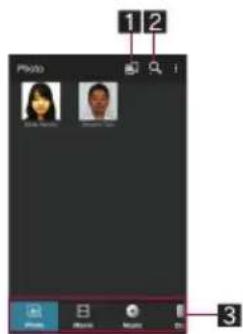
1 Save destination
● ● Display data saved on the selected destination.
2 Search data
- ● Search for data on the handset memory or a microSD Card by selecting search criteria.
3 Category
● ● Display data in the selected category.
| Category D | displayed data |
| Photo Still pictures | shot with the handset or downloaded images |
| Movie Videos | shot with the handset or downloaded videos |
| Music Melodies | or WMA files |
| Doc. Office type | data (.doc, .xls, .ppt, .docx, .xlsx, .pptx, .csv), PDF data or Text files |
| Others Other data | |
- Slide it to the left/right to switch displays of category.
Data Communication
Bluetooth function
You can connect the handset to Bluetooth devices wirelessly.
- ● Wireless communications with all the Bluetooth devices are not completely guaranteed.
Specifications
■ ● Supported version
Bluetooth standard Ver.4.1 ^*1
■ ● Output
Bluetooth standard Power Class 1
■ ● Supported profile§ (Supported services)
HSP: Headset Profile ^4
HFP: Hands Free Profile ^4
A2DP: Advanced Audio Distribution Profile *5
AVRCP: Audio/Video Remote Control Profile *5
HID: Human Interface Device Profile *6
DUN: Dial-up Networking Profile ^4
OPP: Object Push Profile ^4
SPP: Serial Port Profile ^4
PBAP: Phone Book Access Profile *10
PAN: Personal Area Networking Profile *11
HOGP: HID Over GATT Profile*12
*1 The handset and all Bluetooth function-installed devices have ensured that they conform to the Bluetooth specification according to the rules that the Bluetooth SIG defines, and are all authenticated. However, operating methods might differ or data might not be exchanged even when a connection is made, depending on the features or specifications of the connected device.
*2 Standardizes the communication procedures of Bluetooth device by feature.
*3 Connect a commercially available Bluetooth compatible headset to the handset to talk wirelessly.
*4 Connect a commercially available Bluetooth compatible hands-free device such as a car navigation system to the handset to talk during hands-free operation using the car navigation system etc.
*5 Connect a commercially available Bluetooth compatible audio device to the handset to play music, TV audio, etc. wirelessly. Also, remote control operation may be available from Bluetooth devices. However, compatible devices may be limited depending on the data type.
*6 Connect a commercially available Bluetooth compatible input device such as a keyboard and mouse to the handset to operate the handset from the device.
*7 Connect a Bluetooth compatible PC etc. to the handset to use the handset as a modem and make data communications. Note that packet communication charges are incurred. You cannot use mobile networks on the handset during DUN connection.
*8 Connect a Bluetooth device to the handset with the file transfer service to send and receive data between them.
*9 Set the virtual connection with a serial cable and interconnect between devices.
*10 Transfer phonebook data on the handset memory to a Bluetooth device. Data may not be displayed correctly on the other party's device depending on the contents of the transferred phonebook data.
*11 Join a PC network etc. and share the Internet connection. Also, connect a PC etc. to the handset via Bluetooth to use the Bluetooth tethering.
*12 Connect a Bluetooth Smart device such as a keyboard and mouse to the handset to operate the handset from the device.
● Refer to manuals of Bluetooth devices as well.
- The settings of access points for DUN profile can be changed from a Bluetooth device such as a PC or car navigation system. If connection to an access point via DUN profile becomes unavailable, it is recommended to initialize access points (P. 22 "Resetting an access point").
- TV audio etc. may not be output with Bluetooth devices which are not compatible with SCMS-T.
Precautions about handling Bluetooth devices
Note the followings when using Bluetooth devices.
● ● Note the followings to make good connection.
- Keep the distance between the handset and another Bluetooth device within approximately 10 m with no obstructions in sight. The distance within which you can make connection may be shorter when there are obstructions between them or depending on the conditions of the surroundings (such as walls or furniture) and the structure of a building. Especially when there is a wall, floor or ceiling of reinforced concrete between them, they may be unable to connect with each other. Note the above mentioned distance is not guaranteed.
- Move the handset and another Bluetooth device as far away as possible from home electric appliances, AV devices, OA devices, etc. before connection. Bluetooth devices are liable to be adversely affected by a microwave oven, so move them as far away as possible from the microwave oven while using them. Otherwise, normal connection cannot be performed when other electric devices are powered on or Bluetooth devices may cause noises or reception failure on a TV or radio set.
- Move the other party's Bluetooth device to a place where connection is possible when there is a broadcast station, radio, etc. near the Bluetooth device and the handset cannot be connected to the device. Strong radio waves may prevent connection between Bluetooth devices.
- Wireless connection is available with Bluetooth devices put in a bag or pocket. However, lowering of communication speed or noise may result when you are in between the Bluetooth device and the handset.
- Electromagnetic signals from Bluetooth devices may affect the operation of electronic medical equipment etc. As some cases may result in accident, turn off the handset and other Bluetooth devices in the following places.
■ ● On trains
■ ● On airplanes
■ In hospitals
- Near automatic doors or fire alarms
■ In places such as gas stations where flammable gas is generated
Radio interference with Wi-Fi compatible devices
- The Bluetooth devices use the same frequency band (2.4 GHz) as wireless LANs (IEEE 802.11b/g/n). Therefore, using a Bluetooth device near a wireless LAN device may cause the radio interference, lowering of communication speed, noise or connection failure. In this case, turn off the wireless LAN device or keep the handset and the other party's Bluetooth device at least approximately 10 m away from the wireless LAN.
Using Bluetooth function
- To register/connect a Bluetooth device, the Bluetooth passkey may need to be entered. Before starting the registration, decide one- to sixteen-digit number. Enter the same number on the handset and the other party's Bluetooth device.
- ● Set the other party's Bluetooth device to the registration stand-by status in advance.
1 In the home screen, [☐☐☐] ▶ [Settings] ▶ [Bluetooth]
2 Set to On
3 Select a Bluetooth device ▶ [PAIR]
- The confirmation screen for connection may be displayed.
- Entering the Bluetooth passkey may be necessary depending on the other party's Bluetooth device. Also, some Bluetooth devices may start connection after completing registration.
- To search for Bluetooth devices: [ˈɔː] ▶ [Refresh]
-
Touch [⚙] of a paired Bluetooth device to set name and intended purpose of the other party's Bluetooth device.
-
● You can connect up to seven Bluetooth devices at the same time. Bluetooth devices may not work properly or the number of Bluetooth devices which can be connected at the same time may differ depending on the profile.
- If you fail to connect a Bluetooth device, connection may become available after re-registering it.
- When [Bluetooth] is set to On, the handset is set to receive registration requests/connection requests from other Bluetooth devices. Make the setting for displaying the handset's information on other Bluetooth devices in advance to allow the handset to be searched for by other Bluetooth devices.
● While in connection stand-by, even if a connection request from a Bluetooth device is received, connection may not be made depending on the signal status etc. - For details on the operations of the other party's Bluetooth device, refer to the manuals of the Bluetooth device to be used.
When receiving registration request from Bluetooth device or connection request from unregistered Bluetooth device
1 Registration request/Connection request from Bluetooth device
2 Drag the status bar down ▶ [Pairing request] ▶ [PAIR]
- When the confirmation screen about the settings on pairing appears, select [PAIR].
- Entering the Bluetooth passkey may be necessary depending on the other party's Bluetooth device.
- The confirmation screen for connection may be displayed.
■ Unregistering Bluetooth device
1 In the Bluetooth screen, [⚙] of the Bluetooth device to unregister ▶ [FORGET]
■ Disconnecting Bluetooth device
1 In the Bluetooth screen, select the Bluetooth device to disconnect ▶ [OK]
Setting Bluetooth
- ● Set after setting [Bluetooth] to On.
1 In the Bluetooth screen, [☐]
2 Select an item
■ ● Refresh: Search for the Bluetooth device.
■ Rename this device: Change the handset's name.
■ ● aptX: Set whether to use aptX
■ Handsfree setting: Set whether to always have voices output from the connected Bluetooth compatible hands-free device during a voice call.
■ Show received files: Display the history of data received via Bluetooth connection.
[aptX]
- When you enable [aptX], sounds may not be output depending on the Bluetooth device. In this case, disable [aptX].
Sending and receiving by Bluetooth
Sending data
Example: Still picture
1 In the home screen, [☐☐☐] ▶ [Contents Manager] ▶ [Photo]
2 Touch and hold a still picture ▶ [Share] ▶ [Bluetooth]
- Set the receiver's Bluetooth device to the reception stand-by status.
3 Select a Bluetooth device to connect to
Receiving data
1 Data is sent from the sender's Bluetooth device
2 Drag the status bar down ▶ select the incoming notification ▶ [ACCEPT]
3 Drag the status bar down ▶ select the received data
- Note that if you select [Delete and register] when receiving all data, all data registered to the target function are deleted.
● Receiving all data may not be available depending on the data type. - When available space in the save destination becomes insufficient while receiving data, the data being received to that point are saved and receiving ends.
NFC communication
NFC stands for Near Field Communication and is a near field wireless communication system which conforms to the international standards set by ISO (International Organization for Standardization). You can use the contactless IC card function, Reader/Writer function, P2P function, etc. on the handset.
Android Beam
You can send and receive data to and from devices which support Reader/Writer, P2P function.
- Enable [Reader/Writer, P2P] and set [Android Beam] to On in advance (P. 48 "NFC/Osaifu-Keitai settings").
- Android Beam is not available in Airplane mode or when NFC/Osaifu-Keitai lock is set.
- ● In the following cases, data may not be sent by Android Beam.
■ ● During charging
■ ● During earphone/microphone connection
■ During USB connection
● ● You can send and receive phonebooks, still pictures, videos, etc. - Android Beam may not be available depending on the app.
- Communication with all devices which support Reader/Writer, P2P function is not completely guaranteed.
When using Android Beam
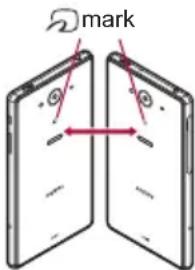
- Use while placing the Ⓞ mark of the receiver's device over that of the sender's device as shown.
- Do not move the devices until sending and receiving of data are completed.
- There may be some cases in which data are poorly sent and received or the display is turned off by positioning a device near depending on the other party's device. In this case, put a distance between the 2 marks apart/closer or move them up/down or to the left/right.
- Other precautions are the same as those for when you hold the handset over the other device (P. 48 "Precautions about holding over the other device").
Sending data
Example: Phonebook
1 In the home screen, select “ドコモクラウド” (docomo cloud) folder ▶ [docomo phonebook] ▶ [Contacts]
2 Select a name
3 Place the Ⓞ mark over that of the other party's device
- [Touch to beam] appears.
4 Touch the screen
Receiving data
1 Place the 🔒 mark over that of the other party's device
External Device Connection
PC connection
You can use a microSD Card as an external memory for a PC or transfer data by connecting the handset and the PC.
Connecting the handset and PC
1 Insert the microUSB plug of Micro USB Cable 01 (sold separately) horizontally into the external connector terminal on the handset with the side marked with "B" turned up (1)
2 Insert the USB plug of Micro USB Cable 01 horizontally into the USB connector on a PC (2)
- For details on the mode of USB connection P. 68 "USB connection"
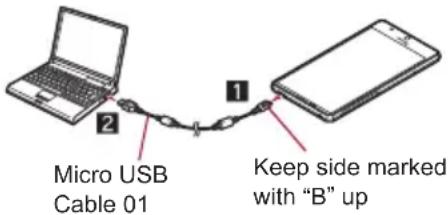
- Use Micro USB Cable 01 as a USB cable. USB cables for PC are not available, since the plug shape is different.
- Using a USB HUB may prevent the equipment from working normally.
- Do not remove Micro USB Cable 01 while exchanging data with PC. Data may be damaged.
- Windows Vista, Windows 7, Windows 8, Windows 8.1 and Windows 10 all of which are Japanese version are available OS of PCs for the connection.
microSD reader/writer
You can use a microSD Card as an external memory for a PC.
- Insert a microSD Card and set the mode of USB connection to [Card reader mode] in advance (P. 68 "USB connection").
- When using a microSDXC Card, refer to P. 83 "Transferring data". When a message indicating to format the microSDXC Card is displayed, do not format it.
1 Connect the handset to a PC via Micro USB Cable 01
- The USB mass storage screen appears. If the screen does not appear, drag the status bar down and select [USB connected].
- If the notification is displayed at the top of the screen, touch it.
2 [TURN ON USB STORAGE]
- When the confirmation screen is displayed, check the content and select [OK].
3 Use as a microSD reader/writer
4 Perform secure hardware removal on the PC after use
5 [TURN OFF USB STORAGE]
6 Disconnect Micro USB Cable 01 from the handset and the PC
● While using as a microSD reader/writer, microSD Card cannot be used by apps. In addition, microSD Card may not be used as a microSD reader/writer while it is used by apps.
Transferring data
Transfer data from a PC to the handset memory or a microSD Card.
- ● Set the mode of USB connection to [MTP mode] or [PTP mode] in advance (P. 68 "USB connection").
1 Connect the handset to a PC via Micro USB Cable 01
2 Transfer data
3 Disconnect Micro USB Cable 01 from the handset and the PC after use
Printing/Saving by print service
You can print images using a print app (plug-in) or save images in Google Drive etc.
Example: When using Album
1 In the image displaying screen of Album, [ˈɔː] ▶ [Print by print service]
2 Set each item
- Follow the instructions on the screen and operate after this step.
Home network settings
Using Wi-Fi communication, you can watch the still pictures and the videos and listen to the music data on a microSD Card with a home network compatible TV etc.
- ● You can make public the following data managed by Contents Manager.
| Data type File format | |
| Still picture*1 | JPEG |
| Video MP4, 3GP (Video codecs: H.264, Audio codecs: aac) | |
| Music data*2 | MP3, LPCM (44.1 kHz/2ch), WAV (44.1 kHz/2ch) |
*1 Still pictures whose image size is larger than “4,096 × 4,096” cannot be displayed.
*2 WAV files can be played only when their data format is LPCM. Also, LPCM is not displayed on the handset.
- You may not make data public when the number of each data exceeds 1,000.
- Store the data to make public in the following folders on a microSD Card in advance.
| Data type Folder location | |
| Still picture ¥DCIM, | ¥PRIVATE¥SHARP¥CM¥PICTURE |
| Video ¥DCIM, | ¥PRIVATE¥SHARP¥CM¥MOVIE |
| Music data ¥PRIVATE | ¥SHARP¥CM¥MUSIC,¥PRIVATE¥SHARP¥CM¥SOUND |
- Make settings for the Wi-Fi connection before using the home network server. For details on the settings of Wi-Fi P. 23 "Wi-Fi settings"
- Refer to the following website for models of TV compatible with connection with the handset. http://k-tai.sharp.co.jp/support/d/sh01h/peripherals.html#!/dlna (in Japanese only)
- As for how to connect the handset from a home network compatible TV, refer to the manual of the home network compatible TV.
- Connection may not be made properly or may be canceled while in use depending on wireless LAN access points or usage environment. In this case, disable [Home network server] in Home network settings and enable it again.
- Check the followings when you cannot connect properly.
■ ● Access point settings
■ ● Wi-Fi connecting condition
■ ● Network settings of the home network compatible device to connect
■ ● Security software/Firewall settings of the home network compatible device
■ ● Home network settings of the handset
1 In the home screen, [☐] ▶ [Settings] ▶ [More] ▶ [Home network settings]
2 Select an item
■ Home network server: Set whether to use the home network server.
■ Wi-Fi for home NW server: Set the network to be used from the access points set for Wi-Fi connection.
■ Home network server name: Register the home network server name to be displayed on a home network compatible TV.
USB host function
The USB host function is installed on the handset. You can use USB devices such as mice by connecting a commercially available USB cable for peripheral device connection to the external connector terminal.
- ● For details on the USB host function, refer to the manuals of the USB cable for peripheral device connection and USB devices.
- Connection with all USB devices is not completely guaranteed.
- Connection with the USB device is disabled when the battery level decreases or the handset temperature lowers.
- When you use the USB host function, the handset operations may slow down.
- When you connect USB devices which consume large amount of electric power, the handset may be automatically turned off depending on the operating state or battery level of the handset, or surrounding temperature.
Removing USB memory
- Unmount the USB memory before removing it (P. 67 "Storage"). Data may be damaged or it may not work properly.
Wireless output
You can display the same screen as that of the handset on a TV with a wireless connection function by connecting the handset to the TV.
- ● You can also connect the handset to other Miracast compatible devices such as a Miracast compatible TV or adapter.
1 In the home screen, [☐☐☐] ▶ [Settings] ▶ [More] ▶ [Wireless output]
2 Set to On
3 Select a device to connect to
- The setting screen may be displayed depending on the device to connect to. For details on the setting content, refer to the manual of a Miracast compatible device to use.
● Wireless output may not be available depending on the running app or the displayed content item.
● Wireless output may be terminated during its use depending on the running app.
● During the wireless output, you may not be able to play copyrighted content items.
● Wireless output automatically stops when the battery level becomes insufficient.
- Wireless output is not available during a call or incoming call. If you receive a call during the wireless output, the wireless output stops.
- The handset may be subjected to radio interference and image distortion or jumpiness may occur depending on the conditions of the surroundings. Also, connection may fail or output may be terminated. Use this function in a condition with no obstructions or other wireless devices put between the handset and a TV etc.
Cooperating with Blu-ray Disc recorder
Using AV Device Link
If you connect the handset and a recorder compatible with DLNA to the Wi-Fi network, you can watch/play TV programs received/recorded with the recorder on the handset.
Also, if you connect a DLNA compatible TV to the Wi-Fi network, you can display/play videos, still pictures, music, etc. the handset stores on the TV.
- ● For connection, refer to the manual of the DLNA compatible device.
- ● Set [Wi-Fi] to On in advance.
● ● This app uses DiXiM SDK.
The license of "DiXiM" is provided by DigiOn, Inc.
For details, refer to the website of DigiOn, Inc. http://www.digion.com/
Watching program recorded in recorder on the handset
1 In the home screen, [☐☐☐] ▶ [SH tool] ▶ [Recommendation] ▶ [AV Device Link]
2 [USE THIS APP]
•The AV Device Link screen is displayed.
3 [Watch programs recorded in recorder.]
4 [2. Select recorder to connect with.]
- From the next time, touch [Watch programs recorded in recorder.] in the AV Device Link screen to connect the handset to the device automatically.
5 Select a device to connect to ▶ [OK] ▶ follow the instructions on the screen and operate
- To set Wi-Fi, home network, etc.: [ ] ▶ [Settings]
- To dub data to the handset: [⚡]▶ select data
- Watching data dubbed from recorder on the handset
1 In the AV Device Link screen, [Watch programs dubbed to device.]
2 Select a program
- Watching TV on the handset by using tuner of recorder
1 In the AV Device Link screen, [Use other functions]
2 [>]▶[Use] of "Watch TV via recorder."▶ follow the instructions on the screen and operate
Watching still pictures/videos and listening to music the handset stores on TV
1 In the home screen, [☐] ▶ [SH tool] ▶ [Recommendation] ▶ [AV Device Link]
2 [USE THIS APP]
•The AV Device Link screen is displayed.
3 [Use other functions]
4 [Use] of "Watch taken photos on TV."
5 [2. Publish this device on home network as a server.]
- For details on the settings of home network P. 83 "Home network settings"
6 [3. Select TV to connect with.] ▶ follow the instructions on the screen and operate
- From the next time, touch [Use] of "Watch taken photos on TV." to connect the handset to the device automatically.
- To set Wi-Fi, home network, etc.: [ ] ▶ [Settings]
● A high bit rate video such as a FULL HD one shot with the camera may not be played smoothly on the handset via a home network.
VPN (Virtual Private Network)
Adding VPN
VPN (Virtual Private Network) is a connection method to prepare and connect safely to a virtual dedicated line on the network of a household PC or in an office from outside etc.
● ● Acquire information about the security from network administrators to set VPN connection from the handset.
- ● Set Screen lock to an item other than [None] or [Swipe or Touch] in advance (P. 71 "Lock & security").
1 In the home screen, [☐] ▶ [Settings] ▶ [More] ▶ [VPN] ▶ [+]
2 Set each item ▶ [SAVE]
Connecting VPN
1 In the home screen, [☐☐☐] ▶ [Settings] ▶ [More] ▶ [VPN]
2 Select a VPN to connect to
3 Enter connecting information of the VPN ▶ [CONNECT]
Disconnecting VPN
1 In the home screen, [☐☐☐] ▶ [Settings] ▶ [More] ▶ [VPN]
2 Select a VPN to disconnect ▶ [DISCONNECT]
International Roaming
You can make a call using the handset while staying overseas or make settings for international roaming, network services, etc.
Outline of international roaming (WORLD WING)
International roaming (WORLD WING) is a service that enables you to use the same phone number and mail address of the handset as you use in Japan in the service area of DOCOMO affiliated overseas network operators. You can use calls and SMS without any changes in settings.
Available network
The handset is rated as Class 5. You can use it in the LTE network, 3G network and GSM/GPRS network service areas. In addition, it is available in countries and regions supporting 3G 850 MHz/GSM 850 MHz. Check the available area.
Refer to the followings before using the handset
overseas.
■ ● DOCOMO website
- For country codes, international call access number, universal number international prefix and information on countries and regions where connections are available and available network operators, refer to the DOCOMO website.
Available services overseas
*1 Enable [Data roaming] to use data communication when roaming (P. 86 "Data roaming").
*2 Depending on the network operator to connect to, 3G, 3G 850 or GSM network is used.
● Some services may not be available depending on the network operator or network to connect to.
- Connected network operator can be checked in the status panel (P. 26 "Using the status panel").
Before use overseas
- Checking before departure
Check the followings in Japan before using the handset overseas.
Subscription
- Check the status of a subscription to WORLD WING. For details, contact the number listed in "General Inquiries" on the last page.
Charging battery
- ● For details on charging the battery, refer to the DOCOMO website.
Charge
- Overseas charges (call charges, packet communication charges) differ from those in Japan. For details, refer to the DOCOMO website.
- ● Since some apps automatically perform communication, the packet communication charges may be higher. Contact the app provider for the operation of each app.
Setting before departure
Network service settings
If you subscribed to network services, network services such as Voice Mail Service, Call Forwarding Service and Caller ID Display Request Service are available from overseas. However, some network services are not available.
- To use network services overseas, setting the remote operation settings to "Activate" is required. The remote operation settings can be set in your country of stay (P. 88 "Network services during roaming"). For details on the remote operation settings in Japan P. 38 "Network service"
- Some network services that can be set/disabled etc. may not be available depending on overseas network operators.
- Checking in your country of stay
The handset automatically connects to the available network operator when you turn the power on in your country of stay.
Connection
When Network operators (P. 87 "Network operators") is set to [Select automatically], the suitable network is automatically selected.
Settings for use overseas
1 In the home screen, [☐☐☐] ▶ [Settings] ▶ [More] ▶ [Cellular networks]
2 Select an item
■ Data enabled: Set whether to use data communication.
■ Data roaming: For details 📄 P. 86 "Data roaming"
■ Preferred network type: For details 📄 P. 86 "Preferred network type"
■ ● Access Point Names: Set an access point.
■ Network operators: For details 📄 P. 87 "Network operators"
Data roaming
You need to enable [Data roaming] to use packet communication overseas.
1 In the home screen, [☐☐☐] ▶ [Settings] ▶ [More] ▶ [Cellular networks] ▶ [Data roaming]
- When the confirmation screen is displayed, check the content and select [OK].
Preferred network type
Set a network to use.
1 In the home screen, [☐☐☐] ▶ [Settings] ▶ [More] ▶ [Cellular networks] ▶ [Preferred network type]
2 Select an item
■ LTE/3G/GSM(Auto): Automatically switch to an available network.
■ ● LTE/3G: Use LTE/3G network.
■ ● 3G/GSM: Use 3G/GSM/GPRS network.
■ ● 3G: Use 3G network.
■ ● GSM: Use GSM/GPRS network.
Network operators
At the time of purchase, the handset is set to automatically search for and switch to available networks. When you want to manually switch networks, set by performing following operations.
1 In the home screen, [☐] ▶ [Settings] ▶ [More] ▶ [Cellular networks] ▶ [Network operators]
- If the confirmation screen for data communication is displayed, check the content and select [OK].
- Search for networks and a list of network operators is displayed.
- When an error occurs during the network search, disable [Data enabled] (P. 86 "Settings for use overseas") and try again.
2 Select a network operator
- To search for network operators again: [Search networks]
- To automatically select a network operator: [Select automatically]
Date & time
If [Automatic date & time] and [Auto timezone] of Date & time are enabled, the handset receives information on time and time differences from the network of a connected overseas network operator, then time and time differences are corrected.
- Time and time differences may not be adjusted correctly depending on the network of an overseas network operator. In this case, set time zone manually.
- ● The correction timing may differ depending on the network operator.
- For details on Date & time P. 76 "Date & time"
Inquiries
- When the handset or the docomo nano UIM card is lost or stolen overseas, promptly contact DOCOMO and conduct a procedure for canceling the use of service from your country of stay. Refer to the last page for inquiries. Note that call/communication charges after the handset or the docomo nano UIM card is lost or stolen are incurred to the subscriber.
- As for land-line phone etc., “International call access number” of your country of stay or “Universal number international prefix” is required.
Making/Receiving a call in your country of stay
Making a call outside your country of stay (including Japan)
1 In the home screen, [图标] ▶ [Dial]
2 “+” (touch and hold “0”) ▶ enter country code, area code (city code) and the other party's phone number ▶ [ ]
- When the area code (city code) begins with "0", omit the first "0" when dialing (Include the "0" when making a call to some countries or regions such as Italy).
- Alternatively, enter a phone number ▶ [⋮] ▶ [International call] ▶ select a country code to enter a country code.
- The first "0" of the area code (city code) will be omitted.
● Even if you notify the caller ID, [Unknown], [Anonymous], etc. may appear depending on the network operator, and the caller ID may not be displayed correctly.
Making a call using International Dial Assist
When you make a call to other countries from your country of stay, you can make an international call with simple operation using International Dial Assist.
- ● Set International dial assist in advance.
- ● The first "0" of a phone number will be automatically converted to the country code you set in Country code.
1 In the home screen, [图标] ▶ [Dial]
2 Enter a phone number ▶ [💡]
3 [Convert number]
Setting of International Dial Assist
1 In the home screen, [☐☐☐] ▶ [Settings] ▶ [Call] ▶ [Roaming settings] ▶ [International dial assist]
2 Select an item
■ Automatic conversion: Set whether to make calls using International Dial Assist.
■ ● Country code: Set a country code to use when using International Dial Assist.
■ International prefix: Set an international prefix to use when using International Dial Assist.
Making a call in your country of stay
You can make a domestic call in your country of stay in the same way as you do in Japan.
● ● Always enter the area code (city code), even when the number is in the same area.
Making a call to a WORLD WING subscriber overseas
When you make a call to a WORLD WING subscriber overseas, the call is made as an international call to Japan regardless of whether the call is made to the inside or outside of your country of stay.
1 In the home screen, [☐] ▶ [Dial]
2 “+” (touch and hold “0”) ▶ enter country code “81” (Japan) and the other party's mobile phone number excluding the first “0” ▶ [☐]
Receiving a call overseas
You can receive a call overseas in the same way as you do in Japan.
- When a call is received during international roaming, the call is forwarded from Japan. Charges for connecting a call to Japan are incurred by the caller and receiving charges by the receiver.
■ Having calls made to your handset
When having calls made to your handset from Japan, have your phone number entered just as a domestic call in Japan.
When having calls made to your handset from countries other than Japan, have the international call access number and country code "81" (Japan) added to the beginning of your phone number with the first "0" excluded as an international call to Japan regardless of your country of stay.
International call access number of the country of the caller-81-90 (or 80/70)-XXXX-XXXX
Setting international roaming
Roaming settings
You can make settings for international roaming.
1 In the home screen, [☐] ▶ [Settings] ▶ [Call] ▶ [Roaming settings]
2 Select an item
■ Incoming call restriction while roaming: Set whether to reject incoming calls during international roaming.
■ Incoming call notification while roaming: Set whether to notify you of incoming call information (date and time of calls or caller ID) by SMS, when you are in a place with no signal, the handset is turned off or you fail to answer an incoming call during international roaming.
■ ● Roaming guidance: Set whether to play the guidance notifying the other party who makes a call to you during international roaming that you are using international roaming.
■ International dial assist: Make settings for International dial assist. For details ☑ P. 87 "Setting of International Dial Assist"
■ Network service: Make settings for using network services available during international roaming. For details P. 88 "Network services during roaming"
Network services during roaming
You can use network services such as Voice Mail Service or Call Forwarding Service overseas.
1 In the home screen, [Settings] ▶ [Call] ▶ [Roaming settings] ▶ [Network service]
2 Select an item
■ Remote operation (charges apply): Make settings for remote operations.
- Caller ID notification request service (charges apply): Make settings for Caller ID Display Request Service.
■ Incoming call notification while roaming (charges apply): Make settings for Incoming call notification while roaming.
■ ● Roaming guidance (charges apply): Make settings for Roaming guidance.
■ Voicemail service (charges apply): Make settings for Voice Mail Service.
■ Call forwarding service (charges apply): Make settings for Call Forwarding Service.
Checking after homecoming
The handset automatically connects to the DOCOMO network after returning to Japan. If it fails, make the following settings.
- ● Set Preferred network type to [LTE/3G/GSM(Auto)] (P. 86 "Preferred network type").
- ● Set Network operators to [Select automatically] (P. 87 "Network operators").
Appendix/Index
Troubleshooting (FAQ)
Troubleshooting
- First, check whether the software update is required. If it is required, update the software (P. 93 "Software update").
- If there is no improvement on the problems even after checking the following items, feel free to contact the number listed in "Repairs" (in Japanese only) on the last page or a repair counter that DOCOMO specifies.
Power
● ● The handset is not turned on
- Make sure the battery has not run out. P. 15 "Charging"
● ● The screen does not respond or the handset cannot be turned off
- You can turn the power off forcibly by pressing ⏻(_) for at least 8 seconds. P. 16 "Turning power off forcibly"
- Note that data, contents you have set, etc. may be deleted since the power is turned off forcibly.
Charging
● ● Cannot charge the battery
The charging lamp does not illuminate or it flashes
- Is the power plug or the cigarette lighter plug of the adapter inserted into the outlet or cigarette lighter socket properly? P. 15 "Charging with AC adapter/DC adapter"
- Are the adapter and the handset set properly? P. 15 "Charging with AC adapter/DC adapter"
- When using an AC adapter (sold separately), are the microUSB plug of the AC adapter and the handset securely connected? ☑ P. 15 "Charging with AC adapter/DC adapter"
- If a call, communication or another function is performed for a long time while charging, the handset may become warm and charging may stop. Charge again after the handset temperature lowers. P. 15 "Cautions while charging"
- Is an adapter specified by NTT DOCOMO being used for charging? Contact the number listed in "Repairs" (in Japanese only) on the last page or a repair counter that DOCOMO specifies if you cannot charge the battery even when using a specified one.
Handset operation
- ● Apps do not work properly (e.g. inability to activate them, frequent errors)
- Make sure there is no disabled app. Try again after enabling a disabled app, if any. P. 70 "Enabling an app"
- Becomes hot while operating/charging
- The handset, internal battery or adapter may become warm while you are operating or charging the handset, when you use video call, watch TV, etc. for a long time while charging, etc. There is no operational problem. P. 15 "Cautions while charging"
● ● Battery life is short
- Make sure the handset is not left for a long time outside the service area.
Outside the service area, since radio waves are searched to make communication available, more electric power than usual is used. - The battery life depends on the usage environment and deterioration level. P. 94 "Main specifications"
- Internal battery is a consumable product. Battery life per charge is gradually reduced every time the battery is charged. Contact the number listed in "Repairs" (in Japanese only) on the last page or a repair counter that DOCOMO specifies if the battery life becomes extremely shorter than at the time of purchase even after fully charged. P. 15 "Internal battery usable life"
● ● Not activated by touching or pressing keys
- Make sure the handset is not turned off. P. 16 "Turning power on"
- Screen response is slow when touching or pressing keys
- This may happen when a great deal of data is saved on the handset, when a large amount of data is being transferred between the handset and the microSD Card, etc. P. 67 "Storage"
● ●docomo nano UIM card is not recognized
- Is the docomo nano UIM card inserted facing right direction? P. 13 "docomo nano UIM card"
- - Clock is incorrect
- Clock may become incorrect if the power is left turned on for a long time. Make sure [Automatic date & time] is enabled and turn the power on again in a location with good signal conditions. P. 76 "Date & time"
● Handset operation is unstable
- The apps installed on the handset after purchase may become a cause. If you can improve the symptoms by activating the handset with the safe mode set, you may be able to improve the symptoms by uninstalling the installed apps.
※ The safe mode is a function to activate the handset nearly in the state of default.
• For activating the safe mode
Turn the power on again when the power is turned off, then keep pressing () on the screen during activation until the home screen is displayed.
※ Alternatively, (①) while the power is turned on (for at least 1 second) touch and hold [Power off] [OK] to activate the safe mode.
※ When the safe mode is activated, [Safe mode] is displayed at the bottom left of the screen.
※ To deactivate the safe mode, turn the power on again.
- Back up the necessary data in advance before using the safe mode.
- Widgets created by yourself may disappear.
- The safe mode is not an ordinary activating state and thus deactivate the safe mode if you want to use in an ordinary way.
● ● Grip sensor does not respond
- Make sure the handset is not equipped with a cover etc. which is not compatible with Grip sensor.
- Make sure the handset is not wet. P. 12 "Draining water when the handset gets wet"
- If you cover the proximity sensor for Grip Magic (lower part of the display/back), Grip Magic is not available. P. 13 "Part names and functions"
- The sensor may not respond if Grip sensor or the proximity sensor for Grip Magic (lower part of the display/back) is adhered with foreign object, damaged, etc. Also, if the sensor is out of position by giving a strong impact on the handset etc., it may cause an error.
- Set [Grip magic] to Off and set it to On again. P. 18 "Grip Magic"
- Carry out [Adjustment of Gripsensor]. ☑ P. 18 "Grip Magic"
Calling
- Calls cannot be made
- Make sure [Restrict calls] in Application lock is not set. P. 72 "Application lock"
- Make sure Airplane mode is not set. P. 70 "More"
● Ringtone does not sound
- Make sure the ringtone volume is not set to "0". P. 65 "Sound/notification"
- Make sure Public mode (power OFF), the manner mode or Airplane mode is not activated. P. 38 "Network service", P. 66 "Mode settings", P. 70 "More"
- Make sure call rejection is not set. P. 38 "Reject call setting"
- Make sure Answer time setting is not set to "0 seconds". P. 37 "Voice/Answering memo"
- Make sure the ringing time for Voice Mail Service or Call Forwarding Service is not set to "0 seconds". P. 38 "Network service"
- When Simple secrecy for incoming calls is enabled, the other party's name and image are not displayed even after holding the handset.
- Make sure the proximity sensor for Grip Magic (lower part of the display/back) is not covered. P. 13 "Part names and functions"
- Calls are not available ([.]) does not disappear even after moving to another place or calls cannot be made/received even though signal status is not bad)
- Turn the power on again or attach the docomo nano UIM card again. P. 13 "docomo nano UIM card", P. 16 "Turning power on/off"
- Depending on the signal type, even though status is “inside the service area” or “[.”] (indicating signal status) appears”, making/receiving a call may not be available. Move to another place and call again.
- Make sure the call restriction such as call rejection is not set. P. 38 "Reject call setting"
- In a crowded place, heavy telephone/mail traffic may make it difficult to get a connection depending on how congested the radio waves are. In this case, a busy tone is played. Move to another place or call again later.
Screen
● ● Display is dark
- Make sure Screen timeout is not set to a short duration. P. 66 "Display"
- Make sure brightness of the display is not changed. P. 66 "Brightness level"
- Make sure [Automatic brightness] of Brightness level is not enabled. The brightness of the screen varies depending on the surrounding light if the setting is enabled. P. 66 "Brightness level"
- Make sure [VeilView] is not enabled. ☑ P. 66 "VeilView"
Sound
● ● The other party's voice is not heard well or is too loud during a call
- Make sure you have not changed the in-call volume. P. 36 "Adjusting the in-call volume"
● ● Mail is not automatically received
- Make sure Sync frequency in the account settings of Email is not set to [Never].
Camera
● ● Still picture or video shot by the camera is blurred
- Switch Focus Setting to [Macro] when shooting a nearby object with SH Camera. ☐ P. 56 “Common settings on shooting still pictures/videos”
- Make sure the camera lens is neither misted up nor exposed to dirt. P. 54 "Before using camera"
● ● Still pictures and videos shot while the mobile light is turned on go white
- If there is a case, cover, finger, etc. near the camera lens, lights of the mobile light may reflect on it and shot still pictures and videos may be adversely affected.
TV
- Cannot watch TV
- Make sure the handset is not outside the area of a terrestrial digital TV broadcasting service or in a place with weak signal. P. 50 "Broadcast wave and service area"
- Make sure a channel list is created. P. 52 "Creating channel lists"
Osaifu-Keitai
● ● Cannot use Osaifu-Keitai
- If Omakase Lock is activated, Osaifu-Keitai functions are not available regardless of the setting of NFC/Osaifu-Keitai lock.
- Make sure NFC/Osaifu-Keitai lock is not set. P. 48 "NFC/Osaifu-Keitai lock"
- Is the 2 mark of the handset held over the scanning device? P. 48 "Precautions about holding over the other device"
International roaming
- - Cannot use the handset overseas (The signal icon appears)
- Make sure you have subscribed to "international roaming service (WORLD WING)". Check the status of a subscription to "international roaming service (WORLD WING)". P. 86 "Outline of international roaming (WORLD WING)"
- Cannot use the handset overseas ([.]) appears)
- Make sure the handset is not outside the service area of international roaming or in a place with weak signal. Refer to the DOCOMO website to check if the service area or network operator is available one. P. 86 "Outline of international roaming (WORLD WING)"
- Change the network setting or network operator setting. Set Preferred network type to [LTE/3G/GSM(Auto)]. Set Network operators to [Select automatically]. P. 86 "Preferred network type", P. 87 "Network operators"
- Turn the power on again. The handset may recover. P. 16 "Turning power on/off"
● ● Cannot use data communication overseas
- Enable [Data roaming]. P. 86 "Data roaming"
● ● Suddenly the handset becomes unavailable during overseas use
- Make sure the approximate limit of usage fee is not exceeded. As for “international roaming service (WORLD WING)”, the approximate limit of usage fee is set in advance. Pay off the usage fee to resume services if usage fee exceeds the limit.
- ● The other party's phone number is not notified/A different phone number from that of the other party is notified/Functions to use details saved in the phonebook or Caller ID notification are not activated
- The caller ID is not displayed on the handset even though the other party makes a call with the caller ID set to be notified if the used network or network operator does not notify. In addition, a different phone number from that of the other party may be notified depending on the used network or network operator.
Data management
● ● Data is not transferred
- Make sure a USB HUB is not used. If used, the transference may not be carried out normally. P. 83 "Connecting the handset and PC"
● ● Data saved on the microSD Card is not displayed
- Remove the microSD Card and insert it again. P. 78 "microSD Card (external storage)"
● ● Images are not displayed correctly
- An entire image goes black when the image data is damaged.
Bluetooth function
- Cannot connect with Bluetooth connection compatible device/Cannot find it even if searching
- Set the Bluetooth connection compatible device (commercially available) side to the registration stand-by status and register it from the handset side. To delete the registered device once and register it again, both the Bluetooth connection compatible device (commercially available) and the handset are required to be deleted on each side. P. 81 "Using Bluetooth function"
- Calls cannot be made from the handset with an external device such as a car navigation system or hands-free device connected
- Making a call to a phone number may become unavailable if you make multiple calls to the phone number in the condition that the other party does not answer or outside the service area. In this case, turn off the handset power and turn it on again. P. 16 "Turning power on/off"
Map/GPS function
- Cannot set AUTO-GPS service information
- Make sure AUTO-GPS has not been suspended due to insufficient battery level. If AUTO-GPS has been suspended due to Low-power operation settings, you cannot set AUTO-GPS service information. In this case, set Low-power operation settings to [Not suspend] or charge the battery to set the service. P. 15 "Charging", P. 71 "docomo service/cloud"
- Make sure [AUTO-GPS operation settings] is not disabled. P. 71 "docomo service/cloud"
Error messages
● ● [Cannot connect]
- The connection could not be made to data broadcasting for an unspecified reason. Try again later.
● ● [Cellular network not available.]
- Make sure a valid preferred network type is set. P. 86 "Preferred network type"
● ● [Connection error; failed to send]
[Connection has been interrupted due to no answer]
[Server error; failed to send]
[The destination server is not supporting it.]
[Transmission error; try again in a while]
- Appears when attempting to use mail or SMS with the line system not in service or extremely congested. Try again later.
● ● [Enter passcode.]
- Appears when an operation for the restricted function was attempted while the handset lock is set. Enter the passcode to temporarily disable handset lock and continue operation.
- Appears when attempting to use a function that requires the passcode to be entered.
● ● [Failed to get license. Cannot play.]
- Appears when failed to update a license of copyrighted content that has reached the expiration date.
● ● [Failed to send]
• Appears when SMS was not sent properly.
- Appears when mail was not sent properly. Try again from a location with a strong signal.
● ● [Failure limit reached.]
[Quit fingerprint authentication since failure limit was reached.]
- Appears when failed to authenticate your fingerprint five times. Enter the security keys set together with your fingerprint.
● ● [Fingerprints not matched.]
[Trace again with entire finger ball.]
- Appears when failed to read your fingerprint.
- ● [Insert/recheck SIM card.]
- Make sure docomo nano UIM card is properly inserted. P. 13 "docomo nano UIM card"
● ● [Low on space]
- Available space on the handset memory is decreasing. Some functions or apps may not work properly. Uninstall unneeded apps or move/delete files.
● ● [No permissions to play this content.]
- Appears when there is no available license or when attempting to play copyrighted content whose playable period or limit has expired.
● ● [Please wait for a while(data)]
- Packet communication network is extremely congested. Try again later.
● ● [Please wait for a while(voice call)]
• Audio line network is extremely congested. Try again later.
● ● [Utilizing the production number information. Continue?]
- May appear while watching TV. Select [Yes] to send manufacture number of the handset and docomo nano UIM card.
● ● [xx mails have been received, but some have not been received.]
- Appears when not all mails can be received for an unspecified reason.
Anshin Enkaku Support
※This service is provided in Japanese.
By having the screen on your handset shared with DOCOMO, you can get supports for operating and setting the handset, using apps or connecting to peripheral devices such as PC.
● ● In the following cases, Anshin Enkaku Support is not available.
■ ● When the docomo nano UIM card is not inserted
■ ● During interriational roaming
■ ● In Airplane mode
- Anshin Enkaku Support is a pid service that requires subscription.
- Some operations and settings are not covered.
- ● For details on Anshin Enkaku Support, refer to the DOCOMO website.
1 Make a call to Anshin Enkaku Support center
Anshin Enkaku Support center
0120-783-360
Business hours: 9:00 a.m. to 8:00 p.m. (open all year round)
- In the home screen, [ˈmɜːr] ▶ [遠隔サポート] (Remote support) ▶ [このスマートフォンから発信する] (Make a call from this smartphone) ▶ [ˈmɑːr] to make a call to Anshin Enkaku Support center from the handset.
2 In the home screen, [ˈɒɒd] ▶ [遠隔サポート] (Remote support)
3 [遠隔サポートの接続画面に進む] (Proceed to the connection screen for Remote support)
4 [同意する] (Agree)
5 Enter the connection number provided by DOCOMO
6 The remote support starts after the connection is established
Warranty and After-Sales Service
Warranty
- Make sure that your handset is accompanied by a warranty card at the time of purchase. Check that the name of the retailer, the date of purchase, and the necessary details have been filled in on the warranty card. Be sure to keep it in a safe place. Contact the retailer if any necessary details on the warranty card are not completed.
The warranty period without charge is 1 year from the date of purchase.
※TV/Mobacas antenna cable SH01 is not covered by the free repair warranty.
- ● For the purpose of improvement, the specifications and the appearance for the handset and its accessories are subject to change without prior notice.
- ● Information registered in your handset, such as phonebooks, may be lost or changed if your handset is damaged, repaired or mishandled. It is recommended that backup be kept of information such as phonebooks.
※The handset allows you to save phonebook data etc. to microSD Cards.
※The handset allows you to back up data such as phonebooks by using docomo cloud.
After-Sales Services
If you have problems with your handset
Refer to "Troubleshooting" on this manual before requesting repairs.
Contact the number listed in "Repairs" (in Japanese only) on the last page if problems persist.
If your handset needs repairs after contacting DOCOMO
Bring your handset to a repair counter that DOCOMO specifies. However, repair counters are only open during business hours. Make sure to bring your warranty card with you. Note that it may take several days to repair depending on the condition on the malfunctions.
During the warranty period
- ● The handset will be repaired without charge in accordance with the terms of the warranty.
- When bringing the handset in for repairs, be sure to bring the warranty card. Even during the warranty period, a fee will be charged for repairs of malfunctions, damage, etc. caused by your improper handling (damage of external connector terminal, earphone/microphone terminal, display, etc.), if no warranty certificate is presented or if you have repaired the handset at a repair counter other than those specified by DOCOMO.
- Repairs for malfunctions caused by the use of devices and consumable products other than those specified by DOCOMO will also incur a fee, even during the warranty period.
Repairs may not be possible in the following circumstances.
- When, as a result of inspection, a corrosion resulted from water exposure, condensation, sweat or other liquids is found or when the internal circuit board is damaged or deformed (Repairs may not be possible when external connector terminal, earphone/microphone terminal, display, etc. is damaged or when a housing is cracked)
- If you have repaired the handset at a repair counter other than those specified by DOCOMO
※Even when repairs are possible, repair charges will be incurred because the warranty does not cover such damage.
After the warranty period has expired
Charged repairs will be carried out upon request.
Replacement parts
Replacement parts (required to maintain the functionality of the handset) will be kept in stock basically for at least 4 years following the halt of production. However, note that there may be a case when repair is not possible for the shortage of replacement parts etc. depending on the faulty part. Repairs may be possible even after this period has passed, depending on the faulty part. Contact the number listed in “Repairs” (in Japanese only) on the last page for details.
IMPORTANT!
- ● Never attempt to modify the handset or its accessories.
■ May cause fire, bodily injury or malfunction.
If your device has been modified previously, it will only be accepted for the repair as long as you agree that we restore the device to its original state. However, repairs may be refused depending on the extent of the modification.
The following cases may be considered as a modification.
- Stickers etc. are applied to the display or keys
- Decorations are made to the handset with adhesive agent etc.
- Exterior parts etc. are replaced with those which are not standard DOCOMO products
■ ● Repairs for any malfunction or damage caused by such modifications will incur fees, even during the warranty period.
- ● Information stored in your handset, such as the settings of various functions, may be cleared or reset if your handset is damaged, repaired or mishandled. If this occurs, please re-enter the information or re-specify the settings.
- When the handset is repaired, MAC address for Wi-Fi and Bluetooth address may be changed regardless of the faulty part.
- ● The following sections of the handset contain parts that generate magnetic waves. Keep cash cards and other objects likely to be affected by magnetic waves away from the handset. They may become unusable.
■ ● Sections: Speaker, earpiece
- If the inside of the handset gets wet or becomes moist, immediately turn off the power though SH-01H provides waterproof performance. Then, visit a repair counter. The handset may not be repaired depending on its condition.
■ Memory dial (Phonebook) and downloaded information
- Created, imported, downloaded data, etc. may be modified or deleted when changing models or repairing the handset. DOCOMO shall not be liable for any modification or deletion of content. DOCOMO may, at our convenience, exchange your handset for a substitute in lieu of repairs. However, in this case, we cannot transfer these data etc. to replaced products except for some data.
Software update
Software update is a function to connect to the network and check if software update for the handset is required. If necessary, download and install update files.
Software update
- If update is necessary, you will be notified by [√] (Software Update) on the status bar or you can visit the DOCOMO website to check the availability of update.
- ● The following contents etc. are included in software update. Be sure to keep the version up-to-date to use the handset safely and comfortably.
■ ● Improvement and addition of functions
■ ● Improvement of operations
■ ● Improvement of the product quality
■ ● Update of security patch
- ● You can update software even if the handset contains data in it. However, DOCOMO may not be able to protect data that could be lost due to malfunction, damage, water exposure and so on. It is recommended that important data be backed up before updating software. Note that some data cannot be backed up.
Precautions
- Once the update is completed, you cannot downgrade the software to the previous one.
- When updating software, the information unique to the handset (model, serial number, etc.) is automatically sent to the DOCOMO server. Sent information is only used for software update.
- If you use packet communication of Xi/FOMA, the download is free of charge.
- The docomo nano UIM card of DOCOMO subscription is required to update software via packet communication. If you use packet communication, subscription to sp-mode may be required depending on the content of the update.
● During installation, making or receiving calls, each communication function and other functions cannot be used.
● ● During installation, no key operations are available. It is not possible to cancel installation. - When the update is completed, the handset restarts.
- ● When the update is completed, some settings may be reset. Re-enter the information or re-specify the settings.
- When PIN code is set, the PIN code entry screen appears during restart after rewriting and you are required to enter PIN code.
- If update fails and all operations become unavailable, bring the handset to a repair counter that DOCOMO specifies.
● ● While updating, sent SMSs are held at SMS center. - Update may take time.
- In the following cases, update is not available.
■ ● During a call
■ When the handset is not connected to the Wi-Fi and [.] is displayed
- When the handset is functioning as a base unit during tethering
■ ● When date and time are set incorrectly
■ ● When battery level is insufficient for update
- When available space on the handset memory is insufficient
■ ● When the basic software is changed improperly
● ● End all apps before installing software.
● ● Fully recharge battery before updating software.
- ● Do not turn the power off during updating software.
- ● It is recommended to download software at a location with good signal conditions while you are not moving. Software update may be interrupted if signal is weak.
- ● When software update is not necessary, [No upgrade is needed. Use it as it is.] appears.
Updating software
When update for the handset is required, update files are automatically downloaded and installation is reserved. After that, [↓] (Software Update) is displayed on the status bar.
- At the time of purchase, the setting for automatically reserving installation is set to [ON].
- ● Installation is not reserved depending on the content of the update. In this case, drag the status bar down ▶ select the notification ▶ [Install] to install the software.
■ Changing auto-update setting
1 In the home screen, [☐☐☐] ▶ [Settings] ▶ [About phone] ▶ [Software Update]
2 [ON]/[OFF] of Auto Update
- If Auto Update is set to [OFF], carry out the operation of "When [↓] is not displayed on the status bar".
■ Changing reserved time of installation
You can change the reserved time by yourself.
1 Drag the status bar down ▶ select the notification
2 Select the rewrite method
- To install software immediately: [Start Update]
- To reserve installation: [Change start time] ▶ enter the time ▶ [Change]
- If you do not change the reserved time, [Change start time] ▶ [Change] to return to the home screen.
■ When [↓] is not displayed on the status bar
1 In the home screen, [☐☐☐] ▶ [Settings] ▶ [About phone] ▶ [Software Update]
2 [Start Update]
- The confirmation screen for updating software is displayed depending on the content of the update.
3 [OK]
- Even if you do not touch [OK], the installation starts after approximately 10 seconds.
When the confirmation screen for updating software is displayed
1 In the software update screen, [Start Update]
2 Select an item
■ Perform now (only via Wi-Fi): Download update files immediately via Wi-Fi connection.
■ Perform at scheduled time (via Wi-Fi/Xi) Download update files at the automatically reserved time via Wi-Fi connection or Xi/FOMA.
* When you cannot download update files via Xi/FOMA, [Perform at scheduled time (only via Wi-Fi)] is displayed.
- If the handset software is the latest, [No upgrade is needed. Use it as it is.] is displayed.
- If the download is interrupted, data downloaded up to that point is retained for up to 14 days. You can restart the download from [↓] (Downloading update file stopped) on the status panel.
- If you select [Perform at scheduled time (via Wi-Fi/Xi)] or [Perform at scheduled time (only via Wi-Fi)], the time for the download to start is automatically set. The time cannot be changed. If you do not want to download at the automatically set time, [Software Update] ▶ [Back]. Then select [Perform now (only via Wi-Fi)] and download update files.
[Download now (only via Wi-Fi)], [Perform at scheduled time (via Wi-Fi/Xi)]
- If you select [Download and install] and the download is finished, the installation automatically starts.
● Even if you select [Download] and the download is finished, the installation does not automatically start. When you want to install update files, you need to start installation by yourself.
Updating apps
- Check if update for apps is required after the update is completed. If you do not update an app which needs to be updated, the app's operations may become unstable or functions may not work normally. Be sure to keep the version up-to-date.
- ● For details on the supported OS version of an app, contact the provider of the app.
■ Updating from the status panel
When the update is finished and the handset restarts, [↓] (Updating has been completed) is displayed on the status bar. Drag the status bar down and [Updating has been completed] ▶ [Next] ▶ [OK] to update apps in the update list.
■ Updating from Play Store
In the home screen, [Play Store] ▶ [≡] ▶ [My apps] to update each app.
Main specifications
Handset
| Product name SH-01H | |
| Size | Approx. 139 (H) × Approx. 74 (W) × Approx. 7.9 (D) mm (Approx. 8.0 mm at thickest point) |
| Weight Approx. 151 g | |
| Memory | ROM: 32 GBRAM: 3 GB |
| Continuous talk time*1, 2, 3 | FOMA/3GApprox. 840 minGSMApprox. 850 minVoLTE (Voice call)Approx. 1,300 min |
| Continuous stand-by time*2, 3 | FOMA/3GAt rest: Approx. 550 hr (Preferred network type: LTE/3G/GSM(Auto))*4GSMAt rest: Approx. 430 hr (Preferred network type: LTE/3G/GSM(Auto))*4LTEAt rest: Approx. 490 hr (Preferred network type: LTE/3G/GSM(Auto))*4 |
| NOTTV watching time*3, 5 | Approx. 480 min |
| TV watching time*3, 6 | Full-Seg: Approx. 410 min1Seg: Approx. 560 min |
| Charge time | AC Adapter 05: Approx. 160 minDC Adapter 04: Approx. 175 min |
| Display | TypeTFT (IGZO)16,777,216 colorsSizeApprox. 5.3 inchesPixels2,073,600 pixels (FULL HD: horizontal 1,080 × vertical 1,920 pixels) |
| Earphone/Microphone terminal | Diameter of plug: 3.5 mm stereo mini plugType of pole: Quadrupoles |
| Image pickup device | TypeBack camera: Back-illuminated CMOS*7Front camera: Back-illuminated CMOS*7SizeBack camera: 1/3.0 inchesFront camera: 1/4.0 inches |
| Camera | Effective pixelsBack camera: Approx. 13.1 million pixelsFront camera: Approx. 8 million pixelsRecorded pixels (Max.)Back camera: Approx. 12.8 million pixelsFront camera: Approx. 8 million pixelsZoom (Digital)Back camera: Up to approx. 8.0× (Still picture)/Up to approx. 8.0× (Video)Front camera: Up to approx. 8.0× (Still picture)/Up to approx. 8.0× (Video) |
| Recording^*8 | Number of recordable still picturesApprox. 24,500 shots (when saved on the handset) ^*9 Approx. 1,100 shots (when saved on 1 GB microSD Card) ^*9 Continuous shooting of still pictures999 shotsFile format for still pictureJPEGRecording time for videoUp to approx. 16 min each/Up to approx.178 min in total (when saved on the handset) ^*10 Up to approx. 480 sec each/Up to approx.480 sec in total (when saved on 1 GB microSD Card) ^*10 File format for videoMP4 |
| Memory capacity | Approx. 22.3 GB ^*11 |
| Wireless LAN | Meets IEEE 802.11a/b/g/n (2.4 GHz/5 GHz) ^*12/ac^*13 |
| Bluetooth | Supported versionBluetooth standard Ver.4.1OutputBluetooth standard Power Class 1Supported profiles (Supported services/versions)HSP (1.2), HFP (1.6), A2DP (1.2), AVRCP (1.3), HID (1.0), DUN (1.1), OPP (1.1), SPP (1.1), PBAP (1.0), PAN (PAN-NAP) (1.0), PAN (PANU) (1.0), HOGP (1.0) |
| Languages | Displayed languages: Japanese and EnglishInput languages (for typing): Japanese and EnglishInput languages (for speaking): Depending on Google voice typing |
*1 Continuous talk time is an estimate of the time during which you can talk on a phone in a status where signals are sent and received normally.
*2 Talk (Communication)/Stand-by time is shortened with the frequent use of each function such as data communications, Multiaccess, camera function, TV function or Bluetooth function. Actual usage time is the combination of talk (communication) and stand-by time. The longer the talk time is, the shorter the stand-by time becomes.
*3 Talk (Communication)/Stand-by time may be reduced by approximately half or NOTTV watching time/TV watching time may be shortened depending on conditions including the battery level status, functions used, temperature or other environmental conditions, and signal strength (no signal or weak signal).
*4 This is the average usage time during which the handset is not carried with you and in a status where signals are received normally.
*5 NOTTV watching time is an estimate of watching time in a status where signals are received normally.
*6 TV watching time is an estimate of watching time in a status where signals are received normally.
*7 CMOS (Complementary metal-oxide semiconductor) is an image device equivalent to the film of silver salt cameras.
*8 This is the specifications when using SH camera.
*9 Picture size: FULL HD (1920×1080)/File size: Approx. 900 KB
*10 Picture size: FULL HD (1920×1080)/File size limit: Unlimited/Type: Image + voice
*11 Depending on usage of apps which use common memory, the memory capacity of each data may be reduced.
*12 MIMO is supported.
*13 MU-MIMO (Client mode) is supported.
Internal battery
| Battery Lithium-ion | |
| Nominal voltage 3.8V DC | |
| Nominal capacity 3,100 mAh |
TV/Mobacas antenna cable
| Product name | TV/Mobacas antenna cable SH01 |
| Length Approx. 380 mm | |
| Weight Approx. 8 g | |
| Quadrupolar mini plug | Round, 3.5 mm in diameter, quadrupoles |
Specific Absorption Rate (SAR) of Mobile Phones
This model SH-01H mobile phone complies with Japanese technical regulations and international guidelines regarding exposure to radio waves.
This mobile phone was designed in observance of Japanese technical regulations regarding exposure to radio waves (*1) and limits to exposure to radio waves recommended by a set of equivalent international guidelines. This set of international guidelines was set out by the International Commission on Non-Ionizing Radiation Protection (ICNIRP), which is in collaboration with the World Health Organization (WHO), and the permissible limits include a substantial safety margin designed to assure the safety of all persons, regardless of age and health condition.
The technical regulations and international guidelines set out limits for radio waves as the Specific Absorption Rate, or SAR, which is the value of absorbed energy in any 10 grams of tissue over a 6-minute period. The SAR limit for mobile phones is 2.0 W/kg. The highest SAR value for this mobile phone when tested for use at the ear is 1.06 W/kg (*2) and when worn on the body is 0.487 W/kg (*3). There may be slight differences between the SAR levels for each product, but they all satisfy the limit.
The actual SAR of this mobile phone while operating can be well below that indicated above. This is due to automatic changes to the power level of the device to ensure it only uses the minimum required to reach the network. Therefore in general, the closer you are to a base station, the lower the power output of the device. This mobile phone can be used in positions other than against your ear. Please keep the mobile phone farther than 1.5 cm away from your body by using such as a carrying case or a wearable accessory without including any metals. This mobile phone satisfies the technical regulations and international guidelines.
The World Health Organization has stated that “a large number of studies have been performed over the last two decades to assess whether mobile phones pose a potential health risk. To date, no adverse health effects have been established as being caused by mobile phone use.”
Please refer to the WHO website if you would like more detailed information.
http://www.who.int/docstore/peh-emf/publications/facts_press/fact_english.htm
Please refer to the websites listed below if you would like more detailed information regarding SAR.
Ministry of Internal Affairs and Communications Website:
http://www.tele.soumu.go.jp/e/sys/ele/index.htm
Association of Radio Industries and Businesses Website:
http://www.arib-emf.org/01denpa/denpa02-02.html (in Japanese only)
NTT DOCOMO, INC. Website:
https://www.nttdocomo.co.jp/english/product/sar/
SHARP Corporation Website:
http://k-tai.sharp.co.jp/support/sar/ (in Japanese only)
*1 Technical regulations are defined by the Ministerial Ordinance Related to Radio Law (Article 14-2 of Radio Equipment Regulations).
*2 In regards to methods of measuring SAR when using mobile phones having multiple wireless devices to be able to function simultaneously at the ear, in July of 2015, a portion of advisory 118 was reported on based upon the Information and Communications Council. SAR value when evaluated based on the report is also under the SAR limit.
*3 Including other radio systems that can be simultaneously used with Xi/FOMA.
European RF Exposure Information
Your mobile device is a radio transmitter and receiver. It is designed not to exceed the limits for exposure to radio waves recommended by international guidelines. These guidelines were developed by the independent scientific organization ICNIRP and include safety margins designed to assure the protection of all persons, regardless of age and health.
The guidelines use a unit of measurement known as the Specific Absorption Rate, or SAR. The SAR limit for mobile devices is 2 W/kg and the highest SAR value for this device when tested at the ear is 1.300 W/kg ^ and when worn on the body is 0.328 W/kg ^ . For body-worn operation, this mobile device has been tested and meets the RF exposure guidelines when used with an accessory containing no metal and positioning the handset a minimum of 1.5 cm from the body. Use of other accessories may not ensure compliance with RF exposure guidelines.
As SAR is measured utilizing the devices highest transmitting power the actual SAR of this device while operating is typically below that indicated above. This is due to automatic changes to the power level of the device to ensure it only uses the minimum level required to reach the network.
* The tests are carried out in accordance with international guidelines for testing.
Declaration of Conformity
CE0168①
In some countries/regions including Europe, there are restrictions on the use of 5GHz WLAN that may limit the use to indoors only.
If you intend to use 5GHz WLAN on the device, check the local laws and regulations beforehand.
Hereby, Sharp Telecommunications of Europe Ltd, declares that this SH-01H is in compliance with the essential requirements and other relevant provisions of Directive 1999/5/EC.
A copy of the original declaration of conformity can be found at the following Internet address:
http://www.sharp.co.jp/k-tai/ (in Japanese only)
FCC Notice
● This device complies with part 15 of the FCC Rules. Operation is subject to the following two conditions:
(1) This device may not cause harmful interference, and (2) this device must accept any interference received, including interference that may cause undesired operation.
- Changes or modifications not expressly approved by the manufacturer responsible for compliance could void the user's authority to operate the equipment.
Information to User
This equipment has been tested and found to comply with the limits of a Class B digital device, pursuant to Part 15 of the FCC Rules.
These limits are designed to provide reasonable protection against harmful interference in a residential installation. This equipment generates, uses and can radiate radio frequency energy and, if not installed and used in accordance with the instructions, may cause harmful interference to radio communications.
However, there is no guarantee that interference will not occur in a particular installation; if this equipment does cause harmful interference to radio or television reception, which can be determined by turning the equipment off and on, the user is encouraged to try to correct the interference by one or more of the following measures:
-
Reorient/relocate the receiving antenna.
-
Increase the separation between the equipment and receiver.
-
Connect the equipment into an outlet on a circuit different from that to which the receiver is connected.
- Consult the dealer or an experienced radio/TV technician for help.
5 GHz WLAN Operation in USA
Within the 5.15-5.25 GHz band, UNII devices are restricted to indoor operations to reduce any potential for harmful interference to co-channel Mobile Satellite Services (MSS) operations.
FCC RF Exposure Information
Your handset is a radio transmitter and receiver.
It is designed and manufactured not to exceed the emission limits for exposure to radio frequency (RF) energy set by the Federal Communications Commission of the U.S. Government.
The guidelines are based on standards that were developed by independent scientific organizations through periodic and thorough evaluation of scientific studies. The standards include a substantial safety margin designed to assure the safety of all persons, regardless of age and health.
The exposure standard for wireless handsets employs a unit of measurement known as the Specific Absorption Rate, or SAR. The SAR limit set by the FCC is 1.6 W/kg.
The tests are performed in positions and locations (e.g., at the ear and worn on the body) as required by the FCC for each model. The highest SAR value for this model handset when tested for use at the ear is 0.92 W/kg and when worn on the body, as described in this user guide, is 0.40 W/kg.
For body worn operation, this phone has been tested and meets the FCC RF exposure guidelines. Please use an accessory designated for this product or an accessory which contains no metal and which positions the handset a minimum of 1.5 cm from the body.
The use of accessories that do not satisfy these requirements may not comply with FCC RF exposure requirements, and should be avoided.
The FCC has granted an Equipment Authorization for this model handset with all reported SAR levels evaluated as in compliance with the FCC RF emission guidelines. SAR information on this model handset is on file with the FCC and can be found under the Display Grant section of http://transition.fcc.gov/oet/ea/fccid/ after searching on FCC ID APYHRO00225.
Additional information on Specific Absorption Rates (SAR) can be found on the FCC website at http://www.fcc.gov/encyclopedia/radio-frequency-safety.
FCC ID Location
The device is electronically labeled and the FCC ID can be displayed via the About phone & the Authentication under the Settings menu.
Export Administration Regulations
The Japan Export Administration Regulations (“Foreign Exchange and Foreign Trade Act” and its related laws) may be applied to this product and its accessories under certain conditions. The Export Administration Regulations may also be applied. To export or reexport the handset and its accessories, conduct all legally required procedures at your own risk and expense. For details on the procedures, contact the Ministry of Economy, Trade and Industry or the US Department of Commerce.
Intellectual Property Right
Copyrights and rights of portrait
● Data with third party copyrights such as text, images, music and software that is downloaded via Internet websites, acquired by TV, video, etc. or shot by the handset cannot be duplicated, altered or publicly transmitted without rightful party's consent. Only duplicating, quoting, etc. for personal use are permitted under the Copyright Act.
Even if for personal use, filming and recording may be prohibited for stage performances, shows, exhibitions, etc.
Also, shooting another's image or posting another's image on Internet websites without his/her consent may constitute a violation of one's right to his/her image.
Registered trademarks and trademarks
- “FOMA”, “dメニュー”, “dmenu”, “dmarket”, “おサイフケータイ”, “トルカ”, “ToruCa”, “mopera U”, “i-αppli”, “i-mode”, “iD”,
“WORLD WING”, “WORLD CALL”, “i コンシェル”, “sp-mode”, “Xi”, “e トリセツ”, “しゃべってコンシェル”, “フォトコレクション”, “LIVE UX”, the “ToruCa” logo, the “iD” logo, the “i-concier” logo, the “Osaifu-Keitai” logo, the “Area Mail” logo, the “Media Player” logo, the “Phonebook” logo, the “dmenu” logo, the “Anshin Enkaku Support” logo, the “Shabette-Concier” logo, the “docomo backup” logo, the “My magazine” logo and the “d book MyShelf” logo are trademarks or registered trademarks of NTT DOCOMO, INC. - “Catch Phone (Call waiting service)” is a registered trademark of Nippon Telegraph and Telephone Corporation.
- Microsoft Windows®, Windows Media® and Windows Vista® are trademarks or registered trademarks of Microsoft Corporation in the United States and/or other countries.
- Oracle and Java are registered trademarks of Oracle and/or its affiliates.
Other names may be trademarks of their respective owners. - QR code is a registered trademark of Denso Wave Inc.
- ● microSD Logo, microSDHC Logo and microSDXC Logo are trademarks of SD-3C, LLC.



● ● The handset features LCFONT, developed by Sharp
Corporation, to make the LCD easier to view and read. LCフォン
卜/LCFONT and Corporation.
egistered trademarks of Sharp

- OBEX is a trademark of Infrared Data Association®.
- is a registered trademark of FeliCa Networks, Inc.
● ● This product includes ZIRENE SOUND of AM3D A/S in Denmark.
ZIRENE SOUND is a registered/trade mark of AM3D A/S.
● ● and AOS ^TM are the trademarks of BUFFALO INC.
- Wi-Fiis a registered trademark of Wi-Fi Alliance®.
- Wi-Fi Direct™, Miracast™, Wi-Fi Protected Setup™ and Wi-Fi Protected Setup logo are trademarks of Wi-Fi Alliance®. The Wi-Fi Protected Setup Mark is a mark of the Wi-Fi Allianc
- ● Twitter and Twitter logo are trademarks or registered trademarks of Twitter, Inc.
- ● DLNA, the DLNA Logo and DLNA CERTIFIED™ are trademarks, service marks, or certification marks of the Digital Living Network Alliance. Sharp Corporation has acquired DLNA certification for the device.
- ● This product includes software developed by the OpenSSL Project for use in the OpenSSL Toolkit. (http://www.openssl.org/)
- ● This product includes cryptographic software written by Eric Young (eay@cryptsoft.com)
- ● Portions Copyright © 2004 Intel Corporation This product partly uses the software of Intel Corporation.
- iWnn of OMRON SOFTWARE Co., Ltd. is used for conversion methods for Japanese language, and for phrase prediction methods for English.
iWnn © OMRON SOFTWARE Co., Ltd. 2008-2015 All Rights Reserved. iWnn IME © OMRON SOFTWARE Co., Ltd. 2009-2015 All Rights Reserved.
● ● Shin Go M, the font type installed in this product, is provided by Morisawa & Company, Ltd.
* Shin Go is a registered trademark of Morisawa & Company, Ltd.
● aptX is a registered trademark of CSR plc.
● DigiOn and DiXiM are trademarks of DigiOn, Inc.
- VoiceText of HOYA Service Corporation is used for speech synthesis. VoiceText is a registered trademark of Voiceware co.,Ltd.
- Speech recognition technology mim®is used in emopa 3.0. mimi® is a registered trademark of Fairy Devices Inc.
- “AQUOS”, “ZETA”, “Feel Home”, “ウェルカムシート/Welcome Sheet”, “スロートーク/Slow Talk”, “VeilView”, “Bright Keep”, “Sweep ON”, “NightCatch/ナイトキャッチ”, “フレーミングアドバイザー/FramingAdviser”, “エモパー/emopa”, “エスショイン/S-Shoin”, “PrintSmash”, “グリップマジック/Grip Magic”, “クリップナウ/Clip Now” and “AQUOS” logo are trademarks or registered trademarks of Sharp Corporation.
- ● All other company names and product names are trademarks or registered trademarks of the respective companies.
Others
- ● FeliCa is a contactless IC card technology developed by Sony Corporation. FeliCa is a registered trademark of Sony Corporation.
● Under the MPEG-4 Visual Patent Portfolio License, customers have licensed permission for the following use of this product to engage in non-profit personal use. Other uses are not permitted.
■ ● Encoding MPEG-4 standard video (henceforth referred to as MPEG-4 video).
- Decoding an MPEG-4 video that a customer not engaged in personal commercial activities has encoded.
■ ● Decoding an MPEG-4 video obtained from a licensed provider. For details on other intended uses, contact MPEG LA, LLC.
- This product is licensed under the MPEG-4 Systems Patent Portfolio License for encoding in compliance with the MPEG-4 Systems Standard. An additional license and payment of royalties are necessary in the following cases.
■ ● Data stored or replicated in physical media which is paid for on a title by title basis.
■ ● Data which is paid for on a title by title basis and is transmitted to an end user for permanent storage and/or use. Such additional license may be obtained from MPEG LA, LLC. Contact MPEG LA, LLC for additional details.
- This product is licensed under the AVC patent portfolio license for the personal and noncommercial use of a consumer to (i) encode video in compliance with the AVC standard (henceforth referred to as AVC video) and/or (ii) decode AVC video that was encoded by a consumer engaged in a personal and noncommercial activity and/or was obtained from a video provider licensed to provide AVC video. No license is granted or shall be implied for any other use. Additional information may be obtained from MPEG LA, L.L.C. See http://www.mpegla.com
- This product is licensed under the VC-1 Patent Portfolio License for the personal and noncommercial use of a consumer to (i) encode video in compliance with the VC-1 standard (henceforth referred to as VC-1 video) and/or (ii) decode VC-1 video that was encoded by a consumer engaged in a personal and noncommercial activity and/or was obtained from a video provider licensed to provide VC-1 video. No license is granted or shall be implied for any other use. Additional information may be obtained from MPEG LA, L.L.C. See http://www.mpegla.com
- MPEG Layer-3 audio coding technology licensed from Fraunhofer IIS and Thomson.
- Content owners use Microsoft PlayReady™ content access technology to protect their intellectual property, including copyrighted content. This device uses PlayReady technology to access PlayReady-protected content and/or WMDRM-protected content. If the device fails to properly enforce restrictions on content usage, content owners may require Microsoft to revoke the device's ability to consume PlayReady-protected content. Revocation should not affect unprotected content or content protected by other content access technologies. Content owners may require you to upgrade PlayReady to access their content. If you decline an upgrade, you will not be able to access content that requires the upgrade.
● The abbreviations of operating systems (Japanese versions) below are used in this manual.
■ Windows 10 stands for Microsoft®Windows® 10 (Home, Pro, Enterprise and Education).
■ ● Windows 8.1 stands for Microsoft®Windows® 8.1, Microsoft® Windows® 8.1 Pro and Microsoft® Windows® 8.1 Enterprise.
- Windows 8 stands for Microsoft® Windows® 8, Microsoft® Windows® 8 Pro and Microsoft® Windows® 8 Enterprise.
- Windows 7 stands for Microsoft®Windows® 7 (Starter, Home Basic, Home Premium, Professional, Enterprise and Ultimate).
- Windows Vista stands for Windows Vista®(Home Basic, Home Premium, Business, Enterprise and Ultimate).
- The Bluetooth word mark and logos are owned by the Bluetooth SIG, INC. and any use of such marks by NTT DOCOMO, INC. is under license. Other trademarks and trade names are those of their respective owners.
- Google, Google logo, Android, Google Play, Google Play logo, Google+, Google+ logo, Gmail, Gmail logo, Google Calendar™, Google Calendar logo, Google Maps™, Google Maps logo, Google Chrome™, Google Chrome logo, Google Voice Search™, Google Voice Search logo, YouTube, YouTube logo, Google Drive, Google Drive logo and Google Now are trademarks of Google Inc.
Open source software
- This product includes software based on GNU General Public License (GPL), GNU Lesser General Public License (LGPL) and other licenses.
For details on licenses of related software, in the home screen, [Settings] ▶ [About phone] ▶ [Legal information] ▶ [Open source licenses].
- Source codes of software based on GPL, LGPL and Mozilla Public License (MPL) can be referred to on the following website for free. For details, refer to the following website. http://k-tai.sharp.co.jp/support/developers/oss/ (in Japanese only)
Unlocking SIM lock
- The handset can unlock the SIM lock. Unlock the SIM lock to use non-DOCOMO SIM cards.
- Some services, functions, etc. may be unavailable. DOCOMO shall not guarantee any operation of the handset.
- ● For details on the procedure of unlocking SIM lock, refer to the DOCOMO website.
1 Insert another carrier's SIM card
- For details on how to insert/remove the SIM card (P. 13 "docomo nano UIM card")
2 Turn the power on
3 Enter the SIM unlock code ▶ [Unlock]
Numerics
3G 86
3G/GSM 86
A
About basic operation 68
About Chrome 46
About phone 77
About you 68
Access Point Names 86
Accessibility Setting Chrome 46
Settings 76
Accessibility shortcut.... 76
Activate tuner 51
Add account Setting Email 43
Setting Gmail.... 44
Add Location Information 56
Adding contacts to phonebook 39
Adding VPN. 85
Addr.book pic backup 76
Adjust sensitivity of sensor 77
Adjust touch panel.... 77
Adjustment of Gripsensor 18
Advanced settings Mobile/Wi-Fi simultaneous use 23
Setting NOTTV 51
Advanced settings of NOTTV 51
Airplane mode 70
Alarm Clock 60
Setting Schedule 61
Alarm settings 54
Alarm volume 65
Album 57
Android Beam NFC communication 82
NFC/Osaifu-Keitai settings 48
Android version 77
Anshin Enkaku Support. 91
Answer time setting. 37
Answering a call 35
Answering Memo List 37
Answering memo setting. 37
Answering message setting 37
Anti Flicker 56
App list 30
App list screen layout 30
App notifications 65
Application lock 72
Apps 70
Apps with usage access 71
aptX 81
Audio settings 54
Authentication 77
Auto capitalization 20
Auto cursor move 20
Auto space input 20
Auto timezone 76
Autofill forms 46
AUTO-GPS 71
Automatic brightness. 66
Automatic conversion 87
Automatic date & time 76
Automatic restore 75
Automatically acquire information on program guide 51
Automatically complement 51
Automatically reserve.... 51
Auto-reset 38
Auto-rotate screen 76
Available services overseas. 86
Avoid poor connections 23
B
Back up my data 75
Background playback. 51
Backing up to/Restoring from a microSD Card 64
Backing up to/Restoring from Data Storage Box 63
Backing up/Restoring phonebook 40
Backing up/Restoring the home screen 33
Backup & reset. 75
Backup account 75
Baseband version 77
Basic operation 16
Batch change lock screen/ home application. 28
Battery 67
Battery & energy saving.... 67
Beep tone. 45
Before use overseas 86
Before using camera 54
Beginning prediction for mail 20
Bleach bypass 56
Bluetooth function 80
Bluetooth tethering.... 24
Bookmark. 46
Bright Keep 69
Brighten while charging 66
Brightness level 66
Build number 77
C
Calculator....62
Call. 34
Call forwarding service. 38
Call forwarding service (charges apply) 88
Call mode setting 38
Call notification. 38
Call settings/Other 37
Call time 38
Call waiting. 38
Caller ID display request service 38
Caller ID notification. 38
Caller ID notification request service (charges apply) 88
Camera Reader 56
Camera settings. 56
Captions. 76
Card reader mode 68
Cellular networks 70
Change account.... 61
Change display format 51
Change Kisekae. 29
Change name 28
Change passwords 51
Change SIM PIN 74
Change wallpaper 29
Changing kisekae 29
Changing screen display to English. 22
Changing security key 74
Changing wallpapers 29
Character code setting. 75
Character entry 19
Charging 15
Charging with AC adapter/DC adapter 15
Charging with Micro USB Cable 01.... 16
Check screen image and beep tone 45
Checking after homecoming 88
Checking/Using phonebook 39
Chrome 45
Clear credentials 71
Clear learning dictionary 21
Clip Now Clip Now 69
Useful 69
Clock 60
Cloud setting 61
Color correction.... 76
Color inversion 76
Connecting the handset and PC 83
Connecting VPN 85
Contacting docomo 38
Contacts data access monitor.... 71
Contacts name collaboration.... 20
Contents 1
Contents Manager....79
Continuation of last connection mode 68
Controller display position 54
Country code....87
Create by searching channels.... 52
Create by selecting the area 52
Create folder 29
Cumulated call time.... 38
Current selected keyboard 75
D
Data broadcasting settings 54
Data enabled.... 86
Data import 75
Data roaming....86
Data Saver 46
Data transfer 75
Data usage 70
Date & time Settings 76
Settings for use overseas 87
Daydream 66
Default SMS app 70
DeFocus 56
Delete All. 69
Delete application Managing apps/shortcuts/function buttons ..... 27 Managing mini apps/widgets ..... 28
Delete key behavior 20
Delete old messages. 42
Deleting Early Warning "Area Mail" 45
Deleting mail 43
Deleting message 41
Deleting outgoing/incoming call history. 37
Deleting phonebook 40
Deleting thread Gmail.... 44 SMS.... 41
Delivery reports 42
Density setting. 66
Deterrence rotate screen 18
Device administrator 71
Dialpad touch tones 37
Dictionary 63
Disable linkage to Twitter 51
Disable secret mode temporarily.... 72
Disabling PIN lock 74
Disconnecting VPN 85
Display 66
Display available channels preferentially 51
Display left percents of Battery 66
Display new information.... 51
Display recommended information 51
Display subtitles 51
Display with simple Japanese 45
Displaying all apps 33
Displaying mail Email 42 Gmail 43
Displaying message.... 41
Displaying websites 45
dmarket 47
dmenu 47
docomo apps management 71
docomo apps password 71
docomo backup 63
docomo cloud. 71
docomo location information 71
docomo mail....41
docomo nano UIM card 13
docomo service initial settings 71
docomo service/cloud 71
Download dictionary.... 20
Downward slide 21
E
Early Warning "Area Mail" 44
Easy auto 56
EDGEST Effect 66
Editing phonebook 40
Email 42
Emergency call 35
Emergency mode. 19
Emoji/Symb/:) continuous input 20
Emoji/Symbol list rows 20
emopa 68
emopa memo 68
Encrypt microSD 67
Encrypting phone 74
Energy save standby 67
Energy saving settings. 67
English guidance 38
Entering characters 21
Entering touch-tone signals 34
Erase microSD....67
Export Administration Regulations. 97
Export entire video 58
Export slow ranges 58
F
FAQ 68
Favorites 27
File Management 67
Fingerprint authentication Changing security key 74
Fingerprint authentication 73
Fingerprint settings 71
Flick sensitivity 20
Focus Setting 56
Font Settings 66
For Incoming call 65
For incoming call 66
For notification 65
Forwarding message 41
Framing Advisor.... 56
Function Information 56
Function information 75
G
General inquiries to DOCOMO 38
General settings Setting Email....43 Setting Gmail....44
glove mode 66
Gmail. 43
Google Keyboard 75
Google Location History 71
Google voice typing.... 75
GPS/Navigation....59
Grip Magic. 18
GSM 86
Guide. 72
Guide display speed 20
H
Hand Mirror 56
Handling precautions 8
Handover....23
Handset memory (internal storage).... 78
Handsfree setting 81
Haptic feedback 72
HDR 56
Help
Clip Now 69
Common settings on shooting still pictures/videos ..... 56
High contrast text 76
High speed record. 56
History Chrome 46
Quick Launcher 27
Home applications Home applications.... 28
Settings 28
Home network server 84
Home network server name 84
Home network settings 83
Home page 46
Home screen layout 29
Home screens 29
|
iD appli 49
Illumi pattern/color for incoming call 66
Illumination 66
Importing/Exporting phonebook 25
Incoming call notification while roaming 88
Incoming call notification while roaming (charges apply) ..... 88
Incoming call restriction while roaming 88
Incoming/Charging lamp 25
Information on apps 33
Initial screen 61
Initial settings emopa 68
Initial settings 22
Initialize CAS information 54
Inquiries. 87
Inquiries about loss, theft, etc. while overseas 38
Inquiries about malfunctions while overseas. 38
Inquiries to DOCOMO about malfunctions 38
Install certificates Detailed settings 23
Lock & security 71
Installing recommended apps 33
Intellectual Property Right 97
International call (WORLD CALL) 35
International dial assist 88
International prefix 87
International Roaming 86
Internet conversion engine.... 20
Interruptions 65
IP address 23
ISO Sensitivity 56
K
Kernel version 77
Key input guide 20
Keyboard layout 20
Keyboard layouts 19
L
Language & input. 75
Large text 76
Last category setting 51
Leftward slide.... 21
Legal information 77
Let's Try! Grip Magic 18
On/off with motion 69
Location 71
Lock & security....71
Lock No.change 49
Lock SIM card 74
LTE/3G. 86
LTE/3G/GSM(Auto) 86
M
MAC address 23
Machi-Chara display method 30
Machi-Chara setting. 29
Magnification gestures 76
Mail/Web Browser 41
Main specifications.... 94
Make pattern visible 72
Making a call 34
Making a call in your country of stay 87
Making a call outside your country of stay (including Japan)....87
Making a call to a WORLD WING subscriber overseas. 87
Making a call using International Dial Assist 87
Manage SIM card messages 42
Managing apps 32
Managing pages 30
Managing playlists 59
Managing the home screen 29
Manual 56
Maps 59
Media Player 58
Media volume. 65
Memo 62
Memories of emopa 68
Merge tabs and apps 46
Mic Setting 56
microSD Card (external storage) 78
microSD reader/writer 83
Mini app/Widget 27
Mobile/Wi-Fi simultaneous use 23
Mode 71
Mode settings OFF 66
Sound/notification 66
Model number 77
Moji-Henshu. 75
Monochrome 56
More....70
Mount microSD 67
MTP mode. 68
My magazine.... 33
My profile.... 40
N
Network notification.... 23
Network operators.... 87
Network service Call settings/Other.... 38 Roaming settings.... 88
Network services during roaming 88
Next word guess 20
NFC communication 82
NFC Type setting 48
NFC/Osaifu-Keitai lock 48
NFC/Osaifu-Keitai settings 48
NightCatch Settings on shooting still pictures .... 56 Settings on shooting video .... 56
Notes. 23
Notification 66
Notification access 65
Notifications. 42
Notify on lock screen. 52
NOTTV 50
NOTTV/TV (Full-Seg/1Seg) 49
Nuisance call blocking service 38
0
On/off with motion 69
One Touch Shutter 56
One-Seg/Full-Seg reception setting 54
Open source licenses Call settings/Other.... 38 docomo service/cloud.... 71
Operation during a call 36
Operation of touch panel.... 16
Operation while using function 17
Organize backup files 76
Osaifu-Keitai 47
Osusume App 71
Other sounds. 65
Outgoing/Incoming call history 37
Outline of international roaming (WORLD WING)....86
Owner info. 71
P
Part names and functions 13
Passcode 74
Passpoint 23
Password 74
Pattern. 74
Pattern setting 66
PC connection....83
Pedometer....62
Peel off Managing apps/shortcuts/function buttons ..... 27 Managing mini apps/widgets ..... 28
Perform at scheduled time (via Wi-Fi/Xi). 93
Perform now (only via Wi-Fi). 93
Personal dictionary 75
Phone ringtone 37
Phonebook 39
Photo Sphere 56
Picture Size 56
Play Store 47
Playing high speed videos 57
Playing recorded video of TV (Full-Seg/1Seg) 53
Pointer speed....75
Power button ends call.... 76
Precautions 68
Precautions (ALWAYS FOLLOW THESE DIRECTIONS) ..... 4
Precautions about holding over the other device 48
Preferred network type.... 86
Prefix settings 38
Prevent simultaneous recording 51
Printing. 77
Printing/Saving by print service 83
Privacy 46
Privacy policy 43
Product information 54
Profile. 65
Profile setting 71
Proxy settings 70
PTP mode 68
Public mode (power OFF) settings 38
Purchasing apps 47
Q
Quality mode 66
Quick Launcher 27
R
Reader/Writer, P2P 48
Receive setting 45
Receiving a call overseas 88
Receiving reservation from schedule (Shift Time/NOTTV Books) 51
Recent Apps 28
Recent apps key 68
Recommendation settings 51
Recording of TV (Full-Seg/1Seg).... 53
Recording setting 54
Refresh 81
Reject anonymous call.... 38
Reject call from pay phone 38
Reject call setting. 38
Reject specified numbers call 38
Reject unknown call 38
Reject unregistered call 38
Rejection SMS 38
Release microSD encryption 67
Remote Initialization Service 71
Remote operation (charges apply).... 88
Remote operation settings 38
Rename this device 81
Replying message 41
Replying/Forwarding mail
Email 43
Gmail 44
Reset cumulated call time 38
Reset facemark list 21
Reset Settings 56
Resetting all 76
Resetting an access point 22
Restore from backup data list 33
Restore the latest backup data 33
Restrict calls. 72
Restrict watching age. 51
Rightward slide 21
Ring volume 65
Roaming guidance 88
Roaming guidance (charges apply) 88
Roaming settings 88
Romaji input assistance 20
S
Save data to microSD 75
Save passwords 46
Save To. 56
Scanning always available 23
Schedule 61
Screen display/Icons 25
Screen lock 71
Screen pinning 71
Screen timeout 66
Search engine 46
Search finder.... 57
Searching information on the handset and websites 19
Second call settings 38
Secrecy settings 72
Security codes used on the handset 72
Select emopa 68
Select language 75
Select storage 52
Select time zone 76
Self check 70
Self-timer....56
Send device error information 71
Send log 52
Sending and receiving by Bluetooth 81
Set age 51
Set contact secrecy.... 72
Set date. 76
Set docomo ID 71
Set the default settings 21
Set time 76
Set up Wi-Fi hotspot 24
Setting an access point 22
Setting character entry 20
Setting Chrome 46
Setting Early Warning "Area Mail" 45
Setting Email 43
Setting genres 33
Setting Gmail.... 44
Setting menu 65
Setting Messaging.... 42
Setting NOTTV 51
Setting TV (Full-Seg/1Seg) 54
Setting up Google account etc. 24
Setting up mail account.... 24
Setting up SIM card lock 74
Settings for use overseas 86
SH Camera 54
SH tool 62
Shooting screenshot 18
Shooting still pictures 55
Shooting videos....55
Show apps 29
Show received files 81
Show widgets 29
SHSHOW 56
Shutter Mode.... 56
Sign in to Chrome 46
Silent manner mode 66
Simple secrecy for incoming calls 38
Simultaneous use mode setting 23
Site settings.... 46
Slide operation settings.... 69
Smart Lock 71
SMS 41
SMS Enabled 42
Software keyboard display setting 20
Software update 93
Sorting data.... 57
Sound. 42
Sound on key press 20
Sound/notification 65
Speak passwords.... 76
Specific Absorption Rate (SAR) of Mobile Phones 96
Spell checker 75
S-Shoin 75
Standard manner mode 66
Starting day 61
Status....77
Stopwatch 61
Storage 67
Storage type....71
Sub address settings 38
Support deletion of simultaneous recording.... 52
Sweep ON 69
Switch audio Setting NOTTV.... 51
Video/Audio/Subtitles settings 54
Switch sound-multiplex 54
Switch subtitles 54
Switch USB debugging 71
Switch videos 54
Switching by motion 66
T
Tap & Pay 49
Telop 52
Tethering 24
Tethering settings 68
Text message limit 42
Text superimpose display 54
Text-to-speech output Accessibility 76
Language & input. 75
Time Laps 56
Timer 61
"Today's schedule" setting 61
Toggle input 20
Topics of emopa 68
ToruCa 49
Touch & hold delay 76
Transferring data 83
Translation finder 56
Troubleshooting (FAQ) 89
Trust agents 71
Turn off by putting flatly 69
Turn off by putting in pocket. 69
Turn screen on by holding 18
Turning power on/off 16
TV (Full-Seg/1Seg) 52
TV link 53
TV off timer 54
Typing error correction.... 20
U
Unknown sources 71
Unlocking SIM lock 99
Unmount microSD 67
Unmount USB memory 67
Update birthday data 61
Update conversion dictionary.... 20
Upward slide 21
USB connection 68
USB host function 84
USB tethering.... 24
Use 24-hour format 76
Use secure credentials 71
Useful....68
User dictionary 20
Using AV Device Link 84
Using Bluetooth function 81
Using GPS function. 59
Using groups 40
Using "Kazashite-Link compatible services" 48
Using Osaifu-Keitai compatible handset 47
Using "Osaifu-Keitai compatible services" 48
Using the handset 3
Using the status panel.... 26
V
VeilView
Display 66
VeilView 66
Vibrate. 42
Vibrate on key press 20
Vibrate on ring. 37
Vibration time on key press. 20
Video call.... 34
Video Size 56
View result screen.... 76
View with flip cover 68
Viewing articles 33
Viewing icons 25
Visible passwords 71
Voice input 75
Voice input provider 20
Voice Memo List 37
Voice/Answering memo 37
Voicemail service 38
Voicemail service (charges apply) 88
Volume down for incoming calls 18
Volume of emopa 65
VPN....70
W
Wallpaper 66
Warranty and After-Sales Service. 92
Watching program recorded in recorder on the handset. ..... 84
Watching still pictures/videos and listening to music the handset
stores on TV 85
Watching/Recording reservation from program guide (Real Time)
50
Watching/Recording reservation of TV (Full-Seg/1Seg) ..... 53
Waterproof/Dustproof 11
Welcome Sheet. 66
When device is locked 65
When device is rotated 66
When start charging 66
When unlocking.... 66
White Balance 56
Wi-Fi Direct 23
Wi-Fi for home NW server. 84
Wi-Fi frequency band 23
Wi-Fi settings 23
Wi-Fi sleep policy 23
Wi-Fi tethering.... 24
Wi-Fi tethering Easy Connection. 24
Wildcard prediction 20
Wireless output 84
Word prediction 20
WORLD CALL.... 35
World clock 61
WORLD WING 86
Y
YouTube 60
Using mobile phone with your manners!
Please be considerate of those around you when using the handset.
Turn off your handset in the following places
■ ● When in an area where use is prohibited
When you are on an airplane or in a hospital, follow the instructions given by the respective airlines or medical facilities. Turn off the handset in areas where the use of mobile phones is prohibited.
Set Public Mode in the following places
■ ● While driving
Using the handset in hand while driving is regarded as a punishable act. However, some cases such as when rescuing sick and injured people or maintaining public safety are exempted.
- When in public places such as theaters, movie theaters or museums
Using the handset in public places where you should be quiet results in disturbing others.
Be aware of the place to use a mobile phone and the volume of your voice and ringtone
- Be aware of the volume of your voice when using the handset in quiet places such as restaurant and hotel lobby.
- Use in places where you do not block a passage in the town.
Be considerate of the privacy of the individuals around you
- Please be considerate of the privacy of individuals around you when taking and sending photos using camera-equipped device.
Do not use your smartphone while walking
■ Using your smartphone while walking on a platform of a train station, street, etc. may narrow your vision and cause a collision.
- Use your smartphone in a safe place after you stop walking.
These functions ensure manners in public
The handset has convenient functions such as setting not to answer a call and setting to mute sound of the handset.
● Manner mode (P. 66 "Mode settings")
Mutes sound of the handset.
※ However, the manner mode cannot mute camera shutter sound.
- Public Mode (Phone OFF) (P. 38 "Network service")
When a call is received, a message stating that you are in a place that does not allow the use of mobile phone is played and the call is automatically disconnected.
- Phone vibration (P. 65 "Sound/notification")
Notifies you of incoming call with vibration.
- Answering memo (P. 37 "Voice/Answering memo")
Records callers' messages when you cannot answer the call.
※ Additionally, optional services such as Voice Mail Service
(P. 38 "Network service") and Call Forwarding Service
( P. 38 "Network service") are available.

We collect your unnecessary mobile phones and other devices irrespective of carrier. Bring them to a docomo Shop near you.
※ Intended devices: Mobile phone, PHS, battery pack, charger and desktop holder (irrespective of carrier)
Carrying out various procedures, checking subscription, etc. online
- From the handset dメニュー (dmenu) ▶ お客様サポート (Support) ▶ ドコモオンライン手続き (docomo online procedure) (in Japanese only)
- From a PC My docomo (https://www.nttdocomo.co.jp/mydocomo/) ▶ select an item on “ドコモオンライン手続き”(docomo online procedure) (in Japanese only)
※ You may not be able to access some website services due to system maintenance, the content of your subscription, etc.
※ “Network security code” or “ID/Password” is required to use “ドコモオンライン手続き” (docomo online procedure).
General Inquiries
(Business hours: 9:00 a.m. to 8:00 p.m.)

0120-005-250 (toll free)
※Service available in: English, Portuguese, Chinese, Spanish.
※Unavailable from part of IP phones.
(Business hours: 9:00 a.m. to 8:00 p.m. (open all year round))
■From DOCOMO mobile phones (In Japanese only)

(No prefix) 151 (toll free)
※ Unavailable from land-line phones, etc.
■From land-line phones (In Japanese only)

0120-800-000 (toll free)
※ Unavailable from part of IP phones.
● Please confirm the phone number before you dial.
- For Applications or Repairs and After-Sales Service, please contact the above-mentioned information center or the docomo Shop etc. near you on the NTT DOCOMO website.
NTT DOCOMO website https://www.nttdocomo.co.jp/english/
Repairs
(Business hours: 24 hours (open all year round))
■From DOCOMO mobile phones (In Japanese only)

(No prefix) 113 (toll free)
※ Unavailable from land-line phones, etc.
■From land-line phones (In Japanese only)

0120-800-000 (toll free)
※ Unavailable from part of IP phones.
For loss, theft, malfunction, and inquiries while overseas (24-hour reception)
■From DOCOMO mobile phones
International call access code for the country you stay
-81-3-6832-6600 ^* (toll free)
*You are charged a call fee to Japan when calling from a land-line phone, etc. ※If you use SH-01H, you should dial the number +81-3-6832-6600 (to enter “+”, touch and hold “0”).
■From land-line phones
Universal number international prefix
-8000120-0151*
*You might be charged a domestic call fee according to the call rate for the country you stay. ※For international call access codes for major countries and universal number international prefix, refer to DOCOMO website.
- If you lose your handset or have it stolen, immediately take the steps necessary for suspending the use of the handset.
- If the handset you purchased is damaged, bring your handset to a repair counter specified by DOCOMO after returning to Japan.

Don't forget your mobile phone... or your manners!
When using your mobile phone in a public place, don't forget to show common courtesy and consideration for others around you.

危険です、歩きスマホ。

キケン! 水ぬれ充電
Sales: NTT DOCOMO, INC.
Manufacturer: SHARP Corporation