
PVGS35 - Camcorder PANASONIC - Free user manual and instructions
Find the device manual for free PVGS35 PANASONIC in PDF.



User questions about PVGS35 PANASONIC
0 question about this device. Answer the ones you know or ask your own.
Ask a new question about this device
Download the instructions for your Camcorder in PDF format for free! Find your manual PVGS35 - PANASONIC and take your electronic device back in hand. On this page are published all the documents necessary for the use of your device. PVGS35 by PANASONIC.
USER MANUAL PVGS35 PANASONIC
Operating Instructions
Models No. PV-GS19
PV-GS31
PV-GS35
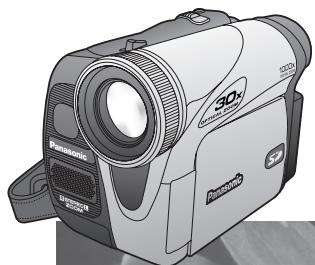
natural_image
Illustration of a Panasonic 20x video camera with lens and control panel (no text or symbols visible)(PV-GS35 Shown)
natural_image
Close-up black-and-white photo of a daisy flower with visible petals and center (no text or symbols)Before attempting to connect, operate or adjust this product, please read these instructions thoroughly.
Spanish Quick Use Guide is included.
Thank you for choosing Panasonic!
You have purchased one of the most sophisticated and reliable products on the market today. Used properly, we're sure it will bring you and your family years of enjoyment. Please take time to fill in the information on the right.
The serial number is on the tag located on the underside of your Camcorder. Be sure to retain this manual as your convenient Camcorder information source.
Date of Purchase
Dealer Purchased From
Dealer Address
Dealer Phone No.
Model No.
Serial No.
Safety Precautions
WARNING :
TO PREVENT FIRE OR SHOCK HAZARD, DO NOT EXPOSE THIS EQUIPMENT TO RAIN OR MOISTURE.
Your ^Mini IV Camcorder is designed to record and play back in Standard Play (SP) mode and Long (LP) mode.
It is recommended that only cassette tapes that have been tested and inspected for use in Camcorders with the ^Mini IV mark be used.

CAUTION
RISK OF ELECTRIC SHOCK DO NOT OPEN

CAUTION: TO REDUCE THE RISK OF ELECTRIC SHOCK, DO NOT REMOVE COVER (OR BACK)
NO USER-SERVICEABLE PARTS INSIDE
REFER SERVICING TO QUALIFIED SERVICE PERSONNEL

This symbol warns the user that uninsulated voltage within the unit may have sufficient magnitude to cause electric shock. Therefore, it is dangerous to make any kind of contact with any inside part of this unit.

This symbol alerts the user that important literature concerning the operation and maintenance of this unit has been included. Therefore, it should be read carefully in order to avoid any problems.
The above markings are located on the appliance bottom cover.
Declaration of Conformity
Trade Name : Panasonic
Model No.: PV-GS19/PV-GS31/PV-GS35
Responsibility Party : Panasonic Corporation of North America
Address : One Panasonic Way Secaucus New Jersey 07094
Telephone Number : 1-800-211-PANA(7262)
This device complies with Part 15 of the FCC Rules. Operation is subject to the following two conditions: (1) This device may not cause harmful interference, and (2) this device must accept any interference received, including interference that may cause undesired operation.
FCC Note:
This equipment has been tested and found to comply with the limits for a Class B digital device, pursuant to Part 15 of the FCC Rules. These limits are designed to provide reasonable protection against harmful interference in a residential installation. This equipment generates, uses, and can radiate radio frequency energy and, if not installed and used in accordance with the instructions, may cause harmful interference to radio communications. However, there is no guarantee that interference will not occur in a particular installation. If this equipment does cause harmful interference to radio or television reception, which can be determined by turning the equipment off and on, the user is encouraged to try to correct the interference by one or more of the following measures:
- Reorient or relocate the receiving antenna.
- Increase the separation between the equipment and receiver.
- Connect the equipment into an outlet on a circuit different from that to which the receiver is connected.
- Consult the dealer or an experienced radio/TV technician for help.
FCC Caution:
To assure continued compliance, follow the attached installation instructions and use only shielded interface cables when connecting to computer or peripheral devices.
Any changes or modifications not expressly approved by the party responsible for compliance could void the user's authority to operate this equipment.
CAUTION:
TO PREVENT FIRE OR SHOCK HAZARD AND ANNOYING INTERFERENCE, USE THE RECOMMENDED ACCESSORIES ONLY.
CAUTION:
DANGER OF EXPLOSION IF BATTERY IS INCORRECTLY REPLACED. REPLACE ONLY WITH THE SAME OR EQUIVALENT TYPE.
- Since this product gets hot during use, operate it in well ventilated place; do not install this equipment in a confined space such as a bookcase or similar unit.
WARNING
AS WITH ANY SMALL OBJECT, SD CARDS CAN BE SWALLOWED BY YOUNG CHILDREN. DO NOT ALLOW CHILDREN TO HANDLE THE SD CARD.
Panasonic
PV-GS19/PV-GS31/
PV-GS35

Tested To Comply
With FCC Standards
FOR HOME OR OFFICE USE
Important Safety Instructions
1) Read these instructions.
2) Keep these instructions.
3) Heed all warnings.
4) Follow all instructions.
5) Do not use this apparatus near water.
6) Clean only with dry cloth.
7) Do not block any ventilation openings. Install in accordance with the manufacturer's instructions.
8) Do not install near any heat sources such as radiators, heat registers, stoves, or other apparatus (including amplifiers) that produce heat.
9) Do not defeat the safety purpose of the polarized or grounding-type plug. A polarized plug has two blades with one wider than the other. A grounding type plug has two blades and a third grounding prong. The wide blade or the third prong are provided for your safety. If the provided plug does not fit into your outlet, consult an electrician for replacement of the obsolete outlet.
10) Protect the power cord from being walked on or pinched particularly at plugs, convenience receptacles, and the point where they exit from the apparatus.
11) Only use attachments/accessories specified by the manufacturer.
12) Use only with the cart, stand, tripod, bracket, or the table specified by the manufacturer, or sold with the apparatus. When a cart is used, use caution when moving the cart/apparatus combination to avoid injury from tip-over.
13) Unplug this apparatus during lightning storms or when it will be left unused for long periods of time.
14) Refer all servicing to qualified service personnel. Servicing is required when the apparatus has been damaged in any way, such as when the power-supply cord or plug is damaged, liquid has been spilled or objects have fallen into the apparatus, the apparatus has been exposed to rain or moisture, does not operate normally, or has been dropped.

natural_image
Symbolic illustration of a person using a ladder to lift a wall, enclosed in a circle with no text or symbols.Precautions
USE & LOCATION
WARNING
• TO AVOID SHOCK HAZARD ... Your
Camcorder and power supply should not be exposed to rain or moisture. Do not connect the power supply or operate your Camcorder if it gets wet. Your Camcorder has been designed for outdoor use, however it is not designed to sustain direct exposure to water, rain, sleet, snow, sand, dust, or a direct splashing from a pool or even a cup of coffee. This action could permanently damage the internal parts of your Camcorder. Do not attempt to disassemble this unit. There are no user serviceable parts inside. Unplug your Camcorder from the power supply before cleaning.
CAUTION
•DO NOT AIM YOUR CAMCORDER AT THE SUN OR OTHER BRIGHT OBJECTS
- DO NOT LEAVE THE CAMCORDER WITH THE EVF AIMED DIRECTLY AT THE SUN AS THIS MAY CAUSE DAMAGE TO THE INTERNAL PARTS OF THE EVF
•DO NOT EXPOSE YOUR CAMCORDER TO EXTENDED HIGH TEMPERATURE
... Such as, in direct sunlight, inside a closed car, next to a heater, etc... This action could permanently damage the internal parts of your Camcorder.
- AVOID SUDDEN CHANGES IN TEMPERATURE ... If the unit is suddenly moved from a cold place to a warm place, moisture may form on the tape and inside the unit.
- DO NOT LEAVE YOUR CAMCORDER OR THE POWER SUPPLY TURNED ON WHEN NOT IN USE.
- STORAGE OF YOUR CAMCORDER ... Store and handle your Camcorder in a manner that will not subject it to unnecessary movement (avoid shaking and striking). Your Camcorder contains a sensitive pick-up device which could be damaged by improper handling or storage.
CARE
- TO CLEAN YOUR CAMCORDER ... Do not use strong or abrasive detergents when cleaning your Camcorder body.
- TO PROTECT THE LENS ... Do not touch the surface of the lens with your hand. Use a commercial Camcorder lens solution and lens paper when cleaning the lens. Improper cleaning can scratch the lens coating.
• TO PROTECT THE FINISH OF YOUR CAMCORDER ... Before handling your Camcorder, make sure your hands and face are free from any chemical products, such as suntan lotion, as it may damage the finish.
Apparatus Claims of U.S. Patent Nos. 4,631,603, 4,577,216, and 4,819,098, licensed for limited viewing.
This product incorporates copyright protection technology that is protected by method claims of certain U.S. patents and other intellectual property rights owned by Macrovision Corporation and other rights owners. Use of this copyright protection technology must be authorized by Macrovision Corporation, and is intended for home and other limited viewing uses only unless otherwise authorized by Macrovision Corporation. Reverse engineering or disassembly is prohibited.
U.S.A. CONSUMERS: ATTENTION:

A lithium ion/polymer battery that is recyclable powers the product you have purchased. Please call 1-800-8-BATTERY for information on how to recycle this battery.
End User License Agreement (for USB Driver, Video Stream Driver and MotionDV STUDIO)
Before opening the CD-ROM package (PV-GS35 Only), please read the following.
You (“Licensee”) are granted a license for the Software defined in this End User Software Agreement (“Agreement”) on condition that you agree to the terms and conditions of this Agreement. If Licensee does not agree to the terms and conditions of this Agreement, promptly return the Software to Matsushita Electric Industrial Co., Ltd. (“Matsushita”), its distributors or dealers from which you made the purchase.
Article 1 License
Licensee is granted the right to use the software, including the information recorded or described on the CD-ROM, instruction manuals, and any other media provided to Licensee (collectively “Software”), but all applicable rights to patents, copyrights, trademarks and trade secrets in the Software are not transferred to Licensee.
Article 2 Use by a Third Party
Licensee may not use, copy, modify, transfer or allow any third party, whether free of charge or not, to use, copy or modify the Software, except as expressly provided for in this Agreement.
Article 3 Restrictions on Copying the Software
Licensee may make a single copy of the Software in whole or in part solely for back-up purpose.
Article 4 Computer
Licensee may only use the Software on a single computer at a single location.
Article 5 Reverse Engineering, Decompiling or Disassembly
Licensee may not reverse engineer, decompile, or disassemble the Software, except to the extent either of them is permitted under law or regulation of the country where Licensee resides. Matsushita, or its distributors or dealers will not be responsible for any defects in the Software or damage to Licensee caused by Licensee's reverse engineering, decompiling, or disassembly of the Software.
Article 6 Limitation of Liability
The Software is provided “AS-IS” without warranty of any kind, either expressed or implied, including, but not limited to, warranties of non-infringement, merchantability and/or fitness for a particular purpose. Further, Matsushita does not warrant that the operation of the Software will be uninterrupted or error free. Matsushita or any of its distributors or dealers will not be liable for any damage suffered by Licensee arising from or in connection with Licensee’s use of the Software.
Article 7 Export Control
Licensee agrees not to export or re-export to any country the Software in any form without the appropriate export licenses under regulations of the country where Licensee resides, if necessary.
Article 8 Termination of License
The right granted to Licensee hereunder will be automatically terminated if Licensee violates any of the terms and conditions of this Agreement. Upon such automatic termination, Licensee must destroy the Software and related documentation together with all the copies thereof at Licensee's own expense.
Differences between models
This operating instruction book is designed for use with models PV-GS19, PV-GS31 and PV-GS35. The PV-GS35 is the model used for illustrative purposes. Features may vary, so please read carefully.
| Model Number | PV-GS19 | PV-GS31 | PV-GS35 |
| Battery Pack (Supplied) | CGR-DU06 (640 mAh) | CGR-DU06 (640 mAh) | CGA-DU12 (1 150 mAh) |
| CD-ROM | - | - | Supplied (LSFT0618) |
| Remote Control | - | - | Supplied (LSSQ0992) |
| USB Cable | - | - | Supplied (K1HA05CD0010) |
| Lens | f2.1–50.4 mm, F1.8–3.6 (35 mm equivalent: 39.5–948 mm), 24× zoom lens | f1.9–49.4 mm, F1.8–3.3 (35 mm equivalent: 35.7–928 mm), 26× zoom lens | f1.9–57 mm, F1.8–3.9 (35 mm equivalent: 35.7–1 072 mm), 30× zoom lens |
| Digital Zoom Magnification | 50×, 800× | 50×, 1 000× | 50×, 1 000× |
| Viewfinder | Electronic Viewfinder | Liquid Crystal Color Electronic Viewfinder | Liquid Crystal Color Electronic Viewfinder |
| LED Video Light | No | Yes | Yes |
| S-Video Output Jack | No | No | Yes |
| Microphone Jack | No | No | Yes |
| Remote Control Sensor | No | No | Yes |
■How to Turn off the Demo Mode
To terminate the demonstration mode, insert a cassette or set the [DEMO MODE] to [OFF] as follows.
1 Set [ % SETUP] >> [ DEMO DEMO MODE] >> [OFF].
Contents
Before Using
Things You Should Know....2
Safety Precautions....2
Precautions 5
End User License Agreement......6
Differences between models....7
Quick Guide 10
Standard Accessories....12
Parts Identification and Handling 12
The Remote Control (PV-GS35 Only)......14
Power Supply....15
Charging Time and Available Recording Time 16
How to remove the Sensor tag 16
To Use as a Grip Belt....16
Re-attaching the Lens Cap 16
Attaching the Shoulder Strap 17
Inserting a Cassette....17
Using a Memory Card (Optional)....18
Turning on the Camcorder....18
Easy to Use Mode Dial 19
How to Use the Joystick Control....19
Using the Viewfinder/LCD Monitor....20
Using the Menu Screen 21
Selecting Language 22
List of Menus....22
Setting Date and Time 24
Internal Lithium Battery Recharge .....24
LP Mode....24
Audio Recording Mode 24
Recording Mode
About Recording 25
Recording on a Tape 25
Recording a Still Picture on a Card (Photoshot) 26
Recording Yourself 27
Recording with the Built-in LED Video Light (For PV-GS31/PV-GS35)....27
Quick Start 28
Self-timer Recording 28
Zoom In/Out Functions 28
Digital Zoom Function....29
Image Stabilizer Function 29
Fade In/Out Functions ......29
Backlight Compensation Function ....30
MagicPix Function....30
Soft-Skin Mode 31
Wind Noise Reduction Function....31
Cinema Function....31
Recording in Special Situations (Scene Mode)....31
Recording in Natural Colors (White Balance) 32
Adjusting White Balance Manually....32
Manual Shutter Speed Adjustment ....33
Manual Iris Adjustment (F Number)....34
Manual Focus Adjustment ....34
Playback Mode
Playing Back a Tape 35
Finding a Scene You Want to Play Back .....35
Slow Motion Playback (PV-GS35 Only)......36
Still Playback/Still Advance Playback 36
Playing Back a Memory Card 37
Slide Show 37
Deleting the Files Recorded on a Card......38
Writing Printing Data on a Card (DPOF Setting) 38
Protecting the Files on a Card (Lock Setting)....39
Formatting a Card 39
Playing Back on Your TV 40
Editing Mode
Recording from a Tape onto a Card ....41
Audio Dubbing (PV-GS35 Only) 41
Copying onto a DVD Recorder or a VCR (Dubbing) 42
Using the DV Cable for Recording (Digital Dubbing) 42
PC Connection With DV Interface Cable .....43
With a PC
Using Camcorder with a PC....44
Using the USB Driver....44
To disconnect USB cable safely 46
Using as a Web Camera....47
Using MotionDV STUDIO (PV-GS35 Only) ....52
If you no longer need software or driver (Uninstall)....55
Notes....55
Others
Indications....57
Initializing the Modes ....58
Warning/Alarm Indications 58
Notes and Hints 59
Cautions for Use 63
Before Requesting Service (Problems and Solutions)....67
Using the RESET button....70
Explanation of Terms....70
Specifications....71
Camcorder Accessory System....72
Camcorder Accessory Order Form 73
Request for Service Notice ....74
Limited Warranty....75
Customer Services Directory 76
Spanish Quick Use Guide/ Guía Para Uso Rápido....77
Guía rápida 78
Index Back Cover
Quick Guide
Using the Battery
1 Attach the Battery to the AC Adaptor and charge it.
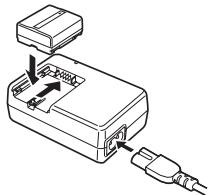
natural_image
Line drawing of a device with an attached plug and cable, showing internal components without any text or symbols.- Before use, fully charge the Battery.
- Since the Battery will not be charged when the DC Cable is connected to the AC Adaptor, disconnect it from the AC Adaptor.
- The [CHARGE] Lamp lights up, and charging starts.
- When the [CHARGE] Lamp goes off, charging is completed.
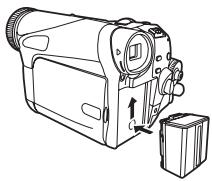
2 Attach the charged Battery to the Camcorder.
natural_image
Line drawing of a digital camera with a base unit and an arrow indicating motion (no text or symbols)Inserting a Cassette
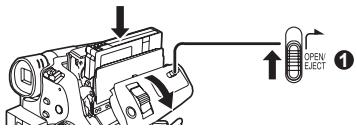
1 Slide the [OPEN/EJECT] Lever ⓚ toward the front and pull down to fully open the Cassette Compartment Cover.
- To protect the tape, if the cover is not fully opened, the cassette holder cannot be ejected.
2 After the Cassette Holder is opened, insert a Cassette.
text_image
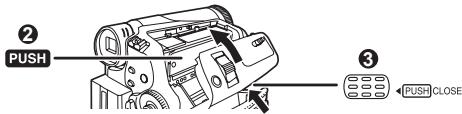
Diagram showing a device with labeled ports and an open ELECT component, indicating a process or connection.3 Close the Cassette Holder by pressing the [PUSH] mark ②.
4 Only after the Cassette Holder is completely housed, close the Cassette Compartment Cover by pressing the mark Ⓔ.
text_image
② PUSH ③ PUSH CLOSEInserting a Card
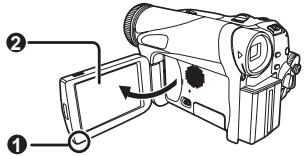
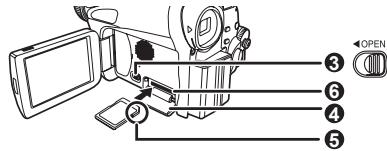
1 Place your Thumb on the [OPEN▼] ① Knob and pull the LCD Monitor ② out in the direction of the arrow.
text_image
Diagram of a device with labeled parts, showing a lever mechanism and numbered callouts.2 Slide the [◀OPEN] Lever ③ to open the Card Slot Cover ④.
3 While holding the Memory Card with its cut corner facing right ⑤ insert it into the Card Slot ⑥.
4 Close the Card Slot Cover ④ securely.
text_image
Diagram of a camera with labeled parts including an open button and numbered parts 3 to 5Using the Viewfinder
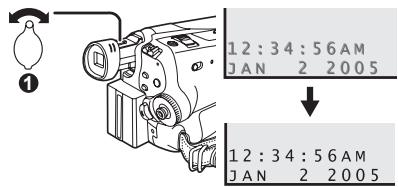
Before using the Viewfinder, adjust the field of view so that the displays inside the Viewfinder become clear and easy to read.
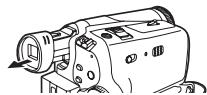
1 Pull the Viewfinder.
natural_image
Line drawing of a vintage-style video camera with lens and buttons (no text or symbols)2 Adjust by turning the Eyepiece Corrector Knob ①.
text_image
12:34:56AM JAN 2 2005 12:34:56AM JAN 2 2005Recording on a Tape
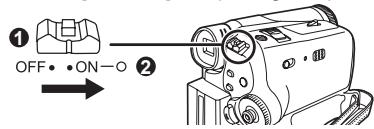
1 Set the [OFF/ON] Switch ① to [ON].
• The [POWER] Lamp ② lights up.
text_image
① OFF • ON - O ②2 Set the Mode Dial to Tape Recording Mode.
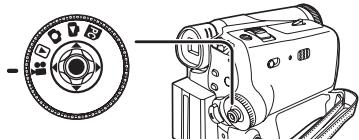
natural_image
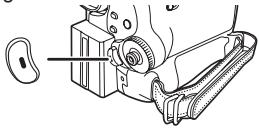
Technical line drawing of a mechanical assembly with a circular component and a cylindrical device (no text or symbols)3 Press the Recording Start/Stop Button.
- Recording starts.
natural_image
Technical line drawing of a mechanical assembly with a knob and handle (no text or symbols)4 Press the Recording Start/Stop Button again to pause the recording.
Recording a Still Picture on Card (Photoshot)
1 Set the Mode Dial to Card Recording Mode.
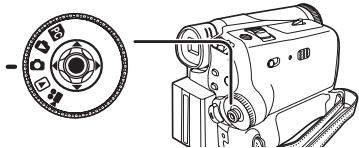
natural_image
Technical line drawing of a mechanical device with a circular component and a separate view showing internal components (no text or symbols)2 Press the [PHOTO SHOT] Button.
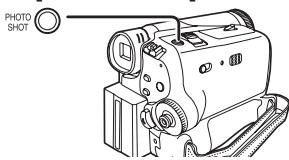
natural_image
Line drawing of a photography studio camera with no visible text or symbolsPlaying Back a Tape
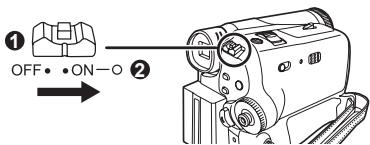
1 Set the [OFF/ON] Switch ① to [ON].
- The [POWER] Lamp ② lights up.
text_image
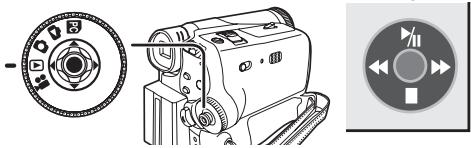
① OFF • ON-O ②2 Set the Mode Dial to Tape Playback Mode.
- The One-Touch Navigation icon is displayed on the lower right of the screen.
[One-Touch Navigation icon]
natural_image
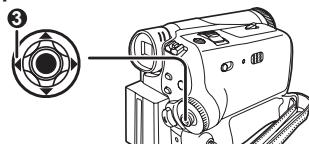
Technical diagram showing a mechanical device with circular components and a control panel (no text or symbols)3 Move the Joystick Control [◀] Ⓤ to rewind the tape.
text_image
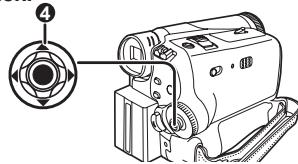
Technical diagram of a sewing machine with numbered component and directional arrow indicator4 Move the Joystick Control [▲] ④ to start playback.
text_image
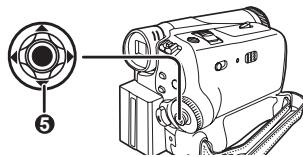
Technical diagram of a camera assembly with labeled component 45 Move the Joystick Control [▼] ⑤ to stop playback.
text_image
⑤Playing Back a Card
1 Set the Mode Dial to Picture Playback Mode.
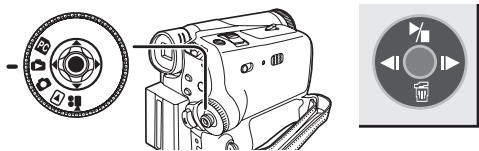
- The One-Touch Navigation icon is displayed on the lower right of the screen.
[One-Touch Navigation icon]
natural_image
Technical diagram showing a mechanical device with a circular component and a control panel (no text or symbols)2 Start Playback.
Joystick Control [▲]: Starting the Slide Show Stop the Slide Show
Joystick Control [▼]: Erase the pictures
Joystick Control [◀]: Playing back the previous picture
Joystick Control [▶]: Playing back the next picture
Before Using
Standard Accessories
The followings are the accessories supplied with the Camcorder.
1)   PV-DAC14D K2GJ2DC00011 K2CA2CA00025 PV-DAC14D K2GJ2DC00011 K2CA2CA00025 | ||
| 2)CGA-DU12 (For PV-GS19/PV-GS31) | CGR-DU06 | 3)K2KC4CB00020 |
| 4)LSSQ0992 (For PV-GS19/PV-GS31 Only) | CR2025 | 5)LSFC0018 |
| 6)K1HA05CD0010 (For PV-GS35 Only) | LSFT0618(PV-GS35 Only) | |
1) AC Adaptor, DC Cable and AC Cable (p. 15)
CAUTION:
This unit will operate on 110/120/220/240 V AC. An AC plug adaptor may be required for voltages other than 120 V AC. Please contact either a local or foreign electrical parts distributor for assistance in selecting an alternate AC plug.
We recommend using the accessory power plug adaptor (VJSS0070/KZDB4ZE00001) in an area which has special AC outlets.
2) Battery Pack (p. 15)
3) AV Cable (pp. 40, 42)
4) Remote Control and Button-Type Battery (PV-GS35 Only) (p. 14)
5) Shoulder Strap (p. 17)
6) USB Cable and CD-ROM (PV-GS35 Only) (pp. 44, 46, 49, 54)
Parts Identification and Handling
■ Camcorder
text_image
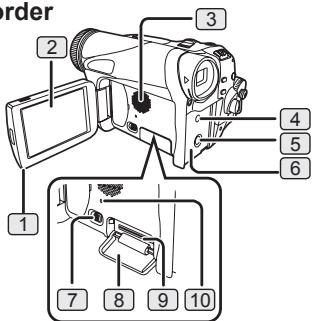
order 2 3 4 5 6 1 7 8 9 101 LCD Monitor Open Knob [OPEN▼] (p. 20)
2 LCD Monitor (pp. 20, 66)
Due to limitations in LCD production technology, there may be some tiny bright or dark spots on the LCD Monitor screen.
However, this is not a malfunction and does not affect the recorded picture.
3 Speaker (p. 35)
4 DC Input Jack [DC IN] (p. 15)
5 S-Video Output Jack [S-VIDEO OUT] (PV-GS35 Only) (pp. 40, 42)
6 Battery Holder
7 Card Slot Cover Open Lever [◀OPEN] (p. 18)
8 Card Slot Cover (p. 18)
9 Card Slot (p. 18)
10 Card Access Lamp (p. 18)
text_image
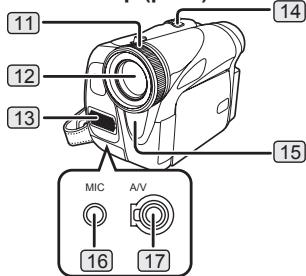
11 12 13 MIC A/V 14 1511 Lens Hood (p. 66)
12 Lens
13 Microphone (built-in, stereo) (pp. 28, 31)
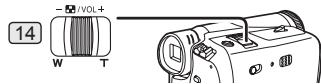
14 Zoom Lever [W/T] (pp. 28, 29)
Volume Lever [- ☐ / VOL +] (pp. 35, 37)
15 White Balance Sensor (p. 33)
Remote Control Sensor (PV-GS35 Only)
(p. 14)
16 Microphone Jack [MIC] (PV-GS35 Only)
- When connecting an external microphone or audio equipment to this jack, the built-in microphone does not operate.
17 Audio-Video Output Jack [AV OUT] (pp. 40, 42)
- Connecting an AV Cable to this jack activates the Camcorder's built-in speaker.
- When connecting the pin plug of the AV Cable to this jack, plug it in as far as it goes.
text_image
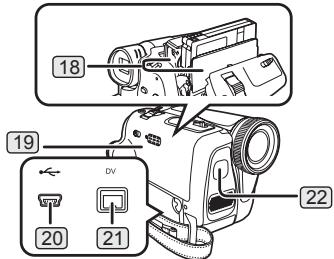
18 19 DV 20 21 2218 Cassette Holder
19 Cassette Compartment Cover (p. 17)
20 USB Jack [←] (pp. 46, 49, 54)
21 DV Input/Output Terminal (pp. 42, 43, 54)
- Connect this to the digital video equipment.
22 Built-in LED Light
(For PV-GS31/PV-GS35) (p. 27)
text_image
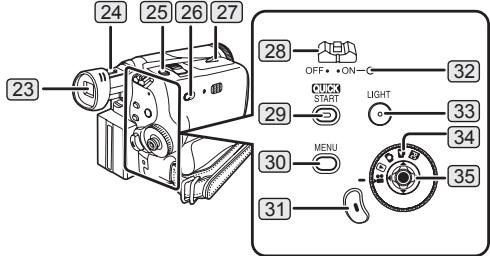
23 24 25 26 27 28 OFF• • ON• 32 33 START LIGHT 29 30 MENU 34 31 3523 Viewfinder (pp. 20, 66)
Due to limitations in LCD production technology, there may be some tiny bright or dark spots on the Viewfinder screen. However, this is not a malfunction and does not affect the recorded picture.
24 Eyepiece Corrector Knob (p. 20)
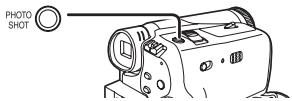
25 Photoshot Button [PHOTO SHOT] (pp. 25, 26)
26 Mode Selector Switch [AUTO/MANUAL/FOCUS] (pp. 25, 31\~34)
27 Cassette Eject Lever [OPEN/EJECT] (p. 17)
28 Power Switch [OFF/ON] (pp. 18, 25)
29 Quick Start Recording Button [QUICK START] (p. 28)
Quick Start Recording Lamp (p. 28)
30 Menu Button [MENU] (p. 21)
31 Recording Start/Stop Button (p. 25)
32 Power Lamp [POWER] (p. 18)
33 Light Button [LIGHT] (For PV-GS31/PV-GS35) (p. 27)
34 Mode Dial (p. 19)
35 Joystick Control (pp. 19\~20, 21)
text_image
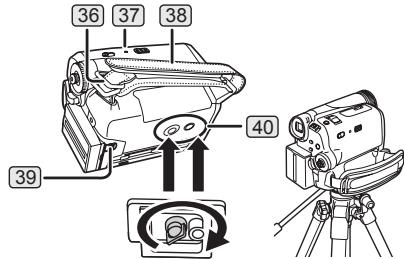
36 37 38 39 4036 Shoulder Strap Holders (p. 17)
37 Reset Button [RESET] (pp. 58, 67, 69, 70)
38 Grip Belt (p. 16)
39 Battery Eject Switch [BATTERY RELEASE] (p. 15)
40 Tripod Receptacle
- This is a hole for attaching the Camcorder to optional tripod. (Please carefully read the Operating Instructions for how to attach the tripod to the Camcorder.)
- You cannot open the Card Slot Cover when the tripod is used. Insert the card first and then attach the tripod.
■ Remote Control (PV-GS35 Only)
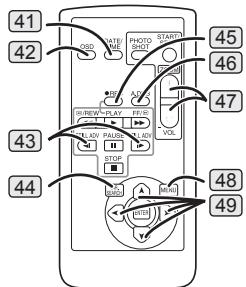
Using the wireless Remote Control with the Camcorder, most of the Camcorder functions can be operated from a distance.
text_image
41 42 43 44 45 46 47 48 49 SOS MTR/STOP PHOTO START STOCK STOP RUN/PLAY EXP/S VOL LDO PAUSE LDO STOP RUN/STOP RUN/STOP41 Date/Time Button [DATE/TIME] (p. 58)
42 Indication Output Button [OSD] (p. 40)
43 Slow Motion/Still Advance Buttons [◀I, I▶] (◀I: reverse, I▶: forward) (p. 36)
44 Variable Speed Search Button [VAR.SEARCH] (p. 36)
45 Recording Button [• REC] (p. 43)
46 Audio Dubbing Button [A.DUB] (p. 41)
47 Zoom/Volume Button [ZOOM/VOL] (p. 35)
48 Menu Button [MENU] (p. 22)
49 Cursor buttons for Variable Speed Search Function [▲, ▼] (p. 36)
Select Button [▲▼◀▶] (p. 22)
The following buttons function in the same manner as the corresponding buttons on the Camcorder.
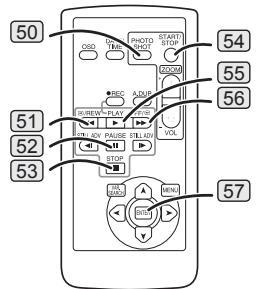
text_image
50 51 52 53 54 55 56 57 OK ADD PHOTO START START STOP ECON BECO RISC ADD R=NEW PLAY PULSE VCLK STOP RND RND STOP STOP STOP50 Photoshot Button [PHOTO SHOT] (pp. 25, 26)
51 Rewind/Review Button [◀◀] (p. 35)
52 Pause Button [Ⅲ] (pp. 36, 41, 43)
53 Stop Button [■] (pp. 15, 43)
54 Recording Start/Stop Button [START/STOP] (p. 25)
55 Play Button [▶] (pp. 36, 42)
56 Fast Forward/Cue Button [▶▶] (p. 35)
57 Enter Button [ENTER] (p. 22)
The Remote Control (PV-GS35 Only)
Inserting the Button-type Battery
Before using the Remote Control, insert the supplied button-type battery.
1 While pressing the Lock Button ①, pull out the Battery Holder. Then, remove the button-type battery.
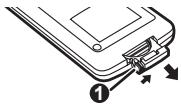
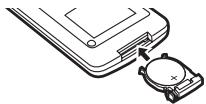
2 Insert the button-type battery with the (+) marking facing upward.

natural_image
Diagram of a device with a USB cable and connector (no text or symbols)3 Insert the Battery Holder into the Remote Control.
natural_image
Diagram of a device with a circular component and an arrow indicating rotation (no text or symbols)- When the button-type battery is exhausted, replace it with a new CR2025 battery. (A battery is normally expected to last about 1 year. However, it depends on operation frequency.)
- Make sure to match the poles correctly when inserting the button-type battery.
WARNING
- Replace Battery with Panasonic or Lixing type CR2025 only. Use of another battery may present a risk of fire or explosion.
●Battery may explode if mistreated. - As with any small object, this type of Battery can be swallowed by young children. Do not allow children to handle this Battery.
CAUTION
- Dispose of used battery promptly.
- Do not recharge, disassemble or dispose of in fire.
Using the Remote Control (PV-GS35 Only)
1 Direct the Remote Control at the Remote Control Sensor 15 of the Camcorder and press an appropriate button.
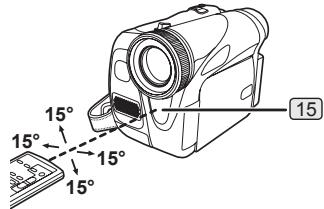
text_image
15° 15° 15° 15° 15°- Distance from the Camcorder: Within approximately 15 feet (5 meters)
- Angle: Within approximately 15^ in the vertical and horizontal directions from the central axis
- The above operating ranges are for indoor use. Outdoors or under strong light, the Camcorder may not operate properly even within the above ranges.
■ Selecting Remote Control Modes
When 2 Camcorders are used simultaneously, they can be operated individually by selecting different Remote Control Modes.
- If the Remote Control Mode of the Camcorder and that of the Remote Control do not match with each other, [REMOTE] will appear. When the Remote Control is operated for the first time after the Camcorder is turned on, [CHECK REMOTE MODE] (p. 58) will appear and operation is impossible. Set the same Remote Control Mode.
■ Setup on the Camcorder
Set [REMOTE] on the [SETUP] Sub-Menu to the desired Remote Control Mode. (pp. 22, 23)
■ Setup on the Remote Control
text_image
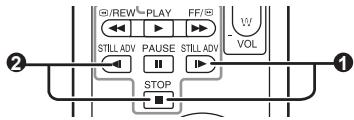
2/REW PLAY FF/V STILL ADV PAUSE STILL ADV STOP[VCR1]:
Press the [I▶] Button and [■] Button simultaneously. ①
[VCR2]:
Press the [◀I] Button and [■] Button simultaneously. ②
- When the battery in the Remote Control is replaced, the mode is automatically reset to [VCR1] Mode.
Power Supply
Using the AC Adaptor
natural_image
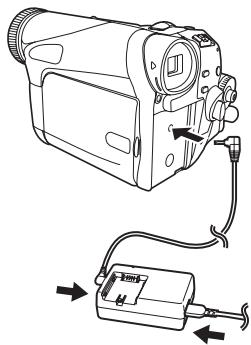
Line drawing of a DSLR camera connected to a power cord (no text or symbols)1 Connect the DC Cable to the Camcorder.
2 Connect the DC Cable to the AC Adaptor.
3 Connect the AC Cable to the AC Adaptor and the AC Jack.
- Before connecting or disconnecting the power supply, set the [OFF/ON] Switch 28 on the Camcorder to [OFF] and make sure that [POWER] Lamp 32 is not lit. (p. 18)
Using the Battery
Before use, fully charge the Battery.
• We recommend using a Panasonic Battery.
- We cannot guarantee the quality of this Camcorder when batteries from other companies are used.
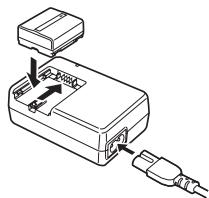
1 Attach the Battery to the AC Adaptor and charge it.
2 Put the Battery on the Battery Mount by aligning the mark, and then securely plug it in.
natural_image
Line drawing of a device with an attached plug and internal components (no text or symbols)- Since the Battery will not be charged when the DC Cable is connected to the AC Adaptor, disconnect it from the AC Adaptor.
- The [CHARGE] Lamp lights up, and charging starts.
- When the [CHARGE] Lamp goes off, charging is completed.
- When the battery is completely discharged, the [CHARGE] Lamp blinks at first, but the battery is charged normally. When the temperature of the battery is too high or low, the [CHARGE] Lamp blinks and the charging time becomes longer than usual.
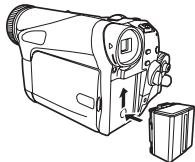
3 Attach the charged Battery to the Camcorder.
natural_image
Line drawing of a digital camera with a box and cable attachment (no text or symbols)■ Disconnecting the Power Source
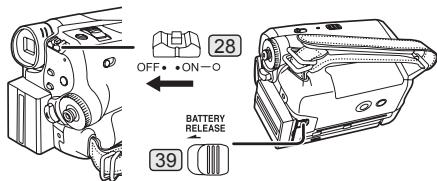
Set the [OFF/ON] Switch 28 to [OFF], and while sliding the [BATTERY RELEASE] Switch 39 , remove the Battery downward or DC Cable.
- When attaching or removing Battery, set the [OFF/ON] Switch to [OFF] and make sure the [POWER] Lamp is not lit.
text_image
OFF+ • ON- O BATTERY RELEASE 39- Hold down the battery with your hand so it does not fall.
- For other notes concerning this item, see page 59.
Charging Time and Available Recording Time
| Supplied battery(PV-GS19/PV-GS31)CGR-DU06(7.2 V / 640 mAh) | A | 1 h 40 min. |
| B | 1 h 45 min. (1 h 25 min.) | |
| C | 55 min. (45 min.) | |
| Supplied battery(PV-GS35)CGA-DU12(7.2 V / 1 150 mAh) | A | 2 h 25 min. |
| B | 3 h 10 min. (2 h 35 min.) | |
| C | 1 h 35 min. (1 h 20 min.) | |
| CGA-DU21(7.2 V / 2 040 mAh) | A | 3 h 55 min. |
| B | 5 h 30 min. (4 h 30 min.) | |
| C | 2 h 45 min. (2 h 15 min.) |
Ⓐ Charging Time
(B) Maximum Continuous Recording Time
© Intermittent Recordable Time
(The intermittent recordable time refers to recordable time when the recording and stopping operations are repeated.)
- “1 h 40 min.” indicates 1 hour and 40 minutes.
- Battery CGR-DU06 (PV-GS19/PV-GS31) or CGA-DU12 (PV-GS35) is supplied.
- The times shown in the table are approximate times. The numbers indicate the recording time when the Viewfinder is used. The numbers in parentheses indicate the recording time when the LCD Monitor is used. In actual use, the available recording time may be shorter.
- The times shown in the table are for continuous recording at a temperature of 68^ (25 °C) and humidity of 60 %. If the Battery is charged at a higher or lower temperature, the charging time may be longer.
- We recommend the Battery Pack CGA-DU12 and CGA-DU21 for long time recording (2 hours or more for continuous recording, 1 hour or more for intermittent recording.)
- The available recording time becomes shorter if you use both of Viewfinder and LCD Monitor simultaneously when rotating the LCD Monitor forward to record yourself.
- The batteries heat up after use or charging. The Camcorder being used will also heat up. This is normal.
How to remove the Sensor tag
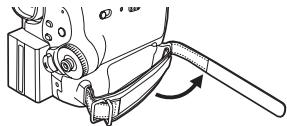
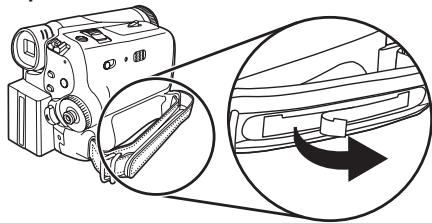
1 Detach the end of the Grip Belt.
natural_image
Mechanical assembly diagram showing a lever mechanism with no visible text or symbols2 Remove the Sensor tag. Then, replace the Grip Belt.
natural_image
Diagram of a camera with an inset showing the internal components and directional arrow (no text or symbols present)To Use as a Grip Belt
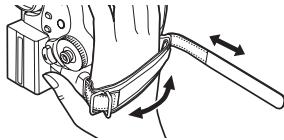
Adjust the length of the Grip Belt to the size of your hand.
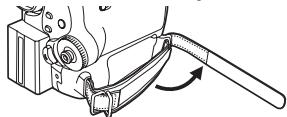
1 Detach the end of the Grip Belt.
natural_image
Mechanical assembly diagram showing a lever mechanism with no visible text or symbols2 Adjust the length of the Grip Belt to the size of your hand.
natural_image
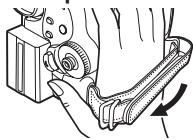
Illustration of a hand using a tool to adjust or install a mechanical component, with arrows indicating motion direction (no text or symbols present)3 Reattach the Grip Belt.
natural_image
Illustration of a hand pressing a button on a device (no text or symbols visible)Re-attaching the Lens Cap
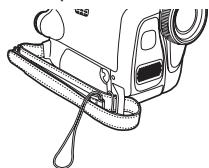
To protect the Lens surface, attach the Lens Cap.
- The Lens Cap and Lens Cap Cord come preattached to the Grip Belt.
natural_image
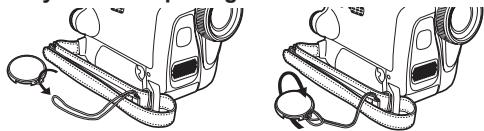
Technical line drawing of a mechanical component with no visible text or symbols1 Pass one end of the Lens Cap Cord through the attached eye on the Lens Cap. Then pass the Lens Cap through the loop made by itself and pull tight.
natural_image
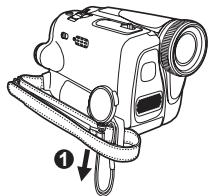
Diagram showing two car interior configurations with hoses and connectors, no text or symbols present- When not using the Lens Cap, pull the Lens Cap Cord in the direction of the arrow. ①
- When you are not recording, be sure to cover the Lens with the Lens Cap for protection. ②
natural_image
Line drawing of a vintage camera with a strap and scroll, no text or symbols present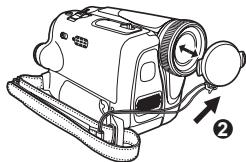
natural_image
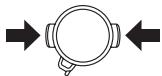
Technical line drawing of a sewing machine with no visible text or symbols- When you remove the Lens Cap, press the knobs firmly.
Attaching the Shoulder Strap
We recommend that you attach the Shoulder Strap before going out to avoid dropping the Camcorder.
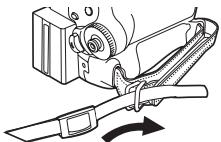
1 Pull the end of the Shoulder Strap through the Shoulder Strap Holder on the Camcorder.
natural_image
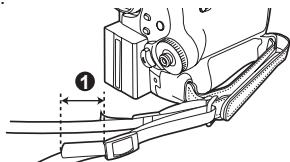
Diagram of a mechanical device with a lever and rotating arrow (no text or symbols)2 Fold the end of the Shoulder Strap, run it through the Shoulder Strap Length Adjuster, and pull it.
- Pull it out more than 1 inch (2 cm) ① from the Shoulder Strap Length Adjuster so that it cannot slip off.
text_image
Technical diagram showing mechanical assembly with labeled component '①' and dimension lines- Attach the other end of the Shoulder Strap to the other Shoulder Strap Holder in the same way.
Inserting a Cassette
- Please use Genuine Panasonic DVC Tapes for more information please contact your local dealer or visit www.panasonic.com.
- For your reference if you travel frequently you should also purchase a Panasonic head cleaning tape AY-DVMCLA and use when HEAD CLOG message appears on the LCD/EVF of your Camcorder.
1 Slide the [OPEN/EJECT] Lever 27 toward the front and pull down to fully open the Cassette Compartment Cover.
- To protect the tape, if the cover is not fully opened, the cassette holder cannot be ejected.
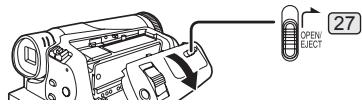
text_image
OPEN EJECT 272 After the Cassette Holder is opened, insert a Cassette.
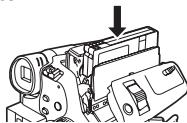
natural_image
Mechanical assembly diagram showing a component with an arrow indicating direction (no text or symbols present)- When inserting a cassette, orient it as shown in the above, and then securely insert it as far as it goes.
3 Close the Cassette Holder by pressing the [PUSH] mark ①.
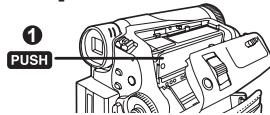
text_image
① PUSH4 Only after the Cassette Holder is completely housed, close the Cassette Compartment Cover by pressing the mark ②.
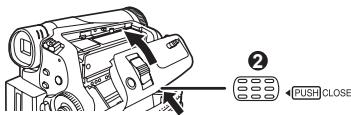
text_image
② PUSH CLOSE■ When the Cassette Holder does not come out
- Close the Cassette Compartment Cover completely, and then open it again completely.
- Check if the battery has run down.
- Check if the Cassette Compartment Cover is in contact with grip belt as shown below. If so, be sure the grip belt stays clear of the cover when opening.

natural_image
Technical line drawing of a camera module with an inset close-up showing internal components (no text or symbols)■ When the Cassette Holder cannot be housed
- Set the [OFF/ON] Switch 28 to [OFF], then to [ON] again.
- Check if the battery has run down.
Accidental Erasure Prevention
Opening the accidental erasure prevention slider ① on the cassette (by sliding it to the [SAVE] arrow direction) prevents recording. To enable recording, close the accidental erasure prevention slider (by sliding it to the [REC] arrow direction).
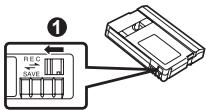
text_image
REC SAVE- For other notes concerning this item, see page 59.
Using a Memory Card (Optional)
A Card can be used to record still pictures.
- Use a genuine SD Memory Card or MultiMediaCard manufactured by Panasonic only.
Before inserting or removing a Card, be sure to turn off the Camcorder.
- Otherwise, the Camcorder may not function properly or it may cause the loss of recorded data in a Card.
Inserting a Card
1 Open the LCD Monitor and then slide the [◀OPEN] Lever 7 to open the Card Slot Cover 8.
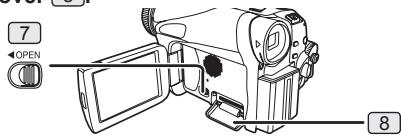
text_image
7 OPEN 82 While holding the Memory Card with its cut corner facing right ①, insert it into the Card Slot ⑨.
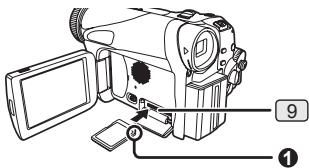
text_image
Diagram of a video camera with labeled parts, showing open screen, lens, and control panel3 Close the Card Slot Cover 8 securely. ■ Removing the Card
Open the Card Slot Cover and press the center of the Card and then pull it straight out.
• After removing the Card, close the Card Slot Cover.
- The Camcorder may be damaged if the Card is forced out when the Card is fully inserted.
■ Concerning the Card
- Do not touch the terminals on the back of the card.
- Do not format the card with another Camcorder or any personal computer. This operation may make the card unusable.
- Electrical noise, static electricity, or failure of the Camcorder or the card may damage or erase the data stored on the card. We recommend saving important data on a personal computer by using a USB Cable, PC Card Adaptor, or USB Reader/Writer.
■ SD Memory Card
- The memory capacity indicated on the SD Memory Card label corresponds to the total amount of capacity to protect and manage the copyright and the capacity available as conventional memory for a Camcorder, personal computer or other equipment.
Card Access Lamp 10
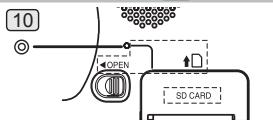
text_image
10 OPEN SD CARDWhile the Camcorder is accessing the Card (reading, recording, playback or erasing), the Card Access Lamp lights up.
- While the Card Access Lamp is on, never attempt to open the Card Slot Cover, to pull out the Card, to turn off the Camcorder, or to turn the Mode Dial. Such actions will damage the Card, and recorded data, and cause the Camcorder to malfunction.
Turning on the Camcorder
Turn on the power first and then select modes.
■ How to Turn on the Power
1 Set the [OFF/ON] Switch 28 to [ON] while pressing the button ①.
• The [POWER] Lamp 32 lights up.
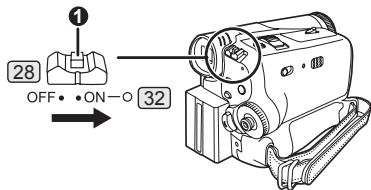
text_image
1 28 OFF • ON - O 32■ How to Turn off the Power
2 Set the [OFF/ON] Switch 28 to [OFF] while pressing the button ①.
• The [POWER] Lamp 32 goes off.
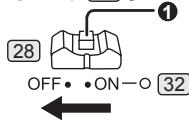
text_image
28 OFF • ON - O 32Easy to Use Mode Dial
You can choose a desired mode by rotating the Mode Dial.
1 Rotate the Mode Dial 34.
- Set your desired mode to ①.
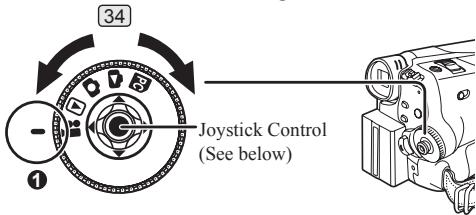
text_image
34 Joystick Control (See below): Tape Recording Mode
Use this mode when recording pictures on a tape. Also, you can record still pictures on the card simultaneously while recording on a tape.
▶: Tape Playback Mode
Use this mode when playing back the recorded scene on a tape.
Card Recording Mode
Use this mode when recording still pictures on a card.
Picture Playback Mode
Use this mode when playing back the recorded still picture on a card.
PC . PC Mode
Use this mode when you want to connect the Camcorder to your Personal Computer.
You can view or edit the images recorded on a card on your personal computer.
How to Use the Joystick Control
Basic Joystick Control Operations
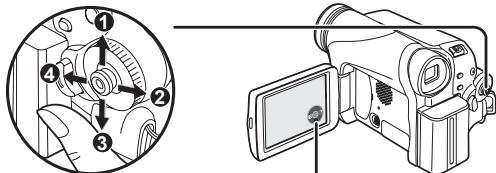
Operations on the menu screen and selection of files to be played back on the multi-image display. Move the Joystick Control [▲, ▼, ◀, or ▶] to select an item or file, and then press in the center to set it.
text_image
Diagram showing a camera with labeled parts and a close-up view of the device's front panel.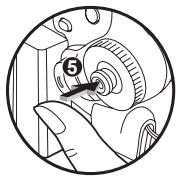
natural_image
Close-up of a hand turning a mechanical component with a numbered callout (no text or symbols visible)| 1 | Select by moving [▲]. |
| 2 | Select by moving [▶]. |
| 3 | Select by moving [▼]. |
| 4 | Select by moving [◀]. |
| 5 | Push the center to select the item. |
natural_image
Line drawing of a digital camera with an open screen and lens (no text or symbols)Joystick Control and Screen Display
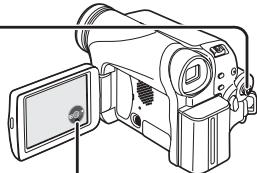
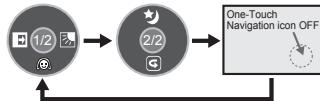
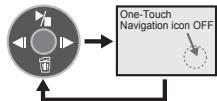
Press the center of the Joystick Control, and One-Touch Navigation icon will be displayed on the lower right of the screen. Each press switches the display as follows depending on the mode.
Move the Joystick Control [▲, ▼, ◀, or ▶] to select an item.
- In the Tape Playback Mode or the Picture Playback Mode, the One-Touch Navigation icon will be automatically on the lower right of the screen.
■ Tape Recording Mode
- When the [AUTO/MANUAL/FOCUS] Switch is set to [AUTO].
flowchart
graph TD
    A["1/2"] --> B["2/2"]
    B --> C["One-Touch Navigation icon OFF"]
    C --> A
| 1/2 | Fade | pp. 29~30 | ||
| Backlight compensation | p. 30 | |||
| Soft Skin Mode | p. 31 | |||
| 2/2 | MagicPix Mode | p. 30 | ||
| Recording Check | p. 25 |
■ Tape Recording Mode
- When the [AUTO/MANUAL/FOCUS] Switch is set to [MANUAL].
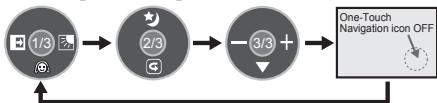
flowchart
graph LR
    A["1/3"] --> B["2/3"]
    B --> C["-3/3"]
    C --> D["One-Touch Navigation Icon OFF"]
    D --> A
| 1/3 | Fade | pp. 29~30 | ||
| Backlight compensation | p. 30 | |||
| Soft Skin Mode | p. 31 | |||
| 2/3 | MagicPix Mode | p. 30 | ||
| Recording Check | p. 25 | |||
| 3/3 | Manual Mode (White Balance, Shutter Speed, Iris, Focus) | pp. 32~34 | ||
| Adjust + | pp. 32~34 | |||
| Adjust - | pp. 32~34 |
■ Card Recording Mode
- When the [AUTO/MANUAL/FOCUS] Switch is set to [AUTO].
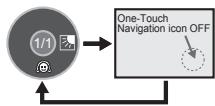
flowchart
graph TD
    A["One-Touch Navigation icon OFF"] --> B["1/1 Icon"]
    B --> C["Arrow Down"]
    C --> A
| 1/1 | Backlight compensation | p. 30 | ||
| Soft Skin Mode | p. 31 |
■ Card Recording Mode
- When the [AUTO/MANUAL/FOCUS] Switch is set to [MANUAL].
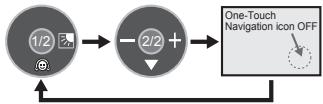
flowchart
graph LR
    A["1/2"] --> B["-2/2 +"]
    B --> C["One-Touch Navigation icon OFF"]
    C --> A
| 1/2 | Backlight compensation | p. 30 | ||
| Soft Skin Mode | p. 31 | |||
| 2/2 | Manual Mode (White Balance, Shutter Speed, Iris, Focus) | pp. 32~34 | ||
| + | Adjust + | pp. 32~34 | ||
| — | Adjust – | pp. 32~34 |
■ Tape Playback Mode
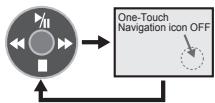
flowchart
graph TD
    A["Device Icon"] --> B["One-Touch Navigation icon OFF"]
    B --> C["Arrow pointing to the button"]
| - | ▲ | ▼|| | Playback / Pause | p. 35 |
| ▶ | ▶▶ | Fast (Cue Playback) | p. 35 | |
| ◀ | ◀◀ | Rewind (Review Playback) | p. 35 | |
| ▼ | ■ | Stop | p. 35 |
■ Picture Playback Mode
flowchart
graph TD
    A["One-Touch Navigation icon OFF"] --> B((Circular Interface))
    B --> C["Arrow pointing inward"]
    style A fill:#f9f,stroke:#333
    style B fill:#ccf,stroke:#333
| - | ▲ | ▶ | Start the Slide ShowStop the Slide Show | p. 37 |
| ▶ | ▶ | Playback the next picture | p. 37 | |
| ◀ | ◀ | Playback the previouspicture | p. 37 | |
| ▼ | Erase the picture | p. 37 |
Using the Viewfinder/LCD Monitor
Using the Viewfinder
Before using the Viewfinder, adjust the field of view so that the displays inside the Viewfinder become clear and easy to read.
1 Pull the Viewfinder.
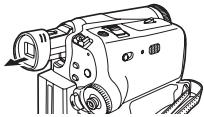
natural_image
Line drawing of a vintage digital camera with lens and control buttons (no text or symbols)2 Adjust by turning the Eyepiece Corrector Knob 24 .
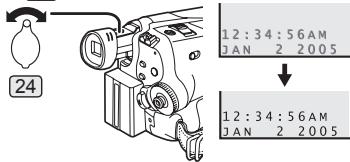
text_image
12:34:56AM JAN 2 2005 12:34:56AM JAN 2 2005- You can adjust the brightness of the Viewfinder from the Menu.
Using the LCD Monitor
With the LCD Monitor open, you can also record the picture while watching it.
1 Place your Thumb on the [OPEN▼] Knob 1 and pull the LCD Monitor 2 out in the direction of the arrow.
- The Viewfinder is now deactivated.
- It can open up to 90^ .
![PANASONIC PVGS35 - Place your Thumb on the [OPEN▼] Knob 1 and pull the LCD Monitor 2 out in the direction of the arrow. - 1](/content/2019/08/105179/images/0d57e9e77103db4590196472f66880b5113fb0a0bb057352dee84fc25bf6943b.jpg)
text_image
2 12 Adjust the LCD Monitor angle according to the desired recording angle.
- The LCD Monitor can rotate a maximum of 180^
① from the vertical position upwards and a maximum of 90^ ② to the downward direction. Forcefully rotating the LCD Monitor beyond these ranges will damage the Camcorder.
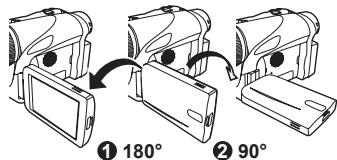
text_image
① 180° ② 90°- The brightness and color level of the LCD Monitor can be adjusted from the Menu.
- If it is forcibly opened or rotated, the Camcorder may be damaged or fail.
- Check that the Card Slot Cover is closed before closing the LCD Monitor.
- When the LCD Monitor is rotated by 180^ towards the lens (when recording yourself), the LCD Monitor and the Viewfinder will be simultaneously activated.
■ Closing the LCD Monitor
Push the LCD Monitor until it is securely locked.
- Make sure the Card Slot Cover is closed.
Adjusting Brightness and Color Level
When [☐ LCD SET] or [☐ EVF SET] on the [☐ SETUP] Sub-Menu is set to [YES], the following items are displayed.
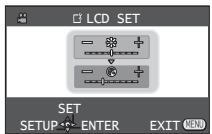
text_image
LCD SET SET SETUP ENTER EXIT MEND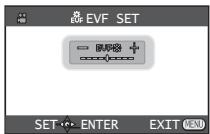
text_image
EVF SET SET ENTER EXIT MENU[☐ LCD SET] LCD Brightness [★]
Adjusts the brightness of the image on the LCD screen.
[☐ LCD SET] LCD Color Level [●]
Adjusts the color saturation of the image on the LCD screen.
[ \* EVF SET] Brightness of the Viewfinder [ EUF\* ]
Adjusts the brightness of the image in the Viewfinder.
■ To Adjust
Move the Joystick Control [▲] or [▼] and select the item to be adjusted, and then move the Joystick Control [◀] or [▶] to raise or lower the number of vertical bars in the Bar Indication.
- More vertical bars indicates stronger brightness or color saturation.
- In order to adjust the brightness of the Viewfinder, close the LCD Monitor, and the Viewfinder will be activated.
- These settings will not affect the images actually recorded.
- For other notes concerning this item, see page 66.
Using the Menu Screen
To facilitate the selection of a desired function or setup, this Camcorder displays various function setups on Menus.
1 Press the [MENU] Button 30.
![PANASONIC PVGS35 - Press the [MENU] Button 30. - 1](/content/2019/08/105179/images/77e3dbb3820c672c1a604da9cd0619846b952dd2cc09d90da87a0980da780833.jpg)
text_image
MENU 30- The Menu corresponding to the Mode selected by the Mode Dial 34 is displayed.
- Do not switch the Mode Dial 34 when the Menu is displayed.
![PANASONIC PVGS35 - Press the [MENU] Button 30. - 2](/content/2019/08/105179/images/32c10df33ce7f3fbf1fb92eca8ec116c230276e997898931e1abf4d018a2e47c.jpg)
text_image
34 352 Move the Joystick Control [▲] or [▼] 35 to select the top menu.
![PANASONIC PVGS35 - Press the [MENU] Button 30. - 3](/content/2019/08/105179/images/8537f30d77d58f5316e8811c8e48579e5fc7019318784f97229821eedd9cc3d4.jpg)
text_image
BASIC ADVANCE SETUP LANGUAGE SETUP ENTER EXIT MENU3 Move the Joystick Control [▶] 35 or press it to set the selection.
4 Move the Joystick Control [▲] or [▼] 35 to select the Sub-Menu.
![PANASONIC PVGS35 - Press the [MENU] Button 30. - 4](/content/2019/08/105179/images/0ff94da71b9c205c4c985c200215e6d7b566b119f6841f527601ca11646f5953.jpg)
text_image
% BASIC SCENE MODE OFF REC SPEED SP BLANK SEARCH NO WIND CUT ON CLOCK SET NO SETUP ENTER EXIT MENU5 Move the Joystick Control [▶] 35 or press it to set the selection.
6 Move the Joystick Control [▲] or [▼] 35 to select the item to be set.
![PANASONIC PVGS35 - Press the [MENU] Button 30. - 5](/content/2019/08/105179/images/e7b25ae089b54031d928dff9bebc2279bbc8a585c8d83ae760a305b4303a64b9.jpg)
text_image
& BASIC SCENE MODE OFF REC SPEED BLANK SEARCH WIND CUT CLOCK SET SETUP ENTER7 Press the Joystick Control 35 to determine the setting.
- While a Menu is displayed, you cannot record or play back. Menus can be displayed during playback but not during recording.
■ To Return to the Previous Screen
Move the Joystick Control [◀] 35.
■ To Exit the Menu Screen
Press the [MENU] Button 30 again.
■ About the Menu Mode Setting
The setting selected on the Menu will be retained even when the Camcorder is turned off. However, if the Battery or AC Adaptor is disconnected before turning off the Camcorder, the selected setup may not be retained.
- Menu operation flow is shown in this text by >>.
Operating with Remote Control (PV-GS35 only)
The menu screen transition is the same as when the buttons on the main unit are used.
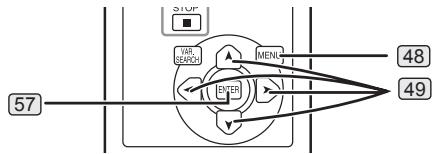
flowchart
graph TD
    A["STOP"] --> B["VAR SEARCH"]
    B --> C["ENTER"]
    C --> D["MEN"]
    D --> E["48"]
    C --> F["49"]
    G["57"] --> H["Exit"]
1 Press the [MENU] 48 Button.
2 Select a menu item.
- Use the Select Button 49 (▲▼◀▶) and [ENTER] Button 57 in place of the Joystick Control on the main unit.
3 Press the [MENU] Button 48 to exit the menu screen.
Selecting Language
You can select the desired language.
1 Set [ 🔊 LANGUAGE] >> [English], [Français] or [Español].
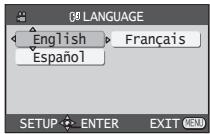
text_image
LANGUAGE English > Français Español SETUP ENTER EXIT MENUList of Menus
The figures of the Menus are for explanation purposes only, and they are different from the actual Menus.
■ [TAPE RECORDING MENU]
e.g.,
![PANASONIC PVGS35 - ■ [TAPE RECORDING MENU] - 1](/content/2019/08/105179/images/47bb73ff6b05b620ecbe1575d66308ac15be9aac01b5497bad62ca9a322e8277.jpg)
text_image
% BASIC % ADVANCE % SETUP % LANGUAGE SETUP ENTER EXIT MEND![PANASONIC PVGS35 - ■ [TAPE RECORDING MENU] - 2](/content/2019/08/105179/images/f84feb4becba8af1e5b0b7eaec81c0f3f1acd85d865bb6471bd2fa055514033f.jpg)
text_image
BASIC SCENE MODE OFF REC SPEED SP BLANK SEARCH NO WIND CUT ON CLOCK SET NO SETUP ENTER EXIT MENU[ § BASIC]
Basic Setup Sub-Menu
[SCN SCENE MODE]
Scene Mode (pp. 31\~32)
[ SP _Lp REC SPEED]
Recording Speed Mode (p. 24)
[® BLANK SEARCH]
Blank Search Mode (p. 26)
[ ≈WIND CUT]
Wind Noise Reduction (p. 31)
[ ⏻ CLOCK SET]
Date and Time Setting (p. 24)
[ ADVANCE]
Advance Setup Sub-Menu
[ PICT.QUALITY]
Picture Quality (p. 26)
[ EIS EIS]
Image Stabilizer (p. 29)
[CINEMA]
Cinema-like Format Recording (p. 31)
[USB USB FUNCTION] (PV-GS35 Only)
USB Functions Mode (pp. 49, 54)
[ D.ZOOM]
Digital Zoom (p. 29)
[ ZOOM ZOOM MIC]
Zoom Microphone (p. 28)
[ DATE DATE/TIME]
Date and Time Indication (p. 58)
[ ⚠️ INITIAL SET]
Initial Setting Mode (p. 58)
[SETUP]
Setup Sub-Menu
[FADE COLOR]
Fade color (p. 29)
[ ♪ AUDIO REC]
Audio Recording Mode (p. 24)
[+] DISPLAY]
Display Mode (p. 58)
[REMOTE] (PV-GS35 Only)
Remote Control Mode (p. 15)
[■) BEEP SOUND]
Beep Sound (p. 59)
[□ LCD SET]
LCD Adjustment (p. 21)
[ EUF EVF SET]
Viewfinder Adjustment (p. 21)
[ DEMO DEMO MODE]
Demonstration Mode
- If you set to [DEMO MODE] >> [ON] without inserting a cassette or a card, the Camcorder is automatically set to the demonstration mode for introducing its functions. If any button is pressed or operated, the demonstration mode is canceled. If no operations take place for approx. 10 minutes, the demonstration mode automatically starts. To terminate the demonstration mode, insert a cassette or a card, or set to [DEMO MODE] >> [OFF]. For normal use, set this function to [OFF].
[ ^2 POWER SAVE]
Power Save Mode (p. 58)
[ Q ] LANGUAGE]
Date and Time Indication (p. 58)
[USB USB FUNCTION] (PV-GS35 Only)
USB Functions Mode (pp. 49, 54)
[ ADVANCE]
Advance Setup Sub-Menu
[® BLANK SEARCH]
Blank Search Mode (p. 26)
[ SPLP REC SPEED]
Recording Speed Mode (p. 24)
[●II REC STDBY]
Recording Standby Mode (p. 43)
[ PICT.QUALITY]
Picture Quality (p. 26)
[ ◎ REPEAT PLAY]
Repeat Play Mode (p. 62)
[ % SETUP]
Setup Sub-Menu
[2bit 12bit AUDIO]
Audio Selector (pp. 35, 41)
[ ♪ AUDIO OUT]
Audio Output Mode (p. 62)
[+] DISPLAY]
Display Mode (p. 58)
[REMOTE] (PV-GS35 Only)
Remote Control Mode (p. 15)
[□ LCD SET]
LCD Adjustment (p. 21)
[ \*EUF EVF SET]
Viewfinder Adjustment (p. 21)
[ ^z POWER SAVE]
Power Save Mode (p. 58)
[ LANGUAGE]
Language Setup Sub-menu (p. 22)
■ [CARD RECORDING MENU]
e.g.,
![PANASONIC PVGS35 - ■ [CARD RECORDING MENU] - 1](/content/2019/08/105179/images/61a10e317deac1aba438d8694dc8feed6724055808c719bfa75ac000e292dc49.jpg)
text_image
BASIC ADVANCE SETUP LANGUAGE SETUP ENTER EXIT MENU![PANASONIC PVGS35 - ■ [CARD RECORDING MENU] - 2](/content/2019/08/105179/images/0a1360ceb9c6570b3de4de1c53d8a69db43de452162a4bf019d53a29e83b573c.jpg)
text_image
% BASIC SCENE MODE OFF PICT.QUALITY SELF TIMER NO CLOCK SET NO SETUP ENTER EXIT MENU[ § BASIC]
Basic Setup Sub-Menu
[SCN SCENE MODE]
Scene Mode (pp. 31\~32)
[ PICT.QUALITY]
Picture Quality (p. 26)
[ ⚙ SELF TIMER]
Self-timer Recording (p. 28)
[ ⏻ CLOCK SET]
Date and Time Setting (p. 24)
[ ADVANCE]
Advance Setup Sub-Menu
[ □ BURST MODE]
RapidFire Consecutive Photoshot (p. 27)
[ SHTR EFFECT]
Shutter Effect (p. 26)
[DATE DATE/TIME]
Date and Time Indication (p. 58)
[ Ⓧ INITIAL SET]
Initial Setting Mode (p. 58)
[SETUP]
Setup Sub-Menu
[ + DISPLAY]
Display Mode (p. 58)
[ ◎ REMOTE] (PV-GS35 Only)
Remote Control Mode (p. 15)
[ BEEP SOUND]
Beep Sound (p. 59)
[□ LCD SET]
LCD Adjustment (p. 21)
[ EUF EVF SET]
Viewfinder Adjustment (p. 21)
[ ^2 POWER SAVE]
Power Save Mode (p. 58)
[ ] LANGUAGE]
Language Setup Sub-menu (p. 22)
Date and Time Indication (p. 58)
[ oπ PROTECT]
Setting the Lock (p. 39)
[ ADVANCE]
Advance Setup Sub-Menu
[DPOF SET]
Setting DPOF (p. 38)
[ CARD FORMAT]
Formatting a Card (p. 39)
[SETUP]
Setup Sub-Menu
[+] DISPLAY]
Display Mode (p. 58)
[REMOTE] (PV-GS35 Only)
Remote Control Mode (p. 15)
[□ LCD SET]
LCD Adjustment (p. 21)
[ EUF EVF SET]
Viewfinder Adjustment (p. 21)
[ ^2 POWER SAVE]
Power Save Mode (p. 58)
[ LANGUAGE]
Language Setup Sub-menu (p. 22)
Setting Date and Time
Since the internal clock of the Camcorder has a slight imprecision make sure to check the time before recording.
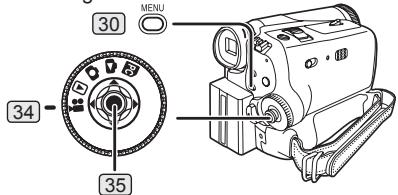
text_image
30 MENU 34 35- Set to Tape/Card Recording Mode.
1 Set [ ♂ BASIC] >> [ ⏻ CLOCK SET] >> [YES].
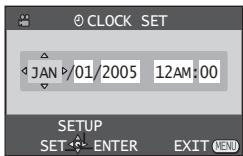
text_image
CLOCK SET JAN 01/2005 12AM:00 SETUP SET ENTER EXIT MENU2 Move the Joystick Control [◀] or [▶] 35 to select the item to be set. Then move the Joystick Control [▲] or [▼] 35 to set the desired value.
- Year will cycle in the order shown below. 2000, 2001, ..., 2089, 2000, ...
3 Press the Joystick Control 35 to finish setting the date and time.
- The clock operation starts from [00] second.
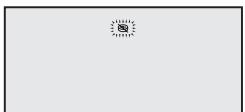
- If the built-in battery is weak, the [ ] Indication flashes. In this case, charge the built-in battery.
- The clock uses the 12-hour system.
■ About date/time
- The Date and Time function are driven by a built-in lithium battery.
- Make sure to check the time before recording because the built-in clock is not very accurate.
Internal Lithium Battery Recharge
The internal lithium battery sustains the operation of the clock. If the [ ] or [--] is indicated when the Camcorder is turned on, the internal lithium battery is near exhaustion.
natural_image
Simple geometric diagram with a central dot and dashed lines, no text or symbols present.1 Connect the AC Adaptor to the Camcorder with the power turned off and then connect to the AC jack.
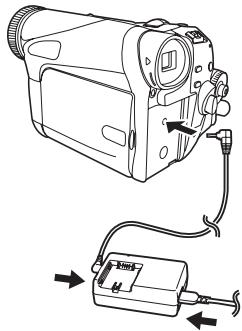
natural_image
Line drawing of a camera with attached electrical cable and motor (no text or symbols)• After charging for 4 hours, the built-in lithium battery can power the clock for approximately 3 months.
- Leave the Camcorder as is for approx. 24 hours, and the battery will drive the Date and Time for approx. 6 months. (Even if the [OFF/ON] Switch is set to [OFF], the battery is still being recharged.)
LP Mode
You can switch the tape recording speed.
- Set to Tape Recording/Playback Mode. Set [ § BASIC] or [ □ ADVANCE] >> [ ◎ REC SPEED] >> [LP].
If the LP mode is selected, the recording time will be 1.5 times the SP mode, but some functions will be disabled.
- We recommend using the SP mode for important recordings.
- In order to fully exhibit the performances of the LP mode, we recommend using Panasonic cassettes marked LP mode.
• Audio dubbing is not possible with LP Mode. (p. 41) -
In the LP mode, the picture quality will not be degraded in comparison with the SP mode, but mosaic noise may appear on the playback image or some functions may be disabled.
-
Playback on other digital video equipment or on digital video equipment without the LP mode
- Playback of the image on other digital video equipment recorded in the LP mode
- Slow Motion/Still Advance playback
Audio Recording Mode
You can select the sound quality of the recorded sound.
- Set to Tape Recording Mode.
Set [ % SETUP] >> [ ♪ AUDIO REC] >> [12bit] or [16bit].
High sound-quality recording is possible with "16 bit 48 kHz 2 track" Mode. With the "12 bit 32 kHz 4 track" Mode, the original sound can be recorded on 2 tracks in stereo, while the other 2 tracks can be used for Audio Dubbing.
Recording Mode
About Recording
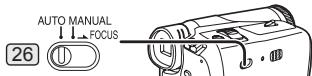
When recording pictures on a tape, set the Mode Dial 34 to Tape Recording Mode [💡]. When recording still pictures on a card, set the Mode Dial 34 to Card Recording Mode [💡]. When recording with the [AUTO/MANUAL/FOCUS] Switch 26 set to [AUTO], the Camcorder automatically adjusts the Focus and White Balance. In some cases, they cannot be adjusted automatically and need to be adjusted manually. (pp. 32, 34)
text_image
AUTO MANUAL FOCUS 26- Before turning on the power, remove the Lens Cap. If the Lens Cap is still attached when the power is turned on, Automatic White Balance Adjustment (p. 32) may not function correctly.
Recording on a Tape
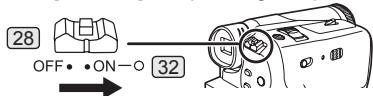
1 Set the [OFF/ON] Switch 28 to [ON].
• The [POWER] Lamp 32 lights up.
![PANASONIC PVGS35 - Set the [OFF/ON] Switch 28 to [ON]. - 1](/content/2019/08/105179/images/ace84a841c9b9344b08775d59b9cdd967c853de269cf3b0d6c636be2e1a1a35c.jpg)
text_image
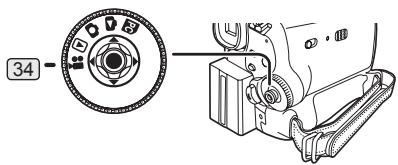
28 OFF • ON - O 322 Set the Mode Dial 34 to Tape Recording Mode.
text_image
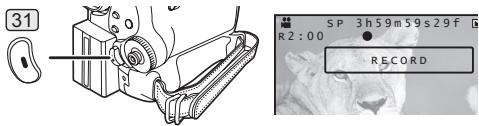
343 Press the Recording Start/Stop Button 31.
- Recording starts.
- The [RECORD] and [●] Indication appears.
text_image
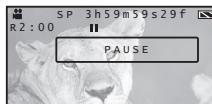
31 SP 3h59m59s29f G R2:00 RECORD4 Press the Recording Start/Stop Button 31 again to pause the recording.
- The [PAUSE] and [Ⅱ] Indication appears.
text_image
SP 3h59m59s29f R2:00 PAUSE■ On-screen Display in the Tape Recording Mode
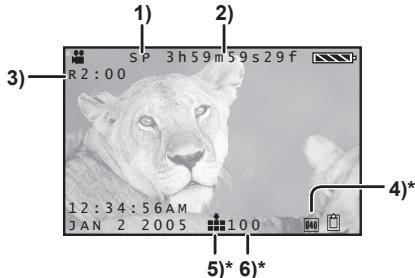
text_image
1) 2) 3) R 2 : 00 SP 3 h 5 9 m 5 9 s 2 9 f 12 : 3 4 : 5 6 AM JAN 2 2 005 100 4)* 5)* 6)** These indications are displayed only when the card is inserted.
1) Recording mode
2) Recording time elapsed
3) Remaining tape indication
4) Still picture size
5) Quality of still pictures
6) Number of recordable still pictures (When no picture can be recorded, this indication will flash in red.)
Recording "Simultaneous Motion/Still Record Mode"
Even if the Mode Dial is set to Tape Recording Mode and the recording to a tape is in progress, you can also record a still picture on a card by pressing the [PHOTO SHOT] Button 25.
- For the number of still pictures to be recorded on a card, refer to page 27.
- When recording pictures onto a card, the Recording Start/Stop Button is disabled.
- You can select a picture quality for still pictures to be recorded. (p. 26)
- In order to record higher quality still pictures, you must use the Card Recording Mode.
To Check the Recording
You can play back the last few seconds of the recorded scene in the Recording Pause Mode.
1 Press the Joystick Control 35 twice to display the One-Touch Navigation icon on the lower right of the screen.
[One-Touch Navigation icon]
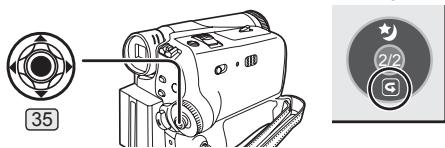
text_image
35 2/2 G2 Move the Joystick Control [▼] 35 to select [☐].
- The [☐] indication is displayed. After checking, the Camcorder resumes the Recording Pause Mode.
Finding the End of Recording (Blank Search Function)
The Blank Search Function aids you in locating the end of the recording on the Cassette quickly (unused part of the tape).
- Set to Tape Recording/Playback Mode.
1 Set [✗ BASIC] or [✗ ADVANCE] >> [@ BLANK SEARCH] >> [YES].
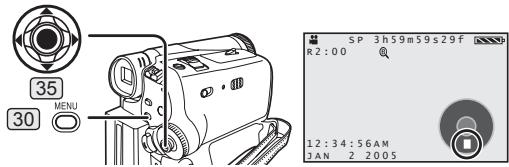
text_image
35 MENU 30 SP 3h59m59s29f R2:00 12:34:56AM JAN 2 2005- The [@] indication and the One-Touch Navigation icon appears during the Blank Search.
- Approximately 1 second before the last recorded scene, the Camcorder switches to the Recording Pause Mode or the Still Playback Mode.
- If there is no blank left on the Cassette, the Camcorder stops at the end of the tape.
■ To Cancel the Blank Search Function Before Completion
Move the Joystick Control [▼] to select [■].
Progressive Photoshot
When the [p] Indication is displayed, Progressive Photoshot Function works. You can record still pictures with higher quality by using this function.
- The Progressive Photoshot Function may not be activated depending on the function you use. (p. 58)
- To record still pictures with higher quality, we recommend setting to the Card Recording Mode. (To activate the Progressive Photoshot Function regardless of the function you use.)
- When you record onto the tape and the card simultaneously, the Progressive Photoshot Function is not activated.
Recording a Still Picture on a Card (Photoshot)
Still pictures can be recorded on the Memory Card from the Camcorder.
1 Set the [OFF/ON] Switch 28 to [ON].
• The [POWER] Lamp 32 lights up.
text_image
28 OFF • ON - O 322 Set the Mode Dial 34 to Card Recording Mode.
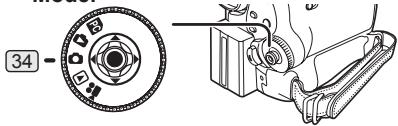
text_image
34 -3 Press the [PHOTO SHOT] Button 25.
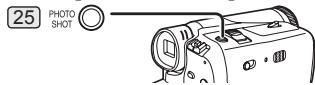
text_image
25 PHOTO SHOT- The [ ➕ ] Indication lights up in red.
■ To record still pictures clearly
- When zooming in on the subject with a magnification of 4 × to 10 × or higher, it is difficult to reduce the slight hand shaking from holding the Camcorder. We recommend decreasing the zoom magnification and approaching the subject when recording.
- When recording still pictures, hold the Camcorder firmly with your hands and keep your arms stationary at your side so as not to shake the Camcorder.
- You can record stable pictures without hand shaking by using a tripod and the Remote Control. (PV-GS35 only)
■ On-screen display in the Card Recording Mode
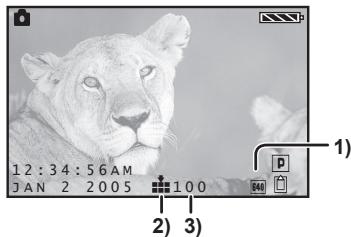
text_image
12:34:56 AM JAN 2 2005 100 1) 2) 3)1) Still picture size
2) Quality of still pictures
3) Number of recordable still pictures (When no pictures can be recorded, the red light will flash.)
Recording with a shutter operation effect
You can add a shutter operation simulating sound.
1 Set [ ADVANCE] >> [ SHTR EFFECT] >> [ON].
Selecting the quality of Photoshot images
1 Set [ % BASIC] >> [ PICT.QUALITY] >> [ (High Picture Quality)] or [ (Normal Picture Quality)].
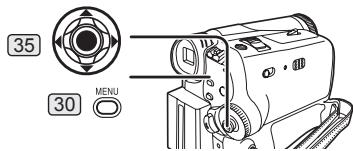
text_image
35 30 MENU- You can also change the picture quality on [ADVANCE] >> [PICT. QUALITY] in the Tape Recording Mode.
■ Maximum number of still pictures recordable on an SD Memory card (optional)
| PICTURE QUALITY | (High) | (Normal) |
| 32 MB | 220 | 440 |
| 64 MB | 440 | 880 |
| 128 MB | 880 | 1 760 |
| 256 MB | 1 760 | 3 520 |
| 512 MB | 3 520 | 7 040 |
| 1 GB | 7 040 | 14 080 |
- The numbers shown in the table are approximations.
• These figures vary depending on the subject being photographed.
RapidFire Consecutive Photoshot
The still pictures can be recorded on a Card at regular intervals.
1 Set [ ADVANCE] >> [ □ BURST MODE] >> [ON].
![PANASONIC PVGS35 - Set [ ADVANCE] >> [ □ BURST MODE] >> [ON]. - 1](/content/2019/08/105179/images/efaefae9d69626d0d09188e7fb6cd5fae8044598dba4d4750f031a96cbfb7b4e.jpg)
text_image
35 30 MENU- The [ ] Indication appears.
![PANASONIC PVGS35 - Set [ ADVANCE] >> [ □ BURST MODE] >> [ON]. - 2](/content/2019/08/105179/images/d2c04b2d203997983f884f5d30cab664990eebf3d991e6dbe4a9899dd96dfcb8.jpg)
natural_image
Black-and-white photo of a fluffy dog sitting on snow, with a camera icon highlighting the face (no readable text or symbols)2 Press and hold the [PHOTO SHOT] Button 25.
![PANASONIC PVGS35 - Press and hold the [PHOTO SHOT] Button 25. - 1](/content/2019/08/105179/images/fd44a7c62e8f6dad059f2bd7452e00c1a366201821d4de2312c79e4f816b2d51.jpg)
text_image
25 PHOTO SHOT- When [ON] is selected, the still pictures can be recorded in approximately 0.5 second intervals until the [PHOTO SHOT] Button is released or 10 pictures are recorded.
■ To Stop the RapidFire Consecutive Photoshot in Progress
Release the [PHOTO SHOT] Button.
- For other notes concerning this item, see page 60.
Recording Yourself
You can record yourself while viewing the LCD Monitor. You can record persons in front of the camera while showing them the image. The image is horizontally flipped as if you see a mirror image. (The image to be recorded is the same as that recording.)
- Set to Tape/Card Recording Mode.
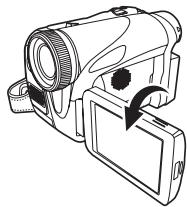
1 Rotate the LCD Monitor 2 towards the lens side.
natural_image
Line drawing of a digital camera with lens and screen (no text or symbols)- When the LCD Monitor is opened, the Viewfinder will be automatically turned off. If the LCD Monitor is rotated towards the lens side through, then the Viewfinder will be activated.
- When the LCD Monitor is rotated towards the lens side, the One-Touch Navigation icon will not be displayed even if you press the center of the Joystick Control.
Recording with the Built-in LED Video Light (For PV-GS31/PV-GS35)
To brighten the natural colors in a scene. Gain Up mode works with the Built-in Video Light to enhance the light's brightness.
- Set to Tape/Card Recording Mode.
1 Press the [LIGHT] Button 33. ①
![PANASONIC PVGS35 - Press the [LIGHT] Button 33. ① - 1](/content/2019/08/105179/images/86b7e6638d194d788c95342c18e2a6e702bdebba54112ad1533e3ad82b3201dd.jpg)
text_image
33 LIGHT- The Built-in LED Video Light lights and the Gain Up mode is set to on.
- Gain Up mode will be brighter than when only the Video Light is on, however, ghost images will appear.
2 Press the [LIGHT] Button. ②
- Gain Up mode is set to off.
- To eliminate ghost images, use this mode.
3 Press the [LIGHT] Button. ③
• The Video Light turns off.
- Pressing the [LIGHT] Button again returns to ①.
![PANASONIC PVGS35 - Press the [LIGHT] Button. ③ - 1](/content/2019/08/105179/images/75b45ec2c62291feaeb50136df2e326bf22de0e5d9f4fb8b240c45aa53cf3f4a.jpg)
flowchart
graph LR
    A["① 5D +"] --> B["② 5D"]
    B --> C["③"]
    C --> D["End"]
- For other notes concerning this item, see page 60.
Quick Start
This Camcorder will be put into standby in approx. 1.3 seconds (PV-GS19) / 1.7 seconds (PV-GS31/PV-GS35) after the power is turned on.
• This is only activated in the following cases:
- A tape or a card is inserted, while the Tape Recording Mode is set.
- A card is inserted, while the Card Recording Mode is set.
- Set to Tape/Card Recording Mode.
1 Press the [QUICK START] Button 29.
- The Quick Start Recording Lamp 29 lights up. (Press the button again to cancel it.)
text_image
29 QUICK START2 Set the [OFF/ON] Switch 28 to [OFF].
- The Quick Start Recording Lamp remains lit.
3 Set the [OFF/ON] Switch 28 to [ON].
- The Camcorder will be ready for recording in approximately 1.3 seconds (PV-GS19) / 1.7 seconds (PV-GS31/PV-GS35).
■ To Cancel the Quick Start when the Power is OFF
Keep the [QUICK START] Button pressed for approximately 2 seconds and make sure the Quick Start Recording Lamp is not lit.
- For other notes concerning this item, see page 60.
Self-timer Recording
When you set the self-timer, the recording starts automatically after 10 seconds on the Card.
- Set to Card Recording Mode.
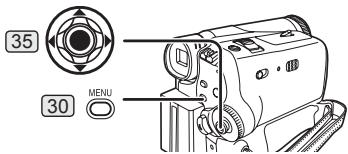
1 Set [ ✧ BASIC] >> [ ⏻ SELF TIMER] >> [YES].
text_image
35 30 MENU- The [ Tunisia] Indication appears.
2 Press the [PHOTO SHOT] Button 25.
text_image
PHOTO SHOT- The [💡] Indication flashes and the recording starts after 10 seconds. After recording, the Self-Timer will be canceled.
- If the RapidFire Consecutive Photoshot is set, the maximum recordable pictures are recorded. (p. 27)
■ To Stop the Self-timer in Progress
Press the [MENU] Button 30.
- For other notes concerning this item, see page 60.
Zoom In/Out Functions
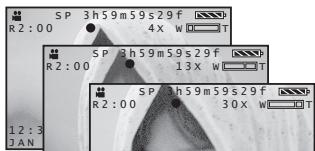
This feature gives special effects to the picture by recording objects close by or with wide-angle shot. You can zoom in up to 24× (PV-GS19) / 26× (PV-GS31) / 30× (PV-GS35) optically.
- Set to Tape/Card Recording Mode.
1 For wide-angle shots (zoom out) : Push the [W/T] Lever 14 towards [W]. For close-ups (zoom in) : Push the [W/T] Lever towards [T].
text_image
14 W T -/VOL+- Zoom Magnification Indication is displayed for a few seconds.
text_image
SP 3h59m59s29f R2:00 4X W T SP 3h59m59s29f R2:00 13X W T SP 3h59m59s29f R2:00 30X W T 12:3 JAN- For other notes concerning this item, see page 60.
To Take Close-up Shots of Small Subjects (Macro Close-up Function)
When the zoom magnification is 1×, the Camcorder can focus on a subject that is as close as approximately 0.8 inches (20 mm) from the Lens. Small subjects like insects can be recorded with this function.
To Use the Zoom Microphone Function
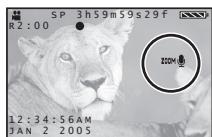
Along with the zooming operation, the microphone's directional angle and sensitivity are varied for recording sounds.
- Set to Tape Recording Mode.
1 Set [ ADVANCE] >> [ ZOOM ZOOM MIC] >> [ON].
• The [ zoom ] Indication is displayed.
text_image
SP 3h59m59s29f RZ:00 12:34:56AM JAN 2 2005■ To Cancel the Zoom Microphone Function
Set [ ADVANCE] >> [ ZOOM ZOOM MIC] >> [OFF].
- For other notes concerning this item, see page 61.
Digital Zoom Function
This function is useful when you want to record close-up shots of subjects located beyond a normal zoom range of 1× to 24× (PV-GS19) / 26× (PV-GS31)/30× (PV-GS35) magnification. With the Digital Zoom Function, you can select a magnification from 50× up to 800× (PV-GS19 Only) / 1000× (For PV-GS31/PV-GS35).
- Set to Tape Recording Mode.
1 Set [ ◆ ADVANCE] >> [ ☐ D.ZOOM] >> [50×] or [800×] (PV-GS19 Only) / [1000×] (For PV-GS31/PV-GS35).
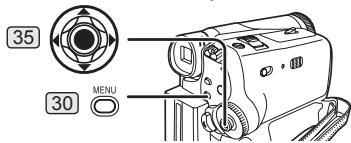
text_image
35 MENU 30• The [☐] Indication appears.
| 50× | Digital zooming to 50× |
| 800× | Digital zooming to 800×(PV-GS19 Only) |
| 1000× | Digital zooming to 1000×(For PV-GS31/PV-GS35) |
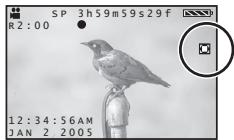
natural_image
Black-and-white photo of a bird perched on a branch, with no visible text or symbols in the main image area.2 Push the [W/T] Lever 14 towards [W] or towards [T] to zoom in or out.
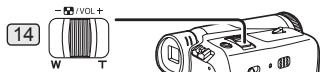
text_image
14 W T -/VOL+■ To Cancel the Digital Zoom Function
Set [ ✉ ADVANCE] >> [ ☐ D.ZOOM] >> [OFF].
- For other notes concerning this item, see page 61.
About the Variable Speed Zoom Function
- When pushing the [W/T] Lever as far as it will go, you can zoom from 1× to 30× in 3.3 seconds (PV-GS35) / 26× in 2.9 seconds (PV-GS31) / 24× in 2.8 seconds (PV-GS19) at the maximum in the Recording Mode.
- The zoom speed varies according to the amount of movement of the [W/T] Lever.
- The Variable Speed Zoom Function cannot be used with the Remote Control. (PV-GS35 only)
Image Stabilizer Function
If the Camcorder is shaken while recording, the camera shake in the image can be corrected.
- If the Camcorder shakes too much, the images may not be stabilized.
- Set to Tape Recording Mode.
1 Set [ ADVANCE] >> [ EIS EIS] >> [ON].
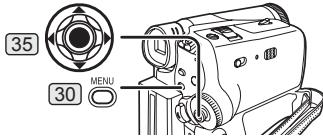
text_image
35 30 MENU• The [EIS] Indication appears.
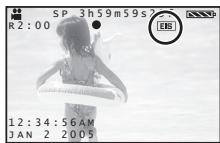
text_image
SP 3h59m59s? R2:00 EE 12:34:56AM JAN 2 20052 Press the Recording Start/Stop Button 31 or [PHOTO SHOT] Button 25 to start recording.
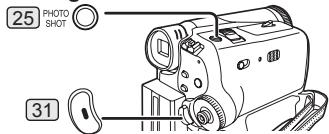
text_image
25 PHOTO SHOT 31■ To Cancel the Image Stabilizer Function Set [ ✉ ADVANCE] >> [ EIS EIS] >> [OFF].
- For other notes concerning this item, see page 61.
Fade In/Out Functions
- Fade In : The image and audio gradually appear.
- Fade Out: The image and audio gradually disappear.
- Set to Tape Recording Mode.
1 Set [ % SETUP] >> [ ➕ FADE COLOR] >> [BLACK] or [WHITE].
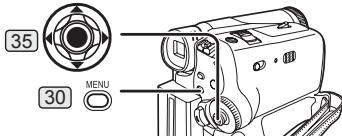
text_image
35 30 MENU2 Press the Joystick Control 35 to display the One-Touch Navigation icon on the lower right of the screen.
[One-Touch Navigation icon]
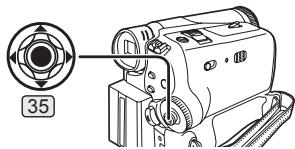
natural_image
Technical line drawing of a mechanical device with a numbered component (35), no visible text or symbols
3 Move the Joystick Control [◀] 35 to select [☐].
![PANASONIC PVGS35 - Move the Joystick Control [◀] 35 to select [☐]. - 1](/content/2019/08/105179/images/102231d090b1b6a6803a934a08ec5e7bc1394c709a0c0afa76be01c9b9992b23.jpg)
text_image
[One-Touch Navigation icon] 35- The [ ➕ W] or [ ➕ B] Indication flashes and then is displayed.
4 Press the Recording Start/Stop Button 31.
text_image
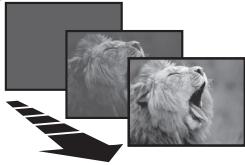
31Start recording. (Fade in)
When you start recording, the image/audio disappeared completely and the image/audio gradually appears.
natural_image
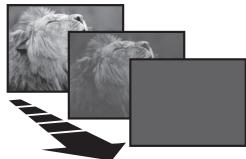
Black-and-white photo collage showing a lion's head with open mouth and closed eyes, alongside a diagonal striped arrow (no text or symbols)Pause recording. (Fade out)
The image/audio gradually disappears. After the image/audio completely disappears, recording stops.
natural_image
Abstract composition of three grayscale panels with a diagonal arrow overlay (no text or symbols)■ To Cancel Fading
Move the Joystick Control [◀] to select [→] again.
- For other notes concerning this item, see page 61.
Backlight Compensation Function
This prevents the subject from being recorded too darkly when backlit. (Backlight is the light that shines from behind the subject being recorded.)
- Set to Tape/Card Recording Mode.
1 Press the Joystick Control 35 to display the One-Touch Navigation icon on the lower right of the screen.
[One-Touch Navigation icon]
text_image
35
2 Move the Joystick Control [▶] 35 to select [☐].
![PANASONIC PVGS35 - Move the Joystick Control [▶] 35 to select [☐]. - 1](/content/2019/08/105179/images/46bb91be02c1355754fc9b609f111dd6e2434b9e204693155e76b6bb9e3c78b9.jpg)
text_image
35- The [图标] Indication flashes and then is displayed.
- The entire screen becomes brighter.
![PANASONIC PVGS35 - Move the Joystick Control [▶] 35 to select [☐]. - 2](/content/2019/08/105179/images/5fa68f16e717b6e9d7ef6be810b589d6cf9de3e5c3b3086bd5f6939d54da5fda.jpg)
text_image
R2:00 SP 3h59m59s29F 12:34:56AM JAN 2 2005 SP 3h59m59s29F 12:34:56AM JAN 2 2005■ To Resume Normal Recording
Move the Joystick Control [▶] to select [图标] again.
- For other notes concerning this item, see page 61.
MagicPix Function
This function allows you to record color images brightly in a dark place without using the Video Light.
- Set to Tape Recording Mode.
1 Press the Joystick Control 35 twice to display the One-Touch Navigation icon on the lower right of the screen.
[One-Touch Navigation icon]
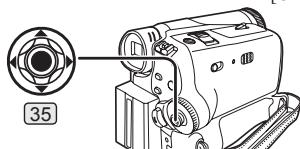
natural_image
Technical line drawing of a sewing machine with a circular component labeled '35' (no text or symbols on the device itself)
2 Move the Joystick Control [▲] 35 to select [★].
![PANASONIC PVGS35 - Move the Joystick Control [▲] 35 to select [★]. - 1](/content/2019/08/105179/images/01931a34143275ec6814e73725be6e994bea515edfec185e68f6398df36fe4c2.jpg)
text_image
35- The [★] Indication flashes and then is displayed.
![PANASONIC PVGS35 - Move the Joystick Control [▲] 35 to select [★]. - 2](/content/2019/08/105179/images/660cec200507af2db555299b29681387ebee1dc46e6431f5ff3bc695cb0c0385.jpg)
text_image
SP 3h59m59s29f R2:00 12:34:56AM JAN 2 2005 → SP 3h59m59s29f R2:00 12:34:56AM JAN 2 2005 -22+3 Move the Joystick Control [◀] or [▶] 35 to adjust.
■ To Cancel the MagicPix Function
Move the Joystick Control [▲] to select [★] again.
- For other notes concerning this item, see page 61.
Soft-Skin Mode
This enables you to record skin colors in a softer tone. In order to get the best result, avoid background colors similar to the skin color of the subject. Otherwise, this may result in a softer background lacking in detail.
- Set to Tape/Card Recording Mode.
1 Press the Joystick Control 35 to display the One-Touch Navigation icon on the lower right of the screen.
[One-Touch Navigation icon]
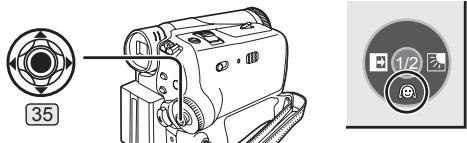
text_image
35 1/22 Move the Joystick Control [▼] 35 to select [ 😊 ].
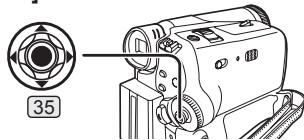
text_image
35- The [ 😊 ] Indication flashes and then is displayed.
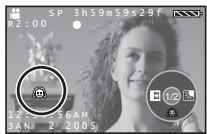
text_image
SP 3h59m59s29f R2:00 12:34:56AM JAN Z 2005- To obtain the best effect, we recommend to frame the subject as shown above in the picture.
■ To Cancel the Soft-Skin Mode
Move the Joystick Control [▼] to select [ 😊] again.
- For other notes concerning this item, see page 61.
Wind Noise Reduction Function
This function reduces the sound of wind hitting the microphone when recording.
- Set to Tape Recording Mode.
1 Set [ % BASIC] >> [ % WIND CUT] >> [ON].
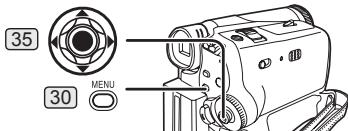
text_image
35 30 MENU• The [ ≈] Indication appears.
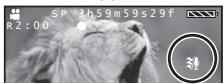
■ To Cancel the Wind Noise Reduction Function
Set [ ✉ BASIC] >> [ ✉ WIND CUT] >> [OFF].
- For other notes concerning this item, see page 61.
Cinema Function
This function is for recording a cinema-like image.
- Set to Tape Recording Mode.
1 Set [ ADVANCE] >> [ CINEMA] >> [ON].
text_image
35 30 MENU- Black bars appear at the top and bottom of the screen.
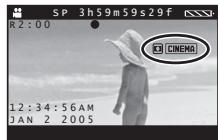
text_image
SP 3h59m59s29f R2:00 CINEMA 12:34:56AM JAN 2 2005■ To Cancel the Cinema Function
Set [ ADVANCE] >> [ CINEMA] >> [OFF].
- For other notes concerning this item, see page 61.
Recording in Special Situations (Scene Mode)
You can select optimal scene mode under specific recording situations.
- Set to Tape/Card Recording Mode.
1 Set the [AUTO/MANUAL/FOCUS] Switch 26 to [MANUAL].
text_image
AUTO MANUAL FOCUS 26- The [MNL] Indication and the One-Touch Navigation icon appears.
2 Set [ √ BASIC] >> [ SCN SCENE MODE] >> a desired mode ([ √ ], [ √ ], [ √ ], [ √ ] or [ √ ]).
text_image
35 30 MENU- The Indication of the selected Mode appears.
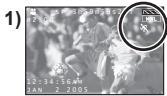
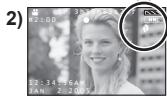
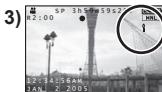
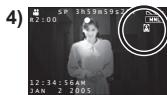
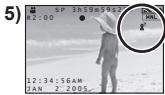
1) [ ] Sports Mode
- For recording scenes involving quick movements, such as sports scenes.
2) [ ] Portrait Mode
- Use when you want to make people (subjects) stand out from the background.
3) [i] Low Light Mode
- For brightening a dark scene.
4) [💡] Spotlight Mode
- For recording a subject under a spotlight.
5) [8] Surf & Snow Mode
- For recording in glaring surroundings, such as ski slopes, beaches, etc.
■ To Cancel the Scene Mode
Set [ % BASIC] >> [ SCN SCENE MODE] >> [OFF]. Or, set the [AUTO/MANUAL/FOCUS] Switch to [AUTO].
- For other notes concerning this item, see pages 61\~62.
Recording in Natural Colors (White Balance)
Depending on the scene or lighting conditions, the Automatic White Balance Adjustment Mode may not be able to bring out natural colors. In this case, the white balance can be adjusted manually. When the Camcorder is turned on with the Lens Cap on, the Automatic White Balance Adjustment may not function properly. Please turn on the Camcorder after removing the Lens Cap.
- Set to Tape/Card Recording Mode.
1 Set the [AUTO/MANUAL/FOCUS] Switch 26 to [MANUAL].
[One-Touch Navigation icon]
![PANASONIC PVGS35 - Set the [AUTO/MANUAL/FOCUS] Switch 26 to [MANUAL]. - 1](/content/2019/08/105179/images/a65a6c4fc4bbd8aee9c75fb318c3911ca64167c8fa87a358440f30c107f0f445.jpg)
text_image
AUTO MANUAL FOCUS 26![PANASONIC PVGS35 - Set the [AUTO/MANUAL/FOCUS] Switch 26 to [MANUAL]. - 2](/content/2019/08/105179/images/5d1c22e269c16d961e451a4889ffea4781ea23eff6ab72c66da5cfe9c175efad.jpg)
- The [MNL] Indication and the One-Touch Navigation icon appears.
2 Move the Joystick Control [▼] 35 until the white balance indication appears. ([ AWB ] etc.)
![PANASONIC PVGS35 - Move the Joystick Control [▼] 35 until the white balance indication appears. ([ AWB ] etc.) - 1](/content/2019/08/105179/images/d607e4d931014638e5750bdc11b9759a4199311b171c8cfe7be3d63bc03c5727.jpg)
text_image
35![PANASONIC PVGS35 - Move the Joystick Control [▼] 35 until the white balance indication appears. ([ AWB ] etc.) - 2](/content/2019/08/105179/images/e5798f3b52be43727e3dee59d313101073294def0e6df556da3da510f7b5c935.jpg)
text_image
2:00 AWB 12:34:56AM JAN 2 20053 Move the Joystick Control [◀] or [▶] 35 to select a desired White Balance Mode.
1)
![PANASONIC PVGS35 - Move the Joystick Control [◀] or [▶] 35 to select a desired White Balance Mode. - 1](/content/2019/08/105179/images/d3afd2db8eb7bb973e71bb6fe1165bf0c49f7083caeab536ae0b3b61a3be9dbd.jpg)
text_image
2:00 AWB 12:34:56AM JAN 2 2005 -3/3+3)
![PANASONIC PVGS35 - Move the Joystick Control [◀] or [▶] 35 to select a desired White Balance Mode. - 2](/content/2019/08/105179/images/5b1c9287a583ffef2a675107063901633d7a9388ca6db3ca7f3c3aea8cbcfa08.jpg)
text_image
R2:00 * 12:34:56AM JAN 2 2005 SP 3h59m59s29f MNL -3/3+2)
![PANASONIC PVGS35 - Move the Joystick Control [◀] or [▶] 35 to select a desired White Balance Mode. - 3](/content/2019/08/105179/images/907c87fc917a98d1e33627220497ceb96797926bf4cba1dab31024c3417d9d8a.jpg)
text_image
SP 3h59m59s29f F2:00 朵 12:34:56AM JAN 2 2005 MNL -3/3+4)
![PANASONIC PVGS35 - Move the Joystick Control [◀] or [▶] 35 to select a desired White Balance Mode. - 4](/content/2019/08/105179/images/2a8f9d5996399481a6f73ff6d1f820cceb81368a0290b44e74a211ac50ca9b9f.jpg)
text_image
SP 3h59m59s29f MNL 2:00 12:34:56AM JAN 2 20051) Automatic White Balance Adjustment [AWB]
2) Indoor Mode (recording under incandescent lamp) [ ☆ ]
3) Outdoor Mode [※]
4) The white balance setting that was previously set manually [ ☑ ]
■ To Resume Automatic Adjustment
Move the Joystick Control [◀] or [▶] 35 until the [AWB] Indication appears. Or, set the [AUTO/MANUAL/FOCUS] Switch to [AUTO].
Adjusting White Balance Manually
White Balance Adjustment recognizes the color of light and adjusts so that white will appear pure white. The Camcorder determines the hue of light that comes through the Lens and White Balance Sensor, thereby judging the recording condition, and selects the closest hue setting. This function is called Automatic White Balance Adjustment.
For light outside the functional Auto White Balance Adjustment range, use the Manual White Balance Adjustment Mode.
- Set to Tape/Card Recording Mode.
1 Set the [AUTO/MANUAL/FOCUS] Switch 26 to [MANUAL].
[One-Touch Navigation icon]
![PANASONIC PVGS35 - Set the [AUTO/MANUAL/FOCUS] Switch 26 to [MANUAL]. - 1](/content/2019/08/105179/images/67f70e619766bb295d0138c98c119a6047702afb850f8aef430f3b2b79be0774.jpg)
text_image
AUTO MANUAL FOCUS 26![PANASONIC PVGS35 - Set the [AUTO/MANUAL/FOCUS] Switch 26 to [MANUAL]. - 2](/content/2019/08/105179/images/c90d148545e44ae40c9a42da33e55caab5fa12d9a049d860420840b406dfcc75.jpg)
- The [MNL] Indication and the One-Touch Navigation icon appears.
2 Move the Joystick Control [▼] 35 until the white balance indication appears. ([ AWB ] etc.)
![PANASONIC PVGS35 - Move the Joystick Control [▼] 35 until the white balance indication appears. ([ AWB ] etc.) - 1](/content/2019/08/105179/images/c6a4dc6c5a97ecb8bfba0be17c8e1ba72c1ab61cfb2563bc4abbeac618e370f0.jpg)
natural_image
Technical line drawing of a sewing machine with a circular component and numbered part (35), no text or symbols present.![PANASONIC PVGS35 - Move the Joystick Control [▼] 35 until the white balance indication appears. ([ AWB ] etc.) - 2](/content/2019/08/105179/images/a6b3d89b5088d6eafc7a71861f0ad24b7c326306d29b17614f886120b1644279.jpg)
text_image
2:00 AWB 12:34:56AM JAN 2 2005 SP 3h59m59s29f MNL -3/3+3 Move the Joystick Control [◀] or [▶] 35 until the [■] Indication is displayed.
![PANASONIC PVGS35 - Move the Joystick Control [◀] or [▶] 35 until the [■] Indication is displayed. - 1](/content/2019/08/105179/images/e6628e11e36c29f7bf9c600381471ed1488b3d03d55d637d8c6e98896af5aabb.jpg)
text_image
SP 3h59m59s29f MNL 2:0 12:34:56AM JAN 2 20054 Point the Camcorder at a full-screen white subject.
5 Move the Joystick Control [▲] 35 until the [■] Indication stops flashing.
■ To Resume Automatic Adjustment
Move the Joystick Control [◀] or [▶] 35 until the [AWB] Indication appears. Or, set the [AUTO/MANUAL/FOCUS] Switch to [AUTO].
About White Balance Sensor
The White Balance Sensor 15 determines the nature of the light source during recording.
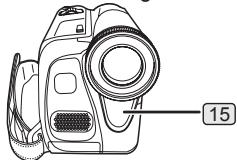
natural_image
Line drawing of a digital camera with a circular lens and textured grip (no text or symbols)- Do not cover the White Balance Sensor with your hand during recording because White Balance will not function normally.

text_image
10 000K 9 000K 8 000K 7 000K 6 000K 5 000K 4 000K 3 000K 2 000K 1 000K 1) 2) 3) 4) 5) 6) 7) 8) 9) 10)Outside of the effective range of Automatic White Balance Adjustment, the image will become reddish or bluish. Even within the effective range of Automatic White Balance Adjustment, the Automatic White Balance Adjustment may not function properly if there is more than one light source. In this case, adjust the White Balance.
1) The effective range of Automatic White Balance Adjustment on this Camcorder
2) Blue sky
3) Cloudy sky (rain)
4) TV screen
5) Sunlight
6) White fluorescent lamp
7) Halogen light bulb
8) Incandescent light bulb
9) Sunrise or sunset
10) Candlelight
- For other notes concerning this item, see page 62.
Manual Shutter Speed Adjustment
Useful for recording fast-moving subjects.
- Set to Tape/Card Recording Mode.
1 Set the [AUTO/MANUAL/FOCUS] Switch 26 to [MANUAL].
[One-Touch Navigation icon]
![PANASONIC PVGS35 - Set the [AUTO/MANUAL/FOCUS] Switch 26 to [MANUAL]. - 1](/content/2019/08/105179/images/368262080e502c6140757f9d1fe8ccae07e700cb30b180cecc40fa2fccf8baa1.jpg)
text_image
AUTO MANUAL FOCUS 26![PANASONIC PVGS35 - Set the [AUTO/MANUAL/FOCUS] Switch 26 to [MANUAL]. - 2](/content/2019/08/105179/images/f1d28d4d8b0fd97a5ff0cf8001359a36481ee8eb0a9f0000a8c46ad04973a76c.jpg)
- The [MNL] Indication and the One-Touch Navigation icon appears.
2 Move the Joystick Control [▼] 35 until the Shutter Speed Indication appears.
![PANASONIC PVGS35 - Move the Joystick Control [▼] 35 until the Shutter Speed Indication appears. - 1](/content/2019/08/105179/images/3f5d9ac824ee0ada070c9b1054010d14942b01368a909d89afbd408692765f3f.jpg)
text_image
35![PANASONIC PVGS35 - Move the Joystick Control [▼] 35 until the Shutter Speed Indication appears. - 2](/content/2019/08/105179/images/4cb289a930a9cfa931dd0566ced561ee9319a94f0ac240692fdef7db38095ac9.jpg)
text_image
2:00 1/60 12:34:56AM JAN 2 20053 Move the Joystick Control [◀] or [▶] 35 to adjust the shutter speed.
■ Range of Shutter Speed Adjustment
1/60–1/8000 s in Tape Recording Mode
1/60–1/500 s in Card Recording Mode
The standard shutter speed is 1/60 s when the EIS is OFF.
Selecting a speed closer to [1/8000] causes the shutter speed to be faster.
■ To Resume Automatic Adjustment
Set the [AUTO/MANUAL/FOCUS] Switch to [AUTO].
- For other notes concerning this item, see page 62.
Manual Iris Adjustment (F Number)
You can use this function when the screen is too bright or too dark.
- Set to Tape/Card Recording Mode.
1 Set the [AUTO/MANUAL/FOCUS] Switch 26 to [MANUAL].
[One-Touch Navigation icon]
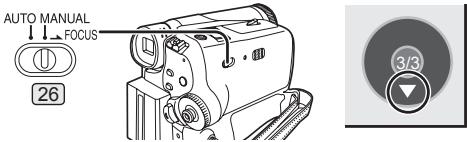
text_image
AUTO MANUAL ↓ → FOCUS 26 3/3- The [MNL] Indication and the One-Touch Navigation icon appears.
2 Move the Joystick Control [▼] 35 until the Iris Indication appears.
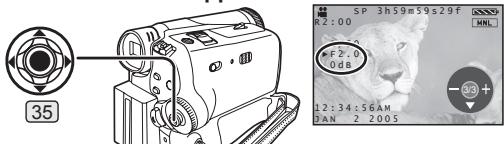
text_image
35 SP 3h59m59s29f R: 2.00 +F2.0 0dB 12:34:56AM DAN 2 2005 -350+3 Move the Joystick Control [◀] or [▶] 35 to adjust the iris.
■ Range of Iris Adjustment
CLOSE (Closed), F16, ..., F2.0,
OPEN (Opened) + 0dB, ..., 18dB
When a value closer to [CLOSE] is selected, the image becomes darker.
When a value closer to [18dB] is selected, the image becomes brighter.
The value to which + dB is attached indicates a Gain-up value. If this value is too large, the quality of the image deteriorates.
■ To Resume Automatic Adjustment
Set the [AUTO/MANUAL/FOCUS] Switch to [AUTO].
- For other notes concerning this item, see page 62.
Manual Focus Adjustment
Focus can be adjusted manually for recording in a situation where auto focus may not function well.
- Set to Tape/Card Recording Mode.
1 Set the [AUTO/MANUAL/FOCUS] Switch 26 to [MANUAL].
[One-Touch Navigation icon]
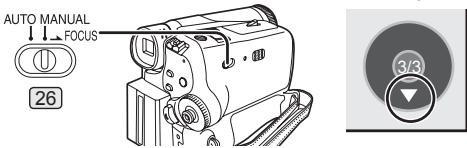
text_image
AUTO MANUAL ↓ → FOCUS 26 3/3- The [MNL] Indication and the One-Touch Navigation icon appears.
2 Slide the [AUTO/MANUAL/FOCUS] Switch 26 to [FOCUS].
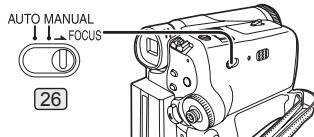
text_image
AUTO MANUAL ↓ → FOCUS 26- The [▶MF] Indication (Manual Focus Mode) appears.
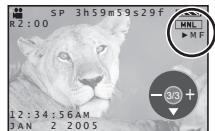
text_image
SP 3h59m59s29f R2:00 MNL ▶ M F -3/3 + 12:34:56AM JAN 2 20053 Move the Joystick Control [◀] or [▶] 35 to adjust the focus.
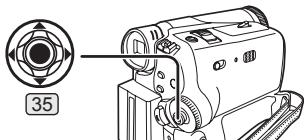
natural_image
Technical line drawing of a camera with a circular component and a numbered label (35), no readable text or symbols present.- If you keep moving the Joystick Control [▶] or [◀] 35, the speed of adjusting becomes faster.
- When focused with a wide angle, the subject may not be in focus when zoomed in. First, zoom in on the subject, and then focus on it.
■ To Resume Automatic Adjustment Set the [AUTO/MANUAL/FOCUS] Switch to [AUTO] or [FOCUS].
Playback Mode
Playing Back a Tape
The recorded scene can be played back immediately after the recording.
1 Set the [OFF/ON] Switch 28 to [ON].
• The [POWER] Lamp 32 lights up.
![PANASONIC PVGS35 - Set the [OFF/ON] Switch 28 to [ON]. - 1](/content/2019/08/105179/images/4c2ce9a0d106340fd3151baa902a12c41e46af434fdb4fe2173db0b95a2de4e2.jpg)
text_image
28 OFF • ON - O 322 Set the Mode Dial 34 to Tape Playback Mode.
- The One-Touch Navigation icon is displayed on the lower right of the screen.

text_image
[One-Touch Navigation icon]3 Move the Joystick Control [◀] 35 to rewind the tape.
![PANASONIC PVGS35 - Move the Joystick Control [◀] 35 to rewind the tape. - 1](/content/2019/08/105179/images/9ace45f3c8742775161441ce4c7e524482bb0ed6f0ff92af21442d34c1bd9d69.jpg)
natural_image
Illustration of a camera with a circular dial and numbered label (35), no text or symbols present.- Rewind the tape to the point where you want to start playback.
- When the tape reaches the beginning, rewinding stops automatically.
4 Move the Joystick Control [▲] 35 to start playback.
• The [▶] Indication appears.
![PANASONIC PVGS35 - Move the Joystick Control [▲] 35 to start playback. - 1](/content/2019/08/105179/images/26757314506acb614e6f0650850f0d0a0ef655fc7c512579d5ccf78026da4bc9.jpg)
text_image
35 SP 3:59s29f R2:00 12:34:56AM JAN 2 2005- If a cassette recorded with copyright protection signal is played back, the picture is distorted by mosaic-like patterns.
■ To Stop Playback
Move the Joystick Control [▼] to select [■].
natural_image
Technical line drawing of a mechanical device with a numbered component (35), no visible text or symbolsAdjusting the Sound Volume
Adjust the speaker volume for playback.
1 Push the [-☐/VOL+] Lever 14 to adjust the volume.
- Towards [+] : increases the volume
- Towards [-]: decreases the volume (The closer to [+] , the higher the volume.)
![PANASONIC PVGS35 - Push the [-☐/VOL+] Lever 14 to adjust the volume. - 1](/content/2019/08/105179/images/f63c7fe3a7b3523c3891da16ca54281d3f19598cabcac46b0b7c24d131e4926d.jpg)
text_image
14 W T -/VOL+On the Remote Control, press the [T] Button to increase the volume or the [W] Button to decrease it. (PV-GS35 only)
- When the adjustment is completed, the volume indication [ ] will disappear.
- If you do not hear the sound, check the settings of [SETUP] >> [12bit 12bit AUDIO].
![PANASONIC PVGS35 - Push the [-☐/VOL+] Lever 14 to adjust the volume. - 2](/content/2019/08/105179/images/ed5e26c5c1b49d88fa29fe74e81444a02ef815bddf87716d999bd88750b98271.jpg)
text_image
SP 3h59m59s29f R2:00 12:34:56AM JAN 2 2005- For other notes concerning this item, see page 62.
Finding a Scene You Want to Play Back
- Set to Tape Playback Mode.
- The One-Touch Navigation icon is displayed on the lower right of the screen.
Cue/Review Playback
natural_image
Technical line drawing of a mechanical device with a circular component and a numbered label (35), no readable text or symbols present.If the Joystick Control [▶] or [◀] 35 is moved during Playback, it turns to Cue Playback Ⓐ or Review Playback Ⓑ.
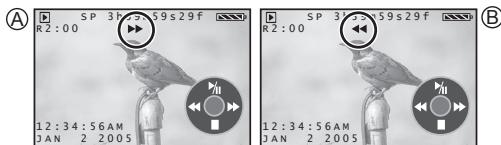
text_image
A SP 3h 59s29f R2:00 12:34:56AM JAN 2 2005 B SP 3h 59s29f R2:00 12:34:56AM JAN 2 2005- If the Joystick Control is held continuously, it turns to Cue Playback or Review Playback until you release it.
- During Cue/Review playback, fast-moving images may show noise as a mosaic.
- Before and after Cue/Review playback, the screen may become blue for a moment or images may be distorted.
Variable Speed Search Function (PV-GS35 Only)
The speed of Cue Playback or Review Playback can be varied.
1 During playback, press the [VAR.SEARCH] Button 44.
• The [1×▶] Indication appears.
![PANASONIC PVGS35 - During playback, press the [VAR.SEARCH] Button 44. - 1](/content/2019/08/105179/images/ba2e16c094cb32bfccb41795057d057b5667387506a0d7b6d5cb0fe423c21e40.jpg)
flowchart
graph TD
    A["44"] --> B["STILL ADV PAUSE"]
    B --> C["STOP"]
    C --> D["OUTPUT"]
    D --> E["MENU"]
    E --> F["OUTPUT"]
    style A fill:#f9f,stroke:#333
    style F fill:#f9f,stroke:#333
2 Press the [▲▼] Button 49 to select a desired search speed.
The following 6 playback speeds are available for the Variable Speed Search Function in both the fast-forwarding and rewinding directions: 1/5× (slow playback in SP Mode only), 1/3× (slow playback in LP Mode only), 1×, 2×, 5×, 10× and 20×.
■ To Resume Normal Playback
Press the [▶] Button 55 or [VAR.SEARCH] Button 44.
- During Cue or Review Playback, fast-moving images may show mosaic-like patterns.
- The sound is muted during search.
- This function is canceled when the One-Touch Navigation icon is displayed.
- The Variable Speed Search function is not available when the Repeat Playback is active.
Slow Motion Playback (PV-GS35 Only)
This Camcorder can play back at a slow speed.
- Set to Tape Playback Mode.
- The One-Touch Navigation icon is displayed on the lower right of the screen.
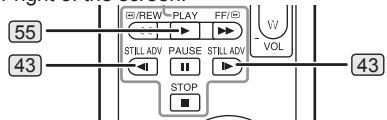
flowchart
graph TD
    A["REW PLAY"] --> B["STILL ADV"]
    C["FF/8"] --> D["STILL ADV"]
    E["VOL"] --> F["STOP"]
    G["STILL ADV"] --> H["PAUSE"]
    I["STILL ADV"] --> J["PUASE"]
    K["STILL ADV"] --> L["PLAY"]
1 Press the [▶] Button 55.
2 Press the [◀I] Button or [I▶] Button 43 on the Remote Control.
- The [I▶] or [◀I] Indication appears.
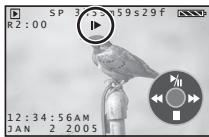
text_image
SP 3:55 59s29f R2:00 12:34:56AM JAN 2 2005- When the [◀] Button is pressed, Slow Motion Playback proceeds in the reverse direction. When the [I▶] Button is pressed, Slow Motion Playback proceeds in the forward direction.
- If the Slow Motion Playback continues for approx. 10 minutes or more, then the playback will automatically stop. (10 minutes of Slow Motion playback is equivalent to approx.
2 minutes in the SP mode or approx. 3 minutes in the LP mode.) - In the reversed Slow-Motion Playback, the time code indication may be unstable.
Scenes recorded in the SP Mode are played back at approximately 1/5th of the normal speed.
Scenes recorded in the LP Mode are played back at approximately 1/3rd of the normal speed.
■ To Resume Normal Playback
Press the [▶] Button 55.
Still Playback/Still Advance Playback
This Camcorder is capable of still picture playback and frame-advance playback.
- Set to Tape Playback Mode.
- The One-Touch Navigation icon is displayed on the lower right of the screen.
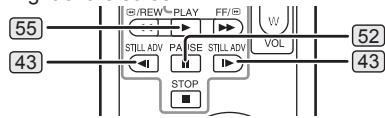
flowchart
graph TD
    A["STILL ADV PA"] --> B["STOP"]
    C["STILL ADV VOL"] --> D["STOP"]
    E["STILL ADV FLV"] --> F["STOP"]
    G["STILL ADV FLV"] --> H["STOP"]
    I["STILL ADV FLV"] --> J["STOP"]
    K["STILL ADV FLV"] --> L["STOP"]
    M["STILL ADV FLV"] --> N["STOP"]
    O["STILL ADV FLV"] --> P["STOP"]
    Q["STILL ADV FLV"] --> R["STOP"]
    S["STILL ADV FLV"] --> T["STOP"]
    U["STILL ADV FLV"] --> V["STOP"]
    W["STILL ADV FLV"] --> X["STOP"]
    Y["STILL ADV FLV"] --> Z["STOP"]
    AA["STILL ADV FLV"] --> AB["STOP"]
    AC["STILL ADV FLV"] --> AD["STOP"]
    AE["STILL ADV FLV"] --> AF["STOP"]
    AG["STILL ADV FLV"] --> AH["STOP"]
    AI["STILL ADV FLV"] --> AJ["STOP"]
    AK["STILL ADV FLV"] --> AL["STOP"]
    AM["STILL ADV FLV"] --> AN["STOP"]
    AO["STILL ADV FLV"] --> AP["STOP"]
    AQ["STILL ADV FLV"] --> AR["STOP"]
    AS["STILL ADV FLV"] --> AT["STOP"]
    AU["STILL ADV FLV"] --> AV["STOP"]
    AW["STILL ADV FLV"] --> AX["STOP"]
    AY["STILL ADV FLV"] --> AZ["STOP"]
    BA["STILL ADV FLV"] --> BB["STOP"]
    BC["STILL ADV FLV"] --> BD["STOP"]
    BE["STILL ADV FLV"] --> BF["STOP"]
    BG["STILL ADV FLV"] --> BH["STOP"]
    BI["STILL ADV FLV"] --> BJ["STOP"]
    BK["STILL ADV FLV"] --> BL["STOP"]
    BM["STILL ADV FLV"] --> BN["STOP"]
    BO["STILL ADV FLV"] --> BP["STOP"]
    BZ["STILL ADV FLV"] --> CA["STOP"]
    CB["STILL ADV FLV"] --> CD["STOP"]
    CE["STILL ADV FLV"] --> CF["STOP"]
    CG["STILL ADV FLV"] --> CH["STOP"]
    CI["STILL ADV FLV"] --> CJ["STOP"]
    CK["STILL ADV FLV"] --> CL["STOP"]
    CM["STILL ADV FLV"] --> CN["STOP"]
    CO["STILL ADV FLV"] --> CP["STOP"]
    CS["STILL ADV FLV"] --> CY["STOP"]
    CZ["STILL ADV FLV"] --> DA["STOP"]
    DB["STILL ADV FLV"] --> DC["STOP"]
    DD["STILL ADV FLV"] --> DE["STOP"]
    DF["STILL ADV FLV"] --> DG["STOP"]
    DH["STILL ADV FLV"] --> DI["STOP"]
    DJ["STILL ADV FLV"] --> DK["STOP"]
1 Press the [▶] Button 55.
2 Press the [Ⅱ] Button 52.
- The playback image stops in the Still Playback Mode.
3 Press the [◀l] Button or [l▶] Button 43 on the Remote Control.
- The [II▶] or [◀II] Indication appears.
- With each press of the [◀I] Button, still pictures advance in the reverse direction.
With each press of the [I▶] Button, still pictures advances in the forward direction. If one of the buttons continues to be pressed, still pictures advance continuously 1 frame at a time until the button is released.
■ To Resume Normal Playback
Press the [▶] Button 55.
Playback with Zoom Lever
By pushing the [W/T] Lever 14 of the Camcorder in the Still Playback Mode, still pictures can be advanced one frame at a time in the forward or backward direction. If you keep pushing the Lever, still pictures advance continuously.
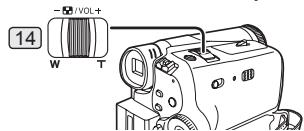
text_image
14 W T -VOL+- If the Camcorder is left in the Still Playback Mode for more than 5 minutes, the Camcorder switches to the Stop Mode to protect the video heads from excessive wear and tear.
Playing Back a Memory Card
It plays back files recorded on a Card.
1 Set the [OFF/ON] Switch 28 to [ON].
• The [POWER] Lamp 32 lights up.
![PANASONIC PVGS35 - Set the [OFF/ON] Switch 28 to [ON]. - 1](/content/2019/08/105179/images/35fc6acee54f0f85af4609a9d0b65f30b62d4fc5115796c8324da198155a6639.jpg)
text_image
28 OFF • ON - O 322 Set the Mode Dial 34 to Picture Playback Mode.
- The One-Touch Navigation icon is displayed on the lower right of the screen.
[One-Touch Navigation icon]
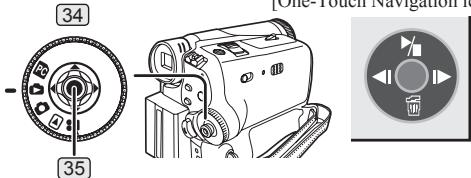
text_image
[One-Touch Navigation Id 34 353 Start Playback.
Joystick Control [▲]: Starting the Slide Show Stop the Slide Show
Joystick Control [▼]: Erase the pictures
Joystick Control [◀]: Playing back the previous picture
Joystick Control [▶]: Playing back the next picture
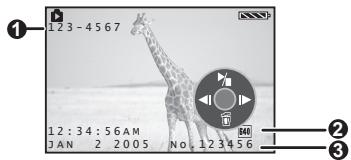
text_image
123-4567 12:34:56AM JAN 2 2005 NO 123456① Folder File Number
② Picture Size (pp. 57\~58)
③ File Number
To Select a Desired File and Playing Back
Multiple files on the card (6 files on 1 screen) are displayed.
1 Push the [- ☐ / VOL +] Lever 14 to switch the images.
![PANASONIC PVGS35 - Push the [- ☐ / VOL +] Lever 14 to switch the images. - 1](/content/2019/08/105179/images/71c1c4836b597ced4121229e61442fd1ce5e69de5f61882d925c93af46cd79cf.jpg)
text_image
14 -/VOL+ W TTowards [+] : Full-screen display
(Displays 1 image.)
Towards [−]: Multi-screen display
(Displays 6 files on 1 screen.)
![PANASONIC PVGS35 - Push the [- ☐ / VOL +] Lever 14 to switch the images. - 2](/content/2019/08/105179/images/c5734bd1936268bce39fbfac438e607fe533d70a2f704f2246ced97887216713.jpg)
text_image
① B40 B40 B40 B40 B40 B40 B40 NO.5 100-0012 ② ③① Picture Size
② File Number
③ Folder File Number
2 Move the Joystick Control [▲, ▼, ◀, or ▶] 35 to select a desired file.
![PANASONIC PVGS35 - Move the Joystick Control [▲, ▼, ◀, or ▶] 35 to select a desired file. - 1](/content/2019/08/105179/images/d4ef768cee315ffaca289a7482a26855fbcf700f6b179073483b4c8c97c99604.jpg)
text_image
35• In the Multi-screen display,
- Move the Joystick Control [▲, ▼, ◀, or ▶] 35 to select a file (The selected file will be encircled by a yellow frame) and press it. The selected file is full-screen displayed.
- If there are 7 files or more, move the Joystick Control. The next, or previous Multi-Screen will be displayed.
- For other notes concerning this item, see pages 62\~63.
Slide Show
The recorded still pictures in the Card can be played back like a Slide Show.
- Set to Picture Playback Mode.
- The One-Touch Navigation icon is displayed on the lower right of the screen.
1 Move the Joystick Control [▲] 35 to select [▶].
[One-Touch Navigation icon]
![PANASONIC PVGS35 - Move the Joystick Control [▲] 35 to select [▶]. - 1](/content/2019/08/105179/images/1e4b1f78127fbfdccda32c16c5ecdfd8fa815db14e83a457a6e5693ce4a217f2.jpg)
natural_image
Technical line drawing of a mechanical device with a circular component and a numbered label (35), no readable text or symbols present.![PANASONIC PVGS35 - Move the Joystick Control [▲] 35 to select [▶]. - 2](/content/2019/08/105179/images/0773ca9cd0d6b9fd30777cbb3576d18d3acf41c7ffb113a1d5c3ce4b9e0e908b.jpg)
- The [ ] Indication is displayed.
![PANASONIC PVGS35 - Move the Joystick Control [▲] 35 to select [▶]. - 3](/content/2019/08/105179/images/7dccadae91f15b26986c6ca5e4ce1309b16f590e2b04a3929458a2c4a17c5fe7.jpg)
text_image
12:34:56AM JAN 2 2005 No.123456• Each of the pictures are played back for several seconds.
■ To Stop the Slide Show
Move the Joystick Control [▲] to select [▶■] again.
- For other notes concerning this item, see page 63.
Deleting the Files Recorded on a Card
Using the Camcorder, you can delete the files recorded on a Card. After the file is deleted, it cannot be restored.
- Set to Picture Playback Mode.
- The One-Touch Navigation icon is displayed on the lower right of the screen.
To Select and Delete Files
1 Move the Joystick Control [◀] or [▶] 35 to select the file to be deleted.
[One-Touch Navigation icon]
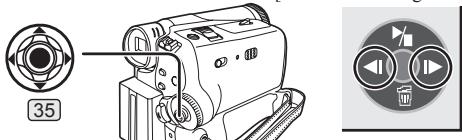
natural_image
Technical illustration of a sewing machine with control panel and two circular buttons (no text or symbols)2 Move the Joystick Control [▼] 35 to select [图标].
[One-Touch Navigation icon]
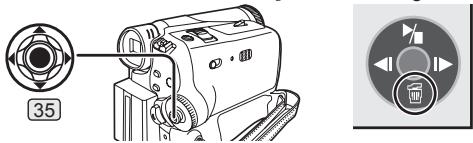
text_image
353 Move the Joystick Control [▲] or [▼] 35 to select [DELETE 1 FILE] and press the Joystick Control 35.
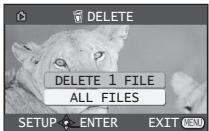
text_image
DELETE DELETE 1 FILE ALL FILES SETUP ENTER EXIT MENU4 Move the Joystick Control [▲] or [▼] 35 to select [YES] and press the Joystick Control 35.
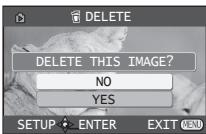
text_image
DELETE DELETE THIS IMAGE? NO YES SETUP ENTER EXIT WEND- The selected file is deleted from the Card.
- If [NO] is selected, the file selection is canceled.
To Select and Delete All Files
1 Move the Joystick Control [▼] 35 to select [图标].
[One-Touch Navigation icon]
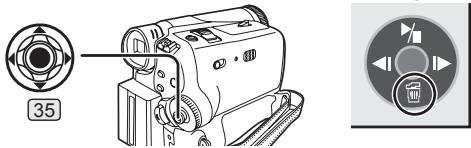
text_image
352 Move the Joystick Control [▲] or [▼] 35 to select [ALL FILES] and press the Joystick Control 35.
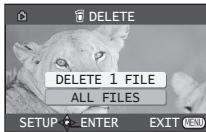
text_image
DELETE DELETE 1 FILE ALL FILES SETUP ENTER EXIT MENU3 Move the Joystick Control [▲] or [▼] 35 to select [YES] and press the Joystick Control 35.
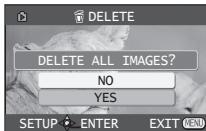
text_image
DELETE DELETE ALL IMAGES? NO YES SETUP ENTER EXIT MENU- All files of Picture Playback Mode are erased.
- A locked file cannot be erased.
- If there are many files on a card, it may take longer to delete files.
- For other notes concerning this item, see page 63.
Writing Printing Data on a Card (DPOF Setting)
DPOF Setting Printing data (DPOF Settings), such as the number of images to be printed, can be written to the Card. "DPOF" means Digital Print Order Format.
- Set to Picture Playback Mode.
- The One-Touch Navigation icon is displayed on the lower right of the screen.
1 Set [ ADVANCE] >> [ DPOF SET] >> [SET].
- When all images are not printed, select [CANCEL ALL].
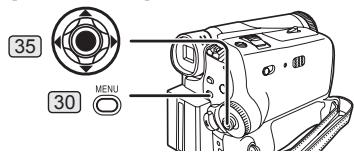
text_image
35 30 MENU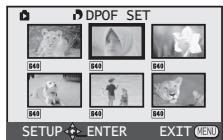
text_image
DPOF SET 840 840 840 840 840 840 SETUP ENTER EXIT MEND2 Move the Joystick Control [▲, ▼, ◀, or ▶] 35 to select a desired picture and press the Joystick Control 35.
- The selected picture is marked with a frame.
- The number of prints set by DPOF ① is displayed.
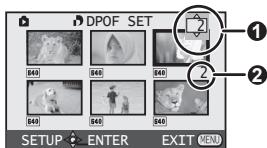
text_image
DPOF SET B40 B40 B40 B40 B40 B40 B40 B40 B40 B40 B40 B40 B40 B40 B40 B40 B40 B40 B40 B40 B40 B40 B40 B40 B40 B45 B45 B45 B45 B45 B45 B45 B45 B45 B45 B45 B45 B45 B45 B45 B45 B45 B45 B45 B45 B45 B45 B45 B45 B45 B40 B40 B40 B40 B40 B40 B40 B40 B40 B40 B40 B40 B40 B40 B40 B40 B40 B40 B40 B40 B40 B40 B40 B40 B41 B41 B41 B41 B41 B41 B41 B41 B41 B41 B41 B41 B41 B41 B41 B41 B41 B41 B41 B41 B41 B41 B41 B41 B41 B42 B42 B42 B42 B42 B42 B42 B42 B42 B42 B42 B42 B42 B42 B42 B42 B42 B42 B42 B42 B42 B42 B42 B42 B42 B43 B43 B43 B43 B43 B43 B43 B43 B43 B43 B43 B43 B43 B43 B43 B43 B43 B43 B433 Move the Joystick Control [▲] or [▼] 35 to select the number of pictures to be printed, and press the Joystick Control 35.
- The number of prints ② is displayed in the picture set.
- You can select from 0 to 999. (Selected number of pictures can be printed as you set the number of prints with the printer supporting DPOF.)
- 2 or more files can be set in succession.
4 Repeat Steps 2 and 3 and press the [MENU] Button 30 when the setup is completed.
■ About the DPOF
DPOF stands for Digital Print Order Format. This enables the printing information to be added to the pictures on the card so that it can be used on a system supporting DPOF.
- For other notes concerning this item, see page 63.
Protecting the Files on a Card (Lock Setting)
Precious files recorded on a Card can be locked to prevent accidental erasure. (Even if files are locked, the files will be deleted if the Card is formatted.)
- Set to Picture Playback Mode.
- The One-Touch Navigation icon is displayed on the lower right of the screen.
1 Set [ § BASIC] >> [ oπ PROTECT] >> [YES].
![PANASONIC PVGS35 - Set [ § BASIC] >> [ oπ PROTECT] >> [YES]. - 1](/content/2019/08/105179/images/ba0bace0718c004d4027ee384d033071a38d59d35c3a0ee7444f5d18605d91d7.jpg)
text_image
35 30 MENU On PROTECT 040 040 040 040 040 040 SETUP ENTER EXIT MENU2 Move the Joystick Control [▲, ▼, ◀, or ▶] 35 to select the file to be locked, and press the Joystick Control 35.
![PANASONIC PVGS35 - Move the Joystick Control [▲, ▼, ◀, or ▶] 35 to select the file to be locked, and press the Joystick Control 35. - 1](/content/2019/08/105179/images/fcc5e14251863e52284453ca55235a4954308f2755a81f9aa0cd6643538fdec9.jpg)
text_image
PROTECT S40 S40 S40 S40 S40 SETUP ENTER EXIT MEND- The selected file is locked and the [On] Indication ① appears. Repeat this procedure to lock 2 or more files.
- Press the Joystick Control 35 again to cancel.
3 Repeat Step 2 and press the [MENU] Button 30 when the setup is completed.
- The SD Memory Card has a write protection switch. (p. 63)
- For other notes concerning this item, see page 63.
Formatting a Card
If a Card becomes unreadable by the Camcorder, format it for reuse. Formatting erases all the data recorded on a Card.
- When formatting the card all protected files (lock) are also deleted.
- Set to Picture Playback Mode.
- The One-Touch Navigation icon is displayed on the lower right of the screen.
1 Set [ ✉ ADVANCE] >> [ ✉ CARD FORMAT] >> [YES].
![PANASONIC PVGS35 - Set [ ✉ ADVANCE] >> [ ✉ CARD FORMAT] >> [YES]. - 1](/content/2019/08/105179/images/574fbc7071cafceead391bd7dde77e19e5c7ae8343a620a47fc3a60e9ed24a1e.jpg)
text_image
30 35 MENU- A confirmation message appears, select [YES] and formatting will be carried out.
![PANASONIC PVGS35 - Set [ ✉ ADVANCE] >> [ ✉ CARD FORMAT] >> [YES]. - 2](/content/2019/08/105179/images/a675c6ba1130d45bdda82c02839911254d3ab525957b90fd6f9e722a6f74daf6.jpg)
text_image
CARD FORMAT DELETES ALL DATA NO YES SETUP ENTER EXIT MENU- When the formatting is completed, the screen becomes white.
- It may not be possible to use a Card formatted by this Camcorder on another unit. In this case, format the Card on the unit which will use the Card. Make sure that valuable pictures are stored on your PC before proceeding.
- Normally, it is not necessary to format the card. If a message appears even though you insert and remove the card several times, format it.
- A Card formatted on other equipment (e.g. PC) might be unusable or it might take more time for recording. We recommend that you use this equipment to format the Card.
Playing Back on Your TV
By connecting your Camcorder with your TV, the recorded scenes can be viewed on your TV screen.
- Before connecting them, turn off the power of both the Camcorder and TV.
1 Insert a recorded tape into this Camcorder.
2 Connect the [AV OUT] Jack of the Camcorder and the Video and Audio Input Jacks of the TV.
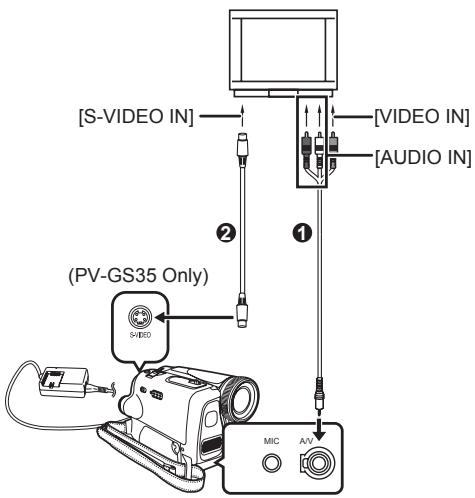
text_image
[S-VIDEO IN] [VIDEO IN] [AUDIO IN] (PV-GS35 Only) S-IE0 MIC A/V- Connect to the TV with the AV Cable ①. If the TV has an S-Video Jack, connect the S-Video Cable (not supplied) ②, too (PV-GS35 Only).
- When plugging the pin plug of the AV cable into the [AV OUT] Jack, plug it in as far as it goes.
3 Turn on this Camcorder and set the Mode Dial 34 to the Tape Playback Mode.
4 Select the input channel on the TV.
5 Move the Joystick Control [▲] 35 to select the [▶/□] to start playback.
- The image and audio are output on the TV.
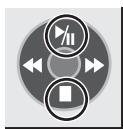
6 Move the Joystick Control [▼] 35 to select the [■] to stop playback.
■ If the image or audio from this Camcorder is not output on the TV
- Check that the plugs are inserted as far as they go.
- Check the connected terminal.
- Check the TV's input setting (input switch). (For more information, please read the operating instructions for the TV.)
■ To Display the On-screen Information on the TV
The information displayed on the LCD Monitor or the Viewfinder (One-Touch Navigation icon, time code and mode indication, etc.), date and time can be displayed on the TV.
1 Press the [OSD] Button 42 on the Remote Control. (PV-GS35 only)
- Press the button again to erase the OSD information.
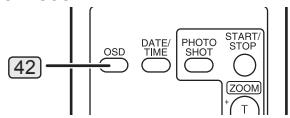
text_image
42 OSD DATE/ TIME PHOTO SHOT START/ STOP ZOOM * T- For other notes concerning this item, see page 63.
Editing Mode
Recording from a Tape onto a Card
Still pictures can be recorded on the Memory Card from scenes that have already been recorded on a cassette.
1 Set the Mode Dial 34 to Tape Playback Mode.
- The One-Touch Navigation icon is displayed on the lower right of the screen.
[One-Touch Navigation icon]
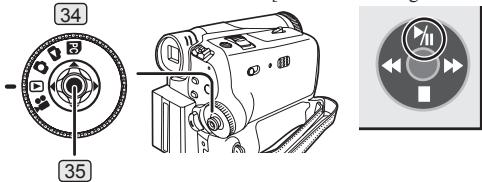
text_image
34 - 352 Insert a tape which already has recorded contents and a card.
3 Move the Joystick Control [▲] ③5 to start playback and set the Camcorder to Still Playback Mode at the scene you wish to record, and press the [PHOTO SHOT] Button 25.
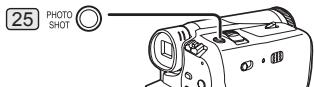
text_image
25 PHOTO SHOT- For other notes concerning this item, see page 63.
Audio Dubbing (PV-GS35 Only)
You can add music or narration to the recorded Cassette.
- If the tape recorded in the [16bit] Mode is dubbed with the Audio Dubbing function, the original sound is erased. (If you wish to preserve the original sound, use the [12bit] Mode when recording.)
- Audio Dubbing cannot be performed on a recording made in LP Mode. (p. 24)
- Set to Tape Playback Mode.
1 Insert an external microphone securely into the [MIC] Jack 16 as far as it will go.
2 Press the [11] Button 52 on the Remote Control where you want to add new sound.
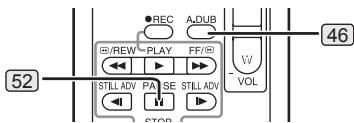
flowchart
graph TD
    A["52"] --> B["RE"]
    B --> C["A.DUB"]
    C --> D["FF/FF"]
    D --> E["STILLADV"]
    E --> F["PASE"]
    F --> G["STILLADV"]
    G --> H["STOP"]
    H --> I["VOL"]
    I --> J["46"]
3 Press the [A.DUB] Button 46 on the Remote Control.
• The [A.DUB] Indication appears.
4 To start Audio Dubbing, press the [Ⅱ] Button 52 on the Remote Control.
• The [A.DUB●] Indication appears.
- Talk into the microphone.
5 Press the [Ⅱ] Button 52 on the Remote Control to stop audio dubbing.
■ To Cancel Audio Dubbing
Press the [■] Button 52 on the Remote Control. The Camcorder is in the Still Playback Mode again.
■ Before Recording with Audio Dubbing
- Set to Tape Recording Mode
- When you want to preserve the original sound taken during recording, set [SETUP] >> [AUDIO REC] >> [12bit] to take pictures. (When set [16bit], the sounds taken during recording are erased after recording with audio dubbing.)
- Set [ § BASIC] >> [ SP] REC SPEED] >> [SP] to take pictures.
■ To Play Back the Sound Recorded by 12bit Audio Dubbing
Set [SETUP] >> [12bit 12bit AUDIO] >> [ST1], [ST2] or [MIX].
ST1: It plays back only the original sound.
ST2: It plays back only the sound added by Audio Dubbing.
MIX: It plays back both the original sound and the sound added by Audio Dubbing simultaneously.
■ To Dub Audio While Listening to a Pre-recorded Sound
When pausing the audio dubbing, set the [2bit 12bit AUDIO] on the [✗ SETUP] Sub-Menu to [ST2] and you can check the pre-recorded sound.
When the line input is used, you can dub audio while listening to the pre-recorded sound from the speaker.
- For other notes concerning this item, see page 63.
Copying onto a DVD Recorder or a VCR (Dubbing)
Pictures recorded by the Camcorder can be stored on a DVD-RAM or other such media. Refer to the instructions for the recorder.
- Place a recorded cassette in the Camcorder, and an unrecorded DVD-RAM or cassette in the DVD Recorder or VCR.
1 Connect the Camcorder and the Recorder.
■ Connecting with the AV Cable
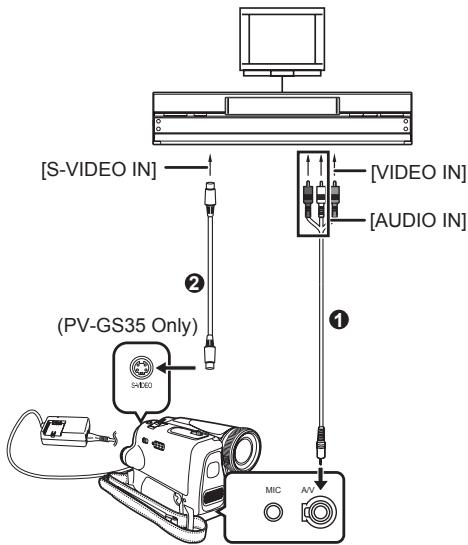
text_image
[S-VIDEO IN] [VIDEO IN] [AUDIO IN] (PV-GS35 Only) S-VIDEO MIC AV- Connect the Camcorder and the Recorder by using the AV Cable 1.
- If the recorder has an S-Video Jack, then also connect an S-Video Cable ② (not supplied). An S-Video connection allows you to copy a higher quality image.
■ Connecting with the optional DV cable (Only for equipment with a DV terminal)
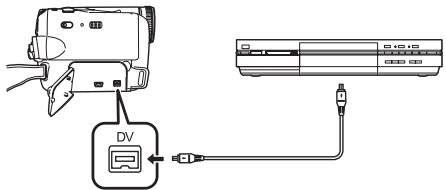
text_image
Diagram showing connection between a camera and a CD-ROM device via a DV power adapter, with cable routing to the right.2 Turn on the Camcorder and set to Tape Playback Mode.
3 Select the input channel on the TV set and recorder.
[One-Touch Navigation icon]
4 Move the Joystick Control [▲] 35 to start playback.
- The image and sound are reproduced.
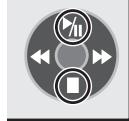
5 Start recording.
6 Move the Joystick Control [▼] 35 to stop playback.
7 Stop recording.
- For more information, refer to the operating instructions for your TV set and recorder.
- When you do not need functional indications or date and time indications, press the [OSD] Button 42 on the Remote Control for no indication. (When you connect the Camcorder and a recorder with the DV cable, these indications may not appear.) (PV-GS35 only)
■ When neither image nor sound from the Camcorder is output to the TV set
- Check that the plugs are inserted as far as they go.
- Check the connected terminal.
Using the DV Cable for Recording (Digital Dubbing)
By connecting this Camcorder with other digital video equipment (such as another Camcorder of the same format/model) that has a DV input/output Terminal, and using a 4-pin to 4-pin DV Interface Cable PV-DDC9 (optional) ①, high quality images and sounds can be dubbed in the digital mode.
- Set to Tape Playback Mode (Player/Recorder)
1 Connect the Camcorder and digital video equipment with the DV cable.
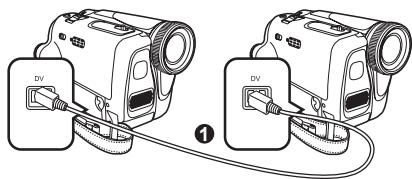
natural_image
Two identical camera setups connected by a cable, no text or symbols visiblePlayer/Recorder:
2 Insert the Cassette and set to Tape Playback Mode.
Player:
3 Press the [▶] Button 55 to start playback.
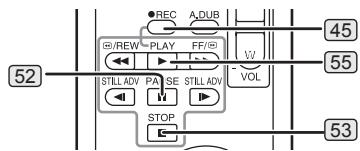
flowchart
graph TD
    A["52"] --> B["STILL ADV"]
    B --> C["RE: A.DUB"]
    B --> D["PLAY"]
    B --> E["FF"]
    B --> F["STOP"]
    B --> G["VOL"]
    B --> H["45"]
    B --> I["53"]
Recorder:
4 Set [✗ ADVANCE] >> [●II REC STDBY] >> [YES], then move the Joystick Control [▲] to select [●%].
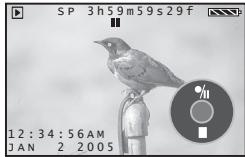
natural_image
Black-and-white photo of a bird perched on a branch, with no visible text or symbols in the main image area.Or, while pressing the [• REC] Button 45, press the [PLAY] Button 55 on the Remote Control.
- Recording starts.
■ To Cancel the Standby for Recording
When the Camcorder is standby for recording, move the Joystick Control [▼] and select the [■].
■ To Stop Dubbing
Press the [■] Button 52 or the [■] Button 53, or move the Joystick Control [▲] to select [%] again.
CAUTION:
Unauthorized exchanging and/or copying of copyrighted recordings may be copyright infringement.
- For other notes concerning this item, see page 63.
PC Connection With DV Interface Cable
A video clip can be transferred directly to your PC (Personal Computer) via a DV Interface Cable (Optional) using products and software from a number of video editing software companies.
Using products from video editing software companies allows you to capture and edit video clips using the DV Interface.
Our DVC being OHCI compliant should have no problem working with any OHCI compliant Firewire Card/video - Editing software package.
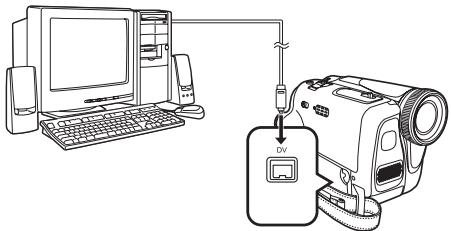
natural_image
Line drawing of a desktop computer connected to a DVD camera via cable (no text or symbols)- Personal Computer must be equipped with an DV Terminal.
- During Camcorder playback, do not disconnect the DV Interface Cable or turn the Camcorder off as this may cause a PC hang-up error.
- 1394 (i.LINK) Interface must conform to OHCI (Open Host Controller Interface Specification).
With a PC
Using Camcorder with a PC
An image stored on the DV Cassette or Memory Card can be transferred to your personal computer.
Software Installation (For Windows) (PV-GS35 Only)
1 Turn on the personal computer and start up Windows.
2 Insert the CD-ROM into the personal computer's CD-ROM drive.
- The [Setup Menu] screen appears.
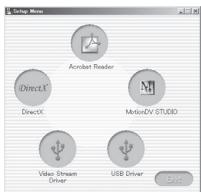
text_image
Group Mouse Acrobat Reader DirectX MotionCV STUDIO Video Stream Driver USB Driver[PV-GS35: Supplied]
3 Select the software to be installed from [Setup Menu].
■ USB Driver (pp. 44\~45) :
The USB driver to be installed is the dedicated Mass Storage Driver for Windows 98SE.
■ Video Stream Driver (pp. 48, 52\~53) :
If the Camcorder is connected to your personal computer, you can send video from the Camcorder to the other parties via a network or by the Internet. It is also needed when you use MotionDV STUDIO with USB connection.
■ MotionDV STUDIO (pp. 52\~55) :
Using the MotionDV STUDIO software allows you to capture video recorded on a tape or images viewed through the lens of a camera. Connecting the Camcorder with the DV cable also allows you to output images edited on the personal computer to the tape in the Camcorder.
■ DirectX :
To activate MotionDV STUDIO, Microsoft DirectX 9.0b or later should be installed. (When Video Stream Driver is installed, DirectX 9.0b will be installed automatically depending on the operating system environment of the personal computer used.)
■ Acrobat Reader :
To view the installed operating instructions, Adobe Acrobat Reader 5.0 or higher is required. Please install Adobe Acrobat Reader from the CD-ROM.
4 Follow the instructions on the computer screen until the installation is complete.
- Setup window will disappear when the installation is complete.
- If a window does not appear automatically, click the "Start" Button on your desktop and then click "Run". When the "Run" Box is open, type in "D:\InstMenu.exe" and click "OK". ("D" applies when the CD-ROM drive is drive D.)
Software Installation (For Windows) (For PV-GS19/PV-GS31)
- If you have direct dial-up connection capability to the Internet, please download the USB Driver and Video Stream Driver.
The USB driver to be installed is the dedicated Mass Storage Driver for Windows 98SE.
■ Video Stream Driver (p. 49)
If the Camcorder is connected to your personal computer, you can send video from the Camcorder to the other parties via a network or by the Internet.
1 In order to download and install the Driver, go to http://www.panasonic.com/consumerdownloads
text_image
Panasonic ideas for life Software and Drivers Digital-Coddlers Cableclics Data Service Providers • Service Home Service • Cableclics Proposition Data SS Contact a Panasonic Customer Service representative as submitting the https://www.panasonic.com/ It's here agency programme, however, when at 1:00-11:15 (TAS), (SPTA 4).2 Click the software to be downloaded.
Using the USB Driver
Operating environment
- Despite having the Operating environment indicated, it may not be possible to use the program with some types of personal computers.
- A CD-ROM drive is required to install this driver (PV-GS35 Only).
- When you connect to an USB 2.0 interface board, use a certified board with the USB 2.0 (HI-SPEED USB) logo.
■ For Windows
OS:
IBM PC/AT compatible personal computer with preinstalled;
Microsoft Windows 98 Second Edition
CPU:
Intel Pentium II/Celeron 300 MHz or higher (including compatible CPU)
RAM:
32 MB or more (64 MB or more recommended)
Free hard disk space:
At least 30 MB or more
Interface:
USB 1.1 or more
- For Windows Me/2000/XP users, the USB equipment operates with the driver installed as standard in OS.
■ For Macintosh
OS:
Mac OS X v 10.1 – X v 10.3
CPU:
iMac, iBook or Power Book G4, Power Mac G4 or Power Mac G5
RAM:
64 MB or more
- The USB equipment operates with the driver installed as standard in OS.
Installing the USB Driver (For Windows 98SE Only) For Using the Built-in SD Driver Feature
PV-GS35 Only
Please install USB Driver first before connecting the Camcorder to your personal computer with the USB Cable only if you have Windows 98SE OS.
- If your computer has Windows Me/2000/XP, the USB Driver is not required to be installed.
1 Turn on the personal computer and start up Windows.
2 Insert the CD-ROM into the personal computer's CD-ROM drive.
- Quit all applications.
- The [Setup Menu] Screen appears.
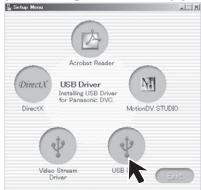
text_image
Setup Window Acrobat Reader DirectX USB Driver Installing USB Driver for Panasonic DVC DirectX MotorDV STUDIO Video Stream Driver USB[PV-GS35: Supplied]
3 Click the [USB Driver].
- The set up program starts running.
4 Click [Restart] if the [InstallShield] dialog appears.
- Do not remove the CD-ROM.
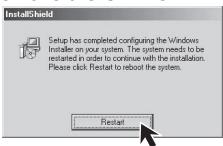
text_image
InstallShield Setup has completed configuring the Windows Installer on your system. The system needs to be restarted in order to continue with the installation. Please click Restart to reboot the system. Restart5 Finish installation by following the on-screen instructions.
- Click [Next] and proceed with installation.
• After completing the installation, Click [Finish].
6 After the USB Driver is installed, please restart your computer.
- Reboot the computer to finish installing USB driver.
- Installation continues after the computer reboots if you selected additional software.
- A message indicating a conflict between versions may be displayed during the installation. This will not cause a problem. Simply click [Yes] to proceed with the installation.
For PV-GS19/PV-GS31
- If you have direct dial-up connection capability to the Internet, please download the USB Driver.
- Please install USB Driver first before connecting the Camcorder to your personal computer with the USB Cable (not supplied) only if you have Windows 98SE OS.
- If your computer has Windows Me/2000/XP, the USB Driver is not required to be installed.
1 In order to download and install the USB Driver, go to http://www.panasonic.com/consumerdownloads
text_image
Panasonic ideas for life Software and Drivers Dining Carriers Carriers File Network Closures Closures Accessories Accessories Accessories Accessories Accessories Accessories Accessories Accessories Accessories Accessories Accessories Accessories Accessories Accessories Accessories Accessories Accessories Accessories Accessories Accessories Accessories Accessories Accessories Accessories Accessories Accessories Accessories Accessories Accessories Accessories Accessories Accessories Accessories Accessories2 Click [Camcorder] on the screen.
3 Click [USB Driver version 1.00].
4 Decompress the downloaded data.
5 Double click 🔊 icon.
- The set up program starts running.
6 Click [Restart] if the [InstallShield] dialog appears.
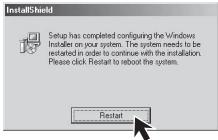
text_image
InstallShield Setup has completed configuring the Windows Installer on your system. The system needs to be restarted in order to continue with the installation. Please click Restart to reboot the system. Restart7 Finish installation by following the on-screen instructions.
- Click [Next] and proceed with installation.
• After completing the installation, Click [Finish].
8 After the USB Driver is installed, please restart your computer.
■ Windows 98SE Users
The following messages may be displayed when connecting this Camcorder and your personal computer via USB Cable.
1) The message "MTDV98M3.pdr is not found" is displayed.
- Enter "C:\Windows\system\IOSUBSYS".
2) The message "MTDV98M3.sys is not found" is displayed.
- Enter "C:\Windows\SYSTEM32\DRIVERS".
- You may click [Browse] to look for and assign the path.
Connecting the Personal Computer and Camcorder
- When your OS is Windows 98SE, install USB Driver before connecting.
- Never connect the USB Cable until the USB Driver is installed.
- Before making these connections, turn off all devices, which are to be connected.
- It is recommended that you use the AC Adaptor as the power supply of the Camcorder.
Using Built-in SD Drive
By connecting the Camcorder and Personal Computer with the USB Cable, you can transfer still images saved on a Memory Card directly to your Personal Computer.
■ For Windows
1 Insert the Memory Card into the Camcorder.
2 Set the Camcorder to PC Mode.
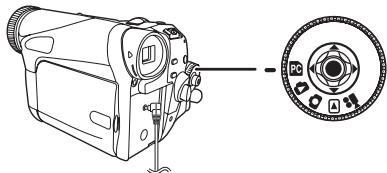
text_image
Technical diagram of a digital camera with labeled dial and control knob3 Connect the Camcorder to your personal computer with USB Cable and turn the Camcorder to "ON".
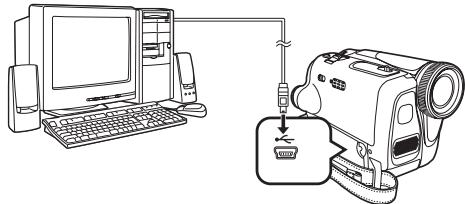
natural_image
Line drawing of a computer connected to a camera via a cable, showing no text or symbols present.- It enters PC Connecting Mode.
- Appropriate driver to recognize Camcorder is automatically installed by Windows Plug and Play when connected for the first time.
4 Open [My Computer] and click [Removable Disk] Ⓞ (For Windows 98SE/Me/2000 users).
5 Click [Open folder to view files using Windows Explorer] ② and then [OK] (For Windows XP users).
[Windows 98SE/Me/2000]
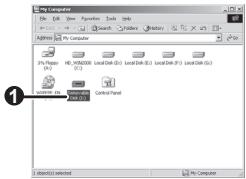
text_image
My Computer File Edit View Favorites Tools Help My Computer My Computer My Computer (A) My Computer (B) My Computer (C) My Computer (D) My Computer (E) My Computer (F) My Computer (G) My Computer (H) My Computer (I) My Computer (J) My Computer (K) My Computer (L) My Computer (M) My Computer (N) My Computer (O) My Computer (P) My Computer (Q) My Computer (R) My Computer (S) My Computer (T) My Computer (U) My Computer (V) My Computer (W) My Computer (X) My Computer (Y) My Computer (Z) My Computer (A)[Windows XP]
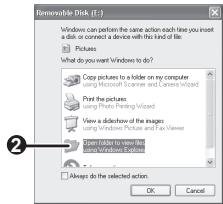
text_image
Removable Disk (E:\) Windows can perform the same action each time you insert a disk or connect a device with this list of files. Pictures What do you want Windows to do? Copy pictures to a folder on my computer using Microsoft Scanner and Camera Wizard Print the pictures using Photo Painting Wizard View a dlideochow of the images using Windows Pure and Fan Viewer Show how to install your own Windows Explorer. Always do the selected action. OK Cancel- After the USB Driver is installed and USB Connection Cable is connected to the Camcorder, open [My Computer] or [Windows Explorer] to check that the drive is displayed as a removable disk drive (only when card is inserted into the Camcorder). It enables you to operate it in the same way as a floppy disk drive, and you can use the same drag and drop or copy methods.
- You can view images stored on the Memory Card and also save them to your hard disk.
- Please do not change file or folder names on the Personal Computer. The images on the Memory Card may not be able to be viewed on the Camcorder.
■ For Macintosh
1 Insert the Memory Card into the Camcorder.
2 Set the Camcorder to PC Mode.
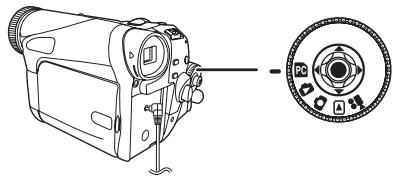
text_image
Diagram showing a camera with labeled parts and a circular dial indicator showing 30°, 45°, and 60° angles.3 Connect the Camcorder to your Macintosh with USB Cable.
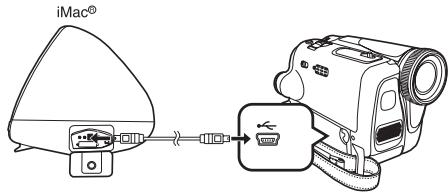
text_image
iMac®4 Double click the "NO_NAME" icon.
- You can view images stored on the Memory Card and also save them to your hard disk.
- Please do not change file or folder names on the Personal Computer. The images on the Memory Card may not be able to be viewed on the Camcorder.
To disconnect USB cable safely
■ For Windows
If USB Cable is disconnected while computer is on, error dialog may appear. In such case click [OK] and close the dialog box. By following the steps below you can disconnect the cable safely.
1 Double click the 📋 icon in task tray.
- Hardware disconnect dialog appears.

text_image
10:292 Select [USB Mass Storage Device] and click [Stop].
3 Verify [Matshita DVC USB Device] is selected and click [OK].
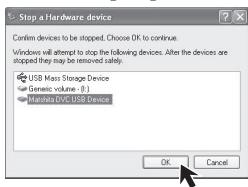
text_image
Stop a Hardware device Confirm devices to be stopped. Choose OK to continue. Windows will attempt to stop the following devices. After the devices are stopped they may be removed safely. USB Mass Storage Device Generic volume - 8 > Maserita DVC USB Device OK Cancel- You can safely disconnect the cable.
Note on the driver name displayed
The driver name displayed will differ depending on your OS, operating environment and the mode of the Camcorder.
Windows XP/2000:
- When the Camcorder is in PC Mode: [USB Mass Storage Device] or [Matshita DVC USB Device]
Windows Me:
- When the Camcorder is in PC Mode:
[USB Disk] or [Matshita DVC] - Some OS, such as Windows 98SE, may not show the icon indicating that you may safely disconnect in task tray. (OS may be set not to show) Make sure Camcorder's Card Access lamp is off and disconnect the cable. Also, with Windows Me, the icon will not be displayed when in Tape Recording Mode or Tape Playback Mode.
CAUTION:
If you disconnect the USB Cable while the Card Access Lamp is on, it may damage the Card data.
■ For Macintosh
Removing the USB Cable safely for Macintosh
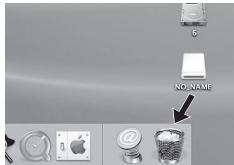
text_image
6 NO NAME① Drop the [NO_NAME] icon which appeared when you connected the Camcorder with the USB Cable into the recycle bin, then disconnect the USB Cable.
If the above operation is not performed correctly, when data is copied from the personal computer to an SD Memory Card, the copied data may be damaged.
Even when the following operations are performed, the same results will occur as when the USB Cable is removed (above). Therefore, it is imperative that the above operation 1 is completed before proceeding.
- When Camcorder power is turned OFF.
- When SD Memory Card is removed.
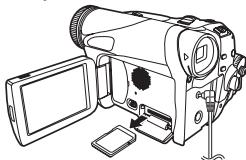
natural_image
Line drawing of a vintage digital camera with monitor, lens, and stand (no text or symbols)- When Mode Dial is turned to change modes.
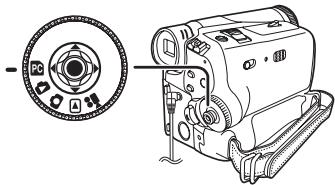
text_image
Technical diagram showing a circular component with 'PC' and 'A' labels next to a mechanical device with a tool inserted.Using as a Web Camera
If the Camcorder is connected to your personal computer, you can send video and sound from the Camcorder to the other parties via the network.
- Do not connect the USB Cable until the Video Stream Driver is installed.
This feature can be used only if both parties are using the same operating system. Please see chart below.
| [Send] | [Receive] | [Software] | |
| Windows XP | ← OK → | Windows XP | Windows Messenger |
| Windows XP | ← NG → | Windows 98SE/Me/2000 | |
| Windows 98SE/ Me/2000 | ← OK → | Windows 98SE/Me/2000 | MSN Messenger |
Operating environment
OS:
(PV-GS35 Only)
IBM PC/AT compatible personal computer with preinstalled;
Microsoft Windows XP Home Edition/Professional (With this version of Windows XP, SP1 or later is needed.)
Microsoft Windows 2000 Professional SP4 or later Microsoft Windows Me (Millennium Edition)
Microsoft Windows 98 Second Edition (For PV-GS19/PV-GS31)
IBM PC/AT compatible personal computer with preinstalled;
Microsoft Windows XP Home Edition/Professional (With this version of Windows XP, SP2 or later is needed.)
Microsoft Windows 2000 Professional SP4 or later Microsoft Windows Me (Millennium Edition)
Microsoft Windows 98 Second Edition
CPU:
Intel Pentium II/Celeron 450 MHz or higher
Celeron 400 MHz or higher (including compatible CPU)
RAM:
128 MB or more (256 MB or more recommended)
Free hard disk space:
At least 250 MB or more
Interface:
USB 1.1 or more
To use the Camcorder as a Web Camera, the additional minimum requirements must be met.
Graphic display:
High Color (16 bit or more)
Desktop resolution of 800 × 600 pixels or more
Communication Speed:
56 kbps or faster is recommended.
Necessary software:
Windows Messenger 5.0 or later (Windows XP)
MSN Messenger (Windows 98SE/Me/2000)
DirectX 9.0b or later (Windows XP (PV-GS35 Only))
Other requirements (to send/receive audio):
Sound card
Speaker or headphones
To use the Camcorder as a Web Camera, the following conditions must be met.
- Windows XP SP1 (PV-GS35) / SP2 (PV-GS19/PV-GS31) or later is needed.
- To upgrade Windows XP to SP1 (PV-GS35) / SP2 (PV-GS19/PV-GS31) or later, click [Start] >> [All Programs] >> [Windows Update]. (Requires Internet connection.)
- You have direct dial-up connection capability to the Internet. Also, you and the other person(s) are in the same Network (LAN).
- Install the Windows Messenger (Windows XP) or MSN Messenger (Windows 98SE/Me/2000). If you have a version older than 5.0, download the latest version (5.0 or later) from the Microsoft Home Page: http://www.microsoft.com/
http://www.msn.com/
(For download and installation instructions, please refer to Help on the Home Page.)
- If you are connected to the Internet through a firewall or a router, proper communication will not be possible.
Installing the Video Stream Driver
PV-GS35 Only
- When DirectX9.0 is installed, applications supported by previous versions of DirectX may not run. In this case, consult the manufacturers of the disabled applications.
- DirectX 9.0b must be installed in your PC if it is not already installed.
1 Turn on the personal computer and start up Windows.
2 Insert the CD-ROM into the personal computer's CD-ROM drive.
- Quit all applications.
- The [Setup Menu] Screen appears.
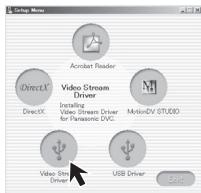
text_image
Group Movies Acrobat Reader DirectX Video Stream Driver Installing Video Streams Driver for Panasonic DVD MotionDV STUDIO Video Strs Driver USB Driver[PV-GS35: Supplied]
3 Click the [Video Stream Driver].
- The set up program starts running.
4 For Windows XP users:
Depending on your system environment, installation of "DirectX9.0b" may be required. Click [Yes] and continue with installation.
- After "DirectX9.0b" is installed, the computer will restart.
- Do not remove the CD-ROM.
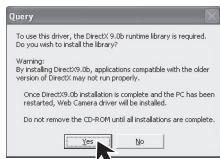
text_image
To use this driver, the DirectX 9.0b runtime library is required. Do you wish to install the library? Warning: By installing DirectX9.0b, applications compatible with the older version of DirectX may not run properly. Once DirectX9.0b installation is complete and the PC has been restarted, Web Camera driver will be installed. Do not remove the CD-ROM until all installations are complete. Yes No5 Finish installation by following the on-screen instructions.
- Click [Next] and proceed with installation.
• After completing the installation, click [Finish].
6 After the Video Stream Driver is installed, please restart your computer.
For PV-GS19/PV-GS31
- For Windows XP users, the USB equipment operates with the driver installed as standard in OS.
- If you have direct dial-up connection capability to the Internet, please download the Video Stream Driver.
1 In order to download and install the Video Stream Driver, go to http://www.panasonic.com/consumerdownloads
text_image
Panasonic Ideas for life Software and Drivers Language Software Language Software Language Software Language Software Language Software Language Software Language Software Language Software Language Software Language Software Language Software Language Software Language Software Language Software Language Software Language Software Language Software Language Software Language Software Language Software Language Software Language Software Language Software Language Software Language Software Language Software Language Software Language Software Language Software Language Software Language Software Language Software Language Software Language Software2 Click [Camcorder] on the screen.
3 Click [Video Stream Driver version 1.00].
4 Decompress the downloaded data.
5 Double click 🔒 icon.
- The set up program starts running.
6 Finish installation by following the on-screen instructions.
- Click [Next] and proceed with installation.
• After completing the installation, click [Finish].
7 After the Video Stream Driver is installed, please restart your computer.
Connecting the Camcorder to Personal Computer (For Using as a Web Camera)
1 Set the Camcorder to Tape Recording Mode or Tape Playback Mode.
- To send the live camera picture to a PC, set the Camcorder to Tape Recording mode.
- To send pictures recorded on a tape to a PC, set the Camcorder to Tape Playback mode.
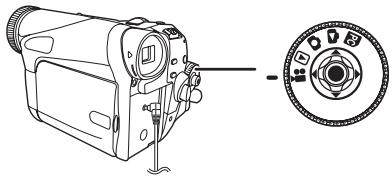
text_image
Diagram showing a digital camera with labeled components and a circular dial indicator.2 For PV-GS35 :
Tape Recording Mode : Set [ ✉ ADVANCE] >> [ USB USB FUNCTION] >> [WEB CAM]. Tape Playback Mode : Set [ ✉ BASIC] >> [ USB USB FUNCTION] >> [WEB CAM].
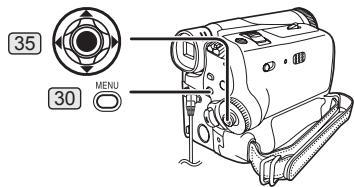
text_image
35 30 MENU3 Connect the Camcorder to your personal computer with USB Cable.
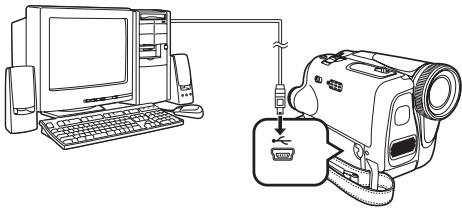
natural_image
Line drawing of a desktop computer connected to a DSLR camera via cable (no text or symbols present)- When the Camcorder and personal computer (with Windows 2000) are connected via USB Cable, a message, such as the one below, is displayed. However, testing by the manufacturer has confirmed functionality of this Camcorder with Windows 2000. Click [Yes] and proceed.
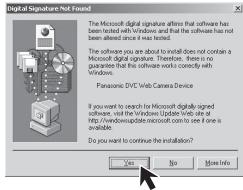
text_image
Digital Signature Not Found The Microsoft digital signature affirms that this software has been tested with Windows and that the software has not been altered since it was tested. The software you are about to install (does not contain a Microsoft digital signature. Therefore, there is no guaranteed that this software works correctly with Windows). Panasonic DVC Web Camera Device If you want to search for Microsoft digitally signed software, visit the Windows Update Web site at http://Windowsupdate.microsoft.com to see if one is available. Do you want to continue the installation? Yes No Move Info- For Windows 98SE/Me users, “USB Audio Device” is required. Click [Next] and proceed.
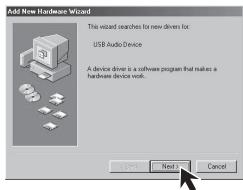
text_image
Add New Hardware Wizard This wizard searches for new drivers for: USB Audio Device A device driver is a software program that makes a hardware device work. OK Next Cancel- If you use Windows 98SE, the OS installation CD may be required.
■ Windows 98SE/Me Users
The following messages may be displayed when connecting this Camcorder and your personal computer via USB Cable.
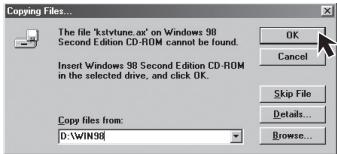
text_image
Copying Files... The file 'kstvntune.as' on Windows 98 Second Edition CD-ROM cannot be found. Insert Windows 98 Second Edition CD-ROM in the selected drive, and click OK. Copy files from: D:\WIN\98\ OK Cancel Skip File Details... Browse...1) The message “The file ‘kstvtune.ax’ on [Unknown] cannot be found...” is displayed.
- Enter "C:\Windows\system" for Windows 98SE. Enter "C:\Windows\options\CABS" for Windows Me.
- If the "kstvtune.ax" file is missing in one of the 2 above-mentioned folders, insert the OS CD-ROM and assign the path.
2) The message "The file 'ksclockf.ax' on [Unknown] cannot be found..." is displayed.
- Enter "C:\Windows\system".
- If the "ksclockf.ax" file is missing in the above mentioned folder, insert the OS CD-ROM and assign the path.
- You may click [Browse] to look for and assign the path.
■ When you use the Camcorder as a Web camera
When you use the Camcorder as a Web camera in the Tape Playback Mode, the indication of the One-Touch Navigation icon is different from the one in usual operation.
1

2

① In usual operation
② In the WEB CAMERA mode (Tape Playback Mode)
- Even if you move the Joystick Control [▲▼◀▶] (▶/l, ■, ◀, ▶), the selected direction on the One-Touch Navigation icon is not lit in yellow.
- The One-Touch Navigation icon blinks on instead of appearing from the side of the screen when you press the center of the Joystick Control.
4 Start the Windows Messenger (For Windows XP users) or MSN Messenger (For Windows 98SE/Me/2000 users).
- Click [Start] >> [All Programs (Program)] >> [Windows Messenger] or [MSN Messenger].
- When you use Windows XP, the other parties via the network have to use the Windows Messenger on Windows XP. When you use other than Windows XP, the other parties via the network have to use MSN Messenger on an OS other than Windows XP.
- If the Camcorder is used as a Web Camera, the quality of the video to be exchanged will depend on the Internet connection status.
- If the USB Cable is disconnected from the personal computer, the Web Camera mode is canceled.
- If the Camcorder is used as a Web Camera, video cannot be recorded onto a tape or a card.
- You cannot output the video input from the DV terminal to the display of the PC.
- In the Web Camera mode, the audio may be interrupted in the middle of communication depending on the communication environment or the performance of the personal computer.
- For Windows XP SP2 users, if the [Windows Security Alert] screen is displayed, click [Unblock] and proceed.
Setting up the Windows Messenger
When starting the Windows Messenger for the first time, its setup screen is displayed. (However, the screen is not displayed if the Windows Messenger setup has already been done.) For more details, please read the corresponding Help file.
1 Click [Click here to sign in].
![PANASONIC PVGS35 - Click [Click here to sign in]. - 1](/content/2019/08/105179/images/d39ae059cdd4ed9bd45367ff6203b438f5a18ef8b0da76f1c19a5530767c8657.jpg)
text_image
Windows Messenger File actions Tools Help Click here to sign in2 Select [.NET Messaging Service] and click [OK].
![PANASONIC PVGS35 - Select [.NET Messaging Service] and click [OK]. - 1](/content/2019/08/105179/images/e0880f7649ea14a1425f08c853853da60da6fedc87bd36a756c0b2ae22ee8ee1.jpg)
text_image
Connect to Messaging Services Sign in to: NET Messaging Service Communications Service Exchange Messaging Service OK Cancel Help3 Click [Next] when the [.NET Passport Wizard] dialog appears.
![PANASONIC PVGS35 - Click [Next] when the [.NET Passport Wizard] dialog appears. - 1](/content/2019/08/105179/images/a6829642b23aa143ff349cbc637ea626400db4c3576cfd6cf2b6f7c2dec58cc3.jpg)
text_image
NET Passport Wizard Add a .NET Passport to your Windows XP user account With a Passport, you can: • Have online conversations with friends and family. • Create your own personal web pages • Sign it immediately to all .NET Passport-enabled sites and services ...and now, with the just one sign-in name and password Microsoft is certified to protect your privacy. • Use your own website statements. Adding a Passport to your user account is quick and easy. To continue, add ... <|vision_start|> an email address. + Get back Cancel4 Please carefully read the displayed contents and then proceed.
5 After the setup is completed, sign in and start the Windows Messenger.
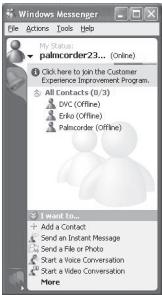
text_image
Windows Messenger File Tools Help My Status palmcorder23... (Online) Click here to join the Customer Experience Improvement Program. All Contacts (0/3) DVC (Offline) Echo (Offline) Palmcorder (Offline) I went to... Add a Contact Send an Instant Message Send a File of Photo Start a Voice Conversation Start a Video Conversation More6 Click on [Audio Tuning Wizard...] in the [Tools] menu to confirm that equipment is connected correctly.
![PANASONIC PVGS35 - Click on [Audio Tuning Wizard...] in the [Tools] menu to confirm that equipment is connected correctly. - 1](/content/2019/08/105179/images/0f781bfda1344a0ec66ee9ee809bd3523db9ab5e0ea5d5d2d65784eab618bcfc.jpg)
text_image
Windows Messenger File Actions Tools Help Add: 12 Add: 12 Add: 12 Add: 12 Add: 12 Add: 12 Add: 12 Add: 12 Add: 12 Add: 12 Add: 12 Add: 12 Add: 12 Add: 12 Add: 12 Add: 12 Add: 12 Add: Add: 12 Add: 12 Add: 12 Add: 12 Add: 12 Add: 12 Add: 12 Add: 12 Add: 12 Add: 12 Add: 12 Add: 12 Add: 12 Add: 12 Add: 12 Add: 12 Add: 3 Add: 3 Add: 3 Add: 3 Add: 3 Add: 3 Add: 3 Add: 3 Add: 3 Add: 3 Add: 3 Add: 3 Add: 3 Add: 3 Add: 3 Add: 3 Add: 3 Add: 3 Add: 3 Add: 3 Add: 4 Add: 4 Add: 4 Add: 4 Add: 4 Add: 4 Add: 4 Add: 4 Add: 4 Add: 4 Add: 4 Add: 4 Add: 4 Add: 4 Add: 4 Add: 4 Add: 4 Add: 4 Add: 4 Add: 4 Add: 5 Add: 5 Add: 5 Add: 5 Add: 5 Add: 5 Add: 5 Add: 5 Add: 5 Add: 5 Add: 5 Add: 5 Add: 5 Add: 5 Add: 5 Add: 5 Add: 5 Add: 5 Add: 5 Add: 5 Add: 6 Add: 6 Add: 6 Add: 6 Add: 6 Add: 6 Add: 6 Add: 6 Add: 6 Add: 6 Add: 6 Add: 6 Add: 6 Add: 6 Add: 6 Add: 6 Add: 6 Add: 6 Add: 6 Add: 6 Add: 7 Add: 7 Add: 7 Add: 7 Add: 7 Add: 7 Add: 7 Add: 7 Add: 7 Add: 7 Add: 7 Add: 7 Add: 7 Add: 7 Add: 7 Add: 7 Add: 7 Add: 7 Add: 7 Add: 7 Add: 8 Add: 8 Add: 8 Add: 8 Add: 8 Add: 8 Add: 8 Add: 8 Add: 8 Add: 8 Add: 8 Add: 8 Add: 8 Add: 8 Add: 8 Add: 8 Add: 8 Add: 87 Select [USB Video Device] in the [Camera] menu.
![PANASONIC PVGS35 - Select [USB Video Device] in the [Camera] menu. - 1](/content/2019/08/105179/images/0c3ac73a7f316f7624d4d15cc2909f06aa69db6cce98ccd56ebd8ec061aadd69.jpg)
text_image
Audio and Video Tuning Wizard Select the camera you want to use. Camera USB Video Device < Back Next > Cancel8 Select [DVC] in the [Microphone] menu.
![PANASONIC PVGS35 - Select [DVC] in the [Microphone] menu. - 1](/content/2019/08/105179/images/1944964e76847e34adcffda187fcb973cba04e58bc33b711987ccc9ce4dbbcdd.jpg)
text_image
Audio and Video Tuning Wizard Select the microphone and speakers you want to use: Microphone: WAC Speakers: Advance ACSY Audio □ are using headphones: Selecting this check box turns off the acoustic echo cancellation feature, which is not needed if you have headphones. < Back Next > Cancel- For other information about Windows Messenger, please refer to Help.
- When access is finished, close Windows Messenger, then turn off the Camcorder. Finally, disconnect the USB Cable.
- If the Camcorder is used as Web Camera continuously for two hours, the communication is automatically shut OFF. In this case, restart Windows Messenger and set up the communication again.
Setting up the MSN Messenger
When starting the MSN Messenger for the first time, its setup screen is displayed. (However, the screen is not displayed if the MSN Messenger setup has already been done.) For more details, please read the corresponding Help file.
1 Click [Sign In].
![PANASONIC PVGS35 - Click [Sign In]. - 1](/content/2019/08/105179/images/f17d6cbe93336176aaa72d42bb16315863139218425ea778493f64f17c662d31.jpg)
text_image
MSN Messenger File Contacts Actions Tools Help welcome msn Click below to sign in: Sign In2 Type in your Sign-in name and password. • If you do not have your Sign-in name and password, click [Get one here].
![PANASONIC PVGS35 - Type in your Sign-in name and password. • If you do not have your Sign-in name and password, click [Get one here]. - 1](/content/2019/08/105179/images/fd5dd9d4a9734fd6e5855507b5360fd7110458adeef50ba9e5f011fe378d66c9.jpg)
text_image
Sign in to .NET Messenger Service - MSN Messenger Sign-in name: Examples: name_123@hotmail.com myname@msn.com example@passport.com Password: Remember my name and password on this computer OK Cancel3 Please carefully read the displayed contents and then proceed.
4 After the setup is completed, sign in and start the MSN Messenger.
5 Click on [Audio Tuning Wizard...] in the [Tools] menu to confirm that equipment is connected correctly.
![PANASONIC PVGS35 - Type in your Sign-in name and password. • If you do not have your Sign-in name and password, click [Get one here]. - 2](/content/2019/08/105179/images/dbe7ba644eac336f303b727578bcaff81b9908b933888edab5114646f8f53489.jpg)
text_image
MCM Messages File Contacts Options Help My Documents Palmocords Click here to Customer Else Programs Not Online DVC Edita Palocondra Create Eplicomms... Create Backgrunds... Change Display Picture... Avis History Open My Phone Numbers... Edit My Mobile Settings... Audio Turning Island... Web Camera Settings... Options... I want ... Add a Contact Send on Instant Message Send a File or Photo Play a Game Search for a Contact6 Select [USB Audio Device] in the [Microphone] menu.
![PANASONIC PVGS35 - Select [USB Audio Device] in the [Microphone] menu. - 1](/content/2019/08/105179/images/f86003b056b5be526171f644943b02f1d43535f7b018d9230d952a7784c35f33.jpg)
text_image
Audio Tuning Wizard Select the microphone and speakers you want to use. Microphone: USB Audio Device Speaker: Advance ACST Audio Enable Direct Sound Approximation < Back Next > Cancel7 Click [Web Camera Settings...] in the [Tools] menu.
![PANASONIC PVGS35 - Click [Web Camera Settings...] in the [Tools] menu. - 1](/content/2019/08/105179/images/37ef18bf78d047d95d7c05af0202e2ee84c86dae7a958be33c07dac695c2e50e.jpg)
text_image
MSN Messenger File Contacts Actions Tools Help My History PalmaCorder Add to here to in Customer Exp ePure Edit the text file... Name of your Not Online (3) DVC Editio PalmaCorder File Controls Pane Top Top Create Emotion... Create Backgrounds... Change Display Picture... Alerts History Publish My Number Numbers... Edit My Nobile Settings... Audio Tuning Wizard... Web Canea Settings... Options... I want to... Add a Contact Send an Instant Message Send a File or Photo Play a Game More > msn Messenger8 Confirm the [Panasonic DVC Web Camera Device] ① is selected.
![PANASONIC PVGS35 - Confirm the [Panasonic DVC Web Camera Device] ① is selected. - 1](/content/2019/08/105179/images/4661cb01d24ed49938b67c10808ac6e9e96331e1a151f7c8f5ae51d32a0e0648.jpg)
text_image
Camera Settings Camera Settings Top menu Top view Top display Top filter Top image More by image. This does not affect the image for other person uses. Camera Selection Select the camera you want to use Properties Of Course Camera Format Close Advanced Close- For other information about MSN Messenger, please refer to Help.
- If the Camcorder is used as a Web Camera continuously for two hours, the communication is automatically shut OFF. In this case, restart MSN Messenger and set up the communication again.
- When access is finished, close MSN Messenger, then turn off the Camcorder. Finally, disconnect the USB Cable.
Using MotionDV STUDIO (PV-GS35 Only)
When the OS is Windows XP/2000/Me, the Camcorder can be connected to the personal computer with the DV Cable.
When the OS is Windows XP/2000, the Camcorder can be connected to the personal computer with the USB Cable, however, Video Stream Driver must be installed.
- Do not connect the USB Cable until the Video Stream Driver is installed.
Operating environment
OS:
IBM PC/AT compatible personal computer with pre-installed:
Microsoft Windows XP Home Edition/Professional SP1 or later
Microsoft Windows 2000 Professional SP4 or later Microsoft Windows Me (Millennium Edition) (Only in DV connection)
CPU:
Intel Pentium III 700 MHz or higher/AMD Athlon 1 GHz or higher (including compatible CPU)
Graphic display:
High Color (16 bit) or more
(32 bit or more recommended)
Desktop resolution of 1 024 × 768 pixels or more
(Supporting the overlay of DirectDraw)
4 MB or more video memory
Sound:
PCM sound source (Compatible Direct Sound)
RAM:
256 MB or more
(Adding more memory enables you to operate the personal computer more comfortably.)
Hard disk:
Ultra DMA - 33 or more
Free hard disk space:
640 MB
(When you capture video, 1 GB is needed for data of approx. 4 minutes.)
Interface:
DV (IEEE1394) terminal (IEEE1394.a)
USB 2.0 (Hi-Speed compliant)
DirectX 9.0b or later
Windows Media Player 6.4 or later
Other requirements:
Mouse
Installing Video Stream Driver
Install this when your OS is Windows XP SP1 or later, or Windows 2000 SP4 or later. (When your OS is Windows XP SP2 or later, installing Video Stream Driver is not needed.) Video Stream Driver must be installed when you connect the Camcorder to the PC with the USB Cable and use MotionDV STUDIO. DirectX 9.0b is installed in your PC if it is not installed beforehand.
- When DirectX 9.0b is installed, applications supported by previous versions of DirectX may not run. In this case, consult the manufacturers of the applications disabled.
1 Insert the CD-ROM into the personal computer's CD-ROM drive.
- Quit all applications.
- The [Setup Menu] screen appears.
2 Click [Video Stream Driver].
- The set up program starts running.
3 For Windows XP users:
Depending on your system environment, installation of "DirectX 9.0b" may be required. Click [Yes] and continue with installation.
- After "DirectX 9.0b" is installed, the computer will restart.
- Do not remove the CD-ROM.
• Installation may take a little while.
4 Finish installation by following the on-screen instructions.
- Click [Next] and proceed with installation.
• After completing the installation, Click [Finish].
5 After the Video Stream Driver is installed, please restart your computer.
Installation of MotionDV STUDIO
1 Insert the supplied CD-ROM into the personal computer's CD-ROM drive.
- Quit all applications.
- The [Setup Menu] screen appears.
2 Click the [MotionDV STUDIO].
![PANASONIC PVGS35 - Click the [MotionDV STUDIO]. - 1](/content/2019/08/105179/images/98ab2997ee52cb03d4323ab9a36c27549581ec7e3ad557733af92ffae4549648.jpg)
text_image
Setup Money Acrobat Reader DirectX MotionDV STUDIO Installing MotionDV STUDIO for Video Editing MotionD V300 Video Stream Driver USB Driver OK3 Click [Next].
![PANASONIC PVGS35 - Click [Next]. - 1](/content/2019/08/105179/images/f325f0ec99b130473ec66cd605afa398600e7911f125e3309e41f694c3ff1341.jpg)
text_image
InstallShield Wizard Welcome to the InstallShield Wizard for MotemDV 51000 5.3E LE for DV The InstallShield Wizard will install MotemDV 51000 5.3E LE for DV on your computer. To continue, click Next.• After reading the displayed contents, please carry out the installation according to instructions.
4 Select the Video system.
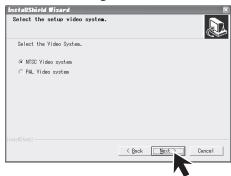
text_image
SetupShield Wizard Select the setup video system. Select the Video System. MSCI Video system PAL Video system < Back Next Cancel- The [Readme] screen is displayed. Please carefully read the displayed contents and close the [Readme] screen.
5 After the completion of setup, click on [Finish].
![PANASONIC PVGS35 - After the completion of setup, click on [Finish]. - 1](/content/2019/08/105179/images/9c699126b009dda40dd817fc4143ff110d4eed794e1cb3eaebcd4873742b446b.jpg)
text_image
InstallShield Wizard Complete Setup has finished installing MotionDV STUDIO on your computer. Always check the installed Wizard because it contains important information about MOTION DV STUDIO. OK Cancel- Sample data is installed concurrently with the MotionDV STUDIO software.
6 Click [Finish] when the [Restarting Windows] dialog appears.
- Reboot the computer to finish installing MotionDV STUDIO.
To start MotionDV STUDIO
If you wish to capture data from a tape, set the Camcorder to Tape Playback Mode and insert the tape. If you wish to capture images from the lens of the Camcorder, set the Camcorder to the Tape Recording Mode and remove the tape and the card.
■ With USB (supplied)
OS:
Windows XP SP1 or later
Windows 2000 SP4 or later
- The personal computer should be compatible with USB 2.0 Hi-Speed.
Confirmation before connection (for Windows XP/2000)
When you connect the personal computer and the Camcorder with the USB Cable and then use MotionDV STUDIO on Windows XP (SP1 or later) or Windows 2000 (SP4 or later), check the driver of the USB host controller.
- It is required to use the driver for which [Microsoft] is displayed on [Driver Provider] in [Driver] tab.
1 Select [Start] >> [Settings] >> [Control Panel] to start [System].
- [System Properties] is displayed.
2 Click [Hardware] tab and then click [Device Manager] then [Universal Serial Bus Controller].
3 Right-click [Enhanced Host Controller] and then select [Properties].
![PANASONIC PVGS35 - Right-click [Enhanced Host Controller] and then select [Properties]. - 1](/content/2019/08/105179/images/969d21f69148e3140d01a1a26582ed635d607715e20fcf685608ca1d69fbd88a.jpg)
text_image
Ports (COM & LPT) Processors Sound, video and game controllers System devices Universal Serial Bus controllers Standard Universal PCI to USB Host Controller Standard Universal PCI to USB Host Controller Standard Universal PCI to USB Host Controller USB Root Hub USB Root Hub- The indication [Enhanced Host Controller] is changed as [EHCI] depending on the host controller you use.
4 Click [Driver] tab to check the description on [Driver Provider].
![PANASONIC PVGS35 - Click [Driver] tab to check the description on [Driver Provider]. - 1](/content/2019/08/105179/images/0b50130bf07175792c829dec35e99ba65c6b4b230c92dc5e2b0fab33b3dd34b4.jpg)
text_image
Standard Universal PCI to USB Host Controller Properties General Advanced Driver Resources Standard Universal PCI to USB Host Controller Driver Provider: Microsoft Driver Date: 01/07/2001 Driver Version: 5.1.2600.0 Digital Signar: Microsoft Windows Publisher- If [Microsoft] is displayed on [Driver Provider], the confirmation procedure is completed.
If a description other than [Microsoft] is displayed
- Update the driver with the following procedure.
1 Click [Update Driver...].
![PANASONIC PVGS35 - Click [Driver] tab to check the description on [Driver Provider]. - 2](/content/2019/08/105179/images/c0eecff850c1e5bd60977eff1c775d50b1b9c23906210a4f4c79584e36f8c7a5.jpg)
text_image
Standard Universal PCI to USB Host Controller Properties General Advanced Driver Resources Standard Universal PCI to USB Host Controller Driver Provider: Driver Date: 01/07/2001 Driver Version: 5.1.2600.1106 Digital Signee: Microsoft Windows Publisher Driver Details: To view details about the driver Bits. Update Driver: To update the driver for this device. Roll Back Driver: If the device fails after updating the driver, roll back to the previously installed driver.2 Check [Install from a list or specific location (Advanced)] and then click [Next].
![PANASONIC PVGS35 - Click [Driver] tab to check the description on [Driver Provider]. - 3](/content/2019/08/105179/images/b7553ce67bb3107e899b415dc469075e1817b9c237388c8a9e916cbd48198968.jpg)
text_image
Hardware Update Wizard Welcome to the Hardware Update Wizard. This wizard helps you install software for: Standard Universal PD to USB Host Controller If your hardware come with an installation CD in floppy disk, insert it now. What do you want the wizard to do? • Install the software automatically (Recommended) • Install how a slot or specific location (advanced) Click Next to continue. OK Cancel- When your OS is Windows 2000, click [Next] after [Update Device Driver Wizard] appears.
3 For Windows XP Users: Check [Don't search. I will choose the driver to install] and then click [Next].
![PANASONIC PVGS35 - Click [Driver] tab to check the description on [Driver Provider]. - 4](/content/2019/08/105179/images/acb58762982493e83deb8631251939820c866a0e08538e1b89850fa35dbf99cc.jpg)
text_image
Hardware Update Wizard Please choose your search and installation options. Search for the best drive in these locations. Use the check boxes below to help or expand the default search, which includes local paths and remote media. The best drive found is installed. Search more expensive (GPS) (20 MHz) Include this option on the search OK/Cancel (20 MHz) Don't search I will choose the drive to install. Choose this option to select the device driven from a list. Windows does not guarantee that the drive you choose will be the best switch to your hardware. Back Next CancelFor Windows 2000 Users: Check [Display a list of the known drivers for this device so that I can choose a specific driver] and then click [Next].
4 Click [Standard Universal PCI to USB Host Controller] and then click [Next].
![PANASONIC PVGS35 - Click [Driver] tab to check the description on [Driver Provider]. - 5](/content/2019/08/105179/images/5efa2e5d5d2e7a28dd6ba330505895fe0ab762e11f2679e18796685efec9435f.jpg)
text_image
Hardware Update Wizard Select the device drivers you want to install for this hardware. Select the manufacturer and model of your hardwinds device and then click Next. If you have a disk that contains the driver you want to install, click Have Disk. Show compatible hardwinds Model Standard (Universal PCI) to USB Model Controller This drive is digitally signed. Tell me who drives stereo is important Back Stop Cancel5 Click [Finish].
- The update of the driver is completed. Connect the Camcorder.
Connecting the Camcorder to a personal computer
1 Set the Camcorder to Tape Recording Mode or Tape Playback Mode.
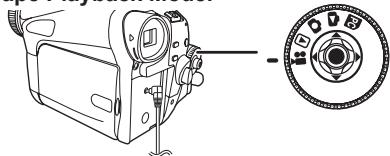
text_image
Diagram of a camera with labeled parts and a circular dial indicator showing measurement markings2 Set [ ∝ BASIC] or [ ✉ ADVANCE] >> [ USB USB FUNCTION] >> [MOTION DV].
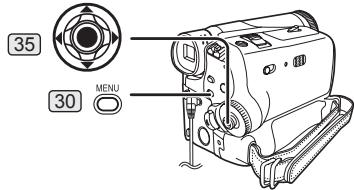
text_image
35 30 MENU- It enters MotionDV STUDIO Mode.
3 Connect the Camcorder to your personal computer with USB Cable.
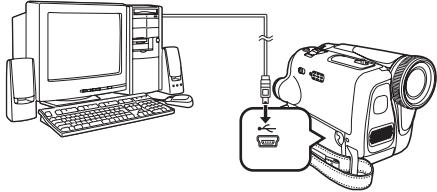
natural_image
Line drawing of a desktop computer connected to a vintage camera via cable (no text or symbols)4 Select [Start] >> [All Programs (Programs)] >> [Panasonic] >> [MotionDV STUDIO 5.3E LE for DV] >> [MotionDV STUDIO LE for DV].
- Using the MotionDV STUDIO for Windows, a variety of visual effects can be added and titles can be created.
- You cannot record a video edited by the PC onto the Tape in the Camcorder.
■ With DV Cable (optional)
OS:
Windows Me/2000/XP
1 Set the Mode Dial to Tape Recording Mode or Tape Playback Mode.
2 Connect the Camcorder to the personal computer with DV Cable.
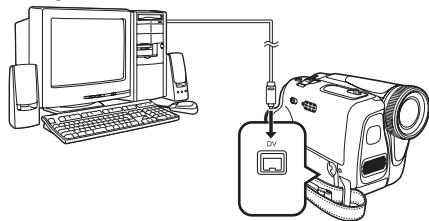
natural_image
Line drawing of a computer setup with monitor, keyboard, and DVD player (no text or symbols)3 Start MotionDV STUDIO 5.3E LE.
- You can record the video edited by the PC onto the Tape in the Camcorder.
- When 2 or more USB devices are connected to a personal computer, or when devices are connected through USB hubs or by using extension cables, proper operation is not guaranteed.
- When connected to the keyboard USB terminal, normal function may not be possible.
If you no longer need software or driver (Uninstall)
The screens may vary with the type of the OS.
1 Select [Start] (>> [Settings]) >> [Control Panel], select the software or the driver from [Add/Remove Programs] to uninstall.
- Uninstalling steps may vary depending on the OS. Please refer to the user manual of your OS.
2 After software or driver is uninstalled, please restart your computer.
Notes
• Macintosh is a registered trademark of Apple Computer, Inc.
- Microsoft® Windows®, Windows Messenger®, MSN Messenger® and DirectX® are either trademarks or registered trademarks of the Microsoft Corporation in the United States and/or other countries.
- Intel ^ , Pentium ^ and Celeron ^ are the registered trademarks or trademarks of the Intel Corporation.
- All other names, company names, product names, etc. in these instructions are the trademarks or registered trademarks of their respective corporations.
- The names of the products you are using may differ from the names given in the text. Depending on the operating environment and other factors, the contents of the screens used in these instructions may not necessarily match what you will see on your screen.
- Although the screens in these Operating Instructions are shown in English for the sake of example, other languages are supported as well.
- In this Manual, the Panasonic make digital video camera with USB Jack is referred to as Camcorder.
- These instructions do not cover the basic operations of the personal computer or define any terms. For this information, refer to the Operating Instructions which accompany your personal computer.
- Do not disconnect USB Cable while the operation light of Camcorder is on. It may freeze the software or destroy the data in transfer.
- We recommend using the AC adaptor as the power source for the Camcorder when connecting to the personal computer. Data may be lost if the battery power is lost while transferring data.
- If the Camcorder is used as a Web Camera while virus checking software is running, the Camcorder's operation may stop midway through. In this case, exit the Windows Messenger or MSN Messenger, reconnect the Camcorder and restart the Windows Messenger or MSN Messenger.
- Do not delete the folders in the memory card such as picture folder. Memory card may not be recognized if folders are deleted.
- When the Camcorder is switched to the PC Mode while it is connected to the personal computer, the operation mode of the Camcorder cannot be switched. In this case, disconnect the USB Connection Cable. Switch the operation mode of the Camcorder and reconnect the Cable.
- When the Tape Recording Mode of the Camcorder is switched to the PC Mode, a warning message may be displayed. You may simply ignore it.
- When you are using Windows XP or Windows 2000, you may install or uninstall this software after logging ON by setting the user name to Administrator or to a user name having equivalent authority.
- If you install the USB Driver or Video Stream Driver after the USB Cable is connected, or if you do not follow these Operating Instructions, the Camcorder will not be recognized correctly. In this case, delete the USB Driver from [Device Manager] as described below, uninstall the USB Driver, and re-install it.
- With the Camcorder and personal computer connected via a USB Cable, open the [Device Manager]. Right-click [!DVC] ① in [Ports] or [Other devices], and select [Uninstall]. (!!DVC) ① will differ depending on the OS or operating environment of your personal computer.)
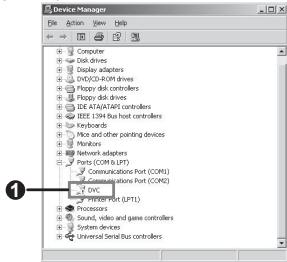
text_image
Device Manager File Action View Help Computer Disk drives Display adapters DVD(C)-ROM drives Flappy disk controllers Flappy disk drives IDE IATA/IATR controllers IEEE 194 bus host controllers Keyboards Pick and other pointing devices Holidays Network adapters Porto (COM to LPT) Communications Port (COMS) Communications Port (COMZ) DWC Power Port (LPT1) Processors Sound, video and game controllers System devices Universal Serial Bus controllersAbout the SD Memory Card
SD Memory Card (Optional)
The SD Memory Card is an external Memory Card that is available in larger capacities. It has a write protect switch to prevent data writing and card formatting, as well as a copyright protection function.
• SD Logo is a trademark.
- All other company and product names in the operating instructions are trademarks or registered trademarks of their respective corporations.
Files recorded on an SD Memory Card
It may not be possible to play back the files on this Camcorder recorded on and created by other equipment or vice versa. For this reason, check the compatibility of the equipment in advance.
About the compatibility of the card files
Data files recorded on an “SD Memory Card” by this Camcorder conform with DCF (Design rule for Camera File system) established by JEITA (Japan Electronics and Information Technology Industries Association).
- If you attempt to play back files recorded with this Camcorder on other equipment or to play back files recorded with other equipment on this Camcorder, you may not be able to play them back. Please check the compatibility with the other equipment in advance.
About the folder structure when using the Memory Card in a personal computer
- When a Card with data recorded on it is inserted into a personal computer, folders will be displayed as shown in the following figure.
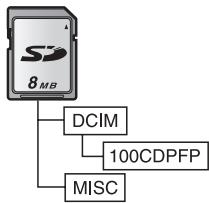
flowchart
graph TD
    A["SD8MB Card"] --> B["DCIM"]
    A --> C["100CDPFP"]
    A --> D["MISC"]
[100CDPFP]:
The images (IMGA0001.JPG, etc.) in this folder are recorded in the JPEG format.
[MISC]:
Files in which DPOF Data has been set to the image are in this folder.
- [DCIM], etc. are necessary items in the folder structure. They have nothing to do with actual operations.
- In the Card Mode, the Camcorder automatically saves file numbers (IMGA0001.JPG, etc.) along with the images. The file numbers are recorded with each image as consecutive numbers.
- When using software without an indication function, indication data, such as date, are not displayed. Depending on the software in use, the date and the time may not be displayed correctly.
- The memory capacity indicated on the SD Card label corresponds to the total card capacity. Some of this capacity is used to protect and manage the copyright data, and not all capacity is available as a conventional memory for a Camcorder, Personal Computer or others.
Others
Indications
Various functions and the Camcorder status are shown on the screen.
: Remaining Battery Power
- Along with the reduction of the battery capacity, the display will change: 1 2 3 4 . If the battery discharges, then 5 ( ① ) will flash.
R0:45 : Remaining Tape Time
- Remaining tape time is indicated in minutes. (When it reaches less than 3 minutes, the indication starts flashing.)
- During a 15-second or shorter recording, the remaining tape time indication may not be displayed or the remaining tape time may not be displayed correctly.
- In some cases, the remaining tape time indication may display remaining tape time that is 2 to 3 minutes shorter than the actual remaining tape time.
: Tape Recording Mode (p. 25)
▶: Tape Playback Mode (p. 35)
Card Recording Mode (p. 26)
Picture Playback Mode (p. 37)
PC : PC Mode (p. 46)
CINEMA : Cinema Mode (p. 31)
☐ : Digital Zoom (p. 29)
SP : Standard Play Mode (Recording Speed Mode) (p. 24)
LP : Long Play Mode (Recording Speed Mode) (p. 24)
AUTO : Automatic Mode (p. 25)
MNL : Manual Mode (pp. 31\~34)
EIS : Image Stabilizer (p. 29)
12 bit, 16 bit : Audio Recording Mode (p. 24)
MF: Manual Focus (p. 34)
Back Light Mode (p. 30)
Sports Mode (Scene Mode) (p. 31)
: Portrait Mode (Scene Mode) (p. 31)
: Low Light Mode (Scene Mode) (p. 31)
Spotlight Mode (Scene Mode) (p. 31)
Surf & Snow Mode (Scene Mode) (p. 31)
- : Recording (p. 25)
II (Green): Recording Pause (p. 25)
■ (Green Standby Mode Flash):
II: Still Playback (p. 35)
Self-Timer Recording (p. 28)
▶ : Playback (p. 35)
▶▶ : Fast-forward/Cue Playback (p. 35)
◀◀ : Rewind/Review Playback (p. 35)
◀I, I▶ : Slow Motion Playback (p. 36)
◀II, II▶ : Still Advance Playback (p. 36)
Recording Check (p. 25)
A.DUB● : Audio Dubbing (p. 41)
A.DUBIII : Audio Dubbing Pause (p. 41)
® : Blank Search (p. 26)
○▶ : Repeat Playback (p. 62)
2×▶▶: Variable Speed Search (p. 36)
1/500 : Shutter Speed (p. 33)
: Slide Show Playback (p. 37)
F2.4 : F Number (p. 34)
6dB Gain Value (p. 34)
W : Fade (White) (pp. 29\~30)
B : Fade (Black) (pp. 29\~30)
AWB : Auto White Balance (p. 32)
■ : White Balance Adjustment Mode (pp. 32\~33)
※: Outdoor Mode (p. 32)
※: Indoor Mode (recording under incandescent lamp) (p. 32)
MagicPix Function (p. 30)
Zoom : Zoom Microphone (p. 28)
Wind Noise Reduction (p. 31)
p : Progressive Photoshot Mode (p. 26)
Soft Skin Mode (p. 31)
Volume adjustment (p. 35)
12:34:56AM: Date/Time Indication (p. 58)
Photoshot Picture Quality (p. 26)
0 : Remaining Number of Photoshot pictures (When the remaining number of Photoshot pictures reaches 0, the red indication flashes.)
100-0001 : Folder/File Display
No. 00 : File Number
1 : Number of DPOF Setting (pp. 38\~39)
☐: RapidFire Consecutive Photoshot Recording (p. 27)
On : Lock Setting (p. 39)
ED : LED Video Light is on. (p. 27)
+: Gain up (p. 27)
WEB : Web Camera Mode (Recording) (p. 49)
▶ WEB : Web Camera Mode (Playback) (p. 49)
640 : [640 × 480] Image size
- For images not recorded with this Camcorder, the size display is determined as follows according to the number of horizontal pixels.
640 : 640 or more, less than 800 (The size is not displayed at under 640 pixels.)
SVGA: 800 or more, less than 1 024
XGA: 1 024 or more, less than 1 280
SXGA: 1 280 or more, less than 1 600
UXGA: 1 600 or more, less than 2 048
QXGA: 2 048 or more
☐ (White): Photoshot Mode
(Red): While Photoshot recording is activated
☐ (Green): While the Card being read
(Red): Using the card that cannot be recognized
■ To Display Date/Time Indication
This switches between date and time indications.
Set [ ✘ BASIC] or [ ✕ ADVANCE] >> [ DATE DATE/TIME]
[D/T], [DATE] or [OFF]. (pp. 22, 23)
- The Camcorder automatically records the date and time of picture taking on the tape.
- You can also show or change the Date/Time Indication by repeatedly pressing the [DATE/TIME] Button on the Remote Control (PV-GS35 only).
■ To Change the Display Mode
Set [✗] SETUP] >> [☐] DISPLAY] >> [ON] or [OFF]. Set to [ON] and the display mode can be switched to all functions. Set to [OFF] and it can be switched to minimum display. (pp. 22, 23)
■ Progressive Photoshot
You cannot use the Progressive Photoshot Function in the following cases.
When using Tape Recording Mode
- Digital Zoom [ ]
• 1/750 s or faster shutter speed - When brightness is insufficient
- When the MagicPix Function is ON
- When the Portrait is used
- When the Gain Up mode is set to ON
When using Card Recording Mode
- When brightness is insufficient
- When the Gain Up mode is set to ON
■ Power Save Mode
Set [ %1 SETUP] >> [ △² POWER SAVE] >> [5 MINUTES] or [OFF].
[OFF]:
When about 5 minutes passed without any operation, the standby mode automatically will be set. In the standby mode, [Ⅲ] blinks and it takes time more than usual to start recording after you press the Recording Start/Stop Button.
[5 MINUTES]:
When about 5 minutes passed without any operation, the Camcorder automatically turns off to protect the tape or to prevent the battery from running down. When you use the Camcorder, turn it on again.
- The Camcorder cannot be automatically turned off when you connect the USB Cable or the DV Cable with the Camcorder or when the Camcorder is in the PC Mode.
Initializing the Modes
You can change the Menu settings back to the shipping condition.
- Set to Tape/Card Recording Mode.
1 Set [ ✉ ADVANCE] >> [ ♂ INITIAL SET] >> [YES].
- The initializing takes a little while.
- Initializing will not erase a clock setting (p. 24) that has been adjusted.
Warning/Alarm Indications
If any one of the following indications lights up or flashes, please check the Camcorder.
Confirmatory Indications
A cassette with the accidental erasure prevention slider placed in the [SAVE] position is inserted. No cassette is inserted.
[--] / ☑: The built-in battery is low. (p. 24)
☐ : The Warning/Alarm Indication appears when you record yourself. Turn the LCD Monitor towards the Viewfinder and check the Warning/Alarm Indication.
No card is inserted.
REMOTE: An incorrect Remote Control mode has been selected. (pp. 14\~15)
☐ END : The tape came to the end during recording.
✗: The video heads are dirty. (p. 65)
Textual Indications
DEW DETECT/ EJECT TAPE:
Condensation has occurred. Take out the cassette and wait for a while. It takes some time until the cassette holder opens, but this is not a malfunction. (p. 64)
TAPE END:
The tape came to the end during recording.
NEED HEAD CLEANING:
The video heads are dirty. (p. 65)
PUSH THE RESET SWITCH:
An irregularity in the equipment has been detected. Press the [RESET] Button (p. 70). This may solve the problem.
LOW BATTERY:
The Battery is low. Recharge it. (p. 15)
NO TAPE:
No tape is inserted. (p. 17)
CHECK REMOTE MODE:
An incorrect Remote Control Mode has been selected. This is only displayed at the first operation of the Remote Control after powering-on. (pp. 14\~15)
CHECK REC TAB:
You are attempting to record pictures on a tape with the accidental erasure prevention slider placed in the [SAVE] position.
You are attempting Audio Dubbing or Digital Dubbing on a tape with the accidental erasure prevention slider placed in the [SAVE] position.
WRONG TAPE FORMAT:
You are attempting to play back a tape section that has been recorded with a different TV system. This cassette is incompatible.
UNABLE TO A.DUB
(LP RECORDED):
Because the original recording was in LP Mode, audio dubbing cannot be performed.
UNABLE TO A.DUB:
You are attempting to perform audio dubbing on a non-recorded tape.
COPY PROTECTED:
Images cannot be recorded correctly because the medium is protected by a copy guard.
CARD ERROR:
The Card is not compatible with this Camcorder. You are attempting to format a failed card. It displays, when you attempt to insert the incompatible card to Card Slot.
NO CARD:
No card is inserted.
CARD FULL:
Card does not have sufficient memory remaining. Select Picture Playback Mode and delete unnecessary files.
NO DATA:
There are no recorded files on the card.
UNPLAYABLE CARD:
You are attempting to play back data not compatible with this Camcorder.
FILE LOCKED:
You are attempting to erase protected files.
CARD LOCKED:
The write protection switch on the SD Memory Card is set to [LOCK].
CHANGE MODE TO USE USB:
The USB Cable is connected to the Camcorder in Card Recording Mode.
You are attempting to select an item other than [OFF] in [SCN SCENE MODE] during MagicPix Mode.
DISCONNECT USB CABLE:
You are attempting to turn the Mode Dial in PC Mode with the USB Cable connected to the Camcorder. You are attempting to record pictures on a Tape/Card with the USB Cable connected to the Camcorder.
PC DOES NOT SUPPORT USB2.0:
The Camcorder is connected to a personal computer that does not support USB2.0.
CAN NOT USE USB:
You are connecting the USB Cable with the DV Cable connected in MotionDV Mode.
CHANGE TO MANUAL MODE:
You are attempting to select an item other than [OFF] in [SCN SCENE MODE] when the [AUTO/MANUAL/FOCUS] Switch is set to [AUTO].
CAN NOT OPERATE
(MOTION DV MODE) (PV-GS35 Only):
You are attempting to change [☐ D.ZOOM] setting during MotionDV Mode.
You are attempting to select an item in [SCN SCENE MODE] when Light is on.
Notes and Hints
■ Concerning the Power Supply
- When the Camcorder has been used for a long time, the Camera body becomes warm, but this is not a malfunction.
- If the [CHARGE] Lamp does not light up although the Battery is attached to the AC Adaptor, detach the Battery and reattach it.
■ Inserting/Removing the Cassette
- When inserting a previously recorded Cassette, use the Blank Search Function (p. 26) to find the position where you want to continue recording. If you overwrite-record on a previously recorded cassette, be sure to find the position where you want to continue recording.
- If a new Cassette is inserted, rewind to the beginning of the tape before starting recording.
- When inserting the cassette, make sure it faces in the right direction and then push it in until it stops.
- When the Cassette Holder is in action, do not touch anything except the [PUSH] mark.
- Close the Cassette Compartment Cover tightly.
- When closing the Cassette Compartment Cover, do not get anything, such as a cable, caught in the cover.
■ Alarm Sounds
- Set to Tape/Card Recording Mode.
When [■) BEEP SOUND] on the [§] SETUP] is set to [ON], confirmation/alarm beeps are issued as follows.
1 Beep
- When you start recording
- When you turn on the power
2 Beeps
- When you pause recording
2 Beeps 4 times
- When a cassette with its erasure prevention tab set to [SAVE] is inserted, condensation occurs, and at other times. Check the sentence displayed on the screen.
■ Recording on a Card
- Even if the [ 📋 SHTR EFFECT] is set to [ON], the Shutter Effect cannot be recorded on the picture.
- When the color of the screen changes or blurs, adjust the shutter speed manually to 1/60 or 1/100.
Photoshot
- Photoshot Recording results in slightly inferior image quality.
- For the number of still pictures to be recorded on a card, refer to page 27.
- The sound cannot be recorded.
- While data is being recorded on a card, do not operate the Mode Dial.
- When the Access Lamp is lit, do not insert or remove a card.
- Another product may degrade or not play back data recorded on this Camcorder.
- If set [山区 PICT. QUALITY] >> [山区 ], mosaic-pattern noise may appear on a playback image depending on the picture content.
RapidFire Consecutive Photoshot
- One more still picture may be recorded after you release the [PHOTO SHOT] Button.
- If [✿ BASIC] >> [💡 SELF TIMER] >> [YES] is set, the Camcorder records the maximum number of pictures recordable.
- Intervals between recording pictures may become longer depending on the card. We recommend using a Panasonic SD Memory Card.
- When using a card formatted by other equipment or a card that was recorded and erased repeatedly, the intervals between recording pictures may become longer. If so, back up your important data on a PC, and format your card with this Camcorder.
■ Recording with the Built-in LED Video Light
- The subject should be within 4.9 feet (1.5 meters) of the Camcorder.
- Using the LED Video Light reduces battery time.
- Set the LED Video Light to off when not in use.
- Do not look directly into the light.
- If the LED Video light is used with a Conversion lens attached, a slight vignetting (darkening around edges) effect occurs on the screen.
- Using the MagicPix Function at the same time will make conditions even brighter.
- The LED video light enables simply lightening the images taken in a dimly-lit place. We also recommend using it in a bright place to obtain high quality images.
■ Quick Start
- During the Quick Start Standby Mode, a minute amount of electricity is consumed.
- When you set [ ^2 POWER SAVE] to [5 MINUTES] and the Camcorder is left in the Recording Pause Mode for 5 minutes, it will be turned into the Quick Start Standby Mode. To turn the Camcorder on again, set the [OFF/ON] Switch to [OFF] and then set it to [ON] again. (The Quick Start Mode will be restored.)
- This Function is not activated in the following case:
- Neither a card nor a tape has been inserted while the Tape/Card Recording Mode is set.
- When you rotate the Mode Dial or remove the battery, the Quick Start Recording Lamp is turned off and the Quick Start mode is canceled. If the Camcorder is turned on and the Tape/Card Recording Mode is set, the Lamp turns on and the quick start mode is restored.
- Press and hold the [QUICK START] Button for approx 2 seconds during the Quick Start Standby Mode. The Lamp will go off and the Camcorder will be turned off.
- If the standby continues for approx. 30 minutes, then the Lamp will go off and the Camcorder will be completely turned off.
- When the Camcorder is Quick-Started with the White Balance on automatic, it may take some time until the White Balance is adjusted if the scene being recorded has a light source different from the scene last recorded. (When the MagicPix Function is used, however, the White Balance of the scene last recorded is retained.)
- Since about half the power of normal recording is used in quick start standby, using Quick Start reduces the recordable time.
- The zoom magnification may differ from when it is in the Quick Start Standby Mode and when the recording starts.
■ Self-timer Recording
- When [ BEEP SOUND] on the [ ⚡SETUP] Sub-Menu is set to [ON], the beep sound will be emitted along with the Recording Lamp flashing in the Self-timer Standby Mode.
- By operating the [OFF/ON] Switch or Mode Dial, the Self-timer Standby Mode is canceled.
■ Zoom In/Out Functions
- When zooming in and taking a picture while holding the Camcorder by hand, we recommend using the image stabilizer function.
- When you are zooming in on a faraway subject, a sharper focus is achieved if the recording subject is 4 feet (1.2 meters) (PV-GS19) / 4.3 feet (1.3 meters) (PV-GS31/PV-GS35) or further from the Camcorder.
- When the zoom speed is high, the subject may not be focused easily.
■ Zoom Microphone Function
- The Zoom Microphone Function may not work effectively if the surrounding noise is too loud.
- It does not work with the external microphone (PV-GS35 Only).
■ Digital Zoom Functions
- The larger the digital zoom magnification, the more the image quality is degraded.
- When the Card Recording mode is used, the Digital Zoom Function cannot be used.
- White balance cannot be set in the Digital Zoom range.
■ Image Stabilizer Function
- When the MagicPix Function is used, the image stabilizer function does not work. If so, the [EIS] indication flashes.
- When the Gain Up mode is set to ON, the image stabilizer function does not work. If so, the [EIS] indication flashes.
- Under fluorescent lighting, image brightness may change or colors may not look natural.
• After-images may appear.
- When a tripod is used, we recommend that you turn the Image Stabilizer off.
- In the following cases, the Image Stabilizer Function may not work effectively.
- When the digital zoom is used
- When a conversion lens is used
- When recording is done in an extremely dark place
- When the Camcorder is shaken greatly
- When you record a moving subject while tracking it
■ Fade In/Fade Out Functions
- While the Fade in/Fade out function is selected, it takes several seconds to display the image when you start recording images. Besides, it also takes several seconds to pause recording.
■ Backlight Compensation Function
- When setting the Iris manually, the Backlight Compensation Function does not work.
- If you operate the [OFF/ON] Switch or Mode Dial, the Backlight Compensation Function is canceled.
■ MagicPix Function
- If set in a bright place, the screen may become whitish for a while.
- The MagicPix Function is canceled when you operate the [OFF/ON] Switch or the Mode Dial.
- In a dark place, the recorded picture is presented in a time-lapse-like manner.
- Adjust the Focus manually.
- The Progressive Photoshot Function is automatically turned off.
- White Balance cannot be set.
- The Shutter Speed cannot be adjusted.
- The Scene Mode cannot be set.
- When recording with the MagicPix Function, it is recommended that you use a tripod.
- The MagicPix Function makes the signal charging time of CCD longer up to approx. 30× longer than usual, so that dark scenes that are invisible to the naked eyes can be recorded brightly. For this reason, bright dots may be seen, but this is not a malfunction.
- The Image Stabilizer Function does not work. In this case, the [EIS] Indication flashes.
- The Backlight Compensation Function cannot be changed.
■ Soft-Skin Mode
- If the background or anything else in the scene has colors similar to the skin color, they will also be softened.
- If the brightness is insufficient, the effect may not be clear.
■ Wind Noise Reduction Function
- It does not work with the microphone on an external microphone.
- Reduces the wind noise depending on the wind strength. (If this function is activated in strong winds, the stereo effect may be reduced. When the wind weakens, the stereo effect will be restored.)
■ Cinema Function
- Images played back vary depending on the TV connected. Please refer to the operating instructions for your TV.
- This function does not widen the recording range.
- When images are played back on a TV screen, the Date/Time Indication may be erased in some cases.
- Depending on the TV, the picture quality may deteriorate.
- When a Cinema picture is imported onto a personal computer, the imported picture may not be displayed correctly, depending on the software in used.
■ Scene Mode
- If any of the Scene Modes are selected, you cannot adjust the shutter speed (p. 33) or iris (p. 34).
- Using the MagicPix Function cancels any of the Scene Modes.
- Using the Light Function cancels any of the Scene Modes.
Sports Mode
- For Slow Motion Playback or Playback Pause of recorded pictures, this mode helps diminish camera shake.
- During normal playback, the image movement may not look smooth.
- Avoid recording under fluorescent light, mercury light or sodium light because the color and brightness of the playback image may change.
- If you record a subject illuminated with strong light or a highly reflective subject, vertical lines of light may appear.
- If the light is insufficient, the Sports Mode does not function. The [ ] Indication flashes.
- If this mode is used indoors, the screen may flicker.
Sports Mode/Portrait Mode
- If you record a still picture in Progressive Photoshot Mode, the brightness and hue of the recorded still picture may become unstable.
- If this mode is used for indoors, the screen may flicker. If so, change the [SCN SCENE MODE] setting to [OFF].
Low Light Mode
- Extremely dark scenes may not be able to be recorded finely.
Spotlight Mode
- If the subject is extremely bright, the recorded image may become whitish and the periphery of the recorded image extremely dark.
Surf & Snow Mode
- If the recording subject is extremely bright, the recorded image may become whitish.
■ White Balance
- When the Camcorder is turned on with the Lens Cap attached, the automatic White Balance adjustment may not function properly. Please turn the Camcorder on after removing the Lens Cap.
- When setting both the White Balance and the Iris/Gain, set the White Balance first.
- Whenever recording conditions change, re-set the White Balance for correct adjustment.
In the following cases, you cannot change
White Balance:
- When you set the Zoom higher than 24× (PV-GS19) / 26× (PV-GS31) / 30× (PV-GS35)
- When you display a Menu
- When you use the MagicPix Mode
About flashing of the [ ] Indication:
When the manual adjustment mode is selected
- Flashing indicates that the White Balance previously adjusted is stored. This setting is stored until the White Balance is adjusted again.
When white balance cannot be set in the manual adjustment mode
- White balance may not be adjusted properly in the manual adjustment mode in dark places. If so, use the auto white balance mode.
During setting in the manual adjustment mode
- When the setting is completed, it will remain lit.
■ Manual Shutter Speed Adjustment
- If you increase the shutter speed manually, the sensitivity lowers and accordingly the gain value increases automatically, which may increase the noises on the screen.
- You may see vertical lines of light in the playback image of a brightly shining subject or highly reflective subject, but this is not a malfunction.
- During normal playback, image movement may not look smooth.
- Avoid recording under fluorescent light, mercury light or sodium light because the color and brightness of the playback image may change.
- When recording in the extremely bright place, the color of the screen may change or flickers. If so adjust the shutter speed manually to 1/60 or 1/100.
- If you are using MagicPix Mode (p. 30) or Scene Mode (p. 31), you cannot adjust the shutter speed.
■ Manual Iris Adjustment
- Depending on zoom magnification, there are iris values that are not displayed.
- If the value does not become [OPEN], you cannot adjust the gain value.
- If the gain value is increased, the noise on the screen increases.
- If you are using MagicPix Mode (p. 30) or Scene Mode (p. 31), you cannot adjust the iris.
- If you attempt to adjust the Shutter Speed after setting the Iris, the value set for the Iris will be canceled.
■ Playing Back
Repeat Playback
If you set [ ◆ ADVANCE] >> [ ⏻ REPEAT PLAY] >> [ON], the Camcorder switches to Repeat Play Mode, and the [ ⏻▶ ] Indication appears. (To cancel Repeat Playback Mode, set the [ ⏻ REPEAT PLAY] to [OFF].)
- When you set [USB USB FUNCTION] >> [WEB CAM] and then connect the USB Cable, the Repeat Playback Mode is canceled.
Choosing Sound during Playback
You can select the sound by using the [♪ AUDIO OUT] setting on the [ ⌘ SETUP] Sub-Menu.
STEREO: Stereo Sound (main sound and sub sound)
L: Left channel sound (main sound)
R: Right channel sound (sub sound)
- If you dub a tape recorded at the [12bit] selected as the [AUDIO REC] on the [SETUP] Sub-Menu, playback sound becomes stereo sound regardless of the [AUDIO OUT] setting if [12bit 12bit AUDIO] is set to [MIX].
■ Playing Back a Card
- While the data on a card is playing back, do not operate the Mode Dial.
- If a blank (nothing recorded) Card is played, the screen becomes white.
- If you attempt to play back file recorded in a different format or file data is defective, the whole display becomes bluish and the [UNPLAYABLE CARD] Indication may appear as a warning.
- When the Access Lamp is lit, do not insert or remove a card.
- When playing back a picture recorded on other equipment, its size and that of this Camcorder may appear differently.
- It takes time to display the file depending on the number of pixels of the file.
-
When playing back a file recorded on other equipment, the date and time display is different from when it was recorded.
-
When playing back a picture recorded on other equipment, the picture may not be played back or the quality of pictures may be deteriorated.
- When playing back a non standardized file, the Folder File Number may not be displayed.
■ Slide Show
- Playback time may take longer than usual depending on the picture.
■ Deleting the Files Recorded on a Card
- When [CARD FULL] is shown during recording, switch to the Picture Playback Mode and then delete unnecessary files.
- If there are no files to delete, insert a new card.
- If files conforming to DCF standard are deleted, all the data related to the files will be deleted.
■ DPOF
- DPOF setting made on another camera may not be recognized by Camcorder. Perform the DPOF Settings on your Camcorder.
- Verifying the DPOF Settings may take a little time. Wait until the Card Access Lamp goes out.
■ Lock Setting
- The Lock Setting carried out by this Camcorder is only effective for this Camcorder.
- The SD Memory Card has a write protection switch on it. If the switch is moved to the [LOCK] side, you cannot write to or format the Card. If it is moved back, you can.
■ Playing Back on Your TV
- Whenever plugging in the S-Video cable, plug in the AV cable, too.
- Use the AC adaptor to avoid battery depletion.
■ Recording from a Tape onto a Card
- If you press the [PHOTO SHOT] Button without pausing, blurred pictures may be recorded.
■ Audio Dubbing
- The blank section of a tape cannot be dubbed.
- Sounds sent through the DV terminal cannot be dubbed.
- If a tape has a non-recorded portion when the tape is dubbed, images and sounds may be disturbed when this portion of the tape is played back.
- In the case of importing data recorded with Audio Dubbing to a PC using the PC's software, only the original sound (ST1) may be imported, depending on the software.
■ Using the DV Cable for Recording (Digital Dubbing)
- Do not plug or unplug the DV Cable during dubbing, or the dubbing may not be completed properly.
- Regardless of the menu settings on the recorder, digital dubbing is carried out in the same mode as the [AUDIO REC] mode of the playback tape.
-
The images on the recorder monitor may be disturbed, but it does not affect the recorded images.
-
Even if you use a device equipped with DV Terminals such as IEEE1394, you may not be able to perform Digital Dubbing in some cases. For more information, see the instructions for equipment connected.
- Date or other information to be displayed cannot be displayed if the software of the connected equipment does not support the display function.
Cautions for Use
■ After Use
1 Take out the Cassette. (p. 17)
2 Set the [OFF/ON] Switch to [OFF].
3 Take out the Card. (p. 18)
4 Detach the power supply and retract the Viewfinder or the LCD Monitor. (pp. 15, 20)
5 To protect the Lens, attach the supplied Lens Cap.
■ Cautions for Use
When you use your Camcorder on a rainy or snowy day or on a beach, make sure that no water enters the Camcorder.
- Water may cause the Camcorder or Cassette to malfunction. (Irreparable failure may occur.)
- If sea water splashes onto the Camcorder, wet a soft cloth with tap water, wring it well, and use it to wipe the camera body carefully. Then, wipe it again thoroughly with a soft dry cloth.
Keep the Camcorder away from magnetized equipment (such as a microwave oven, TV, video game equipment, etc.).
- If you use the Camcorder on or near a TV, images or sounds may be disturbed due to electromagnetic wave radiation.
- Do not use near a cell phone because doing so may cause noise to adversely affect the picture and sound.
- Recordings on the tape may be damaged, or images may be distorted, by strong magnetic fields created by speakers or large motors.
- Electromagnetic wave radiation generated by a microprocessor may adversely affect the Camcorder, causing the disturbance of images and sounds.
- If the Camcorder is affected by magnetically charged equipment and does not function properly, turn off the Camcorder power and detach the Battery or AC Adaptor and then connect the Battery or AC Adaptor again. Thereafter, turn on the Camcorder power.
Do not use your Camcorder near radio transmitters or high-voltage cables.
- If you record pictures near radio transmitters or high-voltage cables, recorded images or sounds may be adversely affected.
Do not use this Camcorder for surveillance purposes or other business use.
- If you use the Camcorder for a long period of time, the internal temperature increases and, consequently, this may cause malfunction.
- This Camcorder is not intended for business use.
When you use your Camcorder on a beach or similar place, do not let sand or fine dust get into the Camcorder.
- Sand or dust may damage the Camcorder or Cassette. (Care should be taken when inserting and removing the Cassette.)
Do not spray insecticides or volatile chemicals onto the Camcorder.
- If the Camcorder is sprayed with such chemicals, the camera body may be deformed and the surface finish may peel off.
- Do not keep rubber or plastic products in contact with the Camcorder for a long period of time.
Do not use benzine, thinner or alcohol for cleaning the Camcorder.
- The Camcorder body may be deformed and the surface finish may peel off.
- Before cleaning, detach the Battery or pull out the AC Cable from the AC Jack.
- Wipe the Camcorder with a soft dry cloth. To remove stubborn stains, wipe with a cloth that is soaked in a detergent diluted with water and afterwards finish wiping with a dry cloth.
- For storing or transporting the Camcorder, place it in a bag or case lined with soft pads so as to prevent the coating on the camera body from being worn.
After use, be sure to take the Cassette out and detach the Battery from the Camcorder or pull out the AC Cable from AC Jack.
- If the Cassette is left in the Camcorder, the tape sags and deteriorates.
- If the Battery is left on the Camcorder for a long time, the voltage drops excessively, and the Battery will not function even after it is recharged.
■ About AC Adaptor
- If the temperature of the Battery is extremely high or extremely low, the [CHARGE] Lamp may continue flashing, and the Battery may not be charged. After the temperature of the Battery has decreased or increased sufficiently, charging starts automatically. If the [CHARGE] Lamp continues to flash even after the Battery temperature has decreased or increased sufficiently, the Battery or AC Adaptor may be faulty. In this case, please contact a dealer.
- If the Battery is warm, charging takes a longer time than normal.
- If you use the AC Adaptor near a radio, radio reception may be disturbed. Keep the AC Adaptor 3 feet (1 meter) or more away from radio.
-
When using the AC Adaptor, it may generate whirring sounds. However, this is normal.
-
After use, be sure to pull out the AC Cable from the AC Jack. (If they are left connected, a minute amount of current is consumed.)
- Always keep the electrodes of the AC Adaptor and Battery clean.
■ Condensation
If you turn the Camcorder on when condensation occurs on the head or the tape, Condensation Indication [ ◆ ] (yellow or red) blinks on the Viewfinder or the LCD Monitor and the messages [ ◆ DEW DETECT] or [ ◆ EJECT TAPE] (only when the tape is inserted) appear. In this case, follow the procedure below.
When [ ◆ ] in yellow:
Dew is slightly adhering to the head or the tape.
When [ ◆ ] in red:
Dew has adhered to the head or the tape.
1 Remove the tape if it is inserted.
- It takes about 20 seconds to open the Cassette Holder. This is not a malfunction.
2 Leave the Camcorder with the Cassette Compartment Cover closed to cool or warm it to the ambient temperature.
When [ ◆ ] blinks in yellow
- You cannot use the Tape Recording/Playback Mode. Leave the Camcorder for about 30 minutes.
- However, you can use the Card Recording Mode or Picture Playback Mode when the cassette is not inserted.
When [ ◆ ] blinks in red
- The Power Indicator Lamp blinks for about 1 minute and then the Camcorder automatically turns off. Leave it for about 2 to 3 hours.
3 Turn the Camcorder on again, set it to the Tape Recording/Playback Mode and then check if the condensation indication disappears.
Especially in cold conditions, dew may be frozen. In this case, it may take more time before the condensation indication disappears.
Watch for Condensation even before the Condensation Indication is displayed.
- The condensation indication may not appear depending on circumstances. When condensation occurs on the lens or the Camcorder, it also may occur on the head and the tape. Do not open the Cassette Compartment Cover.
When the Lens Is Fogged:
Set the [OFF/ON] Switch to [OFF] and leave the Camcorder in this condition for about 1 hour. When the lens temperature becomes close to the ambient temperature, the fog disappears naturally.
■ Video Head Clogging and Care
If the heads (the parts that make contact with the tape) are dirty, mosaic-pattern noise may appear on the playback image, or the screen as a whole becomes black. If the heads are extremely dirty, recording performance deteriorates, and, in the worst case, the Camcorder cannot record at all.
Causes of Dirty Heads
• Large quantity of dust in the air
• High-temperature and high-humidity environment
- Damaged tape
- Long operating hours
Using Panasonic cleaning cassette (AY-DVMCLA)
1 Set the Mode Dial to Tape Playback Mode.
- The One-Touch Navigation icon is displayed on the lower right of the screen.
2 Insert the Head Cleaner into the Camcorder in the same manner as a Video Cassette.
3 Move the Joystick Control [▲], and approximately 20 seconds later, move the Joystick Control [▼]. (Do not rewind the tape.)
4 Take out the Head Cleaner. Insert a Video Cassette and start recording. Then, play the tape back to check the recorded image.
5 If the image is not still clear, repeat Steps 1 to 4. (Do not use the Head Cleaner 3 times or more consecutively.)
Notes:
- Do not rewind every time you use the Head Cleaner. Rewind only when the tape reaches the end, and then use it again from the beginning in the same manner as before.
- If the heads become dirty soon after cleaning, the tape may be damaged. In this case, immediately stop using that Cassette.
- Do not clean the heads excessively. (Excessive cleaning may cause excessive wear of the heads. If the heads are worn, images cannot be played back even after the heads are cleaned.)
- If the dirty heads cannot be cleaned with the Head Cleaner, the Camcorder needs to be cleaned at a Servicenter. Please consult a dealer.
- Head cleaning due to dirty heads is not considered a malfunction of the product. It is not covered by the warranty.
Periodical Check-up
To maintain the highest image quality, we recommend replacement of worn parts, such as heads, etc., after approximately 1000 hours of use. (This, however, depends on operating conditions, such as temperature, humidity, dust, etc.)
■ Optimal Use of the Battery
Battery Characteristics
This Battery is a rechargeable lithium ion battery. Its ability to generate power is based upon the chemical reaction that takes place inside it. This reaction is susceptible to the surrounding temperature and humidity, and, if the temperature is too high or too low, the operating time of the Battery becomes shorter. If the Battery is used in an extremely cold environment, the Battery may operate only for about 5 minutes. If the Battery becomes extremely hot, a protective function may operate, and the Battery may become unusable for a while.
Be Sure to Detach the Battery after Use
Be sure to detach the Battery from the Camcorder. (If it is left attached to the Camcorder, a minute amount of current is consumed even when the Camcorder power is off.) If the Battery is left attached to the Camcorder for a long time, over-discharge takes place. The Battery may become unusable after it is charged.
Disposing of an Unusable Battery
• The Battery has a limited life.
- Do not throw the Battery into fire because it may cause an explosion.
Always Keep the Terminals of the Battery Clean Prevent the terminals from getting clogged with dirt, dust, or other substances. If you drop the Battery accidentally, check to see if the Battery body and terminals are deformed. Attaching a deformed Battery to the Camcorder or AC Adaptor may damage the Camcorder or AC Adaptor.
■ Cautions for Storage
Before storing the Camcorder, take the Cassette out and detach the Battery.
Store all the components in a dry place with a relatively stable temperature.
(Recommended Temperature: 59 °F to 77 °F (15 °C to 25 °C), Recommended Humidity: 40 % to 60 %)
Camcorder
- Wrap it with a soft cloth to prevent dust from getting into the Camera.
- Do not leave the Camcorder in places that expose it to high temperature.
Battery
- Extremely high temperatures or low temperatures will shorten the life of the Battery.
- If the Battery is kept in smoky or dusty places, the terminals may rust and cause malfunctions.
- Do not allow the Battery terminals to come in contact with metal objects (such as necklaces, hairpins, etc.). This can result in a short circuit or heat generation and, if you touch the Battery in this condition, you may be badly burned.
- Store the Battery in a completely discharged state. To store the Battery for a long period of time, we recommend you charge it once every year and store it again after you completely use up the charged capacity.
Cassette
- Before storing it, rewind the tape to the beginning. If the Cassette is left for more than 6 months with the tape stopped midway, the tape sags (although it depends on the storage condition). Be sure to rewind to the beginning.
- Store the Cassette in its case. Dust, direct sunlight (ultraviolet rays), or humidity may damage the tape. Dust contains hard mineral particles, and dusty Cassettes damage the heads of the Camcorder and other components. Develop a habit of returning the Cassette back to its case.
- Once every half year, wind the tape to the end and then rewind it to the beginning. If the Cassette is left for 1 year or longer without winding or rewinding, temperature and humidity changes may cause the Cassette to deform due to swelling, shrinking, and so forth. The wound tape may stick to itself.
- Do not place a Cassette near highly magnetic substances or equipment.
- The surface of tape is covered with extremely minute magnetic particles, upon which signals are recorded. Magnetic necklaces, toys, etc., have magnetic force that is stronger than you may normally expect, and they may erase the contents of a recording or may cause noise in images and sounds.
Card
- When the Card is being read, do not remove the Card, turn off the power, or subject it to vibration or impact.
- Do not leave the Card in places where there is high temperature or direct sunlight, or where electromagnetic waves or static electricity are easily generated.
- Do not bend or drop the Card. The Card or the recorded content may be damaged.
- After use, be sure to remove the Card from the Camcorder.
- After usage, store the supplied SD Memory Card in the enclosed bag.
- Do not touch the terminals on the back of the Card with your fingers. Do not allow dirt, dust or water to enter it.
- Keep the Memory Card out of reach of children to prevent swallowing.
■ LCD Monitor/Viewfinder/Lens Hood
LCD Monitor
- In a place with drastic temperature changes, condensation may form on the LCD Monitor. Wipe it with a soft dry cloth.
- If your Camcorder is extremely cold when you turn its power on, the image on the LCD Monitor is slightly darker than usual at first. However, as the internal temperature increases, it goes back to the normal brightness.
Extremely high precision technology is employed to produce the LCD Monitor screen featuring a total of approximately 105,000 pixels. The result is more than 99.99 % effective pixels with a mere 0.01 % of the pixels inactive or always lit. However, this is not a malfunction and does not affect the recorded picture.
Viewfinder
- Do not direct the Viewfinder or Lens to the sun. Internal components may be seriously damaged.
- When the Camcorder is used with a large capacity Battery attached to it, it is not practical to look in the Viewfinder from behind the Battery.
Extremely high precision technology is employed to produce the Viewfinder screen featuring a total of approximately 67,000 pixels (PV-GS19/113,000 pixels (PV-GS31/PV-GS35). The result is more than 99.99 % effective pixels with a mere 0.01 % of the pixels inactive or always lit. However, this is not a malfunction and does not affect the recorded picture.
Lens Hood
- When you wish to attach the Tele Conversion Lens (not supplied), Wide Conversion Lens (not supplied), MC Protector (not supplied), or ND Filter (not supplied), rotate these in a clockwise direction.
- If you push the [W/T] Lever toward [W] during recording with the filter and conversion lens attached to the Camcorder, 4 corners of the image may become dark (vignetting). For details, please refer to the operating instructions of your accessories.
Before Requesting Service (Problems and Solutions)
Power/Body
The Camcorder power cannot be turned on.
- Is the battery fully charged? Use a fully charged battery.
- The battery protection circuit may have operated. Attach the battery to the AC adaptor for 5 to 10 seconds. If the Camcorder still cannot be used, the battery is faulty.
The Camcorder power is turned off automatically.
- If you set [ ☐ ^2 POWER SAVE] to [5 MINUTES] and do not operate the Camcorder for about 5 continuous minutes, the power is automatically turned off for tape protection and power conservation. To resume recording, turn the [OFF/ON] switch to [OFF]. Then turn it to [ON] again. (p. 58)
The Camcorder power does not stay on long enough.
- Is the battery low? If the remaining battery power indication is flashing or the message [LOW BATTERY] is displayed, the battery has run down. Charge the battery or attach a fully charged battery. (p. 15)
- Has condensation occurred? When you carry the Camcorder from a cold place into a warm place, condensation may occur inside it. If so, the power is turned off automatically, disabling all operations except for taking cassettes out. Wait until the condensation indication disappears. (p. 64)
Battery runs down quickly.
- Is the battery fully charged? Charge it with the AC adaptor. (p. 15)
- Are you using the battery in an extremely cold place? The battery is affected by ambient temperature. In cold places, the operating time of the battery becomes shorter.
- Has the battery worn out? The battery has a limited life. If the operating time is still too short even after the battery is fully charged, depending on the usage, the battery has worn out and can no longer be used.
The Camcorder cannot be operated though powered up.
The Camcorder does not operate normally.
- Remove the cassette and then press the [RESET] button. (p. 70) If normal conditions are not restored yet, turn off the power. Then, about 1 minute later, turn on the power again. (Conducting the above operation when the Access Lamp is on may destroy the data on the card.)
The cassette cannot be removed.
- Does the power lamp comes on when opening the cassette cover? (p. 17) Make sure that the battery and the AC adaptor are properly connected. (p. 15)
- Is the battery in use discharged? Charge the battery and remove the cassette.
- Close the cassette cover completely, and fully open it again. (p. 17)
No operation other than cassette removal can be performed.
- Has condensation occurred? Wait until the condensation indication disappears. (p. 64)
The Remote Control does not function (PV-GS35 Only).
- Has the button-type battery of the Remote Control run out? Replace it with a new button-type battery. (p. 14)
- Is the setting on the Remote Control correct? If the setting on the Remote Control is not in agreement with the [REMOTE] setting on the Camcorder, the Remote Control does not operate. (p. 15)
Recording
Recording does not start although power is supplied to the Camcorder and the cassette is correctly inserted.
- Is the accidental erasure prevention slider on the cassette open? If it is open (set to [SAVE]), recording cannot be performed. (p. 18)
- Is the tape wound to the end? Insert a new cassette.
- Is the Recording Mode set? When in the Playback Mode, recording cannot be performed. (p. 25)
- Has condensation occurred? No operation other than cassette removal can be performed when condensation occurs. Wait until the condensation indication disappears. (p. 64)
- Is the cassette cover open? If the cover is open, the Camcorder may not operate normally. Close the cassette cover. (p. 17)
The screen has changed suddenly.
- Has the demonstration started? In the Tape Recording mode, if you set [DEMO MODE] >> [ON] without inserting a cassette or a card, the demonstration starts. For normal use, set this function to [OFF]. (p. 22)
A cassette cannot be inserted.
- Has condensation occurred? Wait until the condensation indication disappears.
Auto focus function does not work.
- Is manual focus mode selected? If auto focus mode is selected, focus is automatically adjusted.
- There are some recording subjects and surroundings for which the auto focus does not operate correctly. (p. 70) If so, use the manual focus mode to adjust the focus. (p. 34)
- Is the MagicPix function set? When the MagicPix function is working, focusing shifts into the manual mode.
Indications
A sentence is displayed in red or yellow in the screen center.
- Read the contents and respond to them. (pp. 58\~59)
The time code becomes inaccurate.
- The time code indication counter may not be constant in the reversed slow-motion playback, but this is not a malfunction.
The remaining tape time indication disappears.
- The remaining tape time indication may disappear temporarily during Still Advance Playback or other operation. If you continue ordinary recording or playback, the indication is restored.
The remaining tape time Indication does not match the actual remaining tape time.
- If scenes of less than 15 seconds are continuously recorded, the remaining tape time cannot be correctly displayed.
- In some cases, the remaining tape time indication may show remaining tape time that is 2 to 3 minutes shorter than the actual remaining tape time.
A function indication such as mode indication, remaining tape time indication, or time code indication is not shown.
- If you set [ % SETUP] >> [ □ DISPLAY] >> [OFF], indications other than the tape running condition, warning, and date indications disappear.
Playback (Sound)
Sound is not played back from the built-in speaker of the Camcorder.
- Is the volume too low? During playback, push the [- ☐ / VOL +] lever to display the volume indication and adjust it. (p. 35)
Different sounds are reproduced at the same time.
- Have you set [SETUP] >> [2bit 12bit AUDIO] >> [MIX]? If you set [AUDIO REC] >> [12bit] and dub audio to a recorded tape, you can hear the sound on recording and the sound dubbed at a later time. To hear the sounds separately, set to [ST1] or [ST2]. (p. 41)
- Have you set [SETUP] >> [AUDIO OUT] >> [STEREO] and reproduced a picture containing the main sound and sub sound? Set to [L] to hear main sound, and set to [R] to hear the sub sound. (p. 62)
Audio dubbing cannot be performed (PV-GS35 Only).
- Is the accidental erasure prevention slider on the cassette open? If it is open (set to [SAVE]), audio dubbing cannot be performed. (p. 18)
- Are you attempting to edit a tape portion that was recorded in LP mode? LP mode does not allow audio dubbing. (p. 24)
The original sound was erased when audio dubbing was performed (PV-GS35 Only).
- If you perform audio dubbing on a recording made in [16bit] mode, the original sound will be erased. If you wish to preserve the original sound, be sure to select [12bit] mode when recording.
Sounds cannot be played back.
- Although a cassette with no audio dubbing is being played, have you set [SETUP] >> [12bit 12bit AUDIO] >> [ST2]? To play back a cassette with no audio dubbing, set [12bit 12bit AUDIO] >> [ST1]. (PV-GS35 Only) (p. 41)
- Is the variable speed search function activated? Press the [VAR. SEARCH] button on the Remote Control to cancel the variable speed search function. (PV-GS35 Only) (p. 36)
Playback (Pictures)
Mosaic-pattern noise appears on images during cue or review playback.
- This phenomenon is characteristic of digital video systems. It is not a malfunction.
Horizontal stripes appear on images during cue and review playback.
- Horizontal stripes may appear depending on the scene, but this is not a malfunction.
Although the Camcorder is correctly connected to a TV, playback images cannot be seen.
- Have you selected video input on the TV? Please read the operating instructions of your TV and select the channel that matches the input terminals used for the connection.
Playback picture is not clear.
- Are the heads of the Camcorder dirty? If the heads are dirty, playback image cannot be clear. Clean the heads by using the head cleaner for digital video. (p. 65)
- If the terminal for the AV cable is soiled, noises may appear on the screen. Wipe the soil off the terminal with a soft cloth, and then connect the cable to the AV terminal.
- Is a picture containing a copyright protection signal (copy guard) being recorded? When a protected picture is played back by the Camcorder, mosaic-like patterns appear on the picture.
Card
Recorded pictures are not clear.
- Have you set [✗ BASIC] >> [✗ PICT. QUALITY] >> [✗ (Normal)]? If recording is done with it set to [✗ (Normal)], pictures with fine details may include a mosaic-like pattern. Set [✗ PICT. QUALITY] >> [✗ (High)]. (p. 26)
A file recorded on a card cannot be deleted.
- Is the file locked? Locked files cannot be deleted. (p. 39)
- For the SD Memory Card, if its write protect switch is set to [LOCK], then deletion is disabled. (p. 63)
Photoshot playback images do not look normal.
- The picture may be damaged. In order to prevent the loss of image data, backing up on a cassette or a personal computer is recommended.
Even if a card is formatted, it cannot be used.
- Either the Camcorder or the card may be damaged. Please consult a dealer.
During playback, [UNPLAYABLE CARD] is displayed.
- The image was either recorded in a different format, or data is damaged.
Others
The indication disappears, the screen is frozen, or no operation can be performed.
- Turn off the power to the Camcorder. If the power cannot be turned off, press the [RESET] button (p. 70), or detach the battery or AC adaptor and then reattach it. After that, turn on the power again. If normal operation is still not restored, detach the power connected, and consult the dealer who you purchased the Camcorder from.
[PUSH THE RESET SWITCH] is displayed.
- An irregularity in the Camcorder has been automatically detected. Remove the cassette or the card for data protection and then press the [RESET] Button with the protection on the Lens Cap. The Camcorder will be activated.
- An irregularity in the Camcorder has been automatically detected. Remove the cassette or the card for data protection and then press the [RESET] Button. The Camcorder will be activated.
- If you do not press the [RESET] Button, the power to the Camcorder is turned off automatically about 1 minute later.
- Even after you press the [RESET] button, the indication may still appear repeatedly. If so, the Camcorder needs repair. Detach the power connected, and consult the dealer who you purchased the Camcorder from. Do not attempt to repair the appliance by yourself.
Even if connected by the USB cable, the Camcorder is not recognized by the PC.
- Is the USB driver installed? For information, refer to pages 44\~45.
When the USB cable is disconnected, an error message will appear on PC.
- To disconnect the USB cable safely, double-click the [💡] icon in the task tray and follow the instructions on the screen.
The Camcorder malfunctions on editing, dubbing from digital video equipment, or using “MotionDV STUDIO 5.3E LE for DV”.
- If a tape is recorded in multiple modes such as SP and LP (recording mode), 12bit and 16bit (sound recording mode), recorded and unrecorded parts, the Camcorder may malfunction at a point where the mode switches. When you edit, do not record in multiple modes.
The Warning/Alarm indication [ ] appears when the Camcorder is operated in the Web Camera mode.
- Did you press the [MENU] Button or the Recording Start/Stop Button? You cannot use the menu or record onto the Tape/Card in the Web Camera mode.
• Is the setting for the Remote Control correct? - Did you attempt to play a tape without inserting it? Insert a tape.
- Did you attempt to play a tape with copyright protection (copy guard)? Pictures of the tape with copyright protection (copy guard) cannot be displayed on the PC. (The audio of the tape can be played.)
• Is the Video Stream Driver installed? (pp. 48\~49)
Using the RESET button
1 Undo Grip Belt end ① and pull Lens Cap Cord ② downward to loosen Grip Belt.
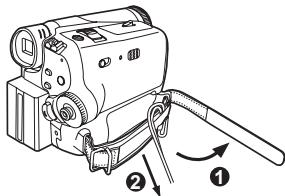
text_image
Diagram of a handheld device with labeled parts and directional arrows indicating motion or assembly.2 Use projection ③ on the Lens Cap to press the [RESET] Button ④.
![PANASONIC PVGS35 - Use projection ③ on the Lens Cap to press the [RESET] Button ④. - 1](/content/2019/08/105179/images/5df544fdab725ff8702d71419fd91ebb65b8eefe98d34947db8a29d766dda8e1.jpg)
text_image
RESET ④ ③Explanation of Terms
■ Digital Video System
In a digital video system, images and sounds are converted into digital signals and recorded on a tape. This complete digital recording is capable of recording and playback with minimal image and sound deterioration.
In addition, it automatically records data, such as Time Code and Date/Time, as digital signals.
Compatibility with S-VHS or VHS Cassettes
Because this Camcorder employs a digital system for recording image and sound data, it is not compatible with conventional S-VHS or VHS video equipment that employs an analog recording system.
The size and shape of the Cassettes are also different.
Compatibility with Output Signals
Because AV signal output from the AV signal output Jack is analog (the same as conventional video systems), this Camcorder can be connected with S-VHS or VHS video or a TV for playback.
■ Focus
Auto Focus Adjustment
The Auto Focus System automatically moves forward and backward the focusing lens inside the Camcorder to bring the subject into focus so that the subject can be seen clearly.
However, the Auto Focus System does not function properly for the following subjects or under the following recording conditions.
Please use the Manual Focus Mode instead.
1) Recording a subject whose one end is located closer to the Camcorder and the other end farther away from it
- Because Auto Focus makes adjustments at the center of an image, it may be impossible to focus on a subject that is located in both foreground and background.
2) Recording a subject behind dirty or dusty glass
- Because the focus is on the dirty glass, the subject behind the glass will not be focused.
3) Recording a subject in dark surroundings
- Because the light information that comes through the lens decreases considerably, the Camcorder cannot focus correctly.
4) Recording a subject that is surrounded by objects with glossy surfaces or by highly reflective objects
- Because the Camcorder focuses on the objects with glossy surfaces or on highly reflective objects, the subject may become blurry.
5) Recording a fast-moving subject
- Because the focus lens-inside moves mechanically, it cannot keep up with the fast-moving subject.
6) Recording a subject with little contrast
- Because the Camcorder achieves focus based upon the vertical lines of an image, a subject with little contrast, such as a white wall, may become blurry.
■ Time Code
Time Code signals are data that indicate time measured in hours, minutes, seconds, and frames (30 frames per second). If this data is included in a recording, an address is assigned to each image on the tape.
- The Time Code is automatically recorded as a part of the sub-code at each recording.
- When a new (previously unrecorded) Cassette is inserted, the Time Code automatically starts from zero. If a recorded Cassette is inserted, the Time Code picks up from the point where the last scene was recorded. (In this case, when the Cassette is inserted, the zero display [0h00m00s00f] may appear, but the Time Code starts from the previous value.)
- The Time Code cannot be reset to zero.
- Unless the Time Code is continuously recorded from the beginning of a tape, accurate editing may not be possible. To ensure that the Time Code will be recorded with no breaks, we recommend the use of the Blank Search Function (p. 26) before recording a new scene.
Specifications
Digital Camcorder
Information for your safety
Power Source:
DC 7.2/7.9 V
Power Consumption:
Recording
4.5 W
Recording Format:
Mini DV (Consumer-use Digital Video SD Format)
Tape Used:
6.35 mm digital video tape
Recording/Playback Time:
SP: 80 min.; LP: 120 min. (with DVM80)
Video
Recording System:
Digital Component
Television System:
EIA Standard: 525 lines, 60 fields NTSC color
signal
Audio
Recording System:
PCM Digital Recording
16 bit (48 kHz/2ch), 12 bit (32 kHz/4ch)
Image Sensor:
1/6-inch CCD Image Sensor
Lens:
Auto Iris, F1.8, Focal Length; 2.1-50.4 mm
(PV-GS19) / 1.9-49.4 mm (PV-GS31) / 1.9-57 mm
(PV-GS35), Macro (Full Range AF)
Filter Diameter:
30.5 mm
Zoom:
24:1 Power Zoom (PV-GS19)
26:1 Power Zoom (PV-GS31)
30:1 Power Zoom (PV-GS35)
Monitor:
2.5-inch LCD
Viewfinder:
Color Electronic Viewfinder (PV-GS31/PV-GS35)
Electronic Viewfinder (PV-GS19)
Microphone:
Stereo
Speaker:
1 round speaker 20 mm
Standard Illumination:
1,400 lx
Minimum Required Illumination:
2 lx (MagicPix Mode)
Video Output Level:
1.0 Vp-p, 75 ohm
S-Video Output Level: (PV-GS35 Only)
Y Output: 1.0 Vp-p, 75 ohm
C Output: 0.286 Vp-p, 75 ohm
Audio Output Level (Line):
316 mV, 600 ohm
Mic Input: (PV-GS35 Only)
Mic sensitivity -50 dB (0 dB=1 V/Pa, 1 kHz)
(Stereo mini jack)
USB:
Card reader/writer function, USB 2.0 compliant
(HI-Speed) (Full-Speed)
No copyright protection support
Digital Interface:
DV Input/Output Jack (IEEE1394, 4-pin)
Dimensions:
Approx. 81 (H) × 63.5 (W) × 114 (D) mm
Approx. 3-1/4 (H) × 2-1/2 (W) × 4-1/2 (D) inch
Weight:
Approx. 0.41 kg (0.90 lbs.)
(without Battery and DV cassette)
Operating Temperature:
32 °F - 104 °F (0 °C - 40 °C)
Operating Humidity:
10% - 80%
Card Memory Functions
Recording Media:
SD Memory Card (8 MB /16 MB /32 MB /64 MB /
128 MB /256 MB /512 MB /1 GB)
Still picture recording file format:
JPEG (Design rule for Camera File system, based
on Exif 2.2 standard), DPOF corresponding
Still Image Size:
640 × 480 pixels (VGA)
WEB Camera
Compression:
Motion JPEG
Image Size:
320 × 240 pixels (QVGA)
AC Adaptor
Information for your safety
Power Source:
AC 110 – 240 V, 50/60 Hz
Power Consumption:
19 W
DC Output:
DC 7.9 V, 1.4 A (Camcorder Operation)
DC 8.4 V, 0.65 A (Battery Charging)
Dimensions:
Weight and dimensions are approximate values.
Specifications may change without prior notice.
Camcorder Accessory System
| Accessory # | Figure | Description | Price |
| PV-DAC14 | 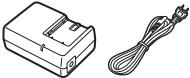 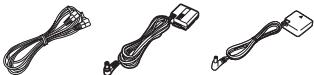 | AC Adaptor with AC Cable and DC Cables | Call For Pricing |
| CGR-DU06A/1B |  | 640 mAh/Rechargeable Lithium Ion Battery Pack | Call For Pricing |
| CGA-DU12A/1B |  | 1 150 mAh/Rechargeable Lithium Ion Battery Pack | Call For Pricing |
| CGA-DU21A/1B |  | 2 040 mAh/Rechargeable Lithium Ion Battery Pack | Call For Pricing |
| PV-DDC9 |  | DV Interface Cable (i.LINK) (4-pin to 4-pin) | 55.00 |
| RP-SDH01GU1A RP-SDH512U1A RP-SDH256U1A/W RP-SD128BU1A/W RP-SD064BPPA/W RP-SD032BPPA | 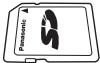 | 1 GB SD Memory Card 512 MB SD Memory Card 256 MB SD Memory Card 128 MB SD Memory Card 64 MB SD Memory Card 32 MB SD Memory Card | Call For Pricing |
| BN-SDCAPE/1B | 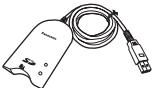 | USB Reader/Writer for SD Memory Card (compatible with MultiMediaCard) | 79.95 |
| BN-SDABPE/1B | 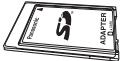 | SD PCMCIA Adaptor (compatible with MultiMediaCard) | $79.95 |
| PV-HB002 |  | Carrying Case | Call For Pricing |
- Please refer to page 73, when placing an order.
Camcorder Accessory Order Form
Please photocopy this form when placing an order.
- Camcorder Model #
- Items Ordered ____
| Accessory # | Description | Price Each | Quantity | Total Price |
| SubtotalYour State & Local Sales TaxShipping & HandlingTotal Enclosed | ||||
| 6.95 | ||||
- Method of payment (check one)
☐ Check of Money Order enclosed (NO C.O.D.SHIPMENTS)
□ VISA Credit Card #
□ MasterCard Expiration Date ____
☐ Discover Customer Signature ____
Make Check or Money Order to: PANASONIC ACCESSORIES
(Please do not send cash)
- Shipping information (UPS delivery requires complete street address)
Ship To:
Mr.
Mrs.
Ms.
| First | Last | |
| Street Address | ||
| City | State | Zip |
Phone #:
Day ( )
Night ( )
TO OBTAIN ANY OF OUR CAMCORDER ACCESSORIES YOU CAN DO ANY OF THE FOLLOWING:
20421 84th Avenue South Kent, WA. 98032
Request for Service Notice
Please photocopy this form when making a request for service notice.
Request for Service Notice:
In the unlikely event this product needs service.
- Please include your proof of purchase. (Failure to do so will delay your repair.)
- To further speed your repair, please provide an explanation of what is wrong with the unit and any symptom it is exhibiting.
Mail this completed form and your Proof of Purchase along with your unit to:
Panasonic Services Company
1705 N. Randall Road
Elgin, IL. 60123-7847
Attn: Camcorder Repair
Limited Warranty
PANASONIC CONSUMER ELECTRONICS COMPANY, DIVISION OF PANASONIC CORPORATION OF NORTH AMERICA
One Panasonic Way Secaucus, New Jersey 07094
PANASONIC SALES COMPANY, DIVISION OF PANASONIC PUERTO RICO, INC.,
Park, Carolina, Puerto Rico 00985
Panasonic/Quasar Video Products Limited Warranty
Limited Warranty Coverage
If your product does not work properly because of a defect in materials or workmanship, Panasonic Consumer Electronics Company or Panasonic Sales Company (collectively referred to as “the warrantor”) will, for the length of the period indicated on the chart below, which starts with the date of original purchase (“warranty period”), at its option either (a) repair your product with new or refurbished parts, or (b) replace it with a new or a refurbished product. The decision to repair or replace will be made by the warrantor.
| Product | Parts | Labor | Service | Contact Number |
| Camcorder | One (1) Year (except CCD Image Sensor)CCD Image Sensor - 6 (Six) Months | Ninety (90) DaysNinety (90) Days | Carry-In or Mail-In | 1-800-211-PANA(7262) |
| DVD/VCR Deck, A/V Mixer | One (1) Year | Ninety (90) Days | Carry-In or Mail-In | 1-800-211-PANA(7262) |
| TV/VCR, TV/DVD, TV/DVD/VCR Combination | One (1) Year (except CRT)CRT - Two (2) Years | Ninety (90) DaysNinety (90) Days | Carry-In: 21" CRT and SmallerIn-Home or Carry-In: 22" CRT and Larger | 1-800-211-PANA(7262) |
| TV/HDR Combination | One (1) Year (except CRT)CRT - Two (2) Years | Ninety (90) DaysNinety (90) Days | In-Home or Carry-In | 1-888-843-9788 |
| Rechargeable Batteries(in exchange for defective item) | Ten (10) Days | Not Applicable | Carry-In or Mail-In | 1-800-211-PANA(7262) |
| Tape(in exchange for defective item) | Five (5) Days | Not Applicable | Carry-In or Mail-In | 1-800-211-PANA(7262) |
| Memory Cards(in exchange for defective item) | Ninety (90) Days | Not Applicable | Carry-In or Mail-In | 1-800-211-PANA(7262) |
During the “Labor” warranty period there will be no charge for labor. During the “Parts” warranty period, there will be no charge for parts. You must carry-in or mail-in your product or arrange for in-home service, as applicable, during the warranty period. If non-rechargeable batteries are included, they are not warranted. This warranty only applies to products purchased and serviced in the United States or Puerto Rico. This warranty is extended only to the original purchaser of a new product which was not sold “as is”. A purchase receipt or other proof of the original purchase date is required for warranty service.
Carry-In, Mail-in or In-Home Service
For Carry-In, Mail-In or In-Home Service (as applicable) in the United States call toll free contact number listed above or visit Panasonic Web Site: http://www.panasonic.com
For assistance in Puerto Rico call Panasonic Sales Company (787)-750-4300 or fax (787)-768-2910.
In-Home service, if applicable, requires clear, complete and easy access to the product by the authorized servicer and does not include removal or re-installation of an installed product. It is possible that certain in-home repairs will not be completed in-home, but will require that the product, or parts of the product, be removed for shop diagnosis and/or repair and then returned.
Limited Warranty Limits And Exclusions
This warranty ONLY COVERS failures due to defects in materials or workmanship, and DOES NOT COVER normal wear and tear or cosmetic damage, nor does it cover markings or retained images on the picture tube resulting from viewing fixed images (including, among other things, letterbox pictures on standard 4:3 screen TV's, or non-expanded standard 4:3 pictures on wide screen TV's, or onscreen data in a stationary and fixed location). The warranty ALSO DOES NOT COVER damages which occurred in shipment, or failures which are caused by products not supplied by the warrantor, or failures which result from accidents, misuse, abuse, neglect, mishandling, misapplication, alteration, faulty installation, set-up adjustments, misadjustment of consumer controls, improper maintenance, power line surge, lightning damage, modification, or commercial use (such as in a hotel, office, restaurant, or other business), rental use of the product, service by anyone other than a Factory Servicenter or other Authorized Servicer, or damage that is attributable to acts of God.
THERE ARE NO EXPRESS WARRANTIES EXCEPT AS LISTED UNDER “LIMITED WARRANTY COVERAGE”. THE WARRANTOR IS NOT LIABLE FOR INCIDENTAL OR CONSEQUENTIAL DAMAGES RESULTING FROM THE USE OF THIS PRODUCT, OR ARISING OUT OF ANY BREACH OF THIS WARRANTY. (As examples, this excludes damages for lost time, cost of having someone remove or re-install an installed unit if applicable, or travel to and from the servicer, loss of media or images, data or other memory or recorded content. The items listed are not exclusive, but are for illustration only.)
ALL EXPRESS AND IMPLIED WARRANTIES, INCLUDING THE WARRANTY OF MERCHANTABILITY, ARE LIMITED TO THE PERIOD OF THE LIMITED WARRANTY.
Some states do not allow the exclusion or limitation of incidental or consequential damages, or limitations on how long an implied warranty lasts, so the exclusions may not apply to you.
This warranty gives you specific legal rights and you may also have other rights which vary from state to state. If a problem with this product develops during or after the warranty period, you may contact your dealer or Servicenter. If the problem is not handled to your satisfaction, then write to the warrantor's Consumer Affairs Department at the addresses listed for the warrantor.
PARTS AND SERVICE (INCLUDING COST OF AN IN-HOME SERVICE CALL, WHERE APPLICABLE) WHICH ARE NOT COVERED BY THIS LIMITED WARRANTY ARE YOUR RESPONSIBILITY.
Customer Services Directory
Obtain Product Information and Operating Assistance; locate your nearest Dealer or Servicenter; purchase Parts and Accessories; or make Customer Service and Literature requests by visiting our Web Site at:
http://www.panasonic.com/consumersupport
or, contact us via the web at:
http://www.panasonic.com/contactinfo
You may also contact us directly at:
1-800-211-PANA (7262),
Monday-Friday 9 am-9 pm; Saturday-Sunday 10 am-7 pm, EST.
For hearing or speech impaired TTY users, TTY : 1-877-833-8855
Accessory Purchases
Purchase Parts, Accessories and Instruction Books online for all Panasonic Products by visiting our Web Site at:
http://www.pasc.panasonic.com
or, send your request by E-mail to:
npcparts@us.panasonic.com
You may also contact us directly at:
1-800-332-5368 (Phone) 1-800-237-9080 (Fax Only) (Monday – Friday 9 am to 8 pm, EST.)
Panasonic Services Company
20421 84th Avenue South,
Kent, WA 98032
(We Accept Visa, MasterCard, Discover Card, American Express, and Personal Checks)
For hearing or speech impaired TTY users, TTY : 1-866-605-1277
Product Repairs
Centralized Factory Servicenter
MAIL TO :
Panasonic Services Company
1705 N. Randall Road,
Elgin, IL 60123-7847
Attention: Camcorder Repair
Please carefully pack and ship, prepaid and insured, to the Elgin Centralized Factory Servicenter.
Customer's in Puerto Rico, please ship or carry in to location below ("Service in Puerto Rico").
Service in Puerto Rico
Panasonic Puerto Rico, Inc. Panasonic Sales Company
Factory Servicenter:
natural_image
Line drawing of a device with an attached plug and internal components (no text or symbols)natural_image
Line drawing of a vintage camera with a box and adjustment knob (no text or symbols)text_image
Diagram showing a device with labeled ports and an open indicator, likely illustrating a process or control mechanism.text_image
Diagram of a handheld device with labeled parts, showing internal components and directional arrows.text_image
Diagram of a camera with labeled parts including an open button and numbered parts 3 to 5natural_image
Line drawing of a vintage digital camera with lens and buttons (no text or symbols)2 Ajuste rotando la perilla ocular correctora ①.
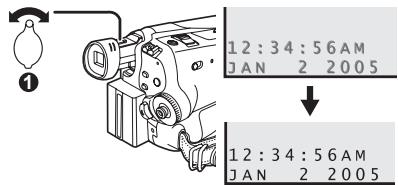
text_image
12:34:56AM JAN 2 2005 12:34:56AM JAN 2 2005natural_image
Technical line drawing of a mechanical device with a circular component and a cylindrical component inserted into it (no text or symbols)natural_image
Technical line drawing of a mechanical device with a tool inserted, showing internal components and motion (no text or symbols)natural_image
Technical illustration of a camera with a circular dial and mechanical components (no text or symbols)natural_image
Line drawing of a vintage camera with a shooting lens and control panel (no text or symbols)natural_image
Technical diagram showing a sewing machine with control knob and playback button (no text or symbols)text_image
Technical diagram of a sewing machine with numbered component and directional arrow indicatortext_image
Technical diagram of a mechanical device with labeled component 4, showing internal components and assembly steps.text_image
Technical diagram of a sewing machine with labeled component 5natural_image
Technical diagram showing a mechanical device with a circular component and a control panel (no text or symbols)Built-in LED Video Light .....27
C
Camcorder Accessory Order Form....73
Camcorder Accessory System 72
Charging the Battery .....15
Cinema Mode 31
Condensation 64
Cue Playback 35
Customer Services Directory 76
D
Date/Time Indication ....58
Date/Time Setting......24
Digital Zoom 29
DPOF Setting ......38
Dubbing 42
E
Erasure Prevention Slider .....18
F
Fade 29
Formatting a Card ....39
F Number....34
|
Iris....34
J
Joystick Control....19
L
LCD Monitor 20,66
Limited Warranty ....75
Lock Setting......39
Low Light Mode 32
M
Macro Close-up ......28
MagicPix Function ......30
Manual Focus....34
Mode Dial 19
MotionDV STUDIO ....52
O
One-Touch Navigation icon ...19
P
Photoshot 26
Picture Size 37
Playback with Zoom Lever ....36
Portrait Mode....32
Q
Quick Start....28
R
RapidFire Consecutive Photoshot ....27
Recording Check......25
Remaining Battery ....57
Remaining Tape Time .....57
Remote Control 13
Repeat Playback ....62
Request for Service Notice....74
Review Playback....35
S
Scene Mode ....31
SD Memory Card....55
Self-timer Recording......28
Self Recording 27
Sensor tag 16
Shutter Speed 33
Simultaneous Motion/ Still Record Mode ....25
Slide Show 37
Slow Motion Playback ....36
Sound Volume 35
SP/LP Mode 24
Spanish Quick Use Guide .....77
Sports Mode 32
Spotlight Mode 32
Still Advance Playback......36
Surf & Snow Mode ....32
T
Time Code....70
V
Variable Speed Search .....36
Video Head Clogging ......65
Viewfinder....20, 66
W
Web Camera 47
White Balance 32
Z
Zoom 28
Zoom Microphone .....28