LAB-M7500 - Car stereo LG - Free user manual and instructions
Find the device manual for free LAB-M7500 LG in PDF.


User questions about LAB-M7500 LG
0 question about this device. Answer the ones you know or ask your own.
Ask a new question about this device
Download the instructions for your Car stereo in PDF format for free! Find your manual LAB-M7500 - LG and take your electronic device back in hand. On this page are published all the documents necessary for the use of your device. LAB-M7500 by LG.
USER MANUAL LAB-M7500 LG
MOSCOW_LAB-M7500(ENG)_19B

LG
Car CD/Cassette Combo Receiver
OWNER'S MANUAL
MODEL : LAB-M7500


Before connecting, operating or adjusting this product,
please read this instruction booklet carefully and completely.
The working life of this product is 7 years since the date of purchase.

Table of Contents
INTRODUCTION
Table of Contents....2-3
Safety Precautions 4
Before Use....5-7
Symbol Used in this Manual....5
Notes on Discs 5
Use and care of the remote control 6
Using the remote control 6
Handling the Unit....6
Protecting your unit from theft 7
Attaching the front panel....7
Front Panel 8
Remote Control....9
PREPARATION
Installation 10-11
Basic Installation 10
ISO-DIN Installation 11
Connections....12-13
Connecting to Car....12-13
Connecting to Auxiliary Equipment (OPTIONAL) ..... 13
OPERATION
Basic Operation 14-15
Turning the unit on....14
Turning the unit off....14
Selecting a source 14
Adjusting the volume 14
Setting the clock 14
Checking the clock....14
SOUND Adjustment....15
Using the EQ (Equalizer) 15
MUTE....15
XDSS (Extreme Dynamic Sound System)....15
SELECTION (SEL) Button 15
Table of Contents

Radio Operation....16-17
Listening the radio stations 16
Storing and recalling broadcast frequencies....16
Auto Search Memory 17
Operation with Audio CD, MP3 Disc and CD changer ..... 18-19
Playing an Audio CD and MP3 Disc 18
Playing a CD changer (OPTIONAL) 18
Playback Setup 18
Moving to another Disc....18
Pause....18
Moving to another Track....18
Search 18
Repeat....19
Random 19
MP3 TRACK -10/+10 19
Intro scan....19
ID 3 TAG 19
TAPE Operation 20
Basic Playback 20
Auto Reverse function 20
To select Tape Direction .....20
To play rewind and fast forward 20
To ejecting Tape 20
Auto Music Search (AMS) .....20
TAPE INTRO SCAN (SCAN) 20
Additional information 21
Notes on MP3 Recordings....21
About MP3 21
REFERENCE
Troubleshooting 22
Specifications 23

Disposal of your old appliance
- When this crossed-out wheeled bin symbol is attached to a product it means the product is covered by the European Directive 2002/96/EC.
- All electrical and electronic products should be disposed of separately from the municipal waste stream via designated collection facilities appointed by the government or the local authorities.
- The correct disposal of your old appliance will help prevent potential negative consequences for the environment and human health.
- For more detailed information about disposal of your old appliance, please contact your city office, waste disposal service or the shop where you purchased the product.
Safety Precautions
CAUTION
RISK OF ELECTRIC SHOCK DO NOT OPEN

Warning: To reduce the risk of electric shock, do not remove the cover or back of this product. There are no user-serviceable parts inside. Refer servicing to qualified service personnel.

Warning: To reduce the risk of fire or electric shock, do not expose this product to dripping or splashing water, rain, or moisture.
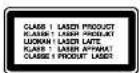
CAUTION:
This unit employs a Laser System.
To ensure proper use of this product, please read this owner's manual carefully and retain for future reference should the unit require maintenance, contact an authorized service location (see service procedure).
Use of controls, adjustments, or the performance of procedures other than those specified herein may result in hazardous radiation exposure.
To prevent direct exposure to laser beam, do not try to open the enclosure. Visible laser radiation when open. DO NOT STARE INTO BEAM.

Caution: Protect this product from moisture.

Caution: If the battery is disconnected or discharged, the preset memory will be erased and must be reprogrammed.
Before Use
To ensure proper use of this product, please read this owner's manual carefully and retain for future reference.
Symbol Used in this Manual

The lightning flash symbol alerts you to the presence of dangerous voltage within the product enclosure that may constitute a risk of electric shock.

Indicates hazards likely to cause harm to the unit itself or other material damage.
NOTE
Indicates special notes and operating features.
TIP
Indicates tips and hints for making the task easier.
Notes on Discs
Handling Discs
Do not touch the playback side of the disc. Hold the disc by the edges so that fingerprints do not get on the surface. Never stick paper or tape on the disc.


Storing Discs
After playing, store the disc in its case. Do not expose the disc to direct sunlight or sources of heat and never leave it in a parked car exposed to direct sunlight.
Cleaning Discs
Fingerprints and dust on the disc can cause poor picture quality and sound distortion. Before playing, clean the disc with a clean cloth. Wipe the disc from the center out.
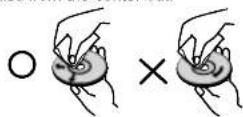
Do not use strong solvents such as alcohol, benzine, thinner, commercially available cleaners, or anti-static spray intended for older vinyl records.
This unit cannot be operated by 8cm disc (using 12cm disc only).

Before Use
Use and care of the remote control
Installing the battery
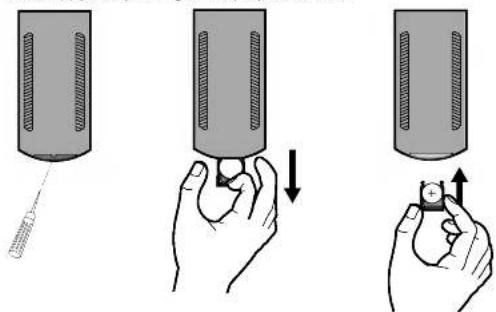
Pull the tray outward on the back of the remote control with a pencil or ball point pen and insert the battery with the plus (+) minus (-) poles pointing in the proper direction.
Using the remote control
Point the remote control in the direction of the front panel to operate.
NOTES
- The remote control may not function properly in direct sunlight.
- Do not store the remote control in high temperatures or sunlight.
- Do not let the remote control fall onto the floor, where it may become jammed under the brake or accelerator pedal.
Handling the Unit
- This unit is designed to be operated on a 12 volt DC negative ground electrical system only.
- When replacing the fuse, be sure to use the fuse whose amperage rating is identical. Use of a fuse with higher amperage may cause serious damage to the unit.
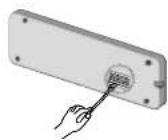
- Periodically wipe the contacts on the back of the front panel with a cotton swap moistened with alcohol.
NOTES
• Use only one CR2025 (3V) lithium battery.
- Remove the battery if the remote control is not used for long.
- Do not recharge, disassemble, heat or dispose of the battery in fire.
- Do not handle the battery with metallic tools.
- Do not store the battery with metallic materials.
- In the event of battery leakage, wipe the remote control completely clean and install a new battery.
- Use only one CR2025 (3V) lithium battery.
- Remove the battery if the remote control is not used for long.
- Do not recharge, disassemble, heat or dispose of the battery in fire.
- Do not handle the battery with metallic tools.
- Do not store the battery with metallic materials.
- In the event of battery leakage, wipe the remote control completely clean and install a new battery.
Before Use
Protecting your unit from theft
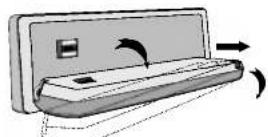
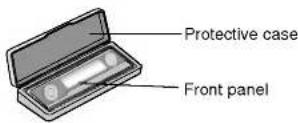
The front panel can be detached from the head unit and stored in the protective case provided to discourage theft.
- Press RELEASE ↑ to open the front panel.
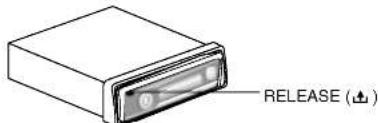
- Push the front panel to right.
- Pull the front panel.
- Put the front panel into the protective case provided for safe keeping.
Attaching the front panel
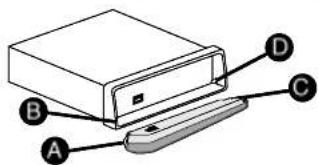
- Join ⚠ on the front panel to ⏻ on the main unit.
- Join ⚙ on the front panel to ⏱ on the main unit while pushing the front panel to left.
- Close the front panel
NOTES
- When detaching or attaching the front panel, do not press the display or control buttons.
- The control buttons may not work properly if the front panel is not attached properly. If this occurs, gently press the front panel.
- Do not leave the front panel in any area exposed to high temperatures or direct sunlight.
- Do not drop the front panel or otherwise subject it to strong impact.
- Do not allow such volatile agents as benzine, thinner, or insecticides to come into contact with the surface of the front panel.
- Do not try to disassemble the front panel.
Front Panel
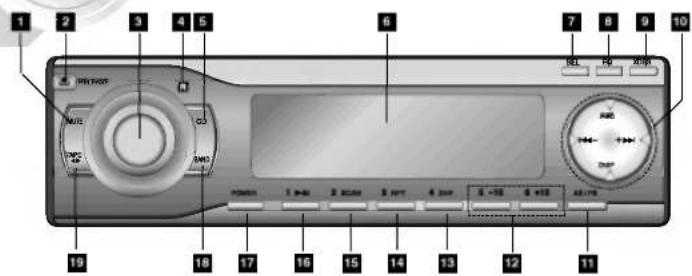
1 MUTE button
2 RELEASE (▲) button
3 • VOLUME KNOB
• CONTROL UP/DOWN dial
4 REMOTE SENCER
5 CD/CDC(OPTIONAL) button
6 DISPLAY WINDOW
7 SELECTION (SEL) button
14 REPEAT (RPT) button
15 INTRO SCAN (SCAN) button
10 CD PLAY/PAUSE (▶/II) button
17 POWER button
10 BAND button
10 • TAPE button
TAPE direction (◀▶) button
12, 13, 14, 15, 16 Preset Station buttons (1-6)
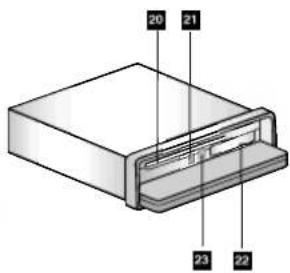
20 CD disc slot
21 CD EJECT (▲) button
22 TAPE slot
23 TAPE EJECT (▲) button
Remote Control
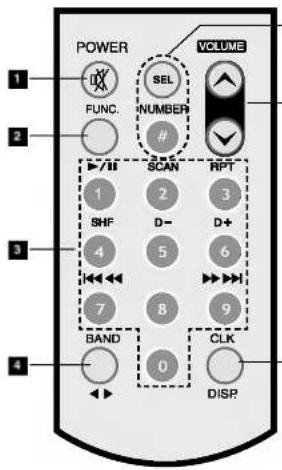
1 • POWER/MUTE (×)
- Switches the unit ON and OFF.
- Press to mute the sound from the speaker.
6 2 FUNCTION (FUNC.) button Selects a function.
3 • 0-9 number buttons
- Preset Station buttons (1-6)
- PLAY/PAUSE (▶/II)
- Starts playback.
- Pauses playback temporarily.
- Reverse playback (TAPE)
• SCAN
- Plays the first 10 seconds of all track.
- REPEAT (RPT)
- Plays tracks repeatedly.
• SHF
- Plays tracks in random order.
• SKIP/SEARCH (◀◀ ◀◀ / ▶▶ ▶▶)
- Backward or forward
search playback.
- Go to next track.
Returns to beginning of
current track or go to
previous track.
- Select the desired frequency
• DISC SELECTOR (D-/D+) button
(Optional)
• MP3 Track -10/+10 (D-/D+)
4·BAND
- Selects three FM and MW (AM) bands.
• ◀ ▶
- It select direction of the cassette.
6·SEL
- Enters the audio settings.
• NUMBER (#)
- To play a file directly, press NUMBER
(#) button and then press the track
number with 0-9 number buttons.
6 VOLUME (✓ / ▲)
Adjusts the volume level.
7 • CLOCK (CLK)
- Clock display.
• DISPLAY (DISP.)
- Changes the display.

Installation
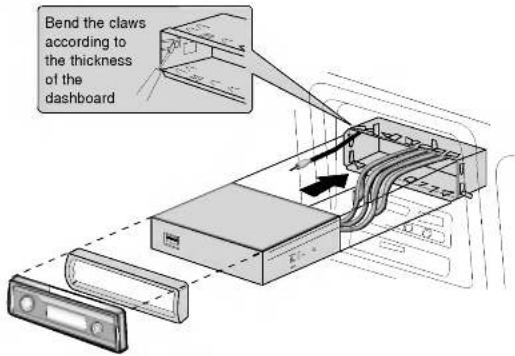
Basic Installation
Before installing, make sure that the ignition-switch is set to OFF and remove the terminal of the car battery to avoid short-circuiting.
- Remove the existing receiver unit.
- Make the necessary connections.
- Install the installation sleeve.
- Install the unit in to the installation sleeve.
Removing existing receiver unit
If there is already an installation sleeve for the receiver unit in the dashboard, it must be removed.
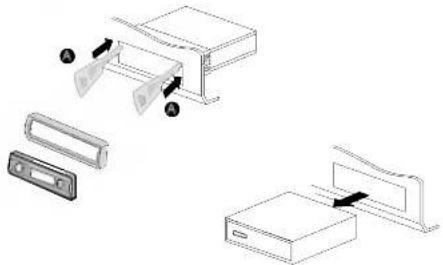
When removing the unit from the installation sleeve
If you need to remove the unit from the installation sleeve, proceed as follows.
- Remove the rear supporter from the unit.
- Remove the front panel and trim ring from the unit.
- Insert the lever ⚠ into the hole on one side of the unit. Do the same operation on the other side and pull out the unit from the installation sleeve.
natural_image
Technical line drawing of a mechanical assembly with labeled components (no text or symbols)Installation
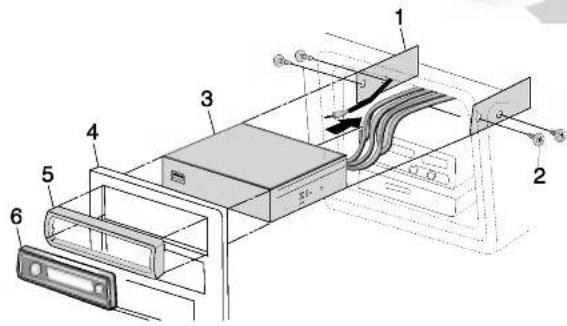
ISO-DIN Installation
- Slide the unit into ISO-DIN frame.
- Install screws removed from old unit.
- Slide the unit and frame into dash opening.
- Install dash panel or adapter plate.
- Install trim ring to the unit.
- Install faceplate by fitting right edge into position then pushing left edge closed.
PREPARATION
Connections
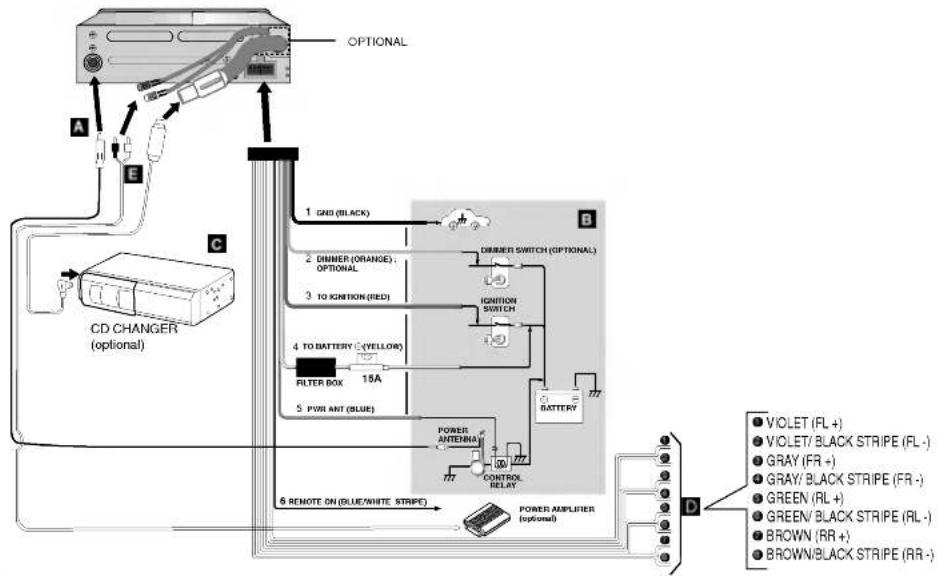
Connecting to Car
Before connecting, make sure that ignition switch is set to OFF, and remove the ⊖ terminal of the battery to avoid short circuits.
flowchart
graph TD
    A["CD CHANGER (optional)"] --> B["1 GND (BLACK)"]
    A --> C["2 DINNER (ORANGE): OPTIONAL"]
    A --> D["3 TO KNITION (RED)"]
    A --> E["4 TO BATTERY (YELLOW)"]
    A --> F["FILTER BOX 18A"]
    A --> G["5 PWR ANT (BLUE)"]
    A --> H["6 REMOTE ON (BLUE/WHITE STRIPE)"]
    H --> I["POWER AMPLIFIER (optional)"]
    I --> J["VIOLET (FL+)"]
    I --> K["VIOLET/ BLACK STRIPE (FL-)"]
    I --> L["GRAY (FR+)"]
    I --> M["GRAY/ BLACK STRIPE (FR-)"]
    I --> N["GREEN (RL+)"]
    I --> O["GREEN/ BLACK STRIPE (RL-)"]
    I --> P["BROWN (RR+)"]
    I --> Q["BROWN/ BLACK STRIPE (RR-)"]
    B --> R["DINNER SWITCH (OPTIONAL)"]
    R --> S["IGNITION SWITCH"]
    S --> T["BATTERY"]
    T --> U["POWER ANTENIA"]
    U --> V["CONTROL RELAY"]
    V --> W["POWER AMPLIFIER (optional)"]
    style A fill:#f9f,stroke:#333
    style J fill:#ccf,stroke:#333
    style K fill:#ccf,stroke:#333
    style L fill:#ccf,stroke:#333
    style M fill:#ccf,stroke:#333
    style N fill:#ccf,stroke:#333
    style O fill:#ccf,stroke:#333
    style P fill:#ccf,stroke:#333
    style Q fill:#ccf,stroke:#333
Connections

Connecting to Car
A From antenna
B To the wiring of vehicle Colors of leads
- BLACK: This lead is for connection to the Ground.
- ORANGE : This lead is for connection to the Dimmer line.
- RED : This lead is for connection to the terminal from which the power is supplied when the ignition switch is set to ACC.
- YELLOW : This lead is for connection to the Battery (back-up) terminal from which the power is always supplied.
- BLUE : This lead is for connection to the power antenna.
- BLUE/WHITE STRIPE : This lead is for connection to the amplifier remote on.
C Connect the CD changer
- Your car receiver works as control unit for a CD changer which you can buy, if not yet done, later.
- The suitable cord shown on the scheme will be provided together with the CD changer.
D Speaker Connections
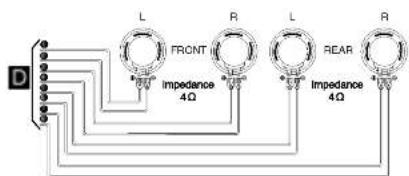
Connecting to Auxiliary Equipment ☐ (OPTIONAL)
- Connect the AUDIO OUTPUT connector of this unit to the AUDIO INPUT connector of Auxiliary Equipment.
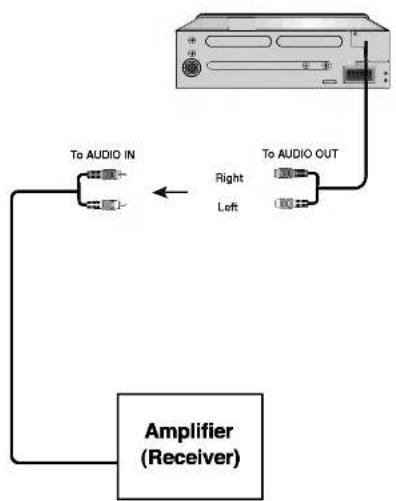
flowchart
graph TD
    A["CD-ROM"] -->|To AUDIO IN| B["Amplifier (Receiver)"]
    A -->|To AUDIO OUT| C["Amplifier (Receiver)"]
    B -->|Right| A
    B -->|Left| A

Basic Operation
Turning the unit on
Press POWER or any other button on the front panel or POWER/MUTE (OK) on the remote control to turn the unit on.
Turning the unit off
- Press POWER on the front panel to turn the unit off.
- Press POWER/MUTE (吋) on the remote control for more than 1.2 second to turn the unit off.
Selecting a source
You can select a source you want to listen to.
- Press CD/CDC(OPTIONAL), BAND and TAPE to select a source.
- Press FUNC. to select a source.
- Press FUNC. repeatedly to switch between the following sources:
Tuner → CD → CD Changer (optional) → TAPE → Tuner...
NOTE
- When you turn off, the unit is memorized automatically the current volume level before you turn off. Whenever you turn on the unit, it will operate at the memorized volume level.
Adjusting the volume
Use VOLUME to adjust the sound level. Rotate VOLUME KNOB on the front panel to increase or decrease the volume. Press VOLUME (☒ / ⚙) on the remote control to increase or decrease the volume.
Setting the clock
- Press DISP or CLK and press DISP for more than 1 second. (Clock indicator will be displayed for 5 seconds. Adjust the clock within 5 seconds.)
- Press ▶▶ on the front panel to adjust the hour.
- Press ◀◀ on the front panel to adjust the minute.
- Press DISP or CLK.
Checking the clock
You can see the clock pressing DISP or CLK.
Basic Operation

SOUND Adjustment
Using the EQ (Equalizer)
The equalizer lets you adjust the equalization to match car interior acoustic characteristics as desired.
There are 7 stored equalizer curves which you can easily recall at any time.
Here is a list of the equalizer curves:
• EQ POP : Reproduces the acoustics of pop music.
• EQ CLASSIC : Reproduces the acoustics of orchestral music.
• EQ ROCK : Reproduces the acoustics of rock music.
• EQ JAZZ : Reproduces the acoustics of jazz music.
• EQ VOCAL: Reproduces the acoustics of vocal music.
• EQ USER 1 : Selects an initial user mode.
• EQ USER 2: Selects an initial user mode.
1. Press EQ on the front panel to select the equalizer.
2. Press EQ repeatedly to select among the following equalizer.
$$ \mathrm{POP} \rightarrow \text { CLASSIC } \rightarrow \text { ROCK } \rightarrow \text { JAZZ } \rightarrow \text { VOCAL } \rightarrow \text { USER EQ1 } $$
$$ \rightarrow \text { USER EQ2 } \rightarrow \text { FLAT (No display) } \rightarrow \text { POP... } $$
MUTE
- Press MUTE [POWER/MUTE (OK)] to cut the sound.
- To cancel it press MUTE [POWER/MUTE (OK)] again.
XDSS (Extreme Dynamic Sound System)
Press XDSS button to reinforce treble, bass and surround effect.
SELECTION (SEL) Button
| Turn right | Turn left | |
| VOL | Increase the volume level. | Decrease the volume level. |
| BAS | Increase the bass level. | Decrease the bass level. |
| MID | Increase the Middle level. | Decrease the Middle level. |
| TRB | Increase the Treble level. | Decrease the Treble level. |
| BRL | Decrease the level of the left speaker(s). | Decrease the level of the right speaker(s). |
| FAD | Decrease the level of the front speaker(s). | Decrease the level of the rear speaker(s). |
1. WAY
- Select the USER EQ1 or USER EQ2 using the EQ button
- Press the SELECTION (SEL) button repeatedly to select the mode you want to adjust from volume, bass, middle treble, balance and fader. The mode indicator lights up in the following order.
$$ \boxed {\begin{array}{l}\rightarrow V O L \rightarrow B R S \rightarrow M I D \rightarrow T R B \rightarrow B R L \rightarrow F R D\end{array}} $$
- Turn left or right CONTROL UP/DOWN (or press VOLUME (✓ / ▲) on the remote control) to adjust the sound quality.
2. WAY
$$ \boxed {\rightarrow \nu O L \rightarrow B A L \rightarrow F A D} $$
- Press the SELECTION (SEL) button repeatedly to select the mode you want to adjust from volume, balance and fader. The mode indicator lights up in the following order.
- Turn left or right CONTROL UP/DOWN (or press VOLUME (✓ / ▲) on the remote control) to adjust the sound quality.
NOTE
The unit can adjust the bass, middle and treble in the USER EQ1 or USER EQ2.
Radio Operation
Listening the radio stations
- Press POWER/MUTE (☒) [POWER on the front panel] button to turn the unit on.
- When you select a source the unit is turned on.
- Press FUNC. or BAND button to select the tuner.
- Press BAND button to select a band.
- Press BAND button until the desired band is displayed, FM1, FM2, FM3, MW(AM).
- To perform seek tuning, pressing the TUNE(-/+ ) or ◀◀◀◀ / ▶▶▶▶ for more 1 second.
- The tuner will scan the frequencies until a broadcast strong enough for good reception is found.
- You can cancel seek tuning by pressing either the TUNE(-/+ ) or ◀◀◀◀◀ / ▶▶▶▶ with quick presses.
- To perform manual tuning, press the TUNE(-/+) button with quick presses.
- The frequencies move up or down step by step.
NOTE
- When the selected frequency is being broadcast in stereo, “((•))” indicator will light.
Storing and recalling broadcast frequencies
You can easily store up to six broadcast frequencies for later recall with the touch of a button.
- Select the desired frequency
- Press one of the preset station buttons (1 - 6) for more than 1 seconds. The number of the pressed preset station button is displayed.
- Repeat steps 1 and 2 to preset other stations.
NOTES
- As F1, F2, F3 have the same frequency range, up to 18 station can be preset for FM.
- When a station is preset on the preset station button on which another station of the same band has already been preset, the previously preset station is automatically erased.
Radio Operation

Auto Search Memory
This function lets you automatically store the six strongest broadcast frequencies.
- • Press BAND button to select the tuner.
- Press FUNC. button to select the tuner.
- Press AS/PS button on the front panel for about 1 second.
- The scanning starts from the currently displayed frequency to higher frequencies and stops when 6 stations have been preset or the receivable frequencies have been scanned once.
To scan the preset stations
Press AS/PS button on the front panel. To stop the scanning, press AS/PS button.
To tune in the preset stations
Press BAND to select the desired band and press the desired number buttons (1-6) on the remote control. The number of the preset station button is displayed and the preset station is received.
NOTES
- The presetting is not performed if there is no station to be tuned in.
- When the automatic presetting is performed, the previous preset stations are automatically erased.
• To stop the automatic presetting, press BAND or AS/PS button.
Operation with Audio CD, MP3 Disc and CD changer
Playing an Audio CD and MP3 Disc
CD MP3
The unit can play MP3 formatted recordings on CD-ROM, CD-R or CD-RW discs. Before playing MP3 recordings, read the notes on MP3 Recordings on page 21.
- To play a file directly, press NUMBER (#) button and then press the track number with 0-9 number buttons.
Playing a CD changer (OPTIONAL) CDC
Playback Setup CDC
- Connect the CD Changer connector of this unit to connector of this CD Changer on page 12.
-
Audio system: Turn on the audio system and select the input source connected to the unit.
-
Press POWER or POWER/MUTE ( × ) to turn the unit on.
- Select the CD changer function press CD/CDC(OPTIONAL). Select the CD changer function pressing FUNC. repeatedly.
- Insert a disc you want to play into the magazine. Playback starts automatically.
Moving to another Disc CDC
Press (-D/+D) briefly during playback to go to the next disc or step back to the previous disc.
Pause CD MP3 CDC
- Press PLAY/PAUSE (▶/III) during playback.
- To return to playback, press PLAY/PAUSE (▶/II) again.
Moving to another Track CD MP3 CDC
- Press the ◀◀/▶◀ on the front panel or ◀◀/▶◀/▶◀ on the remote control briefly during playback to go to the next track or to return to the beginning of the current track.
- Press the ◀◀ on the front panel or ◀◀ ◀◀ on the remote control twice briefly to step back to the previous track. (If playing times is in less than 3 seconds and then this function is not operated.)
Search CD CDC
Press and hold the ◀◀◀ / ▶◀◀ on the front panel or ◀◀◀◀/ ▶◀◀◀ on the remote control for about 1 second during play-back and then release at the point you want.
NOTE
If a disc is not inserted in the CD disc slot, press the CD EJECT (CD) button.
Operation with Audio CD, MP3 Disc and CD changer
Repeat
- a. Press RPT during playback. CD MP3 CDC
The "RPT" appears in the display window. (It is played repeatedly the whole music within disc)
b. Press and hold RPT during playback. CDC The "DRT" appears in the display window. (It is played repeatedly the whole music within disc of CD changer)
- Press RPT again. The "RPT" disappears in the display window. (The repeat mode is cancelled.)
Random
- a. Press SHF during playback. CD MP3 CDC
The "SHF" appears in the display window. (It is played redomly the whole music within disc)
b. Press and hold SHF during playback. CDC The "DSF" appears in the display window (It is played redomly the whole music within disc of CD changer)
- Press SHF again. The "SHF" disappears in the display window. (The random playback is cancelled.)
NOTE
- During random playback, if you press ◀ button to don't go back to the previous track
MP3 TRACK -10/+10
Durning playback, press the -10 (-D) button to go back to the previous 10th track, and press +10 (+D) button to go forward to the next 10th track.
Intro scan
- a. Press SCAN. CD MP3 CDC The "SCAN" appears in the display window. (It is played first 10 seconds of the whole music within disc)
b. Press and hold SCAN. CDC The "DSN" appears in the display window. (It is played first 10 seconds of the whole music within disc of CD changer.)
- Press SCAN again. The "SCAN" disappears in the display window. (The intro scan is cancelled.)
ID 3 TAG MP3
When playing a disc containing information, you can see the information (ID3 TAG, Title, Artist and Album) in the display window. If there is no information, "NO ID3 TAG" will be shown in the display window.
Press twice the DISP button during MP3 file playback.

TAPE Operation
Basic Playback
- Open the front panel by pressing RELEASE (▲) button.
- Insert a cassette tape with the exposed tape side to the right.
If radio broadcast is being received, the cassette tape plays automatically.
For your reference
To play the TAPE during other function (CD or RADIO) operation, press TAPE button. (The TAPE is played automatically.)
- Adjust the volume by turning CONTROL UP/DOWN dial.
Auto Reverse function
The tape direction is reversed automatically when the tape end has been reached.
To select Tape Direction
The tape direction can be reversed by pressing TAPE (◀▶) button.
To play rewind and fast forward
Press the TAPE REWIND/FAST FORWARD (I◄◄/►►) button during playing a tape.
To ejecting Tape
Open the front panel by pressing RELEASE (▲) button and then press the TAPE EJECT (TAPE) button. (If you eject the tape during tape playback, the previously function (CD or RADIO) is played.)
Auto Music Search (AMS)
This unit is equipped with a function that allows you to sip forward or backward to locate the beginning of a particular selection on the tape.
-
Press the AMS button during playing.
"AMS-P" indicator will be shown in the display window. -
Press the ◀◀/▶▶ button during playing.
The cassette deck will search for and play the next(or before) track.
- To cancel, press the AMS button again.
TAPE INTRO SCAN (SCAN)
This tape intro scan helps to find a program by playing about the first 10 seconds each selection.
Press the SCAN button during play to start scan operation. ("SCAN" indicator will be shown in the display window.)
- To cancel, press the SCAN button again.
Additional information

Notes on MP3 Recordings
About MP3
- An MP3 file is audio data compressed by using the MPEG1 audio layer-3 file-coding scheme. We call files that have the ".mp3" file extension "MP3 files".
- The unit can not read an MP3 file that has a file extension other than ".mp3".
MP3 Disc compatibility with this unit is limited as follows:
- Sampling Frequency / 22.05 - 48kHz (MP3).
- Bit rate / within 16 - 320kbps (include VBR) (MP3),
- CD-R/CD-RW physical format should be "ISO 9660"
-
If you record MP3 files using the software which cannot create a FILE SYSTEM, for example "Direct-CD" etc., it is impossible to playback MP3 files. We recommend that you use "Easy-CD Creator" which creates an ISO9660 file system.
-
A single session disc requires MP3 files in the first track. If there is no MP3 file in the 1st track, it cannot playback MP3 files. If you wish to playback MP3 files, format all the data in the disc or use a new one.
- Folder or File names should have a maximum 22 letters or less.
ID3 TAG: Title, Artist or Album names should have a maximum 30 letters or less.
The file must incorporate ".mp3" extension e.g. "*****.MP3".
This unit requires discs/recordings to meet certain technical standards in order to achieve optimal playback quality. There are many different types of recordable disc formats (including CD-R/CD-RW containing MP3 files). That require certain pre-existing conditions (see above) to insure compatible playback.
Customers should also note that permission is required in order to download MP3 files and music from the Internet. Our company has no right to grant such permission. Permission should always be sought from the copyright owner.
Troubleshooting
| Symptom | Cause | Correction |
| Power doesn't turn on. The unit doesn't operate. | Leads and connector are incorrectly connected.The fuse is blown.Noise and other factors are causing the built-in microprocessor to operate incorrectly. | Confirm once more that all connections are correct.Rectify the reason for the fuse blowing, then replace the fuse. Be very sure to install the correct fuse with the same rate.Turn the unit off and then on. |
| The unit does not operate correctly even when the appropriate remote control buttons are pressed. | Battery power is low.Some operations are prohibited with certain discs. | Load new battery.Check using another disc. |
| Playback is not possible. | The disc is dirty.The loaded disc is a type this unit cannot play. | Clean disc.Check what type the disc is. |
| No sound are heard. The volume level will not rise. | Cables are not connected correctly. | Connect the cables correctly. |
| There's no sound. | The volume level is low. | Adjust the volume. |
| There's audio skipping. | This unit is not firmly secured. | Secure this unit firmly. |
Specifications

General
Output Power .50W x 4CH(Max.)
Power Source DC 12V
Speaker impedance 4 Ω
Ground System . . . . . . . . . . . . . . . . . . . . . . . . . . . . . . . . . . . . . . . . . . . . . . . . . . . . . . . . . . . . . . . . . . . . . . . . . . . . . . . . . . . . . Negative type
Dimensions (W x H x D) 188 x 58 x 178 mm (Without Front Panel)
Net Weight (approx.) 1.85 kg
FM tuner
Frequency Range 87.5-107.9MHz or 87.5-108 MHz or 65-74 MHz, 87.5-108 MHz
S/N Ratio 55 dB
Distortion 1.5%
Usable sensitivity 12 dBμV
MW(AM) tuner
Frequency Range 520-1720kHz or 522-1620 kHz
S/N Ratio 45 dB
Distortion 1.5%
Usable sensitivity .32 dBμV
CD
Frequency Response .40 - 20000 Hz
S/N Ratio 70 dB
Distortion 0.15%
TAPE
Tape Drive System Full Auto Reverse
Tape Speed 4.75 cm/sec.
Wow/Flutter 0.3% (WRMS)
S/N Ratio 45 dB
Frequency/Response 125 - 10000 Hz
Distortion 2%
● Design and specifications are subject to change without notice.

LG
P/NO : 3834RR0019B