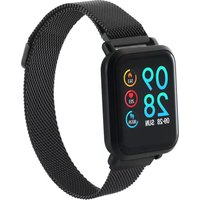
CNS-SW72BB - Smartwatch Canyon - Free user manual and instructions
Find the device manual for free CNS-SW72BB Canyon in PDF.


| Product Type | Smartwatch |
| Brand | Canyon |
| Model | CNS-SW72BB |
| Dimensions | 45 x 38 x 10 mm |
| Weight | 50 g |
| Display Type | 1.3-inch TFT LCD |
| Touch Screen | Yes |
| Battery Capacity | 250 mAh |
| Battery Life | Up to 7 days |
| Charging Method | Magnetic charging cable |
| Water Resistance | IP67 (splash proof) |
| Bluetooth Version | 5.0 |
| Compatible OS | Android 5.0+ / iOS 9.0+ |
| Processor | ARM Cortex-M4 |
| Memory | 128 KB RAM + 256 KB Flash |
| Sensors | Heart rate, accelerometer, gyroscope |
| Main Functions | Step counter, heart rate monitor, sleep tracking, notifications, stopwatch, alarm |
| Additional Features | Sedentary reminder, call/message alerts, music control |
| Cleaning and Maintenance | Wipe with a soft, dry cloth. Avoid solvents. |
| Safety Precautions | Do not expose to extreme temperatures or pressure. |
| Spare Parts Availability | Battery and strap available from Canyon support |
| Repairability | Battery replaceable by a professional |
| General Information | User manual available in PDF on notice-facile.com |
Frequently Asked Questions - CNS-SW72BB Canyon
User questions about CNS-SW72BB Canyon
0 question about this device. Answer the ones you know or ask your own.
Ask a new question about this device
Download the instructions for your Smartwatch in PDF format for free! Find your manual CNS-SW72BB - Canyon and take your electronic device back in hand. On this page are published all the documents necessary for the use of your device. CNS-SW72BB by Canyon.
USER MANUAL CNS-SW72BB Canyon
SMART WATCH USER GUIDE
CNS-SW71BB / CNS-SW72BB

CANYON
Activate the device by briefly clicking the Touch Button.
To use the watch conveniently and effectively, download the Canyon Fit app, by scanning the QR code in the guide or below:

The main screen displays time and date


CAUTION!
The navigation and option selection principle is similar for the whole menu. For all the guide sections, briefly clicking the Touch Button is for switching, and pressing and holding the Touch Button is for selection. In all the guide schemes this is marked by a single or a double arrow symbol.
This watch does not have a Touch Screen, that is why the only sensitive element on the screen is the Touch Button. The Touch Button is used for all actions - briefly clicking or pressing and holding the Touch Button.
MAIN MENU
- Main screen. It displays the time, the date, number or burned calories, the pulse and the pedometer reading
- Steps. This screen displays the number of steps made during the day, the number or calories burned and the pedometer reading. The steps are counted by means of an integrated pedometer, i.e. a special sensor, which is sensitive to arm motions. Other values (calories, distance) are calculated based on pedometer readings and using a pre-set mathematical model.
- Sleep. The total sleep duration as well as the duration of rapid eye movements during sleep and synchronized sleep are displayed.
Sleep and wake times are recorded by means of an integrated G-sensor and heart rate monitor, which are sensitive to the absence of active movements and heart rate changes. Rapid eye movement during sleep and synchronized sleep as well as their durations are recorded similarly.
- Pulse. This screen displays the last pulse rate reading. To start measurements, press and hold the Touch Button.
After a short period of time, the first measurement will appear on the screen, which then gradually begin to change until the value stabilizes. Your watch is provided with the integrated heart
![graph TD A["Make photo"] --> B["9"] B --> C["8"] C --> D["7"] D --> E["6"] E --> F["5"] F --> G["4"] G --> H["3"] H --> I["2"] I --> J["1"] J --> K["09 28 00:00 SUN"] K --> L["11"] L --> M["10"] M --> N["Game Icon"] N --> O["Video Player"] O --> P["Monitor Icon"] P --> Q["Weather Sensor"] Q --> R["b…](/content/2026/05/1049154/images/7e0b51f2bf52d409f576f7401cfc04f1301f9ef4057792ba93ace4a1befe8814.jpg)
rate monitor, which operates using the infrared photoplethysmography (PPG) principle. For more accurate measuring, make sure that the back watch surface tightly fits your hand. Try to make measurements in a resting seated position, after arm elbow-bending in a way, positioning the watch 1.5-2 cm above the elbow level.
- Sports. This menu item is the main submenu for practicing various sports and tracking the results. To select the type of training and start training, press and hold the touch button. A training submenu opens showing the type of workouts that can be selected. Schematically, the "Sports" submenu is depicted in Fig. 2.
FIGURE 1. Main menu
Caution!
Pulse rate readings are informational only, can differ from actual values and shall not be used for medical diagnosis.
SPORTS SUBMENU
![graph TD A["START 00:00:00"] --> B["Running"] A --> C["Running"] A --> D["Running"] A --> E["Running"] A --> F["Running"] A --> G["Running"] A --> H["Running"] A --> I["Running"] A --> J["Running"] A --> K["Running"] A --> L["Running"] A --> M["Running"] A --> N["Running"] A --> O["Running"] A --> P…](/content/2026/05/1049154/images/865e9084e6dec4fc63b8c7a6009ba22256cc6c930bd4343c8c7575688d3d3c4b.jpg)
FIGURE 2. Sports submenu
By briefly clicking the Touch Button, the user can choose a sport for training.
The first screen in the Sports submenu is the Back screen. From this screen, you can return quickly to the main menu, if you enter this submenu occasionally. If you then press the Touch Button, other training modes will be displayed and will change until the user selects one of the types of training
Press and hold the Touch Button on any sport activity to switch the watch into the training mode which will enable the stopwatch, measurement of the pulse rate, the number of calories burned, the number of steps taken or distance traveled, depending on the selected mode
During training, the watch monitors continuously all parameters, display their measurements and storing them in the memory.
To complete the training or make a pause, press and hold the Touch button. The Pause, Stop and Back buttons will appear on the screen. Press these buttons briefly to toggle through the options; press and hold to select a certain option. Example: If you wish to complete your training, press the Stop button by means of a short click, and then press and hold the Touch Button to enter the Sports submenu for further navigation or wait till the screen switches off. All training control procedures are shown in Figure 2
- Oxygen. To activate the blood oxygen level measurement, press and hold the Touch Button. To reset this measurement press and hold the Touch Button again. To return to the main menu, briefly click the Touch Button; to repeat the measurement, press and hold the Touch Button.
- Weather. This screen shows the current weather (temperature and precipitation) as well as the next day forecast.
- Messages. This section collects all notifications about calls and messages on the phone. To view received

![graph TD A["Audio Media"] --> B["Video Sync"] C["Audio Media"] --> D["Video Sync"] E["Audio Media"] --> F["Video Sync"] G["Audio Media"] --> H["Video Sync"] I["Audio Media"] --> J["Video Sync"] K["Audio Media"] --> L["Video Sync"] M["Audio Media"] --> N["Video Sync"] O["Audio Media"] --> P["Video Sy…](/content/2026/05/1049154/images/1b7b72bc5cab73da22564e15fa5d1d10d28094104ed062065d2da7f39591b228.jpg)
notifications, enter the submenu by pressing and holding the Touch Button. You can view the notifications by means of short clicking the Touch Button. The last click will bring you to the main menu
9. Camera control. To use this function, switch on the remote camera control in the Canyon Fit app on your phone. After selection of this option, you can remotely control your mobile camera and make photos by briefly clicking the Touch Button.
10. Music Player. In this menu, you can remotely control your mobile music player. To manage music tracks by means of your watch, enable an audio player on your phone. After that, you can switch on or change tracks by means of your watch. For detailed description of
the Touch Button procedures, see Fig. 3.
- Advanced. In this submenu, you can change interface styles, use the stopwatch, enable the mute mode, reset device settings to default, switch off the device, set the screen brightness, as well as open the QR code for downloading of the Canyon Fit app
FIGURE 3. Player.
Caution!
This screen is available only, if the watch is connected to a smartphone via Canyon Fit. Weather data is received from the internet and transferred to your phone. To use this option reliably, make sure that the data transfer function of your phone is active.
ADVANCED SUBMENU
![graph TD A["Style 2"] --> B["Style 1"] B --> C["Style 3"] C --> D["Styles"] D --> E["Cannon Fit"] E --> F["Power"] F --> G["Clock Icon"] G --> H["Arrow to Style 3"] H --> I["Arrow to Style 2"] I --> J["Arrow to Style 1"] J --> K["Arrow to Style 3"] K --> L["Arrow to Styles"] L --> M["Arrow to Style…](/content/2026/05/1049154/images/c27dfc57458c0eb1419dab9bcdaba47e1ba75630c76b72d6ce4a7516ed4414e5.jpg)
The general arrangement of all screens and navigation principle are shown in Fig. 5.
FIGURE 4.
Advanced submenu
GENERAL
ARRANGEMENT OF MENU SCREENS
FIGURE 5.
General arrangement of menu screens
![graph TD A["Touch Button"] --> B["09 28"] C["Hold Button"] --> D["70"] E["Control Button"] --> F["1 7"] G["User Interface"] --> H["4"] I["User Interface"] --> J["3"] K["User Interface"] --> L["1"] M["User Interface"] --> N["2"] O["User Interface"] --> P["7"] Q["User Interface"] --> R["1 7"] S["User…](/content/2026/05/1049154/images/eb61c4c91534588f5b62a6b4a07541d3759b6c9a938f885bc4bb9a8f69505a8e.jpg)
CANYON
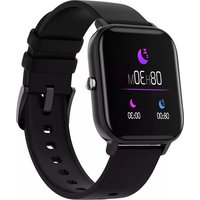
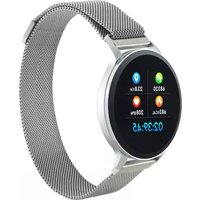


Brand : Canyon
Model : CNS-SW72BB
Category : Smartwatch