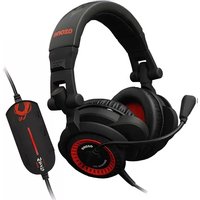
Strato EVO 5.1 - Headphones Ozone - Free user manual and instructions
Find the device manual for free Strato EVO 5.1 Ozone in PDF.


| Product Type | Over-Ear Gaming Headset |
| Model | Strato EVO 5.1 |
| Brand | Ozone |
| Driver Size | 50 mm Neodymium |
| Frequency Response | 20 Hz – 20 kHz |
| Impedance | 32 Ω |
| Surround Sound | 5.1 Virtual Surround Sound |
| Connection Type | USB + 3.5 mm Jack |
| Cable Length | 2.2 m Braided |
| Microphone | Detachable Noise-Cancelling |
| Microphone Frequency Response | 100 Hz – 10 kHz |
| Microphone Impedance | 2.2 kΩ |
| Controls | On-Ear Volume Wheel, Mute Button |
| Lighting | RGB (Customizable Zones) |
| Weight | 285 g |
| Dimensions (W x D x H) | 200 x 90 x 210 mm |
| Compatibility | PC, PS4, PS5, Xbox One, Xbox Series X|S, Nintendo Switch |
| Power Source | USB Powered (No Batteries) |
| Recommended Use | Gaming, Multimedia, Voice Chat |
| Cleaning Instructions | Wipe with a Dry, Soft Cloth; Avoid Liquids |
Frequently Asked Questions - Strato EVO 5.1 Ozone
User questions about Strato EVO 5.1 Ozone
0 question about this device. Answer the ones you know or ask your own.
Ask a new question about this device
Download the instructions for your Headphones in PDF format for free! Find your manual Strato EVO 5.1 - Ozone and take your electronic device back in hand. On this page are published all the documents necessary for the use of your device. Strato EVO 5.1 by Ozone.
USER MANUAL Strato EVO 5.1 Ozone
This Manual can include technical or other mistakes, inaccuracies or typographical errors. OZONE may make changes to the informations at this manual, including the descriptions of the products, at any time without notice.
©2010 OZONE Gaming Gear. All rights reserved.
ozone Strato EVO
5.1 SURROUND SOUND PROFESSIONAL GAMING HEADSET
natural_image
Abstract black ink splatter on white background, no text or symbols presentTHE DRIVER INSTALLATION
- Before installation, you must preserve the open application and then exit, to avoid data loss after installation.
- Open your computer, before install driver, first connect headset USB plug into your computer USB interface, then in windows explorer find "Setup.exe", double-click it for intssllation.
- When starting installation application, click "Next".

To begin installation click "Next".

Choose contents to install.
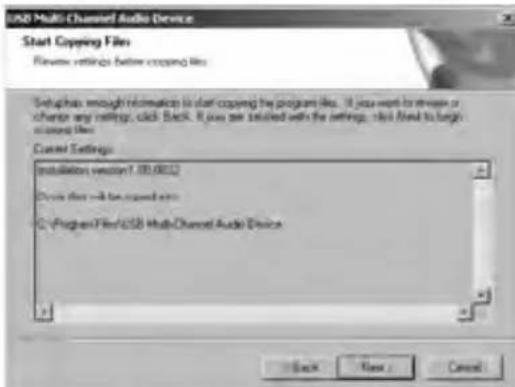
Info about drivers and destiny directory. Installation progress.

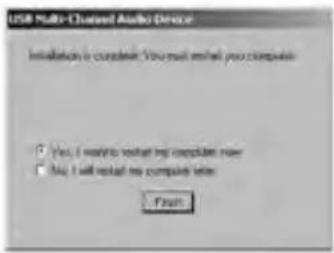
- You'll need to reboot system in order to complete the installation. Click "OK" and reboot system will reboot.
WInDoWs XP oPeRATInG InTeRfAce
Main setting:
In the tray, click the USB 3D sound configuration, and pop-up the Ozone Strato configuration panel:

- Analog Output: selected this button can choose channel model of analog output.
- Mode of analog channel: you can choose this kinds of head-phone setting: 2, 4, 6 or 8 speakers. Please choose 6 speakers.
- Advanced settings for heavy bass and vibration intensity.
- Didn't provide digital output.
- Display connection of audio and microphone, but you can change it, is just for reference.
- DSP mode: click DSP setting, change it to DSP use mode.
- Switching the actual speaker: open the speaker setting then choose what you like.
- Digital volume control: you can adjust volume for each channel.
- Display channel and speaker test: it displays state of cahnel of analog output, click the speaker to begin sound test.
- Automatic sound test: each channel can be tested automatically.
- Stop the sound test.
MIXeR
Operating interface of Mixer, can adjust volume of waveform and microphone.

- Balance control
- Volume control
- Volume switch
- Waveform volume balance
- Waveform volume control
- Waveform column switch
- Software synthesizer volume balance
- Software synthesizer volume control
- Software synthesizer volume switch
- CD player volume balance
-
CD player volume control
-
CD player volume switch
- Microphone balance
- Microphone control
- Microphone switch
- Microphone Advanced setting
- Line input of volume balance
- Line input of volume control
- Line input of volume switch
(image 2) Sound recording volume controller

- SPDIF In optical fiber input (useless)
- Mixed stereo balance control
- Mixed stereo volume control
- Mixed stereo switch
- Microphone recording balance
- Microphone recording volume control
- Microphone recording volume switch
- Microphone recording advanced settings
- Line input (useless)
- Wave (system voice prompt)
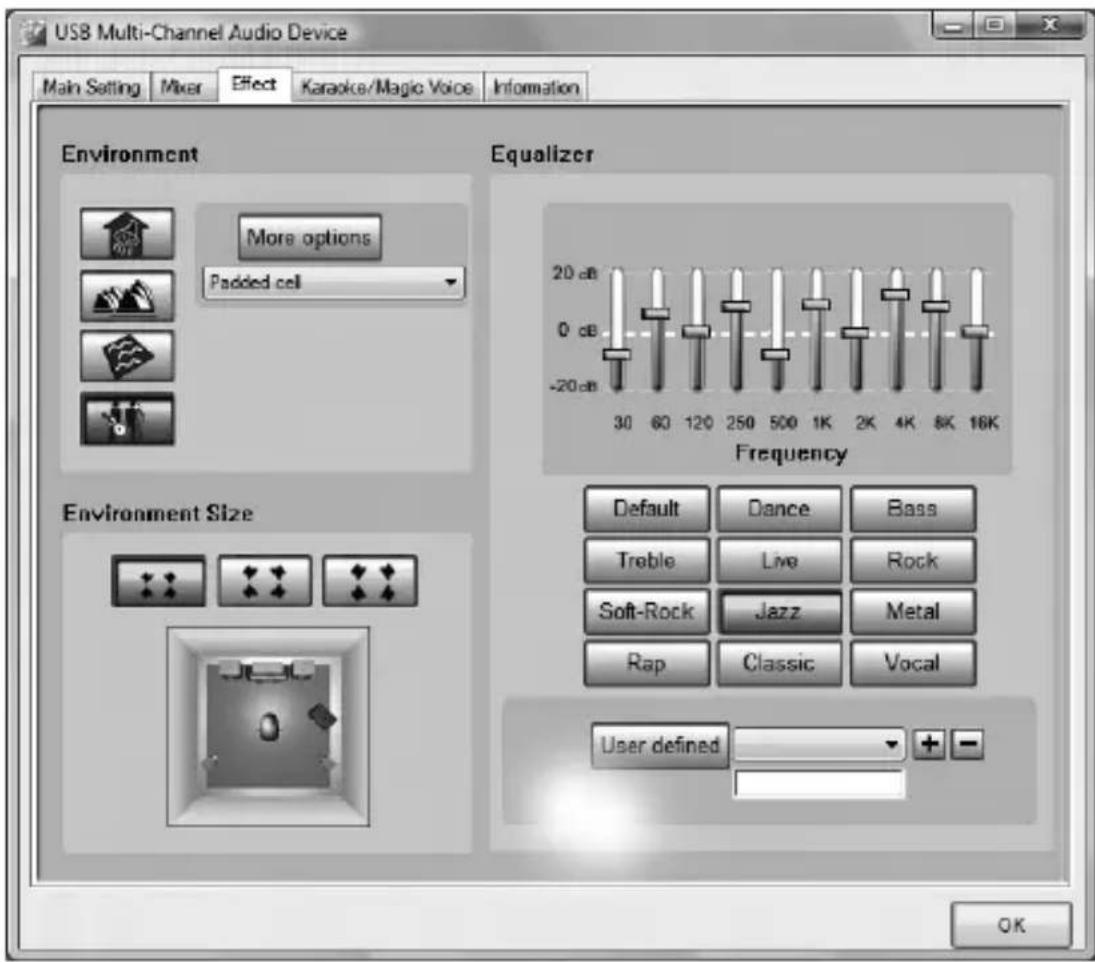
EFFECT

Scene
- Bathroom
- Opera
- Under water
- Music bar
- more to choose, between
23 modes
Room of scene
- Big
- Medium
- Small
eQUALIZEr
- 10 section balance adjustment
- Default mode by default
- Default mode by dance
- Default mode bass
- Default mode high
- Default mode scene
- Default mode rock
- Default mode light rock
- Default mode jazz
-
Default mode metal
-
Default mode RAP
- Default mode classical
- Default mode vocal
- Equalizer user define switch
- Choose custom pattern
- User-defined name type
- Add new custom pattern
- Delete the existing custom pattern
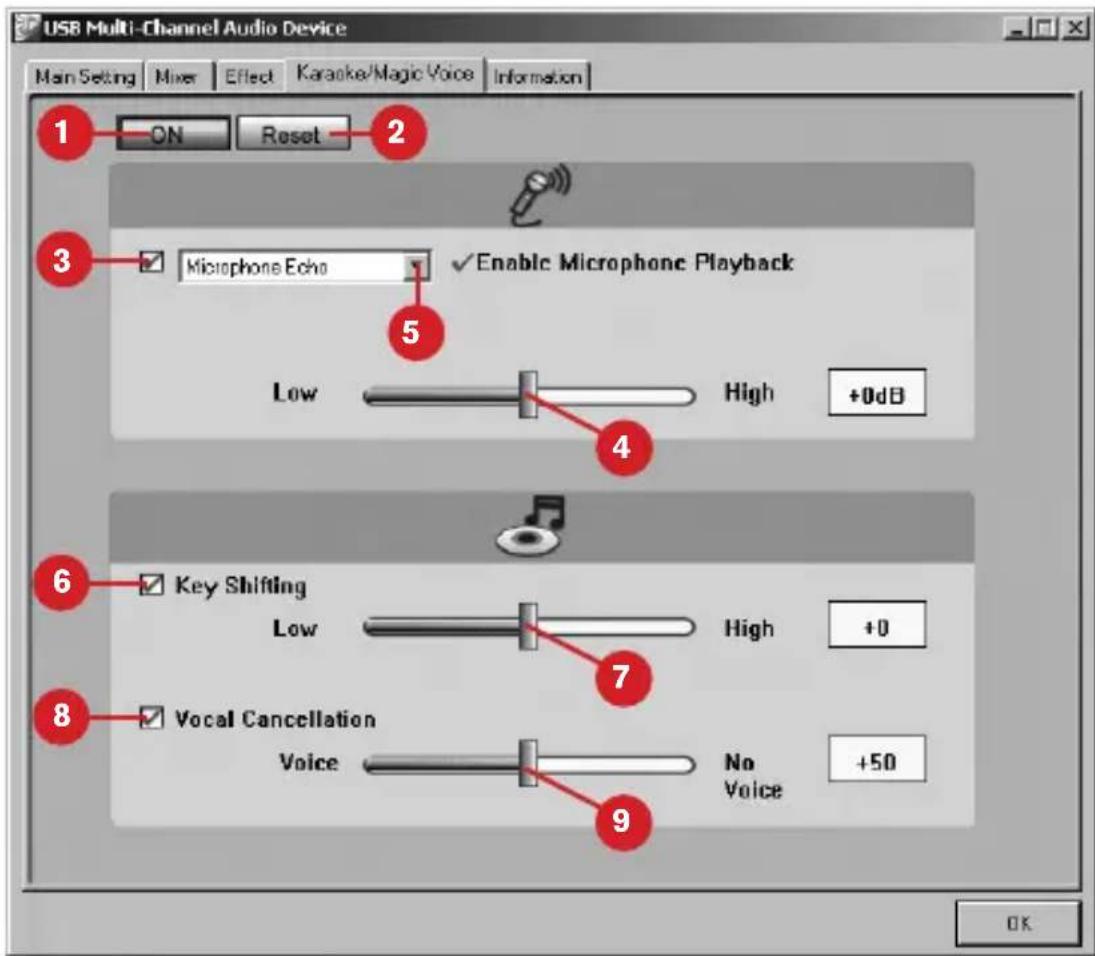
KARAoKe
- Karaoke switch, Click this button can control all the functions of karaoke
- Karaoke reinstall, click it can return to the original setting
- Open the echo function of microphone, pull up a dialog, click "OK" can control the function of the microphone.
- Echo height controller
- Pull-down menu of alchemy voice
- The switch of tone control
- The controller of tone control
- The switch of cancel the singing
- The controller of cancel the singing
WInDoWs VIsTA oPeRATInG InTeRfAce
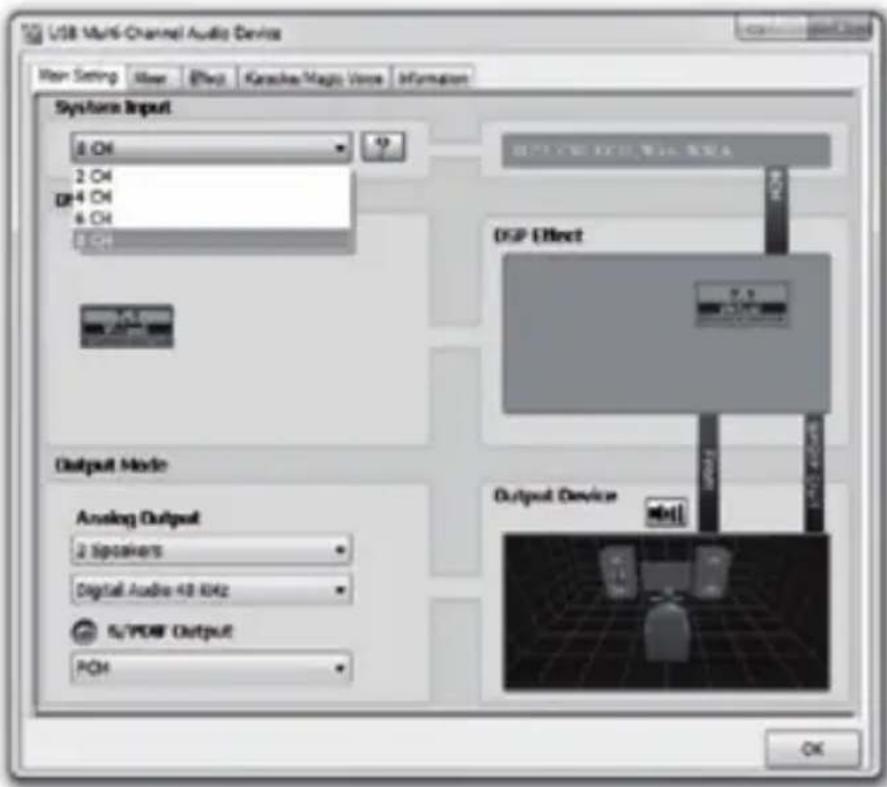
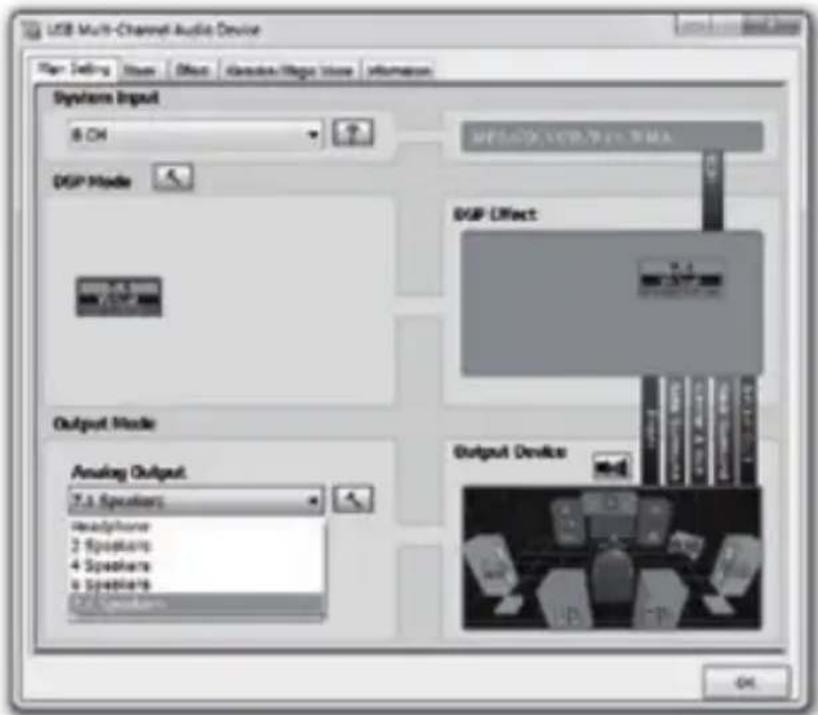
In the tray look for the "USB Multi-Channel Audio Device"
Setting as follow picture:
- System input have four options: 2CH, 4CH, 6CH, 8CH. The interrogation mark on right, provide use hints as follows: Please select the correct number of channels source you want.
General setting examples:
MP3, WMA, AAC, CD, VCD: 2CH
DVD with Dolby Digital or DTS, WMA-Pro: 6CH
DVD with Dolby Digital EX or DTS ES: 8CH
3D Games: 8CH
Vista setting examples will submit the date to AUdio device according your setting
- DSP mode and setting DSP effect
- Output mode, click the drop-down box, there have headphone, 2speaker, 4speaker, 8speaker to choose. Output device, click on any speaker, there will be corresponding pronunciation.

MIXeR cAn conTRoL The VoLUMe AnD MUTe

effecT
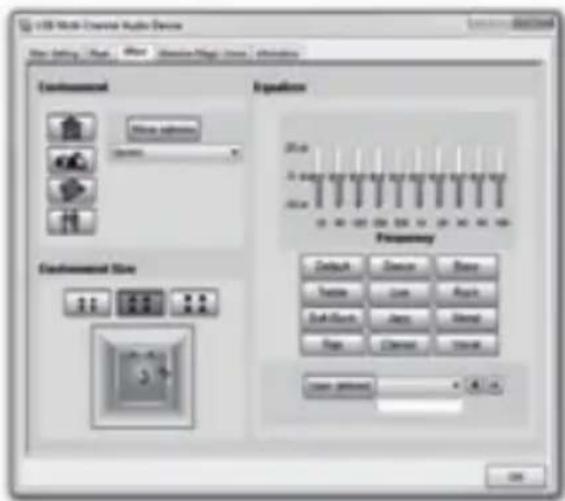
See below picture, there are:
- Environment, there are total 23 kinds to choose, ordinary, sick-room, bedroom and so on
- Environment size: big, medium, small
- Equalizer, there are defined and fixed (default, dance, bass, total 12 kinds)
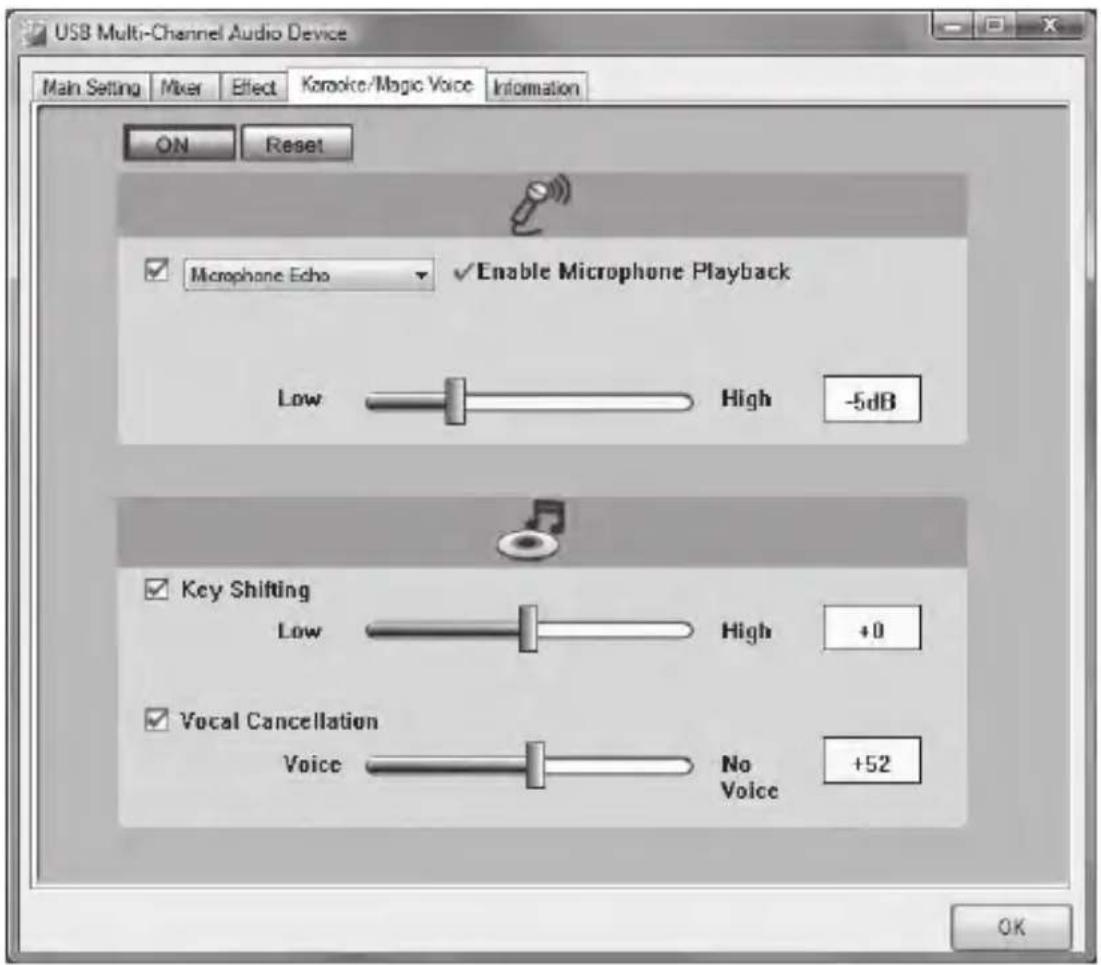
KARAoKe/sPeAKeR
- Open-adjust or close the reverberation of microphone
- Open-adjust or close the note tuning
- Open-adjust or close the singing cancel
Move the cursor to the red OZONE icon in the lower right corner of the monitor, 5.1 CH GAMING HEADSET could be shown, click the left button of the mouse.
- Main setup, see the below picture, the window includes,
1) System audio source, 2CH, 4CH, 6CH, 8CH could be chosen for your favor; the question mark on the right offer the usage notice as below Please choose the numbers of channel of the sound source you are playing Example of proposed setting
MP3. WMA. AAC. CD. VCD: 2CH
DVD with Dolby Digital or DTS. WMA-Pro: 6CH
DVD with Dolby Digital or DTS. EX or DTS ES: 8CH
3D Game: 8CH
2) DSP mode and DSP effect setting
3) Output mode click the dropdown menu, there are headphone 2CH .4CH. 6CH. 8CH for you to choose. Output device, click any speaker, there would be corresponding sound.
2.1) System audio source.
2.2) DSP MODE & DSP Effect setting

2.3) Output mode
3. Mixer offers independent volume control or mute control

- Effect, see picture below, this window has choice :
1) Environment mode: normal, patient room, room and totally 23 options for your choice
2) Environmental extent, big, middle small for your choice
3) Equalizer, user defined mode and other given mode: Default, Dance, Bass, totally 12 options for your choice.

5. KTV
1) turn on—adjust or turn off microphone mixture
2) turn on—adjust or turn off volume control
3) turn on—adjust or turn off music cancel
notice: KTV is generally used when chatting, better turn it off when listening music or end chatting, in case affect listening music.

- Information, chipset and version and information of the driver

INTRODUCING IN-LINE CONTROLLER
There are 4 independent volume knobs on it, control respectively the volumes: front, center, rear, vibration sub, additionally, there are 1 main volume control and 1 mute control of microphone.
Notice
In order to insure the sound quality and protect your eardrum, please adjust to the appropriate volume level. Listening with high volume for long time will decrease the hearing, should let our ear take a break, to avoid fatigue.

SPECIFICATIONS
| MIC DIMENSION | 6.0mmx5.0mm | CENTER | FRONT | REAR | OSCILLATOR | |
| SENSITIVITY | -36dB | DRIVE DIAMETER | 30mm | 40mm | 30mm | 30mm |
| DIRECTIVITY | Uni-directional | IMPEDANCE | 32Ω | 32Ω | 32Ω | 16Ω |
| IMPEDANCE | 2.2KΩ | FREQUENCY RESPONSE | 20~20KHz | 18~22KHz | 20~20KHz | 10~400Hz |
| POWER SUPPLIER | USB5V | OUTPUT POWER | 200mW | 300mW | 200mW | 500mW |
| CORD LENGTH | 3.0m | SIGNAL TO NOISE RATIO | >50dB | >50dB | >50dB | >50dB |
| NET WEIGHT | Appr. 433g | T.H.D | 0.4% | 0.1% | 0.4% | 1% |
| — | SENSITIVITY | 108dB | 100dB | 108dB | — |

natural_image
Abstract red scribble on black background, no text or symbols presentozone
GAMING GEAR
it's all about evolution.
www.ozonegaming.com

- ozone Strato EVO
- THE DRIVER INSTALLATION
- WInDoWs XP oPeRATInG InTeRfAce
- MIXeR
- EFFECT
- Scene
- Room of scene
- eQUALIZEr
- KARAoKe
- WInDoWs VIsTA oPeRATInG InTeRfAce
- 3D Games: 8CH
- MIXeR cAn conTRoL The VoLUMe AnD MUTe
- KARAoKe/sPeAKeR
- Mixer offers independent volume control or mute control
- KTV
- INTRODUCING IN-LINE CONTROLLER
- ozone
Brand : Ozone
Model : Strato EVO 5.1
Category : Headphones