
H-CDM8038 - Car stereo HYUNDAI - Free user manual and instructions
Find the device manual for free H-CDM8038 HYUNDAI in PDF.


| Product Type | Car Stereo with CD/MP3/WMA Player, Bluetooth, and RDS Tuner |
| Brand | Hyundai |
| Model | H-CDM8038 |
| Power Supply | 12 V DC |
| Current Consumption | Max. 10 A |
| Maximum Power Output | 50 W x 4 channels |
| Dimensions (L x W x H) | 178 x 165 x 50 mm |
| Working Temperature Range | -10°C to +60°C |
| FM Frequency Range | 65 - 74 MHz / 87.5 - 108.0 MHz |
| FM Usable Sensitivity | 2.8 μV |
| FM Preset Stations | 24 |
| MW Frequency Range | 522 kHz - 1620 kHz |
| MW Preset Stations | 12 |
| Audio Output Level | Max. 2 Vrms (±3 dB) |
| Frequency Response | 20 Hz - 20 kHz |
| Signal-to-Noise Ratio (A-weighted) | 60 dB |
| DSP Sound Effects | Classic, Rock, Pop, Flat |
| Electronic Shock Protection (ESP) | 40 sec (CD), 120 sec (MP3), 300 sec (WMA) |
| Disc Playback | CD, CD-R, CD-RW; CDDA/MP3/WMA |
| SD/MMC Card Support | Up to 2 GB, FAT12/16/32, MP3/WMA |
| Bluetooth | Hands-free with detachable headset, Pairing code: 0000 |
| RDS Functions | AF (Alternative Frequencies), TA (Traffic Announcement), PTY (Program Type) |
| Anti-Theft System | Detachable front panel and release keys |
| Line Out | Yes (L/R), Subwoofer out, Line in (L/R) |
| Cleaning | Cabinet: soft cloth with mild soap; Disc: wipe from center to edge |
| Safety | Disconnect battery before installation; use correct fuse rating; do not disassemble |
Frequently Asked Questions - H-CDM8038 HYUNDAI
User questions about H-CDM8038 HYUNDAI
0 question about this device. Answer the ones you know or ask your own.
Ask a new question about this device
Download the instructions for your Car stereo in PDF format for free! Find your manual H-CDM8038 - HYUNDAI and take your electronic device back in hand. On this page are published all the documents necessary for the use of your device. H-CDM8038 by HYUNDAI.
USER MANUAL H-CDM8038 HYUNDAI
Thank you for purchasing our product. For safety, it is strongly recommended to read this manual carefully before connecting, operating and/or adjusting the product and keep the manual for reference in the future.
Table of contents
Table of contents....2
Important safeguards....3
Accessories....4
Installation/Connections....5
Panel controls 9
General operations....11
Digital tuner operations.... 16
CD/SD/MMC operations 18
MP3/WMA overview....22
Bluetooth (hands-free) operations 24
Anti-theft system 27
Handling discs 27
Cleaning 28
Troubleshooting guide 29
Specification....30
Important safeguards
- Read carefully through this manual to familiarize yourself with this high-quality sound system.
- Disconnect the vehicle's negative battery terminal while mounting and connecting the unit.
- When replacing the fuse, be sure to use one with an identical amperage rating. Using a fuse with a higher amperage rating may cause serious damage to the unit.
- Do not attempt to disassemble the unit. Laser beams from the optical pickup are dangerous to the eyes.
- Make sure that pins or other foreign objects do not get inside the unit; they may cause malfunctions, or create safety hazards such as electrical shock or laser beam exposure.
- If you have parked the car for a long time in hot or cold weather, wait until the temperature in the car becomes normal before operating the unit.
- Do not open covers and do not repair yourself. Consult the dealer or an experienced technician for help.
- Make sure you disconnect the power supply and aerial if you will not be using the system for a long period or during a thunderstorm.
- Make sure you disconnect the power supply if the system appears to be working incorrectly, is making an unusual sound, has a strange smell, has smoke emitting from it or liquids have got inside it. Have a qualified technician check the system.
- The unit is designed for negative terminal of the battery, which is connected to the vehicle metal. Please confirm it before installation.
- Do not allow the speaker wires to be shorted together when the unit is switched on. Otherwise it may overload or burn out the power amplifier.
- Do not install the detachable panel before connecting the wire.
- Do not use the unit in places where it can be exposed to water, moisture and dust.
Accessories
• Receiver 1 pc
- Bluetooth headset 1 pc
• Bluetooth headset pouch 1 pc
• Bluetooth headset ear clip 1 pc
- Front panel 1 pc
• Front panel case 1 pc
- Mounting parts:
Rear support strap 1 pc
Release key 2 pcs
Screw 1 pc
Nut 1 pc
Plain washer 2 pcs
Spring washer 2 pc
- Customer information 1 pc
• Warranty card 1 pc
• Instruction manual 1 pc
Installation/Connections
Use only the supplied mounting hardware for a safe and secure installation. Be sure to remove the front panel before installing the unit.
Mounting angle adjustment
Adjust the mounting angle to less than 20^ .
Installation in the dashboard

Note: Keep the release key in a safe place as you may need it in the future to remove the unit from the car.
TO SUPPORT THE UNIT
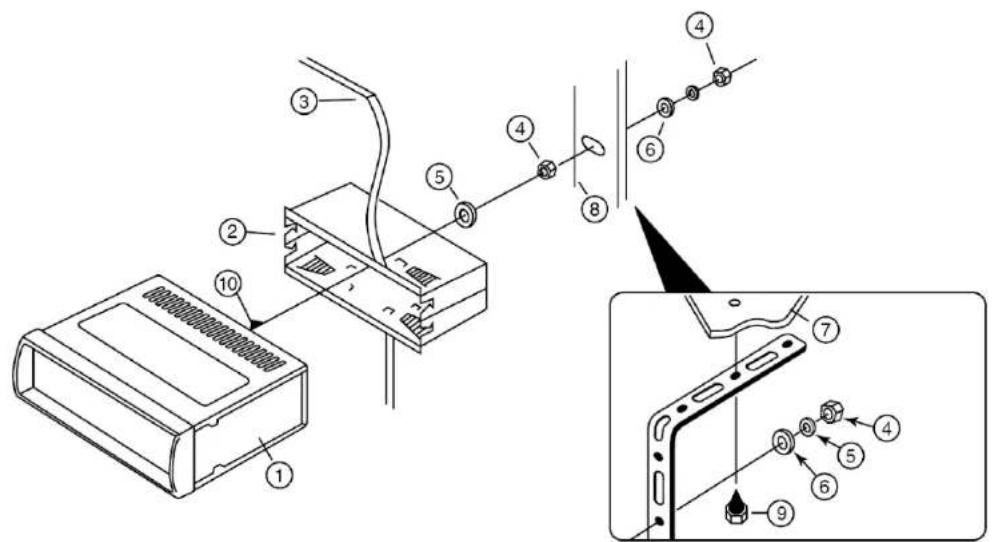
- Unit
- Release case
- Dash board
- Hex nut
- Lock washer
- Plain washer
- Car body
- Rear support strap
- Tapping screw
- Hex bolt
Electrical connections
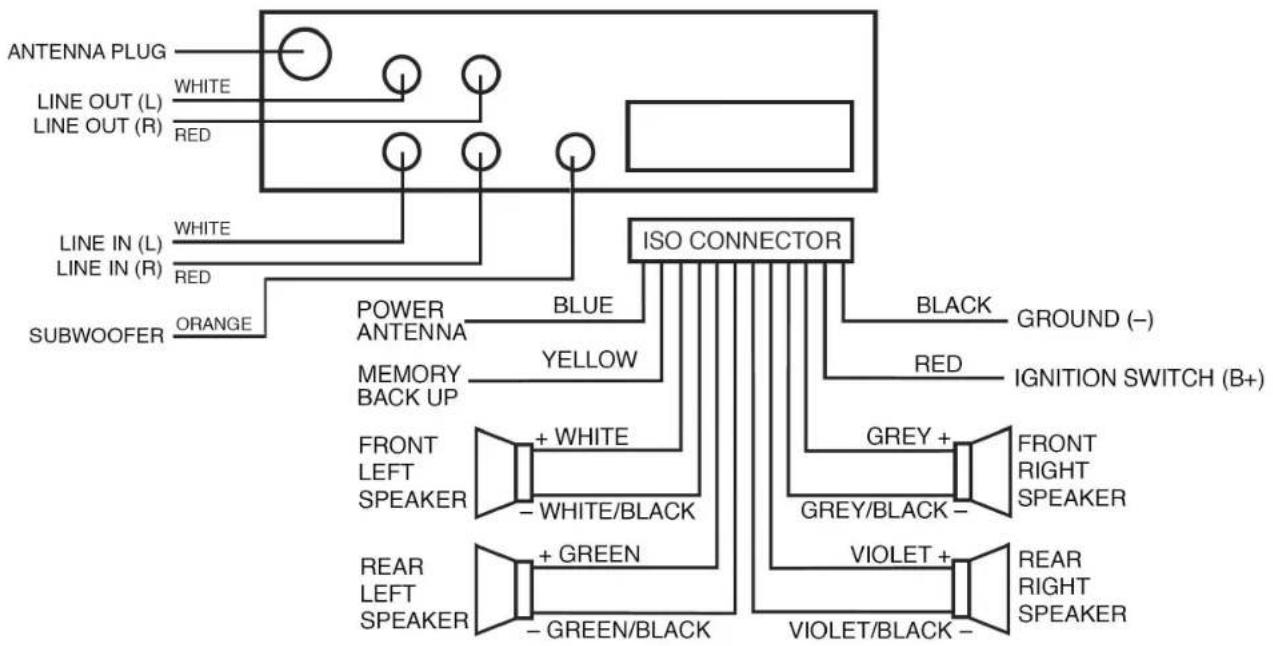
flowchart
graph TD
    A["ANTENNA PLUG"] --> B["LINE OUT (L)"]
    A --> C["LINE OUT (R)"]
    B --> D["White"]
    B --> E["RED"]
    F["SUBWOOFER"] --> G["ORANGE"]
    H["LINE IN (L)"] --> I["WHITE"]
    H --> J["RED"]
    K["POWER ANTENNA"] --> L["BLUE"]
    K --> M["YELLOW"]
    N["FRONT LEFT SPEAKER"] --> O["+ WHITE"]
    N --> P["- WHITE/BLACK"]
    Q["REAR LEFT SPEAKER"] --> R["+ GREEN"]
    Q --> S["- GREEN/BLACK"]
    T["ISO CONNECTOR"] --> U["BLACK"]
    T --> V["RED"]
    T --> W["IGNITION SWITCH (B+)"]
    X["VIOLET"] --> Y["+"]
    Z["VIOLET/BLACK"] --> AA["-"]
    AB["BRIDGE (-)"] --> AC["BLACK"]
    AD["BRIDGE (+)"] --> AE["RED"]
    AF["BRIDGE (-)"] --> AG["GREEN +"]
    AH["BRIDGE (-)"] --> AI["GREY +"]
    AJ["BRIDGE (-)"] --> AK["GREY/BLACK -"]
    AL["BRIDGE (-)"] --> AM["VIOLET +"]
    AN["BRIDGE (-)"] --> AO["REAR RIGHT SPEAKER"]
ISO connector
| Location | Function | |
| Connector A Connector B | ||
| 1 Rear | Right(+)---Violet | |
| 2 Rear | Right(-)---Violet/Black stripe | |
| 3 Front | Right(+)---Grey | |
| 4 Battery | 12V (+)/yellow Front Right(-)---Grey/Black Stripe | |
| 5 Power | Antenna/blue Front Left(+)---White | |
| 6 Front | Left((-)---White/Black Stripe | |
| 7 ACC | +/red Rear Left(+)---Green | |
| 8 | Ground/black | Rear Left(-)---Green/Black Stripe |
Panel controls
Front panel
- POWER button
- SEL button
- VOL knob
- Preset stations (1,2,3,4,5,6)
- AF button
- TA button
- PTY button
- DISP button
- MODE button
- BD button
- PREVIOUS/NEXT button
- A/PS button
- SCAN button
- MUTE/ILL button
- LCD display
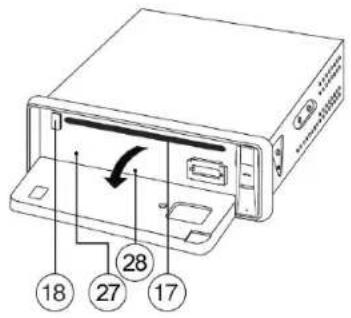
- OPEN button
- CD slot
- EJECT button
- PAUSE button
- INT button
- RPT button
- RDM button
-
- 5/6 buttons
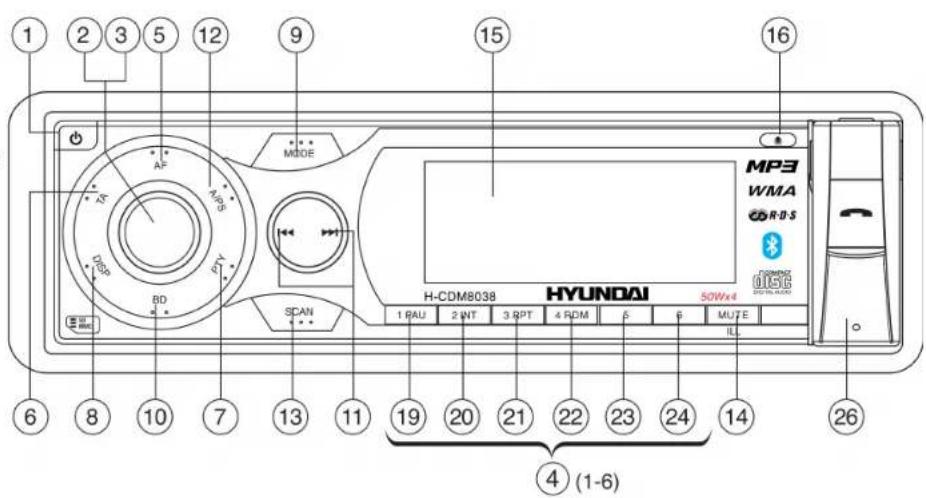
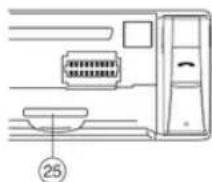
- Multi-media card (MMC)/SD card slot
- Wireless bluetooth headset
- RESET button
- Status indicator light
Note: Pressing the RESET button will erase the clock setting and stored stations.
Panel status indicator lights up when you slide the panel down; flashes when you remove the panel.
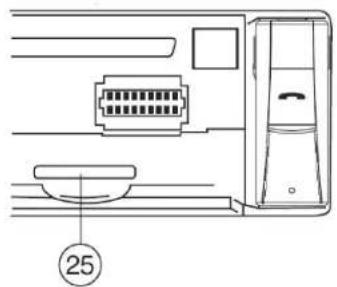
General operations
Reset the unit
Operating the unit for the first time or after replacing the car battery, you must reset the unit. Press OPEN button on the panel to open the panel and press the RESET button with thin hard object to restore the unit to the original factory settings.
Power ON/OFF
Press any button to turn the unit on. Press and hold POWER button to turn off the unit.
Note: After the unit is off, the volume level and radio current settings will be memorized, and when you turn the unit on it will resume the stored status, which you set.
Display (DISP)
Press DISP button to switch between display information such as radio frequencies, clock, track and other information depending on the playing MODE.
To adjust the time:
- Press DISP button until clock is showed press the DISP button and hold for 2 seconds. Time will start blinking.
- Rotate the VOL knob clockwise to adjust minute.
- Rotate the VOL knob anticlockwise to adjust hour.
- Press DISP button again to save setting.
Mode
By pressing this button, user can select: AUX/TUNER/S-CDP(CD/MP3)/MMC/SD mode.
Mute
Press MUTE/ILL button to mute the sound at once. Press again to return to the previous volume level.
Dual illumination
When pressing the MUTE/ILL button for more than 2 seconds, it is activated as selecting green or red buttons illumination.
Volume control/SELECT
Rotating this knob, you can adjust VOL/BASS/TREB/BAL/FAD. To select the functions, press SEL button shortly until the desired functions are shown on the display.
Increase or decrease the volume by turn the VOL knob right or left. These buttons can be used to adjust the BASS, TREBLE, BALANCE and FADER.
Other functions
To choose the corresponding mode, press SEL button for 2 seconds, and then press it repeatedly until the display shows the mode. Rotate the knob to choose the needed value. After choosing, please leave the unit idle to activate.
TA SEEK/TA ALARM

In TA SEEK mode, the unit will seek for traffic announcement program when TA is pressed; in TA ALARM alarm is set off.
MASK DPI/MASK ALL

During MASK DPI mode, the unit will mask only the AF which has different PI, this is the default mode; during MASK ALL mode, the unit will mask the AF which has different PI and no RDS signal with high field strength.
RETUNE S/L - SHORT/LONG

flowchart
graph LR
    A["SEL"] --> B["TA SEEK"]
    B --> C["SEL"]
    C --> D["MASK DPI"]
    D --> E["SEL"]
    E --> F["RETUNE"]
    F --> G["VOL"]
    G --> H["RETUNE L/R ETUNE S"]
    style A fill:#f9f,stroke:#333
    style H fill:#f9f,stroke:#333
"RETUNE" refers to the time period the unit allows for radio scan when reception is interrupted. "S" repr period of 30 seconds and "L" represents a time period of 90 seconds.
AUDIO DSP CONTROLS

flowchart
graph LR
    A["2 sec. SEL"] --> B["TA SEEK"]
    B --> C["SEL"]
    C --> D["MASK DPI"]
    D --> E["SEL"]
    E --> F["RETUNE"]
    F --> G["SEL"]
    G --> H["DSP ON"]
    I["VOL"] --> J["POP M — ROCK M — CLASS M — FLAT M — DSP OFF"]
    J --> I
Choose equalizer mode: POP M => ROCK M => CLASS M => FLAT M => DSP OFF.
LOUDNESS CONTROLS

flowchart
graph LR
    A["SEL"] --> B["TA SEEK"]
    B --> C["SEL"]
    C --> D["MASK DPI"]
    D --> E["SEL"]
    E --> F["RETUNE"]
    F --> G["SEL"]
    G --> H["DSP"]
    H --> I["SEL"]
    I --> J["LOUD"]
    J --> K["VOL"]
    K --> L["ON/OF"]
Select LOUD ON or OFF. In ON mode the bass and treble response will be boosted.
SUBWOOFER MODE

flowchart
graph LR
    A["2 sec. SEL"] --> B["TA SEEK"]
    B --> C["SEL"]
    C --> D["MASK DPI"]
    D --> E["SEL"]
    E --> F["RETUNE"]
    F --> G["SEL"]
    G --> H["DSP"]
    H --> I["SEL"]
    I --> J["LOUD"]
    J --> K["SEL"]
    K --> L["SUBWOOFER"]
    M["VOL"] --> N["WOOFER ON/OFF"]
Choose the Subwoofer On or OFF.
ESP (Electronic Shock Protection) MODE

flowchart
graph LR
    A["SEL"] --> B["TA SEEK"]
    B --> C["SEL"]
    C --> D["MASK DPI"]
    D --> E["SEL"]
    E --> F["RETUNE"]
    F --> G["SEL"]
    G --> H["DSP"]
    H --> I["SEL"]
    I --> J["LOUD"]
    J --> K["SEL"]
    K --> L["SUBWOOFER"]
    M["SEL"] --> N["ESP"]
    N --> O["VOL"]
    O --> P["ESP0 / ESP0"]
    Q["2 SET"] --> A
Note: 10 sec./40 sec. for CD, 120 sec. for MP3 automatically works.
MULTI CD SELECTION

flowchart
graph LR
    A["2 sec. SEL"] --> B["TA SEEK"]
    B --> C["SEL"]
    C --> D["MASK DPI"]
    D --> E["RETUNE"]
    E --> F["SEL"]
    F --> G["DSP"]
    G --> H["LOUD"]
    H --> I["SEL"]
    I --> J["SUBWOOFER"]
    K["SEL"] --> L["ESP"]
    L --> M["SEL"]
    M --> N["MULTI"]
    N --> O["VOL"]
    O --> P["CD MULTI ON/OFF"]
Choose CD MULTI ON or OFF. CD MULTI ON: Read multi section CD. CD MULTI OFF: Read first section only.
BEEP MODE

flowchart
graph LR
    A["SEL"] --> B["TA SEEK"]
    B --> C["SEL"]
    C --> D["MASK DPI"]
    D --> E["SEL"]
    E --> F["RETUNE"]
    F --> G["SEL"]
    G --> H["DSP"]
    H --> I["SEL"]
    I --> J["LOUD"]
    J --> K["SEL"]
    K --> L["SUBWOOFER"]
    M["2 sec."] --> N["SEL"]
    N --> O["ESP"]
    O --> P["SEL"]
    P --> Q["MULTI"]
    Q --> R["SEL"]
    R --> S["BEEP"]
    S --> T["VOL"]
    T --> U["BEEP ON/OFF"]
BEEP ON: BEEP sound can be heard from speaker when the buttons are pressed.
SEEK MODE

flowchart
graph LR
    A["2 sec. SEL"] --> B["TA SEEK"]
    B --> C["SEL"]
    C --> D["MASK DPI"]
    D --> E["SEL"]
    E --> F["RETUNE"]
    F --> G["SEL"]
    G --> H["DSP"]
    H --> I["SEL"]
    I --> J["LOUD"]
    J --> K["SEL"]
    K --> L["SUBWOOFER"]
    L --> M["SUBWDER"]
    M --> N["2 sec. SEL"]
    N --> O["ESP"]
    O --> P["SEL"]
    P --> Q["MULTI"]
    Q --> R["SEL"]
    R --> S["BEEP"]
    S --> T["SEL"]
    T --> U["SEEK"]
    U --> V["VOL"]
    V --> W["SEEK1 / SEEK 2"]
SEEK 1: When SEEK 1 mode is activated, AUTO SEEK SCAN is stopped when station is detected even user st SEEK button.
SEEK 2: Auto SEEK SCAN is not stopped even station is detected if user pushes SEEK button. When releases SEEK button, then stop when station is detected.
STEREO/MONO

flowchart
graph LR
    A["2 sec. SEL"] --> B["TA SEEK"]
    B --> C["SEL"]
    C --> D["MASK DPI"]
    D --> E["SEL"]
    E --> F["RETUNE"]
    F --> G["SEL"]
    G --> H["DSP"]
    H --> I["SEL"]
    I --> J["LOUD"]
    J --> K["SEL"]
    K --> L["SUBWOOFER"]
    M["SEL"] --> N["ESP"]
    N --> O["SEL"]
    O --> P["MULTI"]
    P --> Q["SEL"]
    Q --> R["BEEP"]
    R --> S["SEL"]
    S --> T["SEEK"]
    T --> U["SEL"]
    U --> V["STEREO"]
    V --> W["VOL"]
    W --> X["STEREO/MONO"]
When FM stations are weak and are disturbed, listening can be improved by selecting MONO.
LOCAL/DX

flowchart
graph LR
    A["2 sec. SEL"] --> B["TA SEEK"]
    B --> C["SEL"]
    C --> D["MASK DPI"]
    D --> E["SEL"]
    E --> F["RETUNE"]
    F --> G["SEL"]
    G --> H["DSP"]
    H --> I["SEL"]
    I --> J["LOUD"]
    J --> K["SEL"]
    K --> L["SUBWOOFER"]
    L --> M["ESLP"]
    M --> N["SEL"]
    N --> O["MULTI"]
    O --> P["SEL"]
    P --> Q["BEEP"]
    Q --> R["SEL"]
    R --> S["SEEK"]
    S --> T["SEL"]
    T --> U["STEREO"]
    U --> V["SEL"]
    V --> W["LOCAL"]
    W --> X["VOL"]
    X --> Y["LOCAL/DX"]
"Local" position in areas with strong signals to let radio stop at only strong stations during manual tuning (LOC appears). Select to Distant position in areas with weak signals to listen to all stations.
Digital tuner operations
Note: RDS (Radio Data System) service availability varies with areas. Please understand if RDS service is not available in you area, the following service is not available, either.
Mode
Press MODE button to turn on tuner mode.
Band (BD)
Press BD button. Each band is toggled cyclically by pressing this key FM1--FM2--FM3--FM(OIRT)--MW1(AM1)--MW2(AM2).
Automatic or manual tuning
When NEXT or PREVIOUS buttons are pressed shortly, these buttons are operated as MANUAL tuning mode. When pressed longer than 1 sec., they are operated as SEEK tuning mode.
Auto search tuning (A/PS)
By pressing shortly, the radio searches for each preset station. By pressing longer than 1 sec, and then 6 strongest stations are preset to the corresponding preset number. When AS operation is finished, the radio executes the preset scan.
Scan automatic tuner control (SCAN)
This button is operated as RADIO SCAN. The operation is similar as normal search but different thing is holding 5 seconds on every station detected in RADIO SCAN mode.
TA (Traffic Alarm) function
- Briefly press the TA button to turn on or turn off the TA function.
- When TA is enabled (on), the tuner starts searching the traffic announcement.
AF (Alternative Frequencies) function
Briefly press the AF button to turn on or turn off the AF function. The RDS program will be automatically searched and received. The unit will search another frequency with this RDS program.
PTY (Program type) function
When PTY is selected the radio starts to search corresponding PTY information and stops of the corresponding PTY information is detected. If corresponding PTY information is not found, normal radio reception is resumed.
When PTY mode is selected, the PTY switch is shared as follows: PTY music group — PTY speech group — OFF.
Press PTY button once to choose Music mode, then press number buttons to choose the needed program.
Press PTY button twice to choose Speech mode, then press number buttons to choose the needed program.
MUSIC
| 1. POPM, ROCK M | 1 NEWS, AFFAIRS, INFO |
| 2. EASY M, LIGHT M | 2 SPORT, EDUCATE, DRAMA |
| 3. CLASSICS, OTHER M | 3 CULTURE, SCIENCE, VARIED |
| 4. JAZZ, COUNTRY | 4 WEATHER, FINANCE, CHILDREN |
| 5. NATION M, OLDIES | 5 SOCIAL, RELIGION, PHONE IN |
| 6. FOLK M | 6 TRAVEL, LEISURE, DOCUMENT |
SPEECH
Note: When pressed shortly, number buttons select a preset station directly. When pressed longer than 1 sec., current station is stored in preset memory bank.
Discs for playback
This unit can play disc types: CD/CD-R/-RW.
Compatible with formats: CDDA/MP3/WMA.
Loading and ejecting a disc
- Turn the power on.
- Press the OPEN button on the panel.
- Insert the disc with the printed side facing upward into the slot.
- Press EJECT button on the inner side to eject the disc.
Multi-media card (MMC) / SD card slot
Support MP3/WMA ID3 format music only.
- Press button and the front panel will open.
- Detach the panel by pulling it towards you.
- Carefully insert the SD/MMC card into the card slot, attach back the panel. Unit starts playback automatically.
SD/MMC notes:
- SD/ MMC card support.
- FAT 12/ FAT 16/ FAT 32 is possible
- FAT 12/16 (dir: 200 support, file:500 support),
-
FAT 32 (dir: 200 support, file:500 support).
-
Filename: 32 byte/ Dir name: 32byte.
- Tag (id3tag ver2.0)
- Title/ Artist/ Album: 32 byte support.
5. Multi card reader not support.
Note:
SD cards brands: Cannon, Fuji film, Palm, Motorola, Microsoft, IBM, HP, Compaq, Sharp, Samsung, etc. Capacity: up to 2 GB.
MMC cards brands: Ericsson, Nokia, Motorola, HP, Palm, Sanyo, Microsystems, etc. Capacity: up to 2 GB.
Note: Because of the great variety of products with SD and MMC card slots and their sometimes quite manufacturer-specific functions the producer can neither guarantee that all devices will be recognized nor that all operating options that are possible in theory will actually work.
ID3 Tag information
This unit supports ID3 tag ver2.0. If an MP3/WMA file has ID3 Tag information, it will be displayed on the LCD. If there is no ID3 Tag information, nothing will be shown on LCD. The ID3 Tag information may include File, Folder, Music, Album or Artist data.
NEXT/PREVIOUS
Press NEXT/PREVIOUS buttons to choose next or previous track. Press longer than 1 sec., to choose forward playback or backward playback.
PLAY/PAUSE
Press PAUSE button to pause the playback, press one more time to resume the normal playback.
INTRO (Preview all Tracks)
When this button is pressed, "INT ON" indication is displayed and the first several seconds of each track of the disc is played. Press again to stop intro and listen to track.
REPEAT
When RPT button is pressed, "RPT ON" indication is displayed and playback of the selected track will be continually repeated until the track repeat mode is cancelled by pressing RPT button again.
RANDOM
When RDM button is pressed, "RDM ON" indication is displayed and each track of the disc is played in random instead of normal order. To cancel RANDOM mode, press RDM button again.
TRACK DOWN/UP SELECT (In case of MP3/WMA files)
5 button: 10 Track down
6 button: 10 Track up
Selection of MP3/WMA files
- Searching Track:
- Press A/PS, then searching track is activated.
- Press SEL button, then the first digit is blinking.
• Turn VOL knob to right or left, select first digit you want. - Press SEL button, then the first digit is fixed and second digit is blinking.
• Turn VOL knob to right or left, select 2'nd 3'rd respectively.
• Then automatically the song you selected will start. - Searching File Name:
• Press A/PS twice, then file search is activated. - Press SEL button, then the first directory is displayed.
• Turn VOL knob to right or left, you can select the directory you want. -
Press SEL button again, then the directory is fixed and the first file name is displayed.
• Turn VOL knob to right or left, you can select the file you want. -
Press SEL button, then the song you selected will start.
3 Searching Character: - Press A/PS 3 times, then character search mode is activated.
- Press SEL button, then "A" character is displayed.
• Turn VOL knob to right or left, you can select the letter you want. - Press SEL button longer than 2 sec.
• The song which has same character you selected is displayed. - Turn VOL knob to right or left, you can select the song you want.
- Press SEL button, then the song you selected will start.
MP3/WMA overview
• MP3 is short for MPEG Audio Layer 3 and refers to an audio compression technology standard.
• This product allows playback of MP3 files on CD-ROM, CD-R or CD-RW discs.
- The unit can read MP3 files written in the format compliant with ISO 9660. However it does not support the MP3 data written by the method of packet write.
- The unit can not read an MP3 file that has a file extension other than ".mp3".
- If you play a non-MP3 file that has the ".mp3" extension, you may hear some noise.
- In this manual, we refer to what are called "MP3 file" and "folder" in PC terminology as "track" and "album", respectively.
- Maximum number of directory level is 8, including the root directory. Maximum number of files and folders per disc is 256.
• The unit may not play tracks in the order of Track numbers.
- The unit plays only the audio tracks if a disc contains both audio tracks and MP3 files.
- When playing a disc of 8 kbps or "VBR", the elapsed playing time in the display window will not be correct and also the intro play may not function properly. "VBR": Variable Bit Rate.
- The unit supports the playback of WMA files. The playback of ID3 tags for WMA format is not guaranteed, it depends on versions and availability of Cyrillic alphabet.
- WMA (Windows Media Audio) – music data compression format, created by Microsoft Corporation. This format uses coding algorithm for compression of initial audio-record, greatly decreasing the file size, but, saving the good sound quality even when the bit rate is low (for example, 64 Kbit/s).
- Remember that the unit may not play the tracks in order they are written on disc.
Notes on creating your own CD-R or CD-RW containing MP3 files:
- To enjoy high quality sound, we recommend converting to MP3 files with a sampling frequency of 44.1 kHz and a fixed bit rate of 128 kbps.
• DO NOT store more than 256 MP3 files per disc. - For ISO 9660 - compliant format, the maximum allowable depth of nested folders is 8, including the root directory (folder).
- When CD-R disc is used, playback is possible only for discs, which have been finalized.
• Make sure that when MP3 CD-R or CD-RW is burned that it is formatted as a data disc and NOT as an audio disc. - You should not write non-MP3 files or unneeded folders along with MP3 files on the disc otherwise it takes a long time until the unit starts to play MP3 files.
- With some CD-R or CD-RW media, data may not be properly written depending on its manufacturing quality. In this case, data may not be reproduced correctly. High quality CD-R or CD-RW disc is recommended.
- Up to 16 characters are displayed for the name of an Album or a Track. ID3TAG version 1.x is required.
• Note that the unit may not play Tracks in the order that you wrote them to the disc.
Bluetooth (hands-free) operations
- Release bluetooth headset
- ANSWER/MAKE A CALL button
- VOLUME +
- VOLUME-
- Led light
- Microphone
- Ear clip
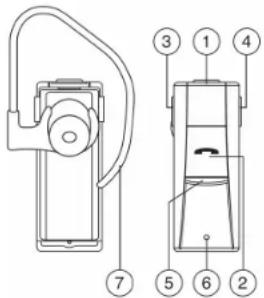
Before you can use the Bluetooth headset, you must first perform PAIRING. Pairing is a procedure used to connect 2 Bluetooth devices together.
Pairing and making call
- Press and hold ANSWER/MAKE A CALL button until Red and Blue LED blinks alternately. This is a Pairing mode stage.
- Turn on the Bluetooth connection of the mobile phone. Perform Add Bluetooth device. The mobile will search for any Bluetooth devices within the range. Select "BT" and enter Passkey: "0000" to connect to the car audio. (Please refer to the instruction manual of your mobile phone for Bluetooth Pairing. Your mobile phone should have Bluetooth function otherwise can not do the pairing).
- After successful pairing, headset's Blue LED will blink once every 3 seconds. This unit is in active mode.
- When there's incoming call, simply press ANSWER/MAKE A CALL button to receive call.
- When talking, you can adjust headset's volume level by pressing VOLUME+/- button found at the upper left / right side of headset.
- Press ANSWER/MAKE A CALL button once to end call.
- To make calls, dial from your mobile phone. Sound automatically transfer to headset.
Note:
- To turn on headset, press and hold ANSWER/MAKE A CALL until Blue LED lights on. When no device connection was found, Blue LED will blink once every 10 seconds.
• To turn off headset, press and hold ANSWER/MAKE A CALL button until LED lights are off. - Press ANSWER/MAKE A CALL button two times will dial the last number.
- "Last Number Redial" will store the last number dialed out from the mobile phone.
Charging the bluetooth headset
When Bluetooth headset battery state is low or out of power, attach it back to the front panel and head unit will charge it automatically. During charging, red LED lights on all the time. When fully charge, Red LED disappears.
Note: When charging, it is advisable to let it be fully charged before detaching it from front panel for use.
Listing of current Bluetooth Mobile phones:
| Nokia 3230 | Nokia 6680 | Samsung D508 | Sony Ericsson 810C | Motorola E1 |
| Nokia 3250 | Nokia 7610 | Samsung D608 | Sony Ericsson K750i | Motorola E680 |
| Nokia 5200 | Nokia 8800 | Samsung D800 | Sony Ericsson K800i | Motorola L2 |
| Nokia 5300 | Nokia E50 | Samsung D908 | Sony Ericsson T610 | Motorola L6 |
| Nokia 6021 | Nokia E60 | Samsung E370 | Sony Ericsson W810i | Motorola L7 |
| Nokia 6103 | Nokia E61 | Samsung E648 | Sony Ericsson Z550C | Motorola V3 |
| Nokia 6230 | Nokia E70 | Samsung E870 | Sony Ericsson Z710i | Motorola V3I |
| Nokia 6233 | Nokia N70 | Samsung E900 | Motorola V360I | |
| Nokia 6280 | Nokia N71 | Samsung P300 | ||
| Nokia 6311 | Nokia N72 | Samsung Z400 | ||
| Nokia 6600 | Nokia N90 | Samsung Z510 | ||
| Nokia 6670 | Nokia N91 |
This list is only updated to the time this list is being printed. This list gives an example of Bluetooth mobile phone available on the market, if your Bluetooth mobile phone is not on the list, please try it out in practice or try your phone at the local dealer or consult with the local dealer in case it is not mentioned in the list.
Anti-theft system
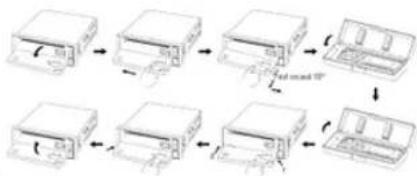
Remove the panel
- Press POWER button to switch off the power of the unit.
- Press OPEN button to flip down the panel.
- Push the panel to the left and then pull it towards you.
- Put it to the special box and take it with you.
Remove the unit
- Remove the panel and the trim plate.
- Insert both T-Keys into hole on the front of the set until they lock.
- Pull out the unit.
Handling discs
- Dirty, scratched or warped discs may cause skip ping or noise.
- Handle the disc only by the edges. To keep clean do not touch its surface.
• Discs should be stored in their cases after use to avoid scratches. - Do not expose discs to direct sunlight, high humidity, high temperature or dust.
• Prolonged exposure to extreme temperature can wrap the disc (such as leaving the discs in your car during
summertime). - Do not stick or write anything on either side of disc. Sharp writing instruments, or the inks used in some felt-tip pens, may damage its surface.
• DO NOT touch the unlabeled side. DO NOT attach any seal, label or data protection sheet to either side of a disc.
flowchart
graph TD
    A["Raw Material Input"] --> B["Add Sample"]
    B --> C["Add Sample with Cover"]
    C --> D["Final Output"]
Cleaning
Cleaning the cabinet
Wipe with a soft cloth. If the cabinet is very dampen (not dropping wet) the cloth with a weak solution of soapy water, and then wipe clean.
Cleaning discs
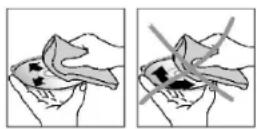
Fingerprints should be carefully wiped from the surface of disc with a soft cloth. Unlike conventional records, compact discs have no grooves to collect dust and macroscopic dirt, so gently wiping them with a soft cloth should rem panicles. Wipe in a straight motion from the center to the edge.
Never use thinner benzine, record cleaner or anti static spray on a compact disc. Such chemicals can damage its plastic surface.
Troubleshooting guide
| Symptom Cause Solution | ||
| No power | The car ignition is not on.The fuse is blown. | If the power supply is properly connected to the car accessory switch the ignition key to “ACC”.Replace the fuse. |
| Disc cannot be loaded. | Presence of disc inside the player. | Remove the disc in the player then put a new upward. |
| Disc cannot be read. Inserting the disc in upside down.Compact disc is extremely dirty or defective.Temperature inside the car is too high. | Insert the compact disc with the label facing upward.Clean the disc or try to play a new one.Cool off until the ambient temperature returns to normal. | |
| No sound Volume is in minimum.Wiring is not properly connected. | Adjust volume to a desired level.Check wiring connection. | |
| The buttons do not work. The built-in microcomputer is not operating properly due to noise.Front panel is not properly fix into its place. | Press the RESET button.Reinstall the front panel. | |
| Sound skips. The installation angle is more than 30 degrees.The disc is extremely dirty or defective. | Adjust the installation angle to less than 30 degrees.Clean the compact disc/try to play a new one. | |
| The radio does not work, the radio station automatic selection does not work. | The antenna cable is not connected the signals are too weak. | Insert the antenna cable firmly select a station manually. |
Specification
| General | |
| Power supply | 12 V DC |
| Current consumption | max. 10A |
| Maximum power output | 50 W x 4 channels |
| Dimensions (L x W x H) | 178 x 165 x 50 mm |
| Working temperature range | -10°C - +60°C |
| ESP | 40 sec. ESP for Audio-CD, 120 sec ESP for MP3, 300 sec ESP for WMA |
| FM Stereo Radio | |
| Frequency range | 65 - 74 / 87.5 - 108.0 MHz |
| Usable sensitivity | 2.8 μV |
| Preset memory stations | 24 |
| MW and LW section | |
| Frequency range | 522 kHz - 1620 kHz |
| Preset memory stations | 12 |
| Audio specification | |
| Maximum output | 2 Vrms (+/- 3 dB) |
| Frequency response | 20 Hz - 20 KHz |
| S/N ratio(A-vtd) | 60 dB |
| DSP sound effect | Classic, Rock, Pop, Flat |
| Line out | |
| Output | CD max 2000 mV |
Specifications are subject to change without notice. Mass and dimension are approximate.
natural_image
Diagram of a refrigerator interior showing seating arrangement and a bowl (no text or labels)Основные операции
- Table of contents
- Important safeguards
- Accessories
- Installation/Connections
- Mounting angle adjustment
- TO SUPPORT THE UNIT
- Panel controls
- Front panel
- General operations
- Reset the unit
- Power ON/OFF
- Display (DISP)
- Mode
- Mute
- Dual illumination
- Volume control/SELECT
- Other functions
- TA SEEK/TA ALARM
- MASK DPI/MASK ALL
- RETUNE S/L - SHORT/LONG
- AUDIO DSP CONTROLS
- LOUDNESS CONTROLS
- SUBWOOFER MODE
- ESP (Electronic Shock Protection) MODE
- MULTI CD SELECTION
- BEEP MODE
- SEEK MODE
- STEREO/MONO
- LOCAL/DX
- Digital tuner operations
- Band (BD)
- Automatic or manual tuning
- Auto search tuning (A/PS)
- Scan automatic tuner control (SCAN)
- TA (Traffic Alarm) function
- AF (Alternative Frequencies) function
- PTY (Program type) function
- Discs for playback
- Loading and ejecting a disc
- Multi-media card (MMC) / SD card slot
- SD/MMC notes:
- Multi card reader not support.
- Note:
- ID3 Tag information
- NEXT/PREVIOUS
- PLAY/PAUSE
- INTRO (Preview all Tracks)
- REPEAT
- RANDOM
- TRACK DOWN/UP SELECT (In case of MP3/WMA files)
- Selection of MP3/WMA files
- MP3/WMA overview
- Notes on creating your own CD-R or CD-RW containing MP3 files:
- Bluetooth (hands-free) operations
- Pairing and making call
- Charging the bluetooth headset
- Anti-theft system
- Remove the panel
- Remove the unit
- Handling discs
- Cleaning
- Cleaning the cabinet
- Cleaning discs
- Основные операции
Brand : HYUNDAI
Model : H-CDM8038
Category : Car stereo