H-CMD4008 - Car stereo HYUNDAI - Free user manual and instructions
Find the device manual for free H-CMD4008 HYUNDAI in PDF.


| Product Type | Car Stereo |
| Brand | Hyundai |
| Model | H-CMD4008 |
| Dimensions (W x H x D) | 178 x 50 x 158 mm (Standard 1 DIN) |
| Weight | Approximately 1.2 kg |
| Power Supply | 12V DC (Negative Ground) |
| Maximum Power Output | 4 x 50 Watts |
| RMS Power Output | 4 x 20 Watts |
| Frequency Range | FM: 87.5 - 108 MHz, AM: 530 - 1710 kHz |
| Audio Playback | CD, CD-R, CD-RW, MP3, WMA |
| Inputs | USB, SD Card, AUX (3.5mm front) |
| Outputs | RCA Pre-outs (Front/Rear/Subwoofer) |
| Equalizer | Preset EQ Modes (Rock, Pop, Classic, etc.) |
| Display | LCD with Backlight (Color Selectable) |
| Remote Control | Included (wired or wireless depending on variant) |
| Bluetooth | Not Available |
| Safety Features | Fuse protection (10A), Detachable Faceplate |
| Maintenance | Clean with soft dry cloth; avoid solvents |
| Spare Parts | Contact Hyundai support or authorized service centers |
| Reparability | Serviceable by qualified technician; some parts replaceable |
Frequently Asked Questions - H-CMD4008 HYUNDAI
User questions about H-CMD4008 HYUNDAI
0 question about this device. Answer the ones you know or ask your own.
Ask a new question about this device
Download the instructions for your Car stereo in PDF format for free! Find your manual H-CMD4008 - HYUNDAI and take your electronic device back in hand. On this page are published all the documents necessary for the use of your device. H-CMD4008 by HYUNDAI.
USER MANUAL H-CMD4008 HYUNDAI
Thank you for purchasing our product. For safety, it is strongly recommended to read this manual carefully before connecting, operating and/or adjusting the product and keep the manual for reference in the future.
Table of contents
Table of contents....2
Important safeguards....3
Installation/ connection 4
Controls 6
General operations....12
Digital tuner operations....16
Disc operations....19
MP3 overview 28
System setup....30
Handling discs ....34
Cleaning 34
Troubleshooting guide ....35
Specification 36
Important safeguards
- Using the device at temperature below -10°C may cause the breakage of the device. BEFORE USING PLEASE HEAT UP THE PASSENGER COMPARTMENT TO THE RECOMMENDED TEMPERATURE!
- Read carefully through this manual to familiarize yourself with this high-quality sound system.
- Disconnect the vehicle's negative battery terminal while mounting and connecting the unit.
- When replacing the fuse, be sure to use one with an identical amperage rating. Using a fuse with a higher amperage rating may cause serious damage to the unit.
• DO NOT attempt to disassemble the unit. Laser beams from the optical pickup are dangerous to the eyes. - Do not use the unit in places where it can be exposed to water, moisture and dust.
- Make sure that pins or other foreign objects do not get inside the unit; they may cause malfunctions, or create safety hazards such as electrical shock or laser beam exposure.
- If you have parked the car for a long time in hot or cold weather, wait until the temperature in the car becomes normal before operating the unit.
• DO NOT open covers and do not repair yourself. Consult the dealer or an experienced technician for help. - Make sure you disconnect the power supply and aerial if you will not be using the system for a long period or during a thunderstorm.
- Make sure you disconnect the power supply if the system appears to be working incorrectly, is making an unusual sound, has a strange smell, has smoke emitting from it or liquids have got inside it. Have a qualified technician check the system.
- The unit is designed for negative terminal of the battery, which is connected to the vehicle metal. Please confirm it before installation.
- Do not allow the speaker wires to be shorted together when the unit is switched on. Otherwise it may overload or burn out the power amplifier.
Installation/ connection
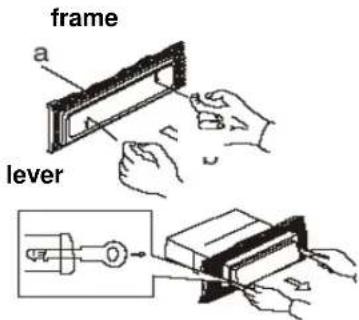
This unit can be installed in any dashboard having an opening as shown on the picture.
The dashboard should be 4.5 - 5.5mm thick in order to be able to support the unit.
First complete the electrical connections, and then check them for correctness.
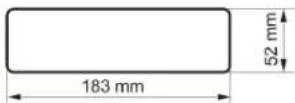
Installation opening
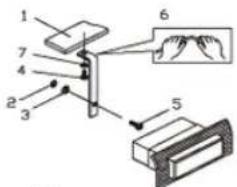
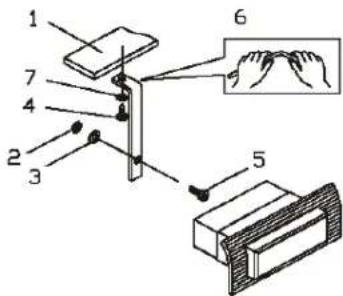
- Insert the unit holder into the dashboard.
- Select the appropriate tabs and bend them the tabs 90 degrees to secure the holder in place.
-
Secure the rear of the unit. Fix the rear of the unit to the car body by rubber cushion.
-
Dashboard
- Nut (5 mm)
- Spring washer
- Screw (5 x 25 mm)
- Screw
- Strap
-
Plain washer
-
Insert frame.
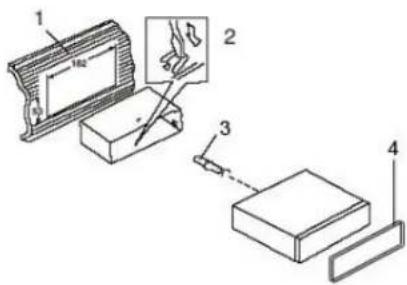
Removing the unit
Insert fingers into the groove in the front of frame and pull out to remove the frame. (When reattaching the frame, point the side with a groove down wards and attach it.) Insert the levers supplied with the unit into the grooves at both sides of the unit as shown in figure until they click. Pulling the levers makes it possible to remove the unit from the dashboard.
Electrical connection
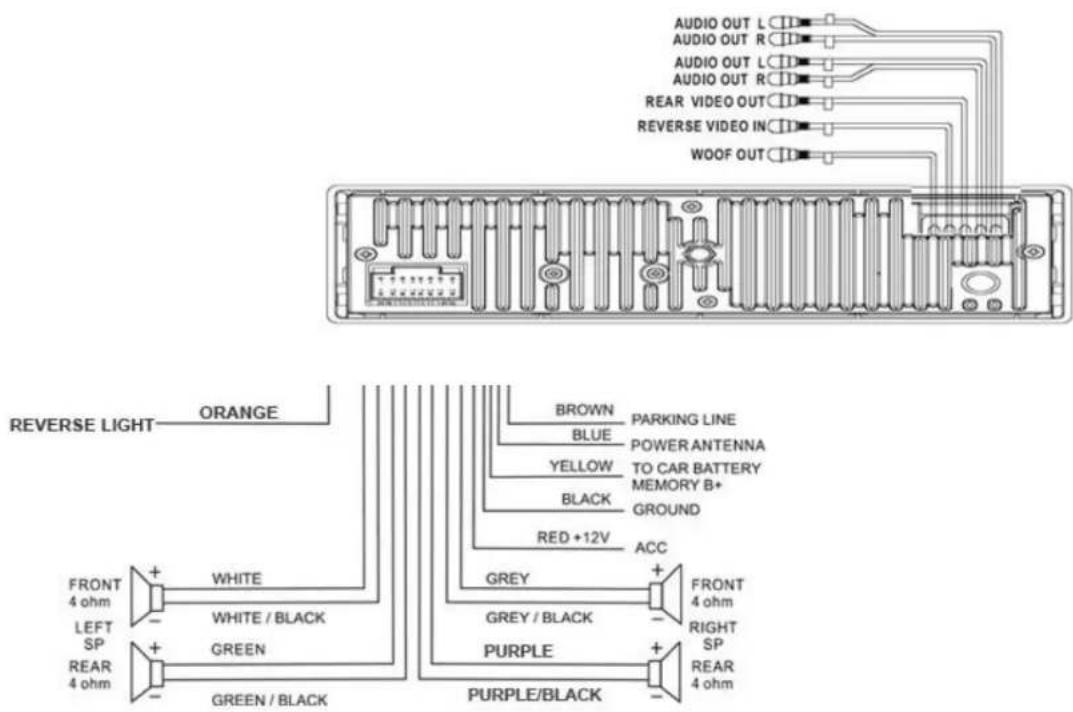
Note: For your driving safety, please link your parking wire with low power level, and keep it controlled by manual brake switch. Wire should be high power level and the unit cannot play video disc.
Caution: Do not interchange the connection of the wiring!!!
For some car models you may need to modify wiring of the supplied power cord. Contact your authorized car dealer before installing this unit.
Controls
Front panel
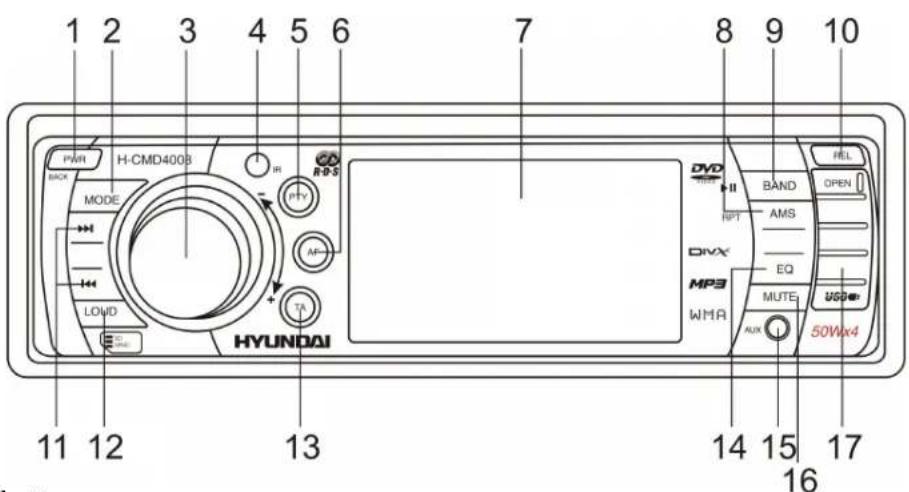
- PWR/BACK button
Press it to turn on the unit, press and hold more than 1 second to turn off.
In setup menu, press it when you want to come back to the previous menu.
- MODE button
Press the MODE button to select the mode: RADIO => DISC => USB => SD => AUX.
- VOL knob/MENU button
Rotate VOL knob clockwise to increase the volume level; rotate anticlockwise to decrease the volume level.
Press the button to display the menu: AUDIO => PICTURE => EXPERT => TIME ADJ => DEFAULT.
-
IR SENSOR
-
PTY button
In Radio mode press the PTY button to turn on/off the PTY function.
- AF button
In Radio mode press AF button to activate the AF function.
-
TFT DISPLAY
-
AMS/RPT button
In Radio mode long press the AMS/RPT button, the stations will good reception are stored automatically to the preset channel, short press to scan the preset station.
In playback mode press the AMS/RPT button to start repeat playing, press the button again to repeat the whole disc. Press the third time to cancel repeat function.
- BND/PLAY/PAUSE button
In Radio mode press the BND/PLAY/PAUSE button to select among three FM or one AM bands. Long press the button is ENTER function.
During playback press the PTY/BND/PLAY/PAUSE button to pause or resume playing.
- REL button
Press the REL button to release the front panel.
- 📋/▶ buttons
During playback press them to go to previous/next track.
During playback press and hold them more than 2 seconds to start fast backward/forward playback.
In Radio mode press them to start auto tuning.
In Radio mode press and hold them more than 2 seconds to enter the manual tuning mode. Press them to decrease/increase the station manually.
- LOUD button
Press it to select LOUD ON or OFF
- TA button
In Radio mode press TA button to turn on/ off the TA function.
- EQ button
Press the EQ button to select the corresponding preset modes to adjust the sound quality.
- AUX input
- MUTE button
Press it to cut down the volume output, press it again to resume volume.
- USB slot
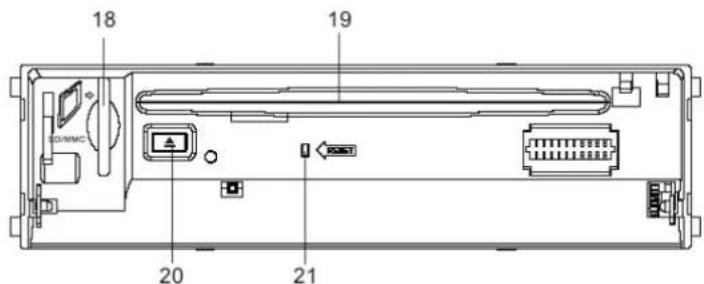
Inner panel
- SD/MMC slot
- Disc loading slot
- EJECT button
Press it to eject the disc.
- RESET button
Press the RESET button to set the unit with a ball-point pen or other pointed object to initial status.
Remote control
- POWER button - press to turn on/ off the unit.
- MODE button - press it to select the mode: RADIO => DISC => USB => SD => AUX.
- DISP button - in DVD mode press it to display Title Elapsed => Title Remain => Chapter Elapsed => Chapter Remain => Display OFF. In VCD/ CD mode: Single => Elapsed => Single Remain => Total Elapsed => Total Remain => Display Off.
- EQ button - press to select the corresponding equalizer preset modes to adjust the sound quality.
- SETUP button – in playback mode press to display system setting menu.
- «/», «/», ▲/▼/◄►, ENTER buttons - fast reverse/fast forward, previous track/ next track, upwards/downwards/ leftwards, rightwards. ENTER button - to confirm settings.
- TITLE button – in DVD mode press it repeatedly to select different titles.
- ANGLE button - press to change the viewing angle in DVD mode.
- GOTO button – in DVD and VCD mode press it to go to a certain Title, CHAPTER, Title / Chapter time.
- CLEAR button - press to activate delete the value inserted.
- 10+ button (option).
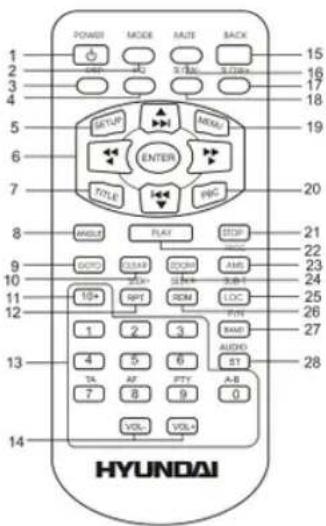
- RPT/ SEEK- button -- in playback mode, press to select the repeat mode. In radio mode, press to scan stations downwards.
- (0-9) number buttons – press to select track, chapter or preset stations. In radio mode, press the 7 (TA)/ 8 (AF)/ 9 (PTY) button to select TA/ AF/ PTY function.
- VOL-/ VOL+ buttons – press them to adjust volume level.
- BACK button - press to come back last operation.
- MUTE button - press it to cut down the volume output, press it again to resume volume.
- SLOW+ button - press to slow the playback forward.
- SLOW- - press to slow the playback reward.
- MENU button - press this button to show the menu.
- PBC button - for VCD disc press it to show the disc menu.
- STOP button - press it to stop playback.
- PLAY button - press it to start playback.
- AMS/ PROG button – in radio mode, press to scan and automatically store station. In VCD/ CD mode press to set the program order to play.
- ZOOM button - press to increase or decrease the picture size.
- LOC/ SUB-T button – in Radio mode, press to select local or distant mode. In DVD playback mode press to change the subtitle language.
- RDM/SEEK+ button - in VCD/CD mode, press to start random playing. In radio mode, press it to scan stations upwards.
- BAND/ P/N button – in radio mode press it to select the desired band. In DVD/ VCD mode, press it to select PAL => MULTI => NTSC system.
- ST/ AUDIO button – in FM mode, press it to select Stereo or Mono mode. In DVD/ VCD mode press to change the audio language.
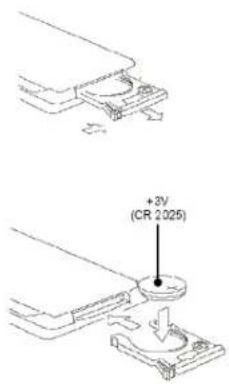
Changing the battery
-
Press the catch and at the same time pull out the battery tray.
-
Insert the 1 x lithium battery, type CR 2025 3V battery with the stamped (+) mark facing upward. Insert the battery tray into the remote control.
Warning: Store the battery where children cannot reach. If a child accidentally swallows the battery, consult a doctor immediately.
Do not recharge, short, disassemble or heat the battery or dispose it in a fire.
Do not expose or bring into contact the battery with other metallic materials. Doing this may cause the battery to give off heat, crack or start a fire.
When throwing away or saving the battery, wrap it in tape and insulate; otherwise, the battery may give off heat, crack or start a fire.
General operations
Reset the unit
Operating the unit for the first time or after replacing the car battery, you must reset the unit.
Press the REL button to remove the detachable front panel. Using a ball-point pen or other pointed object, press the RESET button to complete the initialization procedure.
Power on/off
Press the PWR/BACK button on the panel or the POWER button on the RC to turn the unit on. Press it for a long time on the panel or press shortly on the RC to turn the unit off.
Note: After the unit is off, the volume level and radio current settings will be memorized, and when you turn the unit on it will resume the stored status that you set.
Volume control
Rotate the VOL knob on the panel clockwise or press the VOL+ button on the RC to increase the volume level. Rotate the VOL knob on the panel anticlockwise or press the VOL- button on the RC to decrease the volume level.
Note: The volume level is from 0 (minimum) to 63 (maximum).
Mute function
Press the MUTE button on the panel or on the RCto mute volume control. Press it again to resume the volume.
Mode selecting
Press the MODE button on the panel or on the RC to select the mode: RADIO => DISC (if the disc is inside the unit) => USB => SD (if the SD/MMC card is inside the unit) => AUX.
EQ function
Press the EQ button to enter the EQ menu. Rotate the VOL button to change the tone effect: FLAT => CLASSIC => POP => ROCK => JAZZ => OFF.
OR please refer to SETTING THE AUDIO AND VIDEO CHARACTERISTICS title of this Instruction manual.
Note: The factory default setting is OFF.
Setting the audio and video characteristics
- Press shortly and repeatedly the MENU button (VOL knob) on the panel or press the MENU button on the RC to enter the sound and video characteristics menu.
- Rotate the VOL knob on the panel or press the cursor ◀/▶/▲/▼ buttons on the RC to select the submenu: AUDIO => PICTURE => EXPERT => TIME ADJUST => DEFAULT.
- Press the MENU button (VOL knob) on the panel or press the ENTER button on the RC to enter the submenu selected.
- Rotate the VOL knob on the panel or press the cursor ▲/▼ buttons on the RC to select the setting:
For Audio submenu: BASS => TREBLE => EQ => BALANCE => FADER => BASS.
For Picture submenu: BRIGHTNESS => CONTRAST => COLOR => HUE.
For Expert submenu: DX/LOC => ST/MONO => WOOFER => BEEP => LOUD.
For Time adjustment submenu: TIME DISP => TIME FMT => HOUR => MINUTE.
For Default item: When the item is selected press the MENU button on the panel or ENTER button on the RC to set the default settings.
- When the setting is selected press the MENU button on the panel to activate the setting, rotate the VOL knob to adjust the setting. OR press the ◀/▶ buttons on the RC to adjust the setting:
For Audio submenu:
BASS. TREBLE: -14 ... +14.
EQ: FLAT => CLASSIC => POP => ROCK => JAZZ => OFF.
BALANCE: L => R.
FADER: R => F.
For Picture submenu (adjustment is available in DVD mode only):
BRIGHTNESS, CONTRAST, COLOR, HUE: 0 ... 63.
For Expert submenu:
DX/LOC: DX => LOC.
ST/MONO: ST => MONO.
WOOFER: ON => OFF.
BEEP: ON => OFF.
LOUD: ON => OFF.
For Time adjustment submenu:
TIME DISP: ON => OFF.
TIME FMT: 12AM => 24.
HOUR: 0 ... 23.
MINUTE: 0 ... 59.
- Wait for 2 seconds or press the ENTER button, the setting will be saved automatically.
Note:
- If turning off the power all the settings of each mode will be saved.
- If turning off the ACC power or reset the unit all the settings will become as they were set on the plant.
- If you don't adjust VOL knob/VOL+/- buttons within 3 seconds after selecting the desired setting, the unit will automatically return to the current mode being displayed.
"Back" function
To return to previous menu window press the BACK button on the RC or PWR/BACK button on the panel.
Adjusting the time
Please refer to SETTING THE AUDIO AND VIDEO CHARACTERISTICS title of this Instruction manual.
Using the digit buttons
To insert any number use the digit buttons.
To insert the 2-digit number use the digital buttons in sequence. For example, to insert number 14 press 1 => 4.
Information on the display
In DVD mode press the DISP button on the RC to display: GO TO => SELECT.
In VCD/ CD mode press the DISP button on the RC to display: Single => Elapsed => Single Remain => Total Elapsed => Total Remain => Display Off.
Loud function
Press the LOUD button on the panel to select LOUD ON / OFF
Digital tuner operations
Note: RDS (Radio Data System) service availability varies with areas. Please understand if RDS service is not available in your area, the following service is not available, either.
Band selection
Press the BAND / P/N button on the RC or BND / PLAY/PAUSE button on the panel to select a band: FM1, FM2, FM3, AM. Display will show the wave band, frequency.
Automatic/ Manual tuning
Automatic tuning: Press the 📋/▶ button on the RC to start auto searching the station.
Manual tuning: Press and hold for 2 seconds the ⏻/⌘ button on the RC, press repeatedly the ⏻/⌘ button to start manual searching the station. When the ⏻ button is pressed, the station is sought in the direction of higher frequencies. If the ⏻ button is pressed, the station is sought in the direction of lower frequencies.
Auto store
You can store up to a total of 24 radio stations in the memory (18 FM, 6 AM), manually or automatically.
• To store a station
- Select a band (if needed)
- Select a station by 📄/▶ on the RC.
- Hold a Preset button (1-6) which you want to store the station for at least 2 seconds.
• To recall a station:
- Select a band (if needed)
- Press a Preset button (1-6) briefly to recall the stored station.
Preset scan function
Press the AMS/RPT button on the panel or press the PROG/AMS button on the RC to scan all preset stations in the memory of the current band and stay on each memory stations for about 5 seconds. To stop preset scan, press this button again.
Auto memory store function
Press the AMS/RPT button on the panel and hold for 2 seconds to enter auto store mode. The radio will automatically store the 6 strongest available stations to the 6 preset memories of the current band. To stop auto store, press this button again.
Local radio station search
Press and hold for 2 seconds the LOC/SUB-T button on the RC shortly to turn the LOCAL fu OFF. When the LOCAL function is on the local stations (stations with weak radio signal) can be played. When the LOCAL function is off both local and distant stations (stations with strong radio signal) can be played. Press the button again to turn it of.
Stereo/Mono reception
Press the ST/AUDIO button on the RC to select STEREO or MONO mode.
RDS function
There are the PI, PS, TP, PTY, TA, AF DATA.
PI: Program Identification Code – for identifying code.
PS: Program Service Name Broadcast – station name data expressed in alphanumerically character.
TP: Traffic Program Identification – for traffic information broadcasting station.
TA: Traffic Announcement Identification – showing traffic information is being transmitted or not.
AF: Alternative frequencies – frequency list of broadcasting station transmitting the same program.
AF function
Press the AF button on the panel briefly to switch on/off mode. Symbol "AF" will appear on the display.
Note: The tuner will return to Alternative Frequencies whenever the reception signals getting worse.
“Alarm” will be displayed when an emergency broadcasting is received. Meanwhile sound output level will be adjusted to the preset output level automatically when the volume control is set at minimum.
PTY function
-
Press the PTY button to enter PTY mode.
-
Rotate VOL knob or press ▲/▼ on the RC to select the music type or speech type: NEWS, AFFAIRS, INFO, SPORT, EDUCATE, DRAMA, CULTURE, SCIENCE, VARIED, POP M, ROCK M, EAST M, LIGHT M, CLASSIC, OTHER M, WEATHER, FINANCE, CHILDREN, SOCIAL, RELIGION, PHONE IN, TRAVEL, LEISURE, JAZZ M, COUNTRY M, NATION M, OLDIES M, FOLK M, DOCUMENT, TEST, ALARM.
Note: While selecting PTY engagement, its selection is implement by preset button as described in notes.
- When PTY is selected the radio starts to search corresponding PTY information and stops of the corresponding PTY information is detected. If corresponding PTY information is not found, normal radio reception is resumed.
TA function
Press the TA button on the panel briefly to select the TA mode on/off. Traffic announcement interrupts CD play or radio listening when broadcast. To interrupt traffic announcement press the TA button short without switching off the TA mode. The set will return to the previous operating mode.
Disc operations
Disc glossary
PBC (Playback Control)
PBC is a menu recorded on the disc with SVCD or VCD2.0 format. For the discs contained PBC, it can playback interactive software with the menu displayed on TV. And if the disc contains still images, it can playback high definition of still image.
Title
The title is the important part of DVD disc. The memory volume of the disc is rather big, that makes possible to record several films on one disc. For example, if a disc contains three films, they may be divided into Title 1, Title 2 and Title 3. You can easy use the functions of looking-for.
Chapter
A title can be divided into several blocks, so that every block can be operated as a unit, the unit is called chapter. The chapter contains a unit at least.
Track
It is the biggest component of VCD. Generally, every song of karaoke disc is a track.
Discs for playback
• This unit can play disc types: CD/DVD/DVD±R/±RW/CD-R/-RW/VCD.
• Compatible with formats: DVD-video/SVCD/VCD/HDCD/MP3/MP4/WMA/JPEG/DivX/MPEG4.
• The following file types are supported:
Audio files: MP3 (*.mp3)
WMA (*.wma)
Video files: MP4 (*.avi, DIVX3.11/4.0/5.0/6.0 and XVID)
MPEG 2(*.vob)
MPEG 1(*.dat)
Picture file: JPEG (*.jpg)
• ISO 9660 or ISO 9660 +Joliet format - Max. 30 characters
• Max. Track number is 448
• Max. nested directory is 8 levels
• The max. album number is 99
• The max. length of each track is 99 minutes 59 seconds
• Supported sampling frequency for MP3 disc: 8 KHz – 48 KHz (44.1 KHz preferably)
• Supported bit-rates of MP3 disc are: 32 - 320 kbps (128 kbps preferably).
- Following formats are NOT supported *.ACC, *.DLF, *.M3U, *.PLS, MP3 PRO, files with DRM.
• Open session discs are NOT supported.
USB/SD/MMC notes
USB functions (flash memory type) MP3 music play.
- SD/MMC card support, 2in1 (SD/MMC) support.
- USB flash memory.
- FAT 12/ FAT 16/ FAT 32 is possible
- FAT 12/16 (dir: 200 support, file: 500 support),
- FAT 32 (dir: 200 support, file: 500 support).
-
Filename: 32 byte/ Dir name: 32 byte.
-
Tag (id3tag ver2.0)
- Title/ Artist/ Album: 32 byte support.
-
Multi card reader not support.
-
USB 2.0 support.
Note:
USB format supports 2.0.
Capacity: 8 MB \~ 1 GB.
SD cards brands: Cannon, Fuji film, Palm, Motorola, Microsoft, IBM, HP, Compaq, Sharp, Samsung, etc.
Capacity: 8 MB \~ 1 GB.
MMC cards brands: Ericsson, Nokia, Motorola, HP, Palm, Sanyo, Microsystems, etc.
Capacity: 16 MB \~ 1 GB.
Loading a disc
- Turn the power on.
- Press the REL button on the panel to open the front panel.
- Insert the disc with the printed side facing upward into the slot.
- Close the front panel.
- Press the MODE button to select the DVD mode. The monitor will show the disc content. The DVD disc will play automatically. When the MP3 disc is loaded, press PLAY to start the playback.
- To eject the disc at first press the REL button to open the front panel.
- Press the EJECT button on the base to eject the disc.
- Close the front panel.
Note: If a disc is left in the ejected position for 11 seconds, the disc is automatically reloaded (Auto reload). If you force a disc into before auto reloading, this can damage disc.
Inserting the SD/MMC card and USB device
Insert the SD/MMC card or USB device into SD/MMC compartment or USB socket respectively. Then the playing mode will be changed into SD/MMC or USB mode automatically.
The first card/USB device track playback will start.
Note: When SD/MMC card and USB device are both inserted into their compartment or socket, the playing mode will be changed into the mode of the later one.
You can select the source using SOURCE button on the RC or MODE button on the panel.
Playing/pausing
To ensure good system performance, wait until the unit finishes reading the disc information before proceeding. After inserting the disc playback will start automatically. Or press the BND / PLAY/PAUSE on the panel or press PLAY on the RC to start playback. Press the BND / PLAY/PAUSE on the panel to go into pause mode. In pause mode press it again or press PLAY on the RC to resume the playback.
Stop playback
During playback press the STOP button on the RC to stop playback. Press PLAY button to start playback for the place where it was stopped. Press STOP again to finally stop playback.
Playing the previous/ next track
During playback press the ➤ button to start next track/chapter/title playback.
Press the ⬆ button to move back to the beginning of the current track. Press it twice to move to the beginning of the previous track.
Fast-forward/ fast-backward playing
Press and hold the ⌘/▶ buttons on the panel or press ◀/▶ buttons on the RC to select the speed of fast playing in backward or forward direction: x2=> x4 => x8 => 16 => x32
Slow playback
- During DVD / VCD playback press the SLOW-/+ button on the RC repeatedly to start slow forward playback. The speed will change the following way: 1/2 1/4 1/8 1/16 (forward) Normal playing.
Note: During the disc playback when Slow Playback gets to the beginning of the playing another track, it resumes normal playback.
Repeat playback
During playback press the RPT /SEEK- button on the RC or AMS/RPT on the panel to select the repeat mode: CHAPTER => TITLE => ALL => OFF.
Repeat A-B function (for DVD/VCD discs)
- During playback, long press the A-B button on the RC at the starting point of section you want to repeat (A).
- Press the A-B again at the ending point of the section you want to repeat (B). Section A-B repeating starts.
- Press it again to cancel the A-B repeat function.
Random playback
During disc playback press the RDM/SEEK+ button on the RC to select start random playback. Press again to cancel.
TV type select
Press the P/N / BAND button on the RC to select the TV type: PAL, NTSC, MULTI.
Changing angle (for DVD only)
If DVD disc supports multi-angle playback, press ANGLE button on the RC to playback images in different camera angles. If discs doesn't support multi-angle playback, this function will not work.
Selecting audio languages (for DVD only)
During DVD disc playback press ST/AUDIO button on RC repeatedly to select the audio language to listen (if the disc supports multi-language mode).
Selecting the channel (for VCD only)
During VCD disc playback press ST/AUDIO button on RC repeatedly to select the channel: Mono left => Mono right => Mix mono => Stereo.
Selecting subtitle language (for DVD only)
Subtitle language is in disc initiation setting during playback. Press the LOC/SUB-T button on the RC repeatedly to switch among disc-supported languages.
Changing size (for DVD/VCD)
During playback press the ZOOM button on the RC. The picture will be enlarged accordingly: 2X, 3X, 4X, 1/2X, 1/3X, 1/4X, Normal size.
Menu navigation (for DVD only)
• Title playing:
- Press TITLE button on the RC to activate the disc title list on the screen.
- Press the ▲/▼ buttons to select the desired title or press the digit buttons to insert the desired number directly.
- Press ENTER button to confirm the selected item and start playing.
PBC (Playback Control) function (for VCD only)
If you insert a VCD with PBC, playback starts from the beginning of the 1st track automatically.
- Press PBC button on the RC to activate PBC menu on screen during playback.
- If the menu consists a list of titles, you can select a desired one using the ▲/▼/◄/► buttons or digit buttons.
- The VCD starts playing the selected title automatically or press ENTER button to confirm the selected track for playback.
- Press STOP button to return to menu.
- Press PBC again to exit menu.
Program playing (for DVD/VCD)
- In stop mode press the AMS/PROG button on the RC to open the program menu.
- Insert the track/chapter number to be played first into first position. Press ENTER to confirm.
- Insert the track/chapter number to be played second into second position. Press ENTER to confirm
- Repeat step 2 until all desired tracks/chapters are inserted.
- Press the ▲/▼ buttons to select PLAY – to play the program.
GOTO function (for DVD/VCD discs)
You can go to the desired track/ chapter time point directly.
-
During the disc playback press the GOTO button on the RC to enter the Search menu.
-
For VCD discs press the GOTO button repeatedly to select the mode: Track => Disc time => Track time => Repeat => Time display.
-
For DVD discs press the GOTO button repeatedly to select the search mode: Title => Chapter => Audio => Subtitle => Angle => Title time => Chapter time => Repeat => Time display.
-
Use cursor buttons ◀ ▶/▲▼ to choose the desired option of the Menu, press ENTER and use the digit buttons to insert the desired TITLE / CHAPTER / TIME.
-
Press GOTO to go to the selected item.
-
In time search mode press the numeric buttons to enter the time you want to start playback from (hh:mm:ss). For example: to enter time 18:20:00, press 1 => 8 => 2 => 0 => 0 => 0. Press PLAY/STOP / ENTER to start playback.
For Title/Chapter search: press the numeric buttons to enter the desired number of title and chapter. For example, to enter the number of title/chapter 20-/8--, press 2 => 0 => ▶ => 8. Press PLAY/STOP / ENTER to start playback.
For Track search: press the numeric buttons to enter the track number. For example, to enter the number of track 13, press 1 => 3. Press ENTER to start playback.
Auto switch to video
When playing DVD in driving car, there is "DVD: PACKING BRAKE" display in TFT. Just braking car, the TFT can switch to video automatically.
Auto switch when revering the car
The unit can switch to the radar of revering the car automatically when revering the car. You can revering the car and listen the music at ease without doing any operation.
MP3 menu mode
After a MP3 disc putting the TV screen will display the picture.
Press ▲/▼/◄/► to play MP3.
Note: When playing a disc or memory card combined with MP3/MP4/WMA/DivX files, the unit will only read the files with same format automatically. For example, if the unit read the MP3 first, then it can only play all MP3 files but no other formats such as DivX/MP4/WMA although they are in same disc; and after MP3 playback, the unit will stop to play. The same for other formats. During playback, the key of and are only available for the same format files.
MP3 overview
Notes on MP3:
• MP3 is short for MPEG Audio Layer 3 and refers to an audio compression technology standard.
• This product allows playback of MP3 files on CD-ROM, CD-R or CD-RW discs.
- The unit can read MP3 files written in the format compliant with ISO 9660. However it does not support the MP3 data written by the method of packet write.
- The unit can not read an MP3 file that has a file extension other than ".mp3".
- If you play a non-MP3 file that has the ".mp3" extension, you may hear some noise.
- In this manual, we refer to what are called "MP3 file" and "folder" in PC terminology as "track" and "album", respectively.
- Maximum number of directory level is 8, including the root directory. Maximum number of files and folders per disc is 448.
• The unit may not play tracks in the order of Track numbers.
• The unit plays only the audio tracks if a disc contains both audio tracks and MP3 files.
- When playing a disc of 8 kbps or "VBR", the elapsed playing time in the display window will not be correct and also the intro play may not function properly. "VBR": Variable Bit Rate.
Notes on creating your own CD-R or CD-RW containing MP3 files:
- To enjoy high quality sound, we recommend converting to MP3 files with a sampling frequency of 44.1 kHz and a fixed bit rate of 128 kbps.
• DO NOT store more than 448 MP3 files per disc. - For ISO 9660 - compliant format, the maximum allowable depth of nested folders is 8, including the root directory (folder).
- When CD-R disc is used, playback is possible only for discs, which have been finalized.
-
Make sure that when MP3 CD-R or CD-RW is burned that it is formatted as a data disc and NOT as an audio disc.
-
You should not write non-MP3 files or unneeded folders along with MP3 files on the disc otherwise it takes a long time until the unit starts to play MP3 files.
- With some CD-R or CD-RW media, data may not be properly written depending on its manufacturing quality. In this case, data may not be reproduced correctly. High quality CD-R or CD-RW disc is recommended.
- Up to 16 characters are displayed for the name of an Album or a Track. ID3TAG version 1.x is required.
• Note that the unit may not play Tracks in the order that you wrote them to the disc.
System setup
- Press the SETUP button on the RC to display the setup screen.
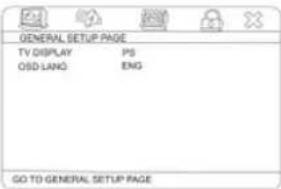
- Use the ◀/▶cursor buttons to select the desired menu: General setup, Audio setup, Video setup, Preference setup, Password setup, Exit the menu.
- Press ▼ to enter it.
- Use the ▲/▼ cursor buttons to select the desired setting.
- Press ▶ to enter the setting adjustment window.
- Press the ▲/▼cursor buttons to select the option of the setting and press ENTER to confirm it.
- Press the ◀ cursor button to return to horizontal menu list.
- To exit Setup menu select the Exit setup menu.
General setup page
• TV DISPLAY
4:3/PS: When the unit connects to the normal TV set, the wide-screen image shows on the full screen, but some part is cut off.
4:3/LB: When the unit connects to the normal TV set, the wide-screen image shows and black bars appear on the top and bottom of screen.
Wide: Use this item when the unit is connected with the wide screen TV set.
Wide squeeze: Use this item to widen the image to TV screen width.
Note: No matter which display format is selected a picture recorded in standard 4:3 format always displays in the 4:3 aspect ratio. The display format of DVD titles may vary, refer to the information that accompanies your specific DVD title. If the DVD title is recorded in 16:9 wide display format while the TV is a standard 4:3 screen, horizontal compression of the image will result.
Some DVD titles may be recorded in special formats. In such cases, the DVD titles will always appear on the screen in their original format, regardless of which TV display selected format.
- OSD LANGUAGE
Select on-screen display language.
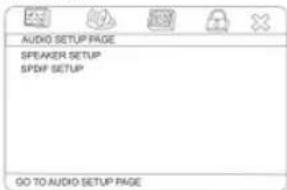
Audio setup page
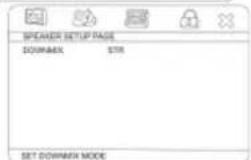
You can set up the Speakers and SPDIF function.
- SPEAKER SETUP
DOWNMIX
LT/RT: The audio out is Left and Right channels format even if the original sound is 5.1 CH format.
Stereo: The audio out format is stereo even if the original sound is 5.1 CH format.
V surr: The audio out is virtual surround sounds (only for 5.1 CH player)
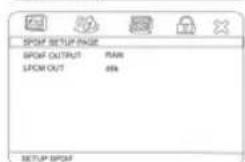
- SPDIF SETUP
- SPDIF OUTPUT
SPDIF OFF: no digital signal out (optical or coaxial output off), only analog audio output.
SPDIF/RAW: digital signal output in the original format recorded in the disc.
SPDIF/PCM: digital signal output in the decoded PCM form.
Note: The DVD player simultaneously outputs a Dolby Digital signal and an analog signal, but you have to select the Analog output if you want to take advantage of the Karaoke effects.
- LPCM OUT (optional)
Preference page
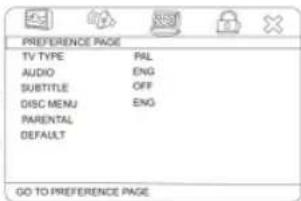
- SCREEN TYPE
This unit is suitable for all kinds of TV systems. You can select one of the PAL, NTSC or Multi.
Multi: the TV system is auto switched according to the disc system.
NTSC: this system is used in USA, Taiwan, Japan etc. PAL: this system is used in China, Europe, Hong Kong etc.
• AUDIO, SUBTITLE, DISC MENU language setup
These are the initial settings by your preference. If a setting is supported by disc content, it will work. Otherwise the disc default value works. And these settings can be changed respectively by pressing the AUDIO and SUBTITLE keys when playing.
- PARENTAL
The control level is for parental to control playing content and protect your children from violence and erotic. The disc, the level of which is higher than the setting level cannot be played.
There are up to 8 censorship classes for DVDs.
- DEFAULT
Reset to the initial factory setups
Password setup page
- PASSWORD MODE
Set the password function to On or Off.
On: the parental control can be changed in the PARENTAL submenu (Preference page).
Off: you cannot change the parental control in Parental submenu.
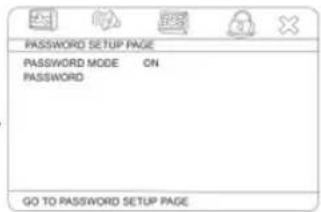
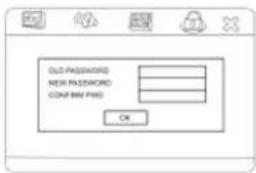
- PASSWORD
When the password mode is ON you can change the password. Select PASSWORD => CHANGE. Use the cursor buttons to select the desired field. In the OLD PASSWORD field insert the old password or 136900 (if you forget the old one).
In NEW PASSWORD field insert the new password.
Insert it again in CONFIRM PWD field.
Press OK to save the new password.
Exit setup menu
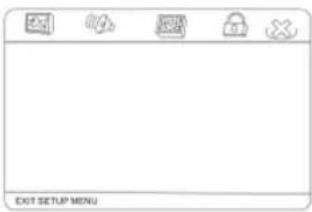
Select this item to exit the setup menu.
Handling discs
- Dirty, scratched or warped discs may cause skip ping or noise.
- Handle the disc only by the edges. To keep clean do not touch its surface.
• Discs should be stored in their cases after use to avoid scratches. - Do not expose discs to direct sunlight, high humidity, high temperature or dust.
- Prolonged exposure to extreme temperature can wrap the disc (such as leaving the discs in your car during summertime).
- Do not stick or write anything on either side of disc. Sharp writing instruments, or the inks used in some felt-tip pens, may damage its surface.
- DO NOT touch the unlabeled side. DO NOT attach any seal, label or data protection sheet to either side of a disc.
Cleaning
Cleaning the cabinet and panel
Wipe with a soft cloth. If the cabinet is very dampen (not dropping wet) the cloth with a weak solution of soapy water, and then wipe clean.
If the control panel is dirty, wipe off the dirt with soft, dry cloth only. And use a cotton swab soaked in isopropyl alcohol to clean the socket on the back of the control panel.
Cleaning discs
Fingerprints should be carefully wiped from the surface of disc with a soft cloth. Unlike conventional records, compact discs have no grooves to collect dust and macroscopic dirt, so gently wiping them with a soft cloth
should remove must panicles. Wipe in a straight motion from the center to the edge.
Never use thinner benzine, record cleaner or anti static spray on a compact disc. Such chemicals can damage its plastic surface.


Troubleshooting guide
| Symptom | Cause Solution | |
| GeneralNo power | The car ignition is not on.The fuse is blown. | If the power supply is properly connected to the car accessory switch the ignition key to “ACC”.Replace the fuse. |
| DiscDisc cannot be loaded. | Presence of disc inside the player. Remove the disc in the player then put a new upward. | |
| Disc cannot be read. Inserting | the disc in upside down.Compact disc is extremely dirty or defective.Temperature inside the car is too high. | Insert the compact disc with the label facing upward.Clean the disc or try to play a new one.Cool off until the ambient temperature returns to normal. |
| No sound Volume is in minimum. | Wiring is not properly connected. | Adjust volume to a desired level.Check wiring connection. |
| The operation keys do not work. | The built-in microcomputer is not operating properly due to noise.Front panel is not properly fix into its place. | Press the power button for about 10 seconds to reset the unit |
| Sound skips. The installation | angle is more than 30 degrees.The disc is extremely dirty or defective. | Adjust the installation angle to less than 30 degrees.Clean the compact disc/try to play a new one. |
| The radio does not work, the radio station automatic selection does not work. | The antenna cable is not connected the signals are too weak. | Insert the antenna cable firmly select a station manually. |
Specification
| General | |
| Power supply: | 12 V DC |
| Current consumption: | max. 15 A |
| Maximum power output: | 50 W x 4 channels |
| Compatible formats: | DVD/SVCD/VCD/HDCD/MP3/MP4/WMA/CDDA/JPEG/ CD-R/-RW/DVD±R/±RW/DivX/MPEG4 |
| Dimensions (L x W x H) / weight: | 178 x 50 x 166 mm / 1.55 kg |
| Working temperature range: | - 10^ C - + 60^ C |
| ESP function: | 40 sec. for Audio CD, 120 sec. for MP3 |
| TFT display | |
| Screen size: | 3 inches |
| Resolution: | 320 x 240 dpi |
| Aspect ratio: | 16:9/4:3 |
| Contrast ratio: | 300:1 |
| Brightness: | 350 cd/m2 |
| Color system | PAL/NTSC |
| FM Stereo Radio | |
| Frequency range: | 65.0 – 74.0 / 87.5 – 108.0 MHz |
| Usable sensitivity: | 6 uV |
| Preset memory stations: | 18 |
| AM section | |
| Frequency range: | 522 kHz - 1620 kHz |
| Preset memory stations: | 6 |
| Audio specification | |
| Maximum output: | 2 Vrms (+/- 3 dB) |
| Frequency response: | 20 Hz - 20 KHz |
| S/N ratio(A-vtd): | 55 dB (mono) |
| Separation | 30 dB (65 dB, 1KHz) |
| Line out | |
| Output: | CD max 2000 mV |
Specifications are subject to change without notice.
Mass and dimension are approximate.