LED32RV4 - Television TV Star - Free user manual and instructions
Find the device manual for free LED32RV4 TV Star in PDF.


| Brand | TV Star |
| Model | LED32RV4 |
| Product Type | LED Television |
| Screen Size | 32 inches (80 cm diagonal) |
| Resolution | 1366 x 768 (HD Ready) |
| Refresh Rate | 60 Hz |
| Dimensions (without stand) | Approx. 730 x 430 x 80 mm (WxHxD) |
| Weight (without stand) | Approx. 4.5 kg |
| Power Supply | AC 100-240V, 50/60 Hz |
| Power Consumption (operating) | Approx. 45 W |
| Power Consumption (standby) | Less than 0.5 W |
| Inputs | HDMI (x2), USB, VGA, Component, Composite, RF Antenna |
| Outputs | 3.5mm Headphone Jack, Optical Audio Out |
| Built-in Tuner | DVB-T/T2, DVB-C, DVB-S/S2 |
| Smart TV | No (basic LED TV) |
| VESA Mount | 200 x 200 mm |
| Cleaning Instructions | Wipe with a soft dry cloth; do not use liquids or chemicals |
| Safety | Do not expose to rain or moisture; unplug during storms |
| Spare Parts & Repairability | Contact authorized service center for spare parts |
| General Information | User manual available at notice-facile.com |
Frequently Asked Questions - LED32RV4 TV Star
User questions about LED32RV4 TV Star
0 question about this device. Answer the ones you know or ask your own.
Ask a new question about this device
Download the instructions for your Television in PDF format for free! Find your manual LED32RV4 - TV Star and take your electronic device back in hand. On this page are published all the documents necessary for the use of your device. LED32RV4 by TV Star.
USER MANUAL LED32RV4 TV Star
natural_image
Computer monitor displaying a starry purple galaxy against a dark sky background (no text or symbols visible)USER MANUAL
MODEL NO.:LED22F1
LED32RV4
LED39F1

IMPORTANT
Please read this manual carefully before installing and operating the TV.
Keep this manual handy for further reference
Table Of Contents
Preparations Guide
Safety Information....2
Important Safety Precautions....3
Installed And Connected TV
TV Bracket assemble....4
TV Buttons And Terminal Interface....5
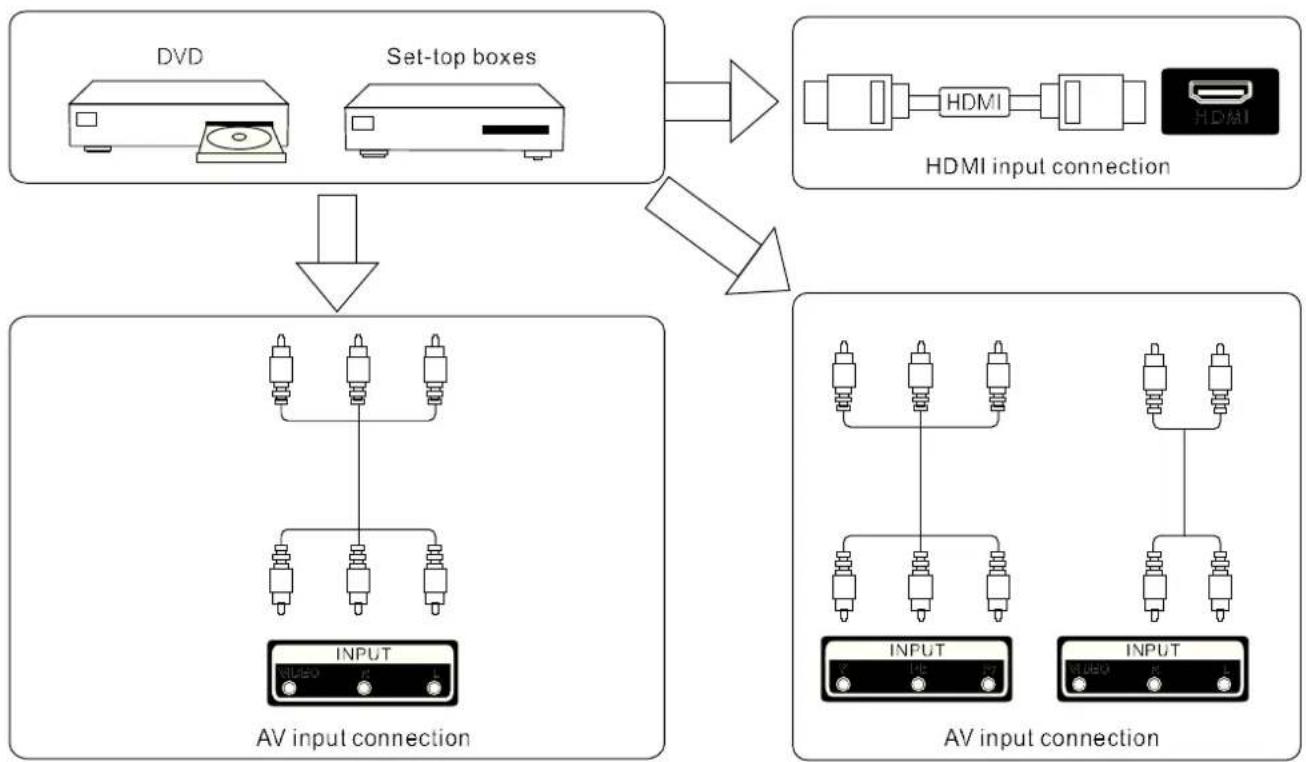
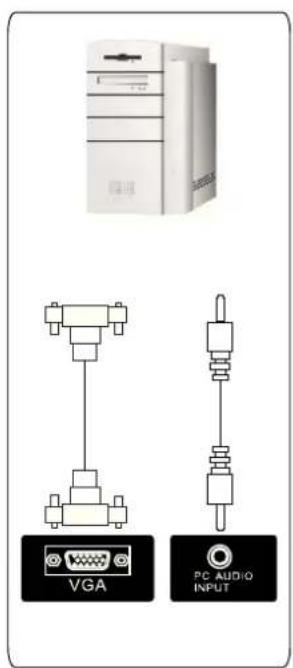
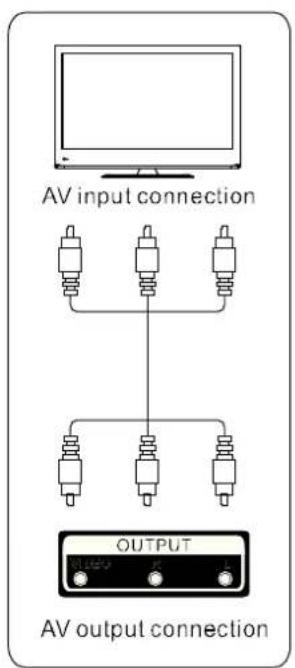
External device connection diagram....6
Install And Connect TV....7
TV Stand installation Instructions....7
Function Description
Select Input Source....8
Picture Menu....8
Sound Menu....9
TV Channel....10
Feature Menu....12
Setup Menu....13
Multimedia
Photo....15
Music....15
Movie....15
eBook....15
Other Features
EPG....16
PVR....17
Other Information
Help....19
Specifications....20
Remote Controller....21
This user manual for reference only
Safety Information
CAUTION
RISK OF ELECTRIC SHOCK DO NOT OPEN
High voltages are used in the operation of this product. to reduce the risk of electric shock, do not remove cover of the cabinet, refer servicing to qualified service personal
If the TV any changes or coarse adjustment, electric shocks to be hurt, do not attempt to open a machine-maintenance, customer contact centres needed overhaul.

The exclamation point within an equilateral triangle is intended to alert the user to the presence of important operating in the literature accompanying the appliance.
natural_image
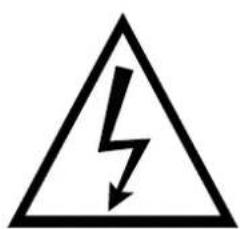
Warning symbol of a lightning bolt inside a triangle (no text or numbers)Warning The lightning flash with arrowhead symbol within an equilateral triangle, is intended to alert the user to the presence of uninsulated dangerous voltage within the products enclosure that may be of sufficient magnitude to constitute a risk of electric shock to persons.
Important Safety Precautions
- Read these instructions.
- Keep these instructions.
- Heed all warnings.
- Follow all instructions.
- Do not use this apparatus near water.
-
Clean only with dry cloth.
-
Do not block any ventilation openings. Install in accordance with the manufacturer's instructions.
-
Do not install near any heat sources such as radiators, heat registers, stoves, or other apparatus (including amplifiers) that produce heat.
-
Do not defeat the safety purpose of the polarized or grounding-type plug. A polarized plug has two blades with one wider than the other. A grounding type plug has two blades and third grounding prong. The wide blade or third prong are provided for your safety. When the provided plug does not fit into your outlet, consult an electrician for replacement of the obsolete outlet.
-
Protect the power cord from being walked on or pinched, particularly at plugs, convenience receptacles, and the point where they exit from the apparatus.
-
Only use attachments/accessories specified by the manufacturer.
-
Use only with the cart, stand, tripod, bracket, or table specified by the manufacturer, or sold with the apparatus. When a cart is used caution when moving the cart/apparatus combination to avoid injury tip-over.
-
Unplug this apparatus during lightning storms or when unused for long periods of time.
-
Refer all servicing to qualified service personnel. Servicing is required when the apparatus has been damaged in any way, such as power-supply cord or plug is damaged, liquid has been spilled or objects have fallen into the apparatus, the apparatus has been exposed to rain or moisture, does not operate normally, or has been dropped. Warning to reduce the risk of fire or electric shock, do not expose this apparatus to rain or moisture.
-
The apparatus shall be disconnected from the mains by placing the power/standby switch in the standby position and unplugging the power cord of the apparatus from the AC mains receptacle.
-
The socket-out shall be installed near the equipment and shall be easily accessible.
-
This product should never be placed in a built-in installation such as a bookcase or rack unless proper ventilation is provided or the manufacturer's instructions have been adhered to.
-
Apparatus shall not be exposed to dripping or splashing.
-
Do not place any sources of danger on the apparatus (e.g. liquid filled objects, lighted candles).
-
Wall or Ceiling Mounting - The appliance should be mounted to a wall or ceiling only as recommended by the manufacturer.
-
Never place the TV, remote control or batteries near naked flames or other heat sources, including direct sunlight. To prevent the spread of fire, keep candles or other flames away from the TV, remote control and batteries at all times.
-
The USB terminal should be loaded with 0.5 A under normal operation.

TV Bracket assemble
Fix the TV on the wall
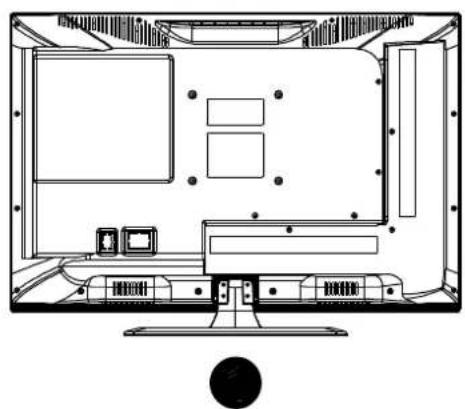
- First, put the TV on the table smoothly and put some soft cloth on the table to avoid scratching the screen.
- User the screw driver to take off the screws which are fixed on the bottom stand (the direction of the arrow, refer to the ptoto1). And take off the bottom stand (please take off the screws and bottom stand carefully).
- Make one bracket which can fix on the wall according to the size of arrow direction of photo2 and photo3.
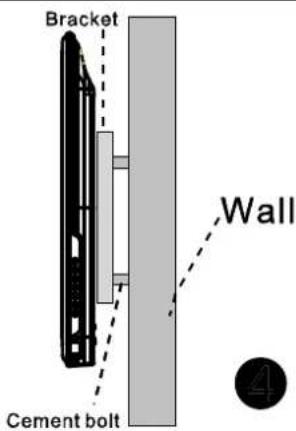
- Drill four holes properly on the wall (the size only for reference) and put into four screws. (optional parts) Drill four holes properly on the wall (the size only for reference) and put into four screws. (optional parts)
- according to the step 4, use the screwdriver to lock the screw on the back of the TV. then hang the TV on the wall.
natural_image
Top-down schematic of a computer monitor layout showing front, top, and side views (no text or labels)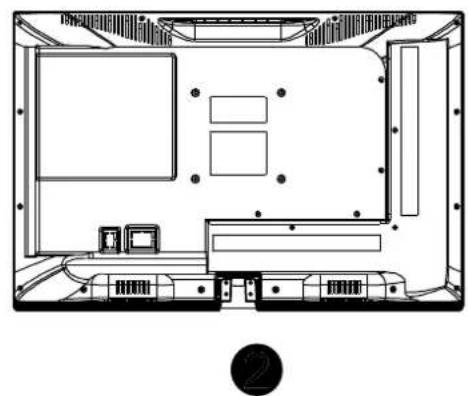
natural_image
Top-down architectural floor plan of a room with furniture layout and ceiling fixtures (no text or labels)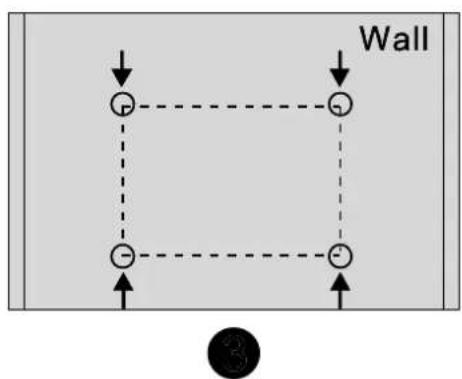
flowchart
graph TD
    A["Top Left"] --> B["Right"]
    C["Left Top"] --> D["Right"]
    E["Left Bottom"] --> F["Right"]
    G["Bottom Right"] --> H["Right"]
    I["Bottom Left"] --> J["Right"]
    K["Bottom Left"] --> L["Right"]
    M["Bottom Right"] --> N["Right"]
    O["Bottom Left"] --> P["Right"]
    Q["Bottom Right"] --> R["Right"]
    S["Bottom Left"] --> T["Right"]
    U["Bottom Right"] --> V["Right"]
    W["Bottom Left"] --> X["Right"]
    Y["Bottom Right"] --> Z["Right"]
    AA["Bottom Left"] --> AB["Right"]
    AC["Bottom Right"] --> AD["Right"]
    AE["Bottom Left"] --> AF["Right"]
    AG["Bottom Right"] --> AH["Right"]
    AI["Bottom Left"] --> AJ["Right"]
    AK["Bottom Right"] --> AL["Right"]
    AM["Bottom Left"] --> AN["Right"]
    AO["Bottom Right"] --> AP["Right"]
    AQ["Bottom Left"] --> AR["Right"]
    AS["Bottom Right"] --> AT["Right"]
    AU["Bottom Left"] --> AV["Right"]
    AW["Bottom Right"] --> AX["Right"]
Note:
- The bracket fixed on the wall is optional part.
- when you assemble the TV, there should be no other articles on the around and front and please keep the distance from other articles.
- When assemble the TV, please ask the career man to fix in order to avoid the danger.
- The fixing picture is only for reference.
- Please follow the use manual about bracket assemble to fix the TV.
- Attach the mounting bracket from the VESA compatible wall mounting kit.
TV Buttons And Terminal Interface
TV Buttons
Note: The following is only functional schematic, And the actual position and arrangement of different models may be different.
VOL+
VOL -
CH+
CH-
MENU
SOURCE

①:Turn ON/OFF Power.
SOURCE: External Signal Input Selection.
MENU: Display Main MENU And Confirm MENU Item Selection.
CH+/-:Selecting Channel.
VOL+/-:Adjusting Volume.
Terminal Interface
Note: The following are the various terminal interface, the actual position and arrangement, the number of different models may be different.
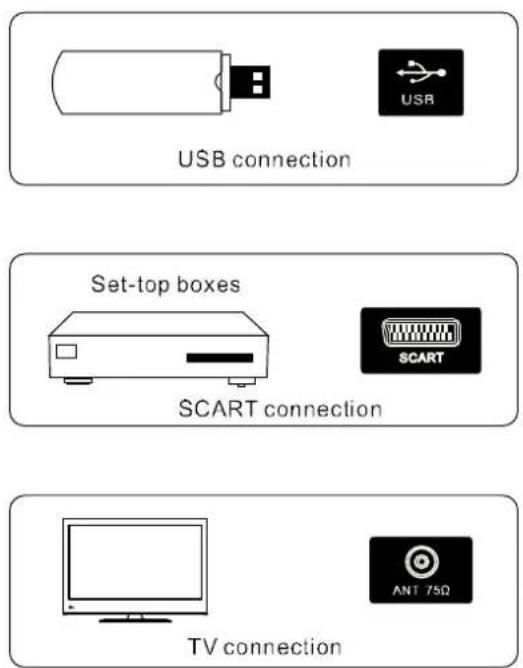
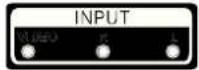 | AV inputExternal AV Signal Input And Relevant Rith/Left Sound Channel |  | EARPHONE outputWhen earphones are plugged in,speakers are disabled |
 | CI SLOTThe card reader input CI(common interface) this requires CAM (conditional access module) used for pay TV. |  | USB inputConnect a USB device here to play its media files or to recordprograms via the PVR function. |
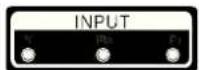 | Y Pb Pr inputConnect to the composite terminal of your DVD/VCR(Some models without this interface) | 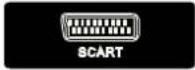 | SCART inputstandard it supports composite and RGBsignal input. It is a connection for european(Some models without this interface) |
 | HDMI inputDigital signal input from HDMI video connector. | 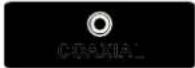 | COAXIALConnect the SPDIF receiver. |
 | ANT 75Connect the antennal/cadle tv input (75/VHF/UHF) | ||
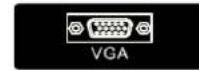 | VGA inputPC analog signal input | ||
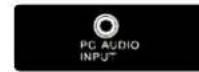 | PC AUDIO INPUTVGA input and audio input when VGA input |
External device connection diagram
flowchart
graph TD
    A["DVD"] --> C["Set-top boxes"]
    B["HDMI"] --> C
    C --> D["AV input connection"]
    D --> E["INPUT"]
    E --> F["AV input connection"]
    F --> G["INPUT"]
    G --> H["AV input connection"]
    H --> I["INPUT"]
    I --> J["AV input connection"]
    J --> K["INPUT"]
    K --> L["AV input connection"]
    L --> M["INPUT"]
    M --> N["AV input connection"]
    N --> O["INPUT"]
    O --> P["AV input connection"]
Install And Connect TV
Set your TV
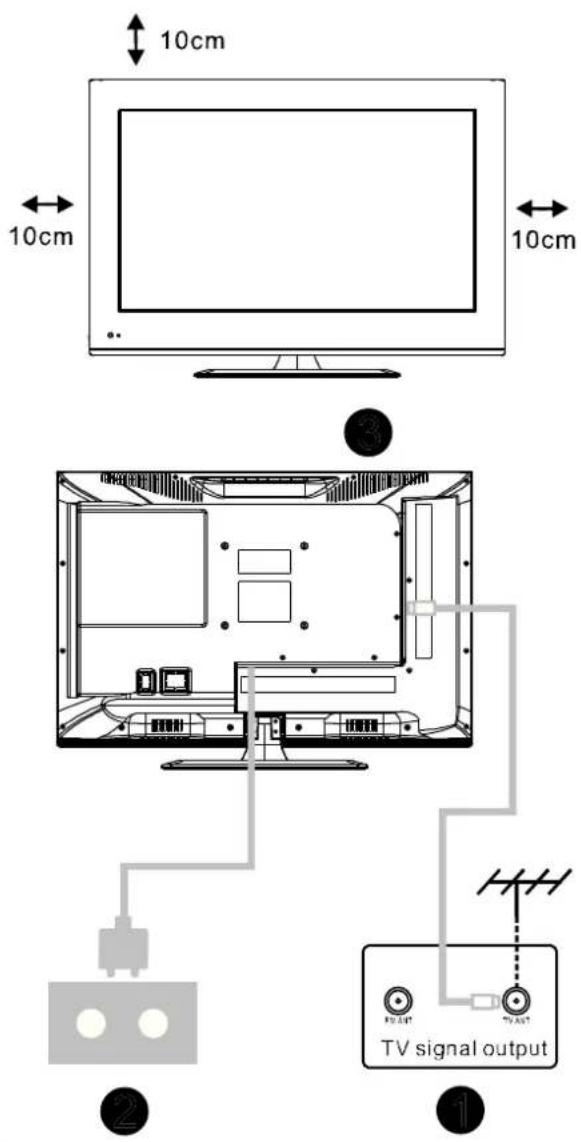
To put your TV in a firm place which can bear the weight of the TV.
To avoid danger, please don't expose the TV near water or heating place (such as light, candle, heating machine), do not block the ventilation at the back of TV.
Connect antenna and power
- Connect the antenna cable to the antenna socket on the back of the TV.
- To plug the power cord of TV (AC 100-240V\~50/60Hz).
Turn on TV
- Press the power button of the TV the indication light will turn to green. if it is on standby mode (the light is red), press the power button on the remote control to turn on the TV.
Note:
Picture for reference purposes only.
TV Stand Installation Instructions
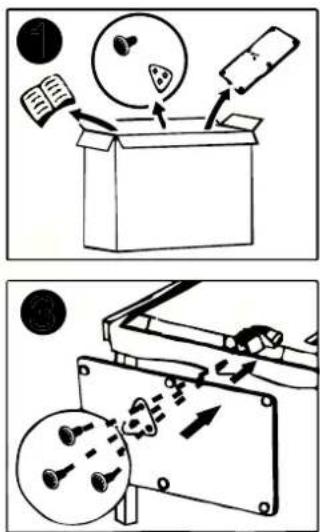
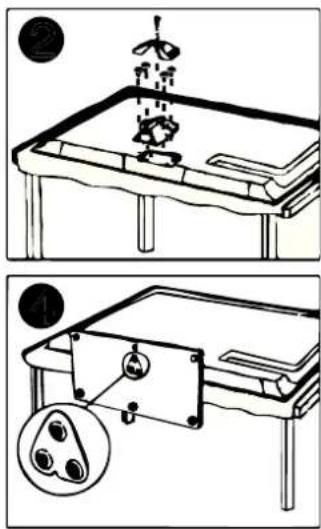
- Open the carton and remove the TV and scattered accessories and base (some models without base).
- to avoid the injury of the TV, covered with a soft mattress, put it on the table, face down on a soft mattress, the base of the neck is fixed on the TV with screws.
- screw the base and connected to the TV.
- the installation is complete.
Function Description
| Input |
| DTV |
| ATV |
| AV |
| SCART |
| YPbPr |
| HDMI1 |
| HDMI2 |
| HDMI3 |
| PC |
| Media |
Select input source
- Press SOURCE button to display the input source list;
- Press ▼ / ▲ or SOURCE button to select the input source you want to watch;
- Press ENTER button to enter the input source;
- Press EXIT button to quit;
Picture Menu
Press MENU button to display the main menu.
Press ENTER/RIGHT button select Picture in the main menu.then press ENTER/RIGHT button to enter
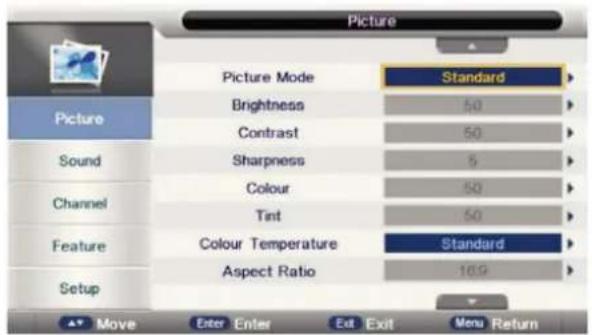
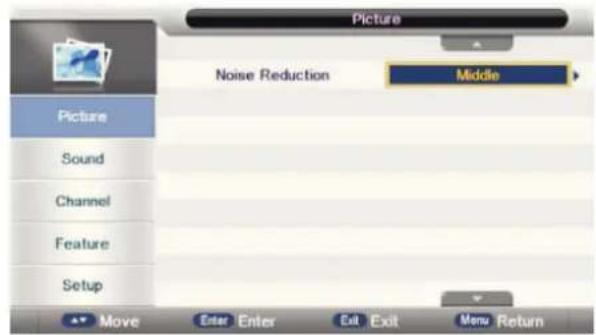
- Press UP/DOWN button to select the option that you want to adjust in the Picture menu.
- Press ENTER/RIGHT button to enter, then press LEFT/RIGHT button to adjust.
- After finishing your adjustments. Press MENU/ENTER button to save and return back to the previous menu.
Picture Mode
Available Picture Mode: Dynamic, standard, mild, user
Note: You can press P.MODE butten to change the Picture Mode directly.
Function Description
Brightness/Contrast/ Sharpness/Colour/Tint
Brightness Adjust the optical fiber output of the entire picture, it will effect the dark region of the picture
Contrast Adjust the highlight intensity of the picture, but the shadow of the picture is invariable.
Sharpness Aadjust the peaking in the detail of the picture.
Colour Adjust the color of the color based on your own like.
Tint It is not available unless Picture Mode is set to be user and the current TV system is NTSC.
Colour Temperature
Change the overall color cast of the picture. (The options: standard, warm, cool)
Aspect Ratio
Change the overall color cast of the picture. (The options: Auto, 4:3, 16:9, Zoom1, Zoom2 or Panorama)
Note: You can press ASPECT butten to change the Picture Mode directly.
Noise Reduction
Noise reduction of the picture. To reduce noise and improve the appearance of the picture. No noise reduction operation if it's "off".
From Low->Middle->High, noise reduction effects better but it will cause a blur on picture.
Sound Menu
Press MENU button to display the main menu.
Press ENTER/RIGHT button select Sound Menu in the main menu, then press ENTER/RIGHT button to enter
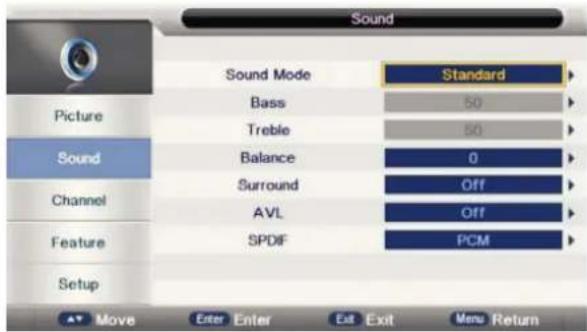
- Press UP/DOWN button to select the option that you want to adjust in the Sound menu.
- Press ENTER/RIGHT button to enter, then press LEFT/RIGHT button to adjust.
- After finishing your adjustments. Press MENU/ENTER button to save and return back to the previous menu.
Sound Mode
Available Picture Mode: Standard, Movie, Music, Speech, User
Note: You can press S.MODE butten to change the Picture Mode directly.
Treble/Bass/Balance
Treble Adjust the treble effect. Increases or decreases high-pitched sounds.
Bass Adjust the bass effect. Increases or decreases lower-pitched sounds.
Balance Adjust the balance between left and right speakers to adapt to your listening position.
Surround
Press ENTER/RIGHT button to enter, then press UP/DOWN button to select On or Off.
AVL
press UP/DOWN button to select On or Off. Set the auto volume control.
SPDIF
Press ENTER/RIGHT button to enter, then press UP/DOWN button to select Off / Auto / PCM.
Function Description
TV Channel
Press MENU button to display the main menu.
Press ENTER/RIGHT button select Channel Menu in the main menu.then press ENTER/RIGHT button to enter
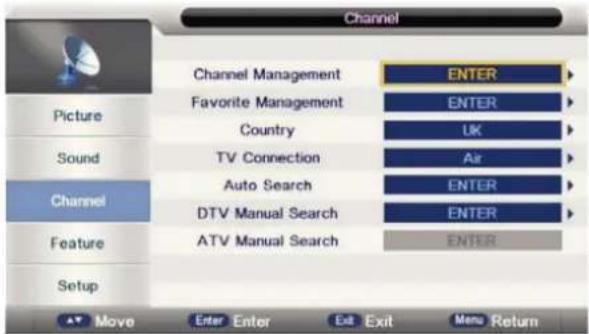
- Press UP/DOWN button to select the option that you want to adjust in the Channel menu.
- Press ENTER/RIGHT button to enter, then press LEFT/RIGHT button to adjust.
- After finishing your adjustments. Press MENU/ENTER button to save and return back to the previous menu.
Channel Manager
To manage (Delete/Rename/Swap/Lock/Skip) all channels
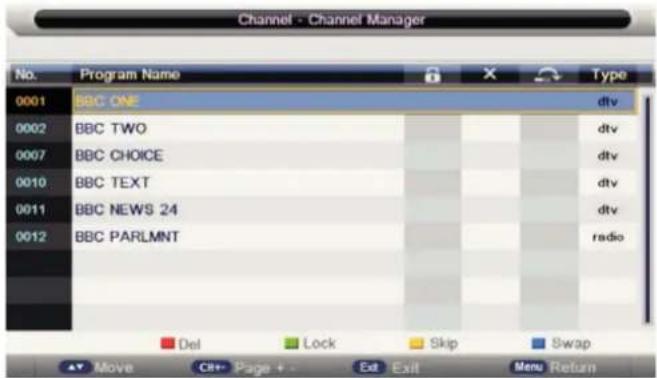
First press UP/DOWN to highlight the channel you want to delete or move or skip, then:
Press the RED button to delete the channel.
Press the GREEN button to skip the select channel.
(Your TV set will skip the channel automatically when using CH+/- to view the channels.)
Press the YELLOW button to to set the channel to moving state, then press UP/DOWN to move
it to the position you want to put.
Press the BLUE button to be swapped channel. then press UP/DOWN to select another channel and press "BLUE" key to swap them.
Function Description
Favorite Management
To manage (Add/Delete) Favorite channels
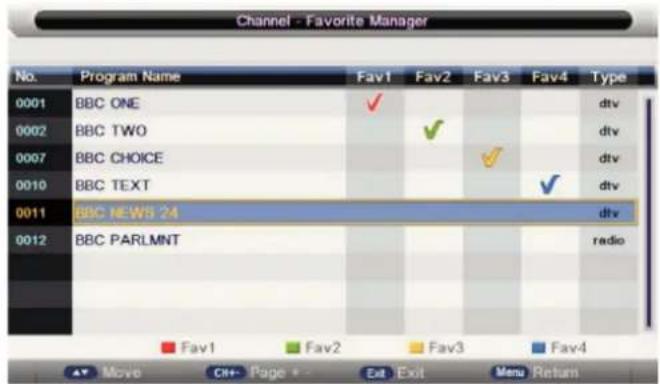
Press UP /DOWN button to select the programs to be added into favorite list and press "RED", "GREEN", "YELLOW" or "BLUE" button to mark them
Country
press UP/DOWN button to select Country.
Auto Search
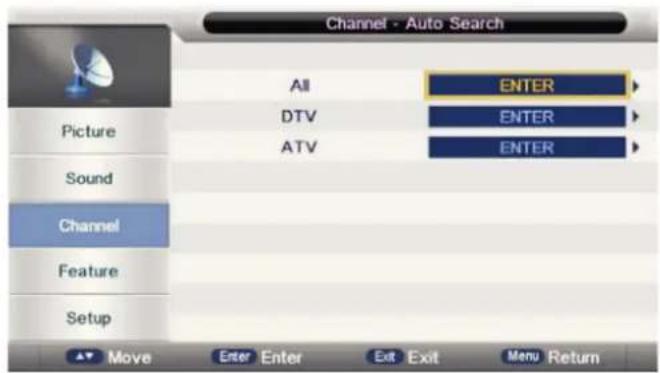
All Mode: Select "All" item to scan all digital channels carried by current signal mode firstly and then switch to scan all analog channels in selected country automatically. User can skip digital search to analog search directly by entering EXIT/MENU button and can also stop auto scan directly by entering EXIT/MENU button during analog scanning.
Digital Mode: Select "Digital" item to search all digital channels in selected country carried by current signal mode. User can stop search directly by entering EXIT/MENU button.
Analog Mode: Select "Analogue" item to search all digital channels in selected country carried by current signal mode. User can stop search directly by entering EXIT/MENU button.
Function Description
DTV Manual Search
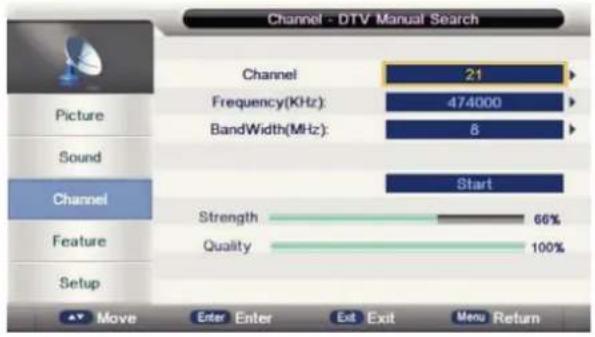
Select channel number by ENTER/RIGHT button or entering number directly. The strength and the quality shows at the bottom. Press ENTER button on "Start" item to start current channel search. The manual searching UI and the auto searching UI are the same.
ATV Manual Search
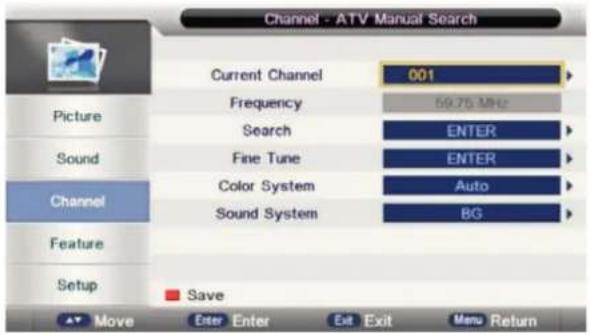
Press UP/DOWN button to select option. Press ENTER/RIGHT button to enter, Press UP/DOWN button to select these parameters. Select "Search" item to enter analog channel tune, then press LEFT/RIGHT button to adjust.
Feature Menu
Press MENU button to display the main menu.
Press ENTER/RIGHT button to select Feature Menu in the main menu.then press ENTER/RIGHT button to enter
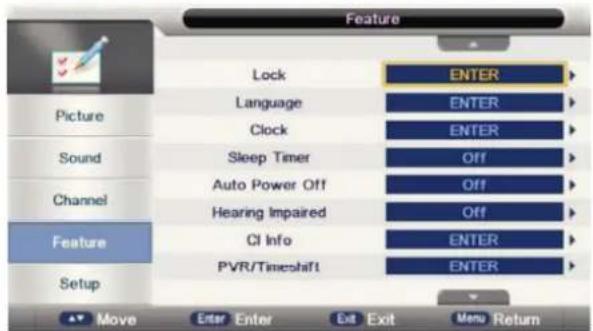
- Press UP/DOWN button to select the option that you want to adjust in the Feature menu.
- Press ENTER/RIGHT button to enter, then press LEFT/RIGHT button to adjust.
- After finishing your adjustments. Press MENU/ENTER button to save and return back to the previous menu.
Function Description
Lock
Lock Channel: On: turn on Lock Channel. User need to enter password to watch the channels which are locked. Also need to enter password when user tries to change settings in items like "reset system"/"reset database" etc.
Off: turn off Lock Channel
Parental Lock : Off: turn off Parental Lock
4-18: turn on Parental Lock and set the age level that are permitted to watch the program.
Change Pin Code : Press ENTER/RIGHT button to set New Password, then enter a 4-digital number you want to set twice.
Language
Press UP/DOWN button to select Language.2.Press ENTER/RIGHT button to enter, then to select System language setting, includes OSD Language, Preferred Subtitle, Preferred Audio, Digital Teletext Language, Anglog Teletext Language
Clock
It is used to check out the current system time and set time zone/DST.(DST(daylight saving time): if it's "On", it'll be an hour earlier than the GMT. If Time Zone is set to "Auto"it's not available.)
Sleep Timer
When your TV is Running, start sleep function by setting Sleep Timer in any case. This function allows you to power off the TV within a period of time. Currently the supported time period are: Off, 10 Mins, 20 Mins, 30 Mins, 60 Mins, 90 Mins, 120 Mins, 180 Mins, 240 Mins,
Auto Power Off
When your TV is Running, start Auto Power Off function by setting Auto Power Off Timer in any case. This function allows you to power off the TV within a period of time. Currently the supported time period are: Off, 1 Hours, 2 Hours, 4 Hours
Hearing impared
This function offers a subtitle such as a "stroke on the door" or "the bell starts to ring" for the current scene in case that the user is weak in hearing.
CI Info
It is only available in DTV source when PVR is not playing. Please prefer to Chapter 6 section 2 CI Setup for further information about the function of CI.
Setup Menu
Press MENU button to display the main menu.
Press ENTER/RIGHT button to select Setup Menu in the main menu.then press ENTER/RIGHT button to enter
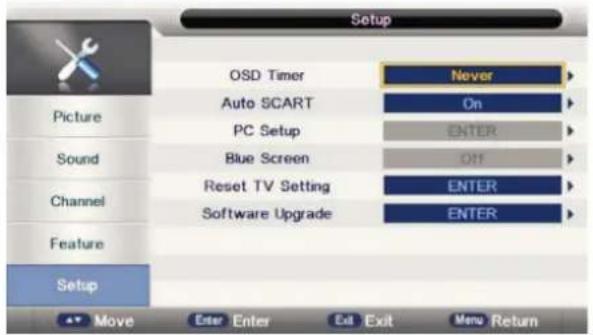
- Press UP/DOWN button to select the option that you want to adjust in the Setup menu.
- Press ENTER/RIGHT button to enter, then press LEFT/RIGHT button to adjust.
3 After finishing your adjustments Press MENU/ENTER button to save and return back to the previous menu
Function Description
OSD Timer
Set up OSD Timer which means how long the menus will exist. The optional periods are 5, 10, 15, 20, 25, 30 Seconds and Never
Auto SCART
Switch for Auto SCART function.
PC Setup
It is only available in PC source.
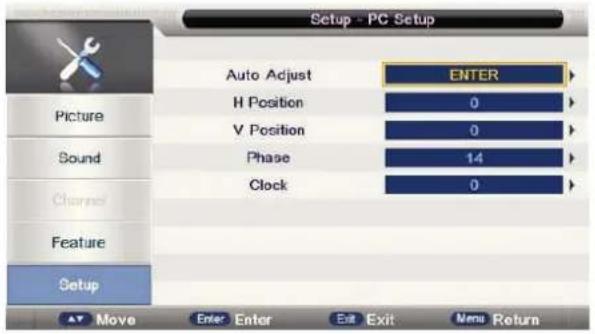
Auto Adjust: Auto Adjust the H Position, V Position, Phase, Clock
H Position: Manually adjust H Position
V Position: Manually adjust V Position
Phase: Manually adjust Phase
Clock : Manually adjust Clock
Blue Screen
It is not available in PC, DTV source or when it is not movie mode in multimedia source. In TV source, if there is no signal and Blue Screen is Off, it will show snow; if there is no signal and Blue Screen is On, it will show blue screen
Reset to Setting
If the Lock Channel is On in Feature Menu/Lock, it needs to enter the password to enter the Reset. It will Reset System Setting and Database. When the reset is complete, it will enter the Auto Installation settings page.
First, it will show a page to user to confirm. as follow:
Software Upgrade
Software upgrade by bin code. Put The bin code into the root directory of the media and media plugged into the
TV 's USB interface, press ENTER key to upgrade. Don't power off during the upgrading process. The system will restarts when the upgrading process is done.
Multimedia
Photo
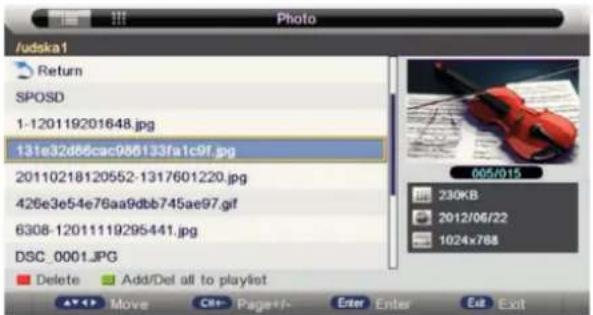
press LEFT/RIGHT button to select PHOTO in the main menu, then press ENTER button enter photo page,
Music
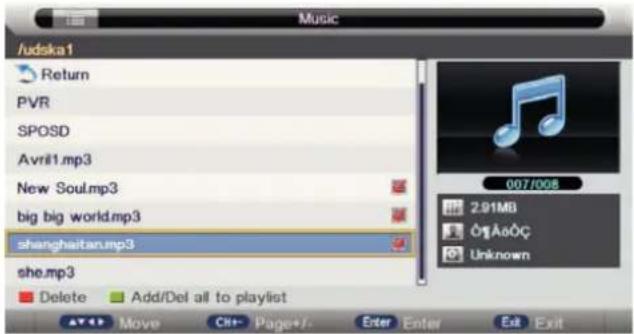
press LEFT/RIGHT button to select Music in the main menu, then press ENTER button enter music page.
Movie
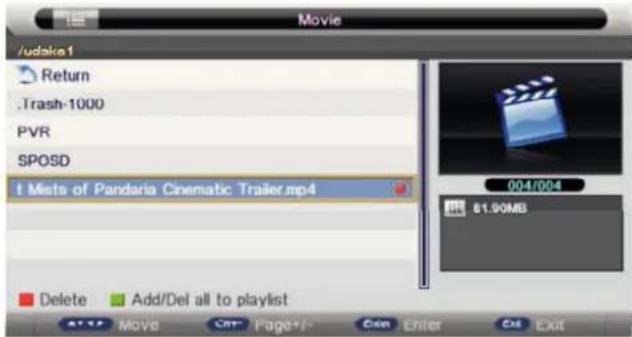
press LEFT/RIGHT button to select Movie in the main menu, then press ENTER button enter Movie page.
eBook
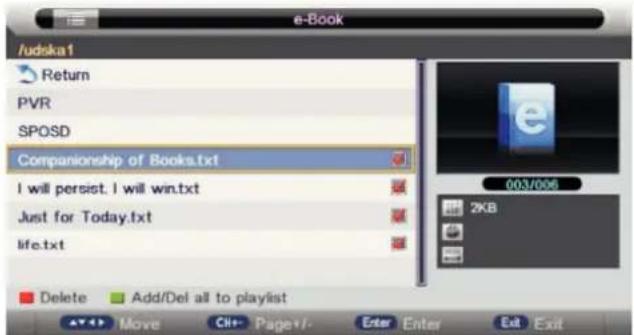
Only txt format eBook is supported.
press LEFT/RIGHT button to select eBook in the main menu, then press ENTER button enter eBook page.
Other Features
EPG
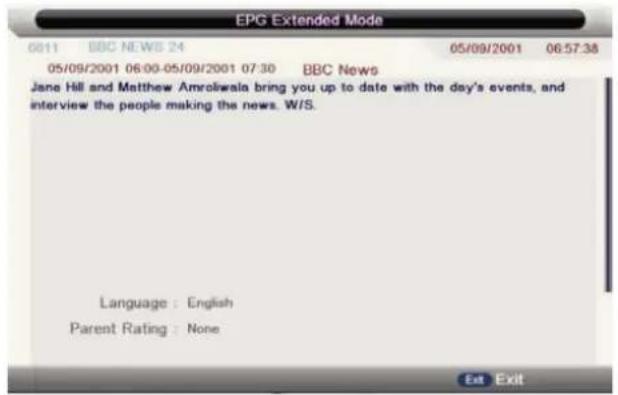
If you expect to know the schedule or the information of the current playing program or the program that starts in the near future, you can refer to the EPG menu by pressing the button "EPG" on the remote. It shows the date and time on the top right of the menu, the list of the current available channels on the left side of the menu, and the name of each program that starts in a scheduled period of time on the right of the menu. Change the focused list by pressing "right" or "left", or the focused program by pressing "up" or "down". The information of the currently focused program will be displayed on the top of the menu.
There are 3 modes of EPG menu :
Daily mode : shows the information of the programs to be broadcasted in daily mode :
Weekly mode : shows the information of the programs to be broadcasted in weekly mode ;
Extended mode: shows the detailed information of each program;
Daily Mode
Display the information of the programs that start in a scheduled period of time in the current channel. It includes name, start time, end time, short content description, current date/time, etc.
If the current focusing program is not parental locked, it will be played simultaneously in the background.
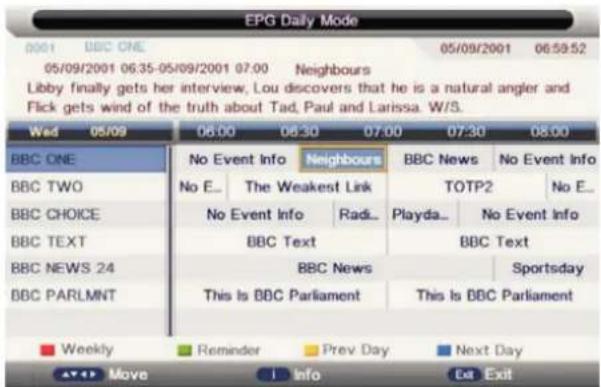
EPG Daily Mode
Weekly Mode
Display the information of the programs that start in a scheduled period of time in the current channel. It includes name, start time, end time, short content description, current date/time, etc.
Focusing on different channels on the left, it displays corresponding programs in schedule of time.
If the current focusing program is not parental locked, it will be played simultaneously in the background.
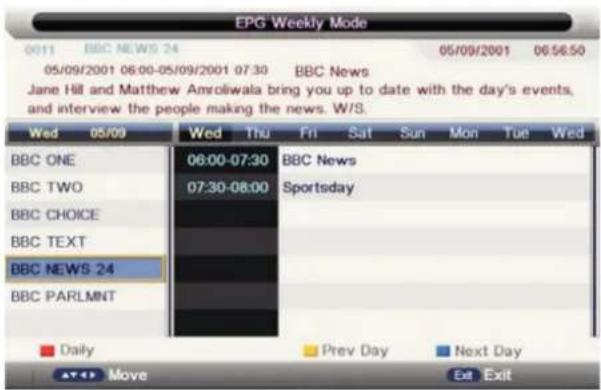
EPG Weekly Mode
Other Features
EPG
Extended Mode
PVR
This section is to introduce some contents about PVR, including PVR involved menus, Recording flow, Recorders playback, Recording restrictions.
PVR involved Menus:PVR/Timeshift menu、Partition List menu、Timer menu、Timer Edit menu、Record List menu; REC info menu、Timeshit info menu.
REC
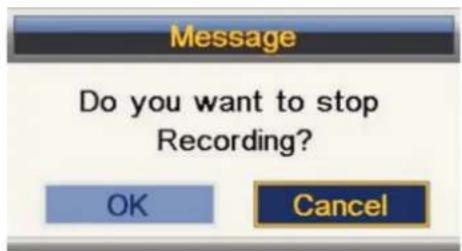
Press REC button to start recording, when there is a program playing, it will pop up a message "Do you want to start Recording?".
After confirm, the system will read the speed of the storage device. If the speed is too low for recording, there is a message
"Device speed not enough, RECORD anyway?" if user choose Yes, it will record constrainedly. In addition, the speed is high enough, it initializes in the first instance and starts to record later.
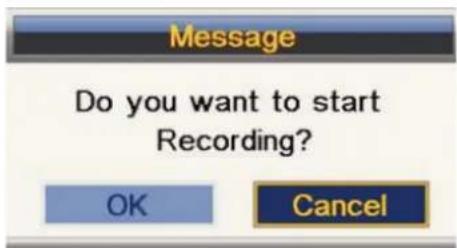
Timer REC
There are two methods to set a timer. As follows:
In the EPG menu user can preengage programs for watching or recording;
Pressing GREEN once is to preengage the program only for watching (when timeout, it jumps to the program and only play.
Pressing GREEN twice is to preengage the program for recording (when timeout, it jumps to the program and starts recording). If it is timeout in standby mode, it will power on 2 minutes in advance and starts to record under background without powering on the panel. To watch the program, user need to press POWER;
The preengaged programs can be checked in Timer menu.
Other Features
PVR
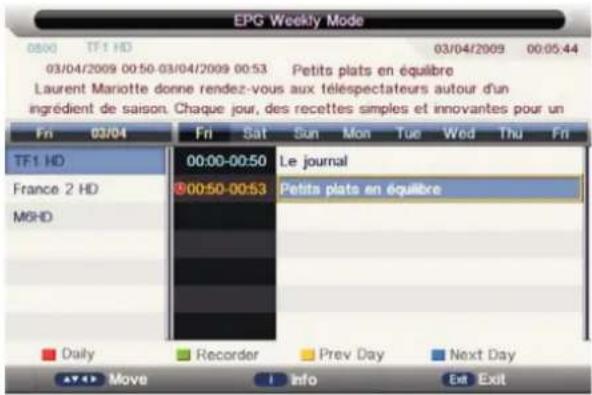
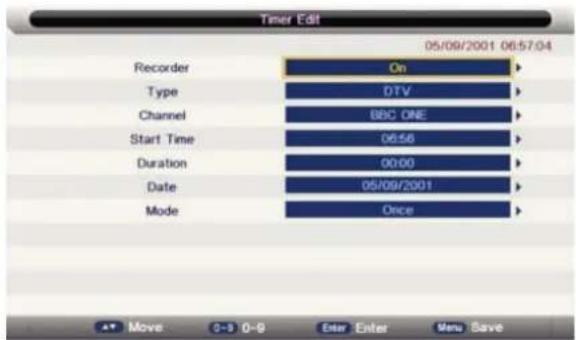
In Timer menu, user can increase, delete preengage programs; In Timer Edit menu, user could set modify preengaged programs' information;
In Timer menu: press YELLOW to get into Timer Edit menu to add a timer. Then set timer's information in Timer Edit menu.
Flow of setting a timer's information :
Type: Set program type :DTV or RADIO;
Mode: Way of triggering a timer(once/daily/weekly/monthly);
Recorder: "ON": preengage for watching and recording(record). "OFF": preengage only for watching(reminder);
Set the date/time and Duration time (exact to minutes); Must be reasonable (behind current time);
Timer: when there are some conflicts a warning message will pop up;
Press MENU to return to Timer menu and store the timer's information.
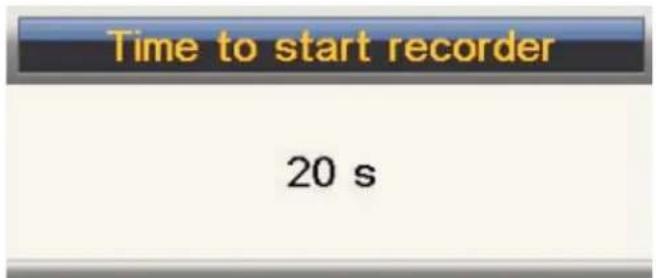
When the timer recorder is timeout, it jumps to the very channel and starts to record the program automatically.(if a manual recording is under process, it will stop the manual recording process and starts the timer recorder automatically);When there is left 10s before recorder, a prompted window will pops up;
If there are not any storage media, the settings fail and a warning message "no USB device" shows;
If target partition (default partition) is not set, it selects the first partition that the system identified automatically.
Help
| No Power | Check the AC cord of TV is plus in or not. If still no power, please Pull out the plug and replug in after60 seconds. And open the TV again |
| Signal receive not properly | To cause double image or phantom if there has high building or high mountain round TV. You can adjust image effect by manually operation: consult instruction of vernier regulation or change the direction of external antenna.If you use the indoor antenna . under certain circumstance, receive will be more difficult . So you can change the direction of the antenna to adjust the image effect . If can't change image receiving effect either , you have to use external antenna. |
| No picture | Check the antenna at the back of TV is connected properly or not.Try to select other channels and check whether the TV problem itself or not. |
| but,Video is ok without audio | Increase the volume.Check the TV is in mute mode or not , and please press the mute button to make sound resume. |
| Audio is ok, but color error or no picture. | Increase contrast and brightness. |
| snow statics picture and noise | Check the antenna at the back of TV is connected or not. |
| Level broken line | vacuum, such as hair drier, Maybe has electrical appliance interfere-please turn off these kinds of electrical appliance, cleaner and so on. |
| Image or-Dual "simulacrum" The TV no response with the Remote. | Perhaps the location for the antenna is not good. Use the tall beamed antenna can be improved quality of the display image.Operate the remote direct to the remote sensor on the TV. If still no response for the TV, please check if the plastic bag on the remote take or not. And check if the location for the battery is correct. Change the new battery.The TV will shift to the STAND BY if no response from the remote in the few minutes. |
| .NO Video In (PC Mode) | Please check if the display cable connect to the VGA correcte .Please check if there has the bend on the display cable. |
| Vertical twinkling (PC Mode) | Enter the main menu, Use the clock regulator for the Video display noise to eliminate the vertical line. |
| horizontal ripping (PC Mode) | Adjust the Audio sound horizontal in the main menu to clear the horizontal ripping line. |
| The screen is too bright or too dark (PC Mode) | Adjust the contrast ratio or brightness in the main menu. |
| PC Function no response | Check the computer setting in the state of compatible display resolution |
| Ripping line in RCA connecting | Please use good quality connecting cable. |
| Problem still exist | Unplug the power cable and wait for 30 seconds, then connect. If there is some problem with our TV, do not repair it by yourself, please contact with the customer service center. |
There will be complete picture and the brightness will come down if the TV is in: Note So please do not keep the TV in a state of same, the static picture for too long time Menu or same picture that has much difference in brightness and contrast ratio for too long time.
Machine Technical Specifications
| Screen Size | TV System | Preset Channels | Speaker Output |
| 16" | PAL/SECAM | 1000 | 5W+5W |
| 19" | PAL/SECAM | 1000 | 5W+5W |
| 22" | PAL/SECAM | 1000 | 5W+5W |
| 24" | PAL/SECAM | 1000 | 5W+5W |
| 32" | PAL/SECAM | 1000 | 10W+10W |
| 39"/40" | PAL/SECAM | 1000 | 10W+10W |
| 42" | PAL/SECAM | 1000 | 10W+10W |
| 46" | PAL/SECAM | 1000 | 10W+10W |
| 50" | PAL/SECAM | 1000 | 10W+10W |
| Screen Size | power Consumption (LED) | power Consumption (LCD) | Main accessories |
| 16" | 24W | 36W | User's manual x1Remote controller x1Power cord x1AAA Batteries x2 |
| 19" | 36W/48W | 48W/60W | |
| 22" | 36W/48W | 48W/60W | |
| 24" | 48W | 60W | |
| 26" | 100W | ||
| 32" | 56W/65W/100W | 100W/135W | |
| 39"/40" | 70W/75W | 135W | |
| 42" | 85W | 175W | |
| 46" | 110W | ||
| 55" | 160W | 280W | |
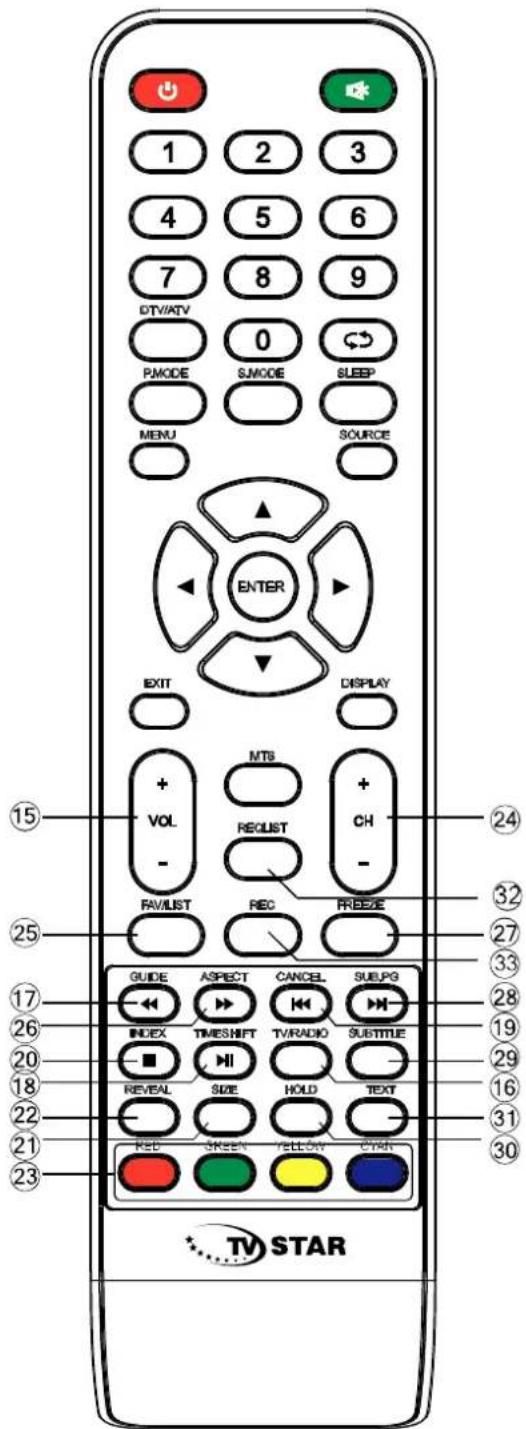
Remote Controller
- POWER : Set your TV to power on or standby mode.
- MUTE : Press to mute the sound. Press again or press VOL+ to unmute.
- 0-9: Press 0\~9 to select a TV channel directly while watching TV. The channel will change after 2 seconds. Applicable for entering page number in teletext mode and so on.
- ATV/DTV: Switch between Analog and Digital TV
- Return to the previous viewed program.
- S.MODE: Press to cycle through the different sound settings
- SLEEP: Select amount of time before TV turn itself off automatically.
8 MTS : Press to search the NICAM modes. - P.MODE: Press to cycle through the different picture settings
- MENU: Allow you to navigate the on-screen menus.
- SOURCE: Open the main menu, press to list the sources
- ▲▼◀▶ ENTER: Allow you to navigate the on-screen menus and adjust the system settings to your preference.
- EXIT: Exit from the menu or sub-menu and cancel the function in process (if applicable)
- DISPLAY: Press to display the source and channel's info.
Battery Installation:
Remove the battery compartment lid on the rear of the remote control by sliding the lid down, then off. Put two AAA batteries inside the battery compartment with their + and - ends aligned as indicated. Do not mix old and new batteries or different types of batteries.
Slide the lid until you hear it click into place.
Using the Remote Control:
Unless stated, otherwise, the remote control can operate all the features of the TV.
Always point the remote control directly at the remote sensor in front of the TV.
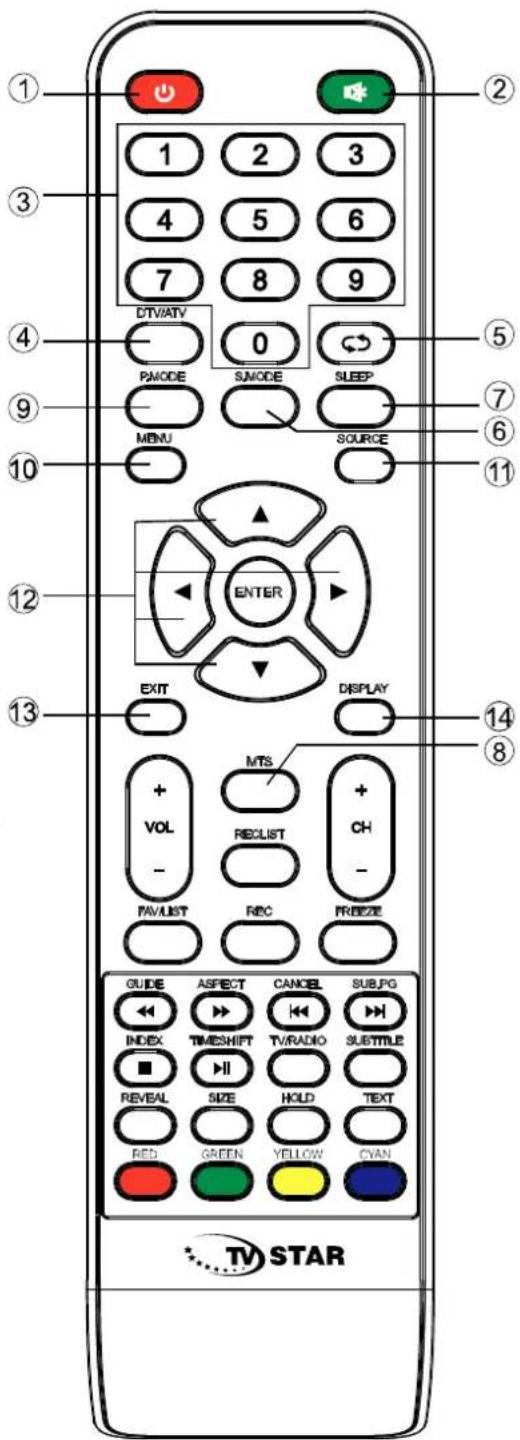
Remote Controller
- VOL+/VOL-: Press to increase / decrease the sound level.
- TV/RADIO : When watching channel, allows you to switch between TV and Radio modes
- GUIDE:1. Launches the EPG (Electronic Program Guide) 2. Fast reverse in PVR or Media Player mode.
- TIME SHIFT: 1.DTV channel time shift Function. 2.play on PVR or Media Player mode.
- CANCEL: 1. When a page is selected in the mode of text, it may take some time before it becomes available, pressing the CANCEL key will return to the TV mode. When the required page is found, the page number will appear at the top of the TV picture, press the CANCEL key to return to the mode of text for you to browse this page.
- Previous chapter in PVR or Media Player mode
- INDEX:1. Request the Index page in Teletext mode. 2.Exit the playing function in PVR or Media Player mode.
- SIZE: Change the size of display in Teletext mode.
- REVEAL: Reveal or Hide the hidden words.
- COLOR BUTTONS: Teletex switch of the analog parts, the items selection in the menu of the digital parts and the practice of the MHEG5 in the DVB menu.
- CH+/CH- : Press to scan through channels.
- FAV/LIST: press to open the favorite list. then you can select the favorite channel.
- ASPECT: 1. Select picture scale.
- fast forward in PVR or Media Player mode.
- FREEZE: press to freeze the picture
- SUB. PG 1. Press to access sub page.
- Next chapter in PVR or Media Player mode.
- SUBTITLE: To show and set the language of current DTV.
- HOLD: HOLD On or Off for current page display.
- TEXT: Switch the teletext on and off.
- REC LIST: Show the recorded list.
- REC: Record begin in PVR mode.