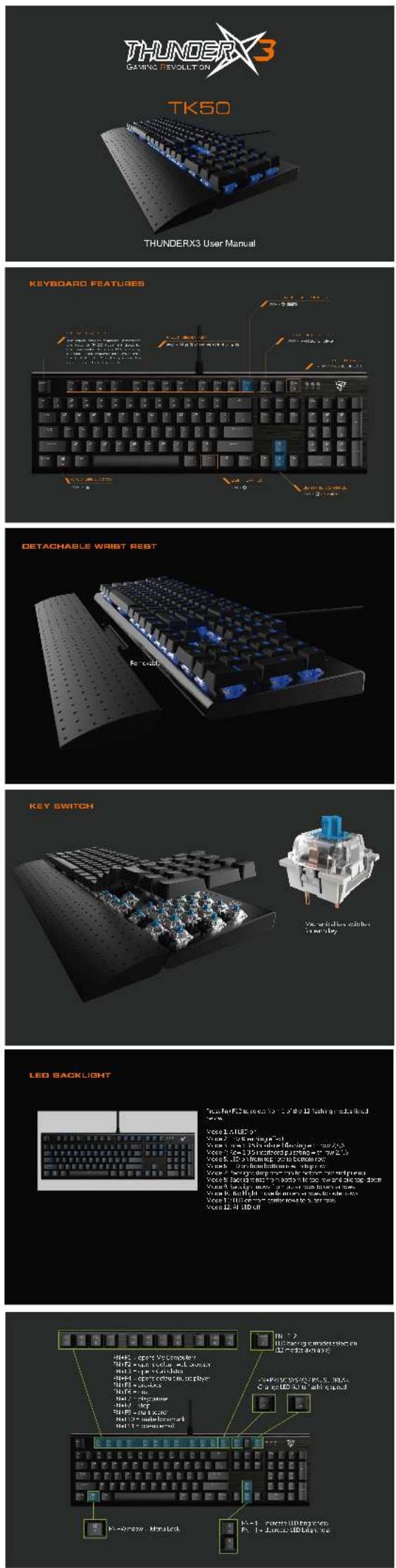
TK50-ES - Keyboard ThunderX3 - Free user manual and instructions
Find the device manual for free TK50-ES ThunderX3 in PDF.


Pick your language and provide your email: we'll send you a specifically translated version.
| Product Type | Mechanical Gaming Keyboard |
| Model | TK50-ES |
| Brand | ThunderX3 |
| Dimensions (LxWxH) | 440 x 135 x 40 mm |
| Weight | 1.0 kg |
| Power Supply | USB Powered (5V, 500mA) |
| Cable Length | 1.8 m |
| Key Switch Type | Mechanical (Blue/Brown/Red options) |
| Number of Keys | 104 (Full Layout) |
| Backlight | RGB per-key lighting with software control |
| Anti-Ghosting | N-Key Rollover (USB) |
| Compatible Systems | Windows, macOS, Linux, Android |
| Interface | USB 2.0 Type-A |
| Polling Rate | 1000 Hz |
| Maintenance | Clean with soft, dry cloth. Avoid liquids. |
| Safety Warning | Not a toy. Keep away from children under 3 years. Do not expose to water. |
| Spare Parts Availability | Replacement keycaps may be available; contact support. |
| Repairability | Limited: switches are soldered; warranty void if disassembled. |
| General Information | Gaming keyboard with detachable wrist rest (optional). |
Frequently Asked Questions - TK50-ES ThunderX3
How do I change the backlight color on the TK50-ES?
Use the ThunderX3 software (download from the official website). You can select per-key RGB lighting or choose from preset effects.
Is the keyboard compatible with PS4 or Xbox?
It works via USB, but full functionality may depend on the console. Basic typing works, but advanced software features (lighting macros) are not supported.
What type of mechanical switches does the TK50-ES use?
The keyboard uses ThunderX3 proprietary mechanical switches (similar to Cherry MX). Available in Blue (clicky), Brown (tactile), or Red (linear) depending on version.
How do I clean the keyboard?
Unplug the keyboard. Use compressed air to remove debris. Wipe the surface with a slightly damp (not wet) cloth. Do not use alcohol or abrasive cleaners.
The keyboard is not recognized by my computer. What should I do?
Try a different USB port. Restart your computer. If using a USB hub, connect directly to the motherboard. Update USB drivers. If issue persists, test on another PC.
Can I replace the keycaps?
Yes, the keycaps are standard Cherry MX compatible (cross-shaped stem). You can replace them with custom keycaps.
Does the keyboard have on-board memory?
Yes, the TK50-ES has built-in memory to store profiles, including lighting and macro assignments, so settings persist without software.
How do I enable N-Key Rollover?
N-Key Rollover (NKRO) is enabled by default over USB. You can switch to 6KRO via a key combination (usually Fn+~) if needed for compatibility.
What is the warranty period for the TK50-ES?
ThunderX3 offers a 2-year limited warranty from the date of purchase. Check the official website for more details.
Can I use the keyboard without installing the software?
Yes, the keyboard functions as a standard USB keyboard without software. Basic lighting effects can be toggled using Fn key combinations. Software is needed for advanced customization.
User questions about TK50-ES ThunderX3
0 question about this device. Answer the ones you know or ask your own.
Ask a new question about this device
No questions yet. Be the first to ask one.
Download the instructions for your Keyboard in PDF format for free! Find your manual TK50-ES - ThunderX3 and take your electronic device back in hand. On this page are published all the documents necessary for the use of your device. TK50-ES by ThunderX3.
USER MANUAL TK50-ES ThunderX3