H-LCDVD725T - Portable DVD Player HYUNDAI - Free user manual and instructions
Find the device manual for free H-LCDVD725T HYUNDAI in PDF.


| Product Type | Portable DVD Player |
| Brand | Hyundai |
| Model | H-LCDVD725T |
| Display Size | 7 inches |
| Display Resolution | 480 x 234 pixels |
| Disc Compatibility | DVD, DVD±R/RW, CD, CD-R/RW |
| Video Playback Formats | MPEG-4, DivX, XviD |
| Audio Playback Formats | MP3, WMA |
| Battery Type | Rechargeable lithium-ion |
| Battery Life | Up to 3 hours |
| Power Input | 100-240V AC, 50/60Hz (adapter) / 12V DC (car adapter) |
| Dimensions (L x W x H) | 19.4 x 15.6 x 3.8 cm |
| Weight | 0.6 kg |
| Connectivity | AV output, headphone jack, USB 2.0 (media playback) |
| Accessories Included | AC adapter, car charger, AV cable, remote control, user manual |
| Cleaning Instructions | Wipe with a soft dry cloth; do not use liquids or abrasive cleaners |
| Safety Information | Do not expose to moisture or extreme temperatures; use only supplied charger |
| Repairability | Battery and fuse replaceable; other repairs by qualified technician |
Frequently Asked Questions - H-LCDVD725T HYUNDAI
User questions about H-LCDVD725T HYUNDAI
0 question about this device. Answer the ones you know or ask your own.
Ask a new question about this device
Download the instructions for your Portable DVD Player in PDF format for free! Find your manual H-LCDVD725T - HYUNDAI and take your electronic device back in hand. On this page are published all the documents necessary for the use of your device. H-LCDVD725T by HYUNDAI.
USER MANUAL H-LCDVD725T HYUNDAI
natural_image
Hyundai 40/60 desktop TV with a black screen displaying a dynamic scene of three dancers in motion, next to a remote control (no visible text or symbols on the device itself)
natural_image
Two glossy spheres with reflections, no text or symbols presentPORTABLE DVD PLAYER WITH 7" LED DISPLAY AND TV TUNER
Thank you for purchasing our product. For safety, it is strongly recommended to read this manual carefully before connecting, operating and/or adjusting the product and keep the manual for reference in the future.
Table of contents 2
Before you start 3
Utilization of the product 3
Important safeguards 3
Connection 4
Operation 5
Control elements 5
Main controllers.... 5
Right panel 5
Left panel 6
Remote controller 6
Changing the battery 6
Joystick 6
Button functions 7
ON/OFF switch 7
OPEN button 7
Number buttons 7
Cursor buttons 7
ENTER 7
VOL+/VOL- 7
MUTE 7
MODE 7
CH-/↔ and CH+/▶ 7
▶II (PLAY/PAUSE) 7
■ (STOP) 7
SETUP 7
◀ and ▶ 7
DISPLAY.... 7
TFT ON/OFF 8
GOTO....8
ZOOM 8
REPEAT 8
A-B 8
COPY/SUBTITLE 8
TITLE 8
PROGRAM 8
DVD/SD/USB 8
RETURN 8
AUDIO 8
PBC/MENU 8
System setup.... 9
General setup.... 9
Audio setup 9
Dolby digital setup 9
Video setup 10
TV/FM setup 10
Preference setup 10
Other functions 11
MP3/JPEG/MPEG4 background 11
Inserting disc 11
Playback operations 11
USB/SD/MMC operation 12
Ripping 12
Copying data 13
Deleting data from USB/SD/MMC ..... 13
Rotary screen 13
Games 13
General information 14
Handling compact discs 14
Cleaning discs 14
Accessories 14
Troubleshooting 15
Specification 16
Utilization of the product
If you want to dispose this product, do not mix it with general household waste. There is a separate collection system for used electronic products in accordance with legislation that requires proper treatment, recovery and recycling.
Please contact your local authorities for the correct method of disposal. By doing so, you will ensure that your disposed product undergoes the necessary treatment, recovery and recycling and thus prevent potential negative effects on the environment and human health.
Important safeguards
Alerts the user to the presence of dangerous voltage within the product's enclosure.
Alerts the user to the presence of important operating instructions.
To reduce the risk of electric shock Wringing RISK OF ELECTRIC SHOCK of life, do not open the cover. Refer servicing to qualified service personnel.
This mark indicates this unit belongs to class 1 laser product.
- To prevent the risk of fire or electric shock, don't allow water to come into contact with the device and don't use the device in high humidity conditions.
- The device is equipped with high voltage components and a laser system, hence you shall not open the device and repair it by yourself. The laser beam is dangerous to eyes when the housing is removed. Don't look at it.
-
When the device is moved from cold premises to the warm room or vice versa, condensate may form on the laser head and the device may not operate properly. In this case please turn the device on for 1-2 hours without disc before playback to heat it to a proper operation temperature.
-
Don't try to manually open or close the disc tray to load discs.
- Disconnect the receiver only when there is no disc therein.
- If you are not going to use the device for a long time disconnect it from the wall outlet.
- Before turning the device on, please make sure that you have connected it properly, adjust the volume of speakers and amplifiers of your radio system to the minimum. Adjust the volume as necessary only after normal playback has started to avoid damage of your audio system.
- Use supply sources of rated voltage, otherwise the unit may not function or may be damaged.
- Place the unit on a horizontal surface. Keep the unit ventilated. Don't block the heat hole. Overheat may cause malfunction.
- Do not place any objects on the player's cover, this may make it function improperly (incorrect playback).
- Please place the device in a dry and well-aired area. Do not place it near heating units or expose it to direct sunlight, mechanical vibration, humidity or excessive dust.
- If using power plug and appliance coupler as a cutting-connecting device, it should be operated easily.
- Never use liquid detergents, abrasives or organic compounds (alcohol, gasoline, etc) to clean the unit body.
- All repairs and technical service should be made by qualified specialist from service centers.
All images provided herein are schematic drawings and they may differ from the real objects.
Connection
Before you start connection of external devices, ensure that power of the unit is switched off.
Audio/video output
Audio-video output is intended for connecting an external display to this unit. For connection use the included audio-video cable.
Audio/video input
The audio-video input is intended for connecting external signal sources to this unit by using the included AV cable.
Headphone jack
Connect your headphones to this unit by using the headphone output. When headphone is connected, the built-in speakers are mute.
Power connection
- For power supply from the electric mains outlet 220 V, connect the included power adaptor to the DC adaptor jack of this unit. Do not use other DC adaptors.
- For power supply from the vehicle power circuit, connect the car adaptor to the DC adaptor jack of this unit. Do not use other car adaptors.
- Power supply can be performed from the built-in Li-Ion battery of this unit. The battery power is enough for about 2 hours of operation. The battery charge is performed automatically when the unit is connected to external power supply. During charging, the green light of the power indicator is blinking.
TV antenna jack
Connect the included TV antenna to the TV antenna jack for reception of TV signal.
Joystick sockets
Connect the included joysticks to the GAME1/GAME joystick sockets of this unit to play the games contained in the included disc. Do not use other joysticks to ensure good performance and safety.
Control elements
Main controllers
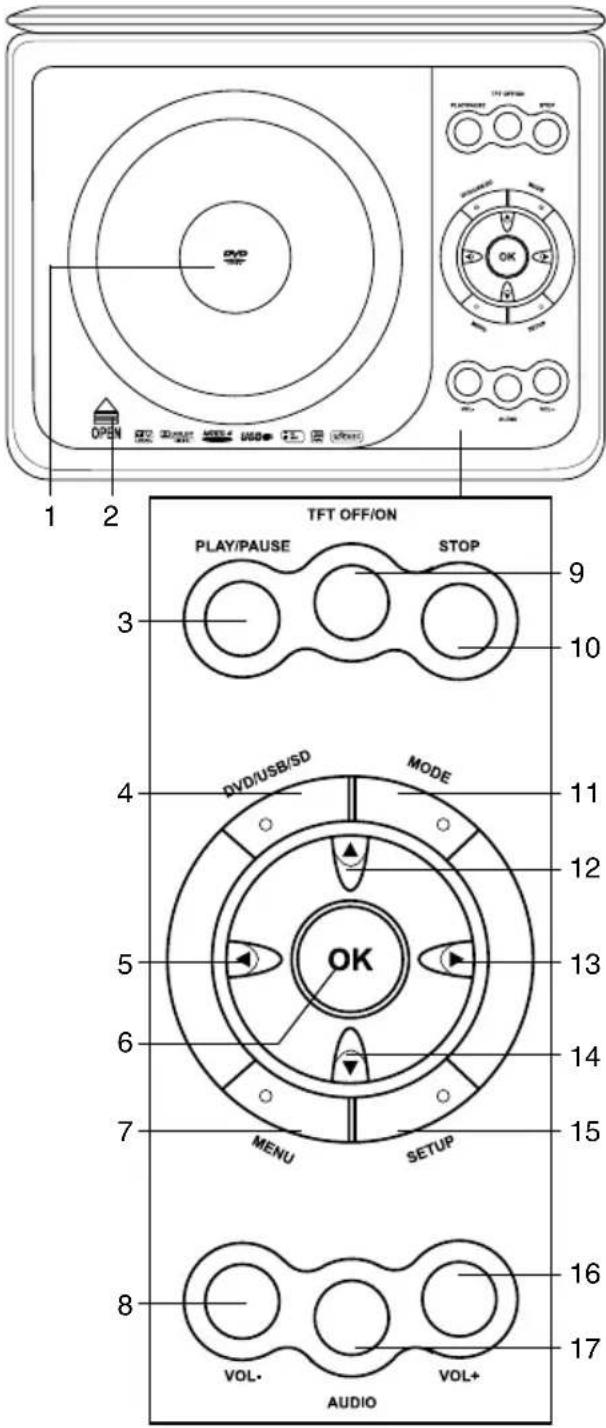
Right panel
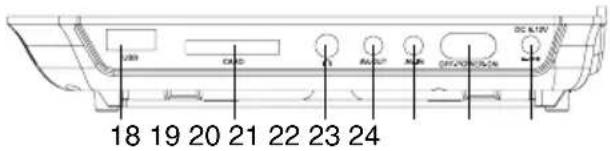
Left panel
- Disc compartment cover
- OPEN button
- PLAY/PAUSE button
- DVD/USB/SD button
- <button
- OK button
- MENU button
- VOL- button
- TFT OFF/ON button
- STOP button
- MODE button
- ▲button
- ▶ button
- button
- SETUP button
- VOL+ button
- AUDIO button
- USB port
- SD/MMC memory card slot
- Headphone jack
- AV output
- AV input
- ON/OFF switch
- DC adaptor jack 12 V
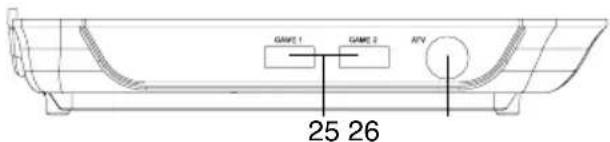
- GAME1/GAME2 joystick sockets
- TV antenna jack
Not indicated: power indicator (on the front side)
Remote controller
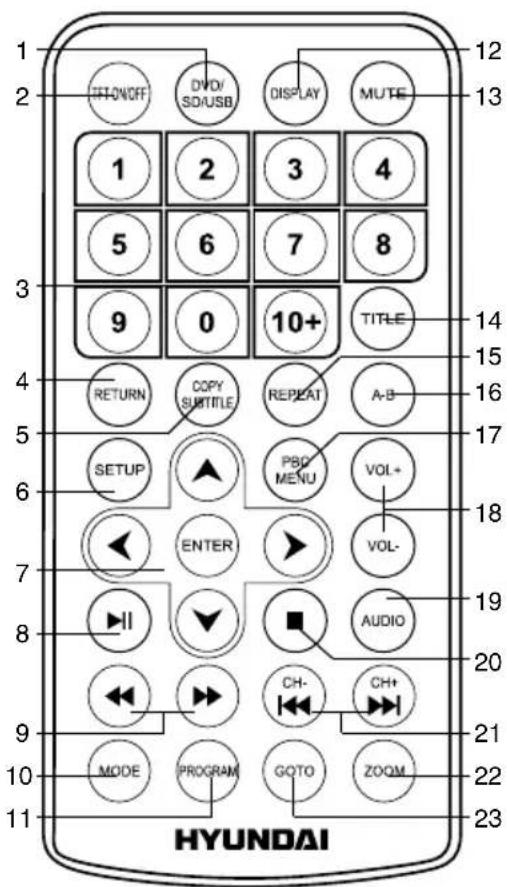
- DVD/SD/USB button
- TFT ON/OFF button
- Number buttons
- RETURN button
- COPY/SUBTITLE button
- SETUP button
- Cursor buttons/ENTER button
- ▶button
- <buttons
- MODE button
- PROGRAM button
- DISPLAY button
- MUTE button
- TITLE button
- REPEAT button
- A-B button
- PBC MENU button
-
VOL+/VOL- buttons
-
AUDIO button
- ■ button
- CH-/and CH+/ buttons
- ZOOM button
- GOTO button
Changing the battery
- Remove the battery compartment cover on the back of the RC.
- Insert 2 x AAA (1.5 V) batteries into the battery compartment making sure that the correct polarity is observed.
- Install the cover back.
- The RC should be pointed at remote sensor within 8 meters and within 30 degrees at the left or the right side.
• Take the battery out of the RC if it is not used for a long time.
- Do not mix new and used batteries or different types of batteries. Weak batteries can leak and severely damage the RC.
- Do not expose the RC to shock, liquids, and do not place it in an area with high humidity.
Joystick
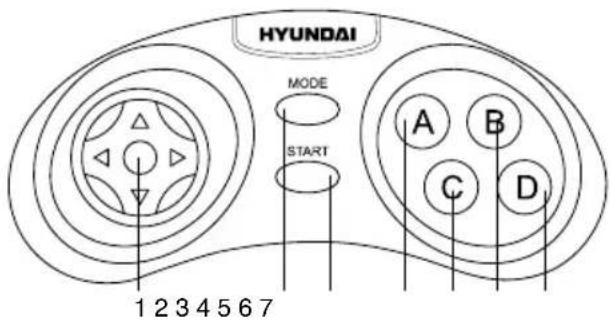
- Cursor
- MODE button
- START button
- A button
- C button
- B button
- D button
Button functions
ON/OFF switch
After the unit is connected to power source or if you want to use the built-in accumulator energy, set the ON/OFF switch to ON position to switch on the unit. When the unit is on, the red light of the power indicator will light. To turn off the power set the ON/OFF switch to OFF position.
OPEN button
Press OPEN button on the unit to open the disc compartment cover.
Number buttons
Press number buttons to input digits and numbers (e.g. track/chapter number, playback time, channel numbers etc.).
Cursor buttons
Press cursor buttons to navigate in various menus.
ENTER
Press ENTER button (or OK button on the panel) for confirmation of chosen options.
VOL+/VOL-
Press VOL+ button to adjust volume up. Press VOL- button to adjust volume down.
MUTE
Press MUTE button; the sound output will be muted. Press this button again or adjust volume to resume the sound.
MODE
Press this button repeatedly to switch between TV, FM, DVD and AV input modes. Media mode selection is available only if the corresponding storage is inserted into the unit.
CH-/and CH+/
- When playing DVD disc, press CH-/button to go to the previous chapter.
- When playing SVCD, VCD, CD disc, press CH-◀◀ button to go to the previous track.
- In TV and FM modes press CH-/- button to go to the previous channel/station.
- When playing DVD disc, press CH+/▶ button to go to the next chapter.
- When playing SVCD, VCD, CD disc, press CH+/▶ button to go to the next track.
- In TV and FM modes press CH+/▶ button to go to the next channel/station.
Functions of CH-/and CH+/▶▶▶▶▶▶▶▶▶▶▶▶▶▶▶▶▶▶▶▶▶▶▶▶▶▶▶▶▶▶▶▶▶▶▶▶▶▶▶▶▶▶▶▶▶▶▶▶▶▶▶▶▶▶▶▶▶▶▶▶▶▶▶▶▶▶▶▶▶▶▶▶▶▶▶▶▶▶▶▶▶▶▶▶▶▶▶▶▶▶▶▶▶▶▶▶▶▶▶▶>
▶ (PLAY/PAUSE)
When the playback is paused or stopped, or a file/track is selected in a menu, press ▶ll button on the RC or PLAY/PAUSE button on the panel to start playback. During playback press this button to pause playback.
■ (STOP)
When playing DVD/SVCD/VCD/CD disc, press this button once, the unit will memorize the previous ending point; when afterwards you play the same disc, playback will start from the memorized point. Press ■button twice, playback will stop without memorizing the stop point.
SETUP
Press SETUP button to enter or exit the system setup menu.
◀ and ▶
- When playing video or music, press ◀ button repeatedly for quick rewind search. Press ▶ button repeatedly for quick forward search. Search speed will increase with each pressing: 2x => 4x => 8x => 16x => 32x => normal.
- In TV and FM modes press these buttons repeatedly to adjust the frequency step by step.
Functions of ◀ and Buttons on the RC correspond to functions of ◀ and buttons on the panel correspondingly.
DISPLAY
Press this button to display various info on
the current playback: title/chapter number or time elapsed/remaining, etc.
TFT ON/OFF
Press this button to switch off the display; there will be dark screen instead of the image of the current mode. Press the button again to switch on the display.
GOTO
Press this button to display menu in which you can input track/chapter/title number or disc playback time by pressing number buttons. After you input the data, playback will start from the input point.
ZOOM
When playing DVD/VCD disc, press ZOOM button to zoom in the picture as follows: 2x => 3x => 4x => 1/2 => 1/3 => 1/4 => normal. In zoom in mode, press cursor buttons to move the picture for viewing.
REPEAT
Press REPEAT button to repeat a title, chapter, track or the whole disc (available repeat modes depend of the disc and file type).
A-B
Press A-B button to set the initial point of a video fragment. Press A-B button again to set the final point; the selected fragment will be played repeatedly. Press this button again to cancel framgent playback.
COPY/SUBTITLE
- When playing a disc with multi-language subtitle, press this button continually, the subtitle languages are changed in a circle, and you can select the needed one.
- When a USB/SD/MMC is connected, press this button to access Copying menu (if data disc is being used) or Ripping menu (if CD disc is being used).
TITLE
When playing a DVD disc, press this button to return to the main title menu of the disc.
PROGRAM
- If the disc contains 2 or more tracks, chapters or titles, set up the playing order to your preference. Press PROGRAM button to enter program menu.
- Press number buttons to input the number of the track, title or chapter. If programmed tracks are over ten, select ▶ item and press ENTER button to go on programming. Maximum 20 programmable items are possible. Use cursor buttons to move the cursor to START item. Press ENTER button to start program playback. Press PROGRAM button to cancel programming.
For MP3 disc, this function is not available.
DVD/SD/USB
Press this button to select disc, memory card or USB playback, when these storages are connected to the unit.
RETURN
Press this button to return to disc menu while playback. Press again to resume playback.
AUDIO
- When playing DVD with more than one audio stream, press this button to select the needed language.
- When playing CD/VCD/MPEG, press this button to select audio channel (left mono/right mono/mix-mono/stereo).
PBC/MENU
- When playing a VCD disc, press this button to turn on or off Playback Control (PBC) function.
- When playing a DVD/USB/SD, press this button to go to the root menu.
System setup
- Press SETUP button to enter the setup menu. In Setup menu, press SETUP button again to quit the setup page.
- Use ◀ buttons to choose a setup page.
- Press ▼ button to enter the setup page selected.
- Use ▼ buttons to select the option you want to adjust.
- Press button to enter the adjustment list. Use ▶ buttons to select the adjustment and press ENTER button to confirm and ▶ button to return to options list.
- To return to setup page list press ◀button when in the option list.
The items in gray can't be set up. The
setup is memorized and kept after power is off.
General setup page
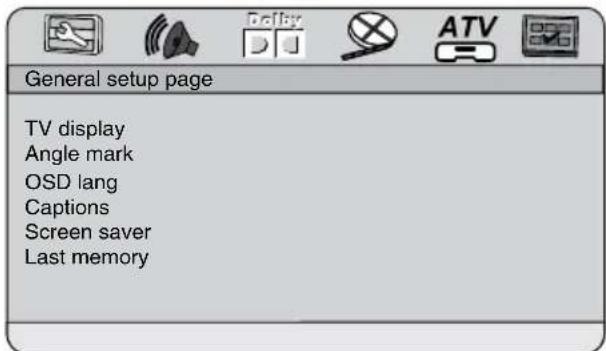
- TV DISPLAY
Normal/PS: the wide-screen image shows on the full screen, but some part is cut off.
Normal/LB: the wide-screen image shows and black bars appear on the top and bottom of screen.
Wide: Use this item for wide-screen image.
- ANGLE MARK
It will show the angle mark when playing DVD disc with multi-angle view if selecting On.
- OSD LANGUAGE
Select on-screen display language: English, Russian.
- CAPTIONS
This function doesn't work when the disc
without caption. The default setup is On.
- SCREEN SAVER
If the Screen saver is set On and the unit is switched on without a disc playing for several minutes, a moving picture appears on the screen, and the unit will go to standby mode after several minutes. You can press any button to wake it up.
- LAST MEMORY
When this function is on, the unit can memorize the time elapsed from the last time you played the disc. Then at the next playing, it will resume playing from the memorized time.
Audio setup page
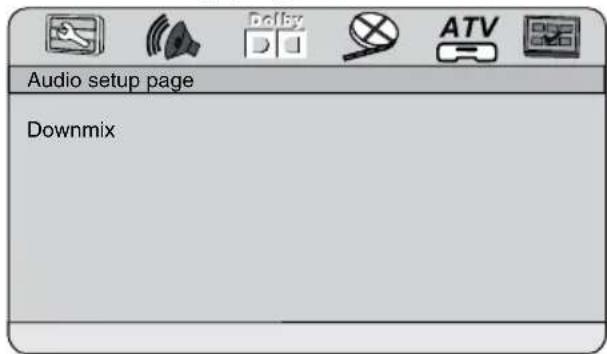
- DOWNMIX
LT/RT: The audio out is Left and Right channels format even if the original sound is 5.1CH format.
Stereo: The audio out format is stereo even if the original sound is 5.1CH format.
Dolby digital setup
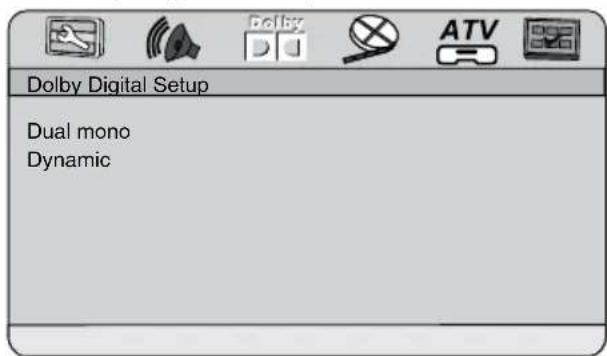
- DUAL MONO
Stereo: stereo output signal,
Operation
L-Mono: left output signal,
R-Mono: right output signal,
Mix-Mono: left/right output average signal.
• DYNAMIC
If watching large dynamic scope movie program at night, to select this mode you can reduce the volume to a very low level, at the same time, to keep the fine details sounds. In this case, this doesn't disturb the family and keep the quality sounds.
Video setup
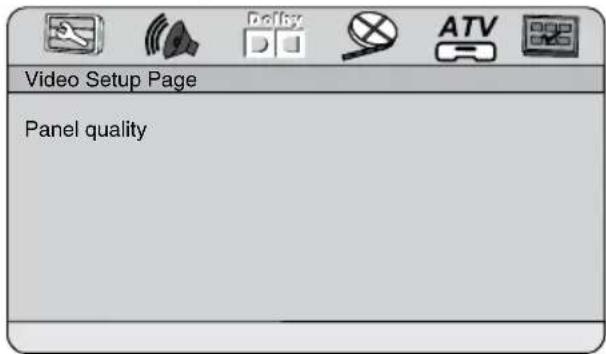
- PANEL QUALITY
You can set the level of Sharpness, Brightness, Contrast, Hue and Saturation according to your preference.
TV/FM setup (available only in TV and FM modes)
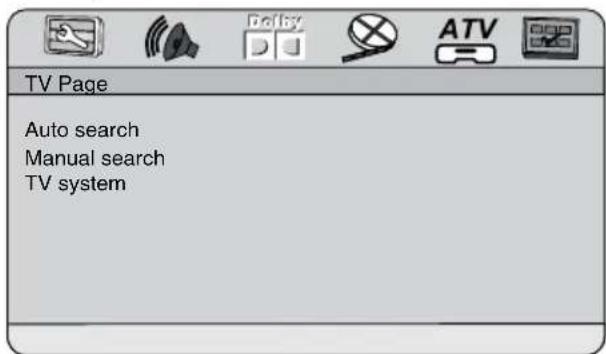
- AUTO SEARCH
Select START and press ENTER button to start automatic search and saving of all available strong-signal TV or FM (depending on the current mode) stations in the memory. Press ■button to stop search.
• MANUAL SEARCH
Select START and press ENTER button to start automatical search and saving for the nearest available TV or FM (depending on the current mode) station. After finding the first station the search will stop. Press ENTER button again to continue. Press ■button to stop search..
• TV SYSTEM (not available in FM mode)
Select the color and sound system: NTSC M, PAL D/K, PAL B/G, PAL I, SECAM-BG, SECAM-DK.
Preference setup (available only after full stop of playback)
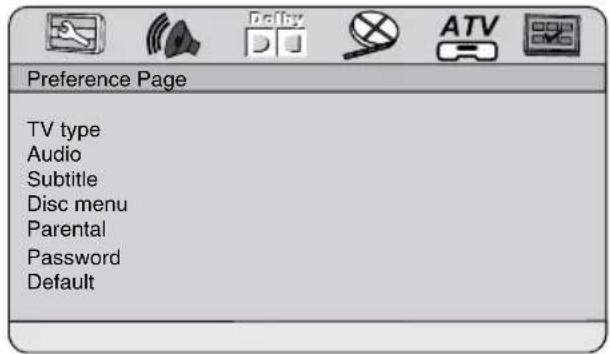
- TV TYPE
This unit is suitable for all kinds of TV systems. You can select one of the PAL, NTSC or Auto.
AUTO: the TV system is auto switched according to the disc system.
NTSC: this system is used in USA, Taiwan, Japan etc.
PAL: this system is used in China, Europe, Hong Kong etc.
• AUDIO, SUBTITLE, DISC MENU language
These are the initial settings by your preference. If a setting is supported by disc content, it will work. Otherwise the disc default value works. And these settings can be changed respectively by pressing AUDIO and COPY/SUBTITLE buttons when playing.
- PARENTAL
The control level is for parental to control playing content and protect your children from violence and erotic. The disc, the level of which
is higher than the setting level can not be played.
- PASSWORD
Change the password. The initial factory password is 0000. You can set your own password. If you forget your own password, you can use 0000 as general password.
- DEFAULT
Reset to the initial factory setups (except Parental and Password items).
Other functions
MP3/JPEG/MPEG4 background
MP3 - generally adopted standard of audio compression, compressing audio data to 1/12 of their size. One CD disc mat store more than 600 minutes of music (170 songs). And the quality of MP3 disc approximates to an audio CD disc quality.
JPEG (Joint Photographic Expert Group) - image compression algorithm, used all over the world and providing high level of compression of the source data. Any graphics editor may edit images of this format and their size in 15-20 times less than the original images.
MPEG4 - standard for transmitting audio and video data via channels with low capacity. This format is very popular since it made possible to place full-length movies with good enough resolution in one CD.

Manufacturer guarantees regular
playback of licensed discs only. Some AVI files cannot be played due to their parameters and recording conditions. Video files more than 2 Gb having AVI extension can be played partially.
Inserting disc
Press OPEN button on the unit to open the disc compartment cover. Put a disc onto the spindle and press on the center until it is fixed. Close the compartment cover.
Playback operations
When a disc, a USB or a memory card containing files of these formats is inserted, following interface will be displayed:
123
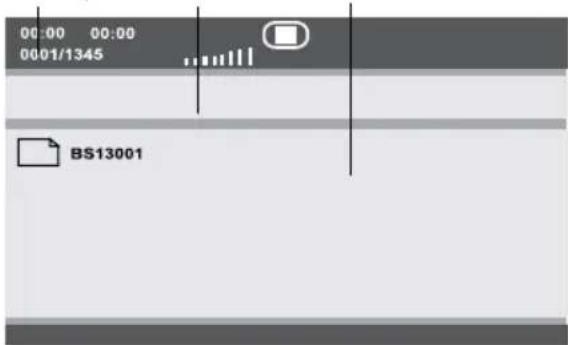
- Playback info window - shows current playback time, track number, volume level, playback status (stop/play/pause) etc.
- Address window - shows directory address at which the currently played file is found.
- Directory window - shows the currently selected directory.
Use ▼/▲buttons to select the directory you want and press ENTER button to enter it. Select a file and press ENTER button to start its playback. For more playback operations please refer to "Button functions" chapter.

JPEG playback notes:
- While a file playback, press ■button, 8 thumbnails will be shown on the screen.
- Press cursor buttons to select the desired picture.
- Press number buttons to input directly the number of the desired picture.
- Use cursor buttons to select SLIDE SHOW item, then press ENTER button to start slide show.
- Use cursor buttons to select MENU item, then press ENTER button to enter button function menu.
The button function menu is as follows:
| Button Function | |
| PROGRAM | Select slideshow transition effect |
| ■ | Entering thumbnail mode |
| ▶▶ | Next picture |
| ◀◀ | Previous picture |
| ▶▶ | To play picture |
| ▲ | Invert image |
| ▼ | Mirror image |
| Select CONTINUE item and press ENTER button to go to the second menu page: | |
| ◀ | Rotate 90 degrees anticlockwise |
| ▶ | Rotate 90 degrees clockwise |
| ZOOM Change zoom mode | |
| ◀◀ | Zoom out |
| ▶▶ | Zoom in |
| ◀◀/▲ ▼ | Move the zoomed image |
Select EXIT MENU item and press ENTER button to exit.
Depending on file volume and encoding, some delay is possible when changing modes or passing to the next menu item.
USB/SD/MMC operations
Insert a USB drive in the USB port, then select the Disc mode and press DVD/SD/USB button to select USB playback.
Insert an SD or MMC card into the Memory card slot, then select the Disc mode and press DVD/SD/USB button to select card playback.
Operations with USB/SD/MMC file playback are the same as file disc operations.
SD/MMC up to 16 Gb and USB up to 500 Gb are supported by this unit. FAT/FAT32 file systems are supported. Please use USB devices and memory cards of famous brands; some models of USB devices or memory cards cannot be supported by this unit due to incompatibility.
According to the USB 1.1/2.0 Standard, usage of a USB device with power current consumption exceeding 500 mA is not recommended without supplementary power
supply. Failure to use supplementary power for connected USB drives with power consumption exceeding this value as well as defective USB drives may cause mechanical or thermal changes of elements of this unit as well as failure of internal elements of the USB port. Such damages are not warrantee cases.
Warning: usage of external USB drives containing BIN files in the root directory may cause malfunction of the unit or damage to the software.
Ripping
This unit has Ripping function making it handy and quick to copy audio files (e.g. music) from CDs. RIPPING is converting from CDDA format to the compressed MP3 format onto a USB drive or memory card. In the course of copying, ID3 tags are generated automatically in Russian and English, depending on the source. If the disc does not contain such information in CD-text format, ID3 tags will be written as “Unknown artist” and “Unknown album”.
RIPPING function has a simple and intuitive menu. To display the Ripping menu, press COPY/SUBTITLE button on the RC while CD playback. A USB-drive or a memory card should be connected to the unit.
| CD RIP | |||
| Options | Track | ||
| Speed Normal | track01 | ||
| Bitrate 128 kbps | track02 | ||
| Create ID3 Yes | track03 | ||
| Device USB | track04 | ||
| Summary | track05 | ||
| Selected track 0 | track06 | ||
| Selected time 00:00 | |||
| Start | Exit | Select all | Select none |
For navigation in the menu use cursor buttons and press ENTER button to confirm your option. In "Options" column you may set speed and bit rate for ripping, confirm or cancel ID3-tag creation, select USB or memory card
as destination storage. In "Track" column you may select tracks for ripping (press ENTER button to select a highlighted track). Besides, you can select all tracks ("Select all") or cancel your choice ("Select none"). To start converting process, select "Start" and press ENTER button.
| CD RIP | |
| Ripping | Selected Track |
| Track Progress | track01 1% |
| Total Progress | |
| Cancel | |
| Summary | |
| Now ripping | |
| Track 01/01 | |
After the CD ripping procedure begins, the system will proceed to the next menu page.
In Ripping window, there are a track progress bar and a total progress bar showing how much the ripping procedure for the current track has been done and how much the total task has been finished respectively.
During ripping, the option Cancel is highlighted, so whenever you want to cancel ripping, just press ENTER button.
The ripped tracks from CD or HDCD discs will be stored in a folder created automatically by the system in the destination storage.
Copying data
- Play data disc or USB/SD/MMC containing MP3/JPG/DivX files.
- Press COPY/SUBTITLE button on RC, the COPY menu will appear with option of ALL SELECT/ALL UNSEL/COPY/DELETE/EXIT.
- Move the cursor to the target file or folder, press ENTER button to tick it, or select ALL SELECT item to select all the data.
- Move the cursor to COPY item, then press ENTER button to display the destination (USB or Memory card).
- Select the desired target device (USB or Memory card), press ENTER button to display the option BACK/NEXT.
- Choose NEXT item to start copying data the selected device.
Deleting data from USB/SD/MMC
- Play USB device or memory card containing the desired data.
- Press COPY/SUBTITLE button to get the menu of ALL SELECT/ALL UNSEL/COPY/DELETE/EXIT.
- Move the cursor to the target file or folder, press ENTER button to tick it, then move to DELETE item and press ENTER button to delete the data from the device.
Rotary screen
This unit is equipped with a rotary screen. When the screen is open, rotate is with both hands clockwise (180°) and counterclockwise (90°). When the screen is rotated, you can fold the unit body for a more comfortable use.
Games
- Insert the supplied game disc into the disc compartment, select Disc mode. The display will show page 1 of the game bank.
- Connect the supplied joysticks to the joystick slots of this unit. Press LEFT/RIGHT cursor buttons on the joystick to select bank pages. Press UP/DOWN cursor buttons on the joystick or press number buttons on the RC to select a game in the current page. Press START button on the joystick to start the game.
- Functions and operation of joystick buttons may vary for each individual game.
- Press ■button on the RC to quit the current game.
Handling compact discs
- Do not insert anything other than a CD into the disc tray.
- Do not use cracked, chipped, warped, or otherwise damaged discs as they may cause damage to the player.
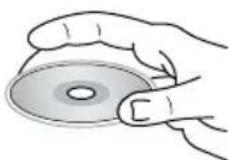
- Handle the disc only by the edges (as shown in the picture). To keep discs clean do not touch its surface.
- Store discs in their cases when not in use.
- Do not expose discs to direct sunlight, high humidity, high temperature or dust.
- Prolonged exposure to extreme temperature can wrap a disc.
- Do not attach labels, write on or apply chemicals to the surface of the discs.
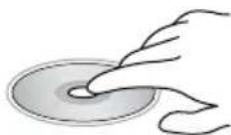
- Do not touch the recorded surface of the discs.
- Use 12-cm CDs. Use only conventional, fully circular discs. Do not use irregularly shaped discs.
Cleaning discs
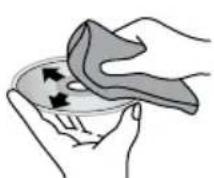
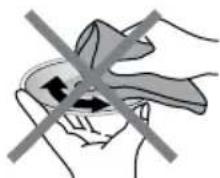
Fingerprints should be carefully wiped from the surface of disc with a soft cloth. Unlike conventional records, compact discs have no grooves to collect dust and macroscopic dirt, so gently wiping them with a soft cloth should remove must panicles. Wipe in a straight motion from the center to the edge.
Never use thinner benzine, record cleaner or anti static spray on a compact disc. Such chemicals can damage its plastic surface.
natural_image
Illustration of a hand holding a medical device with a crossed-out arrow indicating force or pressure (no text or symbols)Accessories
DVD player 1 pc
Remote controller 1 pc
Audio-video cable 1 pc
Battery AAA/1.5V 2 pcs
Headphones 1 pc
Car adaptor 1 pc
TV antenna 1 pc
AC/DC adaptor 1 pc
Battery pack (built-in) 1 pc
Protective bag 1 pc
Joystick 2 pcs
Game disc 1 pc
Consumer information 1 pc
Warranty card 1 pc
Instruction manual 1 pc
Troubleshooting
Below is a table describing simple measures that can help you eliminate most problems likely to emerge when this unit is in use. If below measures do not help, turn to a service center or to the nearest dealer.
| Symptom Cause | Use Solution | |
| No sound Poor audio | Audio cable connection Make proper connection | |
| Disc dirty or damaged Clean the disc | ||
| MUTE function is on Disable MUTE function | ||
| No image Poor video | Video cable connection Make proper connection | |
| Incorrect setting of your TV set Correct the settings of your TV set | ||
| Disc cannot be read | Disc not inserted Insert the disc | |
| Disc inserted incorrectly Install the disc with the label side facing up | ||
| Condensate on the unit laser head | Switch the unit on without disc for an hour | |
| Remote control does not operate | Remote control is incorrectly directed at the unit | Use the remote controller according to the manual |
| Distance and angle to the unit are too large | Decrease the distance and angle | |
| Run out batteries Replace both batteries | ||
| Some functions do not work | Disc is recorded incorrectly Wait | 5-10 seconds and the unit will automatically return to normal style |
| Incorrect key sequence Repeat the operation one more time | ||
| Static voltage on the unit housing | Switch the unit off for 1-2 minutes and then switch it on again | |
| Unstable image In correct TV settings Correct the TV settings | ||
Specifications
Appearance
Unit dimensions 208 mm x 160 mm x 45 mm
Net/Gross weight 0.78 kg/1.66 kg
Display 7" TFT LED
Display format 16:9
Compatibility
Supports DVD/DVD±R/DVD±RW/CD/CD-R/CD-RW/USB/SD/MMC
Formats of playback DVD-video/DVD-audio/SVCD/VCD/HDCD/CDDA/MP3/Kodak Picture CD/JPEG/MPEG4 (DivX/XviD)
Audio
Built-in Dolby Digital decoder +
Video
Color system NTSC/PAL
TV-tuner
TV system PAL/SECAM
Sound system DK/BG/I
Connectors
Audio-video out +
Earphone jack +
Audio-video in +
Functions
Children lock +
Rotary screen 270
Russian and English OSD +
Audio CD ripping in MP3 format to
USB flash drive/SD card +
Copy function from data discs to
USB flash drive/SD card +
Games +
Power
AC/DC adaptor +
Car adaptor +
Battery Li-ion +
Nominal voltage 12 V, 1.5 A
Nominal power consumption 18 W
Specifications are subject to change without notice. Dimensions are approximate.
▶II (PLAY/PAUSE).... 22
■ (STOP) 22
SETUP 23
◀◀ ▶ 23
DISPLAY.... 23
TFT ON/OFF 23
GOTO 23
ZOOM 23
REPEAT 23
A-B 23
COPY/SUBTITLE 23
TITLE 23
PROGRAM 23
DVD/SD/USB 24
RETURN 24
AUDIO 24
PBC/MENU 24
- Автопоиск