7HP150 - Network card 7inova - Free user manual and instructions
Find the device manual for free 7HP150 7inova in PDF.


| Product Type | Network Card |
| Brand | 7inova |
| Model | 7HP150 |
| Interface | PCI Express |
| Data Transfer Rate | 150 Mbps |
| Network Standards | IEEE 802.11b/g/n |
| Frequency Band | 2.4 GHz |
| Antenna | 1 x External Antenna |
| Security | WEP, WPA, WPA2, WPA3 |
| Operating Systems Supported | Windows, Linux, macOS |
| Dimensions (L x W x H) | 120 x 55 x 20 mm |
| Weight | 45 g |
| Power Consumption | 3.5 W (max) |
| Power Source | PCIe Slot |
| Operating Temperature | 0°C to 40°C |
| Storage Temperature | -20°C to 70°C |
| Humidity | 10% to 90% non-condensing |
| LED Indicators | Link, Activity |
| Compliance | CE, FCC, RoHS |
| Maintenance & Cleaning | Use dry cloth; avoid liquids; disconnect before cleaning |
| Safety Instructions | Do not expose to water; avoid electrostatic discharge; ensure proper ventilation |
| Spare Parts & Repairability | No user-serviceable parts; contact support for issues |
| Package Contents | Network card, antenna, driver CD, manual |
| Warranty | 2 years limited warranty |
Frequently Asked Questions - 7HP150 7inova
User questions about 7HP150 7inova
0 question about this device. Answer the ones you know or ask your own.
Ask a new question about this device
Download the instructions for your Network card in PDF format for free! Find your manual 7HP150 - 7inova and take your electronic device back in hand. On this page are published all the documents necessary for the use of your device. 7HP150 by 7inova.
USER MANUAL 7HP150 7inova
Quick Installation Guide
Powerline Network Adapter
Package Contents
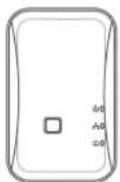
1
PLC
2
Q|G

3
Resource CD
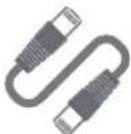
4
Ethernet Cable

Note:
◆ Powerline Network Adapter and Ethernet cable quantity will vary as different packages.
◆ The accessory should be confirmed by the gift box.
Physical Connection
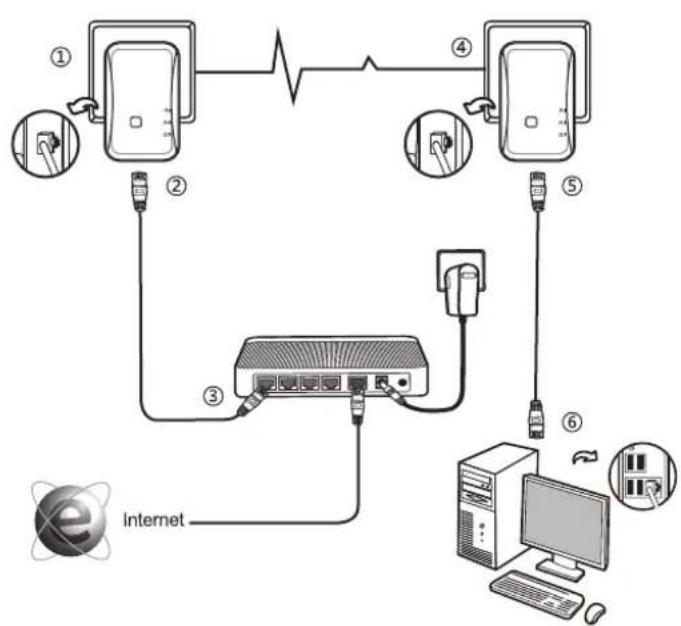
flowchart
graph TD
    A["Internet"] --> B["PC"]
    B --> C["Switch"]
    C --> D["Device ④"]
    D --> E["Switch"]
    E --> F["Device ⑤"]
    F --> G["Switch"]
    G --> H["Computer"]
    H --> I["Desktop"]
    style A fill:#f9f,stroke:#333
    style B fill:#ccf,stroke:#333
    style C fill:#cfc,stroke:#333
    style D fill:#fcc,stroke:#333
    style E fill:#cff,stroke:#333
    style F fill:#ffc,stroke:#333
    style G fill:#cfc,stroke:#333
    style H fill:#fcc,stroke:#333
    style I fill:#ffc,stroke:#333

Note:
Please ensure that the PWR, ETH and Data LED are on after you finished the connection.
LED and Button Descriptions
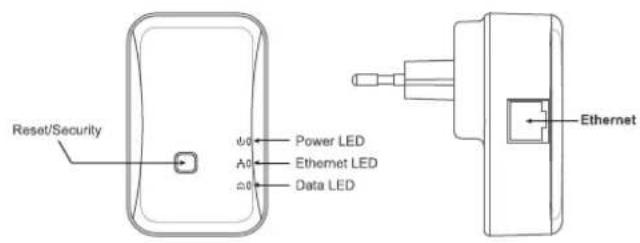
| LED | Status | Description |
| Off | Power is off | |
| On | Power is on | |
| Off | No network connection | |
| On | The LAN cable is connected successfully | |
| Blinking | Data is being transmitted over Ethernet | |
| Off | The product is not connected to Powerline network | |
| On | The product is connected to Powerline network | |
| Blinking | Data is being transmitted over Powerline network |
| LED | Function |
| Reset/Security | Pressing and holding the Security/Reset button for less than 3 seconds makes the adapter a member of the existing AVLN. Pressing and holding the Button for between 10 seconds and 15 seconds makes the adapter restore the factory default settings. |
Brand : 7inova
Model : 7HP150
Category : Network card