DTP T USW 333 - Switch Extron - Free user manual and instructions
Find the device manual for free DTP T USW 333 Extron in PDF.


| Product Type | AV Switcher |
| Model | DTP T USW 333 |
| Brand | Extron |
| Number of Inputs | 3 (DTP or HDMI) |
| Number of Outputs | 1 (DTP or HDMI) |
| Dimensions | 17.0" W x 1.7" H x 6.0" D (half-rack width) |
| Weight | 2.5 lbs (1.1 kg) |
| Power Supply | External 12V DC, 1.5A |
| Power Consumption | 15 Watts |
| Enclosure Type | Metal, rackmountable (1U half-rack) |
| Cooling | Fanless (convection) |
| Maximum Resolution | 4K @ 60 Hz (4:4:4) |
| Signal Types | HDMI, DTP (twisted pair) |
| Control Interfaces | RS-232, Ethernet, IR |
| Audio Support | Embedded/de-embedded analog audio |
| Operating Temperature | 0°C to 50°C (32°F to 122°F) |
| Safety Certifications | UL, CE, FCC Class A |
| Maintenance | Clean with dry cloth; no user-serviceable parts |
| Repair/Spare Parts | Contact Extron support for service; no spare parts sold separately |
| Warranty | 3 years (standard Extron warranty) |
Frequently Asked Questions - DTP T USW 333 Extron
User questions about DTP T USW 333 Extron
0 question about this device. Answer the ones you know or ask your own.
Ask a new question about this device
Download the instructions for your Switch in PDF format for free! Find your manual DTP T USW 333 - Extron and take your electronic device back in hand. On this page are published all the documents necessary for the use of your device. DTP T USW 333 by Extron.
USER MANUAL DTP T USW 333 Extron
Three Input Switcher with Integrated DTP Transmitter
User Guide DTP Systems
Safety Instructions
Safety Instructions • English
WARNING: This symbol, when used on the product, is intended to alert the user of the presence of uninsulated dangerous voltage within the product's enclosure that may present a risk of electric shock.
ATTENTION: This symbol, when used on the product, is intended to alert the user of important operating and maintenance (servicing) instructions in the literature provided with the equipment.
For information on safety guidelines, regulatory compliances, EMI/EMF compatibility, accessibility, and related topics, see the Extron Safety and Regulatory Compliance Guide, part number 68-290-01, on the Extron website, www.extron.com.
All trademarks mentioned in this guide are the properties of their respective owners. The following registered trademarks (®), registered service marks (™), and trademarks (™) are the property of RGB Systems, Inc. or Extron (see the current list of trademarks on the Terms of Use page at www.extron.com):
| Registered Trademarks(®) |
| Extron, Cable Cubby, ControlScript, CrossPoint, DTP, eBUS, EDID Manager, EDID Minder, eLink, Everlast, Flat Field, FlexOS, Glitch Free, Global Configurator, Global Scripter, GlobalViewer, Hideaway, HyperLane, IP Intercom, IP Link, Key Minder, LinkLicense, LockIt, MediaLink, MediaPort, NAV, NetPA, PlenumVault, PoleVault, PowerCage, PURE3, Quantum, ShareLink, Show Me, SoundField, SpeedMount, SpeedSwitch, StudioStation, System INTEGRATOR, TeamWork, TouchLink, V-Lock, VN-Matrix, VoiceLift, WallVault, WindoWall, XPA, XTP, XTP Systems, and ZipClip |
| Registered Service Mark ^(SM) : S3 Service Support Solutions |
| Trademarks ^(TM) |
| AAP, AFL (Accu-RATE Frame Lock), ADSP (Advanced Digital Sync Processing), AVEdge, CableCover, CDRS (Class D Ripple Suppression), Codec Connect, DDSP (Digital Display Sync Processing), DMI (Dynamic Motion Interpolation), Driver Configurator, DSP Configurator, DSP Configurator Pro, DSVP (Digital Sync Validation Processing), EQIP, FastBite, Flex55, FOX, FOXBOX, IP Intercom HelpDesk, MAAP, MicroDigital, Opti-Torque, PendantConnect, ProDSP, QS-FPC (QuickSwitch Front Panel Controller), Room Agent, Scope-Trigger, SIS, Simple Instruction Set, Skew-Free, SpeedNav, Triple-Action Switching, True4K, True8K, Vector ^TM 4K, WebShare, XTRA, and ZipCaddy |
FCC Class A Notice
This equipment has been tested and found to comply with the limits for a Class A digital device, pursuant to part 15 of the FCC rules. The Class A limits provide reasonable protection against harmful interference when the equipment is operated in a commercial environment. This equipment generates, uses, and can radiate radio frequency energy and, if not installed and used in accordance with the instruction manual, may cause harmful interference to radio communications. Operation of this equipment in a residential area is likely to cause interference. This interference must be corrected at the expense of the user.
ATTENTION: The Twisted Pair Extension technology works with shielded twisted pair (STP) cables only. To ensure FCC Class A and CE compliance, STP cables and STP Connectors are also required.
For more information on safety guidelines, regulatory compliances, EMI/EMF compatibility, accessibility, and related topics, see the Extron Safety and Regulatory Compliance Guide on the Extron website.
Conventions Used in this Guide
Notifications
The following notifications are used in this guide:
CAUTION: Risk of minor personal injury.
NOTE: A note draws attention to important information.
TIP: A tip provides a suggestion to make working with the application easier.
Software Commands
Commands are written in the fonts shown here:
^AR Merge Scene,,Op1 scene 1,1 ^B 51 ^W^C
[01] R 0004 00300 00400 00800 00600 [02] 35 [17] [03]
Esc X1 *X15 *X20 *X23 *X21 CE←
NOTE: For commands and examples of computer or device responses mentioned in this guide, the character "0" is used for the number zero and "O" is the capital letter "o."
Computer responses and directory paths that do not have variables are written in the font shown here:
Reply from 208.132.180.48: bytes=32 times=2ms TTL=32
C:\Program Files\Extron
Variables are written in italics as shown here:
ping xxx.xxx.xxx.xxx -t
SOH R Data STX Command ETB ETX
Selectable items, such as menu names, menu options, buttons, tabs, and field names are written in the font shown here:
From the File menu, select New.
Click the OK button.
Specifications Availability
Product specifications are available on the Extron website, www.extron.com.
Extron Glossary of Terms
A glossary of terms is available at http://www.extron.com/technology/glossary.aspx.
Contents
Introduction....1
About this Guide....1
About the DTP T USW 333 Switcher....1
STP Cable....2
Control Communications....2
Features 2
Installation and Operation 5
Mounting the Unit 5
Connections and Reset Button....6
Rear Panel Features 6
Connector and Cable Details 8
Front Panel Configuration Port....12
Operation....12
Controls and Indications....12
Front Panel Operations 13
Troubleshooting — If No Image Appears ...... 14
Remote Control....15
Contact Closure Control 15
Simple Instruction Set Control....15
Host-to-Switcher Communications....15
Switcher-Initiated Messages 15
Error responses....16
Timeout 16
Using the Command and Response Table......16
Symbol Definitions 16
Command and Response Table for
SIS Commands 18
Product Configuration Software 22
Installing the Software/Firmware 22
Connecting to PCS....23
Updating the Firmware....27
Reference Information 29
Mounting the Switcher....29
Tabletop Use 29
Mounting kits 29
UL Rack-Mounting Guidelines.... 30
Disconnecting the Ground....31
Introduction
- About this Guide
• About the DTP T USW 333 Switcher - Features
About this Guide
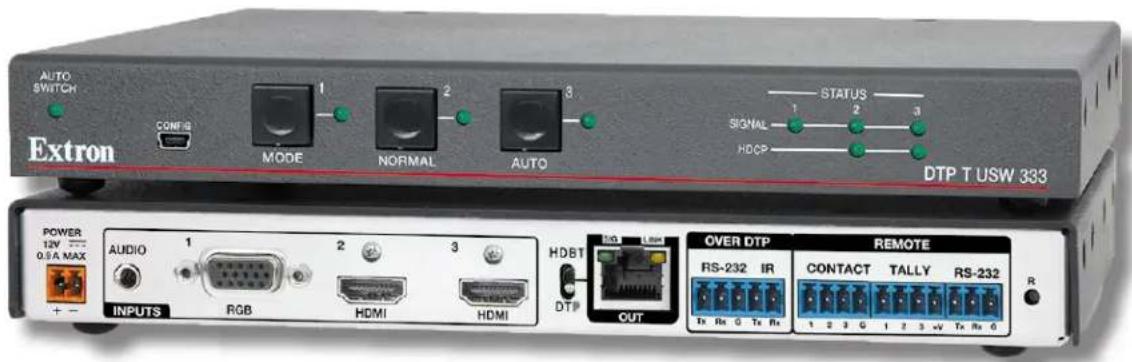
This guide describes the Extron DTP T USW 333 switcher with an integrated DTP transmitter. The switcher outputs a signal to a compatible DTP receiver. This guide describes how to install, operate, and configure the switcher.
NOTE: In this guide, the DTP T USW 333 is commonly referred to as a "switcher" or a "switching transmitter."
About the DTP T USW 333 Switcher
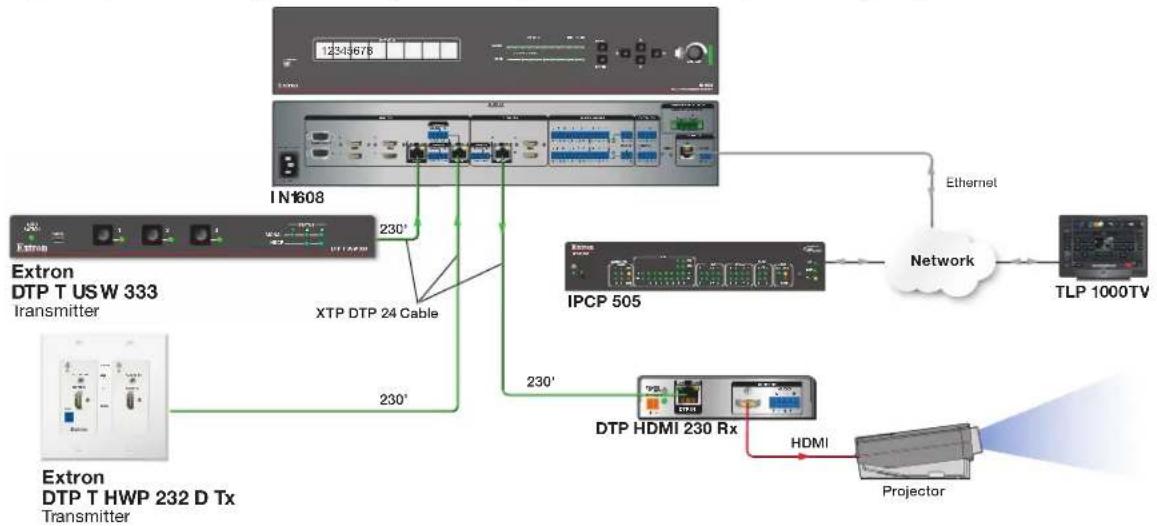
The DTP T USW 333 is a 3 input VGA and HDMI switcher with a DTP transmitter output (see figure 1). It switches among one analog VGA and two HDMI inputs, including embedded audio (or DVI video with the appropriate adapters). The switcher converts the selected input, an optional analog audio input, and bidirectional RS-232 and infrared (IR) control signals to a proprietary digital signal. It outputs the signal to a compatible DTP receiver. The switcher and receiver extend the usable distance of video, audio, and control signals up to 330 feet (100 meters) over a single shielded twisted pair cable (STP).
flowchart
graph TD
    A["Extron DTP T USW 333\nTransmitter"] -->|230°| B["XTP DTP 24 Cable"]
    C["Extron DTP T HWP 232 D Tx\nTransmitter"] -->|230°| B
    B --> D["IN1608"]
    D --> E["IPC P 505"]
    E --> F["Network"]
    F --> G["TLP 1000TV"]
    F --> H["Projector"]
    H --> I["HDMI"]
    I --> J["DTP HDMI 230 Rx"]
    J --> K["Ethernet"]
    K --> D
Figure 1. Typical Switching Transmitter Application
NOTE: In figure 1, the effective range between the DTP T USW 333 and the IN1608 is 230 feet (70 meters). This is the range limitation of the IN1608, not the DTP T USW 333.
The DTP T USW 333 is housed in a half rack width metal enclosure. It can be set on a tabletop, mounted in a rack, or mounted under or through furniture.
The included external desktop 12 VDC power supply accepts 100 to 240 VAC, 50-60 Hz. A single power supply connected to either unit can power both units through the STP cable.
STP Cable
Extron recommends XTP DTP 24 shielded twisted pair (STP) cable for best performance. Extron recommends at least 24 AWG, solid conductor, STP cable with a minimum bandwidth of 400 MHz.
ATTENTION:
Twisted pair cable is smaller, lighter, more flexible, and less expensive than coaxial cable. The DTP 330-enabled products make cable runs simpler and less cumbersome. Termination of the cable with RJ-45 connectors is simple, quick, and economical.
Control Communications
Control this device through the front panel USB port, the rear panel RS-232 port, or through a DTP matrix. The RS-232 and IR communications are pass-through only. The switching transmitter and receiver do not generate or respond to the RS-232 and IR communication signals.
Features
- Transmits HDMI or analog video, control, and analog audio up to 330 feet (100 meters) over a shielded CATx cable — Provides high reliability and maximum performance on an economical and easily installed cable infrastructure.
- Inputs: Two HDMI, one VGA on 15-pin HD, one 3.5 mm stereo mini jack for audio
• Output: One DTP 330 twisted pair output on RJ-45 - Auto-switching between inputs — Auto-switching allows for simple, unmanaged installation in locations such as in a lectern or under a conference table. When multiple inputs are active, the switching priority is configurable.
- Supports computer and video resolutions up to 1920x1200, including 1080p/60 and 2K — Supports digital signal transmission up to 330 feet (100 meters) over a shielded twisted pair cable and maintains superior image quality at the highest resolutions.
- Analog stereo audio embedding — Analog stereo audio signals can be selectively embedded onto the digital video output signal and transported over DTP. The HDMI inputs can be set to pass the embedded digital audio, embed the analog audio, or to automatically embed the analog audio when no digital audio is detected.
- Remote power capability — For simplified installation, the transmitter can be remotely powered by a DTP 330-enabled product over the twisted pair connection.
- Extron XTP DTP 24 shielded twisted pair cable is strongly recommended for optimal performance.
- Compatible with CATx shielded twisted pair cable — Fully supports a maximum transmission distance of 330 feet (100 meters) for all compatible resolutions when used with CATx shielded twisted pair cable. Shielded twisted pair cabling with solid center conductor sizes of 24 AWG or better is recommended for optimal performance.
- Accepts additional analog stereo audio signals — Accepts stereo analog audio signals for simultaneous transmission over the same shielded twisted pair cable.
- Audio input assignment — The analog audio input can be assigned to any video input, or it can be set to follow the input switch.
-
Adjustable audio input gain — Gain can be adjusted for the analog audio input via SIS commands to eliminate noticeable differences when switching between sources.
-
Supported HDMI specification features include data rates up to 6.75 Gbps, 3D, and HD lossless audio formats.
- DTP output is compatible with HDBaseT-enabled devices — The DTP output can be configured to send video and embedded audio, plus bidirectional RS-232 and IR signals to an HDBaseT-enabled display.
- Supports multiple embedded audio formats — Compatible with a broad range of multi-channel audio signals, providing reliable operation with HDMI sources.
- Bidirectional RS-232 and IR pass-through for AV device control — Bidirectional RS-232 control and IR signals can be transmitted alongside the video signal, allowing remote AV devices to be controlled without the need for additional cabling.
- Digital conversion of analog input signals — Analog signals are digitized, ensuring that a reliable, high quality digital video signal is sent to the output destination.
- HDCP compliant — Ensures display of content-protected media and interoperability with other HDCP-compliant devices.
- User-selectable HDCP authorization — Allows individual inputs to appear HDCP compliant or non-HDCP compliant to the connected source, which is beneficial if the source automatically encrypts all content when connected to an HDCP-compliant device. Protected material is not passed in non-HDCP mode.
- EDID Minder automatically manages EDID communication between connected devices — EDID Minder ensures that all sources power up properly and reliably output content for display.
- HDCP authentication and signal presence confirmation — Provides real-time verification of HDCP status for each digital video input. This allows for simple, quick, and easy signal and HDCP verification through front panel LEDs, RS-232, or USB, providing valuable feedback to a system operator or helpdesk support staff.
• Output muting control — The video and audio output may be muted independently. - HDMI to DVI Interface Format Correction — Automatically enables or disables embedded audio and InfoFrames, and sets the correct color space for proper connection to HDMI and DVI displays.
- Automatic color bit depth management — Automatically adjusts color bit depth based on the display EDID, preventing color compatibility conflicts between source and display.
- Front panel security lockout — This feature locks out all front panel functions; all functions however, are available through USB or RS-232 control.
- Compatible with all DTP 330 Series receivers and DTP 330-enabled products — Enables mixing and matching with desktop and wallplate receivers, as well as other DTP 330-enabled products to meet application requirements.
- RS-232 control port — Enables the use of serial commands for integration into a control system. Extron products use the SISTM - Simple Instruction Set command protocol, a set of basic ASCII commands that allow for quick and easy programming.
- Contact closure remote control with tally output — Allows for remote selection of an input channel, while a tally output provides +5 VDC to light an LED to indicate the currently selected input.
- Front panel USB configuration port — Enables easy configuration without having to access the rear panel.
- LED indicators for signal presence, HDCP, and power — Provides visual indication of system status for real-time feedback and monitoring of key performance parameters.
- RJ-45 signal and link LED indicators for DTP port — Provides a means for validating signal flow and operation, allowing quick identification of connectivity issues.
- Easy setup and commissioning with Extron PCS - Product Configuration Software — Conveniently configure multiple products using a single software application.
- JITC Certified — Successfully completed interoperability and information assurance testing for use in government applications and other mission-critical environments.
- 1" (2.5 cm) high, half rack width metal enclosure — With a low profile enclosure, the device can be installed discreetly wherever needed.
-
Includes LockIt HDMI cable lacing brackets.
-
External Extron Everlast power supply included, replacement part — Provides worldwide power compatibility with high-demonstrated reliability and low power consumption.
- Extron Everlast Power Supply is covered by a 7-year parts and labor warranty.
Installation and Operation
This section describes the installation and the operation of the DTP T USW 333, including:
- Mounting the Unit
- Connections and Reset Button
- Operation
- Troubleshooting — If No Image Appears
Mounting the Unit
Mounting instructions can be found in Mounting the Switcher on page 29. Compatible optional hardware is listed on the Extron website.
ATTENTION:
Connections and Reset Button
Rear Panel Features

Figure 2. DTP T USW 333 Rear Panel Features
A RGB input (input 1)
E Over DTP RS-232 and IR port
Remote RS-232 port
B HDMI input
F DTP Output RJ-45 port
J Reset button
© TP function switch
Remote Contact port
Power connector
D Audio input
Remote Tally port
RGB input (input 1) — Plug an analog (RGB) video source into the switching transmitter via this 15-pin HD port (see VGA connector wiring on page 8 for connector pinout).
B HDMI input (inputs 2 and 3) — Plug HDMI digital video sources into the switching transmitter via these HDMI ports (see HDMI connector on page 8).
These connectors can also accept DVI video with appropriate adapters.
TP function switch — Set this switch as follows, based on the receiver:
ATTENTION:
- Position this switch BEFORE connecting the appropriate device to the TP connector. Failure to comply can damage the endpoint.
-
Positionnez le sélecteur AVANT de connecter l'appareil approprié au connecteur TP. Ne pas respecter cette procédure pourrait endommager le point de connexion.
-
Receiving device is in the Extron DTP series — Set this switch to the DTP position. The TP output consists of HDMI with embedded audio, analog audio, RS-232 and IR, and remote power. The switcher and receiver can be powered by one 12 VDC power supply connected to either unit.
- HDBaseT-enabled receiver type — Set this switch to HDBT position. The TP output consists of HDMI with embedded audio plus RS-232 and IR. The switcher and receiver each requires its own 12 VDC power supply.
D Audio input — If desired, plug an analog audio input into the switching transmitter via this stereo mini jack port.
NOTES:
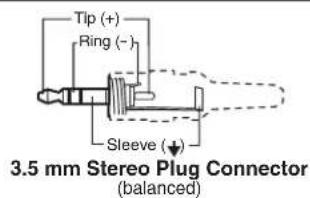
- The analog audio input on this port is in addition to the digital audio that may be embedded in the HDMI inputs. See the figure at right to identify the connector tip, ring, and sleeve when making connections for the switching transmitter from existing audio cables. A mono audio connector consists of the tip and sleeve. A stereo audio connector consists of the tip, ring, and sleeve.
- If the ground jumpers are removed (see Disconnecting the Ground on page 31) because of ground potential differences, the DTP T USW 333 cannot extend analog audio. The connected receiver outputs no analog audio.
- The analog audio can be assigned to a specific input or set to be always output (see SIS command Assign analog audio input to specific video input or always output audio on page 18).
E Over DTP RS-232 and IR port (see figure 2 on page 6) — Plug a serial RS-232 signal, a modulated IR signal, or both into this 3.5 mm, 5-pole captive screw port for bidirectional RS-232 and IR communication (see IR and RS-232 connectors wiring on page 11 to wire the connector).
F DTP Output RJ-45 port — Plug one end of a STP cable to this RJ-45 female port on the switching transmitter. Plug the opposite end of this cable into the DTP Input RJ-45 port on a compatible receiver (see STP cable termination and recommendations on page 9 to properly wire the RJ-45 connector and for detailed NOTES).
ATTENTION:
• Signal LED — Lights when the unit is outputting a TMDS clock signal on the DTP output.
- Link LED — Indicates a valid link is established between the units.
Remote Contact port — If desired, for contact closure control, plug a locally-constructed contact closure device into this 3.5 mm, 4-pole captive screw port. Momentarily short the pin for the desired input (1, 2, or 3) to G to select that input. To force an input to be always selected, leave the short in place (see Contact Closure Control on page 15).
NOTES:
- Contact closure control overrides front panel input selections.
- For contact closure control, auto switch mode must be off (see Selecting the switch mode on page 14).
Remote Tally port — If desired, to remotely identify the currently selected input, plug a locally-constructed device into this 3.5 mm, 4-pole captive screw port. Connect the power wire for the device into the +V pin and connect the ground wire for each indicator into the corresponding tally out pin, 1, 2, or 3.
When an input is selected, by contact closure, front panel selection, or SIS, the corresponding tally out pin shorts to ground, closing the circuit and lighting the connected indicator (LED).
1 Remote RS-232 port — Plug a serial RS-232 device into the switching transmitter via this 3.5 mm, 3-pole captive screw port for remote control of the switching transmitter (see IR and RS-232 connectors wiring on page 11 wire the connector).
Reset button — Initiate two levels of reset of the switcher. For the different reset levels, press and hold the button while the switcher is running or while powering up the switcher (see Reset on page 14 for details).
Power input — Plug the included external 12 VDC power supply into either this 2-pole port (see Power supply wiring on page 10 to wire the connector) or the power input port on the receiver (see the receiver user guide on the Extron website).
NOTES:
- The power supply included with the switching transmitter can normally power both units.
- If the ground jumpers are removed (see Disconnecting the Ground on page 31) because of ground potential differences, one unit of the pair cannot remotely power the other unit. Each unit requires a local power supply.
VGA connector wiring
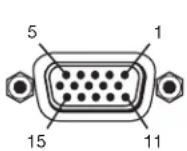
The 15-pin HD (VGA) universal analog input ports accept RGB video (RGBHV, RGBS, RGsB). Figure 3 shows the pinouts for each format type on the connector.
| Pin | RGBHV | RGBS/RGsB | Pin | RGBHVRGBS/RGsB | |
| 1 | Red | Red | 9 | NC | NC |
| 2 | Green | Green | 10 | Ground | Ground |
| 3 Blue | Blue | 11 | NC | NC | |
| 4, 5 | NC | NC | 12 | NC NC | |
| 6 Red | Red return | 13 | H sync | C sync | |
| 7 Green | Green return | 14 | V sync | NC | |
| 8 Blue | Blue return | 15 | NC NC | ||
Figure 3. VGA Connector Wiring
HDMI connector
HDMI signals run at a very high frequency and are especially prone to errors caused by bad video connections, too many adapters, or excessive cable length. To avoid the loss of an image or jitter, follow these guidelines:
- Do not exceed 16.4 feet (5 meters) on the input of the transmitter or the output of the connected receiver.
- Use only the cable designed for HDMI signals that is supplied by Extron.
- Limit or avoid the use of adapters.
- Use only cables specifically intended for HDMI or DVI signals. Use of non-HDMI or non-DVI cables or modified cables can result in a missing video output.
To securely fasten an HDMI cable to a device:
- Plug the HDMI cable into the panel connection (see figure 4, ①).
- Loosen the HDMI connection mounting screw from the panel enough to allow the LockIt lacing bracket to be placed over it (②). The screw does not have to be removed.
- Place the LockIt lacing bracket on the screw and against the HDMI connector, then tighten the screw to secure the bracket (③).
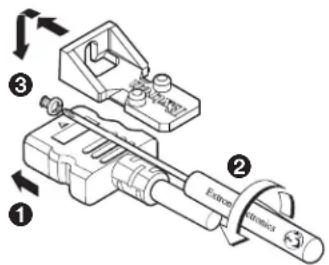
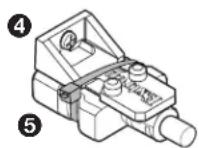
Figure 4. Installing the Locklt Lacing Bracket
ATTENTION:
- Do not overtighten the HDMI connector mounting screw. The shield to which it fastens is very thin and can easily be stripped.
-
Ne serrez pas trop la vis de montage du connecteur HDMI. Le blindage auquel elle est attachée est très fin et peut facilement être dénudé.
-
Loosely place the included tie wrap around the HDMI connector and the LockIt lacing bracket as shown (4).
- While holding the connector securely against the lacing bracket, use pliers or similar tools to tighten the tie wrap, then remove any excess length (⑤).
STP cable termination and recommendations
Figure 5 details the TIA/EIA T 568B wiring standard. Use this standard to terminate the DTP cable with RJ-45 connectors.
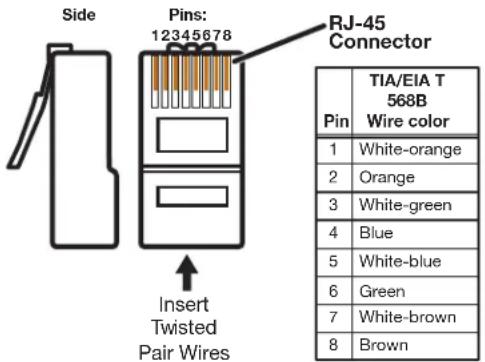
Figure 5. STP Cable Termination
ATTENTION: Do not use Extron UTP23SF-4 Enhanced Skew-Free AV UTP cable or STP201 cable to link the switching transmitter and receiver. The DTP T USW 333 does not work properly with these cables.
The DTP T USW 333 is compatible with shielded twisted pair (STP) and unshielded twisted pair (U/UTP) cable. However, Extron strongly recommends that you use STP cable to achieve best performance.
Cable recommendations
Extron recommends using the following practices to achieve full transmission distances up to 330 feet (100 meters) and reduce transmission errors.
• Use the following Extron XTP DTP 24 STP cables and DTP 24 connectors for the best performance:
-
XTP DTP 24/1000 Non-Plenum 1000 feet (305 meters) spool
• XTP DTP 24P/1000 Plenum 1000 feet (305 meters) spool
• XTP DTP 24 Plug Package of 10 -
If not using XTP DTP 24 cable, at a minimum, Extron recommends 24 AWG, solid conductor, STP cable with a minimum bandwidth of 400 MHz.
- Terminate cables with shielded connectors to the TIA/EIA-T568B standard.
- Use no more than two pass-through points, which may include patch points, punch down connectors, couplers, and power injectors. If these pass-through points are required, use Catagory 6 or 6a shielded couplers and punch down connectors.
NOTE: When using STP cable in bundles or conduits, consider the following:
- Do not exceed 40% fill capacity in conduits.
- Do not comb the cable for the first 20 meters, where cables are straightened, aligned, and secured in tight bundles.
- Loosely place cables and limit the use of tie wraps or hook-and-loop fasteners.
- Separate twisted pair cables from AC power cables.
Power supply wiring
NOTES:
- The power supply included with the switching transmitter can normally power both units.
- If you have removed the ground jumpers (see Disconnecting the Ground on page 31) because of ground potential differences, one unit of the pair cannot remotely power the other unit. Each unit requires a local power supply.
Figure 6 shows how to wire the connector. Use the supplied tie-wrap to strap the power cord to the extended tail of the connector.
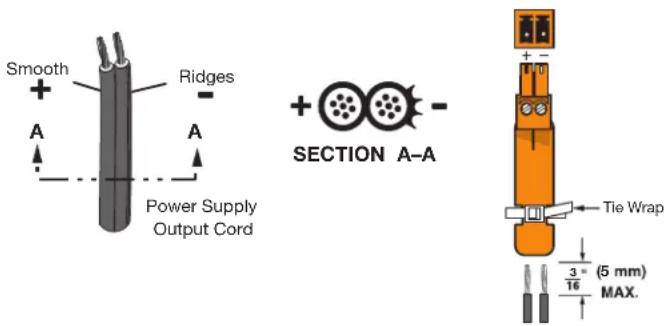
Figure 6. Power Connector Wiring
CAUTION:
ATTENTION :
To verify the polarity before connection, plug in the power supply with no load and check the output with a voltmeter.
IR and RS-232 connectors wiring
Figure 7 shows how to wire the Remote RS-232 and Over DTP RS-232 and IR connectors.
The RS-232 and IR connectors share the ground pole and the data from both can be transmitted simultaneously.
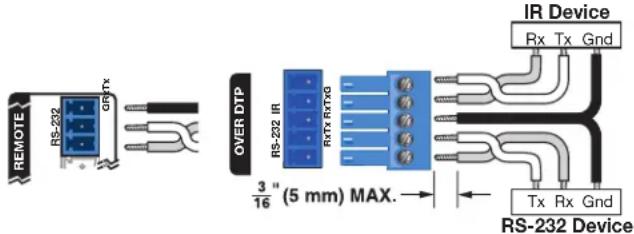
Figure 7. IR and RS-232 Connectors Wiring
NOTES:
- The IR Tx and Rx line pair and the RS-232 Tx and Rx line pairs must each cross once between their ports and the source or destination.
- The length and preparation of exposed wires is important (see the second and third power Caution on page 10).
Front Panel Configuration Port
A Configuration port — Connect a USB mini-B cable to this port for remote control of the switching transmitter, similar to the communications function of the rear panel Remote RS-232 port.
NOTE: A front panel configuration port connection and a rear panel Remote RS-232 port connection can both be active at the same time. If commands are sent simultaneously to both, the command that reaches the processor first is handled first.
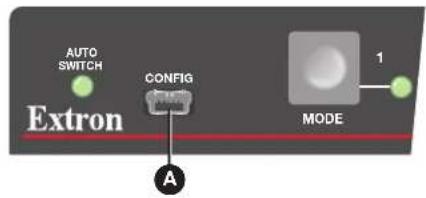
Figure 8. Front Panel Config Port
Operation
Controls and Indications
flowchart
graph LR
    A["Extron"] -->|A| B["MODE"]
    B -->|B| C["NORMAL"]
    C -->|C| D["AUTO"]
    D -->|D| E["DTP T USW 333"]
    style A fill:#99ccff,stroke:#333
    style B fill:#99ccff,stroke:#333
    style C fill:#99ccff,stroke:#333
    style D fill:#99ccff,stroke:#333
    style E fill:#99ccff,stroke:#333
    note1["AUTO SWITCH"] --> A
    note2["CONFIG"] --> A
    note3["STATUS"] --> E
    note4["HDCP"] --> E
    note5["SIGNAL"] --> E
    note6["1"] --> B
    note7["2"] --> C
    note8["3"] --> D
    note9["G"] --> E
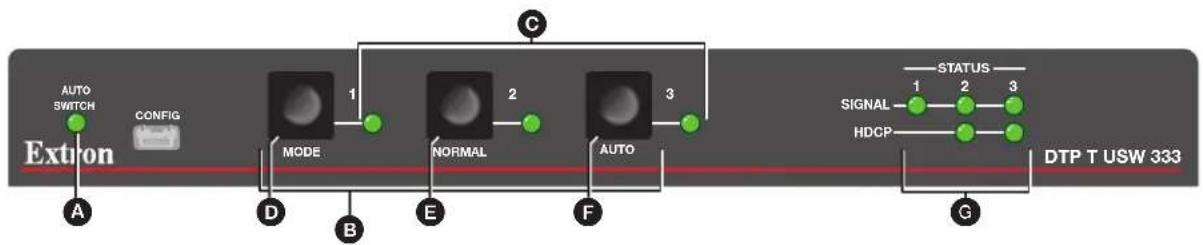
Figure 9. DTP T USW 333 Front Panel Controls and Indicators
A Auto Switch LED
B Input 1 through 3 buttons
© Input 1 through 3 LEDs
D Mode button
E Normal button
Auto(switch) button
G Status LEDs
Auto Switch mode indicator
A Auto Switch LED — See Switching inputs on page 13.
Input selection controls and indicators
B Input 1 through 3 buttons — Each Input button selects the associated input for output (see Switching inputs).
The Input buttons are also used to toggle auto-input switching mode on and off (see Auto-input switching mode controls).
C Input 1 through 3 LEDs — The input LEDs identify the selected input.
Auto-input switching mode controls
The switcher supports auto-input switching mode. When auto-input switching mode is enabled, the switcher continuously monitors all inputs and automatically switches to the highest-numbered input with video sync pulses present. If video is absent from all inputs, input 1 is selected.
D Mode button — The Mode button is used with the Normal button or the Auto button to select the switching mode (see Selecting the switch mode on page 14).
This button is a secondary function of the Input 1 button.
Normal button — The Normal button is used with the Mode button to select normal mode (see Selecting the switch mode).
This button is a secondary function of the Input 2 button. When you change from auto-input switching to normal (manual) mode, the last input selected in auto-input switching mode remains selected until you manually select a different input.
Auto (switch) button (see figure 9 on page 12) — The Auto button is used with the Mode button to select auto-input switching mode (see Selecting the switch mode).
This button is a secondary function of the Input 3 button.
Status LEDs
G Status LEDs —
- Signal LEDs (1 through 3) — Indicates that the switcher detects horizontal sync (Signal LED 1) or TMDS clock (Signal LED 2 and Signal LED 3) on the associated input.
- HDCP LEDs (2 and 3) — Indicates that the input signal is HDCP-encrypted.
Front Panel Operations
The following paragraphs detail the power up process and provide sample procedures for switching inputs, changing between normal and auto-input switching mode, and toggling executive mode on and off.
Power
Power is automatically applied when the power cord is connected to an AC source. When AC power is applied, the switcher performs a self-test that blinks the front panel LEDs during the test. An error-free power up self-test sequence leaves the Auto Switch and Input LEDs on or off in the same configuration as they were when power was last removed.
If an error occurs during the self-test, the switcher locks up and does not operate. If the switcher locks up on power-up, call the Extron S3 Sales & Technical Support Hotline. See the Extron website for the nearest Extron office.
Plug in all system components and turn on the input devices (such as Blu-Ray players and computers) and the output devices. Set the input devices to output video using the operating instructions of that device. Select an input. The image should appear on the screen. If no image appears, see Troubleshooting — If No Image Appears on page 14.
Switching inputs
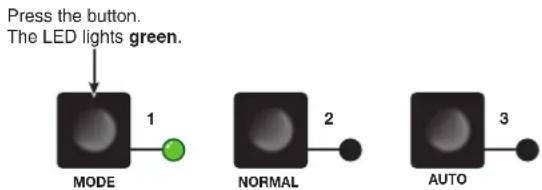
Select an input for transmission to the receiver using the front panel buttons as follows:
- Select the desired input by pressing the associated input button (see figure 10).
flowchart
graph TD
    A["Press the button. The LED lights green."] --> B["MODE"]
    B --> C["1"]
    B --> D["NORMAL"]
    D --> E["2"]
    D --> F["AUTO"]
    F --> G["3"]
Figure 10. Selecting an Input
- Observe that the LED for the selected input lights.
NOTE: The switcher must be in normal (manual) mode.
An input can also be selected using an RS-232 or USB device or a contact closure device (see Remote Control starting on page 15).
Selecting the switch mode
NOTE: In the auto-input switching mode available from the front panel, the switcher selects the highest numbered input with a sync signal present. See the SIS command Front panel mode on page 18 to configure auto-input switching low mode, which selects the lowest numbered input.
Turn auto-input switching mode on and off as follows:
- Press and hold the Mode (Input 1) button and the button for the desired mode for approximately 5 seconds (see figure 11):
• Auto (Input 3) — The Auto Switch LED lights.
- Normal (Input 2) — The Auto Switch Active LED goes off.
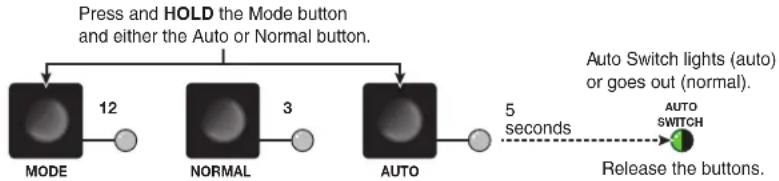
flowchart
graph TD
    A["MODE"] -->|12| B["NORMAL"]
    B -->|3| C["AUTO"]
    C -->|5 seconds| D["Release the buttons."]
    E["Press and HOLD the Mode button and either the Auto or Normal button."] --> A
    F["Auto Switch lights (auto) or goes out (normal)."] --> D
Figure 11. Selecting a Mode
- Release the buttons.
Front panel security lockout (Executive mode)
The switcher has a front panel lock feature that locks the front panel. If front panel input selections are attempted when the panel is locked, all front panel LEDs blink three times.
Toggle the front panel lock on and off as follows:
-
Push and hold the Input 1, Input 2, and Input 3 buttons simultaneously for 5 seconds. All front panel LEDs blink three times.
-
Release the buttons.
When the front panel is locked, contact closure, USB, and RS-232 control are still available.
Reset
Use the recessed rear panel Reset button to reset to default settings as follows:
- Press and hold the Reset button for approximately 6 seconds. All front panel LEDs cycle.
- Release the button. This reset is the equivalent of issuing the Esc ZXXX← SIS command (see Reset on page 20).
Troubleshooting — If No Image Appears
- Ensure that all devices are plugged in and powered on. The switcher is receiving power if one of the input LEDs is lit.
- Ensure an active input is selected on the switcher or that the switcher is in auto-input switching mode.
- Ensure that the proper signal format is supplied.
- Check the cabling and make corrections as necessary.
- Call the Extron S3 Sales & Technical Support Hotline if necessary (see the Extron website for the nearest Extron office).
Remote Control
This section includes:
- Contact Closure Control
• Simple Instruction Set Control
• Product Configuration Software
The DTP T USW 333 switcher can be remotely controlled via its rear panel Remote RS-232 port, its front panel configuration (USB) port, and its rear panel Remote Contact port. Remote control devices can be:
- A host device such as a computer or control system and the Extron Simple Instruction Set
- A contact closure device such as an Extron KP 6 Keypad Control or a video cable
Contact Closure Control
The rear panel Remote Contact port (see figure 2 on page 6) provides a way to select an input to the switcher using a remote contact closure device. The contact closure pin assignments are shown in figure 6 on page 10.
NOTE: The switcher must be in normal (manual) mode.
To select a different input number using a contact closure device, momentarily short the pin for the desired input number to ground. To force one of the inputs to be always selected, leave the short to ground in place. The short overrides front panel input selections.
Simple Instruction Set Control
The DTP T USW 333 switching transmitter can be remotely controlled using SIS commands from a host device such as a computer or control system via its rear panel Remote RS-232 port (see ① on page 7) or front panel configuration (USB) port (see Front Panel Configuration Port on page 12).
The default serial port protocol of the port is as follows:
• 9600 baud • No parity • 8-bit
- No flow control • 1 stop bit
Host-to-Switcher Communications
SIS commands consist of one or more characters per field. No special characters are required to begin or end a command character sequence. When a command is valid, the switcher executes the command and sends a response to the host device. All responses from the switcher to the host end with a carriage return and a line feed (CR/LF = ←), which signals the end of the response character string. A string is one or more characters.
Switcher-Initiated Messages
When a local event occurs, such as a front panel operation, loss or restoration of an input signal, or an error condition, the switcher responds by sending a message to the host. The switcher-initiated messages are listed below:
© Copyright 20yy, Extron Electronics DTP T USW 333, Vx.xx, 60-nnnn-nn
The switcher issues the copyright message when it first powers on. vx.xx is the firmware version number and 60-nnnn-nn is the part number.
Inn All
The switcher also sends the Inn message whenever the selected input is changed. n is the input number. A zero (θ) in the n field indicates no input is selected.
Error responses
When the switcher receives a valid SIS command, it executes the command and sends a response to the host device. If the switcher is unable to execute the command because the command is invalid or it contains invalid parameters, the switcher returns an error response to the host. The error response codes are:
E01 — Invalid input channel number (out of range)
E06 — Invalid channel change
E10 — Invalid command
E13 — Invalid parameter
Timeout
Pauses of 10 seconds or longer between command ASCII characters result in a timeout. The command operation is aborted with no other indication.
Using the Command and Response Table
The Command and Response Table for SIS Commands starts on page 18. Symbols are used throughout the table to represent variables in the command and response fields. Command and response examples are shown throughout the table. The SIS commands are not case sensitive. The ASCII to HEX conversion table below is for use with the command and response table.
| ASCII to Hex Conversion Table Esc 1B CR ∅D LF ∅A | |||||||||||||
| Space → | 20 | ! | 21 | " | 22 | # | 23 | $ 24 | % | 25 | & | 26 | ' 27 |
| ( 28 ) | 29 | * | 2A | + | 2B , 2C | - | 2D | • | 2E / 2F | ||||
| ∅ 30 | 31 | 2 | 32 | 3 | 33 | 4 34 | 5 | 35 | 6 | 36 7 37 | |||
| 8 38 | 9 39 | : | 3A ; 3B < 3C = 3D > 3E ? 3F | ||||||||||
| @ 40 | A 41 | B 42 | C 43 D 44 E 45 F 46 G 47 | ||||||||||
| H 48 | 49 J 4A K 4B L 4C M 4D N 4E O 4F | ||||||||||||
| P 50 | 51 R 52 S 53 T 54 U 55 V 56 W 57 | ||||||||||||
| X 58 | 59 Z 5A [ 5B \ 5C ] 5D ^ 5E _ 5F | ||||||||||||
| ` 60 a 61 b 62 c 63 d 64 e 65 f 66 g 67 h 68 i 69 j 6A k 6B l 6C m 6D n 6E o 6F p 70 q 71 r 72 s 73 t 74 u 75 v 76 w 77 x 78 y 79 z 7A { 7B l 7C } 7D ~ 7E DEL 7F | |||||||||||||
Figure 12. ASCII to Hexadecimal Conversion
Symbol Definitions
← = Carriage return/line feed
← = Carriage return (no line feed)
| = Pipe (can be used interchangeably with the ← character)
- = Space
Esc or W = Can be used interchangeably with the Escape key character
1 = Input number or 1 through 3 ( = no input for switching command or always output for audio assignment)
2 = Switch mode = Manual (default) 2 = Auto-input switching low 1 = Auto-input switching high
NOTE: Auto-input switch low ( _2 = 2 ) is not available from the front panel.
x3 = Status θ = Off, disabled, or not detected 1 = On, enable, or detected
X4 = HDMI input 2 or 3
X5 = Input HDCP status θ = No source is detected 2 = Source detected without HDCP
1 = Source is detected with HDCP
x6 = Output HDCP status θ = No sink is detected 2 = Sink is detected without HDCP
1 = Sink is detected with HDCP
X7 = EDID See the EDID Values table on page 21.
x8 = User EDID location 66, 67, or 68
x9 = Raw EDID data 128 or 256 bytes of hexadecimal data
X10 = Resolution and rate in plain text Example: 1920x1200•@60Hz
X12 = Switch position 0 = DTP 1 = HDBT
X13 = Switcher name A text string of up to 24 alphanumeric characters and minus sign/hyphen (-).
No blank or space characters are permitted as part of a name. The first character must be a letter, and the last character must not be a minus sign/hyphen.
X14 = Embed audio
θ = Embedded digital audio
2 = Auto select (Digital takes priority) (default)
1 = Analog audio input
NOTE: VGA input only has option 0 and 1 for X14.
X15 = Tally pin mode when channel is muted 0 = Always on (default) 2 = Blink when muted
1 = Off when muted
X16 = Firmware version number to second decimal place ( x.xx)
17 = Verbose mode = Clear/none 2 = Tagged responses for queries 1 = Verbose mode (default) 3 = Verbose mode and tagged for queries
Command and Response Table for SIS Commands
| Command Function | SIS Command (Host to Unit) | Response (Unit to Host) | Additional description |
| Select and view input | |||
| Select an input | 1! In | 1 | Select input 1 to transmit to the connected receiver. |
| Example: | 1! | In1•All← | Select input 1. |
| View input selection | ! | 1 | Input 1 is selected. |
| KEY: 1= Input number or 1 through 3 ( = no input for switching command or always output for audio assignment) | |||
| Front panel mode | |||
| Set normal switch mode | Ausw0← | Set switch mode to normal (Default). | |
| Set auto switch mode high | 1AUSW | Ausw1← | Set switch mode to auto (high). The switcher automatically selects the highest-numbered input with a signal present. |
| Set auto switch mode low | 2AUSW | Ausw2← | Set switch mode to auto (low). The switcher automatically selects the lowest-numbered input with a signal present. |
| View front panel switch mode | 2 | ||
| KEY: 2= Switch mode = Manual (default) 1 = Auto-input switching high 2 = Auto-input switching low | |||
| Assign analog audio input to specific video input or always output audio | |||
| Always output analog audio | Aflw0← | Analog audio is output regardless of input selection (Default). | |
| Assign (lock) analog audio to a specific input | 1AFLW | AflwX1← | Assign analog audio to input 1 . |
| View audio assignment | 1 | ||
| KEY: 1= Input number or 1 through 3 ( = no input for switching command or always output for audio assignment) | |||
| Input signal status | |||
| Request status of all inputs and the output | 33^23^3*X3^0 | 3^1 through 3^3 are the signal status of inputs 1 through 3. 3^b is the output signal status. | |
| Verbose mode 2 and 3 | Sig X3^13^23^3*X3^0 | ||
| KEY: 3= Status = Not detected, authorized 1 = Detected, authorized | |||
| HDCP status | |||
| View the HDCP status of an HDMI input | 4HDCP | 5 | |
| Verbose mode 2 and 3 | Hdcp Ix4 * X5 | ||
| View the HDCP status of both HDMI inputs | 55^3 | ||
| Verbose mode 2 and 3 | Hdcp Ix5^2*X5^b | ||
| View the output HDCP status | 6 | ||
| Verbose mode 2 and 3 | Hdcp Ox6 | ||
| KEY: 4= HDMI input 2 or 3 5= Input HDCP status = No source detected 1 = Source detected with HDCP 2 = Source detected without HDCP 6= Output HDCP status = No sink detected 1 = Sink detected with HDCP 2 = Sink detected without HDCPHDCP Authorized device | |||
| Set HDMI input to HDCP authorized | EscEX4*1HDCP← | HdcpEX4*1← | 1= Authorized (Default). |
| Set HDMI input to HDCP not authorized | EscEX4*0HDCP← | HdcpEX4*0← | |
| Set HDCP authorization, both HDMI inputs | EscEX3HDCP← | HdcpEX3← | |
| View HDCP authorized status | EscEHDCP← | X3*X3← | Status of input 2 and input 3. |
| Verbose mode 2 and 3 | HdcpEX3*X3← | ||
| KEY: X3 = Status θ = Not detected, authorized 1 = Detected, authorized | |||
| Front panel security lockout (executive mode) | |||
| Lock front panel | 1X | Exe1← | Set lock on. |
| Unlock front panel | 0X | Exe0← | Set lock off (Default). |
| Read lock status | X | X3← | Lock status = X3 |
| KEY: X3 = Status θ = Not detected, authorized 1 = Detected, authorized | |||
| Audio routing selection | |||
| Set input audio format | EscIX1*X14AFMT← | AfmtIX14← | |
| View input audio format | EscIX1AFMT← X14← | Embedded digital takes priority | |
| KEY: X1 = Input number θ or 1 through 3 (θ= no input for switching command or always output for audio assignment)X14 = Embed audio θ = Embedded digital audio 2 = Auto select (default)1 = Analog audio input | |||
| Video mute | |||
| Mute video | 1B | Vmt1← | Output no video signal. |
| Unmute video | 0B | Vmt0← | Output selected video input. |
| Read video mute | B | X3← | Mute status = X3. |
| Analog audio mute | |||
| Mute analog audio | 1Z | Amt1← | Output no analog audio signal. |
| Unmute analog audio | 0Z | Amt0← | Output analog audio input. |
| Read analog audio mute | Z | X3← | Analog audio mute status = X3. |
| Disable (mute) HDMI output embedded audio | |||
| Mute HDMI audio output | Esc1AFMT← | Afmt1← | Mute HDMI audio. |
| Unmute HDMI audio output | Esc0AFMT← | Afmt0← | Unmute HDMI audio (Default). |
| View HDMI audio mute status | EscAFMT← X3← | ||
| KEY: X3 = Status θ = Not detected, authorized 1 = Detected, authorized | |||
| TP function switch position | |||
| View switch position | EscO1HDBT← | HdbtO1*X12← | |
| NOTE: The Hdbt01* portion of response is returned in Verbose mode 2 and 3 only. | |||
| KEY: X12 = Switch position θ = DTP 1 = HDBT | |||
| Channel mute (deselect) mode - via contact and tally pins | |||
| Set mode | EscX3* X15MUTM← | MutmX3*X15← | Selects 0 channel if reselect input. |
| View setting | EscMUTM← | X3*X15← | Via contact closure. |
| KEY: X3 = Status θ = Not detected, authorized 1 = Detected, authorizedX15 = Tally pin mode when channel is muted θ = Always on (default)1 = Off when muted | 1 = Detected, authorized2 = Blink when muted | ||
| Command Function | SIS Command (Host to Unit) | Response (Unit to Host) | Additional description | ||||
| Device name | |||||||
| Set the unit name | 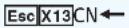 |  | Change the name to one of your choosing. | ||||
| Set unit name to factory default | 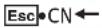 |  | |||||
| View unit name |  | ||||||
| KEY: X13 = Switcher name A text string of up to 24 alphanumeric characters and minus sign/hyphen (-) | |||||||
| Reset | |||||||
| Reset to factory setting |  |  | Reset to factory defaults. | ||||
| Verbose mode | |||||||
| NOTE: If tagged responses are enabled (modes 2 and 3), all "view" commands return the prefix and the value, just as the "set" commands do. For example, the View front panel switch mode (Esc)Ausw←) command returns AuswX2←. | |||||||
| Set verbose mode |  | 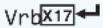 | |||||
| Read verbose mode |  | ||||||
| KEY: X17 = Verbose mode ∅ = Clear/none 2 = Tagged responses for queries1 = Verbose mode (default) 3 = Verbose mode and tagged for queries | |||||||
| Information requests | |||||||
| Information request | ### | ### | |||||
| Example: | ### | ### | |||||
| Input 1 is selected, analog audio is assigned to input 2, the switcher is in auto-input switching (high) mode, video is muted and analog audio is unmuted. | |||||||
| Request part number | ### | ### | See www.extron.com for part numbers. | ||||
| Query controller firmware version Q | ### | ||||||
| Example: Q | ### | ### | The factory-installed controller firmware version is 1.23 (sample value only). | ||||
| KEY: X1 = Input number θ or 1 through 3 (θ = always output for audio assignment)X2 = Switch mode θ = Manual (default) 2 = Auto-input switching low1 = Auto-input switching highX3 = Status θ = Off or disabled 1 = On or enableX16 = Firmware version number to second decimal place (x.xx) | |||||||
| EDID Minder | |||||||
| Assign EDID to an input | ### | ### | Defaults: 03 and 50. | ||||
| Save the EDID of the connected display to a user location | ### | ### | Save EDID of display connected to the output to the user store slot 66, 67, or 68. | ||||
| View the EDID assignment | ### | ### | |||||
| View raw EDID data | ### | ### | Read data as text from the EDID assigned and used on input X1. | ||||
| View EDID native resolution | ### | ### | Read out native resolution and refresh rate from the EDID assigned to the specified input in plain text.Example: 1920x1200 @60.00Hz | ||||
| KEY: X1 = Input number θ or 1 through 3 (θ = always output for audio assignment)X7 = EDID See the EDID Values table on page 21.X8 = User EDID location 66, 67, or 68X9 = Raw EDID data 128 or 256 bytes of hexadecimal dataX10 = Resolution and rate in plain text Example: 1920x1200@60.00Hz | |||||||
| EDID Values | |||||||
| X7 | Value | X7 | Value | X7 | Value | X7 | |
| VGA - PC values | |||||||
| 01 | 800x600 @ 60 Hz | 05 | 1280x800 @ 60 Hz | 09 | 1400x1050 @ 60 Hz | 13 | 1680x1050 @ 60 Hz |
| 02 | 1024x768 @ 60 Hz | 06 | 1280x1024 @ 60 Hz | 10 | 1440x900 @ 60 Hz | 14 | 1920x1080 @ 60 Hz |
| 03* | 1280x720 @ 60 Hz | 07 | 1360x768 @ 60 Hz | 11 | 1600x900 @ 60 Hz | 15 | 1920x1200 @ 60 Hz |
| 04 | 1280x768 @ 60 Hz | 08 | 1366x768 @ 60 Hz | 12 | 1600x1200 @ 60 Hz | 16 | 2048x1080 @ 60 Hz |
| DVI - PC values | |||||||
| 17 | 800x600 @ 60 Hz | 21 | 1280x800 @ 60 Hz | 25 | 1400x1050 @ 60 Hz | 29 | 1680x1050 @ 60 Hz |
| 18 | 1024x768 @ 60 Hz | 22 | 1280x1024 @ 60 Hz | 26 | 1440x900 @ 60 Hz | 30 | 1920x1080 @ 60 Hz |
| 19 | 1280x720 @ 60 Hz | 23 | 1360x768 @ 60 Hz | 27 | 1600x900 @ 60 Hz | 31 | 1920x1200 @ 60 Hz |
| 20 | 1280x768 @ 60 Hz | 24 | 1366x768 @ 60 Hz | 28 | 16001200 @ 60 Hz | 32 | 2048x1080 @ 60 Hz |
| HDMI - PC values, with 2-channel audio | |||||||
| 33 | 800x600 @ 60 Hz | 37 | 1280x1024 @ 60 Hz | 41 | 1440x900 @ 60 Hz | 45 | 1920x1200 @ 60 Hz |
| 34 | 1024x768 @ 60 Hz | 38 | 1360x768 @ 60 Hz | 42 | 1600x900 @ 60 Hz | 46 | 2048x1080 @ 60 Hz |
| 35 | 1280x768 @ 60 Hz | 39 | 1366x768 @ 60 Hz | 43 | 1600x1200 @ 60 Hz | ||
| 36 | 1280x800 @ 60 Hz | 40 | 1400x1050 @ 60 Hz | 44 | 1680x1050 @ 60 Hz | ||
| HDMI - HDTV values, with 2-channel audio | |||||||
| 47 | 480p @ 60 Hz | 50^ | 720p @ 60 Hz | 53 | 1080p @ 50/25 Hz | 56 | 1080p @ 60 Hz |
| 48 | 576p @ 50 Hz | 51 | 1080i @ 50 Hz | 54 | 1080p @ 50 Hz | ||
| 49 | 720p @ 50 Hz | 52 | 1080i @ 60 Hz | 55 | 1080p @ 60/24 Hz | ||
| HDMI - HDTV values, with multi-channel audio | |||||||
| 57 | 720p @ 50 Hz | 59 | 1080i @ 50 Hz | 61 | 1080p @ 50/25 Hz | 63 | 1080p @ 60/24 Hz |
| 58 | 720p @ 60 Hz | 60 | 1080i @ 60 Hz | 62 | 1080p @ 50 Hz | 64 | 1080p @ 60 Hz |
| Output and user locations | |||||||
| X8 | Source | X8 | Source | X8 | Source | X8 | |
| 65 | Output | 66 | User location 1 | 67 | User location 2 | 68 | User location 3 |
Product Configuration Software
This section details the Extron Product Configuration Software (PCS), available on the Extron website. The Windows-based PCS communicates with the switcher via the front panel configuration port, a standard USB mini-B port (see Front Panel Configuration Port on page 12).
Installing the Software/Firmware
PCS, Firmware, and Firmware Loader are available on the Extron website. Download and install both programs as follows:
NOTES:
- Also download the latest versions of software and firmware for your product.
- An Extron Insider account is required to download either firmware or software.
-
Software and firmware can also be downloaded from the Download tab on the product web page.
-
Go to www.extron.com and mouse over the Download link at the top of the page (see figure 13, ①).
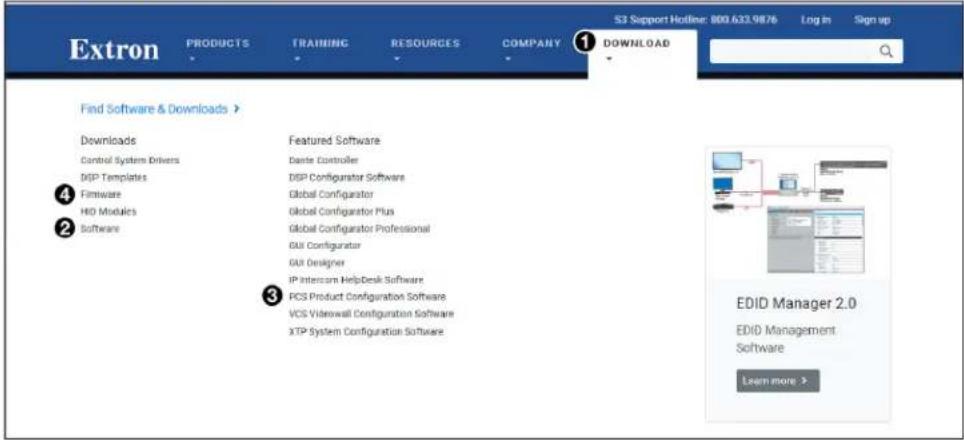
Figure 13. Downloading a Software or Firmware Package
- Click the appropriate link on the drop-down list.
For software, either click the Software link (②) or, if the software is listed, click directly on that link (see the PCS Product Configuration Software link ③) and skip to step 5.
For firmware, click the Firmware link (4).
- If there is no direct link to your software, click the Software link (②).
- Scroll down to the alphabetic navigation bar (see figure 14).

Figure 14. Alphabetic Navigation Bar
5. Click the appropriate letter to locate the software or firmware.
The requested alphabetical page opens.
6. Navigate to the desired software and click Download (see figure 15, ①). Follow the on-screen instructions.
| Version | Release Date | Size | ||
| 4.8.8 | Oct. 10, 2022 | - Various bug fixes | 283.3 MB | Download Login required |
Figure 15. PCS Software Download
For Firmware:
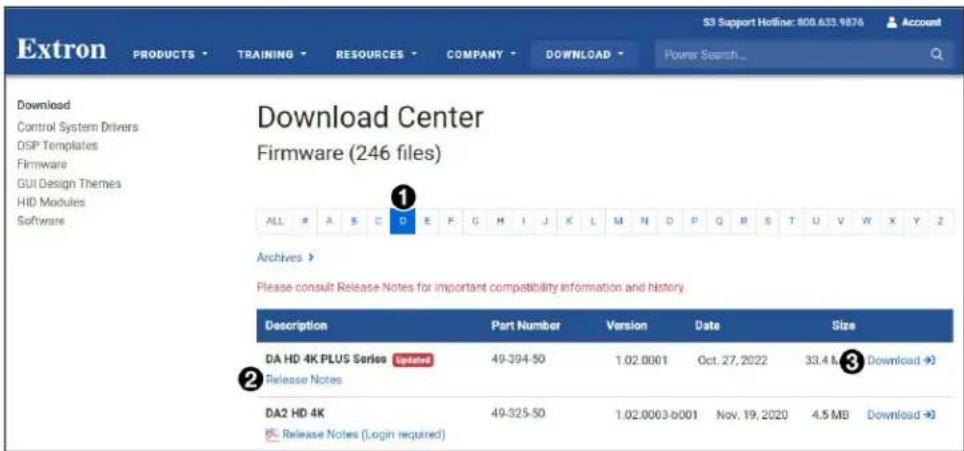
Figure 16. Firmware Page with Alphabetic Navigation Bar
a. Click the letter D from the alphabetic navigation bar (see figure 16, ①).
b. Scroll down the page to find the firmware for the DTP T USW 333.
NOTE: Firmware for the DTP T USW 4K 333 is 49-328-50. Firmware for the DTP T USW 4K 333, Type 2, is 49-799-50. See the front panel of the device to verify a Type 2 label.
c. (Optional) Click Release Notes (②) for more information about the firmware update.
d. Click Download (③). The product download screen opens.
e. Enter the required user information and click Download. An executable (.exe) file is downloaded to the PC. Run this program to place the firmware on the PC for future use. Make a note of the folder where the firmware file was saved.
- Install the software.
a. Navigate to the folder where the software file was downloaded.
b. Double-click the executable file and follow the on-screen directions to install the software.
For Firmware:
Install via PCS (see Updating the Firmware on page 27).
Connecting to PCS
The Extron Product Configuration Software window opens with the Device Discovery panel open. Connect to the device using the Device Discovery panel or the TCP/IP panel (see figure 17).
Device Discovery Panel
The Device Discovery panel displays accessible Extron devices connected directly to the PC or to a LAN or WAN. Devices are identified and sorted by model, IP address, device name, or connection method.
Start the Extron Product Configuration Software as follows:
- Click Start > Extron > Extron Product Configuration Software.
The Product Configuration Software opens to the Device Discovery screen (see figure 17).
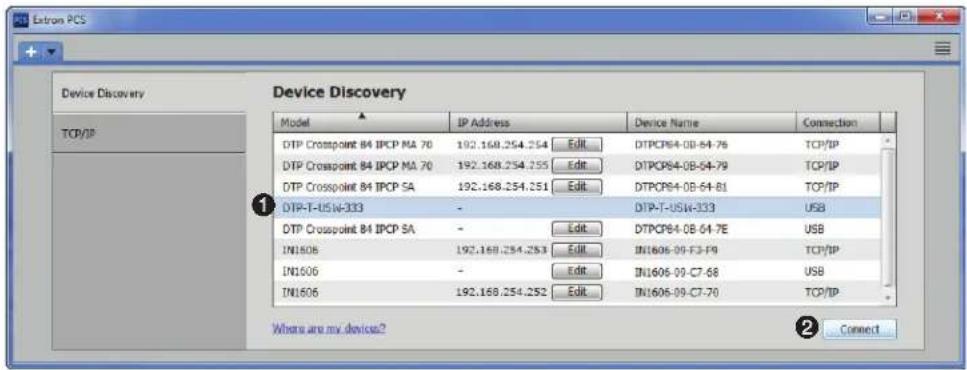
Figure 17. Device Discovery Panel
- Select the DTP T USW 333 unit by clicking on it to highlight it in the list (①).
- Click Connect (②). The Product Configuration Software opens to the Input/Output Configuration window (see figure 18).
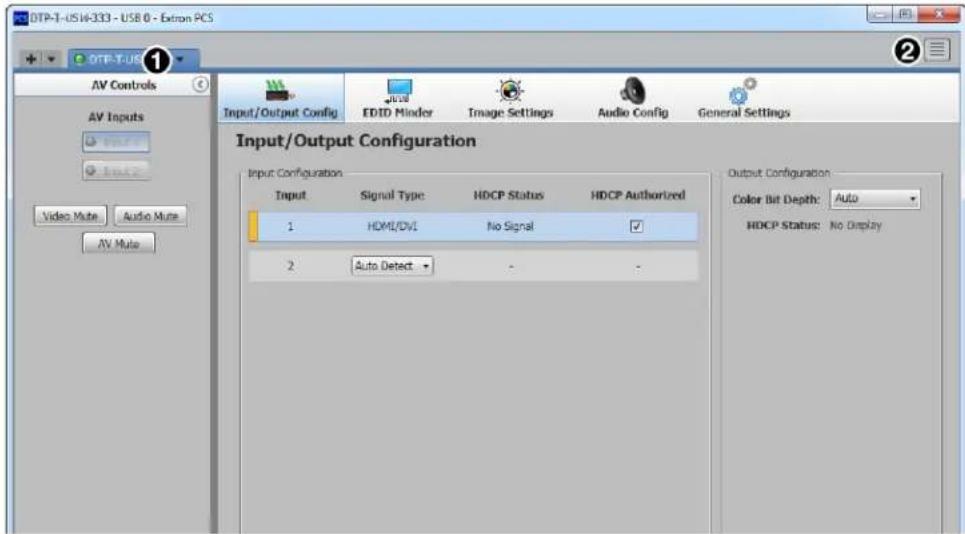
Figure 18. DTP T USW 333 Main Window
Each PCS screen has a Device drop-down list (①) for device configuration options. The Software list (②) contains software configuration and information options.
Device List
The Device list has options for device connection, configuration, and information (see figure 19).
- Disconnect — Disconnect the device from the PCS program and close the Device tab.
- Settings — Open a submenu with the Hardware Settings option:
Hardware Settings — Displays the dialog box with device information and a side tab to change the device name.
- Reset Device — Open the Reset Device... dialog box, with selectable modes for resetting the connected device, as well as the Unit Information (also displayed in the Hardware Settings dialog box).
- Update Firmware — Open the Update Firmware to this Device... submenu to upload firmware from the host device to the connected device.
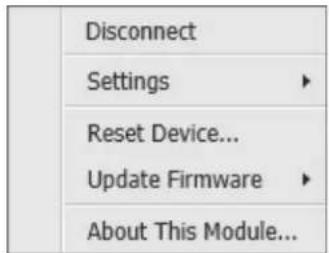
Figure 19. Device List
NOTE: If necessary, download new firmware from the Extron website (see Installing the Software/Firmware on page 22).
- About This Module — Open the About This Module dialog box, with the module part number and firmware version of the connected device.
Software List
The Software list (see figure 20) has options pertaining to PCS settings.
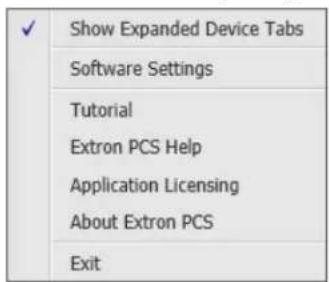
Figure 20. Software List
Show Expanded Device Tabs
Selecting Show Expanded Device Tabs from the Software menu displays the device IP address or connection method in the Device tab.

Figure 21. Expanded Device Tab
Software Settings
This option resets all disabled confirmation dialogs to the default settings.
-
From the Software list, select Software Settings. The Software Settings dialog box opens (see figure 22 on page 25).
-
Click the Re-enable Confirmation Dialogs button (see figure 22, ①). The dialog box closes and the reset is complete.
Alternatively, click the Close button (2) to close the dialog box without re-enabling the confirmation dialogs.
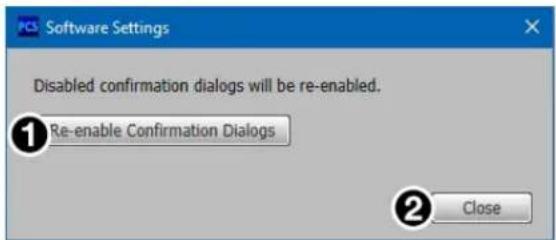
Figure 22. Software Settings Dialog Box
Tutorial
Display a general overview of where to find features in the PCS framework.
- From the Software list, select Tutorial. The Tutorial dialog box opens.
- Click the I Get It! button to close the dialog box.
Extron PCS Help
Open the PCS help file for general PCS operations.
From the Software list, select Extron PCS Help.
Application Licensing
Log into PCS with your Extron Insider account or check licensing details.
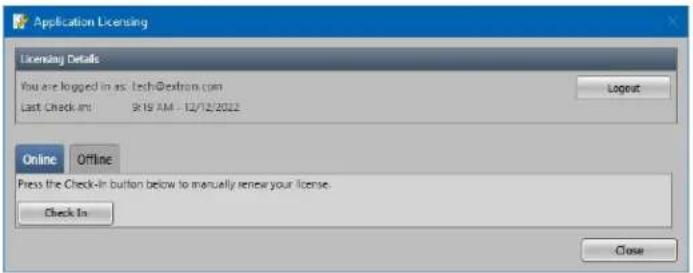
Figure 23. Application Licensing Dialog Box
About Extron PCS
Display information about the current PCS version.
- From the Software list, select About Extron PCS. The About - Extron PCS dialog box opens.
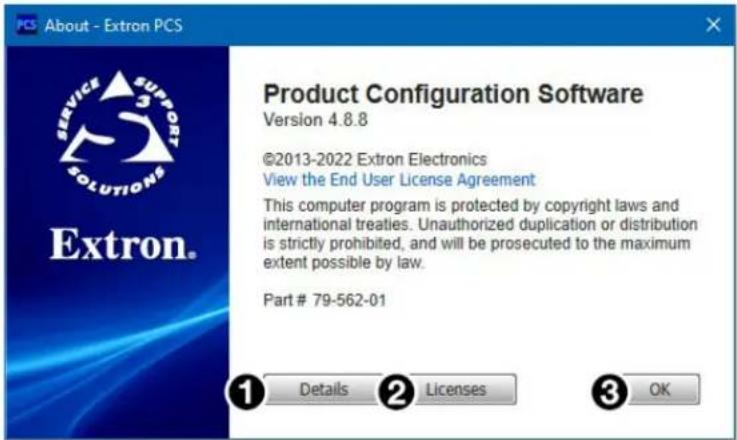
Figure 24. About - Extron PCS Dialog Box
- Click the Details button (see figure 24, ①) for more information.
- To display details about third-party software packages and associated licensing, click Licenses (2).
- Click the OK button (③) to close the dialog box.
Exit
Disconnect connected devices and close the application.
- From the Software list, select Exit. If device tabs are open, the Exit dialog box opens (see figure 25).
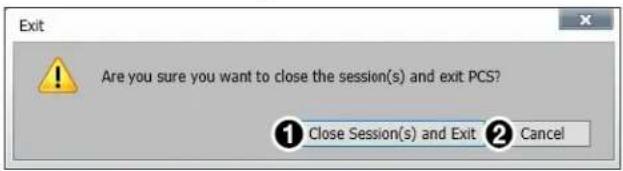
Figure 25. Exit Dialog Box
- Click the Close Session(s) and Exit button (①) to disconnect the software from connected devices, close all offline device tabs, and close the software.
Alternatively, click the Cancel button (②) to leave the software open.
Updating the Firmware
Firmware can be updated via Product Configuration Software.
NOTES:
• Firmware for the DTP T USW 4K 333 is 49-328-50.
Firmware for the DTP T USW 4K 333, Type 2, is 49-799-50.
See the front panel of the device to verify a Type 2 label.
- Upgrading the firmware does not overwrite the current configuration.
Update the unit firmware as follows:
- Download the current firmware to a PC connected to the DTP T USW 333 from the Extron website (see Installing the Software/Firmware on page 22).
- Open PCS and connect to the device (see Device Discovery Panel on page 24).
- From the drop-down Device list, select Update Firmware > Update Firmware to this Device.... The Update Firmware dialog box opens, stating that the software must disconnect from the device to update firmware.
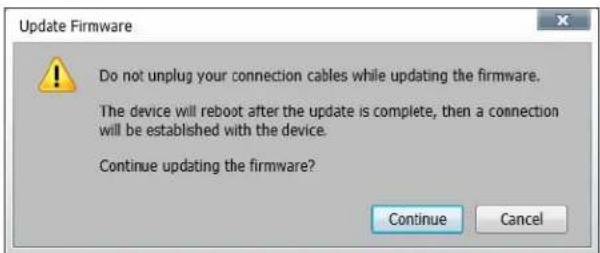
Figure 26. Update Firmware Dialog Box
- Select Continue. The Update Firmware dialogue box opens, showing the current firmware version.
- Click Browse to navigate to the device-specific firmware file that has been downloaded on your PC.
ATTENTION:
- The extension of the firmware file must be .s19. Opening a file with an incorrect extension may cause the device to stop functioning.
-
L'extension du fichier firmware doit être .s19. Si un fichier est ouvert avec une mauvaise extension, l'appareil peut arrêter de fonctionner.
-
Click Open or double click on the firmware file. This closes the Open dialog box and returns to the Update Firmware dialog box.
-
Click Update. This uploads and verifies the new firmware onto the connected device. The Installing Firmware progress field shows the progress of the upload.
- After the upload is complete, a dialogue box opens confirming that the upload is complete. The software returns to the Device Discovery window.
- From the Device Discovery panel of the Extron Product Configuration Software, select your device. A connection must be re-established with the device before continuing to use the software.
- Click the Connect button, or double click on the device. The device reconnects to the software.
Reference Information
This section provides procedures for mounting the DTP T USW 333 switching transmitter and disconnecting the ground between it and a compatible receiver.
- Mounting the Switcher
• Disconnecting the Ground
Mounting the Switcher
ATTENTION:
The 1-inch high, half rack width DTP T USW 333 switching transmitter can be placed on a table, mounted in a rack, or mounted under a desk or table.
Tabletop Use
Affix the included rubber feet to the bottom of the unit and place it in any convenient location.
Mounting kits
Mount the unit using any optional compatible mounting kit listed at www.extron.com, in accordance with the directions included with the kit. For rack mounting, see UL Rack-Mounting Guidelines on page 30.
UL Rack-Mounting Guidelines
The following Underwriters Laboratories (UL) requirements pertain to the installation of the DTP T USW 333 into a rack.
CAUTION:
- Elevated operating ambient temperature — If installed in a closed or multi-unit rack assembly, the operating ambient temperature of the rack environment may be greater than room ambient. Therefore, consider installing the equipment in an environment compatible with the maximum ambient temperature (TMA = +122°F, +50°C) specified by Extron.
- Reduced air flow — Installation of the equipment in a rack should be such that the amount of air flow required for safe operation of the equipment is not compromised.
- Mechanical loading — Mounting of the equipment in the rack should be such that a hazardous condition is not achieved due to uneven mechanical loading.
- Circuit overloading — Consideration should be given to the connection of the equipment to the supply circuit and the effect that overloading of the circuits might have on overcurrent protection and supply wiring. Appropriate consideration of equipment nameplate ratings should be used when addressing this concern.
- Reliable earthing (grounding) — Reliable earthing of rack-mounted equipment should be maintained. Particular attention should be given to supply connections other than direct connections to the branch circuit (such as use of power strips).
Disconnecting the Ground
If you cannot resolve a ground potential difference between the switching transmitter and receiver installation sites (as suggested by a missing or unstable picture), remove the ground connection between the units as follows:
NOTE: Once the ground jumpers are removed, the DTP T USW 333 cannot extend analog audio or remote power. No analog audio is output and the paired receiver requires its own dedicated power supply.
- Disconnect any cables and remove the switching transmitter from any rack or other installation option.
- Remove and retain the screws (nine screws, three on each side and three on top) securing the cover to the switching transmitter. Slide the cover forward slightly and lift it off the unit (see figure 19).
TIP: Do not to bend the electrical contact "legs" of the button and LED assemblies on the circuit board. If the buttons or LEDs are misaligned with the holes in the cover, it may be difficult to reassemble the switcher.
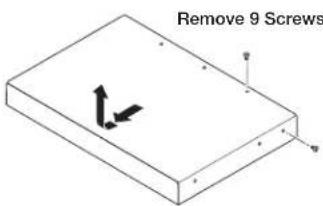
Figure 27. Opening the Switching Transmitter
- Locate and lift off jumpers JMP1 and JMP2 (see figure 20).
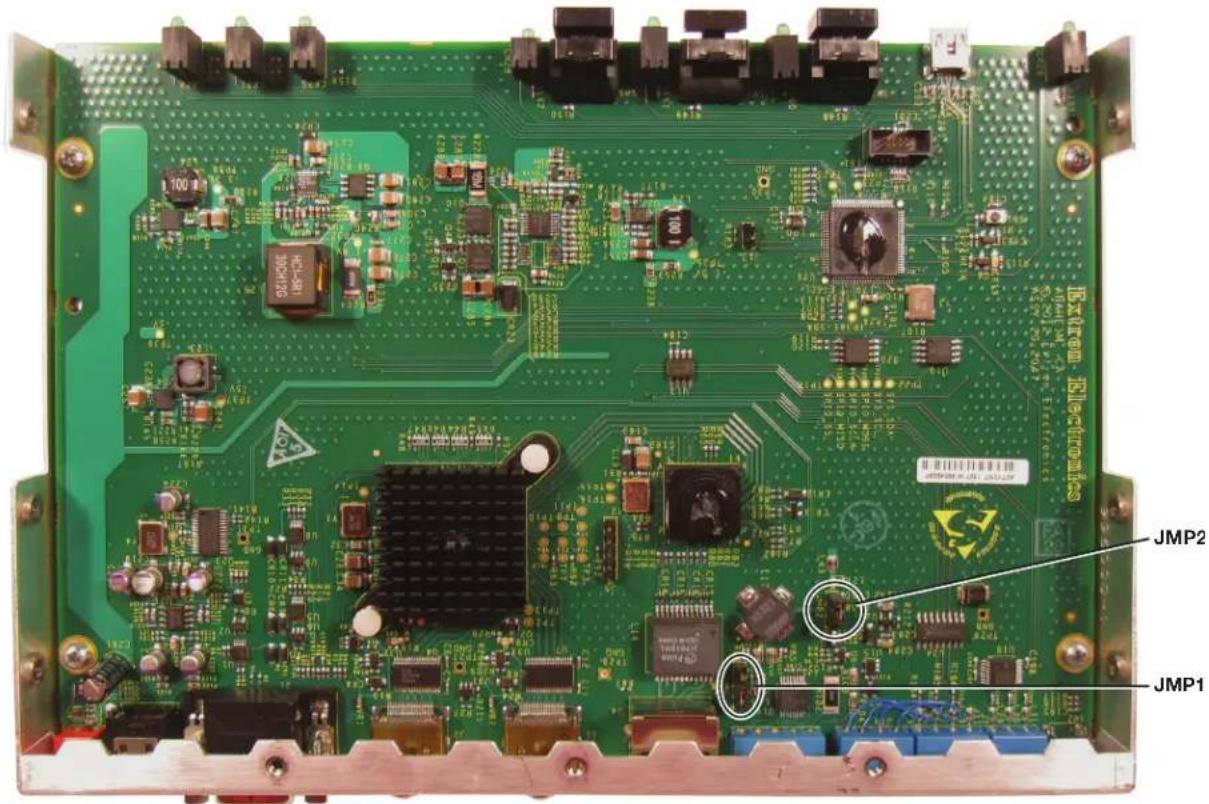
Figure 28. Jumper Locations
- Reinstall the switcher cover, securing it in place with the screws removed in step 2.
- Reinstall the switcher in the rack or other installation option (see Mounting the Switcher on page 29).
-
If you are using shielded cable, disconnect the cable shield from the connector at either end of the cable.
-
See the manual for the applicable receiver available at www.extron.com, and remove the ground jumpers in the receiver.
- Obtain a second 12 V power supply (one supply is provided with the switching transmitter and normally powers both units), and locally power both units (see Power supply wiring on page 10).
ATTENTION:
Extron warrants this product against defects in materials and workmanship for a period of three years from the date of purchase. In the event of malfunction during the warranty period attributable directly to faulty workmanship and/or materials, Extron will, at its option, repair or replace said products or components, to whatever extent it shall deem necessary to restore said product to proper operating condition, provided that it is returned within the warranty period, with proof of purchase and description of malfunction to:
USA, Canada, South America, and Central America:
Extron
1230 South Lewis Street
Anaheim, CA 92805
U.S.A.
Asia:
Extron Asia Pte Ltd
135 Joo Seng Road, #04-01
PM Industrial Bldg.
Singapore 368363
Singapore
Japan:
Extron Japan
Kyodo Building, 16
Ichibancho
Chiyoda-ku, Tokyo 102-0082
Japan
Europe:
Extron Europe
Hanzeboulevard 10
3825 PH Amersfoort
The Netherlands
China:
Extron China
686 Ronghua Road
Songjiang District
Shanghai 201611
China
Africa and Middle East:
Extron Middle East
Dubai Airport Free Zone
F13, PO Box 293666
United Arab Emirates, Dubai
This Limited Warranty does not apply if the fault has been caused by misuse, improper handling care, electrical or mechanical abuse, abnormal operating conditions, or if modifications were made to the product that were not authorized by Extron.
NOTE: If a product is defective, please call Extron and ask for an Application Engineer to receive an RA (Return Authorization) number. This will begin the repair process.
USA: 714.491.1500 or 800.633.9876
Asia: 65.6383.4400
Europe: 31.33.453.4040 or 800.3987.6673
Japan: 81.3.3511.7655
Africa and Middle East: 971.4.299.1800
Units must be returned insured, with shipping charges prepaid. If not insured, you assume the risk of loss or damage during shipment. Returned units must include the serial number and a description of the problem, as well as the name of the person to contact in case there are any questions.
Extron Electronics makes no further warranties either expressed or implied with respect to the product and its quality, performance, merchantability, or fitness for any particular use. In no event will Extron Electronics be liable for direct, indirect, or consequential damages resulting from any defect in this product even if Extron Electronics has been advised of such damage.
Please note that laws vary from state to state and country to country, and that some provisions of this warranty may not apply to you.