PW-TR100 - Bike computer Cateye - Free user manual and instructions
Find the device manual for free PW-TR100 Cateye in PDF.


User questions about PW-TR100 Cateye
0 question about this device. Answer the ones you know or ask your own.
Ask a new question about this device
Download the instructions for your Bike computer in PDF format for free! Find your manual PW-TR100 - Cateye and take your electronic device back in hand. On this page are published all the documents necessary for the use of your device. PW-TR100 by Cateye.
USER MANUAL PW-TR100 Cateye
text_image
CATEYE® POWERED BY ABBPOWER UNIT Instruction Manual

text_image
HEART RATE CADENCE SPEED POWER TORQUE ONLINE POWER P TQ 40.L.0365510 (ENG-PW) 1
This device complies with Part 15 of the FCC Rules. Operation is subject to the following two conditions: (1) This device may not cause harmful interference, and (2) this device must accept any interference received, including interference that may cause undesired operation. Modifications The FCC requires the user to be notified that any changes or modifications made to this device that are not expressly approved by CatEye Co., Ltd. may void the user's authority to operate the equipment.
Introduction
Thank you for purchasing the CATEYE Power Unit.
- Read this instruction manual thoroughly and understand the functions of the product before using it.
- This unit operates using the main unit, heart rate sensor, belt, and retaining ring of the CC-TR100. If you purchased the "Power unit" only, these items are not included. Before using the unit, have these items available.
Important
- Always follow the sections that are marked with "Warning!!!".
- No part of this manual may be reproduced or transmitted without the prior written permission of CatEye Co., Ltd.
- The contents and illustrations in this manual are subject to change without notice.
- If you have any questions or concerns about this manual, please contact CatEye at www.cateye.com.

For information on how to install the Power Unit on the bicycle, refer to "Installing the unit on your bicycle" (the accompanying sheet).
About the manuals
This manual provides an explanation of the Power Unit attached to the bicycle.
Controlling the buttons of the main unit
Use the buttons of the main unit to switch between different sets of measured data and to change settings In this manual, the buttons of the main unit are represented by the following symbols.
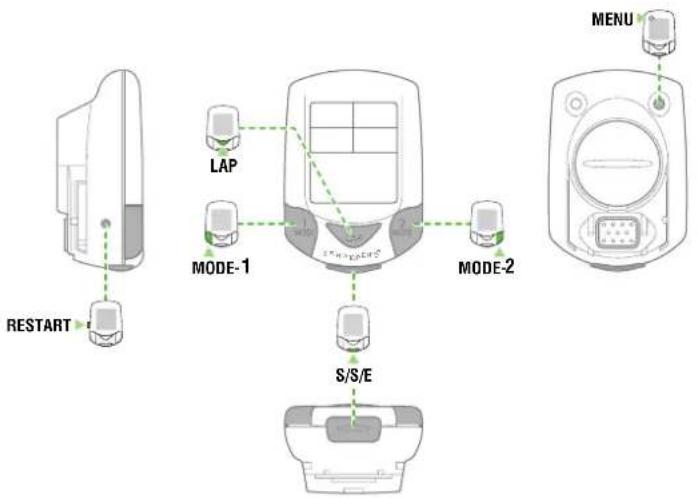
flowchart
graph TD
    A["RESTART"] --> B["MODE-1"]
    B --> C["LAP"]
    C --> D["MODE-2"]
    D --> E["S/S/E"]
    E --> F["MENU"]
NOTE: A different symbol applies depending on how to press the button.
| [HEZW]MODE-1 | Press and hold the MODE-1 button. |
 MODE-1 or MODE-2 MODE-1 or MODE-2 | Press the MODE-1 or MODE-2 button. |
| [OGXS]S/S/EMODE-1 | Press the START/STOP/ENTER button and MODE-1 button simultaneously. |
| [KT80] [CGKA]MODE-1MODE-1 | Press the MODE-1 button to increase or decrease the value. |
The meaning of icons in this manual:
Warning!!!: Sections marked with these icons are critical for safe use of the device.
CAUTION !: Important cautionary notes on the use and operation of the Power Unit.
NOTE: Helpful tips are highlighted this way.
Additional information:
If the Power select option is set to OFF, some screens or functions may be work differently.
OFF-Power: This symbol indicates that the "Power select" menu screen is OFF.
Contents
Introduction 1
About the manuals 2
Proper use of the CatEye POWER UNIT 4
Power sensor (BB set) 4
Heart rate sensor 4
Battery unit 5
ON-Power/OFF-Power 5
List of functions 6
Description of computer and its parts 8
Screen display 9
Display-1 9
Display-2 9
Display-3 9
Display-4 9
Display-5 10
Main unit set-up 12
-
Pull out battery insulation sheet 12
-
Formatting / restarting operations ...... 12
-
Checking heart rate sensor ID.... 13
-
Selecting speed unit.... 13
-
Tire circumference input 14
-
Specifying the Power select option 15
-
Operation test 16
Heart Rate Function 17
Before wearing the heart rate sensor 17
Wearing the heart rate sensor.... 17
Heart rate sensor test 18
Basic operations 19
Main computer functions 19
Starting / stopping main measurement...... 19
Switching displayed data 20
Lap 21
Backlight 21
Second measurement 21
Resetting operation.... 22
Power-saving function 22
Measured data 24
Display-1 24
Display-2 and 4.... 25
Display-5 26
Lap screen display 27
Functions of main unit 28
Heart rate zone / Cadence zone 28
Auto-mode (auto-start / stop) 29
Pace functions 29
Lap function.... 30
Data storage function.... 32
PC Link 33
Torque Measurement function 34
Configuring main unit 35
Power select 35 / 36
Wheel selection.... 35 / 36
Tire circumference input 35 / 37
Auto-mode 35 / 37
Sound 35 / 38
Date 35 / 39
Setting clock 35 / 39
Manual odometer input.... 35 / 40
Speed unit 35 / 40
Defining remote button setting 35 / 40
Cadence zone.... 35 / 41
Heart rate zone.... 35 / 43
Heart rate sensor ID.... 35 / 46
Data file 35 / 47
Data storage 35 / 49
PC Link 35 / 50
Torque 35 / 51
Heart rate training.... 53
-
Improving general fitness .... 53
-
Training for competition.... 54
Power meter training manual for Cateye.... 55
Goal Setting 56
Limiting factors.... 57
Testing 58
The Cateye as your coach 61
Trouble shooting.... 62
Trouble on display 62
Trouble on operation 64
Replacing battery.... 65
Main unit 65
Heart rate sensor 65
Battery unit 66
Spare accessories.... 66
Specifications 67
Registration 68
Registration Card 68
Limited warranty....69
Registration
Please register your Power Unit to validate the warranty.
Refer to page 68, and make user registration.
Proper use of the CatEye POWER UNIT
Observe the following instructions for safe usage.
Warning!!! • Do not concentrate on the data while riding. Always be sure to ride safely.
- If any cable is damaged, do not continue to use it. Contact our product service department for repair.
- Avoid leaving the main unit / Power unit in direct sunlight for extended periods of time.
- Do not disassemble the main unit, power unit, battery unit, or sensors.
- Regularly check the positions of the magnet and the speed/cadence sensors and make sure that they are securely mounted.
- Do not use paint thinner or rubbing alcohol to clean the unit.
- Do not subject the main unit, power unit, battery unit, or sensors to strong impact; take care also to prevent any of them from falling.
- When using the power unit in the open air, be sure to cover the PC terminal of the power unit with the supplied rubber cap.
Power sensor (BB set)
Before installing the bottom bracket, please check that the type of bottom bracket (english or italian) is compatible with your frame. Please make sure you are using a Campagnolo crankset with this Power Unit. You will need a Campagnolo BB tool to complete the installation. If you need related components, use Campagnolo components.
CAUTION! • When installing the Power Unit, we strongly recommend that you take your bicycle to
- When installing the Power Unit, we strongly recommend that you take your bicycle to your local pro shop or mechanic. It is recommended that a technician with specific expertise carry out this installation; otherwise the Power Unit or frame, or both, may be damaged.
- The power sensor is manufactured using high-precision processing technology. Furthermore, damaged cables cannot be repaired. Please handle the sensor and cables with care.
- The power sensor must be installed on the crank in a particular direction. If it is installed incorrectly, it may shift the power-related values and affect accuracy. (Refer to the accompanying “Installing the unit on your bicycle”.)
NOTE: If the power sensor has been used for an extended period, power-related values may shift and affect accuracy. Make sure to carry out calibration periodically using the Power select option on the main screen. Before important measurements especially, it is recommended that calibration be carried out.
Heart rate sensor
Warning!!! • Pace maker users should never use this device.
- Do not leave any battery within the reach of children, and dispose of them correctly. If a battery is swallowed, consult a doctor immediately.
NOTE: The heart rate transmitter has a maximum and minimum transmission distance. Make sure that the distance between the transmitter and main unit is between 20 and 80 cm at all times to ensure proper transmission. If the distance is less than 20 cm, the signal will be too strong for proper reception.
Signals from the heart rate sensor can be received with the main unit attached to the power unit. These signals cannot, however, be received by the main unit alone.
CAUTION! The following objects and places may generate strong electromagnetic wave and interference, which may result in incorrect measurement:
- TV, PC, radios, motors/engines, or in cars and trains.
- Railroad crossings and near railway tracks, around television transmitting stations and radar bases.
- Avoid using the main unit together with other cordless devices. Doing so may result in transmission interference.
- Consult a doctor if any part of the HR strap results in a rash.
- Do not twist or pull the heart rate sensor using unnecessary force.
- Like all products, the heart rate sensor has a limited lifetime, and may stop functioning after extended usage.
If you have any problems receiving heart rate data, it may be time to replace the heart rate sensor.
Battery unit
Warning!!!
- Never charge, cause a short-circuit of, increase the temperature of, or disassemble the battery. Do not dispose of it in a fire either. Doing so may generate heat or cause a leak or burst and may result in injury or burning.
- Do not leave any battery within the reach of children, and dispose of them correctly. If a battery is swallowed, consult a doctor immediately.
CAUTION! • Be careful to orient the batteries correctly.
- Do not mix old and new batteries.
- Remove the batteries from the unit whenever you are planning to store the bicycle for a long period of time or when the batteries are exhausted.
ON-Power/OFF-Power
Turning power ON or OFF determines if the power-related data is recorded or not.
Since this data can use up memory allocation, power may be turned OFF in the following situations:
- If simply do not need to see or record power-related data.
- If the power unit is not going to be used and the main unit is installed on the bracket from the TR100
- If the battery unit is removed
NOTE: Make sure to set the Power select option to OFF in the following situations:
- When the main unit is used without the Power sensor.
- When the Power sensor is disconnected from the main unit.
If measurement is carried out with the Power select option ON, refer to "Trouble on operation" on page 65.
- If the Power select is OFF, measurement of other data can be carried out as normal as long as the main unit is attached to the TR100 bracket or to the power unit.
List of functions
You can find a description of the function you want to use as well as other information in the following sections.
Basic installation and operation
The following sections explain how to install this unit on your bicycle, how to set up the main unit, how to attach the heart rate sensor, and how to proceed with basic operations of the unit.
- Installing the unit on your bicycle .... Refer to the accompanying "Installing the unit on your bicycle".
- Start Guide - Main unit set-up ...... See page 12-16
- Start Guide - Heart Rate Function...... See page 17-18
- Start Guide - Basic operations...... See page 19-22
Complete description of computer functions
The following sections explain various measurable data and functions of the unit.
- Screen display .... See page 9-10
• Operation Guide - Measured data .... See page 24-27
How to change and customize settings
See the following section for information on how to carry out various settings and to make changes on the main unit.
- Operation Guide - Configuring main unit .... See page 35-51
Downloading measured data to a PC
See the following sections for information on how to download measured data to a PC, how to create and specify a data file and how to make use of downloaded data.
- Operation Guide - Data storage function ...... See page 32
- Operation Guide - PC Link ...... See page 33
- e-Train Data Ver.3 ...... Refer to the electronic "e-Train Data v3E.pdf" documentation. Using the device in special ways.
Using the device in special ways
Second measurement
During measurement, data can be measured only within a specific interval.
- Start Guide - Second measurement .... See page 21
Lap
Cycle measurement or interval measurement can be carried out.
- Start Guide - Lap......See page 21
• Operation Guide - Measured data...... See page 27
• Operation Guide - Lap function ..... See page 30-31
Heart rate zone
Exercise is possible with a constant heart rate.
- Operation Guide - Heart rate zone / Cadence zone ...... See page 28
- Operation Guide - Heart rate zone ...... See page 43-45
Cadence zone
Exercise is possible with a constant cadence.
- Operation Guide - Heart rate zone / Cadence zone ...... See page 28
- Operation Guide - Cadence zone ...... See page 41-42
Torque Measurement function
Torque can be measured and recorded per 1/100 second.
• Operation Guide - Torque Measurement function ...... See page 34
Online power measurement
After connecting the bicycle to the PC, torque can be measured per 1/100 second and can also be displayed in a torque distribution graph on the PC.
• Operation Guide - Online power measurement .... See page 50
Description of computer and its parts
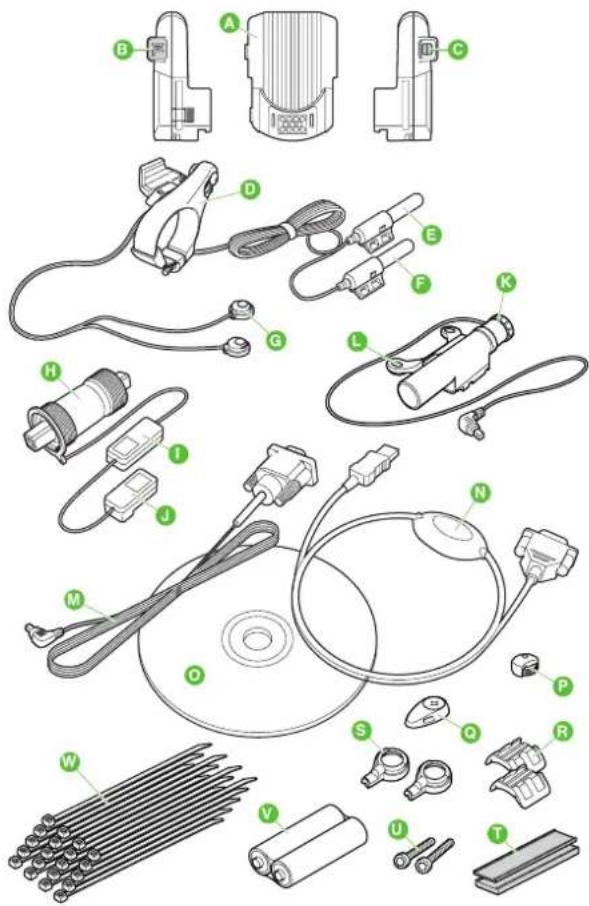
text_image
Exploded view diagram of electronic components with labeled parts A through T, including connectors, capacitors, and batteries.Items in the package
Power unit
B PC terminal (with rubber cap)
BATT terminal
D Bracket
E Speed sensor (Long wire)
F Cadence sensor (Short wire)
Remote buttons x 2
Power sensor (BB set)
Signal booster
Battery connector
Battery unit
Battery bracket
M RS232C cable (Serial)
Serial-to USB converter cable
CD-ROM x 1
(Download Software "e-Train Data Ver.3", Instruction Manual)
P Wheel magnet
Cadence magnet
R Sensor rubber pad x 2
Remote button cover for drop (road) handlebars x 2
T Rubber bracket spacing pad x 2
Bottle holder screws x 2
v AA batteries x 2
Nylon ties x 20
NOTE: If you purchased the "Power unit" only, the main unit, heart rate sensor, and belt below are not included. The main unit and heart rate sensor are obtained from the CC-TR100.

text_image
Diagram of a device front panel with labeled parts including control, display, and portsMain unit
① Display-1 (Speed)
② Display-2 (Heart rate)
③ Display-3 (Cadence)
4 Display-4 (Power or consumed calories)
⑤ Display-5 (Displays selections)
6 MENU button (MENU)
7 RESTART button (RESTART)
8 LAP button (LAP)
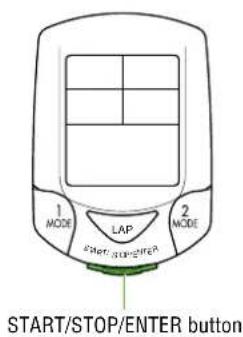
9 START/STOP/ENTER button
(This button is indicated as the S/S/E button in the subsequent procedure charts.)
⑩ Mode-1 button (MODE-1)
⑪ Mode-2 button (MODE-2)
12 BACK-LIGHT button (LIGHT)
13 Battery cover
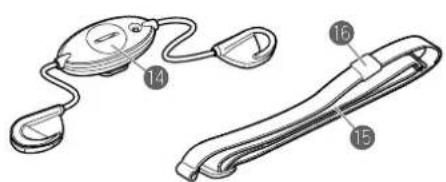
natural_image
Illustration of two types of pulley or rope harness components labeled 14 and 15, with no text or symbols beyond labels.Heart rate sensor
14 Heart rate sensor/transmitter
15 HR Strap
16 Cloth loop
Screen display
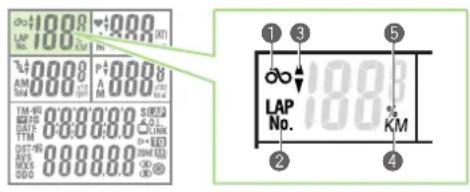
text_image
do:1880 LAP No. 1880 P:8880 A.M. TM-95 D:8880 G:8880 TIM-95 DAF: TTM DST-95 AVS MOSS 000 1880 1200 1200 1200 1200 1200 1200 1200 1200 1200 1200 1200 1200 1200 1200 1200 1200 1200 1200 1200 1200 12 3 5 LAP No. 1880 % KMDisplay-1 (Main Speed Display)
①Speed icon
② Displayed data icon
③Speed pace arrow
The pace arrows show whether the current speed is faster or slower than the average speed.
4 Speed unit
Flashes while speed measurement is in progress.
⑤ Memory remaining and usage (%)
Lights up to indicate the amount of remaining data or usage in the Data file menu.
text_image
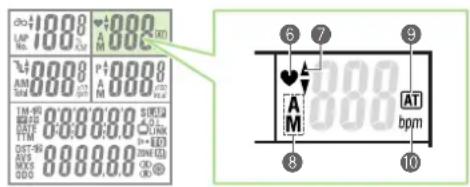
do:188.8 A:888.0 LAP No.: 188.8 A:888.0 P:888.0 AM:888.0 T:888.0 TIM:95 M:888.0 DATE:95 TIM:95 DST:95 AVS:888.0 MOS:888.0 DDD:888.0 S:600 ON:600 ON:600 ON:600 ON:600 ON:600 ON:600 ON:600 ON:600 ON:600 ON:600 ON:600 ON:600 ON:600 ON:600 ON:600 ON:600 ON:60 ON:60 ON:60 ON:60 ON:60 ON:60 ON:60 ON:60 ON:60 ON:60 ON:60 ON:60 ON:60 ON:60 ON:60 ON:60 ON:60 ON:60 ON:60 ON:60 ON:188.8 AT bpmDisplay-2 (Main Heart Rate Display)
6 Heart rate icon
Flashes in sync with heart rate signals.
⑦ Heart rate pace arrow
Shows whether the current heart rate is above or below the average heart rate.
⑧ Heart rate mode icon
Indicates type of data displayed in Display-2.
A : Average heart rate M : Maximum heart rate
⑨ Auto-mode icon
Lights up when the auto-mode function is on.
10 Heart rate unit
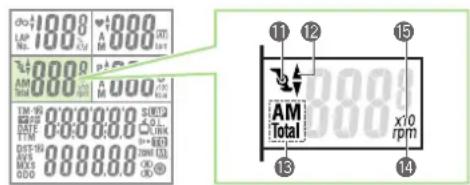
text_image
do: LAP No. 100% LM AM 000 000 000 000 000 000 000 000 000 000 000 000 000 000 000 000 000 000 000 000 000 000 000 000 000 00 11 12 15 13 14 AM Total x10 rpmDisplay-3 (Main Cadence Display)
⑪Cadence icon
⑫Cadence pace arrow
Shows whether the current cadence is above or below the average cadence.
⑬Cadence mode icon
Indicates type of data displayed in Display-3.
A : Average cadence M : Maximum cadence
Total : Pedal count
14Cadence unit
15 Factor of 10 - Displayed when total pedal count exceeds 9999.
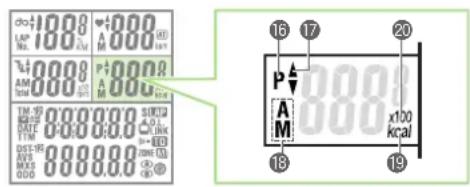
text_image
do: LAP No. 100.0 A 888.0 M 888.0 AM 98.0 P 888.0 S T M 98.0 D F 888.0 O 888.0 S T M 98.0 D F 888.0 O 888.0 S T M 98.0 D F 888.0 O 888.0 S T M 98.0 D F 888.0 O 888.0 S T MDisplay-4 (Main Power or Consumed Calories Display)
16 Power icon
Illuminates when the power unit is activated and power (wattage) is displayed.
17 Power pace arrow
Shows whether the current power is greater or lower than the average power.
18 Power select mode icon
Indicates type of data displayed in Display-4.
A : Average power M : Maximum power
19 Unit of calorie consumption
Lights up when calorie consumption is displayed.
20Factor of 10 - Displayed when the calorie consumption exceeds 9999.

text_image
100.0 LAP 100.0 AM 888.0 TM-12 DATE 888.0 TDM 888.0 DST-12 AVS 888.0 MXS 888.0 ODO 888.0 21 TM-12 22 S LAP O.L. LINK 10 ZONE M A B 23 24 25 26 27 28 29Display-5 (Displays selected functions.)
21Mode icon
Indicates type of data displayed in Display-5.
22 Second measurement icon
Lights up while the second measurement data is displayed.
23Lap icon
Lights up while the lap data is displayed.
24PC link icon
LINK : Illuminates when online torque measurement is carried out with the unit connected to the PC.
LINK : Lights up when linking to a personal computer.
25Sound icon
Lights up when the alarm sound for heart rate zone and cadence zone is on.
26 Power measurement icon
Illuminates when the torque measurement is being carried out.
27Target icon
Lights up when the alert function is turned on in either the heart rate zone or cadence zone.
28Stored Data icon
Lights up when the Stored Data function is turned on.
Flashes when the Stored Data cannot be performed.
29 Wheel selection icon
Indicates the wheel currently selected.
Start Guide
Main unit set-up 12
Heart Rate Function...... 17
Basic operations.... 19
Main unit set-up
Before using the Power Unit, follow the procedure below to set up the main unit.
If your CC-TR100 has already been set up, start from "6. Specifying the Power select option" on page 15.

text_image
1 MODE LAP START/STOPENTER 2 MODE1. Pull out battery insulation sheet
Using a coin, open the battery cover of the main unit and pull out the insulation sheet, then close the battery cover.

text_image
Close Open Seal Insulation sheetCAUTION! When closing the battery cover, be careful not to pinch the seal.
Doing so may adversely affect the splash-proofing seal and result in a malfunction.
2. Formatting / restarting operations
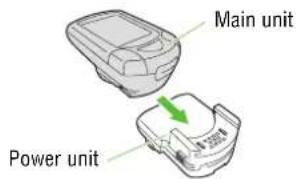
Before formatting/restarting operations, attach the main unit to the power unit.
text_image
Main unit Power unitNOTE: Be sure to attach the main unit to the power unit.
If formatting or a restart is carried out using the main unit only, unnecessary data may remain in the power unit, resulting in a malfunction.
Formatting
Formatting is required during the initial set-up, and when all items of data are to be reset to zero.
NOTE: Formatting operation initializes all of the data in the memory. Be absolutely certain that you want to initialize all of the data.
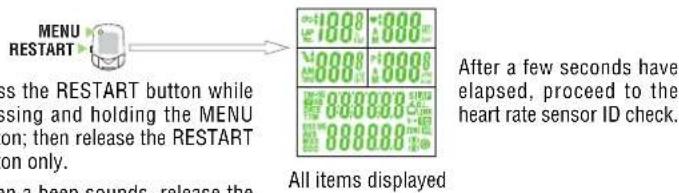
When all items light up for a few seconds and formatting is completed, proceed to the heart rate sensor ID check screen.
text_image
MENU RESTART is the RESTART button while ising and holding the MENU on; then release the RESTART on only. After a few seconds have elapsed, proceed to the heart rate sensor ID check. All items displayedNOTE: If there is little memory available, all screen items may remain on for approximately one minute.
Restart
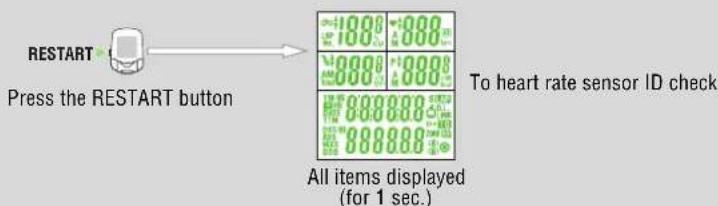
You must restart the computer when you replace the batteries, or when an error has been displayed. When the RESTART button is pressed, all of the items light up for one second. You will then proceed to the heart rate sensor ID check screen.
text_image
RESTART Press the RESTART button 1000 1000 4000 4000 8000 8000 8888888 To heart rate sensor ID check All items displayed (for 1 sec.)NOTE: In the restart operation the date, total time, and total distance are retained, but the heart rate sensor ID check and time settings must be performed again.

text_image
Syncr0 Id 1 MODE LAP START/STOPENTER 2 MODE3. Checking heart rate sensor ID
The heart rate sensor ID must be checked within five minutes after the formatting or restarting operation.
NOTE: Be sure to attach the main unit to the power unit. Signals from the heart rate sensor cannot be received by the main unit alone.
Place the heart rate sensor approximately 20-80 cm from the main unit, and press the reset button of the HR sensor for five seconds. The main unit will receive the signal from the heart rate sensor, and will start checking the heart rate sensor ID. When the check is completed, the ID number is displayed, followed by the next screen.

flowchart
graph LR
    A["Pressing the reset button"] --> B["Table 1: 8"]
    B --> C["Table 2: 14"]
    C --> D["Table 3: 14"]
    D --> E["For formatting\n4. Selecting speed unit"]
    D --> F["For restarting\nReady"]
Pressing the reset button for five seconds
NOTE: If the HR sensor is placed too close to the main unit (within 20 cm), the main unit cannot receive the ID signal. If an ID check failed, change the distance, and reset the heart rate sensor. If "E" appears on Display-2, or a HR sensor ID check failed even at a proper distance, the batteries may be dead. Replace the batteries of the heart rate sensor in the procedure shown on page 65, and format (restart) the computer again.

text_image
K SELECT Unit 1 MODE LAP START/STOPENTER 2 MODE4. Selecting speed unit
The default speed unit is "km/h."
By pressing the MODE-1 or MODE-2 button, you can switch the unit between "K (km/h)" and "M (miles/h)." Select the desired speed unit, and press the START/STOP/ENTER button. The selected unit is now accepted, and the tire circumference screen appears.

flowchart
graph LR
    A["Module 1"] -->|Select Un It| B["Switch"]
    B -->|MODE-1 or MODE-2 Switch| C["Switch"]
    C -->|Select Un It| D["Submodule 1"]
    D -->|M| E["Submodule 2"]
    E -->|M| F["Submodule 3"]
    F -->|M| G["S/S/E Select"]

text_image
input 2096 1 MODE LAP STANUSTOR-ENTER 2 MODE5. Tire circumference input
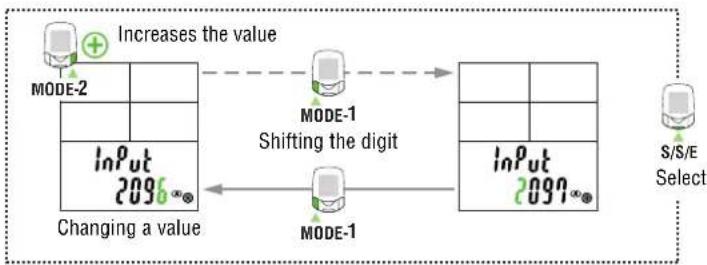
Enter the circumference of the tire of your bicycle in mm. 2096 mm (700 x 23 C) is preset as the initial value. To change the value, use the MODE-2 button to increase the value, and use the MODE-1 button to shift the digit selected.
Pressing the START/STOP/ENTER button and this is the last step in the initial set-up.
Adjustable range: 0100 to 3999 mm
flowchart
graph LR
    A["Increases the value"] --> B["MODE-1 Shifting the digit"]
    B --> C["MODE-1"]
    C --> D["InPut 2096∞"]
    D --> E["Changing a value"]
    E --> F["S/S/E Select"]
NOTE: • The wheel size can be obtained from your bicycle's tire size, referring to the "Tire circumference input reference table" on the right.
- When a value outside the adjustable range is entered, an error indication appears on the screen and you cannot select the value.
Tire circumference input reference table
| Tire size | L (mm) |
| 12 x 1.75 | 935 |
| 14 x 1.50 | 1020 |
| 14 x 1.75 | 1055 |
| 16 x 1.50 | 1185 |
| 16 x 1.75 | 1195 |
| 18 x 1.50 | 1340 |
| 18 x 1.75 | 1350 |
| 20 x 1.75 | 1515 |
| 20 x 1-3/8 | 1615 |
| 22 x 1-3/8 | 1770 |
| 22 x 1-1/2 | 1785 |
| 24 x 1 | 1753 |
| 24 x 3/4 Tubular | 1785 |
| 24 x 1-1/8 | 1795 |
| 24 x 1-1/4 | 1905 |
| 24 x 1.75 | 1890 |
| 24 x 2.00 | 1925 |
| 24 x 2.125 | 1965 |
| 26 x 7/8 | 1920 |
| 26 x 1(59) | 1913 |
| 26 x 1(65) | 1952 |
| 26 x 1.25 | 1953 |
| 26 x 1-1/8 | 1970 |
| 26 x 1-3/8 | 2068 |
| 26 x 1-1/2 | 2100 |
| 26 x 1.40 | 2005 |
| 26 x 1.50 | 2010 |
| 26 x 1.75 | 2023 |
| 26 x 1.95 | 2050 |
| 26 x 2.00 | 2055 |
| 26 x 2.10 | 2068 |
| 26 x 2.125 | 2070 |
| 26 x 2.35 | 2083 |
| 26 x 3.00 | 2170 |
| 27 x 1 | 2145 |
| 27 x 1-1/8 | 2155 |
| 27 x 1-1/4 | 2161 |
| 27 x 1-3/8 | 2169 |
| 650 x 35A | 2090 |
| 650 x 38A | 2125 |
| 650 x 38B | 2105 |
| 650 x 23C | 1935 |
| 700 x 18C | 2070 |
| 700 x 19C | 2080 |
| 700 x 20C | 2086 |
| 700 x 23C | 2096 |
| 700 x 25C | 2105 |
| 700 x 28C | 2136 |
| 700 x 30C | 2146 |
| 700 x 32C | 2155 |
| 700C Tubular | 2130 |
| 700 x 35C | 2168 |
| 700 x 38C | 2180 |
| 700 x 40C | 2200 |
text_image
Cable terminal BATT terminal6. Specifying the Power select option
The Power select option is OFF by default.
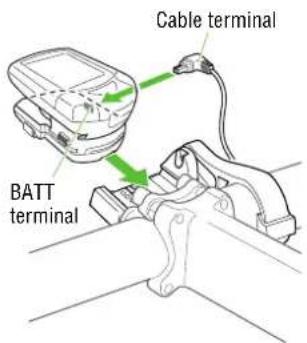
Attach the main unit and power unit to the bracket and connect the cable terminal from the battery unit to the power unit BATT terminal.
NOTE: • Power unit, and connect the cable terminals between the power sensor and battery unit, and between the battery unit and power unit.
- Engage the smallest gears at both front and rear so that the tension on the chain can be minimized.
- Carry out calibration with the gear crank side facing downward.
- Do not touch the crank during calibration.
- Press the MENU button with the Measuring screen displayed to bring up the "Wheel selection" menu screen. Then press the MODE-2 button to bring up the "Power select" menu screen.
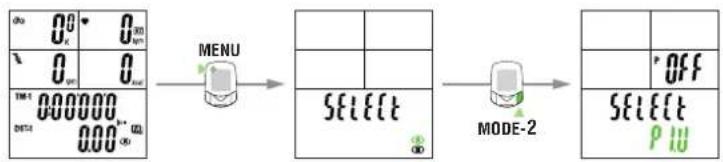
flowchart
graph LR
    A["0 0 0 0"] --> B["MENU"]
    C["0 0 0 0"] --> B
    D["0 0 0 0"] --> E["SELECT MODE-2"]
    F["0 0 0 0"] --> E
    G["0 0 0 0"] --> E
    H["0 0 0 0"] --> E
    I["0 0 0 0"] --> E
    J["0 0 0 0"] --> K["OFF"]
    L["0 0 0 0"] --> M["SELECT P I U"]
Main display Wheel selection Power select
- Press the START/STOP/ENTER button and then the MODE-1 or MODE-2 button to set the Power select option to ON. When the START/STOP/ENTER button is pressed again, calibration starts and checks whether or not the unit is connected to the power sensor correctly. After calibration has been completed, the software of the main unit is available to the power unit.

flowchart
graph LR
    A["Power select"] --> B["S/S/E"]
    B --> C["MODE-1 or MODE-2"]
    C --> D["Calibration"]
    D --> E["ON/OFF"]
    E --> F["Select P I U"]
NOTE: If the original screen reappears after an "Error" message is displayed, this may signify that the power unit is connected incorrectly, or that the user is pedaling during calibration.
Press the MENU button again to return to the Measuring screen.
7. Operation test
Test the power sensor, speed sensor, cadence sensor, and remote buttons attached to the bicycle.
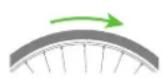
- Raise the rear wheel and spin the tire, and make sure that the speed (Display 1) shows a number greater than zero.
Rotate the rear wheel Display-1

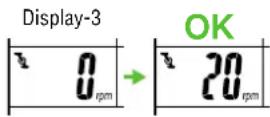
- Turn the crank (backpedal) and make sure that the cadence (Display 3) shows a number greater than zero.
Rotate the crank in reverse

NOTE: If all numbers do not appear, this means that the magnet is positioned incorrectly in relation to the sensor. Check the position of the magnet, referring to the accompanying "Installing the unit on your bicycle".
- Slowly rotate the pedals of the bicycle to check that the power is displayed correctly on Display-4.


NOTE: • Power appears only when the cranks are rotating. It may take some time before the power value is displayed.
- If the power is not displayed, refer to the items which related to the power sensor in “Trouble shooting” on page 62.
- Press the right and left remote buttons to check that you can operate the main unit with them.
NOTE: • If the button is not operable, it indicates that the main unit and/or the button connector may not have been installed properly.
- In the initial setup, the MODE-1 and MODE-2 button functions have been specified. To change the settings, see “Defining remote button setting” on page 40.
Completion of initial set-up
When the setup is completed, set the date and time as described in "Configuring main unit" on page 39.
Heart Rate Function
Heart rate is measured when the heart rate sensor is worn on the chest.
NOTE: Heart rate sensor reception range is approximately 20 cm and 80 cm.

text_image
Heart rate sensor HR strap Transmitter Electrode pad Cloth loopBefore wearing the heart rate sensor
Warning!!! This product must NOT be used by those who have a pacemaker.
NOTE: Wear the heart rate sensor in the center of the chest. The rubber part of the electrode pad must be in direct contact with the skin.
- To avoid measurement errors, it is recommended to moisten the electrode pads with water.
- If your skin is ultra-sensitive, the electrode pad may be moistened with water and worn on a thin undershirt.
- Chest hair may interfere with the measurement.
- Using the heart rate sensor together with other cordless devices may cause interference with the data transmission.
Wearing the heart rate sensor
Besides using the conventional chest strap, it can be worn directly attached to a sports bra using an optional neck strap.
NOTE: Ensure that the rubber part of the electrode pad is in close or direct contact with the body.
- Some sports bras cannot be worn with the heart rate sensor.
- Wearing the heart rate sensor on top of your undershirt may produce measurement errors. Measurement errors may also occur if the skin is exceptionally dry. To avoid errors, moisten the rubber part of the electrode pad.
Using the HR strap
- Adjust the length of the HR strap to fit your chest size. Fastening the strap too tightly may cause discomfort.
- Fasten the hook of the transmitter.
NOTE: Secure the transmitter with the cloth loop.
- Insert the electrode pads (one on the left and the other on the right) between the HR strap and the body, and secure the electrode pad onto the HR strap using the hook.

flowchart
graph TD
    A["HR strap"] --> B["Shift the HR Strap to adjust its position"]
    B --> C["Electrode pad"]
    C --> D["Cloth loop"]
    D --> E["Transmitter"]
NOTE: • Ensure that the rubber part of the electrode pad is in direct contact with the body.
- ① If the electrode pads are loose please wear the chest strap as indicated below.
When a sports bra is worn
NOTE: Wearing the heart rate sensor on a sports bra requires the optional neck strap.
- Attach the strap to the transmitter as shown in the picture below, looping the strap through the hole in the transmitter hook.
- Wearing the neck strap, adjust the length to bring the transmitter to the correct height.
- Attach the electrode pads to the sports bra using the hook on the pad, making sure the rubber part of the electrode pad itself is in direct contact with the body.

text_image
Neck strap Hook Cloth ring Electrode padNOTE: Ensure that the rubber part of the electrode pad is in direct contact with the body.
text_image
Heart rate 00 12 0 P 0 TM-1 000000 DST-1 000 000Heart rate sensor test
- Wear the heart rate sensor.
- Attach the main unit to the power unit and stand in front of it.
NOTE: Be sure to attach the main unit to the power unit. Signals from the heart rate sensor cannot be received by the main unit alone.
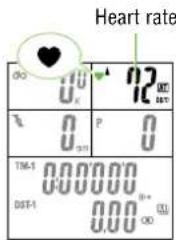
- When the ♥ icon flashes and the heart rate is indicated on Display-2, the heart rate sensor is operating properly.
NOTE: • The heart rate sensor will start transmission approximately three seconds after it has stabilized. Therefore, a short time lag occurs before the ♥ icon begins to blink.
- If the ♥ icon does not flash, move the electrode pad little by little to find the optimum position for the heart rate reception. Dryness may make measurement difficult. Moistening the electrode pad allows easier measurement.
Basic operations
PW100 measures data when the bicycle starts moving. You can view various data by pressing the MODE-1 and MODE-2 buttons. You can also record lap data up to 199 laps or intervals.
Main computer functions
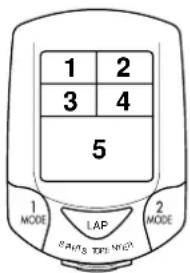
The main screen has 5 windows which display different types of data. Pressing the MODE-1 and the MODE-2 buttons change the displayed information, as shown in the illustration.
text_image
1 2 3 4 5 1 MODE LAP SAPS TOP NCP 2 MODEThe displayed items of data are as follows:
- Display-1...... Displays "Current speed 🔊".
- Display-2...... Displays “Heart rate ♥” related data.
(Press MODE-1 to cycle through data shown on Display-3,4.) - Display-3...... Displays "Cadence 🔔" related data.
(Press MODE-1 to cycle through data shown on Display-2,4.)
- Display-4...... Displays "Power P" related data.
(Press MODE-1 to cycle through data shown on Display-2,3.)
OFF-Power: Displays the calorie consumption in kcal.
The set of data displayed cannot be switched to a different set using the MODE-1 button.
- Display-5...... Displays other data.
(Use MODE-2 to cycle through this data.)
NOTE: For more information on displayed items of data, see "Measured data" on page 24.
text_image
36.8 168 (AT) 111 P 557 123456 DST-1 35.73 (M)Starting / stopping main measurement
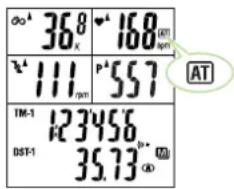
When you begin riding, the elapsed time starts and the speed unit will flash.
The total distance, maximum speed, maximum heart rate and maximum cadence are updated independently of starting / stopping of the main measurement.
NOTE: To manually start and stop measurement using the START/STOP/ENTER button, see "Auto-mode" on page 37 for instruction on turing on or off the auto-mode.

text_image
1 MODE LAP 2 MODE Surgery/Spine/IntensiveSTART/STOP/ENTER button
Switching displayed data
NOTE: For details of each data, see "Measured data" on page 24.
- Switching data on Display-2 and Display-3
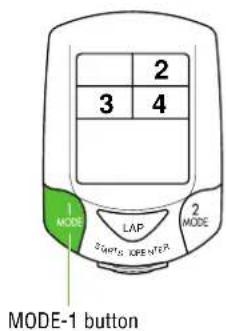
Each time the MODE-1 button is pressed, the screen advances through the data for Display-2, Display-3 and Display-4, in rotation.
When the MODE-1 button is pressed and held for 2 seconds, pedal count (that is, the total number of pedal rotations) appears on Display-3, and the number of calories consumed is displayed on Display-4. Display-2 data, however, do not change.
Press the button again to display the original data on Displays-3 and -4.
text_image
2 3 4 1 MODE ZOUTS LAP MODE-1 MODE-1 button
flowchart
graph TD
    A["Speed"] --> B["Heart Rate"]
    C["Cadence"] --> D["Calorie consumption"]
    B --> E["MODE-1"]
    D --> E
    E --> F["Speed"]
    E --> G["A Average Heart Rate"]
    E --> H["P AP Calorie consumption"]
    F --> I["MODE-1"]
    G --> I
    H --> I
    I --> J["Speed"]
    I --> K["M Maximum Heart Rate"]
    I --> L["P Maximum Cadence"]
    I --> M["P Calorie consumption"]
    N["Speed"] --> O["Total Pedaling Count"]
    O --> P["kcal Calorie consumption"]
    Q["MODE-1"] --> R["MODE-1"]
    R --> S["MODE-1"]
M
OFF-Power: The data shown on Display-4 do not change as the number of calories consumed is always displayed.

text_image
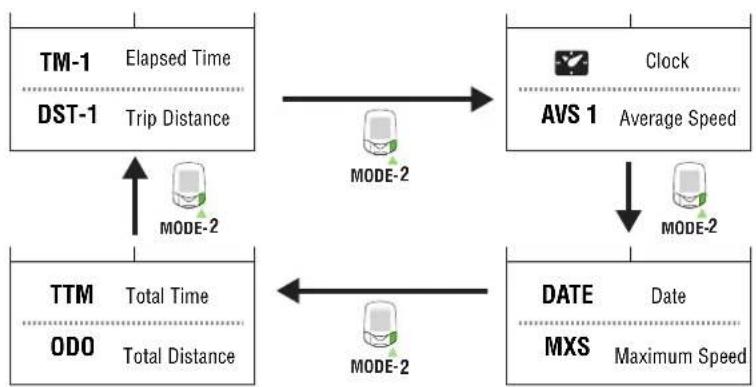
5 1 MODE LAP 2 MODE MODE-2 button• S witching data on Display-5
Pressing MODE-2 switches the data on Display-5.
flowchart
graph TD
    A["TM-1 Elapsed Time\nDST-1 Trip Distance"] --> B["AVS 1 Clock\nAverage Speed"]
    B --> C["DATE Date\nMXS Maximum Speed"]
    D["TTM Total Time\nODO Total Distance"] --> E["MODE-2"]
    E --> F["MODE-2"]
    F --> G["MODE-2"]
    G --> H["MODE-2"]

text_image
1 MODE 2 MODE LAP SUPPLY LAP ENTER LAP buttonLap
When the LAP button is pressed during main measurement, the measured data between points (lap time/interval average speed, split time / interval total distance, interval average heart rate, interval average cadence, interval average power) as well as the lap number are recorded up to a maximum of 199 points. Recorded lap data can be recalled on the lap viewing screen. (See page 30.)

text_image
LIGHT button 1 MODE LAP 2 MODE Other mode perBacklight
Pressing the LIGHT button illuminates the displays for about three seconds.
Second measurement
The second measurement is another measuring method, different from the main measurement described on page 19.
A second elapsed time, trip distance, and average speed can be recorded independently of the main measurement.
• How to switch to the second measurement:
When the MODE-2 button is pressed for two seconds, Display-5 switches to the second measurement screen with the elapsed time "TM-2" displayed on the top and the trip distance "DST-2" displayed at the bottom.
Each press on the MODE-2 button switches the bottom display between the elapsed distance DST-2 and the average speed AVS-2.
When the MODE-2 button is pressed for two seconds, the system returns to the main measurement.
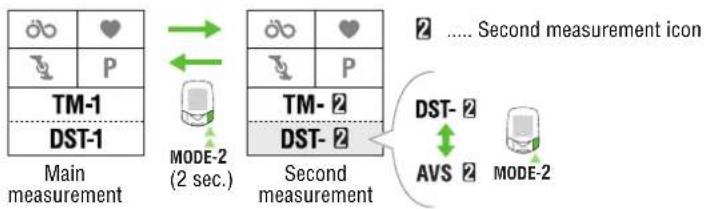
flowchart
graph TD
    A["Main measurement"] --> B["TM-1"]
    A --> C["DST-1"]
    B --> D["Mode-2 (2 sec.)"]
    C --> E["Mode-2"]
    D --> F["Second measurement"]
    E --> F
    F --> G["AVS"]
    F --> H["MODE-2"]
    style A fill:#f9f,stroke:#333
    style B fill:#ccf,stroke:#333
    style C fill:#ccf,stroke:#333
    style D fill:#cfc,stroke:#333
    style E fill:#cfc,stroke:#333
    style F fill:#fcc,stroke:#333
    style G fill:#ffc,stroke:#333
    style H fill:#ffc,stroke:#333
text_image
1 MODE LAP 2 MODE START/STOP/ENTER button- Starting / stopping the second measurement
With the second measurement icon illuminated, press the START/STOP/ENTER button to start or stop measurement.
Resetting operation
Follow the directions below for resetting selected data to zero.
NOTE: • Make sure to reset with the main unit attached to the power unit.
If a reset is carried out using the main unit only, unnecessary data may remain in the power unit, resulting in a malfunction.
If a reset is carried out accidentally using the main unit only, refer to "Trouble on operation" on page 64.
- You cannot perform the resetting operation on the lap screen.
text_image
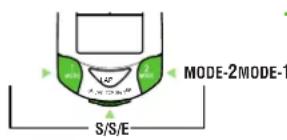
MODE-2MODE-1 S/S/E1. Resetting all measured data (main and second measurements)
To zero all data except for "TTm (total time)", "Odo (total distance)", "date" and "time", and including the lap data and time in the heart rate and cadence zones, simultaneously press the START/STOP/ENTER, MODE-1 and MODE-2 buttons.
NOTE: When resetting is required to change the settings on the menu screen, reset all measurements.

text_image
MODE-1 S/S/E Main measurement display2. Resetting the main measurement data
To zero the main measurement data except for "TTm (total time)", "Odo (total distance)", "date" and "time", and including the lap and the time in the heart rate zone and cadence zone, simultaneously press the START/STOP/ENTER and MODE-1 buttons while the main measurement is displayed.

text_image
MODE-1 S/S/E Second measurement display3. Resetting the second measurement data
To reset to zero all erasable data in the second measurement display only, simultaneously press START/STOP/ENTER and MODE-1 while the second measurement icon is on.

Power-saving state (after 10 minute idle)
Power-saving function
When the computer has not received any data for 10 minutes, the main unit will enter the power-saving mode, in which only the clock is displayed (note illustration).
When speed, cadence, or power signal is entered, or when any button is pressed, the power-saving function is canceled and the normal display reappears.
NOTE: The power-saving mode is not cancelled if the computer receives a heart rate signal.
Operation Guide
Measured data 24
Functions of main unit.... 28
Configuring main unit.... 35
Measured data
Display-1

NOTE: • You must wear the heart rate sensor to perform the heart rate measurement.
- Power-related measurement can be carried out only when the cable terminal from the battery unit is connected to the power unit BATT terminal.
① Current speed
Indicates the current speed, updated every second.
Measuring range: 0.0 (4.0) to 199.9 km/h [0.0 (3.0) to 125.0 mph (mile/h)]
(When the tire circumference B is selected, the lowest measurable speed is 3.0 km/h [2.0 mph].)
Display-2 and 4
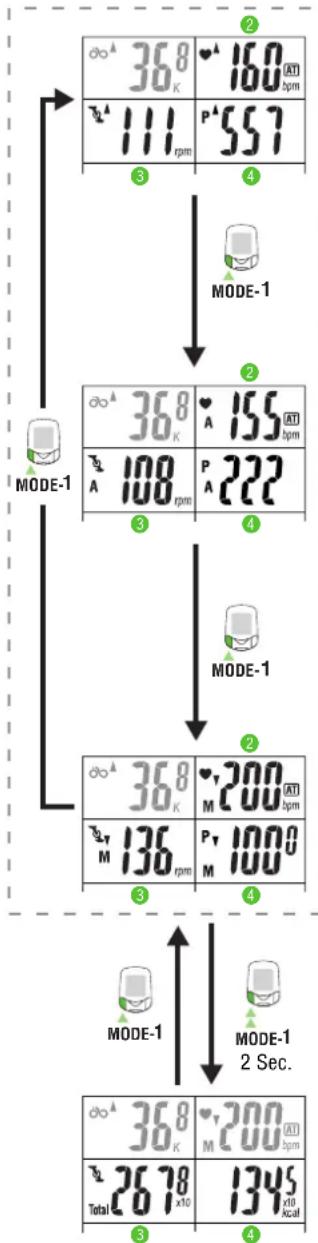
text_image
368 160 rpm 111 rpm 557 MODE-1 MODE-1 368 A 155 rpm 108 rpm P A 222 MODE-1 368 M 200 rpm 136 rpm P M 100 MODE-1 MODE-1 2 Sec. 368 M 200 rpm 2678 x10 1345 x10 kcal② Heart rate
Indicates the heart rate in real time, updated every second.
Measuring range: 0 (30) to 260 bpm
3
Cadence
Indicates the number of pedal rotations per minute, updated every second.
Measuring range: 0 (20) to 299 rpm
4 P
Power (wattage) \*1
Indicates the current wattage. The data are updated per second.
Measuring range: 0 to 9999 watts
2 ♥
A Average heart rate
Indicates the average heart rate
Measuring range: 0 to 260 bpm
3
A Average cadence
Indicates the average cadence. When the pedaling count exceeds 100,000 or when the elapsed time exceeds 100 hours, [E] appears indicating further measurement is impossible.
Measuring range: 0 to 299 rpm
4 P
Average power (average wattage) \*1
Indicates the average power from the start of measurement to the current point.
Measuring range: 0 to 9999 watts
2 Heart
M Maximum heart rate
Indicates the maximum heart rate.
Measuring range: 0 (30) to 260 bpm
3
M Maximum cadence
Indicates the maximum cadence.
Measuring range: 0 (20) to 299 rpm
4 PM
M
aximum power (maximum wattage) \*1
Indicates the maximum momentary power ever made.
Measuring range: 0 to 9999 watts
3
Total Pedal Count
Indicates the total pedal count. When the count exceeds 9999, the "x10" appears;
Measuring range: 0 to 99990 rotations
4kcal
Calorie Consumption \*2
Indicates the calories consumed from the start of measurement to the current point, according to an estimate based on the wattage.
Measuring range: 0 to 99990 kcal
Indicates the trip calorie consumption, based on the recorded heart rate.
NOTE: When the heart rate is below 90 bpm, calorie consumption is not updated. When it exceeds 9999, "X10" appears.
OFF-Power: *1 Different data appear on Display-4.
*2 The different calculation method is used for calories consumed.
Display-5

text_image
TM-1 123456 DST-1 35.79 MODE-2 10:09'28 AVS 286 MODE-2 DATE 02'11.11 MXS 55.3 MODE-2 TTM 123456 ODO 246805 TM-1 Elapsed time
Indicates the elapsed time from the start of measurement to 1/10 second. When it exceeds 10 hours, 1/10 second is not displayed.
Measuring range: 0:00'00"0 to 99:59'59"
6 DST-1 Trip distance
Indicates the trip distance covered.
Measuring range: 0.00 to 9999.99 (six 9's) km [mile]
5
Clock
Indicates the current time of day in the 24- or 12-hour system.
Measuring range: 0:00 to 23:59 [AM 1:00 to PM 12:59]
6 AVS 1 Average speed
Indicates the average speed of the trip. When the trip distance exceeds 10000 km [mile] or the elapsed time exceeds 100 hours, [.E] appears indicating that further measurement is impossible.
Measuring range: 0.0 to 199.9 km/h [0.0 to 125.0 mph]
5 DATE Date
Indicates the current day, month, and year.
Measuring range: 00'01.01 to 99'12.31
6 MXS Maximum speed
Indicates maximum speed achieved; recorded even while computer is manually stopped.
Measuring range: 0.0 (4.0) to 199.9 km/h [0.0 (3.0) to 125.0 mph]
5TTM Total time
Total time is continual and cannot be reset.
Measuring range: 0:00 to 9999:59 h
6 ODO Total distance
The total distance is continually measured and cannot be reset. When it exceeds 100,000 km [mile], 1/10 km [mile] is not displayed.
It is updated independently of starting/stopping data measurement.
Measuring range: 0.0 to 999999 (six 9's) km [mile]
Lap screen display
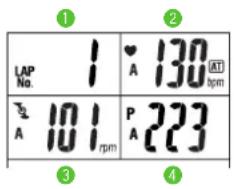
text_image
LAP No. 1 A 130 AT A 101 rpm P A 223 ① ② ③ ④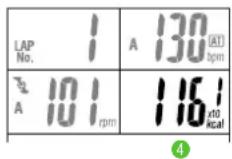
1 LAP NO. Lap number
Indicates the current lap number. The lap number will always be indicated when viewing lap data.
2 LAP A Average lap heart rate
Indicates the average heart rate for that lap.
Indicated when viewing lap data.
3 LAP A Average lap cadence
Indicates the average cadence for that lap.
Indicated when viewing lap data.
4 LAP A Interval average power \*1
Indicates the average power between the previous point and current point.
Displayed when the lap data are checked.
LAP kcal Lap calorie consumption
Indicates the estimated calorie consumption for a given lap.
Indicated when viewing lap data.
OFF-Power: *1 Different data appear on Display-4.
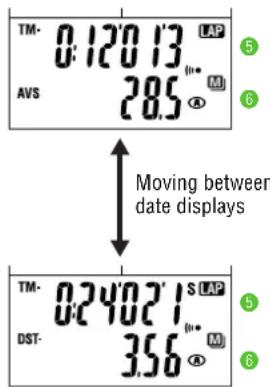
text_image
TM- 0:120 13 LAP AVS 28.5 MΩ Moving between date displays TM- 0:240 21 S LAP DST- 356 MΩ5 TMAPap time
Indicates the lap time. Display alternates between the lap time and the split time.
Appears during the lap recording (for about five seconds) and the viewing of lap data.
6 LAP AVS Average lap speed
Indicates your average lap speed; appears alternating with the lap distance.
Appears during the lap recording (for about five seconds) and the viewing of lap data.
5S LAP TM Split time
Indicates the total time elapsed from the start of the exercise. Display alternates between the split time and the lap time.
Appears during the lap recording (for about five seconds) and the viewing of lap data.
6S LAP DST Trip lap distance
Indicates the lap distance. Display alternates between the lap distance and the average lap speed.
Appears during the lap recording (for about five seconds) and the viewing of lap data.
Functions of main unit
Heart rate zone / Cadence zone
You can set target heart rate and cadence zones and view the time in zone data at any time.
The zone value will flash when the target zones are on and the value is out of your target zone. An alarm will sound if the sound feature is turned on.
Heart rate zone alert
Four heart rate zones can be set with range and target. The range of each zone may overlap.
The zone value will flash when the target zones are on and the value is out of your target zone. An alarm will also sound if the sound feature is turned on.
For example, if your target is 140 to 160 bpm, turn on the target in Zone 3 as shown at right.
If the heart rate goes out of this range during measurement, the heart rate on Display-2 flashes.
Heart rate zone alert

text_image
36.8 168 111 557 TM-1 123456 DST-1 35.73 Beep!Heart rate 60 80 100 120 140 160 180 200

flowchart
graph TD
    A["Zone.1\n100 - 120 bpm"] --> B["Zone.1"]
    B --> C["Zone.2"]
    C --> D["Zone.3"]
    D --> E["Zone.4"]
    style A fill:#f9f,stroke:#333
    style B fill:#ccf,stroke:#333
    style C fill:#cfc,stroke:#333
    style D fill:#fcc,stroke:#333
    style E fill:#cff,stroke:#333
You can check the time in and out of the heart rate zones, set the target and change the range in “Heart rate zone (page 43)” on the menu screen for each zone.
Cadence zone alert
YW100 has one cadence zone besides the four heart rate zones.
The zone value will flash when the target zones are on and the value is out of your target zone. An alarm will also sound if the sound feature is turned on. You can check the time in the cadence zone, set the target and change the range in “Cadence zone (page 41)” on the menu screen.
Cadence zone alert

text_image
36.8 168 p 557 TM-1 123456 DST-1 35.73 Beep! Beep!NOTE: When both the heart rate and the cadence are turned on and go out of the respective zones, the heart rate and cadence values flash.
Alert when both heart rate and cadence go out of respective zones

text_image
36.0 168 ppm 111 557 TM-1 123456 DST-1 35.73 Beep! Beep! Beep!
text_image
do⁴ 36.8 168 p AT f⁴ 111 p⁴ 557 TM-1 123456 DST-1 35.73 p* (Ω)Auto-mode (auto-start / stop)
When the Auto-mode function is on, the computer automatically starts and stops measuring with the movement of the wheel. When the auto-mode function is turned on, an AT icon appears on the display.

text_image
Current speed Heart rate 36° 168 111° 557 Cadence PowerPace functions
Pace arrow icons on Displays-1 to -4 indicate whether the current speed (heart rate, cadence, and power) is faster or slower than the average speed (average heart rate, average cadence, and average power).
: Appears when the speed (heart rate, cadence, power) is above the average. : Appears when the speed (heart rate, cadence, power) is below the average. : Appears when the speed (heart rate, cadence, power) equals the average.
Not illuminating : When the speed (heart rate, cadence, power) is zero.
Lap function
Recording lap data
Pressing the Lap button on the main display while riding records lap data. Immediately after recording, the lap number is displayed, alternating between "lap time" / "average lap speed" and "split time" / "lap distance".
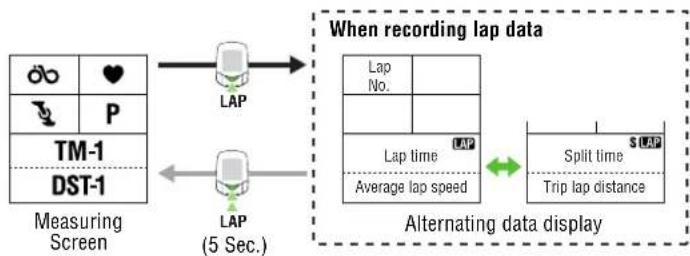
flowchart
graph LR
    A["Measuring Screen"] --> B["LAP"]
    B --> C["When recording lap data"]
    C --> D["Alternating data display"]
    D --> E["Lap Time"]
    E --> F["S Split time"]
    F --> G["Trip lap distance"]
    style A fill:#f9f,stroke:#333
    style B fill:#ccf,stroke:#333
    style C fill:#cfc,stroke:#333
    style D fill:#fcc,stroke:#333
    style E fill:#cff,stroke:#333
    style F fill:#ffc,stroke:#333
    style G fill:#cfc,stroke:#333
NOTE: • Up to 199 laps can be recorded.
- Lap times cannot be shorter than 5 seconds; pressing the LAP button consecutively within 5 seconds will not result in a new lap. New laps can not be recorded when viewing recorded lap data.
- The lap function does not record lap intervals longer than 100 hours or 9999.99 (six 9's) km.
NOTE: Viewing lap data depends on the on/off status of "data storage".
- When "data storage" is on:
The recorded lap data can be viewed on the main unit display, and is also saved in a data file. It disappears from the display when the main (or all) data is reset, but it is stored in the data file and can be transferred to a personal computer. Lap data will remain in the computer as long as the data file is not deleted. To obtain more free space for laps, data files will need to be deleted (see "Data file" on page 47).
- When "data storage" is off:
The recorded lap data can be viewed on the main unit display. It is deleted as soon as the main measurement data or all measurement data is reset. The data cannot be transferred to a personal computer.
Reading lap data
Press the MODE-1 and MODE-2 buttons simultaneously to view recordad lap data.
The lap recall screen displays the most recent laps first. Use MODE-1 or MODE-2 buttons to cycle through the laps. Pressing MODE-1 and MODE-2 simultaneously will exit from the lap recall screen.

flowchart
graph LR
    A["Measuring Screen"] --> B["LM-1"]
    B --> C["MODE-1 + MODE-2"]
    C --> D["Lap recall screen"]
    D --> E["Alternating data display"]
    E --> F["Changing lap numbers"]
    F --> G["MODE-1"]
    F --> H["MODE-2"]
NOTE: • The lap recall screen will not appear if there is no lap data recorded.
- The recorded lap data is deleted when the main measurement data or all measurement data is reset.
- Leaving the lap viewing screen idle for one minute will return automatically to the measuring screen.
Lap time and split time
The lap time indicates the time elapsed between two consecutive pressings of the LAP button.
The split time indicates the total elapsed time from the start of the exercise. The lap time indicates the time elapsed between two consecutive pressings of the LAP button.
The split time indicates the total elapsed time from the start of the exercise.

flowchart
graph LR
    A["START"] --> B["LAP time"]
    B --> C["LAP LAP"]
    C --> D["Split time"]
    D --> E["1"]
    D --> F["2"]
    D --> G["3"]
text_image
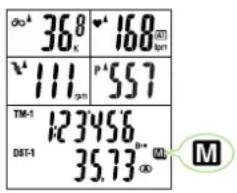
36.8 °C 168 111 pm P 557 TM-1 123456 DST-1 35.73 M MData storage function
Data storage allows you to create data files to be saved to the PC. Data such as current speed, heart rate, cadence, power, trip distance, and elapsed time are recorded and stored at the data recording intervals (memory timing intervals), which are selected during regular measurement.
- When Data Storage is on, the icon will be on (the default setting is on). Recorded data is stored in a data file as soon as initial set-up has been performed and data is being measured.
- Lap data, HR and Cadence data recorded during data storage are all recorded on a data file.
- A maximum of 99 data files can be stored in the memory of the main unit. When the power unit is connected to the PC, the stored data can be downloaded to the PC.
Press the MENU button to carry out the data storage, according to the following steps:
For the basic information on how to use the menu screen, refer to "Configuring main unit" on page 35.
- Set the data recording interval for data storage
See "Data storage" on page 49.
- View and delete files when finished to manage remaining memory
See "Data file" on page 47.
- Record and store data
Follow the steps below for data storage.
- Up to 99 data files can be stored until the remaining memory is 0% .
- When the remaining memory is at 0% while data is being recorded, the M icon will flash, alerting full memory. Delete old data files to use more memory.
-
Before recording and storing data, select an appropriate recording interval for sufficient memory space.
-
View stored data
See "Checking data file" on page 47.
- Download to personal computer
See "PC Link" on page 50.
PC Link
When the power unit is connected to the PC, PC Link is available for data communication between the power unit and PC.
Press the MENU button with the Measuring screen displayed. Then press the MODE-2 button as many times as necessary to bring up the "PC Link" menu screen.
NOTE: Before establishing a PC Link, install the "e-Train data Ver.3" software from the accompanying CD-ROM on your PC.
For information on software installation to the PC, refer to "Installing e-Train data Ver.3" in the electronic "e-Train Data v3E.pdf" documentation.
- Measured data other than the power-related data can be downloaded using the download kit.
PC Online
The measured data recorded using the “data storage function” on the previous page are downloaded to the PC via PC Online.
- Connect the power unit to the PC.
Refer to "Connecting to the PC" in the electronic "e-Train Data v3E.pdf" documentation.
- Download the measured data.
Refer to "Downloading measured data" in the electronic "e-Train Data v3E.pdf" documentation.
- Launch e-Train Data Ver.3.
Refer to "Basic operations of e-Train Data ver.3" in the electronic "e-Train Data v3E.pdf" documentation.
Online Torque Measurement
When the bicycle on the roller stand or trainer is connected to the PC using the cable, Online Torque Measurement is possible. Use this function to measure torque per 1/100 second and to display the torque distribution graph on the PC screen in real time.
The measured data are saved to the PC.
NOTE: For further information on these or other operations, refer to "Online Measurement" in the electronic "e-Train Data v3E.pdf" documentation.
OFF-Power: Online Torque Measurement is not possible.
Torque Measurement function
Use the Torque Measurement function to measure and record torque per 1/100 second.
The measured data are saved to the memory in the power unit. This function consumes a large amount of memory as data are recorded per 1/100 second.
- Switching to Torque Measurement
Press the MENU button with the Measuring screen displayed. Then press the MODE-2 button to bring up the "Torque measurement" menu screen.

flowchart
graph LR
    A["Main display Torque menu"] --> B["Power select menu screen"]
    B --> C["MODE-2"]
    C --> D["screen"]
NOTE: Before carrying out torque measurement, set the data storage option to ON.
The torque measurement data are recorded to a data file in the same way as data are stored. Therefore, the torque measurement menu is not displayed when the data storage option is OFF.
OFF-Power: The torque measurement screen does not appear.
text_image
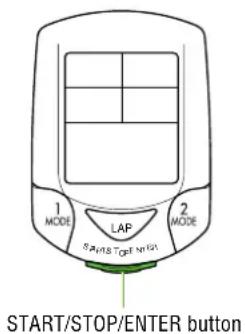
1 MODE LAP 2 MODE Start/STOP/ENTER button- Starting / stopping torque measurement
Press the START/STOP/ENTER button when the torque measurement icon is lit to start or stop the torque measurement per 1/100 second.
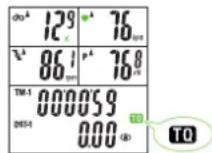
NOTE: • The measured data are stored to the memory in the power unit. When the remaining memory is 100%, measurement can be carried out for at least 30 minutes.
- If the message “Full” appears and measurement stops, this means that there is no remaining memory. Check the old data files and delete unnecessary files to free up memory, referring to “Data files” on page 47.
Configuring main unit
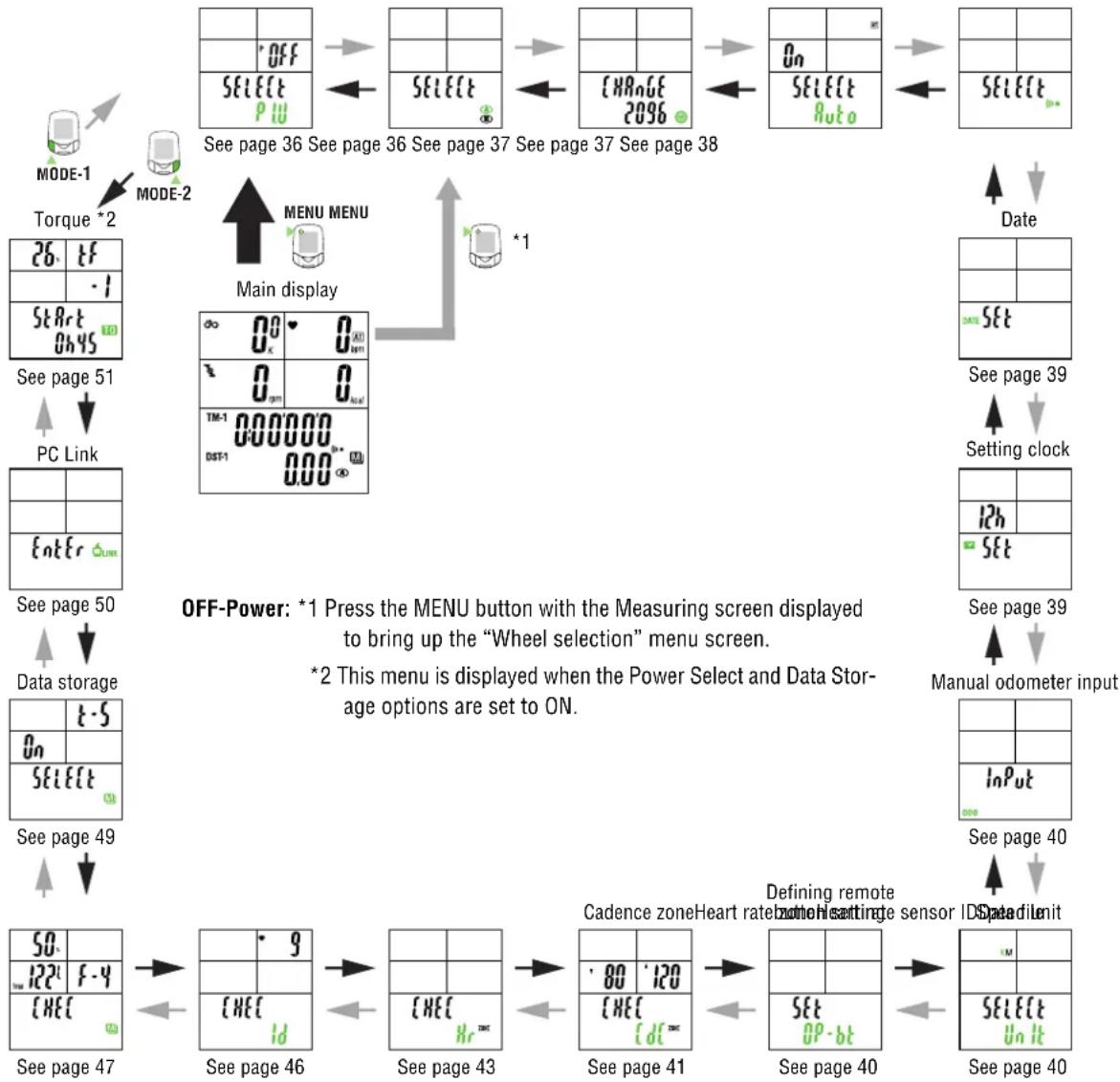
When the MENU button is pressed with the Measuring screen displayed, the menu screen appears. The menu includes a total of 17 screens as shown in the figure below: the main unit settings can be checked or changed using these screens.
The basic information on how to use the menu screen is as follows:
- When the Measuring screen is displayed, press the MENU button to switch to "Wheel circumference" of the menu screen.
- Press the MODE-1 or MODE-2 button until desired menu screen appears.
- Press the START/STOP/ENTER button to change the settings.
NOTE: For information on how to change various settings, refer to the relevant page as shown below.
- When the setting change is completed, press the START/STOP/ENTER button to confirm the setting and return to the menu screen.
NOTE: Make sure to press the START/STOP/ENTER button each time the setting is changed. Pressing the MENU button cancels the setting.
- Press the MENU button to return to the Measuring screen.
NOTE: After one minute idle, menu screen will return to the Measuring screen.
Menu screens at a glance
flowchart
graph TD
    A["MODE-1"] --> B["TOUR*2"]
    B --> C["PC Link"]
    C --> D["Data storage"]
    D --> E["See page 47"]
    E --> F["SEE PAGE 46"]
    F --> G["SEE PAGE 43"]
    G --> H["SEE PAGE 41"]
    H --> I["SEE PAGE 40"]
    I --> J["SEE PAGE 40"]

    subgraph MODE-2
        K["Select P/U"] --> L["SELECT"]
        L --> M["CHANGE 2096"]
        M --> N["SELECT Ruto"]
    end

    subgraph MAIN Display
        O["Menu MENU"] --> P["Main display"]
        P --> Q["*1"]
    end

    subgraph Date
        R["Date"] --> S["Setting clock"]
        S --> T["Manual odometer input"]
    end

    subgraph Data Storage
        U["Data storage"] --> V["See page 50"]
        V --> W["See page 51"]
        W --> X["PC Link"]
    end

    subgraph See Page 49
        Y["See page 48"]
        Z["See page 47"]
        AA["See page 46"]
        AB["See page 45"]
        AC["See page 44"]
        AD["See page 43"]
        AE["See page 42"]
        AF["See page 41"]
        AG["See page 40"]
        AH["See page 39"]
        AI["See page 38"]
    end

    subgraph Off-Power
        AJ["*1 Press the MENU button with the Measuring screen displayed to bring up the "Wheel selection" menu screen. *2 This menu is displayed when the Power Select and Data Storage options are set to ON."]
    end

    subgraph Defining Remote Zone Heart Setting Sensor ID Speed Limit
        AK["Cadence zone Heart rate, Zone Heart setting sensor ID Speed limit"]
        AL["SET OP-bt"]
        AM["SELECT Un It"]
    end
* For the basic information on how to use the menu screen, refer to "Configuring main unit" on page 35.
Menu screen

flowchart
graph TD
    A["MODE-1"] --> B["Power select"]
    C["MODE-2"] --> D["Wheel selection"]
    B --> D
    D --> E["Tire circumference input"]
    E --> F["Auto-mode"]
    F --> G["Sound"]
    G --> H["Date"]
    H --> I["Setting clock"]
    I --> J["Manual odometer input"]
    J --> K["Speed unit"]
    K --> L["Defining remote button setting"]
    L --> M["Gadence zone"]
    M --> N["Heart rate zone"]
    N --> O["Heart rate sensor ID"]
    O --> P["Data file"]
    P --> Q["Data storage"]
    Q --> R["PC Link"]
    R --> S["Torque"]
    S --> T["Power select"]


MODE-2
Torque menu screen
Power select
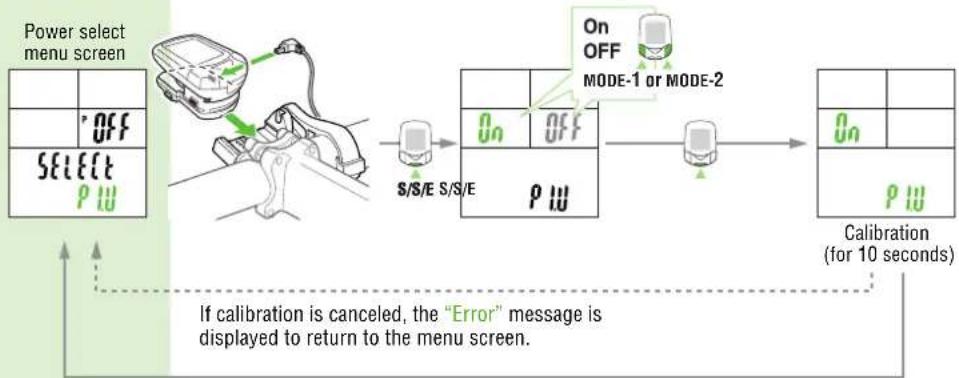
This menu should be set when the optional power unit is used.
NOTE: To set the Power select option to ON, you must: attach the main and power unit to the bracket; connect the battery unit cable into the BATT terminal of the power unit. Check that the terminals of the battery connector and the battery unit are connected correctly.
- Engage the smallest gears at both front and rear so that the tension on the chain can be minimized.
- Carry out calibration with the gear crank facing downward.
- Do not touch the crank during calibration.
If the setting is tur mned on, calibration starts to check whether or not the power unit is connected. After calibration has been completed, the software of the main unit is available for the power unit.
Turn on Power select as this option is OFF by default.
flowchart
graph TD
    A["Power select menu screen"] --> B["Select P I U"]
    B --> C["S/S/E S/S/E"]
    C --> D["On OFF MODE-1 or MODE-2"]
    D --> E["On P I U"]
    E --> F["Calibration (for 10 seconds)"]
    G["If calibration is canceled, the "Error" message is displayed to return to the menu screen."] --> A
After calibration, the menu screen reappears automatically.
NOTE: • If the original menu screen reappears after an "Error" message is displayed, this means that the power unit is connected incorrectly, or that the user is rotating the pedals during calibration.
- Even if an error occurs and Power select fails, the power unit is available for the main unit. In this state, however, you cannot measure the power correctly. Specify the Power select option again to complete calibration.
- If the power sensor has been used for an extended period, power-related values may shift and affect accuracy. Make sure to carry out calibration periodically using the Power select option on the main screen. Before important measurements especially, it is recommended that calibration be carried out.
Wheel selection
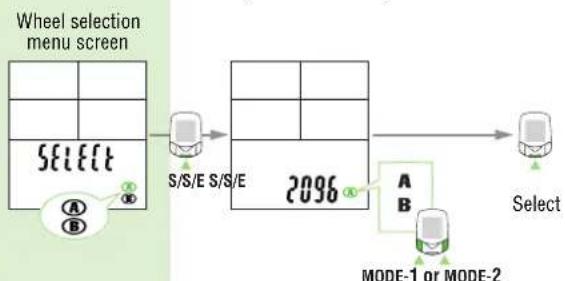
You can choose between two wheels, A and B.
The initial value for tire size (circumference) B is 2050 mm.
flowchart
graph LR
    A["Select"] --> B["S/S/E"]
    B --> C["2096"]
    C --> D["Select"]
    style A fill:#f9f,stroke:#333
    style D fill:#ccf,stroke:#333
NOTE: • Before Wheel circumference, it is necessary to stop the measurement and reset all measured data.
- Not resetting all measured data causes the "PLEASE rESEt" message to be displayed, making selection impossible.


MODE-1
Auto-mode menu screen
* For the basic information on how to use the menu screen, refer to "Configuring main unit" on page 35.
Menu screen

flowchart
graph TD
    A["MODE-1"] --> B["Power select"]
    C["MODE-2"] --> D["Wheel selection"]
    B --> E["Tire circumference input"]
    D --> E
    E --> F["Auto-mode"]
    F --> G["Sound"]
    G --> H["Date"]
    H --> I["Setting clock"]
    I --> J["Manual odometer input"]
    J --> K["Speed unit"]
    K --> L["Defining remote button setting"]
    L --> M["Cadence zone"]
    M --> N["Heart rate zone"]
    N --> O["Heart rate sensor ID"]
    O --> P["Data file"]
    P --> Q["Data storage"]
    Q --> R["PC Link"]
    R --> S["Torque"]
    S --> T["Power select"]


MODE-2
Wheel selection menu screen
Tire circumference input
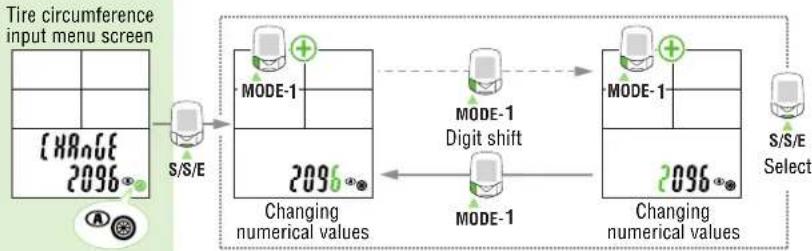
This option allows you to change the tire size, corresponding to the wheel size (A or B) selected in "Wheel selection" on the previous page.
Setting range: 0100 to 3999 m
The setting cannot be changed; the setting is checked during measurement.
flowchart
graph LR
    A["CHANGE 2096"] --> B["S/S/E"]
    B --> C["Changing numerical values"]
    C --> D["MODE-1 Digit shift"]
    D --> E["MODE-1"]
    E --> F["Changing numerical values"]
    F --> G["S/S/E Select"]
NOTE: • Before tire circumference input, it is necessary to stop the measurement and reset all measured data.
- Not resetting all measured data causes the "PLEASE rESEt" indication to be displayed, making selection impossible.
- Specifying a numerical value outside the setting range causes the "Error" indication to be displayed, making selection impossible.
Auto-mode
Set auto-mode on/off. (For auto-mode information, see page 29) The auto-mode function is initially set to ON.

flowchart
graph LR
    A["On"] --> B["Select Auto"]
    B --> C["S/S/E"]
    C --> D["On Off"]
    D --> E["Auto On OFF, MODE-1 or MODE-2"]
    E --> F["S/S/E Select"]


MODE-1
* For the basic information on how to use the menu screen, refer to "Configuring main unit" on page 35.
Menu screen

flowchart
graph TD
    A["MODE-1"] --> B["Power select"]
    C["MODE-2"] --> D["Wheel selection"]
    D --> E["Tire circumference input"]
    E --> F["Auto-mode"]
    F --> G["Sound"]
    G --> H["Date"]
    H --> I["Setting clock"]
    I --> J["Manual odometer input"]
    J --> K["Speed unit"]
    K --> L["Defining remote button setting"]
    L --> M["Cadence zone"]
    M --> N["Heart rate zone"]
    N --> O["Heart rate sensor ID"]
    O --> P["Data file"]
    P --> Q["Data storage"]
    Q --> R["PC Link"]
    R --> S["Torque"]
    S --> T["Power select"]


MODE-2
Auto-mode menu screen
Sound
1. Alarm sound setup
An alarm will alert when the heart rate zone (or Cadence zone) target is turned on, and the sound icon will illuminate.
NOTE: The HR and cadence zone alarms are described here:
- HR Zone: One beep
• Cadence Zone: Two beeps
• HR and Cadence zones: Three beeps
2. Button operation sound setup
Set button operation sound on/off.
In the initial setup, both the alarm sound and the button operation sound are set to ON.

flowchart
graph TD
    A["Sound menu screen"] --> B["S/S/E"]
    B --> C["Alarm sound (Heart rate zone)"]
    C --> D["Select Select Select"]
    D --> E["S/S/E S/S/E S/S/E MODE-1"]
    E --> F["Alarm sound (Cadence zone)"]
    F --> G["S/S/E S/S/E S/S/E MODE-2"]
    G --> H["On OFF MODE-2"]
    H --> I["On OFF MODE-1"]
    I --> J["On OFF MODE-2"]
    J --> K["On OFF MODE-1"]
    K --> L["Button operation sound"]
    L --> M["On OFF MODE-2"]
    M --> N["On OFF MODE-1"]


MODE-1
Date menu screen
* For the basic information on how to use the menu screen, refer to "Configuring main unit" on page 35.
Menu screen

flowchart
graph TD
    A["MODE-1"] --> B["Power select"]
    C["MODE-2"] --> D["Setting clock"]
    B --> E["Wheel selection"]
    D --> F["Manual odometer input"]
    E --> G["Tire circumference input"]
    F --> H["Speed unit"]
    H --> I["Defining remote button setting"]
    I --> J["Cadence zone"]
    J --> K["Heart rate zone"]
    K --> L["Heart rate sensor ID"]
    L --> M["Data file"]
    M --> N["Data storage"]
    N --> O["PC Link"]
    O --> P["Torque"]
    P --> Q["Power select"]


MODE-2
Sound menu screen
Date
Select one of the following date display formats: Year, Month, Day (ymd); Day, Month, Year (dmy); or Month, Day, Year (mdy).
Date cannot be changed while the bicycle is in motion.

flowchart
graph TD
    A["DATE menu screen"] --> B["S/S/E"]
    B --> C["Switch date display format"]
    C --> D["MODE-1"]
    D --> E["Set year Set month"]
    E --> F["MODE-2"]
    F --> G["S/S/E Select"]
    G --> H["Set day"]
    H --> I["MODE-1"]
    I --> J["SET day"]
    J --> K["MODE-2"]
    K --> L["MODE-1"]
    L --> M["SET day"]
    M --> N["m. d'. y d. m'. y y'. m. d"]
NOTE: • Press and hold the MODE-2 button to speed up the progression of numbers.
- The illustration above shows the Year-Month-Day (ymd) format. If the display format is to be changed, you must enter the date (Year, Month, and Day) in the required order.
Setting clock
This function is used to set the clock, and to choose between 12- and 24-hour modes. Clock setting cannot be changed while the bicycle is in motion.

flowchart
graph LR
    A["Setting clock menu screen"] --> B["S/S/E"]
    B --> C["Switch between the 24h /12h system"]
    C --> D["MODE-1"]
    D --> E["Hour setting Minute setting"]
    E --> F["MODE-2"]
    F --> G["S/S/E Select"]
    C --> H["MODE-1"]
    H --> I["100"]
    I --> J["12h"]
    J --> K["100"]
    K --> L["12h"]
    L --> M["100"]
    M --> N["12h"]
    N --> O["100"]
    O --> P["12h"]
    P --> Q["100"]
    Q --> R["12h"]
    R --> S["100"]
    S --> T["12h"]
    T --> U["100"]
    U --> V["12h"]
    V --> W["100"]
    W --> X["12h"]
    X --> Y["100"]
    Y --> Z["12h"]
NOTE: Press and hold the MODE-2 button to speed up the progression of numbers.


MODE-1
Manual odometer input menu screen
* For the basic information on how to use the menu screen, refer to "Configuring main unit" on page 35.
Menu screen

flowchart
graph TD
    A["Power select"] --> B["Wheel selection"]
    B --> C["Tire circumference input"]
    C --> D["Auto-mode"]
    D --> E["Sound"]
    E --> F["Date"]
    F --> G["Setting clock"]
    G --> H["Manual odometer input"]
    H --> I["Speed unit"]
    I --> J["Defining remote button setting"]
    J --> K["Cadence zone"]
    K --> L["Heart rate zone"]
    L --> M["Heart rate sensor ID"]
    M --> N["Data file"]
    N --> O["Data storage"]
    O --> P["PC Link"]
    P --> Q["Torque"]
    Q --> R["Power select"]


MODE-2
Setting clock menu screen
Manual odometer input
Enter any numeric value as the "odometer value (Odo)". This allows the input of past data even when data has been erased by formatting or when replacing from another cycle computer. Odometer value cannot be changed while the bicycle is in motion.

flowchart
graph LR
    A["Manual odometer input menu screen"] --> B["S/S/E"]
    B --> C["MODE-2"]
    C --> D["digit shift"]
    D --> E["MODE-1"]
    E --> F["Select"]
    F --> G["S/S/E"]
    C --> H["InPut 000000"]
    E --> I["InPut 000000"]
    H --> J["ODO"]
    I --> K["ODO"]
Speed unit
Switch between speed units between km/h and mph. After switching, the odometer value is converted into the new unit automatically.

flowchart
graph LR
    A["Speed unit menu screen"] --> B["S/S/E Select"]
    B --> C["MODE-1 or MODE-2"]
    C --> D["K : km/h\nM : mph"]
    D --> E["S/S/E KM Unit"]
NOTE: Before changing units, you must stop the bicycle and reset all measured data.
Defining remote button setting
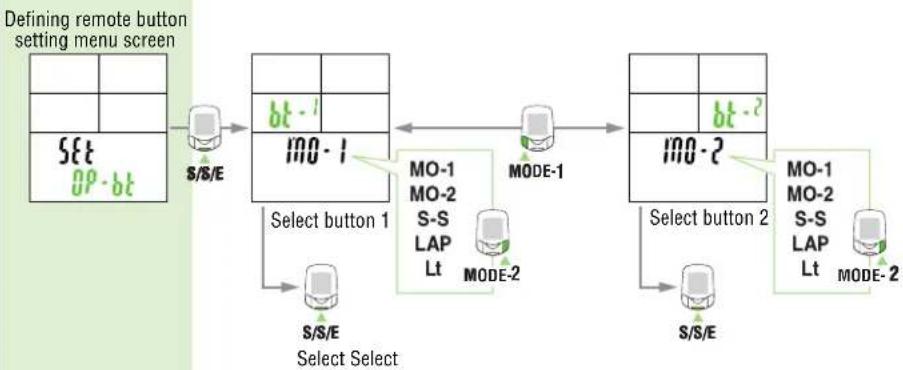
Specify the functions the functions to be assigned to buttons 1 and 2. In the initial setup, button 1 is assigned to MODE-1 and button 2 to MODE-2.
flowchart
graph LR
    A["Defining remote button setting menu screen"] --> B["Set<br>0° - bt"]
    B --> C["S/S/E"]
    C --> D["Select button 1<br>MO-1"]
    D --> E["MODE-1"]
    E --> F["Select button 2<br>MO-2"]
    F --> G["S/S/E"]
    G --> H["MODE-2"]
    H --> I["Select button 1<br>S/S/E"]
    I --> J["MODE-2"]
    J --> K["Select button 2<br>MO-1<br>MO-2<br>S-S<br>LAP<br>Lt"]
    K --> L["MODE-2"]
    L --> M["Select button 1<br>S/S/E"]
    M --> N["MODE-1"]
    N --> O["Select button 2<br>MO-1<br>MO-2<br>S-S<br>LAP<br>Lt"]
    O --> P["MODE-2"]


MODE-1
Cadence zone menu screen
* For the basic information on how to use the menu screen, refer to "Configuring main unit" on page 35.
Menu screen

flowchart
graph TD
    A["MODE-1"] --> B["Power select"]
    C["MODE-2"] --> D["Wheel selection"]
    D --> E["Tire circumference input"]
    E --> F["Auto-mode"]
    F --> G["Sound"]
    G --> H["Date"]
    H --> I["Setting clock"]
    I --> J["Manual odometer input"]
    J --> K["Speed unit"]
    K --> L["Defining remote button setting"]
    L --> M["Cadence zone"]
    M --> N["Heart rate zone"]
    N --> O["Heart rate sensor ID"]
    O --> P["Data file"]
    P --> Q["Data storage"]
    Q --> R["PC Link"]
    R --> S["Torque"]
    S --> T["Power select"]


MODE-2
Defining remote button menu screen
Cadence zone
You can check your time in cadence zone, turn the cadence zone on/off, and change the cadence zone range.
On the menu screen, Display 3 indicates the lower limit of the zone range while Display 4 indicates the upper limit.
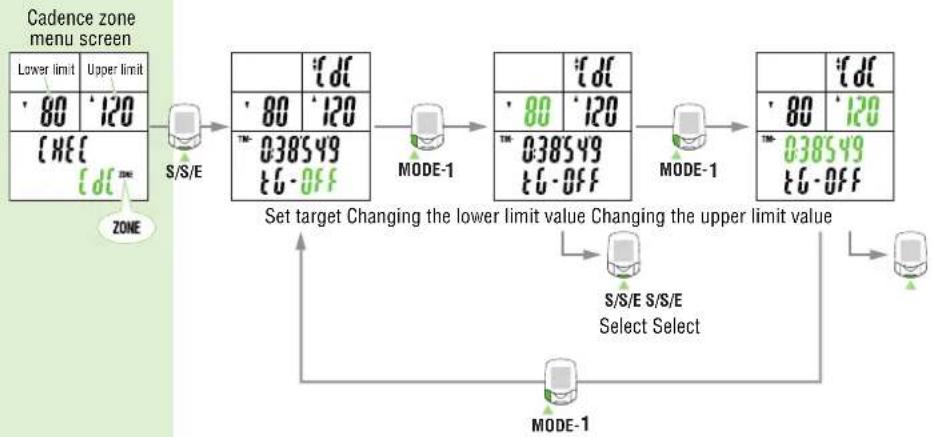
flowchart
graph TD
    A["Cadence zone menu screen"] --> B["Lower limit / Upper limit"]
    B --> C["S/S/E"]
    C --> D["MODE-1"]
    D --> E["Set target Changing the lower limit value"]
    E --> F["S/S/E S/S/E Select Select"]
    F --> G["MODE-1"]
    G --> H["Set target Changing the upper limit value"]
- Checking the time for stay in the cadence zone and specifying the cadence target
Press the START/STOP/ENTER button with the "Cadence zone" menu displayed to bring up the target setting screen.
Time for stay in the cadence zone is displayed in the top row of Display-5.
NOTE: Resetting the main measurement returns the time in zone to zero.
The target setting status is displayed at the bottom of the display with either "on" or "off".
The target is set at OFF in the initial setup.

text_image
Set taget Time in cadence zone Target setting status (on/off) On OFF MODE-2* For the basic information on how to use the menu screen, refer to "Configuring main unit" on page 35.
Menu screen

flowchart
graph TD
    A["MODE-1"] --> B["Power select"]
    C["MODE-2"] --> D["Wheel selection"]
    B --> E["Tire circumference input"]
    D --> F["Auto-mode"]
    E --> G["Sound"]
    F --> H["Date"]
    G --> I["Setting clock"]
    H --> J["Manual odometer input"]
    I --> K["Speed unit"]
    J --> L["Defining remote button setting"]
    K --> M["Cadence zone"]
    L --> M
    M --> N["Heart rate zone"]
    N --> O["Heart rate sensor ID"]
    O --> P["Data file"]
    P --> Q["Data storage"]
    Q --> R["PC Link"]
    R --> S["Torque"]
    S --> T["Power select"]
- Changing the cadence zone
When the MODE-1 button is pressed with the target setting screen displayed, the lower limit in the cadence zone blinks. When the MODE-1 button is pressed again, the upper limit blinks. When the MODE-2 button is pressed with the lower or upper limit blinking, the first digit of the value blinks.
To change a value and shift the digit, see the illustrations below. After entering the desired value, press the MODE-1 button to cause all the numeric characters to flash, and press the START/STOP/ENTER button to finish the setting operation.
In the initial setup, the lower limit is set at 80 and the upper at 120.

flowchart
graph TD
    A["Changing the lower limit value"] --> B["S/S/E MODE-1+2"]
    B --> C["MODE-2"]
    C --> D["First digit Second digit Shift Digit shift"]
    D --> E["MODE-1"]
    E --> F["0.80"]
    G["MODE-1"] --> H["S/S/E Select"]
    H --> I["Reset all measurements."]
    J["Changing the upper limit value"] --> K["S/S/E MODE-1+2"]
    K --> L["MODE-2"]
    L --> M["First digit Second digit Shift Digit shift"]
    M --> N["MODE-1"]
    N --> O["120"]
    P["S/S/E Select"] --> Q["S/S/E Select"]
NOTE: To change the upper/lower limits, the computer must be reset while the bicycle is not in motion. Press the MODE-1, MODE-2, and START/STOP/ENTER buttons simultaneously to reset all measurements.
- Not resetting all measured data causes the "PLEASE rESEt" message to be displayed, making selection impossible.
- When a lower limit value greater than the upper limit value is entered, the upper limit value is automatically adjusted to the value of the lower limit value plus one. When a wrong upper limit value is entered, the same adjustment is made.


MODE-1
Heart rate zone menu screen
* For the basic information on how to use the menu screen, refer to "Configuring main unit" on page 35.
Menu screen

flowchart
graph TD
    A["Power select"] --> B["Wheel selection"]
    B --> C["Tire circumference input"]
    C --> D["Auto-mode"]
    D --> E["Sound"]
    E --> F["Date"]
    F --> G["Setting clock"]
    G --> H["Manual odometer input"]
    H --> I["Speed unit"]
    I --> J["Defining remote button setting"]
    J --> K["Cadence zone"]
    K --> L["Heart rate zone"]
    L --> M["Heart rate sensor ID"]
    M --> N["Data file"]
    N --> O["Data storage"]
    O --> P["PC Link"]
    P --> Q["Torque"]
    Q --> R["Power select"]


MODE-2
Cadence zone menu screen
Heart rate zone
You can select the HR zone, check the time in zone, turn the HR target on/off, and change the HR zone ranges.
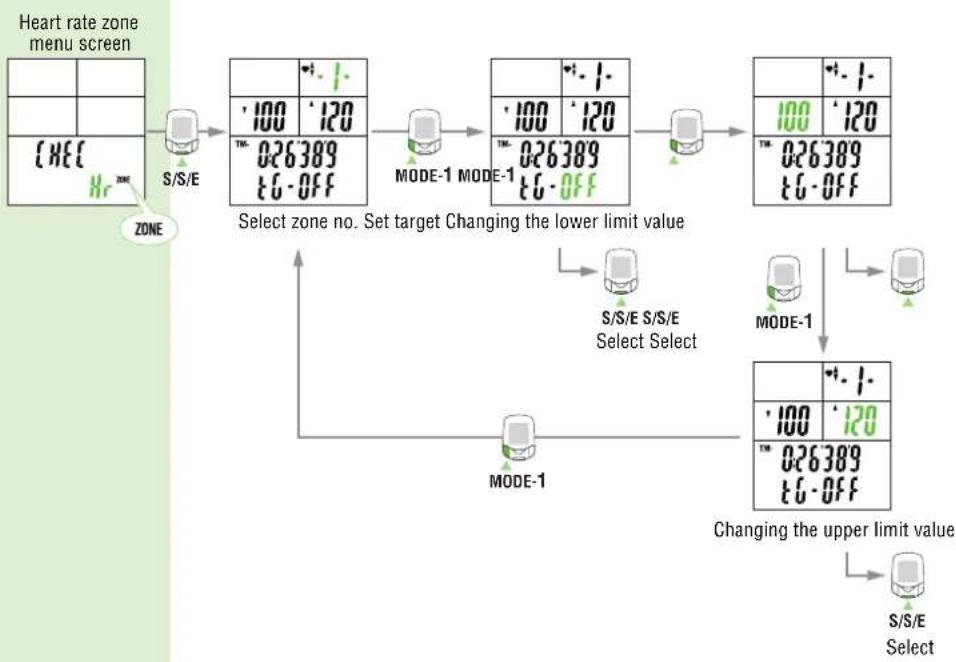
flowchart
graph TD
    A["Heart rate zone menu screen"] --> B["S/S/E"]
    B --> C["Select zone no. Set target Changing the lower limit value"]
    C --> D["S/S/E S/S/E Select Select"]
    D --> E["MODE-1"]
    E --> F["Changing the upper limit value"]
    F --> G["S/S/E Select"]
* For the basic information on how to use the menu screen, refer to "Configuring main unit" on page 35.
Menu screen

flowchart
graph TD
    A["Power select"] --> B["Wheel selection"]
    B --> C["Tire circumference input"]
    C --> D["Auto-mode"]
    D --> E["Sound"]
    E --> F["Date"]
    F --> G["Setting clock"]
    G --> H["Manual odometer input"]
    H --> I["Speed unit"]
    I --> J["Defining remote button setting"]
    J --> K["Cadence zone"]
    K --> L["Heart rate zone"]
    L --> M["Heart rate sensor ID"]
    M --> N["Data file"]
    N --> O["Data storage"]
    O --> P["PC Link"]
    P --> Q["Torque"]
    Q --> R["Power select"]
- Checking the time in target zone
Press the START/STOP/ENTER button with the "Hear rate zone" menu displayed, the Select zone No. screen appears; time for keeping the certain heart rate in Zone 1 can be checked. There are four heart rate zones. The zone number is displayed with its lower and upper limits, time in zone, and target setting status. To switch the zone, press the MODE-2 button.

text_image
Zone no. 1 2 3 4 MODE-2 Lower limit Select zone no. 100 120 TM 026389 TC-OFF Upper limit Time in heart rate zone Target setting status (On/Off)NOTE: When the computer is reset, all data for time in zones is reset to zero.
- Turning on/off the target
When the MODE-2 button is pressed with the Select zone No. screen displayed, you can select whether or not to specify a target (alert setting in this range) for the displayed zone. The target is set at OFF in the initial setup.

text_image
Set target 100 120 026389 66-OFF On OFF MODE-2NOTE: Targets can be set for more than one zone.
When using more than one target zone, the computer will only alert you if you are outside ALL your target zones.
* For the basic information on how to use the menu screen, refer to "Configuring main unit" on page 35.
Menu screen

flowchart
graph TD
    A["Power select"] --> B["Wheel selection"]
    B --> C["Tire circumference input"]
    C --> D["Auto-mode"]
    D --> E["Sound"]
    E --> F["Date"]
    F --> G["Setting clock"]
    G --> H["Manual odometer input"]
    H --> I["Speed unit"]
    I --> J["Defining remote button setting"]
    J --> K["Cadence zone"]
    K --> L["Heart rate zone"]
    L --> M["Heart rate sensor ID"]
    M --> N["Data file"]
    N --> O["Data storage"]
    O --> P["PC Link"]
    P --> Q["Torque"]
    Q --> R["Power select"]
- Changing the heart rate zone
Display 3 indicates the zone lower limit while Display 4 indicates the upper limit.
When the MODE-1 button is pressed with the target setting screen displayed, the lower limit in the heart rate zone blinks. When the MODE-1 button is pressed again, the upper limit blinks.
When the MODE-2 button is pressed with the lower or upper limit blinking, the first digit of the value blinks.
To change a value and shift the digit, see the illustrations below. After entering the desired value, press the MODE-1 button to cause all the numeric characters to flash, and press the START/STOP/ENTER button to finish the setting operation.
The default settings are shown below:
Zone 1 : Lower - 100 bpm; Upper - 120 bpm
Zone 2: Lower - 120 bpm; Upper - 140 bpm
Zone 3 : Lower - 140 bpm; Upper - 160 bpm
Zone 4 : Lower - 160 bpm; Upper - 180 bpm
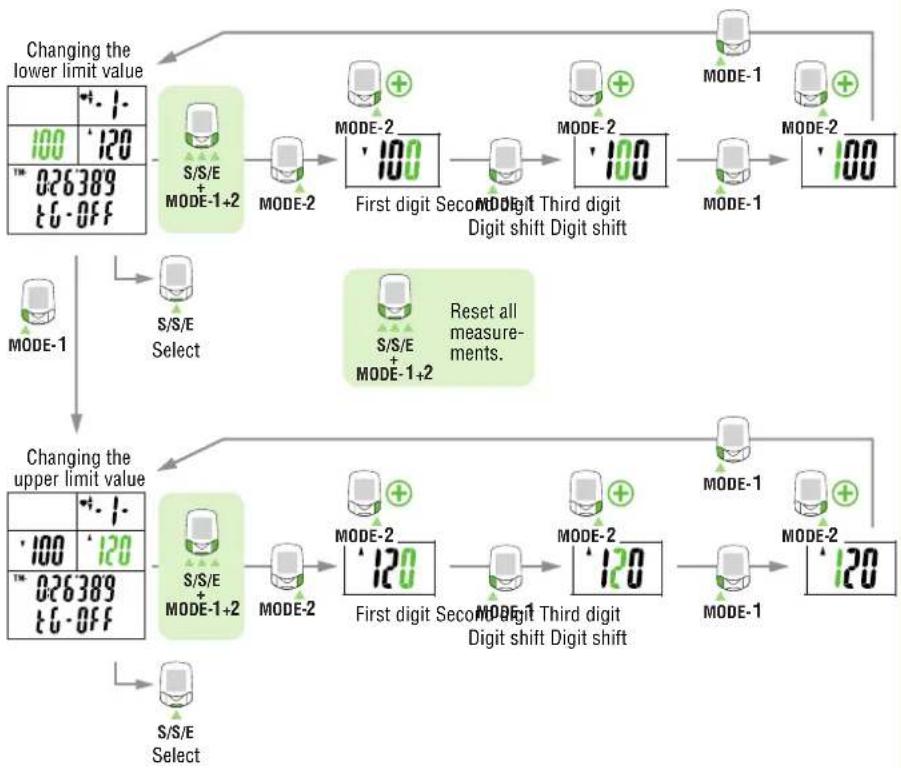
flowchart
graph TD
    A["Changing the lower limit value"] --> B["S/S/E MODE-1+2"]
    B --> C["MODE-2"]
    C --> D["First digit Second digit Shift Digit shift"]
    D --> E["MODE-2"]
    E --> F["Mode-1"]
    F --> G["MODE-2"]
    G --> H["Mode-1"]
    H --> I["Mode-2"]
    I --> J["Mode-1"]
    J --> K["Mode-2"]
    K --> L["Mode-1"]
    L --> M["Mode-2"]
    M --> N["Mode-1"]
    N --> O["Mode-2"]
    O --> P["Mode-1"]
    P --> Q["Mode-2"]
    Q --> R["Mode-1"]
    R --> S["Mode-2"]
    S --> T["Mode-1"]
    T --> U["Mode-2"]
    U --> V["Mode-1"]
    V --> W["Mode-2"]
    W --> X["Mode-1"]
    X --> Y["Mode-2"]
    Y --> Z["Mode-1"]
    Z --> AA["Mode-2"]
    AA --> AB["Mode-1"]
    AB --> AC["Mode-2"]
    AC --> AD["Mode-1"]
    AD --> AE["Mode-2"]
    AE --> AF["Mode-1"]
    AF --> AG["Mode-2"]
    AG --> AH["Mode-1"]
    AH --> AI["Mode-2"]
    AI --> AJ["Mode-1"]
    AJ --> AK["Mode-2"]
    AK --> AL["Mode-1"]
    AL --> AM["Mode-2"]
    AM --> AN["Mode-1"]
    AN --> AO["Mode-2"]
    AO --> AP["Mode-1"]
    AP --> AQ["Mode-2"]
    AQ --> AR["Mode-1"]
    AR --> AS["Mode-2"]
    AS --> AT["Mode-1"]
    AT --> AU["Mode-2"]
    AU --> AV["Mode-1"]
    AV --> AW["Mode-2"]
    AW --> AX["Mode-1"]
    AX --> AY["Mode-2"]
    AY --> AZ["Mode-1"]
    AZ --> BA["Mode-2"]
    BA --> BB["Mode-1"]
    BB --> BC["Mode-2"]
    BC --> BD["Mode-1"]
    BD --> BE["Mode-2"]
    BE --> BF["Mode-1"]
    BF --> BG["Mode-2"]
    BG --> BH["Mode-1"]
    BH --> BI["Mode-2"]
    BI --> BJ["Mode-1"]
    BJ --> BK["Mode-2"]
    BK --> BL["Mode-1"]
    BL --> BM["Mode-2"]
    BM --> BN["Mode-1"]
    BN --> BO["Mode-2"]
    BO --> BP["Mode-1"]
    BP --> BQ["Mode-2"]
NOTE: To change the upper or lower limits, all data must be reset to zero and the bicycle cannot be in motion. Press MODE-1, MODE-2, and START/STOP/ENTER buttons simultaneously to reset all data.
- Not resetting all measured data causes the "PLEASE rESEt" message to be displayed, making selection impossible.
- When a lower limit value greater than the upper limit value is entered, the upper limit value is automatically adjusted to the value of the lower limit value plus one. When a wrong upper limit value is entered, the same adjustment is made.
The range of each zone may overlap.

Haert rate sensor ID menu screen
* For the basic information on how to use the menu screen, refer to "Configuring main unit" on page 35.
Menu screen

flowchart
graph TD
    A["Power select"] --> B["Wheel selection"]
    B --> C["Tire circumference input"]
    C --> D["Auto-mode"]
    D --> E["Sound"]
    E --> F["Date"]
    F --> G["Setting clock"]
    G --> H["Manual odometer input"]
    H --> I["Speed unit"]
    I --> J["Defining remote button setting"]
    J --> K["Cadence zone"]
    K --> L["Heart rate zone"]
    L --> M["Heart rate sensor ID"]
    M --> N["Data file"]
    N --> O["Data storage"]
    O --> P["PC Link"]
    P --> Q["Torque"]
    Q --> R["Power select"]


MODE-2
Heart rate zone menu screen
Heart rate sensor ID
This function allows the ID signal transmitted by the heart rate sensor to be received and checked.
Before ID check, attach the main unit to the power unit.
NOTE: Be sure to attach the main unit to the power unit. Signals from the heart rate sensor cannot be received by the main unit alone.
Within 5 minutes of pressing the START/STOP/ENTER button, place the HR sensor approximately 20-80 cm from the main unit and press the reset button on the HR sensor for five seconds to transmit the ID signal. When the main unit receives the ID signal, the ID check has been completed.
You can view the ID number but cannot reset it while the bicycle is in motion.
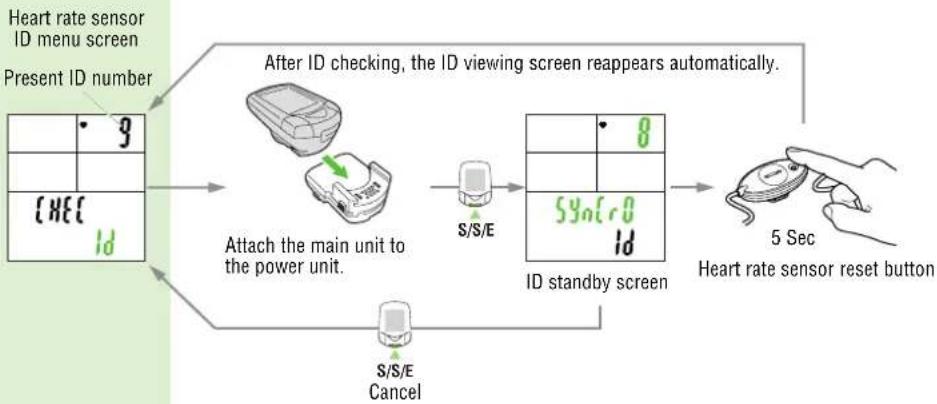
flowchart
graph TD
    A["Heart rate sensor ID menu screen\nPresent ID number"] --> B["After ID checking, the ID viewing screen reappears automatically."]
    B --> C["Attach the main unit to the power unit."]
    C --> D["S/S/E"]
    D --> E["ID standby screen"]
    E --> F["5 Sec\nHeart rate sensor reset button"]
    F --> G["S/S/E\nCancel"]
NOTE: Failure to receive the ID signal within five minutes or the pressing of the START/STOP/ENTER button cancels the heart rate sensor ID set mode, leaving the ID as it was.
- When two or more users of this unit ride side by side with the same ID, interference can occur which may, in turn, prevent correct measurement. In this situation, carry out an ID check again according to the illustration above.
- When two or more users with this unit ride side by side with the same ID, interference can occur and correct measurement may be impeded. In such a case, change the ID using the following the steps below:


MODE-1
Data file menu screen
* For the basic information on how to use the menu screen, refer to "Configuring main unit" on page 35.
Menu screen

flowchart
graph TD
    A["Power select"] --> B["Wheel selection"]
    B --> C["Tire circumference input"]
    C --> D["Auto-mode"]
    D --> E["Sound"]
    E --> F["Date"]
    F --> G["Setting clock"]
    G --> H["Manual odometer input"]
    H --> I["Speed unit"]
    I --> J["Defining remote button setting"]
    J --> K["Cadence zone"]
    K --> L["Heart rate zone"]
    L --> M["Heart rate sensor ID"]
    M --> N["Data file"]
    N --> O["Data storage"]
    O --> P["PC Link"]
    P --> Q["Torque"]
    Q --> R["Power select"]


MODE-2
Haert rate sensor ID menu screen
Data file
You can check and manage data files recorded by the PW100.
Display 1 indicates the remaining amount of storage (%). Display 3 indicates the total number of laps used in that data file. Display 4 indicates the data file number.
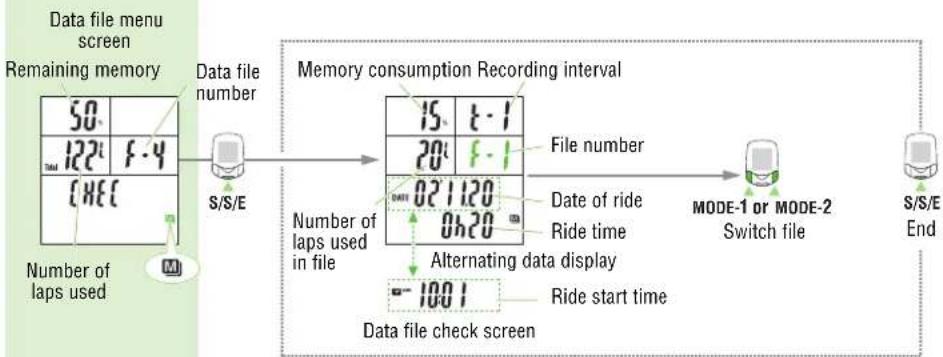
flowchart
graph LR
    A["Data file menu screen"] --> B["Remaining memory"]
    B --> C["Data file number S/S/E"]
    C --> D["Memory consumption Recording interval"]
    D --> E["File number 15 t-1"]
    D --> F["File number 20 t-1"]
    D --> G["Number of laps used in file 021120"]
    D --> H["Number of laps used in file 0h20"]
    D --> I["Date of ride"]
    D --> J["Ride time"]
    D --> K["Alternating data display -1001"]
    D --> L["Ride start time"]
    D --> M["MODE-1 or MODE-2 Switch file"]
    D --> N["S/S/E End"]
NOTE:
- Power-related measurement data are stored in the power unit while other measurement data are stored in the main unit. Therefore, before deleting data files, make sure to attach the main unit to the power unit. If data files are deleted using the main unit only, power-related data will not be deleted, resulting in a malfunction.
If data files are deleted using the main unit only, refer to "Trouble on operation" on page 64.
- To check and use the stored data files, a PC is required.
- When there are no date files recorded ("F-0" on Display 4), this screen cannot be operated.
- Checking data files
When the START/STOP/ENTER button is pressed with the "Data file" menu displayed, data files can be checked.
The screen displays the data file number, recording interval, memory consumption, number of laps, date and time when the file was recorded, and exercise duration.
To switch the data file number, press MODE-1 or MODE-2.
NOTE: • Up to 99 data files can be stored until the remaining memory is at 0%.
- When the remaining memory reaches 0% while data storage is in progress, your data file will end at that point. Measurement continues, however, data is no longer stored in a data file. New data files will not be created.
- If data is downloaded after the power unit is connected to the PC, "data relocation" occurs. Consequently, the data file in the main unit is deleted.
(This setting can be changed to "data copy". For further information, refer to "Downloading measured data" in the electronic "e-Train Data v3E.pdf" documentation.)
* For the basic information on how to use the menu screen, refer to "Configuring main unit" on page 35.
Menu screen

flowchart
graph TD
    A["Power select"] --> B["Wheel selection"]
    B --> C["Tire circumference input"]
    C --> D["Auto-mode"]
    D --> E["Sound"]
    E --> F["Date"]
    F --> G["Setting clock"]
    G --> H["Manual odometer input"]
    H --> I["Speed unit"]
    I --> J["Defining remote button setting"]
    J --> K["Cadence zone"]
    K --> L["Heart rate zone"]
    L --> M["Heart rate sensor ID"]
    M --> N["Data file"]
    N --> O["Data storage"]
    O --> P["PC Link"]
    P --> Q["Torque"]
    Q --> R["Power select"]

- Deleting a data file
Press the MODE-1 or MODE-2 button with the Data file check screen displayed to bring up the data file No. to be deleted. Now press the MODE-1 button and START/STOP/ENTER button simultaneously to delete the displayed file only.

text_image
15 t-1 20 f-1 DATE 021120 0h20 -1001 S/S/E + MODE-1 Deleting a data file data file check screenNOTE: When a data file is deleted, the numbering sequence of the remaining files is advanced.
- Deleting all data files
Display "Data file" on the menu screen, and press the MODE-1 and START/STOP/ENTER buttons simultaneously to delete all data files.
A message will appear to confirm whether or not you wish to delete all data files. To delete them press MODE-1 and START/STOP/ENTER buttons simultaneously again.
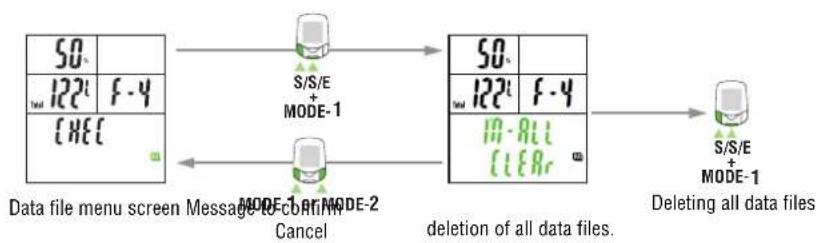
flowchart
graph LR
    A["50.122f - 4CHECK"] --> B["S/S/E MODE-1"]
    B --> C["50.122f - 410-811 CLEAR"]
    C --> D["S/S/E MODE-1"]
    D --> E["Delete all data files"]
    style A fill:#f9f,stroke:#333
    style B fill:#ccf,stroke:#333
    style C fill:#cfc,stroke:#333
    style D fill:#fcc,stroke:#333
    style E fill:#cff,stroke:#333
NOTE: To cancel deleting all data files, simply press MODE-1 or MODE-2.

Data storage menu screen
* For the basic information on how to use the menu screen, refer to "Configuring main unit" on page 35.
Menu screen

flowchart
graph TD
    A["Power select"] --> B["Wheel selection"]
    B --> C["Tire circumference input"]
    C --> D["Auto-mode"]
    D --> E["Sound"]
    E --> F["Date"]
    F --> G["Setting clock"]
    G --> H["Manual odometer input"]
    H --> I["Speed unit"]
    I --> J["Defining remote button setting"]
    J --> K["Cadence zone"]
    K --> L["Heart rate zone"]
    L --> M["Heart rate sensor ID"]
    M --> N["Data file"]
    N --> O["Data storage"]
    O --> P["PC Link"]
    P --> Q["Torque"]
    Q --> R["Power select"]


MODE-2
Data file menu screen
Data storage
You can select the recording interval and turn the data storage on or off.
For data storage function, see "data storage function" on page 32.

flowchart
graph LR
    A["Data storage menu screen"] --> B["Memory recording interval"]
    B --> C{Select recording interval}
    C -->|On| D["Select: 5-5"]
    C -->|Off| E["Select: 12h30"]
    D --> F["MODE-2: 5 10 30 1 MODE-2"]
    E --> G["MODE-1: Remaining hours of storage available"]
    G --> H["MODE-2: On OFF 12h30"]
    H --> I["S/S/E Select"]
    style A fill:#f9f,stroke:#333
    style B fill:#ccf,stroke:#333
    style C fill:#cfc,stroke:#333
    style D fill:#fcc,stroke:#333
    style E fill:#cff,stroke:#333
    style F fill:#ffc,stroke:#333
    style G fill:#cfc,stroke:#333
    style H fill:#fcc,stroke:#333
    style I fill:#ffc,stroke:#333
NOTE: Before selecting recording interval or turning data storage on or off, it is necessary to stop the measurement and reset all measured data. Not resetting all measured data causes the "PLEASE rESEt" message to be displayed, making selection impossible.
- Selecting recording interval
Specify the interval of memory recording in seconds.
Display 1 indicates the timing in seconds, and Display-5 indicates how much data can be stored with the remaining memory, in the specified memory interval.
The maximum data storage times are listed below with their respective intervals:
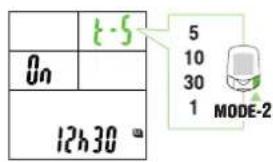
text_image
1-5 On 12h30 5 10 30 1 MODE-21 second intervals:...Maximum 5 hours
5 seconds: ...... Max. 25 hours
10 seconds: ...... Max. 50 hours
30 seconds: ...... Max. 150 hours
- Turning data storage on/off
When data storage is on, data files can be created, and the M icon on the main display will light up.

NOTE: When the remaining memory is 0%, or 99 files have already been stored, further data storage cannot be performed. When the remaining memory indicates 0% while the data storage is in progress, a data file is created at that point. Measurement after that is switched to the regular measurement from the data storage. When the regular measurement is performed even though the data storage is turned on, the M icon flashes.


MODE-1
PC link menu screen
* For the basic information on how to use the menu screen, refer to "Configuring main unit" on page 35.
Menu screen

flowchart
graph TD
    A["Power select"] --> B["Wheel selection"]
    B --> C["Tire circumference input"]
    C --> D["Auto-mode"]
    D --> E["Sound"]
    E --> F["Date"]
    F --> G["Setting clock"]
    G --> H["Manual odometer input"]
    H --> I["Speed unit"]
    I --> J["Defining remote button setting"]
    J --> K["Cadence zone"]
    K --> L["Heart rate zone"]
    L --> M["Heart rate sensor ID"]
    M --> N["Data file"]
    N --> O["Data storage"]
    O --> P["PC Link"]
    P --> Q["Torque"]
    Q --> R["Power select"]


MODE-2
Data storage menu screen
PC Link
This menu is available when the power unit is connected to the PC.

flowchart
graph TD
    A["PC link menu screen"] --> B["Connect to the computer"]
    B --> C["S/S/E Cancel"]
    C --> D["After 10 seconds"]
    D --> E["Communication on standby"]
    E --> F["MODE-1 or MODE-2 Switch"]
    F --> G["50 PC - Start In4S"]
    G --> H["Online power measurement"]
    I["Start"] --> H
    J["ONI InE"] --> K["Click DOWNLOAD button of download software to begin downloading"]
    L["Enter"] --> M["When downloading is completed, the PC Link menu screen reappears automatically."]
    M --> N["Connect to the computer"]
NOTE: Before establishing a PC Link, install the "e-Train data Ver.3" software from the accompanying CD-ROM on your PC.
For information on software installation on the PC and corresponding operation procedures, refer to "Install e-Train Data Ver.3" and "OPERATING e-Train Data Ver.3" in the electronic "e-Train Data v3E.pdf" documentation.
- Measured data other than the power-related data can be downloaded using the download kit.
• PC Online
Once the measured data are downloaded to the PC, the main unit settings changed via the software are uploaded to the main unit.
NOTE: For further information, refer to "DOWNLOADING DATA" in the electronic "e-Train Data v3E.pdf" documentation.
• Online power measurement
When the bicycle on the roller stand or trainer is connected directly to the PC, torque is measured per 1/100 second. Real-time changes in torque are shown graphically on the PC.
NOTE: For further information, refer to "ON-LINE MEASUREMENT" in the electronic "e-Train Data v3E.pdf" documentation.
OFF-Power: The online torque measurement screen does not appear.


MODE-1
Power menu screen or Power select menu screen
* For the basic information on how to use the menu screen, refer to "Configuring main unit" on page 35.
Menu screen

flowchart
graph TD
    A["MODE-1"] --> B["Power select"]
    C["MODE-2"] --> D["Wheel selection"]
    B --> E["Tire circumference input"]
    D --> F["Auto-mode"]
    E --> G["Sound"]
    F --> H["Date"]
    G --> I["Setting clock"]
    H --> J["Manual odometer input"]
    I --> K["Speed unit"]
    J --> L["Defining remote button setting"]
    K --> M["Cadence zone"]
    L --> N["Heart rate zone"]
    M --> O["Heart rate sensor ID"]
    N --> P["Data file"]
    O --> Q["Data storage"]
    P --> R["PC Link"]
    Q --> S["Torque"]
    R --> T["Power select"]


MODE-2
PC link menu screen
Torque
Press the START/STOP/ENTER button to carry out torque measurement per 1/100 second. Press the START/STOP/ENTER button again to complete measurement.
Torque menu screen
Remaining memory
File No.
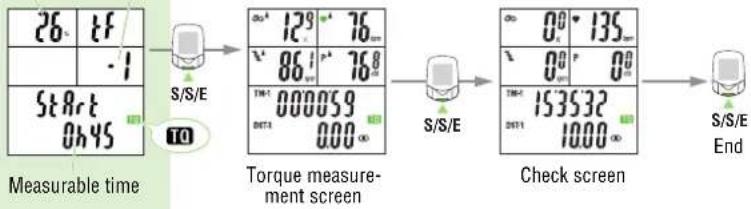
flowchart
graph LR
    A["26 tF"] --> B["S/S/E"]
    C["-1"] --> B
    D["Start 0h45"] --> B
    B --> E["Torque measurement screen"]
    E --> F["S/S/E"]
    F --> G["Check screen"]
    G --> H["S/S/E End"]
NOTE:
- If the message "Full" appears and measurement stops, this means that there is no remaining memory. Check the old data files and delete unnecessary files to free up memory, referring to "Data Files" on page 47.
- The torque measurement data are recorded as a data file in the same way as data storage. Therefore, the torque measurement menu is not displayed when the data storage setting is off.
OFF-Power: The torque measurement screen does not appear.


MODE-1
Power select menu screen
Reference Guide
Heart rate training ....53
Power meter training manual for Cateye.....55
Trouble shooting 62
Replacing battery 65
Spare accessories 66
Specifications....67
Registration 68
Limited warranty 69
Heart rate training
This section is just a general overview of training with heart rate data. For more complete information, there are books and websites with more in-depth information.
Generally, the heart rate increases during exercise, getting higher in conjunction with the intensity of the workout. Measuring the rate of your heart beat is a good indicator of the intensity of your workout. By setting target HR (heart rate) zones and sticking to pre-set exercises, you will be able to work out more efficiently. Before beginning a training program, be sure to first consult a medical specialist or sports trainer.
1. Improving general fitness
Bicycling is one of the best activities to improve your general fitness. To improve your overall fitness through bicycling, set a target heart rate zone from between 30% and 70% of your maximum HR, depending on your physical strength. For best results, exercise consistently in this zone for periods of at least 20-30 minutes, 3 or more times a week.
To obtain your target zone, see the table below, which illustrates the correlation between heart rate and training level. For beginners, it is recommended to start with the level of 30% of your max. From this point, gradually increase the level according to your fitness level and experience. Training at levels over 70% of your HR max will focus more on anaerobic exercise, and less on aerobic exercise. Weight loss usually occurs through longer rides (over 1 hour) at lower HR levels.
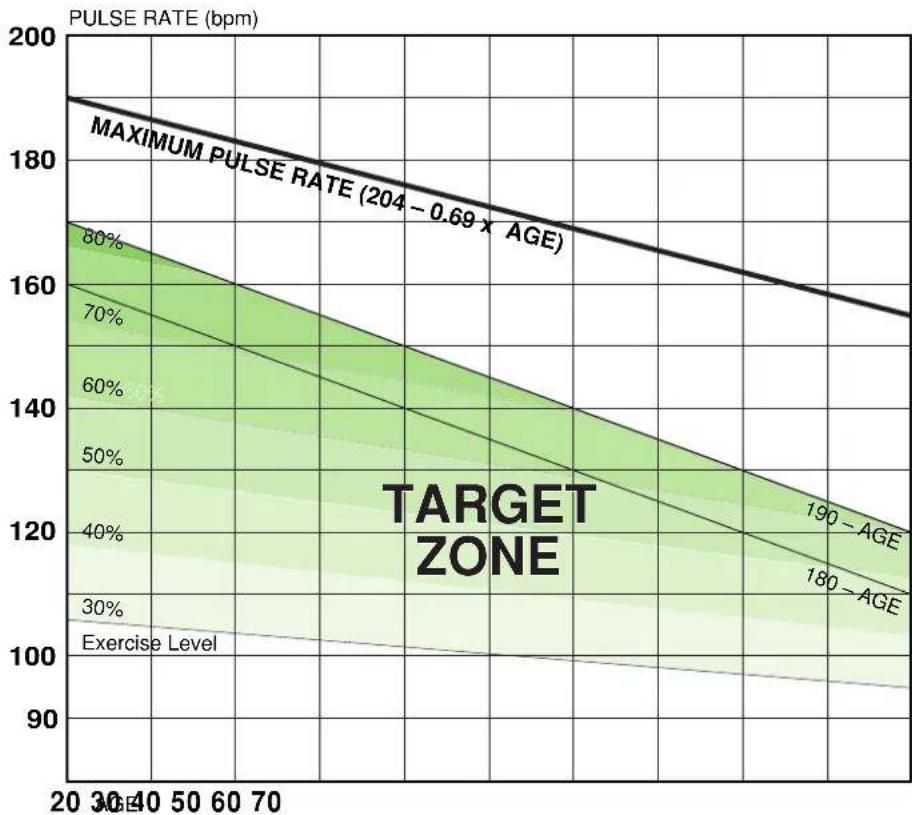
line
| Age Group | PULSE RATE (bpm) | | --------- | ---------------- | | MAXIMUM PULSE RATE (204 - 0.69 × AGE) | 190 - 204 | | TARGET ZONE | 180 - 204 | | 30% | 160 - 170 | | 40% | 150 - 160 | | 50% | 140 - 150 | | 60% | 130 - 140 | | 70% | 120 - 130 | | 80% | 110 - 120 | | Exercise Level | 100 - 110 |2. Training for competition
Measure your resting heart rate just after waking in the morning and your maximum heart rate (perhaps during competition). Then set your target zone according to your goal:
A) For recovery, endurance training, and weight loss : 60% - 70% (aerobic exercise)
B) For quality endurance and tempo training : 70% - 80% (aerobic exercise)
C) For increasing TT and race ability, and VO2 max : 85% + (anaerobic exercise)
D) For anaerobic capacity and sprinting : 92.5% + (anaerobic exercise)
Training level (\%) = x-100 (Target heart rate) - (Resting heart rate) / (Maximum heart rate) - (Resting heart rate)
Target heart rate = (Maximum heart rate - Resting heart rate) × level (%)100 + Resting heart rate
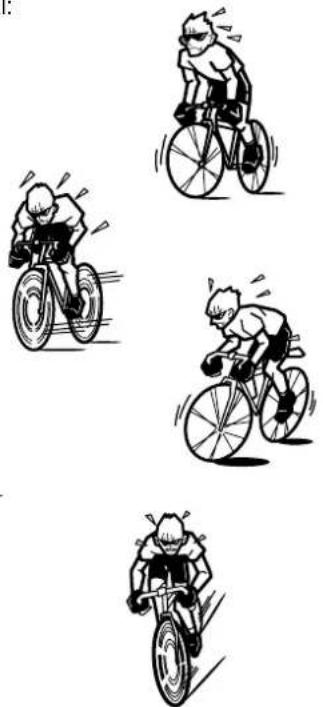
Resting heart rate
Your resting heart rate is usually the lowest recorded rate soon after waking up in the morning.
Maximum heart rate
The following calculations are generally used: (220 - age) or (204 - 0.69 x age). For more precise figure, consult a training specialist.
Power meter training manual for Cateye
What is power?
Training with power is an important and exciting way to monitor and improve your cycling performance. For any given conditions your bicycle speed will be greater with a higher power output. Unlike heart rate, which is a dependent variable and can vary due to external influences (such as diet, fatigue, and ambient temperature, etc.) power directly affects your performance.
Simply, power can be expressed as the total of all the force that must be overcome to move you and the bike. Power is measured in watts (W), and can be loosely described by this equation:
Power = velocity x (air drag + rolling resistance x mass of rider and bike + gradient of road x mass of rider and bike + kinetic energy)
Aerodynamic drag is determined by the frontal area of the cyclist and bicycle (height, width, and shape/position of bike and rider), and equipment that is being used by that rider (e.g., disc wheels, tri-bars, etc). Additionally, environmental conditions (i.e., air density which is determined by temperature, barometric pressure, altitude, and humidity, and wind velocity) also affect aerodynamic drag.
Power output can also be mathematically expressed via a number of equations, and is defined as
Power = work done/time or Power = torque x velocity
In the case of the Cateye meter it is the torque (angular force) multiplied by the bottom bracket velocity (cadence). Thus, power output (W) = torque x cadence
Goal Setting
Training with power demands precise goal setting, which can help you be more efficient with your training. Precise goal setting allows you to set a clear direction in which you want to move.
You should endeavour to set your goals in a specific manner. Don't set goals such as "be faster". Your goals need to be specific to you:
- Specific - e.g. take 1 minute off your personal best over 40-km, by increasing your power by 10 W
- Measurable - e.g. ride a 40-km TT in 58 minutes (rather than beat my regular training partner)
Example
Currently you can race a 40-km TT in 59:00 minutes. Average power output from the Cateye TR100 is 270 W. You want to complete a 40-km TT in 58:00 minute. Neglecting changes in position, and in environmental conditions, there's an almost cubic relationship (raised to the power of 3) between power and velocity. You can then calculate your goal power based on your current average power.
Using the above figures and knowing that speed = distance / time, your goal power can be ascertained. You must convert actual minutes to decimal (divide by 60)
Current speed = 40-km / (59 / 60) = 40.68 km/h
Goal speed = 40-km / (58 / 60) = 41.38 km/h
The percentage difference, or ratio, 41.38 / 40.68 = 1.017. Then multiply the ratio of the two speeds (1.017) by itself three times = 1.017 × 1.017 × 1.017 = 1.052
Now multiply by current average power:
Goal power output = 270 x 1.052 = 284 W
NOTE: This cubic relationship only works for flat or generally flat courses
Limiting factors
Limiting factors in cycling performance – can be broken into three broad bands, these being:
- Training (e.g., TT, climbing)
- Skill (e.g., attacking, cornering, feeding, following wheels)
• Physiological/biomechanical (e.g., MAP, lactate threshold, aerodynamics, etc.)
The term MAP (maximal aerobic power) can be used synonymously with the physiological term VO_2max (maximal oxygen uptake; the highest rate at which oxygen can be utilised by the body during very heavy exercise – e.g. whilst climbing a short hill of 4/5 minutes all-out), for the purpose of this training manual.
Physiological parameters such as VO_2max , ‘lactate threshold’, etc., ‘affect’ everyone, and, accordingly we can all work on improving these parameters.
Training parameters are often classed as ‘personal limiting factors’, and can be identified by asking yourself how well you climb, sprint, etc. These limiting factors can then be integrated into your goals.
Determining Limiting Factors
Certain factors need to be determined prior to constructing a training programme. These would include a selection from the above lists (e.g., MAP, TT ability, climbing ability, cornering skills, etc.).
By determining your present ability, and then ascertaining your desired ability level (which will become your goals) you can then set out a training plan.
Certain limiting factors can be determined by observation, whilst others may need testing. For instance, it can be quite easy to observe that you may be a poor climber – i.e., if you are constantly off the back every time the road goes up. While certain criteria need to be tested, e.g., MAP, TT power output. However, in all cases it may well be a good idea for you to go through the pertinent variables giving a score on a scale of 1 (poor) to 10 (excellent).
Another simple test is to ascertain the ratio of your TT power to MAP. If your TT power falls below the suggested race zones for your TT distance, then you'll need to train more at zones 3 and 4. If your TT ability is at the upper end, then you need to focus more on zones 5 and 6. See Table 2.
Testing
Training zones can be defined in a variety of different ways and no one system is 100% correct or suitable for everyone. An incremental test to exhaustion is used to define training based on MAP.
The test needs to be conducted on an indoor trainer (not rollers), and requires you to be well rested. Two days prior to the test have a complete day off, whilst the day before, should be an easy ride of 45 – 90 minutes duration.
Because of the intensity involved, do not eat within 2 hours of the test, however consume some starchy carbohydrates \~ 3 hours prior to the test. In the final 2 hours prior to testing you may sip on a drink.
The increment rate of the test is based on gender and broad fitness levels. Starting power output should begin at an easy level, and the test needs to last between 8 - 15 minutes. Accordingly, for most competitive cyclists over 18 years of either gender, starting power will usually be 100W or greater.
• Female riders should use a 15 W·min-1 increment rate
- Elite male riders should use a 20 W·min-1 increment rate
• Non-elite male riders should use a 25 W·min-1 increment rate
Rather than have the power increment steeply every minute, split the increment into small micro units. With a 25 W·min-1 increment, aim to increase power output 5 W every 12 seconds.
Set your bike on the trainer, and decide on your starting power. Prior to the test, warm up for at least 10 minutes and include a few brief race efforts at the halfway point to get you going. Start the test, and set the interval function on your Cateye to record the actual test.
Once underway, there are no rest periods; gradually increase the power until you can no longer match the predetermined power output. At this point really 'dig in' giving a final effort to try to match the correct power. During the test, you can change gear, and vary your cadence to suit the effort required. However, it is inadvisable to stand up, as this may cause the trainer to topple over.
As soon as the test is finished, switch to your small chain ring, and ride along at recovery level for 5 – 15 minutes. Stop the interval function on your Cateye.
As soon as the test is over you should sip on an energy drink, to help restore muscle, and liver glycogen stores.
Once you have cooled down, download the Cateye and calculate your MAP by ascertaining the average power of the last 60-seconds (of the test) before you started to fade.
PRECAUTIONS
The test is similar to a VO2 max test/stress test, and although relatively short in duration, does require you to push yourself to exhaustion – it is, therefore, very demanding.
Accordingly, you should be certain of the following:
- You are not currently suffering from any viral, or bacterial infection, or any other illness
- You have not had a viral, or bacterial infection, or any other illness within the last four weeks
- You do not have any injuries, or recent injuries
Do not undertake the test:
- If you are over 35 years of age, or are overweight without first seeking approval off a qualified medical practitioner
- If you are a smoker (or have given up within the last year)
- If you have been diagnosed with any form of heart disease, or suspect heart or vascular disease
- If you are hypertensive
- If you suffer from an airway obstructive disease, such as bronchitis
If you are in any doubt about your suitability of conducting this, or any physical exertion test then you should consult with a qualified medical practitioner, such as your family doctor, or a doctor who is treating you for any conditions that you may have.
The test pushes your body to the limit – do not put yourself at risk.
The Zones
After calculating your MAP, you can identify your training zones. As with any training system, each zone is specifically aimed at various physiological criteria.
Table 1 displaying benefits and characteristics of each training zone
| Power Zone(% MAP) | Workout classification /Event Type | Physiological adaptations /training benefits | |
| Zone Recovery< 40 % | Recovery | RecoverySuitable to use post illness | This zone is de-signed to be a very light workload, such that it causes no significant adaptations, and also limits the cyclist to an easy session, preventing a build up of fatigue, or to be used in the return to training after being ill/injured. |
| Zone 140 - 50% | EnduranceRoad racing | Weight lossSuitable to use post illnessCombine with skill/technique | These zones are primarily designed to help with endurance, allowing high volume, low intensity work to be completed. Zone 2 forms the 'core' of an endurance cyclists training programme. At the lower zone, fat is the predominant fuel source, with carbohydrate usage increasing as intensity increases. |
| Zone 250 - 60 % | EnduranceM TB XCRoad racing/time trialsT rack endurance | Weight lossIncreased economyDevelopment of fast twitch to slow twitch muscle fibres | |
| Zone 360 - 67% | High intensity enduranceM TB XCRoad racing/time trialsT rack endurance | Development of fast twitch to slow twitch muscle fibresIncreased lactate thresholdIncreased VO2 max | |
| Zone 467 - 72% | TTSuitable for indoor workouts | Development of fast twitch to slow twitch muscle fibresIncreased lactate thresholdIncreased VO2 max | These zones are increasing in intensity, and somewhat-to-very fatiguing. Time trials, and solo/small group 'breaks' in road races are at this level. Carbohydrates are the main energy supply. |
| Zone 572 - 82 % | TTM TB XCRoad racingT rack enduranceSuitable for indoor workouts | Increased VO2 maxIncreased lactate thresholdRace specific skillsIncreased capillarisationIncreased mitochondria | |
| Zone 682 - 110 % | Maximal SupramaximalM TB XCRoad racingT rack enduranceTTSuitable for indoor workouts | Increased VO2 maxIncreased lactate thresholdIncreased blood volumeIncreased stroke volumeIncreased muscle buffering capabilityIncreased lactate clearance | These zones are maximal, and accordingly, rely solely on carbohydrate as the fuel supply. Before attempting training in these zones, the rider must be fully recovered and mentally 'up' for it. At this intensity, the rider is bridging a small gap, or climbing a moderate hill (e.g. up to 5-mins) at maximal effort. Physiologically, you're at VO2 max or above. |
| Zone 7110 - 150 % | Maximal SupramaximalRoad racingT rack enduranceSuitable for indoor workouts | Fast twitch muscle fibre developmentIncreased neurological recruitmentIncreased peak power output |
Can race performance power be estimated?
Although race performance can be down to mental fortitude, as much as physical ability, a power – time curve exists, i.e., the shorter an event is the more power you can produce, and conversely the longer an event is the less power you produce (sprinting for a few seconds, versus riding steady and continuously for 10-hrs!). For endurance-based events, an estimate of the power output that can be achieved for a variety of distances is shown below.
Table 2
| Distance / Event Power range (% of MAP) |
| 3 km TT 89 - 91 % |
| 4 km TT 88 - 91 % |
| 16.1 km TT 75 - 81 % |
| 40.2 km TT 72 - 77 % |
| 80.5 km TT 64 - 72 % |
| 161 km TT 60 - 68 % |
Because events such as road races, and criteriums depend on both drafting ability as well as power to mass ratio and that the power you produce is much more variable, it is a little harder to predict power for these events, but, in general power required for road races etc., will be on average less than the power required to ride a TT of similar duration.
The Cateye as your coach
As well as using the power meter for data collection (e.g. within a race), or for training purposes, you can also use it to provide instantaneous feedback.
Because the Cateye provides instantaneous feedback, it forces you to think about what you are doing, and whether you are riding at the prescribed intensity. Similar to having a coach with you all the time, the Cateye will tell you to get a move on, or to ease up.
We all have off day(s) – there are multiple reasons for this (e.g., not recovered from previous training, carbohydrate depleted, lifestyle stress, etc.) – accordingly, the Cateye will instantly tell you if you are in the correct training zone. If you're supposed to be riding at \~ 200 W and all you can do is ride at 100 W then you know that you're way off target – this is the time to make a decision and possibly cut the training session short. By purely examining heart rate you just can't see this, as HR can vary for many reasons, and is therefore only a vague indicator of power output.
Frequently, racers go too hard, when it would be beneficial to actually ride at a lower intensity, but a greater average power output. Pacing, is an important aspect of training and racing, and the benefits of good pacing cannot be underestimated for endurance events. In very short, and very long events HR is a poor indicator for pacing. Power pacing can be used to increase your performance.
Starting at too high a power output results in an increase in blood lactate, which ultimately forces power to decrease. A more reasoned approach to time trials is a steadier start, aiming to maintain a steady power output to the finish of the event. This (can) result in a lower average HR, but a higher average power output. Don't forget when you use your Cateye Power meter outdoors; you'll notice at first that the data can be very jumpy. This is because power reacts at a much faster rate to changes in intensity, compared to e.g., HR.
Table 3 Example of training sessions
| Session Zones | Duration & Intervals | Recovery | Topography | Approximate Cadence | Benefits | |||
| Flats | Hills Flats Hills | |||||||
| Endurance Training | Z2 Z4 | 4/6 1.25 to 4+ hours | 5 to 4+ hours | N/A Rolling roads, short hills *1 | 85 – 100 | 70 – 90+ | Core endurance, weight loss, quality training | |
| Threshold Tolerance Intervals | Z4 Z4 | One to four blocks of 15 to 30 mins. 60 mins maximum | 1 to 5 mins | Flat roads, trainer, or long steady climb | 85 – 95 | 70 – 90+ | Increase lactate threshold, TT power, MAP | |
| Aerobic Power Intervals | Z5 Z5 | 3 – 8 x 4 mins | 4-mins | Flat roads, trainer, or short climb | 95 – 105 | 80+ | Increased TT power, MAP | |
| Flat Sprints | >Z7 N/A | 5 to 15 x 15 secs | 10 to 15 mins | Flat / rolling roads *2 | 100+ | Increased peak power | ||
*1 Generally, flat, rolling roads for your locale. Try to avoid grades over 4 – 5%, generally less than 5-minutes in duration
*2 Start each sprint from normal riding speed. First 5-secs out of the saddle accelerating, then return to saddle and keep the effort up for the remaining 10-secs. Sprint is 'all out'
Trouble shooting
If a malfunction occurs, check the following before contacting CatEye or your retailer for repair or service.
Trouble on display
| Trouble / Check Items / Remedy |
| Display motion becomes slower. |
| Is the surrounding temperature low (below zero centigrade/32 farenheit)? |
| Temperatures below freezing may result in slower screen response. |
| Display-4 (Power) flashes. |
| Is the battery unit cable terminal connected to the power unit BATT terminal? |
| Connect the battery unit cable terminal to the power unit BATT terminal correctly. (Refer to the accompanying “Installing the unit on your bicycle”.) |
| Is the battery in the battery unit weak? |
| The batteries in the battery unit are almost exhausted. |
| Replace the batteries (AA batteries) immediately. |
| All numeric characters displayed in two lines on Display-5 flash. |
| The remaining battery capacity for the main unit is low. |
| Replace it with a new battery (CR2450) immediately. After replacement, be sure to perform the restarting operation (page 12), check the HR sensor ID, and set the date and time. |
| No displays appear. |
| Is the battery for the main unit empty? |
| Replace it with a new battery (CR2450). After replacement, be sure to perform the restarting operation (page 12), check the HR sensor ID, and set the date and time. |
| Meaningless display appears |
| Perform the restarting operation (page 12), check the HR sensor ID, and set the date and time. |
| Cannot measure the trip speed (Cadence zone) |
| Check whether the distance between the speed sensor and the magnet is too large. (Cadence zone) |
| Is the indication line of the speed sensor off the center of the magnet? (Cadence zone) |
| Adjust the position of the speed sensor and that of the magnet correctly. (Refer to the accompanying “Installing the unit on your bicycle”.) (Cadence zone) |
| Check for a break in the wire of the speed and cadence sensors. |
| Replace the speed/cadence sensor kit with a new one. |
| Heart rate signals are not received. |
| Is the main unit attached to the power unit? |
| If not, it cannot receive signals from the heart rate sensor. |
| Has the power-saving function been activated, showing only time on the screen? |
| Press any other button than RESTART to cancel the power-saving mode. |
| Has the rubber surface of the electrode pad come off? |
| Adjust the electrode pad with its rubber surface to be in close contact with the body. |
| Dry skin (particularly in winter) |
| Slightly moisten the electrode pad of the heart rate sensor. |
| Is the battery for the heart rate sensor used up? |
| Replace it with a new one (CR2032). |
| Is the battery for the main unit used up? |
| Replace it with a new one (CR2450). Be sure to perform the restarting operation after replacement (page 12). |
| Is the electrode pad overly worn and damaged after long use? |
| Replace it with a new heart rate sensor. |
| Abnormal values appear. |
| Are there any objects emitting electromagnetic waves (railway tracks, transmitting stations for television, etc.) nearby? |
| Keep the unit away from any object that may be causing interference, and reset the data. |
| Fluctuation in the heart rate indicator, for example it returns to zero and then the heart rate is measured again. Is the electrode pad being worn correctly? To wear the electrode pad correctly, follow the instructions for wearing the heart rate sensor (page 17). Moving the main unit away from your body will prevent measurement of the heart rate. The battery for the heart rate sensor or the main unit is used up. Replace it with a new one. Be sure to perform the restarting operation after replacement (page 12). Pressing the LIGHT button dims the display. |
| The remaining battery capacity for the main unit is very weak. Replace it with a new battery (CR2450) as soon as possible. After replacement, be sure to perform the restarting operation (page 12), check the heart rate sensor ID, and set the date and time. |
| Power is not displayed. Is “Power select” set to off? Set Power select on the menu screen to ON. (Refer to “Power select” on page 15.) Is the battery unit cable terminal connected to the power unit BATT terminal? Connect the battery unit cable terminal to the power unit BATT terminal correctly. (Refer to the accompanying “Installing the unit on your bicycle”.) Is the battery in the battery unit weak? Replace the batteries (AA batteries). Is the battery connector connected correctly? Connect the battery connector to the battery unit correctly. (Refer to the accompanying “Installing the unit on your bicycle”.) Is the crank attached to the power sensor (BB) correctly? Referring to “Installing the unit on your bicycle”, attach the crank in the correct direction. |
| Power indication is incorrect. After the Power select calibration has been carried out, does an “Error” message appear? Check that the relevant items are connected correctly, and set Power select to “ON” again if required. Calibrate the power sensor. If the power sensor has been used for an extended period, power-related values may shift and affect accuracy. Make sure to carry out calibration periodically using the Power select option on the main screen. |
| “Full” appears on the display during torque measurement and the measurement ends prematurely. There is insufficient memory. Delete unnecessary data files. (Refer to “Data files” on page 48.) |
Trouble on operation
| Trouble / Check Items / Remedy |
| Pressing the START/STOP/ENTER button does not start or stop measurement. |
| Check whether the auto-mode is turned on (with theADh illuminating). |
| When theATicon illuminates, the auto-mode is on; you cannot start or stop measurement by pressing the button. Turn off the auto-mode. (See “Auto-mode” on page 37.) |
| The HR sensor ID failed ([E] is displayed on Display 2) |
| Is the main unit attached to the power unit? |
| If not, it cannot receive signals from the heart rate sensor. |
| When performing the ID check, is the main unit within 20-80 cm distance of the sensor? |
| The battery for the heart rate sensor is possibly depleted. After replacing the battery with a new one (CR2032), check the heart rate sensor ID again (page 46). |
| Lap data cannot be stored. |
| Have you already completed 199 laps? |
| Up to 199 laps can be recorded in the data files. |
| Reset the computer data, or delete data files that contain several laps in order to obtain free space for lap recording. |
| Is the lap time over 100 hours (Or is the trip distance in one interval over 9999.99 km)? |
| With these values exceeded, the lap cannot be measured. |
| Is the lap screen currently displayed? |
| When the lap screen is on - for example, immediately after lap recording or while you are on the lap data viewing screen. |
| Cannot perform data storage |
| Does “data file” on the menu screen indicate 0% for the remaining memory, or 99 for the data file number? (See “Data file” on page 47) |
| Delete unnecessary data files to increase the remaining memory or decrease the number of data files. |
| In menu mode, cannot change settings |
| Is the computer currently measuring time and/or speed? |
| Some settings cannot be changed when measurement is in progress Make sure that the timer and/or speed measurement are stopped (Some menu screens require all data to be reset). |
| A reset has been carried out or data files have been deleted using the main unit only. |
| During measurement, was the Power select option set to ON? |
| Attach the power unit to the main unit and then delete all data files. (Refer to “Deleting all data files” on page 48.) |
| If abnormal operating conditions persist, carry out formatting operation (page 12). |
| Measurement was carried out using a bicycle on which a power sensor (BB) and battery unit were not installed (the Power select option was ON). |
| Will the unit be used with the Power select option ON? |
| Attach the power sensor and battery unit correctly and then delete all data files. (Refer to “Deleting all data files” on page 48.) |
| If abnormal operating conditions persist, carry out formatting operation (page 12). |
| Will the unit be used with the Power select option OFF? |
| Set the Power select option to OFF and then delete all data files. (Refer to “Deleting all data files” on page 48.) |
| If abnormal operating conditions persist, carry out formatting operation (page 12). |
Replacing battery
Warning!!!: • Never charge, cause a short-circuit of, increase the temperature of, or disassemble the battery. Do not dispose of it in a fire either. Doing so may generate heat or cause a leak or burst and may result in injury or burning.
- Safely dispose of the old batteries, and do not place them within reach of children. If a battery is swallowed, consult a doctor immediately.
- When closing the battery cover, be careful not to pinch the seal. Doing so may adversely affect the splash-proofing seal and result in a malfunction.
The product comes with factory installed batteries. When a battery is empty replace it with a new one according to the following instructions:
Main unit
Battery life: Approx. 3 months (if used for 1 hour a day)
* The battery life shown in this manual is not definitive and it varies depending on the use environment.
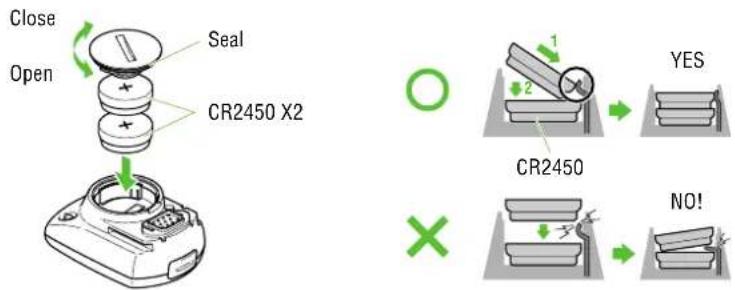
text_image
Close Open Seal CR2450 X2 1 2 YES CR2450 NO!Replace the old batteries with new lithium batteries (CR2450). Place two batteries with the + sign up, as shown in the illustration, and firmly close the battery cover.
NOTE: After replacement, be sure to perform the restarting operation (page 12), check the HR sensor ID (page 39), and set the date and time (page 39).
Heart rate sensor
Battery life: Approx. 6 months when worn for 1 hour per day.
Using a coin or similar object, turn and remove the battery cover on the surface of the heart rate sensor

text_image
Close Open Seal CR2032 X1transmitter. Replace used battery with a new lithium battery (CR2032). Place battery with the + sign upwards as shown in the illustration, and firmly close the battery cover.
NOTE: • The heart rate sensor consumes power when worn. Remove the heart rate sensor whenever measurement is not required.
- After replacement, be sure to check the HR sensor ID again (page 46).
Battery unit
Battery life: Approx. 3 months when the power unit is used one hour per day.
* The battery life shown in this manual is not definitive and it varies depending on the use environment.
Release the lock of the battery unit and slide the unit downward to remove it from the battery bracket. Open the upper cap and replace the old batteries with two new ones (AA batteries). Slide the batteries into the compartment with the + side downward as shown in the illustration, fasten the cap securely, and then attach it to the battery bracket. Open
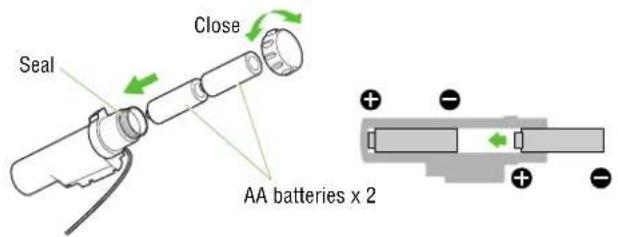
text_image
Close Seal AA batteries x 2CAUTION!
- While attaching the battery unit, turn the lock so that the unit cannot fall.
- When attaching or removing the battery unit, be careful not to damage the cable.
- If the battery unit is removed, store the unit with the battery connector attached to the battery bracket.
- Be careful to orient the batteries correctly.
- Do not mix old and new batteries.
- Remove the batteries from the unit whenever you are planning to store the bicycle for a long period of time or when the batteries are exhausted.
Maintenance
Daily care of the POWER UNIT
- When the main unit, HR sensor, and speed sensor are dirty, wash them with water or wipe them with a soft cloth dampened with diluted neutral detergent, then wipe with a dry cloth. Do not use solvents such as paint thinner or rubbing alcohol as they may damage the surfaces.
- The fastening belt absorbs sweat easily, and leaving it as such is unsanitary. Wash with a neutral detergent.
- Regularly check that the positions of the magnets and sensors are correct.
Spare accessories
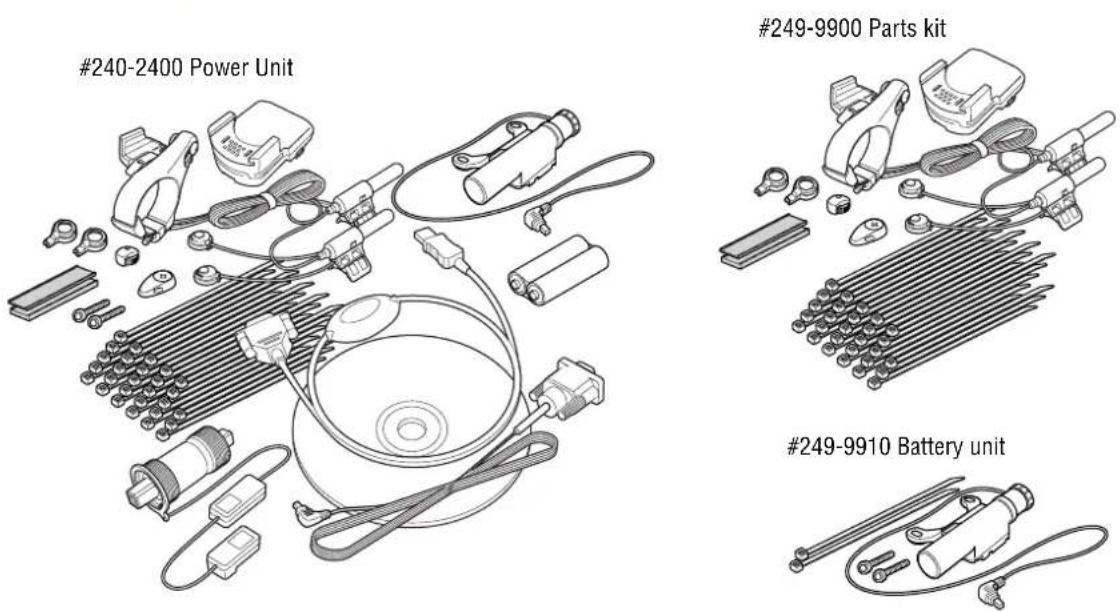
Specifications
| Display functions | ||
| Display-1 Current speed 0.0(4.0) - 199.9 km/h [0.0(3.0) - 125.0 mph] For 27-inch tire size | ||
| Lap number 1 - 199 | ||
| Display-2 Heart rate 0(30) - 260 bpm | ||
| Average heart rate *1 0 - 260 bpm | ||
| Maximum heart rate 0(30) - 260 bpm | ||
| Display-3 Cadence 0(20) - 299 rpm | ||
| Average cadence *2 0 - 299 rpm | ||
| Maximum cadence 0(20) - 299 rpm | ||
| Pedal count 0 - 99990 rotations | ||
| Display-4 Power 0(30) - 9999 watt | ||
| Average power 0(30) - 9999 watt | ||
| Maximum power 0(30) - 9999 watt | ||
| Calorie consumption 0 - 99990 kcal (Calculation-based estimation only) | ||
| Display-5 Elapsed time 0:00'00"0 - 9:59'59"9 / 10:00'00" - 99:59'59" | ||
| Trip distance 0.00 - 9999.99 km [mile] | ||
| Clock time | 0:00 - 23:59 [AM 1:00- PM 12:59] (Both 12 and 24-hour modes can be selected) | |
| Average speed *3 | 0.0 - 199.9 km/h [0.0 - 125.0 mph] | |
| Date | 00'01.01 - 99'12.31 (Display format can be switched) | |
| Maximum speed | 0.0(4.0) - 199.9 km/h [0.0(3.0) - 65.9 mph] | |
| Total time | 0.00 - 9999:59 h | |
| Odometer 0.0 - 999999 km [mile] | ||
| Lap | Lap number, Average lap heart rate, Average lap cadence, Interval average power, Lab calorie consumption, Lap time, Average lap speed, Split time, Lap distance | |
| Second measurement | Elapsed time, Trip distance, Average speed | |
| Control system: | 8-bit one-chip microcomputer, crystal oscillator | |
| Display system: | Liquid crystal display (With white-LED backlight) | |
| Sensing system of the power sensor: | Magnetostriction type sensor assembled in the bottom bracket (Crank shaft: square-tapered type made by Campagnolo) | |
| Measurement torque: -100 - +250 Nm | ||
| Over-load torque range: +-250 Nm | ||
| Speed/Cadence sensor signal detection system: | Noncontact magnetic sensor | |
| Heart rate sensor signal transmission and reception: | Electromagnetic induction radio system (With the ID function) | |
| Heart rate signal receiving distance: | From 20 cm to about 80 cm or less | |
| Operating temperature range: | 32 °F - 104 °F [0 °C - 40 °C] | |
| Storage temperature range: | -4 °F - 122 °F [-20 °C - 50 °C] | |
| Wheel circumference set range: | 0100 - 3999 mm | |
| Power supply/battery life: | Main unit: | CR2450 x 2 / Approx. 3 months (When using 1 hour/day) |
| Battery unit: | AA batteries x 2 / Approx. 3 months (When using 1 hour/day) | |
| Heart rate sensor: | CR2032 x 1 / Approx. 6 months (When worn about 1 hour per day) | |
| Dimensions/Weight: | Main unit: | 2-19/32" x 1-25/32" x 1-5/32" / 1.94 oz (65.5 x 45 x 29 mm / 55 g) (With the batteries) |
| Heart rate sensor: | 10-41/64" x 1-5/16" x 51/64" / 1.13 oz (270 x 33 x 20 mm / 32 g) | |
*1 When the elapsed time exceeds 100 hours, [E] is displayed for the average heart rate.
*2 When the total pedal count exceeds 100,000, or when the elapsed time exceeds 100 hours, [E] is displayed for the average cadence.
*3 When the trip distance exceeds 10,000 km, or when the elapsed time exceeds 100 hours, [.E] is displayed for the average speed.
* Designs and specifications are subject to change without notice, due to modifications or improvements.
Registration
CATEYE Web Site (http://www.cateye.com)
For warranty service you must register your product. Please register your PW-TR100 as soon as possible. CATEYE provides you technical support and new product information as much as possible.
Please register on-line through our web site, or send the registration card below directly to our Customer Service Department. For registration, please fill in the product's serial number (the 7-digits number marked on on the battery cover of main unit).


Registration Card
Model: PW-TR100
Serial No. Please fill with 7-digits numbers marked on the battery cover of main unit.
Name*:
Contact information: Please enter either your address and phone number or e-mail address.

□ Address*:
Phone*:
□ E-mail address*:
* Your name address or e-mail address will not be sold or shared with any other company.
Limited warranty
Applies only to: Power unit / Power sensor / Signal booster
(Does not include battery depletion, wire damage, or commercial use.)
Should the power unit, power sensor, or signal booster fail under normal condition of use, we will repair or replace it free of charge. The warranty service will be performed directly by the CATEYE CO., LTD. When sending in a warranty item, please enter your name, address and date of purchase on the warranty card along with a description of the problem. Although we will not reimburse you for the freight charges, we will pay for the return air delivery. Please note that the warranty does not cover battery depletion or accessories such as the bracket, SPD/CDC sensor, remote button. Customers are requested to purchase such parts at their local CarEye dealer.
(Address for service)
CATEYE CO., LTD.
Service & Research Address for United States Consumers:
CATEYE Service & Research Center
1705 14 th St. 115 Boulder CO 80302
Phone: 303-443-4595 FAX: 303-473-0006
Toll Free: 800-5 CATEYE URL: http://www.cateye.com
Japan Office:
2-8-25 Kuwazu, Higashi Sumiyoshi-ku, Osaka 546-0041 Japan
Attn: CATEYE Customer Service Section