EX19082A - Network card / adapter EtherWAN - Free user manual and instructions
Find the device manual for free EX19082A EtherWAN in PDF.


| Product Type | Network Interface Card (NIC) / Adapter |
| Model | EX19082A |
| Brand | EtherWAN |
| Dimensions (L x W x H) | 120 mm x 80 mm x 20 mm |
| Weight | 150 g |
| Power Supply | 5V DC via PCIe bus or external adapter (optional) |
| Power Consumption | 5 W (typical) |
| Interface | PCI Express x1 |
| Network Speed | 10/100/1000 Mbps Gigabit Ethernet |
| Connector Type | RJ-45 |
| Cable Support | Cat5e or higher twisted pair |
| Operating Temperature | 0°C to 60°C |
| Storage Temperature | -20°C to 70°C |
| Compliance | IEEE 802.3, 802.3u, 802.3ab, FCC Class B, CE |
| LED Indicators | Link/Activity, Speed (100/1000) |
| Supported Operating Systems | Windows, Linux, macOS |
| Installation | Plug and Play (PnP) for most systems |
| Maintenance | Clean with a soft, dry cloth; avoid liquids |
| Safety Precautions | Discharge static before handling; avoid mechanical stress |
| Spare Parts / Repairability | Not user-serviceable; contact support for replacement |
| Warranty | Limited lifetime warranty (check manufacturer) |
Frequently Asked Questions - EX19082A EtherWAN
User questions about EX19082A EtherWAN
0 question about this device. Answer the ones you know or ask your own.
Ask a new question about this device
Download the instructions for your Network card / adapter in PDF format for free! Find your manual EX19082A - EtherWAN and take your electronic device back in hand. On this page are published all the documents necessary for the use of your device. EX19082A by EtherWAN.
USER MANUAL EX19082A EtherWAN
EX19082A PoE Switch Installation Guide

1 Unpacking
Unpack the items. Your package should include:
One EX19082A Ethernet PoE switch
One AC power cord
If items are missing or damaged, notify your EtherWAN representative. Keep the carton and packing material.
2 What Else You Need
Category 5 or better Ethernet cables
➢ Small form-factor pluggable (SFP) optical transceiver modules for optional fiber connectivity
3 Select a Location
Desktop installations: Locate a flat surface.
Identify a power source within 6 feet (1.8 meters).
Choose a dry area with ambient temperature between 0 and 40°C (32 and 104°F).
Do not cover fans on the rear and side.
Keep away from heat sources, sunlight, warm air exhausts, hot-air vents, and heaters.
Be sure there is adequate airflow.
Keep the switch at least 6 ft (1.83 m) away from the nearest source of electromagnetic noise, such as a photocopy machine.
4 Connect to the Data Ports
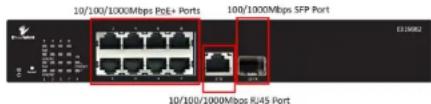
Eight Gigabit PoE+ Ports
The switch is equipped with 8 10/100/1000 Mbps RJ45 ports that provide IEEE802.3at Power over Ethernet (PoE+), with up to 30W per port (250W total PoE power budget). These ports can be connected to PoE devices such as IP surveillance cameras or Voice Over Internet Protocol (VoIP) phones.
A. Insert one end of a Category 5 or better Ethernet cable into a switch port.
B. Connect the other end into the Ethernet port of the device.
C. Repeat steps A and B for each additional device you want to connect to the switch.
Gigabit RJ45/SFP Uplink Ports
The switch provides two gigabit uplink ports, 1 RJ45 (10/100/1000Mbps) and 1 SFP (1000Mbps).
The SFP port accommodates standard SFP modules; wear an ESD-preventive wrist strap before connecting SFP modules.
5 Apply AC Power
A. Connect the female end of the supplied AC power adapter cable to the power receptacle on the switch rear panel. Connect the other end to a grounded 3-pronged AC outlet.
B. On the switch rear panel, move the ON/OFF switch to the ON position.
When you apply AC power:
The fans start.
The orange Power LED goes ON.
The Link/ACT LEDs turn on for every port connected to a powered device.
EX19082A PoE Switch Installation Guide EtherWAN
6 Front Panel LEDs
| LED Color Status | ||
| Power Orange | ON = switch is receiving power. | |
| PoE (port number) | Orange | ON = Powered Device (PD) is connected. |
| OFF = PD is disconnected. | ||
| Link/ACT (port number) | Green ON | ON = valid network connection. |
| OFF = no data transmission on port. | ||
| Flashing = port is sending or receiving data. | ||
| SFP (port number) | Green ON | ON = valid network connection. |
| OFF = no data transmission on port. | ||
| Flashing = port is sending or receiving data. | ||
NOTES:
Brand : EtherWAN
Model : EX19082A
Category : Network card / adapter