
SL-MZ1200 - Portable CD player PANASONIC - Free user manual and instructions
Find the device manual for free SL-MZ1200 PANASONIC in PDF.

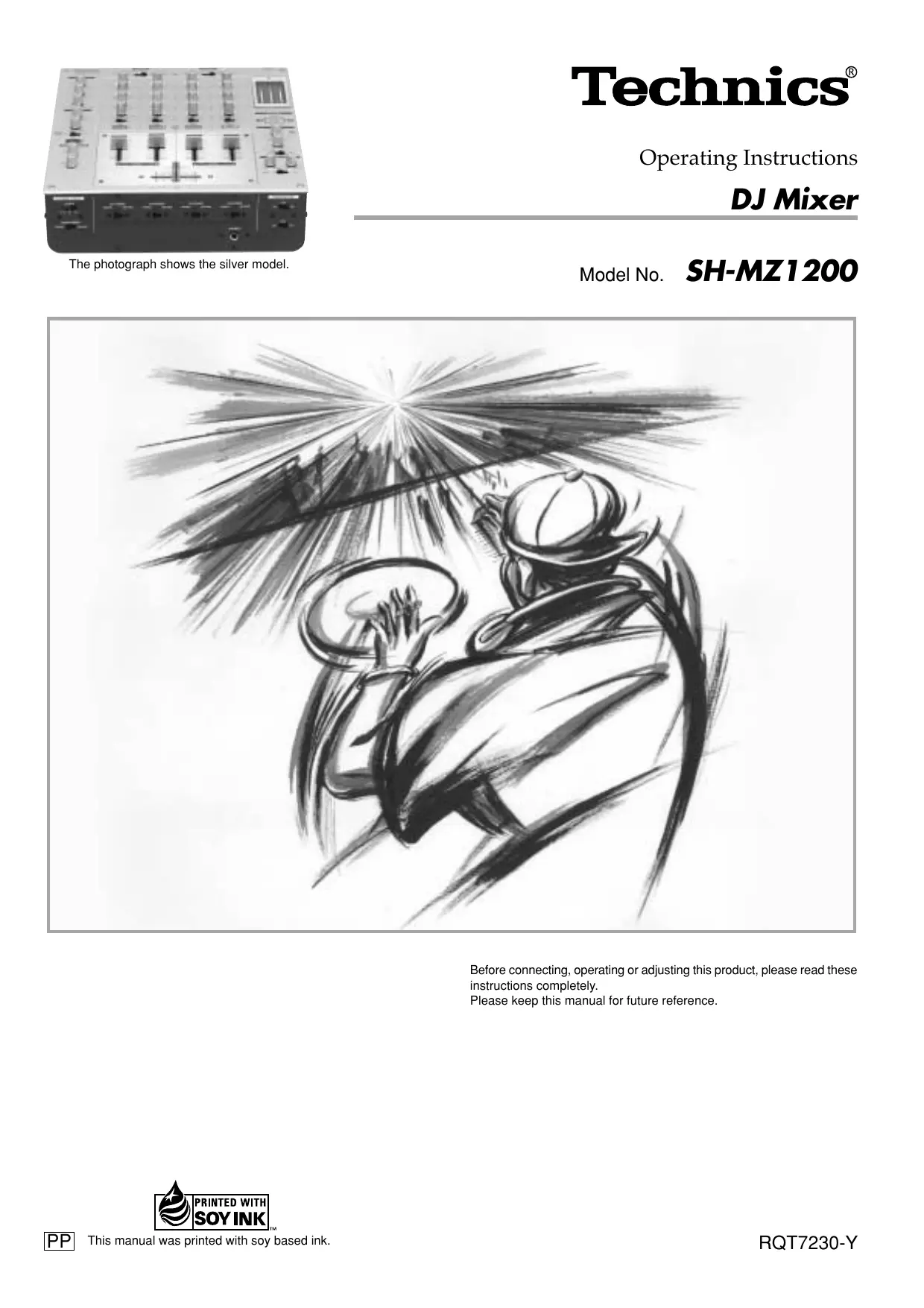

| Product type | DJ 4-channel mixer |
| Brand | Panasonic |
| Model | SH-MZ1200 (equivalent SL-MZ1200) |
| Dimensions (W x H x D) | 300 x 103 x 330 mm |
| Weight | 5.3 kg |
| Power supply | 120 V AC, 60 Hz, 35 W |
| Number of input channels | 4 channels (12 inputs total) |
| Input types | CD/LINE, LINE, PHONO, microphone, digital (coaxial) |
| Outputs | Master 1 (RCA and XLR), Master 2, MONITOR, REC OUT, digital, SEND/RETURN |
| Equalizer | 3-band per channel (HIGH, MID, LOW) with attenuation up to -24 dB |
| Crossfader | Stroke 45 mm, optical, 3 selectable curves |
| Fader Start | Compatible with Technics SL-DZ1200 digital turntable |
| Output separation | Yes (dual output) |
| Monitoring | CUE per channel, MONO SPLIT mode, mix adjustment |
| External effects | SEND/RETURN loop, PRE/POST selection |
| Frequency response | 20 Hz - 20 kHz |
| Microphone input | 2 inputs with volume control and equalizer (HIGH/LOW) |
| Headphone output | 30 mW / 32 Ω |
| Maintenance and cleaning | Soft dry cloth; do not use alcohol, thinner, or benzene |
| Safety | Do not expose to rain or moisture; unplug during storms or prolonged non-use |
| Spare parts and repairability | Channel fader (REP3743A-S) and crossfader (REP3742A-S) replaceable by an authorized dealer |
Frequently Asked Questions - SL-MZ1200 PANASONIC
User questions about SL-MZ1200 PANASONIC
0 question about this device. Answer the ones you know or ask your own.
Ask a new question about this device
Download the instructions for your Portable CD player in PDF format for free! Find your manual SL-MZ1200 - PANASONIC and take your electronic device back in hand. On this page are published all the documents necessary for the use of your device. SL-MZ1200 by PANASONIC.
USER MANUAL SL-MZ1200 PANASONIC
Before connecting, operating or adjusting this product, please read these instructions completely.
Please keep this manual for future reference.
Thank you for purchasing this product.
For optimum performance and safety, please read these instructions carefully.
Table of contents
Supplied accessories 2
IMPORTANT SAFETY INSTRUCTIONS 3
Product service 4
Main features 4
Component part names 5
Connections 7
Output side connections 7
Input side connections 8
Mixing (Basic operations) 9
Using the microphone 10
Recording and playing on external equipment 10
Additional mixing operations 11
Adjusting the effect 11
Adjusting the monitor 11
Using play mode functions 12
Individually adjusting the left (L) and right (R) input 12
Output separation (dual output separation) 12
Fader start function 13
Start using the channel fader 13
Start using the cross fader 13
Block diagram 14
Specifications 15
Maintenance 15
Troubleshooting guide 15
Warranty (U.S.A.) Back cover
Supplied accessories
Please check and identify the supplied accessories.
Use numbers indicated in parentheses when asking for replacements parts.
In U.S.A. to order accessories, refer to
"Accessory Purchases" on back cover.
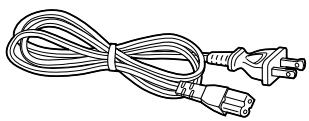
□ AC power supply cord (K2CB2CB00006) 1
Note
The included AC power supply cord is for use with this unit only. Do not use it with other equipment.
User memo:
DATE OF PURCHASE
DEALER NAME
DEALER ADDRESS
TELEPHONE NUMBER
The model number and serial number of this product can be found on either the back or the bottom of the unit.
Please note them in the space provided below and keep for future reference.
MODEL NUMBER SH-MZ1200
SERIAL NUMBER
WARNING:
TO REDUCE THE RISK OF FIRE, ELECTRIC SHOCK OR PRODUCT DAMAGE, DO NOT EXPOSE THIS APPARATUS TO RAIN, MOISTURE, DRIPPING OR SPLASHING AND THAT NO OBJECTS FILLED WITH LIQUIDS, SUCH AS VASES, SHALL BE PLACED ON THE APPARATUS.
CAUTION!
DO NOT INSTALL OR PLACE THIS UNIT IN A BOOKCASE, BUILT-IN CABINET OR IN ANOTHER CONFINED SPACE. ENSURE THE UNIT IS WELL VENTILATED. TO PREVENT RISK OF ELECTRIC SHOCK OR FIRE HAZARD DUE TO OVERHEATING, ENSURE THAT CURTAINS AND ANY OTHER MATERIALS DO NOT OBSTRUCT THE VENTILATION VENTS.
Although the AC power switch is in the "OFF" position, the unit is not completely disconnected from the mains. Remove the plug from the main electrical outlet if you will not be using the unit for an extended period of time. Place the unit so the plug can be easily removed.
CAUTION
RISK OF ELECTRIC SHOCK DO NOT OPEN

CAUTION: TO REDUCE THE RISK OF ELECTRIC
SHOCK,DO NOT REMOVE SCREWS.
NO USER-SERVICEABLE PARTS
INSIDE
REFER SERVICING TO QUALIFIED
SERVICE PERSONNEL.
The lightning flash with arrowhead symbol, within an equilateral triangle, is intended to alert the user to the presence of uninsulated "dangerous voltage" within the product's enclosure that may be of sufficient magnitude to constitute a risk of electric shock to persons.

The exclamation point within an equilateral triangle is intended to alert the user to the presence of important operating and maintenance (servicing) instructions in the literature accompanying the appliance.
IMPORTANT SAFETY INSTRUCTIONS
Read these operating instructions carefully before using the unit. Follow the safety instructions on the unit and the applicable safety instructions listed below. Keep these operating instructions handy for future reference.
1) Read these instructions.
2) Keep these instructions.
3) Heed all warnings.
4) Follow all instructions.
5) Do not use this apparatus near water.
6) Clean only with dry cloth.
7) Do not block any ventilation openings. Install in accordance with the manufacturer's instructions.
8) Do not install near any heat sources such as radiators, heat registers, stoves, or other apparatus (including amplifiers) that produce heat.
9) Do not defeat the safety purpose of the polarized or grounding-type plug. A polarized plug has two blades with one wider than the other. A grounding-type plug has two blades and a third grounding prong. The wide blade or the third prong are provided for your safety. If the provided plug does not fit into your outlet, consult an electrician for replacement of the obsolete outlet.
10) Protect the power cord from being walked on or pinched particularly at plugs, convenience receptacles, and the point where they exit from the apparatus.
11) Only use attachments/accessories specified by the manufacturer.
12) Use only with the cart, stand, tripod, bracket, or table specified by the manufacturer, or sold with the apparatus. When a cart is used, use caution when moving the cart/apparatus combination to avoid injury from tip-over.
13) Unplug this apparatus during lightning storms or when unused for long periods of time.
14) Refer all servicing to qualified service personnel. Servicing is required when the apparatus has been damaged in any way, such as power-supply cord or plug is damaged, liquid has been spilled or objects have fallen into the apparatus, the apparatus has been exposed to rain or moisture, does not operate normally, or has been dropped.
THE FOLLOWING APPLIES ONLY IN THE U.S.A.
CAUTION:
This equipment has been tested and found to comply with the limits for a Class B digital device, pursuant to Part 15 of the FCC Rules.
These limits are designed to provide reasonable protection against harmful interference in a residential installation. This equipment generates, uses and can radiate radio frequency energy and, if not installed and used in accordance with the instructions, may cause harmful interference to radio communications. However, there is no guarantee that interference will not occur in a particular installation. If this equipment does cause harmful interference to radio or television reception, which can be determined by turning the equipment off and on, the user is encouraged to try to correct the interference by one or more of the following measures:
- Reorient or relocate the receiving antenna.
- Increase the separation between the equipment and receiver.
- Connect the equipment into an outlet on a circuit different from that to which the receiver is connected.
- Consult the dealer or an experienced radio/TV technician for help.
Any unauthorized changes or modifications to this equipment would void the user's authority to operate this device.
This device complies with Part 15 of the FCC Rules. Operation is subject to the following two conditions: (1) This device may not cause harmful interference, and (2) this device must accept any interference received, including interference that may cause undesired operation.
Selecting fine audio equipment such as the unit you've just purchased is only the start of your musical enjoyment. Now it's time to consider how you can maximize the fun and excitement your equipment offers. This manufacturer and the Electronic Industries Association's Consumer Electronics Group want you to get the most out of your equipment by playing it at a safe level. One that lets the sound come through loud and clear without annoying blaring or distortion—and, most importantly, without affecting your sensitive hearing.
We recommend that you avoid prolonged exposure to excessive noise.
Sound can be deceiving. Over time your hearing "comfort level" adapts to higher volumes of sound. So what sounds "normal" can actually be loud and harmful to your hearing.
Guard against this by setting your equipment at a safe level BEFORE your hearing adapts.
To establish a safe level:
- Start your volume control at a low setting.
- Slowly increase the sound until you can hear it comfortably and clearly, and without distortion.
Once you have established a comfortable sound level:
- Set the dial and leave it there.
Taking a minute to do this now will help to prevent hearing damage or loss in the future. After all, we want you listening for a lifetime.
Product service
- Damage requiring service—The unit should be serviced by qualified service personnel if:
(a) The AC power supply cord or AC adaptor has been damaged; or
(b) Objects or liquids have gotten into the unit; or
(c) The unit has been exposed to rain; or
(d) The unit does not operate normally or exhibits a marked change in performance; or
(e) The unit has been dropped or the cabinet damaged.
- Servicing—Do not attempt to service the unit beyond that described in these operating instructions. Refer all other servicing to authorized servicing personnel.
- Replacement parts—When parts need replacing ensure the servicer uses parts specified by the manufacturer or parts that have the same characteristics as the original parts. Unauthorized substitutes may result in fire, electric shock, or other hazards.
- Safety check—After repairs or service, ask the servicer to perform safety checks to confirm that the unit is in proper working condition.
Product information
For product information or assistance with product operation: In the U.S.A., refer to "Customer Services Directory" on back cover. In Canada, contact the Panasonic Canada Inc. Customer Care Centre at 905-624-5505, or visit the website (www.panasonic.ca), or an authorized Servicentre closest to you.
A 4 channel universal type DJ oriented DJ mixer providing new audio performance and functional with the Technics SL-DZ1200 direct drive digital turntable (Not included) hereinafter referred to as the digital turntable.
■ Robust basic functions
Input-output features
- 12 input terminals are available, 2 for CD/LINE input, 3 for LINE input, 3 for PHONO input, 2 for microphone input and 2 for digital input.
- Digital output, audio recording output, monitor output, headphone output, master 1 and 2 output, and a pro-spec engineered XLR terminal which all function independently.
- An EFFECT SEND, EFFECT RETURN terminals have also been added for use with an external effector.
3 Band equalizer for sound-source level
- A HIGH, MID, LOW equalizer is provided for each channel. A wide variety of possibilities are provided for sound as the attenuation range is set to a high -24 dB (12 dB/oct).
Robust monitor features for play
- Monitoring of the desired channel can be done quickly now that a CUE button has been added to each channel and to the effect function.
- Using the MONITOR MIXING control knob you can mix the master output and the channel selected with the CUE button. Using MONOSPLIT MODE, you can monitor master output and the selected channel split separately into the left and right channels.
Support for an external effector
- You can turn EFFECT on and off for each channel. Select PRE or POST connection for the effector and adjust the SEND, RETURN level control.
Digitally controlled fader components that are robust and functional
- A C. FADER CURVE switch has been added to the cross fader to provide 3 new types of cross fader curve settings.
- A reverse switch has been added for each channel fader and the cross fader.
- Through the use of an engineered VCA control, volume can be controlled with very little loss in audio quality using the channel fader or cross fader.
- Reliability improvements have been made to the cross fader through the adoption of optical cross fader circuits and a highly durable 45 mm stroke fader providing smooth operation.
■ Providing new audio performance using the channel fader and cross fader
Use the channel fader to control the left (L) and right (R) channels individually
- With the PLAY MODE function the selected channels can be separated and the L or R volume can be controlled individually using the channel fader.
Control the FRONT and REAR output for two channel output using master 1, 2
- By turning the SEPARATE OUT switch to on, you can separate CH1 and CH2 output to the front and CH3 and CH4 output to the rear, providing you with new sound field performance in combination with the feature of being able to adjust the left (L) and right (R) channels individually.
■ Linked play on the connected digital turntable
Real-time start and stop control using the fader
- You start and stop the digital turntable by operating the channel fader or cross fader when connected to a digital turntable with a control cable.
- A maximum of 2 digital turntables can be linked digitally through 2 digital inputs.
The unshaded numbers ① etc, correspond to the numbered illustrations. The shaded numbers ⑨ etc, are reference pages.
Control panel
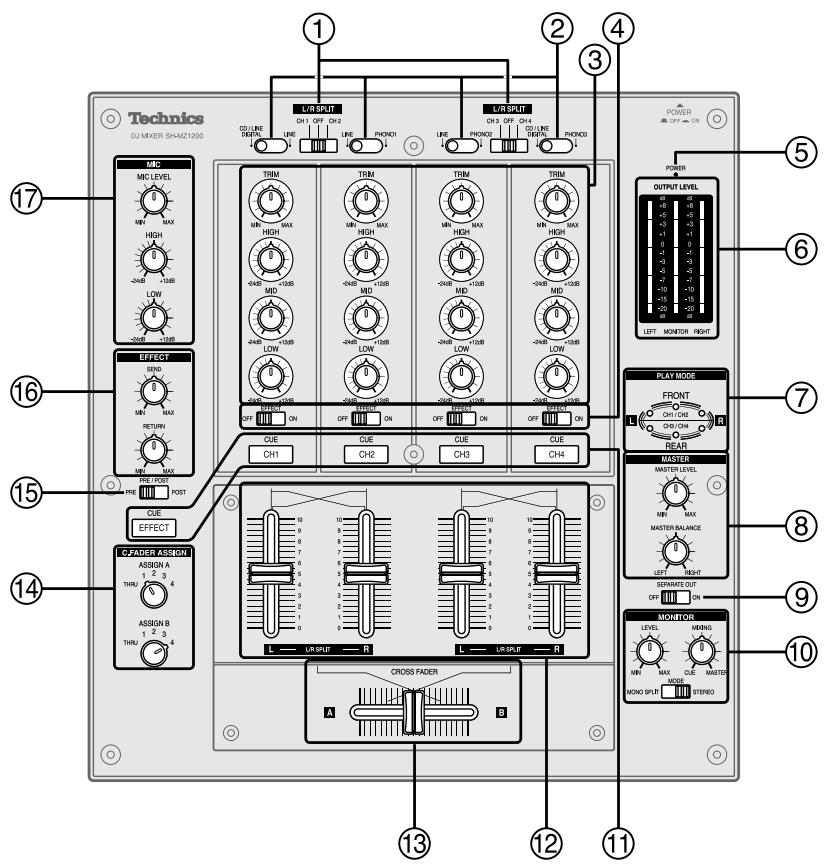
①Input switch for adjusting left and right input individually (L/R SPLIT) 9,12
② Input switch (CH1-CH4)
CD/LINE DIGITAL: Line or CD input, Digital input
LINE: Line input
PHONO 1-3: Turntable phono input
③ Input control knob (CH1-CH4)
Input level control knob (TRIM)
High-tone input control knob (HIGH)
Mid-tone input control knob (MID)
Low-tone input control knob (LOW)
④ Channel effect (CH1-CH4) switch (EFFECT) ...... 11
⑤ Power indicator lamp (POWER) 9
⑥ Output level meter (OUTPUT LEVEL) 10,11
⑦ Play mode lamp (PLAY MODE) 12
Master output control knob (MASTER)
Master level volume control knob (MASTER LEVEL)
Master balance control knob (MASTER BALANCE)
⑨ Output separation ON, OFF switch (SEPARATE OUT) 12
⑩ Monitor control knob (MONITOR) 11
Monitor level volume control knob (LEVEL)
Monitor mixing control knob (MIXING)
Monitor mode switch (MODE)
① Monitor select button-display lamp (CUE) 11
CH1-CH4: CH1-CH4 monitor selector
EFFECT: Effector monitor selector
⑫ Channel fader (CH1 - CH4) ⑨, ⑬
③ Cross fader (CROSS FADER) 9,13
④ Cross fader Assign A, B switch
(C.FADER ASSIGN) 9,13
⑤ Effector output switch (PRE/POST) 11
16 Input-output effect control knob (EFFECT) 11
Output effect control knob (SEND)
Input effect control knob (RETURN)
⑦ Microphone input control knob (MIC) 10
Microphone level volume control knob (MIC LEVEL)
High-tone microphone control knob (HIGH)
Low-tone microphone control knob (LOW)
Front panel
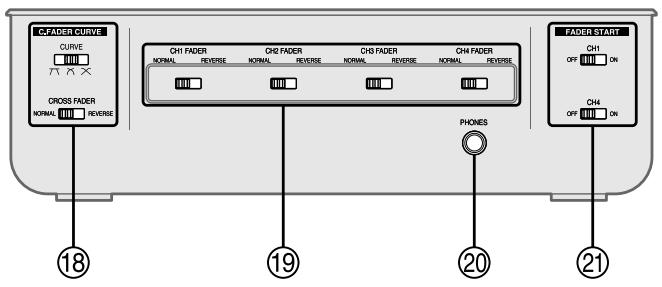
18 Cross fader curve control switch
(C.FADER CURVE) 10
Curve switch (CURVE)
Cross fader operation switch (CROSS FADER)
19 Fader operation switch (CH1-CH4 FADER) 10
20 Headphone terminal (PHONES) 7
② Fader start (ON, OFF) switch (FADER START)…… 13
Rear panel
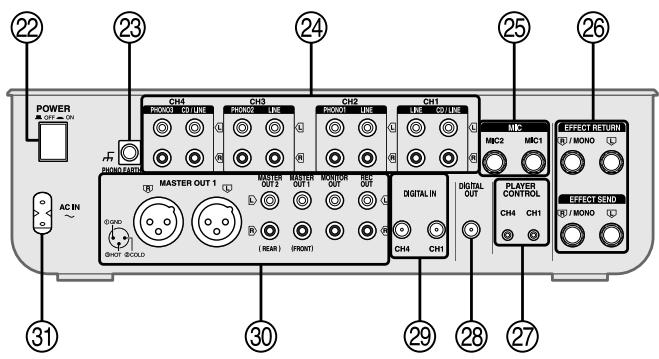
2 Power button (POWER OFF ON)
Turntable earth terminal (PHONO EARTH) 8
② Input terminal (CH1-CH4) 8
CD/LINE: CD or line terminal
LINE: Line terminal
PHONO 1-3: Turntable phono terminal
⑤ Microphone input terminal (MIC1, MIC2) 8
26 Effector input-output terminal
(EFFECT RETURN, EFFECT SEND)
⑦ Player control (CH1, CH4) terminal
(PLAYER CONTROL) 8
Digital output terminal (DIGITAL OUT)
29 Digital input (CH1, CH4) terminal (DIGITAL IN) .... 8
③ Output terminal
Master out 1, 2 terminal (MASTER OUT)
Monitor out terminal (MONITOR OUT)
Rec terminal (REC OUT)
③ Power input terminal (AC IN ) 8
Output side connections
Connect the various equipment to the DJ mixer using stereo connection cables, connection cables and appropriate cables (Each sold separately). When connecting, make sure to turn all equipment power off.
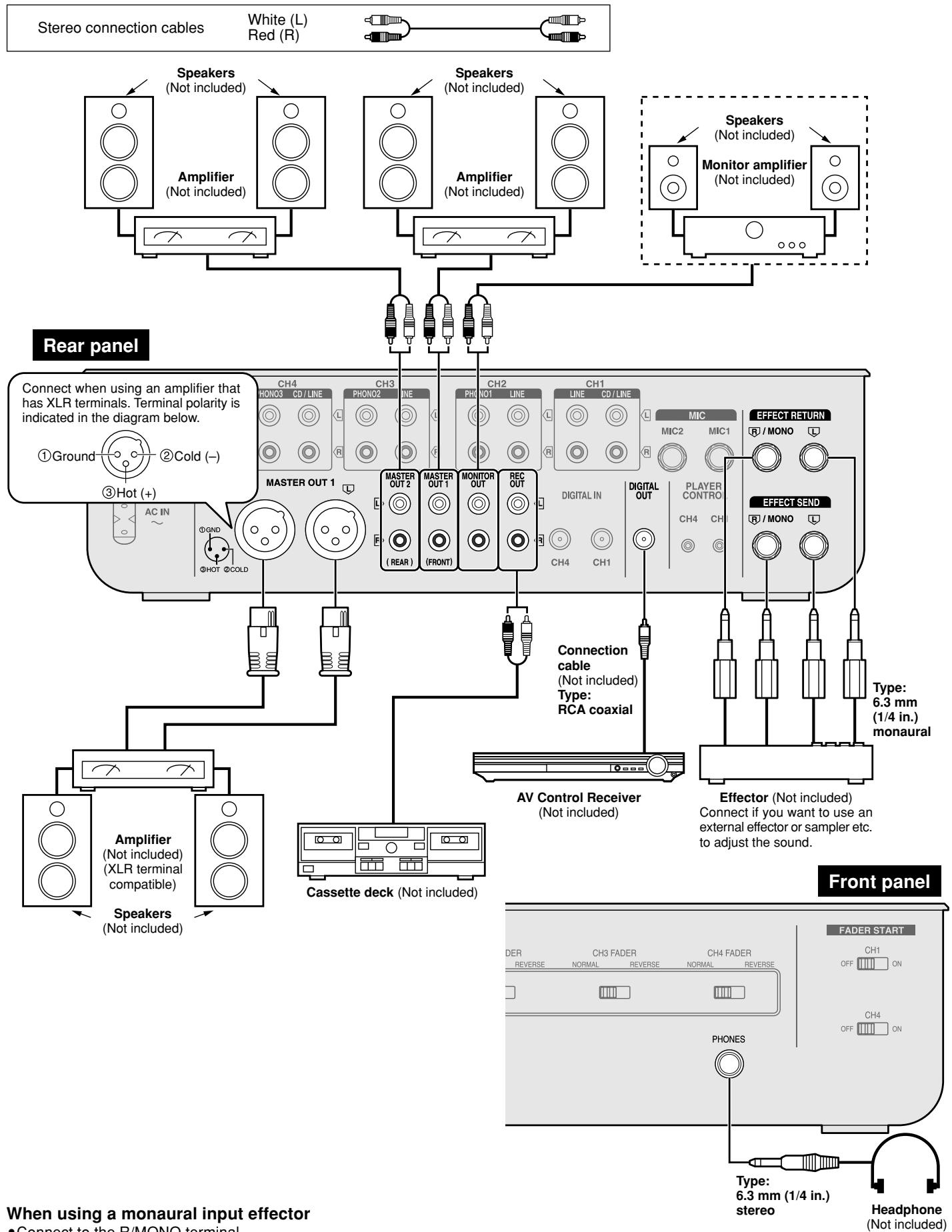
- Connect to the R/MONO terminal.
The mixed left (L) and right (R) signal is output to the effector, and the left (L) and right (R) signal from the effector is input.
When listening with headphones
- Turn down the volume using the MONITOR LEVEL control knob before connecting.
- Avoid listening for prolonged periods of time to prevent hearing damage.
Input side connections
Connect the DJ mixer and various equipment with stereo connection cables, control cables and connection cables (Each sold separately). Connect the AC power supply cord after completing all the other connections.
Connection to the SH-MZ1200 rear panel PLAYER CONTROL terminal
Only the separately sold direct drive digital turntable can be operated.
Connecting to control terminals of other manufacturer's products may result in incorrect operation or other equipment problems.
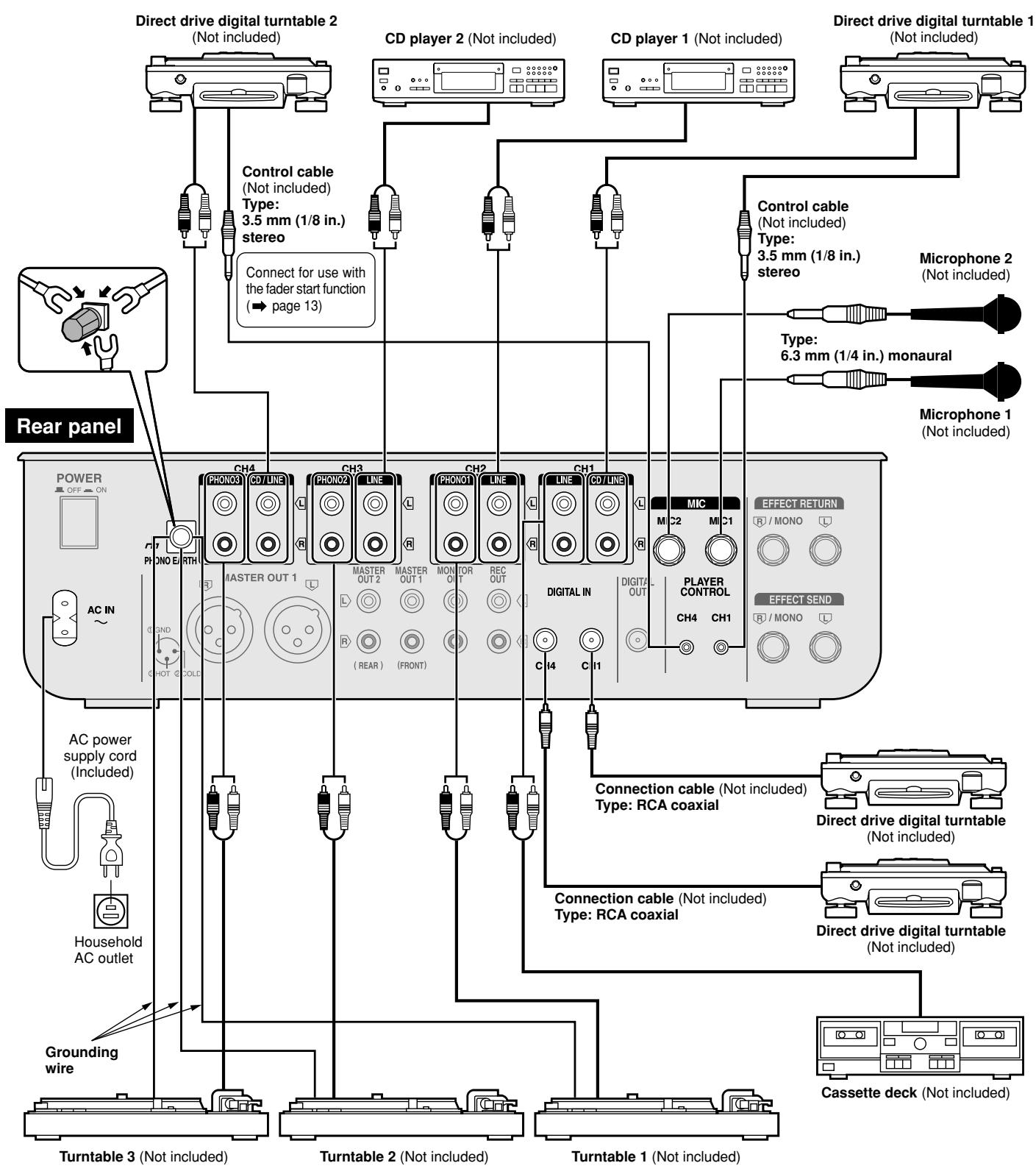
Note
It is not necessary to connect a grounding wire if there is no grounding terminal or grounding wire on the turntable.
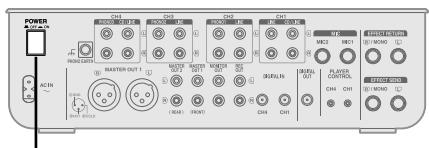
Press [POWER OFF ON]
The POWER lamp comes on after the power is turned on.
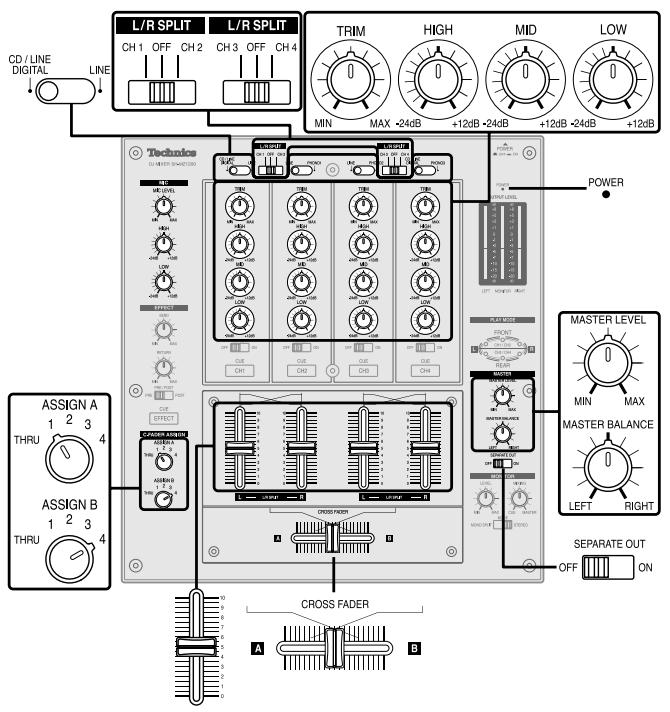
1 Turn [L/R SPLIT (CH1 CH2)] and [L/R SPLIT (CH3 CH4)] to OFF
Select CH1 or CH2 input, CH3 or CH4 input to use the PLAY MODE's (L) and (R) individual adjustment feature ( page 12).
2 Switch [SEPARATE OUT] to OFF
Turn on to activate the play mode SEPARATE OUT function ( page 12).
Using CH1 input
3 Switch the input switch (CD/LINE DIGITAL, LINE) to select the source
When you select CD/LINE DIGITAL on CH1 or CH4, input can be analog input (CD/LINE CH1, CH4 input terminal) or digital input (DIGITAL IN CH1, CH4 input terminal).
4 Turn [TRIM], [HIGH], [MID] and [LOW] to adjust the input signal level and sound
TRIM:
Adjusts the input signal level.
Turn to the right for higher sound level (to approximately +8 dB)
Turn to the left for lower sound level (to approximately -8 dB)
HIGH:
Adjusts the high tone input sounds. Sound is flat at the center position.
Turn to the right to increase sound (to approximately +12 dB at 10 kHz)
Turn to the left to decrease sound (to approximately -24dB at 10kHz )
MID:
Adjusts the mid tone input sounds. Sound is flat at the center position.
Turn to the right to increase sound (to approximately +12 dB at 1 kHz)
Turn to the left to decrease sound (to approximately -24dB at 1kHz ) LOW:
Adjusts the low tone input sounds. Sound is flat at the center position.
Turn to the right to increase sound (to approximately +12 dB at 50Hz
Turn to the left to decrease sound (to approximately -24dB at 50Hz )
5 Use the channel fader to adjust the volume
Select the CH2-CH4 source and adjust volume and sound
(Same as instructions 3 - 5 indicated on the left)
6 When using the cross fader
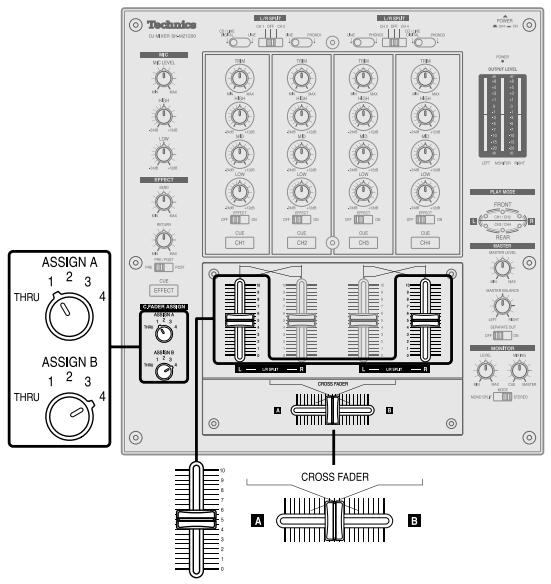
Turn [ASSIGN A] and [ASSIGN B] to select the input channel to assign A and B
- Select different input channels using the ASSIGN A and ASSIGN B switches.
If the same input channel is selected by both switches, the volume will remain unchanged even when the cross fader is operated.
- The channel selected with ASSIGN A is assigned to A, the channel selected with ASSIGN B is assigned to B.
Unassigned channels are not output through the cross fader.
1-4: Assigned channels 1 to 4
THRU: When not using the cross fader
7 When using the cross fader
Use [CROSS FADER] to adjust the mixing level
The mixing level of the source audio assigned to A and B is adjusted by varying the position of the cross fader.
8 Turn [MASTER LEVEL] and [MASTER BALANCE] to adjust the volume and balance
Adjust the master output volume and left (L) and right (R) balance.
- Input source audio from the selected channels CH1-CH4 is mixed and output through the MASTER OUT 1 left (L) and (R) terminals.
- Even if the MASTER LEVEL or the MASTER BALANCE is changed the REC OUT or DIGITAL OUT output does not change.
![PANASONIC SL-MZ1200 - Turn [MASTER LEVEL] and [MASTER BALANCE] to adjust the volume and balance - 1](/content/2019/08/104421/images/bf4be5dbfb5161cf640e8d16e9c79f862814d8e1db198874b74e351dcf111478.jpg)
![PANASONIC SL-MZ1200 - Turn [MASTER LEVEL] and [MASTER BALANCE] to adjust the volume and balance - 2](/content/2019/08/104421/images/4f316368b4d02fa712c5c9a9bea834164bc2fa44fe3bdec6222837bec2bf98fb.jpg)
Changing the channel fader, cross fader operation method
Use the channel fader switch to change the operation method for each channel.
(e.g. using CH1) Switch [CH1 FADER] and [CROSS FADER]
NORMAL: Operation is as indicated on the panel
REVERSE: Operation is reverse as indicated on the panel
Changing the cross fader curve
Select from 1 of 3 types of cross fader startup curves.
Switch [CURVE]
Output level meter display
- The mixed left (L) and right (R) volume level of the selected channel (CH1-CH4) is displayed in the LEFT and RIGHT columns of the output level meter. Display range: -20 to +8 dB
- Even if the MASTER LEVEL or MASTER BALANCE is changed the OUTPUT LEVEL meter display does not change.
Using the microphone
Turn [MIC LEVEL], [HIGH] and [LOW] to adjust volume and sound
Adjusts the microphone volume and sound connected to MIC 1 and MIC 2 terminals.
MIC LEVEL:
Adjusts the microphone volume (Attenuation: - to 0 dB)
HIGH:
Adjusts the high tone microphone sound. Sound is flat at the center position.
Turn to the right to increase (to approximately +12 dB at 10kHz )
Turn to the left to decrease (to approximately -24dB at 10kHz ) LOW:
Adjusts the low tone microphone sound. Sound is flat at the center position.
Turn to the right to increase (to approximately +12 dB at 100Hz )
Turn to the left to decrease (to approximately -24dB at 100Hz )
- Input of MIC 1 and MIC 2 is mixed and output through the MASTER OUT 1 left (L) and right (R) terminals.
Recording and playing on external equipment
You can record and play on externally connected equipment.
Using the REC OUT terminal
The same source as MASTER OUT 1 is output.
Using the DIGITAL OUT terminal
The same digital signal source as MASTER OUT 1 is output.
Even if the MASTER LEVEL or the MASTER BALANCE is changed the REC OUT or DIGITAL OUT output does not change and recording or play remains unaffected.
Note
The channel fader and cross fader used with this unit are designed for extended use however, depending on the way they are being used (e.g. quick, repetitive movements such as Hip Hop transfer play,etc.) replacement may be necessary.
- Contact your nearest dealer to have your channel fader and or cross fader replaced.
- To the dealer:
The "Fader Replacement Instructions" are included with the replacement product.
Replacement part number
Channel fader (Part No. REP3743A-S)
Cross fader (Part No. REP3742A-S)
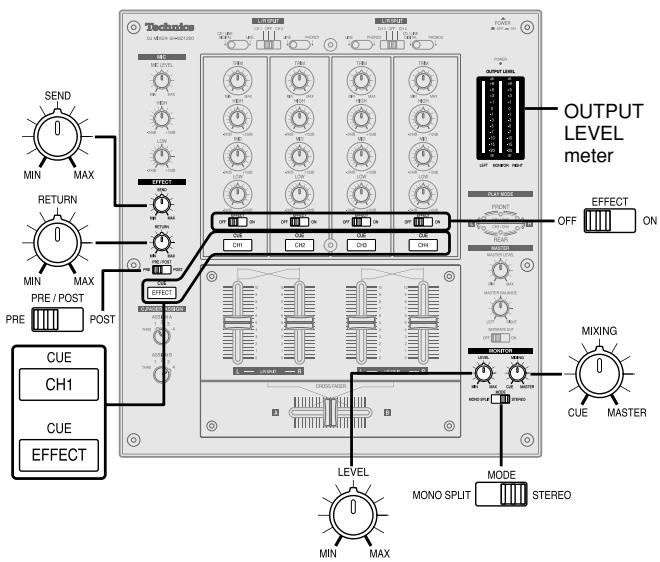
Adjusting the effect
You can adjust the volume level and select the output point when using an externally connected effector.
On the channel you have selected to use effect output
1 Switch [EFFECT] to ON
Outputs to the external effector.
2 Switch [PRE/POST] and select the output point
PRE: Outputs before the channel fader
POST: Outputs after the channel fader
3 Turn [SEND] to adjust the output level Adjusts the output volume level sent to the external effector.
4 Turn [RETURN] to adjust the input level Adjusts the input volume level from the external effector.
- An effect is applied to the input source sound and output to the MASTER OUT 1 terminal.
Using output separation
When using output separation (dual output separation) ( page 12), audio is output through the MASTER OUT 2 (REAR) terminal.
Adjusting the monitor
You can check the sound on the headphones etc. during play and cue the channel you want to mix, and adjust the volume and check the mixing sound.
Monitoring CH1
1 Press [CUE CH1] to turn on the monitor sound
- The display lamp lights once the CUE button is pressed.
- Monitor sound from the selected channel is output to PHONES (Headphones) and MONITOR OUT terminal.
- Mixed sound can be output by pressing multiple CUE buttons.
When using an effector ( left side of this page)
Press [CUE EFFECT] to turn on the monitor sound
- Monitor EFFECT RETURN is output.
2 Select the input, adjust the input level, sound, and adjust the volume with the channel fader and cross fader
() page 9, Mixing, instructions 3 - 7
3 Turn [MIXING] and adjust mixing
- Turn completely to the right for audio from the master output.
- Turn completely to the left for audio from the channel selected with the CUE button.
- When the control knob is in the center position the audio level of the master output and the channel selected with the CUE button is half and half.
- The monitor volume level is displayed in the MONITOR column of the output level meter.
4 Switch [MODE] and select the monitor sound
You can select the monitor sound to be stereo or split between the channel selected with CUE button (L) and master (R).
Select MONO SPLIT and the monitor output will become monaural, left (L) will output audio from the channel selected with the CUE button, and the right (R) will output audio from the master output channel.
5 Turn [LEVEL] to adjust the monitor volume
- Even if the MASTER LEVEL and MASTER BALANCE is changed the monitor sound does not change.
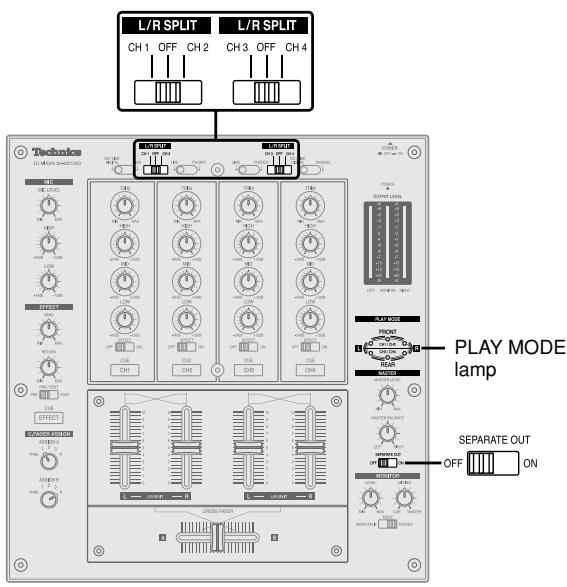
Individually adjusting the left (L) and right (R) input
Using the play mode function, by separating the left (L) and right (R) selected input channel you can individually adjust the left (L) and right (R) volume and sound.
1 Switch to either [L/R SPLIT (CH1 CH2)] or [L/R SPLIT (CH3 CH4)] and select the channel to adjust individually
The input of the selected channel is allocated to the channel to be adjusted on the panel.
CH1 or CH2 input: Left (L) is input to CH1 on the panel, right (R) is input to CH2 on the panel.
CH3 or CH4 input: Left (L) is input to CH3 on the panel, right (R) is input to CH4 on the panel.
- The L or R PLAY MODE lamp of the selected channel lights.
- By selecting OFF, input becomes both channels without any separation. The L or R PLAY MODE lamp doesn't light.
2 Adjusting left (L) and right (R) input level and sound, and use the channel fader to adjust the volume
() page 9, Mixing, instructions 4 - 5)
Adjusting the CH1 or CH2 level, sound, channel fader
Left (L) input: Use any of the CH1 knobs on the panel
Right (R) input: Use any of the CH2 knobs on the panel
Adjusting the CH3 or CH4 level, sound, channel fader
Left (L) input: Use any of the CH3 knobs on the panel
Right (R) input: Use any of the CH4 knobs on the panel
- Mixed source audio is output from the left (L) and right (R) terminals of MASTER OUT 1.
Using the cross fader
From Mixing on page 9, perform instructions 6-7.
Select the same channel selected above in instruction 1 for switching ASSIGN A and ASSIGN B.
Adjusting the master output volume and balance
From Mixing on page 9, perform instruction 8.
Output separation (dual output separation)
By turning the SEPARATE OUT function ON, you can output audio through 2 separate channels, from MASTER OUT 1 (FRONT) and from MASTER OUT 2 (REAR). You can adjust the left and right output individually and use the cross fader for real time play.
(e.g.) MASTER OUT 1 (FRONT)
terminal:
For the front speaker
MASTER OUT 2 (REAR)
terminal:
For the rear speaker
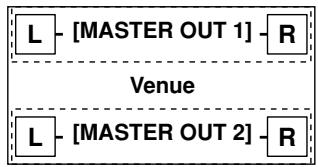
Turn [SEPARATE OUT] ON
- CH1 and CH2 input is output from the MASTER OUT 1 (FRONT) and MASTER OUT 1 (XLR) terminal.
- CH3 and CH4 input is output from the MASTER OUT 2 (REAR) terminal.
- The FRONT and REAR PLAY MODE lamps light.
Using the cross fader
From Mixing on page 9, perform instructions 6-7.
While the cross fader is in NORMAL position
While ASSIGN A : 1 or 2, ASSIGN B : 3 or 4
When the cross fader is moved all the way toward A:
Only the source audio assigned to A is output from the MASTER OUT 1 (FRONT) and MASTER OUT 1 (XLR) left (L) and right (R) terminals.
When the cross fader is moved all the way toward B:
Only the source audio assigned to B is output from the MASTER OUT 2 (REAR) left (L) and right (R) terminals.
When the cross fader is in the center position:
Source audio assigned to A is output through the MASTER OUT 1 (FRONT) and MASTER OUT 1 (XLR) terminals, and source audio assigned to B is output through the MASTER OUT 2 (REAR) terminal.
Adjusting the input level and sound, and using the channel fader to adjust the volume
From Mixing on page 9, perform instructions 4-5.
Adjusting the master output volume and balance
From Mixing on page 9, perform instruction 8.
Adjust the volume and left (L) and the right (R) balance of the MASTER OUT 1 (FRONT), MASTER OUT 1 (XLR) and MASTER OUT 2 (REAR) output.
Adjusting individually of left (L) and right (R) input
Perform instructions 1-2 on the left.
You can start music play from the SL-DZ1200 direct drive digital turntable (not included) using the channel fader and cross fader by connecting the digital turntables to CH1 and CH4. (A control cable is necessary for this connection. page 8)
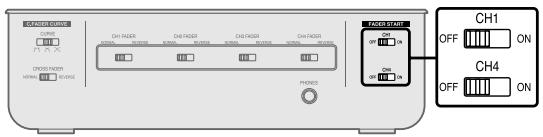
Before use
- Turn [MODE] to TURNTABLE on the rear panel of the digital turntables connected to CH1 and CH4.
- Set the auto cue point and cue point on the digital turntables connected to CH1 and CH4, and standby at the set point.
Start using the channel fader
When the digital turntable you want to control is connected to CH1 and the channel fader operation switch is set to NORMAL.
- When individually adjusting the left (L) and right (R) input ( page 12), perform the following instructions simultaneously for the CH1 and CH2 channel faders on the panel.
1 Turn [ASSIGN A] and select any number other than 1
- The channel fader will not start the digital turntable if 1 is selected.
2 Push the channel fader all the way to zero
3 Switch [FADER START (CH1)] to ON
4 Push the channel fader up when you want to start play
- Play instantly begins from the digital turntable.
If you push the channel fader back to the original position (zero) after play on the digital turntable has started, the digital turntable returns to the set point and waits in the standby position.
Start using the cross fader
When the digital turntable you want to control is connected to CH1 and the cross fader operation switch is set to NORMAL.
1 Turn [ASSIGN A] and select 1
2 Push [CROSS FADER] all the way in the direction opposite the source you want to start (E)
3 Switch [FADER START (CH1)] to ON
4 Slide [CROSS FADER] in the direction opposite of instruction 2 when you want to start play
- Play instantly begins from the digital turntable.
If you push the cross fader back to the original position after play on the digital turntable has started, the digital turntable returns to the set point and waits in the standby position.
Alternate play of two digital turntables connected to CH1 and CH4
When the cross fader operation switch is set to NORMAL.
1 Turn [ASSIGN A] to select 1 and turn [ASSIGN B] to select 4
2 Push [CROSS FADER] all the way in the direction opposite the source you want to start (E)
3 Switch [FADER START (CH1)] and [FADER START (CH4)] to ON
4 Push [CROSS FADER] all the way in the direction opposite of instruction 2 (towards A), when you want to start play
- Play instantly begins from the digital turntable connected to CH1. (At the same time, the digital turntable returns to the set point when playing on CH4)
5 Push [CROSS FADER] all the way in the direction opposite of instruction 4 (towards B)
- Play instantly begins from digital turntable on CH4.
- Play on CH1 instantly returns to the set point.
Note
While you are using the fader to start play, turning the unit off and on may stop or start the digital turntable.
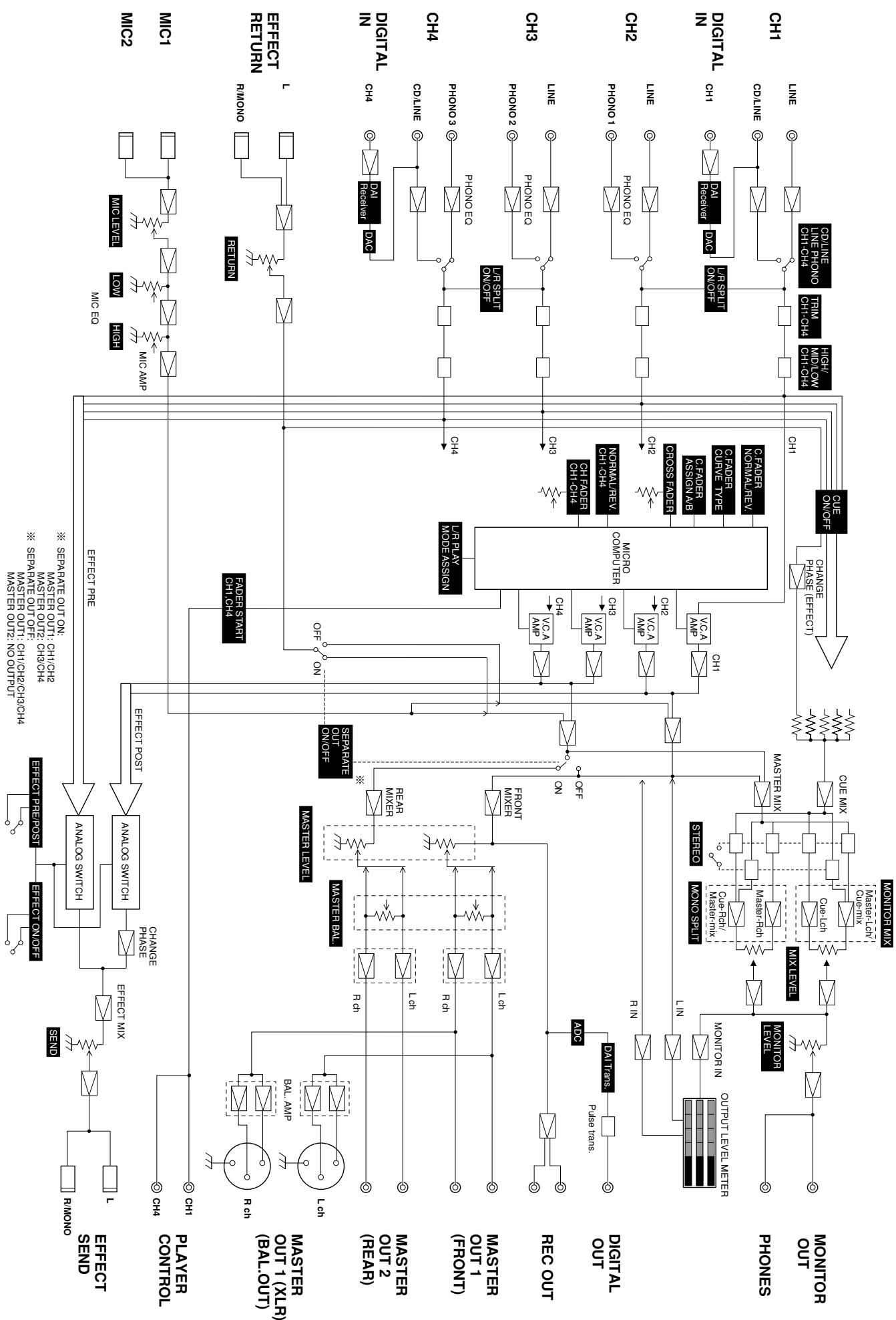
| ■ Input sensitivity/input impedance | |
| PHONO (TRIM center) | 2.5 mV/47 kΩ |
| LINE (TRIM center) | 250 mV/10 kΩ |
| EFFECT RETURN | 250 mV/47 kΩ |
| MIC | 0.7 mV/1 kΩ |
| ■ Rated output voltage/Output impedance | |
| MASTER 1, 2 (RCA) | 1 V/600 Ω |
| MASTER 1 (XLR) | 1 V/600 Ω |
| MONITOR | 1 V/1 kΩ |
| REC OUT | 250 mV/1 kΩ |
| EFFECT SEND | 250 mV/1 kΩ |
| ■ Headphone output | 30 mW/32 Ω |
| ■ Frequency response | |
| MASTER 1, 2 | 20 Hz to 20 kHz |
| REC OUT | 20 Hz to 20 kHz |
| EFFECT RETURN | 20 Hz to 20 kHz |
| MIC | 20 Hz to 20 kHz |
| ■ Digital audio input | |
| Coaxial digital input | |
| Compatible sampling rate | 48 kHz/44.1 kHz/32 kHz (PCM) |
| ■ Digital audio output | |
| Coaxial digital output | |
| Sampling rate | 44.1 kHz (PCM) |
| ■ Equalizer characteristics | |
| CD/LINE/PHONO | |
| LOW | +12 dB, -24 dB (50 Hz) |
| MID | +12 dB, -24 dB (1 kHz) |
| HIGH | +12 dB, -24 dB (10 kHz) |
| MIC | |
| LOW | +12 dB, -24 dB (100 Hz) |
| HIGH | +12 dB, -24 dB (10 kHz) |
| ■ General | |
| Power supply | AC 120 V, 60 Hz |
| Power consumption | 35 W |
| Dimensions (WxHxD) | 300 mm x 103 mm x 330 mm |
| (1126/32" X 41/16" X 13") | |
| Mass | 5.3 kg |
| (11.7 lb.) | |
Note
Specifications are subject to change without notice. Mass and dimensions are approximate.
Maintenance
To clean this unit, wipe with a soft, dry cloth.
- Never use alcohol, paint thinner, or benzine to clean this unit.
- Before using chemically treated cloth, read the instructions that came with the cloth carefully.
Troubleshooting guide
Before requesting service, make the below checks. If you are in doubt about some of the check points, or if the remedies indicated in the chart do not solve the problem, refer to the "Customer Services Directory" on back cover if you reside in the U.S.A., or refer to the "Product information" on page 4 if you reside in Canada.
| Problem | Check | Action | Page Reference |
| No power. | Has the power plug been disconnected? | Connect the power plug securely. | 8 |
| No sound even when the power is on. The volume is low. | Has the input switch been set to another source? | Check the source and set the control to the proper position. | 9 |
| Have any of the units been wrongly connected? | Connect the units properly. | 7 - 8 | |
| Is the master level control or other volume level controls at the MIN position? | Adjust the volume level controls correctly. | 9 - 10 | |
| Left and right sound is reversed. | Have you connected with the left and right terminals reversed? | Connect the channels correctly. | 7 - 8 |
| Low hum or buzz is heard during play. | Is there a fluorescent light or other electrical appliances, or are their power cables near any of the connecting cables? | Place the fluorescent light, other appliances or their power cables as far away from the unit as possible. | — |
| Has the turntable's grounding wire been disconnected? | Connect the grounding wire securely. | 8 | |
| Fader (control slider) does not move smoothly. | Is one of the faders worn out? | Replace with a new fader. Contact your nearest dealer. | 10 |
| Sound is distorted. | Is the master volume level or monitor volume level too high? | Adjust the MASTER LEVEL or MONITOR LEVEL control knobs. | 9, 11 |
| Is the input level too high? | Reduce the level by turning the TRIM control knob. | 9 | |
| External effector's sound is distorted. | Is the input level from the external effector too high? | Reduce the external effector's output level by adjusting the SEND or RETURN control knob. | 11 |
| Effect does not appear to be working. | Is the EFFECT switch OFF? | Turn the EFFECT switch ON for the channel to be used. | 11 |
| Fader operation is reversed. | Is the fader operation switch in the REVERSE position? | Turn switch to the NORMAL position. | 10 |
| Cannot use the cross fader. | Are the ASSIGN A and ASSIGN B switch settings wrong? | Select the input source assigned to A, B. | 9 |
| Cannot start the digital turntable with the fader. | Is the FADER START switch OFF? | Turn ON the FADER START switch for the channel to be used. | 13 |
| Are the digital turntable and mixer connected using a control cable? | Use a control cable to connect the digital turntable to the mixer. | 8 | |
| Output is not separated. | Is the SEPARATE OUT switch OFF? | Switch the SEPARATE OUT switch to ON. | 12 |
Panasonic/Technics DJ Products Limited Warranty
Limited Warranty Coverage
If your product does not work properly because of a defect in materials or workmanship, Panasonic Consumer Electronics Company or Panasonic Sales Company (collectively referred to as "the warrantor") will, for the length of the period indicated on the chart below, which starts with the date of original purchase ("warranty period"), at its option either (a) repair your product with new or refurbished parts, or (b) replace it with a new or a refurbished product. The decision to repair or replace will be made by the warrantor.
| Product | Parts | Labor | Service |
| DJ Turntables (analog), DJ Mixers, DJ Direct Drive Digital Turntables | One (1) Year | One (1) Year | Carry-In or Mail-In |
| Accessories: (Repaired or exchanged) DJ Headphones, Cartridges, Microphones | Ninety (90) Days | Ninety (90) Days (when applicable) | Carry In or Mail In |
| Accessories: (Exchanged) SD Memory Cards, Platter Mats, Adaptors, Cables | Ninety (90) Days | Not Applicable (in exchange for defective item) | Carry In or Mail In |
During the "Labor" warranty period there will be no charge for labor. During the "Parts" warranty period, there will be no charge for parts. You must carry-in or mail-in your product or arrange for in-home service, as applicable, during the warranty period. If nonrechargeable batteries are included, they are not warranted. This warranty only applies to products purchased and serviced in the United States or Puerto Rico. This warranty is extended only to the original purchaser of a new product which was not sold "as is". A purchase receipt or other proof of the original purchase date is required for warranty service.
Carry-In, Mail-in or In-Home Service
For Carry-In, Mail-in or In-Home Service (as applicable) in the United States call 1-800-211-PANA(7262) or visit Panasonic Web Site: http://www.panasonic.com
For assistance in Puerto Rico call Panasonic Sales Company (787)-750-4300 or fax (787)-768-2910.
In-Home service, if applicable, requires clear, complete and easy access to the product by the authorized servicer and does not include removal or re-installation of an installed product. It is possible that certain in-home repairs will not be completed in-home, but will require that the product, or parts of the product, be removed for shop diagnosis and/or repair and then returned.
Limited Warranty Limits And Exclusions
This warranty ONLY COVERS failures due to defects in materials or workmanship, and DOES NOT COVER normal wear and tear or cosmetic damage. The warranty ALSO DOES NOT COVER damages which occurred in shipment, or failures which are caused by products not supplied by the warrantor, or failures which result from accidents, misuse, abuse, neglect, mishandling, misapplication, alteration, faulty installation, set-up adjustments, misadjustment of consumer controls, improper maintenance, power line surge, lightning damage, modification, rental use of the product, service by anyone other than a Factory ServiCenter or other Authorized Servicer, or damage that is attributable to acts of God.
THERE ARE NO EXPRESS WARRANTYES EXCEPT AS LISTED UNDER "LIMITED WARRANTY COVERAGE". THE WARRANTYOR IS NOT LIABLE FOR INCIDENTAL OR CONSEQUENTIAL DAMAGES RESULTING FROM THE USE OF THIS PRODUCT, OR ARISING OUT OF ANY BREACH OF THIS WARRANTY, INCLUDING WITHOUT LIMITATION, LOSS OF GOODWILL, PROFITS OR REVENUE, LOSS OF USE OF THIS PRODUCT OR ANY ASSOCIATED EQUIPMENT, COST OF SUBSTITUTE EQUIPMENT, DOWNTIME COSTS, OR CLAIMS OF ANY PARTY DEALING WITH BUYER FOR SUCH DAMAGES. (As examples, this excludes damages for lost time, cost of having someone remove or re-install an installed unit if applicable, travel to and from the servicer, loss of media, data or other memory content. The items listed are not exclusive, but are for illustration only.) ALL EXPRESS AND IMPLIED WARRANTYIS, INCLUDING THE WARRANTY OF MERCHANTABILITY, ARE LIMITED TO THE PERIOD OF THE LIMITED WARRANTY.
Some states do not allow the exclusion or limitation of incidental or consequential damages, or limitations on how long an implied warranty lasts, so the exclusions may not apply to you.
This warranty gives you specific legal rights and you may also have others rights which vary from state to state. If a problem with this product develops during or after the warranty period, you may contact your dealer or ServiCenter. If the problem is not handled to your satisfaction, then write to the warrantor's Consumer Affairs Department at the addresses listed for the warrantor.
PARTS AND SERVICE (INCLUDING COST OF AN IN-HOME SERVICE CALL IF APPLICABLE) WHICH ARE NOT COVERED BY THIS LIMITED WARRANTY ARE YOUR RESPONSIBILITY.
(ONLY FOR U.S.A.)
Customer Services Directory
Obtain Product Information and Operating Assistance; locate your nearest Dealer or Servicenter; purchase Parts and Accessories; or make Customer Service and Literature requests by visiting our Web Site at:
http://www.panasonic.com/support
or, contact us via the web at:
http://www.panasonic.com/contactinfo
You may also contact us directly at:
1-800-211-PANA (7262),
Monday-Friday 9 am-9 pm; Saturday-Sunday 10 am-7 pm, EST.
For hearing or speech impaired TTY users, TTY: 1-877-833-8855
Accessory Purchases
Purchase Parts, Accessories and Instruction Books online for all Panasonic Products by visiting our Web Site at:
http://www.pasc.panasonic.com
or, send your request by E-mail to:
npcparts@panasonic.com
You may also contact us directly at:
1-800-332-5368 (Phone) 1-800-237-9080 (Fax Only) (Monday - Friday 9 am to 8 pm, EST.)
Panasonic Services Company
20421 84th Avenue South, Kent, WA 98032
(We Accept Visa, MasterCard, Discover Card, American Express, and Personal Checks)
For hearing or speech impaired TTY users, TTY: 1-866-605-1277
Service in Puerto Rico
Matsushita Electric of Puerto Rico, Inc. Panasonic Sales Company
Factory Servicenter:
Ave. 65 de Ingeniería, Km. 9.5, San Gabriel Industrial Park, Carolina, Puerto Rico 00985
Phone (787)750-4300, Fax (787)768-2910
