B126-4X4 - Network switch Tripp Lite - Free user manual and instructions
Find the device manual for free B126-4X4 Tripp Lite in PDF.


| Product Type | 4x4 HDMI Matrix Switch |
| Brand | Tripp Lite |
| Model | B126-4X4 |
| Number of HDMI Inputs | 4 |
| Number of HDMI Outputs | 4 |
| Maximum Resolution | 1920x1200 (1080p) |
| Video Bandwidth | 6.75 Gbps |
| Audio Support | LPCM 7.1, Dolby TrueHD, DTS-HD Master Audio |
| HDCP Support | Yes, HDCP 1.4 |
| Control Method | IR remote, RS-232, front panel buttons |
| Power Input | 5V DC, 2A (included adapter) |
| Power Consumption | 10W (max) |
| Dimensions (W x D x H) | 8.5 x 4.5 x 1.2 inches |
| Weight | 1.2 lbs |
| Operating Temperature | 32°F to 104°F (0°C to 40°C) |
| Storage Temperature | -4°F to 140°F (-20°C to 60°C) |
| Humidity | 5% to 90% (non-condensing) |
| Mounting | Desktop or rackmount with included brackets |
| Included Accessories | Power adapter, IR remote, RS-232 cable, mounting brackets, user manual |
| Warranty | 3 years limited |
Frequently Asked Questions - B126-4X4 Tripp Lite
User questions about B126-4X4 Tripp Lite
0 question about this device. Answer the ones you know or ask your own.
Ask a new question about this device
Download the instructions for your Network switch in PDF format for free! Find your manual B126-4X4 - Tripp Lite and take your electronic device back in hand. On this page are published all the documents necessary for the use of your device. B126-4X4 by Tripp Lite.
USER MANUAL B126-4X4 Tripp Lite
Register your product for quicker service and ultimate peace of mind.
You could also win an ISOBAR6ULTRA surge protector—a \$100 value!
www.tripplite.com/warranty

text_image
TRIPP·LITE
Manufacturing Excellence.
1111 W. 35th Street, Chicago, IL 60609 USA • www.tripplite.com/support
Copyright © 2017 Tripp Lite. All rights reserved.
Package Contents
• B126-2X2 or B126-4X4 Local Transmitter Unit
- External Power Supply
(Input: 100-240V, 50/60 Hz, 0.5A Output B126-2X2: 5V 2A; Output B126-4X4: 5V 3A)
• 3.5 mm to DB9 Adapter Cable
- Mounting Hardware
- Remote Control
• 5 ft. IR Extension Cable (B126-4X4 Only)
- Owner's Manual
Product Features
- Share multiple HDMI sources between multiple monitors
- Route any input to any output, or route the same input to multiple outlets
- Transmit a signal over one Cat5e/6 cable to a remote monitor up to 175 ft. away
• A B126-Series remote receiver is needed at each monitor - For longer distances: Use a B126-1A0 or B126-1A0-WP-1 active remote receiver to extend a 1080p @ 60 Hz signal up to 125 ft. from the transmitter (or a 1080i @ 60 Hz signal up to 175 ft. from the transmitter)
- For shorter distances: Use a B126-1P0 or B126-1P0-WP-1 passive remote receiver to extend a 1080p @ 60 Hz signal up to 50 ft. from the transmitter (or a 1080i @ 60 Hz signal up to 75 ft. from the transmitter)
- Use 24 AWG, Solid Wire Cat5e/6 cable, such as Tripp Lite's N202-Series, to achieve maximum distance and resolution
- Further expand the range and number of monitors by adding B126-110 remote repeater units
Product Features
- Add up to three repeaters on each channel of the matrix switch, for a total of four displays per channel (an active remote receiver should be the last unit in a channel)
- A 1080p @ 60 Hz signal can be extended up to 125 ft. for each repeater added into a channel (or up to 175 ft. for a 1080i @ 60 Hz signal)
- Switch between inputs via pushbuttons, remote control, or RS-232 serial
- For model B126-4X4 only: Extend the remote control range, allow discreet placement of the transmitter unit and maintain device switching functionality with the included five-foot IR extension cable
- HDCP-compatible
- Mounting hardware included
- Plug-and-play; no software or drivers required
- Compatible with all operating systems
- Compliant with the Federal Trade Agreements Act (TAA) for GSA Schedule purchases
Optional Accessories:
• B126-1A0 or B126-1A0-WP-1 – Active Remote Receiver Units
- B126-1P0 or B126-1P0-WP-1 – Passive Remote Receiver Units
• B126-110 HDMI Over Cat5 Extender – Remote Repeater Unit
• N202-Series Cat6 24 AWG, Solid Wire Patch Cables
• P568-Series High-Speed HDMI Cables
• P520-006 RS-232 Serial Extension Cable
Mounting
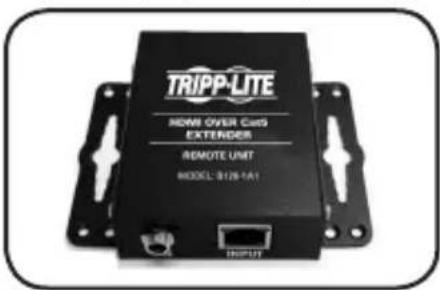
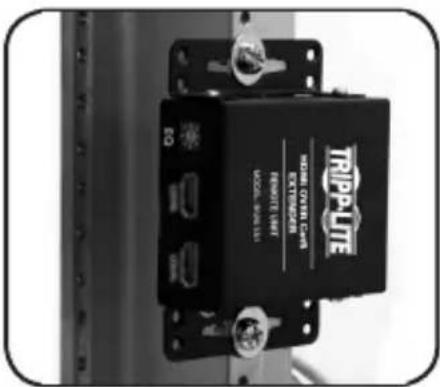
The B126-2X2 and B126-4X4 includes mounting hardware for a variety of mounting options. The below images show the different ways the mounting brackets attach to the receiver unit for each mounting method.
Note: The images below show a B126-1A1 HDMI over Cat5 Receiver Unit, but the mounting hardware installation is the same for the B126-2X2 and B126-4X4.
Wall-Mount 1 Wall-Mount 2
text_image
TRIPP-LITE HOME OVER Cuts EXTERIOR REMOTE UNIT MODEL: B128-1A1 INPUT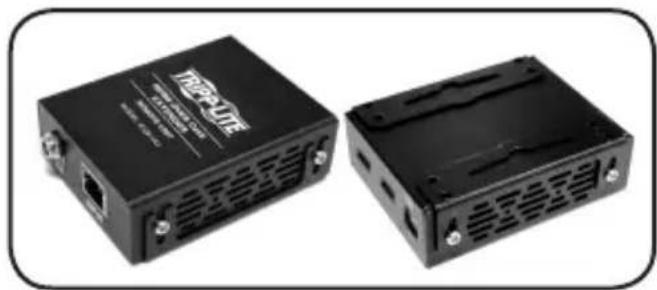
natural_image
Two black TP502 micro devices with ventilation slots and ports, shown from front and side (no visible text or symbols on the devices themselves)19" Rack-Mount Pole Mount
text_image
TRIPP-LTE WATER CHILLER ENGLISH 100% 2000 (100% 2000) (100% 2000)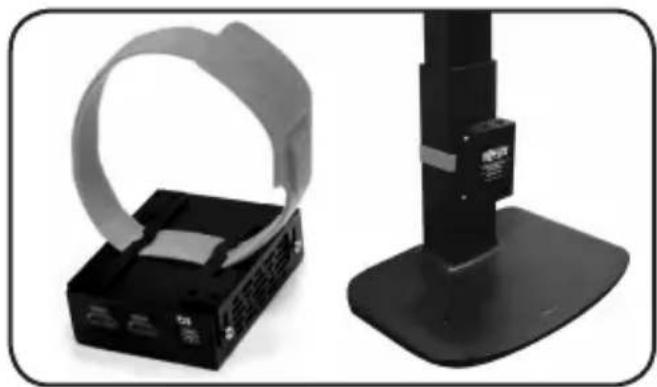
natural_image
Two black electronic devices with a strap and base stand, no visible text or symbols.Standard Installation
Notes:
- Test to make sure that the entire installation works properly before pulling cables through ceilings/walls.
- 24 AWG, Solid Wire Cat5e/6 cable (such as Tripp Lite's N202-Series) is required to achieve maximum distance and resolution.
- The diagram below shows a B126-2X2 installation. Installation will be the same for the B126-4X4, except for the number of ports.
- The back panel of the B126-4X4 contains an IR port which has been capped off. This port is intended for future use, and does not currently function.
Standard Installation
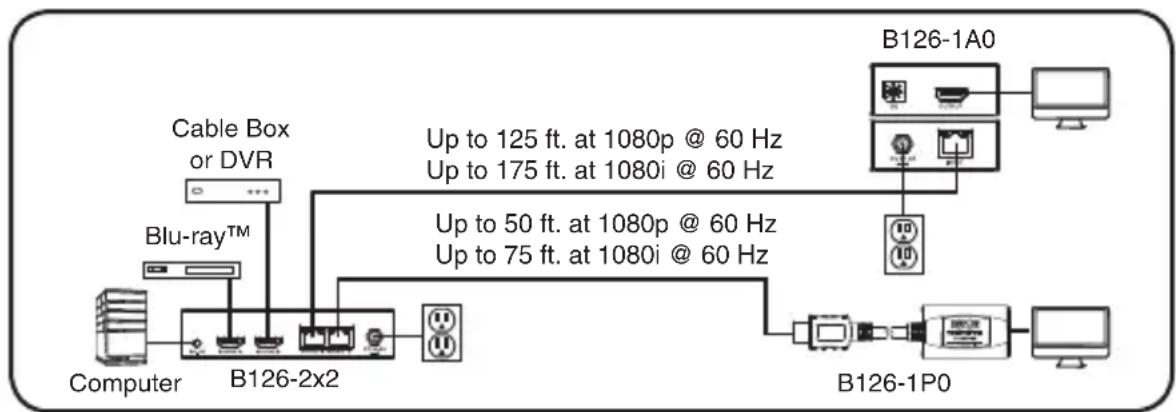
flowchart
graph TD
    A["Computer"] --> B["B126-2x2"]
    B --> C["Cable Box or DVR"]
    B --> D["B126-1P0"]
    B --> E["B126-1A0"]
    B --> F["Up to 125 ft. at 1080p @ 60 Hz"]
    B --> G["Up to 175 ft. at 1080i @ 60 Hz"]
    B --> H["Up to 50 ft. at 1080p @ 60 Hz"]
    B --> I["Up to 75 ft. at 1080i @ 60 Hz"]
1 Make sure all devices being connected are turned off.
2 Optional: Using the 3.5 mm to DB9 adapter cable, insert the 3.5 mm connector into the port labeled "RS-232" on the switch. Then connect the DB9 connector to a serial port on the computer you will be controlling the switch with.
3 Optional (B126-4X4 only): Connect the IR extension cable to the 3.5 mm jack on the rear of the unit. Position the cable's infrared sensor in an area that allows a direct line of sight between it and the remote.
4 Connect the first HDMI source to the port on the switch marked Source A.
5 Repeat step 3 to connect additional HDMI sources to the remaining ports.
6 Connect the external power supply to the switch and plug it into a Tripp Lite Surge Protector, Power Distribution Unit (PDU), or Uninterruptible Power Supply (UPS). When receiving power, the following LEDs will illuminate: The Green Power LED, The Orange Source LEDs (for the Source ports that have devices connected to them), and the Green RJ45 Output LEDs. A Green LED will also illuminate to indicate the source that is being transmitted to each Output port.
7 Using Cat5e/6 cable, connect the RJ45 port marked Output 1 to a B126-Series remote receiver unit.
Standard Installation
8 Repeat step 7 to connect additional B126-Series remote receiver units to the remaining ports.
9 B126-1A0 and B126-1A0-WP-1 only: Connect the external power supply to the active remote receiver unit, and plug it into a Tripp Lite Surge Protector, PDU or UPS. When receiving power, the Green RJ45 LED on the B126-1A0 and the Green Power LED on the B126-1A0-WP-1 will illuminate.
10 Repeat step 9 for each additional active remote receiver unit in the installation.
11 Connect the remote receiver unit to a monitor using a Tripp Lite P568-Series High-Speed HDMI cable. If you have a B126-1P0, connect its built-in HDMI connector to a monitor. When connected to and receiving power from a monitor, the Green RJ45 LED on the B126-1P0, and the Green Power LED on the B126-1P0-WP-1 will illuminate.
12 Repeat step 11 for each additional remote receiver unit in the installation.
13 Turn on the power to the connected devices. The Orange RJ45 LEDs on the B126-2X2, B126-4X4 and B126-1A0, and the Orange Activity LED on the B126-1A0-WP-1 will illuminate. The video image should now be displayed on the connected monitors.
14 B126-1A0 and B126-1A0-WP-1 only: If necessary, use the Equalization control to adjust the video image.
Note: An improper Equalization setting can cause the monitor not to display an image at all. Try each setting until an acceptable image is displayed.
15 Press the switch next to each set of Output LEDs to change the source being displayed on the corresponding Output monitor. You can also use the included remote control to switch between sources. As with the switch next to the Output LEDs, press the button on the remote control of the desired Output port to switch the source being displayed.
Note: The same 4 button remote control comes with both the B126-2X2 and B126-4X4. Buttons 3 and 4 will not be used for the B126-2X2.
See the RS-232 Serial Control section in this manual for details on controlling the switch using Terminal Emulation Software.
Remote Repeater Installation
Notes:
- Test to make sure that the entire installation works properly before pulling cables through ceilings/walls.
- 24 AWG, Solid Wire Cat5e/6 cable (such as Tripp Lite's N202-Series) is required to achieve maximum distance and resolution.
- The diagram below shows a B126-2X2 installation. Installation will be the same for the B126-4X4, except for the number of ports.
- The back panel of the B126-4X4 contains an IR port which has been capped off. This port is intended for future use, and does not currently function.
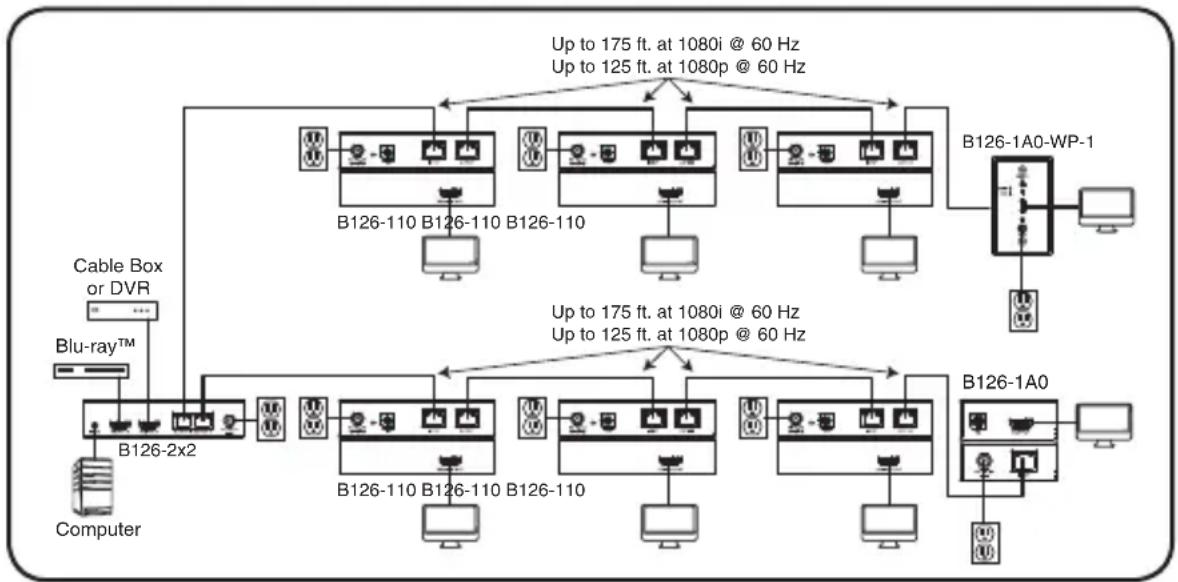
flowchart
graph TD
    A["Computer"] --> B["B126-2x2"]
    A --> C["B126-110 B126-110 B126-110"]
    A --> D["B126-1A0-WP-1"]
    A --> E["B126-110 B126-110 B126-110"]
    A --> F["B126-1A0"]
    B --> G["Cable Box or DVR"]
    C --> H["B126-110 B126-110 B126-110"]
    D --> I["B126-1A0-WP-1"]
    E --> J["B126-2x2"]
    F --> K["B126-110 B126-110 B126-110"]
    G --> L["Computer"]
    H --> M["B126-110 B126-110 B126-110"]
    I --> N["B126-1A0-WP-1"]
    J --> O["B126-2x2"]
    K --> P["B126-110 B126-110 B126-110"]
    L --> Q["Computer"]
    M --> R["B126-2x2"]
    N --> S["B126-110 B126-110 B126-110"]
    O --> T["B126-2x2"]
    P --> U["B126-110 B126-110 B126-110"]
    Q --> V["B126-2x2"]
    R --> W["B126-110 B126-110 B126-110"]
    S --> X["B126-2x2"]
    T --> Y["B126-110 B126-110 B126-110"]
    U --> Z["B126-2x2"]
    V --> AA["B126-110 B126-110 B126-110"]
    W --> AB["B126-2x2"]
    X --> AC["B126-2x2"]
    Y --> AD["B126-2x2"]
    Z --> AE["B126-2x2"]
    AA --> AF["B126-2x2"]
    AB --> AG["B126-2x2"]
    AC --> AH["B126-2x2"]
    AD --> AI["B126-2x2"]
    AE --> AJ["B126-2x2"]
    AF --> AK["B126-2x2"]
    AG --> AL["B126-2x2"]
    AH --> AM["B126-2x2"]
    AI --> AN["B126-2x2"]
    AJ --> AO["B126-2x2"]
    AK --> AP["B126-2x2"]
    AL --> AQ["B126-2x2"]
    AM --> AR["B126-2x2"]
    AN --> AS["B126-2x2"]
    AO --> AT["B126-2x2"]
    AP --> AU["B126-2x2"]
    AQ --> AV["B126-2x2"]
    AR --> AW["B126-2x2"]
    AS --> AX["B126-2x2"]
    AT --> AY["B126-4x4"]
    AU --> AZ["B126-4x4"]
    AV --> BA["B126-4x4"]
    AW --> BB["B126-4x4"]
1 Make sure all devices being connected are turned off.
2 Optional: Using the 3.5 mm to DB9 adapter cable, insert the 3.5 mm connector into the port labeled "RS-232" on the switch. Then connect the DB9 connector to a serial port on the computer you will be controlling the switch with.
3 Optional (B126-4X4 only): Connect the IR extension cable to the 3.5 mm jack on the rear of the unit. Position the cable's infrared sensor in an area that allows a direct line of sight between it and the remote.
4 Connect the first HDMI source to the port on the switch marked Source A.
Remote Repeater Installation
5 Repeat step 4 to connect additional HDMI sources to the remaining ports.
6 Connect the external power supply to the switch and plug it into a Tripp Lite Surge Protector, PDU, or UPS. When receiving power, the following LEDs will illuminate: The Green Power LED, the Orange Source LEDs (for the Source ports that have devices connected to them), and the Green RJ45 Output LEDs. A Green LED will also illuminate to indicate the source that is being transmitted to each Output port.
7 Using Cat5e/6 cable, connect the RJ45 port marked Output 1 to the RJ45 input port of a B126-110 remote repeater unit.
8 Connect a monitor to the HDMI output port on the repeater using a Tripp Lite P568-Series High-Speed HDMI cable.
9 Connect the external power supply to the repeater and plug it into a Tripp Lite Surge Protector, PDU or UPS. The Green Power LED and the Green RJ45 LEDs illuminate to indicate the unit is receiving power.
Add up to three repeaters per channel, for a total of four displays (an active remote receiver should be the last unit in a channel). To connect additional repeaters, proceed to step 10. To finish your installation with a B126-1A0 or B126-1A0-WP-1 receiver, proceed to step 13.
10 Using Cat5e/6 cable, connect the RJ45 output port on the first repeater to the RJ45 input port on a second repeater.
11 Connect a monitor to the HDMI output port on the repeater using a Tripp Lite P568-Series High-Speed HDMI cable.
12 Connect the external power supply to the repeater and plug it into a Tripp Lite Surge Protector, PDU or UPS. The Green Power LED and the Green RJ45 LEDs illuminate to indicate the unit is receiving power.
To add a third repeater, repeat steps 10 through 12. To finish your installation with a B126-1A0 or B126-1A0-WP-1 receiver, proceed to step 13.
Remote Repeater Installation
13 Using Cat5e/6 cable, connect the RJ45 output port on the last repeater to the RJ45 input port on a B126-1A0 or B126-1A0-WP-1 receiver.
14 Connect a monitor to the HDMI output port on the receiver using a Tripp Lite P568-Series High-Speed HDMI cable.
15 Connect the external power supply to the active remote receiver unit, and plug it into a Tripp Lite Surge Protector, PDU, or UPS. When receiving power, the Green RJ45 LED on the B126-1A0 and the Green Power LED on the B126-1A0-WP-1 will illuminate.
Repeat steps 7 through 15 for the remaining Output ports on the switch.
16 Turn on power to the connected devices. The Orange RJ45 LEDs on the B126-2X2, B126-4X4, B126-110, and B126-1A0, and the Orange Activity LED on the B126-1A0-WP-1 will illuminate. The video image should now be displayed on the connected monitors.
17 If necessary, use the Equalization control on the repeater and receiver units to adjust the video image.
Note: An improper Equalization setting can cause the monitor not to display an image at all. Try each setting until an acceptable image is displayed.
18 Press the switch next to each set of Output LEDs to switch the source being displayed on the corresponding Output monitor. You can also use the included remote control to switch between sources. As with the switch next to the Output LEDs, press the button on the remote control of the desired Output port to switch the source being displayed.
Note: The same 4 button remote control comes with both the B126-2X2 and B126-4X4. Buttons 3 and 4 will not be used for the B126-2X2.
See the RS-232 Serial Control section in this manual for details on controlling the switch using Terminal Emulation Software.
RS-232 Serial Control
Before using RS-232 Serial Control, you must first access the Terminal Emulation Software and update the COM port settings.
1 Go to the Setup drop-down menu and select the Serial Port option.
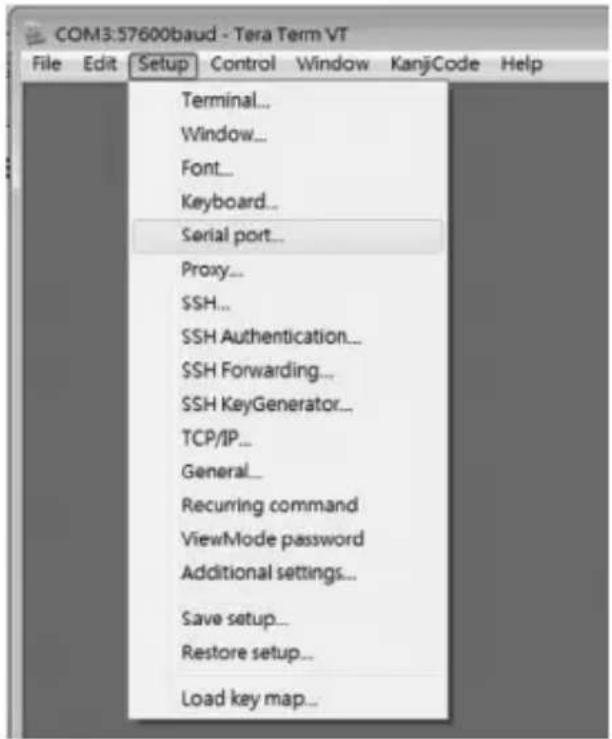
text_image
COM3:57600baud - Tera Term VT File Edit Setup Control Window KanjiCode Help Terminal... Window... Font... Keyboard... Serial port... Proxy... SSH... SSH Authentication... SSH Forwarding... SSH KeyGenerator... TCP/IP... General... Recurring command ViewMode password Additional settings... Save setup... Restore setup... Load key map...2 Select the COM port that is being used, and update the remaining settings as follows: Baud Rate (57600), Data (8 bit), Parity (none), Stop (1 bit), Flow Control (none).
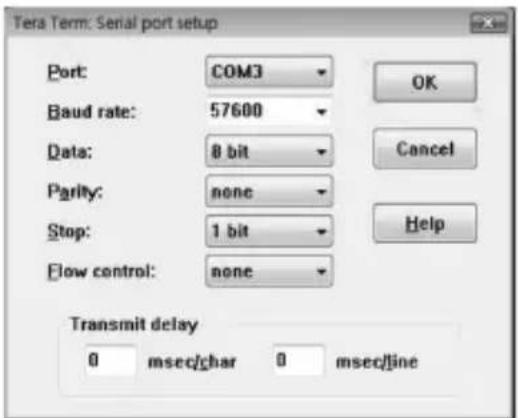
text_image
Tera Term: Serial port setup Port: COM3 Baud rate: 57600 Data: 8 bit Parity: none Stop: 1 bit Flow control: none OK Cancel Help Transmit delay 0 msec/char 0 msec/lineRS-232 Serial Control
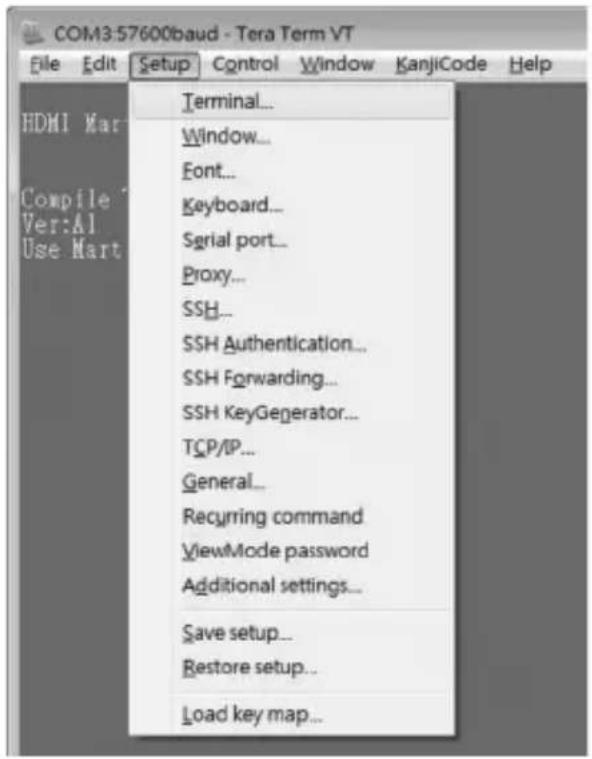
3 Next, you will need to configure your software to allow input control. Go to the Setup drop-down menu and select the Terminal option.
text_image
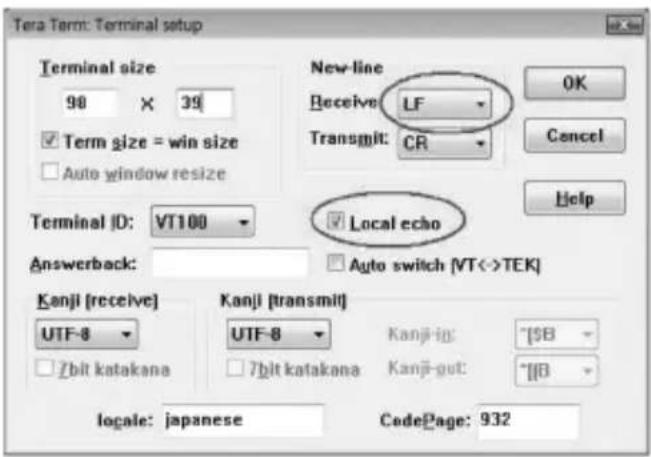
COM3:57600baud - Tera Term VT File Edit Setup Control Window KanjiCode Help HDMI Mar Compile Ver:AI Use Hart Terminal... Window... Font... Keyboard... Srial port... Proxy... SSH... SSH Authentication... SSH Forwarding... SSH KeyGenerator... TCP/IP... General... Recyring command ViewMode password Additional settings... Save setup... Restore setup... Load key map...4 Update the following settings; Receive (LF), Local Echo (enable). The other settings can remain unchanged.
text_image
Tera Term: Terminal setup Terminal size 90 × 39 Term size = win size Auto window resize Terminal ID: VT100 Answerback: New-line Receive: LF Transmit: CR Local echo Auto switch [VT<>TEK] Kanji [receive] UTF-8 Zbit katakana Kanji [transmit] UTF-8 Zbit katakana Kanji-in: Zbit katakana Kanji-gut: Zbit katakana Local echo OK Cancel Help locale: japanese CodePage: 932RS-232 Serial Control
5 Once these settings are updated, the Terminal Emulation Software will recognize the switch, allowing you to enter commands to control the unit. The following table lists the available commands.
| Command Action | |
| sw[x] [n] Switches the source being displayed on the selected output. [x] is the output (1, 2, 3, or 4) and [n] is the desired source (A, B, C, or D). For example, a command of sw1 A would display source A on output 1. | |
| PWD Turns power to the switch on/off. | |
| STE Displays the current output state, showing which source is being displayed on each output. |
Troubleshooting
If you are unable to get an acceptable image after following the installation instructions, try the following troubleshooting tips:
Are the external power supplies that came with the product connected and plugged into a working power source? For the product to function properly, it must be connected to and receiving power from the external power supply.
2 Was the power to the connected devices turned off prior to installation? If not, restart them.
3 Have you adjusted the Equalization setting on the repeater and/or receiver units? There are built-in Equalization adjustment knobs on every repeater and active receiver, which can be adjusted to obtain the best picture quality. Use the mini screwdriver included with the product to adjust this setting until an acceptable image is displayed.
Note: An improper Equalization setting can cause the monitor not to display an image at all. Try each setting until an acceptable image is displayed.
4 What resolution are you trying to reach? Tripp Lite's HDMI over Cat5 extenders are tested to support up to 1080p @ 60 Hz video resolution. See the Product Features section or the installation diagrams in this manual for details on maximum distance and resolution when using the repeater and the different receivers. The shorter the extension distance, the higher the resolution you will be able to obtain. If you are not able to get an acceptable image after adjusting the Equalization setting, try lowering your computer's video resolution or adjusting the refresh rate.
5 What type of cabling are you using? Inferior cabling can result in poor performance and it is important to use cables that support the video resolution you are trying to obtain. To achieve maximum distance and resolution, 24 AWG solid wire UTP cable must be used. Tripp Lite's N202-Series Cat6 cables are made with 24 AWG solid wire, as are the N022-01K-GY (Cat5) and N222-01K-GY bulk cables. The HDMI cables you are using must also support the video resolution you are trying to obtain. Inexpensive, low quality HDMI cables may not support the maximum resolution. It is recommended that you use Tripp Lite's P568-Series High-Speed HDMI cables, as they have been tested to work with the B126-Series extender products.
Troubleshooting
6 Test your cables to ensure they are working properly. For example, connect your HDMI cables between a source and monitor that you know works to see if the cable is functioning. For Cat5e/6 cable, connect it between a computer and a network to verify that it establishes a network connection.
7 Do you have any patch panels or other devices in between the transmitter, repeater, and receiver units? Tripp Lite's HDMI over Cat5 extender products were designed to be connected directly from the transmitter to the repeater and/or receiver via UTP cable. The more connection points that are in between the source and the remote monitor, the more likely it will be that signal degradation will occur, causing poor performance. If you have a patch panel or other device in between, it should be removed from the installation.
8 Check your cabling for any damages that may have occurred during installation. If a cable connector is loosened from pulling through ceilings/walls, or the cable jacket is damaged causing the wiring to be exposed, you will not be able to achieve maximum performance.
9 Are the transmitter, repeater, and/or receiver located in an area that exposes them to higher temperatures? If the product is overheated, it will not function properly.
10 If you are having trouble getting your Terminal Emulation Software to recognize the switch, you may need to shut down your installation and start from the beginning. The 3.5 mm to DB9 adapter cable must be connected first; otherwise the switch will not be recognized.
If your are still having trouble getting your Terminal Emulation Software to recognize the switch, check to make sure that your serial settings are set according to the instructions in the RS-232 Serial Control section of this manual.
Warranty & Product Registration
1-Year Limited Warranty
TRIPP LITE warrants its products to be free from defects in materials and workmanship for a period of one (1) year from the date of initial purchase. TRIPP LITE's obligation under this warranty is limited to repairing or replacing (at its sole option) any such defective products. To obtain service under this warranty, you must obtain a Returned Material Authorization (RMA) number from TRIPP LITE or an authorized TRIPP LITE service center. Products must be returned to TRIPP LITE or an authorized TRIPP LITE service center with transportation charges prepaid and must be accompanied by a brief description of the problem encountered and proof of date and place of purchase. This warranty does not apply to equipment which has been damaged by accident, negligence or misapplication or has been altered or modified in any way.
EXCEPT AS PROVIDED HEREIN, TRIPP LITE MAKES NO WARRANTIES, EXPRESS OR IMPLIED, INCLUDING WARRANTIES OF MERCHANTABILITY AND FITNESS FOR A PARTICULAR PURPOSE. Some states do not permit limitation or exclusion of implied warranties; therefore, the aforesaid limitation(s) or exclusion(s) may not apply to the purchaser.
EXCEPT AS PROVIDED ABOVE, IN NO EVENT WILL TRIPP LITE BE LIABLE FOR DIRECT, INDIRECT, SPECIAL, INCIDENTAL OR CONSEQUENTIAL DAMAGES ARISING OUT OF THE USE OF THIS PRODUCT, EVEN IF ADVISED OF THE POSSIBILITY OF SUCH DAMAGE. Specifically, TRIPP LITE is not liable for any costs, such as lost profits or revenue, loss of equipment, loss of use of equipment, loss of software, loss of data, costs of substitutes, claims by third parties, or otherwise.
PRODUCT REGISTRATION
Visit www.triplite.com/warranty today to register your new Tripp Lite product. You'll be automatically entered into a drawing for a chance to win a FREE Tripp Lite product!*
* No purchase necessary. Void where prohibited. Some restrictions apply. See website for details.
FCC Notice, Class B
This device complies with part 15 of the FCC Rules. Operation is subject to the following two conditions: (1) This device may not cause harmful interference, and (2) this device must accept any interference received, including interference that may cause undesired operation.
Note: This equipment has been tested and found to comply with the limits for a Class B digital device, pursuant to part 15 of the FCC Rules. These limits are designed to provide reasonable protection against harmful interference in a residential installation. This equipment generates, uses and can radiate radio frequency energy and, if not installed and used in accordance with the instructions, may cause harmful interference to radio communications. However, there is no guarantee that interference will not occur in a particular installation. If this equipment does cause harmful interference to radio or television reception, which can be determined by turning the equipment off and on, the user is encouraged to try to correct the interference by one or more of the following measures:
- Reorient or relocate the receiving antenna.
- Increase the separation between the equipment and receiver.
- Connect the equipment into an outlet on a circuit different from that to which the receiver is connected.
- Consult the dealer or an experienced radio/TV technician for help.
Any changes or modifications to this equipment not expressly approved by Tripp Lite could void the user's authority to operate this equipment.
Warranty & Product Registration
WEEE Compliance Information for Tripp Lite Customers and Recyclers (European Union)

Under the Waste Electrical and Electronic Equipment (WEEE) Directive and implementing regulations, when customers buy new electrical and electronic equipment from Tripp Lite they are entitled to:
- Send old equipment for recycling on a one-for-one, like-for-like basis (this varies depending on the country)
- Send the new equipment back for recycling when this ultimately becomes waste
WARNING
Use of this equipment in life support applications where failure of this equipment can reasonably be expected to cause the failure of the life support equipment or to significantly affect its safety or effectiveness is not recommended. Do not use this equipment in the presence of a flammable anesthetic mixture with air, oxygen or nitrous oxide.
Tripp Lite has a policy of continuous improvement. Product specifications are subject to change without notice.

text_image
TRIPP·LITE
1111 W. 35th Street, Chicago, IL 60609 USA • www.tripplite.com/support