
VL-SW251CX - Intercom PANASONIC - Free user manual and instructions
Find the device manual for free VL-SW251CX PANASONIC in PDF.


| Product Type | Wireless Video Intercom System Main Monitor |
| Model | VL-SW251CX (includes main monitor VL-MW251CX, sub monitor VL-W605CX, door station VL-V522L) |
| Main Monitor Dimensions (H x W x D) | Approx. 190 mm x 165 mm x 38 mm (excluding protrusions) |
| Main Monitor Weight | Approx. 785 g |
| Main Monitor Display | Approx. 12.7 cm (5.0 inches) wide color display |
| Sub Monitor Dimensions (H x W x D) | Approx. 157 mm x 52 mm x 35 mm (excluding protrusions) |
| Sub Monitor Weight (including battery) | Approx. 175 g |
| Sub Monitor Display | Approx. 4.6 cm (1.8 inches) color display |
| Power Supply (Main Monitor) | 100 - 240 V AC, 50/60 Hz |
| Power Supply (Sub Monitor) | Rechargeable Ni-MH battery (3.6 V DC, 650 mAh) |
| Charger Input | AC adaptor (PQLV219E for VL-W605CX: 220-240 V AC, 50/60 Hz) |
| Door Station Dimensions (H x W x D) | Approx. 131 mm x 99 mm x 36.5 mm (excluding protrusions) |
| Door Station Weight | Approx. 200 g |
| Operating Environment (Main/Sub Monitor) | 0 °C to 40 °C, up to 90% RH (non-condensing) |
| Operating Environment (Door Station) | -10 °C to 50 °C, up to 90% RH (non-condensing) |
| Frequency Range | 2.402 GHz - 2.481 GHz |
| Key Functions | Doorphone, intercom, monitoring, auto/manual recording, voice changer, press-to-talk mode, door opener support, image scrolling, backlight compensation |
| Recording Capacity | Up to 50 calls/monitoring events; max 100 images (1 picture mode) or 400 images (8 pictures mode) |
| Cleaning Instructions | Use a soft, dry cloth. Avoid alcohol, solvents, or abrasive cleaners. Clean charge contacts monthly. |
| Battery Replacement | Replace with Panasonic HHR-P103 rechargeable Ni-MH battery (3.6 V, 650 mAh) when battery life degrades. |
Frequently Asked Questions - VL-SW251CX PANASONIC
User questions about VL-SW251CX PANASONIC
0 question about this device. Answer the ones you know or ask your own.
Ask a new question about this device
Download the instructions for your Intercom in PDF format for free! Find your manual VL-SW251CX - PANASONIC and take your electronic device back in hand. On this page are published all the documents necessary for the use of your device. VL-SW251CX by PANASONIC.
USER MANUAL VL-SW251CX PANASONIC
Operating Instructions
| Model Name | Wireless Video Intercom System Main Monitor | |
| Model No. | VL-SW251BX | VL-MW251BX |
| VL-SW251CX | VL-MW251CX | |
| VL-SW251SX | VL-MW251SX | |
| VL-SW251AZ | ||
This manual is for use with the above 7 models. See page 3 for model composition information. Model shown is VL-SW251BX (including: VL-MW251BX/VL-W605BX/VL-V522L)
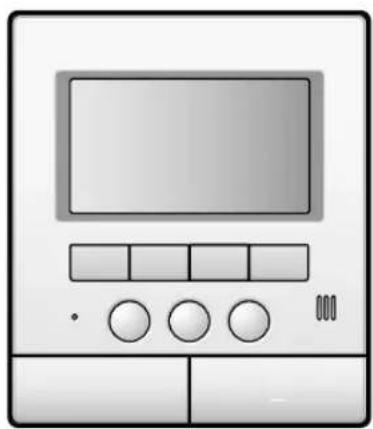
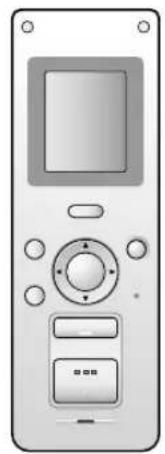
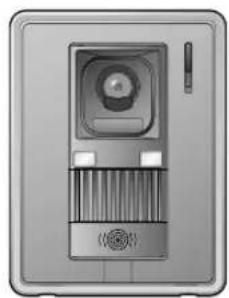
VL-MW251BX VL-W605BX VL-V522L
Thank you for purchasing a Panasonic product.
Please read these Operating Instructions before using the unit and save for future reference.
Attached Installation Guide
Introduction
Model composition ....3
Accessory information....3
Important Information
For your safety....5
Important safety instructions ....6
For best performance....7
Other information ....8
Preparation
Location of controls 9
Charging the sub monitor station .....16
Setting the date and time ....17
Doorphone
Answering a call ....18
- Answering a call by voice sensor (Voice answer mode) 18
Features during a call or while monitoring ..19
- Scrolling an image right or left on the sub monitor station 19
- Turning the door station's LED lights on or off ... 19
- Using backlight compensation for door station images .... 19
- Adjusting the display brightness 19
- Hiding the operation guidance .... 19
- Adjusting the volume of your voice heard at the door station 19
- Adjusting the speaker volume.... 19
- Speaking with the modified sound of your voice (Voice changer) 19
- If it is difficult to hear the visitor's voice due to noise (Press-to-talk mode).... 20
- Using [DOOR KEY] button 20
Transferring a call....21
When receiving another call during a call or while monitoring ....22
Monitoring the outside (Door station monitor) ....23
Recording
Recording an image 24
- Auto recording 24
- Manual recording 25
Viewing recorded images using the main monitor station ....26
Viewing recorded images using the sub monitor station ....28
Protecting the recorded images....30
Erasing an image ....31
Intercom
Talking between the main monitor station and the sub monitor station ....32
Programming
Adjusting the ringer volume ....33
Changing the ringer tone ....34
Setting [DOOR KEY] button ....35
Changing the function settings of the main monitor station (Function list) ....36
Changing the function settings of the sub monitor station (Function list) .....40
Expanding the System
Expanding your system with optional units ....42
Adding a sub monitor station (REGISTRATION) 44
Setting a repeater (REGISTRATION) .....45
Canceling registration of the sub monitor station/repeater (CANCELLATION) ....46
Help
Troubleshooting 47
Error messages ....51
Cleaning 52
Battery replacement ....52
General Information
Specifications ....53
Index
Index 54
Model composition
Check the model composition of your product.
| Description in these Operating Instructions | Main monitor station | Sub monitor station | Door station |
| Product figure and product name | 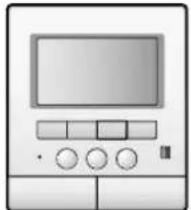 | 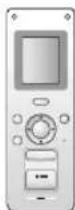 | 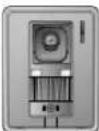 |
| Main monitor Wireless monitor Door station | |||
| Model number Composition number | |||
| VL-SW251BX VL-MW25 | 1BX VL-W605BX VL-V522L | ||
| VL-MW251BX VL-MW25 | 1BX — — | ||
| VL-SW251CX VL-MW25 | 1CX VL-W605CX VL-V522L | ||
| VL-MW251CX VL-MW25 | 1CX — — | ||
| VL-SW251SX VL-MW25 | 1BX VL-W605BX VL-V522L | ||
| VL-MW251SX VL-MW25 | 1BX — — | ||
| VL-SW251AZ VL-MW25 | 1AZ VL-W605AZ | VL-V522L | |
●The illustrations in the supplied manual(s) may vary slightly from the actual product.
Accessory information
Included items
For the sub monitor station
①
②
③
④
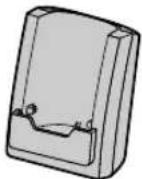
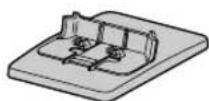
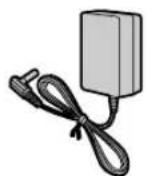
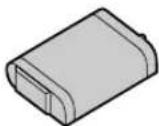
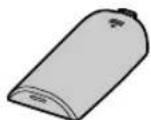
| No. | Item | Quantity | Notes |
| 1 | AC adaptor | 1 | Cord length: Approx. 1.8 m |
| 2 | Battery | 1 | ---- |
| 3 | Battery cover 1 | ---- | |
| 4 | Charger | 1 | ---- |
| 5 | Charger stand | 1 | ---- |
- Accessories for installing the main monitor station and the door station are described in the Installation Guide included.
Additional/replacement accessories As of November, 2014.
| Model number | VL-SW251BXVL-MW251BX | VL-SW251CXVL-MW251CX | VL-SW251SXLV-MW251SX | VL-SW251AZ |
| Accessory items Order number | ||||
| Wireless monitor(called sub monitor station) | VL-W605BX*1 VL-W605CX*2 | VL-W605BX*1 VL-W605CX*2 | VL-W605BX VL | W605AZ |
| Repeater VL-FAN1BX* | 1 VL-FAN1CX*2 | VL-FAN1BX*1 VL-FAN1CX*2 | VL-FAN1BX — | |
| Rechargeable nickel metal hydride (Ni-MH)battery (for the sub monitor station) | HHR-P103 | |||
| Door station VL-V522LBX VL-V522LBX VL-V | V522LSX VL-V52 | 2LBX | ||
| VL-V566BX*3 | VL-V566BX*3 | VL-V566BX*3 | — | |
| Lobby station*3, *4(for apartment complexes) | VL-V590BX*1 VL-V590CX*2 | VL-V590BX*1 VL-V590CX*2 | VL-V590BX — | |
*1 2 pin AC plug *2 3 pin AC plug *3 The specifications for the VL-V566BX, VL-V590BX and VL-V590CX differ from the specifications for the supplied door station. Generally, functions listed in this manual as available for the door station are available for the supplied door station, VL-V566BX, VL-V590BX and VL-V590CX. However, the following functions are not available for the VL-V566BX, VL-V590BX and VL-V590CX: - Functions that are unavailable for both the VL-V590BX and VL-V590CX: - Monitoring the outside with the door station (page 23) ● Functions that are unavailable for the VL-V566BX, VL-V590BX and VL-V590CX: – door station LED lights' illumination settings (page 19) – door station backlight compensation settings (page 19) *4 Make sure to connect the lobby station to terminal D1/D2 on the rear of the main monitor. (Refer to the Installation Guide for details.) - The lobby station connected to terminal D1/D2 works as door station 1.
Compatible Panasonic PBXs
This unit can be used with Panasonic PBXs (page 43). Please consult your dealer for compatible PBX information.
This unit is compatible with the following Panasonic PBXs *1 :
KX-TDA30/TDA100/TDA100D/TDA200/TDA600 series
KX-TDE100/TDE200/TDE600 series
KX-NCP500/NCP1000 series
KX-NS300/NS500/NS1000 series
*1 As of November, 2014.
For your safety
To prevent severe injury and loss of life/property, read this section carefully before using the unit to ensure proper and safe operation of your unit.

WARNING
Power connection
- Use only the power source marked on the unit. If you are not sure of the type of power supplied to your home, consult your dealer or local power company.
- Use only the specified AC adaptor.
- Do not place objects on the power cord. Install the unit where no one can step or trip on the cord.
- Do not overload power outlets and extension cords. This can result in the risk of fire or electric shock.
- Completely insert the AC adaptor/power plug into the power outlet. Failure to do so may cause electric shock and/or excessive heat resulting in a fire.
- Regularly remove any dust, etc. from the AC adaptor/power plug by pulling it from the power outlet, then wiping with a dry cloth. Accumulated dust may cause an insulation defect from moisture, etc. resulting in a fire.
- Unplug this unit from power outlets if it emits smoke, an abnormal smell or makes unusual noise. These conditions can cause fire or electric shock. Confirm that smoke has stopped and contact an authorized service center.
- Never touch the plug with wet hands. Danger of electric shock exists.
Installation
- To prevent the risk of fire or electrical shock, do not expose the product (excluding the door station) to rain or any type of moisture.
- Do not install or use this product near automatically controlled devices such as automatic doors and fire alarms. Radio waves emitted from this product may cause such devices to malfunction resulting in an accident.
- Do not allow the AC adaptor or power cord to be excessively pulled, bent or placed under heavy objects.
Operating safeguards
- To reduce the risk of electric shock, do not disassemble this unit. Refer servicing to an authorized service center when service is required. Opening or removing covers may expose you to dangerous voltages or other risks. Incorrect reassembly can cause electric shock when the unit is subsequently used.
- Do not touch the main monitor station and the AC adaptor/power plug during an electrical storm. There may be a remote risk of electric shock from lightning.
- Never push any objects through slots in this unit. This may result in the risk of fire or electric shock. Never spill any liquid on the unit.
- Unplug this unit from power outlets and refer servicing to an authorized service center when the following conditions occur:
A. If the power cord is damaged or frayed. B. If metal objects have been dropped inside the main monitor station. C. If the main monitor station or the sub monitor station has been exposed to rain or water, or liquid has been spilled into the unit. Do not use a microwave oven to speed up the drying process of any parts of the unit to avoid permanent damage. D. If the unit has been dropped or physically damaged.
Medical
- Consult the manufacturer of any personal medical devices, such as pacemakers or hearing aids, to determine if they are adequately shielded from external RF (radio frequency) energy. (The unit operates in the frequency range of 2.4 GHz to 2.48 GHz, and the power output level can range from 0.03 W to 0.175 W.)
- Do not use the unit in health care facilities if any regulations posted in the area instruct you not to do so. Hospitals or health care facilities may be using equipment that could be sensitive to external RF (radio frequency) energy.

CAUTION
Installation and relocation
- The AC adaptor or power cord is used as the main disconnect device. Ensure that the power outlet is installed near the product and is easily accessible.
- Do not put your ear(s) near the speaker, as loud sounds emitted from the speaker may cause hearing impairment. ●The speaker on the handset is magnetised and may retain small metallic objects.
Operating safeguards
Battery
- Use only the battery(ies) specified.
- Do not open or mutilate the battery(ies). Released electrolyte from the batteries is corrosive and may cause burns or injury to the eyes or skin. The electrolyte is toxic and may be harmful if swallowed.
- Exercise care when handling the battery(ies). Do not allow conductive materials such as rings, bracelets, or keys to touch the battery(ies), otherwise a short circuit may cause the battery(ies) and/or the conductive material to overheat and cause burns.
- Charge the battery(ies) provided, or identified for use with the product only, in accordance with the instructions and limitations specified in this manual.
- Only use the compatible charger to charge the battery(ies). Do not tamper with the charger. Failure to follow these instructions may cause the battery(ies) to swell or explode.
Important safety instructions
When using this unit, basic safety precautions should always be followed to reduce the risk of fire, electric shock, or personal injury.
- Do not use this unit near water. For example, near a bathtub, wash bowl, kitchen sink, or laundry tub, in a wet basement, or near a swimming pool, and the like.
- Use only the power cord and the battery(ies) indicated in this manual.
- Do not dispose of the battery(ies) in a fire. They may explode. Check with local waste management codes for special disposal instructions.
SAVE THESE INSTRUCTIONS
For best performance
Before using
- It is prohibited to disassemble or modify this unit. Contact the dealer where you purchased this unit for repair.
- When power fails, this unit cannot be used.
- For the recorded image: The recorded image may be lost when:
- Mishandled – Electric shock or radio wave interference occurs.
- The power is turned off during use.
- Panasonic may not be liable for damages due to external factors such as power failures.
Location/avoiding noise (Main monitor station/sub monitor station)
The main monitor station and the sub monitor station use radio waves to communicate with each other.
- For maximum coverage and noise-free communications, install your main monitor station:
- at a convenient, high, and central location with no obstructions between the sub monitor station and main monitor station in an indoor environment.
- away from electronic appliances such as TVs, radios, personal computers, microwave ovens, wireless devices, wireless routers, or digital cordless phones.
- facing away from radio frequency transmitters, such as external antennas of mobile phone cell stations. (Avoid installing the main monitor station near a window.)
- If you use the sub monitor station near a microwave oven which is being used, noise may be heard. Move away from the microwave oven and closer to the main monitor station.
- Coverage and voice quality depends on the local environmental conditions.
Environment
- Keep the unit away from electrical noise generating devices, such as fluorescent lamps and motors.
- The unit should be kept away from excessive smoke, dust, high temperature and vibration. The unit should not be exposed to direct sunlight.
- When you leave the unit unused for a long period of time, unplug it from the power outlet.
- The unit should be kept away from heat sources such as heaters, kitchen stoves, etc. It should not be placed in rooms where the temperature is less than 0°C or greater than 40°C. Damp basements should also be avoided.
- The maximum calling distance between the main monitor station and the sub monitor station (approx. 100 m) may be shortened when the product is used in the following places:
- Where there are obstacles between the main monitor station and the sub monitor station, such as:
• Metal doors or metal shutters. • Heat insulation including aluminum foil. • Concrete walls or walls made of galvanized iron sheet. • When using the sub monitor station on a different floor or in a separate building within the same premises as the main monitor station. • Many walls.
- Operating near 2.4 GHz electrical appliances may cause interference. Move away from such appliances.
Important:
- When moving the sub monitor station from a cold place to a warm place, wait a while to let it adapt to the change in environment before use. Condensation may occur, which could cause errors or malfunctions.
Other information
Caution:
- Risk of explosion if the battery is replaced with an incorrect type. Dispose of used batteries according to the instructions.
Tapping
This unit uses digital wireless technology, so calls are rarely intercepted. However, calls may be tapped by a third party because the unit also communicates via radio waves.
- "Tapping" means that another party intercepts a radio message intentionally or accidentally using a receiver.
Privacy and rights of portrait
When installing or using the door station, please consider the rights of others with regard to privacy.
- It is generally said that "privacy" means the ability of an individual or group to keep information about themselves from becoming known to people other than those they choose to share it with. "Rights of portrait" means the right to be protected from having your image taken and used indiscriminately without consent.
Others
- If you stop using the main monitor station and the door station, remove them from the walls to prevent them from falling off.
Note for product disposal, transfer, or return
- This product can store your private/confidential information.
To protect your privacy/confidentiality, we recommend that you erase the information (recorded images) from the memory before you dispose of, transfer, or return the product.
All the recorded images can be erased at once by initializing the main monitor station. Set "INIT + DEL ALL PICTURES" in "INITIALIZE SETTINGS" (page 39).
Location of controls
Door station
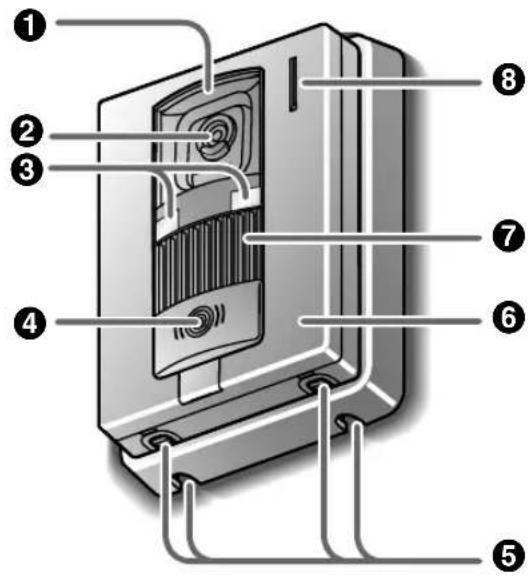
① Lens cover
② Camera
- When a visitor presses the call button, the camera on the door station will turn on and an image of the visitor will be shown on the monitor displays of both the main monitor station and the sub monitor station.
③ LED lights (for illumination)
④【CALL】button and indicator
- The indicator is lighted with a red LED while the power is on. - When a visitor presses the call button, a ringer tone will ring at the main monitor station and the sub monitor station.
⑤ Water drain holes
- These holes allow rain water to drain. Do not cover them.
⑥ Panel
⑦ Speaker
⑧ Microphone
■ Door station image quality
The following phenomena may occur. They are not malfunctions.
- If the sun can be seen, its center appears as a black dot.
- At night or when there is poor lighting in the doorway, the image colors become unclear. If there is a light in the doorway, the image may appear greenish. When the door station's LED lights are off, the image of the subject may be displayed in black and white (or bluish-purple).
- During the daytime or if there is bright light in the doorway, the color of the visitor's clothing may appear differently to the actual color.
Main monitor station
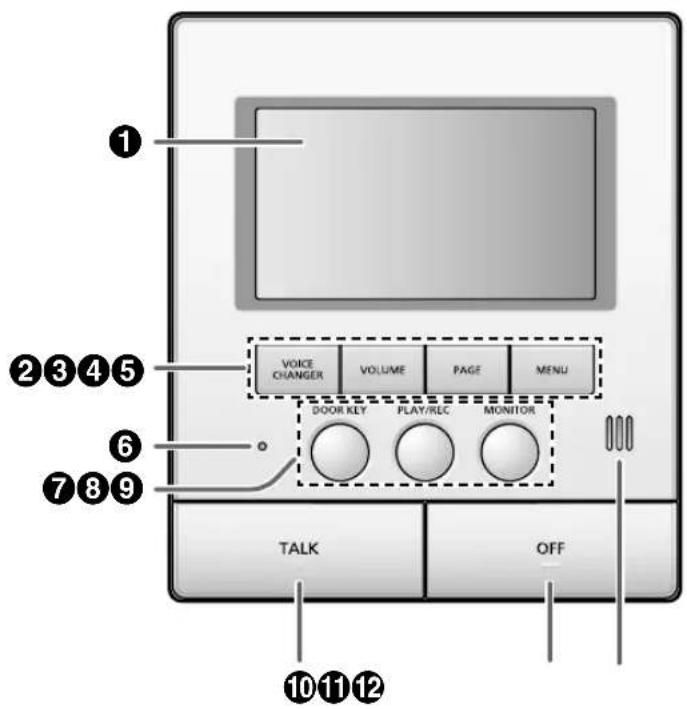
■ Bottom view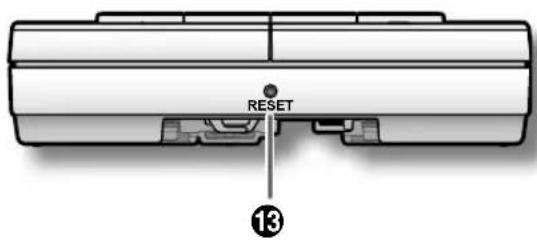
① Monitor display (page 11) ② [VOICE CHANGER] button
- Press to modify the sound of your voice heard by a visitor (page 19).
③ [VOLUME] button
- Adjusts the volume (page 19, 33).
④ [PAGE] button
- Press to page the sub monitor station (page 21, 32).
⑤ [MENU] button
- Press to change the function settings (page 36, 38).
⑥ Microphone
- Do not cover when you talk.
⑦ [DOOR KEY] button
- Allows you to open the door when connecting the door opener (sold separately) to the main monitor station (page 20).
⑧ [PLAY/REC] button
• Views the recorded image (page 26). - Records the image (page 24).
⑨ [MONITOR] button
- Press to monitor the sound and image taken by the door station (page 23).
⑩ [TALK] button and indicator
- Press to answer a call and/or speak to a visitor (page 18).
- The indicator flashes while the door station or the sub monitor station is calling. Lights up solid while talking.
⑪ [OFF] button
- Press to end an operation.
⑫ Speaker
⑬ RESET switch (page 50)
②③④⑤ buttons are also used for operating the features shown on the display (page 11).
Note:
- For information about the rear view, refer to the wiring schematic diagram section in the Installation Guide.
Monitor display (Main monitor station)
The following display is an example for description purposes, and it may differ from the actual display.
- The monitor display is turned off during standby.
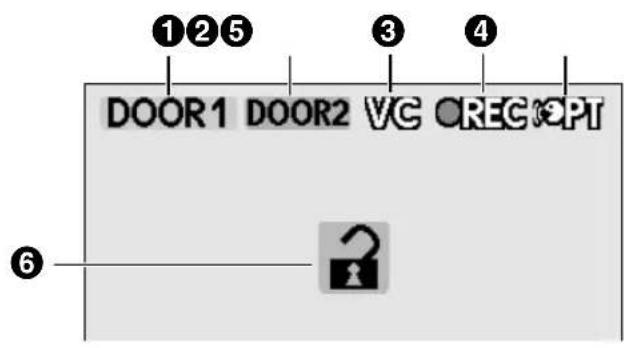
① Indicates which door station or sub monitor station is calling, monitoring, or in a call. Also indicates which door station took the image while viewing it.
(Example)
DOOR1 : Door station 1
SUB1 : Sub monitor station 1
② Indicates which door station is calling while talking or monitoring (page 22).
(Example)
DOOR2 : Door station 2
③ VC: Indicates that the voice changer mode is on (page 19).
PBX: Indicates that one of the PBX extensions connected to the main monitor station is being used for a call from the door station.
④ Indicates that an image is being taken by the door station.
⑤ Indicates that the "Press-to-talk" mode is on (page 20).
⑥ Indicates that the door is opened when the door opener (sold separately) is connected to the main monitor station (page 20).
■ Operation guidance
Available functions are shown on the bottom of the display. Press the appropriate button for the operation.
- The display varies depending on the operation.
Example: When setting a function
![graph TD A["BACK"] --> B["OK"] C["VOICE CHANGER"] --> A D["VOLUME"] --> A E["PAGE"] --> A F["MENU"] --> A](/content/2026/05/1043425/images/56451bff3d689bca02ae39034492b15e93bd7b0753877d6812a4722694655527.jpg)
Press the button for the function directly above it.
Example: To operate "▼", press [VOLUME].
In these Operating Instructions, the button and function displayed above are indicated as follows.
Press [VOLUME] (▼).
The displayed function is not stated when the corresponding button name means the same as the displayed function.
To hide the guidance that overlaps the image:
When the display shows images (for example, during a call and while monitoring), you can temporarily hide the guidance to easily view the whole image. (See "Hiding the operation guidance" on page 19.)
Sub monitor station
Front view
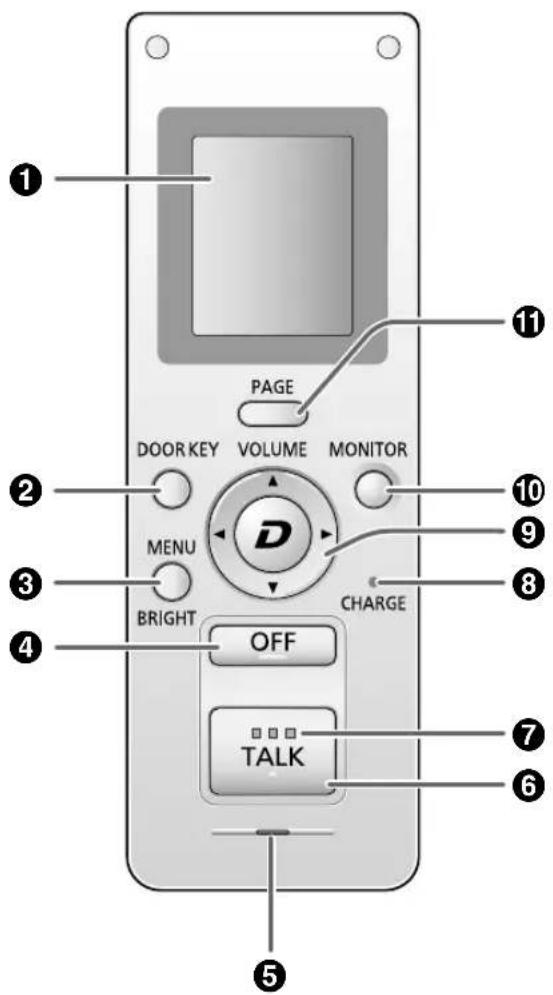
① Monitor display (page 14) ② [DOOR KEY] button
- Allows you to open the door when connecting the door opener (sold separately) to the main monitor station (page 20).
③ [MENU/BRIGHT] button
- Press to change the function settings (page 40).
- Press to adjust the brightness of displayed images (page 19).
④ [OFF] button
[OFF] button
- Press to end an operation.
- Press during standby to turn on the monitor display.
⑤ Microphone ⑥ [TALK] button
- Press to answer a call and/or speak to a visitor (page 18).
⑦ TALK indicator
- Flashes while the door station or the main monitor station is calling. Lights up solid while talking.
⑧ CHARGE indicator
- Lights up while charging. Turns off when charging is complete.
⑨ Navigator key (also used for operating the features shown on the display: page 15).
 | [▼][▲] | • Adjusts the volume (page 19, 33).• Selects the desired item or image. |
 | [◀][▶] | • Press to scroll the displayed image slightly to the right or left (page 19). |
 | [D] | • Records an image (page 25).• Views the recorded image (page 28). |
⑩ [MONITOR] button
- Press to monitor the sound and image taken by the door station (page 23).
⑪ [PAGE] button
- Press to page the main monitor station or another sub monitor station (page 21, 32).
■ Rear view
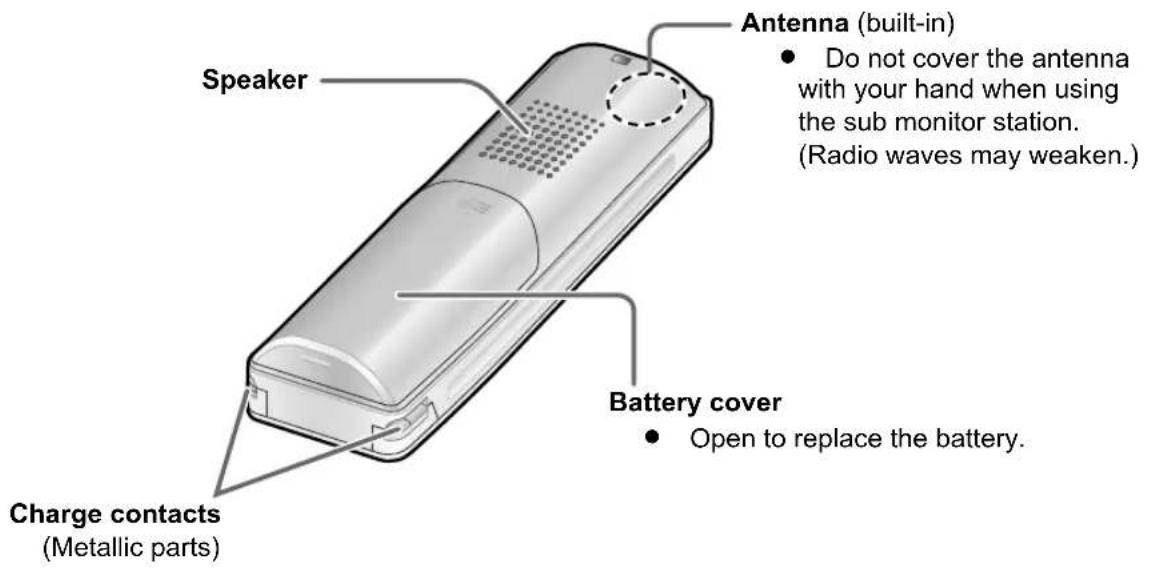
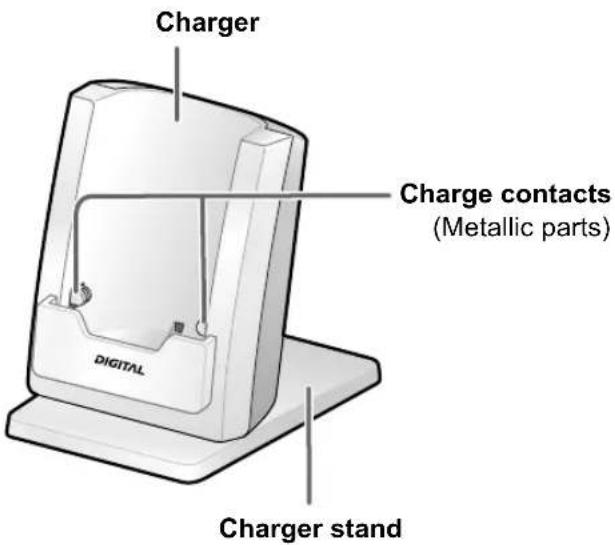
- Charger
• To assemble the charger stand, see page 16.
Monitor display (Sub monitor station)
The following display is an example for description purposes, and it may differ from the actual display.
- The monitor display is turned off during standby. When you press [OFF], the information display appears.
![1 2 3 4 5 6 SUB 1 PLAY RING VOL OFF UNPLAYED YES BACK MENU NEXT Navigator key [OFF]](/content/2026/05/1043425/images/cebf618cbd049a0004d7f731f53d0c60b14edcce3a619501391a365b62f0cacc.jpg)
① Indicates the battery level.
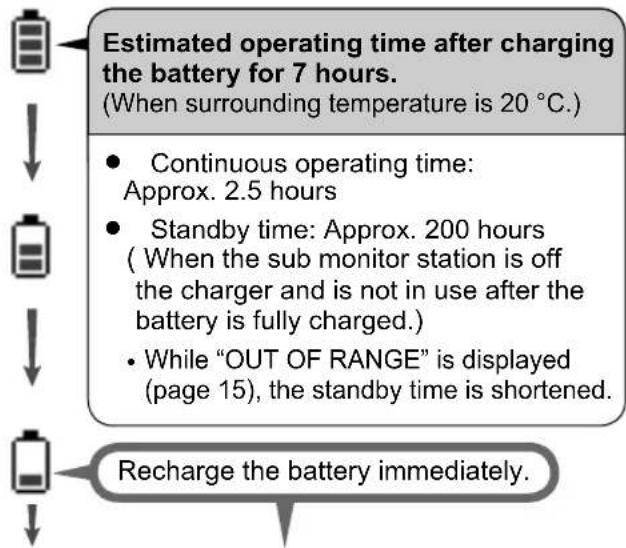
| While in use | 2 beeps sound every 4 seconds and a call is disconnected within about 60 seconds. (fl ashing) |
| During standby | "RECHARGE BATTERY" is displayed. (The battery needs to be recharged.) |
② Indicates which door station is calling, monitoring, or in a call. Also indicates which door station took the image while viewing it.
(Example)
 |
③ Indicates which door station is calling while talking or monitoring.
 |
④ Indicates that the door is opened when the door opener (sold separately) is connected to the main monitor station (page 20).
⑤ Indicates that the "Press-to-talk" mode is on (page 20).
⑥ Indicates the voice changer mode is on (page 19).
⑦ Indicates the level of the reception.
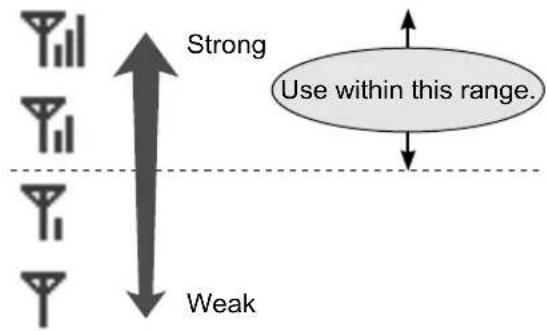
- When the sub monitor station is out of range of the main monitor station, ⚡ flashes and "OUT OF RANGE" is displayed. (Move closer to the main monitor station.)
⑧ Indicates the registration number of the sub monitor station.
⑨ Indicates the operation for viewing recorded images by pressing the center of the navigator key ([D] button).
⑩


Indicates that the ringer volume for the door station is set to "OFF".
⑪

Appears when unviewed images from the door station remain in memory.
⑫ Indicates the operation of the navigator key. (The display varies depending on the operation.)
Example: While viewing a recorded image
![BACK→MENU→NEXT Press [◀] (BACK). Press [▶] (NEXT). Press [D] (MENU).](/content/2026/05/1043425/images/350c95b3646f2541989be90d44ad88a39cda6a2136123307bec66d138ec12160.jpg)
Note:
• Images on the monitor display:
A refreshed image taken by the door station is displayed every 3 seconds. (The displayed image is not a moving picture.)
Charging the sub monitor station
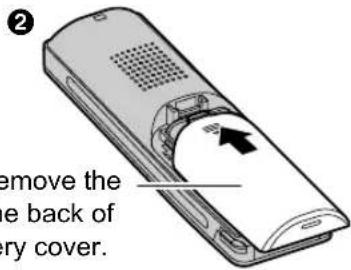
1 Insert the battery.
① Align the terminals and insert. ② Close the battery cover.
- The battery level is displayed as 📁.
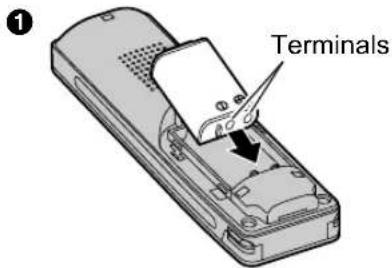
Do not remove the pad at the back of the battery cover.
2 Assemble the charger stand, and plug the AC adaptor into the power outlet.
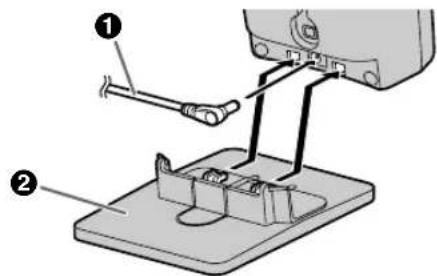
■ To assemble the charger stand
① Plug the connector of the AC adaptor into the jack on the charger. - You can pull out the AC adaptor cord to the left or right side. ② Attach the charger stand.
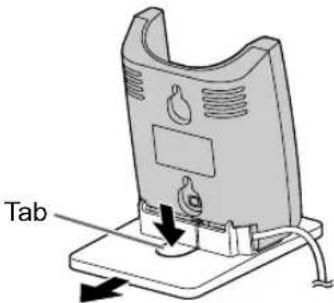
■ To remove the charger stand
Pressing the tab, pull the charger stand to detach.
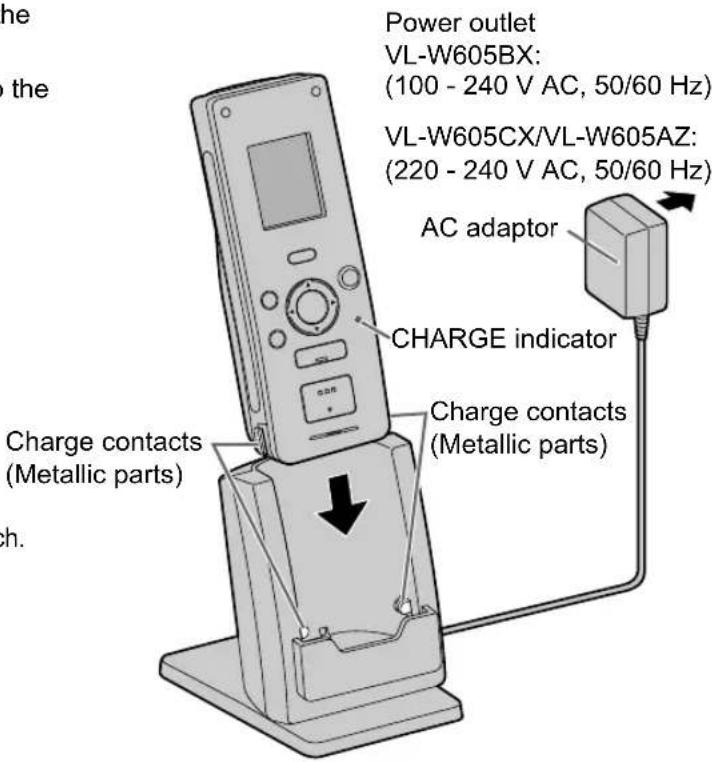
3 Place the sub monitor station on the charger and charge the battery.
While charging: The CHARGE indicator lights up.
When charging is complete: The CHARGE indicator turns off.
- At the first time of charging or after battery replacement, it takes about 7 hours to complete charging.
- If you use the sub monitor station while charging, the charging time becomes longer.
- Locate the charger where "OUT OF RANGE" is not displayed on the sub monitor station. (The charging time becomes longer where the sub monitor station is out of range of the main monitor station.)
- Even after the sub monitor station is fully charged, the sub monitor station can be left on the charger without any ill effect on the batteries.
Important:
- Use only the included AC adaptor.
- When the sub monitor station is off the charger or the AC adaptor is disconnected for 1 week or more, remove the battery in order to maintain the battery performance and prevent the battery from discharging.
- Recharge the battery before using the sub monitor station again.
Setting the date and time
This unit has a recording function. The date and time will not be recorded when recording unless they are set. You can set the date and time using the main monitor station.
![[VOICE CHANGER] [PAGE][VOLUME] [MENU] [OFF]](/content/2026/05/1043425/images/05bdc14feb44abbd881c87d36c775c677948f43eb5d76a829cfe5ec984ebcf27.jpg)
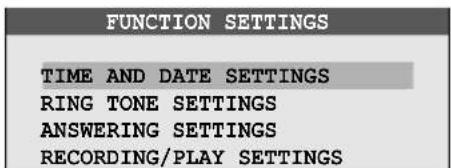
1 Press [MENU], then select "TIME AND DATE SETTINGS" by pressing [VOLUME] (▼) or [PAGE] (▲).
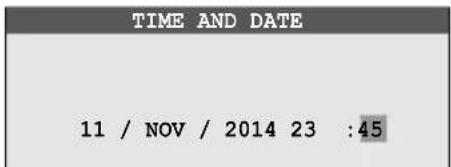
2 Press [MENU] (OK), then set the current date and time.
(Example)
Select the location for day/month/year/hour/minute.
- You can scroll numbers quickly by pressing and holding [VOLUME] (−) or [PAGE] (+).
3 Press [MENU] (OK) after finishing the setting.
• The screen in step 1 is displayed.
4 To end the operation, press [OFF].
Note:
• Time may shift about 60 seconds per month.
Answering a call
When you receive a call from a door station, the main monitor station and the sub monitor station ring and the TALK indicators flash. You can monitor the visitor on the monitor display before answering a call.
![[VOLUME] [VOICE CHANGER] MICROPHONE [TALK] and indicator [OFF] [PAGE] [MENU] [MENU] [▼] [▲] [◀] [▶] [D] [OFF] TALK indicator [TALK] Microphone](/content/2026/05/1043425/images/d3c7773ce4c370622067d798741d84a1f92b63dbbac3cdcb2d5b6b96d875a326.jpg)
1 When a ringer tone is heard, press [TALK]. 2 Speak to the visitor within 50 cm of the microphone.
- Speak alternately with the visitor.
(If you and the visitor speak at the same time, you will not hear each other.)
3 To end the conversation, press [OFF].
Note:
- If you do not answer a door call within 30 seconds, the display will turn off. A conversation will be automatically disconnected in about 90 seconds and then the display will turn off. ● The image taken by the door station is automatically recorded (page 24).
When using an additional door station:
- When you receive another call from the other door station during a conversation, see page 22.
Answering a call by voice sensor (Voice answer mode)
This mode allows you to answer a call by voice without pressing [TALK]. (You can operate this feature in the same way by using either the main monitor station or the sub monitor station.)
Voice answer must be set "ON" beforehand (page 37, 41).
1 When a ringer tone is heard, answer with a clear voice such as "Yes?" or "Hello?".
- When a beep sounds, you can talk to the visitor.
Note:
● Make sure you are within about 50 cm of the main monitor station or the sub monitor station. ● The visitor cannot hear your initial reply when you answer with voice. - Your initial reply should be brief (less than 1 second), otherwise the voice answer mode will not start. - If a visitor calls you, a loud, brief sound (such as a dog's bark) may start the voice answer mode even though you have not replied by voice. - When you locate the sub monitor station near the main monitor station, the voice answer mode may be started by a ringer tone. - The voice answer mode is also available for paging calls.
Features during a call or while monitoring
Scrolling an image right or left on the sub monitor station

Sub monitor station only
1 Press [◀] or [▶].
- The displayed image is scrolled slightly to the right or left.
Turning the door station's LED lights on or off

Main monitor station only
1 Press [MENU], then select "ILLUMINATION" by pressing [VOLUME] (▼SELECT). 2 Press [PAGE] (OFF) or [MENU] (ON).
Using backlight compensation for door station images

Main monitor station only
1 Press [MENU], then select "BACKLIGHT COMPENSATION" by pressing [VOLUME] (▼SELECT). 2 Press [PAGE] (OFF) or [MENU] (ON).
Adjusting the display brightness

Main monitor station
1 Press [MENU], then select "BRIGHTNESS" by pressing [VOLUME] (▼SELECT). 2 Adjust the brightness by pressing [PAGE] (DARK) or [MENU] (BRIGHT).

Sub monitor station
1 Press [MENU], then select "BRIGHTNESS" by pressing [▼] or [▲]. 2 Press [D] (OK). 3 Adjust the brightness by pressing [◀] or [▶].
Hiding the operation guidance

Main monitor station only
1 Press [MENU], then select "GUIDE OFF" by pressing [VOLUME] (▼SELECT).
2 Press [MENU] (OK).
- The guidance disappears from the display temporarily. It reappears when you perform another operation.
Adjusting the volume of your voice heard at the door station
You can adjust the volume of your voice heard at the door station by setting the main monitor station.

Main monitor station only
1 Press [VOLUME], then select "OUTGOING VOL" by pressing [VOLUME] (▼SELECT). 2 Adjust the volume by pressing [PAGE] (−) or [MENU] (+).
Adjusting the speaker volume

Main monitor station
1 Press [VOLUME], then select "INCOMING VOL" by pressing [VOLUME] (▼SELECT). 2 Adjust the volume by pressing [PAGE] (−) or [MENU] (+).

Sub monitor station
1 Adjust the volume by pressing [▼] or [▲].
Speaking with the modified sound of your voice (Voice changer)

Main monitor station
1 Press [VOICE CHANGER].
• VC appears on the display.

Sub monitor station
1 Press [MENU], then select "VOICE CHANGER" by pressing [▼] or [▲]. 2 Press [D] (OK).
• Vc appears on the display.
Note for and
- Voice changer mode is canceled after the conversation ends.
- To cancel the voice changer mode during a conversation, perform the operation above.
If it is difficult to hear the visitor's voice due to noise (Press-to-talk mode)
You can speak with the visitor alternately by pressing [TALK] to switch between the talking mode and the receiving mode. (You can operate this feature in the same way by using either the main monitor station or the sub monitor station.)
1 Press and hold [TALK] for about 2 seconds during a call until a beep sounds.
- OPT appears on the main monitor station.
appears on the sub monitor station.
2 To speak to the visitor:
Speak while pressing and holding [TALK].
To hear the visitor:
Release [TALK].
Note:
- Press-to-talk mode is canceled after the conversation ends.
Using [DOOR KEY] button
When a separate door opener is connected to the main monitor station, you can open the door using the main monitor station or the sub monitor station.
1 To open the door, press [DOOR KEY] after answering a call from the door station or while monitoring images taken by the door station.
- When the door is opened, is displayed.
- Door opener allows you to open the door for the time specified in "Setting [DOOR KEY] button" on page 35.
Note:
- You cannot open the door while receiving a call from the door station.
- When using 2 door openers:
You can open door 1 (door opener 1) when you are talking with door station 1 or monitoring it. You can open door 2 (door opener 2) when you are talking with door station 2 or monitoring it.
Transferring a call
You can transfer a door call between the main monitor station and the sub monitor station.
- Both the main monitor station and the sub monitor station can transfer a door call using the same operation.
- When using multiple sub monitor stations, you can transfer a door call between the sub monitor stations.
![[VOLUME] [TALK] and indicator [OFF] [PAGE] [MENU] [TALK indicator] [PAGE] [▼] [▲] [D] [OFF] [TALK]](/content/2026/05/1043425/images/965bc640043a36e786fad2a3f36279ebb173589da8c2763e723d7057f60247ca.jpg)
To transfer a call: To receive a transferred call:
1 While talking to the visitor at the door station, press [PAGE] and talk to the paged party.
- The image taken by the door station disappears, and the TALK indicator flashes.
2 Tell the paged party to receive the door call. Press [OFF].
- The paged call is disconnected, and the paged party can talk to the visitor.
1 When the paging call is heard, press [TALK] and talk to the paging party.
2 When the image taken by the door station is displayed, talk to the visitor.
- Press [OFF] to end the call.
■ When using multiple sub monitor stations
When you press [PAGE] in step 1, the following is displayed. Select the party that you want to page:

: Press [VOLUME] (▼) or [PAGE] (▲), then press [MENU] (OK).

: Press [▼] or [▲], then press [D] (OK).
(Example: Main monitor station)
| SENDING DOOR STATION 1 |
| ALL STATIONS |
| SUB MONITOR STATION 1 |
| SUB MONITOR STATION 2 |
| SUB MONITOR STATION 3 |
| SUB MONITOR STATION 4 |
Note:
- The visitor cannot hear voices during paging.
- If the paged party does not answer or you want to return to the door call during paging, press [TALK].
When receiving another call during a call or while monitoring
![graph TD A["Door station 1"] -->|During a call\nWhile monitoring| B["Monitor"] B -->|or| C["Sub monitor station Main monitor"] D["Door station 2 (optional)"] -->|Call| E["The ringer tone is heard while [MONITOR"] is flashing, and the display indication notifies you which door station is calling.] F[…](/content/2026/05/1043425/images/53a94fa4e891000becbd7d7e7519009613490895105118b1f6dffdb8492aa74a.jpg)
![[MONITOR] [TALK] [OFF]](/content/2026/05/1043425/images/4b727390b61146716a5f91198894710ca9069bc5bfa51382c3346067021dd55c.jpg)
![[MONITOR] [OFF] [TALK]](/content/2026/05/1043425/images/34a4f835c3637989edca62223e5e6bb5d16c8865d17fdece683debc4ca7e6bf3.jpg)
When answering a call:
1 Press the flashing [MONITOR] button.
• The previous call or monitoring is terminated. - You can monitor the sound and image taken by the other door station. (The other party cannot hear your voice.)
■ To speak to the other party:
Press [TALK].
2 To end monitoring or the conversation, press [OFF].
Monitoring the outside (Door station monitor)
You can monitor the sound and image taken by the door station.
- If an optional lobby station is connected to the main monitor station (page 4), you cannot monitor outside where the lobby station is located.
![[PAGE] [MENU][VOLUME] [MONITOR] [TALK] [OFF] [▼] [▲] [MONITOR] [D] [OFF] [TALK]](/content/2026/05/1043425/images/a0a58821850f7ded85baa1e8cd2e5131f5b16cf8a1c16d009be81ec282c3472f.jpg)
1 Press [MONITOR].
- The outside image will be shown on the display, and you will hear the sound from outside. (The sound from your end will not be heard at the door station.)
- To speak to the other party at the door station, press [TALK].
2 To end monitoring, press [OFF].
■ When installing 2 door stations
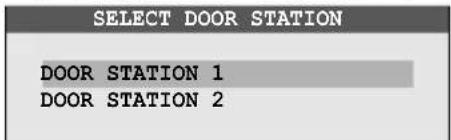
When you press [MONITOR] in step 1, the following is displayed. Select the desired door station:

: Press [VOLUME] (▼) or [PAGE] (▲), then press [MENU] (OK).

: Press [▼] or [▲], then press [D] (OK).
(Example: Main monitor station)
Note:
● Monitoring will automatically end in about 90 seconds. - You can perform the following operations during monitoring. For more details, see page 19. - Turning the door station's LED lights on or off - Using backlight compensation for door station images - Scrolling an image right or left on the sub monitor station - Adjusting the display brightness – Hiding the operation guidance - Adjusting the speaker volume
When using an additional door station:
- When you receive another call from the other door station while monitoring, see page 22.
Recording an image
The main monitor station can record (save) images from up to 50 calls (or monitoring to the door station).
- 8 images are recorded for a call/monitoring (default setting).
Auto recording
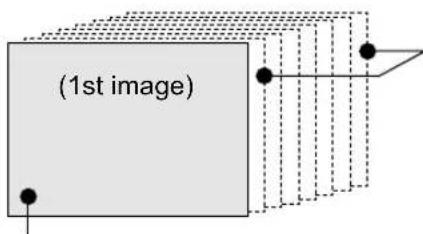
When you receive a call from the door station, 8 images are automatically recorded with the following timing.
2nd to 8th images:
Recorded every 1 second after the 1st image is recorded.
1st image:
Recorded after about 2 seconds when receiving a call.
- If you do not answer a call, the images for the call are recorded, and the main monitor station and the sub monitor station notify you that there are unviewed images as follows.
You can view the images using either the main monitor station or the sub monitor station (page 26, 28).
(Main monitor station) (Sub monitor station)
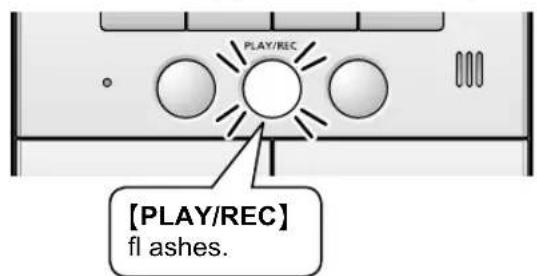
Note:
- You can set the [PLAY/REC] button not to flash when there are unviewed images ("PLAY LAMP FLASHING" on page 37).
- When you answer a call, the recorded images will be treated as viewed images.
- If you receive a call from the other door station while monitoring or during a conversation (page 22), the images for the call are not recorded unless you answer it.
- You can change the number of images to be recorded from "8 PICTURES" to "1 PICTURE" ("DOOR STATION PIC REC NUMBER" on page 37).
- 1 PICTURE: A maximum of 100 images can be recorded.
- 8 PICTURES: The quality of the recorded images will be lower compared to "1 PICTURE".
- If you receive a call from the other door station while recording when "DOOR STATION PIC REC NUMBER" is set to "8 PICTURES", all 8 images may not be recorded. (At least 1 image is recorded.)
■ Auto image update
If a new image is recorded when the maximum number of images is already stored, the oldest image (including unviewed images) is automatically erased.
Note:
- You can protect the image that you do not want to erase (page 30).
Manual recording
You can record an image anytime you are receiving a call, during a conversation, or while monitoring.
![[PLAY/REC]](/content/2026/05/1043425/images/8e3d827a3020dfed4772e1a85d3a19a14e295fc6d5516c7a515da94e7868eee9.jpg)
![[D]](/content/2026/05/1043425/images/670570d8b8d4b8641d13dc21b7c11a14654e21f30c7dac28866a03bcd7b702fd.jpg)
1 When an image is shown on the display:

: Press [PLAY/REC].

: Press [D] (REC).
(Main monitor station) (Sub monitor station)
![graph LR A["DOOR1"] --> B["CREG"] B --> C["*1"] C --> D["RECORDING"]](/content/2026/05/1043425/images/e7552b7d53386f7f1e3ca2dc2037c28771e82c32c8fe603c8f4b0efba0430094.jpg)
*1 While recording images, “●REC” or “RECORDING” appears. It disappears when recording ends.
Note:
- When "DOOR STATION PIC REC NUMBER" is set to "8 PICTURES", an image is recorded every second for 8 seconds.
- Manually recorded images will be treated as viewed images. (To view the recorded images, see page 26, 28.)
- When recording using the sub monitor station:
Recording starts a short while after pressing [D] (REC). Therefore the recorded image may be different from the image that was displayed when you pressed [D] (REC).
Viewing recorded images using the main monitor station
You can view recorded images.
When [PLAY/REC] on the main monitor station is flashing, there is an image that has not been viewed yet.
![[VOICE CHANGER] [VOLUME] [MENU] [PAGE] [OFF] [PLAY/REC] flashes. → The button light goes off when pressed.](/content/2026/05/1043425/images/bf975e15522355d76e374d4e380f8d2017f393c4ad06dda00318ff68d6a616aa.jpg)
1 Press [PLAY/REC], then select the desired item to view by pressing [VOLUME] (▼) or [PAGE] (▲).
- Items having no recorded images are displayed in a light tone color and you cannot select them.
| UNPLAYED PICTURES | 5 |
| PLAYED PICTURES | 3 2 |
2 Press [MENU] (OK) to view the image.
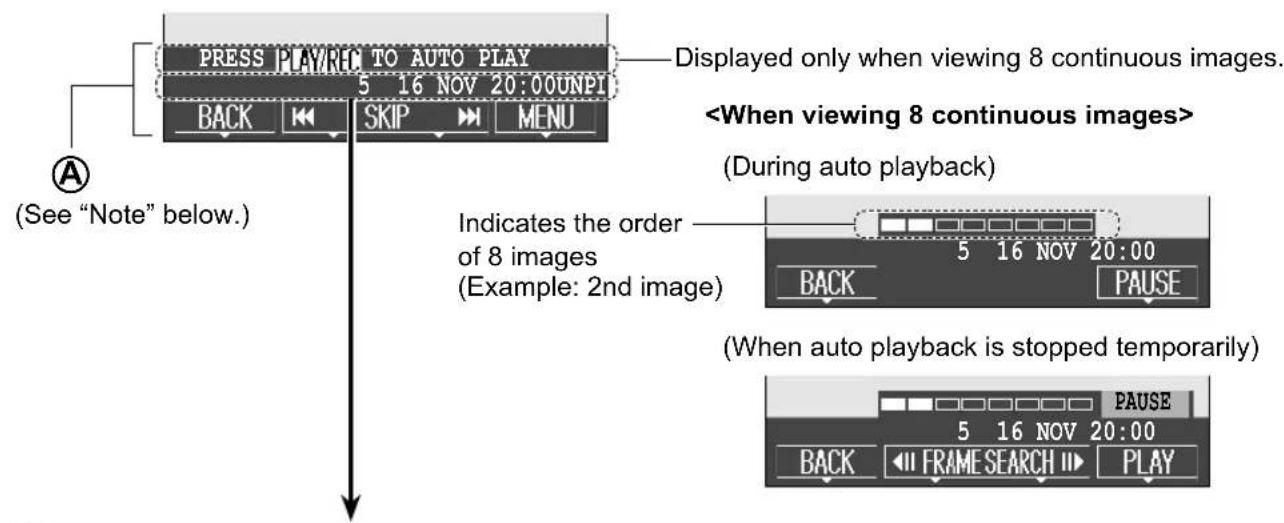
- The most recently recorded image is displayed. (When "DOOR STATION PIC REC NUMBER" is set to "8 PICTURES", the 1st image out of 8 images is displayed.)
■ To view a series of 8 continuous images automatically (auto playback)
Press [PLAY/REC].
- The 8 images are displayed one by one. After viewing the 8th image, the display switches back to the 1st image.
■ To view the next image
Press [VOLUME] (◀◀).
● Each time you press the button, images from other calls (or monitoring) are displayed in chronological order starting from the most recently recorded image.
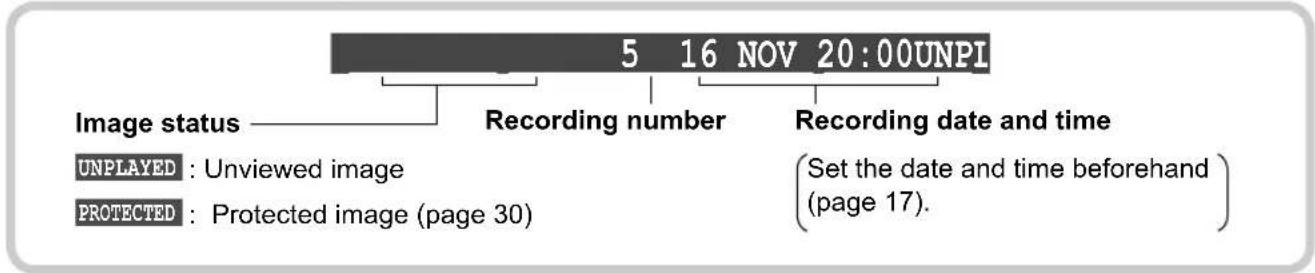
- For display information when viewing images, see page 27.
3 To stop viewing images, press [OFF].
Note:
- Once the flashing [PLAY/REC] button is pressed, the button light goes off even if there are images that have not been viewed.
■ How to view recorded images
■ Features while viewing recorded images
| Button and guidance Operation | |
| 【VOICE CHANGER】(BACK) | Returns to “PLAY MENU”.●During auto playback mode, the display returns to the 1st image. |
| 【VOLUME】(|◀◀) | Switches to the next (or previous) image from a different call (or monitoring).●If you press and hold 【VOLUME】(|◀◀) or 【PAGE】(▶▶), you can switch images quickly, and when you release your finger, the image is displayed. |
| 【PAGE】(▶▶|) | |
| 【VOLUME】(◀||) | Switches to the next (or previous) image of the 8 continuous images when auto playback is stopped temporarily. |
| 【PAGE】(||▶) | |
| 【MENU】(PAUSE) | Stops auto playback temporarily. |
| 【MENU】(PLAY) | Restarts auto playback. |
| 【MENU】(MENU) | Sets to adjust the display brightness or hide the guidance (page 19).Sets to protect or erase the image (page 30, 31). |
Note:
- If the display shows "SAVE INTERRUPTED" while viewing images, 8 images have not been recorded even when "DOOR STATION PIC REC NUMBER" is set to "8 PICTURES". The display returns to the 1st image.
- You can hide the guidance (indicated by Ⓐ above) that overlaps the image to view the whole image.
- For details on temporarily hiding the operation guidance, see page 19.
- To display the guidance for 3 seconds before it is hidden, set "DISPLAY RECORDING DATE" to "3 SEC" (page 37).
Viewing recorded images using the sub monitor station
You can view recorded images stored in the main monitor station using the sub monitor station.
- When YES is displayed in standby mode, there is an image that has not been viewed yet.
![UNPLAYED YES UNPLAYED YES [MENU] [▼] [▲] [◀] [▶] [D] [OFF]](/content/2026/05/1043425/images/5b2df2dabea6ea3ec29864c75fa58faa977a206bbb51810ce297ca278f4bbd38.jpg)
1 Press [D] (PLAY), then select the desired item to view by pressing [▼] or [▲].
- Items having no recorded images are displayed in a light tone color and you cannot select them.
2 Press [D] (OK).
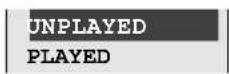
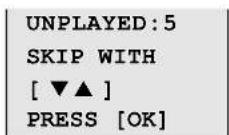
3 Press [D] (OK) to view the image.
- The most recently recorded image is displayed. (When "DOOR STATION PIC REC NUMBER" is set to "8 PICTURES", the 1st image out of 8 images is displayed.)
■ To view a series of 8 continuous images, press [▼].
● Each time you press the button, the 8 images are displayed one by one.
■ To view the next image, press [▶] (NEXT).
- Each time you press the button, images from other calls (or monitoring) are displayed in chronological order starting from the most recently recorded image.
- For display information when viewing images, see page 29.
4 To stop viewing images, press [OFF].
Note:
- YES disappears from the display after all new images have been viewed.
■ How to view recorded images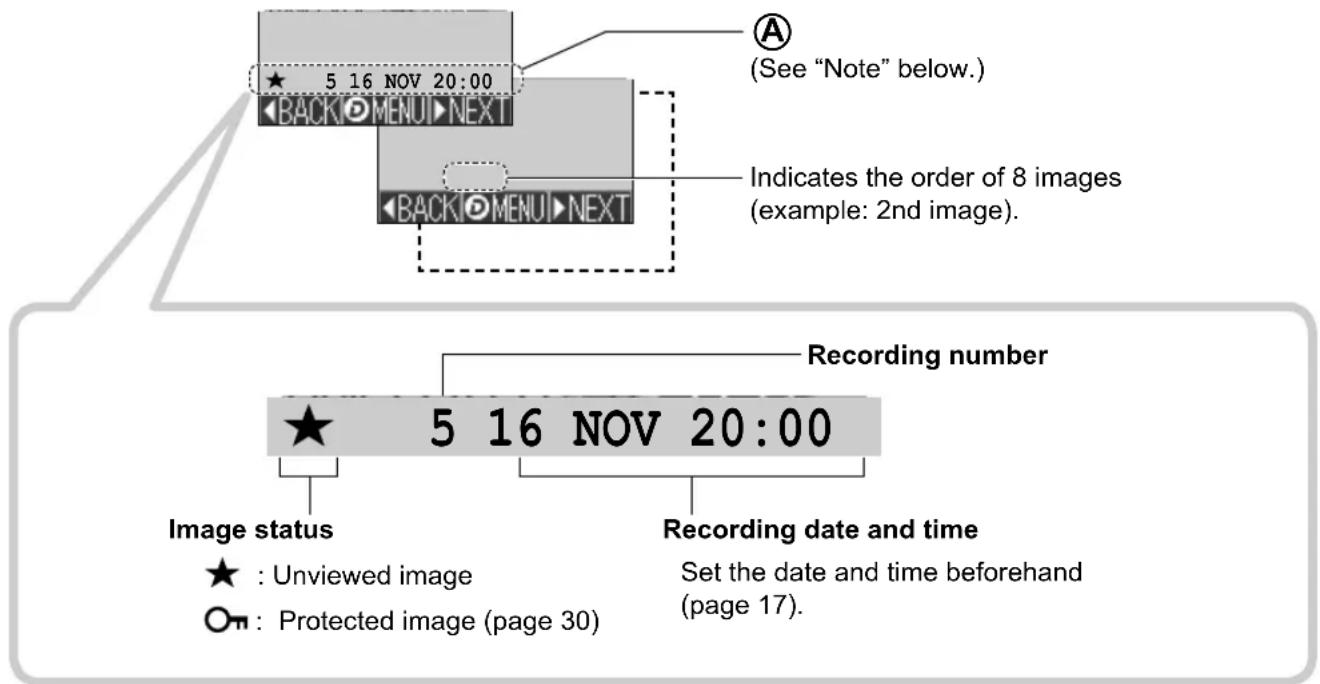
■ Features while viewing recorded images
| Button and guidance Operation | |
| 【◀】(BACK) | Returns to “PLAY MENU”. |
| 【D】(MENU) | Protects or erases the image (page 30, 31). |
| 【▶】(NEXT) | Switches to the next image from a different call (or monitoring).● The 1st image is displayed when viewing the 8 continuous images. |
| 【▼】 | Switches to the next (or previous) image of the 8 continuous images.●If you press and hold 【▼】 or 【▲】, you can switch images quickly, and when you release your finger, the image is displayed. |
| 【▲】 | |
| 【MENU】 | You can adjust the display brightness.●Press 【◀】 or 【▶】 to adjust the brightness. |
Note:
- If the display shows “NOT RECORDED NEXT PIC” while viewing images, 8 images have not been recorded even when “DOOR STATION PIC REC NUMBER” is set to “8 PICTURES”. The display returns to the 1st image.
- You can hide the guidance (indicated by Ⓐ above) that overlaps the image to view the whole image.
- To display the guidance for 3 seconds before it is hidden, set “DISP REC DATE” to “3 SEC” (page 41).
Protecting the recorded images
You can protect up to 20 recorded images that you do not want to erase while viewing images.
![[VOLUME] [MENU] [OFF]](/content/2026/05/1043425/images/a9092ed97af05dc1d855eca6e8e48961e74e506600c7edbde9b4bd1947866425.jpg)
![[▼] [▲] [D] [OFF]](/content/2026/05/1043425/images/b74d9adcaa92a6a7d440552a10b4d077125949e2393ef8d530dbaff0d60fb7f3.jpg)

Main monitor station
1 While viewing the image, press [MENU], then select "PROTECT" by pressing [VOLUME] (▼SELECT).
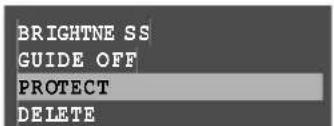
2 Press [MENU] (OK).
- "PROTECTED" appears on the display.
3 To end the operation, press [OFF].
■ To release protection
① While viewing the protected image, press [MENU], then select "PROTECT" by pressing [VOLUME] (▼SELECT).
② Press [MENU] (OK). • “PROTECTED” disappears from the display.

Sub monitor station
1 While viewing the image, press [D] (MENU), then select "PROTECT" by pressing [▼] or [▲].
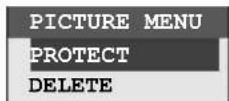
2 Press [D] (OK).
- On appears on the display.
3 To end the operation, press [OFF].
■ To release protection
① While viewing the protected image, press [D] (MENU), then select "PROTECT" by pressing [▼] or [▲].
② Press [D] (OK). • On disappears from the display.
Note:
- If you protect one of a sequence of 8 continuously recorded images, the 8 images are protected as one set. This set of 8 images is counted as one image.
- You can protect a maximum of 20 images. To protect other images after this maximum is reached, you need to release the protection from other images first.
Erasing an image
You can erase unnecessary images.
![[MENU][VOLUME] [OFF] [▼] [▲] [D] [OFF]](/content/2026/05/1043425/images/c90d1235be9ec2718f64539073497041ba775cdb0072ac30cec97055ea25bba0.jpg)

Main monitor station
1 While viewing the image, press [MENU], then select "DELETE" by pressing [VOLUME] (▼SELECT).
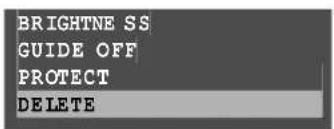
2 Press [MENU] (OK). - "DELETE?" or "SERIES OF PICTURES DELETE?" appears on the display. 3 Press [VOLUME] (YES). 4 To end the operation, press [OFF].

Sub monitor station
1 While viewing the image, press [D] (MENU), then select "DELETE" by pressing [▼] or [▲].
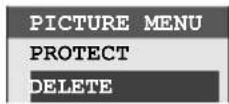
2 Press [D] (OK).
- "DELETE?" or "SERIES OF PICS DELETE?" appears on the display.
- If you erase one of 8 continuous images, all 8 images are erased together.
3 Select "YES" by pressing [▼] or [▲], then press [D] (OK). 4 To end the operation, press [OFF].
Note:
- You can erase all images including unviewed images and protected images at once ("DELETE ALL PICTURES" on page 37).
Talking between the main monitor station and the sub monitor station
Intercom calls between the main monitor station and the sub monitor station can be made. (The other party's image is not displayed.)
- Both the main monitor station and the sub monitor station can transfer a door call using the same operation.
- When using multiple sub monitor stations, you can make intercom calls between the sub monitor stations.
![[VOLUME] [TALK] and indicator [OFF] [PAGE] [MENU] [TALK indicator] [PAGE] [▼] [▲] [D] [OFF] [TALK]](/content/2026/05/1043425/images/0ef2e7a026bfba00baa029c4301481ce4fc3fa7792befc575bce61af18617f0a.jpg)
Caller Receiver
1 Press [PAGE] and talk to the other party.
• The TALK indicator lights up.
2 When the paged party answers the call, talk with the paged party.
3 To end the intercom call, press [OFF].
• The intercom call is disconnected.
1 When the paging call is heard, press [TALK].
2 Talk with the other party.
■ When using multiple sub monitor stations
When you press [PAGE] in step 1, the following is displayed. Select the party that you want to page:

: Press [VOLUME] (▼) or [PAGE] (▲), then press [MENU] (OK).

: Press [▼] or [▲], then press [D] (OK).
(Example: Main monitor station)
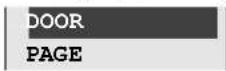
| PAGE | ||
| ALL STATIONS | ||
| SUB MONITOR STATION 1 | ||
| SUB MONITOR STATION 2 | ||
| SUB MONITOR STATION 3 | ||
| SUB MONITOR STATION 4 |
Note:
- An intercom call will automatically end in about 90 seconds.
When receiving a call from the door station during an intercom call:
① Press [OFF] to end the intercom call. ② Answer the call (see page 18).
Adjusting the ringer volume
You can adjust the following ringer volumes by using the main monitor station or the sub monitor station during standby.
- The ringer heard when receiving calls from the door station. (3 levels and "OFF" are available.)
- The ringer for paging calls. (3 levels are available.)

Main monitor station
1 Press [MENU], then select "RING TONE SETTINGS" by pressing [VOLUME] (▼) or [PAGE] (▲). 2 Press [MENU] (OK), then select "RING VOLUME" by pressing [VOLUME] (▼) or [PAGE] (▲). 3 Press [MENU] (OK), then select the desired item to change the setting by pressing [VOLUME] (▼) or [PAGE] (▲).

4 Press [MENU] (OK), then select the desired volume by pressing [VOLUME] (▼) or [PAGE] (▲).
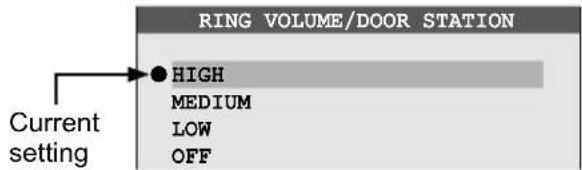
- The ringer sounds at the selected volume level. - When "OFF" is selected, 2 short beeps sound.
5 Press [MENU] (OK).
- “●” moves to the selected item.
6 To end the operation, press [OFF].
Note:
- You can also adjust the ringer volume while receiving a call.
① Press [VOLUME].
RING VOLUME
② Press [PAGE] (−) or [MENU] (+).*1
- You can also adjust the ringer volume for calls from the door station during standby.
Press [VOLUME]. → Press [PAGE] (−) or [MENU] (+).*1
*1 To turn off the ringer volume for calls from the door station, press and hold [PAGE] (—) until 2 short beeps sound.
- To turn the ringer on, press [MENU] (+).

Sub monitor station
1 Press [MENU], then select "RING VOLUME" by pressing [▼] or [▲]. 2 Press [D] (OK), then select the desired item to change the setting by pressing [▼] or [▲].
3 Press [D] (OK), then select the desired volume by pressing [▼] or [▲].
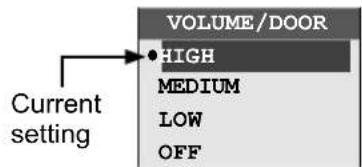
- The ringer sounds at the selected volume level. - When "OFF" is selected, 2 short beeps sound.
4 Press [D] (OK).
- “●” moves to the selected item.
5 To end the operation, press [OFF].
Note:
- You can also adjust the ringer volume while receiving a call by pressing [▼] or [▲]:*1
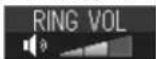
*1 To turn off the ringer volume for calls from the door station, press and hold [▼] until 2 short beeps sound.
- To turn the ringer on, press [▲].
Changing the ringer tone
You can change the ringer tone that is heard when receiving calls from the door station by using the main monitor station or the sub monitor station. (The ringer tone of the paging call cannot be changed.)

Main monitor station
1 Press [MENU], then select "RING TONE SETTINGS" by pressing [VOLUME] (▼) or [PAGE] (▲). 2 Press [MENU] (OK), then select "RING TONE" by pressing [VOLUME] (▼) or [PAGE] (▲). 3 Press [MENU] (OK), then select the desired door station by pressing [VOLUME] (▼) or [PAGE] (▲).

4 Press [MENU] (OK), then select the desired ringer tone by pressing [VOLUME] (▼) or [PAGE] (▲).
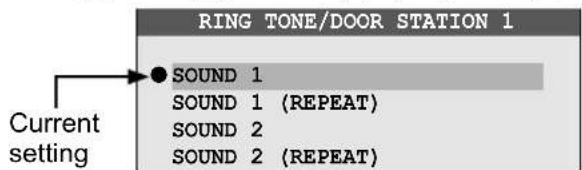
- The selected ringer tone sounds. - The ringer tone sounds just once in this step even if you select "(REPEAT)".
5 Press [MENU] (OK). - "●" moves to the selected item. 6 To end the operation, press [OFF].

Sub monitor station
1 Press [MENU], then select "RING TONE" by pressing [▼] or [▲]. 2 Press [D] (OK), then select the desired door station by pressing [▼] or [▲].
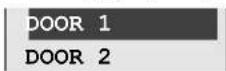
3 Press [D] (OK), then select the desired ringer tone by pressing [▼] or [▲].
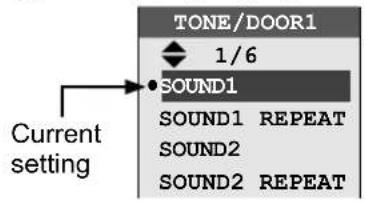
- The selected ringer tone sounds. - The ringer tone sounds just once in this step even if you select "REPEAT".
4 Press [D] (OK). - "●" moves to the selected item. 5 To end the operation, press [OFF].
■ Ringer tone patterns
The default settings are: Door station 1 "SOUND 1", Door station 2 "SOUND 2"
| Ringer tone for calls from the door station |
| SOUND 1 |
| SOUND 1 (REPEAT)* 1 |
| SOUND 2 |
| SOUND 2 (REPEAT)* 1 |
| SOUND 3 |
| SOUND 3 (REPEAT)* 1 |
*1 The selected tone rings about every 5 seconds. However, the ringer tone heard at the door station or the ringer tone when receiving another call does not ring repeatedly.
Setting [DOOR KEY] button
When a separate door opener is connected to the main monitor station, you can open the door using the main monitor station or the sub monitor station. You can also select how long the door remains open. If you do not use the door opener, select "NOT CONNECTED".
You can perform this operation using the main monitor station.
- The default setting is "5 SEC OPEN".
![[VOLUME] [PAGE] [MENU] [OFF]](/content/2026/05/1043425/images/f702c805b3326778108d24f42899c1b3333f3589890c27f687970ad4058f9374.jpg)
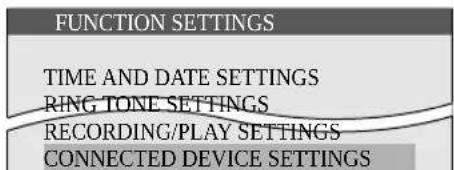
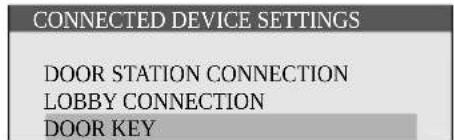
1 Press [MENU], then select "CONNECTED DEVICE SETTINGS" by pressing [VOLUME] (▼) or [PAGE] (▲). 2 Press [MENU] (OK), then select "DOOR KEY" by pressing [VOLUME] (▼) or [PAGE] (▲). 3 Press [MENU] (OK), then select the door opener to be set by pressing [VOLUME] (▼) or [PAGE] (▲). 4 Press [MENU] (OK), then select the desired item by pressing [VOLUME] (▼) or [PAGE] (▲).
5 Press [MENU] (OK).
- "●" moves to the selected item.
6 To end the operation, press [OFF].
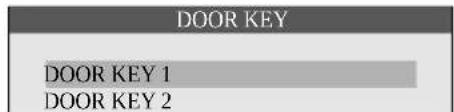
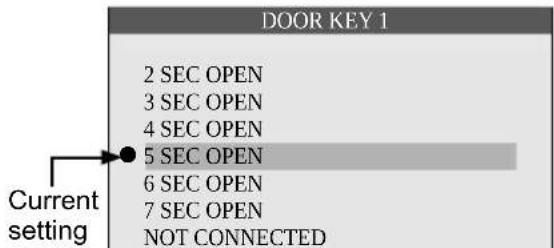
Changing the function settings of the main monitor station (Function list)
How to change the function settings![[VOLUME] [PAGE] [MENU] [OFF]](/content/2026/05/1043425/images/094a04573462addc421c7e0c24f7a40aa7dd3e30f726def6b6ac65093449fd8f.jpg)
1 Press [MENU], then select the desired item by pressing [VOLUME] (▼) or [PAGE] (▲). 2 Press [MENU] (OK), then select the desired item by pressing [VOLUME] (▼) or [PAGE] (▲). 3 Press [MENU] (OK), then select the desired setting by pressing [VOLUME] (▼) or [PAGE] (▲).
- In some functions, repeat this operation according to the display instructions.
4 Press [MENU] (OK).
- If "DELETE ALL PICTURES" is selected (page 37), the confirmation message is displayed. To erase all images, press [VOLUME] (YES).
5 To end the setting, press [OFF].
Note:
- When receiving a call while setting or no operation is done for about 90 seconds, the setting function screen automatically quits.
Function list of the main monitor station
The default setting is indicated in bold.
| Item (function) Setting | |
| TIME AND DATE SETTINGS | ●You can set the current date and time (page 17). |
| RING TONE SETTINGS | |
| RING VOLUME DOOR STATION: HIGH, MEDIUM, LOW, OFFPAGE : HIGH, MEDIUM, LOW● You can select the ringer volume of the main monitor station (page 33). | |
| RING TONE DOOR STATION 1: SOUND 1, SOUND 1 (REPEAT),SOUND 2, SOUND 2 (REPEAT),SOUND 3, SOUND 3 (REPEAT)DOOR STATION 2: SOUND 1, SOUND 1 (REPEAT),SOUND 2, SOUND 2 (REPEAT),SOUND 3, SOUND 3 (REPEAT)● You can select the ringer tone of the main monitor station for calls from the door station (page 34). | |
| ANSWERING SETTINGS | |
| VOICE ANSWER ON, OFFYou can answer a call from the door station or the sub monitor station by answering with a clear voice such as “Yes?” or “Hello?” unless you press [TALK] (page 18).- Even if “ON” is selected, you can answer a call by pressing [TALK]. | |
| VOICE CHANGER NORMAL, LOWYou can select the tone for voice changer (page 19). | |
| RECORDING/PLAY SETTINGS | |
| PLAY LAMP FLASHING | YES, NOIf you select “YES”, the [PLAY/REC] button flashes when unviewed images taken by the door station remain (page 24, 26). |
| DISPLAY RECORDING DATE | ALWAYS, 3 SECYou can set the recording time and date and the guidance to be displayed while viewing the recorded image.When “3 SEC” is selected: (Directly after being displayed) (About 3 seconds later)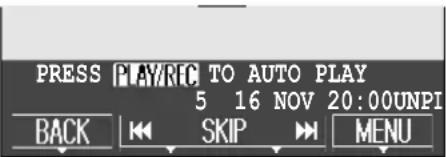 → → |
| DOOR STATION PIC REC NUMBER | 8 PICTURES, 1 PICTUREYou can select the number of images to be recorded when receiving a call from the door station or monitoring.- 1 PICTURE: A maximum of 100 images can be recorded.- 8 PICTURES: The quality of the recorded images will be lower compared to “1 PICTURE”. |
| PICTURE RECORD TIMING | NORMAL (about 2 seconds), DELAYED (about 3 seconds)Select “DELAYED” at night when the recorded images are difficult to see if the door station auto recording feature is turned on.(You cannot select the setting for door station 1 or 2 separately.) |
| DOOR STATION AUTO RECORDING | DOOR STATION 1: ON, OFFDOOR STATION 2: ON, OFFWhen receiving calls from the door station, images are automatically recorded. |
| DELETE ALL PICTURES | DELETE ALL PICTURES, DELETE NON-PROTECTED PICS, BACKTo erase all recorded images including the protected images, select “DELETE ALL PICTURES”. |
How to change the function settings
![[VOLUME] [PAGE] [MENU] [OFF]](/content/2026/05/1043425/images/a6554e20f4fc6ee03ffd1d40b2daa90f8644d6872855cda9d532ff6f06cb1e3e.jpg)
1 Press [MENU], then select the desired item by pressing [VOLUME] (▼) or [PAGE] (▲).
2 Press [MENU] (OK), then select the desired item by pressing [VOLUME] (▼) or [PAGE] (▲).
3 Press [MENU] (OK), then select the desired setting by pressing [VOLUME] (▼) or [PAGE] (▲).
- In some functions, repeat this operation according to the display instructions.
4 Press [MENU] (OK).
- If "INITIALIZE SETTINGS" is selected (page 39), the confirmation message is displayed. To reset settings, press [VOLUME] (YES).
5 To end the setting, press [OFF].
Note:
- When receiving a call while setting or no operation is done for about 90 seconds, the setting function screen automatically quits.
Function list of the main monitor station
The default setting is indicated in bold.
| Item (function) Setting | |
| CONNECTED DEVICE SETTINGS | |
| DOOR STATION CONNECTION | DOOR STATION 1: YES, AUTO, NODOOR STATION 2: YES, AUTO, NOYou can select the setting of the door station.Select “NO” for the door station that is not in use. |
| LOBBY CONNECTION*1 | Generally, it is unnecessary to change this setting. This is for apartment complexes. Only if an optional lobby station is connected to the main monitor station (page 4), change the setting to “YES”.YES, NO |
| DOOR KEY DOOR KEY | 1: 2 SEC OPEN, 3 SEC OPEN, 4 SEC OPEN, 5 SEC OPEN,6 SEC OPEN, 7 SEC OPEN, NOT CONNECTEDDOOR KEY 2: 2 SEC OPEN, 3 SEC OPEN, 4 SEC OPEN, 5 SEC OPEN,6 SEC OPEN, 7 SEC OPEN, NOT CONNECTEDYou can select how long the door remains open when the door opener (sold separately) is connected to the main monitor station (page 35). |
| AUTOMATIC ILLUMINATION | DOOR STATION1: WHEN VISITORS COME ENABLE DISABLEWHEN MONITORING ENABLE DISABLEDOOR STATION2: WHEN VISITORS COME ENABLE DISABLEWHEN MONITORING ENABLE DISABLEWith this setting, you can select whether or not to automatically turn on the LED lights when the area surrounding the door station is dark. |
*1 Cannot be connected to the VL-SW251AZ.
| Item (function) Setting | |
| REGISTRATION/CANCELLATION | |
| REGISTRATION | You can add optional sub monitor stations or repeaters to the main monitor station, or cancel their registration.- Sub monitor station (page 44, 46)- Repeater (page 45, 46) |
| CANCELLATION | |
| OTHER SETTINGS | |
| INITIALIZE SETTINGS | INIT + DEL ALL PICTURES, ONLY INITIALIZE SETTINGS, BACKThis function resets the settings of the main monitor station to the default settings.The following settings are not affected:- Registration of the sub monitor station and the repeater-Lobby connection settings |
| DEMO MODE Do not use this setting unless the device is being used in a sales display.ON, OFF | |
Changing the function settings of the sub monitor station (Function list)
How to change the function settings![[MENU] [▼] [▲] [D] [OFF]](/content/2026/05/1043425/images/570baf677340190874b3bf65011f93e5ef7a27367d7fe6535de5fda276da0081.jpg)
1 Press [MENU], then select the desired item by pressing [▼] or [▲]. 2 Press [D] (OK), then select the desired setting by pressing [▼] or [▲].
- In some functions, repeat this operation according to the display instructions.
3 Press [D] (OK). 4 To end the setting, press [OFF].
Note:
- When receiving a call while setting or no operation is done for about 90 seconds, the setting function screen automatically quits.
Function list of the sub monitor station
The default setting is indicated in bold.
| Item (function) Setting | |
| RING VOLUME DOOR: HIGH, MEDIUM, LOW, OFFPAGE : HIGH, MEDIUM, LOWYou can select the ringer volume of the sub monitor station (page 33). | |
| RING TONE DOOR 1: SOUND1, SOUND1 REPEAT,SOUND2, SOUND2 REPEAT,SOUND3, SOUND3 REPEATDOOR 2: SOUND1, SOUND1 REPEAT,SOUND2, SOUND2 REPEAT,SOUND3, SOUND3 REPEATYou can select the ringer tone of the sub monitor station for calls from a door station (page 34). | |
Item (function) Setting
VOICE ANSWER ON, OFF
- You can answer a call from the door station, the main monitor station, or another sub monitor station by answering with a clear voice such as "Yes?" or "Hello?" unless you press [TALK] (page 18).
- Even if "ON" is selected, you can answer a call by pressing [TALK].
VOICE CHANGER NORMAL, LOW
- You can select the tone for voice changer (page 19).
DISP REC DATE (Display recording date)
ALWAYS, 3 SEC
- You can set the recording time and date to be displayed while viewing the recorded image.
- When "3 SEC" is selected: (Directly after being displayed) (About 3 seconds later)
5 16 NOV 20:00
CONTRAST
- When it is difficult to see the monitor display of the sub monitor station, you can adjust the display contrast. 5 levels are available.
Default setting → (Level 3)
REGISTRATION
- You can register the sub monitor station to the main monitor station (page 44).
INIT SETTINGS (Initialize settings)
YES, NO
- This feature resets all settings of the sub monitor station to the default settings.
Expanding your system with optional units
You can expand your system with the following optional units ("Accessory items" on page 4).
For installing or using the optional units, refer to their separate Operating Instructions.
For wiring between the optional units and the main monitor station, refer to the Installation Guide included separately.
System components (as of November, 2014)
Units required to be registered to the main monitor station Wireless video intercom system![graph TD A["Adding a sub monitor station: Wireless monitor (up to 4 units including your original unit) (page 44)"] --> B["Sub monitor station*1"] B --> C["Door station*1"] A --> D["Expanding the range of the system (radio wave range)*3: Repeater (up to 2 units) (page 45)"] D --> E["Main monitor sta…](/content/2026/05/1043425/images/de1c02c8005f52c112acaeafedc7850fc6064e9a3c8adf757256d867a11d9f28.jpg)
*1 For VL-MW251BX/VL-MW251CX/VL-MW251SX users: The sub monitor station and door station are optional (not included).
*2 You can connect up to 2 door openers to the main monitor station. If the main monitor station is connected to a PBX, one of the 2 door openers can be connected to the PBX and operated from the PBX extensions.
*3 Cannot be connected to the VL-SW251AZ.
ed to be installed
Adding a door station:
Door station (up to 2 units including your original unit)
VL-V522LBX
VL-V522LSX
or
VL-V566BX 4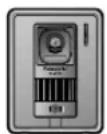
You can also connect an optional lobby station for apartment complexes 3 (page 4).
Operating the door opener:
Door opener (up to 2 units) *2
Door opener
Connecting to a door opener allows you to open the door using the [DOOR KEY] on the main monitor station or the sub monitor station (page 20).
Using with Panasonic PBX:
Connecting to a PBX allows you to answer calls from the door station using additional machines (extensions).
Please use only a Panasonic PBX (page 4).
Note:
- If you answer a call from the door station with a PBX extension, the camera image taken by the door station will be displayed at the main monitor station. PBX will appear in the top of the display indicating that a PBX extension is on the call (see ③ on page 11). While PBX is displayed, you cannot answer the call using the main monitor station. The display will turn off when the conversation between the door station and the PBX extension ends, or if the call duration time is longer than 3 minutes.
- If you answer a call from the door station with the main monitor station or the sub monitor station, the call will continue to ring at the extension for about 15 to 30 seconds. Even if an extension user wants to answer the call while the call is ringing, the extension user cannot participate in the call.
When using two door stations
(excluding an optional lobby station, page 4):
From the PBX extension, you can call up the only one door station that has received the last incoming call or has talked with.
Adding a sub monitor station (REGISTRATION)
Up to 4 sub monitor stations including your original one can be registered (page 4).
Registration to the main monitor station is required. Charge the sub monitor station to be registered for about 30 minutes before registration.
Registering the sub monitor station to the main monitor station (REGISTRATION)
Place the sub monitor station to be registered near the main monitor station, and then operate the sub monitor station within 2 minutes after the operations of the main monitor station.

Using the main monitor station![[VOLUME] [PAGE] [MENU] [OFF]](/content/2026/05/1043425/images/7b41e60cd01adb0552a353dc24d510daf9e6f519e2b79412d4c7a7918cddb9f4.jpg)
1 Press [MENU], then select "REGISTRATION/CANCELLATION" by pressing [VOLUME] (▼) or [PAGE] (▲).
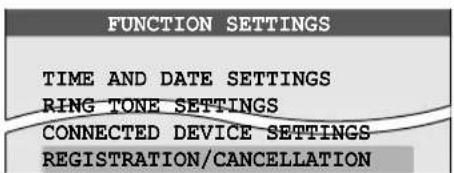
2 Press [MENU] (OK), then select "REGISTRATION" by pressing [VOLUME] (▼) or [PAGE] (▲). 3 Press [MENU] (OK), then select "SUB MONITOR STATION" by pressing [VOLUME] (▼) or [PAGE] (▲). 4 Press [MENU] (OK), then select the sub monitor station to be registered by pressing [VOLUME] (▼) or [PAGE] (▲). 5 Press [MENU] (OK).
Operate with the sub monitor station within 2 minutes.
Using the sub monitor station
![[MENU] [D]](/content/2026/05/1043425/images/2d0643359202162b36eb8a0229bf36ab67d56dd1c2c7dc85a8c68e28f65a2fd1.jpg)
6 Press [MENU].
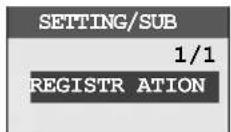
7 Press [D] (OK).
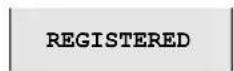
8 To end the operation, press [OFF] on the main monitor station.
■ To register a canceled sub monitor station (page 46) again: 6 Press [MENU], then select "REGISTRATION" by pressing [▼] or [▲]. 7 Press [D] (OK). 8 Press [D] (OK). 9 To end the operation, press [OFF] on the main monitor station.
Setting a repeater (REGISTRATION)
You can set up to 2 optional repeaters (page 4).
- One repeater can relay radio waves between the main monitor station and multiple sub monitor stations.
- If you set a repeater between the main monitor station and sub monitor stations located at a distance, the repeater expands the radio wave range and may improve image distortion and/or sound cutting in and out.
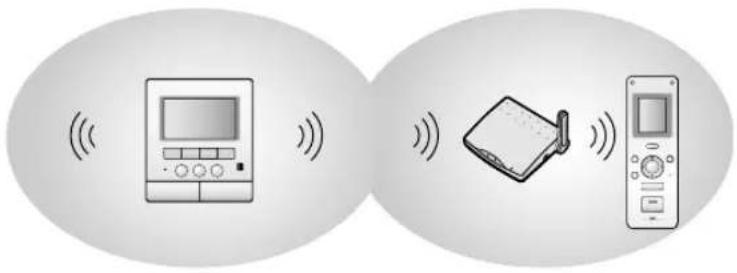
Perform the following operations to register the repeater to the main monitor station, then install the repeater according to the Operating Instructions included with the repeater.
Registering the repeater to the main monitor station (REGISTRATION)
Place the repeater near the main monitor station and then operate the repeater within 2 minutes in succession to the operations of the main monitor station.
Using the main monitor station
![[VOLUME] [PAGE] [MENU] [OFF]](/content/2026/05/1043425/images/57815c0045aaa1cef3dc9c785a86205ffc8ecb16247119869e3f78f16bc69454.jpg)
1 Press [MENU], then select "REGISTRATION/CANCELLATION" by pressing [VOLUME] (▼) or [PAGE] (▲).
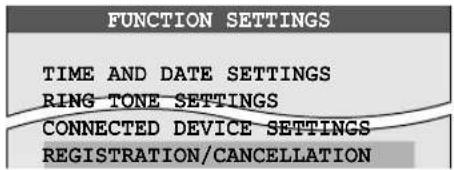
2 Press [MENU] (OK), then select "REGISTRATION" by pressing [VOLUME] (▼) or [PAGE] (▲). 3 Press [MENU] (OK), then select "REPEATER" by pressing [VOLUME] (▼) or [PAGE] (▲). 4 Press [MENU] (OK), then select the repeater to be registered by pressing [VOLUME] (▼) or [PAGE] (▲). 5 Press [MENU] (OK).
Operate with the repeater within 2 minutes.

Using the repeater![To power outlet (100-240 V AC). Status indicator. PROGRAM [PROGRAM].](/content/2026/05/1043425/images/f5e7a97cbea39142ec89c7757edaf1e078fc2fce15ae91db5653177c8860f783.jpg)
6 While the power is on, press and hold [PROGRAM] for about 3 seconds.
●The STATUS indicator flashes in green. - After completing the registration, the indicator lights up solid.
7 To end the operation, press [OFF] on the main monitor station.
Important:
- If you register two repeaters, please separate them more than 3 meters to avoid electrical noise.
Canceling registration of the sub monitor station/repeater (CANCELLATION)
You can cancel the registration of a sub monitor station or a repeater if you do not use it.

Using the main monitor station
![[VOLUME], [PAGE], [MENU], [OFF].](/content/2026/05/1043425/images/ceceea5958ca56766934ca554c001e65d0cb7cdd093df85c98ab441f55cfc1cd.jpg)
1 Press [MENU], then select "REGISTRATION/CANCELLATION" by pressing [VOLUME] (▼) or [PAGE] (▲).
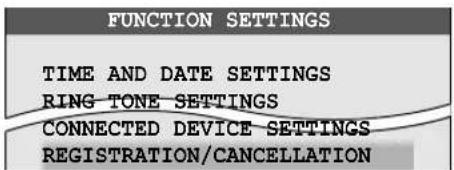
2 Press [MENU] (OK), then select "CANCELLATION" by pressing [VOLUME] (▼) or [PAGE] (▲).
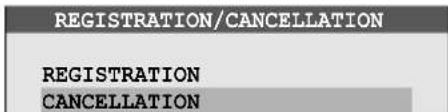
3 Press [MENU] (OK), then select the device to be canceled by pressing [VOLUME] (▼) or [PAGE] (▲).
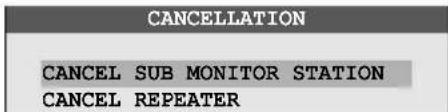
4 Press [MENU] (OK), then select the device number to be canceled by pressing [VOLUME] (▼) or [PAGE] (▲).
(Example: Sub monitor station 2)
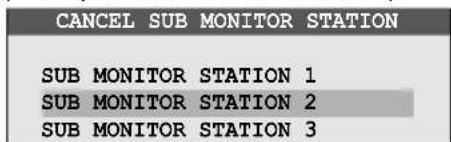
5 Press [MENU] (OK).
6 To end the operation, press [OFF].
Important:
- Remove the battery from the canceled sub monitor station in order to avoid malfunction.
- Turn off the power of the canceled repeater in order to avoid malfunction.
Troubleshooting
■ Monitor display
| Problem Cause & Solution Page | ||
| The image of the subject is displayed in black and white (or bluish-purple). | At night or when there is poor light in the area around the door station, the image of the subject may be displayed in black and white (or bluish-purple).When using a door station equipped with LED lightsThe door station's LED lights may be turned off.Turn on the LED lights when it is dark.When using a door station not equipped with LED lightsWe recommend installing extra lights in the area around the door station. | 1938— |
| The background appears greenish. | At night or when there is poor light in the area around the door station, lights or white objects near the door station may appear greenish. This is not a malfunction. | — |
| Even when a door station equipped with LED lights is used, images at night are dark and faces cannot be identified. | [AUTOMATIC ILLUMINATION] is set to [DISABLE].- Change the setting to [ENABLE].Even when the door station's LED lights are lit, because the light from the LED lights cannot illuminate the edges of the visible area (the areas directly next to the door station), faces of people may not be identifiable even when they are close to the door station.We recommend installing extra lights in the area around the door station. | 38— |
| The image of a person's face is dark. | When the door station is installed in a location where there is backlight, images of visitor's faces may appear dark, making it difficult to identify people.When using door stations that have a backlight compensation functionUse the backlight compensation function.When using door stations that do not have a backlight compensation functionInstall the door station in a location where there is no backlight. | 19— |
| The image is not clear or is blurry. | The surface or the lens of the door station is dirty. Clean it with a soft dry cloth.The surface or the lens of the door station is wet with dew. Wait for the condensation to evaporate. | 52— |
| The image is white or black. | The brightness of the display is not properly adjusted. Adjust the brightness while receiving a call, during a conversation, or while monitoring. | 19 |
| The image is white, or white lines or circles are shown on the display. | Strong light such as sunlight is shining into the lens of the door station. Though this may cause the display image to become difficult to see, this is not a malfunction.Locate the door station away from direct sunlight.The image quality may be better if the angle of the door station is changed. | — |
| There is a small black dot in the background. | If the sun can be seen, its center appears as a black dot. This is not a malfunction. | — |
| The image is flickering. | AC (alternating current) lights such as fluorescent lights may cause flickering in dark environments. This is not a malfunction. | — |
| The image displayed on the sub monitor station distorts or is displayed slowly. (It takes 5 seconds or more to be displayed.) | The antenna on the sub monitor station is being covered with your hand. Do not cover it.Antenna  The sub monitor station is too far from the main monitor station. Move closer to the main monitor station. If you install a repeater (optional), the image may be improved.There is an object such as a concrete wall obstructing the signal. Move to a place without an obstacle. If you install a repeater (optional), the image may be improved.A microwave or wireless LAN appliance is in use. Move closer to the main monitor station or use a sub monitor station located away from those appliances. Try again. The sub monitor station is too far from the main monitor station. Move closer to the main monitor station. If you install a repeater (optional), the image may be improved.There is an object such as a concrete wall obstructing the signal. Move to a place without an obstacle. If you install a repeater (optional), the image may be improved.A microwave or wireless LAN appliance is in use. Move closer to the main monitor station or use a sub monitor station located away from those appliances. Try again. | —7, 457, 457 |
| The recorded image quality is lower. | The image quality of “8 PICTURES” is lower than “1 PICTURE”. Change the setting of “DOOR STATION PIC REC NUMBER” to “1 PICTURE” using the main monitor station if higher quality is required. | 37 |
| The recording date and time are not displayed while viewing the image. | The date and time are not set. Set the current date and time using the main monitor station. | 17 |
| The recorded image taken at night is dark. | It takes some time to display the image from the door station taken at night. Therefore, the auto recording may start before the image can be displayed. Change the setting of “PICTURE RECORD TIMING” to “DELAYED”. | 37 |
■ Conversation (Doorphone/Intercom)
| Problem Cause & Solution Page | ||
| Sound cuts in/out or fades. | The surroundings of the main monitor station, the sub monitor station or the door station are noisy. Try “Press-to-talk” mode.The antenna on the sub monitor station is being covered with your hand. Do not cover it. | 20— |
| The sub monitor station is too far from the main monitor station. Move closer to the main monitor station. If you install a repeater (optional), the sound may be improved.There is an object such as a concrete wall obstructing the signal. Move to a place without an obstacle. If you install a repeater (optional), the sound may be improved.A microwave or wireless LAN appliance is in use. Move closer to the main monitor station or use a sub monitor station located away from those appliances. Try again. | 7, 457, 457 | |
| A howling noise interrupts the conversation. | ● A howling noise may occur when you are too close to the other party. Move away from the other party. | — |
| Your voice cannot be heard by the outside visitor. (Visitor's voice can be heard.) | ● When OPT or is displayed, the “Press-to-talk” mode is activated. Only while pressing [TALK], the outside visitor can hear your voice. | 20 |
| Voice answer mode does not operate properly. | ● Your voice is not loud enough or your initial reply is too long (must be less than 1 second). Try a different voice volume or change the length of your answer until the main monitor station or the sub monitor station beeps. | 18 |
■ Ringer tone
| Problem Cause & Solution Page | ||
| The ringer tone for the door station does not sound. | ● The ringer volume is turned off. Turn it on. ● The battery is discharged. Charge the battery. | 33 16 |
■ Sub monitor station/Battery
| Problem Cause & Solution Page | ||
| fl ashes and 2 short beeps sound. | The battery level is low. Charge the battery immediately. | 16 |
| Even if you place the sub monitor station on the charger, the CHARGE indicator does not light up. | The AC adaptor is disconnected from the power outlet or the charger. Plug the AC adaptor into the power outlet or the charger firmly.The sub monitor station is not placed on the charger correctly. Replace it securely. (A short beep sounds and the CHARGE indicator lights in solid red.)The charge contacts are dirty. Clean them with a soft, dry cloth.The battery is new or discharged. Place the sub monitor station on the charger and wait for a few minutes. | 16165216 |
| The CHARGE indicator does not go off after the battery has been charged for about 7 hours. | When the power of the main monitor station is turned off or “OUT OF RANGE” is displayed on the sub monitor station, the charging time will become longer. Make sure the power of the main monitor station is turned on, and charge the sub monitor station in a location near the main monitor station where “OUT OF RANGE” disappears. | 16 |
| Even if the sub monitor station has been charged, fl ashes after using it a few times. | The battery is at the end of its life. Replace the battery with a new one. | 52 |
| The sub monitor station, the AC adaptor, or the charger is warm. | This is normal. (It may feel a little warmer in summer than in winter.) If it feels very hot, disconnect the AC adapter from the power outlet and contact our service personnel. | — |
Others
| Problem Cause & Solution Page | ||
| The main monitor station, the sub monitor station, and the door station do not work during a power failure. | ● The unit does not work during a power failure. The date and time may be reset to the default setting after a power failure. In this case, set the date and time using the main monitor station again. | 17 |
| ● “DEMO MODE” is displayed.● You cannot answer the call or make an intercom call. | ● Demo mode is activated. Change the setting to “OFF”. | 39 |
| ● The unit does not work with correct operations.● The unit does not work properly. | ● Perform the following operation (Reset).Main monitor station:Press the RESET switch on the bottom of the main monitor station with a pointed object. (Recorded images and the program settings are not affected.)Sub monitor station:Remove the battery and insert it again.- Program settings are not affected.- is displayed. However, the actual battery level is maintained. | 10— |
| The main monitor station does not work.● The display monitor does not display anything.● The ringer tone does not sound.● No voices can be heard. | ● The plug is disconnected from the power outlet, or it is about to be disconnected. Disconnect the plug, and connect it securely again. If this does not solve the problem, contact our service personnel. | — |
Error messages
■ Main monitor station/Sub monitor station
| Problem Cause & Solution Page | ||
| IN USE | ● The main monitor station or the sub monitor station is in use. Try again later. | — |
| PROTECTED PICREMOVE PROTECT | ● The image you tried to erase is protected. Release the protection, then erase it. | 3031 |
| (Main monitor station)PROTECT PIC FULLCAN NOT PROTECT(Sub monitor station)PROTECT FULLCANT PROTECT | ● The number of images you can protect has been exceeded. You can protect up to 20 images. Release the protection from other images, then try again.– Unprotected images will be overwritten by new images. | 30 |
■ Sub monitor station only
| Problem Cause & Solution Page | ||
| CAN NOT CONNECT | The sub monitor station is too far from the main monitor station. Move closer to the main monitor station. If you install a repeater (optional), the problem may be solved.There is an object such as a concrete wall obstructing the signal. Move to a place without an obstacle. If you install a repeater (optional), the problem may be solved.A microwave or wireless LAN appliance is in use. Move closer to the main monitor station or use a sub monitor station located away from those appliances. Try again. | 7, 457, 457 |
| REGISTRATION ERROR | The registration to the main monitor station is not completed.Move closer to the main monitor station and register it again. | 44 |
Cleaning
Clean the unit with a soft, dry cloth when cleaning. For excessive dirt, wipe the unit with a slightly damp cloth.
Important:
- When cleaning the unit, disconnect the plug or AC adaptor from the power outlet.
- Do not use anything containing alcohol, polish powder, powder soap, benzine, thinner, wax, petroleum, or boiling water. Also do not spray with insecticide, glass cleaner, or hair spray. This could cause a change in color or quality.
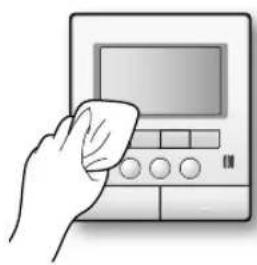
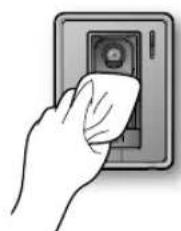
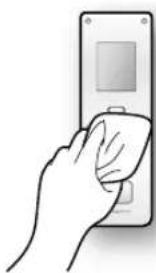
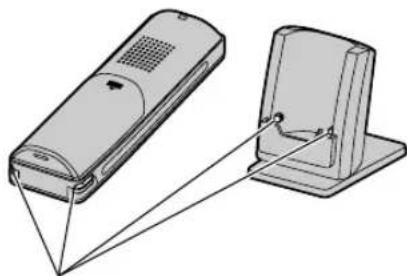
Clean the charge contacts with a soft, dry cloth once a month. (If the charge contacts are dirty, charging time will become longer or the battery cannot be charged at all.)
Battery replacement
The battery is a consumable part.
When the battery level (☐) flashes after a few calls even if the battery has been charged for about 7 hours, replace the battery with a new one.
1 Open the battery cover.
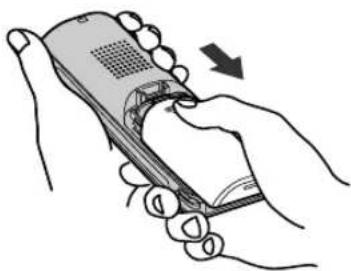
2 Remove the old battery.
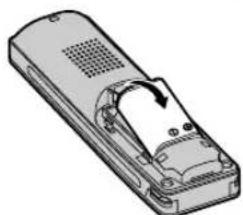
3 Insert the new battery and charge it (page 16).
●The battery level shows 📋 when replacing a new battery.
Important:
- Use only the rechargeable Panasonic battery HHR-P103.
- Battery specifications: Rechargeable nickel metal hydride (Ni-MH) battery (3.6 V DC, 650 mAh)
Specifications
Main monitor station (VL-MW251BX/VL-MW251CX/VL-MW251AZ)
Power supply: 100 – 240 V AC, 50/60 Hz
Current consumption: Standby: Approx. 0.04 A
During operation: Approx. 0.28 A
Dimensions: Approx. height 190 mm x width 165 mm x depth 38 mm
(Excluding protruding sections)
Mass (Weight): Approx. 785 g
Operating environment: 0 °C to 40 °C, Up to 90 % RH (Relative Humidity) non condensing
Display: Approx. 12.7 cm (5.0 inches) wide color display
Talking method: Hands-free
Installation method: Wall mount (Wall mount bracket included)
Frequency: 2.402 GHz – 2.481 GHz
Sub monitor station (VL-W605BX/VL-W605CX/VL-W605AZ)
Power supply: Ni-MH battery (3.6 V DC / 650 mAh)
Dimensions: Approx. height 157 mm x width 52 mm x depth 35 mm
(Excluding protruding sections)
Mass (Weight): Approx. 175 g (including the battery)
Operating environment: 0 °C to 40 °C, Up to 90 % RH (Relative Humidity) non condensing
Display: Approx. 4.6 cm (1.8 inches) color display
Frequency: 2.402 GHz - 2.481 GHz
Door station (VL-V522L)
Power source: Supplied by the main monitor station
Dimensions: Approx. height 131 mm x width 99 mm x depth 36.5 mm
(Excluding protruding sections)
Mass (Weight): Approx. 200 g
Operating environment: -10 °C to 50 °C, up to 90 % RH (Relative Humidity) non-condensing
Installation method: Wall mount (wall mount base included)
Lighting method: LED lights
Minimum illuminance required: 1 lx (within approx. 50 cm from the camera lens)
required: 1 lx (within approx. 50 cm from the camera lens)
Vertically: approx. 66°
Charger
Power supply: AC adaptor
VL-W605BX: PQLV219BX (100 - 240 V AC, 50/60 Hz)
VL-W605CX: PQLV219E (220 - 240 V AC, 50/60 Hz)
VL-W605AZ: PQLV219AL (220 - 240 V AC, 50/60 Hz)
Dimensions: approx. height 115 mm x width 76 mm x depth 90 mm (using with the stand)
Dimensions: Approx. height 115 mm x width 76 mm x depth 90 mm (using with the stand)
(Excluding protruding sections)
Approx. height 105 mm x width 76 mm x depth 48 mm (using without the stand)
(Excluding protruding sections)
Mass (Weight): Approx. 115 g (including the stand)
Operating environment: 0 °C to 40 °C, Up to 90 % RH (Relative Humidity) non condensing
Note:
- Design and specifications are subject to change without notice.
●The pictures and illustrations in these instructions may vary slightly from the actual product.
License:
- Portions of this software are based in part on the work of the Independent JPEG Group.
Trademarks:
- All other trademarks identified herein are property of their respective owners.
Index
To find the corresponding pages for functions displayed in the function list on the main monitor station and sub monitor station, see "FUNCTION SETTINGS" in section "F" below.
A AC adaptor ....3, 16
Accessory 3,4
Adjusting the volume 19, 33
Answering a call ....18
Antenna 13
Auto image update ....24
Auto recording 24
B Backlight compensation....19
Battery 3,4,16
Battery cover ....3, 13, 16
Battery level 14
Battery replacement ....52
Brightness....19
C Camera 9
Cancellation (Sub monitor station/Repeater)....46
Charge contacts ....13, 16
CHARGE indicator....12, 16
Charger....13, 16
Charger stand 13, 16
Charging 16
Cleaning 52
D Door opener....20, 35, 43
Door station 3,4,9
Door station monitor 23
E Erasing an image....31
Error messages ....51
Expanding your system with optional units.....42
F FUNCTION SETTINGS
For your future reference
Date of purchase Serial number (found on the rear of the main monitor station) Dealer's name and address Dealer's telephone numberAttach your sales receipt here.
Panasonic System Networks Co., Ltd. 1-62, 4-chome, Minoshima, Hakata-ku, Fukuoka 812-8531, Japan Web site: http://www.panasonic.net/ © Panasonic System Networks Co., Ltd. 2014  *PNQX7114ZA*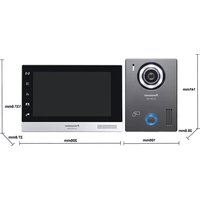
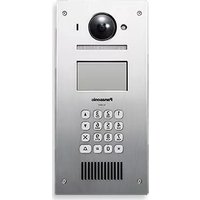
- OPERATING INSTRUCTIONS
- INTRODUCTION
- IMPORTANT INFORMATION
- PREPARATION
- DOORPHONE
- RECORDING
- INTERCOM
- PROGRAMMING
- EXPANDING THE SYSTEM
- HELP
- GENERAL INFORMATION
- INDEX
- MODEL COMPOSITION
- ACCESSORY INFORMATION
- INCLUDED ITEMS
- FOR THE SUB MONITOR STATION
- COMPATIBLE PANASONIC PBXS
- FOR YOUR SAFETY
- WARNING
- POWER CONNECTION
- INSTALLATION
- OPERATING SAFEGUARDS
- MEDICAL
- CAUTION
- INSTALLATION AND RELOCATION
- BATTERY
- IMPORTANT SAFETY INSTRUCTIONS
- SAVE THESE INSTRUCTIONS
- FOR BEST PERFORMANCE
- BEFORE USING
- LOCATION/AVOIDING NOISE (MAIN MONITOR STATION/SUB MONITOR STATION)
- ENVIRONMENT
- IMPORTANT
- OTHER INFORMATION
- TAPPING
- PRIVACY AND RIGHTS OF PORTRAIT
- OTHERS
- NOTE FOR PRODUCT DISPOSAL, TRANSFER, OR RETURN
- LOCATION OF CONTROLS
- DOOR STATION
- ① LENS COVER
- ② CAMERA
- ③ LED LIGHTS (FOR ILLUMINATION)
- ④【CALL】BUTTON AND INDICATOR
- ⑤ WATER DRAIN HOLES
- ⑥ PANEL
- ⑦ SPEAKER
- ⑧ MICROPHONE
- DOOR STATION IMAGE QUALITY
- MAIN MONITOR STATION
- NOTE
- MONITOR DISPLAY (MAIN MONITOR STATION)
- OPERATION GUIDANCE
- TO HIDE THE GUIDANCE THAT OVERLAPS THE IMAGE
- SUB MONITOR STATION
- FRONT VIEW
- REAR VIEW
- CHARGER
- MONITOR DISPLAY (SUB MONITOR STATION)
- CHARGING THE SUB MONITOR STATION
- INSERT THE BATTERY
- ASSEMBLE THE CHARGER STAND, AND PLUG THE AC ADAPTOR INTO THE POWER OUTLET
- TO ASSEMBLE THE CHARGER STAND
- TO REMOVE THE CHARGER STAND
- PLACE THE SUB MONITOR STATION ON THE CHARGER AND CHARGE THE BATTERY
- SETTING THE DATE AND TIME
- ANSWERING A CALL
- WHEN USING AN ADDITIONAL DOOR STATION
- ANSWERING A CALL BY VOICE SENSOR (VOICE ANSWER MODE)
- FEATURES DURING A CALL OR WHILE MONITORING
- SCROLLING AN IMAGE RIGHT OR LEFT ON THE SUB MONITOR STATION
- SUB MONITOR STATION ONLY
- TURNING THE DOOR STATION'S LED LIGHTS ON OR OFF
- MAIN MONITOR STATION ONLY
- USING BACKLIGHT COMPENSATION FOR DOOR STATION IMAGES
- ADJUSTING THE DISPLAY BRIGHTNESS
- HIDING THE OPERATION GUIDANCE
- ADJUSTING THE VOLUME OF YOUR VOICE HEARD AT THE DOOR STATION
- ADJUSTING THE SPEAKER VOLUME
- SPEAKING WITH THE MODIFIED SOUND OF YOUR VOICE (VOICE CHANGER)
- NOTE FOR AND
- IF IT IS DIFFICULT TO HEAR THE VISITOR'S VOICE DUE TO NOISE (PRESS-TO-TALK MODE)
- USING [DOOR KEY] BUTTON
- TRANSFERRING A CALL
- TO TRANSFER A CALL: TO RECEIVE A TRANSFERRED CALL
- WHEN USING MULTIPLE SUB MONITOR STATIONS
- WHEN RECEIVING ANOTHER CALL DURING A CALL OR WHILE MONITORING
- WHEN ANSWERING A CALL
- MONITORING THE OUTSIDE (DOOR STATION MONITOR)
- PRESS [MONITOR]
- TO END MONITORING, PRESS [OFF]
- WHEN INSTALLING 2 DOOR STATIONS
- RECORDING AN IMAGE
- AUTO RECORDING
- AUTO IMAGE UPDATE
- MANUAL RECORDING
- VIEWING RECORDED IMAGES USING THE MAIN MONITOR STATION
- HOW TO VIEW RECORDED IMAGES
- FEATURES WHILE VIEWING RECORDED IMAGES
- VIEWING RECORDED IMAGES USING THE SUB MONITOR STATION
- PROTECTING THE RECORDED IMAGES
- ERASING AN IMAGE
- TALKING BETWEEN THE MAIN MONITOR STATION AND THE SUB MONITOR STATION
- CALLER RECEIVER
- ADJUSTING THE RINGER VOLUME
- CHANGING THE RINGER TONE
- RINGER TONE PATTERNS
- SETTING [DOOR KEY] BUTTON
- CHANGING THE FUNCTION SETTINGS OF THE MAIN MONITOR STATION (FUNCTION LIST)
- FUNCTION LIST OF THE MAIN MONITOR STATION
- HOW TO CHANGE THE FUNCTION SETTINGS
- CHANGING THE FUNCTION SETTINGS OF THE SUB MONITOR STATION (FUNCTION LIST)
- FUNCTION LIST OF THE SUB MONITOR STATION
- ITEM (FUNCTION) SETTING
- VOICE ANSWER ON, OFF
- VOICE CHANGER NORMAL, LOW
- DISP REC DATE (DISPLAY RECORDING DATE)
- ALWAYS, 3 SEC
- CONTRAST
- REGISTRATION
- INIT SETTINGS (INITIALIZE SETTINGS)
- YES, NO
- EXPANDING YOUR SYSTEM WITH OPTIONAL UNITS
- ED TO BE INSTALLED
- ADDING A DOOR STATION
- OPERATING THE DOOR OPENER
- USING WITH PANASONIC PBX
- WHEN USING TWO DOOR STATIONS
- ADDING A SUB MONITOR STATION (REGISTRATION)
- REGISTERING THE SUB MONITOR STATION TO THE MAIN MONITOR STATION (REGISTRATION)
- SETTING A REPEATER (REGISTRATION)
- REGISTERING THE REPEATER TO THE MAIN MONITOR STATION (REGISTRATION)
- CANCELING REGISTRATION OF THE SUB MONITOR STATION/REPEATER (CANCELLATION)
- USING THE MAIN MONITOR STATION
- TROUBLESHOOTING
- ERROR MESSAGES
- CLEANING
- BATTERY REPLACEMENT
- SPECIFICATIONS
- MAIN MONITOR STATION (VL-MW251BX/VL-MW251CX/VL-MW251AZ)
- SUB MONITOR STATION (VL-W605BX/VL-W605CX/VL-W605AZ)
- DOOR STATION (VL-V522L)
- POWER SUPPLY: AC ADAPTOR
- LICENSE
- TRADEMARKS
- FOR YOUR FUTURE REFERENCE
- ATTACH YOUR SALES RECEIPT HERE
Brand : PANASONIC
Model : VL-SW251CX
Category : Intercom