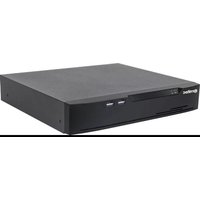
0070-10402 - Video recorder Ernitec - Free user manual and instructions
Find the device manual for free 0070-10402 Ernitec in PDF.


| Product Type | Video Recorder (DVR) |
| Brand | Ernitec |
| Model | 0070-10402 |
| Dimensions (approx.) | 200 x 180 x 40 mm |
| Weight (approx.) | 0.5 kg |
| Power Supply | 12V DC, 1A |
| Video Input | BNC or RCA composite |
| Video Output | HDMI, VGA, RCA |
| Recording Resolution | Up to 1080p |
| Storage | Internal HDD (not included) |
| Recording Modes | Continuous, motion detection, scheduled |
| Network Connectivity | Ethernet RJ45 |
| Remote Access | Via web browser or mobile app |
| Audio Support | 1-channel audio input |
| Playback Controls | Play, pause, rewind, fast forward |
| Backup Options | USB, network |
| User Interface | On-screen display (OSD) menu |
| Maintenance | Clean exterior with a soft, dry cloth |
| Safety | Use only the provided power adapter; keep away from moisture |
| Spare Parts | Contact Ernitec support for spare parts availability |
| General Information | Free user manual available for download from notice-facile.com |
Frequently Asked Questions - 0070-10402 Ernitec
User questions about 0070-10402 Ernitec
0 question about this device. Answer the ones you know or ask your own.
Ask a new question about this device
Download the instructions for your Video recorder in PDF format for free! Find your manual 0070-10402 - Ernitec and take your electronic device back in hand. On this page are published all the documents necessary for the use of your device. 0070-10402 by Ernitec.
USER MANUAL 0070-10402 Ernitec
Fully understand this document before using this device, and strictly observe rules in this document when using this device. If you install this device in public places, provide the tip "You have entered the area of electronic surveillance" in an eye-catching place. Failure to correctly use electrical products may cause fire and severe injuries.
| WARNING | It alerts you to moderate dangers which, if not avoided, may cause minor or moderate injuries. |
| CAUTION | It alerts you about risks. Neglect of these risks may cause device damage, data loss, device performance deterioration, or un predictable results. |
| NOTE | It provides additional information. |
WARNING
y Strictly observe installation requirements when installing the device. The manufacturer shall not be held responsible for device damage caused by users' non-conformance to these requirements.
y Strictly conform to local electrical safety standards and use power adapters that are marked with the LPS standard when installing and using this device. Otherwise, this device may be damaged.
Use accessories delivered with this device. The voltage must meet input voltage requirements for this device. If this device is installed in places with unsteady voltage, ground this device to discharge high energy such as electrical surges in order to prevent the power supply from burning out.
When this device is in use, ensure that no water or any liquid flows into the device. If water or liquid unexpectedly flows into the device, immediately power off the device and disconnect all cables (such as power cables and network cables) from this device.
If this device is installed in places where thunder and lightning frequently occur, ground the device nearby to discharge high energy such as thunder strikes in order to prevent device damage.
CAUTION
Avoid heavy loads, intensive shakes, and soaking to prevent damages during transportation and storage. The warranty does not cover any device damage that is caused during secondary packaging and transportation after the original packaging is taken apart.
Protect this device from fall-down and intensive strikes, keep the device away from magnetic field interference, and do not install the device in places with shaking surfaces or under shocks.
YClean the device with a soft dry cloth. For stubborn dirt, dip the cloth into slight neutral cleanser, gently wipe the dirt with the cloth, and then dry the device.
Do not jam the ventilation opening. Follow the installation instructions provided in this document when installing the device.
Keep the device away from heat sources such as radiators, electric heaters, or other heat equipment.
Keep the device away from moist, dusty, extremely hot or cold places.
If the device is installed outdoors, take insect- and moisture-proof measures to avoid circuit board corrosion that can affect monitor ing.
?Remove the power plug if the device is idle for a long time.
Special Announcement
?All complete products sold by the manufacturer are delivered along with nameplates, quick setup guide and accessories after strict inspection. The manufacturer shall not be held responsible for counterfeit products.
The manufacturer will update this manual according to product function enhancement or changes and regularly update the software and hardware described in this manual. Update information will be added to new versions of this manual without prior notice.
This manual may contain misprints, technology information that is not accurate enough, or product function and operation description that is slightly inconsistent with the actual product, the final interpretation of company is as a standard.
This manual is only for reference and does not ensure that the information is totally consistent with the actual product. For consistency, see the actual product.
NOTE
For more information, please refer to website.
1 Open Package Examination
Open the package, check the appearance of product for no obvious damage, and confirm the item list for table 1-1 is consistent.
Table 1-1 Packing list
| Component | Quantity | Remark |
| Network Video Recorder | 1 | |
| Quick Setup Guide | 1 | |
| Mouse | 1 | |
| Power adapter | 1 | Optional |
| Power cord | 1 | |
| Phillips head screw | 12 | |
| Terminal block | 2 | Optional |
2 Device Structure
2.1 Device Ports
NOTE
Different devices may have different ports and multi-head cables; Please refer to the actual product.
Front panel description of device, please refer to table 2-1.
Table 2-1 Front panel description
| Port Name | Description |
| PWR Indicator | When the NVR is operating, the PWR indicator is steady on. When the NVR is shut down, the PWR indicator is turned off. |
| HDD Indicator | Hard disk status indicator.This indicator flashes when data is transmitted. |
| PoE Indicator | PoE network status indicator.This indicator flashes when data is transmitted. |
| KB/MOUSE | Supports connection to a USB mouse. |
| BACKUP | Supports connection to a USB flash drive or USB removable hard disk. |
Rear panel description of device, please refer to table 2-2.
Table 2-2 Rear panel description
| Name | Description |
| PoE Port PoE network interfaces. | |
| LAN Rj45 10 /1000 | 1000 Mbps adaptive. Ethernet interface. |
| AUDIO OUT/ AUDIO IN | Audio output / Audio input. |
| VGA Video output interface. | |
| HDMI | |
| Alarm I/O Alarm | input/Alarm output. |
| AC 110V — 220V. | |
| Power switch. | |
| USB | USB 2.0 port. |
2.2 Device Dimensions
NOTE
Different devices may have different dimensions; Please refer to the actual product.
Figure 2-1 Dimensions (Unit:mm)

3 Device Installation
The hard disk of the NVR must be provided by the user. Take the following steps to install the hard disks:
Step 1 Remove the screws for fixing the cover and take down the cover.
Step 2 Take out the screws and mount two of them to the screw holes of hard disk, as shown in figure 3-1.
Figure 3-1 Installing the hard disk screws

NOTE
Just screw the screws about 1 to 2 turns instead to the end.
Step 3 Route the screws through the gourd holes on the base, push the hard disk to the appropriate position on the left, as shown in figure 3-2.
Step 4 Turn the device over, and mount other two screws to the holes, as shown in figure 3-3. Then fasten all the screws.
Figure 3-2 Installing hard disk
Figure 3-3 Fixing hard disk


Step 5 Install other hard disks following step 2, step 3 and step 4, and insert the hard disk data cable and power cable, then replace the upper cover and fasten the fixing screws.
Device Operation
4.1 Startup
Before starting NVR, ensure that the NVR is connected to a power supply properly and a monitor is connected to the HDMI or VGA interface of the NVR correctly. After starting the NVR, there is a login window located in the center, as shown in figure 4-1 and 4-2.

In some environments, if the power supply is abnormal, the NVR may not work properly. In severe cases, the NVR may be damaged. In these environments, you are advised to use regulated power supply.
Figure 4-1 Activation interface
Figure 4-2 Login interface


NOTE
User needs to create a new password to activate the device, when logging in at first time.
User can also set pattern unlock to quickly login. Set security questions to recovery password.
Change the language at logging in interface.
4.2 Topology of the NVR
NVR with PoE ports can access IP cameras immediately when IP cameras are plugged into NVR's PoE ports. Then the NVR will assign an IP address for each camera automatically. For the topology refer to figure 4-3.
Figure 4-3 Topology of the NVR

4.3 Special Function
Click the AI Recognition icon, Human Face, or Thermal Temperature at the bottom of page to enter the AI interface. The user can set and view the AI cameras' parameters, include human face, vehicle license plate.
4.4 Power off
Enter the path Main Menu >System >Maintenance >Shutdown to power off the NVR.
NOTE
Before replacing the hard disk, the power must be turned off. The special function is only carried by some devices, if the current device does not have the function, please ignore it.
5 Quick Configuration
Plug in power to access the NVR user page. The wizard window would show at first time; The user can configure quickly or close immediately. The configuration details please refer to main menu. Use the mouse to right-click any where on the main interface to access the main menu. Main menu comprises Channel, Record, Alarm, Network and System settings, as shown in figure 5-1.
5.1 Channel
Channel settings contain Camera, Encode, Sensor Setting, OSD, Privacy Zone, ROI, Microphone, Human Thermal, Smart, Intelligent Tracking
?Camera: user can add cameras automatically by clicking Click to Add, and add manually by clicking Add. Tick cameras then click Delete to delete cameras. User can batch update software.
Figure 5-1 Main menu
![graph TD A["Camera"] --> B["Encode"] B --> C["OSD"] C --> D["RSI"] D --> E["Human The"] E --> F["Smart"] F --> G["Intelligent Trs."] G --> H["S.M.A.R.T"] H --> I["Disk Detection"] I --> J["Cloud Storage"] J --> K["Network"] K --> L["802.1K"] L --> M["DDNS E-mail"] M --> N["Port Mapping"] N --> O["PZ…](/content/2026/05/1042960/images/652e61363322cfb0d591fbe516afe713c7824b977f5d346f90a27dbdef919043.jpg)
?Sensor Setting: set the sensor parameter of channels' cameras. © OSD /Privacy Zone/ROI: set on live video screen
Y Microphone: adjust and set the microphone of channels. Y Human thermometer/ Smart/ Intelligent Tracking: these functions are used for special function cameras, configure the parameters of cameras.
YAll these settings can be copied to other channels by clicking Copy button.
5.2 Record
Record settings contain Record Schedule, Disk, Storage, Disk Calculation, SMART, Disk Detection and Cloud Storage. Set record schedule and storage strategic. user can calculate the disk's using time at Disk calculation interface. Enter SMART interface to view the state of disks. Disk detection can detect the disks. Cloud storage can storage alarm recording.
5.3 Alarm
Alarm settings contain General, Motion detection, Video loss, Intelligent analysis, Alarm in, Abnormal alarm, Alarm out as shown in figure 5-2
Figure 5-2 Alarm

General: enable or disable alarm and set duration time of alarm ?Motion Detection: enable this function, if detection the motion actions, it will alarm.
-
Event actions: contain buzzer, alarm out, push message to App, pop-up message to monitor, send E-mail and post recording (after enabling, choose the recording time from drop list.)
-
Area: set motion detection area. Press left button and drag the cursor to add a detection area, and double-click an area to delete it.
-
Schedule: set schedule to enable or disable motion detection alarm. There are three methods to set, click the double arrows button to choose all day. The second, click and drag the cursor to select periods. The third, click one by one.
Video Loss, Intelligent Analysis are same settings as motion detection
? Alarm In/Alarm Out: settings for I/O alarming. ?Abnormal Alarm can tick disk error, IP conflict, network disconnected.
5.4 Network
Network settings contain Network, 802.1X, DDNS, E-mail, Port Mapping, P2P, IP Filter, SNMP, 3G/4G, and PPPoE, as shown in figure 5-3. Maybe some models have more functions; Please refer to the actual products.
Figure 5-3 Network

Y Network, 802.1X, DDNS, and SNMP interface to set network parameters
YE-mail: set E-mails for sending and receiving alarm messages and password retrieval message.
?Port Mapping: set the ports for remote accessing. ?P2P: add NVR into device list of App by accessing the QR code.
Y IP Filter: settings for creating black list or white list.
3G/4G: use 3G/4G modem to plug to NVR provide the network PPPoE: point to point network to access NVR directly.
5.5 System
System settings contain Information, General, User, Security Center, Auto Sequence, Logs, Maintenance and Auto Restart, as shown in Figure 5-4.
Figure 5-4 System

General: include system, date and time, time zone, DST.
User: add user and set advance setting(auto login, password double authentication, boot wizard)
Security Center: modify the password, pattern unlock, secure Email Secure question
Auto Sequence: settings for sequencing view of the channels. YLogs: shows operating and alarm log, user can export logs if an USB disk is plugged in.
¥Maintenance: include shutdown, reboot, exit system, reset import configuration, export configuration and update.
y Auto Restart: enable this function to make device restart periodically.
5.6 Live Video
Live video page is displayed after starting the NVR by default, as shown in figure 5-5.
Figure 5-5 Live video

6 Mobile Client
Search for "InView Pro4" in App Store or Google Play to download and install the mobile client. Use the App to scan the QR code on the back board of NVR, or in P2P settings page in NVR user interface. Then input the password of the NVR to add the NVR into the device list of the App. User can manage the device through mobile client.
Figure 6-1 P2P

7 Web Accessing
The NVR also can be accessed in a Web browser. Open a web browser like IE and enter the IP address of device (The default IP address is 192.168.0.121) in the address box, and press Enter. The login page is displayed as shown in figure 7-1.
Figure 7-1 Login

NOTE
The user name and password are same as the UI interface.

- WARNING
- CAUTION
- SPECIAL ANNOUNCEMENT
- NOTE
- 1 OPEN PACKAGE EXAMINATION
- 2 DEVICE STRUCTURE
- 2.1 DEVICE PORTS
- 2.2 DEVICE DIMENSIONS
- 3 DEVICE INSTALLATION
- DEVICE OPERATION
- 4.1 STARTUP
- 4.2 TOPOLOGY OF THE NVR
- 4.3 SPECIAL FUNCTION
- 4.4 POWER OFF
- 5 QUICK CONFIGURATION
- 5.1 CHANNEL
- 5.2 RECORD
- 5.3 ALARM
- 5.4 NETWORK
- 5.5 SYSTEM
- 5.6 LIVE VIDEO
- 6 MOBILE CLIENT
- 7 WEB ACCESSING
Brand : Ernitec
Model : 0070-10402
Category : Video recorder