VR 3D Elite Pro ODY-1222 - Lunettes VR Odyssey - Free user manual and instructions
Find the device manual for free VR 3D Elite Pro ODY-1222 Odyssey in PDF.


| Product Type | Virtual Reality Headset |
| Model | VR 3D Elite Pro ODY-1222 |
| Brand | Odyssey |
| Compatible Devices | Smartphones with screens 4.7 to 6.5 inches |
| Lens Adjustment | Interpupillary distance (IPD) adjustment |
| Dimensions | 200 x 120 x 110 mm |
| Weight | 380 g |
| Material | Plastic, foam, fabric strap |
| Power Supply | None (passive, powered by smartphone) |
| Main Functions | 3D VR gaming, 360° video, immersive experiences |
| Field of View | Approximately 100 degrees |
| Head Tracking | Yes (via smartphone sensors) |
| Audio | Headphone jack or Bluetooth (depends on phone) |
| Ventilation | Yes, to reduce fogging |
| Cleaning Instructions | Wipe lenses with microfiber cloth; foam can be removed and washed |
| Safety | Not recommended for children under 13; take 15-min breaks every hour |
| Spare Parts Available | Replacement foam padding, straps, lens covers |
| Repairability | User-replaceable foam and straps; lenses can be replaced by technician |
Frequently Asked Questions - VR 3D Elite Pro ODY-1222 Odyssey
User questions about VR 3D Elite Pro ODY-1222 Odyssey
0 question about this device. Answer the ones you know or ask your own.
Ask a new question about this device
Download the instructions for your Lunettes VR in PDF format for free! Find your manual VR 3D Elite Pro ODY-1222 - Odyssey and take your electronic device back in hand. On this page are published all the documents necessary for the use of your device. VR 3D Elite Pro ODY-1222 by Odyssey.
USER MANUAL VR 3D Elite Pro ODY-1222 Odyssey
natural_image
Black Odyssey VR headset with black strap and control panel (no visible text or symbols on device body)VR3D ELITE PRO
with BLUETOOTH® CONTROLLER
IMPORTANT - GETTING STARTED
Thank you for purchasing the VR3D Elite Pro Headset with Bluetooth Gamepad. This headset is designed to work with VR apps, games, and content on your iPhone® or Android™ device. Some game recommendations to get you started:
Space City Wars VR
(Android / iOS / Gamepad)
Galaxy VR (Android / Gamepad)
Hardcore VR Game (Android / Gamepad)
Occupation VR (Android / iOS / Gamepad)
InCell VR (Android / iOS)
Lamper VR (Android / iOS)
YouTube (Android / iOS)
Within (Android / iOS)
Jaunt VR (Android / iOS)
IMPORTANT NOTES:
Due to the continuous app updates and changes by app developers, some games may not work properly with this gamepad. For iOS® (iPhone® /iPad®), please note that this gamepad is designed to be used with “iCade compatible” games only.
Please search online for an updated list of these games.
The VR3D Pro Elite is built with integrated Bluetooth earbuds. Please follow these instructions on charging and connecting the earbuds to your device.
Charging
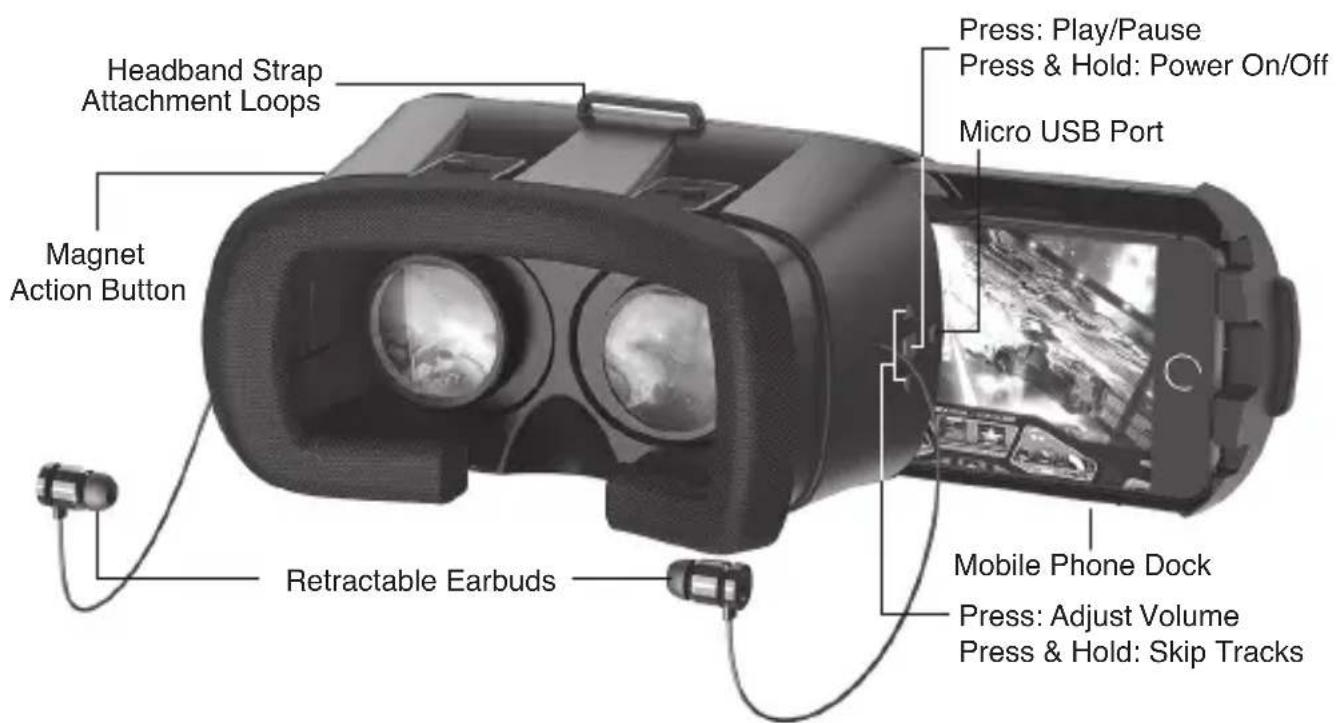
- Plug the micro USB cable into the micro USB port on the right side of the headset.
- Connect to any USB port or charger to start charging.
• The LED light will light up to indicate that the headset is charging.
Pair & Connect with a New Device
- With the headset powered off, press the power button on the right side of the headset for 2-3 seconds.
• After a few seconds the LED light will start to blink red and blue. - On your smartphone, open the Bluetooth settings and start searching for devices.
• After a few seconds select "Odyssey VR/3D".
• The earbuds will connect and you are ready to go!
Note: If your smartphone asks for a passcode please enter "0000".
Power On & Off / Reconnect to Bluetooth
- You only need to pair the earbuds one time to each smartphone.
- With your previously paired smartphone in range, press the power button for 2-3 seconds to power on; the LED lights will flash red.
• After a few seconds the earbuds will automatically reconnect to your smartphone. - If the earbuds do not auto-reconnect, open your Bluetooth settings on your smartphone and select "Odyssey VR/3D".
- Press and hold the power button for 5 seconds to power off the earbuds.
Installation & Usage
1 - On your smartphone: Launch your app store, search for and download VR apps to use. (See below for easy-to-use QR code)
2 - Launch the app or game.
3 - Slide out the front tray of your VR3D ELITE PRO headset.
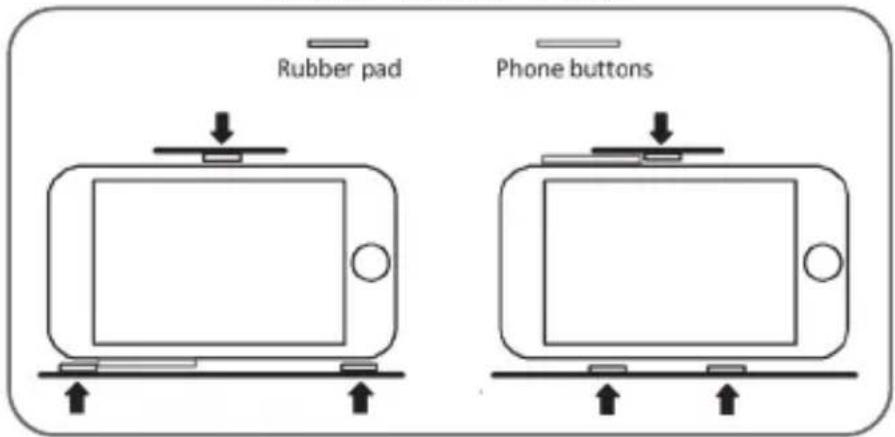
4 - Install the 3 mini rubber bumper pads into the tray to protect your phone.
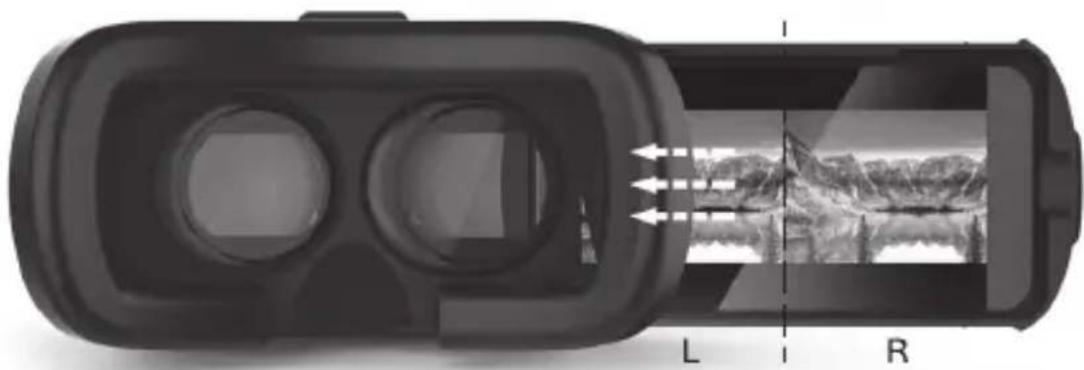
5 - Place your phone into the tray making sure to align the center line of the phone screen to the headset's midpoint mark.
6 - Slide the tray back into the headset.
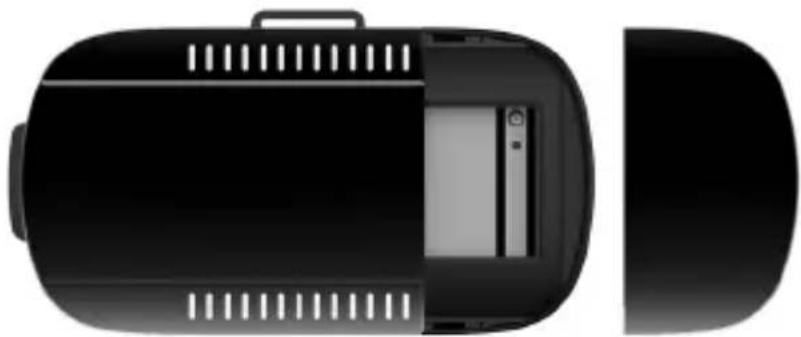
Note: Certain games and apps require the use of your smartphone's camera. The front panel of the VR3D ELITE PRO Headset is removable, to allow camera access for these types of games and apps.
Download Apps with this QR Code:

- Download the Google Cardboard App to your smartphone.
- Launch the App.
- Scan this QR code to optimize your viewer
IMPORTANT: Install Rubber Pads
natural_image
Top-down view of a black electronic device showing internal components and exterior casing (no text or symbols visible)The front panel of the VR3D ELITE PRO Headset is removable
natural_image
Interior view of a VR headset showing lens, screen, and landscape photo (no text or symbols)Make sure your phone is centered in the phone dock
6 - Adjust the headband straps so that the headset rests comfortably, yet securely, on your head.
7 - Adjust Pupillary (Focal) Distance by moving the front portion of the headset back or forwards until the screen image becomes clearest.
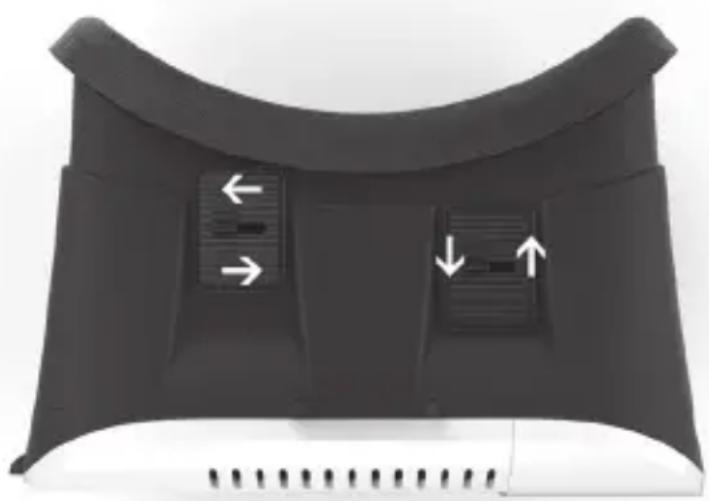
8 - If necessary, minor adjustments can be made to the Left & Right Lenses by using the two buttons located on the top of the headset.
(typically wider apart for adults, closer together for kids)
Note: If there is a double or blurry image, continue to make small adjustments to the lenses (forward, backward/clockwise, counterclockwise) until the double image disappears & the screen is in focus.
natural_image
Close-up of a black ergonomic device with two directional buttons and arrows indicating movement or adjustment (no text or symbols)9 - Press the arrow buttons on the right side of the headset to skip tracks; press and hold to adjust volume. The built in magnet action button on the left side of the headset allows you to interact with the screen in the compatible apps & games.
10 - Enjoy!
Please Note
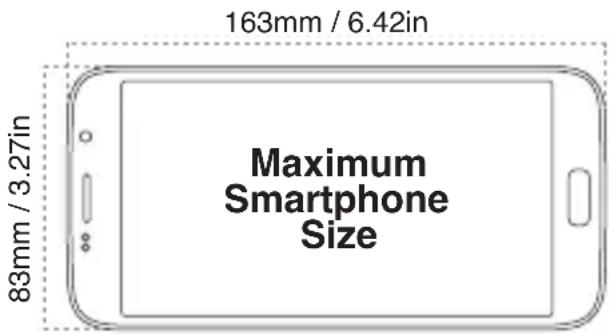
- Mobile phone size should not exceed 163mm (6.72 in.) x 83mm (3.27 in.)
- Do not use while charging mobile phone.
- For users that require eyeglasses with generally smaller prescriptions (less than 600^ of myopia), no eyeglasses are needed when using the VR3D ELITE PRO.
Specifications:
Fits Phone Sizes: 3.5" - 6"
Adjustable for focal distance and pupil distance
42mm Optical Lens
Field of View: 90 degrees
Weight: 15.8 ounces
Support for iOS ^® and Android ^TM
Android™ Button Functions:
Gamepad requires 2 x AAA batteries (not included)
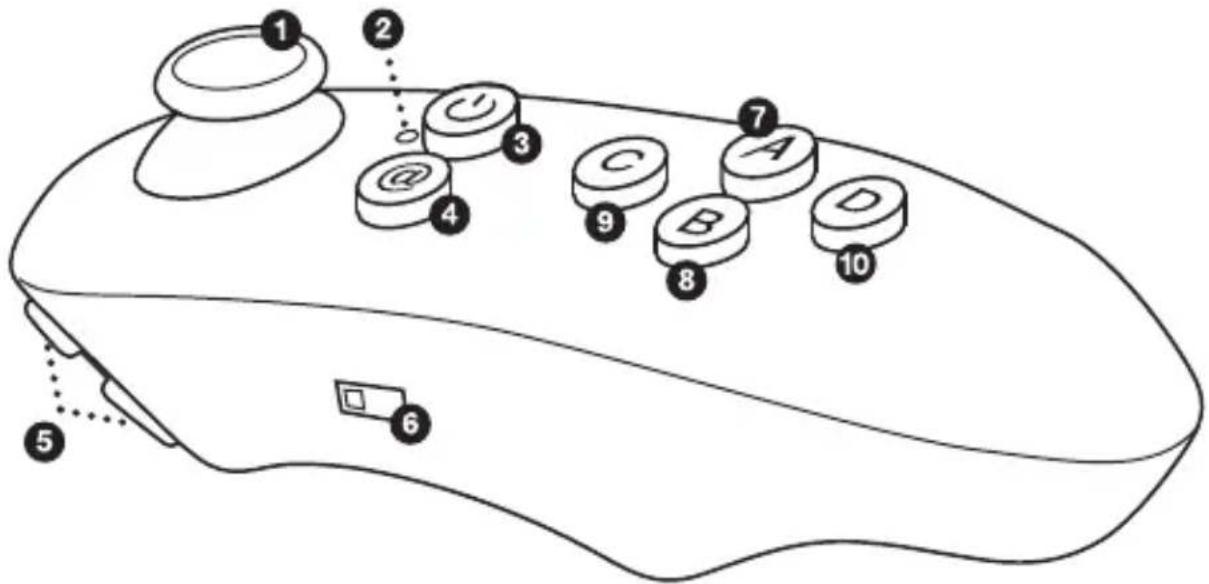
① Analog Stick
4 “@” Function Switch Key
2 Indicator Light
5 Action Buttons
3 “1”
6 Android™ / iOS® Switch
-On-Off (Press & hold to power on/off)
7 "A" - Music/Video Mode
- Press @ + A to activate Music (& in some smartphone brands, video mode also).
- Press to pause/play music/videos.
- Press & hold to fast-forward in video mode.
- Use the Analog Stick to control volume in "Standard" mode.
- Press C to raise volume, D to lower volume.
8 "B" - Game Mode (Landscape Mode)
- Press @ + B to activate Game (Landscape) Mode.
- Press D to shoot.
- Press A to lift-off.
- Use the Analog Stick to control direction. (Controls may vary due to phone type/brand.)
9 "C" - VR, Self-Timer & Video Modes
- Press @ + C to activate VR mode.
- Press @ + C to switch to Self-Timer Mode (*not supported by all phone brands.
In this case, use Mouse Mode Self-Timer; see below).
- Press @ + C to switch to Video Mode. Use the Analog Stick to fast-forward & rewind.
- Use the Analog Stick to control direction.
- Use the two keys on the front of the remote to shoot & lift-off.
10 "D" - Mouse Mode, Self-Timer Mode
- Press @ + D to switch to Mouse Mode.
- Use the Analog Stick to control the mouse.
- Press C/D to raise/lower volume.
- Press A/B to confirm/quit.
Note: For iOS devices this gamepad only supports "iCase" compatible games.
Pair & Connect to the Remote / Gamepad
- With the gamepad powered off, press the power button 2-3 seconds.
• After a few seconds the LED light will start to blink. - On your smartphone, open the Bluetooth settings and start searching for devices.
- After a few seconds select "Remote VR/3D".
• The gamepad will connect and your are ready to go!
Note: If your smartphone asks for a passcode please enter "0000".
Play
- Phone Selector
- Slide the switch on the side of the remote / gamepad to iOS or Android
- Gaming Mode
- Android/iOS: Press @ + B to initiate gaming mode. Important: This gamepad is designed to work with most Android games with gamepad support, and iOS games with iCase compatibility only.*
• Music & Video Control Mode
- Press @ + D
- Mouse & Multimedia Mode (for Android)
- Press @ + D
* NOTE: This gamepad will not work with iOS games that only have MFi gamepad compatibility. Due to continuous app developer updates, some games may not work properly.
Remote Troubleshooting:
- If the batteries are low, the Analog Stick may lose sensitivity. Replace batteries.
- If the remote won't connect over Bluetooth, restart your smartphone to reconnect.
- Using WiFi on your smartphone may affect Bluetooth connection.
- This remote works best with Android and iOS (iCade) supported smartphones. If you have another brand of smartphone, press @ + A to test if the remote matches with your phone.
- If the remote freezes, please remove and reinsert batteries.
Technical Support:
If you are experiencing problems, do not attempt to fix the product yourself or return it to the store you purchased it from. Please refer to the user's manual or just contact our helpful tech support team:
Odyssey Toys
Miami, FL
www.OdysseyToys.com
Care@OdysseyToys.com
This device complies with Part 15 of the FCC Rules. Operation is subject to the two following conditions:
-
This device may not cause harmful interference.
-
This device must accept any interference received, including interference that may cause undesired operation.