QRT-501 - Security Camera Kguard - Free user manual and instructions
Find the device manual for free QRT-501 Kguard in PDF.


User questions about QRT-501 Kguard
0 question about this device. Answer the ones you know or ask your own.
Ask a new question about this device
Download the instructions for your Security Camera in PDF format for free! Find your manual QRT-501 - Kguard and take your electronic device back in hand. On this page are published all the documents necessary for the use of your device. QRT-501 by Kguard.
USER MANUAL QRT-501 Kguard
Right Panel Control....8
Configure the Camera Settings....9
Device Basic Information....10
View the Device Information....10
Change the Device Name 10
Adjust the Date & Time Settings....10
View the Record Schedule....11
Format the TF Card....11
Alarm Service Settings....12
Configure the Alarm Settings....12
Configure the Email Settings 13
Configure the FTP Settings 13
Network Configuration....14
Configure the Basic Network Settings 14
Configure the WLAN Settings 15
Configure the DDNS Service Settings 15
PTZ Configuration 16
Configure the PTZ Settings 16
User & Device Management .... 16
Configure the Users Settings 16
Restore the Default Settings....17
Reboot the Device....17
Backup the System Configurations....18
Restore the System Configurations 18
Update the Device Firmware....18
Playback....19
Safety and Regulatory Info
Safety Information

Warning
This is the symbol for indicating any potential hazard, risk or condition requiring special attention.
The user needs to refer to the important operating and maintenance or servicing instructions.

Caution
The lighting flash with an arrow head symbol, in an equilateral triangle, is intended to alert the user.
There is dangerous "voltage" presence near by the product's enclosure which may be risk of person.
Safety Precautions
- Read the user manual carefully before attempting to install the camera and keep the manual for future reference.
- Follow all instructions.
- Always keep the glass lens clean to obtain the best picture quality. Clean only with dry cloth.
- Do not install near water or heat sources such as radiators or other apparatus that produce heat.
- Do not install the camera in places with high humidity.
- Do not install the camera in places highly exposed to gas or oil.
- Do not install the camera in places enclosed by metal. This may shield the electromagnetic waves and cause signal reception to fail.
- Do not touch the camera with wet hands.
- Do not expose the camera to radioactivity or place near medical equipment with radio waves.
- Do not service the camera by yourself. Refer all servicing to authorized personnel.
- Always handle the device with care.

Warning
To prevent fire or shock, DO NOT expose the unit to rain or moisture.

Caution
To reduce the risk of electric shock, DO NOT use other power cables other than the one supplied.
FCC Compliance Statement
This equipment has been tested and found to comply with the limits for a Class C digital device, pursuant to Part 15 of the FCC Rules. These limits are designed to provide reasonable protection against harmful interference when the equipment is operated in a commercial environment. This equipment generates, uses and can radiate radio frequency energy and, if not installed and used in accordance with the instructions, may cause harmful interference to radio communications. Operation of this equipment in a residential area is likely to cause harmful interference in which case the user will be required to correct the interference at his own expense.
Modifications not expressly approved by the manufacturer could void the user's authority to operate the equipment under FCC rules.
Copyright
Copyright @All Rights Reserved.
All other trademarks mentioned in this manual are trademarks of their respective companies.
Limitation of Liability
- This publication is provided “AS IS” without warranty of any kind, either expressed or implied, including but not limited to, the implied warranties of merchantability, fitness for any particular purpose, or non-infringement of a third party’s rights.
- This publication may include technical inaccuracies or typographical errors. Changes may be made to the information herein, at any time, for publication improvements and/or of the corresponding device(s).
Disclaimer of Warranty
In no event shall the supplier be liable to any party or any person, except for replacement or reasonable maintenance of the product, for the cases, including but not limited to the following:
- Any damage or loss, including but without limitation, direct or indirect, special, consequential or exemplary, arising out of or relating to the device;
- Personal injury or any damage caused by inappropriate use or negligent operation of the user;
- Unauthorized disassemble, repair or modification of the device by the user;
- Any problem, consequential inconvenience, or loss or damage, arising out of combining the system with the devices of a third party;
- Any claim or action for damages, brought by any person or organization being a photogenic subject, due to violation of privacy with the result of pictures from a surveillance camera, including saved data, for some reason, becomes public or is used for the purpose other than for surveillance.
Web Client
Use Web Client to remotely access the camera and configure the settings of camera.
NOTE: : Ensure that the computer has a web browser, such as Internet Explorer or Safari, installed.
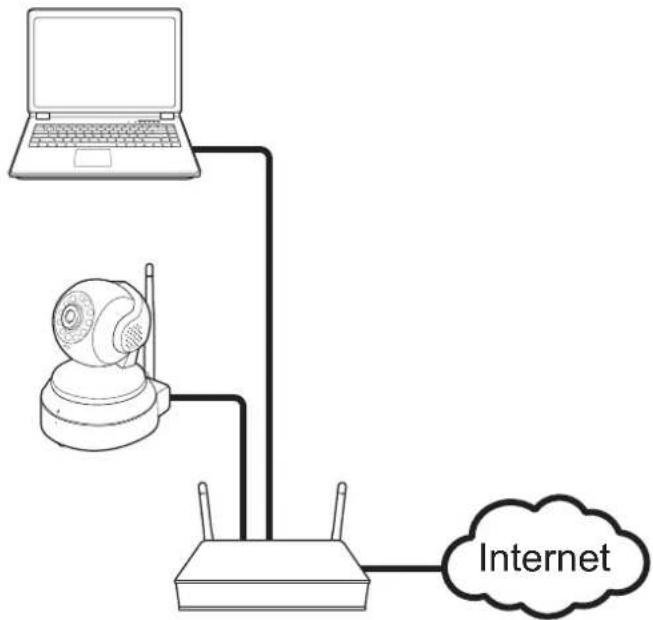
Before accessing Web Client for first time, you have to establish a connection from the camera to the wired router in order to quickly obtain the IP address of your camera. You can also modify the IP address and, if necessary, modify the default gateway to the new address.
- Connect the camera to the router using an RJ45 cable. Then connect your notebook to the same router using another RJ45 cable.
- Download and install the IPCSearch software to your notebook.
NOTE: : The IPCSearch software is available at http://www.kguardsecurity.com/global/p/wi-fi-network-camera-qrt-501/.
- Double-click the IPCSearch icon (IPCSearch) to open the IPCSearch software.
- The program lists the camera by IP address. Double-click on the camera IP address field to open the camera Web Client on your PC default web browser.
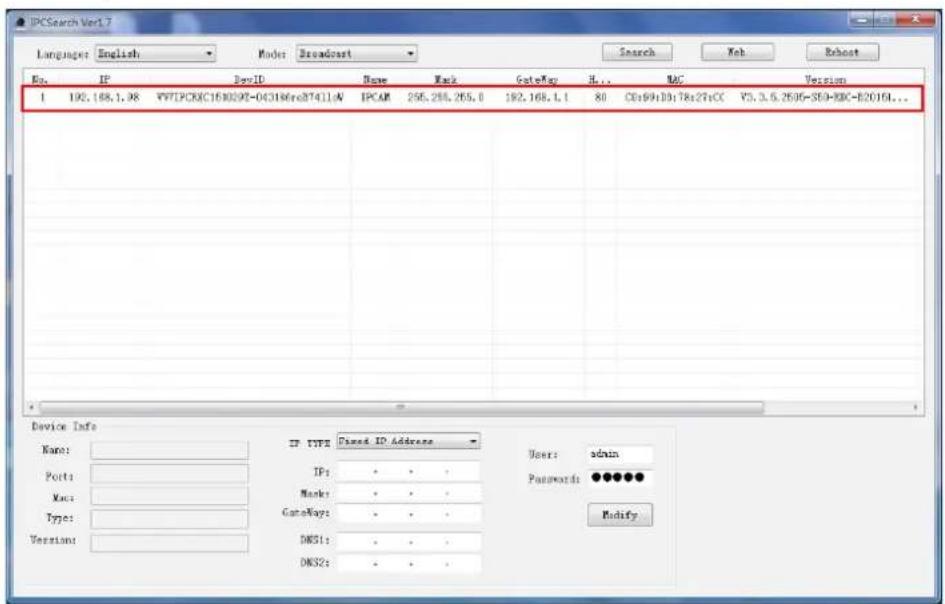
NOTE: To configure the camera IP address, modify the necessary parameters and click Modify to save the settings.
Web Client
Log In
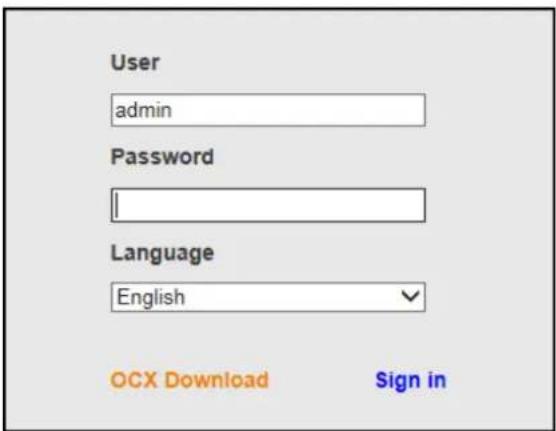
- Enter the login name and password.
- Click Sign in to login.
NOTE:
- The default user name and password are "admin".
- If you log in IE browser for the first time or the live view is not properly display on the screen, click OCX Download to download the OCX software and then install it on your computer.
IMPORTANT: To access your camera remotely, verify the following:
- Be sure to perform port forwarding first before browsing using the domain name or designated DDNS address.
- You have set the DDNS address of your IP camera. Go to > DDNS Service Settings > DDNS Host.
Web Client
Main Screen
After you login to Web Client, click Plugin Mode to enter the Main Screen.
NOTE:
- To view the live view with the quick control panel screen, click Motion-JPEG Mode.
- To search and play the recorded videos, click TF card video playback online. Refer to "Playback" on page 19.
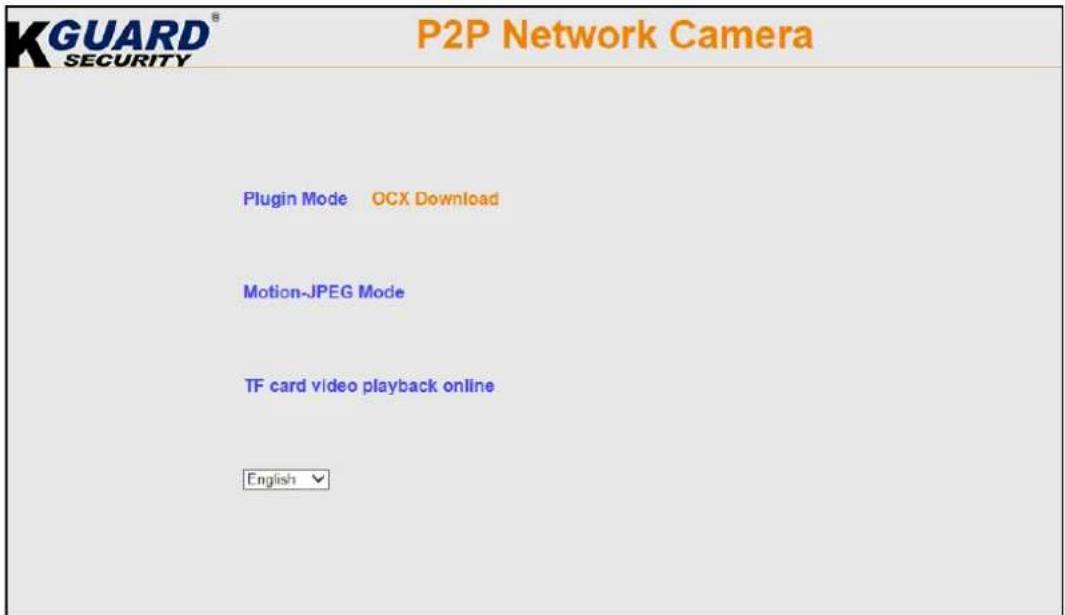
The Live screen appears.
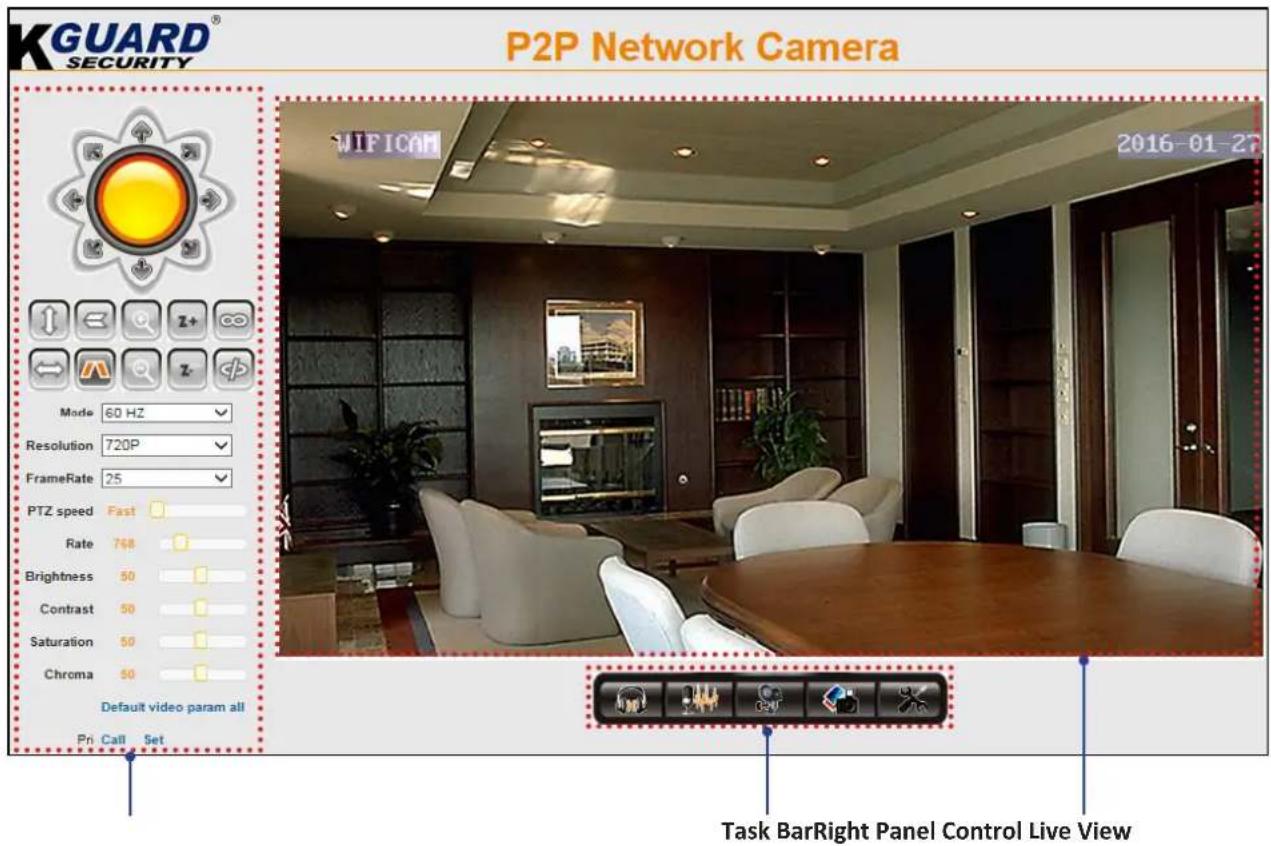
Web Client
Task Bar
To access the common functions, click the respective icon shown on the task bar.

- Click to enable the audio function. You can hear the live audio from the camera via PC if the audio setting is set to ON. Click it again to disable the audio function.
- Click 📄 to enable the talk function. You can talk between the PC and camera if an audio device connected. Click it again to stop the talk function.
- Click to start record manually. The video recording starts. Click it again to stop the manual recording.
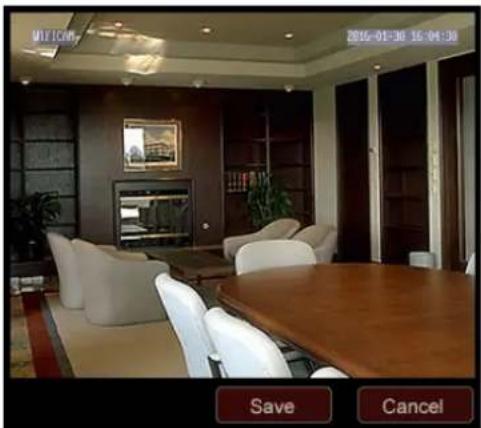
- Click to take a snapshot.
natural_image
Interior view of a modern living room with wooden table, chairs, and wall art (no visible text or symbols)Click Save to save the captured image into your computer.
- Click to access the Settings page.
Web Client
Right Panel Control
You can use the Panel Control to access the PTZ Control panel and customize the display settings.
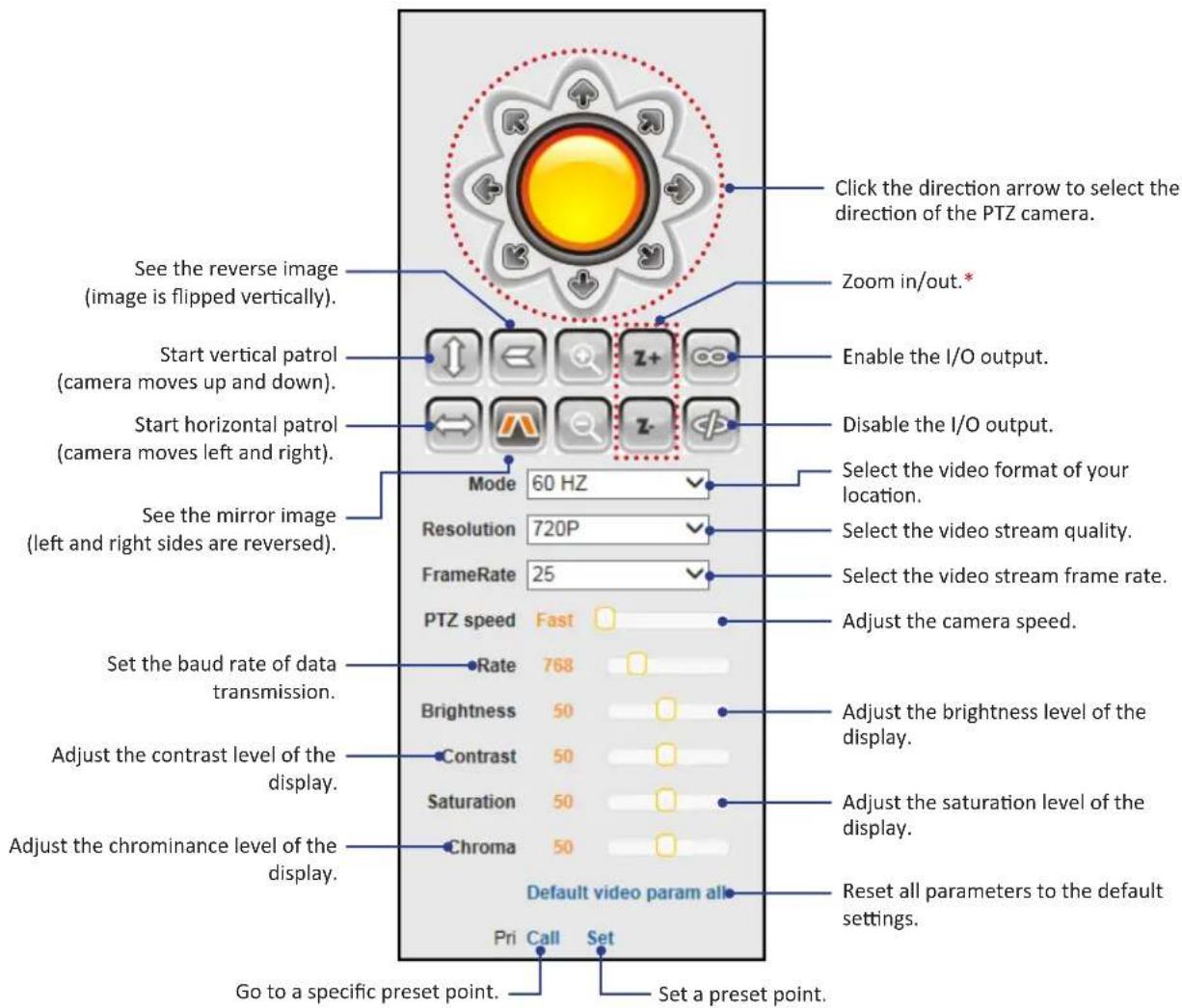
NOTE: (*) Not supported in QRT-501.
Web Client
Configure the Camera Settings
Click to configure the camera settings.
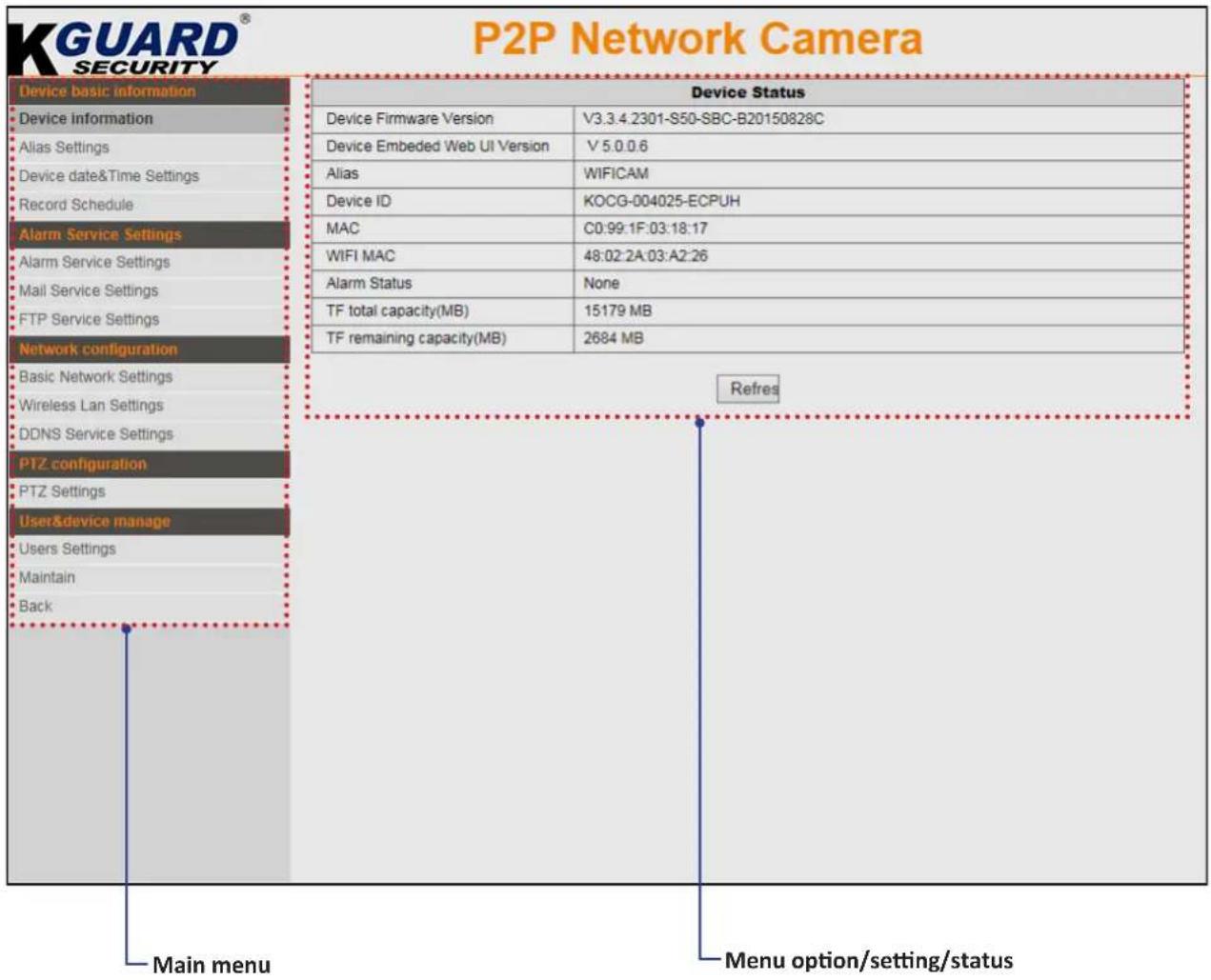
NOTE: When all settings are complete, do the following:
- Click Submit to save all the settings.
- Click Refresh to refresh the settings.
Web Client
Device Basic Information
Select this menu option to view the device information, customize the device name, and configure other general settings.
View the Device Information
Click Device information to view the camera information including the firmware version, Web UI version, device name and ID, MAC address, WIFI MAC address, alarm status, memory card total capacity, and available free space on the memory card.
| Device Status | |
| Device Firmware Version | V3.3.4.2301-S50-SBC-B20150828C |
| Device Embedded Web UI Version | V 5.0.0.6 |
| Alias | WIFICAM |
| Device ID | KOCG-004025-ECPUH |
| MAC | C0:99:1F:03:18:17 |
| WIFI MAC | 48:02:2A:03:A2:26 |
| Alarm Status | None |
| TF total capacity(MB) | 15179 MB |
| TF remaining capacity(MB) | 2684 MB |
Change the Device Name
Click Alias Settings to customize the camera name. Enter the new name in the Alias field.
| Alias Settings | |
| Alias | WIFICAM |
NOTE: The default device name is "WIFICAM".
Adjust the Date & Time Settings
Click Device date&Time Settings to configure the date and time settings.
| Device date&Time Settings | |
| Device Clock Time | 2016-1-27 16:43:37 |
| Device Clock Timezone | (GMT+08:00) Beijing, Chongqing, Hong Kong, Urumqi √ |
| Sync with PC Time | |
Device Clock Time: Display the current date and time.
Device Clock Timezone: Select the time zone in your location.
Sync with PC Time: Click to synchronize the date and time settings with your PC clock.
Web Client
View the Record Schedule
Click Record Schedule to manage the memory card and configure the recording settings to be stored in the memory card.
NOTE:
- It is recommended to use a TF card with size of at least 4GB, Class 6.
- The TF card is not included in the package. It is sold separately.
• The device supports up to 64GB TF card.
| Record Schedule | ||
| TF total capacity(MB) | 15179 MB | |
| TF remaining capacity(MB) | 2679 MB | |
| TF state | TF Card Recording... | Format |
| Timer recording | ☑ | |
| Submi Refres | ||
TF total capacity(MB): Display the total size of the memory card.
TF remaining capacity(MB): Display the available free space on the memory card.
TF state: Display the state of the memory card.
Timer recording: Check the box to record video continuously.
Format the TF Card
Click Record Schedule > Format to format the memory card.
| Record Schedule | |
| TF total capacity(MB) | 15179 MB |
| TF remaining capacity(MB) | 2679 MB |
| TF state | TF Card Recording... Format |
| Timer recording | ☑ |
A confirmation message appears on the screen. Click OK to confirm. All data will be deleted if formatted.
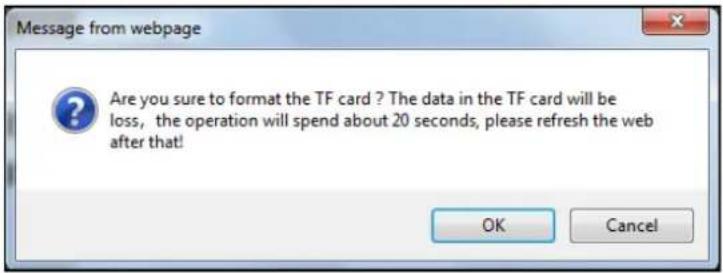
NOTE: Do not remove the memory card while card formatting is in progress.
Web Client
Alarm Service Settings
Select this menu option to configure alarm, email, and FTP server settings.
Configure the Alarm Settings
Click Alarm Service Settings to customize the alarm settings.
| Alarm Service Settings | |
| Motion Detect Armed | ☑ |
| Motion Detect Sensitivity | 1 √ The smaller the value, the more sensitive |
| Alarm Input Armed | ☑ |
| Trigger Level | Low √ |
| Alarm trigger event | |
| IO Linkage on Alarm | ☐ |
| Send Alarm Notification by Mail | ☐ |
| Upload Image on Alarm | ☐ |
Motion Detect Armed: Check this box to enable the motion detection alarm function.
Motion Detect Sensitivity: Select the motion detection sensitivity rate.
NOTE: This option is only available when the Motion Detect Armed function is enabled.
Alarm Input Armed: Check this box to enable the external alarm function.
Trigger Level: Select the alarm trigger level.
NOTE: This option is only available when the Alarm Input Armed function is enabled.
Check this box to activate the following action when the motion is detected or the alarm is triggered.
- IO Linkage on Alarm: Check this option to enable alarm output. You will receive an I/O message notification on your smartphone when the alarm sensor is triggered.
- Send Alarm Notification by Mail: Check this option to send a notification email.
- Upload Image on Alarm: Check this option to upload the snapshots to the FTP server.
Web Client
Configure the Email Settings
Click Mail Service Settings to configure email settings. When the email settings are properly configured, the system will automatically send a notification email when events occur.
| Mail Service Settings | ||
| Sender | username@server.com | |
| SMTP Server | smtp.server.com | Please select✓ |
| SMTP Port | 25 | |
| Need Authentication | ✓ | |
| SSL | ☐ | |
| SMTP User | username@server.com | |
| SMTP Password | ●●●●●●● | Do not use special characters(~1@#$%^&*()) |
| Receiver 1 | username@server.com | |
| Receiver 2 | ||
| Receiver 3 | ||
| Test | ||
Sender: Enter the email address of the sender.
SMTP Server: Enter the SMTP Server of the sending email server.
SMTP Port: Enter the SMTP port of the sending email server.
Need Authentication: Check the box to verify the user settings.
SSL: Check the box if your email server needs the SSL verification.
SMTP User: Enter the user name of the sender.
SMTP Password: Enter the password of the sender.
Receiver 1/2/3: Enter the email address where the notification email is to be sent. You can set up to 3 email addresses.
Test: Click to verify all settings are correct. The system sends an automated email message to your inbox.
NOTE: If you received the test email, it means the configuration parameters are correct.
Configure the FTP Settings
Click FTP Service Settings to configure the FTP server settings.
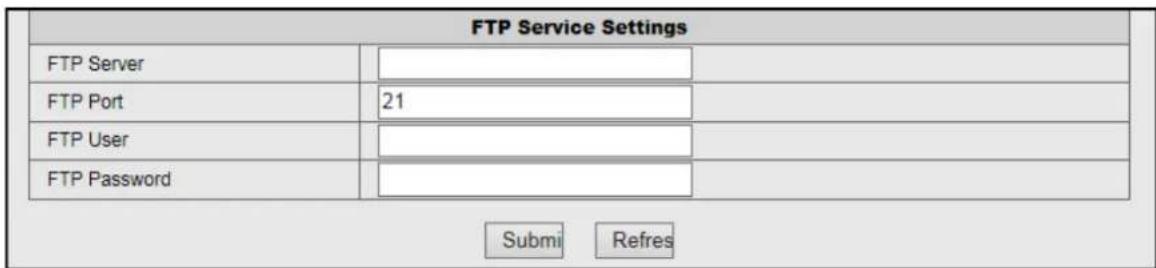
FTP Server: Enter the FTP server address.
FTP Port: Enter the port number of the FTP server.
FTP User: Enter the user name of the FTP server.
FTP Password: Enter the password of the FTP server.
NOTE: Once the alarm is triggered, the system will automatically upload snapshots to the FTP server.
Web Client
Network Configuration
Select this menu option to configure the network and DDNS service settings.
Configure the Basic Network Settings
Click Basic Network Settings to configure how the camera connects to the network.
This camera provides two network connection options: Static IP (Static Address) and DHCP (Dynamic Address).
- Static IP: Select this connection if the camera is directly connected to a DSL modem and your ISP has supplied you with a predefined IP for your Internet connection.
- DHCP: Select this connection if the camera is connected to a router and DHCP is enabled.
| Basic Network Settings | ||
| Obtain IP from DHCP Server | □ | |
| IP Addr | 192.168.1.112 | |
| Subnet Mask | 255.255.255.0 | |
| Gateway | 192.168.1.1 | |
| DNS Server1 | 192.168.1.1 | |
| DNS Server2 | 192.168.1.1 | |
| Http Port | 88 | |
Obtain IP from DHCP Server: Check this box to select DHCP network connection if the camera is connected to a router and DHCP is enabled.
IP Addr: Enter the static IP address.
Subnet Mask: Enter the subnetwork IP address.
Gateway: Enter the gateway IP address.
DNS Server1/2: Enter the DNS server address. DNS Server1 is the primary DNS server and DNS Server2 is a backup DNS server. Usually should be enough just to enter the DNS Server1 server address.
Http Port: Enter the port number that you will use to log in to the device via the web.
NOTE:
- The IP Addr, Subnet Mask, Gateway, DNS Server1, and DNS Server2 options are only available when the Obtain IP from DHCP Server function is disabled.
- Obtain these information from your network administrator or your Internet Service Provider (ISP).
- If you cannot use the either of the two default media.web ports, 80 or 38401, the specified port may be occupied by other programs or it is being blocked by your service provider. Enter other port number. In this case, you need to add the port number after the IP address. For example, if you set the Web Port as 85, you need to enter the IP address as "192.168.3.103:85".
Web Client
Configure the WLAN Settings
Click Wireless Lan Settings to configure the wireless network settings.
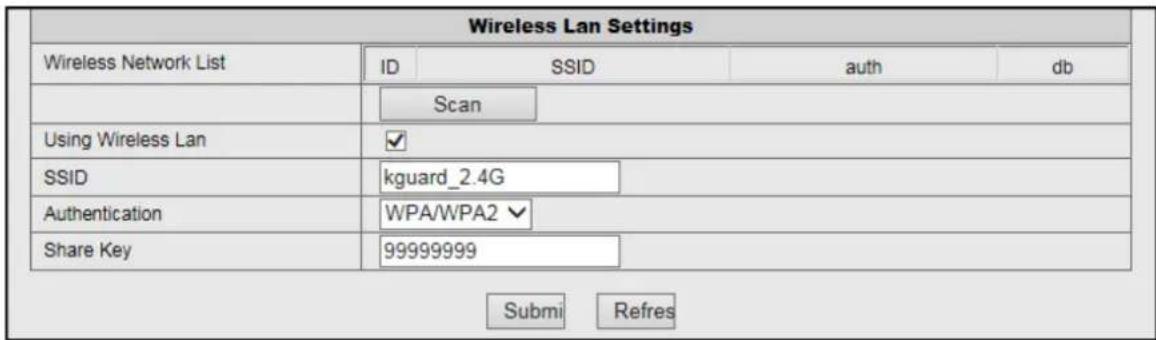
Scan: Click to search for available wireless router(s).
Using Wireless Lan: Check the box to use Wi-Fi function.
SSID: Enter the router name.
Authentication: Select the encryption type.
Share Key: Enter the password as you set in your router.
Configure the DDNS Service Settings
DDNS (Dynamic DNS) is a service that registers a domain name and the floating IP address with a DDNS server so that the domain name can be routed to the IP address even if the IP is changed in a dynamic IP system. Click DDNS Service Settings to configure the DDNS service settings.
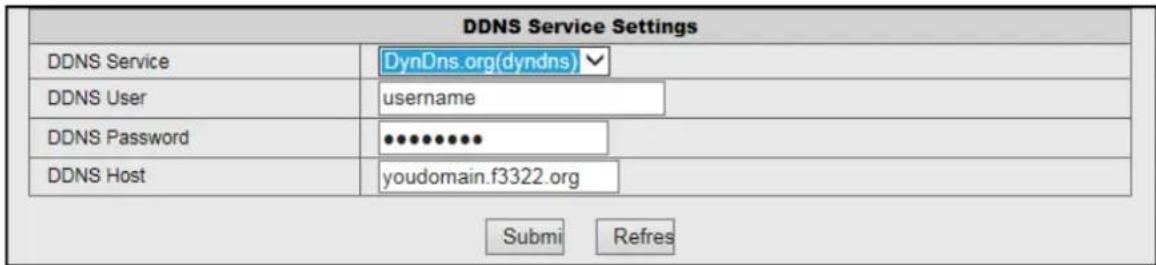
DDNS Service: Select DDNS server type.
DDNS User: Enter the user name you registered on DDNS server.
DDNS Password: Enter the password you registered on DDNS server.
DDNS Host: Enter the domain name you registered on DDNS server.
NOTE: To apply a third party DDNS server provider such as a DynDNS domain name, visit http:dyn.com/dns. Follow the on-screen instructions to complete the account setup.
Web Client
PTZ Configuration
Select this menu option to configure the PTZ camera settings.
Configure the PTZ Settings
Click PTZ Settings to customize the camera cruise settings.

PTZ Speed: Specify the moving speed between two preset points.
Cruise Views: Specify the residence time for each preset point.
User & Device Management
Select this menu option to manage the user and device operations.
Configure the Users Settings
Click Users Settings to change the administrator password and create a new user profile. Only the Administrator can create an account.
NOTE:
- By default, there is one administrator account. The administrator account user name and password are "admin".
• We suggest you change the password to protect your privacy.
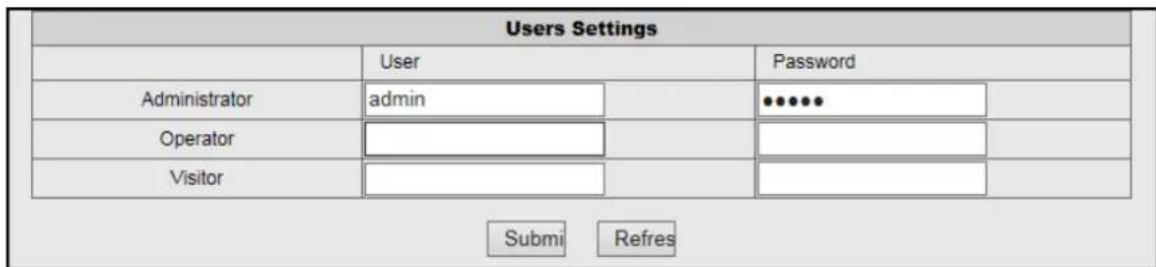
Each user type has different access rights.
- Administrator: Full access rights to configure the camera parameters.
- Operator: Limited camera operations such as pan/tilt control.
- Visitor: View live video only.
NOTE: To create a new user, enter the user name and password. Then click Submit to register the user profile.
Web Client
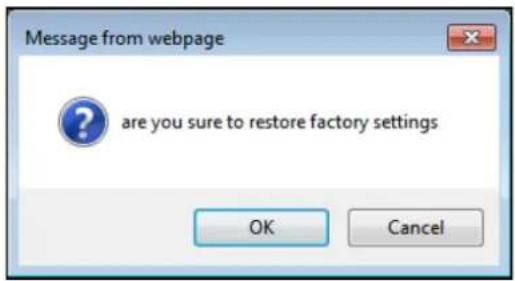
A confirmation message appears on the screen. Click OK to reset the current parameters to the factory default settings.
Reboot the Device
Click Maintain > Reboot Device to reset the camera.
| Upgrade Device Firmware | |||
| Restore Factory Settings | Restore Factory Settings | ||
| Reboot Device | Reboot Device | ||
| Backup Configuration | Backup Configuration | ||
| Restore Configuration | Browse... | Restore | |
| Upgrade Device Firmware | Browse... | Upgrade | |
A confirmation message appears on the screen. Click OK to reboot the system.
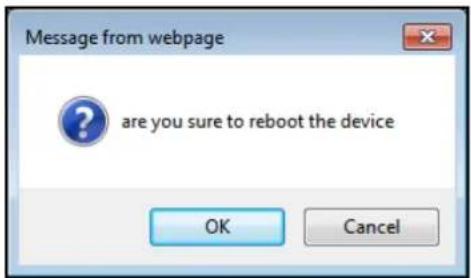
NOTE: Do not disconnect the device from the power supply during the rebooting process.
The device is rebooting. Don't shutdown it's power. Please waiting ... 23
Web Client
Backup the System Configurations
Click Maintain > Backup Configuration to save the current camera configurations to your computer.
| Upgrade Device Firmware | |||
| Restore Factory Settings | Restore Factory Settings | ||
| Reboot Device | Reboot Device | ||
| Backup Configuration | Backup Configuration | ||
| Restore Configuration | Browse... | Restore | |
| Upgrade Device Firmware | Browse... | Upgrade | |
You will be prompted to confirm whether you want to open or save the configuration file (specify the location). The default filename: config_backup.bin.

Restore the System Configurations
Click Maintain >Restore to restore your camera configurations.
| Upgrade Device Firmware | |||
| Restore Factory Settings | Restore Factory Settings | ||
| Reboot Device | Reboot Device | ||
| Backup Configuration | Backup Configuration | ||
| Restore Configuration | Browse... | Restore | |
| Upgrade Device Firmware | Browse... | Upgrade | |
On the Restore Configuration option, click the corresponding Browse button to select the configuration file to restore and click Open. The file is displayed on the field. Then click Restore.
Update the Device Firmware
Click Maintain > Upgrade to reset the camera.
| Upgrade Device Firmware | |||
| Restore Factory Settings | Restore Factory Settings | ||
| Reboot Device | Reboot Device | ||
| Backup Configuration | Backup Configuration | ||
| Restore Configuration | Browse... | Restore | |
| Upgrade Device Firmware | Browse... | Upgrade | |
On the Upgrade Device Firmware option, click the corresponding Browse button to select the firmware file and click Open. The file is displayed on the field. Then click Upgrade and wait until the upgrade process is complete.
NOTE: Any interruption of the firmware update may cause permanent damage to your camera.
Web Client
Playback
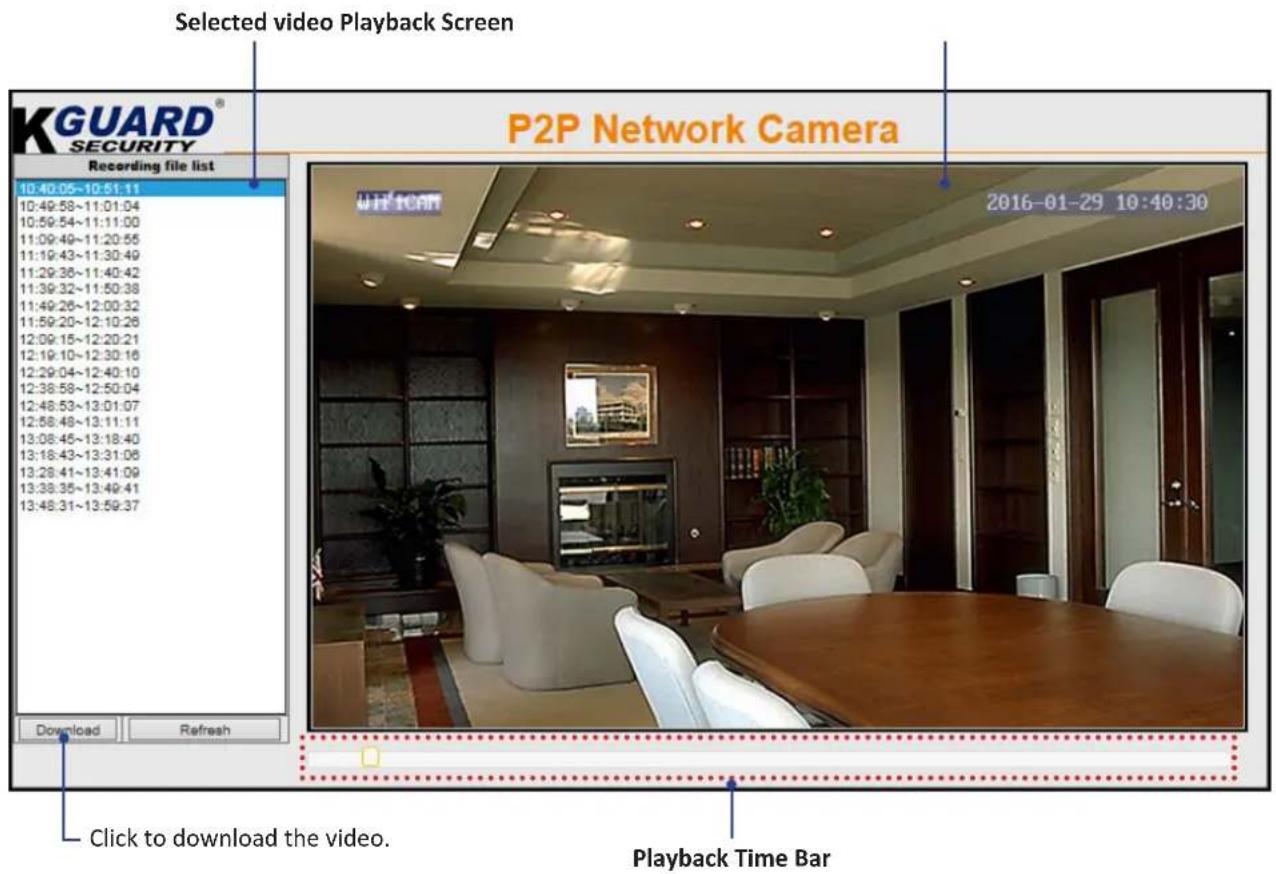
After you login to Web Client, click TF card video playback online to search and play the recorded files stored in the memory card.
Double-click the file that you want to play. The playback automatically starts.
KGUARD® SECURITY
Customer Support
KGUARD INFORMATION CO., LTD.
Address: 4F, No.113, Jian 2nd Road, Jhonghe District, New Taipei City 23585, Taiwan
TEL: +886-2-8228-6080
FAX: +886-2-8221-6857
Email: support@kguardsecurity.com
USA Technical Support Contact
TEL: 1-949-450-0052
Email: support@kworldcomputer.com