
Simplicity SL6551 - Screen Planar - Free user manual and instructions
Find the device manual for free Simplicity SL6551 Planar in PDF.


| Brand | Planar |
| Model | Simplicity SL6551 |
| Product Type | Professional Flat Panel Display |
| Screen Size | 65 inches (163.9 cm) diagonal |
| Native Resolution | 3840 x 2160 pixels (4K UHD) |
| Dimensions (without stand) | 1460 x 840 x 80 mm |
| Weight (without stand) | 25 kg |
| Power Supply | 100-240 V AC, 50/60 Hz, 150 W (max) |
| Standby Power Consumption | Less than 0.5 W |
| Connectivity | HDMI (x2), DisplayPort, VGA, USB 2.0 (x2), 3.5 mm jack |
| Main Features | 4K display, HDCP 2.2 compatibility, built-in speakers (2 x 10 W), VESA 400 x 400 mm wall mount |
| Care and Cleaning | Clean with a soft, dry cloth. Do not use abrasive products or liquids directly on the screen. |
| Safety | Use a wall mount suitable for the weight. Do not block ventilation openings. |
| Spare Parts and Repairability | Contact Planar customer service for spare parts. Repairability index: 7.5/10. |
| General Information | Warranty: 2 years. Operating temperature: 0°C to 40°C. Humidity: 20% to 80%. |
Frequently Asked Questions - Simplicity SL6551 Planar
User questions about Simplicity SL6551 Planar
0 question about this device. Answer the ones you know or ask your own.
Ask a new question about this device
Download the instructions for your Screen in PDF format for free! Find your manual Simplicity SL6551 - Planar and take your electronic device back in hand. On this page are published all the documents necessary for the use of your device. Simplicity SL6551 by Planar.
USER MANUAL Simplicity SL6551 Planar
Planar Simplicity Series
USER'S GUIDE
www.planar.com
Safety Instructions
Warnings and Precautions
KNOW THESE SAFETY SYMBOLS

CAUTION: TO REDUCE THE RISK OF ELECTRIC SHOCK, DO NOT REMOVE COVER (OR BACK). NO USER SERVICEABLE PARTS INSIDE. REFER SERVICING TO QUALIFIED SERVICE PERSONNEL.

This symbol indicates high voltage is present inside. It is dangerous to make any kind of contact with any inside part of this product.

This symbol alerts you that important literature concerning operation and maintenance has been included with this product.
CAUTION: FCC/CSA regulations state that any unauthorized changes or modifications to this equipment may void the user's authority to operate it.
CAUTION: To prevent electric shock, match the wide blade of plug to the wide slot, and fully insert the plug.
TO PREVENT DAMAGE WHICH MAY RESULT IN FIRE OR ELECTRIC SHOCK HAZARD, DO NOT EXPOSE THIS APPLIANCE TO RAIN OR MOISTURE.
The Socket-outlet should be installed near the apparatus and be easily accessible.

Read and follow these instructions when connecting and using your Public Information Display:
- Unplug the display if you are not going to use it for an extensive period of time.
- Unplug the display if you need to clean it with a slightly damp cloth. The screen many be wiped with a dry cloth when the power is off. However, never use alcohol, solvents or ammonia-based liquids.
- Consult a service technician if the display does not operate normally when you have followed the instructions in this manual.
- The casing cover should be opened only by qualified service personnel.
- Keep the display out of direct sunlight and away from stoves or any other heat sources.
- Remove any object that could fall into the vents or prevent proper cooling of the display's electronics.
- Do not block the ventilation holes on the cabinet.
- Keep the display dry. To avoid electric shock, do not expose it to rain or excessive moisture.
- If turning off the display by detaching the power cable, wait for 6 seconds before re-attaching the power cable for normal operation.
- To avoid the risk of shock or permanent damage to the set do not expose the display to rain or excessive moisture.
- When positioning the display, make sure the power plug and outlet are easily accessible.
- IMPORTANT: Always activate a screen saver program during your application. If a still image in high contrast remains on the screen for an extended period of time, it may leave an 'after-image' or 'ghost image' on the front of the screen. This is a well-known phenomenon that is caused by the shortcomings inherent in LCD technology. In most cases the after-image will disappear gradually over a period of time after the power has been switched off. Be aware that the after-image symptom cannot be repaired and is not covered under warranty.
Important Safety Instructions
- Read these instructions.
2 Keep these instructions. - Heed all warnings.
- Follow all instructions.
- Do not use this apparatus near water.
- Do not use over 16 hours per day.
- Clean only with dry cloth.
-
Do not block any ventilation openings. Install in accordance with the manufacturer's instructions.
-
Do not install near any heat sources such as radiators, heat registers, stoves, or other apparatus (including amplifiers) that produce heat.
-
Do not defeat the safety purpose of the polarized or grounding-type plug. A polarized plug has two blades with one wider than the other. A grounding type plug has two blades and a third grounding prong. The wide blade or the third prong are provided for your safety. If the provided plug does not fit into your outlet, consult an electrician for replacement of the obsolete outlet.
-
Protect the power cord from being walked on or pinched particularly at plugs, convenience receptacles, and the point where they exit from the apparatus.
-
Only use attachments/accessories specified by the manufacturer.
-
Use only with the cart, stand, tripod, bracket, or table specified by the manufacturer, or sold with the apparatus. When a cart is used, use caution when moving the cart/apparatus combination to avoid injury from tip-over.

-
Unplug this apparatus during lightning storms or when unused for long periods of time.
-
Refer all servicing to qualified service personnel. Servicing is required when the apparatus has been damaged in any way, such as power-supply cord or plug is damaged, liquid has been spilled or objects have fallen into the apparatus, the apparatus has been exposed to rain or moisture, does not operate normally, or has been dropped.
WARNING: TO REDUCE THE RISK OF FIRE OR ELECTRIC SHOCK, DO NOT EXPOSE THIS APPARATUS TO RAIN OR MOISTURE.
WARNING: Apparatus shall not be exposed to dripping or splashing and no objects filled with liquids, such as vases, shall be placed on the apparatus.
WARNING: The batteries (batteries installed) shall not be exposed to excessive heat such as sunshine, fire or the like.
WARNING: The mains plug or appliance coupler is used as the disconnect device, the disconnect device shall remain readily operable.
WARNING: To prevent the spread of fire, keep candles or other open flames away from this product at all times.

WARNING: To prevent injury, this apparatus must be securely attached to the floor/wall in accordance with the installation instructions.
WARNING: This equipment is compliant with Class A of EN55032/CISPR. In a residential environment this equipment may cause radio interference.
WARNING: This is a class A product. In a domestic environment this product may cause radio interference in which case the user may be required to take adequate measures..
CAUTION: These servicing instructions are for use by qualified service personnel only. To reduce the risk of electric shock, do not perform any servicing other than that contained in the operating instructions unless you are qualified to do so.
CAUTION: Excessive sound pressure from earphones and headphones can cause hearing loss. Adjustment of the equalizer to maximum increases the earphone and headphone output voltage and the sound pressure level. Therefore, to protect your hearing, adjust the equalizer to an appropriate level.
NOTE: This equipment has been tested and found to comply with the limits for a Class A digital device, pursuant to Part 15 of the FCC Rules. These limits are designed to provide reasonable protection against harmful interference when the equipment is operated in a commercial environment. This equipment generates, uses, and can radiate radio frequency energy and, if not installed and used in accordance with the instruction manual, may cause harmful interference to radio communications. Operation of this equipment in a residential area is likely to cause harmful interference in which case the user will be required to correct the interference at his own expense.
RISQUE D'ÉLECTROCUTION NE PAS OUVRIR

ATTENTION : POUR RÉDUIRE LE RISQUE DE CHOC ELECTRIQUE, NE PAS ENLEVER LE COUVERCLE (OU LE CAPOT ARRIÈRE). AUCUNE PIECE UTILISABLE NE SE TROUVE A L'INTERIEUR. CONTACTER UN TECHNICIEN QUALIFIE POUR LES REPARATIONS.
ATTENTION : POUR RÉDUIRE LE RISQUE DE CHOC ELECTRIQUE, NE PAS ENLEVER LE COUVERCLE (OU LE CAPOT ARRIÈRE). AUCUNE PIECE UTILISABLE NE SE TROUVE A L'INTERIEUR. CONTACTER UN TECHNICIEN QUALIFIE POUR LES REPARATIONS.

Please recycle or dispose of all electronic waste in accordance with local, state, and federal laws. Additional resources can be found online at http://www.planar.com/about/green/.
The crossed-out wheelie bin symbol is to notify consumers in areas subject to Waste Electrical and Electronic Equipment (WEEE) Directive 2012/19/EU that the product was placed on the market after August 13, 2005 and must not be disposed of with other waste. Separate collection and recycling of electronic waste at the time of disposal ensures that it is recycled in a manner that minimizes impacts to human health and the environment. For more information about the proper disposal of electronic waste, please contact your local authority, your household waste disposal service, or the seller from whom you purchased the product.
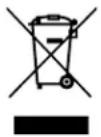
Table Of Contents
1. Unpacking and Installation ....1
1.1. Unpacking....1
1.2. Package Contents....1
1.3. Installation Notes....1
1.4. Mounting on a Wall....2
1.5. IR Remote Sensor and Power Status Indicator......3
1.6. Mounting in Portrait Position ....3
2. Parts and Functions ....4
2.1. Control Panel....4
2.2. Input/Output Terminals....6
2.3. Remote Control....8
2.3.1. General functions....8
2.3.2. Inserting the batteries in the remote control....9
2.3.3. Handling the remote control....9
2.3.4. Operating range of the remote control.....9
3. Connecting External Equipment....10
3.1. Connecting External Equipment (DVD/VCR/VCD) 10
3.1.1. Using COMPONENT video input.....10
3.1.2. Using Video Source input....11
3.1.3. Using HDMI video input....12
3.2. Connecting a PC....13
3.2.1. Using VGA input....13
3.2.2. Using DVI input....14
3.3. Connecting Audio Equipment....15
3.3.1. Connecting an external audio device.....15
3.4. Display control connection....15
3.5. IR connection 16
3.6. IR Pass-through Connection....16
3.7. Connecting Display to the Network.....17
3.8. Connecting Display to a Wireless Device....17
4. Operation....18
4.1. Change Aspect Ratio 18
4.2. Play Multimedia Files....18
4.2.1. Play files from computer....18
4.2.2. Play multimedia files from USB device.....18
4.3. Play options....19
4.3.1. Playing music files....19
4.3.2. Playing movie files....19
4.3.3. Playing photo files 20
5. Change your settings 21
5.1. Settings....21
5.1.1. Picture menu....21
5.1.2. Sound menu....22
5.1.3. General settings menu....23
5.2. Network Settings....25
6. USB device compatibility....26
7. Input Mode....28
8. Cleaning and Troubleshooting....29
8.1. Cleaning 29
8.2. Troubleshooting....30
9. Technical Specifications 31
9.1. Planar Simplicity SL4351....31
9.2. Planar Simplicity SL4851....33
9.3. Planar Simplicity SL5551....35
9.4. Planar Simplicity SL6551....37
1. Unpacking and Installation
1.1. Unpacking
• This product is packed in a carton, together with the standard accessories.
- Any other optional accessories will be packed separately.
- Due to the size and weight of this display it is recommended for two people to move it.
• After opening the carton, ensure that the contents are complete and in good condition.
1.2. Package Contents
Please verify that you received the following items with your package content:
- LCD display
- Quick Start Guide
• Remote control with AAA batteries
• Power cord (1.8 m)
• HDMI cable (1.8 m)
• RS232 cable (1.8 m) - Cable clamps (2)
natural_image
Empty white rectangle with a thin gray border (no text or symbols)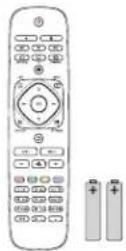
Remote Control and AAA Batteries
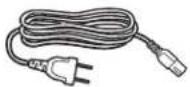
Power Cord
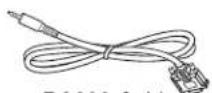
RS232 Cable
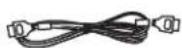
HDMI Cable
Quick Start Guide
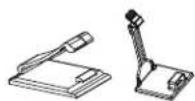
Cable Clamps (2)
NOTES:
- For all other regions, apply a power cord that conforms to the AC voltage of the power socket and has been approved by and complies with the safety regulations of the particular country.
- You might like to save the package box and packing material for shipping the display.
1.3. Installation Notes
• Due to the high power consumption, always use the plug exclusively designed for this product.
- The product should be installed on a flat surface to avoid tipping. The distance between the back of the product and the wall should be maintained for proper ventilation. Avoid installing the product in the kitchen, bathroom or any other places with high humidity so as not to shorten the service life of the electronic components.
• The product can normally operate only under 3000m in altitude. In installations at altitudes above 3000m, some abnormalities may be experienced.
1.4. Mounting on a Wall
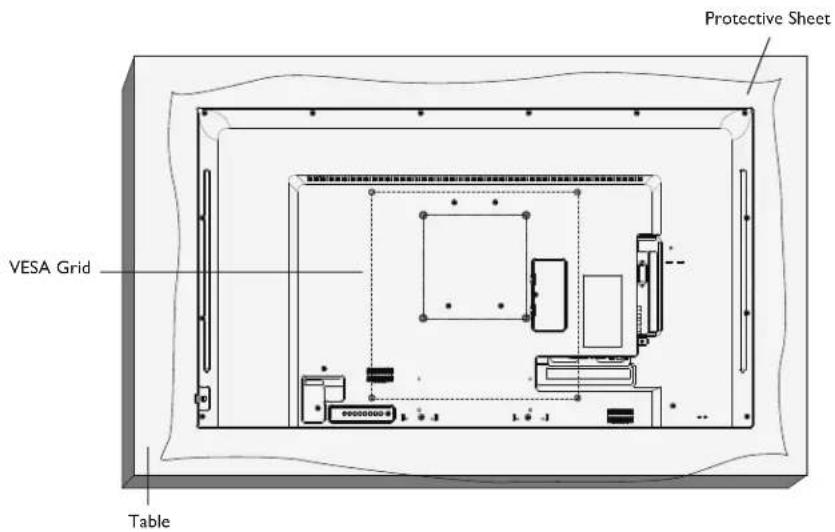
To mount this display to a wall, you will have to obtain a standard wall-mounting kit (commercially available). We recommend using a mounting interface that complies with TUV-GS and/or UL1678 standard in North America.
Planar SL4351/SL4851/SL5551
Planar SL6551
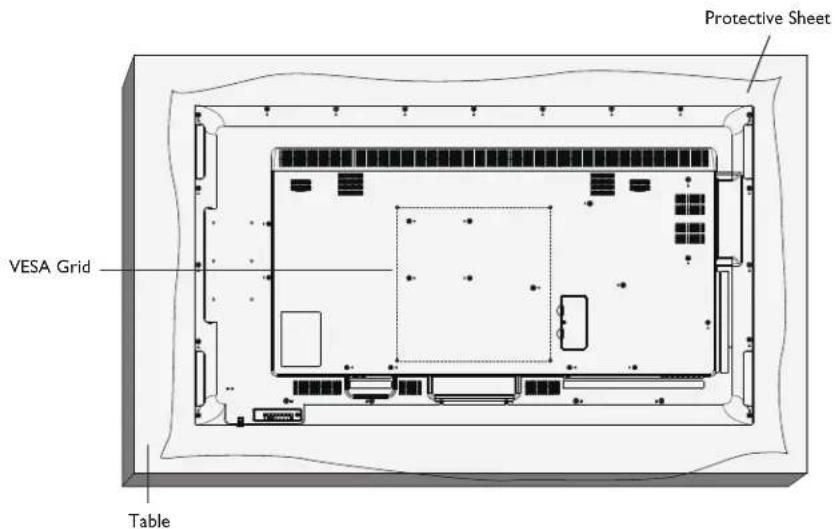
- Lay a protective sheet on a table, which was wrapped around the display when it was packaged, beneath the screen surface so as not to scratch the screen face.
- Ensure you have all accessories for mounting this display (wall mount, ceiling mount, table stand, etc).
- Follow the instructions that come with the base mounting kit. Failure to follow correct mounting procedures could result in damage to the equipment or injury to the user or installer. Product warranty does not cover damage caused by improper installation.
- For the wall-mounting kit, use M6 mounting screws (having a length 10 mm longer than the thickness of the mounting bracket) and tighten them securely.
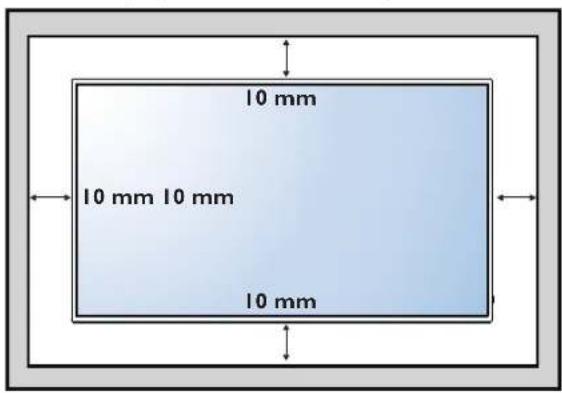
Ventilation requirements for enclosure
To allow heat to disperse, leave space between surrounding objects as shown in the diagram below.
1.5. IR Remote Sensor and Power Status Indicator
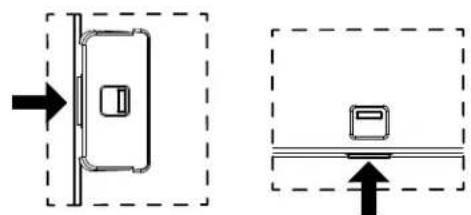
- For optimal IR remote control performance, pull out the retractable lens from the backside of the display. The LED power status light is also best viewed when the lens is pulled out.
- You will hear a click when the lens is fully in position.
SL4351/SL4851/SL5551SL6551SL4351/SL4851/SL5551SL6551
natural_image
Diagram showing two mechanical or electrical component configurations with arrows indicating direction (no text or symbols)Push in to collapse the lens
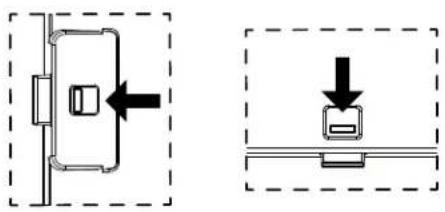
Push out to extend the lens
1.6. Mounting in Portrait Position
This display can be installed in portrait position. Rotate 90 degrees clockwise from the back side of the display. The terminals will be on the left and bottom sides of the user from the back of the display.
2. Parts and Functions
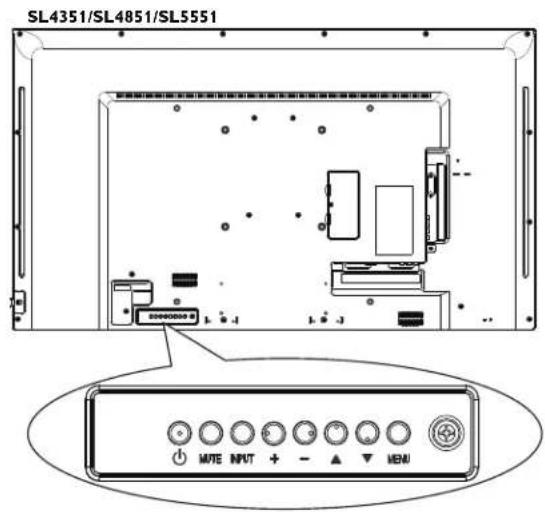
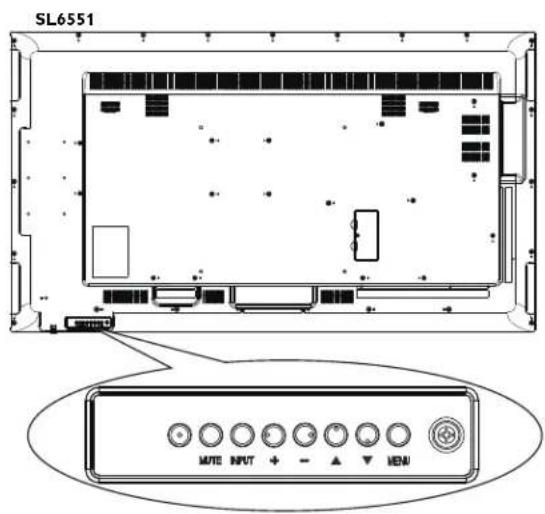
2.1. Control Panel
Planar SL4351/SL4851/SL5551
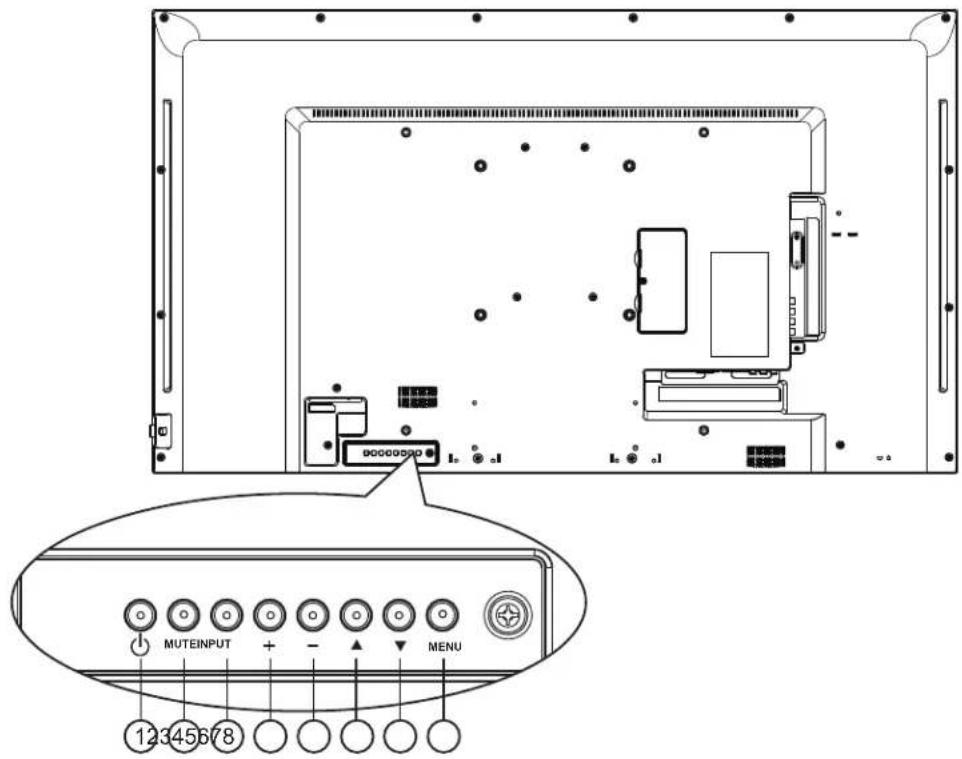
Planar SL6551
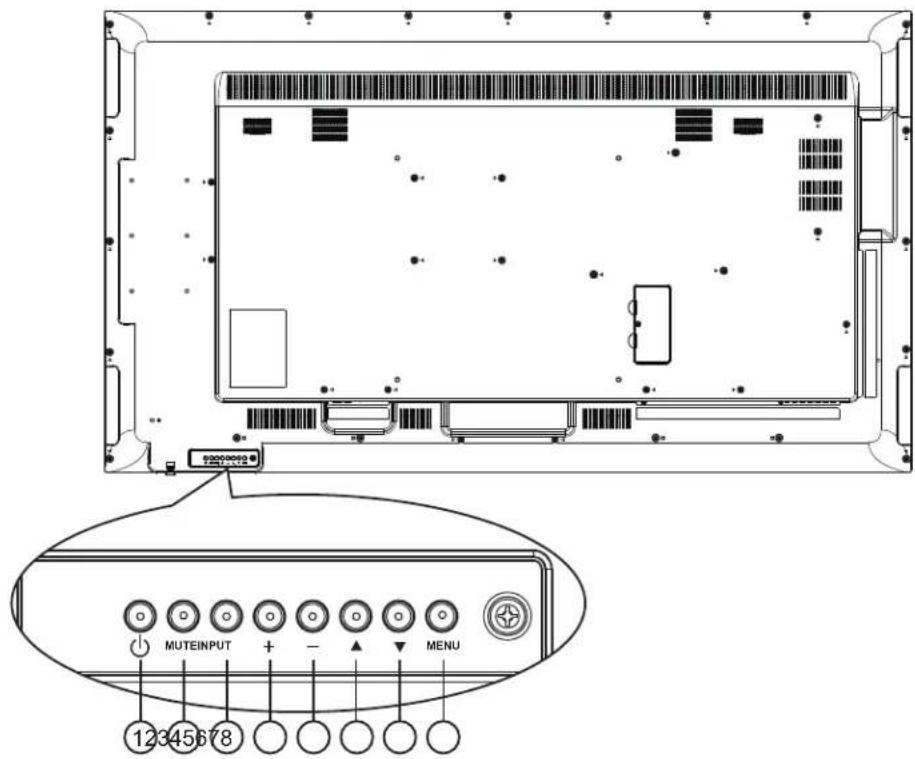
① [button
Use this button to turn the display on or put the display to standby.
② [MUTE] button
Switch the audio mute ON/OFF.
③ [INPUT] button
Choose the input source.
• Used as [] button in the On-Screen-Display menu.
④ [+] button
Move the highlight bar up / Increase the adjustment while OSD menu is on, or increase the audio output level while OSD menu is off.
⑤ [] button
Move the highlight bar down / Decrease the adjustment while OSD menu is on, or decrease the audio output level while OSD menu is off.
⑥ [▲button
Move the highlight bar up to adjust the selected item while OSD menu is on.
⑦ [▼button
Move the highlight bar down to adjust the selected item while OSD menu is on.
⑧ [MENU] button
Return to previous menu while OSD menu is on, or to activate the OSD menu when OSD menu is off.
2.2. Input/Output Terminals
Planar SL4351/SL4851/SL5551
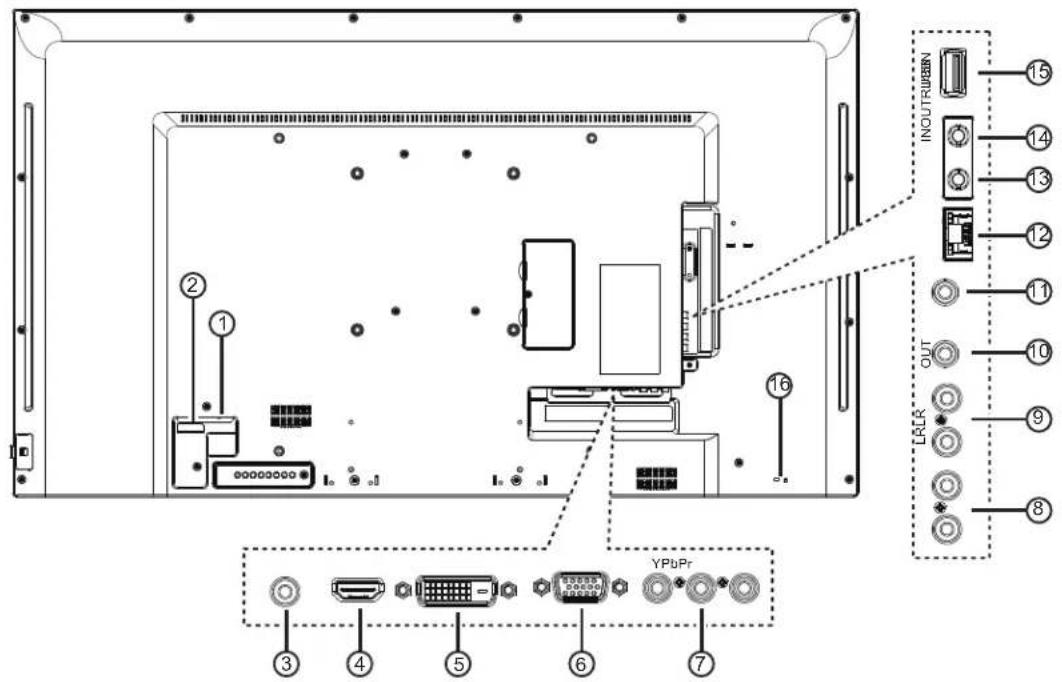
Planar SL6551
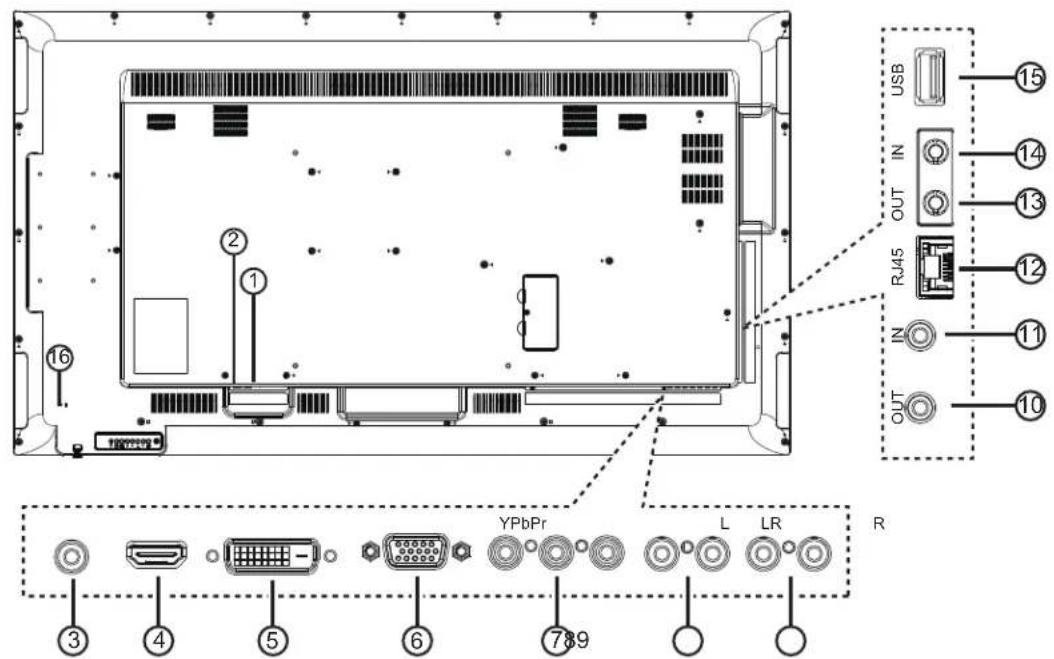
① MAIN POWER SWITCH
Switch the main power on/off.
② AC IN
AC power input from the wall outlet.
③ PC AUDIO IN
Audio input from VGA source (3.5mm stereo phone).
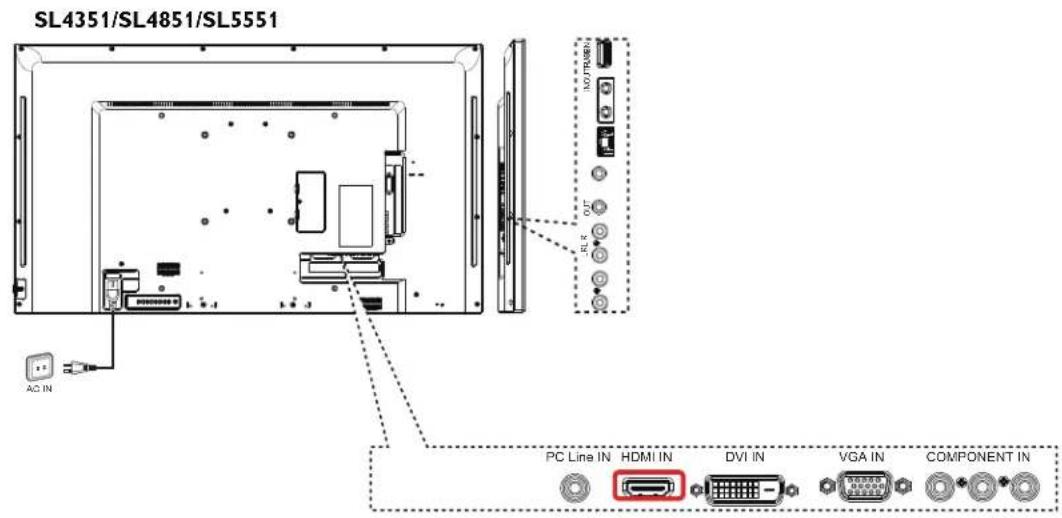
④ HDMI IN
HDMI video / audio input.
⑤ DVI IN
DVI-D video input.
⑥ VGA IN (D-Sub)
VGA video input.
⑦ COMPOSITE/COMPONENT VIDEO
Video source input.
⑧ AUDIO IN
Audio input from external AV device (RCA).
⑨ AUDIO OUT
Audio output to external AV device.
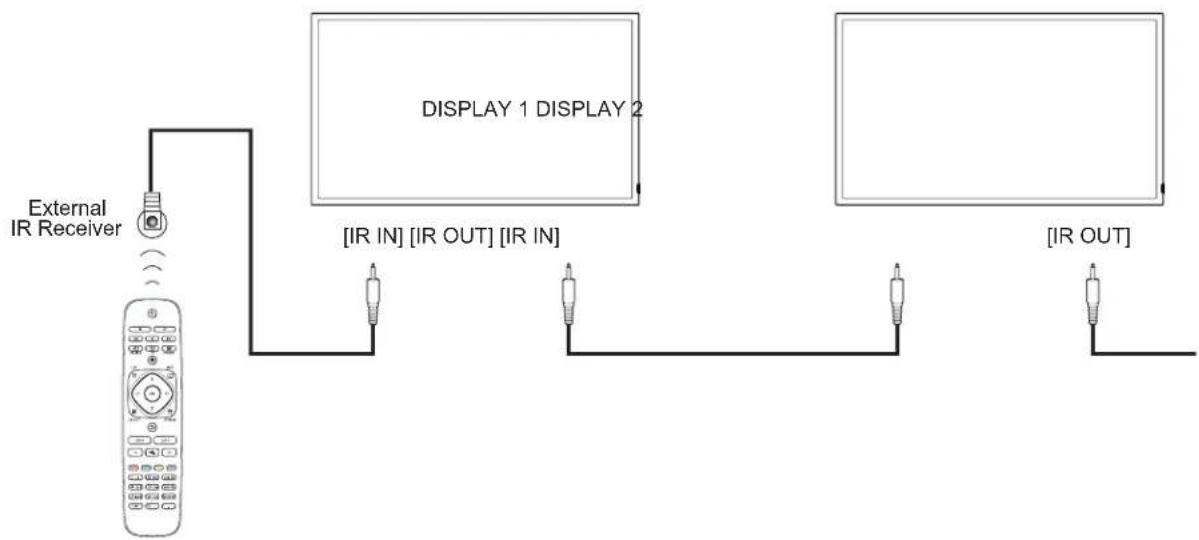
⑩ IR OUT / ⑪ IR IN
IR signal output /input for the loop-through function.
NOTES:
- This display's remote control sensor will stop working if the jack [IR IN] is connected.
- To remotely control your A/V device via this display, refer to page 16 for IR Pass Through connection.
⑫ LAN
LAN control function for remote control from a network.
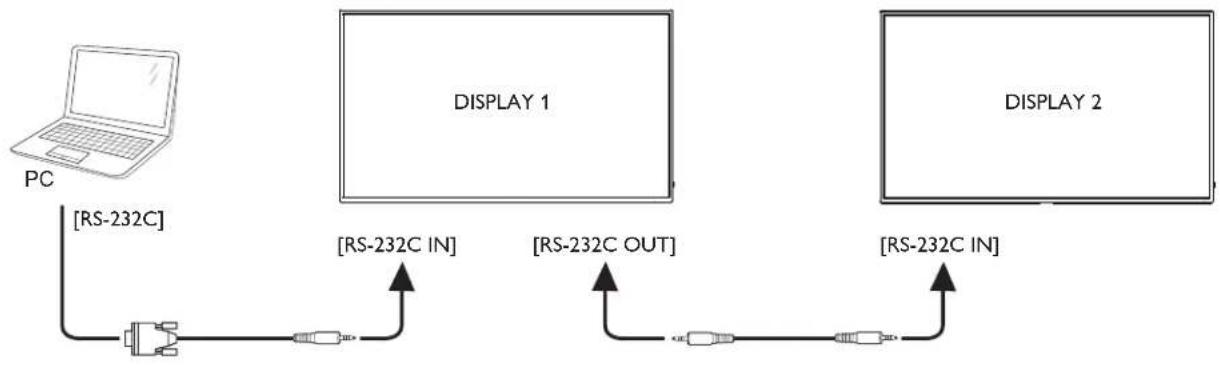
⑬ RS232 OUT / ⑭ RS232 IN
RS232C network output / input for the loop-through function.
⑮ USB PORT
Connect your USB storage device.
⑯ Security LOCK
Used for security and theft prevention.
2.3. Remote Control
2.3.1. General functions
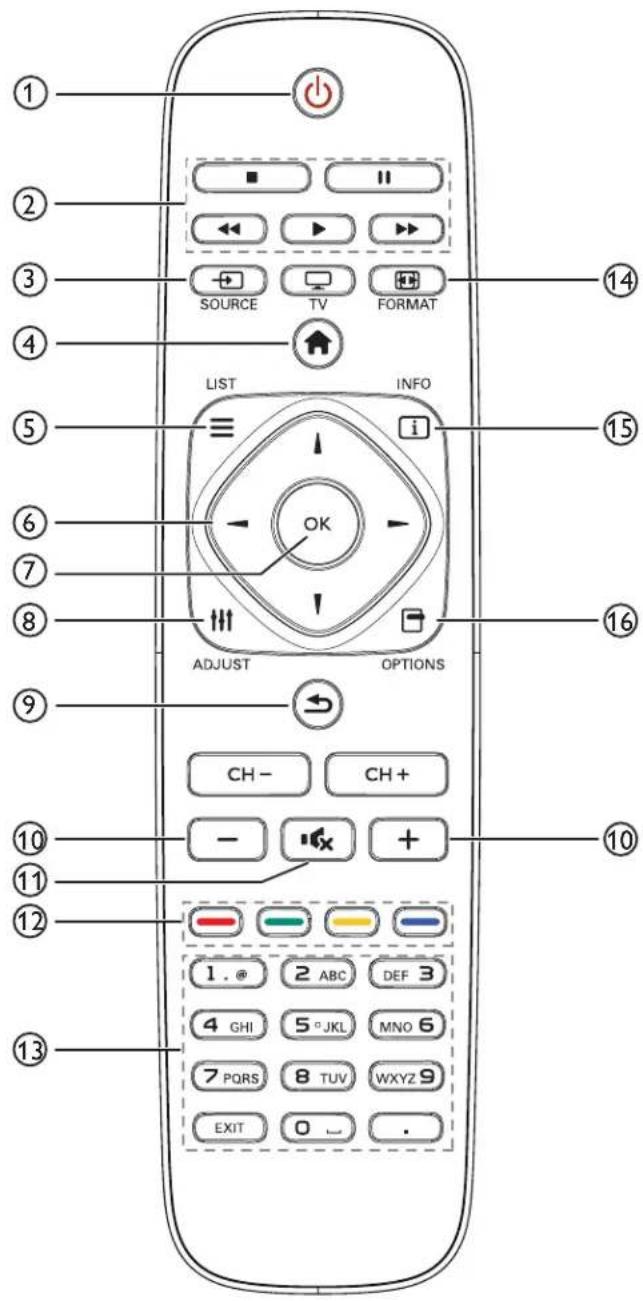
① [+] POWER button
Turn the display on or to put the display into standby mode.
② [PLAY] buttons
Control playback of media files.
③ [→SOURCE button
Choose input source. Press [or] button to choose from USB, Network HDMI, DVI, YPbPr, AV, or VGA Press [OK] button to confirm and exit.
④ [HOME button
Access the OSD menu.
⑤ LIST button
Not applicable.
⑥ [1] [1] [3+]NAVIGATION buttons
Navigate through menus and choose items.
⑦ [①button
Confirm an entry or selection.
⑧ [↑]ADJUST button
Access currently available options, picture and sound menus.
⑨ [BACK button]
Return to the previous menu page or exit from the previous function.
⑩ [—] [+] VOLUME button
Adjust volume.
⑪ [×] MUTE button
Press to turn the mute function on/off.
⑫ [ ] [ ] [ ] [ ] COLOR buttons
Select tasks or options for media player.
⑬ [NUMERIC] buttons
Enter text for network setting.
⑭ [FORMAT button]
Change aspect ratio.
⑮ [i] INFO button
View info about the display.
⑯ OPTIONS button
Access currently available options, picture and sound menus.
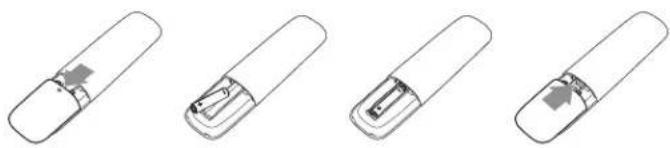
2.3.2. Inserting the batteries in the remote control
The remote control is powered by two 1.5V AAA batteries.
To install or replace batteries:
- Press and then slide the cover to open it.
- Align the batteries according to the (+) and (−) indications inside the battery compartment.
- Replace the cover.
natural_image
Four sequential diagrams showing a cylindrical device with internal components, no text or symbols presentCaution:
The incorrect use of batteries can result in leaks or bursting. Be sure to follow these instructions:
- Place "AAA" batteries matching the (+) and (−) signs on each battery to the (+) and (−) signs of the battery compartment.
- Do not mix battery types.
- Do not combine new batteries with used ones. It causes shorter life or leakage of batteries.
- Remove the dead batteries immediately to prevent them from liquid leaking in the battery compartment. Don't touch exposed battery acid, as it can damage your skin.
NOTE: If you do not intend to use the remote control for a long period, remove the batteries.
2.3.3. Handling the remote control
• Do not subject to strong shock.
- Do not allow water or other liquid to splash the remote control. If the remote control gets wet, wipe it dry immediately.
- Avoid exposure to heat and steam.
- Other than to install the batteries, do not open the remote control.
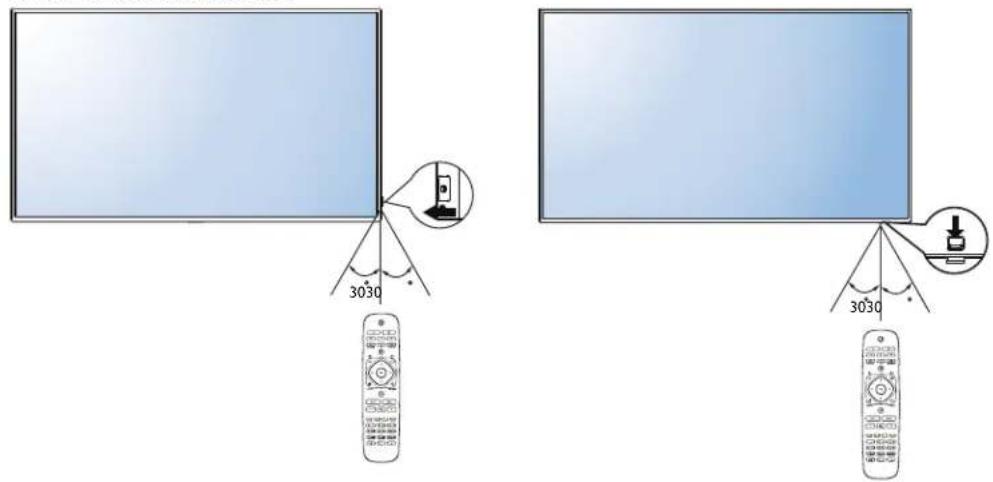
2.3.4. Operating range of the remote control
Point the front of the remote control toward this display's remote control sensor when pressing a button.
Use the remote control within a distance of less than 5m/16ft from this display's sensor, and a horizontal and vertical angle of less than 30 degrees.
NOTE: The remote control may not function properly when the remote control sensor on this display is under direct sunlight or strong illumination, or when there is an obstacle in the path of signal transmission.
SL4351/SL4851/SL5551SL6551
2.4. RS232 Control
See www.planar.com for the Planar® Simplicity ^TM RS-232 manual.
2.5. LAN Control
The Planar Simplicity Series supports extending access to the RS232 commands over a network connection. Below are the steps to follow for controlling the display over LAN through the RJ45 connector:
-
Connect display & PC to hub or connect display to PC with LAN cable directly.
-
SET display IP address
Step 1: In Network Settings menu, select "Network configuration" -> "Static IP"
Step 2: Then go to "Static IP configuration" and enter the pertinent information.
Step 3: "View network settings" to check IP address
-
Commands are sent via TCP connection to port 5000. The commands are the same as for the RS232 port (see Simplicity RS-232 manual on www.planar.com).
-
You can test commands using any TCP utility program that allows you to enter binary data in hexadecimal format. (Note: Contact Planar Technical Support for recommended programs.)
3. Connecting External Equipment
3.1. Connecting External Equipment (DVD/VCR/VCD)
3.1.1. Using COMPONENT video input
![SL4351/SL4851/SL5551 Audio Out [ R ] [ L ] [ AUDIO IN ] [ COMPONENT IN ] (YPbPr ) DVD / VCR / VCD COMPONENT OUT (YPbPr) PC Line IN HDMI IN DVI IN VGA IN COMPONENT IN](/content/2026/05/1041855/images/4450b2a30a21aeba55a55717a8aa25e19737da09093fdda7b598ec9a4fd47983.jpg)
![SL6551 COMPONENT Out (YPbPr) Audio Out DVD / VCR / VCD [COMPONENT IN] (YPbPr) [AUDIO IN] [L] [R] PC LEA IN HDW IN DVIN VCA N Y CA D I B L R](/content/2026/05/1041855/images/ff7dc2acd908ae8607473e78c52523880911ad939160fc425e18cf3f217b63ee.jpg)
3.1.2. Using Video Source input
![SL4351/SL4851/SL5551 R [L] [AUDIO IN] Y/CVBS Out DVD / VCR / VCD [Y/CVBS IN] HDMI IN DVI IN COMPONENT IN VGA INPC Line IN SL6551 Y/CVBS Out Audio Out DVD / VCR / VCD [AUDIO IN] [L] [R] AICIN PC Lbs IN HDMI R DV IN VSM N HAF L R L R](/content/2026/05/1041855/images/5c10ec5d7a60d48979acf60ca339d4a8fc6c12aef8b5b529111484da50fea1fa.jpg)
3.1.3. Using HDMI video input
![SL6551 HDMI HDMI Out [ HDMI IN ] HDMI IN DVD IN VGA INPC Line IN Y PL Pr L R L R](/content/2026/05/1041855/images/e1a008b5ffcf46bad67ee6871b61b2d2370b24c4b4f3679f8cc571edf34f527d.jpg)
3.2. Connecting a PC
3.2.1. Using VGA input
![SL4351/SL4851/SL5551 VGA Out D-Sub 15 pin PC Audio Out [ VGA IN ] [ VGA AUDIO IN ] PC Line IN HDMI IN DVI IN VGA IN COMPONENT IN](/content/2026/05/1041855/images/2d92802024132e1fb52f9075e6e4e186476f77519f64946e597c1c8c3b3e57c6.jpg)
![SL6551 VGA Out D-Sub 15 pin PC Audio Out [VGA IN] [VGA AUDIO IN] HDMI IN DV IN VGA NPC Line IN Y Po Pr L R L R](/content/2026/05/1041855/images/46829a191bd601c0ee04448940ff25c36263f1c98ff0b2f257b69217aa26c4f0.jpg)
3.2.2. Using DVI input
![SL4351/SL4851/SL5551 DVI Out PC Audio Out [DVI IN] [VGA AUDIO IN] PC Line IN HDMI IN DVI IN VGA IN COMPONENT IN](/content/2026/05/1041855/images/02a6c8930f021509d8645704a1477096441a850aab74093a01ab9e21f0e9c173.jpg)
![SL6551 DVI Out PC Audio Out [DVI IN] [VGA AUDIO IN] HDMI IN DW IN VGA IN PC Line IN Y Fb Pr L R L R](/content/2026/05/1041855/images/093ec6ea3bcbcd985b9159cab8ee43b0a54748ff4875ea944ffa506419c79a53.jpg)
3.3. Connecting Audio Equipment
3.3.1. Connecting an external audio device
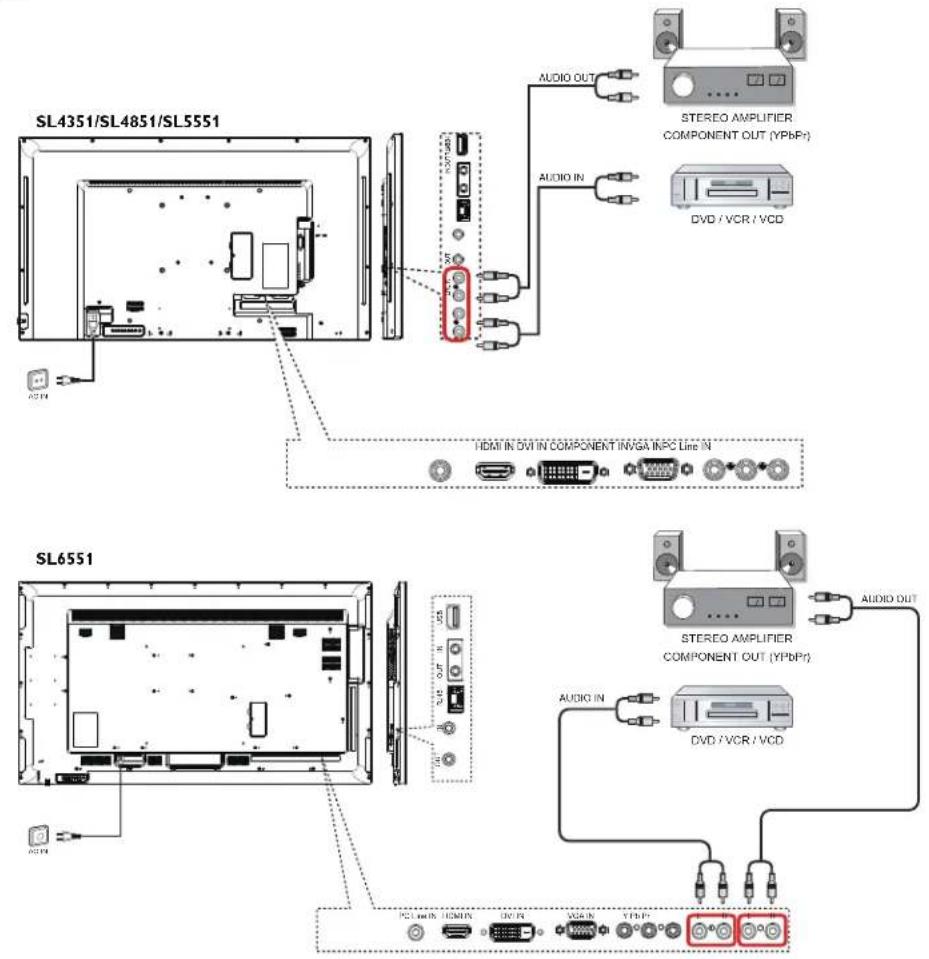
3.4. Display control connection
Connect the [RS232C OUT] connector of DISPLAY 1 to the [RS232C IN] connector of DISPLAY 2.
flowchart
graph LR
    PC["PC"] -->|[RS-232C]| A["Analog"]
    A -->|[RS-232C IN]| B["DISPLAY 1"]
    B -->|[RS-232C OUT]| C["Analog"]
    C -->|[RS-232C IN]| D["DISPLAY 2"]
3.5. IR connection
flowchart
graph LR
    A["External IR Receiver"] --> B["Display 1 DISPLAY 2"]
    B --> C["[IR IN"] [IR OUT] [IR IN]]
    C --> D["[IR OUT"]]
NOTE: This display's remote control sensor will stop working if the [IR IN] is connected.
3.6. IR Pass-through Connection
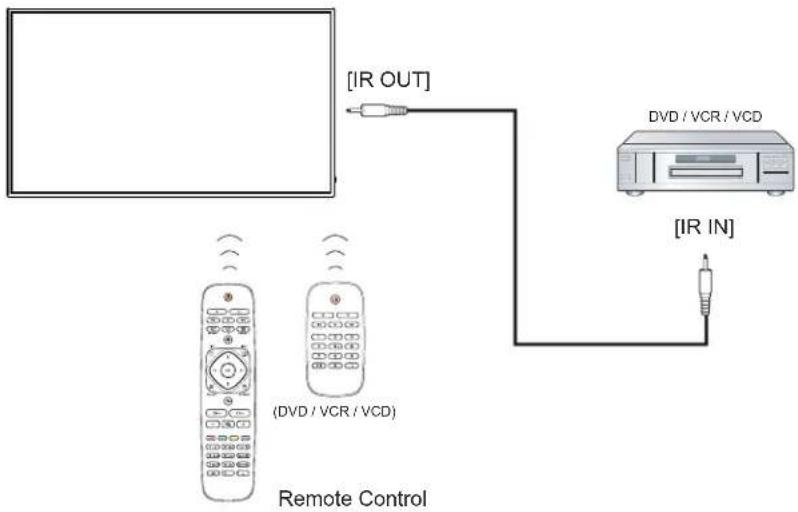
flowchart
graph TD
    A["Remote Control"] --> B["IR OUT"]
    A --> C["(DVD / VCR / VCD)"]
    C --> D["IR IN"]
    D --> E["DVD / VCR / VCD"]
3.7. Connecting Display to the Network
If you connect the display to a network, you can play photos, videos, and music from your computer.
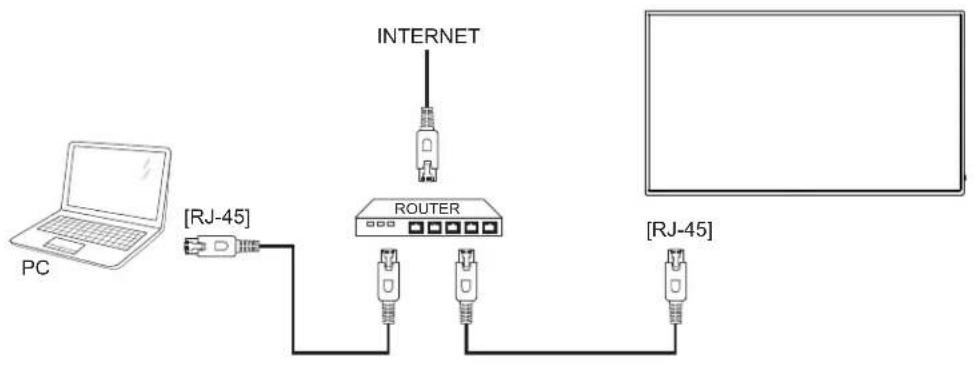
flowchart
graph TD
    PC["PC"] --> RJ45["RJ-45"]
    RJ45 --> ROUTER["ROUTER"]
    ROUTER --> INTERNET["INTERNET"]
    INTERNET -->|Data Line| OUT["Out"]
To set up the connection::
- Connect the display with a LAN cable connected to a hub or router on your network.
- Press ⬆ HOME button to display the OSD menu.
- Press | or | button to select the menu item {Network setting}. Press OK button to enter its submenu.
- Go to network configuration and select DHCP & Auto IP or Static IP. If you select Static IP, you will need to enter the information in the Static IP Configuration menu.
- Connect the PC with a LAN cable connected to the Ethernet using a hub or router. Identify the network on your computer.
- Confirm that a media server is running on your computer, such as Windows Media Player (11 or higher) for PC or Twonky for Mac.
- Make sure you have the appropriate settings on your computer firewall to allow you to run the media server through the network.
- See Play Multimedia Files (Page 15) for more detail on playing content.
Manage security to files using standard Windows and Mac privacy features.
3.8. Connecting Display to a Wireless Device
If you connect the display to a wireless router, you can access files from a wireless device, like a smartphone, tablet, or laptop. For best results, we recommend using a device with built-in DLNA functionality. Do not connect multiple device at the same time.
To set up the connection:
- Connect your wireless device to the internet to download app that are designed to send media via DLNA (Examples: iMediashare, ArkMC)
- Connect your device to the wireless router.
- Enable network sharing on your device. This varies for different phone/tablet models.
- Enable DMR (Digital Media Renderer) feature on the display under Network Settings. Got to Digital Media Renderer submenu and select ON.
- See Play Multimedia Files (Page 15) for more detail on playing content.
4. Operation
NOTE: The control button described in this section is mainly on the remote control unless specified otherwise.
4.1. Change Aspect Ratio
You can change the aspect ratio to suit the video source. Each video source has its available aspect ratios..
The aspect ratios depend on the video source:
-
Press [FORMAT button.
-
Press [] or [] button to choose an aspect ratio, then press [O] button.
Options: Auto, Letterbox, Full Screen, Native, 4:3
4.2. Play Multimedia Files
You can play videos, photos, and music on your display from:
- Your computer connected to your network.
• A USB device connected to the display.
• A device connected wirelessly to a router connected to the display
Supported file system:
• FAT32
Supported file format:
• Music: MP3, WMA, M4A, AAC, AC3
• Movie: AVI, MP4, MOV, MPG/MPEG
• Photo: JPEG, BMP, GIF
4.2.1. Play files from computer
- Connect your display to the network (see page 12)
- Confirm that the computer, hub or router, and display are turned on and connected.
- Switch on media sharing on your computer using the media server. For more information on how to set up the media server, refer to the website of the media server.
- Press the SOURCE button on the remote and Select Network.
- Select a file from the content browser, then press OK button to start playing.
- When adding new multimedia files, exit the current file and return to the upper folder.
- Use the remote control to control the media files on the display.
Tips:
- Select the top bar to filter your files by type.
- Select [Sort] to arrange the files by album name, artist, or other fields.
• To clear the list of offline media servers, press button, then select [Clear offline servers] and press OK button
4.2.2. Play multimedia files from USB device
This display can play music, movie, or photo files from your USB device.
- Connect your USB device to the USB port on this display.
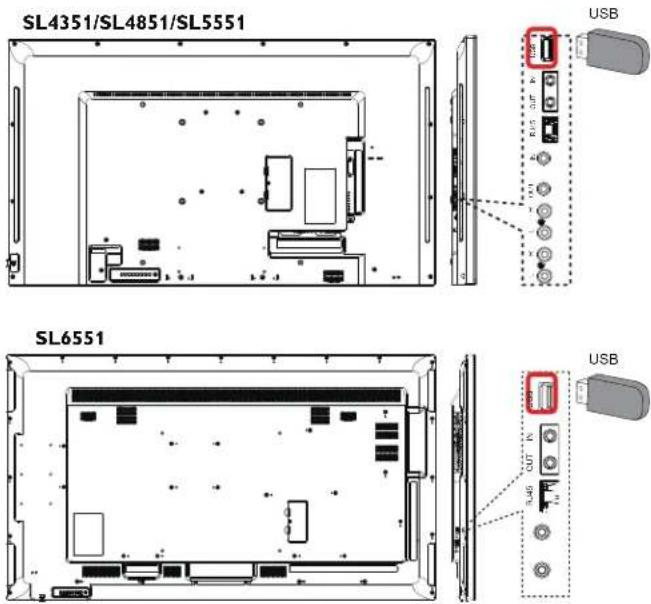
- Press → SOURCE button, select USB, then press OK button.
- The connected USB device is detected automatically for all its playable files, which will be automatically sorted into 3 types: Music Movie and Photo
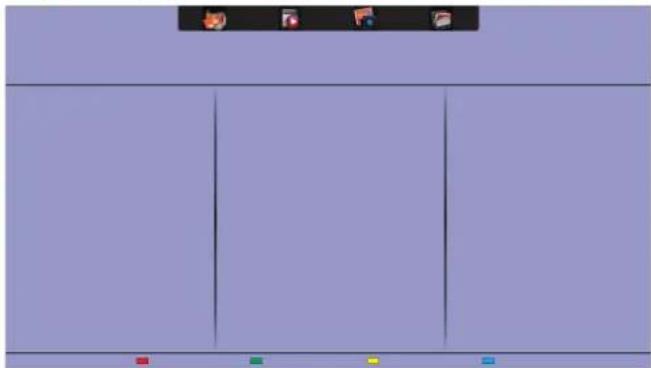
natural_image
Pure diagram of three vertical panels with colored icons at top (no text or symbols)- Press the ➕ BACK button to go up to the top layer in the screen. Press ➕ button to select the file type. Press OK button to enter its play list.
- Select the file you want. Press OK button to start playing.
- Follow the on-screen instruction to control the play option.
- Press the PLAY buttons ( ■ □ ◀◀ ▶ ▶▶) to control playing.
Caution:
- The manufacturer is not responsible if the USB device is not supported, nor is it responsible for damage to or loss of data in the device.
- Do not overload the USB port. If you connect a USB storage device that consumes more than 500mA power, make sure that it is connected to its own external power supply.
NOTE: USB content will auto play for scheduled events only (see page 18 for Scheduling). If a display is powered down and powered up manually, the last input used prior to the USB source will be automatically detected at start up. If no input other than USB has been used, the display will detect the HDMI source.
4.3. Play options
4.3.1. Playing music files
- Select Music top bar.
- Select one music track, then press OKton.
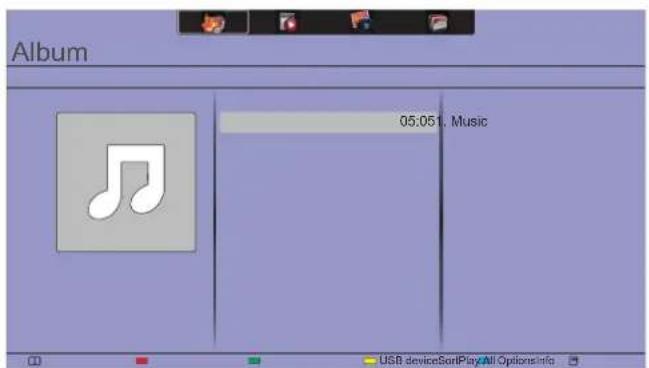
- To play all the tracks in a folder, select one music file, then select {Play All}.
- To skip to the next or previous track, press CH+ or VOL-button.
• To pause the track, press OK button. Press OK button again to resume playback.
• To skip backward or forward 10 seconds, press◀ or ▶ button. - To search backward or forward, press ◀◀ or ▶▶ button, press repeatedly to toggle between different speeds.
• To stop the music, press ■ button.
Music options
While you play music, press ⏻ OPTIONS button, then press OK button to select an option:
- {Repeat}: Select {Repeat} to play a track or an album repeatedly, or select {Play once} to play a track once.
- {Media Server}: When you play content from a media server, you can select another media server.
• {Shuffle On} / {Shuffle Off}: Enable or disable random play of tracks.
NOTE: To view information about a song (for example, title, artist or duration), select the song, then press i INFE on. To hide the information, press i INFE on again.
4.3.2. Playing movie files
- Select Movie the top bar.
- Select a video, then press OK button.
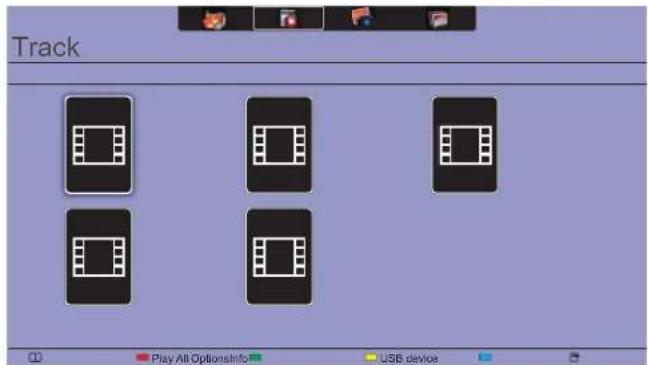
- To play all the videos in a folder, select one video file, then select {Play All}.
- To skip to the next or previous video, press CH+ or VOL-button.
• To pause the video, press OK button. Press OK button again to resume playback.
• To skip backward or forward 10 seconds, press← or→ button. - To search backward or forward, press ◀◀ or ▶▶ button, press repeatedly to toggle between different speeds.
• To stop the video, press ■ button.
Movie options
While playing video, press OPTIONS button, then press OK button to select an option:
- {Subtitles}: Select the available subtitle settings.
• {Subtitle Language}: Select the language for subtitles if available.
• {Character Set}: Select the correct character set for the subtitles.
• {Audio Language}: Select an audio language. - {Repeat}: Select {Repeat} to play the video file repeatedly or {Play once} to play the video file once.
- {Media server}: When you play content from a media server, you can select another media server.
- {Shuffle On} / {Shuffle Off}: Enable or disable random play of video files.
NOTE: To view information about a video (for example, played position, duration, title, or date), select the video, then press i INFO button. To hide the information, press i INFO button again.
4.3.3. Playing photo files
- Select Photo bar.
- Select a photo thumbnail, then press OKton.
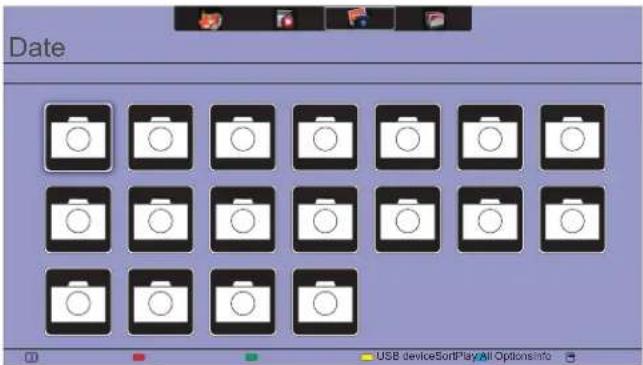
Start a slideshow
If there are multiple photos in a folder, select a photo, then select {Play All}.
- To skip to the previous or next photo, press-or-button, and then press OK button.
• To stop the slideshow, press ■ button.
Slideshow options
While you play a slideshow, press 📄 OPTIONS press
OK button to select an option:
- {Shuffle Off} / {Shuffle On}: Enable or disable random display of pictures in the slideshow.
- {Repeat}: Select {Repeat} to watch a slideshow repeatedly or {Play once} to watch once.
- {Slideshow Time}: Select the displaying time for each photo in the slideshow.
- {Slideshow Transitions}: Select the transition from one photo to the next.
• {Media Server}: When you play content from a media server, you can select another media server.
5. Change your settings
Using the remote control:
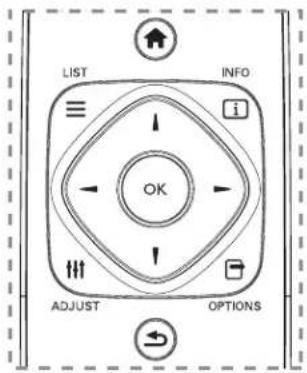
- Press 🏠HOME display the OSD menu.
- Press 🔊, or button to select its menu item or to adjust its value. Press OK button to confirm.
- Press ➕ BACK go back to the previous menu layer.
- Press EXIT to exit the OSD menu.
Using this display's control buttons:
- Press MENU to display the OSD menu.
- Press[▲][▼][+] or [−] button to select menu item or adjust its value.
- Press INPUT button to confirm menu selection and enter its submenu.
- Press MENU to exit the OSD menu.
5.1. Settings
5.1.1. Picture menu
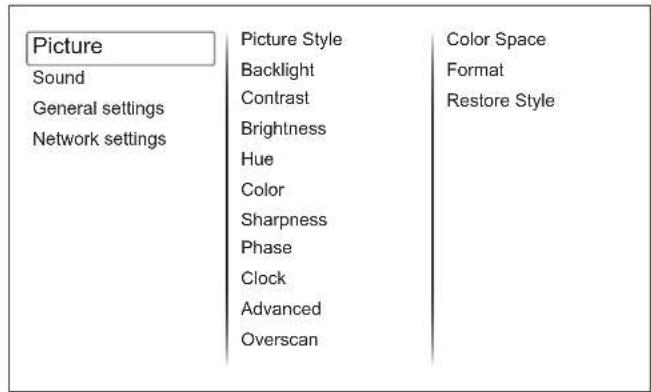
Picture Style
Choose a predefined picture setting.
Options: General, Vivid, Natural, Standard, Movie, Photo, and Energy Saving
Note: YUV sources only.
Backlight
Adjust the intensity of the display's backlight.
Options: 0-100.
Contrast
Adjust video contrast.
Options: 0-100
Brightness
Adjust screen brightness.
Options: 0-100
Hue
Adjust screen hue.
Options: -50 - +50
Color
Adjust the color saturation of the picture.
Options: 0-100
Sharpness
Adjusts the definition of the picture.
Options: 0-20
Note: YUV sources only.
Phase
Adjust to improve the focus, clarity and stability of the image.
Options:0-100
Note: This item is functional for VGA input only.
Clock
Adjust the width of the image
Options: 0-100
Note: This item is functional for VGA input only.
Advanced
- {Noise Reduction}: Choose the amount of noise reduction for the picture.
Options: Off, Low, Medium, High
Note: YUV sources only - {Gamma}: Adjust the non-linear setting for picture luminance and contrast.
Options: 1.8, 1.9, 2.0, 2.1, 2.2, 2.3, 2.4, 2.5
• {Color Temp}: Change the color balance.
Options: 11000K, 9300K, 6500K, 3200K, Custom -
{Custom Color Temp}: Customize color balance setting. Only available if {Color Temp} → {Custom} is chosen.
R-Gain
Options: 0 - 255
G-Gain
Options: 0 - 255
B-Gain
Options: 0 - 255
R-Offset
Options: 0 - 255
G-Offset
Options: 0 - 255
B-Offset
Options: 0 - 255 -
{Advanced Sharpness}: Enable superior sharpness, especially on lines and contours in the picture.
Options: Off, On
• {Dynamic Contrast}; Dynamically enhance the details in the dark, medium and light areas of the picture.
Options: Off, Low, Medium, High - {Dynamic Backlight}: Choose a backlight level which optimizes dynamic power consumption and picture contrast.
Options: Off, Standard, Best Power, Best Picture - {Color Enhancement}: Dynamically enhance the vividness and details of colors.
Options: Off, Low, Medium, High
Overscan
Enables or disables the overscan function.
Options: Off, On
Note: YUV sources only
Color Space
Select the color space of the source signal.
Options: Auto, RGB-Video, RGB-PC, YUV
Format
• {Aspect Ratio}: Change the picture format.
Options: Auto, Letterbox, Full Screen, Native, 4:3
- {Overscan Percentage}Adjust the percentage of the image is shaded off.
Options: 0 - 10
• {Picture Shift}:
Adjust position of image.
Restore Style
Restore the picture setting to default values.
5.1.2. Sound menu
Picture
Sound
General settings
Network settings
Sound Style
Bass
Treble
Audio Out Volume
Audio Select
Advanced
Restore style
Sound Style
Access predefined sound settings.
Options: General, Original, Movie, Music, Game, News
Bass
Adjust to increase or decrease lower-pitched sounds.
Options: -8 - +8
Treble
Adjust to increase or decrease higher-pitched sounds.
Options: -8 - +8
Audio Out
Adjust audio output volume. For line out audio sources only.
Options: 0 - 60
Audio Select
Select audio source
Options: HDMI, AV, Line In
Advanced
• {Auto Volume Leveling}: Enable the reduction of sudden volume changes.
Options: Off, On
• {Internal Speakers}: Turn on or off the internal speakers.
Options : Off, On
• {Clear Sound}: Enhance sound quality.
Options: Off, On
Restore Style
Restore the sound setting to default values.
5.1.3. General settings menu
| PictureSoundGeneral settingsNetwork settings | Monitor IDEco ModeAuto SearchClockSchedulingSleep TimerAuto Switch OffAuto AdjustPixel ShiftControl Settings | Splash ScreenOSD Time OutFactory Settings |
Monitor ID
Adjust the ID number for controlling the display via the RS232C connection. Each display must have a unique ID number when multiple sets of this display are connected. Monitor ID number range is between 1 to 255. The default setting is 1.
Eco mode
Select standby power consumption setting.
Options: Normal, Low power standby.
Note: For the lowest standby power consumption, select Low power standby. When the Eco mode is set to Low power standby, the display cannot wake from sleep. When the Eco mode is set to Normal, the display can wake from sleep. See Auto Search Setting for more information on how to wake the display..
Auto search
Automatically detects available input sources when "On". When "Off" the display will automatically detect the last input.
Options: Off, On.
Note: When set to "On", the last input will wake the display. When set to "Off", the last input will wake the display. When set to "Off", a RS-232 command can wake the display using any input. Note that Eco Mode needs to be set to "Normal" for the display to wake up.
Clock
Set the current date (DD-MM-YYYY) and time.
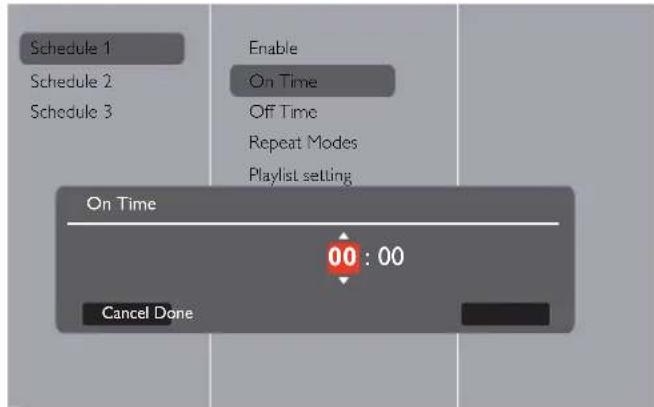
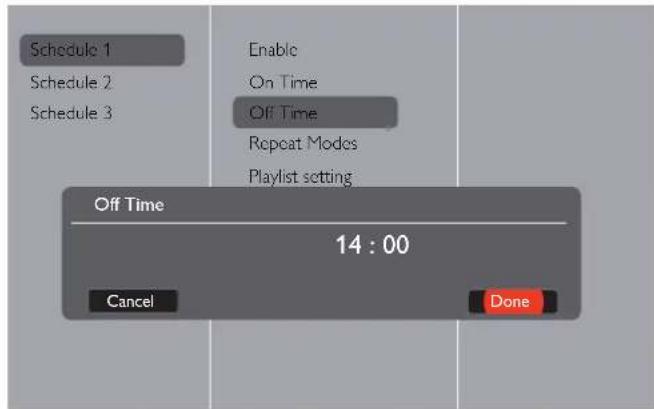
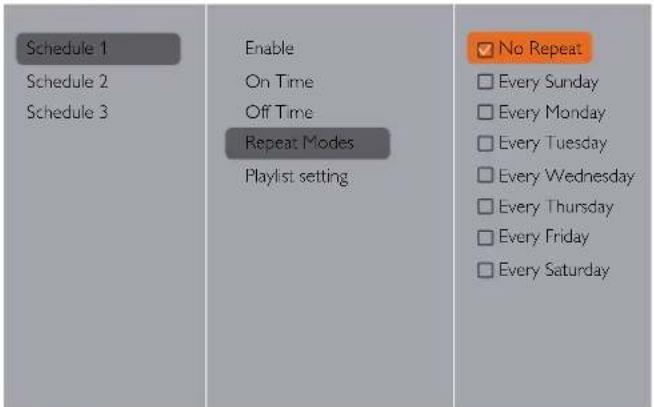
Scheduling
This function allows you to program up to 3 different scheduled time intervals for this display to activate.
NOTES:
-
Set up current date and time in the {Clock} menu before setting up a schedule.
• After changing the date and time in the {Clock} menu, the schedule may need to be re-entered. -
Up to 3 schedules can be programmed. To activate a schedule, select Enable and choose On.
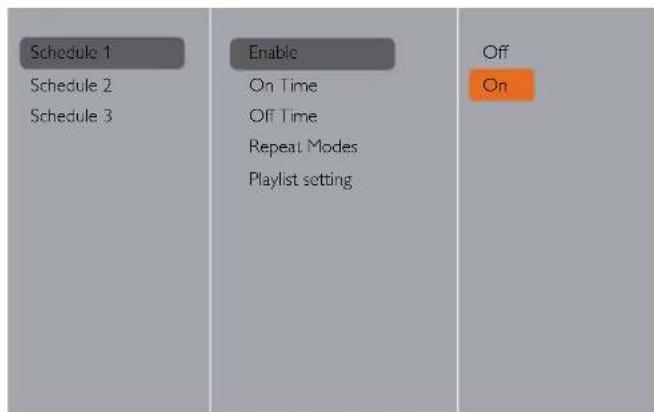
- Set On time.
- Set OffTime
4. Go to Repeat Modes and choose.
5. If {Source} → {USB} is chosen. Go to Playlist setting.
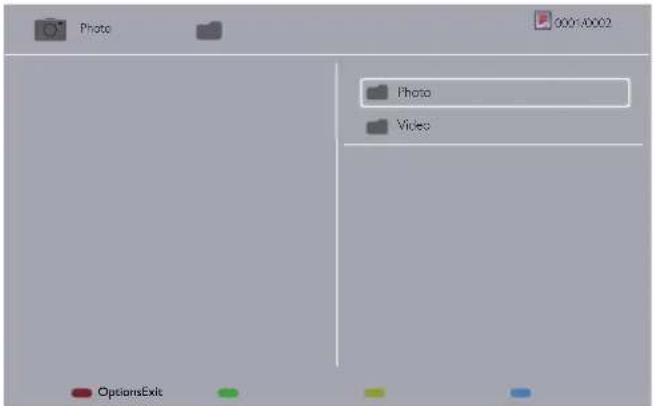
- Press [1] [7] buttons to choose files.
- Press [◀] [▶] buttons to switch Playlist and File Manager.
- Press [OK] button to set or clear the playlist.
6. To save the playlist, press [—] and choose Save list
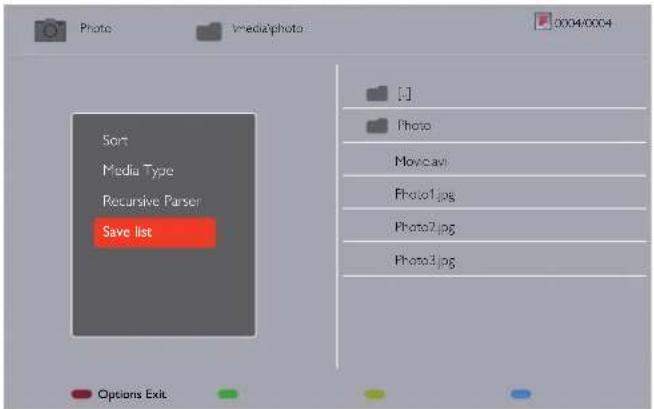
NOTES:
• Each Playlist supports up to 30 files.
- Playlist will not be cleared after {Factory settings}. You have to manually remove the files or delete usb_schedulinglist.txt in the USB.
Sleep Timer
Switch off this display after a specified time.
Options: 0-240 seconds
Auto Switch Off
With no user interaction (via the OSD), the display will enter the specified ECO mode with a signal present after the set period of time. When set to off, the display will only enter the specified ECO mode when no signal is present for 10 minutes. Options (in minutes): off, 30, 60, 120, 240.
Auto Adjust
Use this function to automatically optimize the display of VGA input image.
NOTE: This item is functional for VGA input only.
Pixel Shift
Automatically moves the screen image every 30 minutes to protect the display from "burn-in" symptoms.
Options: Off, On
Control Settings
- {Keypad Lock}: Choose to enable or disable the keypad function on the backside of the display.
- {Unlock}: Enable the keyboard function.
- {Lock all}: Lock all keyboard function.
- {IR Lock}: Choose to enable or disable the button function of the remote control.
- {Unlock}: Enable the IR Remote function.
- {Lock}: Lock the IR Remote function.
NOTE: To disable the lock function from [Keypad Lock] or [IR lock] item, press buttons [1 and 1998 on the remote control.
Splash Screen
Enables or disables the splash screen during start up.
Options: Off, On.
OSD Time Out
Set OSD menu display time.
Options: 10-60 sec.
Factory Settings
Reset all your customized settings to the factory defaults.
5.2. Network Settings
| Picture | View Network Settings |
| Sound | Network Configuration |
| General settings | Static IP Configuration |
| Network settings | Digital Media Renderer- DMRWake On LANNetwork Name |
View Network Settings
View connected network status.
Network Configuration
Select how this display should assign addresses to the network resources.
Static IP Configuration
Assign {IP address}, {Netmask}, {Gateway}, {DNS1}, and {DNS2} for this display.
Digital Media Renderer - DMR
Receive multimedia files from smartphones and tablets connected to your network.
Options: Off, On
Wake On LAN
Wake the display through a network connection.
Options: Off, On
Network Name
Rename this display for easy identification if you have more than one display connected to your network.
6. USB device compatibility
USB Video Subtitle Formats (for language subtitles, etc.)
| File Extensions | Container | Video codec | Maximum resolution Max.Frame Rate (fps) | Max.Bit Rate (Mbps) | Audio codec | |
| .mpgmpeg.vob | PS | MPEG-1 19 | 20x1080 25p,30p,50i,60i 30 | MPEG-1(L1&L2),MPEG-1,2,2.5 L3,AAC/HE-AAC(v1&v2),DVD-PCM,AC3 | ||
| MPEG-2 19 | 20x1080 25p,30p,50i,60i 30 | |||||
| MPEG-4 ASP | 1920x1080 25p,30p,50i,60i 30 | |||||
| H.264 1920 | 20x1080 25p,30p,50p,60p,60i 30 | |||||
| .ts TS | MPEG-2 19 | 20x1080 25p,30p,50i,60i 30 | MPEG-1(L1&L2),MPEG-1,2,2.5 L3,AAC/HE AAC (v1&v2),AC3,E-AC3,Dolby Pulse | |||
| MPEG-4 ASP | 1920x1080 25p,30p,50i,60i 30 | |||||
| H.264 1920 | 20x1080 25p,30p,50p,60p,60i 30 | |||||
| MVC | 1920x1080@field rate=50, 60Hz1920x1080p@frame rate=24, 25,30Hz1280x720p@frame rate=50, 60Hz | - | 30 | |||
| .ts.m2ts.mts.mt2 | MaTS TTS | MPEG-2 19 | 20x1080 25p,30p,50i,60i 30 | MPEG-1(L1&L2),MPEG-1,2,2.5 L3,AAC/HE-AAC (v1&v2),AC3,E-AC3,Dolby Pulse | ||
| MPEG-4 ASP | 1920x1080 25p,30p,50i,60i 30 | |||||
| H.264 1920 | 20x1080 25p,30p,50p,60p, 60i 30 | |||||
| MVC | 1920x1080 @ field rate=50, 60Hz1920x1080p @ frame rate=24, 25,30Hz1280x720p @ frame rate=50, 60Hz | - | 30 | |||
| .ts.m2ts.mts | AVCHD | MPEG-2 19 | 20x1080 25p,30p,50i,60i 30 | MPEG-1(L1&L2),MPEG-1,2,2.5 L3,AAC/HE-AAC (v1&v2),AC3,E-AC3,Dolby Pulse | ||
| MPEG-4 ASP | 1920x 1080 25p,30p,50i,60i 30 | |||||
| H.264 1920 | 20x1080 25p,30p,50p,60p,60i 30 | |||||
| .ts.m2ts.mts | AVCHD | MVC | 1920x1080@field rate=50, 60Hz1920x1080p@frame rate=24, 25,30Hz1280x720p @ frame rate=50, 60Hz | - | 30 | MPEG-1(L1&L2),MPEG-1,2,2.5 L3,AAC/HE-AAC (v1&v2),AC3,E-AC3,Dolby Pulse |
| .m4v | M4V | H.264 | 1920x1080 | 25p,30p,50p,60p,60i | 30 | AAC |
| .ism/Manifest.mpd | frag MP4 | H.264 1920 | 20x1080 25p,30p,50p,60p,60i 30 | AAC/HE-AAC(v1&v2),AC3,E-AC3,WMA,WMA-PRO | ||
| MVC | 1920x1080@field rate=50, 60Hz1920x1080p@frame rate=24, 25,30Hz1280x720p @ frame rate=50, 60Hz | - | 30 | |||
| .mp4 | MP4 | MPEG-4 ASP | 1920x1080 25p,30p,50i,60i 30 | AAC/HE-AAC(v1&v2),AC3,E-AC3,WMA,WMA-PRO | ||
| H.264 1920 | 20x1080 | 30 | ||||
| MVC | 1920x1080@field rate=50, 60Hz1920x1080p@frame rate=24, 25,30Hz1280x720p @ frame rate=50, 60Hz | - | 30 | |||
| WMV9/VC1 | 1920x1080 | 30p,60 | 30 | |||
| .mkv.mk3d | MKV | MPEG-4 ASP | 1920x1080 25p,30p,50i,60i 30 | MPEG-1(L1&L2),MPEG-1,2,2.5 L3,AAC/HE-AAC (v1&v2),AC3,E-AC3,WMA,WMA-PRO | ||
| H.264 1920 | 20x1080 | 30 |
USB Multimedia Formats
| File Extensions Container Video codec | Maximum resolution | Frequency (kHz) | Max.Bit Rate (Mbps) | Audio codec | |
| .mp3 MP3 - | - 48 384 MPEG-1,2,2.5 L3 | ||||
| .wma.asf | WMA(V2 up to V9.2) | - - 48 192 WMA | |||
| .wma WMA | Pro - - 96 768 WMA,WMA Pro | ||||
| .wav(PC) LPCM | - - 192 | 768 LPCM | |||
| .aif(mac).aiff(mac) | LPCM - - 192 | 768 LPCM | |||
| .aac.mp4.m4a | AAC | - | - | 48 | 1024 |
| .pls.m3u | Playlists | - | - | - | - |
| .m4a | M4A | - | - | 48 | 1024 |
USB Photo Formats
| File Extensions | Container Video | codec | Maximum Resolution | Frequency | Max.Bit Rate | Audio codec |
| jpg/jpeg | JPEG | baseline: color mode = 444, size <=32768x16128 color mode = 422v, size <= 16384x16128 color mode = other; not support | - | - | - | |
| bmp | BMP | 4096x3072_4bit, 2730x2500_8bit, 2048x1536_16bit, 1500x1200_32bit | - | - | - | |
| png | PNG | 4096x3072_4bit, 2730x2500_8bit, 2048x1536_16bit, 1500x1200_32bit | - | - | - | |
| gif GIF | 4096x3072_4bit | 2730x2500_8bit, 2048x1536_16bit, 1500x1200_32bit | - | - | - |
NOTES:
• Sound or video may not work if the contents have a standard bit rate/frame rate above the compatible Frame/sec listed in the table above.
• Video content with a Bit rate or Frame rate larger than the rate specified in the table above can cause choppy video during playback.
7. Input Mode
VGA Resolution:
| Standard Resolution | Active Resolution | Refresh Rate Pixel Rate Aspect Ratio | Stand for Mode | |||
| H Pixels V Lines | ||||||
| VGA 640 480 | 60 Hz 25.175 MHz | 4:3 Video Graphic Array72 Hz 31.5 MHz | ||||
| 75 Hz 31.5 MHz | ||||||
| WVGA | 720 | 400 | 70 Hz | 33.75 MHz | 16:9 | Wide Video Graphic Array |
| SVGA | 800 600 | 60 Hz 40 MHz | 4:3 | Super VGA | ||
| 75 Hz 49.5 MHz | ||||||
| XGA | 1024 | 768 | 60 Hz 65 MHz | 4:3 | Extended Graphic Array | |
| 75 Hz | 78.75 MHz | |||||
| WXGA | 1280 | 768 | 60 Hz | 79.5 MHz | 5:3 | Wide XGA |
| WXGA | 1280 | 800 | 60 Hz | 79.5 MHz | 16:10 | Wide XGA |
| SXGA | 1280 | 960 | 60 Hz | 108 MHz | 4:3 | Super XGA |
| SXGA | 1280 | 1024 | 60 Hz | 108 MHz | 5:4 | Super XGA |
| WXGA | 1360 | 768 | 60 Hz | 85.5 MHz | 16:9 | Wide XGA |
| WXGA | 1366 | 768 | 60 Hz | 85.5 MHz | 16:9 | Wide XGA |
| UXGA | 1600 | 1200 | 60 Hz | 162 MHz | 4:3 | Ultra XGA |
| HD1080 | 1920 | 1080 | 60 Hz | 148.5 MHz | 16:9 | HD1080 |
SDTV Resolution:
| Standard Resolution | Active Resolution | Refresh Rate Pixel | Rate Aspect Ratio | Stand for Mode | ||
| H Pixels V Lines | ||||||
| 480i | 720 480 | 29.97 Hz | 13.5 MHz | 4:3 Modified NTSC Standard | ||
| 480p | 59.94 Hz 27 MHz | |||||
| 576i | 720 576 | 25 Hz | 13.5 MHz | 4:3 | Modified PAL Standard | |
| 576p | 50 Hz | 27 MHz | ||||
HDTV Resolution:
| Standard Resolution | Active Resolution | Refresh Rate Pixel Rate Aspect Ratio | Stand for Mode | ||
| H Pixels V Lines | |||||
| 720p | 1280 | 720 | 50 Hz | 74.25 MHz 16:9 | Normally DVB Mode |
| 60 Hz | |||||
| 1080i | 1920 | 1080 | 25 Hz | 74.25 MHz 16:9 | Normally ATSC Mode |
| 30 Hz | |||||
| 1080p | 1920 | 1080 | 50 Hz | 148.5 MHz 16:9 | Normally ATSC Mode |
| 60 Hz | |||||
• The PC text quality is optimum in HD 1080 mode (1920 x 1080, 60Hz).
- Your PC display screen might appear different depending on the manufacturer (and your particular version of Windows).
- Check your PC instruction book for information about connecting your PC to a display.
- If a vertical and horizontal frequency-select mode exists, select 60Hz (vertical) and 31.5KHz (horizontal). In some cases, abnormal signals (such as stripes) might appear on the screen when the PC power is turned off (or if the PC is disconnected). If so, press the [INPUT] button to enter the video mode. Also, make sure that the PC is connected.
- When horizontal synchronous signals seem irregular in RGB mode, check PC power saving mode or cable connections.
• The display settings table complies to the IBM/VESA standards, and based on the analog input.
• The DVI support mode is regarded as same to the PC support mode.
• The best timing for the vertical frequency to each mode is 60Hz.
8. Cleaning and Troubleshooting
8.1. Cleaning
Caution When Using the Display
- Do not bring your hands, face or objects close to the ventilation holes of the display. The top of the display is usually very hot due to the high temperature of exhaust air being released through the ventilation holes. Bums or personal injuries may occur if any body parts are brought too close. Placing any object near the top of the display could also result in heat related damage to the object as well as the display itself.
- Be sure to disconnect all cables before moving the display. Moving the display with its cables attached may damage the cables and thus cause fire or electric shock.
- Disconnect the power plug from the wall outlet as a safety precaution before carrying out any type of cleaning or maintenance procedure.
Front Panel Cleaning Instructions
- The front of the display has been specially treated. Wipe the surface gently using only a cleaning cloth or a soft, lint-free cloth.
- If the surface becomes dirty, soak a soft, lint-free cloth in a mild detergent solution. Wring the cloth to remove excess liquid. Wipe the surface of the display to remove dirt. Then use a dry cloth of the same type to dry.
- Do not scratch or hit the surface of the panel with fingers or hard objects of any kind.
- Do not use volatile substances such as insert sprays, solvents and thinners.
Cabinet Cleaning Instructions
- If the cabinet becomes dirty, wipe the cabinet with a soft, dry cloth.
- If the cabinet is extremely dirty, soak a lint-free cloth in a mild detergent solution. Wring the cloth to remove as much moisture as possible. Wipe the cabinet. Use another dry cloth to wipe over until the surface is dry.
- Do not allow any water or detergent to come into contact with the surface of the display. If water or moisture gets inside the unit, operating problems, electrical and shock hazards may result.
- Do not scratch or hit the cabinet with fingers or hard objects of any kind.
- Do not use volatile substances such as insert sprays, solvents and thinners on the cabinet.
- Do not place anything made from rubber or PVC near the cabinet for any extended periods of time.
8.2. Troubleshooting
| Symptom Possible Cause Remedy | ||
| No picture is displayed 1. The power cord is disconnected.2. The main power switch on the back of the display is not switched on.3. The selected input has no connection.4. The display is in standby mode. | 1. Plug in the power cord.2. Make sure the power switch is switched on.3. Connect a signal connection to the display. | |
| Interference displayed on the display or audible noise is heard | Caused by surrounding electrical appliances or fluorescent lights. | Move the display to another location to see is the interference is reduced. |
| Color is abnormal | The signal cable is not connected properly. | Make sure that the signal cable is attached firmly to the back of the display. |
| Picture is distorted with abnormal patterns | 1. The signal cable is not connected properly.2. The input signal is beyond the capabilities of the display. | 1. Make sure that the signal cable is attached firmly.2. Check the video signal source to see if it is beyond the range of the display. Please verify its specifications with this display's specification section. |
| Display image doesn't fill up the full size of the screen | 1. The zoom mode is not set correctly.2. Scan Mode may be set incorrectly to underscan.3. If the image exceeds the screen size, Scan Mode may need to be set to Underscan. | Use the Zoom mode or Custom zoom function in the Screen menu to fine tune display geometry and time frequency parameter. |
| Can hear sound, but no picture | Improperly connected source signal cable. | Make sure that both video inputs and sound inputs are correctly connected. |
| Can see picture but no sound is heard | 1. Improperly connected source signal cable.2. Volume is turned all the way down.3. (Mute) is turned on.4. No external speaker connected. | 1. Make sure that both video inputs and sound inputs are correctly connected.2. Press [+] or [−] button to hear sound.3. Switch MUTE off by using the [×] button.4. Connect external speakers and adjust the volume to a suitable level. |
| Some picture elements do not light up | Some pixels of the display may not turn on. | This display is manufactured using an extremely high level of precision technology: however, sometimes some pixels of the display may not display. This is not a malfunction. |
| After-Images can still be seen on the display after the display is powered off. (Examples of still pictures include logos, video games, computer images, and images displayed in 4:3 normal mode) | A still picture is displayed for an over extended period of time | Do not allow a still image to be displayed for an extended period of time as this can cause a permanent after-image to remain on the display. |
9. Technical Specifications
9.1. Planar Simplicity SL4351
Display:
| Item Specifications | |
| Screen Size (Active Area) 940.9(H) × 529.25(V) | |
| Aspect Ratio 16:9 | |
| Number of pixels 1920 (H) × 1080 (V) | |
| Pixel pitch 0.49(H) × 0.49(V) [mm] | |
| Displayable colors 16.7M | |
| Brightness (typical) 350 cd/m | ^2 |
| Contrast ratio (typical) 3000:1 | |
| Viewing angle 178 degrees |
In/Out Terminals:
| Item | Specifications | |
| Speaker Output | Internal Speakers | 10W (L) + 10W (R) [RMS]/16Ω1 Way 1 Speaker System82 dB/W/M/160 Hz ~ 13 KHz |
| Audio Output | RCA Jack x 2 | 0.5V [ms] (Normal) / 2 Channel (L+R) |
| Audio Input | RCA Jack x 23.5mm phone jack x 1 | 0.5V [ms] (Normal) / 2 Channel (L+R) |
| RS232C | 2.5mm Phone jack x 2 | RS232C in/RS232C out |
| RJ-45 | RJ-45 Jack x 1 (8 pin) | 10/100 LAN Port |
| HDMI Input | HDMI Jack x 1(Type A) (19 pin) | Digital RGB: TMDS (Video + Audio)MAX: Video - 720p, 1080p, 1920 x 1080/60 Hz (WUXGA)Audio - 48 KHz/ 2 Channel (L+R)Supports LPCM only |
| DVI-D Input | DVI-D jack | Digital RGB:TMDS (Video) |
| VGA Input | D-Sub Jack x 1 (15 pin) | Analog RGB: 0.7V [p-p] (75Ω), H/CS/V:TTL (2.2kΩ), SOG: 1V [p-p] (75Ω)MAX: 720p, 1080p, 1920 x 1080/60 Hz (WUXGA) |
| Component Input | RCA Jack x 3 | Y: 1V [p-p] (75Ω), Pb: 0.7V [p-p] (75Ω), Pr: 0.7V [p-p] (75Ω)MAX: 480i, 576i, 480p, 576p, 720p, 1080i, 1080p |
| Video Input | RCA x 1 (Share with Component_Y) | Composite 1V [p-p] (75Ω) |
General:
| Item Specifications | |
| Power Supply AC 100 - 240V, 50 - 60Hz | |
| Power Consumption (Max) | 132 W |
| Power Consumption (typ.) | 99 W |
| Power Consumption (Standby & Off) | <0.5 W (RS232 in active) |
| Dimensions (With Stand) [W x H x D] | 968.2(W)x599.1(H)x329.6(D) |
| Dimensions (Without Stand) [W x H x D] | 968.2(W)x559.4(H)x59.9(D@Rear Cover)/60.9(D@Wall Mount) |
| Weight (With Stand) | 10.57 Kg |
| Weight (Without Stand) | 8.7 Kg |
| Gross Weight (Without Stand) | 12.2 Kg |
Environmental Condition:
| Item Specifications | ||
| Temperature Operational | 0 ~ 40°C | |
| Storage -20 ~ 60°C | ||
| Humidity Operational 20 | ~ 80% RH (No condensation) | |
| Storage 5 ~ 95% RH (No condensation) | ||
| Altitude Operational 0 ~ | 3,000 m | |
| Storage / Shipment 0 ~ 9,000 m | ||
Internal Speaker:
| Item Specifications | |
| Type 1 Way 1 Speaker | |
| Input 10 W (RMS) | |
| Impedance 16Ω | |
| Output Sound Pressure 82 dB/W/M | |
| Frequency Response | 160 Hz ~ 13 KHz |
9.2. Planar Simplicity SL4851
Display:
| Item Specifications | |
| Screen Size (Active Area) 1054.08(H) × 592.92(V) | |
| Aspect Ratio 16:9 | |
| Number of pixels 1920 (H) × 1080 (V) | |
| Pixel pitch 0.549(H) × 0.549(V) [mm] | |
| Displayable colors 1073.7M colors | |
| Brightness (typical) 350 cd/m | |
| Contrast ratio (typical) 4000:1(typ.) | |
| Viewing angle 178 degrees |
In/Out Terminals:
| Item Specifications | ||
| Speaker Output Internal S | speakers 10W (L) | + 10W (R) [RMS]/16Ω1 Way 1 Speaker System82 dB/W/M/160 Hz ~ 13 KHz |
| Audio Output | RCA Jack x 2 | 0.5V [ms] (Normal) / 2 Channel (L+R) |
| Audio Input | RCA Jack x 23.5mm phone jack x 1 | 0.5V [ms] (Normal) / 2 Channel (L+R) |
| RS232C | 2.5mm Phone jack x 2 | RS232C in/RS232C out |
| RJ-45 | RJ-45 Jack x 1 (8 pin) | 10/100 LAN Port |
| HDMI Input | HDMI Jack x 1(Type A) (19 pin) | Digital RGB: TMDS (Video + Audio)MAX: Video - 720p, 1080p, 1920 x 1080/60 Hz (WUXGA)Audio - 48 KHz/ 2 Channel (L+R)Supports LPCM only |
| DVI-D Input | DVI-D jack | Digital RGB:TMDS (Video) |
| VGA Input | D-Sub Jack x 1 (15 pin) | Analog RGB: 0.7V [p-p] (75Ω), H/CS/V:TTL (2.2kΩ), SOG: 1V [p-p] (75Ω)MAX: 720p, 1080p, 1920 x 1080/60 Hz (WUXGA) |
| Component Input | RCA Jack x 3 | Y: 1V [p-p] (75Ω), Pb: 0.7V [p-p] (75Ω), Pr: 0.7V [p-p] (75Ω)MAX: 480i, 576i, 480p, 576p, 720p, 1080i, 1080p |
| Video Input | RCA x 1 (Share with Component_Y) | Composite 1V [p-p] (75Ω) |
General:
| Item Specifications | |
| Power Supply AC 100 - 240V, 50 - 60Hz | |
| Power Consumption (Max) | 149W |
| Power Consumption (typ.) | 115W |
| Power Consumption (Standby & Off) | <0.5 W (RS232 in active) |
| Dimensions (With Stand) [W x H x D] | 1081.8 x 663.1 x 329.6 mm |
| Dimensions (Without Stand) [W x H x D] | 1081.8 x 623.4 x 59.9 (Rear Cover) / 61.1(Wall Mount) |
| Weight (With Stand) | 13.39 Kg |
| Weight (Without Stand) | 11.52 Kg |
| Gross Weight (Without Stand) | 16.4 Kg |
Environmental Condition:
| Item Specifications | ||
| Temperature Operationa | 0 ~ 40°C | |
| Storage -20 ~ 60°C | ||
| Humidity Operational 20 | ~ 80% RH (No condensation) | |
| Storage 5 ~ 95% RH (No condensation) | ||
| Altitude Operational 0 ~ | 3,000 m | |
| Storage / Shipment 0 ~ 9,000 m | ||
Internal Speaker:
| Item Specifications | |
| Type 1 Way 1 Speaker | |
| Input 10 W (RMS) | |
| Impedance 16Ω | |
| Output Sound Pressure 82 dB/W/M | |
| Frequency Response | 160 Hz ~ 13 KHz |
9.3. Planar Simplicity SL5551
Display:
| Item Specifications | |
| Screen Size (Active Area) 1209.6(H) x 680.4(V) | |
| Aspect Ratio 16:9 | |
| Number of pixels 1920 (H) x 1080 (V) | |
| Pixel pitch 0.63(H) x 0.63(V) [mm] | |
| Displayable colors 16.7M | |
| Brightness (typical) 350 cd/m | |
| Contrast ratio (typical) 1200:1 | |
| Viewing angle 178 degrees |
In/Out Terminals:
| Item Specifications | ||
| Speaker Output Internal S | Speakers 10W (L) | + 10W (R) [RMS]/16Ω1 Way 1 Speaker System82 dB/W/M/160 Hz ~ 13 KHz |
| Audio Output | RCA Jack x 2 | 0.5V [ms] (Normal) / 2 Channel (L+R) |
| Audio Input | RCA Jack x 23.5mm phone jack x 1 | 0.5V [ms] (Normal) / 2 Channel (L+R) |
| RS232C | 2.5mm Phone jack x 2 | RS232C in/RS232C out |
| RJ-45 | RJ-45 Jack x 1 (8 pin) | 10/100 LAN Port |
| HDMI Input | HDMI Jack x 1(Type A) (19 pin) | Digital RGB: TMDS (Video + Audio)MAX: Video - 720p, 1080p, 1920 x 1080/60 Hz (WUXGA)Audio - 48 KHz/ 2 Channel (L+R)Supports LPCM only |
| DVI-D Input | DVI-D jack | Digital RGB:TMDS (Video) |
| VGA Input | D-Sub Jack x 1 (15 pin) | Analog RGB: 0.7V [p-p] (75Ω), H/CS/V:TTL (2.2kΩ), SOG: 1V [p-p] (75Ω)MAX: 720p, 1080p, 1920 x 1080/60 Hz (WUXGA) |
| Component Input | RCA Jack x 3 | Y: 1V [p-p] (75Ω), Pb: 0.7V [p-p] (75Ω), Pr: 0.7V [p-p] (75Ω)MAX: 480i, 576i, 480p, 576p, 720p, 1080i, 1080p |
| Video Input | RCA x 1 (Share with Component_Y) | Composite 1V [p-p] (75Ω) |
General:
| Item Specifications | |
| Power Supply AC 100 - 240V, 50 - 60Hz | |
| Power Consumption (Max) | 179 W |
| Power Consumption (typ.) | 141 W |
| Power Consumption (Standby & Off) | <0.5 W (RS232 in active) |
| Dimensions (With Stand) [W × H × D] | 1238.6(W)×751.7(H)×329.6(D) |
| Dimensions (Without Stand) [W × H × D] | 1238.6(W)×711.1(H)×59.9(Rear Cover)/61.7(Wall Mount) |
| Weight (With Stand) | 17.87 Kg |
| Weight (Without Stand) | 16.0 Kg |
| Gross Weight (Without Stand) | 23.0 Kg |
Environmental Condition:
| Item Specifications | ||
| Temperature Operational | 0 ~ 40°C | |
| Storage -20 ~ 60°C | ||
| Humidity Operational 20 | ~ 80% RH (No condensation) | |
| Storage 5 ~ 95% RH (No condensation) | ||
| Altitude Operational 0 ~ | 3,000 m | |
| Storage / Shipment 0 ~ 9,000 m | ||
Internal Speaker:
| Item Specifications | |
| Type 1 Way 1 Speaker | |
| Input 10 W (RMS) | |
| Impedance 16Ω | |
| Output Sound Pressure 82 dB/W/M | |
| Frequency Response | 160 Hz ~ 13 KHz |
9.4. Planar Simplicity SL6551
Display:
| Item Specifications | |
| Screen Size (Active Area) 1428.48 (H)× 803.52 (V) [mm] | |
| Aspect Ratio 16:9 | |
| Number of pixels 1920 (H) × 1080 (V) | |
| Pixel pitch 0.744 (H) × 0.744 (V) [mm] | |
| Displayable colors 16.7M | |
| Brightness (typical) 350 cd/m | |
| Contrast ratio (typical) 4000:1 | |
| Viewing angle 178 degrees | |
In/Out Terminals:
| Item Specifications | ||
| Speaker Output Internal S | speakersExternal Speakers | 10W (L) + 10W (R) [RMS]/8Ω1 Way 1 Speaker System82 dB/W/M/160 Hz ~ 13 KHz |
| Audio Output | 3.5mm phone jack x 1 | 0.5V [rms] (Normal) / 2 Channel (L+R) |
| Audio Input | RCA Jack x 23.5mm phone jack x 1 | 0.5V [rms] (Normal) / 2 Channel (L+R) |
| RS232C | 2.5mm Phone jack x 2 | RS232C in/RS232C out |
| RJ-45 | RJ-45 Jack x 1 (8 pin) | 10/100 LAN Port |
| HDMI Input | HDMI Jack x 2(Type A) (18 pin) | Digital RGB: TMDS (Video + Audio)MAX: Video - 720p, 1080p, 1920 x 1080/60 Hz (WUXGA)Audio - 48 KHz/ 2 Channel (L+R)Supports LPCM only |
| DVI-D Input | DVI-D jack | Digital RGB:TMDS (Video) |
| VGA Input | D-Sub Jack x 1 (15 pin) | Analog RGB: 0.7V [p-p] (75Ω), H/CS/V:TTL (2.2kΩ), SOG: 1V [p-p] (75Ω)MAX: 720p, 1080p, 1920 x 1080/60 Hz (WUXGA) |
| DVI-I (DVI-D & VGA)Output | DVI-I Jack x 1 (29 pin) | Digital RGB: TMDS (Video)Analog RGB: 0.7V [p-p] (75Ω), H/CS/V:TTL (2.2kΩ), SOG: 1V [p-p] (75Ω)MAX: 720p, 1080p, 1920 x 1080/60 Hz (WUXGA) |
| Component Input | BNC Jack x 3 | Y: 1V [p-p] (75Ω), Pb: 0.7V [p-p] (75Ω), Pr: 0.7V [p-p] (75Ω)MAX: 480i, 576i, 480p, 576p, 720p, 1080i, 1080p |
| Video Input | BNC x 1 (Share with Component_Y) | Composite 1V [p-p] (75Ω) |
| Displayport in/out | Displayport Jack x 2(20 pin) | Digital RGB: TMDS (Video + Audio)MAX: Video - 720p, 1080p, 1920 x 1080/60 Hz (WUXGA)Audio - 48 KHz/ 2 Channel (L+R)Supports LPCM only |
General:
| Item Specifications | |
| Power Input 100 - 240V~, 50 - 60Hz | |
| Power Consumption (Max) 313 W | |
| Power Consumption (typ.) 176 W | |
| Power Consumption (Standby & Off) <0.5 W (RS232 in active) | |
| Dimensions (Without Stand) [W x H x D] 1458.7 x 834.7 x 81.6 mm | |
| Weight (Without Stand) 24.8 Kg | |
| Gross Weight (Without Stand) 39.3 Kg | |
Environmental Condition:
| Item Specifications | ||
| Temperature Operational | 0 ~ 40°C | |
| Storage -20 ~ 60°C | ||
| Humidity Operational 20 | ~ 80% RH (No condensation) | |
| Storage 5 ~ 95% RH (No condensation) | ||
| Altitude Operational 0 ~ | 3,000 m | |
| Storage / Shipment | 0 ~ 9,000 m | |
Internal Speaker:
| Item Specifications | |
| Type | 1 Way 1 Speaker |
| Input | 10 W (RMS) |
| Impedance | 8Ω |
| Output Sound Pressure 82 dB/W/M | |
| Frequency Response | 160 Hz ~ 13 KHz |
Planar, a Leyard company
Customer Service
24x7 Online Technical Support: http://www.planar.com/support
1195 NW Compton Drive
Beaverton, OR 97006-1992
Tel: 1-866-PLANAR1 (866-752-6271), or+1503-748-5799 outside the United States.
©2016 Planar Systems, Inc.
Planar is a registered trademark of Planar Systems, Inc. Other brands and names are the property of their respective owners. Technical information in this document is subject to change without notice (08/2016).
PN: 020-1283-01A
- Planar Simplicity Series
- USER'S GUIDE
- Safety Instructions
- Warnings and Precautions
- Read and follow these instructions when connecting and using your Public Information Display:
- Important Safety Instructions
- Table Of Contents
- Unpacking and Installation ....1
- Parts and Functions ....4
- Connecting External Equipment....10
- Operation....18
- Change your settings 21
- USB device compatibility....26
- Input Mode....28
- Cleaning and Troubleshooting....29
- Technical Specifications 31
- Unpacking and Installation
- Unpacking
- Package Contents
- NOTES:
- Installation Notes
- Mounting on a Wall
- Ventilation requirements for enclosure
- IR Remote Sensor and Power Status Indicator
- Mounting in Portrait Position
- Parts and Functions
- Control Panel
- Input/Output Terminals
- Remote Control
- Inserting the batteries in the remote control
- Caution:
- Handling the remote control
- Operating range of the remote control
- RS232 Control
- LAN Control
- Connecting External Equipment
- Connecting External Equipment (DVD/VCR/VCD)
- Using COMPONENT video input
- Using Video Source input
- Using HDMI video input
- Connecting a PC
- Using VGA input
- Using DVI input
- Connecting Audio Equipment
- Connecting an external audio device
- Display control connection
- IR connection
- IR Pass-through Connection
- Connecting Display to the Network
- To set up the connection::
- Connecting Display to a Wireless Device
- Operation
- Change Aspect Ratio
- Play Multimedia Files
- Supported file system:
- Supported file format:
- Play files from computer
- Play multimedia files from USB device
- Play options
- Playing music files
- Music options
- Playing movie files
- Movie options
- Playing photo files
- Start a slideshow
- Slideshow options
- Change your settings
- Settings
- Picture Style
- Backlight
- Contrast
- Brightness
- Hue
- Color
- Sharpness
- Phase
- Clock
- Advanced
- Overscan
- Color Space
- Format
- Restore Style
- Sound menu
- Sound Style
- Bass
- Treble
- Audio Out
- Audio Select
- General settings menu
- Monitor ID
- Eco mode
- Auto search
- Scheduling
- Go to Repeat Modes and choose.
- If {Source} → {USB} is chosen. Go to Playlist setting.
- To save the playlist, press [—] and choose Save list
- Sleep Timer
- Auto Switch Off
- Auto Adjust
- Pixel Shift
- Control Settings
- Splash Screen
- OSD Time Out
- Factory Settings
- Network Settings
- View Network Settings
- Network Configuration
- Static IP Configuration
- Digital Media Renderer - DMR
- Wake On LAN
- Network Name
- USB device compatibility
- Input Mode
- Cleaning and Troubleshooting
- Cleaning
- Caution When Using the Display
- Front Panel Cleaning Instructions
- Cabinet Cleaning Instructions
- Technical Specifications
- Planar Simplicity SL4351
- Planar Simplicity SL4851
- Planar Simplicity SL5551
- Planar Simplicity SL6551
- Planar, a Leyard company
Brand : Planar
Model : Simplicity SL6551
Category : Screen