
WriteView EL-W531HB - Calculator SHARP - Free user manual and instructions
Find the device manual for free WriteView EL-W531HB SHARP in PDF.


| Product Type | Scientific Calculator |
| Brand | Sharp |
| Model | WriteView EL-W531HB |
| Display | WriteView 2-line LCD (natural display) |
| Number of Functions | 272 |
| Power Source | Solar panel with backup battery (LR44) |
| Dimensions (W x D x H) | 80 mm x 162 mm x 15.5 mm |
| Weight | 110 g (including battery) |
| Battery Life | Approximately 3 years under normal use |
| Auto Power Off | After approximately 10 minutes of inactivity |
| Key Features | Natural display for fractions, exponents, log; multi-line playback; table function; equation solving; statistics; calculus |
| Memory | 7 memory variables (A-F, M), independent memory, last answer memory |
| Operating Temperature | 0°C to 40°C (32°F to 104°F) |
| Cleaning | Use a soft, dry cloth to clean the exterior. Do not use solvents or abrasive cleaners. |
| Safety Precautions | Do not disassemble, expose to liquids, or use near flammable materials. Keep away from children under 3 years of age due to small parts. |
| Repairability | Battery replacement is user-serviceable. For other issues, contact Sharp authorized service center. |
| Included Accessories | Protective hard case, user manual |
Frequently Asked Questions - WriteView EL-W531HB SHARP
User questions about WriteView EL-W531HB SHARP
0 question about this device. Answer the ones you know or ask your own.
Ask a new question about this device
Download the instructions for your Calculator in PDF format for free! Find your manual WriteView EL-W531HB - SHARP and take your electronic device back in hand. On this page are published all the documents necessary for the use of your device. WriteView EL-W531HB by SHARP.
USER MANUAL WriteView EL-W531HB SHARP
About the calculation examples (including some formulas and tables), refer to the reverse side of this English manual. Refer to the number on the right of each title in the manual for use.
After reading this manual, store it in a convenient location for future reference.
Notes:
- Some of the models described in this manual may not be available in some countries.
- This product uses a period as a decimal point.
Operational Notes
- Do not carry the calculator around in your back pocket, as it may break when you sit down. The display is made of glass and is particularly fragile.
- Keep the calculator away from extreme heat such as on a car dashboard or near a heater, and avoid exposing it to excessively humid or dusty environments.
- Since this product is not waterproof, do not use it or store it where fluids, for example water, can splash onto it. Raindrops, water spray, juice, coffee, steam, perspiration, etc. will also cause malfunction.
- Clean with a soft, dry cloth. Do not use solvents or a wet cloth.
- Do not drop it or apply excessive force.
- Never dispose of batteries in a fire.
- Keep batteries out of the reach of children.
- This product, including accessories, may change due to upgrading without prior notice.
NOTICE
- SHARP strongly recommends that separate permanent written records be kept of all important data. Data may be lost or altered in virtually any electronic memory product under certain circumstances. Therefore, SHARP assumes no responsibility for data lost or otherwise rendered unusable whether as a result of improper use, repairs, defects, battery replacement, use after the specified battery life has expired, or any other cause.
- SHARP will not be liable nor responsible for any incidental or consequential economic or property damage caused by misuse and/or malfunctions of this product and its peripherals, unless such liability is acknowledged by law.
- Press the RESET switch (on the back), with the tip of a ball-point pen or similar object, only in the following cases. Do not use an object with a breakable or sharp tip. Note that pressing the RESET switch erases all data stored in memory.
- When using for the first time • After replacing the battery • To clear all memory contents
- When an abnormal condition occurs and all keys are inoperative
If service should be required on this calculator, use only a SHARP servicing dealer, SHARP approved service facility, or SHARP repair service where available.
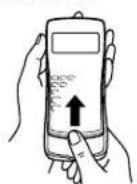
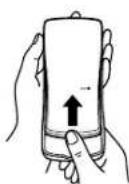
Hard Case
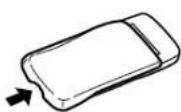
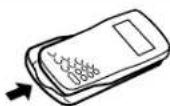
Remove the hard case, holding it with your fingers in the positions shown below.
DISPLAY
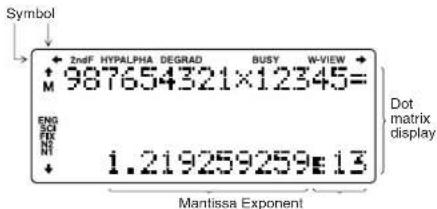
- During actual use, not all symbols are displayed at the same time.
- Only the symbols required for the usage under instruction are shown in the display and calculation examples of this manual.
+/+: Indicates that some contents are hidden in the +/↓ directions shown.
2ndF: Appears when 2ndF is pressed, indicating that the functions shown in orange are enabled.
HYP: Indicates that hyp has been pressed and the hyperbolic functions are enabled. If 2ndF archy is pressed, the symbols "2ndF HYP" appear, indicating that inverse hyperbolic functions are enabled.
ALPHA: Indicates that ALPHA, STO or RCL has been pressed, and entry (recall) of memory contents and recall of statistics can be performed.
DEG/RAD/GRAD: Indicates angular units.
BUSY: Appears during the execution of a calculation.
W-VIEW: Indicates that the WriteView editor is selected.
M: Indicates that a numerical value is stored in the independent memory (M).
ENG/SCI/FIX/N2/N1: Indicates the notation used to display a value and changes by SET UP menu. N1 is displayed on-screen as "NORM1", and N2 as "NORM2".
BEFORE USING THE CALCULATOR
When using for the first time, press the RESET switch (on the back), with the tip of a ball-point pen or similar object.
Adjusting the Display Contrast
Press SET UP 3, then + or - to adjust the contrast. Press ON/C to exit.
Power On and Off
Press ON/C to turn the calculator on. The data that was on-screen when the power was turned off will appear on the display. Press 2ndF OFF to turn it off.
Key Notations Used in this Manual
In this manual, key operations are described as follows:

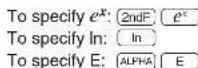
- Functions that are printed in orange above the key require [2ndF] to be pressed first before the key. When you specify the memory, press ALPHA first. Numbers for input values are not shown as keys, but as ordinary numbers.
- Functions that are printed in gray adjacent to the keys are effective in specific modes.
The WriteView and Line Editors
This calculator has the following two editors in NORMAL mode: WriteView and Line. You can select between them in the SET UP menu.
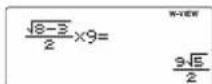
The WriteView editor (default) The Line editor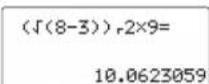
Note: In certain calculation examples, where you see the LINE symbol, the key operations and calculation results are shown as they would appear in the Line editor.
Clearing the Entry and Memories
○: Clear ×: Retain *1 Press ON/C, STO and then choose a memory to clear one variable memory. *2 Definable memory. See "Memory Calculations". *3 Statistical data (entered data) *4 See "Memory clear key". *5 Cleared when changing between sub-modes in STAT mode.
Memory clear key
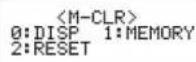
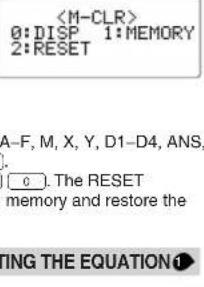
Press 2ndF [M-CLR] to display the menu.
- To initialize the display settings, press 0. The parameters set as follows:
• Angular unit: DEG
• Display notation: NORM1
- N-base: DEC
- To clear all variables and memories (A–F, M, X, Y, D1–D4, ANS, and STAT) at once, press 1 [0].
- To RESET the calculator, press 2 0. The RESET operation will erase all data stored in memory and restore the calculator's default settings.
ENTERING, DISPLAYING, AND EDITING THE EQUATION 1
The WriteView Editor
Entry and display
In the WriteView editor, you can enter and display fractions or certain functions as you would write them. Notes:
- The WriteView editor can only be used in NORMAL mode.
- If the equation grows too large, it may extend off the edge of the display after you obtain the result. If you want to see the entire equation, press ◀ or ▶ to return to the editing screen.
- The WriteView editor can only be used in NORMAL mode.
- If the equation grows too large, it may extend off the edge of the display after you obtain the result. If you want to see the entire equation, press ◀ or ▶ to return to the editing screen.
Displaying calculation results
When possible, calculation results will be displayed using fractions, √, and π. When you press change, the display will cycle through the following display styles:
- Mixed fractions (with or without π) → improper fractions (with or without π) → decimal numbers • Proper fractions (with or without π) → decimal numbers
- Irrational numbers (square roots, fractions made using square roots) → decimal numbers
- Mixed fractions (with or without π) → improper fractions (with or without π) → decimal numbers • Proper fractions (with or without π) → decimal numbers
- Irrational numbers (square roots, fractions made using square roots) → decimal numbers
Notes:
- In the following cases, calculation results may be displayed using √:
- Arithmetic operations and memory calculations - Trigonometric calculations
- In trigonometric calculations, when entering values such as those in the table to the right, results may be shown using √1 . • Calculation results may extend off the edges of the screen. You can see those parts by pressing
- In trigonometric calculations, when entering values such as those in the table to the right, results may be shown using √1 .
- In trigonometric calculations, when entering values such as those in the table to the right, results may be shown using √1 .
- Improper/proper fractions will be converted to and displayed as decimal numbers if the number of digits used in their expression is greater than nine. In the case of mixed fractions, the maximum number of displayable digits (including integers) is eight.
- If the number of digits in the denominator of a fractional result that uses π is greater than three, the result is converted to and displayed as a decimal number.
- Improper/proper fractions will be converted to and displayed as decimal numbers if the number of digits used in their expression is greater than nine. In the case of mixed fractions, the maximum number of displayable digits (including integers) is eight.
- If the number of digits in the denominator of a fractional result that uses π is greater than three, the result is converted to and displayed as a decimal number.
The Line Editor
Entry and display
In the Line editor, you can enter and display equations line by line. Notes:
- Up to three lines of text may be viewed on the screen at one time.
- If the length of the equation exceeds three lines, parts of it may be hidden from view after calculation. If you want to see the rest of the equation, press ◀ or ▶ to return to the editing screen.
- In the Line editor, calculation results are displayed in decimal form.
- Up to three lines of text may be viewed on the screen at one time.
- In the Line editor, calculation results are displayed in decimal form.
Editing the Equation
Just after obtaining an answer, pressing ▶ brings you to the end of the equation and pressing ▶ brings you to the beginning. Press ▶, ▶, ▲, or ▼ to move the cursor. Press [2ndF] ▶ or [2ndF] ▶ to jump the cursor to the beginning or the end of the equation.
In the WriteView editor, you can use [▲] and [▼] to move the cursor up and down—between the numerator and denominator, for example.
Back space and delete key
To delete a number or function, move the cursor to the right of it, then press RS. You can also delete a number or function that the cursor is directly over by pressing 2ndF DEL.
Multi-line Playback Function
• To edit an equation after recalling it, press ◀ or ▶. - The multi-line memory will be cleared by the following operations: 2ndF CA, mode change, RESET, N-base conversion, angular unit conversion, editor change (SET UP 2 0 or SET UP 2 1), and memory clear (2ndF M-CLP 1 0). • To edit an equation after recalling it, press ◀ or ▶. - The multi-line memory will be cleared by the following operations: 2ndF CA, mode change, RESET, N-base conversion, angular unit conversion, editor change (SET UP 2 0 or SET UP 2 1), and memory clear (2ndF M-CLP 1 0).



















Entry and display
In the WriteView editor, you can
enter and display fractions or certain functions as you would write them. Notes:
Displaying calculation results
When possible, calculation results will be displayed using fractions, √1, and π. When you press (CHANGE), the display will cycle through the following display styles:
Notes:
- In the following cases, calculation results may be displayed using √:
- Arithmetic operations and memory calculations - Trigonometric calculations
or ▶ (depending on whether the left or right portion is hidden).
The Line Editor
Entry and display
In the Line editor, you can enter and display equations line by line. Notes:
Editing the Equation
Just after obtaining an answer, pressing ▶ brings you to the end of the equation and pressing ▶ brings you to the beginning. Press ▶, ▶, ▲, or ▼ to move the cursor. Press [2ndF] ▶ or [2ndF] ▶ to jump the cursor to the beginning or the end of the equation.
Back space and delete key
To delete a number or function, move the cursor to the right of it, then press RS. You can also delete a number or function that the cursor is directly over by pressing 2ndF DEL.
Multi-line Playback Function
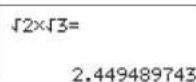
This calculator is equipped with a function to recall previous equations and answers in NORMAL mode. A maximum of 340 characters can be stored in memory. When the memory is full, stored equations will be deleted to make room, starting with the oldest. Pressing ▲ will display the previous equation. Further pressing ▲ will display preceding equations (after returning to the previous equation, press ▼ to view equations in order). In addition, [2ndF] ▲ can be used to jump to the oldest equation, and [2ndF] ▼ to jump to the newest one.
- Equations that have one result require an additional eleven characters' worth of memory to store in order to hold the result.
- In addition to the amount of memory needed to store an equation, the WriteView editor will require a certain amount for the sake of display.
- Equations also include calculation ending instructions, such as “_”.
Priority Levels in Calculation
This calculator performs operations according to the following priority:
① Fractions (1r4, etc.) ② Functions preceded by their argument (x⁻¹, x², n!, etc.) ③ yˣ, xʸ ④ Implied multiplication of a memory value (2Y, etc.) ⑤ Functions followed by their argument (sin, cos, etc.) ⑥ Implied multiplication of a function (2sin30, A¼, etc.) ⑦ nCr, nPr ⑧ xᵢ + 9 + -10 AND ⑪ OR, XOR, XNOR ⑫ = M+, M-, ⇒M, ▶DEG, ▶RAD, ▶GRAD, DATA, CD, →rθ, →xy, and other calculation ending instructions
- If parentheses are used, parenthesized calculations have precedence over any other calculations.
INITIAL SET UP
Mode Selection
NORMAL mode: [MODE] 0 (default)
Used to perform arithmetic operations and function calculations.
STAT mode: MODE 1
Used to perform statistical operations.
DRILL mode: [MODE] (2)
Used to practice math and multiplication table drills.
SET UP Menu
Press [SETUP] to display the SET UP menu.
Press [ON/C] to exit the SET UP menu.
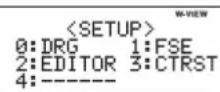
Determination of the angular unit
The following three angular units (degrees, radians, and grads) can be specified.
DEG (°): SET UP 0 0 (default)
RAD (rad): SETUP 0 1
GRAD (g): SET UP 0 2
Selecting the display notation and decimal places

Five display notation systems are used to display calculation results: Two settings of Floating point (NORM1 and NORM2), Fixed decimal point (FIX), Scientific notation (SCI), and Engineering notation (ENG).
- When [SET UP] [1] [0] (FIX) or [SET UP] [1] [2] (ENG) is pressed, "TAB(0–9)?" will be displayed and the number of decimal places (TAB) can be set to any value between 0 and 9.
- When (SET UP) 1 1 (SCI) is pressed, "SIG(0–9)?" will be displayed and the number of significant digits can be set to any value between 0 and 9. Entering 0 will set a 10-digit display.
Setting the floating point number system in scientific notation
Two settings are used to display a floating-point number: NORM1 (the default) and NORM2. A number is automatically displayed in scientific notation outside a preset range:
- NORM1 (SETUP) 1 3): 0.000000001 ≤ | x | ≤ 9,999,999,999
- NORM2 (SETUP 1 4): 0.01 ≤ | x | ≤ 9,999,999,999
Selecting the editor
Two editors are available in NORMAL mode:
- The WriteView editor (W-VIEW): SETUP 2 0 (default)
- The Line editor (LINE): SETUP 2 1
Adjusting the display contrast
Press SETUP 3, then + or - to adjust the contrast.
Press ON/C to exit.
Insert and overwrite entry methods
When using the Line editor, you can change the entry method from "INSERT" (the default) to "OVERWRITE".
After you switch to the overwrite method (by pressing SETUP 4 1), the triangular cursor will change to a rectangular one, and the number or function underneath it will be overwritten as you make entries.
SCIENTIFIC CALCULATIONS
- Press [MODE] [0] to select NORMAL mode.
- In each example, press (ON/C) to clear the display first. Unless otherwise specified, calculation examples are performed in the WriteView editor with the default display settings ([2ndF] [M-CLR] 0).
Arithmetic Operations

- The closing parenthesis ) just before = or + may be omitted.
Constant Calculations

- In constant calculations, the addend becomes a constant. Subtraction and division are performed in the same manner. For multiplication, the multiplicand becomes a constant.
- In constant calculations, constants will be displayed as K.
Functions

• Refer to the calculation examples for each function. • In the Line editor, the following symbols are used:
• ∴: to indicate an expression's power. ( yx , [2ndF] ex , [2ndF] [10x] )
- : to separate integers, numerators, and denominators. (/b), 2ndF (/c)
- When using 2ndF · X or 2ndF in the Line editor, values are entered in the following way:
- logn (base, value)
- abs value
Random Function
The random function has four settings. (This function cannot be selected while using the N-base function.) To generate further random numbers in succession, press ENTER. Press ON/C to exit.
Random numbers
A pseudo-random number, with three significant digits from 0 up to 0.999, can be generated by pressing 2ndF RANDOM 0 ENTER.
Note: In the WriteView editor, the result will be a fraction or 0.
Random dice
To simulate a die-rolling, a random integer between 1 and 6 can be generated by pressing (2ndF) [RANDOM] [1] (ENTER).
Random coin
To simulate a coin flip, 0 (heads) or 1 (tails) can be randomly generated by pressing 2ndF RANDOM 2 ENTER.
Random integer
An integer between 0 and 99 can be generated randomly by pressing [2ndF] [RANDOM] [3] (ENTER).
Angular Unit Conversions

Each time (2ndF) (DRG) is pressed, the angular unit changes in sequence.
Memory Calculations

Memory calculations can be performed in NORMAL and STAT modes.
Temporary memories (A–F, X and Y)
Press STO and a variable key to store a value in memory. Press RCL and a variable key to recall the value from that memory. To place a variable in an equation, press ALPHA and a variable key.
Independent memory (M)
In addition to all the features of temporary memories, a value can be added to or subtracted from an existing memory value. Press ON/C STO M to clear the independent memory (M).
Last answer memory (ANS)
The calculation result obtained by pressing (=) or any other calculation ending instruction is automatically stored in the last answer memory.
Notes:
- Calculation results from the functions indicated below are automatically stored in the X or Y memories, replacing any existing values. • →rθ, →xy: X memory (r or x), Y memory (θ or y)
- Two x' values from a quadratic regression calculation in STAT mode: X memory (1:), Y memory (2:).
- Use of RCL or ALPHA will recall the value stored in memory using up to 14 digits.
Definable memories (D1–D4)
You can store functions or operations in definable memories (D1–D4).
- To store a function or operation, press [STO], followed by a definable memory key ([D1], [D2], [D3], or [D4]), followed by the operation you want to store. Menu-related operations, such as [SETUP], cannot be stored. Press [ON/C] to return to the previous display.
- To call a stored function or operation, press the corresponding memory key. Calling a stored function will do nothing if the function that is called would be unusable in the current context.
- Any functions or operations that are stored in a definable memory will be replaced when you save a new one into that memory.
- When displaying and correcting a data set in STAT mode, you cannot store functions or operations in definable memories.
Chain Calculations

The previous calculation result can be used in the subsequent calculation. However, it cannot be recalled after entering multiple instructions.
Fraction Calculations

Arithmetic operations and memory calculations can be performed using fractions. In NORMAL mode, conversion between a decimal number and a fraction can be performed by pressing CHANGE.
Notes:
- Improper/proper fractions will be converted to and displayed as decimal numbers if the number of digits used in their expression is greater than nine. In the case of mixed fractions, the maximum number of displayable digits (including integers) is eight.
- To convert a sexagesimal value to a fraction, first convert it by pressing (2ndF) ↔ DEG.
Binary, Pental, Octal, Decimal, and Hexadecimal Operations (N-base)
Conversions can be performed between N-base numbers in NORMAL mode. The four basic arithmetic operations, calculations with parentheses, and memory calculations can also be performed, along with the logical operations AND, OR, NOT, NEG, XOR, and XNOR on binary, pental, octal, and hexadecimal numbers.
Conversion to each system is performed with the following keys: 2ndF ▶ BIN ("BIN" appears), 2ndF ▶ PEN ("PEN" appears), 2ndF ▶ OCT ("OCT" appears), 2ndF ▶ HEX ("HEX" appears), 2ndF ▶ DEC ("BIN", "PEN", "OCT", and "HEX" disappear)
Note: The hexadecimal numbers A–F are entered by pressing y^A, √, x^B, x^C, log, ln, and ζ^F.
In the binary, pental, octal, and hexadecimal systems, fractional parts cannot be entered. When a decimal number having a fractional part is converted into a binary, pental, octal, or hexadecimal number, the fractional part will be truncated. Likewise, when the result of a binary, pental, octal, or hexadecimal calculation includes a fractional part, the fractional part will be truncated. In the binary, pental, octal, and hexadecimal systems, negative numbers are displayed as a complement.
Time, Decimal, and Sexagesimal Calculations 12
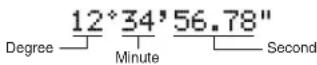
Conversion between decimal and sexagesimal numbers can be performed. In addition, the four basic arithmetic operations and memory calculations can be performed using the sexagesimal system. Notation for sexagesimal is as follows:
Coordinate Conversions
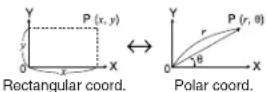
• Before performing a calculation, select the angular unit. - The calculation result is automatically stored in the X and Y memories (r or x in X memory, and θ or y in Y memory). - The results of coordinate conversions will be displayed as decimal numbers even in the WriteView editor.
Modify Function

Decimal calculation results are internally obtained in scientific notation, with up to 14 digits in the mantissa. However, since calculation results are displayed in the form designated by the display notation and the number of decimal places indicated, the internal calculation result may differ from that shown in the display. By using the modify function (2ndF MDF), the internal value is converted to match that of the display, so that the displayed value can be used without change in subsequent operations.
- When using the WriteView editor, if the calculation result is displayed using fractions or irrational numbers, press CHANGE to convert it to decimal form first.
STATISTICAL CALCULATIONS
Statistical calculations can be performed in STAT mode. There are eight sub-modes within STAT mode. Press MODE 1, then press the number key that corresponds to your choice:
0 (Stat θ [SD]): Single-variable statistics 1 (Stat 1 [LINE]): Linear regression 2 (Stat 2 [QUAD]): Quadratic regression 3 (Stat 3 [E_EXP]): Euler exponential regression 4 (Stat 4 [LOG]): Logarithmic regression 5 (Stat 5 [POWER]): Power regression 6 (Stat 6 [INV]): Inverse regression 7 (Stat 7 [G_EXP]): General exponential regression
Statistical Calculations and Variables

The following statistics can be obtained for each statistical calculation (refer to the table below):
Single-variable statistical calculation
Statistics of ①.
Linear regression calculation
Statistics of ① and ②. In addition, the estimate of y for a given x (estimate y' ) and the estimate of x for a given y (estimate x' ).
Quadratic regression calculation
Statistics of ① and ②, and coefficients a, b, c in the quadratic regression formula y = a + bx + cx2 . (For quadratic regression calculations, no correlation coefficient r' can be obtained.) When there are two x' values, each value will be displayed with "1:" or "2:", and stored separately in the X and Y memories.
Euler exponential regression, logarithmic regression, power regression, inverse regression, and general exponential regression calculations
Statistics of ① and ②. In addition, the estimate of y for a given x and the estimate of x for a given y . (Since the calculator converts each formula into a linear regression formula before actual calculation takes place, it obtains all statistics, except coefficients a and b, from converted data rather than entered data.)
| 1 | Mean of samples (x data) | |
| sx Sample standard deviation (x data) | ||
| σx | Population standard deviation (x data) | |
| n | Number of samples | |
| Σx | Sum of samples (x data) | |
| Σx2 | Sum of squares of samples (x data) | |
| 2 | Mean of samples (y data) | |
| sy | Sample standard deviation (y data) | |
| σy | Population standard deviation (y data) | |
| Σy | Sum of samples (y data) | |
| Σy2 | Sum of squares of samples (y data) | |
| Σxy | Sum of products of samples (x, y) | |
| r | Correlation coeffi cient | |
| a | Coeffi cient of regression equation | |
| b | Coeffi cient of regression equation | |
| c | Coeffi cient of quadratic regression equation | |
- Use ALPHA and RCL to perform a variable calculation in STAT mode.
- CHANGE does not function in STAT mode.
Data Entry and Correction

Before entering new data, clear the memory contents.
Data entry
Single-variable data
Data DATA Data 0.0 frequency [DATA] (To enter multiples of the same data)
Two-variable data
Data x (x,y) data y DATA Data x (x,y) data y (x,y) frequency DATA (To enter multiples of the same data x and y)
Note: Up to 100 data items can be entered. With the single-variable data, a data item without frequency assignment is counted as one data item, while an item assigned with frequency is stored as a set of two data items. With the two-variable data, a set of data items without frequency assignment is counted as two data items, while a set of items assigned with frequency is stored as a set of three data items.
Data correction
Correction before pressing DATA immediately after a data entry: Delete incorrect data with ON/C, then enter the correct data. Correction after pressing DATA:
Use ▲ and ▼ to display the previously entered data set. Press ▼ to display the data set in ascending (oldest first) order. To reverse the display order to descending (latest first), press the ▲ key. Press 2ndF ▲ or 2ndF ▼ to jump the cursor to the beginning or end of the data set. Each data set is displayed with "X:", "Y:", or "F:"
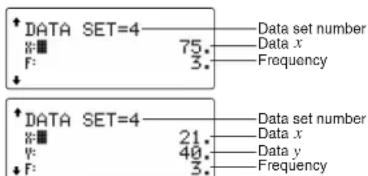
Display and move the cursor to the data item to be modified by using ▲ and ▼, input the correct value, then press [DATA] or ENTER.
- To delete a data set, display and move the cursor to an item of the data set to delete by using ▲ and ▼, then press 2ndF CD. The data set will be deleted.
- To add a new data set, press ON/C to exit the display of previously entered data and input the values, then press DATA
Statistical Calculation Formulas
| Type | Regression formula |
| Linear | y = a + bx |
| Quadratic | y = a + bx + cx2 |
| Euler exponential | y = a · ebx |
| Logarithmic | y = a + b · x |
| Power | y = a · xb |
| Inverse | y = a + b 1/x |
| General exponential | y = a · bx |
An error will occur when:
- The absolute value of the intermediate result or calculation result is equal to or greater than 1 × 10100 . • The denominator is zero.
- An attempt is made to take the square root of a negative number.
- No solution exists in the quadratic regression calculation.
DRILL MODE
Math Drill: MODE 2 0
Math operation questions with positive integers and 0 are displayed randomly. It is possible to select the number of questions and operator type.
Multiplication Table (× Table): [MODE] 2 1
Questions from each row of the multiplication table (1 to 12) are displayed serially or randomly.
To exit DRILL mode, press [MODE] and select another mode.
Using Math Drill and × Table
- Press MODE 2 0 for Math Drill or MODE 2 1 for X Table.
- Math Drill: Use ▲ and ▼ to select the number of questions (25, 50, or 100). × Table: Use ▲ and ▼ to select a row in the multiplication table (1 to 12).
- Math Drill: Use ▶ and ▶ to select the operator type for questions (+, -, ×, ÷, or +-×÷). × Table: Use ▶ and ▶ to select the order type ("Serial" or "Random").
- Press ENTER to start.
When using Math Drill or × Table (random order only), questions are randomly selected and will not repeat except by chance.
- Enter your answer. Press ON/C or BS to clear the entered number and then enter the correct answer.
- Press ENTER.
- If the answer is correct, “√” appears and the next question is displayed.
- If the answer is wrong, "X" appears and the same question is displayed. This will be regarded as an incorrect answer.
- If you press ENTER without entering an answer, the correct answer is displayed and then the next question is displayed. This will be regarded as an incorrect answer.
- Continue answering the series of questions by entering the answer and pressing ENTER.
- After you finish, press ENTER and the number and percentage of correct answers are displayed.
- Press ENTER to return to the initial screen for your current drill.
Math Drill sample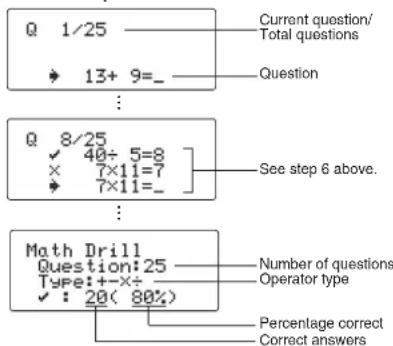
× Table sample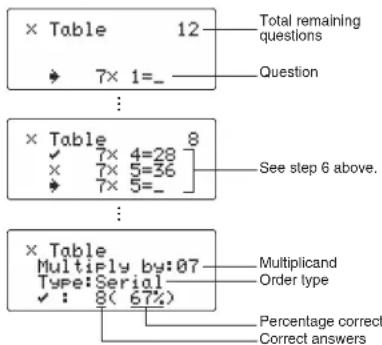
Ranges of Math Drill Questions
The range of questions for each operator type is as follows. + Addition operator: "0 + 0" to "20 + 20"
- Subtraction operator: "0 - 0" to "20 - 20"; answers are positive integers and 0. × Multiplication operator: "1 × 0" or "0 × 1" to "12 × 12" ÷ Division operator: “0 ÷ 1” to “144 ÷ 12”; answers are positive integers from 1 to 12 and 0, dividends of up to 144, and divisors of up to 12.
- × ÷ Mixed operators: Questions within all the above ranges are displayed.
ERRORS AND CALCULATION RANGES
Errors
An error will occur if an operation exceeds the calculation ranges, or if a mathematically illegal operation is attempted. When an error occurs, pressing ▶ or ▶ automatically moves the cursor back to the place in the equation where the error occurred. Edit the equation or press ON:C to clear the equation.
Error codes and error types
ERROR 01: Syntax error
- An attempt was made to perform an invalid operation. Ex. 2 (+) - 5 =
ERROR 02: Calculation error
- The absolute value of an intermediate or final calculation result equals or exceeds 1000 .
- An attempt was made to divide by zero (or an intermediate calculation resulted in zero).
- The calculation ranges were exceeded while performing calculations.
ERROR 03: Nesting error
- The available number of buffers was exceeded. (There are 10 buffers for numeric values and 64 buffers for calculation instructions).
ERROR 04: Data over
• Data items exceeded 100 in STAT mode.
Alert Messages

Cannot delete!
- The selected item cannot be deleted by pressing BS or [2ndF] DEL in the WriteView editor.
Ex. √ - 5 x ^ 2 BS
In this example, delete the exponent before attempting to delete the parentheses.
Cannot call!
- The function or operation stored in definable memory (D1 to D4) cannot be called. Ex. An attempt was made to recall a statistical variable from within NORMAL mode.
Buffer full!
- The equation (including any calculation ending instructions) exceeded its maximum input buffer (159 characters in the Martin View editor or 161 characters in the Line editor). An equation may not exceed its maximum input buffer.
Calculation Ranges

- Within the ranges specified, this calculator is accurate to ± 1 of the 10th digit of the mantissa. However, a calculation error increases in continuous calculations due to accumulation of each calculation error. (This is the same for yx , x , n!, e ^ , In, etc., where continuous calculations are performed internally.) Additionally, a calculation error will accumulate and become larger in the vicinity of inflection points and singular points of functions.
• Calculation ranges
±10 99 to ±9.999999999 × 10 99 and 0. If the absolute value of an entry or a final or intermediate result of a calculation is less than 10- 99 , the value is considered to be 0 in calculations and in the display.
Display of results using √
Calculation results may be displayed using √ when all of the following conditions are met:
- When intermediate and final calculation results are displayed in the following form:
± a √ be ± c √ df
- When each coefficient falls into the following ranges:
1 ≤ a lt; 100; 1 lt; b lt; 1,000; 0 ≤ c lt; 100
1 ≤ d lt; 1,000; 1 ≤ e lt; 100; 1 ≤ f lt; 100
- When the number of terms in the intermediate and final calculation results is one or two.
Note: The result of two fractional terms that include √ will be reduced to a common denominator.
BATTERY REPLACEMENT
Notes on Battery Replacement
Improper handling of batteries can cause electrolyte leakage or explosion. Be sure to observe the following handling rules:
• Make sure the new battery is the correct type.
- When installing, orient the battery properly as indicated in the calculator.
- The battery is factory-installed before shipment, and may be exhausted before it reaches the service life stated in the specifications.
Notes on erasure of memory contents
When the battery is replaced, the memory contents are erased. Erasure can also occur if the calculator is defective or when it is repaired. Make a note of all important memory contents in case accidental erasure occurs.
When to Replace the Battery
EL-W531/W531H/W531HA/W535: If the display has poor contrast even after adjusting the display contrast, the battery requires replacement.
EL-W531G: If the display has poor contrast or nothing appears on the display when ON/C is pressed in dim lighting, even after adjusting the display contrast, it is time to replace the battery.
Cautions
- Fluid from a leaking battery accidentally entering an eye could result in serious injury. Should this occur, wash with clean water and immediately consult a doctor.
- Should fluid from a leaking battery come in contact with your skin or clothes, immediately wash with clean water.
- If the product is not to be used for some time, to avoid damage to the unit from a leaking battery, remove it and store in a safe place.
- Do not leave an exhausted battery inside the product.
- Keep batteries out of the reach of children.
- An exhausted battery left in the calculator may leak and damage the calculator.
- Explosion risk may be caused by incorrect handling.
- Do not throw batteries into a fire as they may explode.
Replacement Procedure
- Turn the power off by pressing [2ndF] [OFF].
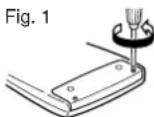
- Remove the two screws. (Fig. 1)
- Slide the battery cover slightly and lift it to remove.
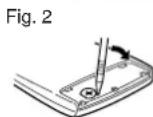
- EL-W531/W531G/W535: Remove the used battery by prying it out with a ball-point pen or other similar pointed device. (Fig. 2)
EL-W531H/W531HA: Remove the used battery.
- EL-W531/W531G/W535: Install one new battery. Make sure the "+" side is facing up.
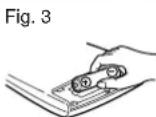
EL-W531H/W531HA: Install one new battery. First insert the “—” side toward the spring. (Fig. 3)
- Replace the cover and screws.
- Press the RESET switch (on the back) with the tip of a ball-point pen or similar object.
- Adjust the display contrast. See "Adjusting the Display Contrast".
- Make sure that the display appears as shown below. If the display does not appear as shown, remove the battery, reinstall it, and check the display once again.
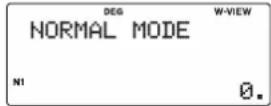
Automatic Power Off Function
This calculator will turn itself off to save battery power if no key is pressed for approximately 10 minutes.
SPECIFICATIONS
Calculation features: Scientific calculations, statistical calculations, etc.
Drill features: Math Drill and Multiplication Table
Display: 96 × 32 dot matrix liquid crystal display
Display of calculation results:
Mantissa: 10 digits Exponent: 2 digits
Internal calculations: Mantissas of up to 14 digits
Pending operations: 64 calculations 10 numeric values
Power source: EL-W531/W535
1.5 V —— (DC): Alkaline battery (LR44 or equivalent) × 1
EL-W531G
Built-in solar cells
1.5 V — (DC): Backup battery
(Alkaline battery (LR44 or equivalent) × 1)
EL-W531H/W531HA
1.5 V —— (DC): Heavy duty manganese battery (size AAA or R03) × 1
Power consumption: EL-W531/W531H/W531HA/W535 0.00011 W
Operating time: EL-W531/W535
(varies according to Approx. 3,000 hours when continuously use and other factors) displaying 55555. at 25°C (77°F)
EL-W531G
Approx. 3,000 hours when continuously displaying 55555. at 25°C (77°F), using the alkaline battery only
EL-W531H/W531HA
Approx. 17,000 hours when continuously displaying 55555. at 25°C (77°F)
0°C–40°C (32°F–104°F)
Operating temperature: 0°C–40°C (32°F–104°F)
External dimensions: 79.6 mm (W) × 161.5 mm (D) × 15.5 mm (H)
3-1/8" (W) × 6-11/32" (D) × 5/8" (H)
Weight: EL-W531/W535
Approx. 100 g (0.22 lb) (including battery) EL-W531G
Approx. 102 g (0.23 lb) (including battery) EL-W531H/W531HA
Accessories: Battery × 1 (installed), operation manual, and hard case
FOR MORE INFORMATION ABOUT SCIENTIFIC CALCULATORS
Visit our Web site.
http://sharp-world.com/calculator/
SHARP
SHARP CORPORATION
WriteView
EL-W531
EL-W531G
EL-W531H
EL-W531HA
EL-W535
CALCULATION EXAMPLES
APPLICATION EXAMPLES
CALCULATION EXAMPLES
CALCULATION EXAMPLES
CALCULATION EXAMPLES
CALCULATION EXAMPLES
CALCULATION EXAMPLES
CALCULATION EXAMPLES
CALCULATION EXAMPLES
CALCULATION EXAMPLES
CALCULATION EXAMPLES
CALCULATION EXAMPLES
CALCULATION EXAMPLES
CALCULATION EXAMPLES
EXAMPLES OF CALCULATIONS
1 CHANGE
| 2/5 3/4 = | ON/C 2 a/b 5 ▶+ [a/b] 3 ▶ 4= | 13/20 |
| CHANGE | 23/20 | |
| CHANGE | 1.15 | |
| CHANGE | 13/20 | |
| √3 × √5 = | √ 3 ▶ × √ 5= | √15 |
| CHANGE | 3.872983346 | |
| √2 + 3 + √5 + 5 = | √ 2 ▶ ÷ 3 +√ 5 ▶ ÷ 5 = | 3√5 + 5√215 |
| CHANGE | 0.918618116 | |
| sin45= | sin 45 = | √22 |
| CHANGE | 0.707106781 | |
| 2-10.5[rad] = | SET UP 0 12 [2ndF] -10.5 = | 2/3π |
| CHANGE | 2.094395102 |
2 ▲ ▼
| 2ndF | CA | 0. | |
| 13(5+2)= | 3 | [5+2] | = 21. |
| 23×5+2= | 3 | ×5+2 | = 17. |
| 3(5+3)×2= | [5+3] | ×2= 16. | |
| →1 | 2ndF | ▲ | 21. |
| →2 | ▼ | 17. | |
| →3 | ▼ | 16. | |
| →2 | ▲ | 17. | |
3 SET UP
LINE 100000÷3=
| [NORM1] | ON/C 100000 ÷ 3 | ||||
| = | 33'333.33333 | ||||
| →[FIX: TAB 2] | SET UP | 1 | 0 | 2 | 33'333.33 |
| →[SCI: SIG 2] | SET UP | 1 | 1 | 2 | 3.3E04 |
| →[ENG: TAB 2] | SET UP | 1 | 2 | 2 | 33.33E03 |
| →[NORM1] | SET UP | 1 | 3 | 33'333.33333 | |
LINE 3 ÷ 1000 =
| [NORM1] | ONC 3 ÷ 1000 = | 0.003 | ||
| → [NORM2] | SETUP 1 4 | 3.E-03 | ||
| → [NORM1] | SETUP 1 3 | 0.003 | ||
4 + - × ÷ ( ) (-) E.p
| 45+285÷3= | ON/C 45 + 285 ÷ 3 = | 140. |
| 18+6/15-8= | ( 18 + 6 ) ÷ ( 15 - 8 = | 33/7 |
| 42×-5+120= | 42 × (-) 5 + 120 = | -90 |
| (5×10^9)÷(4×10^-3)= | 5 [Eup] 3 ÷ 4 [Eup] (-) 3 = | 1'250'000. |
5
| 34+57= | 34+57= | 91. |
| 45+57= | 45= | 102. |
| 68×25= | 68×25= | 1'700. |
| 68×40= | 40= | 2'720. |
6
| sin | cos | tan | -1 | -2 | -3 | π | hyp | arc hyp |
| ln | log | nX | ex | e | 10x | X-1 | X2 | X3 |
| √ | yx | √[3]y | n! | nPr | nCr | % | abs | |
| √[3](y,n) |
| 2ndF | M-CLR | 0 | 0. | |
| sin60 [°] = | ON/C | sin | 60 = | √32 |
| α/μkα | 0.866025403 | |||
| cos π/4 [rad] = | SET UP | 0 | 1 | √22 |
| cos | π | a/b 4 = | ||
| α/μkα | 0.707106781 | |||
| tan -11 [g] = | SET UP | 0 | 2 | 50. |
| 2ndF | tan | 1 = | ||
| SET UP | 0 | 0 | ||
| (cosh 1.5 + sinh 1.5)2 = /C | ( | hyp | cos |
| 1.5 | + | hyp | sin |
| 1.5 | ) | x2 | - |
| -1 5/7 = | |c:c 2ndF & arch hyg & tan \\ 5 & ÷ & 7 \\ = | 0.895879734 |
| 20 = | 20 = | 2.995732274 |
| 50 = | 50 = | 1.698970004 |
| log216384 = | 2ndF log.x 2 ▶ 16384 = | 14. |
| LINE | 2ndF log.x 2 (xn 16384 ) = | 14. |
| e3= | (2ndF) [ex] 3[=] | 20.08553692 |
| 1÷e= | 1÷[ALPHA]e= | 0.367879441 |
| 101.7 = | 2ndF 105 1.7 = | 50.11872336 |
| 1/6 1/7 = | 6 2ndF ' + 7 2ndF ' = | 13/42 |
| ,b,a | 0.309523809 |
| 8-2 - 34 × 52 = | 8 y1 (—)2▶-3 y2 4▶×5 x2 = | -2024 63/64 |
| [prp#er] | - 129599/64 | |
| [prp#er] | -2'024.984375 |
LINE
| 8 | y1 | (一) | 2 | — |
| 3 | y1 | 4 | × | 5 |
| x2 | = | |||
| [oukce] | ||||
| [oukce] |
| (123)1/4 = | 1 & 12 & yx & 3 \\ & [ & ) & yx \\ 1 & a/b & 4 & = & | 6.447419591 |
| LINE | 1 & 12 & yx & 3 \\ yx & 1 & [a/b] & 4 & = & | 6.447419591 |
| 83 = | 8 2ndF 3 = | 512. |
| √49 - √[4]81 = | √ \\ 4 & 49 \\ 4 & [2ndF] - \\ 81 = | 4. |
| LINE | √ \\ 2ndF - \\ 4 & 49 \\ 81 = | 4. |
| 3√27 = | 2ndF - \\ 27 = | 3. |
| 4! = | 4 2ndF ! = | 24. |
| 10P3 = | 10 2ndF aPr 3 = | 720. |
| 5C2 = | 5 2ndFµC2 2 = | 10. |
| 500 × 25% = | 500 25 2ndF % | 125. |
| 120 ÷ 400 = ?% | 120 400 2ndF % | 30. |
| 500 + (500 × 25%) = | 500 25 2ndF % | 625. |
| 400 - (400 × 30%) = | 400 30 2ndF % | 280. |
| |5 - 9| = | 2ndF 5 - 9 = | 4. |
| LINE | 2ndF & abs & [ & 5 & - & ] & 9 \\ ) & = & | 4. |
• The range of the results of inverse trigonometric functions
| 90 ° → rad | ON/C 90 (2ndF DRG) | 1/2π |
| → g | [2ndF] (DRG) | 100. |
| → ° | [2ndF] (DRG) | 90. |
| -10.8 = ° | [2ndF] (sin - ) 0.8 = | 53.13010235 |
| → rad | [2ndF] (DRG) | 0.927295218 |
| → g | [2ndF] (DRG) | 59.03344706 |
| → ° | [2ndF] (DRG) | 53.13010235 |
8 ALPHA RCL STO M+ M- ANS D1 D2 D3 D4
| 8×2⇒M | ONIC 8 × 2 STO M | 16. |
| 24÷(8×2)= | 24 ÷ ALPHA M = | 11/2 |
| (8×2)×5=0⇒M | ALPHA M × 5 =[ON/C] [STO] [M] | 80.0. |
| 150×3⇒M1 | 150 [×] 3 [M-] | 450. |
| +)250: M1+250⇒M2 | 250 [M+] | 250. |
| -) M2×5% | RCL [M] × 5 2ndF [%]2ndF [M-] | 35. |
| M= | [RCL] [M] | 665. |
| 1=¥110 (110⇒Y) | 110 [STO] [Y] | 110. |
| ¥26,510=? | 26510 ÷ RCL Y = | 241. |
| S2,750=¥? | 2750 × RCL Y= | 302'500. |
| r=3 cm (r⇒Y) | 3 [STO] [Y] | 3. |
| π2 =? | π [ALPHA] YX' = cyclose | 28.27433388 |
| 24/4+6 = 22/5 ...(A) | 24 [÷] [4 + 6} - | 2 2/5 |
| 3×(A)+60 ÷(A)= | 3 [×][ALPHA][ANS] (+) 60[÷][ALPHA][ANS] (=) | 32 1/5 |
| sinh-1⇒D1 | STO [D1] [2ndF] [arc hyp] sin | |
| sinh-10.5= | D1 0.5 - | 0.481211825 |
9
| 6+4=ANS | /C 6(+) 4(=) | 10. |
| ANS+5= | + 5(=) | 15. |
| 8×2=ANS | 8(×) 2(=) | 16. |
| ANS2= | 2 (=) | 256. |
| 44+37=ANS | 44(+) 37(=) | 81. |
| = | √ (–) | 9. |
10 a/b ab/c
| 31/2+4/3= | ON/C 3 [2ndF] [a/b] 1 [▼] 2 [▶] + , [a/b] 4 [▼] 3 [=] | 45/6 | |
| aiqloz | 29/6 | ||
| [aiqloz] | 4.8333333333 | ||
| LINE | 3 [a/b] 1 [a/b] 2 [+] 4 [a/b] 3 (=) | 4r5r6 | |
| aiqloz | 29r6 | ||
| [aiqloz] | 4.8333333333 | ||
| 102/3= | (2ndF) [10x] 2 [a/b] 3 [=] | 4.641588834 | |
| (7/5)5= | 7 [a/b] 5 [▶] [yx] 5 = | 16887/3125 | |
| LINE | 7 [a/b] 5 [yx] 5 [=] | 16807r3125 | |
| a√1/8= | (2ndF) [√] 1 [a/b] 8 [=] | 1/2 | |
| √64/225= | √ 64 [a/b] 225 = | 8/15 | |
| 2334= | 2 [2ndF] [x2] [a/b] 3 [yx] 4 = | 8/81 | |
| LINE | 2 [2ndF] [x2] [a/b] [ ( ) 3 [yx] 4 ( ) ] = | 8r81 | |
| 1.2/2.3= | 1.2 [a/b] 2.3 = | 12/23 | |
| 1°2'3''/2= | 1 [DMS] 2 [DMS] 3 [a/b] 2 = | 0°31'1.5" | |
| 1×1032×103= | 1 [Exp] 3 [a/b] 2 [Exp] 3 [=] | 1/2 | |
| 7⇒A | ON/C 7 STO A | 7. | |
| 4/A= | 4 [a/b] [ALPHA] A (=) | 4/7 | |
| 1.25 + 2/5 = | 1.25 + 2 /b 5 = | 113/20 |
| [] | 33/20 | |
| [] | 1.65 | |
| LINE | 1.25 + 2 /b 5 = | 1.65 |
| [] | 1r13r20 | |
| [] | 33r20 |
* 4 r 5 r 6 = 4 5/6
1 BIN PEN OCT HEX DEC NEG NOT AND OR XOR XNOR
| DEC (25) → BIN | ON/C 2ndF ←DLC25 2ndF ←BIN | BIN | 11001 |
| HEX (1AC) | 2ndF ←HEX 1AC | ||
| → BIN | 2ndF ←B/N | BIN | 110101100 |
| → PEN | 2ndF ←PEN | PEN | 3203 |
| → OCT | 2ndF ←OCT | OCT | 654 |
| → DEC | 2ndF ←DEC | 428. | |
| (1010 - 100)× 11=[BIN] | 2ndF ←B/N [ ]1010 [ - ]100 [ ] ×11 = | BIN | 10010 |
| BIN (111) → NEG | NEG 111 = | BIN | 1111111001 |
| HEX (1FF) +OCT (512) = | 2ndF ←HEX 1FF2ndF ←OCT [ + ]512 = | OCT | 1511 |
| HEX (?) | 2ndF ←HEX | HEX | 349 |
| 2FEC -2C9E⇒ M1 | ON/C STO M2ndF ←HEX 2FEC[ - ] 2C9E [M+ | HEX | 34E |
| +) 2000 -1901⇒ M2 | 2000 [ - ] 1901M+ | HEX | 6FF |
| M = | RCL MON/C STO [M] | HEX | A4D |
| 1011 AND 101 =[BIN] | 2ndF ←B/N 1011AND 101 = | BIN | 1 |
| 5A OR C3 =[HEX] | 2ndF ←HEX 5AOR C3 = | HEX | DB |
| NOT 10110 =[BIN] | 2ndF ←B/N NOT10110 = | BIN | 1111101001 |
| 24 XOR 4 =[OCT] | 2ndF ←OCT 24[XOR] 4 = | OCT | 20 |
| B3 XNOR 2D =[HEX] | 2ndF ←HEX B3XNOR 2 D = | HEX | FFFFFFF61 |
| → DEC | 2ndF ←DEC | -159. |
12 D'M'S ←DEG
| 7°31'49.44"→[10] | ON/C 7 [DMS] 31 [DMS]49.44 [2ndF]↔DEG | 7663/1250 |
| 123.678→[60] | 123.678 [2ndF]↔DEG | 123°40'40.8" |
| 3h 30m 45s +6h 45m 36s = [60] | 3 [DMS] 30 [DMS]45 [+] 6 [DMS] 45[DMS]36 [=] | 10°16'21." |
| 1234°56'12" +0°0'34.567" = [60] | 1234 [DMS]56 [DMS]12 [+] 0 [DMS] 0[DMS]34.567 - | 1234°56'47." |
| 3h 45m - 1.69h= [60] | 3 [DMS] 45 [-] 1.69[=](2ndF)↔DEG | 2°3'36." |
| sin 62°12'24" = [10] | sin 62 [DMS] 12[DMS]24 [=] | 0.884635235 |
13 →rθ →xy (x,y)
| ( x = 6 \\ y = 4 ) → ( r = \\ θ = [° ] ) | /C 6(νy) 4 | : | 7.211102551 |
| 2nDF (→ν) | θ: | 33.69006753 | |
| ( r = 14 \\ θ = 36 [° ] ) → ( x = \\ y = ) | 14(νy) 36 | X: | 11.32623792 |
| 2nDF (→ν) | Y: | 8.228993532 |
14 MDF SET UP
| →[FIX, TAB= 1] | ON/C | SET UP | 1 | 0 | 1 | 0.0 |
| 5÷9 = ANS | 5÷9= | 5/9 | ||||
| CHANGE | 0.6 | |||||
| ANS×9= | ×9=+1 | 5.0 | ||||
| 5÷9= | 5/9 | |||||
| CHANGE | 0.6 | |||||
| →[MDF] | 2ndF | MDF | 3/5 | |||
| ANS×9= | ×9=+2 | 52/5 | ||||
| CHANGE | CHANGE | 5.4 | ||||
| →[NORM1] | SET UP | 1 | 3 | 5.4 | ||
5/9 × 9 = 5.55555555555555 × 10^-1 × 9 2 3/5 ×9=0.6×9
| DATA | (x,y) | sx | σX | n | X | X2 | ||
| sy | σY | Y | Y2 | XY | r | a | b | c |
| ' | y' |
| MODE 1 0 2ndF CA | Stat θ [SD] | ||
| DATA95 | 95 (DATA) | DATA SET= | 1. |
| 80 | 80 DATA | DATA SET= | 2. |
| 8075 | DATA | DATA SET= | 3. |
| 757575 | 75 n.m 3 (DATA) | DATA SET= | 4. |
| 50 | 50 DATA | DATA SET= | 5. |
| = | ROL | = 75.71428571 | |
| σx = | ROL σx | σx = 12.37179148 | |
| n = | ROL n | n= | 7. |
| x = | ROL x | x = | 530. |
| x2 = | ROL x2 | x2 = | 41200. |
| sx = | ROL sx | sx= | 13,3630621 |
| sx2 = | x2 = | sx2 = 178.5714286 | |
| (95-)sx × 10 + 50 = | (95 -ALPHA) ( )÷ ALPHA xx× 10 (+50 = 64.43210706 | ||
| DATA | MODE 1 1 | Stat 1 [LINE] | |||
| x | y | 2 (x,y) 5 (DATA) | DATA SET= | 0. | |
| 2 | 5 | [DATA] | DATA SET= | 1. | |
| 2 | 5 | 12 (x,y) 24 (DATA) | DATA SET= | 2. | |
| 12 | 24 | 21 (x,y) 40 (x,y) 3 (DATA) | DATA SET= | 3. | |
| 21 | 40 | ||||
| 21 | 40 | ||||
| 21 | 40 | ||||
| 15 | 25 | 15 (x,y) 25 (DATA) | DATA SET= | 4. | |
| RCL a | a= | 1.050261097 | |||
| b= | [RCL] b | b= | 1.826044386 | ||
| r= | [RCL] r | r= | 0.995176343 | ||
| sx= | [RCL] xx | sx= | 8.541216597 | ||
| sy= | [RCL] sy | sy= | 15.67223812 | ||
| x=3→y'=? | 3 (2ndF) y' | 3y' | 6.528394256 | ||
| y=46→x'=? | 46 (2ndF) X' | 46x' | 24.61590706 | ||
| DATA | MODE 1 2 | Stat 2 [QUAD] | ||
| x | y | 0. | ||
| 12 | 41 | 12 ( y'/2 ) 41 DATA | DATA SET= | 1. |
| 8 | 13 | 8 ( y'/2 ) 13 DATA | DATA SET= | 2. |
| 5 | 2 | 5 ( y'/2 ) 2 DATA | DATA SET= | 3. |
| 23 | 200 | 23 ( y'/2 ) 200 DATA | DATA SET= | 4. |
| 15 | 71 | 15 ( y'/2 ) 71 DATA | DATA SET= | 5. |
| a= | RCL a | a= | 5.357506761 | |
| b= | RCL b | b= | -3.120289663 | |
| c= | RCL c | c= | 0.503334057 | |
| x=10→y=? | 10 (2ndF) y' | 10y' | 24.4880159 | |
| y=22→x=? | 22 (2ndF) x' | 22x' | ||
| 1: | 9.63201409 | |||
| 2: | -3.432772026 | |||
16 DATA (x,y) ▲ ▼ CD
| MODE 1 0 | Stat 0 [SD] | ||
| DATA20 | 20 DATA | DATA SET= | 1. |
| 30 | 30 DATA | DATA SET= | 2. |
| 40 | 40 (x) 2 DATA | DATA SET= | 3. |
| 50 | 50 DATA | DATA SET= | 4. |
| ↓DATA30 | 2ndF CD | DATA SET= | 3. |
| 45 | 45 DATA | X: | 45. |
| 45 | 3 DATA | F:■ | 3. |
| 45 | |||
| 60 | 60 DATA | X: | 60. |
17
| = x/n | σx=√ x2-n2n |
| sx=√ x2-n2n-l | x=x1+x2+...+xn x2=x12+x22+...+xn2 |
| = y/n | σy=√ y2-n2n |
| sy=√ y2-n2n-l | xy=x1y1+x2y2+...+xnyn y=y1+y2+...+yn y2=y12+y22+...+yn2 |
18
| Function keysFunktionstastenTouches de fonctionTeclas de funciónTeclas de funçãoTasti di funzioneFunctietoetsenFüggvénybillentyükTlačitka funkcíFunktionstangenterFunktionäppäimetFunktionstaster μηνλακήν μφατακοι υραπαίνΤombol fungsi | DisplayAnzeigeAffi chageVisualizadorExibiçãoDisplayDisplayKijelzőZobrazeníVisningNäyttöDisplay πηνλακήν ΑλλακοιTampilan | Buffer space*Pufferplatz*Espace tampon*Espacio de memoria intermedia*Espaço na memória intermediária*Memoria tampone*Bufferruimte*Pufferterület*Vyrovnávací pamět*Buffertutrymme*Puskuritila*Bufferplads* φένωνυβελεθεστό *حizer تخرين مؤقتRuang buffer* |
| 2ndF x-1 | -1 | 1 |
| 2 | 2 | 1 |
| 2ndF x3 | 3 | 1 |
| 3 | 5 | |
| 2ndF -1X | -1() | 7 |
| 2ndF e+ | e | 5 |
| 2ndF 104 | 10-1 | 5 |
| √ | √ | 5 |
| 2ndF √ | 3√ | 5 |
| 2ndF √ | √ | 7 |
| [ ab] / 2ndF awc | 7 | |
| 2ndF abs | 5 | |
| ( ) | ( ) | 4 |
* The amount of memory used for the sake of display in the WriteView editor, measured in characters (excluding entered values, denoted in the chart by "☐").
| FunctionFunktionFonctionFunçãoFunçãoFunçãoFunctieFüggvényFunkceFunktionFunktionFungtionFungsi | Dynamic rangezulässiger BereichPlage dynamiqueRango dinámicoGama dinámicaCampi dinamiciRekencapaciteitMegengedett számitási tartományDynamický rozsahDefinitionsområdeDynaaminen alaDynamikområdeKisaran dinamis |
| sin x, cos x, tan x | DEG: |x| < 1010(tan x : |x| ≠ 90(2n - 1))*RAD: |x| < π/180 × 1010(tan x : |x| ≠ π/2 (2n - 1))*GRAD: |x| < 10/9 × 1010(tan x : |x| ≠ 100(2n - 1))* |
| sin-1x, cos-1x | |x| ≤ 1 |
| tan-1x, ∑x | |x| < 10100 |
| ln x, log x, log a x | 10-99≤ x < 10100, 10-99≤ a < 10100 (a ≠ 1) |
| y' | • y > 0: -10100 < x log y < 100• y = 0: 0 < x < 10100• y < 0: x = n(0 < |x| < 1: 1/x = 2n - 1, x ≠ 0)*, -10100 < x log |y| < 100 |
| x√y | • y > 0: -10100 < 1/x log y < 100 (x ≠ 0)• y = 0: 0 < x < 10100• y < 0: x = 2n - 1(0 < |x| < 1: 1/x = n, x ≠ 0)*, -10100 < 1/x log |y| < 100 |
| e^x | -10100 < x ≤ 230.2585092 |
| 10^x | -10100 < x < 100 |
| sinh x, cosh x, tanh x | |x| ≤ 230.2585092 |
| sinh-1x | |x| < 1050 |
| cosh-1x | 1 ≤ x < 1050 |
| tanh-1x | |x| < 1 |
| x^2 | |x| < 1050 |
| x^3 | |x| < 2.15443469 × 1033 |
| √x | 0 ≤ x < 10100 |
| x^-1 | |x| < 10100 (x ≠ 0) |
| n! | 0 ≤ n ≤ 69* |
| nP_r | 0 ≤ r ≤ n ≤ 99999999999*n!/(n - r)! < 10100 |
| nC_r | 0 ≤ r ≤ n ≤ 99999999999*0 ≤ r ≤ 69/n!/(n - r)! < 10100 |
| ↔ DEG, D°M'S | 0°0'0.00001" ≤ |x| < 10000° |
| x, y → r, θ | √x^2 + y^2 < 10100 |
| r, θ → x, y | 0 ≤ r < 10100DEG: |θ| < 1010RAD: |θ| < π/180 × 1010GRAD: |θ| < 10/9 × 1010 |
| DRG▶ | DEG → RAD, GRAD → DEG: |x| < 10100RAD → GRAD: |x| < π/2 × 1098 |
| → DEC→ BIN→ PEN→ OCT→ HEXANDORXORXNOR | DEC: |x| ≤ 99999999999BIN: 1000000000 ≤ x ≤ 11111111110 ≤ x ≤ 111111111PEN: 2222222223 ≤ x ≤ 44444444440 ≤ x ≤ 2222222222OCT: 4000000000 ≤ x ≤ 777777777770 ≤ x ≤ 3777777777HEX: FDABF41C01 ≤ x ≤ FFFFFFFFFF0 ≤ x ≤ 2540BE3FF |
| NOT | BIN: 1000000000 ≤ x ≤ 11111111110 ≤ x ≤ 111111111PEN: 2222222223 ≤ x ≤ 444444444440 ≤ x ≤ 2222222221OCT: 4000000000 ≤ x ≤ 777777777770 ≤ x ≤ 3777777777HEX: FDABF41C01 ≤ x ≤ FFFFFFFFFF0 ≤ x ≤ 2540BE3FE |
| NEG | BIN: 1000000001 ≤ x ≤ 11111111110 ≤ x ≤ 111111111PEN: 2222222223 ≤ x ≤ 444444444440 ≤ x ≤ 2222222222OCT: 4000000001 ≤ x ≤ 777777777770 ≤ x ≤ 3777777777HEX: FDABF41C01 ≤ x ≤ FFFFFFFFFF0 ≤ x ≤ 2540BE3FF |
* n, r: integer
| Attention: Your product is marked with this symbol. It means that uses electrical and electronic products should not be mixed with general household waste. There is a separate selection system for these products. |
| A. Information on Disposal for Users (private households) |
| 1. In the European Union |
| Attention: If you want to dispose of this equipment, please do not use the ordinary days, etc. |
| Used electrical and electronic equipment must be sealed separately and in accordance with registration or the necessary power treatment, recovery and regarding of used electrical and electronic equipment. |
| Following the implementation on by member states, private households within the EU, states may 'turn that used electrical and electronic equipment to designated collection facilities' free of charges'. In some countries' your local retailer may also save book your old product free of charge if you purchase a dealer now one. |
| * Please contact your local authority for further details. |
| If your used electrical or electronic equipment has salaries or accumulations, please dispose of these temporarily beforehand according to local requirements. |
| By disposing of this product currently you will help ensure that the waste undergoes the necessary treatment, recovery and regarding and thus prevent potential negative effects on the environment and human health which could otherwise arise due to inappropriate waste handling. |
| 2. In other Countries outside the EU |
| If you wish to discard this product, please contact your local authorities and ask for the correct method of disposal. |
| For Browser and Used electrical or electronic equipment can be returned free of charge to the dealer, over if you don't purchase a new product. Further collector facilities are listed on this homepage of www.elec.com or www.cersun. |
| B. Information on Disposal for Business Users. |
| 1. In the European Union |
| If the product is used for business purposes and you need to disclose it. |
| Please contact your SHAPD dealer who will inform you about the take-back of the product. You might be charged for the costs arising from take-back and recycling. Small producer and small accounts might be taken back by your local collection facilities. |
| For Spain: Please contact the announced contact on system or your local authority for take-back of your usual products. |
| 2. In other Countries outside the EU |
| If you wish to discard of this product, please contact your local authorities and ask for the correct method of disposal. |
For Australia/New Zealand only:
For warranty information please see www.sharp.net.au.
- OPERATIONAL NOTES
- NOTICE
- HARD CASE
- DISPLAY
- BEFORE USING THE CALCULATOR
- ADJUSTING THE DISPLAY CONTRAST
- POWER ON AND OFF
- KEY NOTATIONS USED IN THIS MANUAL
- THE WRITEVIEW AND LINE EDITORS
- CLEARING THE ENTRY AND MEMORIES
- MEMORY CLEAR KEY
- ENTERING, DISPLAYING, AND EDITING THE EQUATION
- THE WRITEVIEW EDITOR
- ENTRY AND DISPLAY
- DISPLAYING CALCULATION RESULTS
- THE LINE EDITOR
- EDITING THE EQUATION
- BACK SPACE AND DELETE KEY
- MULTI-LINE PLAYBACK FUNCTION
- PRIORITY LEVELS IN CALCULATION
- INITIAL SET UP
- MODE SELECTION
- SET UP MENU
- DETERMINATION OF THE ANGULAR UNIT
- SELECTING THE DISPLAY NOTATION AND DECIMAL PLACES
- SETTING THE FLOATING POINT NUMBER SYSTEM IN SCIENTIFIC NOTATION
- SELECTING THE EDITOR
- INSERT AND OVERWRITE ENTRY METHODS
- SCIENTIFIC CALCULATIONS
- ARITHMETIC OPERATIONS
- CONSTANT CALCULATIONS
- FUNCTIONS
- RANDOM FUNCTION
- RANDOM NUMBERS
- RANDOM DICE
- RANDOM COIN
- RANDOM INTEGER
- ANGULAR UNIT CONVERSIONS
- MEMORY CALCULATIONS
- TEMPORARY MEMORIES (A–F, X AND Y)
- INDEPENDENT MEMORY (M)
- LAST ANSWER MEMORY (ANS)
- NOTES
- DEFINABLE MEMORIES (D1–D4)
- CHAIN CALCULATIONS
- FRACTION CALCULATIONS
- BINARY, PENTAL, OCTAL, DECIMAL, AND HEXADECIMAL OPERATIONS (N-BASE)
- TIME, DECIMAL, AND SEXAGESIMAL CALCULATIONS
- COORDINATE CONVERSIONS
- MODIFY FUNCTION
- STATISTICAL CALCULATIONS
- STATISTICAL CALCULATIONS AND VARIABLES
- SINGLE-VARIABLE STATISTICAL CALCULATION
- LINEAR REGRESSION CALCULATION
- QUADRATIC REGRESSION CALCULATION
- EULER EXPONENTIAL REGRESSION, LOGARITHMIC REGRESSION, POWER REGRESSION, INVERSE REGRESSION, AND GENERAL EXPONENTIAL REGRESSION CALCULATIONS
- DATA ENTRY AND CORRECTION
- DATA ENTRY
- DATA CORRECTION
- DRILL MODE
- USING MATH DRILL AND × TABLE
- RANGES OF MATH DRILL QUESTIONS
- ERRORS AND CALCULATION RANGES
- ERRORS
- ERROR CODES AND ERROR TYPES
- ALERT MESSAGES
- CALCULATION RANGES
- BATTERY REPLACEMENT
- NOTES ON BATTERY REPLACEMENT
- NOTES ON ERASURE OF MEMORY CONTENTS
- WHEN TO REPLACE THE BATTERY
- CAUTIONS
- REPLACEMENT PROCEDURE
- AUTOMATIC POWER OFF FUNCTION
- SPECIFICATIONS
- FOR MORE INFORMATION ABOUT SCIENTIFIC CALCULATORS
- WRITEVIEW
- CALCULATION EXAMPLES
- APPLICATION EXAMPLES
- EXAMPLES OF CALCULATIONS
Brand : SHARP
Model : WriteView EL-W531HB
Category : Calculator