
SR-275 - Calculator CITIZEN - Free user manual and instructions
Find the device manual for free SR-275 CITIZEN in PDF.


| Product Type | Scientific Calculator |
| Brand | Citizen |
| Model | SR-275 |
| Dimensions (approx.) | 16.0 x 8.0 x 1.5 cm |
| Weight | 150 g |
| Power Source | Dual: Solar cell + LR44 battery |
| Display | 10+2 digit LCD |
| Basic Functions | Addition, subtraction, multiplication, division, percentage, square root |
| Scientific Functions | Trigonometric (sin, cos, tan), logarithmic (log, ln), exponential, power, factorial |
| Memory | 1 independent memory (M+, M-, MR, MC) |
| Statistical Functions | Mean, standard deviation, linear regression |
| Number of Digits | 10 digits mantissa + 2 digit exponent |
| Angle Unit | Degrees, Radians, Grads |
| Case Material | Plastic |
| Battery Type | LR44 (or equivalent) |
| Auto Power Off | Yes, after approximately 7 minutes |
| Included Accessories | Protective slide case |
Frequently Asked Questions - SR-275 CITIZEN
User questions about SR-275 CITIZEN
0 question about this device. Answer the ones you know or ask your own.
Ask a new question about this device
Download the instructions for your Calculator in PDF format for free! Find your manual SR-275 - CITIZEN and take your electronic device back in hand. On this page are published all the documents necessary for the use of your device. SR-275 by CITIZEN.
USER MANUAL SR-275 CITIZEN
MAKING CORRECTIONS DURING INPUT 4
REPLAY FUNCTION 5
ERROR POSITION DISPLAY FUNCTION 5
MEMORY CALCULATION 5
STACK 6
ORDER OF OPERATIONS 6
ACCURACY AND CAPACITY 6
ERROR CONDITIONS 8
BASIC CALCULATION 8
ATHMETIC CALCULATION....9
PARENTHESES CALCULATIONS 9
PERCENTAGE CALCULATION 9
DISPLAY FORMATS 9
CONTINUOUS CALCULATION FUNCTION 10
ANSWER FUNCTION.... 10
SCIENTIFIC CALCULATION.... 10
LOGARITHMS AND ANTILOGARITHMS.... 10
FRACTION CALCULATION 10
ANGLE UNITS CONVERSION 11
TRIGONOMETRIC / INVERSE-TRI. FUNCTIONS 11
HYPERBOLIC / INVERSE-HYP. FUNCTIONS.... 11
SEXAGESIMAL DECIMAL TRANSFORMATION 11
COORDINATES TRANSFORMATION 12
PROBABILITY 12
OTHER FUNCTIONS (x^-1,,[3],[y],x^2,x^3,x^Y) 12
STANDARD DEVIATION CALCULATION 12
REGRESSION CALCULATION.... 13
General Guide
■ Turning on or off
To turn the calculator on, press [^ON/AC] ; To turn the calculator off, press [OFF].
■ Battery replacement
SR-270II is powered by two alkaline batteries (GP76A).
If the display becomes dim and difficult to read, the batteries should be replaced as soon as possible.
1) Remove the screws and the back cover.
2) Replace the old batteries and install new ones with polarity in correct directions, then secure the screws in place and press [^ON/AC] to turn the power on.
SR-275 is powered two AA-size (UM-3) batteries. If the display becomes dim and difficult to read, the batteries should be replaced as soon as possible.
1) Slide the battery compartment cover in the direction indicated by the arrow and remove it.
2) Remove the old batteries and install new ones with polarity in correct directions, then replace the battery compartment cover and press [ON/AC].
■ Auto power-off function
This calculator automatically turns it off when not operated for approximately 9\~15 minutes. It can be reactivated by pressing [ON/AC] key and the display, memory, settings are retained.
■ Reset operation
If the calculator is on but you get unexpected results, press [^ON/AC] and then [MODE] four times to display the below menu. A message appears on the display to confirm whether you want to reset the calculator and clear memory contents after pressing [2].
| ENG | RESET |
| 1 | 2 |
| [2] | RESET:N Y→1 2 |
To clear all variables, pending operations, statistical data, answers, all previous entries, and memory, please press [2]. To abort the reset operation without clearing the calculator, please press [1].
If the calculator is lock and further key operations becomes impossible, please press [0] [ON/AC] at the same time to release the condition. It will return all settings to default settings.
■ Contrast adjustment
Pressing the [▲] or [▼] following [MODE] key can make the contrast of the screen lighter or darker. Holding either key down will make the display become respectively lighter or darker.
■ Display readout
The display comprises the entry line, the result line, and indicators.

Entry line SR-270II / SR-275 displays an entry of up to 79 digits. Entries begin on the left; those with more than 11 digits scroll to the left. Press [▶] or [◀] to move the cursor through an entry. However, whenever you input the 73rd digit of any calculation, the cursor changes from “_” to “■” to let you know memory is running low. If you still need to input more, you should divide your calculation into two or more parts.
Result line It displays a result of up to 10 digits, as well as a decimal, a negative sign, a "x10" indicator, and a 2-digits positive or negative exponent.
Indicators The following indicators appear on the display to indicate you the current status of the calculator.
Indicator Meaning
M Independent memory
— Result is negative
2nd 2nd set of function keys is active.
A Alphabetic Keys ( A \~ F, M, X \~ Y ) are active.
STORCL STO : Storing variable mode is active
RCL : Recalling variable mode is active
SD Statistics mode is active
REG Regression mode is active
DEGRAD Angle mode : DEGrees, GRADs, or RADs
ENG Engineering notation.
SCI Scientific notation.
FIX Number of decimal places displayed is fixed
HYP Hyperbolic-trig function will be calculated
BUSY While an operation is executing
← → There are digits to the left or right of the display
↑ ↓ There are earlier or later results that can be displayed
Before starting calculation
■ Mode Selection
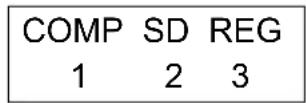
Each time [MODE] is pressed, various functions menus and all argument values corresponding to the desired mode is shown on the screen. It includes three calculation modes (COMP, SD, REG), three angle units (DEG, RAD, GRAD), four display notations (FIX, SCI, NORM, ENG) and reset function (RESET).
Entering an argument value can set up this calculator to operate as you want it to. Give "SD" as an example :
- Press [MODE] once to display the calculation mode menu.
- Enter [2] to let this calculator being operated under standard deviation mode.
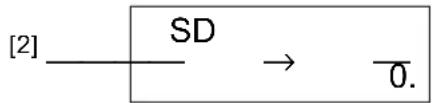
flowchart
graph LR
    A["2"] --> B["SD"]
    B --> C["0."]
■ Using "2nd" keys
To execute the functions marked in yellow, please press [2nd] and then the corresponding key. When you press [2nd], the "2nd" indicator shown in the display is to tell you that you will be selecting the second function of the next key you press. If you press [2nd] by mistake, simply press [2nd] again to remove the "2nd" indicator.
Cursor
Pressing [▶] or [◀] key can move the cursor to the left or the right. Hold down any of those keys to move the cursor at high speed.
Pressing [2nd] [▲] or [2nd] [▼] can scroll the display up or down while there are previous entries hidden the display. You can reuse or edit a previous entry when it is on the entry line.
■ Making corrections during input
To delete a character at the cursor, make the character underlined by using [▶] or [◀] to move the cursor, and then press [DEL] to delete the character.
To replace a character, make the character underlined by using [▶] or [◀] to move the cursor, and then enter a new entry to replace the character.
To insert a character, move the cursor to the position of the character where you want to insert, it will be inserted in the front of the character after pressing [2nd] [INS] and entering a new character.
(Note) : The blinking cursor “_” means the calculator is in insert mode. On the contrary, the blinking cursor is displayed as “_” and it means the calculator is in overwrite mode.
To clear all characters, clear all input character by [^ON/AC] key.
■ Replay function
- This function stores the latest operation executed. After execution is completed, pressing [2nd] [▲] or [2nd] [▼] key will display the operation from the beginning or the end. You can continue moving the cursor by [▶] or [◀] to edit it. To delete a digit, press [DEL]. (or, in overwrite mode, just type over the digit). See Example 1.
- The replay function can keep input digits up to 256 characters for SR-270II / SR-275. After execution is completed or during entering, you can press either [2nd ] [▲] or [2nd ] [▼] to display previous input steps and edit values or commands for subsequent execution. See Example 2.
(Note): The replay function isn't cleared even when [^ON/AC] is pressed or power is turned off, so contents can be recalled even after [^ON/AC] is pressed.
■ Error position display function
- When a mathematically illegal calculation is performed, error position display function will tell you with the cursor where the error is. Press [▶] or [◀] to move the cursor and then give it a correct entry. You can also clear an error by pressing [ON/AC] and then re-entered the values and expression from the beginning. See Example 3.
■ Memory calculation
Independent memory
- Press [M+] to add a result to running memory. Press [2nd] [M-] to subtract the value from running memory. To recall the value in running memory, press [2nd] [RCL] [M]. To clear running memory, press [0] [STO] [M]. See Example 4.
(Note): Besides pressing [STO] key to store a value, you can also assign values to memory variable M by [M+] or [M-] .
Memory variable
- The calculator has nine memory variables for repeated use: A, B, C, D, E, F, M, X, Y. You can store a real number in any of the nine memory variables. See Example 5.
* [STO] + A \~ F, M, or X \~ Y lets you store values to variables.
* [2nd] [RCL] or [ALPHA] + A \~ F, M, or X \~ Y recalls the value of variable.
* [0] [STO] + A \~ F, M, or X \~ Y clears the content to a specified memory variable.
* [2nd] [Mcl] [=] clears all variables.
Stack
This calculator uses memory areas, called “stacks”, to temporarily store values (numeric stack) and commands (command stack) according to their precedence during calculations. The numeric stack has 10 levels and command stack has 24 levels. A stack error (Stk ERROR) occurs whenever you try to perform a calculation that is so complex that the capacity of a stack is exceeded.
■ Order of operations
Each calculation is performed in the following order of precedence :
1) Coordinates transformation.
2) Type A functions which are required entering values before pressing the function key, for example, x^2 , 0x'' , x^-1 .
3) x^y,
4) Fractions.
5) Abbreviated multiplication format in front of variables, .
6) Type B functions which are required pressing the function key before entering, for example, , , , ^-1 , ^-1 , ^-1 , , , , ^-1 , ^-1 , ^-1 , , , 10^X , e^X , , [3], (-) .
7) Abbreviated multiplication format in front of Type B functions 32 , Alog2, etc.
8) nPr, nCr
9) x, ÷
10)+,-
- When functions with the same priority are used in series, execution is performed from right to left.
$$ \begin{array}{l} \mathrm{e} ^ {\times} \ln 1 2 0 \to \mathrm{e} ^ {\times} {\ln (1 2 0) } \ \text {otherwise, execution is from left to right.} \end{array} $$
- Compound functions are executed from right to left.
- Anything contained within parentheses receives the highest-priority.
■ Accuracy and Capacity
Output digits : Up to 10 digits.
Calculating digits : Up to 15 digits
In general, every reasonable calculation is displayed up to 10 digits mantissa, or 10-digits mantissa plus 2-digits exponent up to 10^±99 .
Numbers used as input must be within the range of the given function as follow :
| Functions Input range | |
| sin x, tan x | Deg: 0≤ |x| ≤ 4.499999999 x 10¹⁰Rad: 0≤ |x| ≤ 785398163.3Grad: 0≤ |x| ≤ 4.499999999 x 10¹⁰however, for tan xDeg: |x| ≠ 90 (2n-1)Rad: |x| ≠ π/2(2n-1)Grad: |x| ≠ 100 (2n-1) (n is an integer) |
| cos x | Deg: 0≤ |x| ≤ 4.500000008 x 10¹⁰Rad: 0≤ |x| ≤ 785398164.9Grad: 0≤ |x| ≤ 5.000000009 x 10¹⁰ |
| sin-1x, cos-1x | 0≤ |x| ≤ 1 |
| sinh x, cosh x | 0≤ |x| ≤ 230.2585092 |
| tan-1x | 0≤ |x| ≤ 9.999999999 x 1099 |
| tanh x, tanh-1x | 0≤ |x| ≤ 9.999999999 x 10⁻¹ |
| sinh-1x, cosh-1x | 0≤ |x| ≤ 4.499999999 x 1099 |
| log x, ln x | x > 0 |
| 10 x | -9.999999999 x 1099 ≤ x ≤ 99.99999999 |
| ex | -9.999999999 x 1099 ≤ x ≤ 230.2585092 |
| √x | 0≤ x < 1 x 10100 |
| x2 | |x| < 1 x 1050 |
| x-1 | |x| < 1 x 10100, x ≠ 0 |
| 3√x | |x| < 1 x 10100 |
| x! | 0≤ x ≤ 69, x is an integer. |
| Pol (x, y) | |x|, |y| ≤ 9.999999999 x 1049x2 + y2 ≤ 9.999999999 x 1099 |
| Rec (r, θ) | 0≤ r ≤ 9.999999999 x 1099Deg: 0≤ |x| ≤ 4.499999999 x 10¹⁰Rad: 0≤ |x| ≤ 785398163.3Grad: 0≤ |x| ≤ 4.499999999 x 10¹⁰however, for tan xDeg: |θ| ≠ 90 (2n-1)Rad : | θ| ≠ 2 (2n-1)Grad : | θ| ≠ 100 (2n-1) (n is an integer) |
| o”” | | a |, b, c < 1 x 10 ^100 , 0 ≤ b, c |
| ,” | |x| < 1 x 10 ^100 Sexagesimal ↔ Decimal transformation0 ^ 0 ^ 0 ^ ≤ |x| ≤ 99999959 ^ |
| x y | x > 0 : -1 x 10 ^100 < y log x < 100x = 0 : y > 0x < 0 : y = n, 1/(2n+1), n is an integer.but -1 x 10 ^100 < y log | x| <100 |
| [x]y | y > 0 : x ≠ 0, -1 x 10 ^100 < 1x log y <100y = 0 : x > 0y < 0 : x = 2n+1, l/n, n is an integer. (n ≠ 0)but -1 x 10 ^100 < 1x log | y| <100 |
| nPr, nCr | 0≤ n ≤ 99, r ≤ n, n, r are integers. |
| SD(REG) | |x |<1x10 ^50 ,| y |<1x10 ^50 , | n |<1x10 ^100 xσn, yσn, , , A, B, r : n ≠ 0xσn-1, yσn-1 : n ≠ 0,1 |
■ Error conditions
Error message will appear on the display and further calculation becomes impossible when any of the following conditions occur.
Ma ERROR (1) When result of function calculations exceeds the range specified.
(2) You attempted to divide by 0.
(3) When your input values exceeds the allowable input range of function calculations
Stk ERROR Capacity of the numeric stack or operator stack is exceeded.
Syn ERROR You attempted to perform an illegal mathematical operation.
To release the above errors, please press [^ON/AC] key.
Basic Calculation
Use the COMP mode for basic calculations.
■ Arithmetic calculation
- For negative values, press [ (−) ] before entering the value; You can enter a number in mantissa and exponent form by [ EXP ] key. See Example 6.
- Arithmetic operations are performed by pressing the keys in the same sequence as in the expression. See Example 7.
■ Parentheses calculations
- Operation inside parentheses are always executed first. SR-270II / SR-275 can use up to 15 levels of consecutive parentheses in a single calculation. See Example 8.
■ Percentage calculation
- [2nd] [ % ] divides the number in the display by 100. You can use this key sequence to calculate percentages, add-ons, discounts, and percentages ratios. See Example 9.
■ Display formats
This calculator has the following four display notation mode for the display value.
Norm Notation :
This calculator can display up to 10 digits. However, values that exceed this limit are automatically displayed in exponential format. There are two types of exponential display formats:
Norm 1 mode: 10^-2 > |x|, |x| ≥ 10^0
Norm 2 mode : 10^-9 > |x| , |x| ≥ 10^0
(Note) : All of the examples in this manual show calculation results using the Norm 1 mode.
Engineering Notation : ( ENG )
Calculation result is displayed using engineering notation, where the mantissa of the value is displayed with the number of decimal places specified and the exponent is set to a multiple of 3 for display.
Fixed Notation : (FIX)
Calculation result is displayed with the number of decimal places specified.
Scientific Notation : (SCI)
Calculation result is displayed using scientific notation, where the mantissa of the value is displayed with the number of decimal places specified.
- For FIX, SCI notation, the number of decimal places can be set to any value between 0\~9. After specifying the number of decimal places, the display value will be rounded to the corresponding number of digits and displayed. When no specification has been made for the number of decimal places or significant digits, Norm 1 and Norm 2 mode can be carried. See Example 10.
- Pressing [ENG] or [2nd][ENG] will cause the exponent display for the number being displayed to change in multiples of 3. See Example 11.
- Even if the number of decimal places is specified, internal calculation for a mantissa is performed up to 15 digits for SR-270II / SR-275, and the display value is stored in 10 digits. To round off those values to the specified number of decimal places, press [2nd] [RND]. See Example 12.
■ Continuous calculation function
- The calculator enables you to repeat the last operation executed by pressing [ = ] key for further calculation. See Example 13.
- Even if calculations are concluded with the [ = ] key, the result obtained can be used for further calculation. See Example 14.
■ Answer function
- Answer function stores the most recently calculated result. It is retained even after the power is turned off. Once a numeric value or numeric expression is entered and [ = ] is pressed, the result is stored by this function. See Example 15.
(Note) : Even if execution of a calculation results in an error, however, Answer memory retains its current value.
Scientific Calculation
😊 Use the COMP mode for scientific calculations.
■ Logarithms and Antilogarithms
- The calculator can calculate common and natural logarithms and anti-logarithms using [log], [ln], [2nd] [10^×] , and [2nd] [e^x] . See Example 16.
■ Fraction calculation
Fraction value display is as follow :
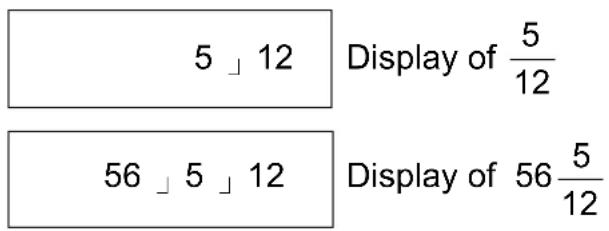
(Note) : Values are automatically displayed in decimal format whenever the total number of digits of a fractional values (integer + numerator + denominator + separator marks) exceeds 10.
- To enter a mixed number, enter the integer part, press [a^b/c] , enter the numerator, press [a^b/c] , and enter the denominator; To enter an improper fraction, enter the numerator, press [a^b/c] , and enter the denominator. See Example 17.
- By pressing [2nd] [ ^d / c] , the displayed value will be converted to the improper fraction and vice versa. To convert between a decimal and fractional result, press [a^b / c] . See Example 18.
- Calculations containing both fractions and decimals are calculated in decimal format. See Example 19.
■ Angle units conversion
The angle units (DEG, RAD, GRAD) is set by pressing [MODE] to display the angle menu. The relation among the three angle units is :
$$ 1 8 0 ^ {\circ} = \pi \text { rad } = 2 0 0 \text { grad } $$
Angle conversions ( See Example 20.):
- Change the default angle settings to the units you want to convert to.
- Enter the value of the unit to convert.
- Press [DRG→] to display the menu.
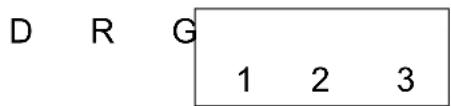
The units you can select are D(degrees), R(radians), G(Gradians).
- Choose the units you are converting from.
- Press [ = ].
■ Trigonometric / Inverse-Tri. functions
- SR-270II / SR-275 provides standard trigonometric functions and inverse trigonometric functions - sin, cos, tan, ^-1 , ^-1 and ^-1 . See Example 21.
(Note) : When using those keys, make sure the calculator is set for the angle unit you want.
■ Hyperbolic / Inverse-Hyp. functions
- SR-270II / SR-275 uses [2nd] [HYP] to calculate the hyperbolic functions and inverse-hyperbolic functions - sinh, cosh, tanh, ^-1 , ^-1 and ^-1 . See Example 22.
(Note) : When using those keys, make sure the calculator is set for the angle unit you want.
■ Sexagesimal Decimal transformation
Sexagesimal notation is as follow
12□ 59□ 45.6□ Represent 12 Degree, 59 Minutes, 45.6 Seconds
- The calculator can preform the conversion between decimal and sexagesimal numbers by [0] and [2nd] [ ]. See Example 23.
■ Coordinates transformation
Rectangular Coordinates Polar Coordinates
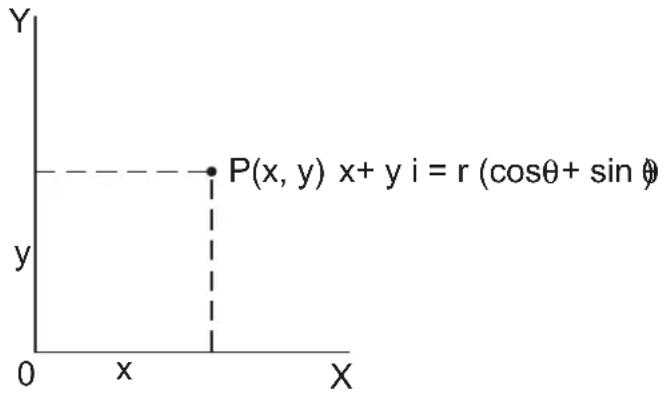
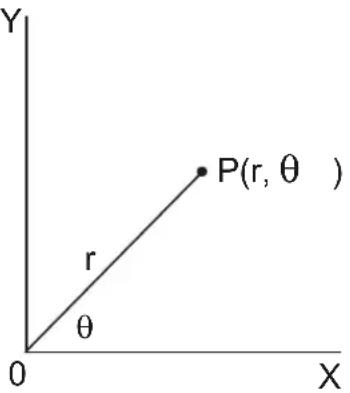
- The calculator can perform the conversion between rectangular coordinates and polar coordinates by [ALPHA] [Pol ( ] and [ALPHA] [Rec ( ]. Calculation results are automatically stored in memory variables E and F. See Example 24.
(Note) : When using those key, make sure the calculator is set for the angle unit you want.
■ Probability
- This calculator provides the following probability functions: (See Example 25.)
[nPr] Calculates the number of possible permutations of n item taken r at a time.
[nCr] Calculates the number of possible combinations of n items taken r at a time.
[x!] Calculates the factorial of a specified positive integer x, where x ≤ 69 .
[ RANDOM ] Generates a random number between 0.000 and 0.999
■ Other functions ( ^1, , [3]~ , , x^2 , x^3 , x^y )
- The calculator also provides reciprocal ( [x^-1] ), square root ( [] ), cubic root ( [[3]] ), universal root [] , square ( [x^2] ), cubic ( [x^3] ) and exponentiation ( [x^y] ) functions. See Example 26.
Standard Deviation Calculation
☺ Use the SD mode for standard deviation calculations.
- Always make sure you clear statistical memory by [2nd] [Scl] before preforming standard deviation calculation.
- Individual data can be input using [DT] ; To delete data you just input, please press [2nd] [CL]. Multiple data of the same value can be input using [2nd] [;]. For example, to input the data 15 seven times, press 15 [2nd] [; ] 7 [DT].
- The values of the statistical variables depend on the data you input. You can recall them by the key operations shown in the below table. See Example 27.
| x^2 | [RCL] + [] | [2nd] + [] | |
| x | [RCL] + [] | X_n | [2nd] + [X_n] |
| n | [RCL] + [] | X_n-1 | [2nd] + [X_n-1] |
Regression Calculation
😊 Use the REG mode for regression calculations.
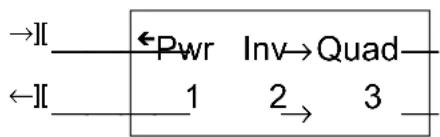
Press [MODE] 3 to enter the REG menu and then choose one of the six regression types by pressing the corresponding argument value, as follow :
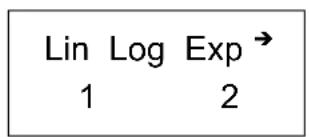
Lin Linear Regression y = A + B x
Log Logarithmic Regression y = A + B x
Exp Exponential Regression y = A · e^Bx
Pwr Power Regression y = A · x
Inv Inverse Regression y = A +
Quad Quadratic Regression y = A + B x + C x^2
- Always make sure you clear statistical memory by [2nd] [Scl] before preforming regression calculation.
- Individual data can be input using [DT] ; To delete data you just input, please press [2nd] [CL]. Multiple data of the same value can be input using [2nd] [;]. For example, to input the data 40 and 55 ten times, press 40 [, ] 55 [2nd] [; ] 10 [DT].
- The values of the statistical variables depend on the data you input. You can recall them by the key operations shown in the below table. To predict a value for x (or y) given a value for y (or x), enter the given value, press [2nd] [ ] (or [2nd] [ ]), and press [ = ] again. See Example 28.
| x^2 | [RCL] + [A] | x_n | [2nd] + [x_n] |
| x | [RCL] + [B] | x_n-1 | [2nd] + [x_n-1] |
| n | [RCL] + [C] | [2nd] + [] | |
| y^2 | [RCL] + [D] | y_n | [2nd] + [y_n] |
| y | [RCL] + [E] | y_n-1 | [2nd] + [y_n-1] |
| xy | [RCL]+[F] | A [2nd]+[A] |
| x^3[RCL]+[M] | B [2nd]+[B] | |
| x^2y[RCL]+[X] | C [2nd]+[C] | |
| x^4 | [RCL]+[Y] | r [2nd]+[r] |
| [2nd]+[] | [2nd]+[] | |
| [2nd]+[] |
(Note): Variable x^4 , x^2y are only available in Quadratic regression.
- BASIC CALCULATION 8
- SCIENTIFIC CALCULATION.... 10
- STANDARD DEVIATION CALCULATION 12
- REGRESSION CALCULATION.... 13
- General Guide
- ■ Turning on or off
- ■ Battery replacement
- ■ Auto power-off function
- ■ Reset operation
- ■ Contrast adjustment
- ■ Display readout
- Indicator Meaning
- Before starting calculation
- ■ Mode Selection
- ■ Using "2nd" keys
- Cursor
- ■ Making corrections during input
- ■ Replay function
- ■ Error position display function
- ■ Memory calculation
- Independent memory
- Memory variable
- Stack
- ■ Order of operations
- ■ Accuracy and Capacity
- ■ Error conditions
- Basic Calculation
- ■ Arithmetic calculation
- ■ Parentheses calculations
- ■ Percentage calculation
- ■ Display formats
- ■ Continuous calculation function
- ■ Answer function
- Scientific Calculation
- ■ Logarithms and Antilogarithms
- ■ Fraction calculation
- ■ Angle units conversion
- ■ Trigonometric / Inverse-Tri. functions
- ■ Hyperbolic / Inverse-Hyp. functions
- ■ Sexagesimal Decimal transformation
- ■ Coordinates transformation
- ■ Probability
- ■ Other functions ( x1, , [3]~ , y , x2 , x3 , xy )
- Standard Deviation Calculation
- Regression Calculation
Brand : CITIZEN
Model : SR-275
Category : Calculator