
CS-2850A - Calculator SHARP - Free user manual and instructions
Find the device manual for free CS-2850A SHARP in PDF.


| Product Type | Desktop Printing Calculator |
| Brand | Sharp |
| Model | CS-2850A |
| Display | 12-digit LCD with punctuation |
| Printing Method | Impact dot matrix, 2-color (black/red) |
| Print Speed | Approximately 4.5 lines per second |
| Paper Width | 58 mm (2.25 inches) |
| Power Source | AC adapter (120V, 60Hz) |
| Dimensions (W x D x H) | 9.4 x 7.4 x 2.2 inches (239 x 188 x 56 mm) |
| Weight | Approximately 1.5 lbs (680 g) |
| Key Functions | Addition, subtraction, multiplication, division, grand total, memory, tax calculation (TAX+, TAX-), cost/sell/margin, percent, markup, sigma, item count |
| Decimal Selector | F (floating), 0, 2, 4, ADD (2 fixed with add mode) |
| Rounding Selector | 5/4 (round off/up/down) |
| Grand Total | Yes, with GT key |
| Memory | 4-key independent memory (M+, M-, MRC, M) |
| Two-Color Printing | Black for positive, red for negative |
| Ink Ribbon | Replaceable ink roller (IR-20 or equivalent) |
| Paper Roll | Standard 58mm width, 60m length |
| Auto Power-Off | Approximately 7 minutes of inactivity |
| Operating Temperature | 32°F to 104°F (0°C to 40°C) |
| Included Accessories | AC adapter, ink roller, paper roll, operator's manual |
| Repairability | User-replaceable ink roller and paper; other repairs by qualified service center |
| Cleaning | Wipe exterior with a dry, soft cloth; avoid liquids |
Frequently Asked Questions - CS-2850A SHARP
User questions about CS-2850A SHARP
0 question about this device. Answer the ones you know or ask your own.
Ask a new question about this device
Download the instructions for your Calculator in PDF format for free! Find your manual CS-2850A - SHARP and take your electronic device back in hand. On this page are published all the documents necessary for the use of your device. CS-2850A by SHARP.
USER MANUAL CS-2850A SHARP
This device complies with Part 15 of the FCC Rules. Operation is subject to the following two conditions: (1) This device may not cause harmful interference, and (2) this device must accept any interference received, including interference that may cause undesired operation.
WARNING - FCC Regulations state that any unauthorized changes or modifications to this equipment not expressly approved by the manufacturer could void the user's authority to operate this equipment.
Note: This equipment has been tested and found to comply with the limits for a Class B digital device, pursuant to Part 15 of the FCC Rules.
These limits are designed to provide reasonable protection against harmful interference in a residential installation. This equipment generates, uses, and can radiate radio frequency energy and, if not installed and used in accordance with the instructions, may cause harmful interference to radio communications. However, there is no guarantee that interference will not occur in a particular installation. If this equipment does cause harmful interference to radio or television reception, which can be determined by turning the equipment off and on, the user is encouraged to try to correct the interference by one or more of the following measures:
- Reorient or relocate the receiving antenna.
- Increase the separation between the equipment and receiver.
- Connect the equipment into an outlet on a circuit different from that to which the receiver is connected.
- Consult the dealer or an experienced radio/TV technician for help.
Caution!
The socket outlet shall be installed near the equipment and shall be easily accessible.
Aviso!
In case of abnormal conditions
When this unit is exposed to strong RF noise and/or extreme physical shock during operation, or when the power cord is plugged into the AC outlet, the unit may start functioning abnormally which, in some rare occasions, all keys cease to respond.
If such abnormal conditions are observed, unplug the AC cord from the socket. Keep the unit unplugged for about 5 seconds, reconnect the AC plug, then turn on the power.
Thank you for your purchase of the SHARP electronic calculator, model CS-2850A. Your SHARP calculator is specially designed to save work and increase efficiency in all business applications and general office calculations. Careful reading of this manual will enable you to use your new SHARP to its fullest capability.
OPERATIONAL NOTES
To insure trouble-free operation of your SHARP calculator, we recommend the following:
- The calculator should be kept in areas free from extreme temperature changes, moisture, and dust.
- A soft, dry cloth should be used to clean the calculator. Do not use solvents or a wet cloth.
- Turn off the power switch prior to connecting or disconnecting the AC cord.
- Since this product is not waterproof, do not use it or store it where fluids, for example water, can splash onto it. Raindrops, water spray, juice, coffee, steam, perspiration, etc. will also cause malfunction.
- If the power switch is turned off (position “⏻”), even if the plug is connected to a power outlet, the memory contents (including the grand total memory) and the item counter are cleared. The tax rate is retained. (The tax rate is cleared when the plug is removed.)
- If service should be required on this equipment, use only a SHARP servicing dealer, a SHARP approved service facility or SHARP repair service where available.
- Do not wind the AC cord around the body or otherwise forcibly bend or twist it.
The electrical outlet should be near the equipment and made easily accessible. SHARP will not be liable nor responsible for any incidental or consequential economic or property damage caused by misuse and/or malfunctions of this product and its peripherals, unless such liability is acknowledged by law.
CONTENTS
Page
- FEATURES .... 3
• OPERATING CONTROLS 4 - INK RIBBON REPLACEMENT .... 10
- PAPER ROLL REPLACEMENT .... 11
- ERRORS 12
- DECIMAL SYSYEM 12
- SPECIFICATIONS .... 13
• CALCULATION EXAMPLES ...... 28 - SAMPLE APPLICATIONS 43
FEATURES
■Tilt-adjustable Display
The calculator has a 7-position Tilt-adjustable Display for easy viewing. With the touch of your finger, you can select the position of the display for optimum viewing. (See figure)

■Adjustable position paper roll holder
The paper roll holder can be adjusted to either position Ⓐ or position Ⓑ according to the amount of space available (see below).

OPERATING CONTROLS
① ER SWITCH:
When the power switch is turned on, the calculator is ready for operation.
② PRINT MODE SELECTOR:
"P"position:The calculator functions as a print/display calculator. (Print mode)
“●”position: The calculator functions as a display calculator. (Nonprint mode)
Mode change print:
When changing the print mode selector, the following print will appear.
“••••••••-P” (red print): When changing the selector from P to •.
“••••••••+P” (red print): When changing the selector from • to P.
③ ROUNDING SELECTOR:
“↑” position: An answer is rounded up.
"5/4" position: An answer is rounded of f.
“↓” position: An answer is rounded down.
$$ \text { EXAMPLE: } 1 0. 0 0 5 \div 5 = 2. 0 0 1 $$
Set decimal to 2,
10.005 ÷ 5 ≡ 2 ·01 *
Set decimal to 2, 5/4
10.005 ÷ 5 ±→2 ·00 *
Note: The decimal point floats during successive calculation by the use of ☒ or -key.
In floating decimal point system, an answer is rounded down.
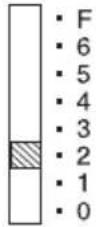
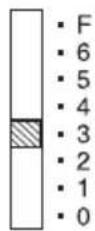
④ DECIMAL SELECTOR:
Presets the number of decimal places in the answer.
In the "F" position, the answer is displayed in the floating decimal system.
⑤ CONSTANT MODE SELECTOR:
“K” position: The following constant functions will be performed:
Multiplication: The calculator will automatically remember the first number entered (the multiplicand) and the ✗ instruction.
Division: The calculator will automatically remember the second number entered (the divisor) and the ÷ instruction.
Add-on/Discount/Mark up:
The calculator will automatically remember the first entered number and key functions for Add-on/Discount/Mark up calculation.
“●” position: Neutral
⑥ RATE SETTING MODE SELECTOR:
"RATE" position: Set this selector to the "RATE SET" position before storing each rate.
- Enter the adding tax rate, then press TAX+.
- To store a discount rate, press +/- before pressing TAX+.
- A maximum of 4 digits can be stored (decimal point is not counted as a digit).
Note: • Be sure to set this selector to the “•” position after storing an each rate.
- Only one rate can be stored. If you enter a new rate, the previous rate will be cleared.
“●” position: Neutral
⑦ GRAND TOTAL MODE SELECTOR:
"GT" position: This selector will accumulate the following:
(The symbol “*+” will be printed.)
- Addition and subtraction totals obtained with the ☐ or Akey.
- Product and quotient totals obtained with the ± or key.
- Answers obtained with the % or Key.
“●” position: Neutral, GT OFF
⑧ A/+ · ADD MODE SELECTOR:
A/x · “A/+” position – Effective only in addition and subtraction:
Use of the A/+ mode permits addition and subtraction of numbers without an entry of the decimal point. When the A/+ mode is activated, the decimal point is automatically positioned according to the decimal selector setting.
EXAMPLES: Set A/+-●-A/x to A/+
A. Set decimal to 2
Enter 123456

Prints 1 ,234·56 +
B. Set decimal to 3
Enter 123456

Prints 123 ·456 +
Use of the ☐, and keys will automatically
override the Add mode and decimally correct answers will be printed at the preset decimal position.
EXAMPLES: Set A/+-●-A/x to A/+, 5/4
A. Set decimal to 2
$$ \begin{array}{rlr} Enter.1234 & \boxed{\times} & \text{Prints 0} & \cdot 1234 \times \ 100 & \boxed{\pm} & & 100 \cdot = \end{array} $$
B. Set decimal to 3
$$ \begin{array}{cccccc} Enter 2 & \boxed{\div} & & & \text{Prints } 2 & & \cdot \div \ 3 & \boxed{\pm} & & & & 3\cdot = \end{array} $$
C. Set decimal to 2

Note that decimal point was entered.
"A/x" position – Multiplication and division:
When the A/x mode is activated, the number entered before ✗ or +key will override the add mode. But the number entered following ✗ or -key and before ± (or -, +key) will obey the decimal setting. This is useful for invoicing.
EXAMPLE: Set A/+-●-A/x to A/x
Set decimal to 2
| Enter 7 | 3 | × | Prints 7 | · × |
| ± | 0·03 = | |||
| 0·21 * |
Note: Use of the key will automatically override the A/x mode.
Addition and subtraction:
The A/x mode functions same as the A/+ mode.
“●” position: Neutral
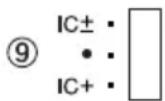
ITEM COUNT MODE SELECTOR:
“IC±” position: 1) The counter will count the number of times that the ± key has been pressed in addition.
Note: • Each time the == key is used in subtraction, 1 will be subtracted from the count.
- The count is printed when the calculated result is obtained.
- Pressing of the *, ×, ÷ AVG Key clears the counter.
2) When the grand total mode selector is in the ON position (GT), the counter will count the number of times that the calculation results have been stored in the grand total memory. To print and clear the count, press the GT key.
3) The memory item counter will count the number of times that the +I key has been pressed in the addition.
Note: •Each time the -1 key is used in the subtraction, 1 will be subtracted from the count.
- The count is printed when the memory is recalled.
- Pressing of the *I key clears the counter.
“IC+” position: 1) The counter will count the number of times that the ± or - has been pressed in addition and subtraction.
Note: •The count is printed when the calculated result is obtained.
- Pressing of the *, X, -or Akey MU clears the counter.
2) When the grand total mode selector is in the ON position (GT), the counter will count the number of times that the calculation results have been stored in the grand total memory. To print and clear the count, press the GT key.
3) The memory item counter will count the number of times that the +I or -I key has been pressed in addition and subtraction.
Note: •The count is printed when the memory is recalled.
- Pressing of the *I key clears the counter.
“●” position: Neutral, counter is turned off.
Note: The counter has a maximum capacity of 3 digits (up to ±999 ). If the count exceeds the maximum, the counter will recount from zero.
⑩ RAPER FEED KEY:
When pressed, advances the paper.
Note: You can also pull the paper manually.
⑪ RIGHT SHIFT KEY:
Operation of this key in entered numbers or calculated results shifts the number one digit to the right together with the decimal point. Used for one digit correction.
⑫ GRAND TOTAL KEY:
Prints and clears the "GT" memory contents.
⑬ NON-ADD/SUBTOTAL KEY:
Non-add – When this key is pressed right after an entry of a number in the Print mode, the entry is printed on the left-hand side with the symbol “#”. This key is used to print out numbers not subjects to calculation such as code, date, etc.
Subtotal – Used to get subtotal(s) of additions and/or subtractions. When pressed following the ☐ or -key, the subtotal is printed with the symbol “◇” and the calculation may be continued.
By pressing this key even in the Non-print mode, the displayed number is printed with the symbols "P".
⑭ TOTAL KEY:
Prints the total of addition and subtraction with the symbol “*”. This key also serves as a clear key for the calculation register and resets an error condition.
⑮ CLEAR ENTRY KEY:
Clears number entered prior to use of a function key.
Also used to clear an overflow error caused by an entry.
Ex. 123 × 455 123 × 456 =
Press 123 ✗ 455 CE 456 ±
⑯ 0 \~ 9 • NUMERAL KEYS:
The ☐ key may not be available in some countries.
⑰ MINUS EQUALS KEY:
Prints the entered number with a “—” symbol and subtracts the number from the contents of the calculation register. This key is also used to obtain the product/quotient multiplication and division and prints it with the symbol “*”.
⑱ PLUS EQUALS KEY:
Prints the entered number with a “+” symbol and adds the number to the contents of the calculation register. This key is also used to obtain the results in multiplication and division and prints the product/quotient with the symbol “*”.
⑲ PERCENT KEY
⑳ DIVISION KEY
②1 MULTIPLICATION KEY
22 TOTAL MEMORY KEY
②3 SUBTOTAL MEMORY KEY
⑳ MEMORY MINUS KEY
②5 MEMORY PLUS KEY
②6 TAX-INCLUDING KEY
⑳ AVERAGE KEY:
Used to calculate the average.
28 CHANGE SIGN KEY:
Changes the algebraic sign of a number (i.e., positive to negative or negative to positive).
29 MULTIPLE USE KEY:
Used to perform mark-ups, percent change and automatic add-on/discount.
③0 DISPLAY
Display format:

Symbols:
I: Memory symbol
Appears when a number is in the memory.
- : Minus symbol
Appears when a number is negative.
● : Grand total memory symbol
Appears when a number is in the grand total memory.
E : Error symbol
Appears when an over flow or other error is detected.
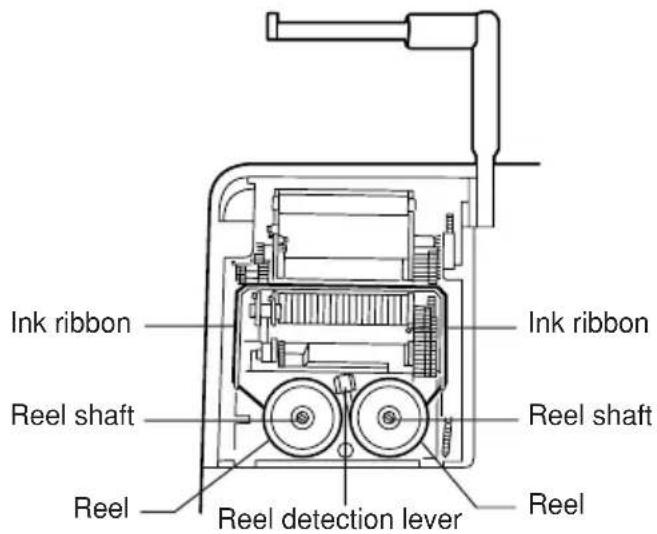
INK RIBBON REPLACEMENT
- Remove the paper roll from the calculator. (Tear the paper and remove it from the print mechanism by using 📋.)
- Set the power switch to “ ⏻”. Make sure that the print wheel has stopped.
- Remove the printer cover by sliding it towards the back of the calculator. (Fig. 1) Roll the display downwards till it stops.
- Remove the used ribbon.
- Install the new ribbon.
- With the black side of the ribbon facing upwards, place one of the reels on the reel shaft on the left. Make sure that the reel is securely in place.
- Thread the ribbon around the outside of the metal guides. (Fig. 2)
- Insert the right reel securely.
- Take up any slack by manually turning one of the reels.
- Replace the printer cover.
- Replace the paper roll.

Fig. 1 Fig. 2


PAPER ROLL REPLACEMENT
- Lift the paper holder up. (Fig. 1)
- Fold the leading edge of the paper roll 3 to 5 cm. (Do not fold it slantwise.) (Fig. 2)
- Insert the paper roll from the left side of the paper holder and make sure the paper roll is set in the proper direction (with the paper feeding from the bottom) as shown in the figure. (Fig. 3)
- Fold the paper holder down to the printer cover. Insert the leading edge of the paper into the opening directly behind the print mechanism. (Fig. 4)
- Lift the paper holder up. Press the paper feed key and feed the paper under the edge of the paper cutter. (Fig. 5)

Fig. 1
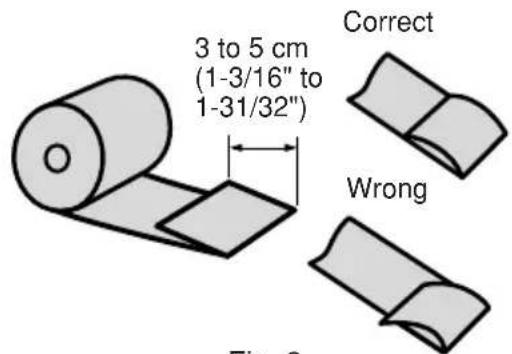
Fig. 2

Fig. 3

natural_image
Illustration of a hand using a tool to cut or spread a cylindrical object (no text or symbols visible)Fig. 4

Fig. 5
DO NOT PULL THE PAPER BACKWARDS AS THIS MAY DAMAGE THE PRINTER MECHANISM.
ERRORS
There are several situations which will cause an overflow or an error condition. When this occurs, the error symbol “E” will be displayed and all keys will electronically lock. The contents of the memory at the time of the error are retained.
If an “0·E” is printed on the tape at the time of the error, the * key must be used to clear the calculator. If an “E” with any numerals except zero is printed on the tape or if an “E” is not printed on the tape, the error may be cleared with the cor key and the calculation can still be continued.
Error conditions:
- Entry of more than 12 digits or 11 decimals.
This error can be cleared with the CE or +key.
- When the integer portion of an answer exceeds 12 digits.
- When the integer portion of the contents of the memory or grand total memory exceeds 12 digits.
(Ex. *I 9999999999999 +I1 )+I
- When any number is divided by zero. (Ex. 5 ÷0)
DECIMAL SYSTEM
Input override decimal feature
The calculator operates on a principle of floating decimal entries with preset decimal answers.
- An entry may contain up to 11 decimal places, regardless of the decimal selector setting.
- Answers will be printed to the preset decimal position except when an underflow condition prevails.
Output override decimal feature
This feature enables an answer to be printed in the floating decimal when the result is too small to be picked up within the range of the preset decimal.
EXAMPLE: Set decimal at 2
Enter 5

Tape prints 5

SPECIFICATIONS
Type: Electronic print/display calculator
Power source: AC: 120 V, 60 Hz
Display: Fluorescent display
Operating capacity: 12 digits
Display/Print capacity: With symbol and 3-digit punctuations
13 digits (display), 18 digits (printing)
Decimal point: Automatic decimal point positioning by preset decimal
selector (0-1-2-3-4-5-6-F) with Add mode (A/+, A/x)
Calculations: Four arithmetic calculations, constant multiplication and
division, power calculation, add-on/discount calculation, repeat addition and subtraction, square root calculation, reciprocal calculation, grand total calculation, item count calculation, markup calculation, tax rate calculation, average calculation, memory calculation, etc.
Components: LSI etc.
PRINTING SECTION
Printer: Mechanical printer
Printing speed: Approx. 4.8 lines/sec.
Printing paper: 57 mm (2-1/4") \~ 58 mm (2-9/32") wide
80 mm (3-5/32") in diameter (max.)
Operating temperature: 0^ C \~ 40^ C ( 32^ F \~ 104^ F)
Power consumption: 169 mA
Dimensions: 216 (W) × 279 (D) × 78 (H) mm
8-1/2" (W) × 10-31/32" (D) × 3-1/16" (H)
Weight: Approx. 2.10 kg (4.63 lb.)
Accessories: 1 paper roll, 1 ink ribbon and operation manual
WARNING
THE VOLTAGE USED MUST BE THE SAME AS SPECIFIED ON THIS CALCULATOR. USING THIS CALCULATOR WITH A HIGHER VOLTAGE THAN THAT WHICH IS SPECIFIED IS DANGEROUS AND MAY RESULT IN A FIRE OR OTHER TYPE OF ACCIDENT CAUSING DAMAGE. WE ARE NOT RESPONSIBLE FOR ANY DAMAGE RESULTING FROM USE OF THIS CALCULATOR WITH A VOLTAGE OTHER THAN THAT WHICH IS SPECIFIED.
INTRODUCCIÓN
$$ E J E M P L O: 1 0, 0 0 5 \div 5 = 2, 0 0 1 $$
EJEMPLOS: Colocar A/+-●-A/x to A/+
EJEMPLOS: Colocar A/+-●-A/x to A/+, 5/4
EJEMPLO: Colocar A/+-●-A/x to A/x
natural_image
Simple line drawing of a decorative scroll or ornament with two curved swirls on top (no text or symbols)natural_image
Illustration of a hand using a tool to cut or spread a cylindrical object (no text or symbols visible)Fig. 4

Fig. 5
NO TIRE DEL PAPEL HACIA ATRÁS PORQUE SE PUEDE ESTROPEAR EL MECANISMO IMPRESOR.
ERRORES
Note: All totals and sub-totals may be used for further calculations. RE-ENTER the number into the calculator by using a FUNCTION key and continue the problem.
other
| Category | Value | |---|---| | F | 12.36 | | 6 | 36 | | 5 | 12 | | 4 | 3.33 | | 3 | 4 | | 2 | 1588 | | A/+ | 3 | | A/x | 3 | | 1 | 53.21 | | 0 | 53.21 | | 2,190.06 | 2,190.06 | | ·36 × | 36 × | | ·33 × | 33 × | | ·21 = | 21 = | | 2,190·06 * | 2,190·06 * |DIVISION / DIVISIÓN
$$ 2 5 6 \div 1 2 \div 0. 5 6 = $$
(1) (2) (3) (4)

other
| Category | Value | |---|---| | F | 256 256.256 | | 6 | 12 24333833333312 | | 5 | .56 0± | | 4 | | | 3 | | | 2 | | | 1 | | | 0 | | | ·÷ | 38.095 | | ·÷ | 38.095 * | The values are estimated based on the provided code. The actual values may vary due to the random nature of the data generation.混合計算
$$ A. (1 0 + 2) \times 5 = $$
(1) (2) (3) (4)
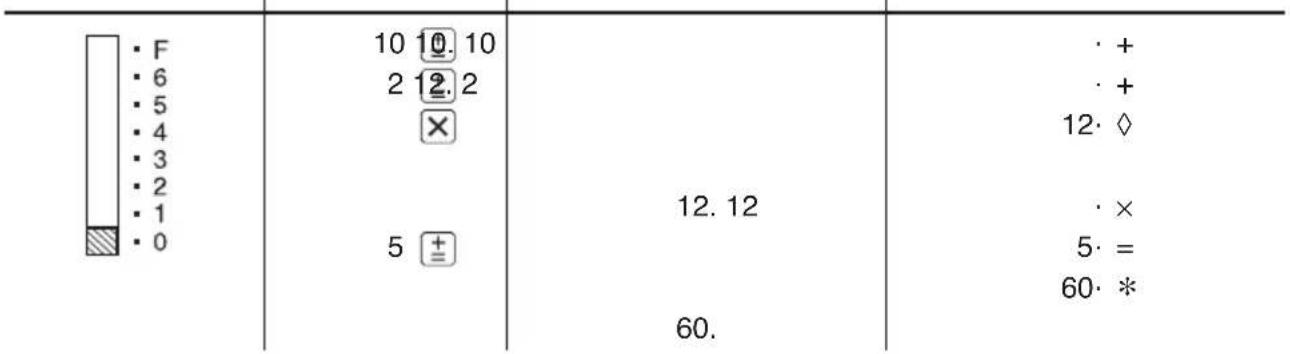
other
| Category | Value | |---|---| | F | 10 10.10 | | 6 | 2 12.2 | | 5 | | | 4 | | | 3 | | | 2 | | | 1 | | | 0 | 5 + = | | | | | | 12.12 | | | | | | 60. | | | | | | + | | | + | | | 12·◇ | | | × | | | 5·= | | | 60·* |$$ \mathrm{B.} 5 \times 2 + 1 2 = $$
(1) (2) (3) (4)

other
| Row | Column | Value | |---|---|---| | 1 | F | 5 | | 2 | 6 | 2 | | 3 | 5 | + | | 4 | 4 | = | | 5 | 3 | 10.10 | | 6 | 2 | * | | 7 | 1 | 10.10 | | 8 | 0 | + | | 9 | 0 | 22. | | 10 | 0 | * | | 11 | 0 | 22. | The values for the top row are explicitly labeled as 'F'. The values for the bottom row are labeled as '0' or '1'. The numbers inside the cells are explicitly written above each row.C. (5 + 12) × 3.2 × 6.72 =
| (1) | (2) | (3) | (4) | ||
 | |||||
| .00 + | |||||
| .00 + | |||||
| 17.00 ◇ | |||||
| 17.00 17 | .00 × | ||||
| .2 × | |||||
| .7 ÷ | |||||
| 2 = | |||||
| 182.24 * | |||||
| 182.24 |
定数計算
A. 掛け算
$$ 6 2. 3 5 \times 1 1. 1 1 = ① $$
$$ 6 2. 3 5 \times 2 2. 2 2 = ② $$
$$ 6 2. 3 5 \times 3 3. 3 3 = ③ $$
| (1) | (2) | (3) | (4) | ||
| 62.35 6×35 62 | ·35 × | ||||
| 11.11 1‡ | ·11 = K | ||||
 | 692.71 | 692·71 * 1 | |||
| 22.22 2‡ | ·22 = K | ||||
| 1·385·42 * 2 | |||||
 | 33.33 3‡ | 1,385.42 | ·33 = K | ||
| 2·078·13 * 3 | |||||
| 2,078.13 |
B. 割り算
$$ 1 1. 1 1 \div 7 7. 7 7 = ① $$
$$ 2 2. 2 2 \div 7 7. 7 7 = ② $$
$$ 3 3. 3 3 \div 7 7. 7 7 = ③ $$
(1) (2) (3) (4)

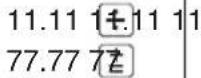


0.143
0.286
0.429
$$ \cdot 1 1 \div $$
$$ \cdot 7 7 = K $$
$$ 0. 1 4 3 * \quad ① $$
$$ 2 2 \cdot 2 2 = K $$
$$ 0 \cdot 2 8 6 * \quad ② $$
$$ 3 3 \cdot 3 3 = K $$
$$ 0. 4 2 9 * \quad ③ $$
POWER CALCULATIONS / CÁLCULOS DE POTENCIA
A. SQUARING / CUADRADOS
$$ 5. 2 5 ^ {2} = 5. 2 5 \times 5. 2 5 = $$
(1) (2) (3) (4)


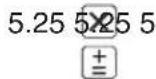
27.563
$$ \cdot 2 5 \times $$
$$ 5 \cdot 2 5 = $$
$$ 2 7 \cdot 5 6 3 * $$
B. CUBING / CUBOS
$$ 5 ^ {3} = 5 \times 5 \times 5 = $$
(1) (2) (3) (4)


25.
$$ \cdot \times $$
$$ 5 \cdot = K $$
$$ 2 5 \cdot * $$
$$ 2 5 \cdot = K $$
$$ 1 2 5 \cdot * $$
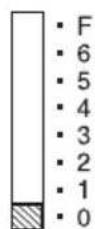

$$ 5 5 \times 5 $$

25.5
$$ \cdot \times $$
$$ \cdot \times $$
$$ 5 \cdot = $$
$$ 1 2 5 \cdot * $$
RECIPROCAL CALCULATIONS / CÁLCULOS RECÍPROCOS
$$ \frac {1}{7} = ① \quad \frac {1}{7 ^ {3}} = ② $$
(1) (2) (3) (4)

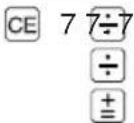
1.
0·14285714285 * ①

1.
0.14285714285.7
0.02040816326.7
0.00291545189.
0·00291545189 * ②
ADD-ON/DISCOUNT RECARGOS/DESCUENTOS
EXAMPLE: 1 A 5% add-on to 100.
EJEMPLO: 1 Un 5% de recargo sobre 100.
EXAMPLE: 2 A 10% discount on 100.
Markup and Profit Margin are both ways of calculating percent profit.
The difference is:
– Profit margin is percent profit vs. selling price.
– Markup is percent profit vs. cost.
Note: In some cases, negative percentages will be shown for margin or markup. This is a normal function of the calculation logic.
EXAMPLE: Calculate the profit margin of a \65.00 item being sold at \89.00.
EXAMPLE: Calculate the selling price (a) and the gross profit (b) from a cost of \$8,160 on the basis of a 15% profit on the selling price.
other
(1) (2) (3) (4) | Category | Value | |---|---| | F | 8160 ÷ 15 MU | | 6 | 8,160. | | 5 | 15 MUN | | 4 | 9,600.00 * (a) | | 3 | 1,440.00 GP (b) | | 2 | 1,440.00 | | 1 | 1,440.00 | | 0 | 1,440.00 |COST (USING MARGIN) / COSTE (UTILIZANDO MARGEN)
EXAMPLE: Calculate the cost (a) and the gross profit (b) from a selling price of \$500 on the basis of a 35% profit on the selling price.
EXAMPLE: Calculate the markup of a \150.00 item being sold at \200.00.
EXAMPLE: Calculate the selling price (a) and gross profit (b) from a cost of \$6,950 on the basis of a 25% profit on the cost.
EXAMPLE: Calculate the cost (a) and the gross profit (b) from a selling price of \$9,780 on the basis of a 20% profit on the cost.
EXAMPLE: Calculate the dollar difference (a) and the percent change (b) between two yearly sales figures \1,500 in one year and \1,300 in the previous year.
EXAMPLE: Calculate the percentage of each of the parts is to the whole.
EXAMPLE: Set a 5% tax rate.
Calculate the tax on \$800 and calculate the total including tax.
- Set the decimal selector as specified in each example.
The rounding selector should be in the "5/4" position unless otherwise specified. - The grand total mode, constant mode, add mode, item count mode and rate setting mode selectors should be in the “●” position (off position) unless otherwise specified.
- Print mode selector should be in the "P" position unless otherwise specified.
AVERAGING
Calculate the average of a series of values.
SOLUTION: 1. Add the values to calculate the TOTAL VALUES.
- Determine the NUMBER OF VALUES.
- Calculate the average.
FORMULA:
$$ \text { Average } = \frac {\text { Total of the values }}{\text { Number of values }} $$
EXAMPLE: Day Sales
If Monday \$123.15
Tuesday 118.00
Wednesday 131.58
Thursday 125.02
Friday 158.25
Total Sales \$656.00 for 5 days
Then Average Sales = \$131.20
Note: If you are working in dollars and cents, use the “Add mode.” If not, set the decimal as desired.
| OPERATION | DISPLAY | |||
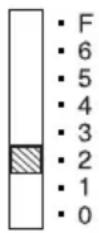 | 12315 ±118 241±5 | 123.15 | 123·15 + ·00 + | |
| 13158 ±12502 ±15825 ±AVG | 372.73 | 131·58 + 125·02 + 158·25 + | ||
 | 005 | No. of items 656·00 * Total sales | ||
 | 131.20 | 131·20 AG | Average | |
COMPOUND INTEREST
Calculate the new balance on a deposit which is compounded quarterly for 4 years as a given annual interest rate.
SOLUTION: 1. Calculate the quarterly interest rate.
- Calculate the new balance (principal plus interest)
FORMULA: New balance = P(1 + i)
Where P = amount of deposit (principal)
i = interest rate per period
n = number of years × 4
EXAMPLE: If P = \$6,150
$$ \mathrm{i} = 5 \% \text { annum } \quad \div 4 \text { periods } = 0. 0 1 2 5 $$
$$ n = 1 6 (4 \text { years } \times 4) $$
Then 6,150 (1.0125) ^16 = \$7,502.32 (New Balance)
For your convenience, Genuine Sharp Supplies. Accessories, and additional Sharp Products can be purchased from the Authorized Sharp Reseller where you purchased your product or on-line at:
www.sharpplace.com
LIMITED WARRANTY
VICTOR TECHNOLOGY LLC warrants to the first consumer purchaser that this Sharp brand product (the "Product"), when shipped in its original container, will be free from defective workmanship and materials, and agrees that it will, at its option, either repair the defect or replace the defective Product or part thereof with a new or remanufactured equivalent at no charge to the purchaser for parts or labor for the period(s) set forth below.
This warranty does not apply to any appearance items of the Product nor to the additional excluded item(s) set forth below nor to any Product the exterior of which has been damaged or defaced, which has been subjected to improper voltage or other misuse, abnormal service or handling, or which has been altered or modified in design or construction.
In order to enforce the rights under this limited warranty, the purchaser should follow the steps set forth below and provide proof of purchase to the servicer.
The limited warranty described herein is in addition to whatever implied warranties may be granted to purchasers by law. ALL IMPLIED WARRANTIES INCLUDING THE WARRANTIES OF MERCHANTABILITY AND FITNESS FOR USE ARE LIMITED TO THE PERIOD(S) FROM THE DATE OF PURCHASE SET FORTH BELOW. Some states do not allow limitations on how long an implied warranty lasts, so the above limitation may not apply to you.
Neither the sales personnel of the seller nor any other person is authorized to make any warranties other than those described herein, or to extend the duration of any warranties beyond the time period described herein on behalf of Victor.
The warranties described herein shall be the sole and exclusive warranties granted by Victor and shall be the sole and exclusive remedy available to the purchaser. Correction of defects, in the manner and for the period of time described herein, shall constitute complete fulfillment of all liabilities and responsibilities of Victor to the purchaser with respect to the Product, and shall constitute full satisfaction of all claims, whether based on contract, negligence, strict liability or otherwise. In no event shall Victor be liable, or in any way responsible, for any damages or defects in the Product which were caused by repairs or attempted repairs performed by anyone other than an authorized servicer. Nor shall Victor be liable or in any way responsible for any incidental or consequential economic or property damage. Some states do not allow the exclusion of incidental or consequential damages, so the above exclusion may not apply to you.
THIS WARRANTY GIVES YOU SPECIFIC LEGAL RIGHTS. YOU MAY ALSO HAVE OTHER RIGHTS WHICH VARY FROM STATE TO STATE.
| Your Product : | Electronic Calculator |
| Warranty Period for this Product : | Six (6) months parts and labor from date of purchase. |
| Additional Items Excluded from Warranty Coverage : | Any consumable items such as paper, maintenance cartridge, ink cartridges supplied with the Product or to any equipment or any hardware, software, firmware, fluorescent lamp, power cords, covers, rubber parts, or peripherals other than the Product. |
| How to Obtain Service : | Call Victor Technology LLC toll free at 1-844-578-1637 or emailSharpService@victortech.com.You may be asked to ship your Product to Victor Technology LLC for repair. Be sure to have proof of purchase available.If you ship or mail the Product be sure it is packaged carefully. |
TO OBTAIN SUPPLY, ACCESSORY OR PRODUCT INFORMATION, CALL 1-844-578-1637.
Sharp Calculator Service by Victor Technology LLC www.SharpCalculators.com
SHARP
SHARP ELECTRONICS CORPORATION
Sharp Plaza, Mahwah, New Jersey 07495-1163
www.sharpusa.com
SHARP CORPORATION


- In case of abnormal conditions
- OPERATIONAL NOTES
- CONTENTS
- FEATURES
- ■Tilt-adjustable Display
- ■Adjustable position paper roll holder
- OPERATING CONTROLS
- ① ER SWITCH:
- ② PRINT MODE SELECTOR:
- Mode change print:
- ③ ROUNDING SELECTOR:
- ④ DECIMAL SELECTOR:
- ⑤ CONSTANT MODE SELECTOR:
- Add-on/Discount/Mark up:
- ⑥ RATE SETTING MODE SELECTOR:
- ⑦ GRAND TOTAL MODE SELECTOR:
- ⑧ A/+ · ADD MODE SELECTOR:
- Addition and subtraction:
- ITEM COUNT MODE SELECTOR:
- ⑩ RAPER FEED KEY:
- ⑪ RIGHT SHIFT KEY:
- Symbols:
- I: Memory symbol
- - : Minus symbol
- ● : Grand total memory symbol
- E : Error symbol
- INK RIBBON REPLACEMENT
- PAPER ROLL REPLACEMENT
- ERRORS
- Error conditions:
- DECIMAL SYSTEM
- Input override decimal feature
- Output override decimal feature
- SPECIFICATIONS
- PRINTING SECTION
- WARNING
- INTRODUCCIÓN
- ERRORES
- DIVISION / DIVISIÓN
- 混合計算
- 定数計算
- 割り算
- POWER CALCULATIONS / CÁLCULOS DE POTENCIA
- RECIPROCAL CALCULATIONS / CÁLCULOS RECÍPROCOS
- ADD-ON/DISCOUNT RECARGOS/DESCUENTOS
- COST (USING MARGIN) / COSTE (UTILIZANDO MARGEN)
- AVERAGING
- COMPOUND INTEREST
- LIMITED WARRANTY
- SHARP
- SHARP ELECTRONICS CORPORATION
Brand : SHARP
Model : CS-2850A
Category : Calculator