DVR-530 - Dash cam GENIUS - Free user manual and instructions
Find the device manual for free DVR-530 GENIUS in PDF.


| Product Type | Dash Cam |
| Brand | Genius |
| Model | DVR-530 |
| Dimensions | 6.5 x 5 x 3 cm |
| Weight | 80 g |
| Power Supply | 12-24V DC via car charger adapter |
| Battery | Built-in rechargeable lithium battery (~200 mAh) |
| Video Resolution | Full HD 1080p (1920x1080) |
| Lens Angle | 120 degrees wide angle |
| Display | 2.0-inch LCD screen |
| Storage | MicroSD card up to 32 GB (not included) |
| Loop Recording | Yes, overwrites oldest files automatically |
| G-Sensor | Built-in, automatically locks footage on impact |
| Motion Detection | Yes, records when movement is detected |
| Night Vision | Supports low-light recording |
| Clean the Lens | Use a soft, dry cloth to clean the lens |
| Safety Warning | Do not expose to water or extreme heat |
| Spare Parts & Repairability | Contact Genius support for service options |
| Languages Supported | English, French, Spanish, German, Italian (estimated) |
Frequently Asked Questions - DVR-530 GENIUS
User questions about DVR-530 GENIUS
0 question about this device. Answer the ones you know or ask your own.
Ask a new question about this device
Download the instructions for your Dash cam in PDF format for free! Find your manual DVR-530 - GENIUS and take your electronic device back in hand. On this page are published all the documents necessary for the use of your device. DVR-530 by GENIUS.
USER MANUAL DVR-530 GENIUS
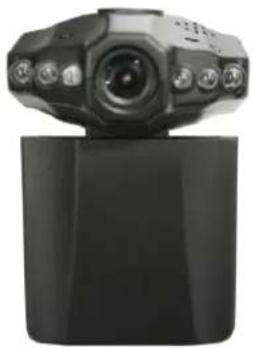
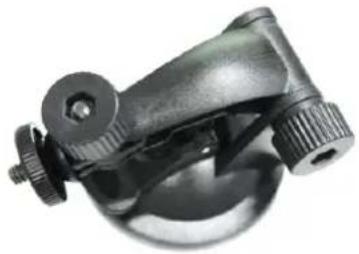
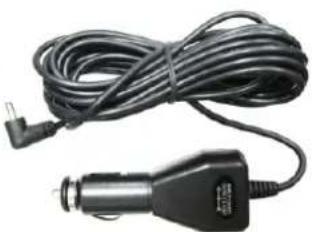
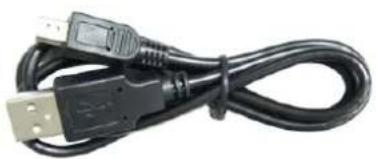
Packaging Accessories
①
natural_image
Front view of a black radar or camera system mounted on a cylindrical base (no visible text or symbols)②
natural_image
Close-up of a mechanical clamp or bracket component (no visible text or symbols)③
natural_image
Coiled black cable with a small terminal connector attached (no visible text or symbols)④
natural_image
Coiled black USB cable with connector (no text or symbols visible)- High Quality Car DVR
2.Suction Cup
- Car Cable
.USB4Cable
Product Picture and Function
- USB Slot
- 5V Direct Current Slot
- SD Card Slot
- Speaker
- Mount Hole
- Microphone
- Battery Cover
- Lens
- IR LED
- Power ON/OFF Button With Charging indicator(Red)
- REC/SNAPSHOT Button With Working indicator(Blue)
12.2.5inch LCD - Menu Button
-
- Down/UP Button
- Mode Button (Video/Camera/Playback)
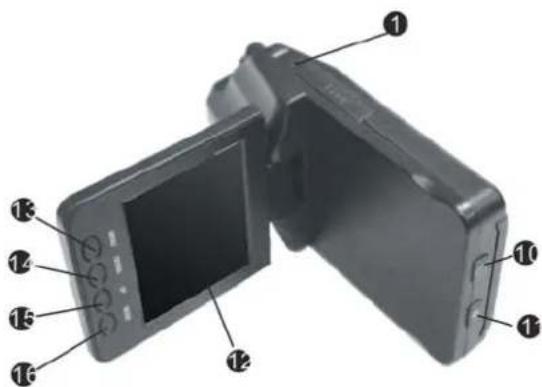
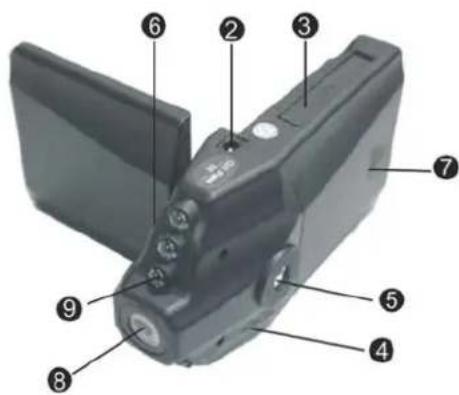
Operations
Two Power options:
A Use Li-ion battery
Charging method : 1.connect car charger. 2.connect to PC with USB cable
When charging, the Power button indicator show red and turn off when it is full.
B Connect with 12V/24V Car Charger
DVR (built in Lithium battery) will record automatically when the car starts, turn off and save the last file when the car stops.
Note: Just 5V output voltage is available.
Operation steps
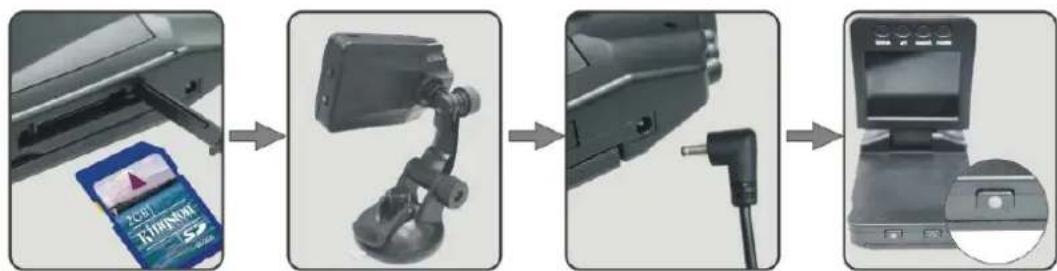
flowchart
graph LR
    A["Printer with 2.5V battery"] --> B["Cable usage device"]
    B --> C["Camera mounted on stand"]
    C --> D["USB port insertion"]
    D --> E["Monitor with display screen"]
The First Step: Install SD Card
Insert a SD memory card correctly into the SD card slot ③.
The Second Step: Install Bracket
Install bracket correctly into the Mount hole ⑤ and then put the suction cup in a suitable place, adjust the location and direction.
The Third Step: Connect to Car Charge
Use 5V output attaching plug (car cable), plug into the DC 5V connector.
The Fourth Step: Power On and Use DVR
Hold the "ON/OFF" button for 3 seconds to turn on your camcorder, setting specific parameter, please refer to this manual as below.
Function Information
DVR with three mode for your choice: Video Mode/Camera Mode/Playback Mode.
A Video Mode
DVR will enter into defaulted video mode when turn it on .The recording file is saved in the SD Card .To stop recording by pressing REC 11.
B Camera Mode
Turn on the DVR and press Mode Button 16 to enter into the Camera mode to take photo by pressing SNAPSHOT Button 11.
C Playback Mode
Turn on the DVR and press Mode Button 16 twice to enter into Playback Mode, Press Up 15 or Down 14 to select the previewed file. If it is a video file, it can play or stop by pressing REC Button.
D Delete
In the playback mode, press Menu button 13 enter into the delete interface. Press Menu Button 13 to enter into delete mode, and then select Single, All or Select by REC Button. Press UP/Down to Confirm and press REC Button to delete. You can select Thumbnail mode, volume (from 1 to 8) and protect under the Playback Mode.
Setting Mode
A Turn on the DVR and press Menu button twice enter into the setting interface. Confirm by REC button and press UP/DOWN button for the following setting, press Menu button again to exit after finished.
-
Format: Cancel/Execute
-
Language: English/French/German/Italian/Spanish/Portuguese /Chinese Traditional /Simplified Chinese /Japanese/Russian.
-
Auto Off: 1 Min/3 Min/5 Min/Off
-
System Reset: Cancel/ Execute
-
Light Frequency: 60HZ/50HZ
-
. Date Input: Off/Set
B Turn on the DVR and press Menu button enter into the setting interface under the Video mode. Confirm by REC button and press UP/DOWN button for the following setting, press Menu button again to exit after finished.
-
Size: VGA/QVGA/SXGA
-
EV: +2.0 +5/3 +4/3 +1.0 +2/3 +1/3 +0.0 -1/3 -2/3 -1.0 -4/3 -5/3 -2.0
-
White Balance: Auto/Daylight/Cloudy/Tungsten/Fluorescent
-
Time Stamp: Off/Date Only/Date &Time
-
Motion Detect: Off/On
-
Audio Mode: On/Off
-
Record time: 3 Min/5 Min/10 Min/15 Min
-
Flip screen: Off/On
-
IR LED: On/Off
C Turn on the DVR and press Mode button enter into the Camera mode, press Menu button enter into the setting interface. Confirm by REC button and press UP/DOWN button for the following setting, press Menu button again to exit after finished.
-
Size: 12M/8M/5M/3M/2M/1.3M/VGA
-
Quality: Fine/Standard/Economy
-
Scene Mode: Auto/Sport/Night/Portrait/Landscape/Backlight
-
EV: +2.0 +5/3 +4/3 +1.0 +2/3 +1/3 +0.0 -1/3 -2/3 -1.0 -4/3 -5/3 -2.0
-
White Balance: Auto/Daylight/Cloudy/Tungsten/Fluorescent
-
ISO: Auto/100/200
-
Color: Standard/Vivid/Sepia/Monochrome
-
Saturation: High/Normal/Low
-
Sharpness: Hard/Normal/soft
- Preview: On/Off
- Time Stamp: Off/Date Only/Date &Time
- Burst: On/Off
Download files
- Connect DVR to computer with USB cable.
- Removable disk will appear on "My computer".
- The file is stored at Removable Disk/DCIM/ 100DSCIM, at the moment, the file of the DVR can be downloaded to the computer.
Note:
- Please insert the SD card before recording.
- This DVR can record in cycle, When the memory is full, it will record from the beginning again and cover up all the old files automatically.
Note: In order not to erase all the old files, please choose 3/5/10/15 minutes as storage time. When the memory is full, if you record again, all the old files will be covered up.
- When the battery is low, "low battery" will appears on the LCD and power off automatically after 20s.
Technical Specifications
- Recording resolution: VGA/QVGA/SXGA
- Video format: AVI
- Loop Recording: 3/5/10/15 minutes
- Power source: rechargeable battery or 12V/24V Car Charger
- Supports SD card (Supported up to 32GB)
- Microphone: On/Off
- Out put: USB 2.0LS
- Built-in reset function
- 2.5 inch LCD can be swiveled 270 degree