iMaxRC X180 - Charger Hyperion - Free user manual and instructions
Find the device manual for free iMaxRC X180 Hyperion in PDF.


User questions about iMaxRC X180 Hyperion
0 question about this device. Answer the ones you know or ask your own.
Ask a new question about this device
Download the instructions for your Charger in PDF format for free! Find your manual iMaxRC X180 - Hyperion and take your electronic device back in hand. On this page are published all the documents necessary for the use of your device. iMaxRC X180 by Hyperion.
USER MANUAL iMaxRC X180 Hyperion
New Charger X180 Released
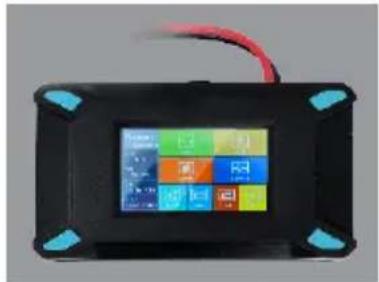
DC Function
natural_image
Black rectangular electronic device with a grid of colorful buttons and blue connectors, no visible text or symbols.
Touch Screen Operation
3.0 inch touch screen make the operation more convenient

3.0 inch display screen
3.0 inch TFT display screen, WQVGA(400*240), 65 thousand resolution

iM · OS V2.16
A whole new OS system for X180 professional charger with high efficiency

USB Port
Output 5V 2.1V USB port specially design for iPhone and smartphone charging.

32 bit processor
High precision core 32-bit ARM processor for smoother operation

Multiple languages customization
iM · OS System

Type
X180 support more than 6 type batteries LiPo / Lilon / LiFe / NiMh / NiCd / Pb

Current
Input / Output Current Charge 0.1-10A Discharge 0.1-3A
Cells
LiXX 1-6S
NiXX 1-16S
Pb 1-10S

Mode
Fast Charge
Balance charge
Charge
Discharge
Circulating
charge/discharge
Type
Current
Cells
Mode

Load
Loading Common Use Battery Setting

Save
Save Common Use Battery Setting

Uset
Advanced application Settings

Start
Charging/Discharging
Load
Save
Uset
Start
iM · OS System

LiPo
Lipo Battery, Single Nominal Voltage: 3.7V, Charge cut-off voltage 4.2V, Discharge cut-off voltage 3.0V

Lilon
Lilon Battery, Single Nominal Voltage: 3.6V, Charge cut-off voltage 4.1V, Discharge cut-off voltage 2.5V

LiFe
LiFe Battery, Single Nominal Voltage: 3.3V, Charge cut-off voltage 3.6 discharge cut-off voltage 20.V

NiMH
NiMH Battery, Single Nominal Voltage: 1.2V, Charge cut-off voltage 1.5V, Discharge cut-off voltage 1.0V

NiCd
NiCd Battery, Single Nominal Voltage: 1.2V, Charge cut-off voltage 1.5V, Discharge cut-off voltage 0.85V

Pb
Pb Battery, Single Nominal Voltage: 2.0V, Charge cut-off voltage 2.5V, Discharge cut-off voltage 1.75V
Balance
Lipo balance charge use CC-CV charging way. The charger will balance the battery voltage when charging, this only for LiPo battery. Please connecting the balance port when charging and discharging. Support 2-6 cells.

Charge
Use CC-CV charging way. On the basis of Users setting current the charger will charge the battery to the cut-off voltage. Warning: The voltage can not balance even connecting the balance port when using LiPo battery.
FastCharge
FastCharge. Almost same as the Charge Mode. The only difference is the current only 1/5 and the other setting only 1/10 of the setting current when finished charging. Warning: The voltage can not balance even connecting the balance port when using LiPo battery.

Storage
Charging and discharging the battery voltage to a certain numerical for easy storage. This function only for LiPo battery which need connecting the balance port. Support 2-6S.

DisCharge
Use CC-CV charging way. On the basis of Users setting current the charger will discharge the battery to the cutoff voltage. Warning: Please connecting to the Balance port when use LiPo battery.

Checker
Measuring Mode. The charger only collect battery primary port and balance port voltage, but can not charge and discharge.

Manual Charge
This function only for NiMH battery which same as The Charge mode.

Cycle
This function only for NiMH battery. On the basis of Users setting current for MiNH battery cycle charging and discharging. The Cycle times is 1-6.
X180 Fundamental Function
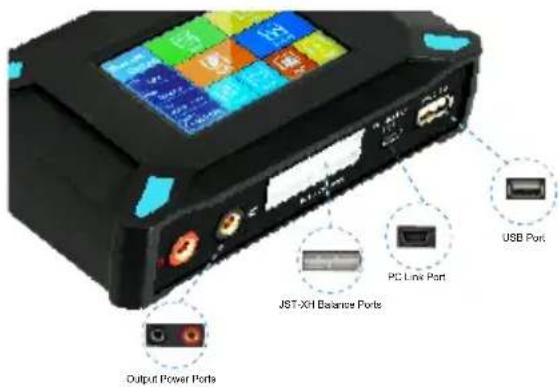
X180 is a professional RC model battery charger, please view the manual before using. If you are a fresh man please read this entire operating manual completely before using.
【Warning:】The warning of charger operation and disclaimer, Please read and abide by the following terms before operation.
- This is a sophisticated hobby product. The person who operates the charger should be professional who master professional knowledge about chargers.
- Make sure the battery variety you using meets charger requirement. Any kinds of damaged, aged and surface, damaged batteries are prohibited. Besides, choose the suitable charging program or the charger and the battery will get damaged.
- Considering of uneven physical property and various batteries never leave the working charger exhausting, leaking or inflating, immediately disconnect the battery and store it in a safe ocation, away from people and inflammable materials.
- iMaxRC will not be responsible for any personal injuries and fire disaster caused by incorrect operation.
I have read this agreement carefully and give up all legal.
Connecting X180
Please follow the below steps connecting:
1: Please connect the plug adapter of DC power cord with power supply.
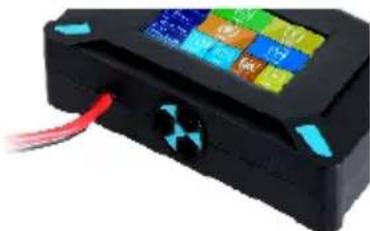
natural_image
Close-up of a black electronic device with a grid of colorful buttons and a red cable, no visible text or symbols.2: Connect battery correctly with X180. If LiPo battery, pls also connect balance adapter of battery with balance port of X180.
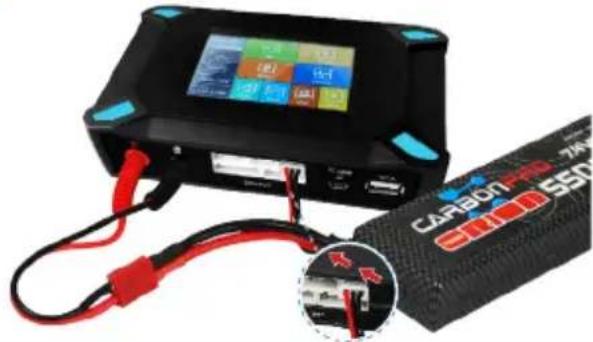
natural_image
Close-up of a black CARBON-160 7A4S battery pack connected to a red and blue terminal, showing internal wiring and a close-up of its cable (no text or symbols visible on the device body beyond branding)【NOTE】 USB support 5V 2.1A charging voltage, and also use for iPad / iPod / iPhone / HTC and other intelligent electronic equipment. Both the USB and battery get charged simultaneously.
4: Sarting X180
startup X180 to enter the main interface (Image 1).

Image 1
Showing "Warning and Disclaimer" 2 seconds and will know the copyright and security information (Image 2). It will be enter into the contacting interface if you can not agree with the disclaimer, and then you could contact the distributor return the charger (Image 3)
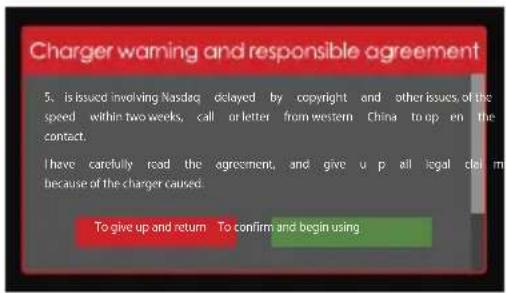
Image 2
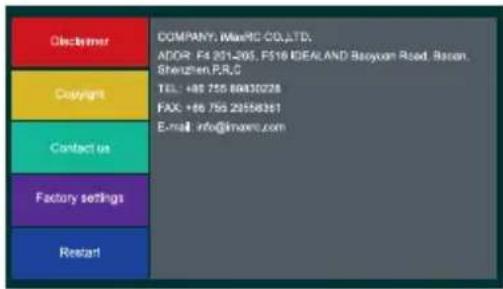
Image 3
【NOTE】 Please read Disclaimer before doing anything.
6: Enter into main interface after accepting (Image 4). Start to charge and discharge according to the different battery.
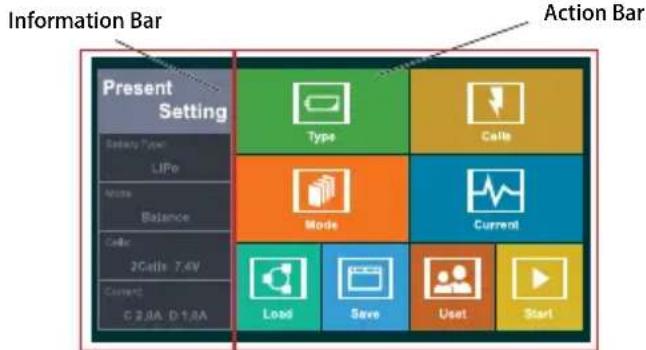
Image 4
【NOTE】 Information bar can not get touched.
Example 1: Choose a set of LiPo battery charging, please follow the below steps:
Step 1: Touch Type( Image 5 ) Enter into the "Type interface", and then Touch :LiPo ( Image 6 ) will Enter into main interface go on the next step.
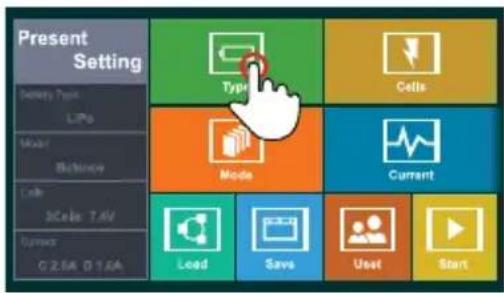
Image 5
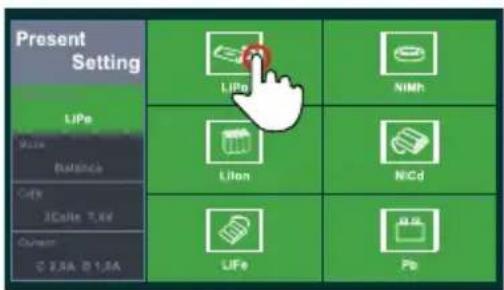
Image 6
Step 2: Touch 'Mode' icon (Image 7) to enter into Mode interface. Please choose battery charge mode (Image 8) and go back to main interface to continue setting.
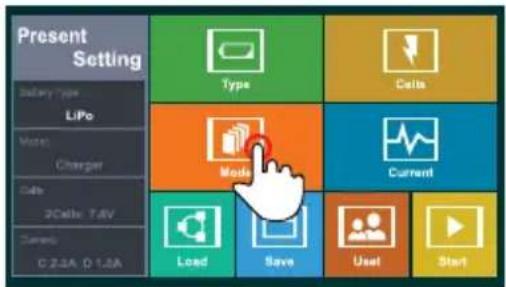
Image 7
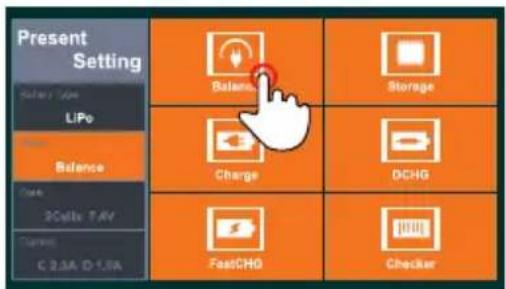
Image 8
【Note】 There are six charge/discharge modes in Mode interface (Image 8), see iM.OS System function for further details. please set charge/discharge mode according to your requirement. Image 7 is showing Balance charge mode.
Step 3: Touch Cells icon (Image 9) to enter into Cells interface. Please set battery packs by sliding (Image 10). Touch OK to go back to main interface and continue setting.
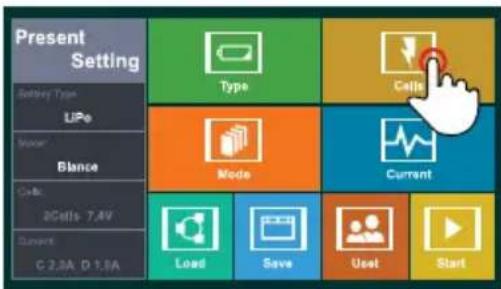
Image 9
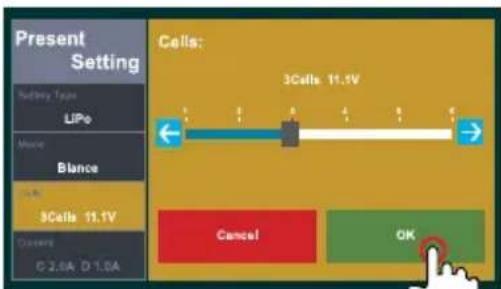
Image 10
【Note】 Please set according to suitable battery packs.
Step 4: Touch Current icon (Image 11) to enter into Current interface. Please set charge current by sliding (Image 12). Touch OK to go back to main interface and continue setting.
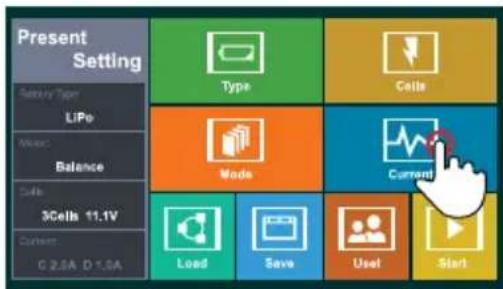
Image 11
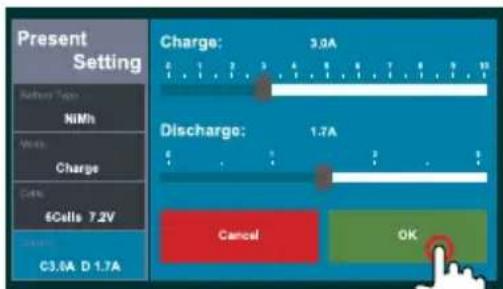
Image 12
【NOTE】 Set charge current in charge mode and discharge current in discharge mode.
Step 5: If you often use the same battery, please touch Save icon (Image 13) to enter into Save interface. Touch Unused icon to save the data and it will be easy for you to charge next time. (Image 14)
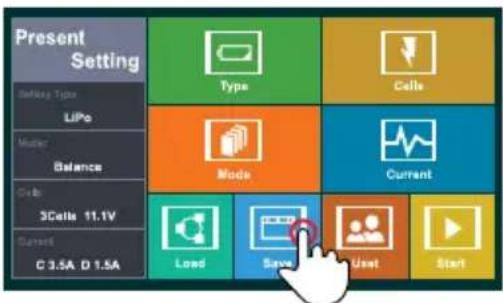
Image 13
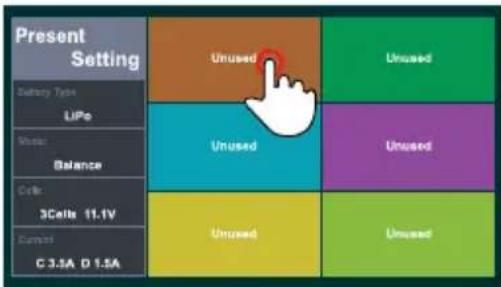
Image 14
Step 6: You could load your previous data according to X180's load function. Touch Load icon (Image 15) to enter into Load interface. Choose the data you want to load (Image 16).
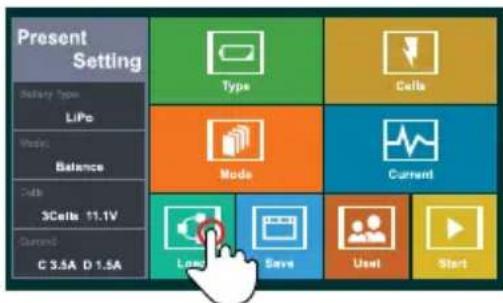
Image 15
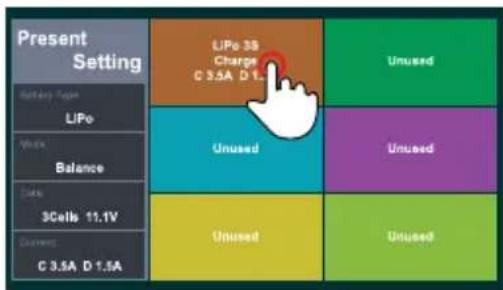
Image 16
【NOTE】 You could use this function after you have set Type/ Mode/Cells and Current correctly.
Step 7: Touch Start icon (Image 17) to enter into Start interface. The system will check battery status automatically. If everything is OK, the charger will begin to charge.(Image 18)
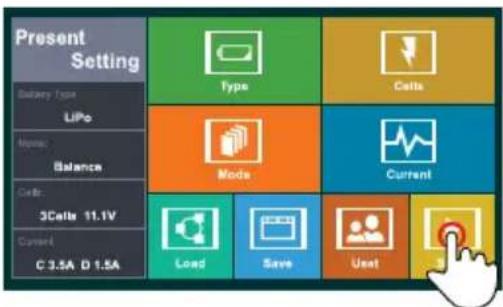
Image 17
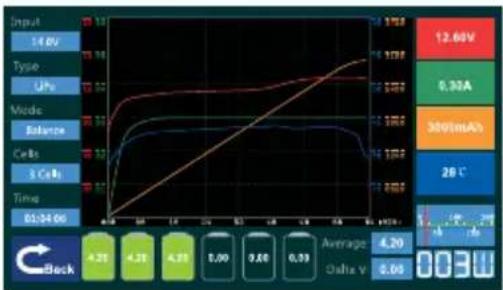
line
| Time (ms) | Input (V) | Type | Up | Mode | Balances | Cells | 3 Cells | Time | |---|---|---|---|---|---|---|---|---| | 0 | 14.6V | 12.6V | 9.38A | 28°C | 4.20 | 4.20 | 4.20 | 4.20 | | 5 | 14.6V | 12.6V | 9.38A | 28°C | 4.20 | 4.20 | 4.20 | 4.20 | | 10 | 14.6V | 12.6V | 9.38A | 28°C | 4.20 | 4.20 | 4.20 | 4.20 | | 15 | 14.6V | 12.6V | 9.38A | 28°C | 4.20 | 4.20 | 4.20 | 4.20 | | 20 | 14.6V | 12.6V | 9.38A | 28°C | 4.20 | 4.20 | 4.20 | 4.20 | | 25 | 14.6V | 12.6V | 9.38A | 28°C | 4.20 | 4.20 | 4.20 | 4.20 | | 30 | 14.6V | 12.6V | 9.38A | 28°C | 4.20 | 4.20 | 4.20 | 4.20 | | Average Voltage (mA) | - | - | - | - | - | - | - | - | | Average Current (V) | - | - | - | - | - | - | - | - | | Average Charge (W) | - | - | - | - | - | - | - | - | | Current (W) at End of cycle: Input: 14.6V; Type: Type; Up: Type; Mode: Mode; Balances: Balances; Cells: Cells; 3 Cells; Time: Time; Average: Average Voltage; Average Current: Average Voltage; Average Charge: Average Charge.Image 18
【NOTE】 The charger will pop-up window when the battery is fully charged. Touch OK to finish charging process (Image 19).
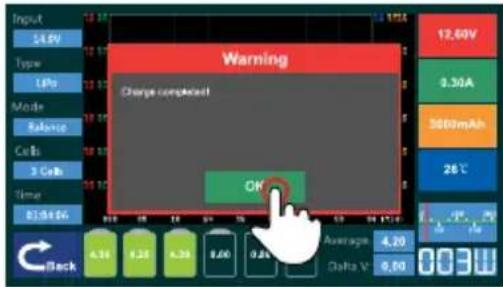
Image 19
【NOTE】 The charger will send out an alert and pop-up window if the battery packs' setting is incorrect (Image 20).
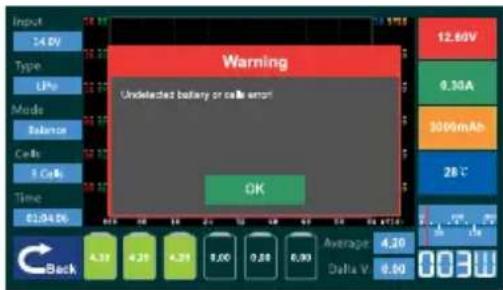
Image 20
Example 2: If you want to charge a pack of NiMh battery, please execute the operation as follows:
Step 1: Touch Type icon (Image 21) to enter into Type interface. Touch NiMh icon to go back to main interface and continue setting (Image 22).
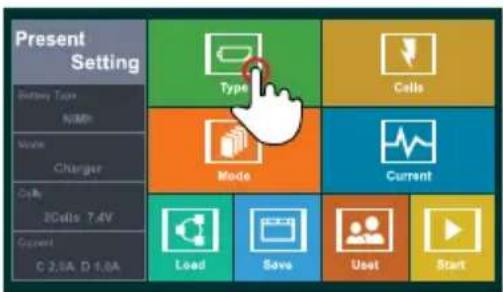
Image 21
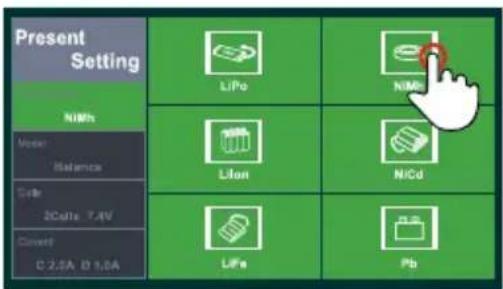
Image 22
Step 2: Touch Mode icon (Image 23) to enter into Mode interface. Touch Charge icon (Image 24) to go back to main interface and continue setting.
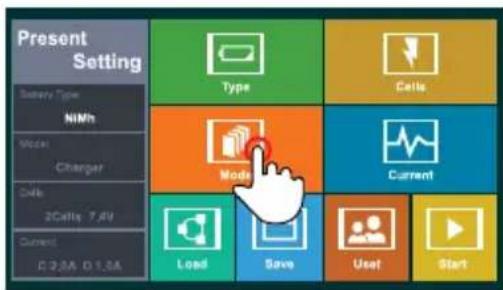
Image 23
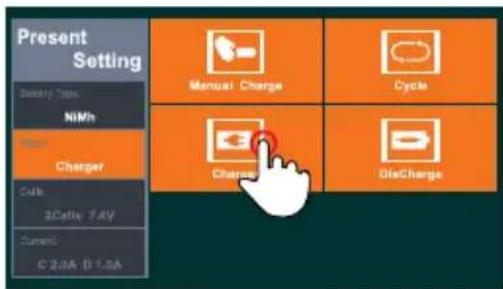
Image 24
【NOTE】 There are four charge/discharge modes in Mode interface( Image 24 ), see iM.OS System function for further details. please set charge/discharge mode according to your requirement. Image 23 is showing charge mode.
Step 3: Touch Cells icon to enter into Cells interface. Please set NiMh battery packs by sliding (Image 25). Touch OK to go back to main interface and continue setting (Image 26).
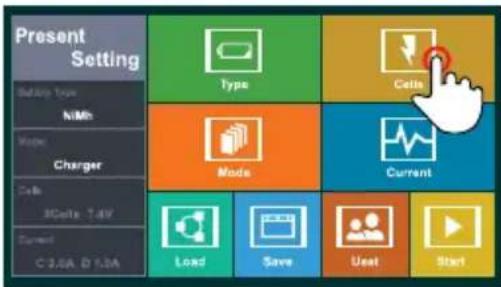
Image 25
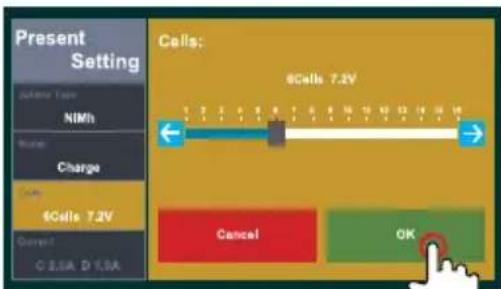
Image 26
【NOTE】The battery cannot be charged if each pack of the battery voltage is less than 0.7V, please use the less battery packs to activate charging process. If you need lower voltage during discharging process, please use the less battery packs to discharge.
Step 4: Touch Current icon (Image 27) to enter into Current interface. Please set charge current by sliding (Image 28). Touch OK to go back to main interface and continue setting.
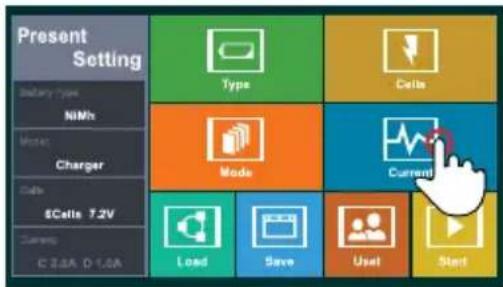
Image 27
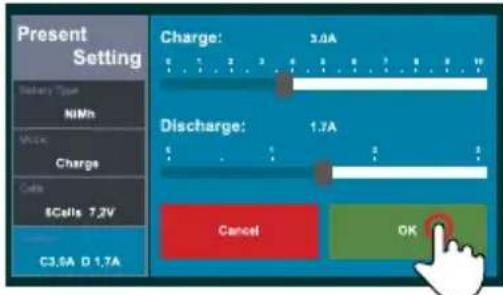
Image 28
【NOTE】 Please set charge current in charge mode and discharge current in discharge mode. As for Save and Load functions, please see Step5 and 6 in Example1 for further details.
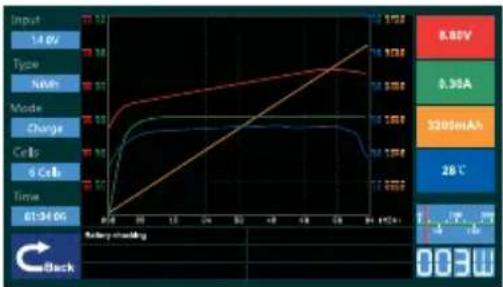
Step 5: Touch Start icon (Image 29) to enter into Start interface. The charger will check battery status automatically. If everything is OK, the charger will begin to charge (Image 30).
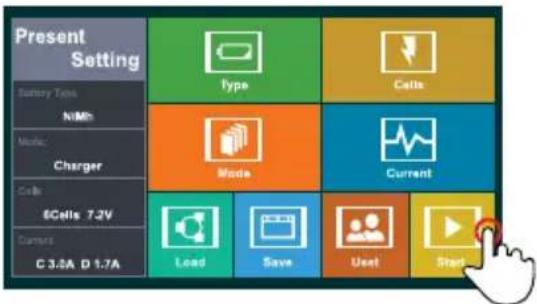
Image 29
line
| Input | Type | NMBh | Mode | Charge | Cells | 6 Cells | Time | |---|---|---|---|---|---|---|---| | 0.4 | 1.40V | 8.95A | 3200mAh | 28℃ | 8.95A | 8.95A | 01:34:05 | | 0.6 | 1.40V | 8.95A | 3200mAh | 28℃ | 8.95A | 8.95A | 01:34:05 | | 0.8 | 1.40V | 8.95A | 3200mAh | 28℃ | 8.95A | 8.95A | 01:34:05 | | 1.0 | 1.40V | 8.95A | 3200mAh | 28℃ | 8.95A | 8.95A | 01:34:05 | | 1.2 | 1.40V | 8.95A | 3200mAh | 28℃ | 8.95A | 8.95A | 01:34:05 | | 1.4 | 1.40V | 8.95A | 3200mAh | 28℃ | 8.95A | 8.95A | 01:34:05 | | 1.6 | 1.40V | 8.95A | 3200mAh | 28℃ | 8.95A | 8.95A | 01:34:05 | | 1.8 | 1.40V | 8.95A | 3200mAh | 28℃ | 8.95A | 8.95A | 01:34:05 | | 2.0 | 1.40V | 8.95A | 3200mAh | 28℃ | 8.95A | 8.95A | 01:34:05 | | 2.2 | 1.40V | 8.95A | 3200mAh | 28℃ | 8.95A | 8.95A | 01:34:05 | | 2.4 | 1.40V | 8.95A | 3200mAh | 28℃ | 8.95A | 8.95A | 01:34:05 | | 2.6 | 1.40V | 8.95A | 3200mAh | 28℃ | 8.95A | 8.95A | 01:34:05 | | 2.8 | 1.40V | 8.95A | 3200mAh | 28℃ | 8.95A | 8.95A | 01:34:05 | | 3.0 | 1.40V | 8.95A | 3200mAh | 28℃ | 8.95A | 8.95A | 01:34:05 | | 3.2 | 1.40V | 8.95A | 3200mAh | 28℃ | 8.95A | 8.95A | 01:34:05 | | 3.4 | 1.40V | 8.95A | 3200mAh | 28℃ | 8.95A | 8.95A | 01:34:05 | | 3.6 | 1.40V | 8.95A | 3200mAh | 28℃ | 8.95A | 8.95A | 01:34:05 | | 3.8 | 1.40V | 8.95A | 3200mAh | 28℃ | 8.95A | 8.95A | 01:34:05 | | 4.0 | 1.40V | 8.95A | 3200mAh | 28℃ | 8.95A | 8.95A | 01:34:05 | | 4.2 | 1.40V | 8.95A | 3200mAh | 28℃ | 8.95A | 8.95A | 01:34:05 | | 4.4 | 1.40V | 8.95A | 3200mAh | 28℃ | 8.95A | 8.95A | 01:34:05 | | 4.6 | 1.40V | 8.95A | 3200mAh | 28℃ | 8.95A | 8.95A | 01:34:05 | | 4.8 | 1.40V | 8.95A | 3200mAh | 28℃ | 8.95A | 8.95A | 01:34:05 | | 5.0 | 1.40V | 8.95A | 3200mAh | 28℃ | 8.95A | 8.95A | 01:34:05 | | Peak charging time (ms) - Black - Black - Black - Black - Black - Black - Black - Black - Black - Black - Black - Black - Black - Black - Black - Black - Black - Black - Black - Black - Black - Black - Black - Black - Black - Black - Black - Black - Black - Black - Black - Black - Black - Black - Black - Black - Black - Black - Black - Black - Black - Black - Black - Black - Black - Black - Black - Black - Black - Black - White - White - White - White - White - White - White - White - White - White - White - White - White - White - White - White - White - White - White - White - White - White - White - White - White - White - White - White - White - White - White - White - White - White - White - White - White - White - White - White - White - White - White - White - White - White - White - White - White - White - Black - Black - Black - Black - Black - Black - Black - Black - Black - Black - Black - Black - Black - Black - Black - Black - Black - Black - Black - Black - Black - Black - Black - Black - Black - Black - Black - Black - Black - Black - Black - Black - Black - Black - Black - Black - Black - Black - Black - Black - Black - Black - Black - Black - Black - BlackImage 30
【NOTE】 The charger will pop-up window when the battery is fully charged. Touch OK to finish charging process (Image 31).
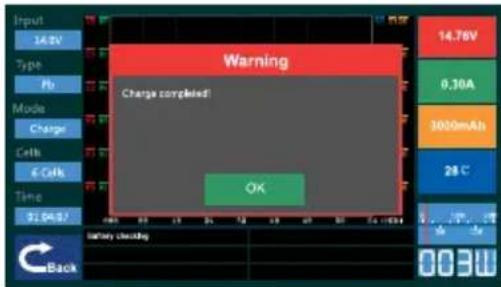
Image 31
【NOTE】 The charger will send out an alert and pop-up window if the battery packs' setting is incorrect. (Image 32) All Lipo battery packs setting are the same operation.
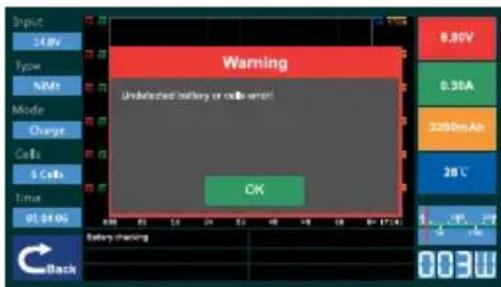
Image 32
Example 3: If you want to charge a pack of Pb battery, please execute the operation as follows,
Step 1: Touch Type icon (Image 33) to enter into Type interface. Touch Pb icon (Image 34) to go back to main interface and continue setting.
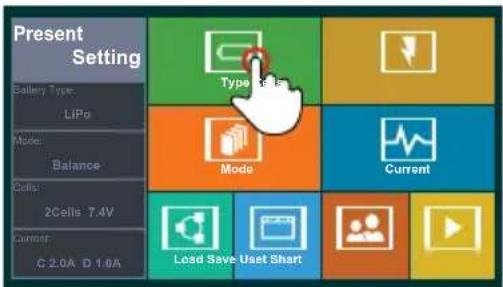
Image 33
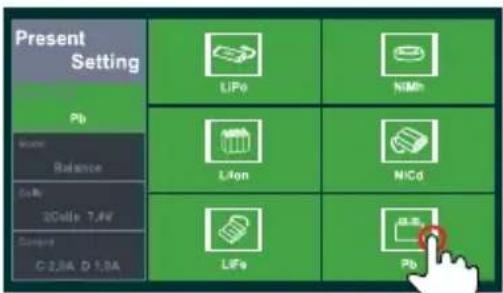
Image 34
Step 2: Touch Mode icon (Image 34) to enter into Mode interface. Touch Charge icon (Image 35) to go back to main interface and continue setting.
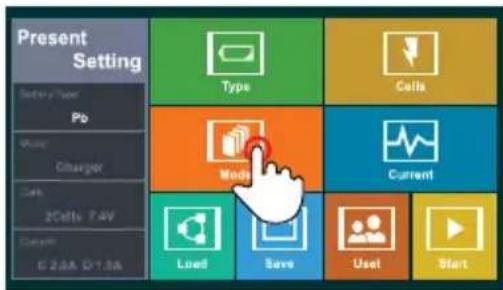
Image 34
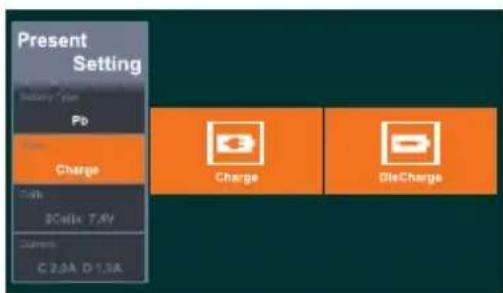
Image 35
【NOTE】 There are some options in Mode interface (Image 35). Please set according to your requirement. Image 30 is showing charge process.
Step 3: Touch Cells icon (Image 36) to enter into Cells interface. Please set Pb battery packs by sliding (Image 37). Touch OK to go back to main interface and continue setting.
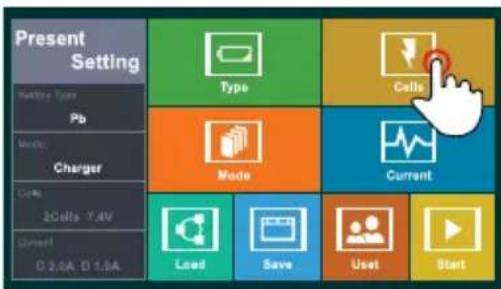
Image 36
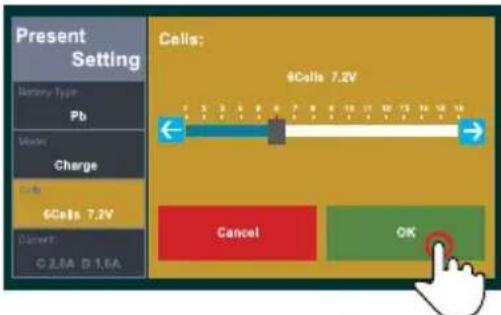
Image 37
[NOTE] Pleasr set according to suitable battery packs.
Step 4: Touch Current icon (Image 38) to enter into Current interface. Please set charge current by sliding (Image 39). Touch OK to go back to main interface and continue setting.
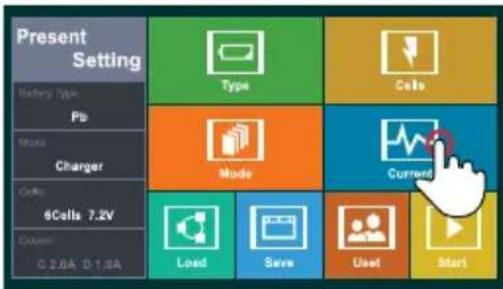
Image 38
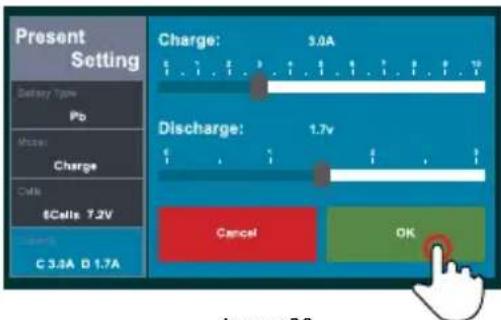
Image 39
【NOTE】 Set charge current in charge mode and discharge current in discharge mode. As for Save and Load functions, please see Step 5 and 6 in Example1 for further details.
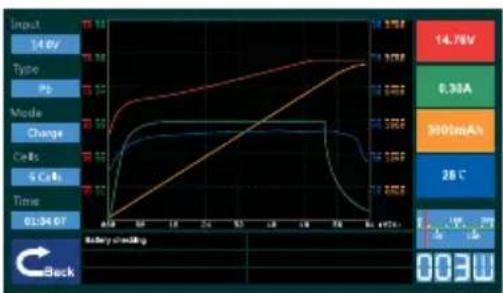
Step 5: Touch Start icon (Image 40) to enter into Start interface. The charger will check battery status automatically. If everything is OK, the charger will begin to charge. (Image 41)
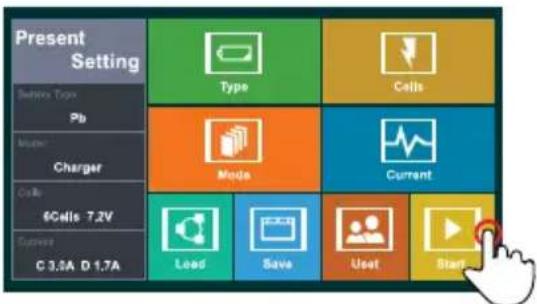
Image 40
line
| Input | 140V | Type | Pb | Mode | Charge | Cells | 5 Cells | Time | |---|---|---|---|---|---|---|---|---| | 0:04 | 0.0 | 0.0 | 0.0 | 0.0 | 0.0 | 0.0 | 0.0 | 0.0 | | 1:00 | 2.5 | 2.5 | 2.5 | 2.5 | 2.5 | 2.5 | 2.5 | 2.5 | | 2:00 | 3.0 | 3.0 | 3.0 | 3.0 | 3.0 | 3.0 | 3.0 | 3.0 | | 3:00 | 3.5 | 3.5 | 3.5 | 3.5 | 3.5 | 3.5 | 3.5 | 3.5 | | 4:00 | 4.0 | 4.0 | 4.0 | 4.0 | 4.0 | 4.0 | 4.0 | 4.0 | | 5:00 | 4.5 | 4.5 | 4.5 | 4.5 | 4.5 | 4.5 | 4.5 | 4.5 | | 6:00 | 5.0 | 5.0 | 5.0 | 5.0 | 5.0 | 5.0 | 5.0 | 5.0 | | 7:00 | 5.5 | 5.5 | 5.5 | 5.5 | 5.5 | 5.5 | 5.5 | 5.5 | | 8:00 | 6.0 | 6.0 | 6.0 | 6.0 | 6.0 | 6.0 | 6.0 | 6.0 | | 9:00 | 6.5 | 6.5 | 6.5 | 6.5 | 6.5 | 6.5 | 6.5 | 6.5 | | 10:00 | 7.0 | 7.0 | 7.0 | 7.0 | 7.0 | 7.0 | 7.0 | 7.0 | | Final reading (17:12) - Battery charging is shown in the chart as a table on the Y-axis (Value). The data is presented in a table format with rows labeled 'Input', 'Type', 'Mode', 'Change', 'Cells', and 'Time'. The values are annotated above the table.Image 41
【NOTE】 The charger will pop-up window when the battery is fully charged. Touch OK to finish charging process (Image 42).
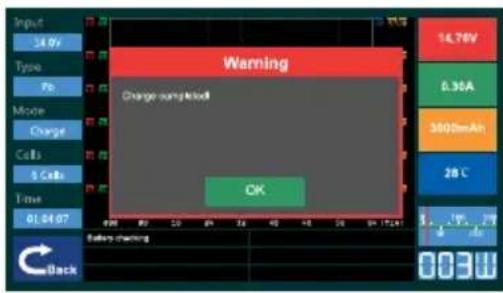
Image 42
【NOTE】The charger will send out an alert and pop-up window if the battery packs' setting is incorrect. (Image 43) All Lipo battery packs setting are the same operation.
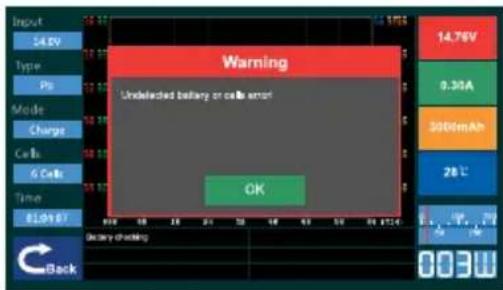
Image 43
iM • OS SYSTEM is brand-new software of charger which was Independently research and develop by iMaxRC. It is the first operation system in the world especially to support touch screen charger, and it’s going to be Industry standard for touch screen charger series.
Here we will full display the Advanced application Settings for you. Pls touch Uset (Image 44) to enter into advanced application setting interface.(Image 45)
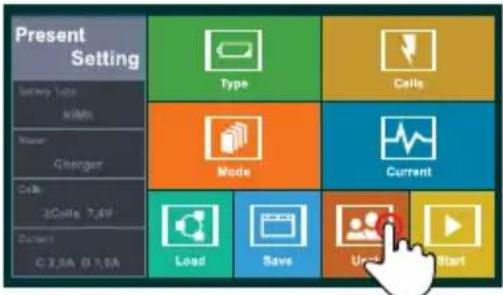
Image 44
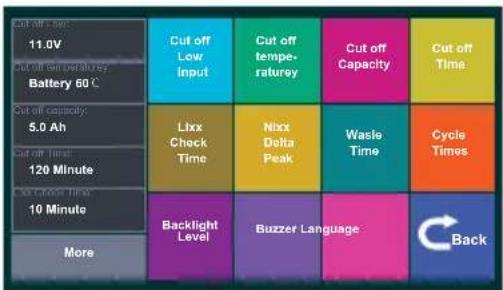
Image 45
Touch "Cut off Low Input" (Image 46), the information bar on left will skip into setting menu (Image 47), touch "OK" after setting done, it will turn back to interface (Image 47), then you can go on with setting of other features.
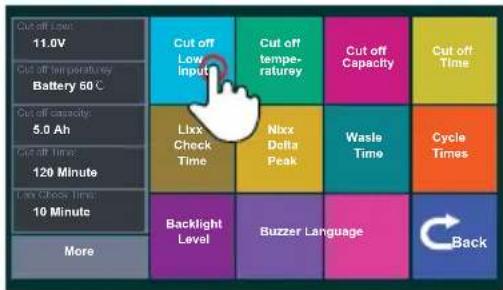
Image 46
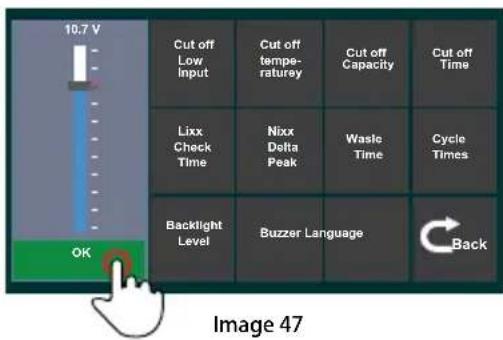
Please find detailed list of features on next page.
| Cut offLow Input | Cut off Low InputRange of setting:10-24V. Lowest cut off input voltage,charger will stop charging/discharging when input voltageis lower than setting value. |
| Cut off temperature | Cut off TemperatureRange of setting: 40-80°C. Cut off Temperature, charger will stop charging/discharging when temp of batteriesis lower than setting value. |
| Cut off Capacity | Cut off CapacityRange of setting: 0.1Ah-10Ah. Safety capacity. Chargerwill Stop charging/discharging when capacity of batteriesis higher than setting value. |
| Cut off Time | Cut off TimeRange of setting: 10-200mins. Safety time, charger willstop charging/discharging, when charging/dischargingtime is less that setting value. |
| LixxCheck Time | LixxCheckTimeRange of setting: 5-60mins. Time for checking cellscount of LiPo battery pack. |
| NixxDelta Peak | NixxDeltaPeakRange of setting: 5-200mV. NiHm/NiCd Delta peak. |
| Waste TimeTime | Waste TimeSpacing interval between 2 Cycles. Range of setting:1-60mins. |
| Cycle Times | Cycle TimeRange of setting: 1-6 times. |
| Backlight Level | Backlight LevelRange of setting: 1-10, Brightness level. |
| Buzzer | BuzzerRange of setting: All sounds open, only touch tone closed, All sounds closed. |
| Language | LanguageLanguage option. Now provisionally only support English interface. |
| Back | BackTurn back to main interface |
【IMPORTANT NOTICE】 X180 charger have 3 parameters to control rotate speed of fan.
- when temperature of working charger reach 40^ C, fan speed will be one level up as temp rise by each 2^ C
- when charging power reach 100W, fan speed will be one level up as charging power rise by each 5W.
- Fan speed will be one level up as discharging power rise by each 2W.
NOTE: Fan Speed of X180 charger will begin to change in any of above situation.
Please follow the instruction to operate your X180 charger, to insure safety of you and charger, and use it easily. Please keep manual within easy reach, to be easy reference for you and other user.
【NOTE】 Procedures, which if not properly followed, can result in potential nullification of any vendor warranties or liabilities.
SAFETY PRECAUTIONS AND WARNINGS
【Warning】 Procedures, which if not properly followed, create the probability of property damage, collateral damage, and serious injury OR create a high probability of superficial injury. IMAXRC will not be held directly responsible for those damage if they were caused by improper using of user.
Proper Operation PIs put X180 charger on flat operating platform. DO NOT insert any object into air-vent.
Water and Humid Place Please keep charger far away from any place wet or moist, such as bathroom, hand Sink. Keep charger in desiccative place to avoid damage caused by rainy weather.
Charger PLEASE make sure you are holding plug, not pull cord when disconnect power supply. To avoid mechanical damage.
NEVER use X180 charger under following operating environment: the environment full of floating dust, smoke from burning or cooking in air. the place have ultrasonic humidifier (for unfiltered tap water) working on. In rare cases, these smoke or particles in air may float into X180 charger from air-vent. This may lead inner surface of screen appear mist.
Do not Maintain Yourself
X180 charger not include any spare part for user to make the maintenance, never dismantle the product by yourselves. Please contact with IMAXRC authorized distributor for maintenance.
Please note if you dismantle the product by yourselves, this may cause damage of original device. Such kind of damage is not responsible part of our guarantee.

iMaxRC co.,LTD
- Add: F4 201-205, F518 IDEALAND Baoyuan Road, Baoan, Shenzhen, P.R.C
• Tel: +86-755-89830228
• Fax: +86-755-29558361
• Web: www.imaxrc.com