Forge 3D - 3D Printer Hyperion - Free user manual and instructions
Find the device manual for free Forge 3D Hyperion in PDF.


| Product Type | 3D Printer |
| Brand | Hyperion |
| Model | Forge 3D |
| Printing Technology | Fused Deposition Modeling (FDM) |
| Build Volume | 220 x 220 x 250 mm |
| Filament Diameter | 1.75 mm |
| Supported Filaments | PLA, ABS, PETG, TPU |
| Nozzle Diameter | 0.4 mm (interchangeable) |
| Max Nozzle Temperature | 260°C |
| Max Heated Bed Temperature | 100°C |
| Print Speed (Recommended) | 50-100 mm/s |
| Layer Resolution | 0.1 - 0.4 mm |
| Connectivity | USB, SD Card |
| Display | 3.5-inch Color Touchscreen |
| Software | Compatible with Cura, Simplify3D |
| Power Supply | AC 100-240V, 50/60Hz, 350W |
| Dimensions (Printer) | 470 x 470 x 510 mm |
| Weight | 12 kg |
| Safety Features | Automatic bed leveling, filament runout detector, thermal runaway protection |
| Maintenance | Clean print bed regularly, lubricate linear rails, replace nozzle as needed |
| Spare Parts & Repairability | Replacement nozzles, hotend assemblies, print beds, and fans available |
Frequently Asked Questions - Forge 3D Hyperion
User questions about Forge 3D Hyperion
0 question about this device. Answer the ones you know or ask your own.
Ask a new question about this device
Download the instructions for your 3D Printer in PDF format for free! Find your manual Forge 3D - Hyperion and take your electronic device back in hand. On this page are published all the documents necessary for the use of your device. Forge 3D by Hyperion.
USER MANUAL Forge 3D Hyperion
Model : Forge 3D
INSTRUCTION MANUAL
Important
Getting the most out of your 3D Printer:

natural_image
Simple line icon of an open book with no text or symbolsRead the manual carefully
It will help you get set up with ease

natural_image
Simple line icon of a laptop with Wi-Fi symbol on screen (no text or labels)Visit www.hyperion-world.com
We've got additional support guides

Email tech@hyperion.hk
We're always happy to help
Warranty Note
If you experience any issues with this product, or it's performance is not what you had expected, please contact us at FORGE 3D before returning the item to the store.
It is likely that we can resolve any problems for you via phone or email.
We can be reached through your local distributor. Or on
Phone:+852 2342 1810
Email:tech@hyperion.hk
Web: www.hyperion-world.com
Safety Instructions
Before you get started, please read these important safety instructions.
CAUTION: The FORGE 3D Printer generates high temperatures and includes moving parts that can cause injury. Never reach inside of the FORGE 3D Printer while it is in operation, and allow time for the printer to cool down after operation.


Vapours/fumes may be irritating at operating temperatures. Always use the FORGE 3D Printer in an open, well ventilated area.

Do not leave the FORGE 3D Printer unattended during operation

Contact with extruded material may cause burns. Wait for printed objects to cool before removing them from the build platform.

Always take care when using the Scraper. Never direct the Scraper towards your fingers.
- The printer must not be exposed to water or rain, or damage will occur.
- The printer is designed to be used with ambient temperature ranging 15°C - 30°C, and humidity ranging 20% - 50%. Operating outside these limits may result in low quality models.
- In case of emergency, turn off the 3D printer at the power outlet.
- It is recommended that you use eye protection when cleaning/sanding printed models to avoid small particles contacting eyes.
Contents
Warranty Details 4
Safety Instructions 5
Parts List 8
Technical Specifications 9
Product Overview 10
Printer Front View 10
Printer Rear View 11
Print Bed 12
Control Box 13
Quick Guide 14
Construct and Connect 14
Levelling the Bed 15
Printing a File 16
Introduction 18
1.1 What is 3D Printing? 18
1.2 From 3D Design to Printed 3D Object: 18
1.3 Good 3D Printing Practices 20
Installation 21
1.4 Unboxing and Assembly 21
1.5 Control Panel 23
1.5.1 Main Display 23
1.5.2 Menu Map 23
1.5.3 Default Configuration 25
Setup 26
-
Levelling the Heated Print Bed 26
-
Filament 27
3.1 Filament Types 27
3.2 Inserting Filament: 28
3.3 Removing Filament: 29
3.4 Storage: 29
- Using the Micro SD Card 29
4.1 Loading files from your Computer: 29
4.2 Printing from the Micro SD Card: 30
- Removing 3D Objects from the Bed 30
Using Cura 31
- Creating a GCODE File using Cura 31
6.1 Installing Cura 31
6.2 Adding your FORGE 3D Printer to Cura 32
6.3 Loading a 3D Design into Cura 32
6.4 Viewing and Positioning your 3D Model in Cura 32
6.5 Quick Print Settings 35
6.5.1 Exporting your GCODE File: 36
6.6 Advanced Print Settings 36
6.6.1 Basic Tab Options 36
6.6.2 Advanced Tab Options 39
6.6.3 Plugins Tab 42
6.6.4 Start/End GCODE Tab 42
6.6.5 Expert Settings 43
Servicing 48
- Servicing your 3D Printer 48
7.1 Replacing the Print Mat 48
7.2 Nozzle Cleaning 48
7.3 Routine Component Check 49
7.4 Storing 49
Finishing 50
- Finishing Techniques 50
8.1 Useful Tools/Equipment 50
8.2 Removing Support Material 50
8.3 Sanding 51
8.5 Surface Coating 51
Troubleshooting 52
- Troubleshooting 52
9.1 Printing Problems 52
10.2 Connectivity Problems 53
10.3 Other Problems 54
- Useful Terms 54
Appendix 56
References 56
Repair and Refurbished Goods or Parts Notice 58
Parts List
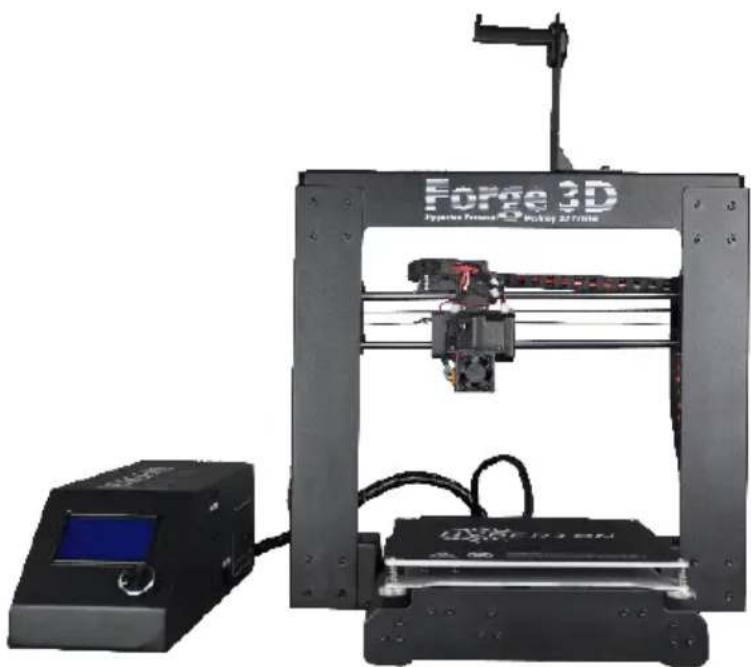
1 x FORGE 3D Printer
(Control Box, Extruder Tower, Heated Print Bed)
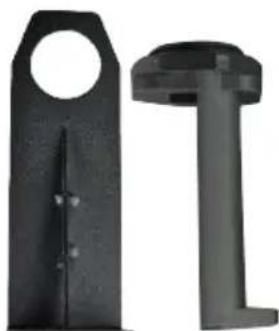
1 x Filament Spool Holder
1 x Filament Spool Stand
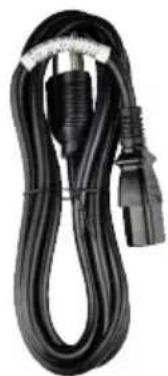
1 x Power Cable
1 x USB Cable
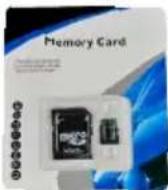
1 x 4GB MicroSD Card
1 x Scraper
1 x PTFE Tube
1 x Hex Key Set
6 x Hex Bolts
2 x Cable Ties
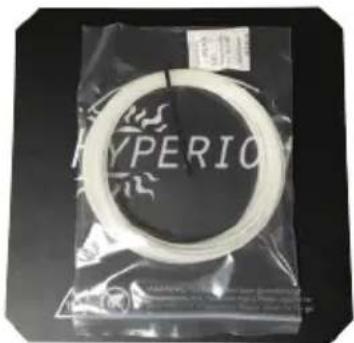
1 x 10m PLA Filament
2 x Print Bed Mats
1 x Instruction Manual
1 x Getting Started Guide
1 x Warranty Card
natural_image
Exterior view of a Forge 3D printer with visible internal components and a digital display unit (no text or symbols on the device itself)
natural_image
Black cable with connector and connector details, no visible text or symbols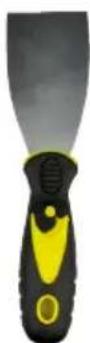
natural_image
Two black metal mechanical components with circular and stepped features (no text or symbols visible)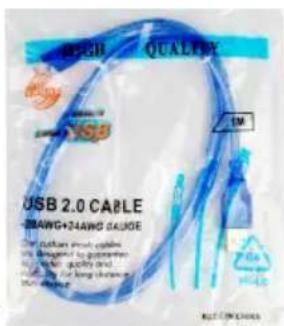
AFTER SALES SUPPORT
Technical Specifications
Printing
Print Technology: Fused Filament Fabrication (FFF)
Build Volume: 200 x 200 x 180mm
Layer Resolution: 0.1 - 0.4mm
Positioning Accuracy: X 0.012mm
Y 0.012mm
Z 0.004mm
Extruder Quantity: Single Extruder
Nozzle Diameter: 0.4mm
Print Speed: 10mm/s - 70mm/s
Travel Speed: 10mm/s - 70mm/s
Supported Print Materials: FORGE Branded PLA, ABS, PVA,
HIPS, Wood, Flex, Conductive
Temperature
Ambient Operating Temperature: 15^ C – 30^ C
Operational Extruder Temperature: 170°C - 240°C
Operational Print Bed Temperature: 30°C - 70°C
Software
Slicer Software: Cura FORGE Edition 15.04
Cura Input Formats: .STL, .OBJ, .DAE, .AMF
Cura Output Format: .GCODE
Connectivity: Micro SD Card, USB port (Expert users only)
Electrical
Input Rating: 100-240V AC, 50/60Hz, 3.5A
Physical Dimensions
Printer Frame Dimensions: 400 x 410 x 400mm
Weight: 10KG
AFTER SALES SUPPORT
Product Overview
Printer Front View
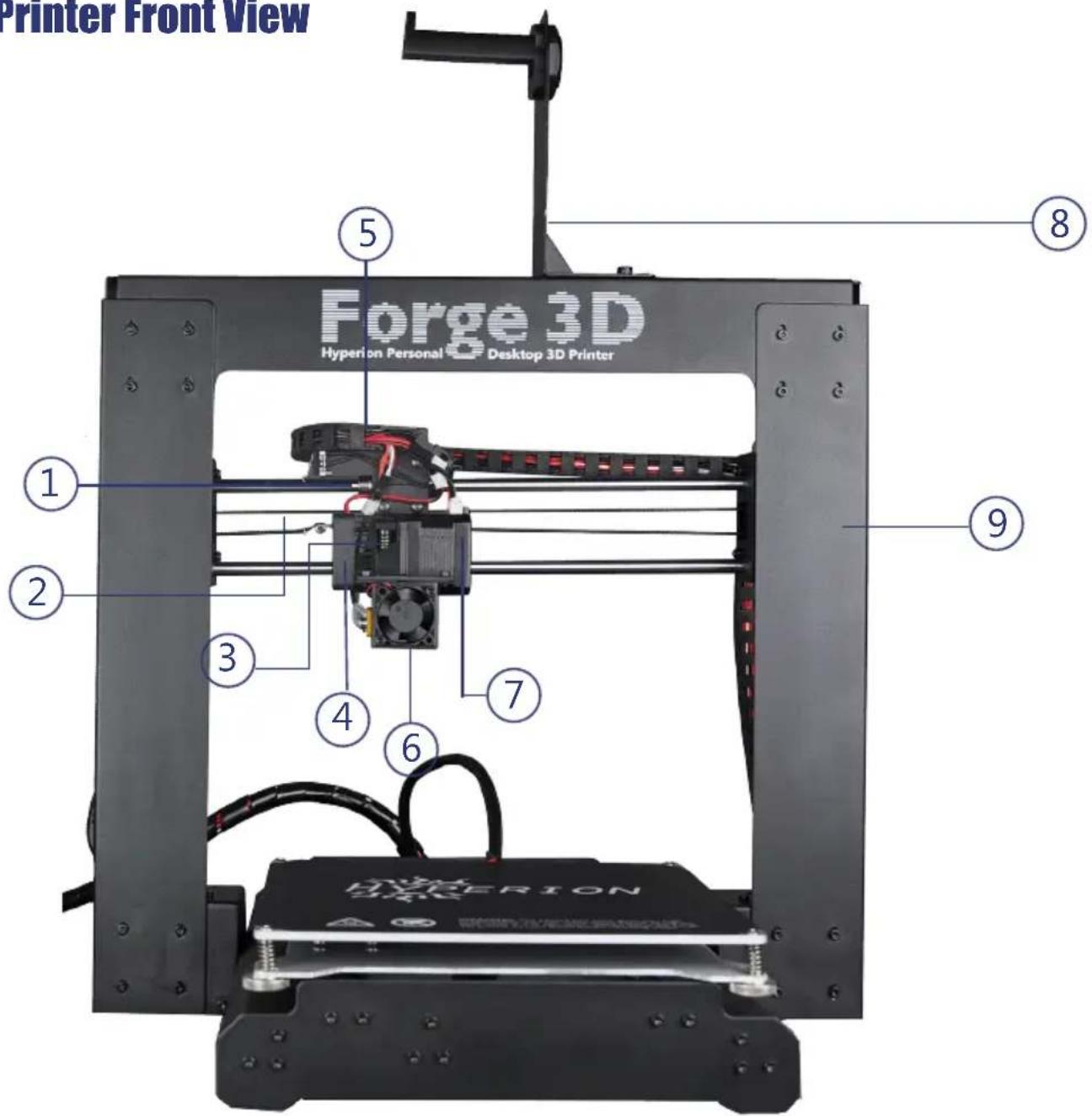
- X Rail
- X Belt Drive
- Extruder Spring Lever
-
Extruder Cooling Fan
-
X Stop (Micro Switch)
- Filament Cooling Fan
-
Extruder Driving Motor
-
Filament Spool Holder Assembly
- Tower Frame
Product Overview
Printer Rear View
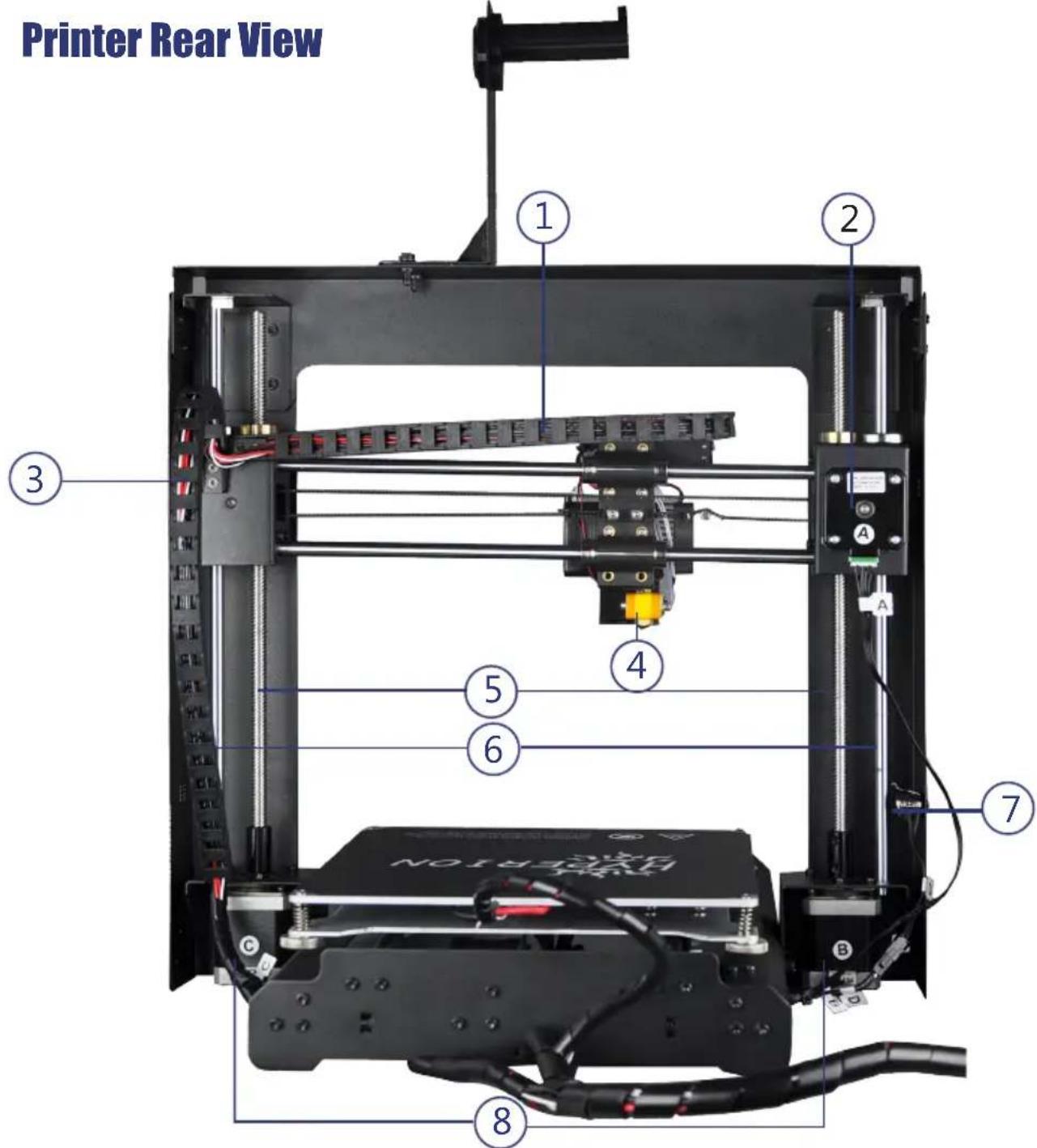
- X Cable Track
- X Axis Stepper Motor
-
Z Cable Track
-
Extruder
- Z Drive Screw
-
Z Rod
-
Z Stop (Micro Switch)
- Z Axis Stepper Motor
Product Overview
Printer Bed
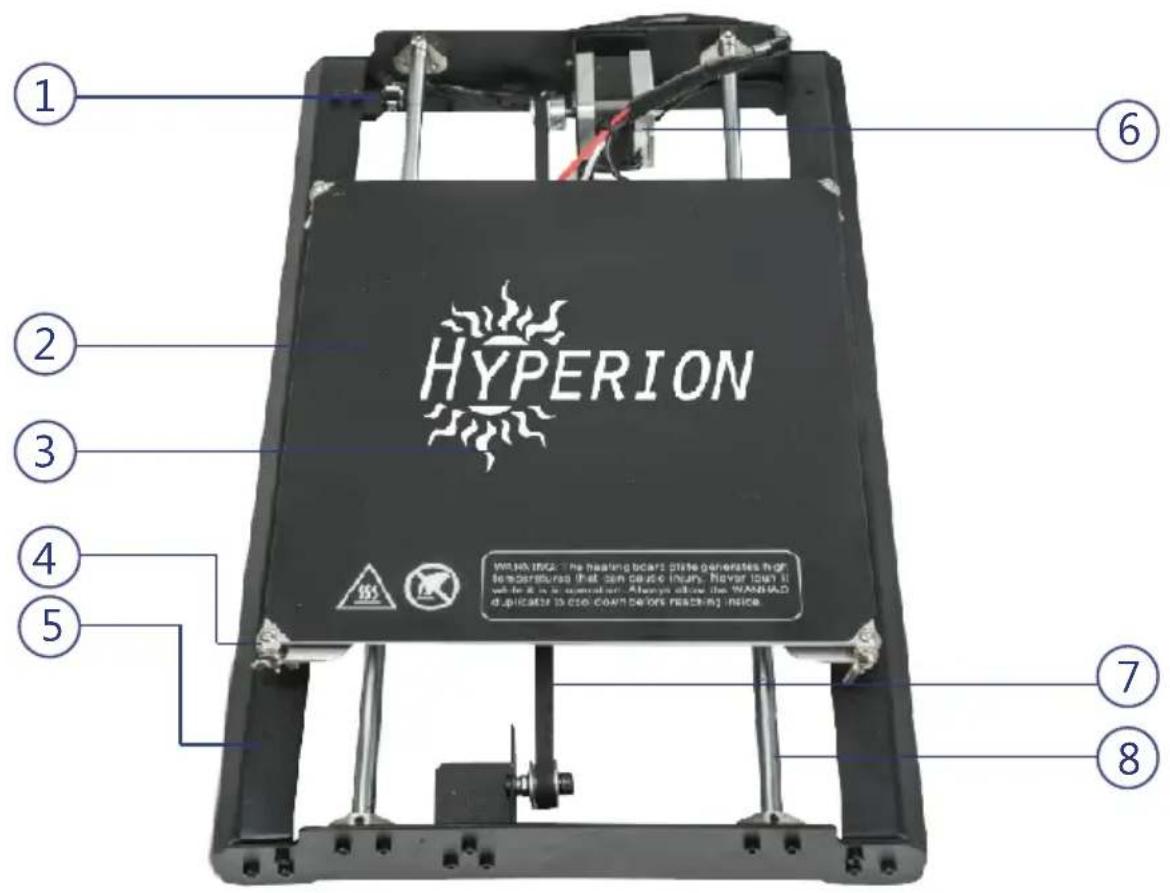
- Y Stop (Micro Switch)
- Heated Print Bed
-
Printing Mat
-
Levelling Wing Nut Assembly
-
Print Bed Frame
-
Y Axis Stepper Motor
- Y Belt Drive
- Y Rail
Product Overview
Control Box
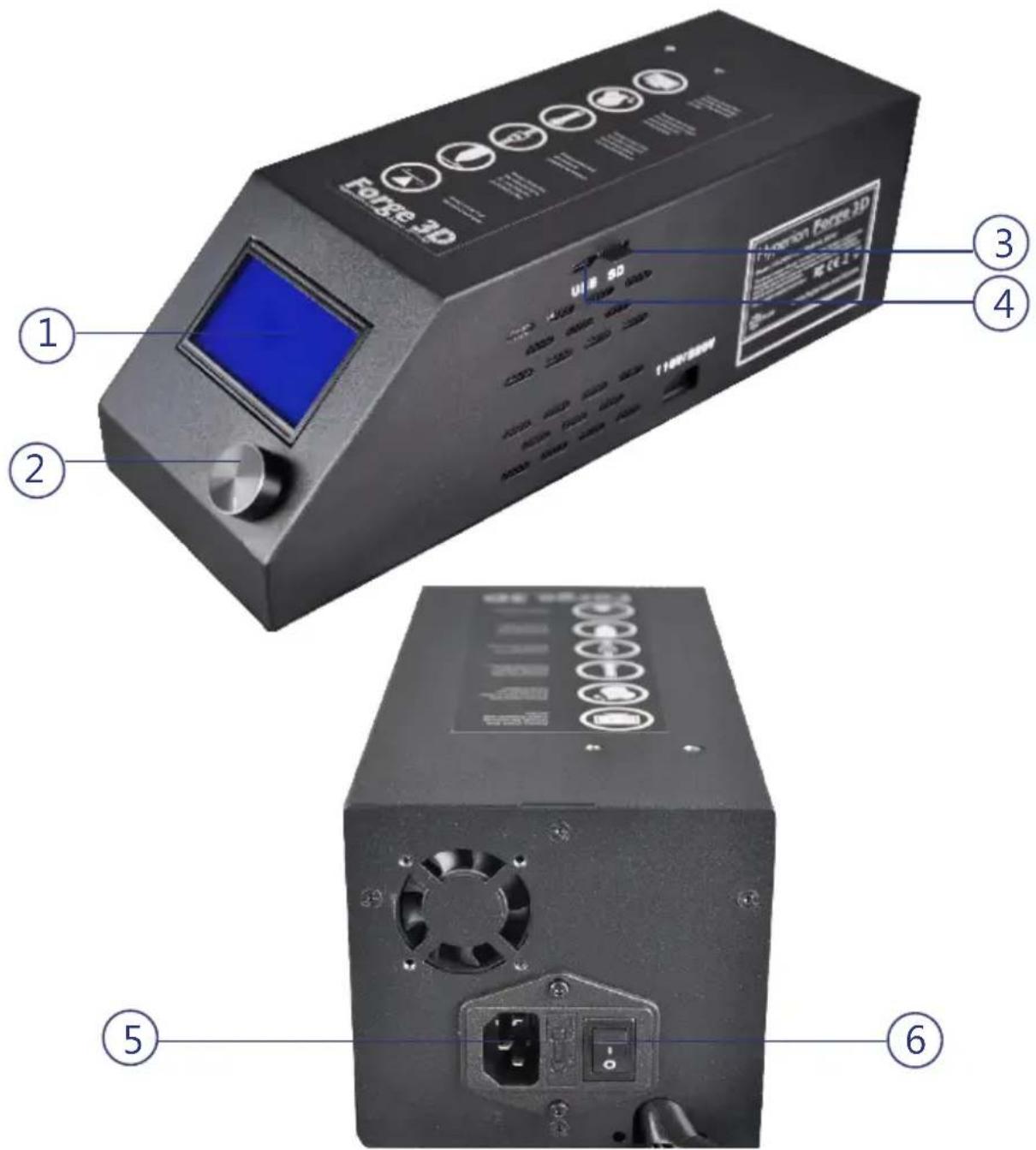
- LCD Display
-
Navigation Dial
-
Micro SD Port
-
Mini USB Port
-
Power Socket
- Power Switch
AFTER SALES SUPPORT
Quick Guide
Construct and Connect
-
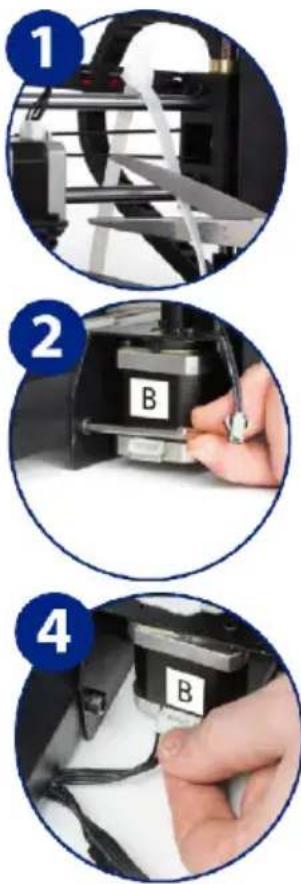
Place the Control Box, Extruder Tower and Heated Print Bed on a clean, level work space. Carefully remove the cable tie that holds the Extruder in place
-
Insert the Heated Print Bed lengthways between the legs of the Extruder Tower and align the bolt holes on each side. Using the Hex Wrench, insert and tighten the two external bolts. Place printer on its side, then insert and tighten the two internal bolts
-
Carefully cut the cable tie on the left side of the Heated Print Bed Base. Then, on the left side, insert the long cable connector marked 'A' into the motor connector of the Extruder Tower marked 'A'
-
On the left side, insert the short cable connector marked 'B' into the motor connector of the Extruder Tower marked 'B'
-
On the right side, insert the white connector marked 'C' into the motor connector of the Extruder Tower marked 'C'
-
On the left side, insert the black connector marked 'D' into the black connector of the Extruder Tower marked 'D'Tower marked 'D'
-
Remove the outer plastic nut from the Filament Spool Holder, then insert the threaded into the large hole of the Filament Spool Holder Stand. Tighten the plastic nuts on each side to secure
-
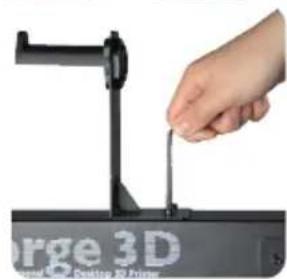
Position the Filament Spool Holder Stand on top of the Extruder Tower, then insert the bolts and tighten with the Hex Wrench
-
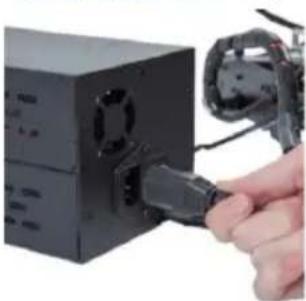
Ensure the power switch is in the OFF position, then insert the Power Supply Cable into the back of the Control Box. Insert the other end into a nearby mains power outlet. Turn on the power outlet, then turn on the 3D Printer, using the switch on the back of the Control Box
-
Wait for the printer to initialise, with Printer Ready shown at the bottom of the LCD. Press the Navigation Dial to enter the menu system. Rotate the Dial until Position is highlighted, then press the Dial to select. Rotate the Dial until Z. Pos. Fast is highlighted, then press to select. Rotate the Dial clockwise, raising the Extruder so that you can easily access the Heated Print Bed. Turn off your 3D Printer
Quick Guide
Levelling the Bed
- Squeeze each corner of the printing bed, and tighten each wing nut to reduce the distance between plates to a minimum. Wipe the top of the Heated Print Bed with a clean, lint-free cloth to ensure no dust particles or other objects are on the Heated Print Bed. Remove all the white tape covering the X, Y, Z axis stop micro switch prior to the next step
- Using the switch on the back of the Control Box, turn on the FORGE 3D Printer. Once initialised, press the Navigation Dial to enter the menu system. Navigate to and select Position then select Home All. Your 3D printer will now try to align to the home position, on the front left corner of the Heated Print Bed. Once aligned, turn off the 3D printer
- With the printer powered off, check the Z axis level. The X rail should be parallel to the Heated Print Bed. If it is not, manually rotate the right hand side Z axis stepper motor to level it
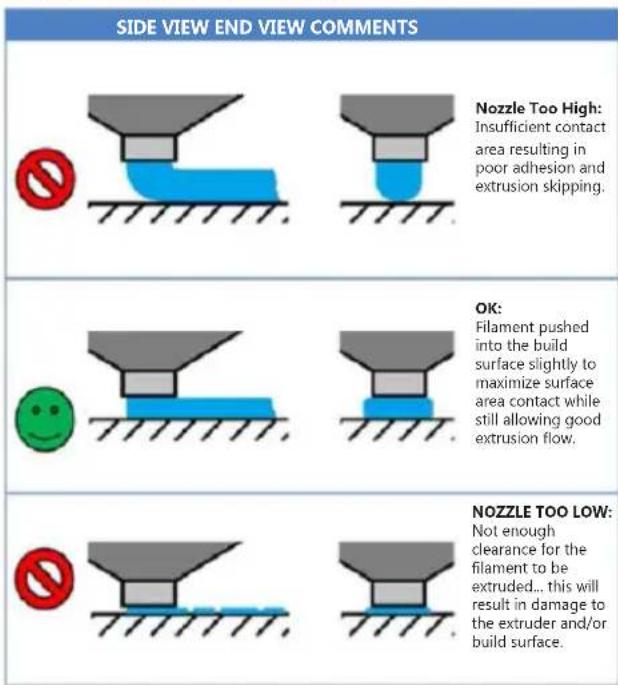
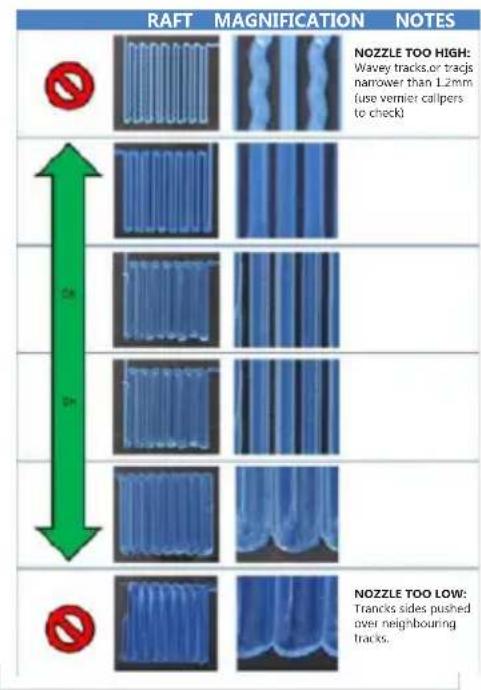
- Manually move the Extruder to one corner of the Heated Print Bed to check the distance between the nozzle and Heated Print Bed. Rotate the wing nut to raise the Heated Print Bed. The distance between the Extruder and bed should be 0.1mm or roughly the thickness of an A4 sheet of paper. The paper should have very slight friction as you move it under the Extruder but should still slide freely
- Move the Extruder to each of the other corners and repeat the process. Move the Extruder to the centre of the Heated Print Bed and test the gap with a sheet of paper. Keep adjusting and testing until the gap is uniform on all points of the bed
CHECKING CHART
Quick Guide
Printing a File
IMPORTANT NOTE: Levelling the bed is an extremely important step and if it is not done correctly every time, your prints will fail or be of poor quality
- Turn on the 3D Printer, using the switch on the back of the Control Box. Once initiated, press the Dial to enter the menu system. Navigate to, and select Position > Z Pos. Fast. Turn the Dial to the rig ht to raise the Extruder to about 30mm. Press the Dial to return to the previous menu and select back
- Navigate to, and select Quick Settings. Navigate to and select Preheat PLA. Wait for the 3D printer to automatically return to the home screen, after approximately 15-30 seconds
- Check the temperature of the Extruder and plate on the LCD. When the temperatures are within a few degrees of the target, you are ready to insert the filament.
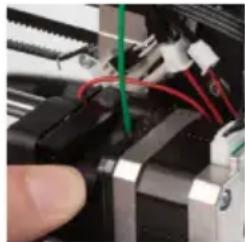
NOTE: Preheat PLA will still be shown, even after temperatures have been reached. Insert the end of the filament into the hole on the Extruder as shown
natural_image
Close-up of a robotic arm with red and green wires, no visible text or symbols- While holding the filament in place with one hand, press the Dial to enter the menu system. Navigate to and select Extruder > Extr.
Position. Gently push down on the filament while turning the Dial clockwise. You will feel the filament being pulled into the Extruder. Continue until a few centimetres have extruded out of the nozzle. Carefully clean the extruded filament off the Heated Print Bed and nozzle using a cloth taking care not to burn yourself on the hot surfaces
- Insert the included MicroSD card into the slot on the side of the Control Box. Press the Dial to enter the menu system. Navigate to and select SD Card > Mount Card > Print File
Quick Guide
- You can now select one of our pre-loaded files below by navigating to, and selecting the file name:
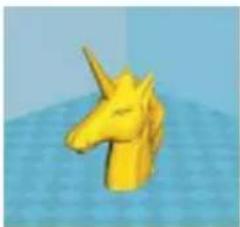 | 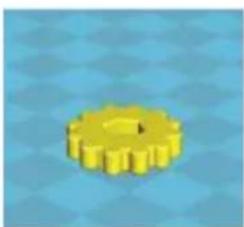 | 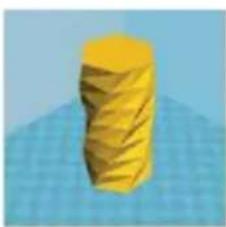 | 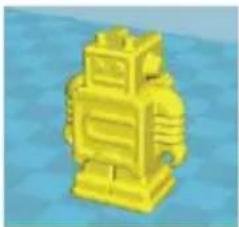 | |
| File Name: | Unicorn | M3 Thumbscrew | Vase | FORGE Bot |
| Size (LxWxH): | 47x19x51mm | 19x19x4mm | 50x50x100mm | 26x34x15mm |
| Infill: | 100% | 100% | 0% | 20% |
| Resolution: | 0.2mm | 0.1mm | 0.2mm | 0.1mm |
| Print Time: | 50min | 6min | 1hr 43min | 36min |
- Your printer will now commence heating the Extruder and Heated Print Bed to the correct printing range, before returning to the home position and commencing the print
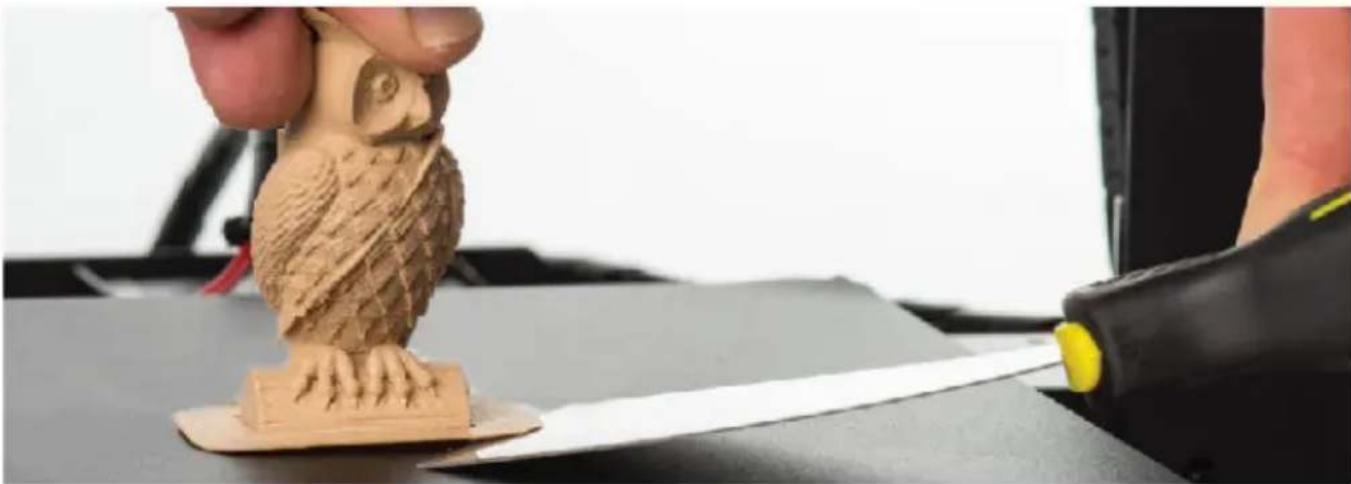
- Once your printer has completed printing the file, the nozzle and Heated Print Bed will commence cooling down. Once cooled, turn off your 3D printer and carefully remove the 3D printed object using the supplied Scraper and gently lifting the object with your hand
natural_image
Close-up of a hand holding a clay owl sculpture on a workbench, with a tool partially visible (no text or symbols)Always take care when using the Scraper. Never use excessive force or scrape towards your hand.
NOTE: Always keep the Scraper as level as possible. Scraper can damage the print mat if not used correctly
Introduction
1.1 What is 3D Printing?
3D Printing is a process whereby a real object is created from a 3D Design. Fused Filament Fabrication (FFF) is one of the most common technologies used by 3D Printers to achieve this. FFF works on an 'additive' principle by laying down material, such as PLA or ABS filament, in layers to create a 3D object.
1.2 From 3D Design to Printed 3D Object:
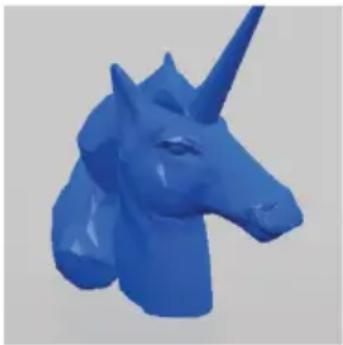
3D Design → Slice to GCODE → Setup 3D Printer → 3D Printing Process → 3D Printed Object
natural_image
Blue 3D model of a stylized animal head with antlers, no text or symbols visible3D Design
Having a 3D Design is the first step to creating a 3D Object. There are a number of free 3D Designs that can be downloaded and printed for personal use. Websites such as Thingiverse.com, Pinshape.com and YouMagine.com are a good place to start, but there are many more available!
Alternatively, you can create your own 3D Design using 3D Modelling Software. Programs such as SketchUp or Blender allow this, however this can take some practice before successfully modelling your 3D Design. After you've finished your 3D Design, you can export it as an .STL file, to be imported into a 'Slicer' program such as Cura.
natural_image
3D model of a yellow unicorn head on a checkered floor (no text or symbols)Slice to GCODE
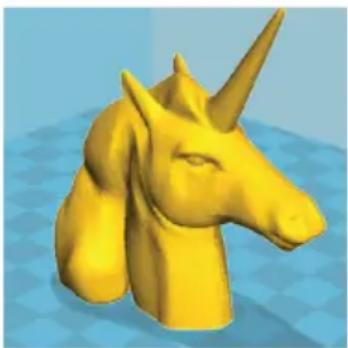
A 'Slicer' converts a 3D Design (usually in .STL or .AMF format) into individual layers. It then generates the machine code (such as GCODE) that the 3D Printer will use for printing.
We recommend Cura, as it uses a simple interface and includes a large amount of support material.
AFTER SALES SUPPORT
Introduction
natural_image
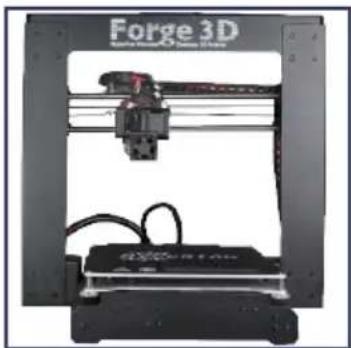
3D printer with visible internal structure and base mount (no text or symbols)Setup 3D Printer
It's important to set up your printer before every print. We've included some steps on page 20 in section 1.3 'Good 3D Printing Practices' for you to quickly refer to each time.
natural_image
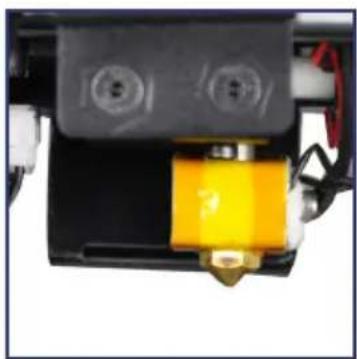
Close-up of a mechanical component with yellow and black parts, no visible text or symbols3D Printing Process
Now that you've loaded a GCODE file onto the printer, it will commence heating up the Extruder and Heated Print Bed, then start printing. While printing, the nozzle will move along the X and Y axis as each layer is printed. This can take some time, depending on the size of the 3D model, print speed of the 3D printer and resolution of each layer.
Here is an example of how size, infill, and resolution can effect printing time:
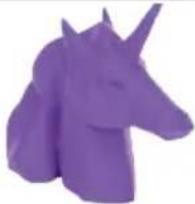 | 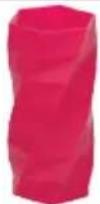 | |||
| Dimensions: | 62.5 x 25.75 x 67.75mm 70 x 70 x 140mm | |||
| Infill: | 20% | 0% | 20% | 20% |
| Resolution: | 2mm | 2mm | 2mm | 1mm |
| Print Time: | 53min | 39min | 6hr 40min | 13hr 12min |
| Filament Used: | 4m | 2.54m | 45m | 45.67m |
3D Printed Object
Once the printer has completed all of the layers, you will have a 3D Printed Object. The results are certainly worth it, with 3D models ranging from simple to complex.
The FORGE 3D Printer is compatible with a broad range of filament types and is capable of printing 3D models ranging from small and simple to complex objects with moving parts. What you print is limited only by your imagination.
AFTER SALES SUPPORT
Introduction
1.3 Good 3D Printing Practices
Please refer to these steps during every print to ensure the best quality.
Before Printing
- Ensure your GCODE file is correctly setup, filament diameter is set to 1.75mm and correct temperature settings for the material you are using (refer to table 3.1, page 27)
- Check all cables and connectors are connected
- Check that Heated Print Bed is level and approximately 0.1mm from the nozzle
- Check that Heated Print Bed is clean and dust free and nozzle does not have excess material stuck to it

Always check Gcode file settings match filament and printer

Always check
Print Mat is clean
and there is no
residual plastic

Always check Extruder & Print Bed
Temperatures are set for correct filament type

Always check all cords are connected

Always check Extruder distance is 0.1mm from Print Mat

Always check
Print Bed is level
During Printing
- Closely monitor the first layer being printed – Most problems will occur in the first layer. If problems occur, stop the 3D Printer at the power outlet
- Do not leave the 3D Printer unattended while in operation
- Keep hands clear while machine is operating
After Printing
- Wait for the Heated Print Bed and Extruder to cool down
- Carefully remove 3D Object. Never use Scraper towards your body. Keep Scraper evenly flat when scraping to avoid damage to the Heated Print Bed. Damaged Heated Print Bed will affect adhesion for future prints
- Store 3D printer in a clean, dry environment
AFTER SALES SUPPORT
Installation
1.4 Unboxing and Assembly
Your FORGE 3D Printer is packed tightly and carefully -- take your time unpacking it.
natural_image
Two-panel image showing a 3D printer assembly process: top panel shows blade and clamped components, bottom panel shows a labeled mechanical component (labeled B) being handled by a hand.-
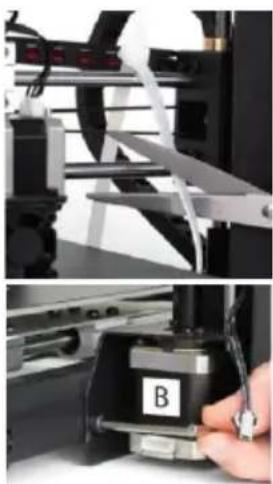
Place the Control Box, Extruder Tower and Heated Print Bed on a clean, level work space. Carefully remove the cable tie that holds the Extruder in place
-
Insert the Heated Print Bed lengthways between the legs of the Extruder Tower and align the bolt holes on each side. Using the Hex Wrench, insert and tighten the two external bolts. Place printer on its side, then insert and tighten the two internal bolts
natural_image
Three-panel photo showing hands operating a 3D printer with labeled parts (A, B, C) and no visible text or symbols.-
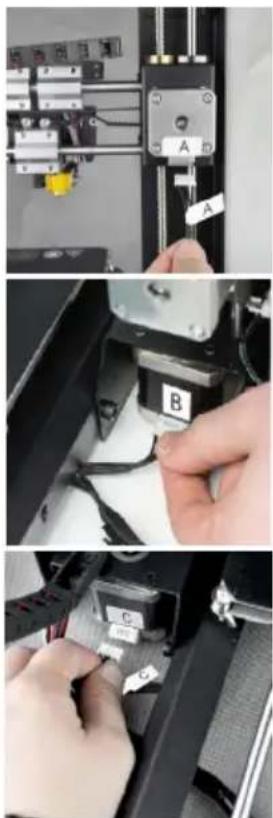
Ctarefully cut the cable tie on the left side of the Heated Print Bed. Then, on the left side, insert the short cable connector marked 'A' into the motor connector of the Extruder Tower marked 'A'
-
On the left side, insert the long cable connector marked 'B' into the motor connector of the Extruder Tower marked 'B'
-
On the left side, insert the white connector marked 'C' into the black connector of the Extruder Tower marked 'C'
Installation
natural_image
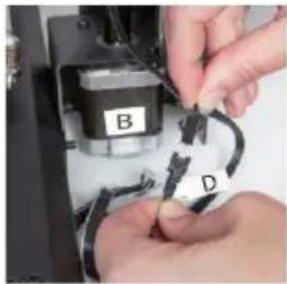
Close-up of hands performing a manual task with labeled components (B and D) on a mechanical component (no readable text or symbols beyond labels)- On the left side, insert the black connector marked 'D' into the Z axis end stop switch marked 'D'.
natural_image
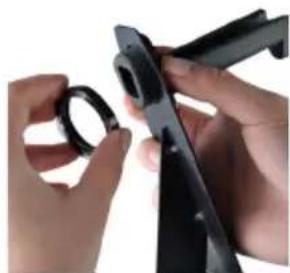
Close-up of hands holding a black plastic clip and ring, no visible text or symbols- Remove the outer plastic nut from the Filament Spool Holder, then insert the threaded end into the large hole of the Filament Spool Holder Stand. Tighten the plastic nuts on each side to secure
natural_image
Hand inserting a small object into a 3D printer device (no text or symbols visible)- Position the Filament Spool Holder Stand on top of the Extruder Tower, with the Filament Spool Holder centred on the stand. Insert two bolts and tighten with the hex wrench until secure
natural_image
Close-up of a hand inserting a black plastic component into a black CPU socket (no visible text or symbols)- Ensure the power switch is in the OFF position, then insert the Power Supply Cable into the back of the Control Box. Insert the other end into a nearby mains power outlet. Turn on the power outlet, then turn to the 3D Printer, using the switch on the back of the Control Box
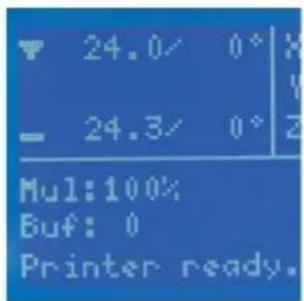
- Wait for the printer to initialise, with 'Printer Ready' shown at the bottom of the LCD. You've successfully setup your FORGE 3D Printer
AFTER SALES SUPPORT
Installation
1.5 Control Panel
1.5.1 Main Display
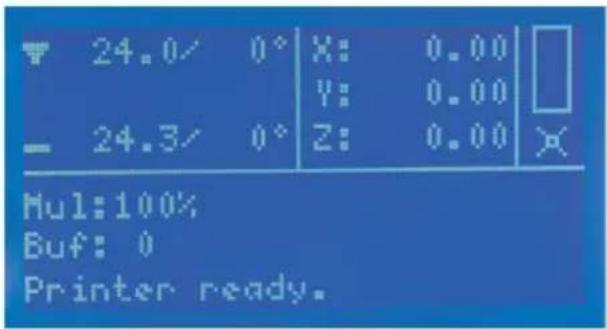
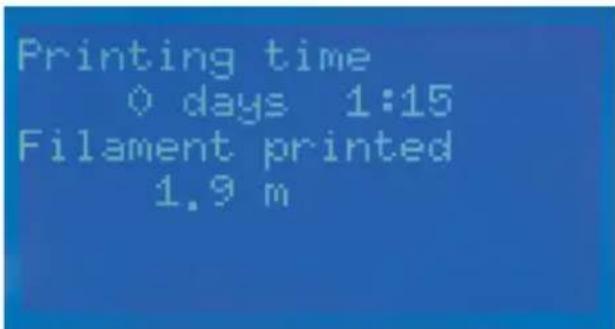
Extruder Temperature: (Current °C / Set °C)
Print Bed Temperature: (Current °C / Set °C)
Extruder Co-ordinates: X, Y, and Z (mm)
Mul: Displays current speed multiplier. Default value is 100%
Buf: Displays current GCODE steps in the buffer
Message Display:
• Printer Ready: Printer is initiated and awaiting input
• Idle: Printer currently in idle state
• Stepper Disabled: Motors are disabled and free to be moved by hand
• Preheat PLA / Preheat ABS: Extruder and bed temperatures set and active
• Printing...: 3D Object is being printed, % displayed
Printing Time: Total time spent printing
Filament Printed: Total length of filament fed through the Extruder in metres
1.5.2 Menu Map
Quick Settings:
• Home All: Returns Extruder and bed to home position using stop switches
- Speed Mul.: Default 100%. Motor speed multiplier. Speed of the motor is multiplied by this rate
- Flow Mul.: Default 100%. Printer flow multiplier. Amount of filament extruded is multiplied by this rate
• Preheat PLA: Sets Extruder to 215°C and Heated Print Bed to 60°C
• Preheat ABS: Sets Extruder to 245°C and Heated Print Bed to 90°C
• Cooldown: Sets Extruder and Heated Print Bed to 0°C
- Disable Stepper: Disables all motors so they are free to be moved by hand
Installation
Print File: If an SD Card is mounted, files can be quickly accessed here.
Position:
• Home All: Returns Extruder and bed to home position using stop switches
• Home X / Y / Z: Returns specific axis to home position using stop switches
• X / Y / Z Pos. Fast: Quickly adjust the location of a specific axis
• X / Y / Z Position: Precisely adjust the location of a specific axis
• Extr. Position: Adjust the Extruder driving motor to feed, insert or remove filament
Extruder:
• Bed Temp: Manually set the bed temperature 30^ C and 70^ C
• Temp. 1: Manually set the Extruder temperature between 170^ C and 240^ C
• Extruder 1 Off: Quickly return the Extruder temperature to 0°C
• Extr. Position: Adjust the Extruder driving motor to feed, insert or remove filament
- Set Origin: Returns Extruder position value to 0mm
Fan Speed: Adjust the Extruder cooling fan to your desired percentage
SD Card:
• Print File: Select a file to be printed from the MicroSD Card
- Mount Card: If inserting the MicroSD Card after the 3D printer has initiated, card can be mounted using this setting
• Unmount Card: Safely unmount the MicroSD Card
- Delete File: Select a file to be deleted from the MicroSD Card
Debugging:
- Echo: Off. Echo GCODE steps to confirm what has been received
• Info: On. Show printing information on the main display - Errors: On. Show errors on the main display
• Dry Run: Off. Perform the GCODE steps without extruding any filament
Installation
1.5.3 Default Configuration
The following settings show the default configuration values of the FORGE 3D Printer.
We've set these to provide optimal quality for your 3D printed models, however, if you wish to adjust these settings, we recommend this to be done by only highly experienced users, as print quality and 3D printer durability may be affected.
- General
Baudrate: 115200
Stepper Inactive: 360s
Max Inactive: 0s
- Acceleration
Print X: 1000
Print Y: 1000
Print Z: 100
Move: X
Move: Y
Move: Z
Jerk: 20.0
Z-Jerk: 0.3
- Feedrate
Max X: 200
Max Y: 200
Max Z: 2
Home X: 40
Home Y: 40
Home Z: 2
- Extruder
Steps/mm: 96.0
Start FR: 20
Max FR: 50
Accel: 5000
Stab. Time: 1
Wait Units: 0mm
Wait Temp.: 150C
Control: Dead Time
DT/PID P: 7.00
PID I: 2.00
PID D: 40.00
Drive Min 40
Drive Max 230
PID Max: 255
- Store to EEPROM: Save configuration settings to the internal storage, to be re-loaded on reboot
- Load f. EEPROM: Return configuration settings to the last reboot
AFTER SALES SUPPORT
Setup
2. Levelling the Heated Print Bed
It is important to ensure the Heated Print Bed is level and set to approximately 0.1mm distance prior to printing.
- With the printer initialised, press the Navigation Dial to enter the menu system
- Rotate the Dial until Position is highlighted, then press the Dial to select
- Rotate the Dial until Z. Pos. Fast is highlighted, then press to select
- Rotate the Dial clockwise, raising the Extruder so that you can easily access the Heated Print Bed
- Turn off your 3D Printer
- Check the Z axis level. The X rail should be parallel to the Heated Print Bed. If it is not, manually rotate the right hand side Z axis stepper motor to level it
- Squeeze each corner of the Heated Print Bed, and tighten each wing nut to reduce the distance between plates to a minimum
- Wipe the top of the Heated Print Bed with a clean, lint-free cloth to ensure no dust particles or other objects are on the surface
- Turn on the 3D Printer, using the switch on the back of the Control Box
- With the printer initialised, press the Navigation Dial to enter the menu system
- Navigate to and select Position > Home All. Your 3D printer will now try to align to the 'home' position, on the front left corner of the Heated Print Bed
- Once aligned, turn off the 3D printer
- With the printer powered off, move the Extruder to one corner of the Heated Print Bed to check the distance between these components
- Rotate the wing nut to raise the Heated Print Bed. A good distance is 0.1mm, and will allow a sheet of paper to slide freely with slight friction between the Extruder and Heated Print Bed
- Move the Extruder to each of the other corners and repeat the process. Move the Extruder to the centre of the Heated Print Bed and test the gap with a sheet of paper. Keep adjusting and testing until the proper gap is present at all points
IMPORTANT NOTE: Levelling the bed is an extremely important step and if it is not done correctly every time, your prints will fail or be of poor quality
Setup
3. Filament
The FORGE 3D Printer uses high quality PLA and ABS filaments. Only use quality FORGE filaments as using generic filaments may damage your 3D Printer, affect the print quality and may void your warranty. Extra filament including multiple colours and types are available from the online store at id.aliexpress.com/store/120824
For beginners, we recommend using PLA materials as they are easy to print and does not produce fumes when printing. Before using other types of filaments, ensure you understand the advantages and disadvantages of other filaments and their proper usage.
3.1 Filament Types
| Filament Type | PLA | ABS | PVA | HIPS |
| Extruder Temp: | 195°C | 210°C | 185°C | 220°C |
| Heat Bed Temp | 60°C | 90°C | 50°C | 60°C |
| Official Name: | Polyactic Acid | Acrylonitrile Butadiene Styrene | Polyvinylv Alcohol | High Impact Polystyrene |
| Printing Level: | Basic | Advanced | Advanced | Advanced |
| Advantages: | BioplasticNon-ToxicLess warping issuesHard or soft/ flexible variantsHigh print speed | Smooth finishDurableIdeal for mechanical parts | Water solubleNon-Toxic | LightweightCost effectiveDissolvable in Limonene |
| Disadvantages: | Low heat resistanceEasier to break than ABSRequires thicker walls than ABS | PetroleumbasedNonbiodegradableHeated Print Bed requiredFumes when printingSunlight deterioration | Sensitive to high heat.Do not heat over 190 | Only available in white |
| Finishing: | Sanding possibleLimited gluing | Easy sandingEasily soluble in acetone | Gluing Only | Gluing Only |
Setup
Alternative types of PLA
These PLA Alternatives require advanced knowledge of the 3D Printer. Please visit www.hyperion-world.com for details of filament types and parameters.
NOTE: Only use FORGE Filament with your 3D Printer, using other filaments may damage your 3D Printer and may void your warranty.
3.2 Inserting Filament:
- With the printer initialised, press the Navigation Dial to enter the menu system
- Navigate to, and select Quick Settings
-
Navigate to, and select Preheat PLA or Preheat ABS - depending on the material in use
-
Wait for the 3D printer to automatically return to the home screen, after approximately 15-30 seconds
-
Check the temperature of the Extruder and plate on the LCD. When the temperatures are within a few degrees of the target, you are ready to insert the filament
NOTE: Preheat PLA/ABS will still be shown, even after temperatures have been reached
-
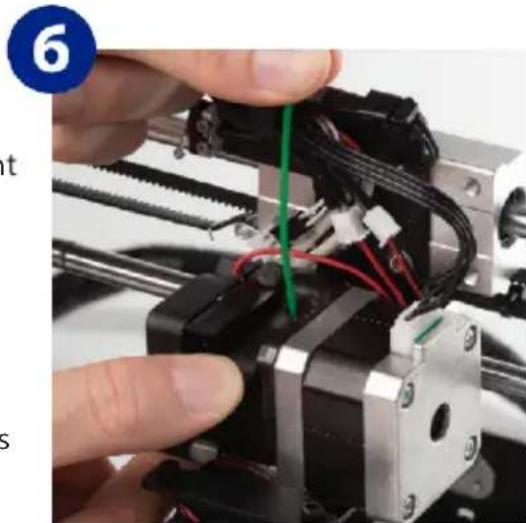
Carefully insert the included filament sample into the hole on the Extruder as shown
-
While holding the filament in place with one hand, press the Dial to enter the menu system
-
Navigate to and select Extruder > Extr. Position.
-
Gently push down on the filament while turning the Dial clockwise. You will feel the filament being pulled into the Extruder. Continue until a few centimetres have extruded out of the nozzle
-
Carefully clean the extruded filament off the Heated Print Bed and nozzle
natural_image
Close-up of hands assembling a mechanical assembly with visible wiring and components (no text or symbols)WARNING: Extruder and Heated Print Bed will still be hot
Setup
3.3 Removing Filament:
- With the printer initialised, press the Navigation Dial to enter the menu system.
- Navigate to, and select Quick Settings > Preheat PLA or Preheat ABS depending on the material.
- Wait for the 3D printer to automatically return to the home screen, after approximately 15-30 seconds.
- Check the temperature of the Extruder and plate on the LCD. When the temperatures are within a few degrees of the target, you are ready to remove the filament.
NOTE: Preheat PLA/Preheat ABS will still be shown, even after temperatures have been reached.
- Depress the Extruder spring lever. Push down on the filament gently so that it starts to extrude from the nozzle.
- When filament is extruding, quickly, but gently pull the filament upward. If it is done correctly, the end of the filament will pull out into a thin hair like strand.
NOTE: The aim is to sever the filament where is it soft (inside the nozzle). Swift upward action will ensure that the filament does not cool down before exiting the nozzle inlet. If the filament gets stuck, please see the troubleshooting section.
3.4 Storage:
Both PLA and ABS filaments are sensitive to moisture. If stored in a humid environment, the quality of the filament can deteriorate, with a tendency to bubble and spurt from the nozzle tip. This will affect print quality, so when storing PLA or ABS for an extended period of time, follow these tips.
• Store in a sealed, air tight bag/container. We recommend a vacuum seal bag
• Store with a silica gel (moisture absorber) pack. One is included with each filament spool
4. Using the Micro SD Card
4.1 Loading files from your Computer:
- Insert your MicroSD Card into a card reader or memory card slot and connect to your computer (refer to your computer manual for further instructions if required)
- The Micro SD Card will appear as a folder (refer to your computer manual for further instructions if required)
- Copy your converted GCODE files to the Micro SD card, then safely remove
Setup
4.2 Printing from the Micro SD Card:
- Insert the included MicroSD card into the slot on the side of the Control Box, ensuring that the metal contacts are facing upwards
- Press the Navigation Dial to enter the menu system
- Navigate to and select SD Card > Mount Card > Print File
- Navigate to your desired GCODE File, then press the Dial to commence printing Your FORGE 3D Printer will now heat up the Extruder and Heated Print Bed before printing your 3D object
NOTE: If selecting 'Print File' shows no files, chances are the SD Card has not been mounted. Select 'Unmount SD Card', then 'Mount SD Card' to remount your SD Card into the side of your Control Box
NOTE: If Extruder temperature is set at 0°C after attempting to print a file, the imported GCODE may have some compatibility issues with the printer. Manually change the Extruder temperature using
Extruder > Temp 1 or Quick Settings > Preheat PLA or ABS depending on material used
5. Removing 3D Objects from the Bed
When the FORGE 3D Printer has completed printing your 3D printed object, it's time to remove the object from the bed.
- Wait until the Extruder and Heated Print Bed have cooled down to room temperature. This will allow the plastic to contract, making it easier to remove
- Using the Scraper, carefully 'wedge' under one of the edges of the 3D object. Take care to keep the Scraper flat with the bed, as to not cause damage to the Print Mat
- As one edge begins to lift, gently manoeuvre the Scraper forward to continue to 'wedge' between the 3D object and the Heated Print Bed
- Once the part has fully separated from the bed, it is safe to remove
NOTE: Never scrape towards your body, or injury could occur
NOTE: Removing a 3D object, particularly one with a large surface size, can be a long process. Never rush when removing a 3D printed object
TIP: If you are persistently having trouble removing 3D printed objects, try the following:
- Use a layer of blue masking tape (designed to not leave behind residue) on the Heated Print Bed. Be sure to remove and replace after each print
- Check if the printing mat is damaged and replace if needed Replacement mats can be purchased at id.aliexpress.com/store/120824
Using Cura
6. Creating a GCODE File using Cura
A GCODE file provides the essential temperature settings and movement information for your FORGE 3D Printer. A number of 'Slicer' software exists, which convert a 3D model file into a series of 3D printable layers. Cura is a free Open Source slicer software released on the AGPLV3 license. It's available on MacOS X and Windows.
6.1 Installing Cura
- Install the file located on your included MicroSD card or download Cura from www.hyperion-world.com
natural_image
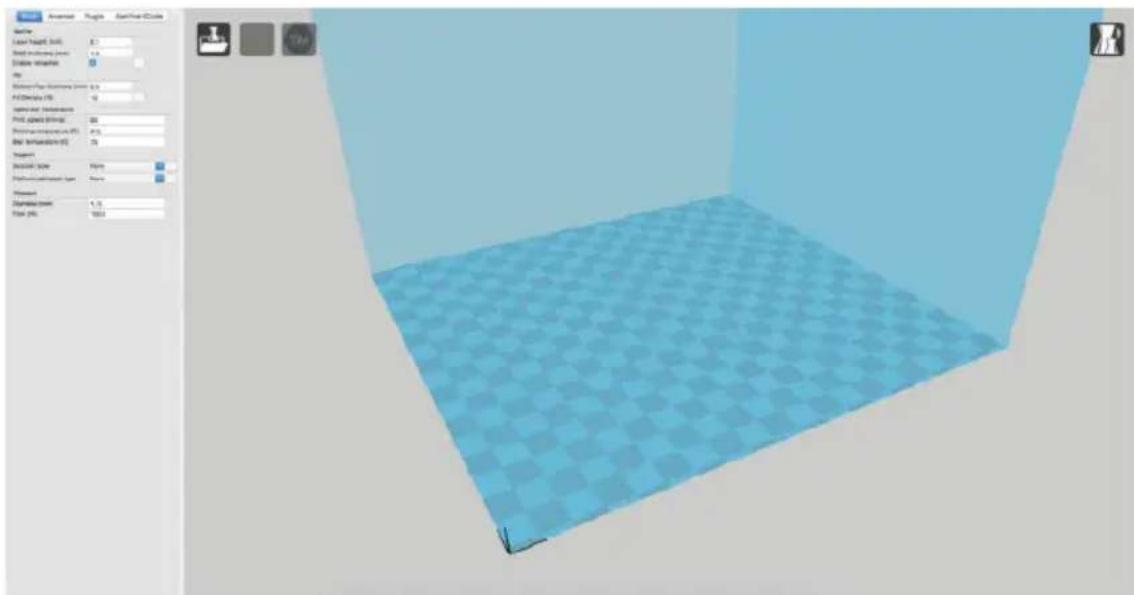
3D rendered blue checkerboard pattern on a light blue surface, displayed in a CAD software interface (no text or symbols on the pattern itself)- Select a destination folder for the install, then press 'Next'
- Select the components to install, then press 'Install'
- Once complete, press 'Finish'
- Refer to your computer manual for further instructions on the above steps if required
Using Cura
6.2 Install CURA FORGE 3D edition onto your computer
- Double click the file: CURA_FORGE 3D_15.04.EXE
- Follow the instruction and click install and next.
- The software has already embedded all the basic settings for your FORGE 3D i3.
6.3 Loading a 3D Design into Cura
- Clear the platform using File > Clear platform...
- Then, load your 3D Design file onto the platform using
File > Load model file... - Load any file with the following extensions: .STL, .OBJ, .DAE, .AMF
TIP: You can load more than one file onto the platform. Cura will automatically move the additional files to fit.
NOTE: Files in grey are outside of the print area and need to be moved or scaled to fit.
6.4 Viewing and Positioning your 3D Model in Cura
Changing the View:
- Zooming In/Out: Use the mouse scroll wheel
- Rotating the View: Hold down the right mouse button and move the mouse
Move Position:
Move your model to change where it is printed on the build plate. Do this by left clicking on the model and dragging it to the desired location. The black outlined corner represents the lower left hand corner of the Heated Print Bed on your printer.
Using Cura
Rotate
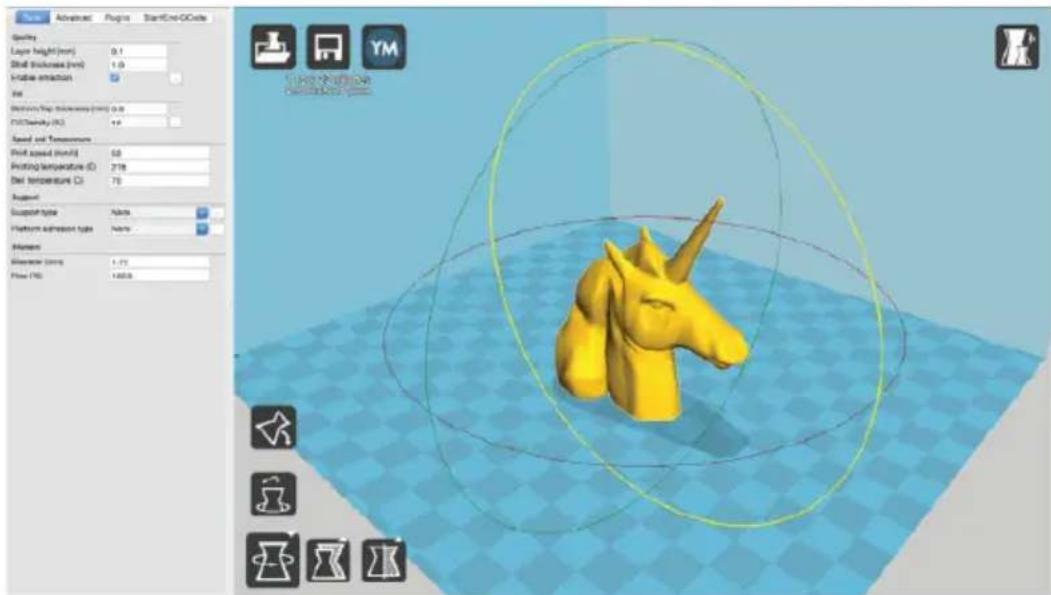
The Rotate button will give you the ability to orient your model in along all three axes. Once you click the rotate button, three circles will surround your model. The red circle will allow you to rotate around the Z axis. The Yellow circle will rotate around the Y axis. The Green circle will rotate around the X axis.
Lay Flat
The Lay Flat button will ensure that the flat portion of your print is securely attached to the bed. It is highly recommended to use this option after rotating your model in the Z direction, as it will help prevent adhesion issues during the print.
Reset
The Reset button will return your model to the original orientation as defined by the CAD program used to create the model.
Scale
The Scale button displays the model dimensions, along with the ability to scale along the X Y or Z axes. Anything below the number 1.0 will reduce the objects size, while anything above the number 1.0 will increase the objects size. As a default, it will be set to uniform scaling. This will cause the X Y and Z axes to be scaled by the same amount when you make a change to any of them. To disable this, select the lock in the lower section of the scaling window.
TIP: Ensure your model is selected by left clicking on it. When selected, the model will have a white outline
Using Cura
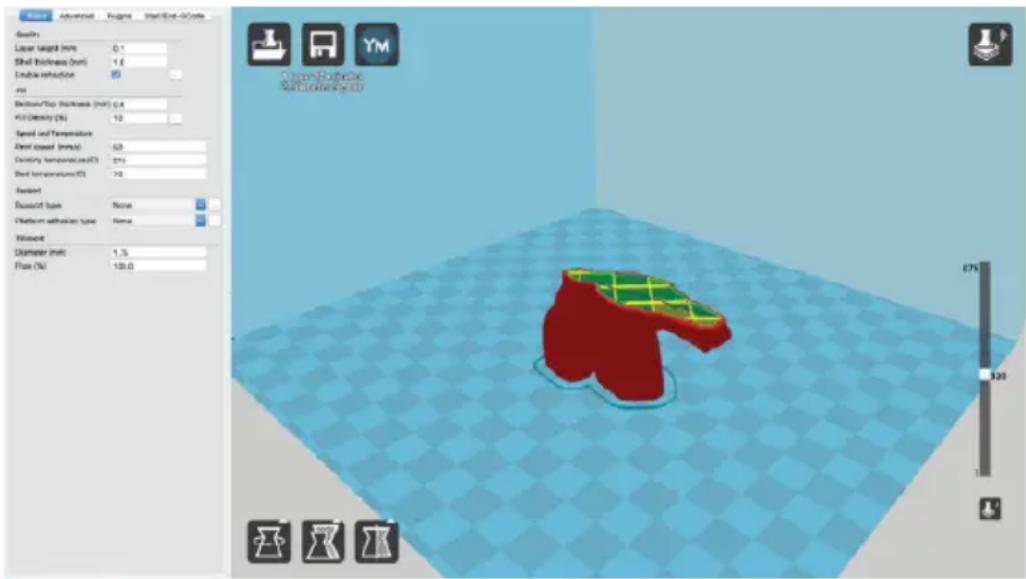
View Mode

This mode allows you to view your model in a variety of different ways.
This can be helpful for spotting issues before the print even starts.
Normal
This is the standard view and shows the solid outer surfaces of the model.
Overhang
Overhang mode shows where your model may need support material. Red highlighted areas show overhangs and more severe angles and areas where support material is recommended. Refer to page 38 for information on how to add support material to your model.
Ghost
Ghost view mode makes the model translucent to allow you to see what is behind it.
Xray
Xray is very similar to Ghost mode. It will allow you to see into objects, ensuring that inner details are correct.
Layers
To view the toolpath of your print head and to ensure no skipped layers or gaps, use this option. Use the slide bar on the right hand side of the window to move up and down through the toolpath layers.
AFTER SALES SUPPORT

+85-223421810

tech@hyperion.hk
Model : FORGE 3D
Using Cura
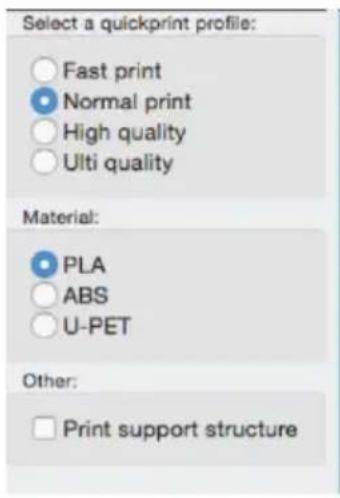
6.5 Quick Print Settings
Quick Print mode allows you to quickly set the quality, material, diameter and support structure of your intended GCODE file.
Enter quick print mode by selecting Expert > Switch to Quickprint...
High Quality
Designed to give greater detail and finer objects. This will have a smaller layer height, which will make each layer thinner, so that curves seem more natural and walls seem less noticeable.
Medium Quality
Designed to give a medium resolution, by increasing the layer height and print speeds. This will make the organic curves slightly more step-like than the fine setting, but will reduce printing time.
Fast Quality
Designed for the fast prints, where overall model finish is not of concern. Most commonly used for quick iteration of designs found in rapid prototyping.
Material Selection
Choose your desired filament. The FORGE 3D Printer includes a 10 metre sample of PLA to be used in your first print.
Diameter
Ensure this is always set to match the filament diameter. Your 3D Printer only accepts FORGE 1.75mm filaments.
NOTE: Advanced users can fine tune the diameter value to allow for tolerance if needed
Printing Support Material
Your FORGE 3D printer is able to print models that have angles and overhangs, some of these models will require support material depending on the overhang distance and angle. Turn this option on if your model could benefit from support material.
Using Cura
6.5.1 Exporting your GCODE File:
Take note of the time and length required to print your 3D object. From the top menu, select
File > Save GCODE. You can now save your GCODE to your desired directory.
NOTE: Always reopen the GCODE file again in CURA to confirm that all slices of the model have been included. This will open in the 'layers' view, if you want to see your object, select 'normal' view
6.6 Advanced Print Settings
Advanced print mode should not be used until you have gained sufficient experience with 3D printing. In order to have more control of your slicing and GCODE generation, switch to advanced print mode.
Enter advanced print mode by selecting Expert > Switch to full settings...
Loading a Profile
When you first switch to Full Settings, Cura will revert to very generic settings. We recommend using our tested profiles that are available at www.hyperion-world.com. You will want to choose the profile that matches your filament and quality needs. Once downloaded, you can load the file into Cura by selecting File > Open Profile. Choose your desired profile.
This will automatically update all of your settings for use with your printer.
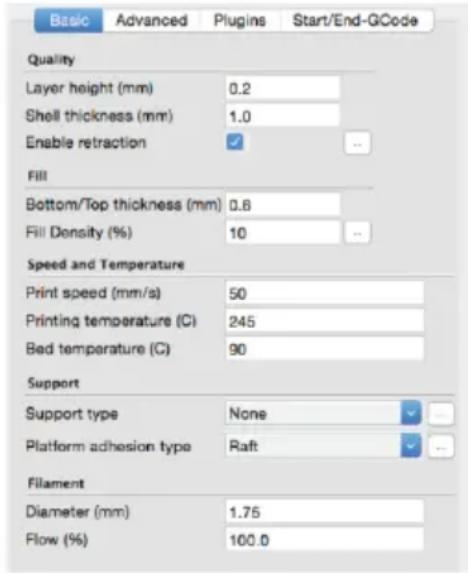
6.6.1 Basic Tab Options
QUALITY
Layer Height (mm)
The thickness of each printed layer is known as the Layer Height. The smaller the layer height, the smoother curves will appear. Larger layer heights are better for bridging and overhangs. Smaller layer heights will also increase print time, as it will take more layers to complete the object.
Shell Thickness (mm)
This defines the number of vertical walls that comprise the outside of your model. We recommend keeping this set to
multiples of your nozzle width. Your FORGE 3D Printer is equipped with a 0.4 mm nozzle.
Using Cura
Enable Retraction
Retraction tells your printer to pull filament out of the Extruder upon travel moves. Travel moves are when your print head moves from one area of the print, to another without laying down filament. We recommend keeping this on for all filament types, and adjusting the retraction length and speed for the specific filament.
FILL
Bottom/Top Thickness (mm)
Also known as Surface Layers; this will determine how thick the top and bottom layers are. A larger number here will create a thicker top and bottom which can be helpful for strength, bridging, and quality purposes. We recommend using a number which is a multiple of your layer height.
Eg: If using a layer height of 0.2mm, set the thickness to 0.4, 0.6 or 0.8mm
Fill Density (%)
This number is expressed as a percentage. 0% will give a completely hollow print, while 100% will give you a completely solid object. We recommend 20% to 40% fill density as it is functional for most prints.
SPEED AND TEMPERATURE
Print Speed (mm/s)
Your overall printing speed can be adjusted here. If no other speeds are determined in the later sections your printer will automatically default to this speed. This speed will be different, depending on what type of filament you are using. We recommend setting speed to 30mm/s.
Printing Bed Temperature (C)
When using different filament materials, you'll need to update the desired Extruder and Heated Print Bed temperature. Any temperatures specified here will be used to automatically set both the
Extruder and Heated Print Bed. Your print will not begin until these temperatures are met. As a guide, refer to Table 3.1 on page 27 for temperature settings.
Using Cura
SUPPORT
Support Type
Some models will require support material in order to print properly. This will usually occur when an object has an angle in relation to the Heated Print Bede between 0 to 45 degrees. It is highly recommended to orient your object so that it minimizes or eliminates the need for support.
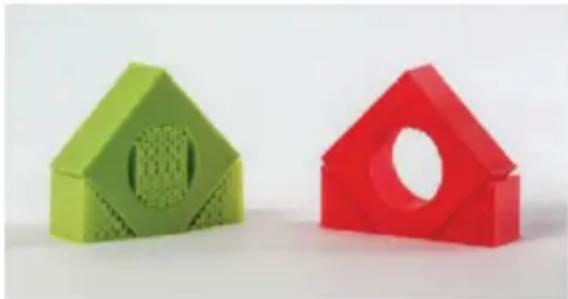
Touching Buildplate
This causes the support material to build up between the Heated Print Bed and the object. The red example is 'Touching Buildplate'
Everywhere
This prints support material between the Heated Print Bed and object as well as between the object and itself. The green example is 'Support Everywhere'.
natural_image
Two 3D geometric house models, one green and one red, displayed against a plain white background (no text or symbols)Platform Adhesion Type
Some models have a small surface area contacting the plate. This can create adhesion issues causing your part to pop off at some point during the print. To fix this, use either 'Brim' or 'Raft'. Raft is better used when a model has small contact points with the Heated Print Bed and overhangs.
Brim
Brim will create a single layer of filament, contacting and surrounding your model. This will increase the surface area of the part contacting the build platform thereby preventing it from popping off the Heated Print Bed. Brim will also help in situations where you are seeing corner lift.
Brim settings can be adjusted by selecting '...' next to the tab.
Raft
Raft will generate a layer of material underneath your object. Raft was more often used before the addition of heated plates to increase surface area. Raft settings can be adjusted by selecting '...' next to the tab.
Using Cura
FILAMENT
Diameter (mm)
The filament diameter setting is one of the more important settings. Make sure that you update this value periodically with your average filament diameter. While your filament may be referred to as 1.75mm, it is more likely going to be near 1.7mm +/- 0.1mm. You will want this to be an accurate average, as it will allow your printer to correctly calculate how much filament it is pulling into the Extruder.
Flow (%)
This controls how much filament your printer is extruding in relation to speed. This setting is mainly used to adjust for filament density variations. Leave this value at 100% as changing it can lead to surface quality issues.
6.6.2 Advanced Tab Options
MACHINE
Nozzle Size (mm)
This defines your nozzle size. The slicing engine uses this value combined with your other settings to determine how quickly to feed filament into your Extruder. The FORGE 3D Printer uses a 0.4mm nozzle.
RETRACTION
Speed (mm/s)
Retraction Speed determines the speed at which your filament is reversed out of the Extruder for travel moves and when changing direction during printing. We recommend keeping this set to 40mm/s.
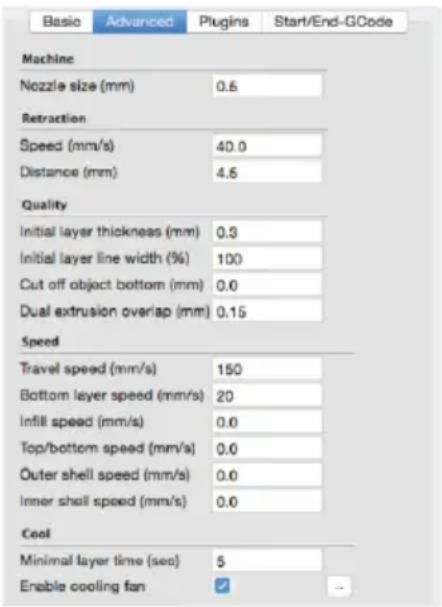
Distance (mm)
Retraction Distance determines how much filament is pulled out of your Extruder on travel moves and when changing direction. You will want to adjust this depending on temperature settings and filament type. Higher thermal retaining filaments such as PLA behave better with a longer retraction distance. Anywhere from 1mm to 3mm is a good starting range.
Using Cura
QUALITY
Initial Layer Thickness (mm)
This will control how thick your first printed layer height is printed onto the Heated Print Bed. Having a larger initial layer height will help prevent your part from popping off the plate. Your FORGE 3D Printer auto levelling system could be affected if you change this from the standard profiles. Adjust at your own risk.
Initial Layer Line Width (%)
This will control how wide your first extruded filament path is for the initial layer. A wider line width will help with bed adhesion. We recommend 125% as a good starting place. For models with moving printed in place parts, a smaller initial layer line width is recommended.
Dual Extrusion Overlap (mm)
This will determine how far your Dual Extruders will overlap when laying down material. This will help adhesion between the two different colours or types of filament. This setting is not applicable to the FORGE 3D Printer, it is only for printers with dual Extruders.
SPEED
Travel Speed (mm/s)
This setting will determine how fast your print head moves while not extruding filament. A normal travel speed of 125 - 150mm/s is recommended.
Bottom Layer Speed (mm/s)
This will control your initial layer speed. In general, a slower initial layer speed will help with first layer adhesion.
Infill Speed (mm/s)
This is how fast your print head speed will be while laying down the interior portion of your model. Faster speeds are usually tolerable here, as none of the infill will be visible from the outside of your object. However, if you go too fast compared to your inner and outer shells, you can have adhesion issues or globs of filament left behind from the print head.
Using Cura
Outer Shell Speed (mm/s)
This will be the outermost surface of the model. This is the most important setting, as it controls the speed of your print head on the visible layers. As a general rule of thumb, the slower you go the better looking print you will get.
Inner Shell Speed (mm/s)
This affects vertical walls that are in between the outer shell and infill. This will not be visible but will help support the outer shell and the infill. We recommend keeping this speed setting between your infill speed and your outer shell speed.
COOL
Minimal Layer Time
This will determine a minimum amount of time your printer will spend laying down each layer. If your layer print time falls below this your printer will automatically slow down to reach this time before moving onto the next layer. Tweaking this can help get cleaner, crisper prints.
Enable Cooling Fan
Enables operation of your Extruder's active cooling fan. The fan settings can be adjusted by selecting ‘...’ next to the tab..
Using Cura
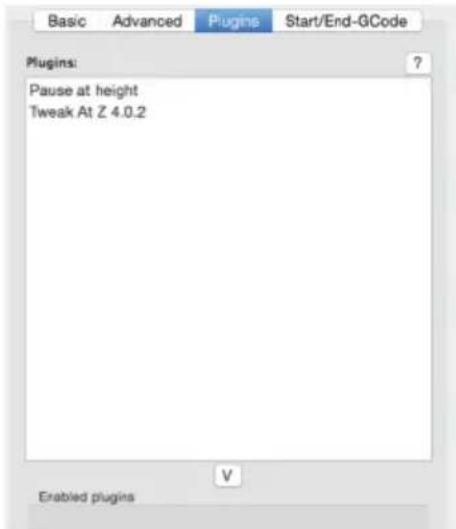
6.6.3 Plugins Tab
Plugins are custom settings which will alter your print at specific points. The two that come pre-loaded with Cura are Tweak at Z, and Pause at Height. More plugins and information can be found here:
http://wiki.ultimaker.com/Category:CuraPlugin
To activate one of these highlight the desired plugin and click the drop-down arrow directly below the Plugins box.
Tweak at Z
Make basic changes at specified Z heights. You can determine the Z height or layer count at which you want to make a change. Then choose how you would like to change your settings. You can alter temperatures, fan speeds, and print speeds. Fine tuning these for specific STL files, can produce cleaner prints.
Pause at Z Height
Pause your print at a specified height. You can also specify where to move the print head and how much filament to retract. This will prevent 'blobs' from accumulating on your print while paused. This setting is most commonly used when switching colours of filaments in the middle of a print.
6.6.4 Start/End GCODE Tab
Custom Gcode allows for complex automatic printer movements and operations. By adding custom Gcode into the start or end of your file, you can alter how it prints. A comprehensive list of Gcode commands can be found here:
http://reprap.org/wiki/G-code
We recommend new users to leave this as provided.
![start.goode end.goode Sliced at: {day} {data} {time} Basic settings: Layer Heights (layer height) Walls: (w ;Print time: [print time] ;Filament needs (filament amount)n [filament weight]g ;Filament cost: [filament cost] ;H100 S[print bed temperature]; Uncomant to add your c ;H109 a[print temperature] subcomponent to add your own t G21 ;metric value G90 ;absolute positioning M92 ;just extruder to absolute node M107 ;start with the fan off G28 K5 TD ;move X/Y to mix endstop G28 D0 ;move E to min erodtops G1 S15.0 F(travel speed); move the platform down 11cm G92 E0 ;near the extuded length G1 P205 E3 ;extrude low of feed stock G92 D0 ;near the extuded length again G1 P(travel speed) ;Put printing message on LCD screen M117 Printing....](/content/2026/05/1031882/images/a6b414be82c90a8731c9d6cc15d075be417a01ac85b3c21afe87e774e681015e.jpg)
Using Cura
6.6.5 Expert Settings
Expert settings will give you more specific options for your retraction, skirt, active cooling, infill, support, brim, raft, and special settings. To gain access to this section you go to Expert > Open Expert Settings or on your keyboard press Control + E.
Retraction
Retraction pulls filament out of your nozzle when it is not extruding to prevent your print head from dripping on your object. This section is where you will control how your Extruder retracts its filament.
Minimum Travel (mm)
This sets the minimum travel distance of your print head in order to retract. If your print head is not moving this far during travel moves, it will not retract.
Enable Combing
This option prevents your print head from travelling over holes in the X/Y plane when printing.
This will slightly increase print time, but will prevent strings from getting caught on the holes during travel moves. We recommend keeping this setting on.
Minimal Extrusion before Retracting (mm)
This will control the distance at which retraction occurs if the printing movement exceeds the minimum extrusion amount. This will prevent a retraction move, if your Extruder has not put out Xmm of filament since its last retraction.
Z Hop When Retracting (mm)
This will raise your print head Xmm while retracting. This setting helps prevent ooze, and strings from being deposited on your print.
Using Cura
Skirt
Skirt creates a line around the outside of your object. This is most commonly used to prime the Extruder. In order to prevent missed filament at the beginning of a print, we recommend you leave this setting on.
Line Count
This will define the number of loops the Skirt creates around the outside of your object.
Smaller models will require more loops to properly prime the Extruder.
Start Distance (mm)
This will define the distance away from your model that the skirt will be created. If using as an envelope to prevent drafts, it is recommended to be closer to your object.
Minimal Length (mm)
This will define the minimum extruded line length for the skirt. This will over ride your line count, producing as many lines as required to reach the minimal length.
Cool
This section will define how your Extruder cooling fan will operate during the print. Your fan will not start until it has reached 25% or higher for speed settings. If your print speeds are slowed down due to minimal layer time, the fan will run between minimum and maximum speed based upon how much the layer is slowed down.
Fan on at Full Height (mm)
The fan will not turn on for the first layer. The fan will then be scaled between 0% and your minimum fan speed based on layer height. It is especially helpful with high temperature retaining filaments such as PLA.
Fan Speed Min (%)
Once the Z height is reached for Fan on at Full Height setting, this will be the speed your fan runs at.
Fan Speed Max (%)
This is the fastest speed at which your fan will ever run. When your print speed is slowed down due to Minimal Layer Time settings, your fan will run between minimum and maximum speed. The maximum fan speed is reached when your printer speed is slowed by 50% or greater.
Using Cura
Support
You define how your support material is generated here. You must have a support type in the 'Basic Settings; in order for these support settings to have an effect.
Structure Type
You can choose between a 'Grid' or a 'Line' pattern for your support material. The grid will be a checkerboard pattern in the X and Y direction. The line option will produce lines along the Y-axis for support. The grid will provide stronger support than the line option, but will be harder to remove.
Overhang Angle for Support (deg)
This will determine where support material is generated. In general you will be able to print a model with 45 to 90 degree angles in relation to the Heated Print Bed without support. We recommend leaving this setting at 45 degrees.
Fill Amount (%)
This will determine how dense your support material is printed, similar to Infill Percentage. The higher percentage the better support, but it will be harder to remove the support material and will use more filament.
Distance X/Y(mm)
This will determine how far away from your object in the X/Y plane that the support material is being placed.
Distance Z (mm)
This will determine how far away your support material is from your object in the vertical direction. A smaller number here is better for support, but makes it harder to remove.
Black Magic
This section allows you to transform your model into a hollow shell, a single layer thick
Spiralize the Outer Contour
This causes your Z-axis to be constantly moving upward as you are printing your single outer wall shell. This results in no layer change lines, giving a much smoother surface. This setting is typically only used for artistic objects as they will be fragile.
Only Follow Mesh Surface
This will cause your print to follow the outside of your model, building it completely hollow with a single wall outer shell. The only difference between this and Spiralize, is that the Z-axis moves regularly. That is, it prints a layer and then moves up to the next one.
Using Cura
Brim
Brim circles the base of the print while making contact, helping adhere the print to the Heated Print Bed. This is only one layer thick, and can be easily removed post-print. This section defines how the brim is formed when brim is activated in 'Basic Settings'.
Brim Line Amount
This will determine the distance the brim will cover around the outside of your object. The more brim used, the better your part will adhere to the plate.
Raft
Raft is a platform built underneath your object, designed to help adhesion and prevent warping. It will lay down support material, and then a platform on top of the supports. Your model will be built on top of this platform. The bottom surface of your printed object will not be as clean or as even when using this option. Raft is typically not recommended.
Extra Margin (mm)
This determines the distance around the outside of your object that the raft is created. This can be helpful for ensuring no warping occurs in the lower layers.
Line Spacing (mm)
This will determine the spacing between support lines for the raft. A small spacing makes the support structures closer together improving strength of the raft, but uses more filament.
Base Thickness (mm)
This defines how thick your raft will be.
Base Line Width (mm)
This will define how wide your support material is for the raft. This setting will determine how well the surface layers of the raft print.
Interface Thickness (mm)
This will determine how thick the surface layers of the raft are. The surface layers are the platform that is built upon the supports.
Interface Line Width (mm)
This will determine how wide the top layers of the platform will be. In general, you can keep this set to your nozzle size, as surface quality of the removable raft is not important.
Using Cura
Airgap
This will define the distance between your raft and your print. A larger gap will make your part easier to remove, but will make the bottom of your print look worse.
Surface Layers
This will determine the number of layers that create the 'platform' of your raft. If you have a wide line spacing, you may want to increase this number to ensure a solid platform.
Fix Horrible
These are some of the more advanced and experimental options. They are designed to help repair models with errors to make them suitable for 3D printing. However they may not always work. Please be cautious when using these options as they can have unintended effects on your print quality.
Combine Everything (Type-A)
This will attempt to fix all external mesh errors, while keeping internal holes intact. This can accidentally fill in intentional internal holes.
Combine Everything (Type-B)
This will ignore all internal holes of the model and only focus on the external holes. This is helpful when only the outside finish of the model is important.
Keep Open Faces
This will ignore all manifold errors in the object. It can create issues generating the Gcode as Cura does not know how to interpret the open holes. This option should only be used if you are sure that the holes in the mesh are intended. In general, you should not use this option.
Extensive Stitching
This causes Cura to automatically add triangle mesh in an attempt to fix manifold errors. This algorithm will greatly increase Gcode generation time and may end up adding in un-intended mesh. It is recommended that you repair your model through your CAD program before attempting this option.
Servicing
7. Servicing your 3D Printer
7.1 Replacing the Print Mat
The FORGE 3D Printer includes 2 x Print Mats. Additional Print Mats are available for purchase from id.aliexpress.com/store/120824
- Remove the current Print Mat by slowly peeling from one corner
- Using rubbing alcohol and a microfiber towel, carefully remove any residual adhesive left on the Heated Print Bed
- Peel the 3M backing from the new Print Mat
- Gently place the new Print Mat onto the Heated Print Bed, making sure to align with each edge. It is recommended to start at a corner to ensure no bubbles become present
- Use the Scraper to apply pressure on the new Print Mat, ensuring strong adhesion. Keep the Scraper level as it can damage the Print Mat
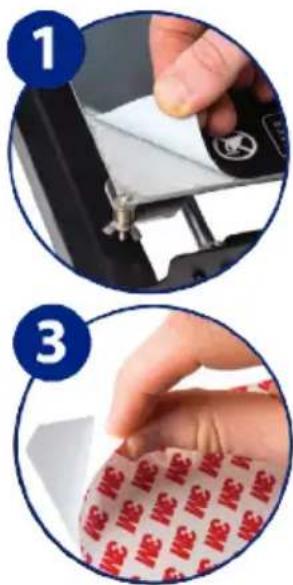
TIP: Warming the bed slightly may make removal easier. You can also use masking tape in lieu of a Print Mat. Blue painters tape is recommended.
7.2 Nozzle Cleaning
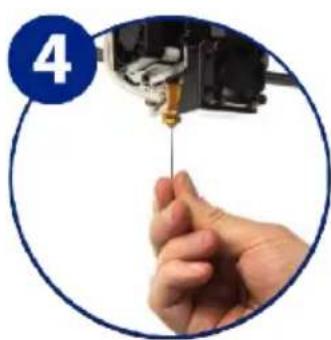
If your Extruder nozzle becomes blocked, follow these steps to clean the nozzle.
- Remove the existing filament using steps from section 3.3 'Removing Filament'
- Raise the Extruder using Position > Z Pos. Fast, then rotating the Dial clockwise
- Heat the Extruder to 215°C
- Using a clean 0.4mm drill bit, insert the drill bit into the nozzle by hand, twisting while inserting
- Remove the drill bit from the nozzle, twisting while removing
- Repeat steps '4' and '5' three times, then follow the steps in section 3.2 'Inserting Filament' to re-insert the filament into the nozzle
natural_image
Close-up of a hand holding a thin wire, with a blue circular badge showing the number 4 (no text or symbols on the diagram itself)Servicing
7.3 Routine Component Check
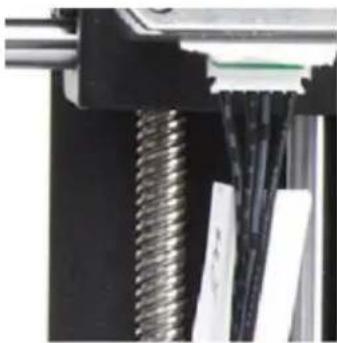
Motor Connectors
Loose motor connections could cause a 3D print to fail. It's a good habit to routinely check for any damage to the connectors or the black cables.
natural_image
Close-up of a mechanical component with coiled metal wire and attached wires (no visible text or symbols)Axis Lubrication
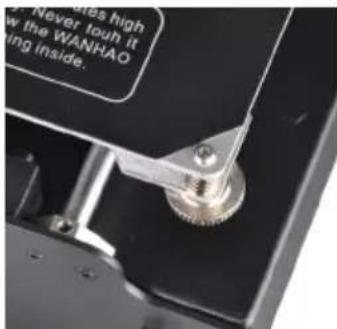
Regular lubrication of the X and Y Axis rods is important for the longevity and smooth running of your printer. The rods can be lubricated with oil or grease. We recommend using bearing grease, and to apply generously to both the X Axis and Y Axis rods.
Nuts and Bolts
Loose nuts and bolts could affect the geometry of the 3D Printer. Check that all nuts and bolts remain firmly tightened. If required, re-tighten using the hex wrench.
7.4 Storing
Always store your 3D Printer in a cool, dry location that is free from dust.
Finishing
8. Finishing Techniques
8.1 Useful Tools/Equipment
- Safety Goggles
- Mask
- Long-nose Pliers
- Wire cutters
• Sandpaper (100,200,300,400,500,600 Grit)
• Medium, fine and extra fine sanding sponges
• Acrylic based primer spray paint
• Acrylic based spray paint (colour of your choice)
• Acrylic based varnish spray paint
NOTE: Different paint types are also compatible with PLA and ABS. Consult your local paint supplier for the best compatibility for your intended purpose.
8.2 Removing Support Material
Even after support material is removed by hand, residual material will remain.
- Ensure that safety goggles and a mask are worn for protection
- Remove most of the support material by hand, taking care not to damage the 3D object
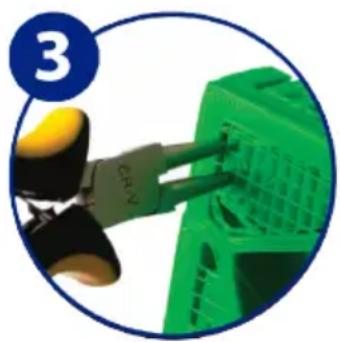
- Using the long-nose pliers, carefully grasp some of the remaining material, then twist to remove. Repeat until no more material can be removed.
- Using the wire cutters, cut away any excess filament.
natural_image
Close-up of a green industrial component being inserted into a blue circular frame, no visible text or symbolsFinishing
8.3 Sanding
Though Fused Filament Fabrication (FFF) is capable of producing high quality objects straight out of the machine, the layer lines will be visible. Sanding will reduce these 'step' marks in the model.
- Ensure that safety goggles and a mask are worn for protection
- Starting with 100 grit sandpaper, carefully sand your 3D object using small, circular motions
NOTE: PLA is less resistant to high temperatures caused by sanding. Take your time sanding your 3D object to avoid damage. - Using the medium sanding sponge, sand difficult to reach areas of your 3D object
- Gradually increase the sandpaper grid until the 3D print is smooth
TIP: Spraying a primer filler will also help to reduce the layer lines on the 3D Object. This can then be sanded away and repeated, until the desired smoothness is achieved
8.5 Surface Coating
Finally, to make your models more presentable, follow these steps;
- Ensure that safety goggles and a mask are worn for protection
- Ensure that your 3D object is clean and free from dust
- Spray your model using an acrylic based primer, following the directions of your primer
- Allow appropriate time to dry before applying additional coats
- Spray your model using an acrylic based paint of your colour. Allow appropriate time to dry
- Spray your model using an acrylic based varnish, following the directions of your varnish. Allow appropriate time to dry before applying additional coats.
NOTE: Different paint types are also compatible with PLA and ABS. Consult your local paint supplier for the best compatibility for your intended purpose.
Congratulations! Your 3D object now looks like a professionally finished product!
Troubleshooting
9. Troubleshooting
If having any troubles when using the 3D printer, please refer to the troubleshooting guide below, or call customer support on +85-223421810
9.1 Printing Problems
Clicking sound from one of the stepper motors
One of your stepper motors may not be connected properly. Check each connection and then inspect the cable routing for any faults
File not printing
Remove the Micro SD Card and insert into your Computer. Open the GCODE file using a text editor (eg. Notepad), and inspect if GCODE is readable or not. If file consists of multiple 'yyyy' symbol, then file has been corrupted. Try reformatting your Micro SD Card and reloading the GCODE file.
NOTE: Reformatting will delete all files on your MicroSD card
Not extruding when starting to print
Ensure that the nozzle temperature has been set to match your material
Not sticking to the bed
• Ensure that the bed is clean and free from dust
- Check that the bed is level and set to a distance of approximately 0.1mm
- If there are defects / deep scratches in the printing mat, it may need to be changed. Change the mat or use blue painters masking tape
- Add a brim or raft to your file
- Check that the bed temperature matches your material
- Ensure nozzle to bed gap is not bigger than 0.1mm. Material will solidify if gap is large
Models Warping/Curling
- Check that the bed temperature matches your material
- Check the infill % of your GCODE. The higher the infill, the more likely to warp
- Add a brim or raft to your file
Troubleshooting
Model appears very 'stringy'
- Ensure that the filament diameter is set to match your filament spool (1.75mm), then try creating a new GCODE before printing again
- Check you are using the correct temperature for the filament used
Print stopped halfway
- Check that the GCODE file is complete and not corrupt
• Check the original model file
The motor does not stop at the end of axis
Check that the stop micro switches are aligned with the motor mount and registering.
The print head/bed does not move
- Check the part can be moved by hand when stepper motor is disabled. Clear anything that is blocking the path
- Check that the motor is turning (using position menu). If motor turns but belt does not, you will need to tighten the gear motor gear nut. Please visit www.hyperion-world.com
10.2 Connectivity Problems
My 3D Printer isn't turning on
Check that you have correctly inserted the power cable into the rear of the Control Box, the power cord is plugged into the mains outlet and that the Control Box power switch is on.
Micro SD Card not shown
Navigate to SD Card, select Unmount SD Card, then select Mount SD Card. Your Micro SD card should now appear in the menu.
Troubleshooting
10.3 Other Problems
Filament stuck when removing
Where can I buy more filament?
If you require more filament, visit our online store, www.hyperion-world.com to purchase various colours and types.
What brand of filament should I buy?
We recommend using only FORGE 3D branded filament. Lower quality generic filaments can damage your 3D Printer and potentially void your warranty.
What types of filament can my 3D Printer Print?
The FORGE 3D Printer accepts various types of filaments including PLA, ABS, PVA, HIPS and specialty filaments such as wood, flexible, luminous and conductive. For our full range of filaments visit www.hyperion-world.com
10. Useful Terms
ABS Filament
Commonly used plastic filament with good strength and industrial properties
Display
Provides the main interface for operating the 3D Printer
Firmware
Software that is programmed into the electronic board
GCODE
Code that is produced using the slicing process. Describes the movements and temperature settings of your 3D printer
Troubleshooting
Heated Print Bed
Surface that your 3D objects are printed onto
Nozzle
Opening at the bottom of the print head where filament is pushed through
Micro SD Card
Secure Digital memory card. This is where your GCODE files can be stored and accessed by the 3D Printer
PLA Filament
Commonly used plastic filament with low environmental impact
Slicing
Process that turns a 3D Design into a code that can be used by 3D Printers
Spool
Filaments of PLA and ABS are wrapped, creating a spool
Stepper Motor
DC motors that move in discrete steps. This allows for precise positioning and/or speed control
.stl
A common file format for 3D Designs/Models
USB Cable
This cable allows communication between the FORGE 3D Printer and a computer, using the USB port of the computer
Appendix
References
Some of the 3D Models used in this manual and other included materials were sourced from the below:
Unicorn Head by kellesabelle
Published on February 5, 2012
www.thingiverse.com/thing:17090

Creative Commons - Attribution - Share Alike

Voronoi lamp by Markellov
Published on December 9, 2014
www.thingiverse.com/thing:584714

Creative Commons - Attribution - Share Alike

Twisted 6-sided Vase Basic by MaakMijnIdee
Published on March 7, 2012
www.thingiverse.com/thing:18672

Creative Commons - Attribution - Share Alike

General purpose hook by Erikjuh
Published on October 20, 2015
www.thingiverse.com/thing:1081862

Creative Commons - Attribution

Cable Holder (Cable Clip) by bardiaesm
Published on April 6, 2013
www.thingiverse.com/thing:70549

Creative Commons - Attribution

Twisted bracelet by Gepetto
Published on January 25, 2015
www.thingiverse.com/thing:651677

Creative Commons - Attribution - Share Alike

Geoflower by EMRL
Published on August 25, 2015
www.thingiverse.com/thing:982849

Creative Commons - Attribution - Share Alive

AFTER SALES SUPPORT

+85-223421810

tech@hyperion.hk
Model : FORGE 3D