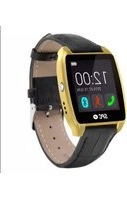
Smartee 9606G - Smartwatch SPC - Free user manual and instructions
Find the device manual for free Smartee 9606G SPC in PDF.


| Product Type | Smartwatch |
| Brand | SPC |
| Model | Smartee 9606G |
| Dimensions | 50 x 40 x 10 mm |
| Weight | 45 g |
| Display | Touchscreen |
| Battery Type | Lithium-ion, rechargeable via micro-USB |
| Charging Time | Approximately 2 hours |
| Battery Life (active use) | 15–20 hours (screen off) |
| Battery Life (standby) | 2–3 days (Bluetooth off) |
| Connectivity | Bluetooth 4.0+ |
| Compatible OS | Android 4.3+ and iOS 7+ |
| Main Functions | Phone calls, contacts, SMS, notifications, remote music, remote camera, pedometer, sleep monitor, altimeter, thermometer, barometer, alarm, chronometer, anti-theft, sedentary reminder |
| Audio | Built-in speaker and microphone |
| Navigation | Slide gestures (right/left) |
| Power Button | On/off and reset (press 10+ seconds) |
| Language Support | Multiple languages (selectable in settings) |
| Cleaning | Wipe with a soft, dry cloth. Avoid moisture and harsh chemicals. |
| Safety Precautions | Do not expose to extreme temperatures or impact. Keep away from water (not waterproof). |
| Spare Parts / Repairability | Battery is internal and not user-replaceable. No official spare parts available; contact SPC support for repairs. |
| Application | SPC Smartee Connect (available on Google Play and App Store) |
| Warranty | Included guarantee card; refer to SPC terms |
Frequently Asked Questions - Smartee 9606G SPC
User questions about Smartee 9606G SPC
0 question about this device. Answer the ones you know or ask your own.
Ask a new question about this device
Download the instructions for your Smartwatch in PDF format for free! Find your manual Smartee 9606G - SPC and take your electronic device back in hand. On this page are published all the documents necessary for the use of your device. Smartee 9606G by SPC.
USER MANUAL Smartee 9606G SPC
natural_image
Silhouette of a rocket inside a circular frame (no text or symbols)Smart Watch
SMARTEE WATCH EDITION
UPDATED INFO: support.spc-universe.com
¡ BIENVENIDO !
ES
1- Tapa del conector de carga micro-USB
2- Micrófono
Copyright © 2015 SPC
www.spc-universe.com
This guide includes all the information to make the most out of your SPC Smartee Watch Edition.
GET AN SPC ACCOUNT
Free advantages just one click away..
Before going on reading this manual, we strongly recommend you visiting www.spc-universe.com, SO YOU CAN CREATE AN SPC ACCOUNT AND REGISTER YOUR PRODUCT.
By doing this, you will be able to get into SPC universe: an exclusive club where our clients can get incredible offers and discounts and also upgrade or renew their products.
Moreover, having an account means free access to SPC services: tablet and smartphone apps, technical support...
This is SPC. A universe in technology.
THIS BOX CONTAINS
■ Smartee Watch edition
USB Cable
User's guide
- Guarantee card
FEATURES
■ Functions: Phone calls, contact list, notifications, remote music, alarms, remote camera, pedometer, sleep monitor, altimeter, thermometer, barometer. Application for Android and iOS
■ Weight and Dimensions: 50x40x10mm.
45g.
MINIMUM REQUIREMENTS
For most of the Smartee Watch features to run it is required to be connected to a SmartPhone. The minimum requirements are:
- Micro-USB charging connector cover
- Microphone
- Switch on/off button
- Speaker
BATTERY CHARGING
Connect one end of the USB cable (micro USB) in the charging contact (1). Then connect the USB end directly to computer's USB port or AC-DC of 5V power adapter.
Charge the watch for about 2 hours until the charging icon shows as fully charged.
Battery life in use (off screen): 15-20 hours (depending on usage)
Battery life in standby mode (without Bluetooth): 2-3 days
USE OF WATCH
SWITCHING ON / OFF THE WATCH
To switch on the watch keep the button pressed (1) for a few seconds until the screen lights up.
To switch off the watch follow the same procedure
If the screen turns off (for power saving), briefly press the button (3) to switch on, and do the same to switch it off.
NOTE: If at any moment the watch gets hanged, then in order to reset press the button (3) for more than 10 seconds in.
NAVIGATING THROUGH THE MENUS
The Smartee Edition Watch has various menu screens. With the display on, slide your finger from right to left or vice versa, to move through them.
Also, slide your finger:

From right to left to enter into or to confirm an option.

From left to right to go backwards or ing an option.
MAIN FUNCTIONS
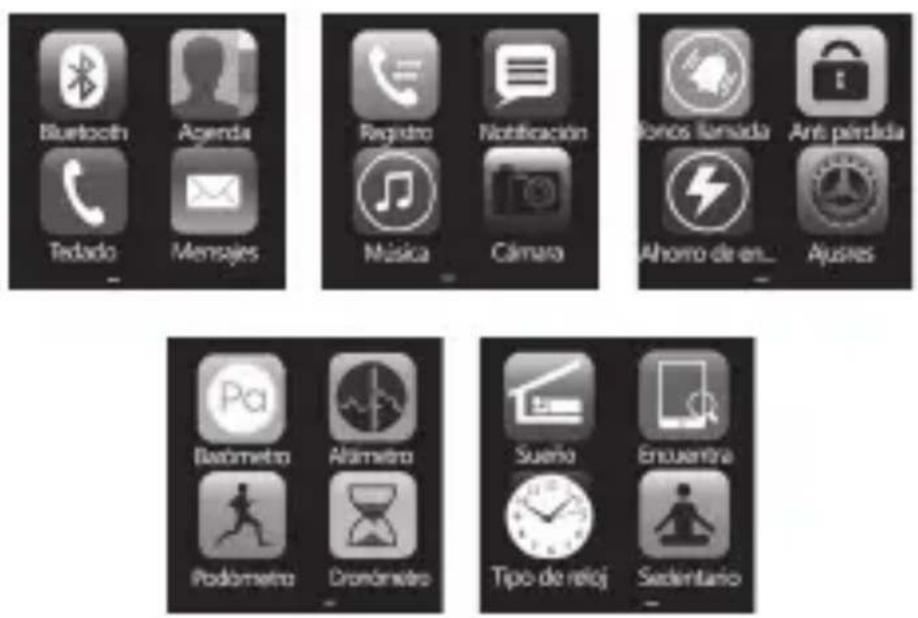
BLUETOOTH
From here you can sync through BT with a Smartphone, make changes to the settings of BT (enable / disable, change visibility, and see the watch's BT name), or configure the alert distance (the watch vibrates if the connection to the mobile is lost). If you slide further from right to left in a BT connection, you may get it disconnected, erase the connection data and see a little help text as introduction
SMS
Access sent and received SMS messages from the mobile. If slide further from right to left in a message, you can call the sender, delete the message and see the details.
CONTACTS
View the contacts list of your mobile. If you click on a contact, you can call or see the details.
TELEPHONE / DIALLER
Dial a phone number to call from mobile. The call will be heard through the speaker
and you will be able to speak through the watch with the help of the microphone
CALLS REGISTRY
Access the log for missed, dialled and received calls. If you click on a call registry, you can also see details or call using the phone.
REMOTE MUSIC
Access the music in your mobile, plays songs, forward or backward with one another and Increase or decrease the volume
REMOTE CAMERA
Access the camera of your mobile (in order to use this feature your phone have to be unlocked) and take a picture by sliding your finger from right to left. In case of iOS, the iPhone's camera will have to be opened first in order to use this feature.
SEARCH PHONE
A sound is made by the phone in order to locate it easily.
POWER SAVING
Enable or disable the power saving mode. In order to save battery power It is recommended to enable it.
SETTINGS
Access the configuration settings of the watch:
■ Language: the language of the watch can be changed.
- Alarm: Set different alarms on the watch, configuration of the repetitions, the tone and type of alert can also be done. To save an alarm after setting it, you should slide your finger from right to left. The alarms sounding once can also be stopped, or make them sound again in 10 minutes.
■ Time setting: Change the time manually
■ Date setting: Change the date manually
■ Time format: 12 or 24 hours.
Screen light: set the time after which the screen will turn off if not touched
■ Units configuration: choose between metric and imperial
■ About: View the information and the version installed in the watch
■ Default settings: Return to the factory configuration
NOTIFICATION
View the mobile notifications.
NOTE: Depending on the version of the operating system you are using, it may be necessary to activate the application for receiving notifications. In Android 5.0, you must do so in the menu Settings Sound and notifications Accessing notifications. Otherwise, the watch wont be able to access phone notifications.
CLOCK TYPE
Choose the clock type: analogic or digital, in order to change the clock interface.
RINGTONES
Choose among the silence, vibration or different ringtones.
ANTI THEFT
Enable or disable this feature. In case enabled and the distance between the mobile and the watch is greater than 15 meters, the watch will alert you.
CHRONOMETER
Chronometer function.
PEDOMETER
Pedometer features. Configure your step and weight previously from this same menu. When you activate the pedometer it will begin to count steps and calculate the distance travelled and calories burned. You can also delete the saved data history.
MONITOR SLEEP
Activates or deactivates sleep mode, view the current sleep status, and delete the saved data history.
SEDENTARY REMINDER
If you activate the sedentary reminder, mobile will alert you if the set time elapses and the watch did not detect movement.
THERMOMETER / BAROMETER
Thermometer and barometer feature.
ALTIMETER
Relative altimeter feature.
NOTE: The sensors for altimeter, thermometer and barometer features are not meant for professional use measurements.
TELEPHONE CALLS
When you have the watch and mobile linked, and the mobile receives a call, the watch will notify you by vibrating or ringing (as configured) and you can take the call from the watch, talk through the microphone and listen through the built-in speaker. You can also hang up the call from the watch, and turn it mute when the watch is set to ring instead of vibrating.
LINKING YOUR WATCH WITH YOUR SMARTPHONE
FOR ANDROID MOBILES (WITH VERSION 4.3 OR HIGHER)
Search on GooglePlay the “SPC Smartee Connect” application and install it on your SmartPhone. Start the app “SPC Smartee Connect” to synchronize the SmartPhone with watch by following the below steps:
1- Make sure to have your SmartPhone Bluetooth activated and visible
2- Make sure to have Watch Bluetooth activated and visible (Bluetooth function Settings Status: Activated)
3- In the app, you'll see a green box "unlinked" click here and search the list Smartphone "SPC EDITION". Press to connect. The watch will ask for confirmation, you should accept it by sliding your finger from right to left. And the phone will also ask for confirmation, which must be accepted too.
4- In the app you will now see the green box "Linked"
NOTE: You can also make the link directly from the watch instead of following this procedure, although the right thing for an ideal and excellent linking is following the steps, i.e. initiate the link from the mobile..
NOTE: If the connection gives you a password error, try connecting directly from the watch(MENU - BLUETOOTH - YNCHRONIZE BY BT - SEARCH FOR NEW DEVICE and click on the selected one)
FOR IPHONE (WITH VERSION iOS7 O HIGHER)
Search in AppStore the application “SPC Smartee Connect” application and install it on your SmartPhone. Initiate the App “SPC Smartee Connect” for synchronizing your iPhone with the watch by following these steps:
NOTE: Not all watch features, compatible with Android, are supported by operating system iOS.
1- Make sure you have your iPhone Bluetooth activated and visible
2- Make sure you have your watch Bluetooth activated and visible
(feature Bluetooth→Settings Status: Activated)
3- From your iPhone, in the menu Settings → Bluetooth → scans devices. Select the “SPC EDITION” and launches the link request from your iPhone.
4- The watch will ask for confirmation, you should accept it by sliding your finger from right to left. And the mobile will also ask for confirmation, which should be accepted too.
5- Once linked, in the iPhone, go to the watch information “My devices” within the BT menu and activate notifications (by default they are deactivated)
6- Now launch the app "SPC Smartee Connect" look for "SPC EDITION" and click on it to connect
Features that are incompatible with iOS.
SMS
■ Synchronize pedometer and sleep data with the application
USE OF THE APPLICATION
SPC SMARTEE CONNECT (only for ANDROID)
- LINK WITH WATCH
- ACTIVITY / SLEEP: Synchronize the data with activity or sleep recorded by the watch. Synchronization can only be done manually by clicking on the icon
- BASIC SETTINGS: You can make basic settings, enable or disable SMS alerts, call alerts, close the multimedia audio, or configure whether notifications are always sent or with locked screen.
- SETTINGS NOTIFICATIONS: You can change the settings for accessibility (mandatory to activate it for receiving notifications), activate the notifications or select notifications what applications you want to receive on the watch.
- DATA CALORIES / DISTANCE / STEPS: It is synchronized manually with the watch information
- BT NAME Bluetooth name of the watch can be changed.

The information that this guide contains cannot be transmitted, played or distributed in any case without the written authorization of SPC.
COMERCIAL BRANDNAMES
SPC is a registered brandname of Telecom y Novatecno S.A.
NOTE: SPC reserves the right to modify the information of this guide in any moment. All the information and recommendations that we can find here do not guarantee anything.
BEM-VINDO
Marca/Brand/Marca: SPC
Denominación comercial/Commercial Name/Nome comercial: 9606T / 9606G
NORMAS APLICADAS / APPLICABLE NORMS / NORMAS APLICÁVEIS
EN 301 489-1 V1.9.2 / EN 301 489-17 V2.2.1 / EN 300 328 V1.8.1 /
EN 60950-1: 2006+A11: 2009+A1: 2010+A12: 2011+A2: 2013 / EN
62479: 2010
FUNCIONALIDADES/FEATURES/CARACTERÍSTICAS
Director General/General Manager/Diretor-geral
This declaration of conformity is in compliance with the European Directive 1999/05/EC.


- SMARTEE WATCH EDITION
- ¡ BIENVENIDO !
- www.spc-universe.com
- GET AN SPC ACCOUNT
- THIS BOX CONTAINS
- FEATURES
- MINIMUM REQUIREMENTS
- BATTERY CHARGING
- USE OF WATCH
- NAVIGATING THROUGH THE MENUS
- BLUETOOTH
- SMS
- CONTACTS
- TELEPHONE / DIALLER
- CALLS REGISTRY
- REMOTE MUSIC
- REMOTE CAMERA
- SEARCH PHONE
- POWER SAVING
- SETTINGS
- NOTIFICATION
- CLOCK TYPE
- RINGTONES
- ANTI THEFT
- CHRONOMETER
- PEDOMETER
- MONITOR SLEEP
- SEDENTARY REMINDER
- THERMOMETER / BAROMETER
- ALTIMETER
- TELEPHONE CALLS
- LINKING YOUR WATCH WITH YOUR SMARTPHONE
- USE OF THE APPLICATION
- SPC SMARTEE CONNECT (only for ANDROID)
- COMERCIAL BRANDNAMES
- BEM-VINDO
- NORMAS APLICADAS / APPLICABLE NORMS / NORMAS APLICÁVEIS
- FUNCIONALIDADES/FEATURES/CARACTERÍSTICAS
- Director General/General Manager/Diretor-geral
Brand : SPC
Model : Smartee 9606G
Category : Smartwatch