
READYCACHE - SSD SANDISK - Free user manual and instructions
Find the device manual for free READYCACHE SANDISK in PDF.


| Product Type | Solid State Drive (SSD) |
| Brand | SanDisk |
| Model | ReadyCache |
| Form Factor | 2.5-inch |
| Interface | SATA III (6 Gb/s) |
| Capacity | Available in 120GB and 240GB variants |
| Sequential Read Speed | Up to 550 MB/s |
| Sequential Write Speed | Up to 150 MB/s (120GB) or 290 MB/s (240GB) |
| Power Consumption (Active) | Typically 0.125W (idle) to 2W (active) |
| Operating Temperature | 0°C to 70°C |
| Dimensions (L x W x H) | 100.2 x 69.85 x 7.0 mm |
| Weight | Approximately 70g |
| Shock Resistance | Up to 1500 G (0.5 ms half sine) |
| Supported Operating Systems | Windows 7 and later, macOS 10.7+, Linux |
| Main Features | ReadyCache caching technology for faster boot and application load times; silent operation; low power consumption |
| Maintenance | No moving parts; firmware updates recommended via SanDisk SSD Dashboard; minimal maintenance |
| Security | No built-in hardware encryption; standard OS security measures apply |
| Repairability | Not user-serviceable; no replaceable parts; warranty replacement only |
| Warranty | 3-year limited warranty |
Frequently Asked Questions - READYCACHE SANDISK
User questions about READYCACHE SANDISK
0 question about this device. Answer the ones you know or ask your own.
Ask a new question about this device
Download the instructions for your SSD in PDF format for free! Find your manual READYCACHE - SANDISK and take your electronic device back in hand. On this page are published all the documents necessary for the use of your device. READYCACHE by SANDISK.
USER MANUAL READYCACHE SANDISK
natural_image
3D layered structure with a rainbow-colored gradient overlay, no text or symbols presentExpressCache™ from Condusiv™ Technologies Corporation
User's Manual
Version 1.2.1
Technical Support
SanDisk Knowledgebase
Contact SanDisk
Table of Contents
Overview....3
Minimum System Requirements ....3
Package Contents ....3
Installing a SanDisk ReadyCache SSD on a desktop computer......3
Installing ExpressCache software ....4
Enable Caching....8
Disable Caching....8
Clear the Cache....9
Cache Status....9
Help 10
Check for Application Update....10
Choose Your Language ....10
Cache Monitor....11
Turn off write-cache buffer flushing 12
About....13
System Tray Icon....14
Frequently Asked Questions....14
Overview
SanDisk ReadyCache SSD accelerates your existing PC's boot time and improves overall application load and response times. It resides alongside your desktop computer's existing hard drive and is designed for systems running the Windows® 7 operating system. When paired with ExpressCache™ software by Condusiv Technologies, the solution's advanced caching algorithms automatically manage data by caching commonly used files to improve overall storage performance.
Minimum System Requirements
- Windows ^ 7/8
• 1GB of RAM (32bit) and 2GB of RAM (64bit) - SATA II or higher port
- Broadband Internet Connection
• .Net Framework 3.5 or higher - Internet Explorer 8 or higher
Package Contents
• SanDisk ReadyCache SSD
- A SATA data cable
• 2.5" to 3.5" adaptor bracket
- ExpressCache Software Installation Guide
Installing a SanDisk ReadyCache SSD on a desktop computer
NOTE: The SanDisk ReadyCache SSD is designed to work in conjunction with your existing system hard disk drive. Therefore, it MUST be installed as a non-bootable secondary drive on your desktop computer.
- Turn the computer off.
- Disconnect the computer from any electrical sources to avoid potential damage to the motherboard and yourself.
- Remove the side access panel (please refer to your computer's owner manual if you do not know how to do this).
- Locate a spare bay underneath or near your main the hard disk drive bay.
- Insert the SanDisk ReadyCache SSD into the spare bay with the data and power socket facing the rear face of the computer case.
- Locate a thin SATA power connector from the computer's power supply and insert it into the power socket on the drive.
- Insert one end of the SATA cable into the drive's SATA data socket.
- Insert the opposite end of the SATA cable to a free SATA port located on the motherboard.
- Close the computer case.
- Plug the computer back in.
Installing ExpressCache software
You must download the ExpressCache software from http://www.sandisk.com/ReadyCache.
- Double-click on ExpressCacheSetup.exe.
- Select your language from the drop-down menu, and then click Ok.
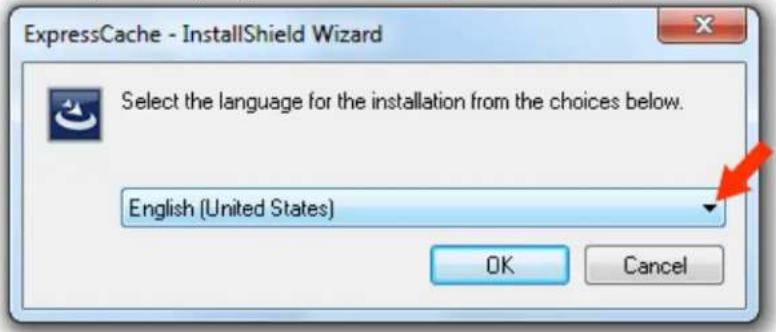
Supported Languages:
English, French, Italian, German, Spanish (Spain), Japanese, Simplified Chinese, Traditional Chinese, Portuguese (Portugal), Russian, Korean, Danish, Swedish, Turkish, Polish, Czech, and Dutch
Microsoft .NET Framework 4.0 Client is required to run ExpressCache software. The below message will appear if it is not installed on your computer.
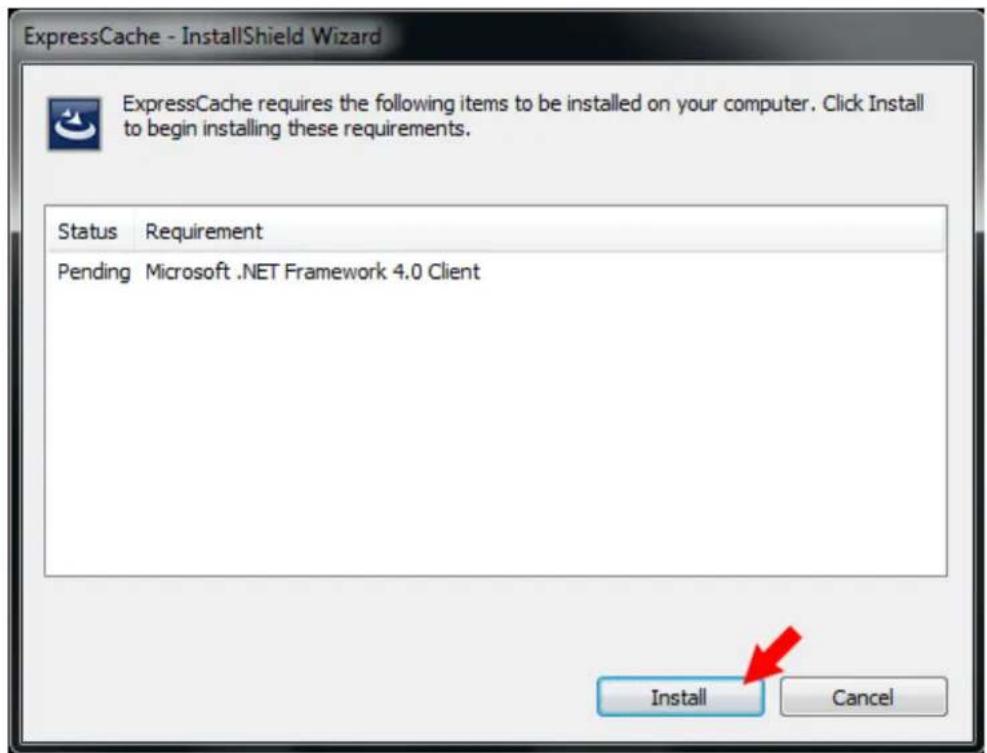
Click Install to continue.
- The ExpressCache software Setup Wizard will start. Click Next on the first screen.
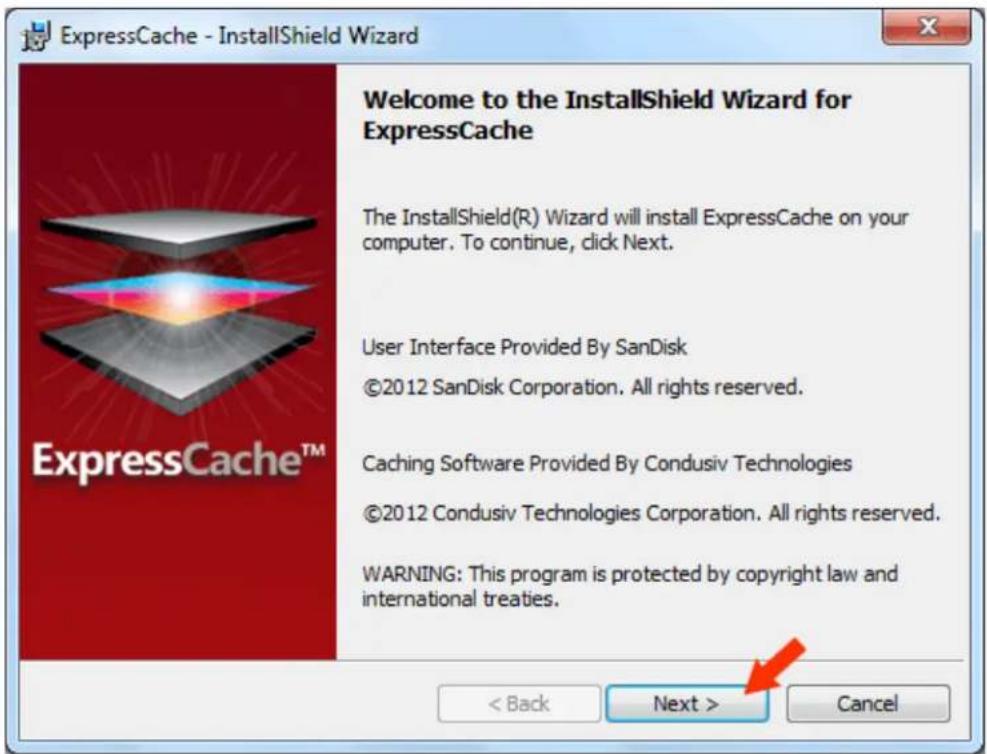
- Read the License Agreement. To enable the Next button, scroll to the bottom. Click to select check box to confirm your acceptance of the terms of the License Agreement, and then click Next.

- Click Change if you want the ExpressCache software to be installed to a folder other than the one specified. If you want to create a shortcut on your desktop, click to select the Create a shortcut on my desktop check box. Click Next.

- Click Install to confirm.

- Click Finish after the installation is completed.
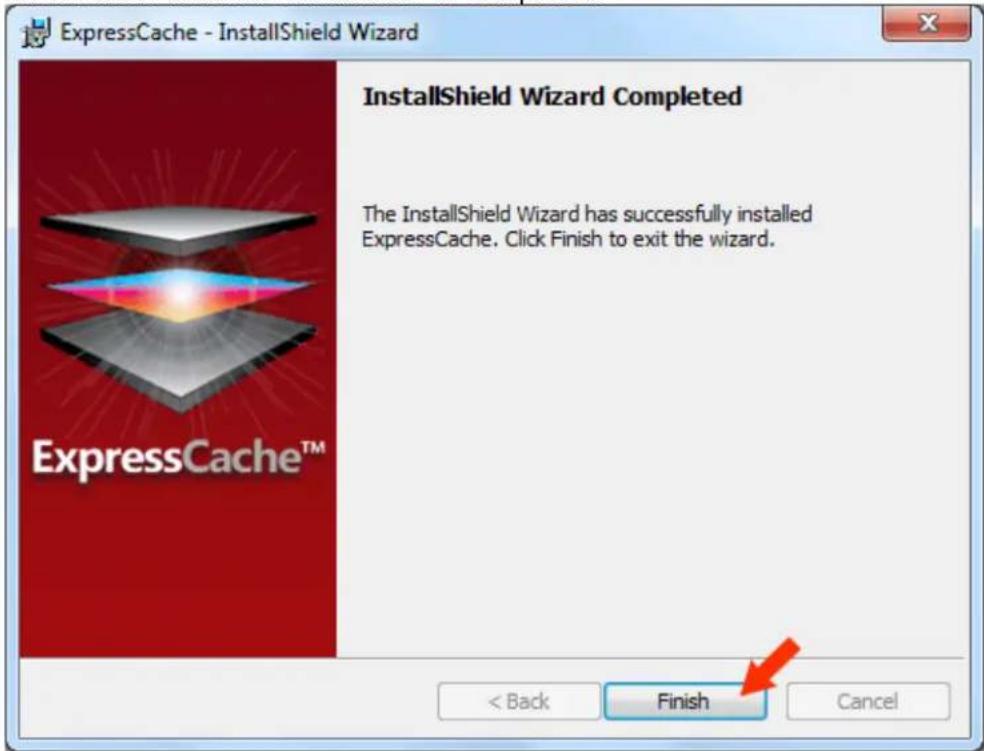
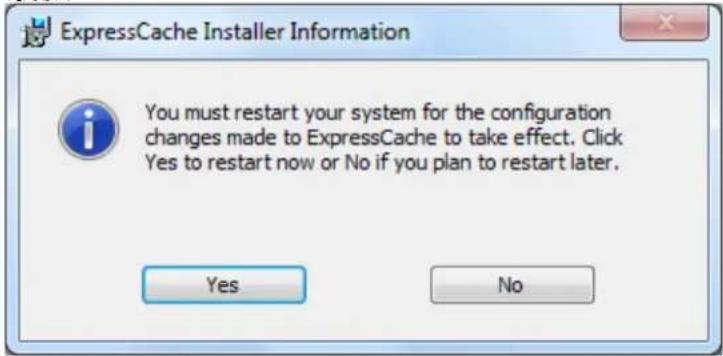
- Your system needs to be restarted. Click Yes to restart now or No if you plan to restart it later.
Enable Caching
- Click Start > ExpressCache.
- Click to select the Enable Caching checkbox.

ExpressCache
Enable Caching
When caching is enabled, you are using your Solid State Drive (SSD) to speed up processes on your system.

Enable Caching
3. Click OK.
Are you sure you want to enable caching?
Click OK to enable caching
OK
Cancel
Disable Caching
- Click Start > ExpressCache.
- Click to unselect the Enable Caching checkbox.
Enable Caching
When caching is enabled, you are using your Solid State Drive (SSD) to speed up processes on your system.

Enable Caching
3. Click OK.
Are you sure you want to disable caching?
Click OK to disable caching
OK
Cancel
Clear the Cache
- Click Start > ExpressCache.
- Click Clear Cache.
Clear Cache
The cached data in the allocated cache partition is managed automatically, no user intervention is required. However, if you want to delete all cached data from the cache partition, click the "Clear Cache" button below.

Clear Cache
- Click OK.

Cache Status
The status window displays the capacity of the SanDisk ReadyCache SSD drive, the amount of space used for caching, and whether caching is enabled.

Help
Click on the "?" icon and select Help to view the most commonly asked questions or troubleshooting tips. Your default web browser will be launched taking you to the SanDisk ReadyCache SSD support website.

Check for Application Update
Click on the “?” icon and select Check for Update to manually check if an updated application is available.
NOTE: Every time the application starts, it will check for updates and inform you if an update is available. This menu item allows you to check manually at any time.
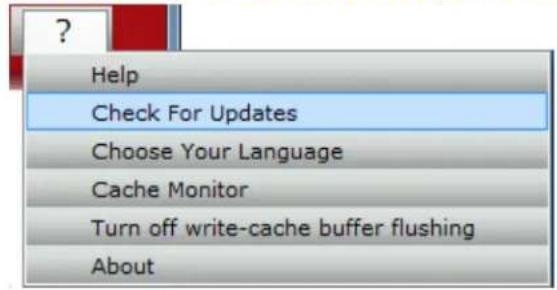
Choose Your Language
Click on the "?" icon and select Choose Your Language.

Select a new language then click OK.

Cache Monitor
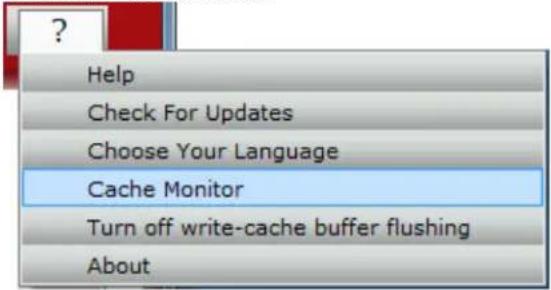
To view the cumulative megabytes read since the last system reboot during the last minute, click on the "?" icon and select Cache Monitor. The cache monitor chart is refreshed automatically every 1/5th of a second.

line
| Time | System Read | Cache Read | | ---------- | ----------- | ---------- | | 09:30:50 | 890.0 | 856.4 | | 09:31:00 | 890.0 | 856.4 | | 09:31:10 | 890.0 | 856.4 | | 09:31:20 | 890.0 | 856.4 | | 09:31:30 | 895.0 | 856.4 |- The orange line shows the System Read: The cumulative megabytes read from all system drives (HDDs and SSDs) since the last system boot.
- The Blue line shows the Cache Read: The cumulative megabytes read from the SanDisk ReadyCache drive since the last system boot.
Turn off write-cache buffer flushing

To turn off write-cache buffer flushing, click on the "?" icon, select Turn off write-cache buffer flushing, and then click Yes.
WARNING: Turning off write-cache buffer flushing may cause data loss if you experience a power failure and your device is not connected to an external power source. Please be sure that your device is connected to an external power source before you turn off write-cache buffer flushing.
To prevent data loss, do not select this check box unless the device has a separate power supply that allows the device to flush its buffer in case of power failure. This should only be used for benchmark testing. SanDisk doesn't recommend this for normal operation.
Are you sure you want to turn off write-cache buffer flushing?
Yes
No
About
?
Help
Check For Updates
Choose Your Language
Cache Monitor
Turn off write-cache buffer flushing
About
To view the version of ExpressCache you are using, click on the "?" icon and select About.

ExpressCache
?
Welcome to ExpressCache!
The ExpressCache™ software product is an innovation technology developed by Condusiv Technologies to improvement system speeds by incorporating SSD technology advances into Windows 7/8 systems. ExpressCache uses the SSD as an intelligent cache, coupled with an HDD, to improve overall system performance and greatly speed up Windows PC startup, application launches and data access.
User Interface Provided By
SanDisk www.sandisk.com
©2013 SanDisk Corporation. All rights reserved

Version: 1.2.0
SanDisk®
Caching Software Provided By
Condusiv Technologies www.condusiv.com
©2013 Condusiv Technologies Corporation. All Rights Reserved.
Condusiv
Version: 1.0.100
Technologies
SSD Model: SanDisk SDSSDRC032G ATA Device
System Tray Icon

The color displayed on the ExpressCache icon shows if caching is On or Off
- Green color: Caching is On
- Red color: Caching is Off
In the System Tray, right-click on the ExpressCache icon to launch or exit the application.

Alternatively, you can open or close the ExpressCache application by simply clicking on its icon in the system tray.
To view the status of ExpressCache, hover over its icon in system tray icon.
- ExpressCache (Caching enabled)
- ExpressCache (Caching disabled)
Frequently Asked Questions
Please visit SanDisk Knowledgebase for the most frequently asked quesons and troublesomeong ps.
SanDisk is a trademark of SanDisk Corporation, registered in the United States and other countries. SanDisk ReadyCache is a trademark of SanDisk Corporation. Condusiv, ExpressCache and the ExpressCache logo are trademarks of Condusiv Technologies Corporation. All other brand names mentioned herein are for identification purposes only and may be the trademarks of their respective holder(s).


- User's Manual
- Table of Contents
- Overview
- Minimum System Requirements
- Package Contents
- Installing a SanDisk ReadyCache SSD on a desktop computer
- Installing ExpressCache software
- Supported Languages:
- Enable Caching
- ExpressCache
- Click OK.
- Disable Caching
- Clear the Cache
- Cache Status
- Help
- Check for Application Update
- Choose Your Language
- Cache Monitor
- Turn off write-cache buffer flushing
- About
- Welcome to ExpressCache!
- SanDisk®
- Condusiv
- System Tray Icon
- Frequently Asked Questions
Brand : SANDISK
Model : READYCACHE
Category : SSD