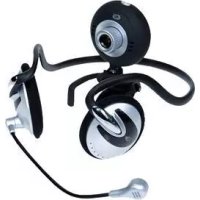
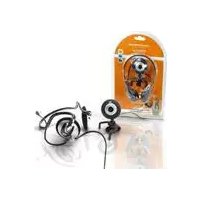
CLLFLCAMHD - Webcam CONCEPTRONIC - Free user manual and instructions
Find the device manual for free CLLFLCAMHD CONCEPTRONIC in PDF.


User questions about CLLFLCAMHD CONCEPTRONIC
0 question about this device. Answer the ones you know or ask your own.
Ask a new question about this device
Download the instructions for your Webcam in PDF format for free! Find your manual CLLFLCAMHD - CONCEPTRONIC and take your electronic device back in hand. On this page are published all the documents necessary for the use of your device. CLLFLCAMHD by CONCEPTRONIC.
USER MANUAL CLLFLCAMHD CONCEPTRONIC
natural_image
Abstract black logo design with curved lines forming a circular shape, no text or symbols present.User Manual
Flexcam HD with Microphone
CLLFLCAMHD

natural_image
Stylized grayscale illustration of a city skyline with wind turbines, swirls, and airplane icons (no text or symbols)CONTENTS
Chapter 1: Introduction ...... 1
Product Overview....1
Main Features....2
Package Contents 2
Chapter 2: Installation .... 3
Hardware installation....3
Basic webcam usage....3
Driver installation....3
Chapter 3: Using the webcam .... 5
Resolution configuration....6
Extra features....6
Settings......8
Chapter 1: Introduction
Product Overview
Thank you for choosing CLLFLCAMHD Flexcam HD with Microphone.
With this 720P HD Flexcam you can communicate and share special moments with anyone through the Internet in high resolution! The extremely high quality real 2.0 megapixel HD webcam is perfect for capturing video in high definition quality and taking snapshots of up to 5.0 megapixels (interpolated)! The webcam has special features like Auto Face Tracking (a technology that automatically keeps your face in the center of the video frame) and Photo Frames (a feature for creating and adding your own photo frames to your snapshots)!
Additionally, this webcam is fully compatible with all instant messenger applications and is equipped with a built-in microphone. Thanks to the unique foot of the webcam, you can use it both hanging on your LCD / LED screen as well as standing on your desk.
Front Panel
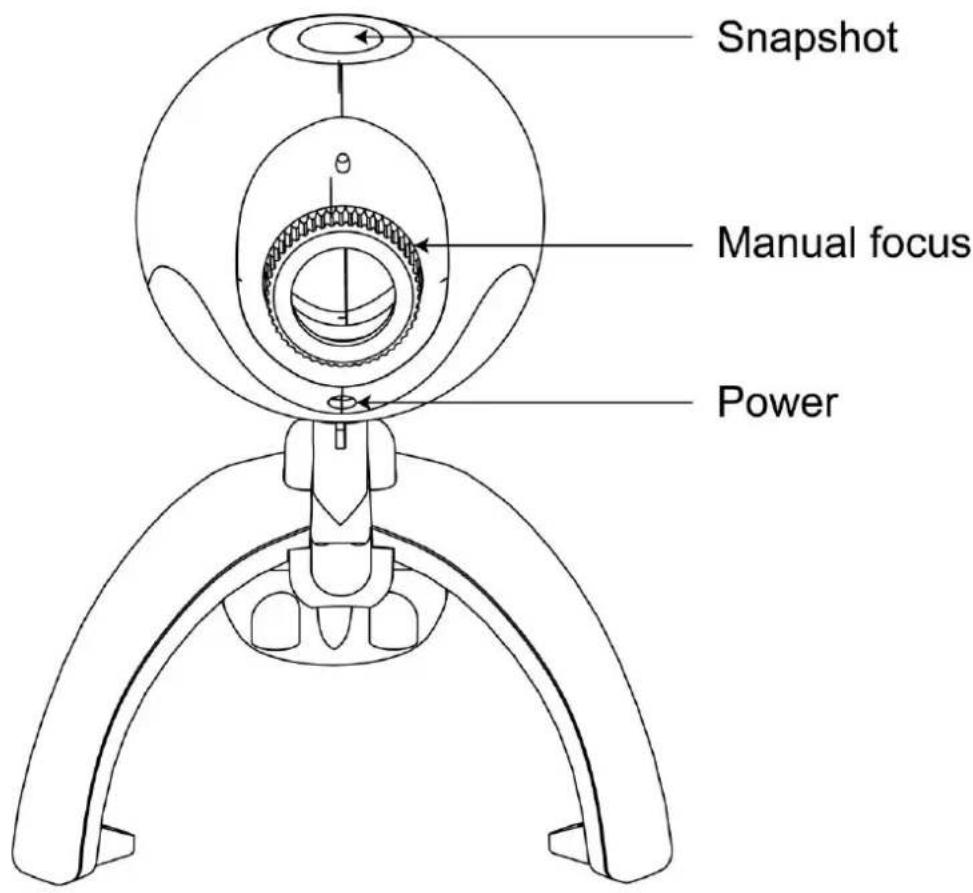
text_image
Snapshot Manual focus PowerMain Features
- Compatible with all messenger & chat applications
• High resolution 2.0 megapixel HD webcam, supports 720p HD resolution - Includes Snapshot button for photos & photo frame software
- Interpolated 5.0MP
Package Contents
• Flexcam HD with Microphone
- Product CD-ROM
- Multi Language Quick Installation Guide
Chapter 2: Installation
Hardware installation
The Conceptronic Flexcam is an UVC (Universal Video Class) webcam, meaning that you can plug the Flexcam in a free USB port of a computer with UVC support (like Windows XP SP2, Windows Vista, Windows 7 and Linux), without the need to install any drivers.
- Turn on your computer.
- Connect the USB connector of the Flexcam to a free USB port of your computer.
The computer will recognize and install the Flexcam automatically with the default drivers of your operating system.
After the installation, you can use your Flexcam.
Note: When using the Driverless Installation of the Flexcam, you can only use the basic webcam functions. The driver installation and the extra features of the Flexcam are described in the User Manual, which can be found on the CD-ROM. Select "View User Manual" from the autorun menu.
Basic webcam usage
When you have connected the webcam to your computer and the webcam is recognized, you can use the webcam in webcam enabled applications, like Microsoft Live Messenger & Skype.
To configure the webcam in Live Messenger, use the „Tools“, „Audio and Video setup“ in the Live Messenger main window. To configure the webcam in Skype, use the „Tools“, „Options“ menu and select „Video Settings“.
Note: When using the Driverless Installation of the webcam, you can only use the basic webcam functions. To obtain the extra features, you need to install the drivers.
Driver installation
If you want to use the extra features of the webcam, you need to install the drivers from the included product CD-ROM. Before you can install the drivers, you need to connect the webcam to your computer, as described in Hardware installation.
A. Insert the CD into the CD-ROM drive on your PC. The autorun program should start automatically. If it does not, please run autorun.exe under your CD-ROM drive. In the autorun screen, click "Drivers" to begin the software installation.
Note: You might get a "User Account Control" warning message, which you will need to accept by clicking on "Yes".
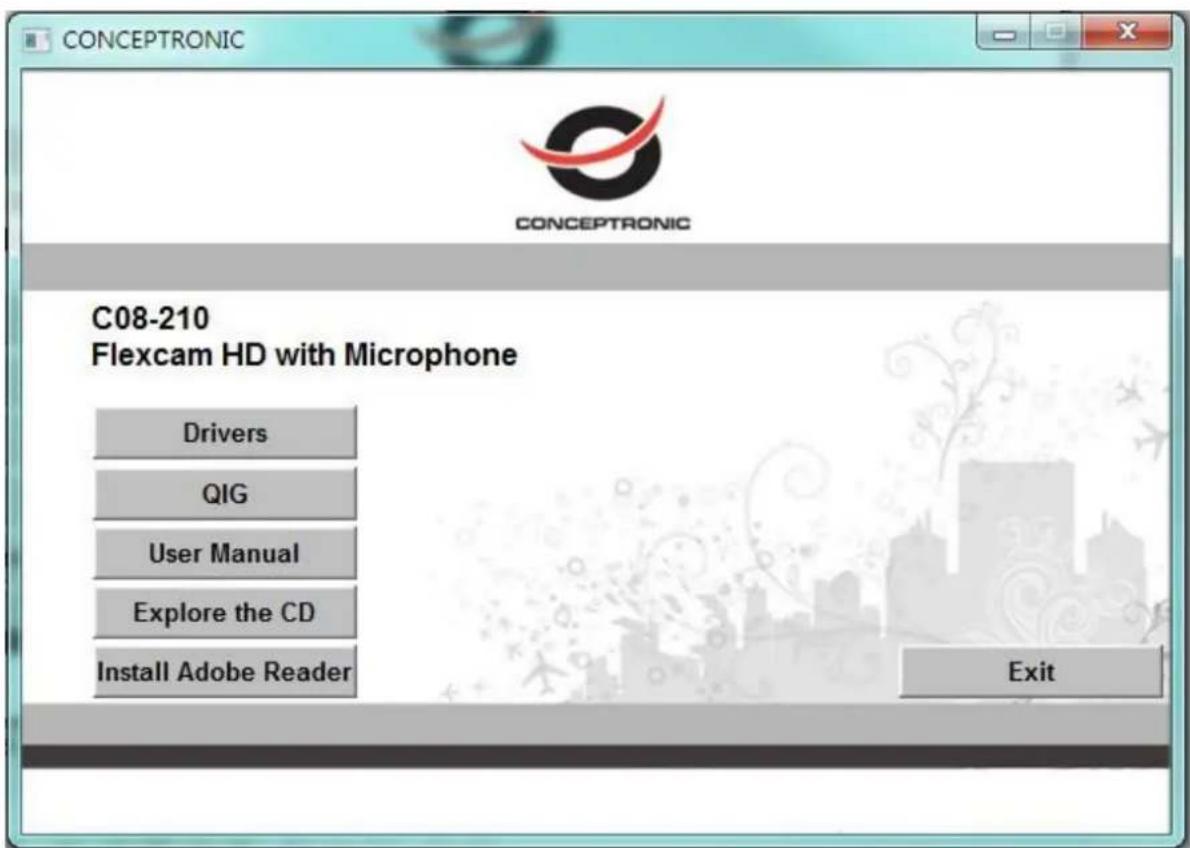
text_image
CONCEPTRONIC CONCEPTRONIC C08-210 Flexcam HD with Microphone Drivers QIG User Manual Explore the CD Install Adobe Reader ExitB. The Setup Wizard will appear on your screen. Click "Next" to proceed with the installation of the drivers and software.
C. When the installation is finished, click on "Finish" to close the installation wizard.
Chapter 3: Using the webcam
When the drivers and soware are installed, you can use the installed webcam soware to access the extra funcons of the webcam.
Start the webcam soware by double clicking on the "Amcap" shortcut on your desktop, or use the shortcut in the start menu:
"Start" --> "All Programs" --> "USB Video Device" --> "Amcap".
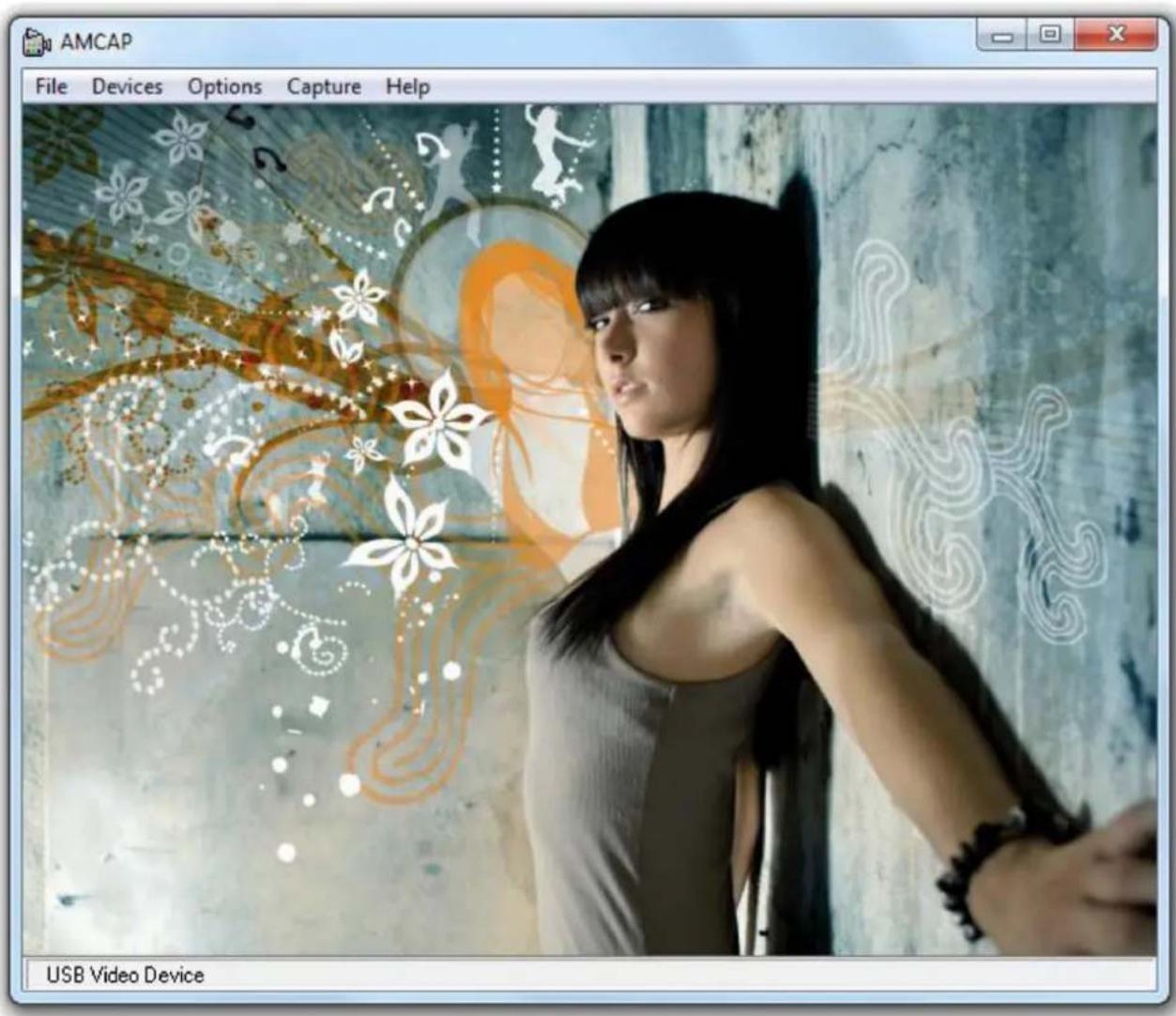
When the Amcap soware is started, you will see a live stream of the webcam on your screen:
text_image
AMCAP File Devices Options Capture Help USB Video DeviceWhen no image of the webcam is visible, use the menu "Devices" to select the "USB Video Device".
Resolution configuration
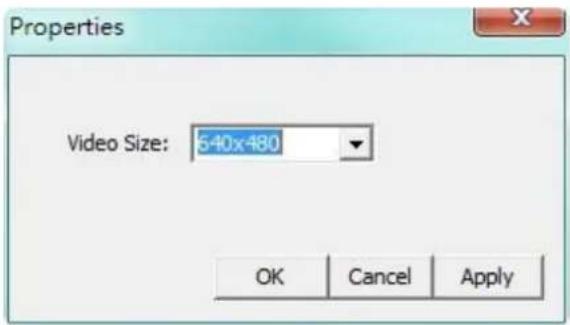
Through the menu "Options" --> "Video Capture Pin", you are able to change the default resolution settings for the webcam:
text_image
Properties Video Size: 540x480 OK Cancel ApplyNote: If you select a higher resolution, the frame rate will drop. To have a smooth webcam stream, lower the resolution.
Extra features
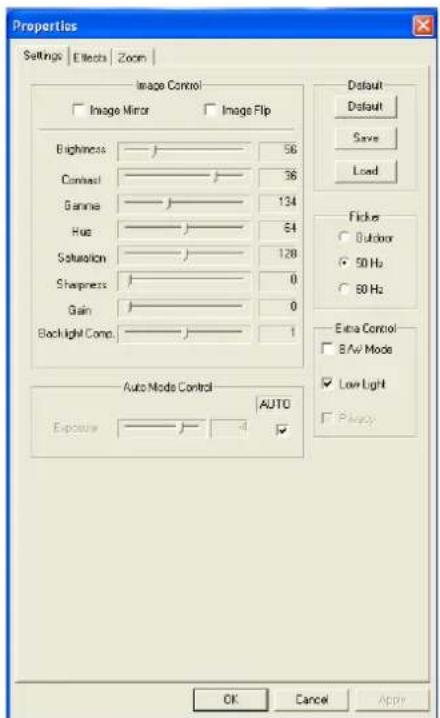
The webcam has extra features, like “Effects” and “Zoon / Face Tracking”. These features can be set through the properties of the webcam, which can be accessed in different ways.
In the "Effect" page, you can select an image effect, or a photo frame, to adjust your webcam image.
text_image
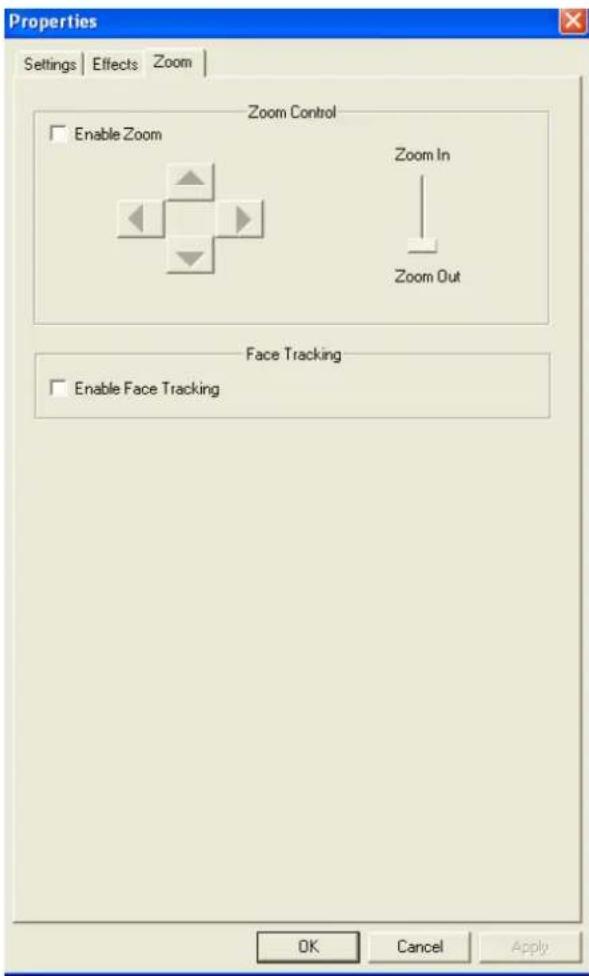
Properties Settings | Effects | Zoom | Image Control Image Mirror Image Flip Brightness 56 Contrast 36 Gamma 134 Hue 64 Saturation 128 Sharpness 0 Gain 0 Blacklight Comp 1 Auto Mode Control AUTO Exposure 4 ✓ Default Default Save Load Flicker Outdoor 50 Hz 80 Hz Extra Control BAV Mode Low Light Primary OK Cancel ApplyIn the "Zoon / Face Tracking" page, you can manually zoom your webcam image, or use the face tracking option to automatically zoom into your face.
text_image
Properties Settings | Effects | Zoom | Zoom Control Enable Zoom Zoom In Zoom Out Face Tracking Enable Face Tracking OK Cancel Apply- Use the manual zoom option to manually zoom.
- Use the face tracking option to automatically zoom into your face. You can define a tracking speed and show the original webcam image in a Picture in Picture window in a corner of your screen.
When you have selected an option, click "Apply" to use the selected option.
Note: The "Face Tracking" features are only available when the resolution of your webcam is 640x480 or lower.
Settings
text_image
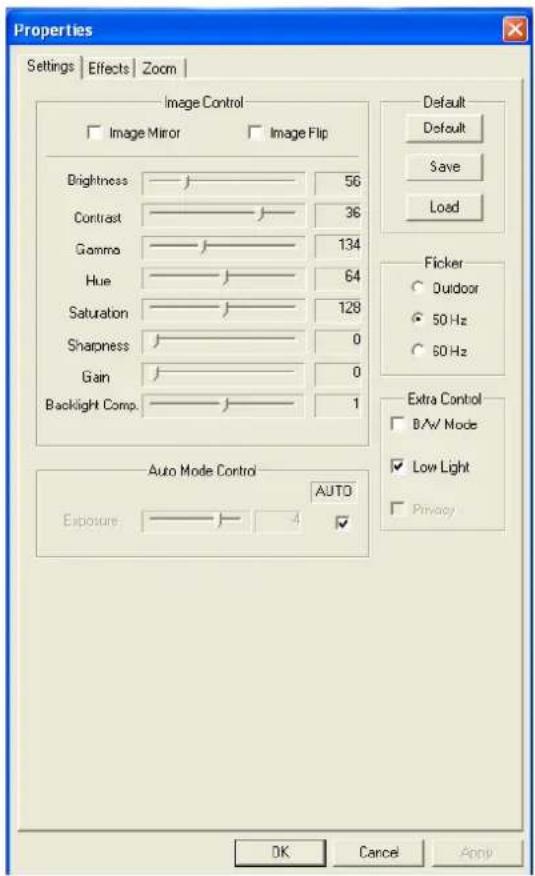
Properties Settings | Effects | Zoom | Image Control Image Mirror Image Flip Brightness 56 Contrast 36 Gamma 134 Hue 64 Saturation 128 Sharpness 0 Gain 0 Backlight Comp. 1 Auto Mode Control AUTO Exposure 4 ✓ Default Default Save Load Flicker Outdoor 50 Hz 60 Hz Extra Control B/W/ Mode Low Light Privacy OK Cancel ApplyIn the "Settings" page, you can change the image settings for the webcam.
- Slide the “Brightness”, “Contrast”, “Saturation”, “Sharpness”, “Gamma”, or “Gain” sliders to adjust the image settings.
- Select "Default" to load the webcam default settings.
When you have changed your settings, click "Apply".
Enjoy the use of your Conceptronic Flexcam HD!