GXT2-6000RT208 - Inverter Avocent - Free user manual and instructions
Find the device manual for free GXT2-6000RT208 Avocent in PDF.


| Product Type | Uninterruptible Power Supply (UPS) |
| Model | GXT2-6000RT208 |
| Brand | Avocent |
| Power Rating | 6000 VA / 6000 W |
| Input Voltage | 208 V AC |
| Output Voltage | 208 V AC |
| Form Factor | Rack/Tower convertible (3U) |
| Dimensions (H x W x D) | 5.2 in x 17.0 in x 25.0 in (132 mm x 432 mm x 635 mm) |
| Weight | 150 lbs (68 kg) |
| Battery Type | Sealed lead-acid, hot-swappable |
| Waveform | Pure sine wave |
| Transfer Time | Less than 4 ms |
| Communication Ports | RS-232, USB, SNMP slot |
| Status Indicators | LED display, audible alarms |
| Operating Temperature | 0°C to 40°C (32°F to 104°F) |
| Certifications | UL, CSA, FCC |
| Maintenance | Periodic battery check, keep vents clean |
| Safety Features | Overload protection, short circuit protection, low battery shutdown |
| Spare Parts | Replacement battery packs available |
Frequently Asked Questions - GXT2-6000RT208 Avocent
User questions about GXT2-6000RT208 Avocent
0 question about this device. Answer the ones you know or ask your own.
Ask a new question about this device
Download the instructions for your Inverter in PDF format for free! Find your manual GXT2-6000RT208 - Avocent and take your electronic device back in hand. On this page are published all the documents necessary for the use of your device. GXT2-6000RT208 by Avocent.
USER MANUAL GXT2-6000RT208 Avocent
natural_image
Black electronic device with ventilation slots and a control panel (no visible text or symbols)120/208V
120/240V
TABLE OF CONTENTS
IMPORTANT SAFETY INSTRUCTIONS ....1
1.0 GLOSSARY OF SYMBOLS ....3
2.0 I INTRODUCTION AND SYSTEM DESCRIPTION .... 4
3.0 S SYSTEM DESCRIPTION ....5
3.1 Transient Voltage Surge Suppression (TVSS) and EMI/RFI Filters....5
3.2 Rectifier/Power Factor Correction (PFC) Circuit 5
3.3 Inverter.... 5
3.4 Battery Charger 5
3.5 DC to DC Converter 6
3.6 Battery 6
3.7 Dynamic Bypass....6
4.0 MAJOR COMPONENTS 7
4.1 Main Frame and Electronics 7
4.2 Internal Battery Pack 7
4.3 Removable Power Distribution Box....8
5.0 WHAT'S INCLUDED....9
6.0 INSTALLATION AND CONFIGURATION....10
6.1 Install the Main Cabinet 10
6.1.1 Tower UPS Installation 10
6.1.2 Installing the Adjustable Rack-Mount Kit—Sold Separately 11
6.2 External Battery Cabinet Installation 13
6.3 Connect Input/Output Power.... 14
6.3.1 Replacing a power distribution box.... 14
6.3.2 Distribution Box Electrical Connections.... 14
6.3.3 PD-HDWR and PD-HDWR-MBS Terminal Block Connections.... 15
6.3.4 PD-001 Power Distribution Box.... 15
6.4 Install the Grounding Electrode Conductor 16
6.5 Install the Internal Battery Pack 16
7.0 INITIAL STARTUP AND ELECTRICAL CHECKS 17
7.1 L14-30P Plug-in Connections—Including the PD-001 Distribution Box 18
8.0 CONFIGURATION PROGRAM 19
8.1 GXT2-6000RT208 Configuration Program Features 19
8.1.1 What You Will Need.... 19
8.2 Configuration Program—Installation.... 20
8.3 Establishing Communication Link with the UPS 21
8.4 Configuration Program—Operation 22
8.4.1 Read/Confirm UPS Configuration Settings 22
8.4.2 Changing UPS Settings 22
8.4.3 Programming Rejected? 22
8.4.4 Exit Without Changing UPS Settings.... 22
8.5 UPS Tab 23
8.5.1 Output Voltage 23
8.5.2 Auto Restart 23
8.5.3 L-N Reverse Detection (120V UPS Models Only) 23
8.5.4 Frequency Selection 24
8.6 Options Tab.... 24
8.7 Options Tab Used With Earlier GXT 2U Models ..... 25
8.8 Battery Tab.... 26
8.8.1 Low Battery Time Warning 26
8.8.2 Auto Battery Test Time 26
8.8.3 Battery Cabinets Number 26
8.8.4 Auto Battery Test.... 26
8.9 About Tab 27
9.0 CONTROLS AND INDICATORS....28
9.1 ON/Alarm Silence/Battery Test Button 28
9.2 OFF/Bypass Button 28
9.3 L1 & L2 Load Level Indicators (Two Rows of Indicators: 4 Green, 1 Amber). 29
9.4 Battery Level Indicators (5 Green) 29
9.5 Fault Indicator (Red) 29
9.6 Bypass Indicator (Amber) 29
9.7 UPS ON Indicator (Green).... 29
9.8 Battery Indicator (Amber) 29
9.9 AC Input Indicator (Green) 29
10.0 MODES OF OPERATION....30
10.1 Normal Mode Operation.... 30
10.2 Battery Mode Operation 30
10.3 Battery Recharge Operation 30
11.0 COMMUNICATIONS 31
11.1 Communications Interface Port.... 31
11.1.1 DB-9 Interface Port 31
11.1.2 Communications SNMP Web Card SNMP Adapter.... 31
11.2 Pin 4 - Remote Shutdown on Battery 32
11.3 UPS Intelligent Communications 32
11.4 Remote Emergency Power Off.... 33
12.0 MAINTENANCE 34
12.1 Battery Replacement 34
12.1.1 Internal Battery Replacement Procedures 34
12.2 UPS Replacement.... 35
13.0 TROUBLESHOOTING 36
13.1 Auto-Learning Battery Run Times 40
14.0 SPECIFICATIONS....41
14.1 Product Warranty Registration.... 43
FIGURES
Figure 1 6 kVA Dual Inverter GXT 2U (front and rear views) 7
Figure 2 Support base and spacers.... 10
Figure 3 30A branch circuit breaker connection diagram....14
Figure 4 Factory default settings for 120VAC UPS.... 23
Figure 5 REPO switch connections.... 33
TABLES
Table 1 Electrical requirements—PD-HDWR and PD-HDWR-MBS 15
Table 2 Electrical requirements—PD-001 15
Table 3 DB-9 pin assignment 31
Table 4 Fault indicators.... 36
Table 5 Alarm conditions.... 37
Table 6 Troubleshooting guide 37
Table 7 Battery run times 39
Table 8 UPS specifications.... 41
Table 9 Battery specifications 42
Table 10 Power distribution box specifications 42
Table 11 External battery cabinet specifications....43

WARNING
Opening or removing the cover may expose you to lethal voltages within this unit even when it is apparently not operating and the input wiring is disconnected from the electrical source. Observe all cautions and warnings in this manual. Failure to do so may result in serious injury or death. Refer all UPS and battery service to qualified service personnel. Do not attempt to service this product yourself. Never work alone.
SAVE THESE INSTRUCTIONS
This manual contains important safety instructions. Read all safety, installation and operating instructions before operating the Uninterruptible Power System (UPS). Adhere to all warnings on the unit and in this manual. Follow all operating and user instructions. Individuals without previous training can install and operate this equipment.
It is not intended for use with life support and other designated critical devices. Maximum load must not exceed that shown on the UPS rating label. The UPS is designed for data processing equipment. If uncertain, consult your local dealer or Liebert representative.
This UPS is designed for use on a properly grounded (earthed), 100/200, 110/220, 115/230, 120/208, 120/240 or 127/220 VAC, 50 Hz or 60 Hz supply. The factory default setting is 120/208 VAC, 60 Hz. Installation instructions and warning notices are located in this manual.
This UPS is only for use with a four-wire input (L1, L2, N, G).
This UPS MAY NOT be used with a three-wire, single-phase utility source (L1, N, G).
ELECTROMAGNETIC COMPATIBILITY—The GXT2-6000RT208 Series complies with the limits for a CLASS A DIGITAL DEVICE, PURSUANT TO Part 15 of FCC rules. Operation is subject to the following two conditions: (1) This device may not cause harmful interference and (2) this device must accept any interference received, including interference that may cause undesired operation. Operating this device in a residential area is likely to cause harmful interference that users must correct at their own expense.
Operate the UPS in an indoor environment only in an ambient temperature range of 32^ F to +104^ F ( 0^ C to +40^ C). Install it in a clean environment, free from conductive contaminants, moisture, flammable liquids, gases and corrosive substances.
This UPS contains no user serviceable parts except the internal battery pack. The Off/Bypass push button does not electrically isolate internal parts. Under no circumstances attempt to gain access internally other than to replace the batteries due to risk of electric shock or burn. Do not continue to use the UPS if the front panel indications are not in accordance with these operating instructions or if the UPS performance alters in use. Refer all faults to your local dealer, Liebert representative or the Liebert Worldwide Support Group.
Servicing of batteries should be performed or supervised by personnel knowledgeable of batteries and the required precautions. Keep unauthorized personnel away from the batteries. PROPER DISPOSAL OF BATTERIES IS REQUIRED. REFER TO YOUR LOCAL LAWS AND REGULATIONS FOR BATTERY DISPOSAL REQUIREMENTS.
Never block or insert any object into the ventilation holes or other openings of the UPS.
DO NOT CONNECT equipment that could overload the UPS or demand half-wave rectification from the UPS, for example: electric drills, vacuum cleaners, laser printers, hair dryers or any other appliance using half-wave rectification.
Storing magnetic media on top of the UPS may result in data loss or corruption.
Turn the UPS off and isolate the UPS before cleaning; use only a soft cloth, never liquid or aerosol cleaners. Keep the front and rear vents free of dust accumulation that could restrict airflow.
When replacing batteries, replace with the same Liebert authorized replacement battery kits.

CAUTION
Do not dispose of battery or batteries in a fire. The battery may explode.
Do not open or mutilate the battery or batteries. Released electrolyte is harmful to skin and eyes. It may be toxic.

CAUTION
A battery can present a risk of electrical shock and high short circuit current. The following precautions should be observed when working on batteries:
- Remove watches, rings and other metal objects.
- Use tools with insulated handles.
- Wear rubber gloves and boots.
- Do not lay tools or metal parts on top of batteries.
- Disconnect charging source prior to connecting or disconnecting battery terminals.
1.0 GLOSSARY OF SYMBOLS

Risk of electrical shock

Indicates caution followed by important instructions

AC input

AC output

Requests the user to consult the manual

Indicates the unit contains a valve-regulated lead acid battery

Recycle

DC voltage

Equipment grounding conductor

Bonded to ground

AC voltage

ON/Alarm Silence/Battery Test
OFF/Bypass
2.0 INTRODUCTION AND SYSTEM DESCRIPTION
Congratulations on your choice of the Liebert UPStation GXT2-6000RT208 Uninterruptible Power Supply (UPS). It provides conditioned power to microcomputers and other sensitive electronic equipment.
Upon generation, AC power is clean and stable. However, during transmission and distribution it is subject to voltage sags, spikes or complete power failure that may interrupt computer operations, cause data loss or even damage equipment. The UPStation GXT2-6000RT208 protects equipment from these disturbances.
The UPStation GXT2-6000RT208 is a compact, on-line UPS. An on-line UPS continuously conditions and regulates its output voltage whether utility power is present or not. It supplies connected equipment with clean sinewave power. Sensitive electronic equipment operates best from sinewave power.
For ease of use, the UPStation GXT2-6000RT208 features a light-emitting diode (LED) display to indicate both load percentage and battery capacity. It also provides self-diagnostic tests, a combination ON/Alarm Silence/Battery Test button, a Standby button, user configurable program and two levels of alarms when the unit is operating on battery.
The UPStation GXT2-6000RT208 has an interface port for communication between the UPS and a network server or other computer systems. This port provides detailed operating information including voltages, currents and alarm status to the host system when used in conjunction with Liebert's MultiLink™ software. MultiLink software can also control UPS operation remotely.
3.0 SYSTEM DESCRIPTION
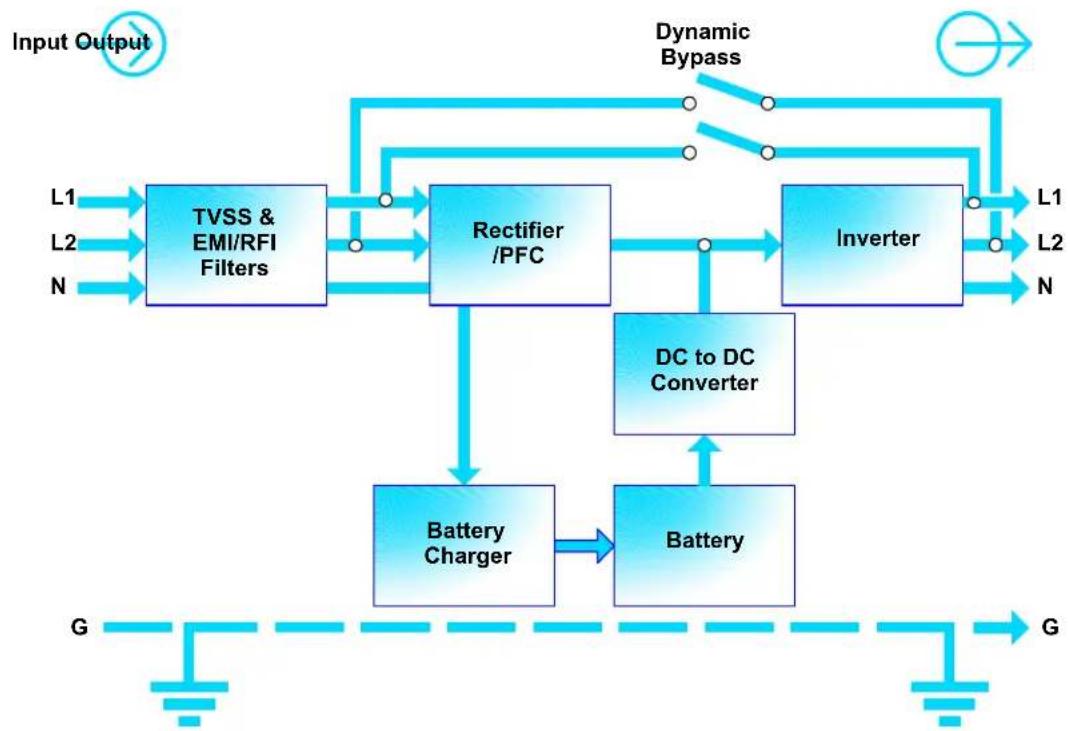
flowchart
graph TD
    A["Input Output"] --> B["TVSS & EMI/RFI Filters"]
    B --> C["Rectifier /PFC"]
    C --> D["Inverter"]
    D --> E["L1"]
    D --> F["L2"]
    D --> G["N"]
    C --> H["DC to DC Converter"]
    H --> I["Battery Charger"]
    I --> J["Battery"]
    J --> K["G"]
    style A fill:#f9f,stroke:#333
    style K fill:#bbf,stroke:#333
    subgraph Dynamic Bypass
        L1 --> M["Inverter"]
        L2 --> N["Inverter"]
        N --> O["Inverter"]
    end
    subgraph Battery Charger
        I --> P["Battery Charger"]
        P --> Q["Inverter"]
    end
    subgraph Inverter
        D --> R["Inverter"]
    end
3.1 Transient Voltage Surge Suppression (TVSS) and EMI/RFI Filters
These UPS components provide surge protection and filter both electromagnetic interference (EMI) and radio frequency interference (RFI). They minimize any surges or interference present in the utility line and keep the sensitive equipment protected.
3.2 Rectifier/Power Factor Correction (PFC) Circuit
In normal operation, the rectifier/power factor correction (PFC) circuit converts utility AC power to regulated DC power for use by the inverter while ensuring that the waveshape of the input current used by the UPS is near ideal. Extracting this sinewave input current achieves two objectives:
- The utility power is used as efficiently as possible by the UPS.
• The amount of distortion reflected on the utility is reduced.
This results in cleaner power being available to other devices in the building not being protected by the UPStation GXT2-6000RT208.
3.3 Inverter
In normal operation, the inverter utilizes the DC output of the power factor correction circuit and inverts it into precise, regulated sinewave AC power. Upon a utility power failure, the inverter receives energy from the battery through the DC to DC converter. In both modes of operation, the UPS inverter is on-line and continuously generating clean, precise, regulated AC output power.
3.4 Battery Charger
The battery charger utilizes energy from the utility power and precisely regulates it to continuously float charge the batteries. The batteries are being charged whenever the UPStation GXT2-6000RT208 is plugged in, even when the UPS is not turned on.
3.5 DC to DC Converter
The DC to DC converter utilizes energy from the battery system and raises the DC voltage to the optimum operating voltage for the inverter. This allows the inverter to operate continuously at its optimum efficiency and voltage, thus increasing reliability.
3.6 Battery
The UPStation GXT2-6000RT208 utilizes valve-regulated, nonspillable, flame retardant, lead acid batteries. To maintain battery design life, operate the UPS in an ambient temperature of 68^ F to 77^ F ( 20^ C to 25^ C). Optional external battery cabinets are available to extend battery run times.
3.7 Dynamic Bypass
The UPStation GXT2-6000RT208 provides an alternate path for utility power to the connected load in the unlikely event of a UPS malfunction. Should the UPS have an overload, overtemperature or UPS failure condition, the UPS automatically transfers the connected load to bypass. Bypass operation is indicated by an audible alarm and illuminated amber Bypass indicator (other indicators may be illuminated to indicate the diagnosed problem).
The user may manually transfer the connected load from the inverter to bypass by pressing the Standby button once.

NOTE
The bypass power path does NOT protect the connected equipment from disturbances on the utility supply.
4.0 MAJOR COMPONENTS
The GXT2-6000RT208 is composed of three major assemblies to provide easier handling, installation and versatility.
4.1 Main Frame and Electronics
This 4U cabinet arrives without internal batteries to lighten the UPS for easier installation. Once the cabinet has been placed in its final floor or rack position, the internal batteries may be installed. The UPS is shipped with a basic hardwire distribution box.
Figure 1 6 kVA Dual Inverter GXT 2U (front and rear views)

text_image
Status Indicators and Controls Front Bezels (2) Output Circuit Breaker External Battery Connector Hardwire Knockouts Support Base Battery Compartment (behind bezel); Internal Battery Pack is shipped loose (see Section 4.2) REAR VIEWFRONT VIEW Intellislot® Port DB-9 Communications Port Cooling Fan (1 of 4) Grounding Electrode Conductor REPO Switch Input Circuit Breaker Power Distribution Box Standard Module (See Section 4.3)4.2 Internal Battery Pack
The front bezels may be pulled forward and removed to reveal the battery access door. The internal battery pack is a compact assembly ready to slide into the battery compartment after the front battery access door has been opened. Electrical connection is automatic upon insertion.

natural_image
Exterior view of a white industrial electronic device with two gold contacts and a control panel (no visible text or symbols)4.3 Removable Power Distribution Box
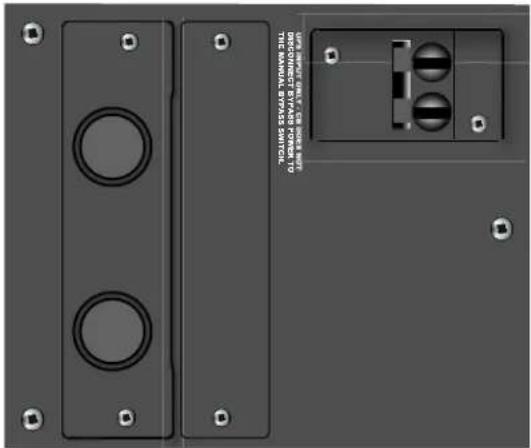
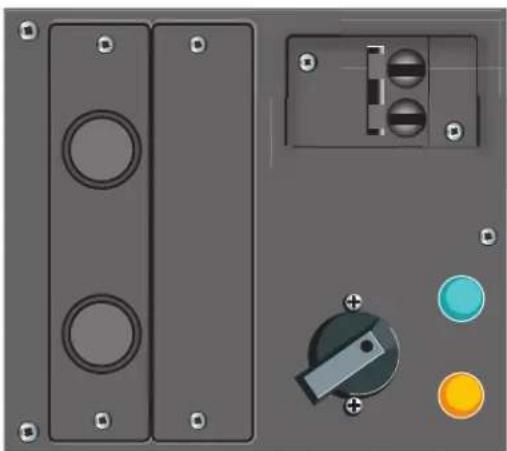
The UPS is shipped with a basic hardwire power distribution pack installed. For maximum flexibility, this may be easily replaced with either of two optional power distribution boxes that provide the benefits of hardwire input and output plus manual bypass switch or plug/receptacle convenience with manual bypass switch.
text_image
UPS INPUT ONLY FOR SHORE WITH THE SWITCHER BY 408 POWER TO THE SWITCHER SYSTEMSPD-HDWR Power Distribution Box With Hardwire Connections (Standard - Ships With UPS)
natural_image
Industrial control panel with buttons and circular components (no visible text or symbols)PD-HDWR-MBS Power Distribution Box With Hardwire Connections and Manual Bypass Switch (Optional)

natural_image
Close-up of an electronic device panel with multiple power outlets and indicator lights (no text or symbols visible)PD-001 Power Distribution Box With Wired Connections and Manual Bypass Switch (Optional)
5.0 WHAT'S INCLUDED
The GXT2-6000RT208 is shipped with the following items:
• GXT2-6000RT208 user manual
• Vertical display overlay
- Front bezels - 2
- Top bezels - 2
- Battery cover grille
• MultiLink software CD
- MultiLink serial cable, 10 ft (3m)
- Rack mount handles
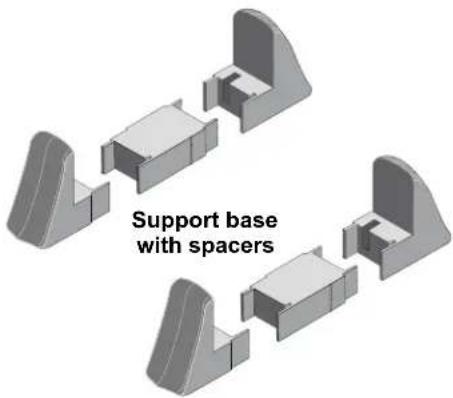
- Support base - 2
• GEC ring connector
- Mounting hardware
- Configuration program disk
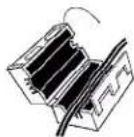
• Ferrite beads (2)

text_image
L1.13 RPT-ANA GPS ON BATTERY GPS PUT L ebert UP/Selection DXTVertical display overlay
natural_image
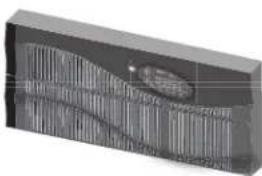
3D rendered mechanical component with internal grooves and a central oval feature (no text or symbols)Front bezels
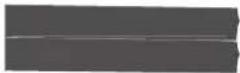
Top bezels (tower use)
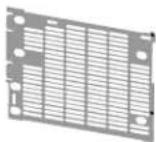
Battery cover grille

text_image
AudioLink MILINERMultiLink software CD

natural_image
Coiled beige cable with two connectors, no text or symbols visibleMultiLink serial cable 10 ft (3m)
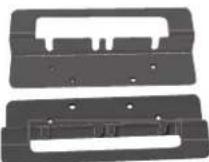
Rack mount handles
natural_image
3D mechanical component diagram with two views and a central housing, labeled 'Support base with spacers' (no other text or symbols)
GEC connector

natural_image
Close-up of multiple screws with a few on top, no text or symbols visibleMounting hardware

text_image
Gxt 2UTM Configuration Program For use with Liebert GXT20 model UP8 system Version 5.0 For Windows 9592NT Tolitokai Choose the Startbutton on the Testbar and select RunConfiguration disk
Ferrite beads (2)
natural_image
Diagram of a cable assembly with a black component and wire, no text or symbols present6.0 INSTALLATION AND CONFIGURATION
This section includes instructions on how to install, configure and perform initial electrical checks of your UPS installation.
DO NOT attempt to start the UPS, turn on any circuit breaker or energize the input power until instructed to do so in 7.0 - Initial Startup and Electrical Checks.
Visually inspect the UPS for freight damage. Report damage to the carrier and your local dealer or Liebert representative.

CAUTION
The UPS is heavy (see 14.0 - Specifications). Take proper precautions when lifting or moving it.
Install the UPS indoors in a controlled environment, where it cannot be accidentally turned off. Place it in an area of unrestricted airflow around the unit, away from water, flammable liquids, gases, corrosives and other conductive contaminants. Maintain a minimum clearance of 4" (100mm) in the front and rear of the UPS. Maintain an ambient temperature range of 32°F to 104°F (0°C to 40°C).

NOTE
UPS operation in sustained temperatures above 77^ F ( 25^ C) reduces battery life.
6.1 Install the Main Cabinet
The GXT2-6000RT208 may be installed either as a tower unit or in a rack, depending on available space and use considerations. Determine the type of installation and follow the appropriate instructions in either 6.1.1 - Tower UPS Installation or 6.1.2 - Installing the Adjustable Rack-Mount Kit—Sold Separately.
6.1.1 Tower UPS Installation
When using the GXT2-6000RT208 in a tower configuration, use the included support base (shown below, left) to stabilize the UPS.
If any external battery cabinets are added, they will include spacers to accommodate the additional cabinets (shown below, right).
Figure 2 Support base and spacers

text_image
End Bases 2U Spacer4U Support Base

natural_image
3D diagram of a mechanical component with arrows indicating direction (no text or symbols)Spacers added to support base to accommodate additional battery cabinets
Attach Bezels to Top
When used as a tower, the GXT2-6000RT208 requires bezels attached to the top. To connect the bezels:
- Position the UPS so that the battery compartment is on the bottom.
- Attach the top bezels by placing them on the mounting holes and sliding them toward the rear of the UPS.
6.1.2 Installing the Adjustable Rack-Mount Kit—Sold Separately
This kit contains parts needed to mount several different models of UPS and external battery cabinets into EIA310-D standard four-post racks that are 18-32" deep (457-813mm). The weight limit per pair of adjustable rack-mounting brackets is 200 pounds (91 kg).
Parts included are:
| Item Quantity | |
| Rear bracket members 2 | |
| Front bracket members 2 | |
| Inner bracket members 2 | |
| M4 x 8mm machine screws 16 | |
| M4 locking hex nuts 8 | |
| M5 x 16 mm machine screws 1 | 2 |
| Grease packet. 1 |
Tools needed for installation are:
• one Phillips screwdriver
• one 7mm wrench
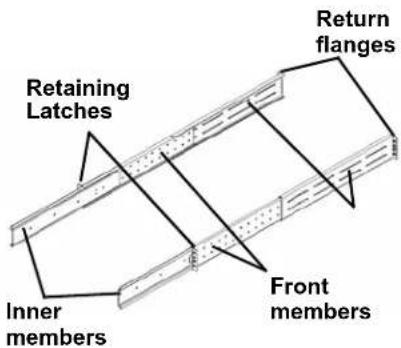
The adjustable rack-mounting brackets feature retaining latches to prevent users from inadvertently sliding the UPS or battery cabinet out of the rack.
To install the rack mount brackets:
- Unpack two (2) rack-mounting bracket assemblies and mounting hardware from this kit. Bracket assemblies are interchangeable between left-hand or right-hand.
Remove inner member of each bracket assembly as shown in at right by extending it to its outermost position, depressing the retaining latch and then pulling the inner member out of the bracket assembly. - Determine the height position inside the rack enclosure where you want to mount the UPS or battery cabinet.

CAUTION
Reduce the risk of tipping the rack enclosure by placing the UPS or battery cabinet in the lowest possible rack position.
- Install the rear member of each bracket assembly into rack enclosure with two (2) M5 screws provided in this kit (see figure at right). The return flanges on the bracket assembly fit to the inside of rack mounting rails. Insert screws loosely (finger-tight) into the top and bottom holes of the return flange on the rear member. Extend the bracket assembly by sliding the front member forward until it touches the front rack mounting rail. Insert two (2) M5 screws loosely (finger-tight) into top and bottom holes of the return flange on each front member. Make sure bracket assemblies are at the same mounting height on all four (4) rack mounting rails.
text_image
Retaining Latches Return flanges Inner members Front members
text_image
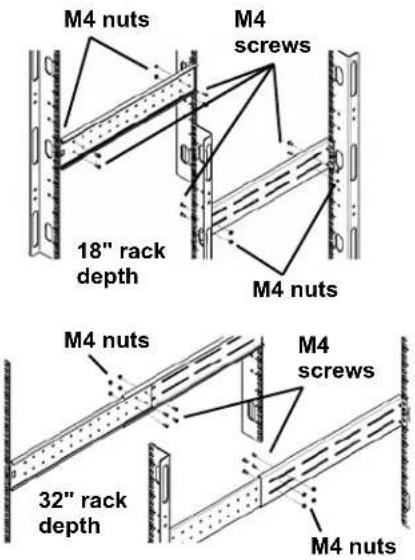
Front rack mounting rails M5 screws M5 screws M5 screws Rear rack mounting rails- Get eight (8) M4 screws and eight (8) M4 nuts from the hardware pack in this kit. Each nut has a locking, nylon insert that begins gripping the screw when it is halfway tight. Make sure to tighten the nut and screw completely to ensure locking action. Fasten the rear member and the front member together using (4) screws and (4) nuts per bracket assembly as shown in at right. For maximum support, insert fasteners for each bracket assembly as far apart as possible, depending on rack depth, while still joining both members (see figures at right). Check alignment of bracket assemblies and TIGHTEN ALL SCREWS FROM Steps 2 and 3.
- Prepare the UPS or battery cabinet (the "equipment") for rack mounting by following instructions in the equipment's user manual. The equipment may require additional parts to be added or parts to be removed for rack mounting. After it is prepared, lay the equipment in rack-mounting position. Fasten the inner members from Step 1 to the equipment on both sides as shown at right with eight (8) M4 screws provided in the kit. Make sure retaining latch is near the rear of the equipment as shown (see figure at right).
- Open the grease packet provided in the kit. Apply a 1" long bead of grease at four (4) places inside the bottom, curved tracks of the front members as shown below right. The grease will allow the equipment to slide into the bracket assemblies more easily.

CAUTION
Lifting equipment into the rack may be a two-person job, depending on the weight of the equipment. See equipment's user manual.)
- Insert the equipment, with inner members attached in Step 5, into the bracket assemblies by inserting the top and bottom edges of the inner members into the top and bottom curved tracks of the front members and sliding the equipment into the rack (see figure at right). Ends of inner members are tapered to allow the rear of the equipment to be angled upward before insertion, if space allows.
Then the rear, bottom edges of the inner members can be placed into the front edge of the bottom tracks and the front of the equipment can be tipped up so they are level to insert the top edges of the inner members before sliding the equipment into the rack (see figure below right). The equipment should move smoothly into the bracket assemblies. If it does not, recheck the alignment of the front and rear members from Steps 2 and 3.
- Secure the front of the equipment to the rack mounting rails to prevent the equipment from sliding out of position. If securing holes are provided on the front of the equipment that align with the center holes on the return flange of the front members, you can use the four (4) extra M5 screws provided in the kit to secure the equipment. Otherwise, the equipment should be secured to the front of the rack with four (4) customer-supplied fasteners.
text_image
M4 nuts M4 screws 18" rack depth M4 nuts M4 nuts M4 screws 32" rack depth M4 nuts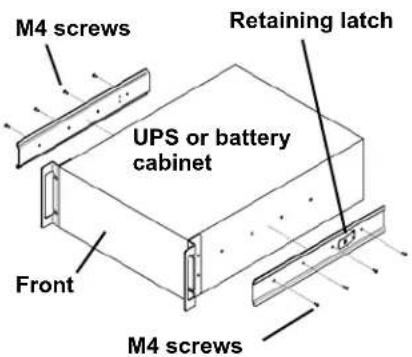
text_image
M4 screws Retaining latch UPS or battery cabinet Front α3 M4 screws
text_image
UPS or battery cabinet Apply grease Apply grease (inside)
text_image
... and push it into the rack. Insert the UPS into the front members, lift the front ...6.2 External Battery Cabinet Installation
Optional Liebert external battery cabinets may be connected to the UPS to provide additional battery run time. External battery cabinets are designed to be placed on one side of the UPS or stacked beneath the UPS.

CAUTION
The external battery cabinet(s) are heavy (see 14.0 - Specifications). External battery cabinets can be used in rack-mount or tower configuration. Take proper precautions when lifting them.

CAUTION
Verify that the battery cabinet circuit breaker is in the OFF position. Do no energize the battery cabinet at this time. When installation is complete, you will be instructed to turn on the circuit breaker.
When the external battery cabinet is received, it should be inspected for freight damage. Report damage to the carrier and your local dealer or Liebert representative.
To install an external battery cabinet:
-
For slide rail installations, first remove the top/side fin by sliding it forward and lifting it up. Optional rack-mount handles are shipped with the external battery cabinet and may be installed now. (Securing hardware and slide rails are sold separately. Please contact your local dealer or Liebert representative for these additional options and any assistance needed.)
-
Fasten the slides into position with the screws according to the instructions included with the slide rails.
-
Use the enclosed support bases for the tower option to prevent the assembly from tipping over. One additional set of support base extensions ships with each external battery cabinet.
-
Connect the supplied external battery cabinet cable to either of the connectors on the rear of the external battery cabinet, then to the rear of the UPS.
-
The UPS is now equipped with additional backup battery run time. For approximate battery run times, refer to Table 7 - Battery run times in this manual.
-
Do NOT turn on the battery cabinet circuit breaker at this time. Please complete the remainder of the installation first.

NOTE
After installation is complete, you must use the included configuration program to program the UPS for the number of external battery cabinets connected. Instructions for using the configuration program follow in 8.0 - Configuration Program.

text_image
Support Base With Spacers for External Battery Cabinets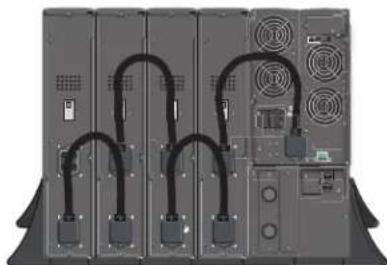
natural_image
Back view of a server rack with multiple ports and connectors (no visible text or labels)UPS and Four External Battery Cabinets With Support Base
6.3 Connect Input/Output Power
The UPS ships with the basic hardwire box attached. If an optional model is to be used, remove the standard box and install the optional box using the three captive mounting screws marked in the illustration, below, right.
6.3.1 Replacing a power distribution box
Whenever a power distribution box is not attached to a UPS, the cover must be slid over the electrical connectors to prevent damage or injury.
- On the power distribution box attached to the UPS, locate the three captive mounting screws holding the box to the UPS (see illustration above, right).
- Turn the screws until the box can be pulled away from the UPS. Exercise care to avoid removing screws from the hardwire box.
- On the replacement power distribution box to be attached to the UPS, loosen the cover over the electrical connectors by backing out the three screws one turn each.
- Slide the cover open to expose the electrical connectors.
- Gently retighten the three screws loosened in Step 3.
- Align the connectors on the box and UPS.
- Push the box into place.
- Holding the box firmly against the UPS, tighten the three captive mounting screws until the box is secure. Do not overtighten.

text_image
Slide cover over connectors Loosen screws to move cover
text_image
Mounting screws for removable box6.3.2 Distribution Box Electrical Connections
Electrical connections are made through a removable power distribution box that attaches to the rear of the UPS.
The installer must provide a 30A branch circuit breaker. The input circuit breaker on the distribution box and the output circuit breaker on the rear fixed-panel of the UPS disconnect all power between the main cabinet and the distribution box.
Models equipped with a manual bypass switch pass utility power directly to the bypass switch from the input terminal block. The input circuit breaker on the distribution box does not disconnect power from the manual bypass switch.
Figure 3 30A branch circuit breaker connection diagram
PD-HDWR Distribution Box PD-HDWR-MBS Distribution Box

flowchart
graph TD
    A["Utility Utility"] --> B["Input"]
    B --> C["30A External Branch Circuit Breaker"]
    C --> D["30A Input Circuit Breaker"]
    D --> E["Output"]
    F["30A UPS Output Circuit Breaker"] --> G["30A Internal Circuit Breaker"]
    G --> H["30A External Branch Circuit Breaker"]
    H --> I["Output"]
    J["30A UPS Output Circuit Breaker"] --> K["30A Internal Circuit Breaker"]
    K --> L["Output"]
    M["Byp"] --> N["Output"]
    O["Inv"] --> P["Output"]
    Q["UPS - PFC, Battery, Inverter UPS - PFC, Battery, Inverter"] --> R["Output"]
6.3.3 PD-HDWR and PD-HDWR-MBS Terminal Block Connections
Conduit entry holes are provided on the rear and side of the box. Input and output wiring should not share the same conduit.
Table 1 Electrical requirements—PD-HDWR and PD-HDWR-MBS
| Input Current Rating | Recommended (Max.) External Overcurrent Protection | Recommended Wire (including ground wire) (75°C copper wire) | Maximum Wire Accepted by Terminal Block | Terminal Tightening Torque |
| 24A 30A | 10 AWG 8 AWG 20 in-lb |
The standard PD-HDWR comes installed on the UPS. The PD-HDWR-MBS with manual bypass switch is optionally available. Both have the same hardwire terminal connections.
| N | L | 2 | 1 | N | L | 2 | L | |
| OUTPUT | INPUT 30A Max. BranchOvercurrent Protection | |||||||
| 8-10 AWG - USE COPPER WIRE ONLY - 20 in-lb - Strip 7mm | ||||||||

text_image
N L 2 1 N L 2 0 120 120 120 208 or 240 Output to Load - See Note 1 Input to UPS - See Note 2
NOTE
- The installer must provide circuit breaker protection according to local codes. The utility disconnect should be within sight of the UPS or have an appropriate lock-out. Maintain service space around the UPS or use flexible conduit.
- The installer must provide output distribution panels, circuit breaker protection or emergency disconnects according to local codes. Output circuits must not share a common conduit with any other wiring.
For best performance, distribute all L-N loads evenly between L1 and L2.
6.3.4 PD-001 Power Distribution Box
An optional PD-001 is available to provide the convenience of an L14-30P input plug and output receptacles. To use this box, remove the original PD-HDWR hardwire box and install the PD-001.
Table 2 Electrical requirements—PD-001
| Input Current Rating | Recommended (Max.) External Overcurrent Protection | Required Utility Receptacle |
| 24A 30A NEMA L14-30R | ||
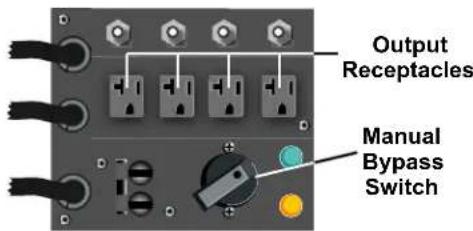
text_image
Output Receptacles Manual Bypass Switch6.4 Install the Grounding Electrode Conductor
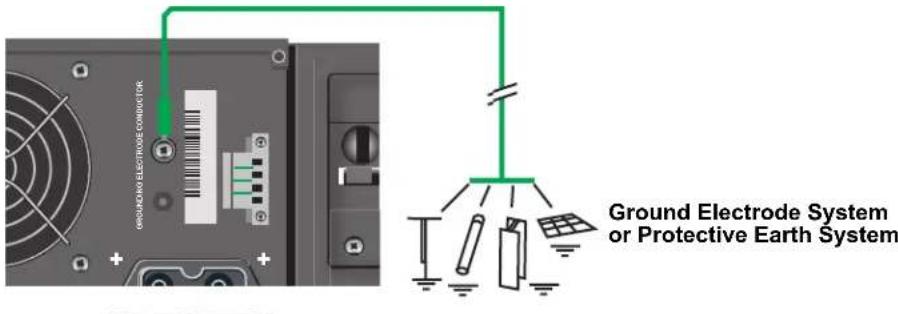
A Grounding Electrode Conductor must be attached to the rear panel using the M5x12 Phillips screw provided. This connection is required in addition to the power input ground connection to the removable power distribution box.
Install an 8 AWG (10 mm ^2 ) (75°C copper wire) (minimum size, see NEC 250-5d, 250-81, 250-83, table 250-94) grounding electrode conductor to the nearest effectively grounded metal structural member, nearest effectively grounded metal water pipe or other grounding electrode in the grounding electrode system. If the grounding electrode conductor must be protected, non-metal conduit is recommended. If metal conduit must be used, bond both ends of the conduit to the grounding electrode conductor. Conduit is not an acceptable grounding electrode conductor.
A 5mm ring lug for 8AWG wire lug is provided in the accessory box. Other suitable connectors may be used.
text_image
Ground Electrode System or Protective Earth System
NOTE
IN BATTERY MODE ONLY, the UPS operates as a separately derived source and contains a neutral to ground bonding jumper. A grounding electrode conductor (GEC) must be installed in accordance with national and local wiring codes and regulations.
6.5 Install the Internal Battery Pack
To facilitate shipping and installation, the GXT2-6000RT208 ships without the internal battery installed. Once the UPS is installed in place, the internal battery pack must be installed.
- Unpack the internal battery from its shipping container.
- Lift the battery pack from its container, holding it in the center of the pack. Do NOT lift the battery pack by grasping the connector on the rear.
- Align the battery pack so that the rear connector is nearest the control panel.
- Slide in the battery pack until fully inserted.
- Install the battery door, tightening the two captive screws, finger tight. The battery door will not install if the battery is not fully inserted.
- For tower installation, place the horizontal overlay over the controls and indicators (see illustration at right).
- Install the two front bezels.

text_image
Controls and Indicators Screws for battery door Battery Compartment Battery Battery cover Front bezels Back of battery Battery connector7.0 INITIAL STARTUP AND ELECTRICAL CHECKS
Initial Startup and the Configuration Program—The UPS ships with a default 120 VAC L-N setting. This is also the most robust setting in that it can operate with either input phase angle (120 or 180 degrees). Perform initial system checks first. If the UPS configuration needs to be modified for your application, then go to the next section to review use of the configuration program. Some configuration changes require that the UPS be in the OFF mode while powered from the utility. Therefore, the installer must confirm that the UPS input has been properly wired. After re-configuring your UPS, the UPS may be put into service with the intended loads.
Hardware Input Connections (For L14-30P Plug-in Connections, skip to 7.1 - L14-30P Plug-in Connections—Including the PD-001 Distribution Box.)

WARNING
Miswiring power to the input terminal block (L1-L2-N-G) or connecting to single phase voltages (L-N-G only) may damage the UPS.
- Verify that the Input and Output circuit breakers are off.
- During initial system checks, disconnect all loads (open load disconnects).
- Inspect all wiring, cables and connection.
- If external battery cabinets are used, verify that the battery interconnect cables are fully inserted in the sockets. Turn on the battery cabinet circuit breaker now.
- If you are using a distribution box that includes a manual bypass switch, place the switch in BYPASS position.
-
Turn on the branch circuit disconnect to apply voltage to the input terminal block.
-
Using a voltmeter, verify the expected L1-N, L2-N and L1-L2 voltages.
a. If no manual bypass switch is used, there will be no output voltage at this time. If a manual bypass switch is used, verify that the same voltages appear at the Output terminals. If a manual bypass switch is used, the Bypass lamp will light by the switch. If no manual bypass switch is used, there will be no output voltage at this time.
b. If the configuration program has been used to set the L-N voltage at 100, 110 or 115, then the input phase angle is required to be 180 degrees.
c. If the configuration program as been used to set the L-N voltage at 127 VAC, then the input phase angle is required to be 120 degrees (leading or lagging).
-
After verifying proper input voltage to the UPS terminal block, turn off the branch circuit power, close all access panels to the distribution box and reapply input power.
-
Close the Input circuit breaker located on the distribution box. The green AC Input indicator should illuminate on the front panel.
-
Press the On button for 1 second. The Bypass indicator will light for several seconds before the UPS ON indicator turns on continuously. If the batteries are determined to charged above 80%, an automatic battery test will run for about 15 seconds.
-
Close the Output circuit breaker on the rear of the UPS. If a manual bypass switch is used, the UPS Available indicator by the switch will light. If a manual bypass switch is used, transfer the switch to the UPS position. The output terminal block will be powered at this time.
-
Perform a Manual Battery Test - Press the On button for one (1) second. The front Battery indicator will light for about 15 seconds and then return to only the UPS ON and AC Input indicators being illuminated.
-
Review all setting option provided by the configuration program. Some changes require that the UPS be OFF. If this is the case, these should be programmed before powering the loads. The configuration program is described in the next section.
-
Connect all loads for normal operation.
7.1 L14-30P Plug-in Connections—Including the PD-001 Distribution Box

WARNING
Miswiring power to the input (L1-L2-N-G) or connecting to single phase voltages (L-N-G only) may damage the UPS. A qualified electrician should verify that the L14-30R is properly wired before attaching the UPS.
If the configuration program has been used to set the L-N voltage at 100, 110 or 115, then the input phase angle is required to be 180 degrees.
If the configuration program as been used to set the L-N voltage at 127 VAC, then the input phase angle is required to be 120 degrees (leading or lagging).
- Verify that the input and output circuit breakers are off.
- During initial system checks, unplug all loads (or open load disconnects).
- Inspect all wiring, cables and connection.
- If external battery cabinets are used, verify that the battery interconnect cables are fully inserted in the sockets. Turn on the battery cabinet circuit breaker.
- If you are using a distribution box that includes a manual bypass switch, place the switch in BYPASS position.
- Plug in the UPS input plug.
- Turn on the branch circuit disconnect to apply voltage to the UPS input.
- If no manual bypass switch is used, there will be no output voltage at this time. If a manual bypass switch is used, the Bypass lamp will light by the switch
- Close the input circuit breaker located on the distribution box. The green Line lamp should illuminate on the front panel.
- Press the Start button for 1 second. The Bypass lamp will light for several seconds before the Inverter lamp turn on continuously. If the batteries are determined to charged above 80%, an automatic battery test will run for about 15 seconds.
- Close the output circuit breaker on the rear of the UPS. If a manual bypass switch is used, the Inverter lamp by the switch will light. If a manual bypass switch is used, transfer the switch to the Inverter position. The output terminal block will be powered at this time.
- Perform a Manual Battery Test by pressing the ON button for 1 second. The front Battery lamp will light for about 15 seconds and then extinguish, leaving only the Inverter and Line lamps illuminated.
- Review all setting option provided by the configuration program. Some changes require that the UPS be OFF. If this is the case, these should be programmed before powering the loads. The configuration program is described in the next section.
- Connect all loads for normal operation.
8.0 CONFIGURATION PROGRAM
The final step of installation may require custom configuration of your UPS using the enclosed configuration program. Some configuration settings may be changed only while the UPS is off. These should be set before the UPS is put into full time service powering the critical load.
For most users operating with 120 VAC L-N and with no external batteries, the factory default settings will be adequate. This manual illustrates the features available for modification, as well as the factory default setting.
The factory default L-N setting is 120 VAC. When first powered by the AC input, the UPS will auto-sense the utility phase angle between L1 and L2, setting the UPS to operate as either a 120/208 VAC system (120 degrees, leading or lagging) or a 120/240 VAC system (180 degrees).
If your application requires that the L1-N, L2-N voltages be set at 100, 110, 115 or 127 VAC, the corresponding phase angle between L1 and L2 is restricted. The VAC settings of 100, 110 and 115 may work only with a phase angle of 180 degrees. A VAC setting of 127 VAC will work only with a phase angle of 120 degrees (leading or lagging).
To confirm the phase angle of the utility input, measure the L1-N, L2-N and L1-L2 VAC of the utility input that is intended for the UPS. If the measured L1-L2 voltage is equal to the average L-N voltage times 2.0, then the phase angle is 180 degrees and the L-N VAC may be set at 100, 110, 115 or 120 VAC. The nominal L1-L2 voltages for these four settings will be 200, 220, 230 or 240 VAC, respectively.
If the measured L1-L2 voltage is equal to the average L-N voltage times 1.73, then the phase angle is 120 degrees and the L-N VAC may be set at either 120 or 127 VAC. The nominal L1-L2 voltages for these two settings will be 208 or 220 VAC, respectively.
Selecting a L-N nominal voltage that is not compatible with the L1-L2 phase angle detected by the UPS when AC input is applied will result in a fault alarm and the UPS will not operate from utility power.
8.1 GXT2-6000RT208 Configuration Program Features
The configuration program enables the user to perform the following functions:
- Select one of five L-N output voltages to match local voltages
- Enable or disable Auto-Restart
- Select frequency converter operation with a fixed output frequency of 50 or 60 Hz
- Set the Low Battery Warning alarm time from 2 to 30 minutes
- Enable or disable the Auto-Battery test
- Set the Auto-Battery test to 7, 14, 21 or 28 days
- Specify the number of external battery cabinets connected to the UPS to adjust the remaining run time calculations reported by Liebert software products
- Modify the shutdown setting of DB-9 pin 6 (for information on pin assignments, see 11.0 - Communications)
8.1.1 What You Will Need
In addition to the GXT2-6000RT208 UPS, you will need the configuration program diskette and serial cable (beige or tan, three-wire: GND, TX, RX; straight through 2-2, 3-3, 5-5) included in the UPS accessory box. A computer—desktop or laptop—running Windows 95 ^® or later is also required to set up and run the configuration program.

8.2 Configuration Program—Installation
An easy-to-use installation program will streamline the installation of the configuration program. If you have a previous version of this configuration program installed, it is recommended that it be uninstalled using its Uninstall program before installing this updated version.
- Use the Windows Explorer to find and open the Lbt_gxt2-1.6.exc installation program on the included software CD.
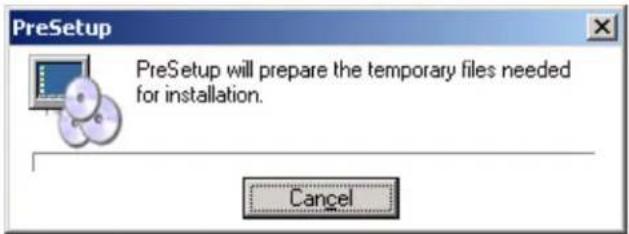
- When you see this PreSetup window, select OK. This will open the main installation screen.
text_image
PreSetup PreSetup will prepare the temporary files needed for installation. Cancel- Click NEXT to continue installing the configuration program.

text_image
Liebert UPS GXT2 Tool 1.8 Setup-asse1.net Liebert UPS GXT2 Tool Version 1.3.5.23 Welcome Welcome to the installation of Liebert UPS GXT2 Tool 1.8. The install us SETUP-assistani will guide you through the installation. This program is used to configure Liebert GXT2 series UPS parameters. Click "Next" or press Enter to continue. Back Next Cancel Copyright (C) 2003 Liebert Corporation.Liebert recommends using the default installation options, but you will be given the option to make modifications to the standard entries.
The installation program will also install an Uninstaller program along with the UPS configuration program.
8.3 Establishing Communication Link with the UPS
Use only the serial communication cable supplied with the configuration program. If an accessory communication card has been installed in the UPS's communication card slot, the option card must be removed while using the configuration program.
Use the serial communication cable to connect your computer's COM1 port to the DB-9 communication port on the rear of the UPS. COM2 may also be used. If the COM port of the host computer has only a DB-25 pin connector, a DB-25 to DB-9 adapter must be added.
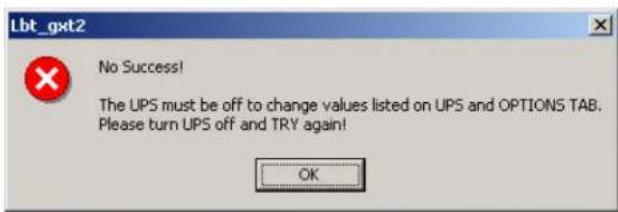
The program may be used while the UPS is on to read and confirm the current settings. The UPS must be off and powered by the AC utility when using the configuration program to change any UPS setting. Any attempt to change a setting while the UPS is on will result in an error message.
Select Lbt_gxt2.exe from the program group to start the configuration program. The program will search COM1 & COM2 for a properly connected GXT 2U™ UPS. When the UPS is found, the opening program window will display the UPS model.
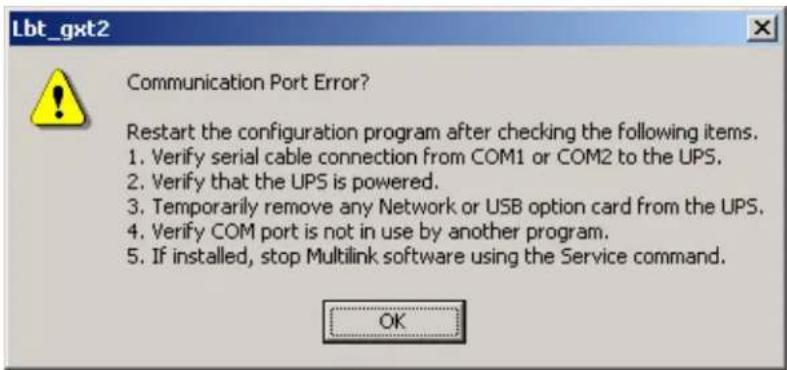
If the configuration program ever fails in its attempt to read data from a UPS, the error message below will be displayed. The program must communicate with the UPS when it first opens, when a new tab is opened and when the REFRESH, APPLY or OK buttons are pressed.
text_image
Lbt_gxt2 Communication Port Error? Restart the configuration program after checking the following items. 1. Verify serial cable connection from COM1 or COM2 to the UPS. 2. Verify that the UPS is powered. 3. Temporarily remove any Network or USB option card from the UPS. 4. Verify COM port is not in use by another program. 5. If installed, stop Multilink software using the Service command. OKIf this message is displayed, check the following items:
- Verify that the serial communication cable is connected properly.
- Verify that the COM port being used is designated COM1 or COM2.
- Verify that the UPS is either in Inverter mode, Bypass mode, Battery mode or Off with AC power available at the input (AC Input indicator on). In all cases, the rear fan will be running.
- Verify that the COM port is not in use by other UPS communication software (or non-UPS software). If MultiLink UPS software is installed on the computer, the MultiLink service must be stopped to free the COM port. MultiLink typically restarts automatically whenever the computer restarts.
- The UPS serial port is in use by an internal, optional communication card in the UPS card slot. Remove the option card.
- The program is connected to a UPS that was not designed for this program.
8.4 Configuration Program—Operation
8.4.1 Read/Confirm UPS Configuration Settings
The UPS settings may be monitored, but not changed, using the configuration program while the UPS is operating in any mode. If the program is only used to read the present UPS settings, close the program using the CANCEL button.
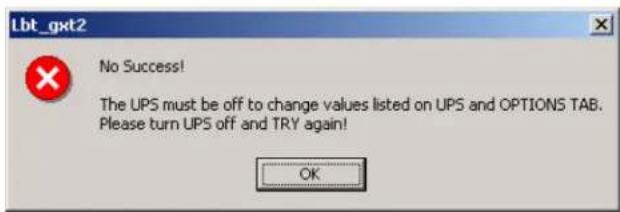
Mistakenly using the APPLY or OK button will attempt to write data to the UPS and will result in the error message shown at right if the UPS is not off.
If this message is displayed and you do not wish to change any settings, close this error message and close the configuration program using the CANCEL button.
text_image
Lbt_gxt2 No Success! The UPS must be off to change values listed on UPS and OPTIONS TAB. Please turn UPS off and TRY again! OKIf the UPS is off and you do not wish to risk changing any settings, close the program using the CAN-CEL button. Do not use the APPLY or OK buttons in the configuration program.
8.4.2 Changing UPS Settings
UPS SETTINGS MAY ONLY BE CHANGED USING THE CONFIGURATION PROGRAM WHEN THE UPS IS OFF AND NO POWER IS BEING DELIVERED TO THE LOAD. AC input power must be available to power the UPS logic during programming. Only the AC Line indicator will be on indicating utility input power.
To turn the UPS off to change configuration settings, press the UPS OFF/Bypass button twice within four seconds (hold the button one second each time). This will disconnect all power to the load.
Changing any value or selecting/deselecting any setting in the configuration window will not immediately change the settings in the UPS. You may modify the displayed settings until you are satisfied with the new proposed changes. Settings displayed by the configuration program can always be restored to the existing values stored in the UPS by selecting the REFRESH key.
Values displayed will be transmitted to the UPS only when either the APPLY or OK button is selected. The APPLY button sends the new settings to the UPS without closing the program. The OK button sends the new settings and closes the program.
Whenever data is successfully transmitted to the UPS, this message shown at right will be displayed.

text_image
Lbt_gxt2 Configuration success! You may restart the UPS after closing this program. OK8.4.3 Programming Rejected?
If the UPS appears to be off but this error message is displayed when the APPLY or OK button is selected to transmit settings, the UPS may be in an intermediate standby condition.
To confirm that the UPS is fully off, repeat the turn off procedure. Press the UPS OFF/ Bypass button twice within four seconds (hold the button one second each time).
text_image
Lbt_gxt2 No Success! The UPS must be off to change values listed on UPS and OPTIONS TAB. Please turn UPS off and TRY again! OK8.4.4 Exit Without Changing UPS Settings
If you decide not to change the UPS after modifying the displayed settings, close the configuration program using the Cancel button.
8.5 UPS Tab
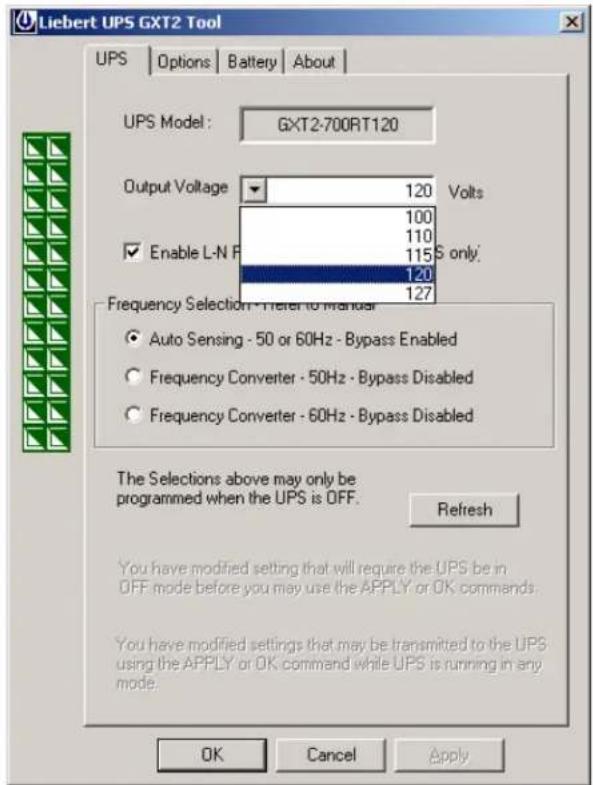
When the program starts, the following window will open displaying the UPS model along with the current UPS settings. This information can be updated at any time using the REFRESH button.
Figure 4 Factory default settings for 120VAC UPS
text_image
Liebert UPS GXT2 Tool UPS Options Battery About UPS Model : GXT2-700RT120 Output Voltage 120 Volts Enable L-N F 100 110 $ only. Frequency Selection - Refer to Manual Auto Sensing - 50 or 60Hz - Bypass Enabled Frequency Converter - 50Hz - Bypass Disabled Frequency Converter - 60Hz - Bypass Disabled The Selections above may only be programmed when the UPS is OFF. Refresh You have modified setting that will require the UPS be in OFF mode before you may use the APPLY or OK commands. You have modified settings that may be transmitted to the UPS using the APPLY or OK command while UPS is running in any mode. OK Cancel Apply8.5.1 Output Voltage
The Output Voltage displayed is the nominal input/output voltage. This is not a voltmeter and will display the nominal voltage whether the UPS is on or off. The drop down box will show the alternate voltages available. Select the voltage that matches the nominal utility in your location.
8.5.2 Auto Restart
The UPS will provide computer grade power during power outages. If input power is unavailable for an extended time, the UPS will shut down when batteries are depleted or a shutdown signal is sent by the computer operating system to limit battery depletion (serial data or contact closure). If Auto Restart is enabled (check mark in box), the UPS will restart when input power is restored. If the UPS turns off power to the load for any other reason, manual restart is required (See 8.6 - Options Tab for exceptions). Click on the box to remove the check mark and disable Auto Restart.
8.5.3 L-N Reverse Detection (120V UPS Models Only)
Proper wiring of the receptacle powering the UPS is critical for safety, EMI suppression and surge suppression. The UPS checks the outlet when first plugged in. If the Line-Neutral is reversed or the ground is missing, the UPS will not start. If a problem is detected after the UPS is started, the UPS will continue to operate, but the AC Input indicator will flash. In some unique applications the user may wish to disable this alarm. Except for special situations, improperly wired receptacles should be immediately repaired before the UPS is put into service. Click on the box to remove the check mark and disable this alarm.
8.5.4 Frequency Selection
The UPS is normally designed for 50Hz or 60Hz operation. The factory default corresponds to the model. All models are capable of being used as 50Hz or 60Hz systems. The UPS will automatically sense the utility frequency when first plugged in and set the nominal frequency to match. Therefore, for all normal use the Auto Sense button should be selected.
Some special applications require that the UPS be used as a frequency converter. Frequency converter 50Hz or frequency converter 60Hz may be selected.
Note that frequency converter operation disables the Bypass. If, for any reason, the UPS inverter is unable to power the load, the alternate bypass to utility power will not be available and power will be removed from any load.
8.6 Options Tab
Computer users may choose to use versatile computer shutdown software that communicates with the UPS via a serial communications cable. The Options tab should not be used to modify the UPS functions for such applications.
For some industrial applications and special computer applications, the UPS may be monitored and controlled using external voltages and relay contact signals. The Options tab expands the UPS versatility for such applications.
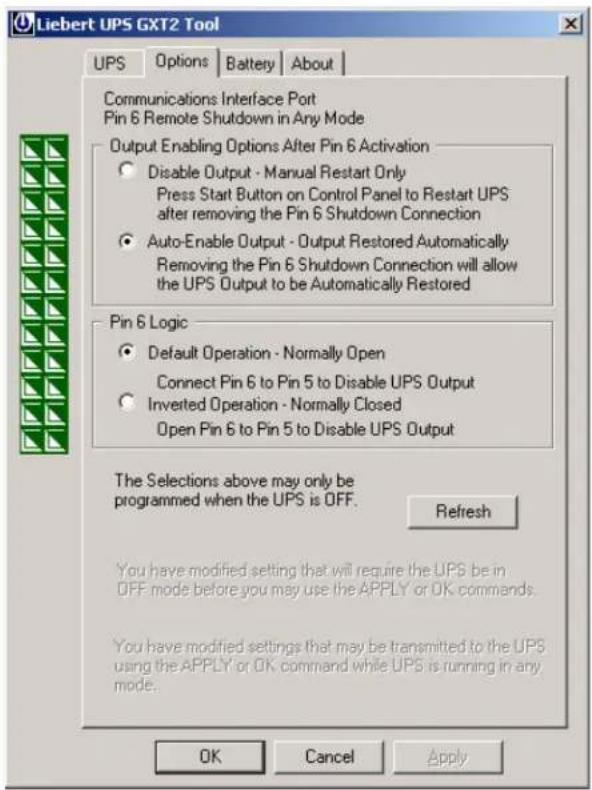
Refer to your UPS manual for a description of the 9-pin communication connector on the rear of the UPS. Pin 6 of the 9-pin communication connector is used for "Any Mode Shutdown" of the UPS output. This control input may be used in special applications to disable the UPS output power - both Inverter and Bypass.
The Options tab allows the behavior of the Any Mode Shutdown feature to be modified.
When the program opens or the REFRESH button is pressed, the UPS setting is read by the configuration program and displayed.
Factory Default Setting Illustrated - This Options tab illustration shows the available function definitions using pin 6 and the factory default settings.
text_image
Liebert UPS GXT2 Tool UPS Options Battery About Communications Interface Port Pin 6 Remote Shutdown in Any Mode Output Enabling Options After Pin 6 Activation Disable Output - Manual Restart Only Press Start Button on Control Panel to Restart UPS after removing the Pin 6 Shutdown Connection Auto-Enable Output - Output Restored Automatically Removing the Pin 6 Shutdown Connection will allow the UPS Output to be Automatically Restored Pin 6 Logic Default Operation - Normally Open Connect Pin 6 to Pin 5 to Disable UPS Output Inverted Operation - Normally Closed Open Pin 6 to Pin 5 to Disable UPS Output The Selections above may only be programmed when the UPS is OFF. Refresh You have modified setting that will require the UPS be in OFF mode before you may use the APPLY or OK commands. You have modified settings that may be transmitted to the UPS using the APPLY or OK command while UPS is running in any mode. OK Cancel Apply
WARNING
Auto-Enable Output
Note that when this option is selected and the UPS output is disabled using Pin 6, the UPS output can turn on automatically and without warning if the Pin 6 connection is changed.

WARNING
Pin 6 Logic
DO NOT CHANGE THIS OPTION from the factory default setting unless you are ready to install a normally-closed connection between Pins 5 & 6. This connection must be maintained to use the UPS or to use the configuration program again, including the ability to change the UPS setting back to the default setting using the configuration program via a serial communication link.
8.7 Options Tab Used With Earlier GXT 2U Models
This version of the configuration program will accompany GXT 2U UPS models that support new programming features accessible using the Options tab.
If version 1.6 (or later) is used with an earlier GXT 2U model (with an earlier UPS firmware version), the Any Mode Shutdown features cannot be changed.
If the configuration program is used with an earlier UPS model (with an earlier UPS firmware version) that does not support the modification of these settings, the Options tab will display a reminder of the factory default settings, as shown. These cannot be changed.

text_image
Liebert UPS GXT2 Tool UPS Options Battery About Communications Interface Port Pin 6 Remote Shutdown in Any Mode Output Enabling Options After Pin 6 Activation Disable Output - Manual Restart Only Press Start Button on Control Panel to Restart UPS after removing the Pin 6 Shutdown Connection Auto-Enable Output - Output Restored Automatically Removing the Pin 6 Shutdown Connection will allow the UPS Output to be Automatically Restored Pin 6 Logic Default Operation - Normally Open Connect Pin 6 to Pin 5 to Disable UPS Output Inverted Operation - Normally Closed Open Pin 6 to Pin 5 to Disable UPS Output The Selections above may only be programmed when the UPS is OFF. Refresh You have modified setting that will require the UPS be in OFF mode before you may use the APPLY or OK commands. You have modified settings that may be transmitted to the UPS using the APPLY or OK command while UPS is running in any mode. OK Cancel Apply8.8 Battery Tab
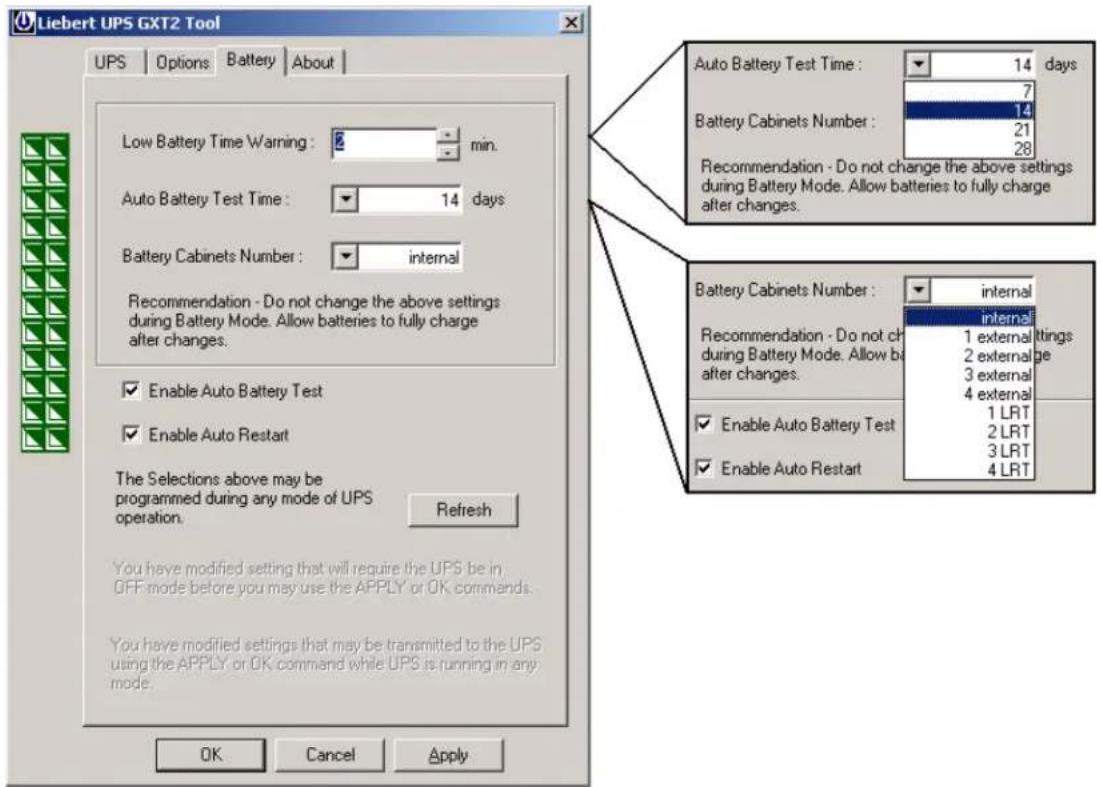
Factory default settings illustrated.
The boxes on the right show the available options using the drop-down selection boxes.
text_image
Liebert UPS GXT2 Tool UPS Options Battery About Low Battery Time Warning: 6 min. Auto Battery Test Time: 14 days Battery Cabinets Number: internal Recommendation - Do not change the above settings during Battery Mode. Allow batteries to fully charge after changes. Enable Auto Battery Test Enable Auto Restart The Selections above may be programmed during any mode of UPS operation. Refresh You have modified setting that will require the UPS be in OFF mode before you may use the APPLY or OK commands. You have modified settings that may be transmitted to the UPS using the APPLY or OK command while UPS is running in any mode. OK Cancel Apply Auto Battery Test Time: 14 days 7 Battery Cabinets Number: 14 21 28 Recommendation - Do not change the above settings during Battery Mode. Allow batteries to fully charge after changes. Battery Cabinets Number: internal internal 1 external fittings 2 external lge 3 external 4 external 1 LRT 2 LRT 3 LRT 4 LRT8.8.1 Low Battery Time Warning
The UPS will estimate remaining operating time when on batteries. A low battery alarm is activated if the estimated time reaches the Low Battery Time. This may be changed to any value from 2 to 30 minutes.
8.8.2 Auto Battery Test Time
The UPS performs an automated battery test periodically, if enabled. The user may also select time periods of 7, 14, 21 and 28 days.
8.8.3 Battery Cabinets Number
If additional batteries are attached to the UPS, accurate battery runtime estimates are possible if the battery number and type of batteries are entered here. The new UPS models are designed to operate with up to four external battery packs or four long runtime battery packs (not currently available).
8.8.4 Auto Battery Test
In some applications it may be preferable to disable the automated, periodic battery test. Click on the box to remove the check mark and disable the periodic battery test.
8.9 About Tab
The version number of the configuration program may be confirmed using the About Tab.

text_image
Liebert UPS GXT2 Tool UPS Options Battery About Liebert UPS GXT2 Tool Ver. 1.8 Copyright 2003 by Liebert Corporation OK Cancel Apply9.0 CONTROLS AND INDICATORS
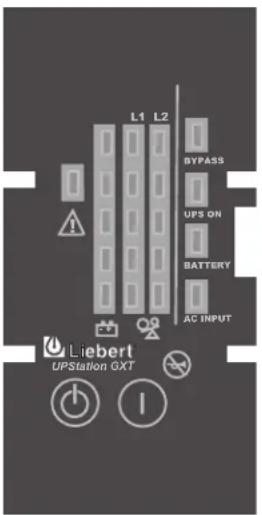
Vertical overlay for tower installation
text_image
L1 L2 BYPASS UPS ON BATTERY AC INPUT Liebert UPStation GXTAll indicators lit for illustrative purposes.

text_image
AC INPUT BATTERY UPS ON BYPASS L1 L2Horizontal overlay for rack mounting
9.1 ON/Alarm Silence/Battery Test Button
This button controls output power to connected load(s) and has three functions:
• ON
• Alarm Silence
- Manual Battery Test

ON - Pressing this button will start up the UPS in order to provide conditioned and protected power.
Alarm Silence - To silence alarms, press this button for at least one Second. After the alarm is silenced, the UPStation GXT2-6000RT208 will reactivate the alarm system to alert of additional problems.

NOTE
The LOW BATTERY and BYPASS reminder alarms CANNOT be silenced.
Manual Battery Test - To initiate a manual battery test, press the ON/Alarm Silence/Battery Test button for at least one second while operating from utility power with no alarm conditions present.
- If only three of the five Battery indicators illuminate, allow the UPS to recharge the batteries for 24 hours.
• After 24 hours, retest the batteries.
• After the batteries have been retested, if only three of the five Battery indicators illuminate, contact your local dealer, Liebert representative or Liebert Worldwide Support Group.
9.2 OFF/Bypass Button

This button controls output power to connected load(s) and has dual functions: OFF and Bypass.

CAUTION
Pressing the OFF/Bypass button once will cause the load to be transferred to bypass power. Pressing the OFF/Bypass button a second time within 4 seconds will result in loss of power to the output receptacles and connected loads. Perform all necessary shutdown procedures on connected loads before pressing this button twice.
Pressing the OFF/Bypass button twice within 4 seconds shuts off power to the output receptacles and connected loads, but the UPS's circuits remain live, charging the unit's battery.
9.3 L1 & L2 Load Level Indicators (Two Rows of Indicators: 4 Green, 1 Amber)
The Load Level indicators display the approximate electrical load placed upon both output legs of the UPS at all times. Each indicator represents an approximate 25 percent increase in load. For optimum utilization of the UPS, distribute L-N loads to approximately balance the loads on L1 and L2.
9.4 Battery Level Indicators (5 Green)
The Battery Level indicators display approximate battery capacity at all times. Each indicator represents an approximate 20 percent increase in battery capacity.
The UPStation GXT2-6000RT208 is equipped with automatic and remote battery test features. The automatic test occurs every 14 days (this option is user-configurable) if utility has not been interrupted. Should the battery fail this test, the red Fault indicator along with the A and C diagnostic indicators will illuminate and an alarm will sound (refer to 13.0 - Troubleshooting). The remote test feature functions with MultiLink 3 software and can remotely initiate the battery test.
9.5 Fault Indicator (Red)
The Fault indicator is illuminated if the UPS has detected a problem. Also, one or more of the Battery Level indicators may be illuminated (refer to 13.0 - Troubleshooting section).
9.6 Bypass Indicator (Amber)
The Bypass indicator is illuminated when the UPS is operating from bypass power. An alarm will sound indicating the UPS detected a problem or the manual bypass function has been activated.
9.7 UPS ON Indicator (Green)
The UPS ON indicator is illuminated when the UPS inverter is operating and supplying power to your connected loads.
9.8 Battery Indicator (Amber)
The Battery indicator is illuminated when the UPS is operating on battery.
9.9 AC Input Indicator (Green)
The AC Input indicator is illuminated when utility power is available and within the input specifications.
10.1 Normal Mode Operation
During normal operation, utility power provides energy to the UPS. The filters, power factor correction circuit and the inverter process this power to provide computer grade power to connected loads. The UPS maintains the batteries in a fully charged state. The four green Load Level indicators display an approximate level of load in 25% increments. If the UPS becomes loaded beyond full rating, the fifth (amber) indicator will illuminate and the UPS will sound an audible alarm. The display template indicates the percentage of load (see example at right) on the UPS output.

text_image
AC INPUT BATTERY UPS ON BYPASS L1 L2Normal Mode Operation
Batteries at 100% charge
L1 Load at 10%, L2 Load at 90%
10.2 Battery Mode Operation
Battery mode occurs in event of an extreme input voltage condition or complete utility failure. The battery system supplies power through the DC to DC converter to the inverter to generate power for the connected load. During battery mode an alarm sounds every 10 seconds. This will change to two beeps every 5 seconds when the battery runs low (approximately 2 minutes remaining, but this is user configurable). The AC Input indicator will extinguish and the Battery indicator will illuminate to warn that a utility problem has occurred. Each Battery Level indicator represents a 20% capacity level. As capacity decreases, fewer indicators remain illuminated. Refer to 13.0 - Troubleshooting. For approximate battery run times, refer to Table 7 - Battery run times. These times are approximate based on resistive load and an ambient temperature of 77^ F ( 25^ C). To increase this time, turn off non-essential pieces of equipment (such as idle computers and monitors) or add the optional external battery cabinet.

text_image
AC INPUT BATTERY UPS ON BYPASS L1 L2Battery Mode Operation
Batteries at 30% charge
L1 Load at 60%, L2 Load at 60%

CAUTION
Turning OFF the UPS while in battery mode will result in loss of output power.
10.3 Battery Recharge Operation
Once utility power is restored, the UPS resumes normal operation. At this time, the Battery Charger begins recharging.
11.0 COMMUNICATIONS
11.1 Communications Interface Port
The UPStation GXT2-6000RT208 UPS has a standard DB-9 serial port female connector located on the rear of the UPS unit. Several signals are provided on this port and are assigned as follows:
Table 3 DB-9 pin assignment
| DB-9 Pin | Assignment Description |
| 1 Low Battery (open collector) | |
| 2 UPS TxD (typically RS-232 levels) | |
| 3 UPS RxD (typically RS-232 levels) | |
| 4 Remote Shutdown (5-12VDC, 10-24mA max; battery operation) | |
| 5 Common | |
| 6 Remote Shutdown (short to pin 5); all modes of operation | |
| 7 Low Battery (open emitter) | |
| 8 Utility Fail (open emitter) | |
| 9 Utility Fail (open collector) | |

text_image
Pin Assignment Collector to Emitter* 6 7 8 9 54321 Open Collector (+) 330 Ohms (-) Open Emitter* Maximum voltage and current on pins 1, 7, 7 and 9 are 60VDC and 10.0 mA
11.1.1 DB-9 Interface Port
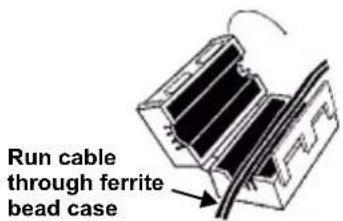
Using the following directions to attach the smaller enclosed ferrite bead clamp to the communication cable as shown at right:
- Open the ferrite bead.
- Place the communication cable inside the ferrite bead groove.
- Position the ferrite bead as close as possible to the end of the cable that connects to the DB-9 connector of the UPS.
- Close the ferrite bead so that the ferrite bead's case snaps closed with the cable routed through the ferrite bead's case.
11.1.2 Communications SNMP Web Card SNMP Adapter
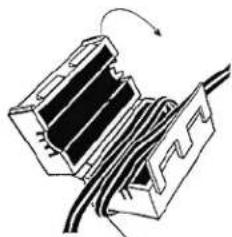
Attach the larger enclosed ferrite bead clamp to the network cable, see illustration at right, using the following directions:
- Open the ferrite bead.
- Place the network cable inside the ferrite bead groove.
- Wrap the cable once around the ferrite bead.
- Position the ferrite cable as close as possible to the end of the cable that connects to the UPS.
- Close the ferrite bead so that the ferrite bead's case snaps closed with the cable routed through the ferrite bead's case.
text_image
Run cable through ferrite bead case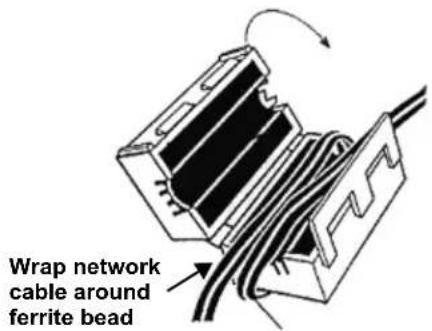
text_image
Wrap network cable around ferrite bead11.2 Pin 4 - Remote Shutdown on Battery
- This pin is functional only when the UPS is in battery mode. If the UPS is being powered by the utility, Pin 4 will ignore any signal on this pin.
- Pin 4 requires a 5-12 VDC signal to shutdown. This normally comes from the serial port using Liebert's contact closure cable. It cannot be used with just a contact closure unless the relay is used to switch a voltage source. A 5-12 VDC signal for 1.5 seconds or greater is required to signal a shutdown. Signals for less than 1.5 seconds will be ignored. After Pin 4 receives a shutdown signal for 1.5 seconds, the command cannot be canceled.
- A battery shutdown signal on Pin 4 will NOT cause an immediate Shutdown. A shutdown signal will start a 2-minute shutdown timer. The timer cannot be stopped. After 2 minutes, the UPS will shut down.
- If the utility returns during the 2-minute timer countdown, the shutdown timer will continue until the end of 2 minutes and the UPS will turn OFF. The UPS must remain OFF for at least 10 seconds even if AC input power Returns before the UPS turns OFF. This serves to reset and restart the server.
Whether the UPS turns back ON when power is restored depends on the auto-restart setting: enabled or disabled.
If the auto-restart is disabled, the UPS will not restart after performing the 2-minute shutdown delay.
11.3 UPS Intelligent Communications
The UPStation GXT2-6000RT208 is equipped with an Intellislot ^® port to provide advanced communication and monitoring options.
Liebert's MultiLink software continually monitors the UPS and can shut down your computer or server in the event of an extended power failure.
MultiLink can also be configured for use without the serial cable when the Intellislot SNMP/Web card is installed in the UPS. Additionally, MultiLink can be configured to coordinate shutdown across the network with other computers running MultiLink when you purchase a MultiLink License Kit. For more information about the Intellislot SNMP/Web Card and MultiLink License Kits, visit our Web site (www.liebert.com) or contact your local dealer or Liebert representative.
Several option cards are available for use in the Intellislot port of the UPStation GXT2-6000RT208 The Intellislot SNMP/Web Card provides SNMP and Web-based monitoring and control of the UPS across the network.
The Intellislot MultiPort 4 Card allows you to install MultiLink software on four computers and coordinate shutdown in the event of a power failure.
The Intellislot Relay Card provides dry contact relay outputs for custom wired applications and delivers support for built-in shutdown for AS/400 systems.

CAUTION
To maintain safety (SELV) barriers and for electromagnetic compatibility, signal cables should be segregated and run separate from all other power cables, where applicable.
11.4 Remote Emergency Power Off
The UPS is equipped with a Remote Emergency Power Off (REPO) connector.
The user must supply a means of interfacing with the REPO circuit to allow disconnecting the UPS input feeder breaker to remove all sources of power to the UPS and connected equipment to comply with national and local wiring codes and regulations.
Figure 5 REPO switch connections
REPO Connection
| REPO as shipped | REPO connections for normally open switch system | REPO connections for normally closed switch system (fail-safe) | ||||||||||
| 1 | 2 | 3 | 4 | 1 | 2 | 3 | 4 | 1 | 2 | 3 | 4 | |
Key to REPO switch connections
- 24 VDC
- Sense
- Sense
- Ground
!
CAUTION
To maintain safety (SELV) barriers and electromagnetic compatibility, signal cables should be segregated and run separately from power cables.
12.0 MAINTENANCE
The UPStation GXT2-6000RT208 requires very little maintenance. The batteries are valve-regulated, non-spillable, flame retardant, lead acid and should be kept charged to obtain their design life. The UPS continuously charges the batteries when connected to the utility supply.
When storing the UPS for any length of time, it is essential to plug the UPS in for at least 24 hours every four to six months to ensure full recharge of the batteries. Failure to recharge the batteries periodically will permanently degrade battery capacity.
The UPStation GXT2-6000RT208 is designed to allow the user to safely replace the internal batteries. Read the safety cautions before proceeding. Contact your local dealer or Liebert representative to obtain the appropriate replacement battery kit part number and pricing.
12.1 Battery Replacement

CAUTION
A battery can present a risk of electrical shock and high short circuit Current. The following precautions should be observed before replacing the batteries:
- Remove rings, watches and other metal objects.
- Use a Phillips (crosshead) screwdriver with insulated grips.
- Do not lay tools or other metal objects on top of the batteries.
- If the battery replacement kit is damaged in any way or shows signs of leakage, contact your local dealer or Liebert representative immediately.
- Do not dispose of batteries in a fire. The batteries may explode.
12.1.1 Internal Battery Replacement Procedures
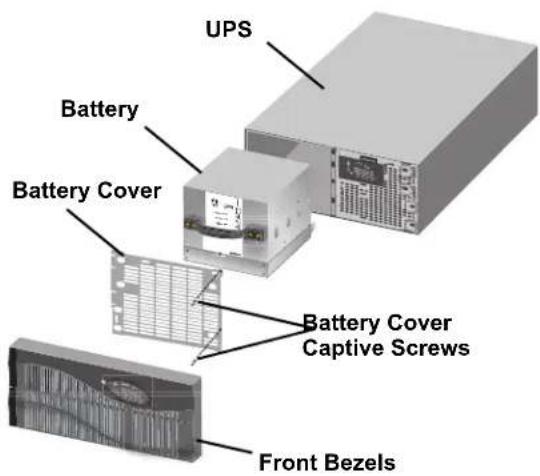
- Gently remove the front plastic bezels cover from the UPS by pulling forward.
- Loosen the two captive screws on the front battery door. Lay the battery door aside for reassembly.
- Grasp the battery pack assembly and pull it out of the front of the UPS. Be prepared to support the weight of the battery as it is withdrawn.
- Unpack the new battery assembly taking care not to destroy the packing. Compare new and old battery assemblies to make sure they are the same. If so, proceed with Step 6; otherwise STOP and contact your local dealer, Liebert representative or the Liebert Worldwide Support Group.
- Line up and slide in the new replacement battery pack.
- Reattach the front battery door, tightening the two captive screws finger tight.
- Reattach the front plastic bezels to the UPS.
text_image
UPS Battery Battery Cover Battery Cover Captive Screws Front Bezels
NOTE
These are hot-swappable replacement batteries. However, caution should be exercised because during this procedure the load is unprotected from disturbances and power outages.
12.2 UPS Replacement
When using a power distribution box with bypass, the UPS can be removed while powering the load through the Bypass Switch.

NOTE
During the procedure, the connected load will not be protected from power disturbances, such as spikes, sags and failure.
To remove the UPS without shutting off power to the connected load:
- Turn the Bypass Switch on the power distribution box to the Utility position.
- Open the Output circuit breaker (on the UPS rear panel).
-
Open the Input circuit breaker (on the power distribution box).
-
Loosen the three captive mounting screws about 20 turns until the power distribution box can be pulled away from the UPS.
-
Loosen the electrical connector cover by backing out the two screws holding it one turn each. Also loosen the end screw one turn.
-
Slide the cover to reach the end screw and cover the electrical connectors; retighten the three screws gently to hold the cover in place.
-
Replace the UPS.
-
Loosen the three screws holding the electrical connector cover again—one turn each.
-
Slide the cover away from the electrical connectors; gently retighten the three screws.
-
Align the connectors on the power distribution box and the UPS.
-
Push the power distribution box into place.
-
Holding the power distribution box firmly against the UPS, tighten the three captive mounting screws until the box is secure. Do NOT overtighten the screws.
-
Close the Input circuit breaker (on the power distribution box).
-
Close the Output circuit breaker (on the UPS rear panel).
-
Turn the Bypass Switch on the power distribution box back to the UPS position.

text_image
Mounting screws for removable power distribution box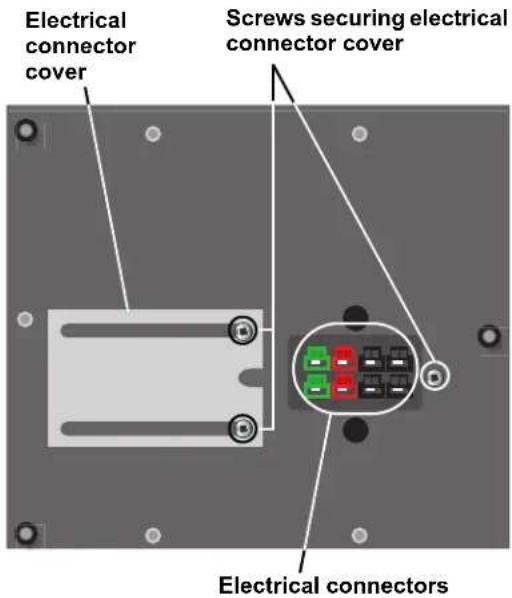
text_image
Electrical connector cover Screws securing electrical connector cover Electrical connectors13.0 TROUBLESHOOTING
The information below indicates various symptoms a user may encounter in the event the UPStation GXT2-6000RT208 develops a problem. Use this information to determine whether external factors caused the problem and how to remedy the situation.
- The Fault indicator will illuminate, indicating the UPS has detected a problem.
- An alarm will sound, alerting that the UPS requires attention.
- One or more additional Load Level/Battery Level indicators will be illuminated to provide a diagnostic aid to the operator, as described below:
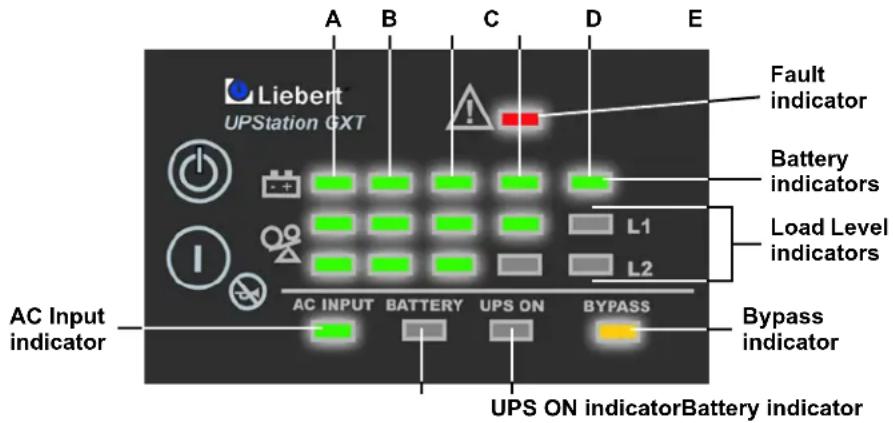
text_image
A B C D E Liebert UPStation GXT Fault indicator Battery indicators Load Level indicators L1 L2 AC INPUT BATTERY UPS ON BYPASS Bypass indicator UPS ON indicatorBattery indicator AC Input indicatorTable 4 Fault indicators
| Indicator status | Diagnosis/Audible alarm |
| All indicators On bypass due to output overload; beep every half-second | |
| Indicator A | On bypass due to overtemperature condition on L1; 1-second beep every 4 secondsOn bypass due to overtemperature condition on L2; 2-second beep every 4 seconds |
| Indicator B | On bypass due to DC bus overvoltage on L1; 1-second beep every 4 secondsOn bypass due to DC bus overvoltage on L2; 2-second beep every 4 seconds |
| Indicator C | On bypass due to control power supply failure on L1; 1-second beep every 4 secondsOn bypass due to control power supply failure on L2; 2-second beep every 4 seconds |
| Indicator D | On bypass due to PFC failure on L1; 1-second beep every 4 secondsOn bypass due to PFC failure on L2; 2-second beep every 4 seconds |
| Indicator E | On bypass due to inverter failure on L1; 1-second beep every 4 secondsOn bypass due to inverter failure on L2; 2-second beep every 4 seconds |
| Indicators A&B | Inverter-to-Inverter communications failure; half-second beep every 1 second |
| Indicators A&C UPS failed battery test; 2-second beep every 60 seconds | |
| Indicators A&D L1 to L2 phase angle unacceptable | |
| Indicators B&C | REPO is currently activated, UPS output cannot be started by any method |
| Indicators B&D | UPS is OFF due to previous REPO (REPO is no longer activated). Once utility power is restored, press the OFF button twice within four seconds (to clear the alarm), then press the ON button to start UPS (Auto-restart is NOT possible). |
| Indicators C&E | UPS shutdown due to command from communications (RS232 or SNMP); no beep |
| Indicators D&E UPS is OFF due to charger overvoltage; 1-second beep every 4 seconds | |
| AC Input indicator On & Battery indicator Flashing | AC input has been applied to start UPS but the batteries are either missing or below the minimal level to allow the UPS to start; continuous audible alarm |
| Bypass indicator Flashing | Bypass voltage is present, but is disabled for use because the voltage or frequency is outside acceptable limits |
Under fault conditions, the Fault indicators will be illuminated indefinitely while the battery charger is operational, or for a maximum of 5 minutes while the battery charger is not operational.
If a problem persists, consult your local dealer, Liebert representative or contact the Liebert Worldwide Support Group. Please have the UPS model number and serial number available at the time of your inquiry.
All audible alarms can be silenced, with the exception of Low Battery, Bypass Reminder and Missing Batteries at Startup alarms. Once silenced, the alarm will not sound again until a new alarm condition is present.
Table 5 Alarm conditions
| Condition Alarm | |
| Battery Mode (utility failure) | One short beep every 10 seconds; more than 2 minutes of run time remaining |
| Low Battery Two short beeps every 5 seconds | less than 2 minutes of run time remaining |
| On Bypass Reminder A one-second beep every 2 minutes | |
| Output Overload (bypass) One short beep every half second | |
| Overtemperature (bypass) A one-second, or two-second, beep every 4 seconds | |
| DC Bus Overvoltage (bypass) A one-second, or two-second, beep every 4 seconds | |
| Control Power Supply Failure (bypass) A one-second, or two-second, beep every 4 seconds | |
| PFC Failure (bypass) A one-second, or two-second, beep every 4 seconds | |
| Inverter Failure A one-second, or two-second, beep every 4 seconds | |
| Inverter-to-Inverter Communications Failure | A one-half second beep every 1 second |
| Battery Test Failure A two-second beep every 1 minute | |
| REPO Activated A one-quarter second beep every half second | |
Table 6 Troubleshooting guide
| Problem | Cause | Solution |
| UPS fails to start when the ON button is pressed. | UPS is short-circuited or overloaded. | Ensure the UPS is OFF. Disconnect all loads and ensure nothing is lodged in output receptacles.Ensure the loads are not defective or shorted internally. |
| Battery indicator is illuminated. | UPS not plugged in. | UPS is operating in Battery Mode, make certain UPS is securely plugged into the wall receptacle. |
| UPS input protection fuse has blown/opened. | UPS is operating in Battery Mode. Save data and close applications. Replace UPS input fuse, then restart UPS. | |
| Utility voltage out of UPS input range. | UPS is operating in Battery Mode. Save data and close applications. Ensure utility supply voltage is within acceptable limits for UPS. | |
| UPS has reduced battery time. | Batteries are not fully charged. | Keep UPS plugged in continuously at least 24 hours to recharge batteries. |
| UPS is overloaded. | Check load level display and reduce the load on the UPS. | |
| Batteries may not be able to hold a full charge due to age. | Replace batteries. Contact your local dealer, Liebert representative or the Liebert Worldwide Support Group for replacement battery kit. | |
| Fault and Bypass indicators and all Load Level indicators are illuminated. | UPS overloaded or load equipment is faulty. | Check load level display and remove non-essential loads. Recalculate the load and reduce number of loads connected to UPS. Check load equipment for faults. |
| Fault and Bypass indicators and diagnostic indicator C are illuminated. | UPS control power supply fault. | UPS requires service. Contact your local dealer, Liebert representative or the Liebert Worldwide Support Group. |
| Fault and Bypass indicators and diagnostic indicator D are illuminated. | UPS PFC (Power Factor Correction Circuit) fault. | UPS requires service. Contact your local dealer, Liebert representative or the Liebert Worldwide Support Group. |
| Fault and Bypass indicators and diagnostic indicator A are illuminated. | UPS internal fan has a problem or UPS shutdown due to temperature condition. Load is on bypass power. | Ensure the UPS is not overloaded, ventilation openings are not blocked and room ambient temperature is not excessive.Wait 30 minutes to allow UPS to cool, then restart UPS. If UPS does not restart, contact your local dealer, Liebert representative or the Liebert Worldwide Support Group. |
Table 6 Troubleshooting guide
| Problem Cause Solution | ||
| Fault and Bypass indicators and diagnostic indicator B are illuminated. | UPS internal DC bus overvoltage. | UPS requires service. Contact your local dealer, Liebert representative or the Liebert Worldwide Support Group. |
| Fault and Bypass indicators and diagnostic indicator E are illuminated. | UPS inverter fault. | UPS requires service. Contact your local dealer, Liebert Representative or the Liebert Worldwide Support Group. |
| Fault and Bypass indicators and diagnostic indicators A and B are illuminated. | Inverter-to-Inverter Communications Failure | UPS requires service. Contact your local dealer, Liebert Representative or the Liebert Worldwide Support Group. |
| Fault indicator and diagnostic indicators A and C are illuminated. | UPS failed the battery test. | Replace batteries. Contact your local dealer, Liebert representative or the Liebert Worldwide Support Group. |
| Fault indicator and diagnostic indicators A and D are illuminated. | L1 to L2 phase angle unacceptable. | Only phase angles of 120, 180 or 240 degrees (±10 degrees) are permitted. These must be compatible with the selections in the configuration program.Or the phase angle has changed while the UPS was running. The phase angle is detected at startup and cannot be changed to a different power source while running.Turn the UPS Off and wait until the fans stop. Apply input AC power. The UPS will reprogram the phase angle to match the utility, if the utility is 120, 180 or 240 degrees between L1 and L2. If this does not resolve the issue, contact a qualified electrician to verify the site wiring. |
| Fault indicator and diagnostic indicators B and C are illuminated. | REPO is currently activated. | UPS has shut down due to the REPO (Remote Emergency Power Off). The output cannot be started by any method. |
| Fault indicator and diagnostic indicators B and D are illuminated. | UPS output is OFF from a previous REPO command. REPO is no longer activated. | UPS is OFF due to previous REPO (REPO is no longer activated). Once utility power is restored, press the OFF button twice within four seconds (to clear the alarm), then press the ON button to start UPS (Auto-restart is NOT possible). |
| Fault indicator and diagnostic indicators C and E are illuminated. | UPS shutdown due to a command from the communications port(s). | Your UPS has received a signal or command from the attached computer. If this was inadvertent, ensure the communication cable used is correct for your system. For assistance, contact your local dealer, Liebert representative or the Liebert Worldwide Support Group. |
| Fault indicator and diagnostic indicators D and E are illuminated. | UPS charger fault. | UPS requires service. Contact your local dealer, Liebert Representative or the Liebert Worldwide Support Group. |
| AC Input indicator is On & Battery indicator is flashing. | Battery source is not available; continuous horn. | Check battery connections, completely power down and restart UPS.NOTE: If the battery circuit opens while the UPS is running, it will be detected when the next battery test is performed. |
| Bypass indicator is flashing. | Bypass voltage is present, but is disabled for use because the voltage or frequency is outside acceptable limits. | The AC input powers the PFC input and serves as the bypass source. If the AC is present but the voltage or frequency exceeds the acceptable range for safe operation with a load, the bypass will be disabled and this indicator will flash, indicating that the bypass is unavailable. |
Using the configuration program, the user may specify the number of GXT2-144VBATT external battery cabinets attached to the UPS. The factory default is programmed for internal batteries only.
Table 7 shows estimated run times at different loads.
Table 7 Battery run times
| Battery/External Cabinets Load% | 6000VA Run Time in Minutes | |
| Internal Battery | 10% 75 | |
| 20% 38 | ||
| 30% 25 | ||
| 40% 18 | ||
| 50% 14 | ||
| 60% 11 | ||
| 70% 9 | ||
| 80% 7 | ||
| 90% 6 | ||
| 100% 5 | ||
| Internal Battery + 1 External Battery Cabinet | 10% 156 | |
| 20% 90 | ||
| 30% 62 | ||
| 40% 44 | ||
| 50% 34 | ||
| 60% 28 | ||
| 70% 23 | ||
| 80% 19 | ||
| 90% 16 | ||
| 100% 14 | ||
| Internal Battery + 2 External Battery Cabinets | 10% 235 | |
| 20% 137 | ||
| 30% 99 | ||
| 40% 74 | ||
| 50% 58 | ||
| 60% 47 | ||
| 70% 39 | ||
| 80% 33 | ||
| 90% 28 | ||
| 100% 25 | ||
| Internal Battery + 3 External Battery Cabinets | 10% 313 | |
| 20% 183 | ||
| 30% 133 | ||
| 40% 103 | ||
| 50% 82 | ||
| 60% 67 | ||
| 70% 55 | ||
| 80% 47 | ||
| 90% 41 | ||
| 100% 36 | ||
| Internal Battery + 4 External Battery Cabinets | 10% 391 | |
| 20% 229 | ||
| 30% 166 | ||
| 40% 129 | ||
| 50% 105 | ||
| 60% 87 | ||
| 70% 73 | ||
| 80% 63 | ||
| 90% 54 | ||
| 100% 47 | ||
13.1 Auto-Learning Battery Run Times
As batteries age, the estimated run times may become less accurate. The GXT2-6000RT208 is programmed to “learn” from a full battery discharge and modify the estimated run time for the measured battery capacity. This can improve accuracy and compensate for aging batteries or batteries that operate at different ambient temperatures.
The UPS will update the anticipated run time calculation only under certain conditions.
- The UPS must have a steady load that is greater than 20% .
- The UPS must be at 100% charge at the start of a battery discharge.
- The battery discharge must continue uninterrupted until the batteries reach their end-of-discharge voltage.
If all conditions are not met, the run time calculation will not be modified.
If the configuration program is used to change the number of battery cabinets, then the values in the battery table on the right will be restored. This will override any value that is automatically learned.
14.0 SPECIFICATIONS
Table 8 UPS specifications
| Model Number GXT2-6000RT208 | |
| Model Rating | 4200W/5200VA at 127/220 (120 or 240 degrees only) |
| 4200W/5200VA at 120/208 (120 or 240 degrees) | |
| 4200W/6000VA at 120/240 (180 degrees) | |
| 4200W/6000VA at 115/230 (180 degrees only) | |
| 3780W/5400VA at 110/220 (180 degrees only) | |
| 3360W/4800VA at 100/200 (180 degrees only) | |
| DIMENSIONS in (mm) | |
| Unit W x D x H in. (mm) | 6.9 x 24.2 x 16.9 (176 x 615 x 430) |
| Shipping W x D x H in. (mm) | 13.2 x 27.8 x 20.9 (335 x 705 x 530) |
| WEIGHT Ibs (kg) | |
| Unit | 67 (30.3) |
| Shipping | 76.3 (34.6) |
| INPUT AC PARAMETERS | |
| Nominal Operating Frequency | 50 or 60 Hz (Factory Default = 60) |
| Factory Default VAC | 120/208 VAC at 120 degrees |
| L1-L2 Factory Default Input Phase Angle | 120 degrees |
| Allowable Input Phase Angle | 120, 180, 240 degrees, Auto-sensing on application of AC (Restrictions for L-N voltages other than 120 VAC) |
| Factory Default L1-N, L2-N VAC | 120 VAC nominal |
| User Configurable L1-N, L2-N VAC | 100/110/115/120/127 VAC (May be modified using configuration program) |
| L1-N, L2-N, Operating Voltage Range Without Battery Operation (Except 100 VAC L-N Operation) | |
| 100% - 90% loading | 90 VAC - 140 VAC |
| 90% - 70% loading | 80 VAC - 140 VAC |
| 70% - 30% loading | 70 VAC - 140 VAC |
| 30% - 0% loading | 60 VAC - 140 VAC |
| L1-N, L2-N, Operating Voltage Range Without Battery Operation (100 VAC L-N Operation) | |
| 100% - 70% loading | 80 VAC - 140 VAC |
| 70% - 30% loading | 70 VAC - 140 VAC |
| 30% - 0% loading | 60 VAC - 140 VAC |
| L1-N, L2-N Max. Allowable VAC | 150 VAC |
| Input Frequency w/o Battery Operation | 40 - 70 Hz |
| Input Power Connection | See Distribution Box Options |
| OUTPUT AC PARAMETERS | |
| Factory Default VAC | 120/208 VAC @ 120 degrees |
| L1-L2 Factory Default Output Phase Angle | 120 degrees |
| Allowable Output Phase Angle | 120, 180, 240 degrees Auto-sensing on initial application of input AC |
| Factory Default L1-N, L2-N VAC | 120 VAC nominal |
| User Configurable L1-N, L2-N VAC | 100/110/115/120/127 VAC, ±3% |
| Output Connections | See Distribution Box Options |
| Frequency | 50 Hz or 60 Hz, Nominal |
| Waveform | Sinewave |
| Main Mode Overload | 200% for 8 cycles; 130% for 10 seconds with transfer to bypass |
| Bypass Protection Limits | |
| Disable Bypass operation | If input voltage exceeds ±15% of the nominal voltage |
| Re-enable Bypass operation | If input voltage returns to within ±10% of nominal output voltage |
| Disable Bypass operation | When the input frequency prevents synchronous operation |
| Model Number | GXT2-6000RT208 |
| ENVIRONMENTAL | |
| Operating Temp +32°F to +104°F (0°C to +40°C) | |
| Storage Temp +5°F to +122°F (-15°C to +50°C) | |
| Relative Humidity 0% to 95%, non-condensing | |
| Operating Elevation Up to 10,000 ft. (3000m) at 104°F (40°C) without derating | |
| Storage Elevation 50,000 ft. (15,000 m) maximum | |
| Audible Noise | <55 dBA, at 1 meter from the rear<50 dBA, at 1 meter from the front or sides |
| AGENCY | |
| Safety UL 1778, c-UL Listed (Suitable for computer room applications) | |
| RFI/EMI FCC Part 15, Subpart B, Class A | |
| Surge Immunity IEEE/ANSI C62.41 Category A & B | |
| Transportation ISTA Procedure 1A | |
Table 9 Battery specifications
| Model Number GXT2-144BATKIT | |
| DIMENSIONS in (mm) | |
| Shipping W x D x H in. (mm) | 13.4 x 27.2 x 13.4 (340 x 690 x 340) |
| WEIGHT lbs (kg) | |
| Unit | 79 (35.8) |
| Shipping | 84 (38.1) |
| Type | Valve-regulated, non-spillable, flame retardant, lead acid |
| Quantity x V x Rating | 12 x 12V x 9.0 AH |
| Battery Mfg / Part # | Yuasa / REW 45-12 FR |
| Back-Up Time | See Table 7 - Battery run times |
| Recharge Time | 6 Hours to 90% capacity after full discharge into 100% load |
Table 10 Power distribution box specifications
| Model Number | PD-HDWR |
| Amp Rating | 24 Amps |
| Input Power Connection | 4-Wire Hardwired, 8-10AWG |
| Output Power Connection | 4-Wire Hardwired, 8-10AWG |
| Input Branch Circuit Breaker | 30 Amp, Supplied by User |
| Model Number | PD-HDWR-MBS |
| Amp Rating | 24 Amps |
| Input Power Connection | 4-Wire Hardwired, 8-10AWG |
| Output Power Connection | 4-Wire Hardwired, 8-10AWG |
| Includes: | Manual Bypass Switch with Indicator Lamps |
| Input Branch Circuit Breaker | 30 Amp, Supplied by User |
| Model Number | PD-001 |
| Amp Rating | 24 Amps |
| Input Power Connections | L14-30P on 10 foot cord |
| Output Power Connection | |
| L1-L2-G | (1) L6-30R on a 300mm cord |
| L1-L2-N-G | (1) L14-30R on a 300mm cord |
| L1-N-G | (2) 5-15/20R, T-type, receptacles with (2) 20A circuit breakers |
| L2-N-G | (2) 5-15/20R, T-type, receptacles with (2) 20A circuit breakers |
| Includes: | Manual Bypass Switch with Indicator Lamps |
| Input Branch Circuit Breaker | 30 Amp, Supplied by User |
Table 11 External battery cabinet specifications
| Model Number GXT2-144VBATT | |
| Used w/ UPS Model GXT2-6000RT208 | |
| DIMENSIONS in (mm) | |
| Unit (with bezel) W x D x H 3 | .5 x 24.2 x 17 (87 x 618 x 430) |
| Shipping W x D x H 10.5 x 27 | .2 x 23 (268 x 692 x 585) |
| WEIGHT Ibs (kg) | |
| Unit 93.6 (42.5) | |
| Shipping 105 (47.6) | |
| BATTERY PARAMETERS | |
| Type Valve-regulated, non-spillable, flame retardant, lead acid | |
| Qty x V x Rating 12 x 12V x 9.0 AH | |
| Battery Mfg / Part # Yuasa / REW 45-12 FR | |
| Back-Up Time | See Table 7 - Battery run times |
| ENVIRONMENTAL | |
| Operating Temp | +32°F to +104°F (0°C to +40°C) |
| Storage Temp +5°F to +122°F (-15°C to +50°C) | |
| Relative Humidity | 0% to 95%, non-condensing |
| Operating Elevation | Up to 10,000 ft. (3000m) at 104°F (40°C) without derating |
| Storage Elevation | 50,000 ft. (15,000m) maximum |
| AGENCY | |
| Safety | UL 1778, c-UL Listed (Suitable for computer room applications) |
| RFI/EMI | FCC Part 15, Subpart B, Class A |
| Transportation | ISTA Procedure 1A |
14.1 Product Warranty Registration
To register for warranty protection:
- Visit the Quick Links section of our Web site at:
http://www.liebert.com - Click on Product Warranty Registration and fill in the form.
If you have any questions, please contact us at:
US: 800-222-5877
Outside the US: 614-841-6755
upstech@liebert.com
POWER AVAILABILITY
GXT2-6000RT208™
USER MANUAL
The Company Behind the Products
With over a million installations around the globe, Liebert is the world leader in computer protection systems. Since its founding in 1965, Liebert has developed a complete range of support and protection systems for sensitive electronics:
• Environmental systems—close-control air conditioning from 1 to 60 tons
• Power conditioning and UPS with power ranges from 300 VA to more than 1000 kVA
- Integrated systems that provide both environmental and power protection in a single, flexible package
• Monitoring and control—from systems of any size or location, on-site or remote
• Service and support through more than 100 service centers around the world and a 24/7 Customer Response Center
While every precaution has been taken to ensure the accuracy and completeness of this literature, Liebert Corporation assumes no responsibility and disclaims all liability for damages resulting from use of this information or for any errors or omissions.
© 2003 Liebert Corporation
All rights reserved throughout the world. Specifications subject to change without notice.
® Liebert and the Liebert logo are registered trademarks of Liebert Corporation. All names referred to are trademarks or registered trademarks of their respective owners.
SL-23170 (8/03) Rev. 0
Technical Support/Service
Web Site
www.liebert.com
Monitoring
800-222-5877
monitoring@liebert.com
Outside the US: 614-841-6755
Single-Phase UPS
800-222-5877
upstech@liebert.com
Outside the US: 614-841-6755
Three-Phase UPS
800-543-2378
powertech@liebert.com
Environmental Systems
800-543-2778
Outside the United States
614-888-0246
Locations
United States
1050 Dearborn Drive
P.O. Box 29186
Columbus, OH 43229
Italy
Via Leonardo Da Vinci 8
Zona Industriale Tognana
35028 Piove Di Sacco (PD)
+39 049 9719 111
Fax: +39 049 5841 257
Asia
23F, Allied Kajima Bldg.
138 Gloucester Road
Wanchai
Hong Kong
+852 2 572 2201
Fax: +852 2 831 0114

EMERSON
Network Power