SwitchView 1000 - Computer Accessories Avocent - Free user manual and instructions
Find the device manual for free SwitchView 1000 Avocent in PDF.


User questions about SwitchView 1000 Avocent
0 question about this device. Answer the ones you know or ask your own.
Ask a new question about this device
Download the instructions for your Computer Accessories in PDF format for free! Find your manual SwitchView 1000 - Avocent and take your electronic device back in hand. On this page are published all the documents necessary for the use of your device. SwitchView 1000 by Avocent.
USER MANUAL SwitchView 1000 Avocent
SwitchView® 1000 Switch
Installer/User Guide

natural_image
Black-and-white exterior view of a modern elevated highway with curved overpasses and overhead structures (no visible text or symbols)SwitchView® 1000 Switch Installer/User Guide
Avocent, the Avocent logo, The Power of Being There and SwitchView are registered trademarks of Avocent Corporation. All other marks are the property of their respective owners.
© 2006 Avocent Corporation. All rights reserved. 590-656-501A

Instructions
This symbol is intended to alert the user to the presence of important operating and maintenance (servicing) instructions in the literature accompanying the appliance.

Dangerous Voltage
This symbol is intended to alert the user to the presence of uninsulated dangerous voltage within the product's enclosure that may be of sufficient magnitude to constitute a risk of electric shock to persons.

Power On
This symbol indicates the principal on/off switch is in the on position.

Power Off
This symbol indicates the principal on/off switch is in the off position.

Protective Grounding Terminal
This symbol indicates a terminal which must be connected to earth ground prior to making any other connections to the equipment.
TABLE OF CONTENTS
Chapter 1: Installation....1
Introduction....1
Getting Started ....1
Installation....2
Rack Mounting Your SwitchView 1000 Switch....3
Accessing and using the OSD menus....4
Upgrading firmware 6
Daisy-chaining your SwitchView 1000 switch....7
Appendices ......9
Appendix A: Quick Reference Guide ......9
CHAPTER
1
Installation
Introduction
The SwitchView ^® 1000 switch is a 4, 8 or 16-port keyboard, video and mouse (KVM) appliance that supports both USB and PS/2 interfaces. With the capacity to daisy-chain up to 16 levels, the SwitchView 1000 switch also allows direct channel selection via three different methods: on-screen display (OSD), front-panel push-buttons or keyboard hotkeys.
Time-out and password protection offer secure access to the SwitchView 1000 switch, while the hot-plug feature allows for uninterrupted switching and usage.

natural_image
Front view of a black electronic device with ports and indicator lights (no visible text or symbols)Figure 1.1: SwitchView 1000 Switch
Getting Started
Before installing your SwitchView 1000 switch, refer to the following list to ensure you have all items that shipped with the appliance, as well as other items necessary for proper installation.
Supplied with the SwitchView 1000 switch
- SwitchView 1000 switch
- Rack mount kit
- Power supply
-
Daisy-chain cable
-
Upgrade cable
- Ground terminator
Installation
If you are installing your SwitchView 1000 switch to a PS/2 interface, you must power down all servers before connecting your switch to a server to ensure proper installation. USB interfaces do not need to be powered down before installation.
NOTE: Linux users may experience mouse failure if hot-plugging directly to the SwitchView 1000 switch. If your mouse becomes locked, use the mouse reset hotkeys (see Appendix A) to reset your mouse, or turn the Linux server off before connecting it to the SwitchView 1000 switch.
Plug one end of the supplied power cord into the back of the switch and the other end into an appropriate power source. Connect the local keyboard, monitor and mouse cables to the appropriate ports on the rear of your SwitchView 1000 switch.
Connect your servers to an available port on the rear of your SwitchView 1000 switch using the cable appropriate for your interface. Power up all connected servers. Keyboard and mouse recognition is now activated and your SwitchView 1000 switch is ready for operation. Figure 1.2 on page 3 shows a basic configuration for the SwitchView 1000 switch.

flowchart
graph TD
    A["Power"] --> B["USB KVM Connection"]
    B --> C["PS/2 KVM Connection"]
    C --> D["SwitchView 1000 Switch"]
    D --> E["User"]
    E --> F["Server"]
    style A fill:#f9f,stroke:#333
    style B fill:#ccf,stroke:#333
    style C fill:#cfc,stroke:#333
    style D fill:#fcc,stroke:#333
    style E fill:#cff,stroke:#333
    note1["NOTE: PS/2 and USB interfaces cannot be used simultaneously."]
Figure 1.2: Basic SwitchView 1000 Switch Configuration

CAUTION: To reduce the risk of electric shock or damage to your equipment:
- Plug the power cord into a grounded (earthed) outlet that is easily accessible at all times.
- Disconnect the power from the unit by unplugging the power cord from either the electrical outlet or the unit.
Rack Mounting Your SwitchView 1000 Switch
Your SwitchView 1000 switch may be rack mounted using brackets. Before installing the appliance, stabilize the rack in a permanent location. Install your equipment starting at the bottom of the rack, then work to the top.

CAUTION: Rack Loading - Overloading or uneven loading of racks may result in shelf or rack failure, causing damage to equipment and possible personal injury. Stabilize racks in a permanent location before loading begins. Mount components beginning at the bottom of the rack, then work to the top. Do not exceed your rack load rating.
Accessing and using the OSD menus
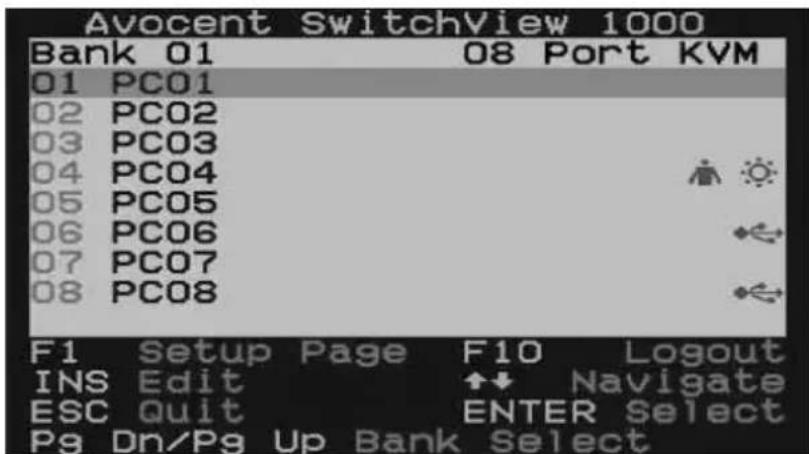
The OSD menus allow you to easily access and edit such features as server name, setup functions, time-outs, autoscan capabilities and firmware upgrades. The following table lists basic OSD functions.
Table 1.1: Navigating the OSD menu
| To do this: Use this hotkey sequence: | |
| Activate OSD ScrLk + ScrLk + Spacebar | |
| Deactivate OSD ESC (Escape key) | |
| Change Value Left/right arrow keys | |
| Select Item Up/down arrow keys |
NOTE: The two consecutive ScrLk keystrokes should be pressed within two seconds and the following command key(s) should also be pressed within two seconds. Otherwise, the hotkey sequence will not be validated.
text_image
Avocent SwitchView 1000 Bank 01 08 Port KVM 01 PC01 02 PC02 03 PC03 04 PC04 05 PC05 06 PC06 07 PC07 08 PC08 F1 Setup Page F10 Logout INS Edit ↑↓ Navigate ESC Quit ENTER Select Pg Dn/Pg Up Bank SelectFigure 1.3: Main OSD Window (8-port SwitchView 1000 Switch)
The following options will be selectable via the Main OSD window.
Table 1.2: Main OSD Menu Functions
| Function Description | |
| Select server | Use up/down arrow key to navigate and press PgUp/PgDn to scroll page. Press Enter to select. |
| Edit server name | Pressing Insert allows you to change a server name. Enter confirms the change. |
Table 1.2: Main OSD Menu Functions (Continued)
| Function Description |
| Setup A submenu for various configurations. |
| Logout Logs out keyboard and mouse for security. |
text_image
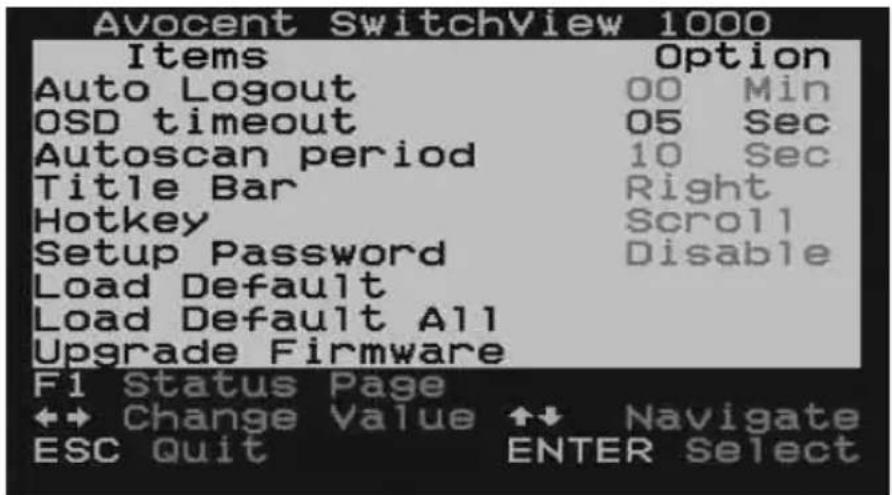
Avocent SwitchView 1000 Items Option Auto Logout 00 Min OSD timeout 05 Sec Autoscan period 10 Sec Title Bar Right Hotkey Scroll Setup Password Disable Load Default Load Default A11 Upgrade Firmware F1 Status Page ↔ Change Value ↔ Navigate ESC Quit ENTER SelectFigure 1.4: Setup Options Window
The following options will be selectable via the Setup OSD window.
Table 1.3: Setup menu functions
| Function Description |
| Auto logout Specifies time for auto logout (0 to 99 min). Your password must be configured and enabled for auto logout to function. |
| OSD timeout Specifies duration for OSD menu to remain on screen. |
| Autoscan period Specifies time for the autoscan period. |
| Title bar Specifies the position of the OSD title bar. |
| Hotkey Specifies the hotkey initiation sequence:ScrLk (default), Caps Lock, ESC, F12 or Num Lock. |
| Setup Password Enter user-selectable password. |
| Load Default Loads the default settings. |
| Upgrade Firmware Upgrades the firmware of the switch. |
Upgrading firmware
The SwitchView 1000 switch firmware is upgradable via the firmware upgrade cable (included). Maintaining current firmware enhances the SwitchView 1000 switch's compatibility with other devices and can enhance the switch's performance. Go to www.avocent.com/support for more information on upgrading your firmware.
To upgrade your SwitchView 1000 switch:
Prior to beginning the firmware upgrade process, ensure that you have an RS-232 port (COM port), and a mouse and a keyboard directly connected to it. You will also need the upgrade cable, upgrade utility and upgrade file.
- Power up the SwitchView 1000 switch.
NOTE: The firmware upgrade process automatically upgrades all SwitchView 1000 switches daisy-chained to your primary switch.
- Invoke the OSD menu and press F1 to enter the Setup Page. Navigate to Upgrade Firmware and press Enter.
- Select Yes and press Enter to enable upgrade mode.
- Use the firmware upgrade cable to connect the RS-232 port (COM port) of the host server to the Daisy Chain In port of the (primary) SwitchView 1000 switch.
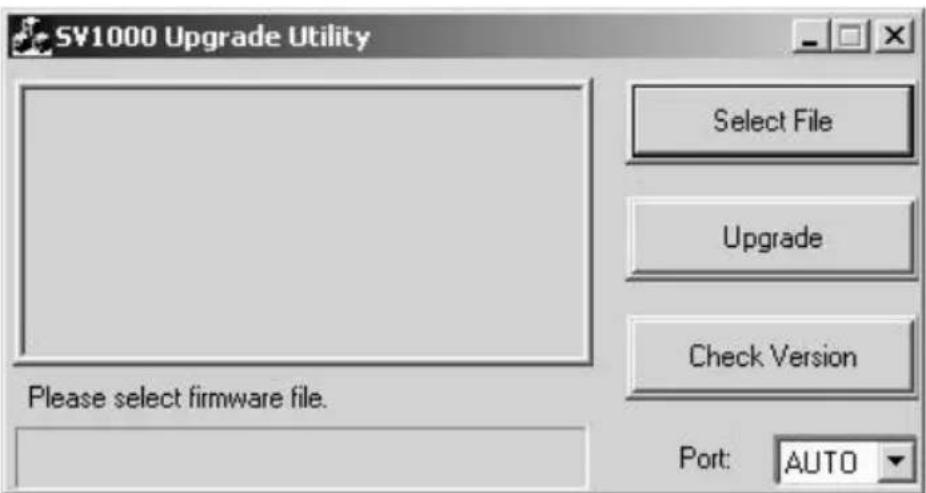
- Double-click on the SV1000 upgrade utility icon to bring up the following window.
text_image
SV1000 Upgrade Utility Select File Upgrade Check Version Please select firmware file. Port: AUTOFigure 1.5: Main Upgrade Utility Window
-
Click Select File to locate the firmware upgrade file.
-
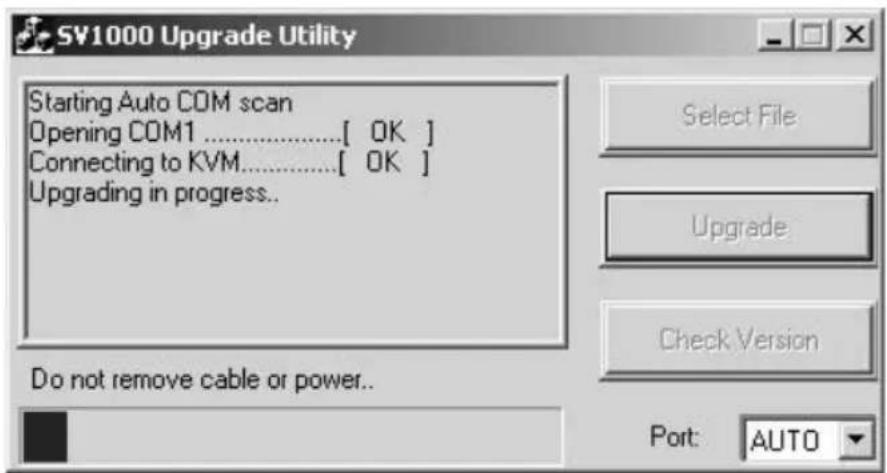
Click Check Version to see the current firmware version of your SwitchView 1000 switch. If the selected firmware file is a newer version, click Upgrade to start the upgrade process.
text_image
SV1000 Upgrade Utility Starting Auto COM scan Opening COM1........[ OK ] Connecting to KVM........[ OK ] Upgrading in progress.. Do not remove cable or power.. Select File Upgrade Check Version Port: AUTOFigure 1.6: Starting Upgrade Process Window
NOTE: During the upgrade process, do not remove the upgrade cable or SwitchView 1000 switch power adaptor.
- An Upgrade complete! message appears above the progress bar after a successful firmware upgrade. You may now exit the utility.
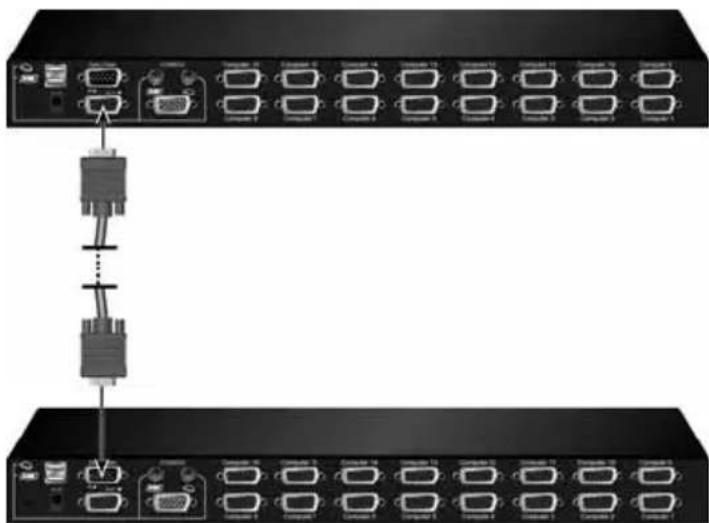
Daisy-chaining your SwitchView 1000 switch
The SwitchView 1000 switch features up to 16 levels of attached switches via the daisy-chain cable. The 16-port switch is daisy-chainable up to 256 servers, while the 8-port switch has a 128 server limit. The 4-port switch can be daisy-chained with up to 64 servers. Contact Avocent to purchase additional cables.
NOTE: All SwitchView 1000 switch models (4-port, 8-port and 16-port) can be daisy-chained up to 16 levels. For example, a 16-port and 8-port SwitchView 1000 switch can be daisy-chained to connect a maximum of 24 servers.
To cascade multiple switches:
- Plug one end of the daisy-chain cable into the Daisy Chain Out port on the rear of your primary SwitchView 1000 switch.
- Connect the other end of the daisy-chain cable to the Daisy Chain In port on the secondary SwitchView 1000 switch.
-
Repeat steps 1 and 2 for all subsequent SwitchView 1000 switches.
-
Plug the ground terminator into the Daisy Chain Out port on the rear of the last daisy-chained SwitchView 1000 switch.
natural_image
Diagram showing two server rack panels connected by a cable, with multiple ports and connectors (no text or labels visible)Figure 1.7: Basic Daisy-Chain Example
APPENDICES
Appendix A: Quick Reference Guide
Table A.1: SwitchView1000 Quick Reference Guide
| Command | Hotkeys | OSD Control | Front-panel | Description |
| Select Server | ScrLk + ScrLk + (a) + (b) + (y) + (z) ab = bank no. xy = channel no.) | Cursor keys to navigate Enter to select | Press corresponding button yz on Switch ab for channel yz on bank ab | Select the active bank (switch) and channel |
| Next Lower Channel | ScrLk + ScrLk + (arrow up) | Cursor keys to navigate Enter to select | Press corresponding button | Select the next lower connected channel |
| Next Higher Channel | ScrLk + ScrLk + (arrow down) | Enter to select Press corresponding button | Select the next higher connected channel | |
| Next Lower Bank | ScrLk + ScrLk + PgUp | PgUp (w/ OSD Menu) | Press corresponding button | Select the next lower bank (switch) with multiple daisy-chained units |
| Next Higher Bank | ScrLk + ScrLk + PgDn | PgDn (w/ OSD Menu) | Press corresponding button | Select the next higher bank (switch) with multiple daisy-chained units |
| Autoscan Beep Sound On/Off | ScrLk+ScrLk + B | N/A | N/A | Toggle on/off the beep sound for switching confirmation while autoscanning. The beep sound can be turned off during normal switching |
| Load Factory Default | N/A Main Menu / | N/A Restore the EEPROM settings to the factory default | ||
| Change Server Name | N/A | Enter (Ins) to select/edit | N/A Change the server name [max. length = 8 alphanumeric characters] | |
| Reset / Initialize | ScrLk + ScrLk + End | N/A N/A Reset the switch/initialize | the daisy-chain setup | |
| Command Hotkeys OSD Control Front-panel Description | ||||
| Show OSD Menu | ScrLk + ScrLk + (Space Bar) | N/A N/A Activate the OSD Menu on | the console screen | |
| Autoscan | ScrLk + ScrLk + S | N/A | N/A | Autoscan through every connected channel for quick screen browsing of each channel |
| Stop Autoscan | Any key N/A Press any | push-button | Terminate Autoscan activity | |
| Autoscan Period [5 ~ 95 seconds] | N/A Main Menu / Setup / Autoscan period | N/A Specify delay time within a range of 5 ~ 99 seconds [default = 10 sec] | ||
| Auto Logout Timeout Enable/ Disable 0~99 min | N/A Main Menu / Setup / Auto Logout | N/A Specify the time out for auto logout screen /keyboard/ mouse locked after timeout period for security (default = 0 = Disable) | ||
| OSD Menu Timeout 0 ~ 60 ~ 95 seconds | N/A Main Menu / Setup / OSD Timeout | N/A Specify the timeout for OSD menu [default = 60 seconds; 0 = disable] | ||
| OSD Title Bar On/Off | ScrLk + ScrLk + T | N/A | N/A | Enable/disable the OSD Title Bar [default = ON] |
| OSD Title Bar Position | Main Menu / Setup / Title Bar | Select the OSD title bar position on your screen | ||
| Setup Password [Disable/ Enable] | N/A Main Menu / Setup / Setup Password | N/A Enable/disable password protection [default = Disable; password length <= 8 characters] | ||
For Technical Support: www.avocent.com/support
Avocent Corporation
4991 Corporate Drive
Huntsville, AL 35805-6201 USA
Tel: +1 256 430 4000
Avocent House, Shannon Free Zone
Shannon, County Clare, Ireland
Tel: +353 61 715 292
Fax: +353 61 471 871
Avocent Asia Pacific
Singapore Branch Office
100 Tras Street, #15-01
Amara Corporate Tower
Singapore 079027
Tel: +656 227 3773
Fax: +656 223 9155
Avocent Germany
20 Mural Street, Unit 5
Richmond Hill, Ontario
L4B 1K3 Canada
Tel: +1 877 992 9239
Fax: +1 877 524 2985
