Multiscale - Audio/video converter Spatz - Free user manual and instructions
Find the device manual for free Multiscale Spatz in PDF.


| Product Type | Audio/Video Converter |
| Brand | Spatz |
| Model | Multiscale |
| Dimensions (W x D x H) | Approx. 120 x 80 x 30 mm |
| Weight | Approx. 150 g |
| Power Supply | USB 5V DC / 1A (via included cable) |
| Input Interfaces | HDMI, RCA (composite), 3.5mm audio |
| Output Interfaces | HDMI, VGA, RCA (composite), 3.5mm audio |
| Supported Video Resolutions | Up to 1080p (1920x1080) |
| Supported Audio Formats | PCM, MP3, AAC, AC3 |
| Conversion Function | Analog to digital and digital to analog |
| Scaling | Supports upscaling and downscaling |
| Maintenance | Keep dry; clean with soft cloth; avoid dust |
| Safety | Use only supplied power adapter; do not expose to water |
| Spare Parts | HDMI cable, USB power cable, remote (if applicable) |
| Repairability | No user-serviceable parts; contact support |
| Operating Temperature | 0°C to 40°C |
Frequently Asked Questions - Multiscale Spatz
User questions about Multiscale Spatz
0 question about this device. Answer the ones you know or ask your own.
Ask a new question about this device
Download the instructions for your Audio/video converter in PDF format for free! Find your manual Multiscale - Spatz and take your electronic device back in hand. On this page are published all the documents necessary for the use of your device. Multiscale by Spatz.
USER MANUAL Multiscale Spatz
- Introduction...... 1
- Features.... 1
3.PackageContents....1 - Operation Controls and Functions ......2
4.1 Front Panel....2
4.2 Rear Panel....2
4.3 OSD Operation....4
4.4 Remote Control....5 - MULTISCALE RS-232 Remote Control Protocol......6
- Specifications....9
6.1 General Specification....9
6.2 Support Resolution....9 - Connection and Installation....10
1. Introduction
SPATZ's Multiscale Scaler Box is designed to upscale digital/analog video signal from Composite, S-Video, PC, Component (HD) and HDMI input sources, to digital HDMI output of wide-range HDTV and PC resolutions, up to 1080p and WUXGA (1920 x 1200.) Besides video upscaling, the scaler box also converts digital/analog audio signal to digital format, then output either through HDMI combining with the video, or Coaxial S/PDIF separately. SPATZ Multiscale has a comprehensive OSD menu that allows user to select a variety of output resolutions and adjust for best picture quality.
2. Features
- HDMI 1.2, HDCP 1.1 and DVI 1.0 compliant.
- Scales any PC (VGA \~ WUXGA) / HD (480i \~ 1080p) resolutions to/from another PC/HD resolutions.
- Automatically detect the factory setting of the connected display and output the corresponding resolution and refresh rate, when the NATIVE output is selected.
- Supports 50/60Hz frame rate conversion.
- Supports 3-D motion video adaptive, 3-D de-interlacing, and 3:2 / 2:2 pull-down detection and recovery.
- Provides output picture adjustment on contrast, brightness, hue, saturation, sharpness, RGB (color tone) level, and aspect ratio size.
- Supports high resolution input/output: PC: VGA, SVGA, XGA, SXGA, UXGA, WXGA, WSXGA, WUXGA HDTV: 480i, 576i, 480p, 576p, 720p, 1080i, and 1080p
- Supports digital and analog audio input and output.
3. Package Contents
- SPATZ Multiscale Scaler Box
- D-Sub (15pin) Cable
- 3XRCA Cable (Composite Video + L/R Audio)
- Remote Controller
- 5VDC Power Supply Adaptor
-
Operation Manual
-
Operation Controls and Functions
4.1 Front Panel
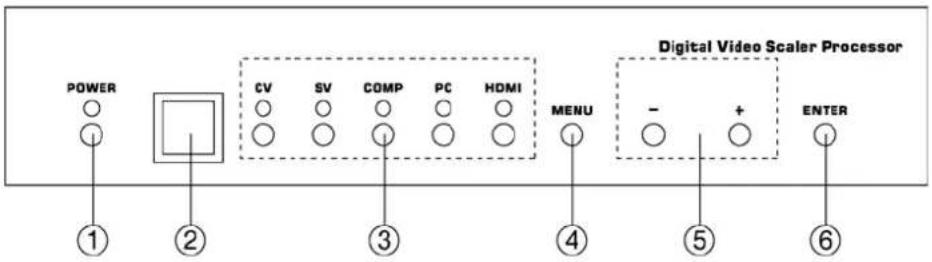
- POWER Button and LED Indicator:
Press the button to turn ON/OFF the power of the unit. The LED will illuminate when the power is turned on.
- IR remote control sensor.
- Input Selection Buttons and LED Indicators:
Press each of the buttons (CV/SV/COMP/PC/HDMI) to select the desired input source. The LED will illuminate when the corresponding input is selected.
- MENU Button:
Press the MENU button to bring up OSD operation menu (see section "4.3 OSD Operation" for reference.)
- +/- Buttons:
a. On the first tier of OSD menu, use + and - buttons to move up/down the highlight item for selection.
b. Once the desired option is selected, use + and - buttons to toggle between setting values.
- ENTER Button:
In OSD menu, use the ENTER button to confirm the selection.
4.2. Rear Panel
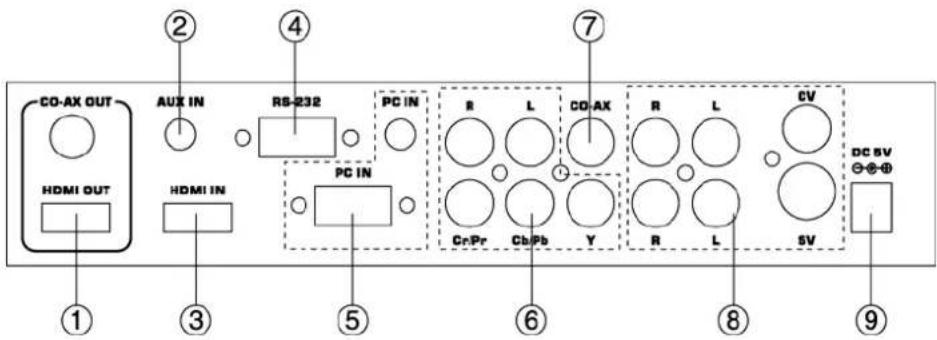
- HDMI OUT and CO-AX OUT:
Connect the HDMI OUT port to the HDMI input port of your display such as HDTV. Connect the CO-AX OUT port to the Coaxial (S/PDIF) input port of your amplifier for separate digital audio output.
- AUX IN Input:
When the video signal input through the HDMI IN port is from a DVI source such as a PC, use the AUX IN port to input the audio signal.
- HDMI IN Input:
Connect the HDMI IN port to the HDMI output port of your source equipment such as DVD player or Set-Top-Box. Or, use HDMI to DVI cable to connect to the DVI output of your PC.
-
RS-232: Remote Control Port, for AMX or Crestron control systems
-
PC IN for Video and Audio Input:
Connect the PC IN D-Sub (15-pin) port to the D-Sub output port of your PC. And, connect the PC IN 3.5mm phone jack to the audio output port of your PC.
- Y Pb/Cb Pr/Cr Video and L/R Audio Input:
Connect the Y Pb/Cb Pr/Cr (Component) 3 RCA input ports to the Component output port of your video source equipment such as DVD player or Set-Top-Box. And, connect the L/R audio input ports to the audio output port of your audio source equipment.
- CO-AX Input:
The CO-AX port provides the digital audio input support, and can be used to combine with each video input signals from CV/SV/COMP/PC/HDMI ports. Once connected, please use the Audio Source Selection in the OSD menu to select between Coaxial (S/PDIF) or other audio source (see section "4.3 OSD Operation" for reference.)
- Composite Video / S-Video and L/R Audio Input:
Connect the Composite or S-Video input port to the Composite or S-Video output port of your video source equipment such as DVD player or Set-Top-Box. And, connect the L/R audio input ports to the audio output port of your audio source equipment.
- Power:
Plug the 5VDC power supply into the unit and connect the adaptor to AC wall outlet.
4.3. OSD Operation
| 1st Tier Option | 2nd Tier Option | Adjustment | |
| VIDEO | - PICTURE MODE | USER / STANDARD / VIVID / MOVIE | |
| - CONTRAST 0 ~ 100 of Contrast Level | |||
| - BRIGHTNESS 0 ~ | 100 of Brightness Level | ||
| - HUE 0 ~ 100 | of Hue Level | ||
| - SATURATION 0 ~ | 100 of Saturation Level | ||
| - SHARPNESS 0 ~ | 100 of Sharpness Level | ||
| - SCALE OVERSCAN / UNDERSCAN / LETTERBOX / PANSCAN / FULL | |||
| - NR LOW / MIDDLE / HIGH / OFF | |||
| - EXIT Back to the 1st Tier | |||
| COLOR | - COLOR USER / NORMAL / WARM / COOLTONE | ||
| - RED 0 ~ 100 of Red Color Level | |||
| - GREEN 0 ~ 100 of Green Color Level | |||
| - BLUE 0 ~ 100 of Blue Color Level | |||
| - EXIT Back to the 1st Tier | |||
| OUTPUT - | NATIVE | / VGA / SVGA / XGA / SXGA / UXGA / 480i / 480p / 720p@60Hz / 1080i@30Hz / 1080p@60Hz / 576i / 576p / 720p@50Hz / 1080i@25Hz / 1080p@50Hz / WXGA / WSXGA / WUXGA | |
| OSD | - HPOSITION | 0 ~ 100 of OSD Horizontal Position | |
| - VPOSITION | 0 ~ 100 of OSD Vertical Position | ||
| - TIMER | 0 ~ 100 of OSD Show Time (sec.) | ||
| - TRANSP | 0 ~ 100 of OSD Transparent Level | ||
| - EXIT | Back to the 1st Tier | ||
| AUDIO | - SOURCE | HDMI / L/R / COAXIAL | |
| - DELAY | OFF / 40MS / 110MS / 150 MS | ||
| - SOUND | ON / MUTE | ||
| - EXIT Back to the 1st Tier | |||
| INFORMATION | - | SOURCE (Input interface)INPUT (Input Resolution)OUTPUT (Output Resolution)VERSION (Firmware Version) | |
| EXIT | - | Close the OSD Menu | |
4.4. Remote Control
1. POWER:
Press the button once to power on the Multiscale Press again to enter standby mode.
2. INPUT:
Press the button repeatedly to toggle through various input sources.
3. HD Input:
Press the button to directly select component input.
4. PC Input:
Press the button to directly select PC input.
5. HDMI/DVI Input:
Press the button to directly select DVI (or HDMI) input.
6. Output Resolution:
Press any one of the button to directly select output resolution. For other output resolutions that are not covered by these buttons please enter OSD Menu to select them.
7. MENU:
Press the button to bring up OSD main menu page.
8. Exit:
Press the button to exit from a sub menu or main menu.
9. Up/Down/Left/Right:
Press the Up/Down button to move the highlight bar to your desired parameter during the OSD operation. Press the Left/Right button to increase/decrease the setting value of a selected parameter.
10. OK (Enter):
Press the button to confirm your selection.
11. Reset:
Press the button to reset the unit's firmware setting to the factory default value.
12. Auto Adjust:
Press the button to optimize the position of the picture (picture centering) on the screen.
5. Specifications
5.1. General Specification
* Frequency bandwidth: 1.65Gbps (single link)
* Input Ports:
Composite x 1 / L/R x 1
S-Video x 1 / L/R x 1
Component (3 RCA) x 1 / L/R x 1
PC D-Sub (15-pin) x 1 / 3.5mm Phone Jack x 1
HDMI x 1 / 3.5mm Phone Jack x 1 (for DVI) Coaxial (S/PDIF) x 1
* Output Ports: HDMI x 1
Coaxial (S/PDIF) x 1
* 5V DC power supply
Dimensions: 215(W) x 154(D) x 47(H)mm*
Weight: 1K
Pin definition for serial cable
| Multiscale | Remote Controller | |||
| PIN | Definition | PI Definition | ||
| 1 | NC | 1 | NC | |
| 2 | TxD | 2 | Rx | |
| 3 | RxD | → | 3 | Tx |
| 4 | NC | 4 | NC | |
| 5 | GND | ← | 5 GND | |
| 6 | NC | 6 | NC | |
| 7 | NC | 7 | NC | |
| 8 | NC | 8 | NC | |
| 9 | NC | 9 | NC | |
RS-232 transmission format:
BaudRate: 19200 bps
Data Bit: 8 bits Parity: None
Stop Bit: 1 bit
Serial Commands:
| Command Code | Response | Description |
| S POWER 0 | > POWER OFF | POWER OFF |
| S POWER 1 | > POWER ON | POWER ON |
| S SOURCE 0 | > SOURCE CV | CV INPUT |
| S SOURCE 1 | > SOURCE SV | SV INPUT |
| S SOURCE 2 | > SOURCE COMP | COMP INPUT |
| S SOURCE 3 | > SOURCE PC | PC INPUT |
| S SOURCE 4 | > SOURCE HDMI | HDMI INPUT |
| S OUTPUT 0 | > OUTPUT NATIVE | NATIVE RESOLUTION OUTPUT |
| S OUTPUT 1 | > OUTPUT VGA | VGA RESOLUTION OUTPUT |
| S OUTPUT 2 | > OUTPUT SVGA | SVGA RESOLUTION OUTPUT |
| S OUTPUT 3 | > OUTPUT XGA | XGA RESOLUTION OUTPUT |
| S OUTPUT 4 | > OUTPUT SXGA | SXGA RESOLUTION OUTPUT |
| S OUTPUT 5 | > OUTPUT UXGA | UXGA RESOLUTION OUTPUT |
| S OUTPUT 6 | > OUTPUT 480I | 480I RESOLUTION OUTPUT |
| S OUTPUT 7 | > OUTPUT 480P | 480P RESOLUTION OUTPUT |
| S OUTPUT 8 | > OUTPUT 720P | 720P 60HZ RESOLUTION OUTPUT |
| S OUTPUT 9 | > OUTPUT 1080I | 1080I 60HZ RESOLUTION OUTPUT |
| S OUTPUT 10 | > OUTPUT 1080P | 1080P 60HZ RESOLUTION OUTPUT |
| S OUTPUT 11 | > OUTPUT 576I | 576I 60HZ RESOLUTION OUTPUT |
| S OUTPUT 12 | > OUTPUT 576P | 576P 60HZ RESOLUTION OUTPUT |
| S OUTPUT 13 | > OUTPUT 720P | 720P 50HZ RESOLUTION OUTPUT |
| S OUTPUT 14 | > OUTPUT 1080I50 | 1080I 50HZ RESOLUTION OUTPUT |
| S OUTPUT 15 | > OUTPUT 1080P50 | 1080P 50HZ RESOLUTION OUTPUT |
| S OUTPUT 16 | > OUTPUT WXGA | WXGA RESOLUTION OUTPUT |
| S OUTPUT 17 | > OUTPUT WSXGA | WSXGA RESOLUTION OUTPUT |
| S OUTPUT 18 | > OUTPUT WUXGA | WUXGA RESOLUTION OUTPUT |
| S SIZE 0 | > SIZE FULL | SCALER FULL OUTPUT |
| S SIZE 1 | > SIZE OVERSCAN | SCALER OVERSCAN OUTPUT |
| S SIZE 2 | > SIZE UNDERSCAN | SCALER UNDERSCAN OUTPUT |
| S SIZE 3 | > SIZE LETTERBOX | SCALER LETTERBOX OUTPUT |
| S SIZE 4 | > SIZE PANSCAN | SCALER PANSCAN OUTPUT |
| S PICTUREMODE 0~3 | > PICTUREMODE STANDARD~USER | 0:STANDARD; 1:MOVIE; 2:VIVID; 3:USER, PICTURE MODE OUTPUT |
| S CONTRAST 0~100 | > CONTRAST 0~100 | CONTRAST 0~100 ADJUST [Defaut:50] |
| S BRIGHTNESS 0~100 > BRIGHTNESS 0~100 | BRIGHTNESS 0~100 ADJUST[Default:45] | |
| S HUE 0~100 | > HUE 0~100 | HUE 0~100 ADJUST [Default:50] |
| S SATURATION 0~100 > SATURATION 0~100 | SATURATION 0~100 ADJUST[Default:60] | |
| S SHARPNESS 0~100 | > SHARPNESS 0~100 | SHARPNESS 0~100 ADJUST[Default:32] |
| S NR 0~3 | > NR OFF~HIGH | 0:OFF; 1:LOW; 2:MIDDLE; 3:HIGH, NRCONTROL |
| S PCHPOSITION 0~100 > PCHPOSITION0~100 | H POSITION 0~100 ADJUST | |
| S PCVPOSITION 0~100 > PCVPOSITION0~100 | V POSITION 0~100 ADJUST | |
| S PCCLOCK 0~100 | > PCCLOCK 0~100 | PC MODE COLCK 0~100 ADJUST |
| S PCPHASE 0~63 | > PCPHASE 0~63 | PC MODE PHASE 0~63 ADJUST |
| S COLORTEMP 0~3 > COLORTEMPNORMAL~USER | 0:NORMAL; 1:WARM; 2:COOL;3:USER, COLOR TEMP SETTING | |
| S RED 0~100 | > RED 0~100 | COLOR TEMP "RED" ADJUST[Default:47] |
| S GREEN 0~100 | > GREEN 0~100 | COLOR TEMP "GREEN" ADJUST[Default:47] |
| S BLUE 0~100 | > BLUE 0~100 | COLOR TEMP "BLUE" ADJUST[Default:47] |
| S OSDHPOSITION 0~100 | > OSDHPOSITION0~100 | OSD H POSITION 0~100 ADJUST[Default:50] |
| S OSDVPOSITION 0~100 | > OSDVPOSITION0~100 | OSD V POSITION 0~100 ADJUST[Default:50] |
| S OSDTIMEOUT 0~100 | > OSDTIMEOUT0~100 | OSD TIMEOUT 0~100 SETTING[Default:10] |
| S OSDBACKGROUND 0~8 | > OSDBACKGROUND0~8 | OSD OSDBACKGROUND 0~8 ADJUST[Default:5] |
| S AUDIOMUTE 0~1 | > AUDIOMUTEOFF~ON | 0:OFF; 1:ON, AUDIO MUTE CONTROL |
| S AUDIODELAY 0~3 > AUDIODELAYOFF~150MS | 0:OFF; 1:40MS; 2:110MS; 3:150MS,AUDIO DELAY SETTING | |
| S RESET 1 | > RESETON | RESET ACTION |
(B) Status Commands: (Retrieve Status)
| Command Code | Response | Description |
| R POWER | > POWER ON | SHOW POWER STATUS |
| R SOURCE | > SOURCE CV~HDMI | SHOW SOURCE STATUS |
| R OUTPUT | > OUTPUT NATIVE~WUXGA | SHOW OUTPUT STATUS |
| R SIZE | > SIZE FULL~PANSCAN | SHOW SIZE STATUS |
| R PICTUREMODE | > PICTUREMODE STANDARD~USE R | SHOW PICTURE MODE STATUS |
| R CONTRAST | > CONTRAST 0~100 | SHOW CONTRAST STATUS |
| R BRIGHTNESS | > BRIGHTNESS 0~100 | SHOW BRIGHTNESS STATUS |
| R HUE | > HUE 0~100 | SHOW HUE STATUS |
| R SATURATION | > SATURATION 0~100 | SHOW SATURATION STATUS |
| R SHARPNESS | > SHARPNESS 0~100 | SHOW SHARPNESS STATUS |
| R NR | > NR OFF~HIGH | SHOW NR STATUS |
| R PCHPOSITION | > PCHPOSITION 0~100 | SHOW PC H-POSITION STATUS |
| R PCVPOSITION | > PCVPOSITION 0~100 | SHOW PC V-POSITION STATUS |
| R PCCLOCK | > PCCLOCK 0~100 | SHOW PC COLOK STATUS |
| R PCPHASE | > PCPHASE 0~63 | SHOW PC PHASE STATUS |
| R COLORTEMP | > COLORTEMP NORMAL~USER | SHOW COLOR TEMP STATUS |
| R RED | > RED 0~100 | SHOW COLOR TEMP RED STATUS |
| R GREEN | > GREEN 0~100 | SHOW COLOR TEMP GREEN STATUS |
| R BLUE | > BLUE 0~100 | SHOW COLOR TEMP BLUE STATUS |
| R OSDHPOSITION | > OSDHPOSITION 0~100 | SHOW OSD H-POSITION STATUS |
| R OSDVPOSITION | > OSDVPOSITION 0~100 | SHOW OSD V-POSITION STATUS |
| R OSDTIMEOUT | > OSDTIMEOUT 0~100 | SHOW OSD TIMEOUT STATUS |
| R OSDBACKGROUND | > OSDBACKGROUND 0~8 | SHOW OSD BACKGROUND STATUS |
| R AUDIOMUTE | > AUDIOMUTE OFF~ON | SHOW AUDIO MUTE STATUS |
| R AUDIODELAY | > AUDIODELAY OFF~150MS | SHOW AUDIO DELAY STATUS |
5.2. Supported Resolutions
| INPUT | |
| PC | VGA@(60/72/75/85Hz), SVGA@(56/60/72/75/85Hz),XGA@(60/70/75/85Hz), SXGA@(60/75/85Hz),XGA@60Hz,WXGA@60Hz, WSXGA@60Hz, WUXGA@60Hz |
| TV | 480i, 480p, 576i, 576p, 720p@(50/60Hz), 1080i@(25/30Hz),1080p@(50/60Hz) |
| OUTPUT | |
| PC | VGA@(60/72/75/85Hz), SVGA@(56/60/72/75/85Hz),XGA@(60/70/75/85Hz), SXGA@(60/75/85Hz),UXGA@60Hz,WXGA@60Hz, WSXGA@60Hz, WUXGA@60Hz |
| TV | 480i, 480p, 576i, 576p, 720p@(50/60Hz), 1080i@(25/30z),1080p@(50/60Hz) |