Miniscale - Audio/video converter Spatz - Free user manual and instructions
Find the device manual for free Miniscale Spatz in PDF.


| Product Type | Audio/Video Converter |
| Brand | Spatz |
| Model | Miniscale |
| Dimensions | 2.5 x 1.5 x 0.5 inches |
| Weight | 0.6 oz |
| Power Source | USB 5V DC |
| Input Ports | HDMI (Type A) |
| Output Ports | HDMI (Type A) |
| Supported Video Formats | 1080p, 720p, 480p |
| Supported Audio Formats | PCM, Dolby Digital |
| Maximum Resolution | 1920 x 1080 |
| Color | Black |
| Material | Plastic |
| Included Accessories | USB power cable, user manual |
| Warranty | 1 year |
| Maintenance | Clean with dry cloth |
| Safety Certifications | CE, RoHS |
| Repairability | Not user-serviceable |
| General Information | Compact design for easy portability |
Frequently Asked Questions - Miniscale Spatz
User questions about Miniscale Spatz
0 question about this device. Answer the ones you know or ask your own.
Ask a new question about this device
Download the instructions for your Audio/video converter in PDF format for free! Find your manual Miniscale - Spatz and take your electronic device back in hand. On this page are published all the documents necessary for the use of your device. Miniscale by Spatz.
USER MANUAL Miniscale Spatz
This professional video scaler is designed to convert Composite and S-Video to high definition DVI resolutions. It handles video input from TV systems of NTSC, PAL TV standards with many great features to enhance video performance.
(2). Features
- Motion adaptive 3D Y/C separation comb filter (for composite video input)
- 3D(frame Based) motion adaptive YNR/CNR noise reduction (for Y/C video input)
- Advanced 3D motion adaptive deinterlace
- Automatic 2:2/3:2 film mode detection
- Supports 50Hz to 60Hz frame rate conversion
- Video quality improvement: DCTI (Digital chroma transient improvement), DLTI (Digital luminance transient improvement), Black level extension.
- Average picture level (APL), Automatic contrast limiter (ACL) function supported.
- OSD menu for picture quality adjustment.
- Built-in 8-bit DAC for RGB or YPbPr output.
- Front Panel and IR remote control.
- Automatic NTSC/PAL video format detection and switching.
(3) This package includes
- Video Scaler Unit.
- DC adaptor
- User Manual
- Remote Control
(4). Operation Controls and Functions
Front Panel
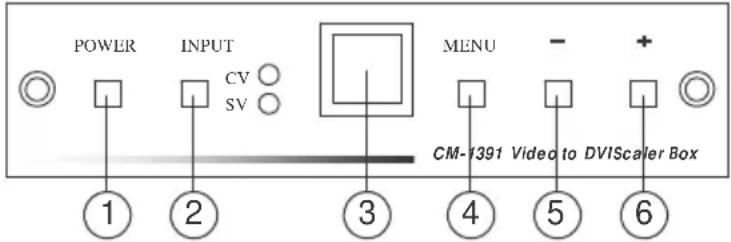
1. Power button and LED indicator:
Press the button once to power on the unit, Press again to power off. when the unit is powered on, one of the input LEDs will illuminate depending on your last selection of input source before power off.
The factory default setting for the input is CV (composite video).
The green LED illuminates when composite video is selected.
The Yellow LED illuminates when S-Video is selected.
2. Input select button:
Press the button to select your desired input source between composite video and S-Video.
3. IR Sensor: Infrad remote control sensor.
4. Menu/Enter: This button serves two purposes.
a. Press the button to bring up OSD main control menu as shown in the "OSD Operation". b. To act as a "enter" key to enter sub menu of you selected item or adjust value of the selected item.
5/6. +/- button: Press the button to move up or down the tick "V" to your desired parameter. Or after a parameter is selected by pressing MENU/ENTER button, press the button to alter the value of your selected parameter.
Rear Panel
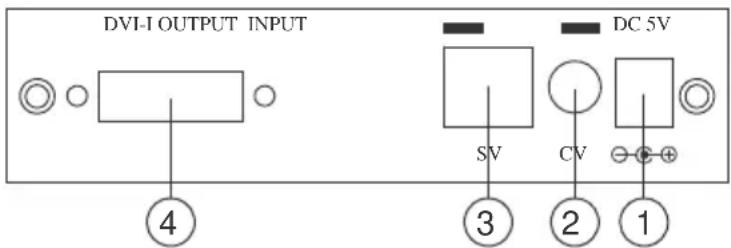
1. DC power jack: 5V 2A DC power input.
- Composite Video: Use a Composite video cable to connect the composite video output of the source equipment to this composite video (CV) input of the scaler.
- S-Video: Use a S-Video cable to connect the S-Video output of the source video equipment to this "S-Video" input on the back of the video scaler. S-Video provides improved performance overcomposite video and is recommended over composite.
- DVI output: The CM-1391 can output a variety of PC and HDTV progressive resolutions, in both digital and analog format through DVI-I connector.
Digital output: Connect CM-1391's digital DVI output to the DV input of your TV/display unit using a DVI to DVI cable.
Analog output: If you are to use CM-1391's analog output to connect to the analog input of your PC or HDTV, you need to use a DVI to VGA adaptor to pull out analog signal from the DVI-I connector. The DVI to VGA adaptor is then connect to the VGA input of your display monitor through a VGA cable if output is PC resolution, or connect to the YPbPrinput of your HDTV through a VGA to YPbPr/3 RCA adaptor cable if output is HDTV resolution.
Note: DVI to VGA adaptor is not included in the standard package, and has to order separately.
(5). Output Format
a. The format of digital DVI output is digital RGB for all resolutions.
| PC (RGBHV) | HDTV (RGBHV) | |||||
| VGA | -RGB | 640X480 | 60Hz | 1080p-RGB | 1920x1080p | follow input source |
| SVGA | -RGB | 800X600 | 60Hz | 1080i-RGB | 1920x1080i | follow input source |
| XGA | -RGB | 1024X768 | 60Hz | 720p-RGB | 1280X720 | follow inputsource |
| WXGA | -RGB | 1280X768 | 60Hz | 576p-RGB | 720X576 | |
| SXGA | -RGB | 1280X1024 | 60Hz | 480p-RGB | 720X480 | |
| UXGA | -RGB | 1600 x 1200 | 60Hz | |||
| WUXGA | -RGB | 1920 x 1200 | 60Hz | |||
b. The format for analog PC output is RGB and for analog HD output is YPbPr.
| HDTV (YPbPr) | ||||||
| VGA | -RGB | 60 Hz | 1080p-RGB | 1920x1080p | follow input source | |
| SVGA | -RGB | 60 Hz | 1080i-RGB | 1920x1080i | follow input source | |
| XGA | -RGB | 60 Hz | 720p-RGB | 1280X720 | follow inputsource | |
| WXGA | -RGB | 60 Hz | 576p-RGB | 720X576 | ||
| SXGA | -RGB | 60 Hz | 480p-RGB | 720X480 | ||
| UXGA | -RGB | 1600 x 1200 | 60 Hz | |||
| WUXGA | -RGB | 1920 x 1200 | 60 Hz | |||
(6). OSD Operation
After power on the unit, press the menu button to bring up the main menu page as below:
√ Main Menu Picture adj. Output Setup Exit
Use +,- button to move "V" to your desired parameter, then press MENU/ENTER to enter into sub-menu of your selected parameter.
Picture Adjust
When Picture Adjust is selected a sub menu as below comes up.
| Default | Range | |
| Bright | 16 | 1-31 |
| √ Contrast | 16 | 1-31 |
| Color | 16 | 1-31 |
| Tint | 16 | 1-31 |
| Sharp | 05 | 1-19 |
| Default | OK | |
| Exit |
USE +,- to move the tick (V) to your desired adjust item, Press the Menu/Enter to confirm your selection.
At this point, the selected parameter will turn red, and you can use +,- to increase or decrease the value of the parameter.
When adjustment is complete, Press "Menu" to leave the parameter.Move the tick "V" to "Exit", then press menu/enter to exit.
Output Setup
When Output Set up is selected a submenu as below appears:
Output Setup
√ Timing XGA
Exit
Press the "MENU/ENTER" button to enter into output timing select mode.
Press +,- to toggle through a variety of output resolutions as below.
Once your desired resolution is selected. press the menu/enter
to enter the resolution.
Resolution Vertical rate
| VGA | 640x480 | 60Hz |
| SVGA 800 | x600 | 60Hz |
| XGA 1024 | x768 | 60Hz |
| WXGA 1280 | x768 | 60Hz |
| SXGA 1280 | x1024 | 60Hz |
| UXGA 1600 | x1200 | 60Hz |
| WUXGA 1920 | x1200 | 60Hz |
| 480p | 720x480 | 50Hz |
| 576p | 720x576 | 60Hz |
| 720p | 1280x720 | follow input source |
| 1080i | 1920x1080i | follow input source |
| 1080p | 1920x1080p | follow input source |
Note: 1. All output resolutions except 576p have 60Hz vertical rate, The 576p resolution has 50Hz vertical rate.
(7). DVI-I Pin Configuration
DVI-Integrated(DVI-I): Supports both analog and digital connections to the display. This 29-pin connector can carry single or dual-link all-digital video/data signals on 24 pins and uses 5 pins to carry analog video/data signals and ground.
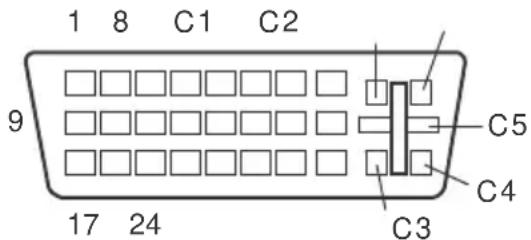
| Combined Analog and Digital Connector Pin Assignments | |||||
| Pin | Signal Assignment | Pin | Signal Assignment | Pin | Signal Assignment |
| 1 | T.M.D.S Data2- | 9 | T.M.D.S Data1- | 17 | T.M.D.S Data0- |
| 2 | T.M.D.S. Data2+ | 10 | T.M.D.S. Data1+ | 18 | T.M.D.S. Data0+ |
| 3 | T.M.D.S. Data2 Shield | 11 | T.M.D.S. Data1 Shield | 19 | T.M.D.S. Data0 Shield |
| 4 | N.C. | 12 | N.C. | 20 | N.C. |
| 5 | N.C. | 13 | N.C. | 21 | N.C. |
| 6 | DDC Clock | 14 | +5V Power | 22 | T.M.D.S. Clock Shield |
| 7 | DDC Data | 15 | Ground (Returnfor +5V, Hsync, and Vsync) | 23 | T.M.D.S. Clock+ |
| 8 | Analog Vertical Sync | 16 | Hot Plug Detect | 24 | T.M.D.S. Clock- |
| C1 | Analog Red | C2 | Analog Green | C3 | Analog Blue |
| C4 | Analog Horizontal Sync | C5 | Analog Ground (Analog R,G,&B return) | ||
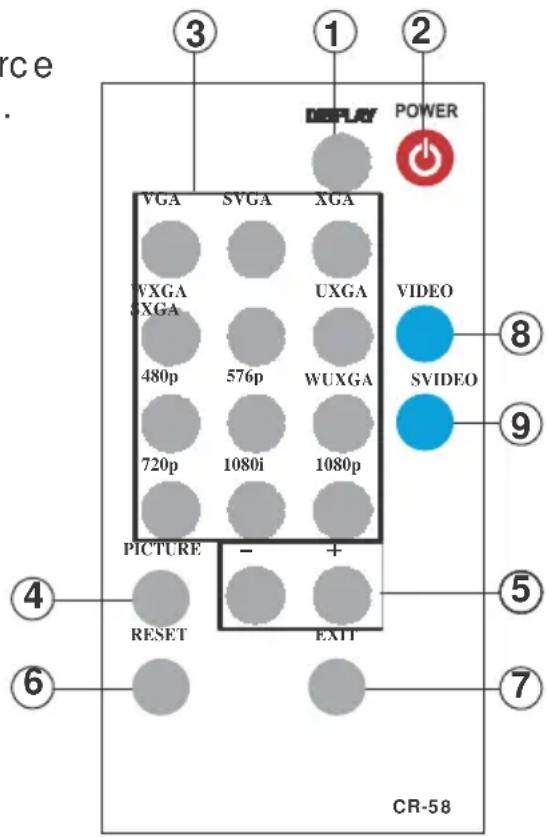
(8). Remote Control
- Display: Press the button to display input source and output resolution on the screen.
- Power: Power ON/OFF button.
- VGA\~1080p: Press to select your desired output resolution.
- Picture: Press the button to enter picture adjust submenu. Use +,- button to move cursor (V) up/down to your desired parameter, press "Picture" again to confirm.
- +/-: Press to move up/down the cursor (V) to your desired parameter, or press to increase/decrease the setting value.
- Reset: Press to reset all setting back to factory default value.
- Exit: To exit OSD.
- Video: Press the button to select composite video input.
- SVideo: Press the button to select SVideo input.
(9). Specifications
| Input Signal Levels | Video@1Vp-p, 75 ohm, Y@1 Vp-p, 75 ohmColor@ 0.7 Vp-p, 75 ohm |
| Output Format | Digital RGB |
| Output Connector | DVI-I Connector |
| Output Singnal | Bit stream |
| Weight(g) | 400 |
| Dimensions(mm) | 125(W) x 123(D) x 30(H) |
| Operating Temperature | 0°C~40°C |
| Silkscreen Color | Process Blue |
Output Signal Specifications
| PC (RGBHV) | HDTV (RGBHV) | |||||
| VGA | -RGB | 640X480 | 60 Hz | 1080p-RGB | 1920x1080p | follow input source |
| SVGA | -RGB | 800X600 | 60 Hz | 1080i-RGB | 1920x1080i | follow input source |
| XGA | -RGB | 1024X768 | 60 Hz | 720p-RGB | 1280X720 | follow input source |
| WXGA | -RGB | 1280X768 | 60 Hz | 576p-RGB | 720X576 | |
| SXGA | -RGB | 1280X1024 | 60 Hz | 480p-RGB | 720X480 | |
| UXGA | -RGB | 1600 x 1200 | 60 Hz | |||
| WUXGA | -RGB | 1920 x 1200 | 60 Hz | |||