
ZEW2501 - Network card / adapter Zonet - Free user manual and instructions
Find the device manual for free ZEW2501 Zonet in PDF.


| Product Type | Wireless Network Adapter |
| Model Number | ZEW2501 |
| Brand | Zonet |
| Interface Type | USB 2.0 |
| Wireless Standard | IEEE 802.11b/g/n |
| Maximum Data Rate | 150 Mbps |
| Frequency Band | 2.4 GHz |
| Security Encryption | WEP, WPA, WPA2 |
| Antenna Type | Internal PCB Antenna |
| Operating Systems Supported | Windows XP/Vista/7/8/10, Mac OS X, Linux |
| Dimensions | 2.5 x 1.5 x 0.4 inches (64 x 38 x 10 mm) |
| Weight | 0.7 oz (20 g) |
| Power Source | USB bus powered (5V, 500 mA) |
| LED Indicators | Link/Activity |
| Compliance | FCC, CE, RoHS |
| Operating Temperature | 32°F to 104°F (0°C to 40°C) |
| Storage Temperature | -4°F to 158°F (-20°C to 70°C) |
| Humidity | 10% to 90% non-condensing |
| Cleaning Instructions | Wipe with a soft, dry cloth. Do not use liquids or sprays. |
| Safety Precautions | Keep away from water and heat sources. Do not disassemble. |
| Spare Parts Availability | Not available; device is non-repairable. |
| Package Contents | USB Wireless Adapter, Quick Installation Guide, Driver CD |
Frequently Asked Questions - ZEW2501 Zonet
User questions about ZEW2501 Zonet
0 question about this device. Answer the ones you know or ask your own.
Ask a new question about this device
Download the instructions for your Network card / adapter in PDF format for free! Find your manual ZEW2501 - Zonet and take your electronic device back in hand. On this page are published all the documents necessary for the use of your device. ZEW2501 by Zonet.
USER MANUAL ZEW2501 Zonet
Wireless LAN USB Adapter
USER'S GUIDE
VERSION 1.1
2004/10/06
© All rights reserved.
All trade names are registered trademarks of respective manufacturers listed.
This manual may not be copied in any media or form without the written consent of original maker.
TABLE OF CONTENTS
Information To User .... i
- Introduction ...... 1
- Wireless LAN Basics .... 3
- IP ADDRESS .... 4
- Install Driver/Utility 5
- Wireless Network Configuration 7
5.1 General Connection Setting 8
5.2 WEP Encryption Key Setting 9
5.3 WPA Encryption Setting 10
5.4 Profile.... 11
5.5 Advanced Setting 12
5.6 System Information 13
- Technical Specifications .... 14
- Troubleshooting 15
- Glossary 16
INFORMATION TO USER
Federal Communication Commission Interference Statement
This equipment has been tested and found to comply with the limits for a Class B digital device, pursuant to Part 15 of the FCC Rules. These limits are designed to provide reasonable protection against harmful interference in a residential installation.
This equipment generates, uses and can radiate radio frequency energy and, if not installed and used in accordance with the instructions, may cause harmful interference to radio communications. However, there is no guarantee that interference will not occur in a particular installation. If this equipment does cause harmful interference to radio or television reception, which can be determined by turning the equipment off and on, the user is encouraged to try to correct the interference by one of the following measures:
■ Reorient or relocate the receiving antenna.
■ Increase the separation between the equipment and receiver.
■ Connect the equipment into an outlet on a circuit different from that to which the receiver is connected.
- Consult the dealer or an experienced radio/TV technician for help.
This device complies with Part 15 of the FCC Rules. Operation is subject to the following two conditions: (1) This device may not cause harmful interference, and (2) this device must accept any interference received, including interference that may cause undesired operation.
FCC Caution: Any changes or modifications not expressly approved by the party responsible for compliance could void the user's authority to operate this equipment.
IMPORTANT NOTE:
FCC Radiation Exposure Statement:
- This equipment complies with FCC radiation exposure limits set forth for an uncontrolled environment. This equipment should be installed and operated with minimum distance 20cm between the radiator & your body.
- This transmitter must not be co-located or operating in conjunction with any other antenna or transmitter.
REGULATORY INFORMATION
WLAN Mini USB Adapter must be installed and used in strict accordance with the instructions. This device complies with the following radio frequency and safety standards.
USA - Federal Communications Commission (FCC)
This device complies with Part 15 of FCC Rules. Operation is subject to the following two conditions:
- This device may not cause harmful interference.
- This device must accept any interference that may cause undesired operation.
Europe - R&TTE Directive
This device complies with the specifications listed below
• ETS 300-826 General EMC requirements for Radio equipment.
• ETS 300-328 Technical requirements for Radio equipment.
• EN60950 Safety Requirements for Radio equipment
The channel identifiers, channel center frequencies, and regulatory domains of each 22-MHz-wide channel are shown in following Table.
| Channel Identifier Frequency(MHZ) | Center Frequency | Regulatory Domains | ||||||
| NorthJapan ETSI Israel France America | ||||||||
| 1 | 2 | 4 √ | 1 √ | 2 √ | ||||
| 2 | 2 | 4 √ | 1 √ | 7 √ | ||||
| 3 | 2 | 4 √ | 2 √ | 2 √ | √ | |||
| 4 | 2 | 4 √ | 2 √ | 7 √ | √ | |||
| 5 | 2 | 4 √ | 3 √ | 2 √ | √ | |||
| 6 | 2 | 4 √ | 3 √ | 7 √ | √ | |||
| 7 | 2 | 4 √ | 4 √ | 2 √ | √ | |||
| 8 | 2 | 4 √ | 4 √ | 7 √ | √ | |||
| 9 | 2 | 4 √ | 5 √ | 2 √ | √ | |||
| 10 2457 | √ | √ | √ | √ | √ | |||
| 11 2462 | √ | √ | √ | √ | √ | |||
| 12 2467 | √ | √ | √ | |||||
| 13 2472 | √ | √ | √ | |||||
| 14 2484 | √ | |||||||

INTRODUCTION
Thank you for your purchase of the WLAN Mini USB Adapter. Featuring wireless technology, this wireless networking solution has been designed for both large and small businesses, and it is scalable so that you can easily add more users and new network features depending on your business scale.
FEATURES
■ Support Microsoft Windows 98SE, Me, 2000 and XP.
- Operating distance of up to 300 meters in free space.
■ 54/48/36/24/18/12/11/9/6/5.5/2/1 Mbps selectable Data Rate.
■ Support USB 2.0 interface.
■ 64-bit or 128-bit WEP (Wired Equivalent Privacy).
■ 2.400GHz \~ 2.4835GHz unlicensed ISM Frequency Band.
■ Modulation Method :
IEEE 802.11b : DSSS (Direct Sequence Spread Spectrum).
IEEE 802.11g : OFDM (Orthogonal Frequency Division Multiplexing).
■ Easy operation and setting up.
SYSTEM REQUIREMENTS
■ Windows System : Windows 98SE, Me, 2000 or XP.
■ PCs must have a device driver installed. It allows you to communicate with WLAN Mini USB Adapter.
BEFORE YOU START
1. Confirm Box Contents

Wireless LAN Adapter

Driver CD

Quick Start Guide
CONNECTING YOUR WLAN USB ADAPTER TO PC
■ Connect your WLAN USB dongle to your PC.
- Install driver.

natural_image
Close-up of a black laptop keyboard with visible key and control buttons (no text or symbols on the keys themselves)GETTING TO KNOW WIRELESS LAN USB ADAPTER
LED
- LED turns on when POWER is applied to the WLAN Mini USB Adapter. LED is blinking when PC is sending data through WLAN Mini USB Adapter.

WIRELESS LAN BASICS
Wireless LAN network defined by IEEE 802.11b/g standard committee could be configured as :
■ Ad Hoc wireless LAN, or
■ Infrastructure wireless LAN.
Ad Hoc network is a group of PCs installed with wireless LAN cards, this group of PCs is called a BSS (Basic Service Set). PCs in this group can use their wireless LAN cards to communicate with each other, but can not connect to the Internet.

flowchart
graph TD
    A["STA 1"] --> B["STA 2"]
    C["STA 3"] --> D["STA 2"]
Ad Hoc Wireless Network
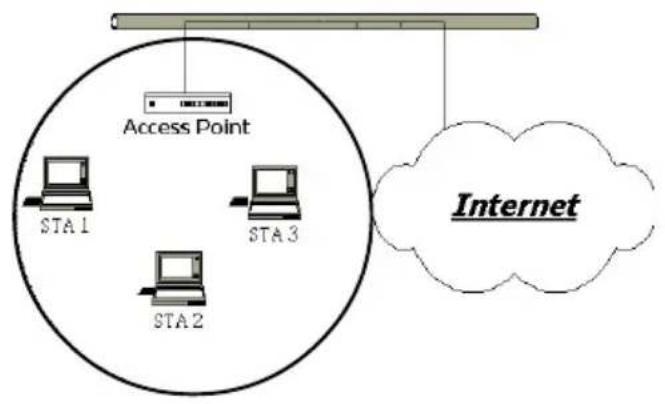
flowchart
graph TD
    A["Access Point"] --> B["STA 1"]
    A --> C["STA 2"]
    A --> D["STA 3"]
    E["Internet"] --> A
Infrastructure Wireless Network
The most obvious difference between Infrastructure wireless network and Ad Hoc wireless network is that the PCs in Infrastructure wireless network can access the resource in the Internet through Access Point.
Depending on your requirement, you can easily set up your PC's network to be a "Ad Hoc" or "Infrastructure" wireless network. Generally speaking, if in your network, there is an Access Point in it, we recommend you to set your network as an "Infrastructure", so it can connect to the Internet.

IP ADDRESS
To use the WLAN Mini USB Adapter with a computing device, the WLAN Mini USB Adapter must be equipped with an USB 1.1 or 2.0 Interface. All drivers and supporting software for the WLAN Mini USB Adapter must be installed and configured first.
Ask your system administrator for the following information, which you may need to provide during driver installation :
■ Your Wireless Client Name.
■ Your Wireless SSID.
- Your computer's unique client name and workgroup name.
■ For your network account, your user name and password.
- Your IP address, gateway address, and subnet mask if you’re not using a DHCP server.
Any computer on a network is identified by a unique network address. There are two methods to assign a network address to a computer on a TCP/IP network :
■ Static IP addressing.
■ Dynamic IP addressing (DHCP).
In network with static IP addressing, the network administrator manually assigns an IP address to each computer. Once a static IP address is assigned, a computer uses the same IP address every time it reboots and logs on to the network. You may manually change the IP address in the Network Properties dialog box. Network using static IP address is easy to set up and do not require additional network management software.
In network with dynamic IP addressing, a DHCP server in the network dynamically assigns IP addresses to all clients every time they log on to the network. Network using dynamic IP address requires setting up and running a DHCP Server.

INSTALL DRIVER / UTILITY
The installation & driver CD will automatically activate the autorun installation program after you insert the disk into your CD drive.
Step 1 : Insert the installation & driver DC into your CD-ROM.
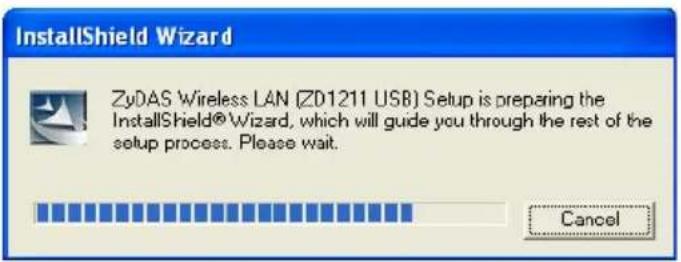
Step 2 : Click Next to continue.

Step 3 : Click Next to install at the designated folder. Or, click "Browse" to select different folder.

Step 4 : Start copying files until it finishes the installation.

Step 5 : Click Finish to complete installation.

Step 6 : After finished install driver and utility on your system, plug the USB adapter into the USB port of your PC. Windows XP/2000 will automatically detect the USB Adapter.

WLAN USB Adapter uses its own management software. All functions controlled by users are provided by this application. When you insert the WLAN USB Adapter into the USB port of your PC, a new icon should appear in the Windows System Tray automatically.

If the icon is in red, it means that WLAN USB Adapter configuration is invalid or incomplete. Double click on that icon and the configuration window will pop up as shown below. It shows the SSID of available network. Once a network is chosen, the signal strength and link quality are displayed.
The Link Quality and Signal Strength bar chart is only active when the node is in Infrastructure Mode. The bar graph displays the quality and strength of the link between the node and its Access Point. Link Quality is a measurement of receiving and transmitting performances over the radio.
Tx/Rx Frame displays the instantaneous wireless Transmit and Receive throughput in bytes per second. These values are updated every two seconds.
The Configuration Tool contains several fields where operating parameters of the driver can be viewed or changed. Changes to any of the parameters in this panel can be applied to the driver without a need to restart the computer.
Current Network Information displays the current network configuration. If you want to change network configuration, click "More Setting".

5.1 GENERAL CONNECTION SETTING
In this panel, you can modify the general network connection setting, enable/disable the WEP, load/modify profile and other setting. Through this control panel, you will be able to access the corporate wireless LAN or hot spots such as hotel, airport, and conference hall.
Click "Change" to start input ofsettings. The settings include :
■ SSID.
■ Network Type.
■ Transmit Rate.
■ Encryption.
■ Authentication Mode.

When settings are input, click "Apply" to confirm changes of them.

5.2 WEP ENCRYPTION KEY SETTING
You may want an additional measure of security on your wireless network, which can be achieved by using WEP (Wired Equivalent Privacy) encryption. WEP encrypts each frame transmitted from the radio using one of the Keys entered in this panel.
When an encrypted frame is received it will only be accepted if it decrypts correctly. This will only happen if the receiver has the same WEP Key used by the transmitter.

The default state in Encryption Setting is WEP disabled. Check “Enable WEP” to enable the encryption.
For more WEP key setting, Click "WEP Encryption Key Setting".
Three authentication modes are available: Open System, Shared Key and Auto. The Open System uses default key to authenticate the station and Access Point. Once both parties are authenticated, the station is allowed to send and receive data from the network. However, the data are not encrypted.
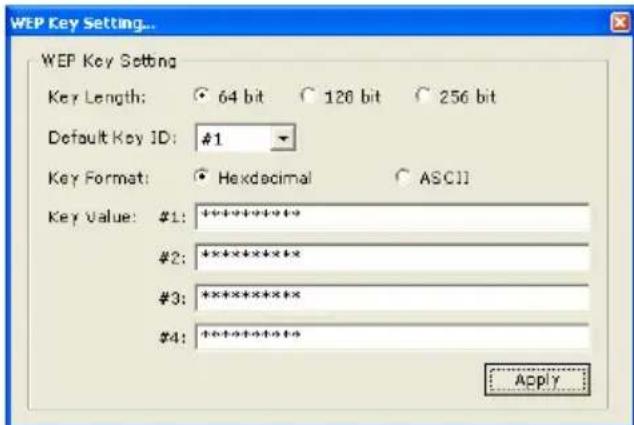
In Shared Key system, the station and Access Point are authenticated each other. The data frame is also encrypted by the WEP key.
In Auto Mode, the Access Point takes control of network security setting and station will follow the setting required from AP.
Click the "close box" at the upper right hand corner to return to Configuration Tool.
5.3 WPA ENCRYPTION SETTING
WPA (Wi-Fi Protected Access) is a security technology for wireless networks. WPA improves on the authentication and encryption features of WEP (Wired Equivalent Privacy).
To improve data encryption, WPA utilizes its Temporal Key Integrity Protocol (TKIP). TKIP provides important data encryption enhancements including a per-packet key mixing function, a message integrity check (MIC, named Michael), an extended initialization vector (IV) with sequencing rules, and a re-keying mechanism.
WPA Pre-Shared Key (WPA-PSK) is a simplified but still powerful form of WPA most suitable for home Wi-Fi networking. To use WPA-PSK, a person sets a static key or "passphrase" as with WEP. But, using TKIP, WPA-PSK automatically changes the keys at a preset time interval, making it much more difficult for hackers to find and exploit them.
The pre-shared key is consisting of alpha-numeric characters including punctuation and spaces between 8 and 63 characters long. Wireless clients are only required to enter the pre-shared key. If the preshared keys match, secure wireless communications can begin to take place.

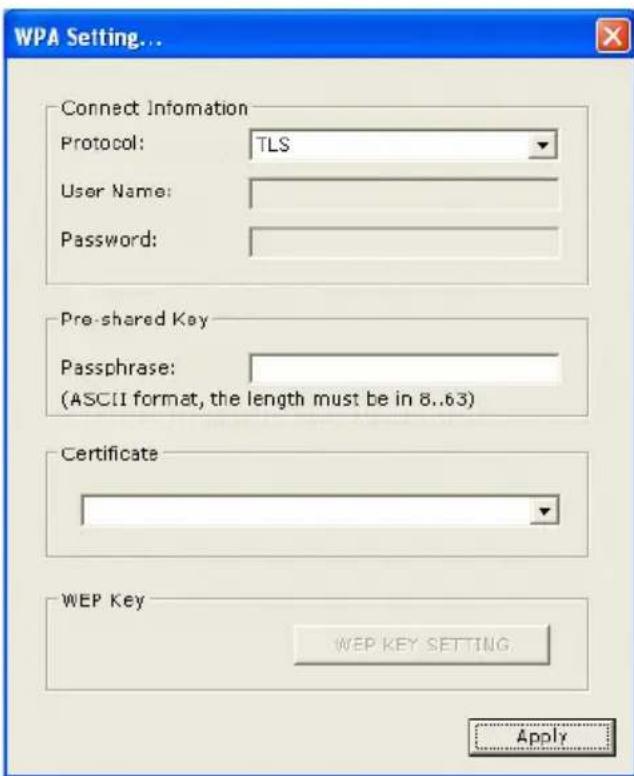
For more WPA setting, Click "WPA Encryption Setting"
5.4 PROFILE
Each profile represents specific settings of the USB adapter. You can set the settings for each profile. Next time when you want to change the USB adapter settings, you can just select the profile you want to use.

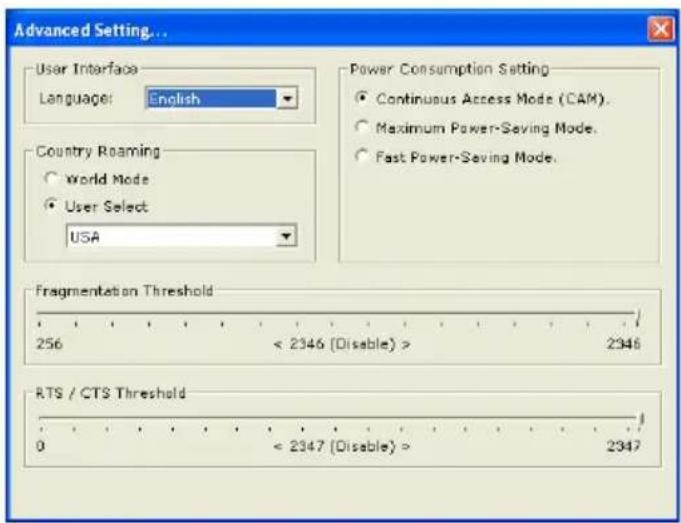
5.5 ADVANCED SETTING
Click "Advanced Setting" to select power consumption setting that has 3 different modes. In this panel, you can select different user interface and country roaming.
It also allows you to set the threshold of fragmentation and RTS/CTS.


5.6 SYSTEM INFORMATION
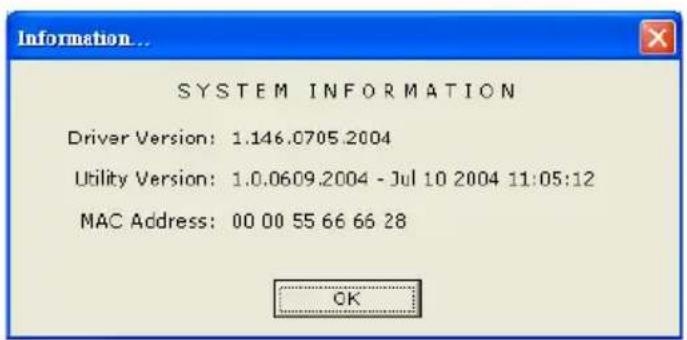
Click "Information" and the pop-up window will show the Driver Version, Utility Version, MAC address of this USB adapter and so on.


TECHNICAL SPECIFICATIONS
| Product Name 11b+g WLAN USB | Adapter |
| Standard IEEE802.11b/g | |
| Frequency Band 2.400GHz ~ 2.4835GHz unlicensed ISM band | |
| Modulation method | 802.11b : QPSK/BPSK/CCK |
| 802.11g : OFDM | |
| Data Rate 54/48/36/24/18/12/1 | 1/9/6/5.5/2/1Mbps |
| Operation mode | Ad hoc |
| Infrastructure (Access Points is needed) | |
| Transmitter Output Power < 15 dBm | |
| Receive Sensitivity | Operating at 11Mbps: @ -80dBm |
| Operating at 54Mbps: @ -70dBm | |
| Operating Range 30 to 200 m, depending on surrounding environment | |
| Antenna Chip antenna | |
| Security | 64-bit, 128-bit or 256-bit WEP (Wired Equivalent Privacy); WPA (Wi-Fi Protected Access) |
| I/O Interface USB 2.0/1.1 | |
| LED Link/Active | |
| Operating system supported Windows 98Se, Me, 2000 and XP | |
| Management | Windows-based configuration utility and status monitoring |
| Regulation | FCC for North America |
| CE/ETSI for European | |
| Dimension 58(L) x 23(W) x 9(H) mm | |
| Weight | 9.6 g |
| Operating Temperature | 0 ~ 50°C |
| Storage Temperature | -20 ~ 70 °C |
| Humidity | 5 ~ 90% (non-condensing) |

TROUBLESHOOTING
Symptom :
The LED is off.
Remedy :
Make sure the PC Card is inserted properly. Otherwise contact your vendor.
Symptom :
The LED is always on not blinking.
Remedy :
Make sure that you have installed the driver from attached CD. Otherwise contact your vendor.
Symptom :
The LED is blinking but the PC Card icon does not appear in your icon tray.
Remedy :
Make sure that you have installed the Utility from the attached CD.
Symptom :
The PC Card is linking, but can't share files with others.
Remedy :
Make sure the file and printer sharing function is enabled. You can enable the function by checking the icon of My Computer -> Control Panel -> Network -> file and printer sharing -> I want to be able to give others to access to my files.
Symptom :
Slow or poor performance.
Remedy :
Try to select another channel for the communicating group or move your device closer to the Access Point.
IEEE 802.11 Standard
The IEEE 802.11 Wireless LAN standards subcommittee, which is formulating a standard for the industry.
Access Point
An internetworking device that seamlessly connects wired and wireless networks together.
Ad Hoc
An Ad Hoc wireless LAN is a group of computers, each with a WLAN adapter, connected as an independent wireless LAN. Ad Hoc wireless LAN is applicable at a departmental scale for a branch or SOHO operation.
BSSID
A specific Ad Hoc LAN is called a Basic Service Set (BSS). Computers in a BSS must be configured with the same BSSID.
DHCP
Dynamic Host Configuration Protocol - a method in which IP addresses are assigned by server dynamically to clients on the network. DHCP is used for Dynamic IP Addressing and requires a dedicated DHCP server on the network.
Direct Sequence Spread Spectrum
This is the method the wireless cards use to transmit data over the frequency spectrum. The other method is frequency hopping. Direct sequence spreads the data over one frequency range (channel) while frequency hopping jumps from one narrow frequency band to another many times per second.
ESSID
An Infrastructure configuration could also support roaming capability for mobile workers. More than one BSS can be configured as an Extended Service Set (ESS). Users within an ESS could roam freely between BSSs while served as a continuous connection to the network wireless stations and Access Points within an ESS must be configured with the same ESSID and the same radio channel.
Ethernet
Ethernet is a 10/100Mbps network that runs over dedicated home/office wiring. Users must be wired to the network at all times to gain access.
Gateway
A gateway is a hardware and software device that connects two dissimilar systems, such as a LAN and a mainframe. In Internet terminology, a gateway is another name for a router. Generally a gateway is used as a funnel for all traffic to the Internet.
IEEE
Institute of Electrical and Electronics Engineers
Infrastructure
An integrated wireless and wired LAN is called an Infrastructure configuration. Infrastructure is applicable to enterprise scale for wireless access to central database, or wireless application for mobile workers.
ISM Band
The FCC and their counterparts outside of the U.S. have set aside bandwidth for unlicensed use in the so-called ISM (Industrial, Scientific and Medical) band. Spectrum in the vicinity of 2.4 GHz, in particular, is being made available worldwide. This presents a truly revolutionary opportunity to place convenient high-speed wireless capabilities in the hands of users around the globe.
Local Area Network (LAN)
A LAN is a group of computers, each equipped with the appropriate network adapter card connected by cable/air, that share applications, data, and peripherals. All connections are made via cable or wireless media, but a LAN does not use telephone services. It typically spans a single building or campus.
Network
A network is a system of computers that is connected. Data, files, and messages can be transmitted over this network. Networks may be local or wide area networks.
Protocol
A protocol is a standardized set of rules that specify how a conversation is to take place, including the format, timing, sequencing and/or error checking.
Roaming
In an infrastructure network, this is when a wireless PC moves out of range of the previously connected access point and connects to a newly connected access point. Throughout the network environment where access point is deployed, PCs can always be connected regardless of where they are located or roam.
SSID
A Network ID unique to a network. Only clients and Access Points that share the same SSID are able to communicate with each other. This string is case-sensitive.
Simple Network Management Protocol (SNMP)
Simple Network Management Protocol is the network management protocol of TCP/IP. In SNMP, agents-which can be hardware as well as software-monitor the activity in the various devices on the network and report to the network console workstation. Control information about each device is maintained in a structure known as a management information block.
Static IP Addressing
A method of assigning IP addresses to clients on the network. In networks with Static IP address, the network administrator manually assigns an IP address to each computer. Once a Static IP address is assigned, a computer uses the same IP address every time it reboots and logs on to the network, unless it is manually changed.
Temporal Key Integrity Protocol (TKIP)
The Temporal Key Integrity Protocol, pronounced tee-kip, is part of the IEEE 802.11i encryption standard for wireless LANs. TKIP is the next generation of WEP, the Wired Equivalency Protocol, which is used to secure 802.11 wireless LANs. TKIP provides per-packet key mixing, a message integrity check and a re-keying mechanism, thus fixing the flaws of WEP.
Transmission Control Protocol / Internet Protocol (TCP/IP)
TCP/IP is the protocol suite developed by the Advanced Research Projects Agency (ARPA). It is widely used in corporate Internet works, because of its superior design for WANs. TCP governs how packet is sequenced for transmission the network. The term “TCP/IP” is often used generically to refer to the entire suite of related protocols.
Transmit / Receive
The wireless throughput in Bytes per second averaged over two seconds.
Wi-Fi Alliance
The Wi-Fi Alliance is a nonprofit international association formed in 1999 to certify interoperability of wireless Local Area Network products based on IEEE 802.11 specification. The goal of the Wi-Fi Alliance's members is to enhance the user experience through product interoperability. The organization is formerly known as WECA.
Wi-Fi Protected Access (WPA)
The Wi-Fi Alliance put together WPA as a data encryption method for 802.11 wireless LANs. WPA is an industry-supported, pre-standard version of 802.11i utilizing the Temporal Key Integrity Protocol (TKIP), which fixes the problems of WEP, including using dynamic keys.
Wide Area Network (WAN)
A WAN consists of multiple LANs that are tied together via telephone services and / or fiber optic cabling. WANs may span a city, a state, a country, or even the world.
Wired Equivalent Privacy (WEP)
Now widely recognized as flawed, WEP was a data encryption method used to protect the transmission between 802.11 wireless clients and APs. However, it used the same key among all communicating devices. WEP's problems are well-known, including an insufficient key length and no automated method for distributing the keys. WEP can be easily cracked in a couple of hours with off-the-shelf tools.
Wireless LAN (WLAN)
A wireless LAN does not use cable to transmit signals, but rather uses radio or infrared to transmit packets through the air. Radio Frequency (RF) and infrared are the commonly used types of wireless transmission. Most wireless LANs use spread spectrum technology. It offers limited bandwidth, usually under 11Mbps, and users share the bandwidth with other devices in the spectrum; however, users can operate a spread spectrum device without licensing from the Federal Communications Commission (FCC).
One Year Limited Warranty
■ This device is guaranteed against manufacturing defects for one full year from the original date of purchase.
- This warranty is valid at the time of purchase and is non-transferable.
- This warranty must be presented to the service facility before any repair can be made.
■ Sales slip or other authentic evidence is required to validate warranty.
- Damage caused by accident, misuse, abuse, improper storage, and/or uncertified repairs is not covered by this warranty.
- All mail or transportation costs including insurance are at the expense of the owner.
- Do not send any product to service center for warranty without a RMA
(Return Merchandise Authorization) and proof of purchase. Ensure a trackable method of delivery is used (keep tracking number).
■ Warranty is valid only in the country of purchase.
■ We assume no liability that may result directly or indirectly from the use or misuse of these products.
IMPORTANT
"This warranty will be voided if the device is tampered with, improperly serviced, or the security seals are broken or removed"


- Wireless LAN USB Adapter
- USER'S GUIDE
- TABLE OF CONTENTS
- Information To User .... i
- INFORMATION TO USER
- Federal Communication Commission Interference Statement
- IMPORTANT NOTE:
- FCC Radiation Exposure Statement:
- REGULATORY INFORMATION
- Europe - R&TTE Directive
- INTRODUCTION
- FEATURES
- SYSTEM REQUIREMENTS
- BEFORE YOU START
- Confirm Box Contents
- CONNECTING YOUR WLAN USB ADAPTER TO PC
- GETTING TO KNOW WIRELESS LAN USB ADAPTER
- LED
- WIRELESS LAN BASICS
- IP ADDRESS
- INSTALL DRIVER / UTILITY
- GENERAL CONNECTION SETTING
- WEP ENCRYPTION KEY SETTING
- WPA ENCRYPTION SETTING
- PROFILE
- ADVANCED SETTING
- SYSTEM INFORMATION
- TECHNICAL SPECIFICATIONS
- TROUBLESHOOTING
- Symptom :
- Remedy :
- IEEE 802.11 Standard
- Access Point
- Ad Hoc
- BSSID
- DHCP
- Direct Sequence Spread Spectrum
- ESSID
- Ethernet
- Gateway
- IEEE
- Infrastructure
- ISM Band
- Local Area Network (LAN)
- Network
- Protocol
- Roaming
- SSID
- Simple Network Management Protocol (SNMP)
- Static IP Addressing
- Temporal Key Integrity Protocol (TKIP)
- Transmission Control Protocol / Internet Protocol (TCP/IP)
- Transmit / Receive
- Wi-Fi Alliance
- Wi-Fi Protected Access (WPA)
- Wide Area Network (WAN)
- Wired Equivalent Privacy (WEP)
- Wireless LAN (WLAN)
- One Year Limited Warranty
- IMPORTANT
Brand : Zonet
Model : ZEW2501
Category : Network card / adapter