
ZUB8100 - Mp3 player Zonet - Free user manual and instructions
Find the device manual for free ZUB8100 Zonet in PDF.


| Product Type | Bluetooth MP3 Headphone |
| Brand | Zonet |
| Model | ZUB8100 |
| Audio Formats Supported | MP3, WMA |
| Media Storage | SD/MMC card (not included) |
| Bluetooth Profiles | A2DP, A/V, Headset, Hands-Free |
| Bluetooth Range | Up to 10 meters (open space) |
| FM Tuner | Yes, with frequency, preset, and scan modes |
| Battery Type | Rechargeable Lithium Polymer |
| Charging Time | 2 hours (after first charge: 8 hours) |
| Battery Life | Up to 4 hours (music streaming + Bluetooth) |
| Power Source | USB cable or AC adaptor (included) |
| Display | LCD, 128 x 64 dots |
| Controls | Play/Pause, FF/RW, Volume Up/Down, Mode button |
| Microphone | Built-in, adjustable volume |
| Firmware Upgrade | Available via USB interface |
| Additional Features | Auto-switch to phone call, voice chatting, button lock |
| Package Contents | Headphone, travel case, USB cable, AC adaptor, user manual |
| Cleaning | Use a damp cloth; do not use liquid or aerosol cleaners |
| Safety Warnings | Keep away from water, small children, and do not use while driving |
| Operating Temperature | Up to 60°C (140°F) storage |
Frequently Asked Questions - ZUB8100 Zonet
User questions about ZUB8100 Zonet
0 question about this device. Answer the ones you know or ask your own.
Ask a new question about this device
Download the instructions for your Mp3 player in PDF format for free! Find your manual ZUB8100 - Zonet and take your electronic device back in hand. On this page are published all the documents necessary for the use of your device. ZUB8100 by Zonet.
USER MANUAL ZUB8100 Zonet
natural_image
Exterior view of a modern office building (no signage)Bluetooth® MP3 Headphone
Bluetooth®
MP3 Headphone
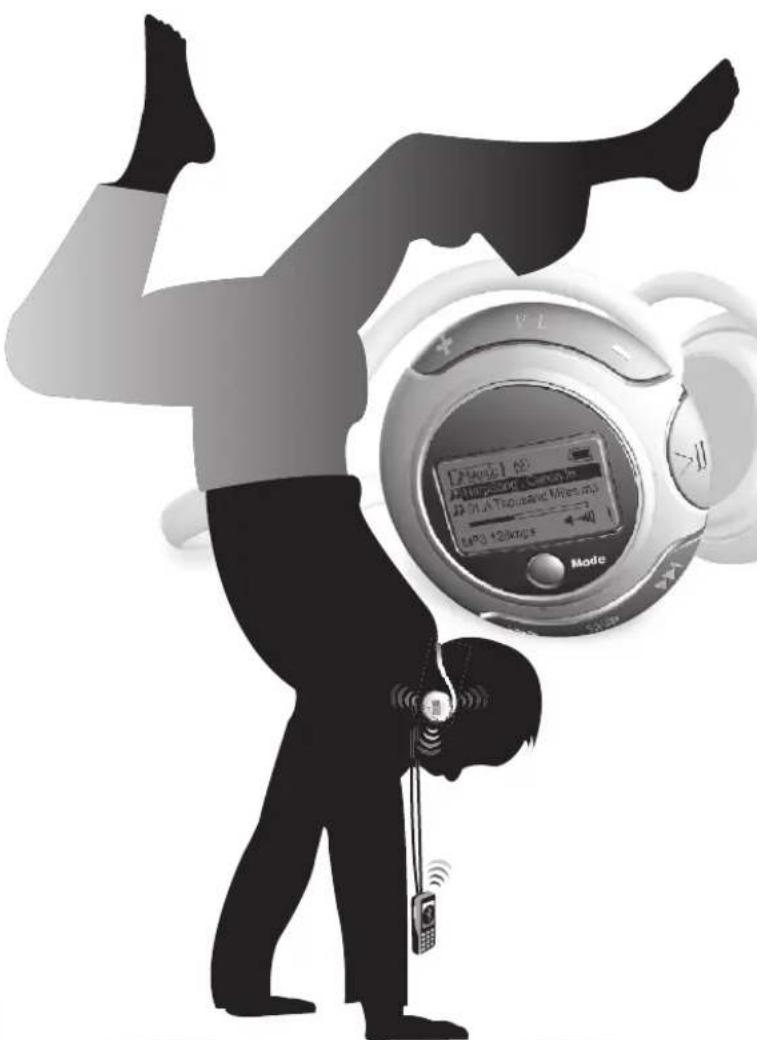
User Manual

MP3
Playback

FM Radio

Bluetooth Mobile Headset

Bluetooth
Audio
Streaming
Contents
I. [PREFACE[0]
-
INTRODUCTION □ 01 ____ ____
-
PRODUCT FEATURES-02
-
STARTING TO USE HEADPHONE+02-
14.1 Package Contents
[4.2 Product View] 03 ____
- PREPARING THE BLUETOOTH MP3 HEADPHONE 03-
1.5.1 Charging Battery
[5.2 Battery Status] 04-
[5.3 Wearing the Bluetooth MP3 Headphone
[5.4 Operate Headphone] 05 ____
[5.5 Reset] 06
「5.6 Adjust Microphone Volume
[5.7 Lock]
16.1 Power on/off Bluetooth MP3 Headphone
6.2 Pair up with Bluetooth Mobile Phone
[6.3 Using Headphone as a Bluetooth Headphone] ____08
L6.4 Using Headphone as an Individual MP3 Player
16.5 Using Headphone as a Bluetooth Audiol 09-
[6.6 Using Headphone as a FM Radio
[6.7 Voice Chatting Function] ____ 10
[6.8 Transfer Songs & Files]
[6.9 Firmware Upgrade]
-
COMPATIBILITY 15
-
TROUBLE SHOOTING 15
-
WARNINGS & PRECAUTIONS 16
1. PREFACE
Copyright
Information in this document has been carefully checked for accuracy; however, no guarantee is given as to the correctness of the contents. The information in this document is subject to change without notice. This document contains proprietary information protected by copyright. All rights are reserved. No pat of this manual may be reproduced by any mechanical, electronic or other means, in any form, without prior written permission of the Corporation. Copyright © 2004, All Rights Reserved.
Trademarks
All the logos and trade marks, including the Bluetooth name from SIG, are the properties of their respective owners. Bluetooth is trademark of the Bluetooth SIG, Inc. (Special Interest Group). The Bluetooth trademarks are owned by Bluetooth SIG, Inc. USA.
About this Manual
This manual is designed to assist you in setting up and using your Bluetooth MP3 Headphone and provides information on the essential hardware required to use your Headphone. Read this manual carefully before you begin to use the product.
2. INTRODUCTION
This is the era of wireless; consumers don't want to get tangled up with all the cords and have to sit in one place for a long time. People also want to enjoy their leisure time and be able to do something else at the same time.
Bluetooth MP3 Headphone featuring a unique one piece design will change the way you listen on the go and in the office. The lightweight, elegant and comfortable one piece neckband headphone includes a MMC / SD card slot for unlimited expansion for MP3 and a FM radio to allow you to switch to your favorite radio stations in an instant. The Bluetooth MP3 Headphone supports playing of all MP3 and WMA format of music. The playback source (FM or SD card) are available at the touch of a single button. LCD indicates the current playback source and battery status. While enjoy the playback of MP3 or favorite radio stations the headphone will switch mobile phone in the instant when received a incoming call, users will never miss any important phone calls. Furthermore, Bluetooth MP3 Headphone allows you to listen to your music from your PC to Headphone through a multimedia dongle.
Bluetooth MP3 Headphone is a lighter and more comfortable than similarly designed products, it is also supports firmware upgrades through the USB interface.
3. PRODUCT FEATURES
■ MP3/WMA support MP3 (Decode
■ FM Tuner - Radio
■ LCD control (LCD display 128 x 64 dots); User Interface displaying
■ Support Bluetooth A/V,A2DP, Headphone and hands-free profiles compliant
■ Automatically switching to mobile phone while listening MP3, FM radio or audio streaming from computer.
■ Operation range up to 10 meters MP3 range in open space for Bluetooth transmission
■ Stereo audio streaming from PC/Bluetooth devices, and mono audio from mobile phone.
■ Download the music or file into MP3 player via USB.
■ Firmware Upgradeable.
■ Automatically Power control for optimal power consumption.
■ MMC/SD card support
■ Auto-pairing by pair button.
■ Rechargeable Lithium Polymer battery provided. Up to 4 hours of music streaming and BT function at same time for every charge.

4. STARTING TO USE HEADPHONE
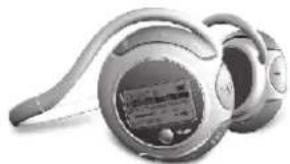
4.1 Package Contents
natural_image
Close-up of a pair of electronic headphones with earbuds and cable (no visible text or symbols)■ Bluetooth MP3 Headphone
■ Travel case

USB cable

■ AC adaptor

■ User Manual & Quick Guide
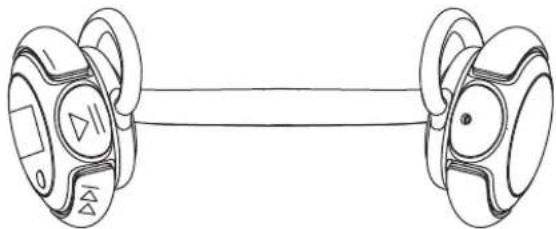
4.2 Product View
natural_image
Simple line drawing of two dumbbells connected by a string (no text or symbols)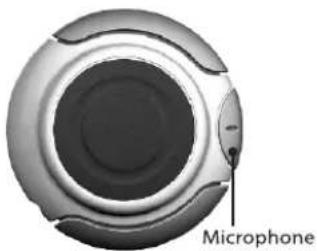
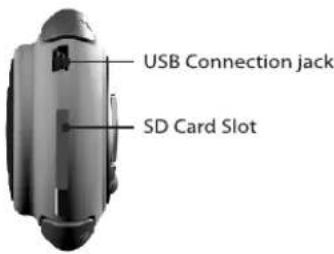

5. PREPARING THE BLUETOOTH MP3 HEADPHONE \_\_\_\_
This section describes how to do the initial battery charge and how to wear the Headphone. Read the following sections carefully before attempting to use your new Headphone.
5.1 Charging battery
■ Charging your battery for first time will take up to 8 hours or until the battery status indicator on the LCD screen become black.
■ The Headphone uses an exclusive Lithium-polymer battery which can be fully charged within 2 hours of being completely discharged.
■ Depending on the user's convenience, the player can be charged by using a USB cable or adaptor.
① Charging with a USB cable


03 Bluetooth Headphone User Manual
② Charging with an AC adaptor
The player can be charged with an AC adaptor included in the package.

First time 8 HRS

After 2HRS
CAUTION: Please use the charger provided on the package to charge the headphone ONLY. DO NOT attempt to charge the headphone with other type of charger, it may result in the damage of headphone.
5.2 Battery Status
When the battery is low, there will be two indications show on the headphone. The battery icon on the LCD will be show low power. When operate headphone and the battery is low, user will be able to hear warning beep tone on the headphone.

5.3 Wearing the Bluetooth MP3 Headphone ...
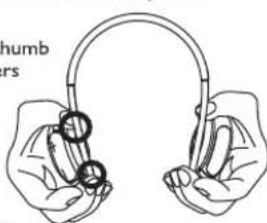
To put the headphone follow the sequence:
① Place the both thumb and middle fingers like picture.→

natural_image
Illustration of a hand holding a pair of eyeglasses (no text or symbols)
natural_image
Line drawing of a person's head with two hands adjusting a cable or tube (no text or symbols)② Gently pull the headphone apart. ←
③ Place the headphone such that the neckband goes behind the head. →

natural_image
Side profile illustration of a person wearing a medical device (no text or symbols visible)5.4 Operate Headphone
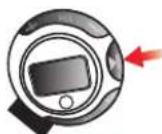
Play
Use either thumb or index finger to press play button, like picture shows. For further explanation please refer to the second picture. When press play button it should press the surface of the circle not the edge of circle.

natural_image
Side profile illustration of a person wearing a head-mounted device (no text or symbols visible)
(○)
( X )
English 04
Skip (FF or RW)
The method to adjust FF or RW is different then volume function, there are two separate ways to operate FF and RW.
I. To RW - use middle finger as a support point and use the thumb to
press RW button. Please refer to picture for further detail.
2..To FF - use thumb as a support point, firmly press Sd card and use
☐ middle finger to press FF button. Please refer to the following picture ☐ for further detail.

natural_image
Line drawing of a person's head and ear with a headset inserted, no text or symbols presentTo RW

natural_image
Close-up of a circular device dial with a red circle highlighting the center (no text or symbols visible)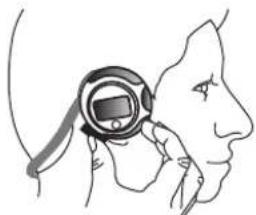
natural_image
Side profile illustration of a person wearing a digital device on their head (no text or symbols)To FF

natural_image
Close-up of a circular electronic device dial with a screen and control buttons, no visible text or symbols.Increase and Decrease volume
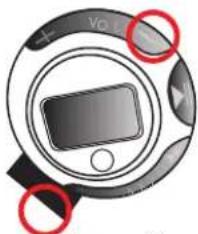
The volume of the Bluetooth MP3 Headphone can be adjusted by press the "Volume Up" or "Volume Down" buttons accordingly. Use the thumb as a support point and place on the SD card firmly, use index and middle fingers to adjust volume

natural_image
Line drawing of a human head profile showing ear and neck (no text or symbols)Volume Up

natural_image
Close-up of a circular electronic device with a screen and control buttons, no visible text or symbols.( 0

natural_image
Circular device with a screen and control knob, highlighted by red circles (no text or symbols)) ( X )

natural_image
Line drawing of a person's head and neck showing a medical device inserted into the ear area (no text or symbols)Volume Down
natural_image
Close-up of a camera dial with no visible text or symbols, highlighting three red circles (no readable text or symbols)( 0

) ( X )
( O ) Correct:
Place thumb on the corner of SD card then adjust "Volume up" or "Volume down". Place your finger on the circle part of headphone while operate either volume up or volume down.
(X) Incorrect:
Place thumb on the skip button to adjust "Volume up" or "Volume down" may interfere operation of the headphone. DO NOT place your finger on the circle part while operate volume up or volume down.
5.5 Reset
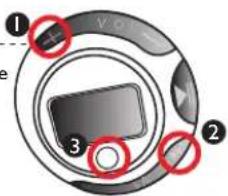
If the static has interfere with the headphone, please press Volume up and FF button and Mode button to reset the headphone. The headphone will operate normally.
5.6 Adjust Microphone Volume
Users can adjust the headphone microphone volume during a call, by press FF or RW to increase or decrease the capability of receive the voice. Method of operation same as operate skip button.
5.7 Lock
To prevent the headphone get turn on by accidentally, Bluetooth MP3 headphone has implement lock up function.
To Lock
-
Press Mode button for 3 seconds to enter main menu
-
There will be a function call " B utton Lock
-
Select " B utton Lock" press
Uthe whole buttons will lock

To Unlock
To unlock the headset, user holds the "Mode" button down, if the headset is in lock mode it will unlock. If it is not in lock mode it will go to menu mode like normal.
6.1 Power on/off Bluetooth MP3 Headphone
Hold down play/pause▶|| for 3 seconds until the LCD display "Bluetooth MP3 Headphone." Headphone automatically will enter from the last selected mode. To power off, hold down play/pause▶|| for 3 seconds until LCD gone blank then release thumb.
6.2 Pair up with Bluetooth Mobile phone
1 Press mode button 3 seconds to enter menu mode.
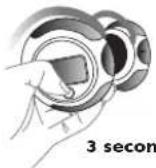
2 Press play/pause button to enter Bluetooth mode, use FF/RW button to select "discoverable" and press play/pause button

Once into discoverable there will be Headphone and HiFi option, select "Headphone", press play button then you will hear three short beeping sound.

4 Make sure turn on your Bluetooth MP3 Headphone and mobile phone, set the headphone to pairing-ready status, and follow the instruction of your mobile phone to pair up.
NOTE: Please refer to the following example of Sony Ericsson / Ericsson Bluetooth phone for pair up. Different mobile phone has different procedure for pairing.
5 When the phone is success to pair up with Headphone, key in "0000" as pin code on the mobile phone.

6 The Bluetooth Headphone is ready to use.
EXAMPLE:
Pairing with a Sony Ericsson /Ericsson Bluetooth Phone
I. Turn on your Bluetooth Headphone and mobile pone. Set the headphone to pairing-ready status.
2. Select "Connectivity" and "Yes".
3. Select "Bluetooth" and "Yes".
4. Select "My devices" and "Yes"; New Device"; "Searching..." appears on screen. When the mobile phone finds the Headphone, it shows the Headphone name. Select the Headphone and select "Add to paired". Then select "Yes"
5. When you are prompted to enter a pass key, enter passkey "0000" and select "Yes" to start the pairing process.
6. "Pairing" and "Pairing succeed" messages appear on the screen.
6.3 Using Headphone as a Bluetooth Headphone

Making a call from a Bluetooth Phone
You can place a phone call with your Headphone linked to your mobile phone. Use your mobile phone to dial the desired number and then use the Bluetooth Headphone to talk and listen to the caller. If you want to use your
mobile phone to talk / listen, then follow the fowling steps to disconnect the paired link between the Headphone and the mobile phone.
Receiving a call with the Headphone
When you have completed pairing the Bluetooth MP3 Headphone with your mobile phone, and have set up the link properly, you can use the Headphone to receive incoming phone calls. When you hear a ring tone, press the play/pause button ▶|| on the Headphone to receive the incoming call. During a telephone session, if the Bluetooth Headphone
exceeds the range of the operational distance the link will be disconnected. The mobile phone will ask you if you want to resume the telephone session, the message will show on the Mobile Phone screen like "Bluetooth
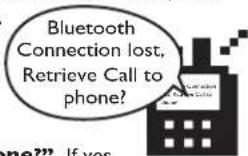
Connection lost, Retrieve Call to phone?" If yes,
the telephone will be transferred back to the mobile phone. If no, the telephone session will be interrupted.
Ending a Call from the Headphone
When your telephone session is ended and the caller hangs up the Headphone and your mobile phone are ready to receive new calls and will back to the last function before you answer the telephone.
6.4 Using Headphone as an individual MP3 player Within the headphone, there will be no embedded flash memory inside, the headphone only can use SD/MMC card only.
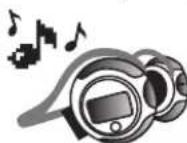
- Press and hold ▶|| until your headphone turns on.
- After turn on the Headphone, press "Mode" button if the MP3 player content doesn't appear repeat it until appears. MP3 files in the SD card should be appearing on the LCD.
■ After moving to a desired MP3 file by using the skip button, press || the play button ▶ || for playback.
■ The selected MP3 file will play.
■ When the skip button is used during playback, the previous file or next file will play.
■ When the play/pause button▶|| is pressed, current playback song will □lstop.
■ Press volume + to increase or volume - to decrease the volume.
■ After you have finished using your player, press and hold play/pause □ button ▶ until your headphone turns off.
6.5 Using Headphone as a Bluetooth Audio
■ Press "Mode" button if the Bluetooth audio icon doesn't appear, repeat until it appears.
■ To Connect or disconnect press "play/pause"
□button ▶|| to turn on/off
■ Adjust volume press + or - button. If you want to increase or decrease multiple levels of volume press and hold button until you reach the
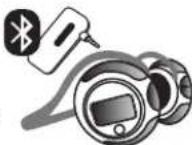
NOTE: For audio streaming please purchase the multimedia dongle ONLY from same manufacturer of Bluetooth MP3 Headphone.
6.6 Using Headphone as a FM radio
There are three different frequent select modes:
■ Frequency, Preset and Scan.
■ The default setting for radio mode is Frequency.
■ Use skip buttons FF/RW to adjust the channel.
■Beside frequency mode, user can also change to Preset or Scan.

Press mode button 3 seconds to enter menu mode.
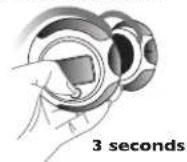
② Skip button to FM Radio
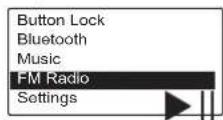
3 Skip button to Freq Select Mode
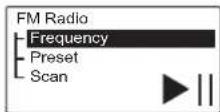
Skip button to select either preset or scan and press play/pause
4 Press Mode for three second to exit
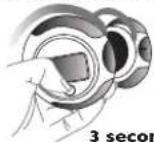
NOTE: The FM function is recommended to be used outside.
■ Use Preset function to set all favor stations
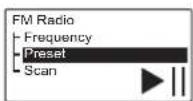
The following are the steps to preset FM Radio station for the headphone: Mode (2 seconds) --> Skip key (twice) --> FM Radio (Play key to enter) --> skip key (twice)
--> Set Preset Channels (Play key to enter) --> skip key to select a channel --> volume to set desired frequency --> Finish all preset channels i Play key (to save all preset channels)
The following are the steps to choose preset channel option: Mode (2 seconds) --> Skip key (twice) --> FM Radio (play key to enter) --> Play key (to enter) --> skip key (once) --> Play key (to select) --> play key (saving data & exit)
6.7 Voice Chatting Function
The Bluetooth MP3 Headphone can pair up with Bluetooth Data Dongle which users able to obtain on the market to use for two way voice communication. The steps as the following:
■Follow the installation steps of Bluetooth Data Dongle
■Double click "My Bluetooth Place" icon 📧 on the desktop and follow 📧the Bluetooth Data Dongle's step to pair up the headphone and Udongle.
■Make sure Bluetooth MP3 Headphone are in pairing mode. When the headphone is successful pair up then right click the icon of headphone, select "Connected"
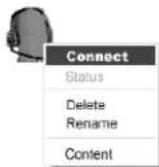
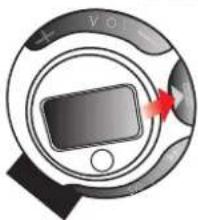
■When a bell tone is heard from the Headphone, press "▶ ||" button to establish the connection.
natural_image
Circular device dial with a screen and control knob, no visible text or symbols■When the two way communications has been established it will be liable to start to talk.
6.8 Transfer Songs & Files
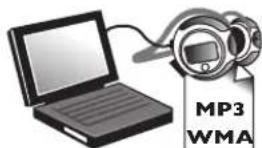
■ Connect our Headphone to your [computer's USB port using the supplied USB cable.
■ Launch Windows Explorer on your computer. Your Headphone is recognized as a Removable Disk in Windows Explorer.
■ Transfer MP3 / WMA or non-music files to your Headphone, SD
□card using a drag-and-drop operation.
■ After the transfer is complete, make sure you stop your Headphone □before disconnecting it from your computer.
To stop your player in Windows 2000, Windows Me or Windows XP
- Click the Safely Remove Hardware icon on the taskbar, click Safely remove USB Mass Storage Device, and disconnect your headset when you are prompted to do so.
6.9 Firmware Upgrade
If a Bluetooth MP3 Headphone firmware upgrade becomes available, follow the procedure below to update Bluetooth MP3 Headphone's internal firmware:
Step I
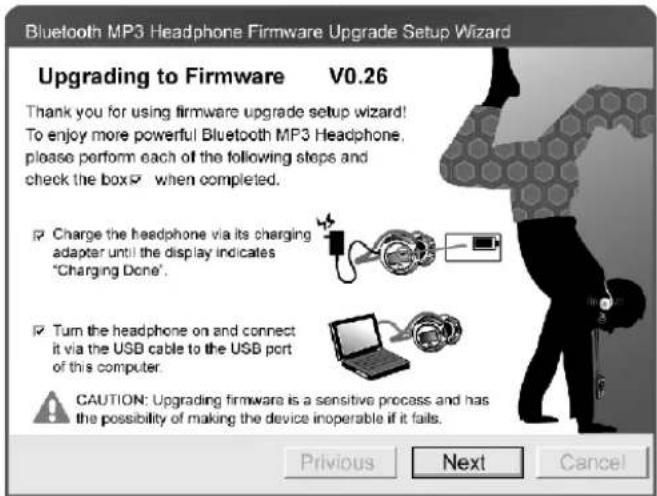
Step 2
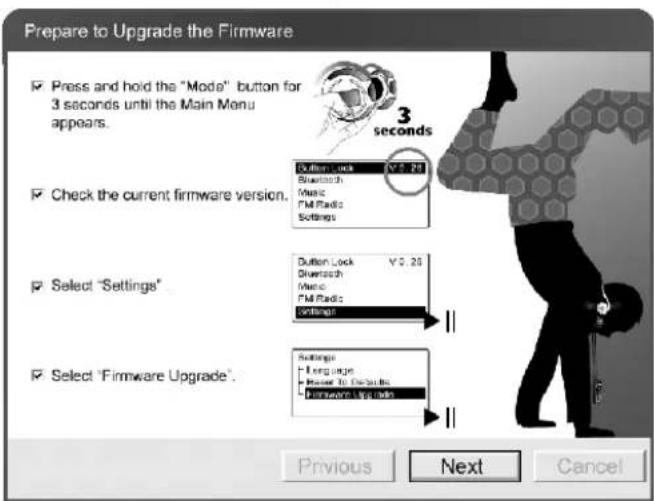

(USB driver installation)
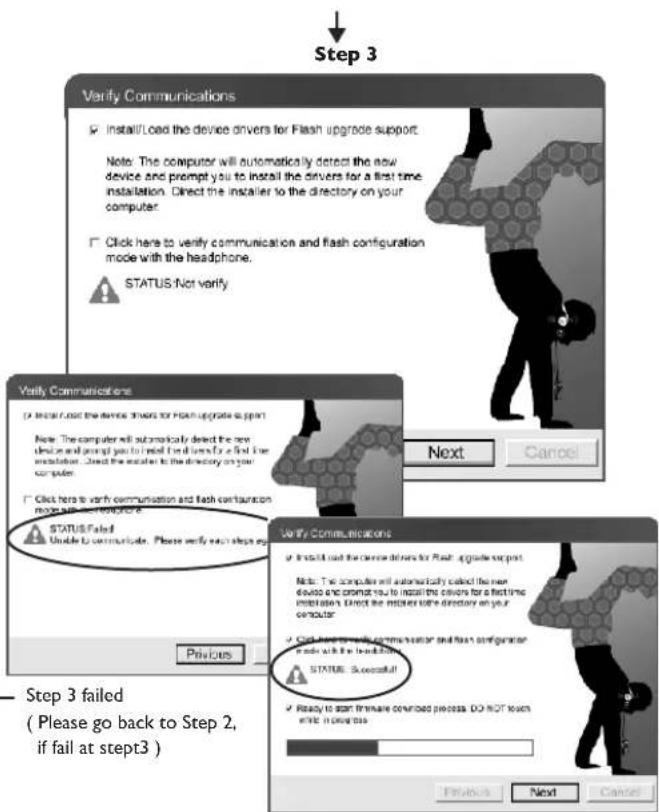
Step 3 successful
Step 4: Upgrade Complete

USB driver installation


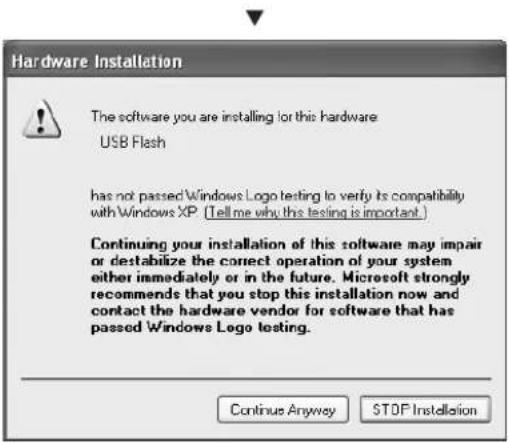
After you clicked Continue Anyway from the previous step, the whole driver installation will run automatically until it complete,, then you can click "Finish".
- COMPATIBILITY
| Motorola | E398, E680, A768i, V501, V80, V3, V600, V600i, V780 |
| Nokia ^ | 6260, 6230, 6600, 6820, 7600, 7610 |
| Siemens ^ | S65 |
| Pantech | G800 |
| Sony Ericsson | T610, T630, Z600, K700i, P910i |
| Panasonic ^ | X11, X70, X88 |
Note:
*① The incoming ring can't be heard through the Headphone. However, pressing a
button of the Headphone is still available to pickup the incoming call.
*2 The outgoing ring can't be heard through the Headphone. On the contrary, the
Headphone will automatically answer once the receiver picks up the call.
*③ The outgoing ring can't be heard through the Headphone. Please press a button of
the Headphone as soon as the phone screen displays "voice call" message.
8. TROUBLE SHOOTING
If you are encounter difficulties, please read this entire section before return the goods:
If the Headphone does not turn on when the ON button is pressed:
AI. The battery may be depleted, make sure the battery is fully charged.
Q2. If Headphone is not recognized by Windows:
A2.1 Check the USB connection between your Headphone and the
computer. Verify that the PC's USB drivers are properly installed.
The OS below Windows ME, doesn't support it.
Q3. Why does the player skip certain tracks?
A3. The player will only play valid media formats (MP3 and WMA files).
☐ Other types of media formats will be skipped.
Q4. Why does the player turn off immediately after it is
□□ turned on?
A4. The battery may be too depleted to power your player. Try charging the battery.
9. WARNINGS & PRECAUTIONS
Carefully read the following safety and operating instructions. Keep this document handy for future reference.
Do not subject the Headphone to extreme force
Vibration during walking or exercising will not affect the Headphone. However, dropping the Headphone or dropping the heavy object on the Headphone may result in distorted sound and/or damage to the unit.
Keep the Headphone away from water at all times
The Headphone may be damaged if water enter it. If the player comes in contact with water, wipe it immediately with a dry cloth.
Keep the Headphone away from small children
The Headphone contains small parts that present a choking hazard.
Do not operate a motor vehicle while using the Headphone
In many countries, using the player while operate a motor vehicle is illegal. It's also dangerous.
⚠ Store the Headphone with care
Avoid keeping the Headphone and the flash memory card on or near high heat sources or in places with high humidity. 60°C (140°F)
Cleaning the Headphone
Disconnect the power supply adapter (not included) from the wall outlet or power source before cleaning. Do not use liquid or aerosol cleaners. Use a damp cloth for cleaning.
Servicing
Do not attempt to service any part of the product yourself. Servicing should only be done by qualified service personnel.
Power Sources
Refer to the operating instructions included in your documentation and markings, if any, on the product.
- Bluetooth®
- MP3 Headphone
- Contents
- PREFACE
- Copyright
- Trademarks
- About this Manual
- INTRODUCTION
- PRODUCT FEATURES
- STARTING TO USE HEADPHONE
- Package Contents
- Product View
- PREPARING THE BLUETOOTH MP3 HEADPHONE \_\_\_\_
- Charging battery
- ① Charging with a USB cable
- ② Charging with an AC adaptor
- Battery Status
- Wearing the Bluetooth MP3 Headphone ...
- Operate Headphone
- Play
- Skip (FF or RW)
- Increase and Decrease volume
- ( O ) Correct:
- Incorrect:
- Reset
- Adjust Microphone Volume
- Lock
- To Lock
- To Unlock
- Power on/off Bluetooth MP3 Headphone
- Pair up with Bluetooth Mobile phone
- EXAMPLE:
- Pairing with a Sony Ericsson /Ericsson Bluetooth Phone
- Using Headphone as a Bluetooth Headphone
- Making a call from a Bluetooth Phone
- Receiving a call with the Headphone
- Connection lost, Retrieve Call to phone?" If yes,
- Ending a Call from the Headphone
- Using Headphone as an individual MP3 player Within the headphone, there will be no embedded flash memory inside, the headphone only can use SD/MMC card only.
- Using Headphone as a Bluetooth Audio
- Using Headphone as a FM radio
- Voice Chatting Function
- Transfer Songs & Files
- To stop your player in Windows 2000, Windows Me or Windows XP
- Firmware Upgrade
- USB driver installation
- TROUBLE SHOOTING
- If the Headphone does not turn on when the ON button is pressed:
- Q2. If Headphone is not recognized by Windows:
- Q3. Why does the player skip certain tracks?
- Q4. Why does the player turn off immediately after it is
- □□ turned on?
- WARNINGS & PRECAUTIONS
- Do not subject the Headphone to extreme force
- Keep the Headphone away from water at all times
- Keep the Headphone away from small children
- Do not operate a motor vehicle while using the Headphone
- ⚠ Store the Headphone with care
- Cleaning the Headphone
- Servicing
- Power Sources
Brand : Zonet
Model : ZUB8100
Category : Mp3 player