TM-H5000IIP - Label printer EPSON - Free user manual and instructions
Find the device manual for free TM-H5000IIP EPSON in PDF.


User questions about TM-H5000IIP EPSON
0 question about this device. Answer the ones you know or ask your own.
Ask a new question about this device
Download the instructions for your Label printer in PDF format for free! Find your manual TM-H5000IIP - EPSON and take your electronic device back in hand. On this page are published all the documents necessary for the use of your device. TM-H5000IIP by EPSON.
USER MANUAL TM-H5000IIP EPSON
Using this online operator's guide
The words on the left side of this screen are bookmarks for all the topics in this guide.
Use the scroll bar next to the bookmarks to find any topic you want. Click a bookmark to instantly jump to its topic. (If you wish, you can increase the size of the bookmark area by dragging the dividing bar to the right.)
Use the scroll bar on the right side of this screen to move through the text.


Use the zoom tools to magnify or reduce the page display.
Click the Find button if you want to search for a particular term. (However, using the bookmarks is usually quicker.)
Complete online documentation for Acrobat Reader is located in the Help directory for Acrobat Reader.
Return to main menu
hybrid printer
TM-H5000/H5000P
Operator's Manual MICR Option Included
Printer Parts and Labels
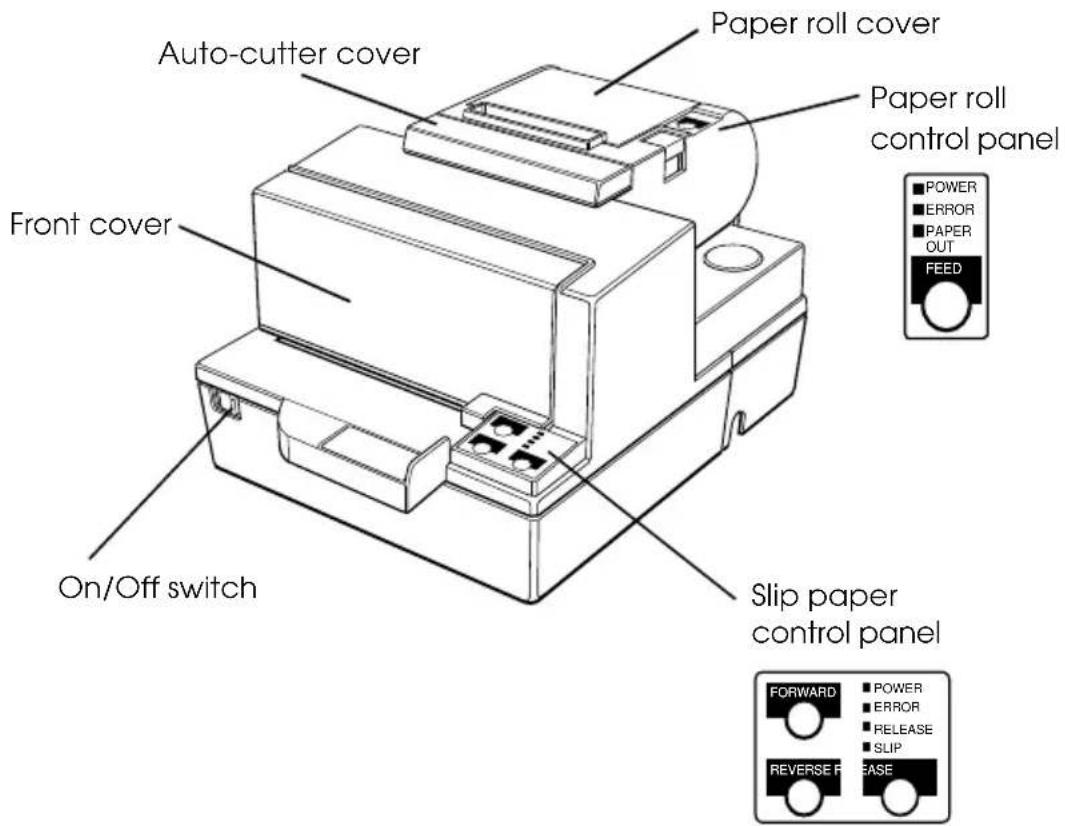
Labels
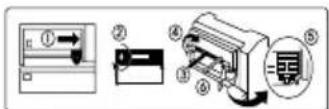
Ribbon installation label inside front cover
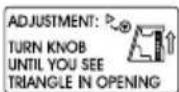
Label inside cutter section
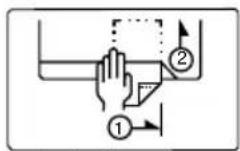
Label affixed on the document table
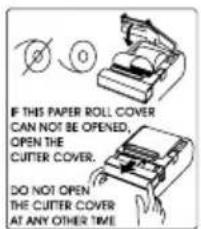
Label inside paper roll cover
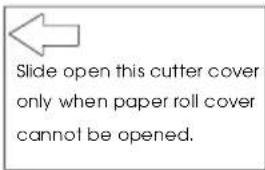
Instruction label for when cover won't open This label is packed with the printer Affix the label at the side of the printer

CAUTION:
Caution labels for drawer kick-out and display module connectors.
Quick Reference
This Quick Reference will direct you to key areas of this Operator's Manual. For a complete listing of topics, see the Contents.
Printer Parts and Labels inside front cover
Ordering Paper and Ribbons page viii
Where to order paper and ribbons.
Setting Up the Printer page 1-1
How to set up the printer.
Installing and Replacing Paper page 1-10
How to load or change the roll paper.
Validating and Verifying Checks page 2-5
How to validate and verify checks using the optional Magnetic Ink Character Recognition (MICR) Reader.
Solving Problems page 3-1
How to correct problems.
All rights reserved. No part of this publication may be reproduced, stored in a retrieval system, or transmitted in any form or by any means, electronic, mechanical, photocopying, recording, or otherwise, without the prior written permission of Seiko Epson Corporation. No patent liability is assumed with respect to the use of the information contained herein. While every precaution has been taken in the preparation of this book, Seiko Epson Corporation assumes no responsibility for errors or omissions. Neither is any liability assumed for damages resulting from the use of the information contained herein.
Neither Seiko Epson Corporation nor its affiliates shall be liable to the purchaser of this product or third parties for damages, losses, costs, or expenses incurred by purchaser or third parties as a result of: accident, misuse, or abuse of this product or unauthorized modifications, repairs, or alterations to this product, or (excluding the U.S.) failure to strictly comply with Seiko Epson Corporation's operating and maintenance instructions.
Seiko Epson Corporation shall not be liable against any damages or problems arising from the use of any options or any consumable products other than those designated as Original Epson Products or Epson Approved Products by Seiko Epson Corporation.
EPSON and ESC/POS are registered trademarks of Seiko Epson Corporation.
NOTICE: The contents of this manual are subject to change without notice.
Copyright © 1996 by Seiko Epson Corporation, Nagano, Japan.
FCC CLASS A
FCC Compliance Statement
For American Users
This equipment has been tested and found to comply with the limits for a Class A digital device, pursuant to Part 15 of the FCC Rules. These limits are designed to provide reasonable protection against harmful interference when the equipment is operated in a commercial environment.
This equipment generates, uses, and can radiate radio frequency energy and, if not installed and used in accordance with the instruction manual, may cause harmful interference to radio communications. Operation of this equipment in a residential area is likely to cause harmful interference, in which case the user will be required to correct the interference at his own expense.
WARNING
The connection of a non-shielded printer interface cable to this printer will invalidate the FCC Verification of this device and may cause interference levels which exceed the limits established by the FCC for this equipment.
You are cautioned that changes or modifications not expressly approved by the party responsible for compliance could void your authority to operate the equipment.
FOR CANADIAN USERS
This Class A digital apparatus meets all requirements of the Canadian Interference-Causing Equipment Regulations.
DECLARATION OF CONFORMITY
Product Name: Printer
Type Name: M128A
These printers conform to the following Directives and Norms
Directive 89/336/EEC
EN 55022 (1986 and 1994) Class B
EN 50082-1 (1992)
IEC 801-2 (1991)
IEC 801-3 (1984)
IEC 801-4 (1991)
Directive 90/384/EEC
EN45501: (1992)
EMI and Safety Standards Applied
The following standards are applied only to the printers that are so labeled. (EMC is tested using the EPSON PS-170 power supply)
Europe: CE marking
EN55022
EN50082-1
EN45501
Safety Standard: TÜV
North America: EMI: FCC Class A
Safety standards: UL 1950-2TH-D3
C-UL
Japan: EMI: VCCI Class 1
About This Manual
Setting Up and Using
☐ Chapter 1 contains information on unpacking the printer, setting it up, setting the DIP switches, and adjusting the paper near end sensor.
☐ Chapter 2 contains information on using the printer.
☐ Chapter 3 contains troubleshooting information.
Reference
☐ Chapter 4 contains specifications
Appendix A tells how to change the DIP switch and paper near end settings, and Appendix B lists the EPSON Sales Subsidiaries and their addresses.
Warnings, Cautions, and Notes

WARNING:
Warnings must be followed carefully to avoid serious bodily injury.

CAUTION:
Cautions must be observed to avoid minor injury to yourself or damage to your equipment.

Note:
Notes have important information and useful tips on the operation of your printer.
Introduction
Features
The TM-H5000 and TM-H5000P are high-quality POS printers that can print on slip and receipt paper (paper roll). The printers have the following features:
Slip Section
☐ Wide slip paper capability (maximum characters per line: 88 with 7 · 9 font).
☐ Copy printing is possible.
☐ High throughput using bidirectional, minimum distance printing.
☐ Optional Magnetic Ink Character Recognition (MICR) reader that enables the printer to perform consecutive reading and processing of MICR characters and printing endorsements.
Receipt Section
☐ High speed printing with collective printing.
☐ The standard auto-cutter provides easy user operation.
☐ Ladder bar code printing is possible by using a bar code command.
☐ New paper handling enables easy paper roll loading.
Both Receipt and Slip
☐ EPSON customer display series connection (DM-D102-012/DM-D203-012).
☐ Selectable receive buffer size (45 bytes or 4K bytes).
☐ Command protocol based on the ECS/POS ^® standard.
☐ Automatic Status Back (ASB) function that automatically transmits changes in the printer status.
Options and Accessories
☐ Magnetic Ink Character Recognition (MICR) reader (factory installed option)
☐ Direct connection display modules, DM-D102-012 and DM-D203-012
☐ EPSON power supply unit, PS-170
☐ EPSON ribbon cassette, ERC-31(P)
☐ Front extension table (WT-5000)
Ordering Paper and Supplies
Thermal paper can be ordered from the supplier in your area.
Specified Thermal Paper: NTP080-80
In Japan: Nakagawa Seisakujo
2-5-21 Nishiki-Cho Warabi-Shi
Saitama-Ken 335 Japan
Tel: (048) 444-8211
Fax: (048) 443-6652
In U.S.A.: Nakagawa Mfg (USA) Inc.
2305 Lincoln Avenue
Hayward, CA 94545 USA
Tel: (510) 782-0197
Fax: (510) 782-7124
In Europe: Nakagawa Mfg (Europe) GmbH.
Krützpoort 16, 47804
Krefeld, Germany
Tel: 02151-711051
Fax: 02151-713293
In Southeast Asia: N.A.K. Mfg (Malaysia) SDN BHD
Lot 19-11, Bersatu Industrial Complexs, Jalan Satu, Kaw Per. Cheras Jaya,.
Balakong Industrial Area, 43200 Cheras.
Selangor Darul Ehsan, Malaysia
Tel: 03-9047896, 9047900, 9047691
Fax: 03-9047889
Other Qualified Suppliers for Thermal Paper
The following suppliers sell thermal paper that may be used if desired. Contact each company for information.
Original paper: TF50KS-E
Nippon Paper Industry Co., Ltd.
1-12-1, Yuraku-Cho, Chiyoda-Ku
Tokyo 100 Japan
Tel: 03-3218-8000
Fax: 03-3216-1375
Original paper: PD 160R
New Oji Paper Mfg. Co., Ltd.
7-5 Ginza 4-Chome Chuo-Ku
Tokyo 104 Japan
Tel: 03-3563-4800
Fax: 03-3563-1136
Original paper: AF50KS-E
Jujo Thermal Oy (Finland)
P.O. Box 92 FIN27501 Kauttua Finland
Tel: 38-3932900
Fax: 38-3932419
Original paper: F380
Kanzaki Specialty Papers, Inc.
Cummings Street
Ware, MA 01082 U.S.A.
Tel: (413)967-6204
Fax: (413) 734-5101
Ordering Ribbon Cassettes
The TM-H5000/H5000P uses a long-lasting ribbon cassette in the slip section. To order ribbon cassettes, contact your dealer or your local affiliate. See Appendix B for a list of EPSON subsidiaries with their addresses and telephone numbers.
Contents
Quick Reference ..... i
Introduction vii
Chapter 1 Setting Up the Printer
Unpacking 1-1
Removing the protective material 1-2
Connecting the Cables and Grounding the Printer 1-3
Connecting the Drawer 1-5
Connecting the Display Module 1-7
Grounding the Printer 1-7
Connecting the Power Supply 1-8
Installing or Replacing the Paper Roll 1-10
Installing the Ribbon Cassette 1-13
Using the Power Switch Cover 1-15
Self Test 1-15
Running the self test with a paper roll 1-15
Running the self test with slip paper 1-16
Adjustments and Settings 1-17
Chapter 2 Using the Printer
Operating the Control Panels 2-1
Paper Roll Control Panel 2-1
Slip Control Panel 2-1
Indicator lights 2-2
Slip Paper Handling 2-3
Using the MICR Reader (Option) 2-5
Reading MICR characters on personal checks 2-5
Chapter 3 Troubleshooting
Troubleshooting 3-1
General problems 3-1
Printing problems 3-1
Cleaning the paper roll print head 3-3
Paper handling problems 3-4
Auto cutter problems 3-6
Cleaning the Optional MICR Mechanism 3-7
MICA cleaning method (Recommended) 3-7
The cleaning procedure....3-7
Explanatin of a cleaning sheet 3-9
Hexadecimal Dump 3-10
Chapter 4 Reference Information
Printing Specifications 4-1
Slip Paper 4-1
Receipt Paper 4-2
Ribbon Specifications 4-4
MICR Reader (Option) 4-4
Paper Specifications 4-5
Electrical Characteristics 4-10
Reliability 4-10
Environmental Conditions 4-12
Chapter 5 Commands
Command Notation 5-1
Explanation of Terms 5-1
Control Commands 5-1
MICR Control Commands (only for printers with MICR) 5-28
Appendix A Dip Switch and Paper Near End Settings
Setting the DIP Switches ...... A-1
DIP switch functions ...... A-1
Changing the DIP switch settings A-6
Adjusting the Paper Near End Sensor A-7
Appendix B EPSON Sales Subsidiaries
Setting Up the Printer
Unpacking
Your printer box should include these items. If any items are damaged or missing, please contact your dealer for assistance.
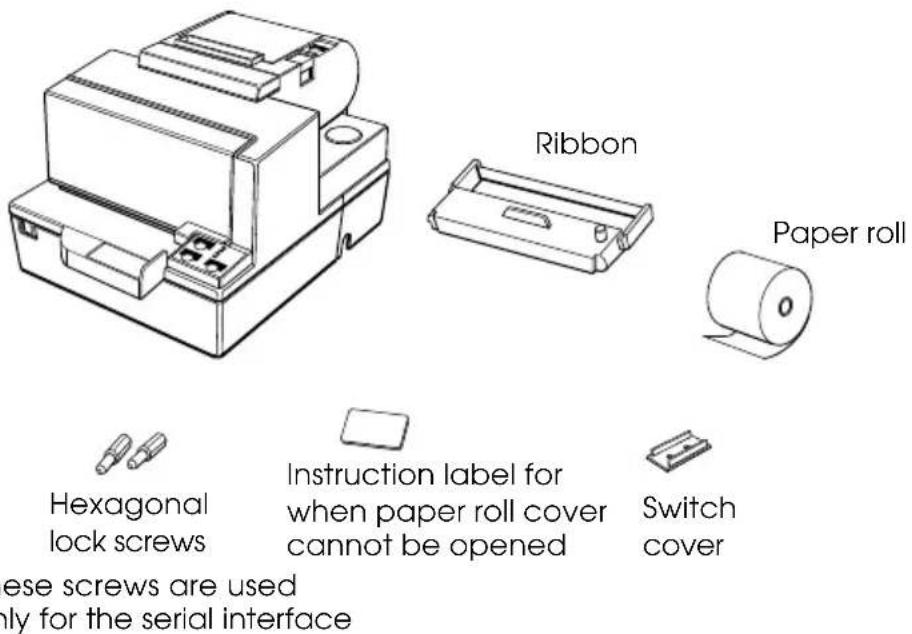
See the note on page 1-4 for information about the hexagonal lock screws.

Note:
When you lift the printer, be sure to hold the bottom of the printer to prevent damage.
Removing the protective material
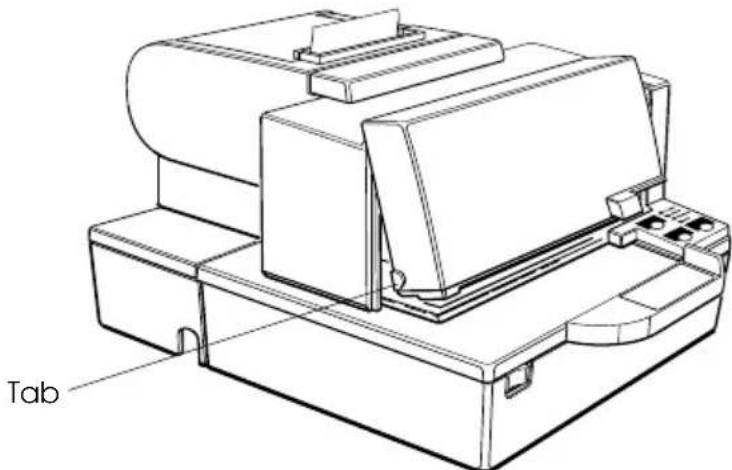
- Open the printer by pulling up on the tab on the front cover.
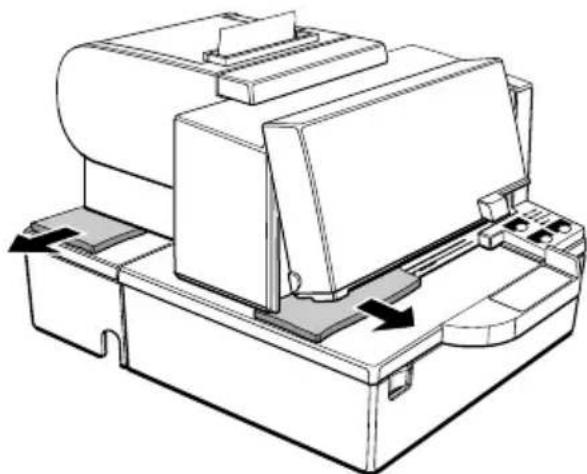
- Remove the two dampers from the printer as shown below.
natural_image
Technical line drawing of a mechanical device with no visible text or symbols- Store the dampers with the other packing materials and use them when transporting your printer.
Connecting the Cables and Grounding the Printer
You can connect up to five cables to the printer. They all connect to the connector panel on the bottom of the printer, which is shown below:
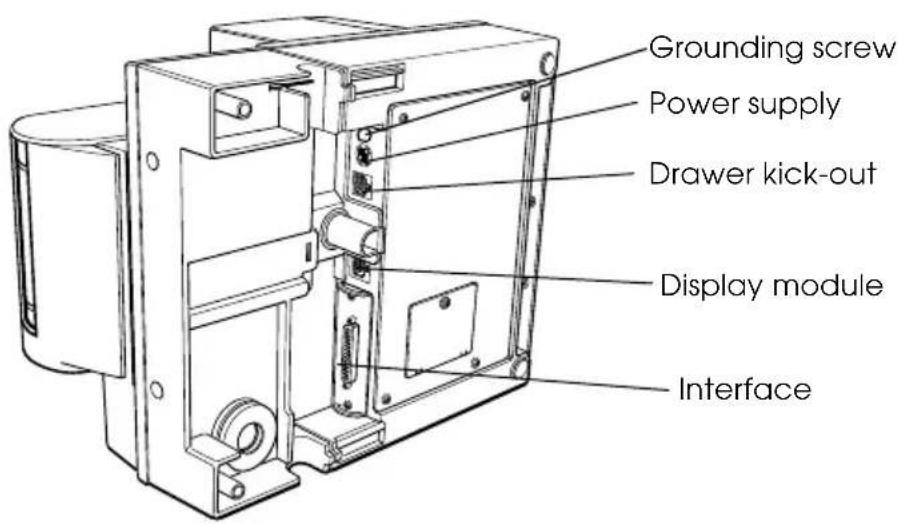

Note:
There are caution labels beside the drawer kick-out connector and the display module connector.
Depending on the interface installed, the interface connector on your printer may look different from the one illustrated.
Before connecting any of the cables, make sure that both the printer and the computer are turned off.
Connecting the computer
You need an appropriate interface cable.
-
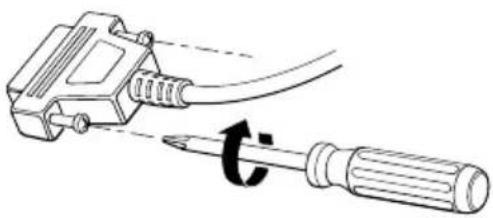
Plug the cable connector securely into the printer's interface connector.
-
Tighten the screws on both sides of the cable connector.
natural_image
Diagram showing a tool being inserted into a screwdriver with a curved arrow indicating rotation (no text or symbols present)
Note:
Your printer has inch-type hexagonal lock screws installed. If your interface cable requires millimeter-type screws, replace the inch-type screws with the enclosed millimeter-type screws using a hex screwdriver (5 mm).
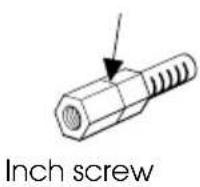
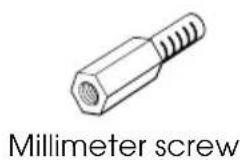
- Attach the other end of the cable to the computer.
Connecting the Drawer

WARNING:
Use a drawer that matches the printer specification. Using an improper drawer may damage the drawer as well as the printer.

CAUTION:
Do not connect a telephone line to the drawer kick-out connector; otherwise the printer and the telephone line may be damaged.
Plug the drawer cable into the drawer kick-out connector on the bottom of the printer next to the power supply connector.
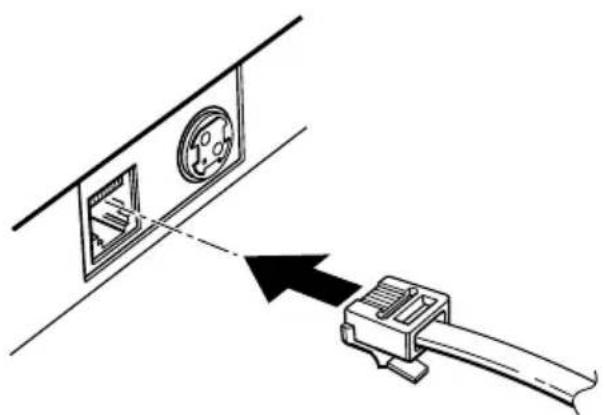
natural_image
Diagram showing a device connected to a wall-mounted panel with a circular component, no text or symbols presentnatural_image
Diagram showing a mechanical device interacting with a wall-mounted panel (no text or symbols present)Connecting the Display Module
Plug the cable connector (provided with the direct connection display module) securely into the printer's display module connector until it clicks.
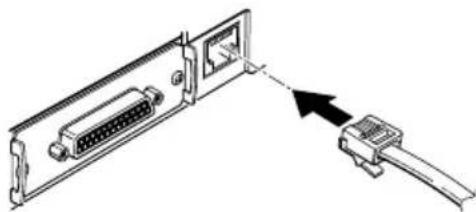
natural_image
Diagram showing connection between a computer port with an attached USB cable (no text or symbols present)CAUTION:
Be sure not to connect this cable to the drawer kick-out connector, which is to the left of the power supply connector. Do not connect a telephone line to the display connector. If you do, the printer and the telephone line may be damaged.

Notes:
The display module can be used only for the serial interface.
To remove the cable, squeeze the connector and pull it out.
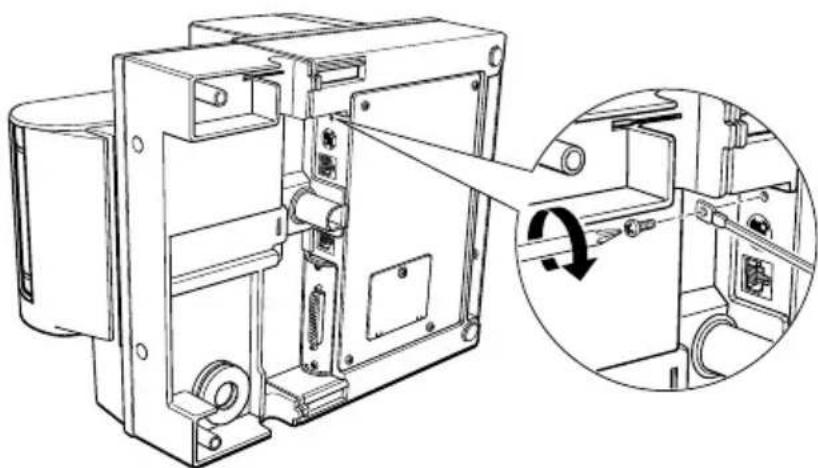
Grounding the Printer
You need a ground wire to ground your printer. Make sure that the wire is AWG 18 or equivalent.
-
Make sure that the printer is turned off.
-
Connect the ground wire to the printer using the FG screw on the bottom of the printer, as shown.
natural_image
Technical line drawing of a mechanical device with an inset showing a close-up of the internal components (no text or symbols)Connecting the Power Supply
Use the optional EPSON PS-170 or equivalent power supply for your printer.

WARNING:
Make sure that you use the EPSON PS-170 power supply or equivalent. Using an incorrect power supply may cause fire or electrical shock.

CAUTIONS:
When connecting or disconnecting the power supply from the printer, make sure that the power supply is not plugged into an electrical outlet. Otherwise you may damage the power supply or the printer.
If the power supply's rated voltage and your outlet's voltage do not match, contact your dealer for assistance. Do not plug in the power cord. Otherwise you may damage the power supply or the printer.
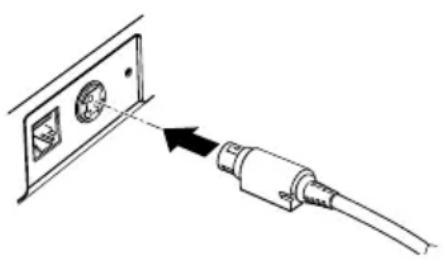
- Make sure that the printer's power switch is turned off, and the power supply's power cord is unplugged from the electrical outlet.
- Check the label on the power supply to make sure that the voltage required by the power supply matches that of your electrical outlet.
- Plug in the power supply's cable as shown below. Notice that the flat side of the plug faces down.
natural_image
Diagram showing a cable being inserted into a wall-mounted socket (no text or symbols present)
Note:
To remove the DC cable connector, make sure that the power supply's power cord is unplugged; then grasp the connector at the arrow and pull it straight out.
Installing or Replacing the Paper Roll

Note:
Be sure to use paper rolls that meet the specifications. Do not use paper rolls that have the paper glued to the core because the printer cannot detect the paper end correctly.
-
Make sure that the printer is not receiving data; otherwise, data may be lost.
-
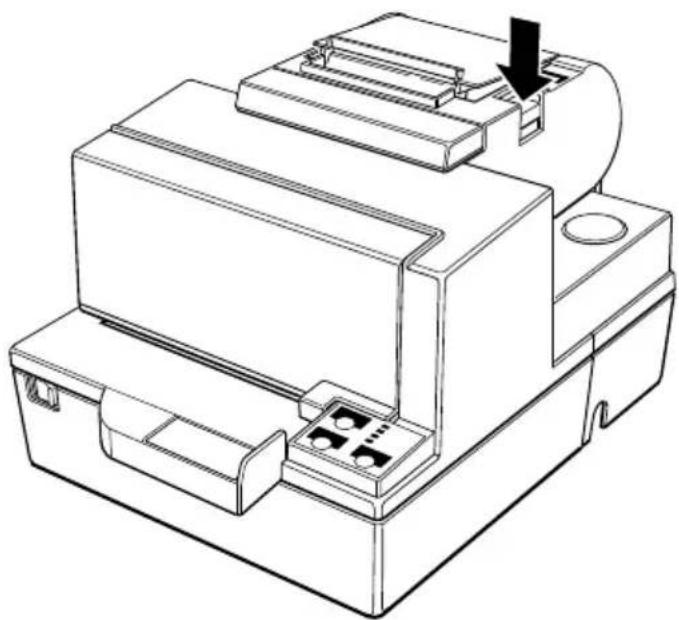
Open the paper roll cover by pressing the cover-open button. If the cover-open button will not open the cover, see page 3-4 in Troubleshooting.
natural_image
Technical line drawing of a mechanical device with a downward arrow indicating a component (no text or symbols present)-
Remove the used paper roll core if there is one.
-
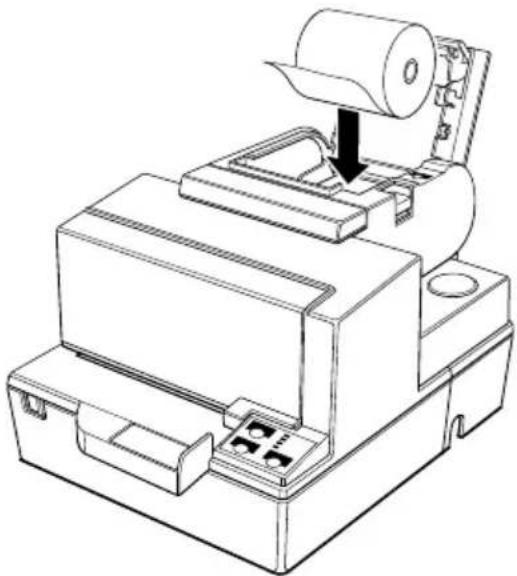
Insert the paper roll as shown.
natural_image
Technical line drawing of a mechanical device with a paper roll and mounting bracket (no text or symbols)- Be sure to note the correct direction that the paper comes off the roll.

natural_image
Two mechanical components with a diagonal line and an arrow indicating rotation (no text or symbols)- Pull out a small amount of paper, as shown. Then close the cover.
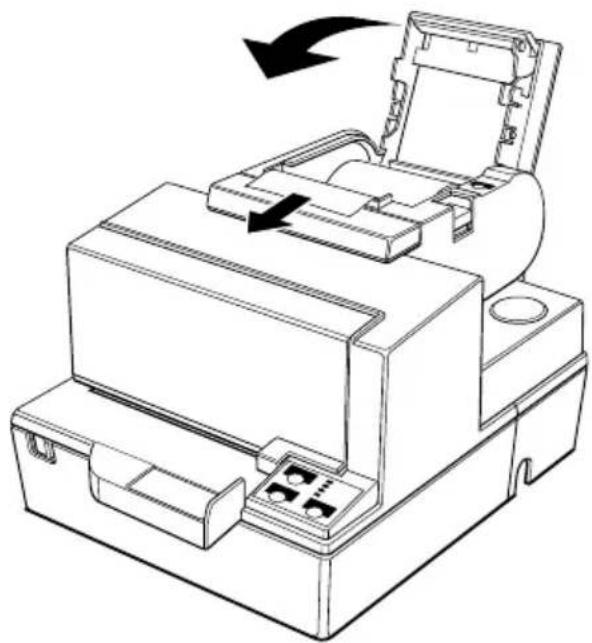
natural_image
Line drawing of a printer or scanner device with an open lid and internal components, showing no text or symbols.- Tear off the paper as shown.
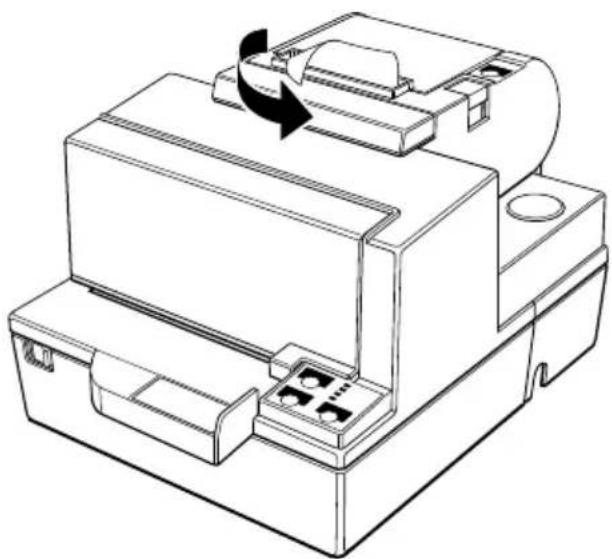
natural_image
Technical line drawing of a mechanical device with a rotating component (no text or symbols)Installing the Ribbon Cassette
Use the EPSON ERC-31(P) ribbon cassette for your printer.
Note the label inside this section that can assist you in replacing the ribbon.
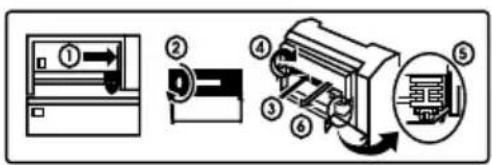
CAUTION:
Never turn the ribbon knob in the opposite direction of the arrow marked on the cassette; otherwise the ribbon cassette may be damaged.
-
Be sure the printer is not receiving data when you replace a ribbon cassette; otherwise data may be lost.
-
Turn on the printer and open the front cover by pulling up on the tab on the left side of the cover.
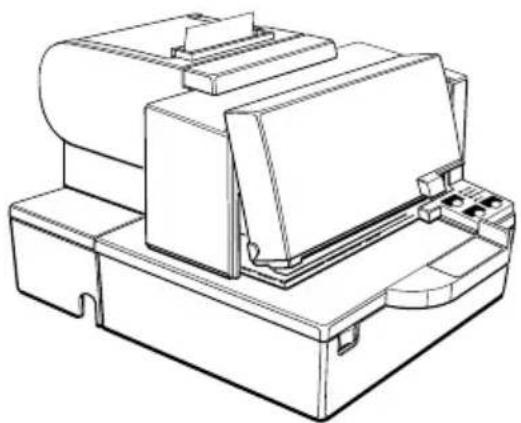
natural_image
Technical line drawing of a mechanical device with no visible text or symbols-
Make sure that the print head is on the right side.
-
If you are replacing a used ribbon, grasp the end of the tab and remove it from the printer. See the illustration in step 5 for the location of the tab.
-
Turn the ribbon knob two or three times in the direction of the arrow to take up any slack in the ribbon.
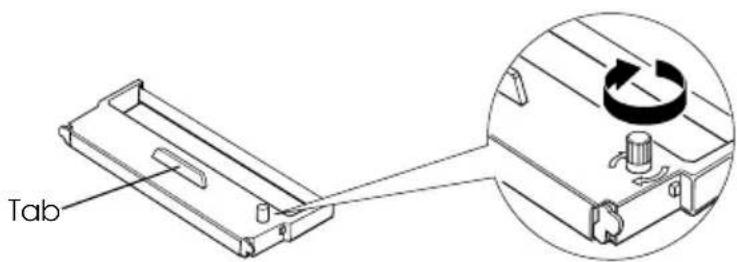
- Insert the ribbon cassette in the printer and rotate the cassette's knob two or three more times. This is necessary to place the ribbon in the correct position.
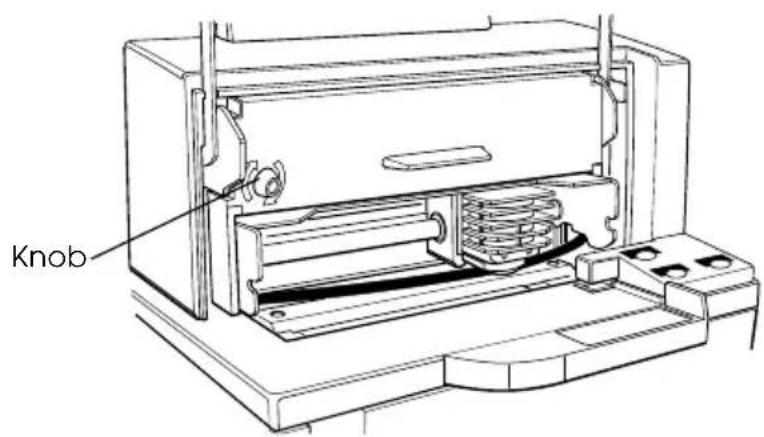
Make sure that the ribbon is installed below the print head without wrinkles or creases. (See ⑤ on the label for an illustration of where the ribbon should go.)
If the ribbon is not installed correctly, remove the cassette and repeat steps 5 and 6 above.
Using the Power Switch Cover

WARNING:
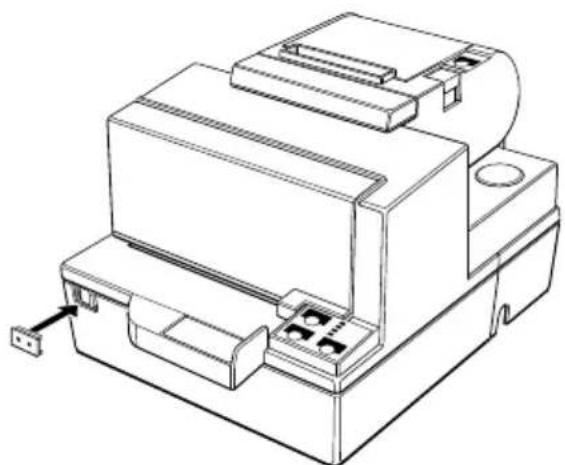
If an accident occurs when the power switch cover is attached, unplug the power supply cord from the outlet immediately. Continued usage may lead to fire or shock. You can use the enclosed power switch cover to make sure that the power switch is not accidentally pressed. If you want to use this cover, install it as shown in the illustration below.
natural_image
Technical line drawing of a mechanical assembly with no visible text or symbolsSelf Test
The self test lets you know if your printer is operating properly. It checks the control circuits, printer mechanisms, print quality, ROM version, and DIP switch settings. (It also checks the MICR reader circuits if the printer is equipped with the optional MICR reader.)
This test is independent of any other equipment or software.
You can run the self test with either paper roll or slip paper.
Running the self test with a paper roll
-
Make sure the printer is turned off and the printer covers are closed properly.
-
While holding down the FEED button, turn on the printer using the switch on the front of the printer to begin the self test. The self test prints the printer settings and then prints the following, cuts the paper, and pauses. (The PAPER OUT light blinks.)
Self test printing. Please press the PAPER FEED button.
-
Press the FEED button to continue printing. The printer prints a pattern using the built-in character set.
-
The self test automatically ends and cuts the paper after printing the following:
*** completed ***
The printer is ready to receive data as soon as it completes the self test.

Note:
If you want to pause the self test manually, press the FEED button. Press the FEED button again to continue the self test.
Running the self test with slip paper
-
Make sure the printer is turned off and the printer cover is closed properly.
-
While holding down the REVERSE button, turn on the printer to begin the self test. (The SLIP light blinks.)
-
Feed a sheet of slip paper into the printer. The printer loads the paper automatically, prints the printer settings, and then ejects the paper.
-
Remove the paper from the printer and feed another sheet of slip paper into the printer to print characters from the character table. Continue to feed slip paper into the printer until the self test prints the following:
***completed***
The printer is ready to receive data as soon as it completes the self test.

Note:
If you want to pause the self test manually, press the REVERSE button. Press the REVERSE button again to continue the self test.
Adjustments and Settings
The TM-H5000/H5000P is set up at the factory to be appropriate for almost all users. It does, however, offer some settings for users with special requirements.
It has DIP switches that allow you to change communication settings, such as handshaking and parity check, as well as print density and connection to a customer display.
The TM-H5000/H5000P also has a near-end sensor for the paper in the receipt section. This can give you a warning when the paper is almost out. If you find that there is not enough paper remaining on the roll when the near-end sensor is triggered, you can change the near-end sensor setting.
See Appendix A if you need to make any of these changes.
Using the Printer
Operating the Control Panels
You can control the basic paper feeding operations of the printer with the buttons on the control panels. The indicator lights help you monitor the printer's status.
Paper Roll Control Panel
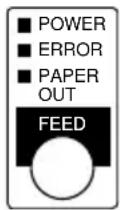
Button
The button can be disabled by the ESC c 5 command, but it works whenever the printer cover is open, even if it has been disabled by the ESC c 5 command.
Press the FEED button once to advance receipt paper one line. You can also hold down the FEED button to feed receipt paper continuously.
Slip Control Panel
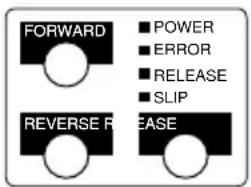
Buttons
The printer and these buttons will not operate when the cover is open. Also these buttons can be disabled with the ESC c 5 command.
FORWARD
When the printer is in the slip mode (the SLIP light is on or blinking), press the FORWARD button once to advance slip paper one line. You can also hold down this button to feed slip paper continuously.
REVERSE
When the printer is in the slip mode (the SLIP light is on or blinking), press the REVERSE button once to reverse slip paper one line. You can also hold down this button to reverse slip paper continuously.
RELEASE
When the printer is in the slip mode (the SLIP light is on or blinking), press this button to release slip paper.
Indicator lights
The control panel lights provide information on printer conditions.
Paper roll panel lights
POWER
The POWER light is on whenever the printer is on.
ERROR
This indicates an error in the paper roll section of the printer. See Chapter 3 for information on what to do when this light comes on.
PAPER OUT
This light indicates either the end or the near end of the paper roll. Install a new paper roll and the printer will continue printing.
Slip panel lights
POWER
The POWER light is on when the printer is on.
ERROR
This indicates an error in the slip section of the printer. See Chapter 3 for information on what to do when this light comes on.
RELEASE
This light indicates that platen and paper feed roller are released so that slip paper can be inserted.
SLIP
This light indicates that the printer is in the slip mode.
Slip Paper Handling

Notes:
Use only slip paper that matches the printer's specifications. See Paper Specifications in Chapter 4.
Be sure that the slip is flat, without curls, folds, and wrinkles.
-
Send appropriate control commands from the computer to print on slip paper.
-
When the SLIP light blinks, insert the slip paper into the slip paper inlet using the right edge of the slip paper inlet as a guide. (Follow steps ① and ② in the illustration.)
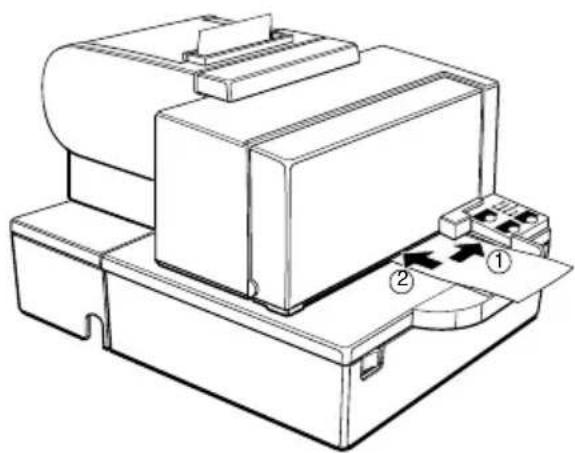
natural_image
Technical line drawing of a mechanical device with labeled components (no text or symbols present)
Note:
There is a label on the document table to assist you how to insert slip paper.
-
Make sure you insert the slip paper into the inlet as far as it will go.
-
When the slip sheet is detected by the sensor, the SLIP light is changed from blinking to on and the paper is automatically drawn into the printer and printing begins.

Note:
After the slip is detected, the printer moves the slip back and forth to detect the position of the top edge of the slip. If the setting position of the slip is not correct, the printer takes a few seconds to detect the position of the top edge of the slip.
- After printing when the SLIP light is off, remove the slip.

Note:
An optional front extension table (WT-5000) is available for users who need it to enable handwriting on paper or other uses.
Using the MICR Reader (Option)
If your printer has the factory installed optional Magnetic Ink Character Recognition (MICR) reader that enables the printer to read and process MICR characters on personal checks, read this section.
Reading MICR characters on personal checks
To use the MICR function with personal checks, follow the steps below:

CAUTION:
Do not insert checks with staples in them. This may cause paper jams, MICR reading errors, and damage to the MICR head.

Note:
Be sure that the checks are flat, without curls, folds, or wrinkles.
-
Wait until the computer sends the FS a 0 command to the printer, causing it to enter the MICR mode. The SLIP light blinks.
-
Turn the check over so that it is face down with the MICR characters on the right-hand side. The MICR characters must be next to the right edge of the paper inlet.
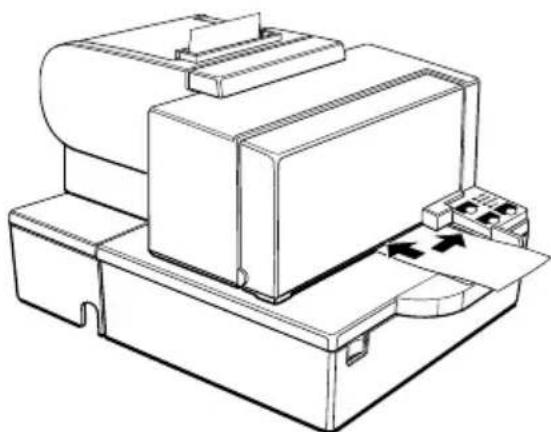
natural_image
Line drawing of a printer or printer with paper feeding into a base, showing internal components and directional arrows (no text or symbols)-
Insert the check straight into the paper inlet, using the right edge of the paper inlet as a guide.
-
Insert the check as far as it will go. The printer will detect the check and start drawing it in.
-
When the printer starts drawing it in, let go of the check immediately. The SLIP light quits blinking but stays on.
-
When printing and MICR reading are finished, the printer ejects the check and the SLIP light starts blinking again.
-
Remove the check by pulling it straight up; do not pull it at an angle. The SLIP light goes off.
See Chapter 3 to find out how to clean the MICR mechanism.
Chapter 3
Troubleshooting
Troubleshooting
This chapter gives solutions to some printer problems you may have.
General problems
The lights on the control panel do not come on.
Make sure that the power supply cables are correctly plugged into the printer, the power unit, and to the power outlet.
Make sure that power is supplied to the power outlet. If the outlet is controlled by a switch or timer, use another outlet.
Printing problems
The paper roll section ERROR light is on (not blinking) and nothing is printed.
If the PAPER OUT light is on, the paper roll is not installed or is at or near the end. Install a new paper roll. See Chapter 1 for instructions.
If the PAPER OUT light is off, make sure that the paper roll cover is properly closed. Press the printer cover until the cover audibly clicks into place.
An ERROR light is blinking and the printer does not print.
First, turn off the printer and check for a paper jam. (See the paper jam description on page 3-4.)
If there is no paper jam and the printer has been printing for quite a while, the print head may be overheated. If the print head is overheated, the printer will resume printing when the head has cooled (usually within two or three minutes).
If there is no paper jam and the print head is not overheated, turn off the printer and turn it back on after about 10 seconds. If the ERROR light is still flashing, contact a qualified service person.
The ERROR light is off, but nothing is printed.
Try to run the self test to check that the printer works properly. See the self test instructions in Chapter 1 to run the self test. If the self test does not work, contact your dealer or a qualified service person.
If the self test works properly, check the following:
- Check the connection at both ends of the interface cable between the printer and the computer. Also make sure that this cable meets the specifications for both the printer and the computer.
- The data transmission settings may be different between the printer and computer. Make sure that the printer's DIP switch settings for data transmission are the same as the computer's. You can print the printer's interface settings using the self test.
If the printer still does not print, contact your dealer or a qualified service person.
The slip section of the printer sounds like it is printing, but nothing is printed.
The ribbon cassette may not be installed properly. See the instructions in Chapter 1.
The ribbon may be worn out. Replace the ribbon cassette as described in Chapter 1.
Paper roll printing is poor.
Paper dust on the heating element of the thermal print head can lower the print quality. Try cleaning the print head as described below:
Cleaning the paper roll print head

CAUTIONS:
After printing, the print head can be very hot. Be careful not to touch it. Also let it cool before you clean it.
Do not damage the print head by touching it with your fingers or any hard object.
- Open the paper roll cover.
- Clean the thermal element of the print head with a cotton swab moistened with an alcohol solvent (ethanol, methanol, or IPA).
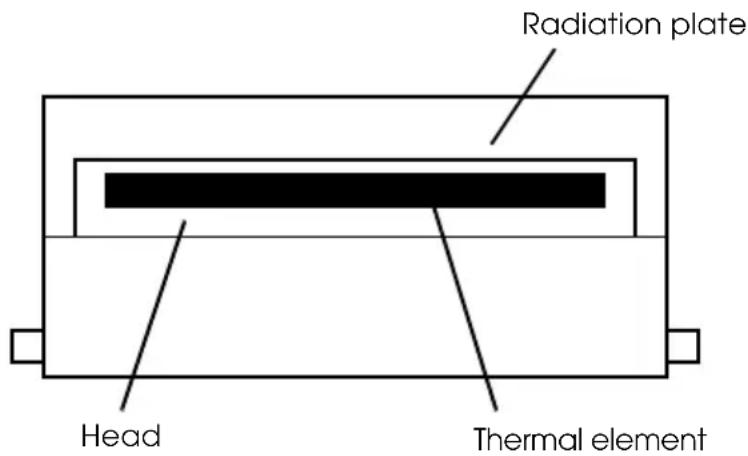
The slip section printout is faint.
The ribbon may be worn out. Replace the ribbon cassette as described in Chapter 1.
A line of dots is missing in the printout.
The print head may be damaged. Stop printing and contact your dealer or a qualified service person.
Paper handling problems
Paper is jammed inside the printer.

CAUTIONS:
Do not touch the print head because it can be very hot after printing continuously for a long time.
Do not move the print head carriage for the slip section.
To clear a paper jam, follow the steps below:
- Turn the printer off and open the appropriate printer cover (either front or paper roll).
- If the paper is jammed in the paper roll section, press the cover open button to open the cover. Then remove the jammed paper and put the roll back in the printer and close the cover.
If the paper is jammed in the slip section, open the front cover and remove the jammed paper.
- If paper is caught in the automatic cutter in the receipt section and the paper roll cover cannot be opened, open the cutter cover as shown below.
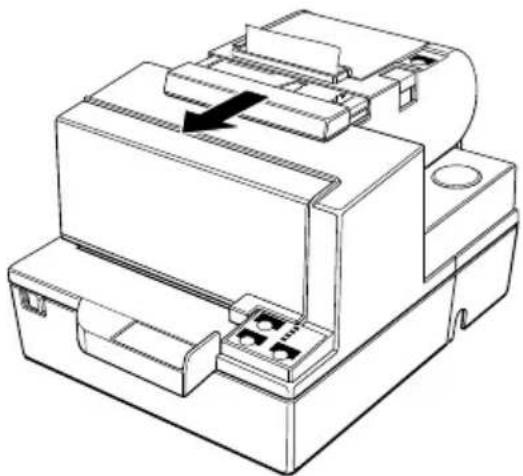
natural_image
Technical line drawing of a mechanical assembly with no visible text or symbols- Then turn the knob until you see ▽ in the opening, as shown in the illustration below. This returns the cutter blade to the normal position. Also notice that there is a label near the cutter to assist you.
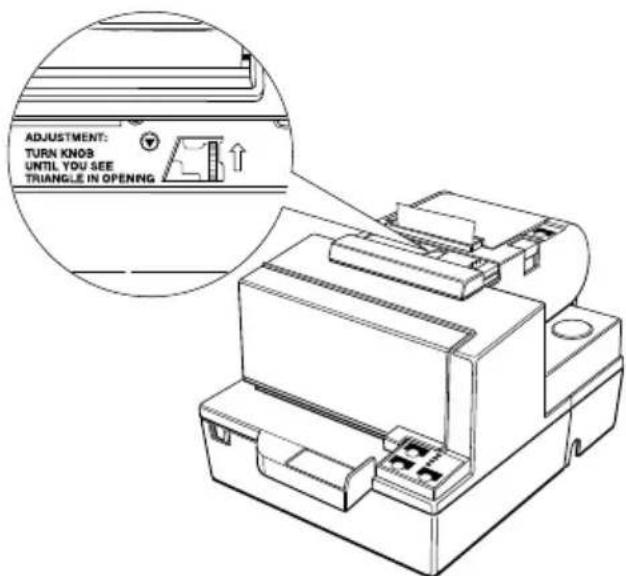
-
Close the cutter cover.
-
Open the paper roll cover.
-
Remove the jammed paper.
The auto cutter is jammed.
If a foreign object such as a push pin or paper clip drops in the auto cutter and causes the auto cutter to lock up, the printer enters an error state and begins the recovery operation automatically.
If the problem is not serious, the auto cutter returns to its normal position without any intervention by the user.
If the auto cutter does not return to its normal position by itself, follow the steps below to correct the problem:
- Pull the cutter cover toward you so that you can rotate the cutter motor knob.
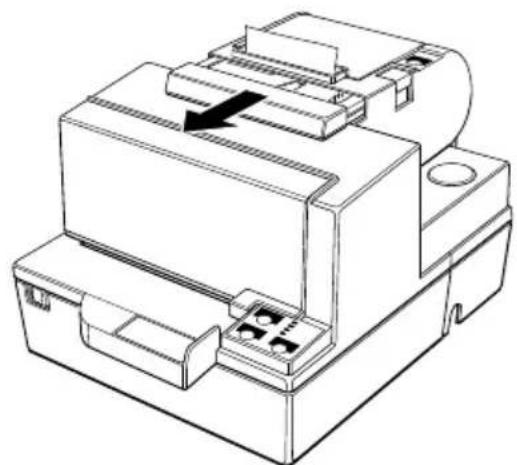
natural_image
Technical line drawing of a mechanical component with no visible text or symbols- Following the instructions on the label, rotate the knob until the ▽ appears in the hole.
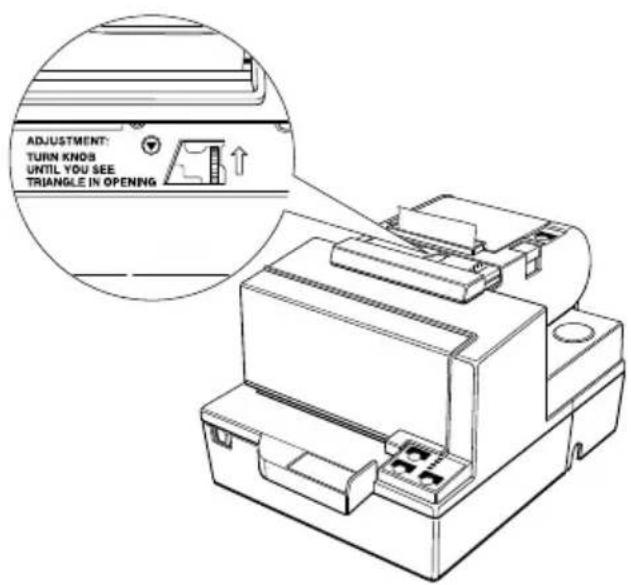
- Close the cutter cover.
Cleaning the Optional MICR Mechanism MICA cleaning method (Recommended)
| Cleaningpoint Use c | cleaning sheet Frequency | |
| MICR head department | Moistened Cleaning sheet | 6000 times or for one month |
| MICA system department A | Adhesive cleaning sheet | 6000 times or for one month |
* Combine these 2 procedures, if you encounter frequent MICR reading errors.
The cleaning procedure
During in the self test mode
1) Confirm to set a roll paper and a ribbon cassette to make use a printer mechanism properly.
2) Turn off the power switch.
3) Open a front cover(rid).
4) Turn on the power switch while turning on "JOURNAL/ SLIP FEED button.
5) Push "JOURNAL/SLIP FEED" button 3 times.
6) Close a SLIP front cover (rid).
7) Following message will be printed on receipt paper and "SLIP" LED flushes.

8) Peel off the pasteboard portion of a designated point of a cleaning sheet.
* This procedure, 8), is required only for an adhesive cleaning sheet.
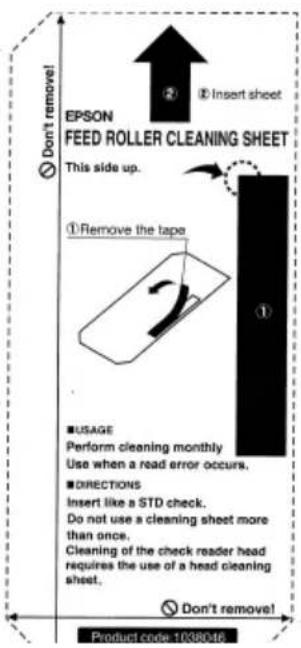
9) As a check paper, insert a cleaning sheet into a printer,
* Set yellow non-stick side to be upside when cleaning using adhesive sheet.
10) Remove and do a sheet after cleaning sheet discharge.
11) Turn off the power switch.
Command code sequence
1) MICA cleaning command
2) Carry out from 8) to 10) described above in the self test mode.
NOTES
In case of using an adhesive cleaning sheet,
1) peel off only desinated pasteboard.
2) insert from correct derection, and
3) insert as peeled portion to be upside.
Explanatin of a cleaning sheet
Moistened Cleaning sheet
PRESAT brand (KIC) “CHECK READER CLEANING CARD” or equivalent cleaning sheet is required.
Adhesice cleaning sheet (Refer to Figure 2)
Part Name : Sheet roller cleaning, A
Part Number : 1038046
Hexadecimal Dump
This feature allows experienced users to see exactly what data is coming to the printer. This can be useful in finding software problems. When you turn on the hex dump function, the printer prints all commands and other data in hexadecimal format along with a guide section to help you find specific commands.
To use the hex dump feature, follow these steps:
- After you make sure that the printer is off, open the cover.
-
Hold down the FEED button while you turn on the printer.
-
Close the cover.
-
Run any software program that sends data to the printer. The printer prints "Hexadecimal Dump" and then all the codes it receives in a two-column format. The first column contains the hexadecimal codes and the second column gives the ASCII characters that correspond to the codes.
| Hexadecimal Dump | ||||||||
| 1B | 21 | 00 | 1B | 26 | 02 | 40 | 40 | . ! . & . @ @ |
| 1B | 25 | 01 | 1B | 63 | 34 | 00 | 1B | . % .. c4 .. |
| 41 | 42 | 43 | 44 | 45 | 46 | 47 | 48 | ABCDEFGHIJKLMNOPQRSTUVWXYZ |
☐ A period (.) is printed for each code that has no ASCII equivalent.
☐ During the hex dump all commands except DLE EOT and DLE ENQ are disabled.
-
Open the cover to set the printer off line so that it will print the last line.
-
Close the cover and turn off the printer or reset it to turn off the hex dump mode.
Reference Information
Printing Specifications
Slip Paper
Printing method: Serial impact dot matrix
Head wire 9-pin vertical line, 0.353 mm (1/72-inch) configuration: wire pitch
Head wire diameter: 0.29 mm (.01")
Printing direction: Bidirectional, minimum distance printing
Number of characters: Alphanumeric characters: 95
International characters: 32
Extended graphics: 128.7 pages (including space page)
Character structure: Font A: 9.9, 3-dot spacing (in half-dot units)
Font B: 7.9, 2-dot spacing (in half-dot units)
Larger spacing can be set by using ESC SP.
Character size and printing speed
| Character structure (Horizontal dots · vertical dots) | Character spacing (half dots) | Characters per inch | Characters per second (carriage moving speed) | Characters per line | Character size (width· height) |
| 9 · 9 3 dots | 12.5 233 66 | 1.6 · 3.1 mm (.06" · .12") | |||
| 7 · 9 2 dots | 16.7 311 88 | 1.3 · 3.1 mm (.05" · .12") |
Receipt Paper
Printing method: Thermal line printing
Dot density: 180 dpi · 180 dpi [the number of dots per 25.4 mm (1")]
Printing direction: Unidirectional with friction feed
Printing width: 72 mm (2.83"), 512 dot positions
Characters per line: 42 (Font A) (default) 56 (Font B)
Character spacing: 0.28 mm (.01") (2 dots) (Font A)(default) 0.28 mm (.01") (2 dots) (Font B) Programmable by control command.
Printing speed - High: Approximately 16.5 lines/second (4.23 mm (1/6") feed, at 24V, 20°C, density level 2) Approximately 70 mm/second (approximately 2.76"/second)
Printing speed - Low: Approximately 11.8 lines/second (4.23 mm (1/6") feed) Approximately 50 mm/second (approximately 2.0"/second) High and low speeds are switched automatically depending on the voltage applied to the printer and the temperature of the environment. Approximately 35 mm/second (approximately 1.4"/second) when a ladder bar code is printed.

Note:
Printing speed may be slower, depending on the data transmission speed and the combination of control commands.
Paper feeding speed: Approximately 70 mm/second (approximately 2.76"/second) continuous printing
Line spacing (default): 4.23 mm (1/6") Programmable by control command.
Number of characters: Alphanumeric characters: 95 International characters: 32
Extended graphics: 128 · 10 pages (including one space page)
Character structure: Font A: 12 · 24 (including 2-dot spacing in horizontal)
Font B: 9 · 24 (including 2-dot spacing in horizontal)
Font A is the default
Character size, characters per line
| Standard Double | le-height Double-width | th | Double-width/Double-height | |||||
| W x H(mm) | CPL | W x H(mm) | CPL | W x H(mm) | CPL | W x H(mm) | CPL | |
| Font A12 x 24 | 1.41 x 3.39(.06" x .13") | 42 | 1.41 x 6.77(.06" x .27") | 42 | 2.82 x 3.39(.11" x .13") | 21 | 2.82 x 6.77(.11" x .27") | 21 |
| Font B9 x 24 | 0.99 x 3.39(.04" x .13") | 56 | 0.99 x 6.77(.04" x .27") | 56 | 1.98 x 3.39(.08" x .13") | 28 | 1.98 x 6.77(.08" x .27") | 28 |
* CPL = Characters Per Line
* Space between characters is not included
* Characters can be scaled up to 64 times as large as the standard sizes.
Ribbon Specifications
Type: Exclusive cassette ribbon
Ribbon cassette specifications:
Part number: ERC-31 (P), ERC-31(B)
Color: (P) Purple, (B) Black
Ribbon life: (P) 7,000,000 characters
(B) 4,500,000 characters (when 1 character=18 dots)
MICR Reader (Option)
The MICR reader is a factory-installed option.
Available fonts: E-13B, CMC7
Reading method: Magnetic bias
Recognition rating: 98% or more at 25°C (75°F)
Rating = ([total checks – number misread or not identified]/total checks) · 100 Check paper tested is EPSON standard check paper. Checks must be flat, without curls, folds, or wrinkles. The magnetic bias method is used for reading.
Paper type: Normal check paper with thickness of 0.09
to 0.36 mm (0.0035 to 0.141") Size: 70 mm · 70 mm to 210 mm · 297 mm (A4) (2.76" · 2.76" to 8.27" · 11.69")
Paper Specifications
Paper feed method: Friction feed
Paper feed pitch: Default 4.23 mm (1/6")
Paper feed speed:
Slip:
Approximately 60.3 msec/line (4.23 mm (1/6") feeding)
Approximately 86.4 mm/second (3.4 inches/second) (continuous feeding)
Paper roll: Approximately 70 mm/second (2.76 inches/second) (continuous feeding)
Paper roll (single-ply): Size: Width: 79.5 mm ± 0.5 mm
$$ (3. 1 3 ^ {\prime \prime} \pm 0. 0 2 ^ {\prime \prime}) $$
Maximum 83 mm (3.27") outside diameter:
Paper roll Inside: 12 mm (0.47") spool Outside: 18 mm (0.71") diameter: Paper must not be pasted to the paper roll spool.
Take up paper roll width: 80 ± 0.51.0 mm 3.15 ± 0.020.04
Slip paper
Paper type: Normal paper
Carbon copy paper
Pressure sensitive paper
Total 0.09 to 0.36 mm (.0035 to
thickness: .0141")
See "Copy capability and paper thickness" on the next page for more information.
Size 70 mm · 70 mm to 210 mm
(W · L): · 297 mm (A4)
(2.76" · 2.76" to 8.27" ·
11.69")
Ambient temperature and copy capability
Copy capability is greatly influenced by the ambient temperature, so printing must be performed under the conditions described in the table below.
Relationship between ambient temperature and number of copies
| Number of copies Ambient temperature (print mode) |
| Original + 4 copies Approx. 20° to 45°C (68° to 113°F) |
| Original + 1 to 3 copies 5° to 45°C (41° to 113°F) |
Copy capability and paper thickness:
Normal paper (single-ply): 0.09 to 0.2 mm (.0035 to .0079")
Carbon copy paper combination: 5 sheets maximum (original + 4 copies) at 20° to 45°C (68° to 113°F)
Backing paper: 0.06 to 0.15 mm (.0023 to .0059")
Copy and original: 0.04 to 0.07 mm (.0015 to .0028")
Carbon paper: Approximately 0.035 mm (.0014")
Total thickness: 0.30 mm (.0118") or less (for any combination, from a single original to an original + 3 copies)
0.36 mm (.0141") or less (for any combination, from a single original to an original + 4 copies)
Pressure sensitive paper: 5 sheets maximum (original + 4 copies) at 20° to 45°C (68° to 113°F)
Backing paper: 0.06 to 0.15 mm (.0023 to .0059")
Copy and original: 0.06 to 0.075 mm (.0023 to .003")
Total thickness: 0.24 mm (.0094") or less (original to original + 3 copies)
0.30 mm (.0118") or less (original + 4 copies)

Note:
When using multi-ply paper that consists of an original and three or four copies, be sure to print with a 9 · 9 font. If a 7 · 9 font is used, some characters on some of the copies may not be readable.
Notes on slip paper
☐ The slip paper must be flat, without curls or wrinkles, especially at the top edges. Otherwise, the paper may rub against the ribbon and become dirty.
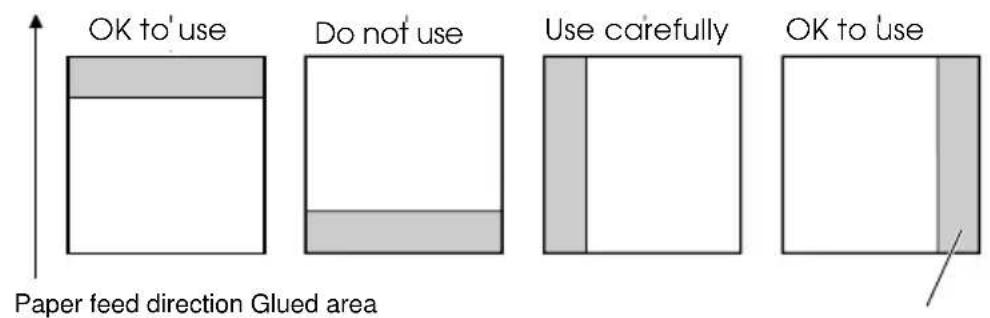
☐ There must be no glue on the bottom edge. Choose slip paper carefully since paper feeding and insertion are affected by gluing conditions (such as glue quality, method, and length) and glue location (see the illustration below). Be especially careful when slip paper is wide and has glue on the left edge, since it may not feed in a straight line.
☐ Since the BOF sensor uses a photo detector, do not use paper that has holes at the detector position, or is translucent.
☐ Since the TOF sensor uses a reflective photo sensor and it detects from the back of slip paper, do not use paper that has holes or dark portions with low reflection (less than 40% reflection) at the sensor position.
![Form stopper position 31 8 MICR head 1.8 1.3 TOF sensor position 39 37.2 38.5 18 Center of the print head Slip feeding roller position 21.9 Paper feed direction Slip side guide BOF sensor 3.6 [ All the numeric values are typical. ] Area where paper holes are prohibited and reflection rate for the back of paper should be 40% or more. Paper feed direction 15 24 10 Paper holes and translucence prohibited area. [Units: mm (All the numeric values are typical.)]](/content/2026/05/1026948/images/6f428de6ce6caf4542f64568c00e734d475b607a17d84995a3075268e30c1a4a.jpg)
☐ Use thinner paper (N30 or equivalent) between the top and bottom sheets of multi-ply paper. If thick paper is used, the copy capability is lowered.
Electrical Characteristics
Supply voltage: +24 VDC ± 10% (optional power supply: EPSON PS-170)
Ripple voltage: 300mVpp or less (only when the printer is used with the MICR reader).
Current consumption: (at 24V, except for drawer kick-out driving)
Operating: Mean: approximately 1.9A Slip (character font A α-N all columns printing) Peak: approximately 8.0A (20 msec) When the print platen is released: 2.0A (200 msec)
Operating: Mean: approximately 1.5A Receipt (character font A α-N all columns printing) Peak: Approximately 5.0A (20 msec)
Standby: Mean: approximately 0.3A
Reliability
Slip: Life (when printing alphanumeric characters):
Mechanism: 12,000,000 lines
Print head: 150 million characters (when in the average of 2 dots/wire per character)
MICR reader mechanism (only when the printer is used with the MICR reader):
240,000 passes The MICR reader is defined to have reached the end of its life when it reaches the beginning of the Wearout Period.
MTBF: 180,000 hours Failure is defined as Random Failure occurring at the time of the Random Failure Period.
MCBF: 29,000,000 lines This is an average failure interval based on failures relating to wearout and random failures up to the life of 12 million lines.
Receipt: Life: Mechanism: 15,000,000 lines
Thermal head: 100 million pulses, 100 km
Auto cutter: 1,500,000 cuts
MTBF: 180,000 hours
MCBF: 37,000,000 lines
Environmental Conditions
Temperature: Operating: 5^ to 45^ C ( 41^ to 113^ F)
Storage: -10^ to 50^ ( 14^ to 122^ ) (except for paper)
Humidity: Operating: 10 to 90% RH
Storage: 10 to 90% RH (except for paper)
Commands
Command Notation
[Name] The name of the command.
[Format] The code sequence.
ASCII indicates the ASCII equivalents.
Hex indicates the hexadecimal equivalents.
Decimal indicates the decimal equivalents.
[ ]k indicates the contents of the [ ] should be repeated k times.
[Range] Gives the allowable ranges for the arguments.
[Description] Describes the function of the command.
Explanation of Terms
LSB Least Significant Bit
Control Commands
HT
[Name] Horizontal tab
[Format] ASCII HT
Hex 09
Decimal 9
[Description] Moves the print position to the next horizontal tab position.
LF
[Name] Print and line feed
[Format] ASCII LF
Hex 0A
Decimal 10
[Description] Prints the data in the print buffer and feeds one line based on the current line spacing.
FF
[Name] ① Print and eject cut sheet (in standard mode)
② Print and return to standard mode (in page mode)
[Format] ASCII FF
Hex 0C
Decimal 12
[Description]
① Prints the data in the print buffer and ejects the slip paper (when the slip paper is selected as the print sheet).
② In page mode, prints the data in the print buffer collectively and returns to standard mode.
CR
[Name] Print and carriage return
[Format] ASCII CR
Hex 0D
Decimal 13
[Description]
| Paper Automatic line feed enabled | Automatic line feed disabled |
| Paper roll Functions as same as LF | Ignored |
| Slip paper | Functions as same as LF |
- This command is ignored with a serial interface.
- This command is set according to the DIP switch 1-1 setting at power-on or resetting the printer with a parallel interface.
CAN
[Name] Cancel print data in page mode
[Format] ASCII CAN
Hex 18
Decimal 24
[Description] In page mode, deletes all the print data in the current printable area.
DLE EOT n
[Name] Real-time status transmission
[Format] ASCII DLE EOT n
Hex 10 04 n
Decimal 16 4 n
[Range] 1≤ n≤ 5
| [Description] Transmits the selected printer status specified by to the following parameters: | n in real time, according |
| n = 1: Transmit printer status | |
| n = 2: Transmit off-line status | |
| n = 3: Transmit error status | |
| n = 4: Transmit paper roll sensor status | |
| n = 5: Transmit slip paper status |
DLE ENQ n
| [Name] Real-time request to printer | |
| [Format] ASCII DLE ENQ | n |
| Hex 10 05 | n |
| Decimal 16 5 | n |
[Range] 1 ≤ n ≤ 3
[Description] Responds to a request from the host computer. n specifies the request as follows:
| n | Request |
| 1 | Recover from an error and restart printing from the line where the error occurred |
| 2 | Recover from an error after clearing the receive and print buffers |
| 3 | Cancel the slip waiting status |
ESC FF
| [Name] Print data in page mode | |
| [Format] ASCII ESC | FF |
| Hex 1B | 0C |
| Decimal 27 12 | |
[Description] In page mode, prints all buffered data in the printing area collectively.
ESC SP n
| [Name] Set right-side character spacing | ||
| [Format] ASCII ESC | SP | n |
| Hex 1B | 20 | n |
| Decimal 27 32 | n | |
| [Range] 0 ≤ n ≤ 255 | ||
[Description] Sets the character spacing for the right side of the character to [n horizontal or vertical motion units].
ESC!n
| [Name] Select print mode(s) | |
| [Format] ASCII ESC ! | n |
| Hex 1B 21 | n |
| Decimal 27 33 | n |
[Range] 0 ≤ n ≤ 255
[Description] Selects print mode(s) using n as follows:
| Bit | Off/On | Hex | Decimal | Function |
| 0 | Off | 00 | 0 | Character font A (12 x 24 for the paper roll and 9 x 9 for the slip paper) selected. |
| On | 01 | 1 | Character font B (9 x 24 for the paper roll and 7 x 9 for the slip paper) selected. | |
| 1 | - | - | - | Undefined. |
| 2 | - | - | - | Undefined. |
| 3 | Off | 00 | 0 | Emphasized mode not selected. |
| On | 08 | 8 | Emphasized mode selected. | |
| 4 | Off | 00 | 0 | Double-height mode not selected. |
| On | 10 | 16 | Double-height mode selected. | |
| 5 | Off | 00 | 0 | Double-width mode not selected. |
| On | 20 | 32 | Double-width mode selected. | |
| 6 | - | - | - | Undefined. |
| 7 | Off | 00 | 0 | Underline mode not selected. |
| On | 80 | 128 | Underline mode selected. |
- Determine the values of n by adding the values of all the characteristics you want to select.
ESC \$ nL nH
| [Name] Set absolute print position | ||
| [Format] ASCII ESC | $ | nLnH |
| Hex 1B | 24 | nLnH |
| Decimal 27 | 36 | nLnH |
[Range] 0 ≤ nL ≤ 255
$$ 0 \leq n H \leq 2 5 5 $$
[Description] Sets the print starting position from the beginning of the line.
- The distance from the beginning of the line to the print position is [(nL + nH · 256) · (vertical or horizontal motion unit)] inches.
ESC % n
[Name] Select/cancel user-defined character set
[Format] ASCII ESC % n
Hex 1B 25 n
Decimal 27 37 n
[Range] 0 ≤ n ≤ 255
[Description] Selects or cancels the user-defined character set.
- When the LSB is 0, the user-defined character set is canceled and the internal character set is selected.
- When the LSB is 1, the user-defined character set is selected.
ESC & y c1 c2 [x1 d1...d(y· x1)]...[xk d1...d(y· xk)]
[Name] Define user-defined characters
| [Format] ASCII ESC | & | y c1 c2 [x1 d1...d(y · x1)]... [xk d1...d(y · xk)] | |
| Hex | 1B | 26 | y c1 c2 [x1 d1...d(y · x1)]... [xk d1...d(y · xk)] |
| Decimal | 27 | 38 | y c1 c2 [x1 d1...d(y · x1)]... [xk d1...d(y · xk)] |
[Range]
(For the paper roll)
$$ y = 3 $$
$$ 3 2 \leq c 1 \leq c 2 \leq 1 2 6 $$
$$ 0 \leq x \leq 1 2 \text { Font A (12· 24) } $$
$$ 0 \leq x \leq 9 \text { Font B } (9 \cdot 2 4) $$
$$ 0 \leq d 1 \dots d (y \cdot x k) \leq 2 5 5 $$
(For slip paper)
$$ y = 2 $$
$$ 3 2 \leq c 1 \leq c 2 \leq 1 2 6 $$
$$ 0 \leq x \leq 1 2 \text { Font A (9. 9) } $$
$$ 0 \leq x \leq 9 \text { Font B } (7 \cdot 9) $$
$$ 0 \leq d 1 \dots d (y \cdot x k) \leq 2 5 5 $$
[Description] Defines user-defined characters.
- y specifies the number of bytes in the vertical direction.
- c1 specifies the beginning character code for the definition, and c2 specifies the final code.
- x specifies the number of dots in the horizontal direction.
- d is the dot data for the characters. The dot pattern is in the horizontal direction from the left side. Any remaining dots on the right side are blank.
- The allowable character code range is from ASCII code 20H(32) to 7EH(126).
- The data to define a user-defined character is (y · x) bytes.
- Set a corresponding bit to 1 to print a dot or 0 to not print a dot.
ESC \* m nL nH d1 ... dk
[Name] Select bit-image mode
| [Format] ASCII ESC | * | m nL nH d1 ... k |
| Hex 1B 2A | m nL nH d1 ... k | |
| Decimal 27 42 | m nL nH d1 ... k |
[Range] m = 0,1,32,33 (for the paper roll)
m = 0,1 (for the slip paper)
$$ 0 \leq n L \leq 2 5 5 $$
$$ 0 \leq n H \leq 3 $$
$$ 0 \leq d \leq 2 5 5 $$
[Description] Selects a bit-image mode using m for the number of dots specified by nL and nH , as follows:
(For the paper roll)
| m | M o d e | Vertical Direction | Horizontal direction | Number of Data (K) | |
| Number of Bits | Dot Density | Dot Density | |||
| 0 | 8-dot single-density | 8 | 60 DPI | 90 DPI | n_L + n_H · 256 |
| 1 | 8-dot double-density | 8 | 60 DPI | 180 DPI | n_L + n_H · 256 |
| 32 | 24-dot single-density | 24 | 180 DPI | 90 DPI | (n_L + n_H · 256) · 3 |
| 33 | 24-dot double-density | 24 | 180 DPI | 180 DPI | (n_L + n_H · 256) · 3 |
(For slip paper)
| m | Mode | Number of Bits for Vertical Data | Horizontal Direction | Number of Data (K) | |
| Dot Adjacency | Number of Dots | ||||
| 0 | 8-dot single-density | 8 | Available | 400 | n_L + n_H · 256 |
| 1 | 8-dot double-density | 8 | Not available | 800 | n_L + n_H · 256 |
- T lnL and nH indicate the number of dots of the bit image in the horizontal direction. The number of dots is calculated by nL + nH · 256 .
- If the bit-image data input exceeds the number of dots to be printed on a line, the excess data is ignored.
- d indicates the bit-image data. Set a corresponding bit to 1 to print a dot or to 0 to not print a dot.
ESC - n
[Name] Turn underline mode on/off
| [Format] ASCII ESC - | n |
| Hex 1B 2D | n |
| Decimal 27 45 | n |
[Range] 0 ≤ n ≤ 2, 48 ≤ n ≤ 50
[Description] Turns underline mode on or off, based on the following values of n:
| n | Function |
| 0, 48 | Turns off underline mode |
| 1, 49 | Turns on underline mode (1-dot thick) |
| 2, 50 | Turns on underline mode (2-dots thick) |
- If slip paper is selected, the underline is printed with 1-dot thickness even if n is specified as 2 or 50.
ESC 2
[Name] Select default line spacing
[Format] ASCII ESC 2
Hex 1B 32
Decimal 27 50
[Description] Sets the line spacing to 1/6 inch.
ESC 3 n
[Name] Set line spacing
| [Format] ASCII ESC 3 | n |
| Hex 1B 33 | n |
| Decimal 27 51 | n |
[Range] 0 ≤ n ≤ 255
[Description] Sets the line spacing to [n · vertical or horizontal motion unit] inches.
ESC <
[Name] Return home
[Format] ASCII ESC <
Hex 1B 3C
Decimal 27 60
[Description] Moves the print head to the standby position.
ESC = n
[Name] Set peripheral device
| [Format] ASCII ESC = | n |
| Hex 1B 3D | n |
| Decimal 27 61 | n |
[Range] 1≤ n≤ 3
[Description] Selects device to which host computer sends data, using n as follows:
| Bit | Off/On | Hex | Decimal | Function |
| 0 | Off | 00 | 0 | Printer disabled. |
| On | 01 | 1 | Printer enabled | |
| 1 | Off | 00 | 0 | Customer display disabled. |
| On | 02 | 2 | Customer display enabled. | |
| 2-7 | - | - | - | Undefined. |
ESC?n
[Name] Cancel user-defined characters
| [Format] ASCII ESC ? | n |
| Hex 1B 3F | n |
| Decimal 27 63 | n |
[Range] 32≤ n≤ 126
[Description] Cancels user-defined characters.
ESC @
[Name] Initialize printer
[Format] ASCII ESC @
Hex 1B 40
Decimal 27 64
[Description] Clears the data in the print buffer and resets the printer mode to the mode that was in effect when the power was turned on.
ESC C n
[Name] Set cut sheet eject length
| [Format] ASCII ESC C | n |
| Hex 1B 43 | n |
| Decimal 27 67 | n |
[Range] 0 ≤ n ≤ 255
[Description] Sets the eject length setting for slip paper to n lines.
ESC D n1 ... nkNUL
[Name] Set horizontal tab positions
| [Format] ASCII ESC D | n1 ... nk | NUL |
| Hex 1B 44 | n1 ... nk | 00 |
| Decimal 27 68 | n1 ... nk | 0 |
[Range] 1≤ n≤ 255 0≤ k≤ 32
[Description] Sets horizontal tab positions.
- n specifies the column number for setting a horizontal tab position from the beginning of the line.
- k indicates the total number of horizontal tab positions to be set.
ESC E n
[Name] Turn emphasized mode on/off
| [Format] ASCII ESC E | n |
| Hex 1B 45 | n |
| Decimal 27 69 | n |
[Range] 0 ≤ n ≤ 255
[Description] Turns emphasized mode on or off
- When the LSB is 0, emphasized mode is turned off.
- When the LSB is 1, emphasized mode is turned on.
ESC F
[Name] Set/cancel cut sheet reverse eject
| [Format] ASCII ESC F | n |
| Hex 1B 46 | n |
Decimal 27 70 n
[Range] 0 ≤ n ≤ 255
[Description] Sets or cancels the slip paper reverse eject
- When the LSB is 0, cancels the slip paper reverse eject and sets the slip paper forward eject.
- When the LSB is 1, sets the slip paper reverse eject.
ESC G n
[Name] Turn double-strike mode on/off
| [Format] ASCII ESC G | n |
| Hex 1B 47 | n |
| Decimal 27 71 | n |
[Range] 0 ≤ n ≤ 255
[Description] Turns double-strike mode on or off.
- When the LSB is 0, double-strike mode is turned off.
- When the LSB is 1, double-strike mode is turned on.
ESC J n
[Name] Print and feed paper
| [Format] ASCII ESC J | n |
| Hex 1B 4A | n |
| Decimal 27 74 | n |
[Range] 0 ≤ n ≤ 255
[Description] Prints the data in the print buffer and feeds the paper [n · vertical or horizontal motion unit] inches.
ESC K n
[Name] Print and reverse feed
| [Format] ASCII ESC K | n |
| Hex 1B 4B | n |
| Decimal 27 75 | n |
[Range] 0 ≤ n ≤ 255
[Description] Prints the data in the print buffer and feeds the paper n · vertical motion unit inches in the reverse direction
This command is available only when the slip paper is selected as the print sheet.
ESC L
[Name] Select page mode
[Format] ASCII ESC L
Hex 1B 4C
Decimal 27 76
[Description] Switches from standard mode to page mode.
ESCR n
[Name] Select an international character set
[Format] ASCII ESC R n
Hex 1B 52 n
Decimal 27 82 n
[Range] 0 ≤ n ≤ 10
[Description] Selects an international character set n from the following table:
| n | C | h | a | r | a | c | |
| U.S.A. | 0 | ||||||
| 1 | F | ranc | e | ||||
| 2 | Ger | ma | n | y | |||
| 3 | U.K | . | |||||
| 4 | Den | ma | rk | l | |||
| Sweden | 5 | ||||||
| Italy | 6 | ||||||
| Spain | 7 | ||||||
| 8 | Ja | pan | |||||
| Norway | 9 | ||||||
| 10 | Denmark II | ||||||
ESC S
[Name] Select standard mode
[Format] ASCII ESC S
Hex 1B 53
Decimal 27 83
[Description] Switches from page mode to standard mode.
ESC T n
[Name] Select print direction in page mode
[Format] ASCII ESC T n
Hex 1B 54 n
Decimal 27 84 n
[Range] 0 ≤ n ≤ 3
48≤ n≤ 51
[Description] Selects the print direction and starting position in page mode. n specifies the print direction and starting position as follows:
| n | Print Direction Starting | Position | |
| 0, 48 Left | to right | Upper left | |
| 1, 49 Bottom to top | Lower left | ||
| 2, 50 Right to left | Lower right | ||
| 3, 51 | Top to bottom | Upper right | |
ESC U n
[Name] Turn unidirectional printing mode on/off
| [Format] ASCII ESC U | n |
| Hex 1B 55 | n |
| Decimal 27 85 | n |
[Range] 0 ≤ n ≤ 255
[Description] Turns unidirectional printing mode on or off When the LSB is 1, turns on unidirectional printing mode. When the LSB is 0, turns off unidirectional printing mode and turns on bidirectional printing mode.
ESC V n
[Name] Turn 90° clockwise rotation mode on/off
| [Format] ASCII ESC V | n |
| Hex 1B 56 | n |
| Decimal 27 86 | n |
[Range] n = 0,1,48,49
[Description] Turns 90° clockwise rotation mode on/off n is used as follows:
| n | Function |
| 0, 48 | Turns off 90° clockwise rotation mode |
| 1, 49 | Turns on 90° clockwise rotation mode |
ESC W x_L x_H y_L y_H dx_L dx_H dy_L dy_H
[Name] Set printing area in page mode
| [Format] ASC II ESC W | xL xH yL yH dxL dxH dyL dyH |
| Hex 1B 57 | xL xH yL yH dxL dxH dyL dyH |
| Decimal 27 87 | xL xH yL yH dxL dxH dyL dyH |
[Range] 0 ≤ x_L, x_H, y_L, y_H, dx_L, dx_H, dy_L, dy_H ≤ 255 (except dx_L=dx_H=0 or dy_L=dy_H=0 )
[Description] • The horizontal starting position, vertical starting position, printing area width, and printing area height are defined as x0, y0, dX, dY, respectively. Each setting for the printing area is calculated as follows: x0 = [(x_L + x_H(256) · (horizontal motion unit)] y0 = [(y_L + y_H(256) · (vertical motion unit)] dx = [dx_L + dx_H(256) · (horizontal motion unit)] dy = [dy_L + dy_H(256) · (vertical motion unit)]
ESC \ nL nH
[Name] Set relative print position
[Format] ASCII ESC \ nL nH
Hex 1B 5C nL nH
Decimal 27 92 nL nH
[Range] 0 ≤ nL ≤ 255
0≤ nH≤ 255
[Description] Sets the print starting position based on the current position.
- This command sets the distance from the current position to [(nL + nH · 256) · horizontal or vertical motion unit]
ESC a n
[Name] Select justification
[Format] ASCII ESC a n
Hex 1B 61 n
Decimal 27 97 n
[Range] 0 ≤ n ≤ 2, 48 ≤ n ≤ 50
[Description] Aligns all the data in one line to the specified position n selects the justification as follows:
| n | Justification |
| 0, 48 | Left justification |
| 1, 49 Centering | |
| 2, 50 Right justification | |
ESC c0n
[Name] Select paper type(s) for printing
[Format] ASCII ESC c 0 n
Hex 1B 63 30 n
Decimal 27 99 48 n
[Range] 1 ≤ n ≤ 4
[Description] Selects the type of paper for printing, using n as follows:
| Bit | Off/On | Hex | Decimal | Function |
| 0 | Off | 00 | 0 | Paper roll disabled. |
| On | 01 | 1 | Paper roll enabled. | |
| 1 | Off | 00 | 0 | Paper roll disabled. |
| On | 02 | 2 | Paper roll enabled. | |
| 2 | Off | 00 | 0 | Slip paper disabled. |
| On | 04 | 4 | Slip paper enabled. | |
| 3-7 | -- | - | Undefined. | |
ESC c1 n
[Name] Select paper type(s) for command settings
[Format] ASCII ESC c 1 Hex 1B 63 31 D e c i m n a 1 2 7 9
[Range] 1 ≤ n ≤ 4
[Description] Selects paper type(s) for use with various command settings.
| Bit | Off/On | Hex | Decimal | Function |
| 0 | Off | 00 | 0 | Paper roll disabled. |
| On | 01 | 1 | Paper roll enabled. | |
| 1 | Off | 00 | 0 | Paper roll disabled. |
| On | 02 | 2 | Paper roll enabled. | |
| 2 | Off | 00 | 0 | Slip paper disabled. |
| On | 04 | 4 | Slip paper enabled. | |
| 3-7 | -- | Undefined. | ||
ESC c 3 n
[Name] Select paper sensor(s) to output paper end signals
[Format] ASCII ESC c 3 Hex 1B 63 33 D e c i m n a l 2 7 9
[Range] 0 ≤ n ≤ 255
[Description] Selects the paper sensor(s) to output paper end signals
- This command is available only with a parallel interface and is ignored with a serial interface.
• Each bit of n is used as follows:
| Bit Off | /On | Hex | Decimal | Function |
| 0 | Off | 00 | 0 | Paper roll near-end sensor disabled. |
| On | 01 | 1 | Paper roll near-end sensor enabled. | |
| 1 | Off | 00 | 0 | Paper roll near-end sensor disabled. |
| On | 02 | 2 | Paper roll near-end sensor enabled. | |
| 2 | Off | 00 | 0 | Paper roll end sensor disabled. |
| On | 04 | 4 | Paper roll end sensor enabled. | |
| 3 | Off | 00 | 0 | Paper roll end sensor disabled. |
| On | 08 | 8 | Paper roll end sensor enabled. | |
| 4 | Off | 00 | 0 | TOF sensor disabled. |
| On | 10 | 16 | TOF sensor enabled. | |
| 5 | Off | 00 | 0 | BOF sensor disabled. |
| On | 20 | 32 | BOF sensor enabled. | |
| 6, 7 | -- | Undefined. | ||
ESC c 4 n
[Name] Select paper sensor(s) to stop printing
[Format] ASCII ESC c 4
Hex 1B 63 34
D
e
C
i
m
n
n
n a
1
2
7
9
[Range] 0 ≤
n≤ 255
[Description] Selects the paper sensor(s) used to stop printing when a paper-end is detected, using n as follows:
| Bit Off | /On | Hex | Decimal | Function |
| 0 | Off | 00 | 0 | Paper roll near-end sensor disabled. |
| On | 01 | 1 | Paper roll near-end sensor enabled. | |
| 1 | Off | 00 | 0 | Paper roll near-end sensor disabled. |
| On | 02 | 2 | Paper roll near-end sensor enabled. | |
| 2-3 | -- | - | Undefined. | |
| 4 | Off | 00 | 0 | TOF sensor disabled. |
| On | 10 | 16 | TOF sensor enabled. | |
| Bit | Off/On | Hex | Decimal | Function |
| 5 | Off | 00 | 0 | BOF sensor disabled. |
| On | 20 | 32 BOF sensor enabled. | ||
| 6-7 | -- | Undefined. | ||
ESC c 5 n
[Name] Enable/disable panel buttons
[Format] ASCII ESC c 5 n
Hex 1B 63 35 n
D e c i m n a l 2 7 9
[Range] 0 ≤ n ≤ 255
[Description] Enables or disables the panel buttons.
- When the LSB is 0, the panel buttons are enabled.
- When the LSB is 1, the panel buttons are disabled.
ESC d n
[Name] Print and feed n lines
[Format] ASCII ESC d n
Hex 1B 64 n
Decimal 27 100 n
[Range] 0 ≤ n ≤ 255
[Description] Prints the data in the print buffer and feeds n lines.
ESC e n
[Name] Print and reverse feed n lines
[Format] ASCII ESC e n
Hex 1B 65 n
Decimal 27 101 n
[Range] 0 ≤ n ≤ 255
[Description] Prints data in the print buffer and feeds n lines in the reverse direction.
- This command is available only when the slip paper is selected as the print sheet.
ESC f t1 t2
[Name] Set cut sheet waiting time
[Format] ASCII ESC f t1 t2
Hex 1B 66 t1 t2
Decimal 27 102 t1 t2
[Range] 0 ≤ t1 ≤ 15
0≤ t2≤ 64
[Description] Sets the time that the printer waits for slip paper to be inserted and the time from insertion of the slip to the start of printing.
- t1 sets the slip paper wait time to [t1 · 1] minutes.
- t2 sets the time from insertion of the slip paper to the start of printing to [t2 · 0.1] seconds.
ESC p m t1 t2
| [Name] Generate pulse | |
| [Format] ASCII ESC p | mt1 t2 |
| Hex 1B 70 | mt1 t2 |
| Decimal 27 112 | mt1 t2 |
| [Range] | m = 0, 1, 48, 49 |
| 0 ≤ t1 ≤ 255, 0 ≤ t2 ≤ 255 |
[Description] Outputs the pulse specified by t1 and t2 to connector pin m as follows:
| m Connector pin | |
| 0, 48 Drawer kick-out connector pin 2. | |
| 1, 49 Drawer kick-out connector pin 5. | |
ESC q
[Name] Paper release
[Format] ASCII ESC q Hex 1B 71 Decimal 27 113
[Description] Releases the paper
ESC t n
| [Name] Select character code table | |
| [Format] ASCII ESC t | n |
| Hex 1B 74 | n |
| Decimal 27 116 | n |
| [Range] 0 ≤ n ≤ 5, n = 255 | |
| [Description] Selects a page n from the character code table. | |
| n | P ag e |
| 0 | 0 (PC437 (U.S.A., Standard Europe)) |
| 1 | 1 (Katakana) |
| 2 | 2 (Pc850 (Multilingual)) |
| 3 | 3 (PC860 (Portuguese)) |
| 4 | 4 (PC863 (Canadian-French)) |
| 5 | 5 (PC865 (Nordic)) |
| 255 | Only when the character font B (7 · 9) is selected with the slip; otherwise, they are all spaces. |
ESC { n
[Name] Turns upside-down printing mode on/off
[Format] ASCII ESC { n Hex 1B 7B n Decimal 27 123 n
[Range] 0 ≤ n ≤ 255
[Description] Turns upside-down printing mode on or off.
- When the LSB is 0, upside-down printing mode is turned off.
- When the LSB is 1, upside-down printing mode is turned on.
GS!n
[Name] Select character size
[Format] ASCII GS! n Hex 1D 21 n Decimal 29 33 n
[Range] 0 ≤ n ≤ 255
(1 ≤ vertical number of times ≤ 8, 1 ≤ horizontal number of times ≤ 8)
[Description] Selects the character height using bits 0 to 3 and selects the character width using bits 4 to 7, as follows:
| Bit | Off/On | Hex | Decimal | Function |
| 0 | Character height selection. See Table 2. | |||
| 1 | ||||
| 2 | ||||
| 3 | ||||
| 4 | Character width selection. See Table 1. | |||
| 5 | ||||
| 6 | ||||
| 7 | ||||
Table 1 Character Width Selection
| Hex | Decimal | Width |
| 00 | 0 | 1 (normal) |
| 10 | 16 | 2 (double-width) |
| 20 | 32 | 3 |
| 30 | 48 | 4 |
| 40 | 64 | 5 |
| 50 | 80 | 6 |
| 60 | 96 | 7 |
| 70 | 112 | 8 |
Table 2 Character Height Selection
| Hex | Decimal | Height |
| 00 | 0 | 1(normal) |
| 01 | 1 | 2 (double-height) |
| 02 | 2 | 3 |
| 03 | 3 | 4 |
| 04 | 4 | 5 |
| 05 | 5 | 6 |
| 06 | 6 | 7 |
| 07 | 7 | 8 |
GS \$ nL nH
[Name] Set absolute vertical print position in page mode
[Format] ASCII GS \$ nL nH
Hex 1D 24 nLnH
Decimal 29 36 nLnH
[Range] 0 ≤ nL ≤ 255, 0 ≤ nH ≤ 255
[Description] • Sets the absolute vertical print starting position for buffer character data in page mode.
- This command sets the absolute print position to [(nL + nH · 256) · (vertical or horizontal motion unit)] inches.
GS \*xy d1... d(x·y·8)
[Name] Define downloaded bit-image
x· y≤ 1536 (for the paper roll)
1 ≤ y ≤ 255 (for slip paper)
x· y≤ 404 (for slip paper)
0≤ d≤ 255
[Description] Defines a downloaded bit-image using the number of dots specified by x and y
• The number of dots in the horizontal direction is x · 8 .
- The number of dots in the vertical direction is y · 8 .
- If x and y is out of the specified range, this command is ignored.
- T hd indicates bit-image data. Data (d) specifies a bit printed to 1 and not printed to 0.
- After a downloaded bit-image is defined, it is available until ESC @ or ESC & is executed; the printer is reset; or the power is turned off.
GS/m
[Name] Print downloaded bit-image
| [Format] ASCII GS / | m |
| Hex 1D 2F | m |
| Decimal 29 47 | m |
[Range] 0 ≤ m ≤ 3, 48 ≤ m ≤ 51
[Description] Prints a downloaded bit-image using the mode specified by m. m selects a mode from the table below:
| m | Mode | Vertical Dot Density (DPI) | Horizontal Dot Density (DPI) |
| 0, 48 | Normal | 180 | 180 |
| 1, 49 | Double-width | 180 | 90 |
| 2, 50 | Double-height | 90 | 180 |
| 3, 51 | Quadruple | 90 | 90 |
| m | Mode | Adjacent Dot Printing | Maximum Number of Horizontal Dots |
| 0, 481, 49 | NormalDouble-width | Not availableAvailable | 800400 |
GS :
[Name] Start/end macro definition
[Format] ASCII GS :
Hex 1D 3A
Decimal 29 58
[Description] Starts or ends macro definition.
GS B n
[Name] Turn white/black reverse printing mode on/off
| [Format] ASCII GS B | n |
| Hex 1D 42 | n |
| Decimal 29 66 | n |
[Range] 0 ≤ n ≤ 255
[Description] Turns on or off white/black reverse printing mode.
- When the LSB is 0, white/black reverse mode is turned off.
- When the LSB is 1, white/black reverse mode is turned on.
GS H n
[Name] Select printing position of HRI characters
| [Format] ASCII GS H | n |
| Hex 1D 48 | n |
| Decimal 29 72 | n |
[Range] 0 ≤ n ≤ 3, 48 ≤ n ≤ 51
[Description] Selects the printing position of HRI characters when printing a bar code. n selects the printing position as follows:
| n Printing position | |
| 0, 48 Not printed. | |
| 1, 49 Above bar code. | |
| 2, 50 Below bar code. | |
| 3, 51 Both above and below the bar code. |
• HRI indicates Human Readable Interpretation.
GS In
[Name] Transmit printer ID
| [Format] ASCII GS I | n |
| Hex 1D 49 | n |
| Decimal 29 73 | n |
[Range] 1 ≤ n ≤ 3, 49 ≤ n ≤ 51
[Description] Transmits the printer ID specified by n as follows:
| n Printer ID | Specification ID (hexidecimal) | |
| 1, 49 | Printer model ID | TM-H5000/H5000P 0FH |
| 2, 50 | Type ID | See table below. |
| 3, 51 | ROM version ID Depends on ROM version. | |
n=2, Type ID
| Bit | Off/On | Hex | Decimal | Function |
| 0 | Off | 00 | 0 | Two-byte character code not supported. |
| 1 | On | 02 | 2 | Auto-cutter equipped. |
| 2 | Off | 00 0 | DIP | switch 2-2 is set to off. |
| On | 04 4 | DIP | switch 2-2 is set to on. | |
| 3 | Off | 00 | 0 | No MICR reader. |
| On | 08 | 8 | A MICR reader is installed. | |
| 4 | Off | 00 | 0 | Not used. Fixed to Off. |
| 5 | - | - | - | Undefined. |
| 6 | - | - | - | Undefined. |
| 7 | Off | 00 | 0 | Not used. Fixed to Off. |
GS L n_L n_H
[Name] Set left margin
| [Format] ASCII GS L | n_L | n_H |
| Hex 1D 4C | n_L | n_H |
| Decimal 29 76 | n_L | n_H |
| [Range] 0 ≤ | nL≤255 |
| 0 ≤ nH≤255 |
[Description] Sets the left margin using nL and nH in standard mode.
- The left margin is set to [(nL + nH · 256) · horizontal motion unit)] inches from the beginning of the line.
GSPxy
[Name] Set horizontal and vertical motion units
| [Format] ASCII GS P | x | y |
| Hex 1D 50 | x | y |
| Decimal 29 80 | x | y |
| [Range] 0 ≤ | x ≤ 255 |
| 0 ≤ y ≤ 255 |
[Description] Sets the horizontal and vertical motion units to 1/ x inch and 1/y inches, respectively.
- When x and y are set to 0, the default setting of each value is used.
① GS V m ② GS V m n
[Name] Select cut mode and cut paper
| [Format] | 1ASCII GS V | m | |
| Hex 1D 56 | m | ||
| Decimal 29 86 | m | ||
| 2ASCII GS V | m | n | |
| Hex 1D 56 | m | n | |
| Decimal 29 86 | m | n | |
| [Range] | 1 m = 1, 49 | ||
| 2 m = 66, 0 ≤ n ≤ 255 |
[Description] Selects a mode for cutting paper and executes paper cutting. The value of m selects the mode as follows:
| m | Print mode |
| 1, 49 Partial cut (one point left uncut) | |
| 66 | Feeds paper (cutting position + (n · (vertical motion unit))), and cuts the paper partially (one point left uncut) |
GS W nL nH
[Name] Set printing area width
| [Format] ASCII GS W | n_L | n_H |
| Hex 1D 57 | n_L | n_H |
| Decimal 29 87 | n_L | n_H |
| [Range] 0 ≤ | nL≤ 255 |
| 0 ≤ nH ≤ 255 |
[Description] Sets the printing area width to the area specified by nL and nH in standard mode.
- The printing area width is set to [(nL + nH · 256) · horizontal motion unit)] inches from the left margin.
GS \ nLnH
[Name] Set relative vertical print position in page mode
| [Format] ASCII GS \ | nL nH |
| Hex 1D 5C | nL nH |
| Decimal 29 92 | nL nH |
| [Range] 0 ≤ | nL ≤ 255 |
| 0 ≤ nH ≤ 255 |
[Description] Sets the relative vertical print starting position from the current position in page mode.
- This command sets the distance from the current position to [(nL + nH · 256) · vertical or horizontal motion unit] inches.
GS^rtm
[Name] Execute macro
| [Format] ASCII GS ^ | rtm |
| Hex 1D 5E | rtm |
| Decimal 29 94 | rtm |
| [Range] 0 ≤ | r ≤ 255 |
| 0 ≤ t ≤ 255 | |
| m = 0, 1 |
[Description] Executes a macro.
- r specifies the number of times to execute the macro.
- t specifies the waiting time for executing the macro.
The waiting time is t · 100 msec for every macro execution.
• m specifies macro executing mode.
- When m = 0 :
The macro executes r times continuously with interval specified by t .
- When m = 1 :
After waiting for the period specified by t, the PAPER OUT and SLIP LED indicators blink and the printer waits for the FEED, FORWARD or REVERSE button to be pressed. After the button is pressed, the printer executes the macro once. The printer repeats the operation r times.
GS a n
[Name] Enable/Disable Automatic Status Back (ASB)
| [Format] ASCII GS a | n |
| Hex 1D 61 | n |
| Decimal 29 97 | n |
[Range] 0 ≤ n ≤ 255
[Description] Enables or disables ASB and specifies the status items to include, using n as follows:
| Bit Off/On Hex Decimal Status for ASB | ||||
| 0 | Off | 00 | 0 | Drawer kick-out connector pin 3 status disabled. |
| On | 01 | 1 | Drawer kick-out connector pin 3 status enabled. | |
| 1 | Off | 00 | 0 | On-line/off-line status disabled. |
| On | 02 | 2 | On-line/off-line status enabled. | |
| 2 | Off | 00 | 0 | Error status disabled. |
| On | 04 | 4 | Error status enabled. | |
| 3 | Off | 00 | 0 | Paper roll sensor status disabled. |
| On | 08 | 8 | Paper roll sensor status enabled. | |
| 4 | - | - | - | Undefined. |
| 5 | Off | 00 | 0 | Slip paper sensor status disabled. |
| On | 20 | 32 | Slip paper sensor status enabled. | |
| 6, 7 | - | - | - | Undefined. |
GS b n
| [Name] Turns smoothing mode on/off | |
| [Format] ASCII GS b | n |
| Hex 1D 62 | n |
| Decimal 29 98 | n |
[Range] 0 ≤ n ≤ 255
[Description] Turns smoothing mode on or off.
- When the LSB is 0, smoothing mode is turned off.
- When the LSB is 1, smoothing mode is turned on.
GS fn
[Name] Select font for Human Readable Interpretation (HRI) characters
| [Format] ASCII GS f | n |
| Hex 1D 66 | n |
| Decimal 29 102 | n |
[Range] n = 0,1,48,49
[Description] Selects a font for the HRI characters used when printing a bar code.
n selects a font from the following table:
| n | Font |
| 0, 48 | Font A (12 · 24) |
| 1, 49 | Font B (9 · 24) |
• HRI indicates Human Readable Interpretation.
GS h n
[Name] Set bar code height
| [Format] ASCII GS h | n |
| Hex 1D 68 | n |
| Decimal 29 104 | n |
[Range] 1 ≤ n ≤ 255
[Description] Sets the height of the bar code.
n specifies the number of dots in the vertical direction.
① GS km d1...dk NUL ② GS km n d1...dn
[Name] Print bar code
| [Format] | 1 ASCII | GS k | m | d1...dkNUL | |
| Hex | 10B | m | d1...dk 00 | ||
| Decimal | 29 107 | m | d1...dk 0 | ||
| 2 ASCII | GS k | mn | d1...dn | ||
| Hex | 1D | 6B | mn | d1...dn | |
| Decimal | 29 107 | mn | d1...dn |
[Range] ① 0 ≤ m ≤ 6 ( k and d depends on the bar code system used)
② 65 ≤ m ≤ 73 ( n and d depends on the bar code system used)
[Description] Selects a bar code system and prints the bar code.
m selects a bar code system as follows:
| m Bar Code System Number of Characters Remarks | ||||
| 1 | 0 | UPC-A | 11 ≤ k ≤ 12 | 48 ≤ d ≤ 57 |
| 1 | UPC-E | 11 ≤ k ≤ 12 | 48 ≤ d ≤ 57 | |
| 2 | JAN13 (EAN 13) | 12 ≤ k ≤ 13 | 48 ≤ d ≤ 57 | |
| 3 | JAN 8 (EAN 8) | 7 ≤ k ≤ 8 | 48 ≤ d ≤ 57 | |
| 4 | CODE39 | 1 ≤ k | 48 ≤ d ≤ 57, 65 ≤ d ≤ 90 d = 32, 36, 37, 43, 45, 46, 47 | |
| 5 | ITF | 1 ≤ k (even number) | 48 ≤ d ≤ 57 | |
| 6 | CODABAR | 1 ≤ k | 48 ≤ d ≤ 57, 65 ≤ d ≤ 68 d = 36, 43, 45, 46, 47, 58 | |
| 2 | 65 | UPC-A | 11 ≤ n ≤ 12 | 48 ≤ d ≤ 57 |
| 66 | UPC-E | 11 ≤ n ≤ 12 | 48 ≤ d ≤ 57 | |
| 67 | JAN13 (EAN 13) | 12 ≤ n ≤ 13 | 48 ≤ d ≤ 57 | |
| 68 | JAN 8 (EAN 8) | 7 ≤ n ≤ 8 | 48 ≤ d ≤ 57 | |
| 69 | CODE39 | 1 ≤ n ≤ 255 | 48 ≤ d ≤ 57, 65 ≤ d ≤ 90 d = 32, 36, 37, 43, 45, 46, 47 | |
| 70 | ITF | 1 ≤ n ≤ 255 (even number) | 48 ≤ d ≤ 57 | |
| 71 | DODABAR | 1 ≤ n ≤ 255 | 48 ≤ d ≤ 57, 65 ≤ d ≤ 68 d = 36, 43, 45, 46, 47, 58 | |
| 72 | CODE93 | 1 ≤ n ≤ 255 | 0 ≤ d ≤ 127 | |
| 73 | DODE128 | 2 ≤ n ≤ 255 | 0 ≤ d ≤ 127 | |
[Description for ①]
- d indicates the character code to be printed and k indicates the number of characters to be printed.
[Description for ②]
- n indicates the number of bar code data, and the printer processes n bytes from the next character data as bar code data.
- d indicates the character code to be printed.
GSrn
[Name] Transmit status
[Format] ASCII GS r n
Hex 1D 72 n
Decimal 29 114 n
[Range] 1 ≤ n ≤ 3, 49 ≤ n ≤ 51
[Description] Transmits the status specified by n as follows:
| n | Function |
| 1, 49 Transmits | paper sensor status |
| 2, 50 Transmits | drawer kick-out connector status |
| 3, 51 Transmits | slip status |
GS w n
[Name] Set bar code width
[Format] ASCII GS w n
Hex 1D 77 n
Decimal 29 119 n
[Range] 2 ≤ n ≤ 6
[Description] Set the horizontal size of the bar code.
n specifies the bar code width as follows::
| n | Module Width (mm) for Multi-level Bar Code | Binary-level Bar Code | |
| Thin element width (mm) | Thick element width (mm) | ||
| 2 | 0.282 | 0.282 | 0.706 |
| 3 | 0.423 | 0.423 | 1.129 |
| 4 | 0.564 | 0.564 | 1.411 |
| 5 | 0.706 | 0.706 | 1.834 |
| 6 | 0.847 | 0.847 | 2.258 |
- Multi-level bar codes are as follows: UPC-A, UPC-E, JAN13 (EAN 13), JAN 8 (EAN 8), CODE93, CODE128
- Binary-level bar codes are as follows: CODE39, ITF, CODABAR
MICR Control Commands (only for printers with MICR)
DLE EOT BS n
[Name] Real-time MICR status transmission
[Format] ASCII DLE EOT BS
| H | e | x | 1 | n0 | 0 | 4 | 0 | 8 |
| Decimal 16 4 8 | n | |||||||
[Range] n = 1
[Description] Transmits the selected MICR status specified by n in real time as follows:
| n | Function |
| 1 | Transmit MICR status |
FS a 0 n
[Name] Read check paper
[Format] ASCII FS a 0
Hex 1C 61 30
[Range] 0 ≤ n ≤ 255
[Description] Selects MICR function and reads MICR characters specified by n as follows:
| Bit | Off/On | Hex | Decimal | Function |
| 0 | Readable fonts.See the table below. | |||
| 1 | ||||
| 2,3 | - | - | - | Undefined |
| 4 | Off | 00 | 0 | Not used. Fixed to Off. |
| 5,6 | - | - | - | Undefined |
| 7 | Off | 00 | 0 | Not used. Fixed to Off. |
Readable Fonts
| Bit 1 | Bit 0 | Font |
| 0 | 0 | E13B |
| 0 | 1 | CMC7 |
| 1 | 0 | Undefined |
| 1 | 1 | Undefined |
FS a 1
[Name] Load check paper to print starting position
[Format] ASCII FS a 1
Hex 1C 61 31
D e c i m a 1 2 8 9
[Description] Loads check paper to the print starting position
FS a 2
[Name] Eject check paper
[Format] ASCII FS a 2
Hex 1C 61 32
D e c i m a l 2 8 9
[Description] Ejects check paper
FS b
[Name] Request retransmission of check paper reading result
[Format] ASCII FS b
Hex 1C 62
Decimal 28 98
[Description] Retransmits the previous check paper (MICR character) reading results.
FS c
[Name] MICR mechanism cleaning
[Format] ASCII FS c
Hex 1C 63
Decimal 28 99
[Description] Cleans the MICR mechanism.
Dip Switch and Paper Near End Settings
Although the factory settings are best for almost all uses, if you have special requirements, you can change the DIP switch or paper near end settings.
Setting the DIP Switches
DIP switch functions
Your printer has two sets of DIP switches. The functions of the switches are shown in the following tables.
Serial interface specification
Set 1
| SW Function ON OFF | |||
| 1-1 Data receive error Ignored Prints “?” | |||
| 1-2 Receive buffer capacity 45 bytes 4K bytes | |||
| 1-3 Handshaking XON/XOFF DTR/DSR | |||
| 1-4 Data word length 7 bits 8 bits | |||
| 1-5 Parity check Enabled | Disabled | ||
| 1-6 Parity selection Even Odd | |||
| 1-7 Transmission speed (See the table below) | |||
| 1-8 | |||
Transmission Speed
| Transmission Speed (BPS)-bits per second 1-7 1-8 | ||
| 2400 ON ON | ||
| 4800 OFF ON | ||
| 9600 ON OFF | ||
| 19200 OFF OFF |
Set 2
| SW | Function ON OFF | ||
| 2-1 | Handshaking (BUSY condition) | Receive buffer full | Off line or receive buffer full |
| 2-2 | Customer display (DM-D) connection | Connected Not connected | |
| 2-3 | Selects print density Refer to table below | ||
| 2-4 | |||
| 2-5 | Reserved: do not change settings | ||
| 2-6 | Fixed to OFF | ||
| 2-7 | I/F pin 6 reset signal Enabled Disabled | ||
| 2-8 | I/F pin 25 reset signal Enabled Disabled | ||
Print Density Selection
| Print Density SW 2-3 SW 2-4 | ||
| 1 (Light) | ON ON | |
| 2 ↑ | OFF OFF | |
| 3 ↓ | ON | OFF |
| 4 (Dark) | OFF ON |
Notes:
- When pin 6 of the interface connector is used for the reset signal, the printer is reset at MARK on the RS-232 level.
- When pin 25 of the interface connector is used for the reset signal, the printer is reset at SPACE on the RS-232 level or at HIGH on the TTL level.
- Changes in DIP switch settings (excluding switches 2-7 and 2-8 interface reset signals) are recognized only when the printer power is turned on or when the printer is reset by using the interface. If the DIP switch setting is changed after the printer power is turned on, the change does not take effect until the printer is turned on again or is reset.
- If you turn on DIP switch 2-7 or 2-8 while the printer is turned on, the printer may be reset, depending on the signal state. DIP switches should not be changed while the printer power is on.
- If the print density is set to level 3 or 4, the printing will be at the low speed.
Parallel interface specification
Set 1
| SW Function ON OFF | ||
| 1-1 Auto line feed Always enabled Always disabled | ||
| 1-2 Receive buffer capacity 45 bytes 4K bytes | ||
| 1-3 ~ 1-8 Undefined — — |
Set 2
| SW Function ON OFF | |||
| 2-1 | Handshaking (BUSY condition) | Receive buffer fullReading data | Off-lineReceive buffer fullReading data |
| 2-2 | Reserved(Do not change settings) | Fixed to Off | |
| 2-3 | Selects print density Refer to table below | ||
| 2-4 | |||
| 2-5 ~ 2-7 | Reserved(Do not change settings) | Fixed to Off | |
| 2-8 | I/F pin 31 reset signal(Do not change settings) | Fixed to On | |
Print Density Selection
| Print Density SW 2-3 SW 2-4 | ||
| 1 (Light) ON ON | ||
| 2 OFF OFF | ||
| 3 ↓ | ○ | |
| 4 (Dark) OFF ON |
Notes:
- When pin 6 of the interface connector is used for the reset signal, the printer is reset at MARK on the RS-232 level.
- When pin 25 of the interface connector is used for the reset signal, the printer is reset at SPACE on the RS-232 level or at HIGH on the TTL level.
- Changes in DIP switch settings (excluding switch 2-8 interface reset signal) are recognized only when the printer power is turned on or when the printer is reset by using the interface. If the DIP switch setting is changed after the printer power is turned on, the change does not take effect until the printer is turned on again or is reset.
- If you turn on DIP switch 2-8 while the printer is turned on, the printer may be reset, depending on the signal state. DIP switches should not be changed while the printer power is on.
- If the print density is set to level 3 or 4, the printing will be at the low speed.
Changing the DIP switch settings
If you need to change settings, follow the steps below to make your changes:

CAUTION:
Turn off the printer while removing the DIP switch cover to prevent an electric short, which can damage the printer.
- Make sure the printer is turned off.
- Remove the screw from the DIP switch cover. Then take off the DIP switch cover, as shown in the illustration below.
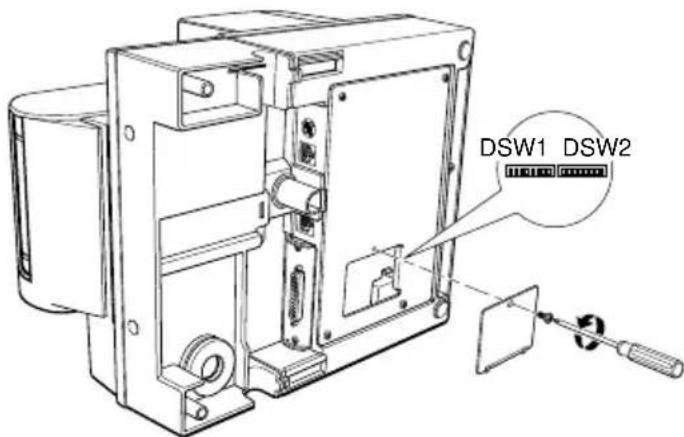
-
Set the switches using a pointed tool, such as tweezers or a small screwdriver.
-
Replace the DIP switch cover. Then secure it with the screw.
The new settings take effect when you turn on the printer.
Adjusting the Paper Near End Sensor
The paper near end sensor detects when paper is almost gone by measuring the diameter of the paper roll. The sensor has two settings.
Because of variations in paper roll cores, it is not possible for the sensor to measure exactly the length of paper left on the roll when the sensor is triggered. Of the two settings, the factory setting (lower) leaves the least amount of paper on the roll when the sensor is triggered. If you want more paper left, change the setting as described below.

Note:
The factory setting is based on a paper roll core with an outside diameter of 18mm and an inside diameter of 12mm. If you use a paper roll with a core with an outside diameter of more than 18mm, it is better to change to the upper setting, as described below.
- Open the paper roll cover, and remove the paper roll.
- Loosen the adjusting screw and move the tab up to the upper setting.
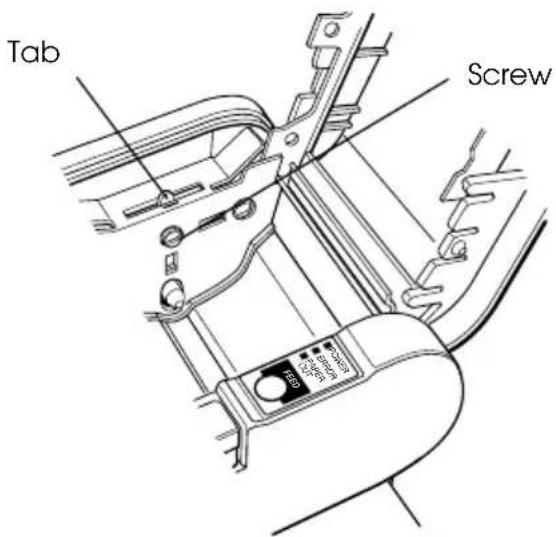
-
Tighten the adjusting screw, and check to be sure that the detecting lever moves freely.
-
Replace the paper roll.
EPSON Sales Subsidiaries
| EPSON AMERICA INC./OEM DIV. | 20770 Madrona Ave.Torrance, CA 90559-2842 U.S.A.Tel : 1-310-787-6300Fax : 1-310-782-5350 |
| EPSON EUROPE B.V. | Prof. J.H. Bavincklaan 51183 AT Amstelveen The NetherlandsTel : 31-(0)20-5475-251Fax : 31-(0)20-6454-315 |
| EPSON Deutschland GmbH | Zülpicher Strasse 6, 40549Düsseldorf 11, GermanyTel : 49-(0)211-5603218Fax : 49-(0)211-8584768 |
| EPSON U.K. LIMITED | Campus 100 Maylands Ave.Hemel Hempstead Herts. HP2 7TJUnited KingdomTel : 44-1(0)442-61144Fax : 44-1-(0)442-227-244 |
| EPSON FRANCE S.A. | 68 Bis Rue Marjolin B.P. 320 92305Levallois Perret Cedex, FranceTel : 33-(0)1-40-87-38-62Fax : 33-(0)1-47-37-15-10 |
| EPSON IBERICA, S.A. | Avda. de Roma, 18-2608290 Cerdanyola del Vallès (Barcelona), SpainTel : 34-(9)3-582-2500Fax : 34-(9)(3-582-1555 |
| EPSON ITALIA S.P.A. | V.le F IIIi Casiraghi, 42720099 Sesto Si Giovanni (Milan), ItalyTel : (39)226-2331Fax (39)2244-0750 |
| EPSON SINGAPORE PTE. LTD. | No. 1 Raffles Place #26-00 OUBCentre Singapore, 0104Tel : 5-530477Fax : 5-5338119 |
EPSON HONG KONG LIMITED 25/F., Harbor Centre, 25, Harbor Road,
Wanchai, Hong Kong
Tel:852-2-585-4663
Fax: 852-2-827-4346
EPSON TAIWAN TECHNOLOGY 10f, No. 287, Nanking E. Road, Sec. 3
& TRADING LTD. Taipei, Taiwan R.O.C.
Tel: 886-(0)2-717-7360
EPSON AUSTRALIA PTY. LTD. 70 Gibbs Street, Chatswood NSW 2067
Australia
Tel:61-(0)2-415-9000