
Rome - Mp3 player Sunstech - Free user manual and instructions
Find the device manual for free Rome Sunstech in PDF.


| Product Type | MP3 Player |
| Brand | Sunstech |
| Model | Rome |
| Dimensions | 90 x 50 x 12 mm |
| Weight | 70 g |
| Battery Type | Li-Polymer (rechargeable via USB) |
| Display | 3.0" Color TFT |
| Supported Audio Formats | MP3 (8-320 kbps), WMA (5-384 kbps) |
| Supported Video Formats | AVI, RM, RMVB, WMV, DAT, FLV (see specifications for codec details) |
| Supported Photo Formats | JPEG, BMP, GIF |
| External Memory | MicroSD card up to 32 GB |
| Interface | USB 2.0 Full Speed |
| Frequency Response | 20Hz - 22KHz |
| Distortion | < 0.5% |
| Signal-to-Noise Ratio | > 85dB |
| Speaker Output | 8 ohm, 1W |
| Audio Playback | Supports repeat modes, equalizer (Normal, Rock, Pop, Classic, Bass, Jazz, User EQ), 3D/Bass/LEQ sound effects |
| Radio | FM radio with auto search, save channels, stereo switch, area selection, FM recording |
| Recording | Voice recording via built-in microphone; adjustable quality and volume |
| Other Functions | E-book (TXT), photo viewer, stopwatch, file explorer, media library update |
| Warranty | 2 years (excludes misuse or unauthorized repair) |
| Included Accessories | Operating unit, user manual, warranty card, USB cable, earphone |
Frequently Asked Questions - Rome Sunstech
User questions about Rome Sunstech
0 question about this device. Answer the ones you know or ask your own.
Ask a new question about this device
Download the instructions for your Mp3 player in PDF format for free! Find your manual Rome - Sunstech and take your electronic device back in hand. On this page are published all the documents necessary for the use of your device. Rome by Sunstech.
USER MANUAL Rome Sunstech
natural_image
Simple geometric diagram of three concentric rounded rectangles (no text or symbols)natural_image
Close-up of fresh yellow and red roses on a plain surface, with a video player interface in the corner (no text or symbols on the roses themselves)Sub menú de radio
Display Setting (Configurar pantalla)
natural_image
Simple geometric diagram of three concentric rounded rectangles (no text or symbols)Conteúdo da caixa
Unidade de operação
Carregar as baterias
Modo de repetição
natural_image
Close-up of fresh yellow and red roses on a light surface, with a video player interface in the corner (no text on main subjects)natural_image
Simple geometric diagram of three concentric rectangles with no text or symbolsWhat's in the box
Operating Unit,
User Manual
Warranty Card
USB Cable
Earphone
Optional Accessories
Micro SD card
Battery Charger
Content
Buttons location and usages...... 4
Basic Operation.... 5
Main interface .... 5
Charging the batteries ....5
Music Player interface....6
Video mode....12
Photo mode....15
Ebook mode....16
Radio mode 17
Record mode....19
Other function 20
Setting mode 21
Technical Specification......23
Trouble shooting.... 24
Warranty conditions 26
Buttons location and usages

(1) Earphone Jack
(2) ON/OFF/Lock Button
(3) USB Port
(4) Microphone
(5) Reset
(6) Micro SD Card Slot
Basic Operation
Power on/off and Lock
Slide the ON/OFF/HOLD switch to the on position and hold for 3 seconds to switch on the device. Slide the switch to the LOCK position to key-lock the player.
Main interface
Once your switch the player on you'll reach to the main interface as below..

Charging the batteries
Connect the player to PC via USB cable and shut off the icon in PC to see the status of charging. While charging, if the battery logo is running, means it is still charging, if the battery logo is full, means the charging finished.
Operation of Music mode
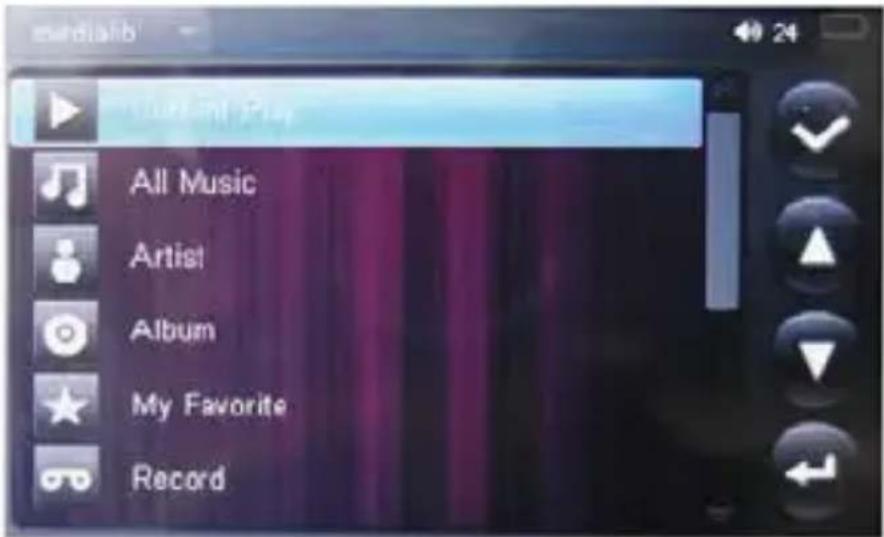
Touch on the main menu to enter the music mode. Once you've entered the music mode, the following screen would show up.
Current play
Double click the Current Play icon to resume playing the current song.
Resume Play
When you stop the music playing, enter into other menus except Setting, photo, or turn off the player, then turn on the player or enter into the music menu again, the screen will show the following picture, click the Rusume playicon to resume playing the current song:

All Music
Double Click the All Music icon to show your library of music, double click any particular song to start playing.
Artist
Double Click the Artist icon to show all of your artists, double click any particular artist to show the songs of that artist. Double click a song to start playing.
Album
Double Click the Album icon to browse all of your albums, double click any particular album to browse the songs of that album. Double click a song to start playing.
My Favourite
Double Click the My Favourite icon to browse all songs that you've added to be your favourite. Double click a song to start playing.
Record
Double Click the Record icon to browse all recorded files. Double click a file to start playing.
Click ↩ to jump back to the main menu.
Dir List
If you inserted a Micro SD card into the card slot, please select memory from Flash / TF Card first., then enter into the Musci explorer.
MediaLib Update
Click it to update the Media Library.
Music Player interface
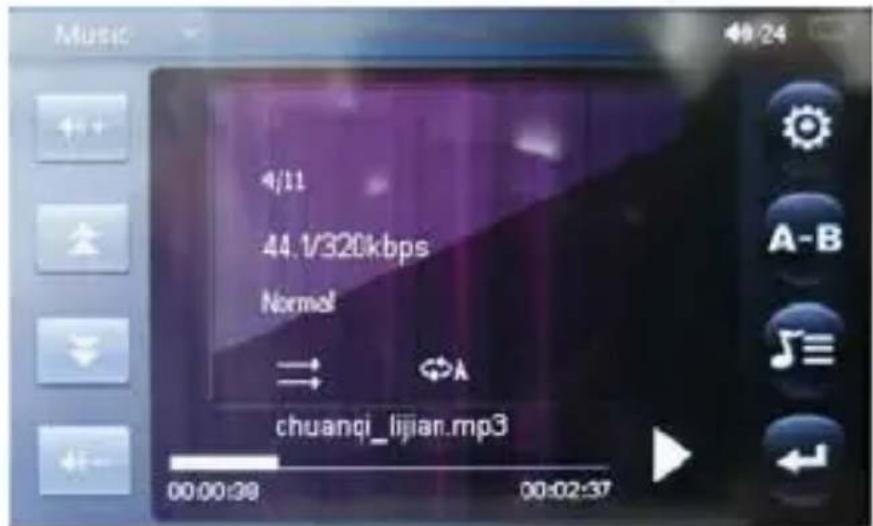
Whenever you start playing a song you'll reach the Music Player Interface as below.
Play Music
Double click the Play button in the middle to start playing, double click again to pause.
Volume
Click or to adjust the volume.
Previous / Next
Click ▶to jump to the next song, and click to jump back to the previous song.
Play Option
Double click the 📄 to enter the Play Option Menu. You can set your preference in Repeat Mode / Play Mode / MSEQ / EQ Sel / User EQ Setup.

Repeat Mode
Double click Repeat Mode to choose from Once / Repeat / All / All Repeat. Once you’ve selected, double click the option to confirm and return to sub-menu.
Play Mode
Double click Repeat Mode to choose from In Order or Shuffle Play. Once you've selected your choice, double click the option to confirm and return to sub-menu.
MSEQ
Double click MSEQ to choose different sound effect from 3D / Bass / LEQ. Once you've selected your choice, double click the option to confirm and return to sub-menu.
EQ Sel
Double click EQSel to choose different EQ from Normal / MSEQ / Rock / Pop / Classic / Bass / Jazz / User EQ. Once you've selected your choice, double click the option to confirm and return to sub-menu.
USER EQ Setup
Double click User EQ Setup to adjust your own EQ Setting. Slide the bar to adjust your desired sound effect. Once you've selected your choice, click "tick" button to confirm and return to sub-menu.
A - B Repeat
Click once to set the starting point of the A-B Repeat, then click A-B again to set the ending point. The A-B repeat setting is done. To cancel A-B repeat mode, click A-B again.
Lyrics
Click 📋 to choose to display lyrics.
*The player only supports .LRC lyric.
Video mode
Touch “Video” on the main menu to enter the video mode. If you insert a Micro SD card into the card slot, please select memory from Flash / TF Card first.. Once you’ve entered the video mode, the following screen would show up.

Click any particular movie in the list to start playing.
Basic Video Control
The following control panel will show up when a video start playing.

natural_image
Close-up of fresh yellow and red roses on a light surface, with a video player interface in the corner (no text on the flowers or background)Click 📁 to choose previous movie, hold 📁 to rewind. Click 📁 to choose next movie, hold 📁 to fast-forward. Click 📁 to adjust the volume. Click 📁 to change the screen size between Wild Screen and Narrow Screen. Click 📁 to resume playing from where the video stopped last time.
Video Files Supported
AVI File:
Codec:
XVID
Resolution:
Max.
800x480
Audio
Codec:
MP3
WMV File:
Codec:
WMV
7/8/9
Resolution:
Max.
720x480
Audio Codec: WMA DAT File:
Codec: MPEG-I
Resolution: Max. 768x576
Audio Codec: MP3
FLV File:
Codec: Sorenson H.263
Resolution: Max. 640x480
Audio Codec: MP3
RM File:
Codec: Real Video Codec
Resolution: Max. 800x480
Audio Codec: Real Audio
RMVB File:
Codec: Real Video Codec
Resolution: Max. 800x480
Audio Codec: Real Audio
Photo mode
Touch “Photo” on the main menu to enter the photo mode. If you insert a Micro SD card into the card slot, Please select memory from Flash / TF Card. Once you’ve entered the photo mode, the following screen would show up.

Click 📄 icon to delete the photo or not. Click 🐃 icons to select the previous or next pictures.
Basic photo control
Click on a particular photo, and click "Tick" button to open it. Click 📋 to rotate 90 degree left, and click 📋 to rotate 90 degree right. Click 📋 to zoom into the photo. Slide the screen to move to next photo. Click 📋 to return to photo list.
E-book
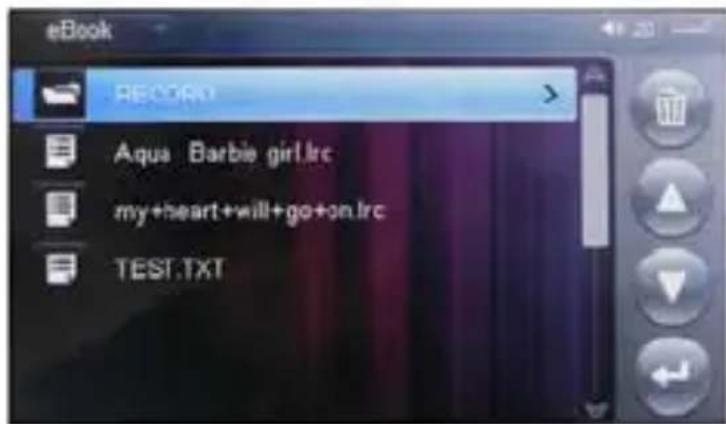
Touch “E-book” on the main menu to enter the e-book menu. Once you’ve entered the e-book menu, the following screen would show up.
Basic e-book control
Double click on a particular .txt file to open the e-book. When opened an e-book file, click < to go back to previous page, click > to skip to the next page.
Click 📷 to enter the E-Book sub-menu.
E-book Sub-menu
Page Jump: Input the page number that you'd like to jump.
SaveMark: Choose any empty slot to save your bookmark.
LoadMark: Load any previously saved bookmarks.
DelMark: Delete any unwanted bookmark from slots.
SetFont: Set the font size from Small, Middle to Big SetColor: Set the font color
Browser Mode: Choose from automatic flipping and manual flipping
FlipTime: Choose from the time interval between every auto flip, from 10 sec to 25 sec.
Radio mode
Touch "Radio" on the main menu to enter the radio menu. Once you've entered the radio menu, the following screen would show up:

Basic Radio Control
Click and to perform manual search of radio channels. Hold and to perform to search. Click and to adjust the volume. Click to enter the Radio sub-menu.

Radio Sub-menu
Auto search: Click to auto search thru all the channels.
Save Channel: The channel will be saved automatically while auto search
Stereo Switch: Click to choose to turn on or turn off the stereo switch
Receive area: Click to choose the area of receiving the signal (from China, Japan, USA and Europe)
FM Record: Click the key “☐” to enter the FM Record mode, click “REC” to start recording the current radio broadcasting, click it again to pause the recording, click the “☐” to save the record file or cancel. Click → to return to the Radio main mode.
Record mode
Touch “Record” on the main menu to enter the record mode. Once you’ve entered the record mode, the following screen would show up.

Basic record control
Click "REC" to start recording. Click || to pause recording, click "REC" again to resume recording. Click ■ to stop recording.

and it will pop up "save record file?" click Yes to save the file, click No to cancel.
Click button to enter the sub-menu to choose Quality from low rate to high rate and choose volume level from 1 to 4.
Other Functions
Touch "Other Function" on the main menu to enter the page
Explorer
Click on "Explorer" to enter the file managing mode. If you insert a Micro SD card into the card slot, please select memory from Flash / TF Card. To delete a file, click a file to highlight it, and then click 📄 to delete it.
Stopwatch
Click on the "Stopwatch" to enter the stopwatch mode. Click the "Start" button to start counting time, click the button again to pause it. Click "Stop" button to reset the current time count.
Click ↩ button to return to main menu.
Operation of Settings Mode
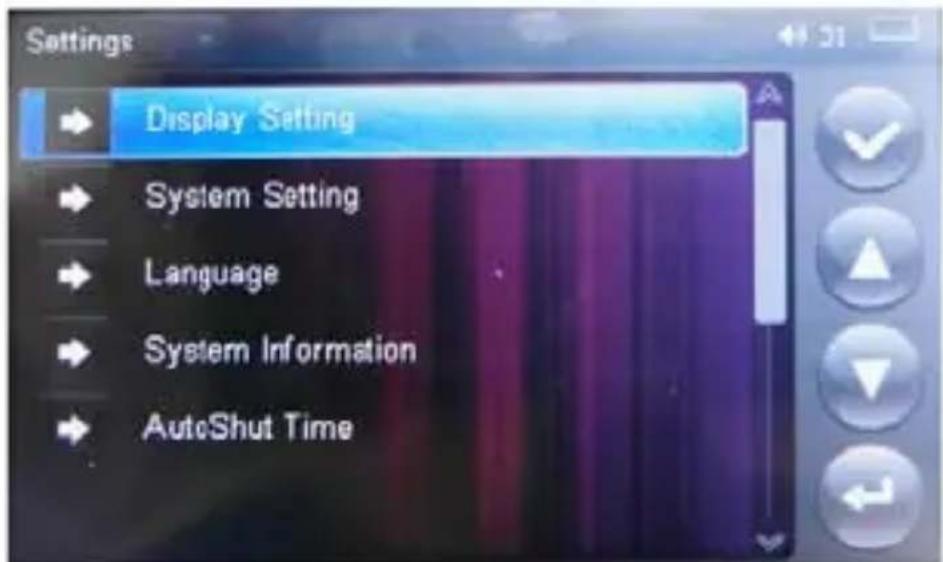
Touch “Setting” on the main menu to enter the settings menu. Once you’ve entered the settings menu, the following screen would show up.
Display Setting
Click in to adjust Light Time, Screen Brightness, Light Mode and Screen Move Style.
System Setting
a)Restore
Click in to restorable to restore the player.
b) Calibration OK
Click into screen calibrate and click “+” shown on screen three times to complete the touch screen calibration.
c) Slide show
Click into slide show and choose from turn off to 8sec. After setting the time, go back to photo and open the photo and slide the power button to activate the slide show function.
Language
Click language option and choose your desired language
System Information
Click into system information to check the firmware version, the memory size and card memory size.
AutoShut Time
Click into AutoShut Time to set the auto shut down time of the player, from 3 minutes to No Automatic Shutdown.
Technical Specification
| External Memory Card | MicroSD card up to 32GB |
| MP3 compressed rate supported | MP3(8 – 320 kbps)WMA(5-384kbps) |
| Video format supported AVI,RM,RMVB | |
| Photo format supported JPEG / BMP / GIF | |
| Battery | Li-Polymer |
| Interface USB2.0 full speed | |
| Display 3.0" Color TFT Display | |
| Frequency Response 20Hz | – 22KHz |
| Distortion | <0.5% |
| Rate of Signal-to-noise >85dB | |
| Speaker Output 8ohm1W | |
| Weight | 70g |
| Dimensions 90(W) * 50(H) * 12(D) mm | |
Trouble Shooting
What should I do if there's no sound when playing?
You should check the volume first. If the volume has been turned up, maybe the memory format of the device is incorrect..
Specifications are subject to change without notice.
No part of this document may be reproduced or transmitted
in any form or by any mean, electronics or mechanical including photocopying and recording
or translated to another language for any purpose without the prior written consent of the manufacturer.
All brand names, logos and registered trademarks mentioned
are property of their respective owners.
2008 © Sysbay International Technology. All right reserved.
Warranty conditions
- The warranty of this product is for 2 years since the purchase date.
- The warranty will exclude breakdowns caused by bad use of the product, wrong installation or installation in not desirable places for a proper maintenance of the product, rips, updates of the products that are not the supplied by the brand, pieces wore away for its use or for not domestic or inappropriate use. Also are excluded breakdowns caused for manipulations of the products by people or companies alien to our company.
- For any request regarding the warranty terms, the purchase receipt must be attached.

- Sub menú de radio
- Display Setting (Configurar pantalla)
- Conteúdo da caixa
- Carregar as baterias
- Modo de repetição
- What's in the box
- Optional Accessories
- Content
- Buttons location and usages
- Basic Operation
- Power on/off and Lock
- Main interface
- Charging the batteries
- Operation of Music mode
- Current play
- Resume Play
- All Music
- Artist
- Album
- My Favourite
- Record
- Dir List
- MediaLib Update
- Music Player interface
- Play Music
- Volume
- Previous / Next
- Play Option
- Repeat Mode
- Play Mode
- MSEQ
- EQ Sel
- USER EQ Setup
- A - B Repeat
- Lyrics
- Video mode
- Basic Video Control
- Video Files Supported
- Photo mode
- Basic photo control
- E-book
- Basic e-book control
- E-book Sub-menu
- Radio mode
- Basic Radio Control
- Radio Sub-menu
- Record mode
- Basic record control
- Other Functions
- Explorer
- Stopwatch
- Operation of Settings Mode
- Display Setting
- System Setting
- c) Slide show
- Language
- System Information
- AutoShut Time
- Trouble Shooting
- Warranty conditions
Brand : Sunstech
Model : Rome
Category : Mp3 player