Lantronix

xPrintServer Home Edition - Print Server Lantronix - Free user manual and instructions

Find the device manual for free xPrintServer Home Edition Lantronix in PDF.

📄 4 pages English EN Download 💬 AI Question 10 questions ⚙️ Specs
Notice Lantronix xPrintServer Home Edition - page 1
Pick your language and provide your email: we'll send you a specifically translated version.
Product Type Print Server
Brand Lantronix
Model xPrintServer Home Edition
Dimensions 4.5 x 3.0 x 1.2 inches (estimated)
Weight 0.3 lbs (estimated)
Power Supply 5VDC power adapter with regional adapters
Ethernet Port RJ45 CAT5 Ethernet
USB Port One USB Type-A for printer connection
Wireless Support Connects via wired Ethernet to wireless router
Supported OS iOS, Mac OS, Windows (with Bonjour Print Services)
Printing Protocol AirPrint, Bonjour
Setup Method Automatic (plug and play)
LED Indicator Glowing 'X' logo: blinks quickly during setup, pulses slowly when ready
Management Interface Web-based at xPrintServer.local
Default Login User ID: admin, Password: PASS
Care & Cleaning Wipe with a dry, soft cloth; do not use liquids or cleaning agents
Safety Instructions Use only supplied power adapter; avoid exposure to moisture
Spare Parts & Repairability No user-serviceable parts; contact support for issues
Technical Support Visit lantronix.com/support or call (800) 422-7044 (Mon-Fri 6am-5pm PT)

Frequently Asked Questions - xPrintServer Home Edition Lantronix

How do I connect the xPrintServer to my network and printer?
Connect the USB printer to the xPrintServer using a USB cable. Then connect the xPrintServer to your wireless router/switch with an Ethernet cable. Finally, power on the xPrintServer using the supplied power adapter. The device will automatically configure printers within about 30 seconds.
How do I print from an iOS device (iPhone/iPad)?
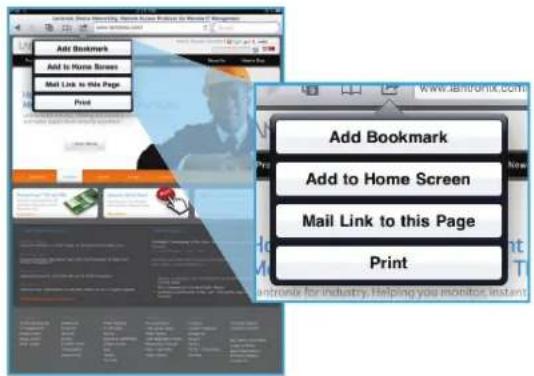
Open the content you want to print (web page, email, photo) and tap the share icon. Select 'Print' from the menu. Choose your printer from the list of available networked printers, set copies, and tap 'Print'.
How do I add the printer on a Mac?
Go to System Preferences > Printers & Scanners. Click the '+' button. Your printer should appear in the list. Select it and click 'Add'. It will then be available for printing.
How do I set up printing on Windows?
First, ensure printer drivers are installed. Download and install Bonjour Print Services from Apple (support.apple.com/kb/DL999). Launch the Bonjour Printer Wizard, select your printer from the list, choose the manufacturer and model, and complete the installation.
What is the default login for the admin interface?
The default username is admin and the password is PASS (both case-sensitive). Access it via a web browser at xPrintServer.local.
What should I do if the printer is not detected?
Check all cable connections: USB between printer and xPrintServer, Ethernet between xPrintServer and router. Ensure the printer is powered on and working when connected directly to a computer. Restart the xPrintServer by unplugging and reconnecting power.
Can I use the xPrintServer with a wireless printer?
The xPrintServer is designed for USB printers. For network printers, it can discover them on the same network via Bonjour. However, it does not support direct wireless connection to the printer; it must be wired to the router.
Does the xPrintServer support AirPrint?
Yes, the xPrintServer supports AirPrint for iOS devices. It also works with Bonjour for Mac and Windows after installing Bonjour Print Services.
What is the indicator light telling me?
When first powered on, the glowing 'X' blinks quickly for about 30 seconds during auto-setup. After setup is complete, it pulses slowly, indicating the device is ready for printing.
How do I get technical support?
Visit lantronix.com/support or call (800) 422-7044 Monday to Friday from 6:00 a.m. to 5:00 p.m. Pacific Time (excluding holidays).

User questions about xPrintServer Home Edition Lantronix

0 question about this device. Answer the ones you know or ask your own.

Ask a new question about this device

The email remains private: it is only used to notify you if someone responds to your question.

No questions yet. Be the first to ask one.

Download the instructions for your Print Server in PDF format for free! Find your manual xPrintServer Home Edition - Lantronix and take your electronic device back in hand. On this page are published all the documents necessary for the use of your device. xPrintServer Home Edition by Lantronix.

USER MANUAL xPrintServer Home Edition Lantronix

natural_image Illustration of various black and white electrical plugs or connectors (no text or symbols visible)
Lantronix xPrintServer Home Edition - 1

xPrintServerQuick SPortGuidapter (5VDC) with regional adapters

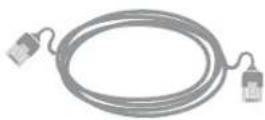
RJ45 CAT5 Ethernet Cable - 3'

1 BEFORE YOU BEGIN

  1. Test printing from a Windows or Mac computer (from which the USB printer is directly attached) is working before proceeding.
  2. Internet access is required to download printer drivers.

2 QUICK CONNECT
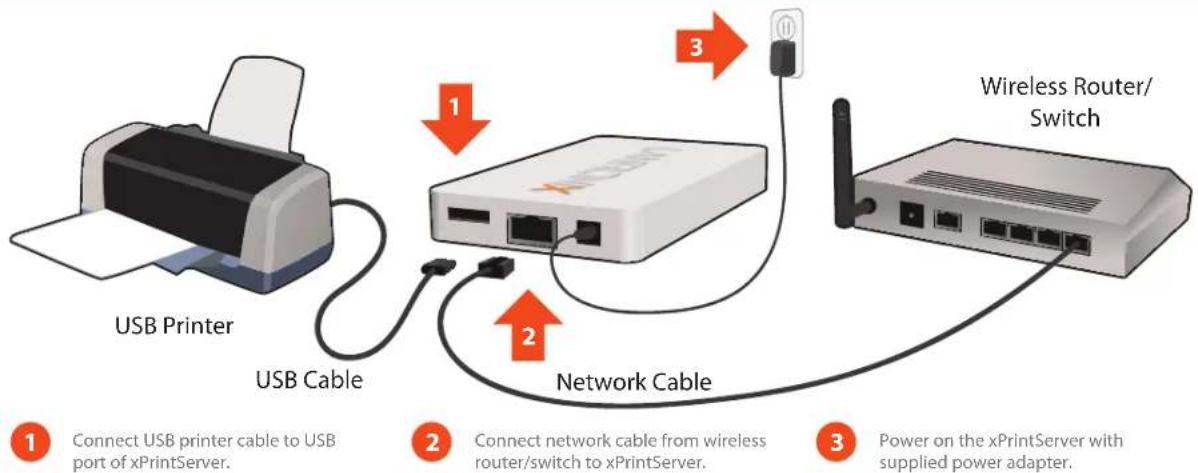
Lantronix xPrintServer Home Edition - QUICK CONNECT - 1

flowchart
graph TD
    A["USB Printer"] -->|USB Cable| B["Wireless Router/Switch"]
    B -->|Network Cable| C["USB Server"]
    C -->|Connect USB printer cable to USB port of xPrintServer.| D["1"]
    C -->|Connect network cable from wireless router/switch to xPrintServer.| E["2"]
    C -->|Power on the xPrintServer with supplied power adapter.| F["3"]

Auto Set-Up Process: The xPrintServer will automatically set-up your printers (USB & network) as soon it is connected, as shown above. The glowing "X" will blink quickly for about 30 seconds, then it will pulse slowly to show it's ready for printing.

3 HOW TO PRINT FROM iOS DEVICES

  1. Using your iPad, iPhone or other iOS device, Open the web page, email, photo, etc. that you wish to print and choose the icon to open the native print menu:

Lantronix xPrintServer Home Edition - HOW TO PRINT FROM iOS DEVICES - 1

Add Bookmark Add to Home Screen Mail Link to this Page Print Add Bookmark Add to Home Screen Mail Link to this Page Print

  1. From the Printer Options menu, choose Printer to display all available networked printers.
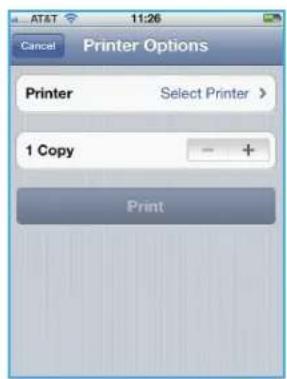
AT&T 11:26 Cancel Printer Options Printer Select Printer > 1 Copy - + Print

  1. Select the appropriate printer. Then, select the number of copies and choose Print.
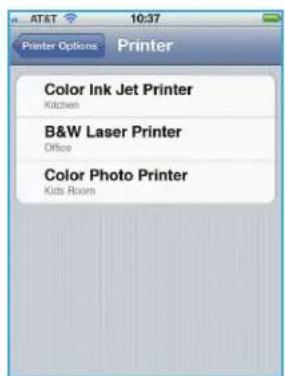
AT&T 10:37 Printer Options Printer Color Ink Jet Printer Kitchen B&W Laser Printer Office Color Photo Printer Kids Room

LANTRONIX ^®

4 HOW TO PRINT FROM MAC OS

  1. Go to System Preferences, Hardware and click on Print & Scan.
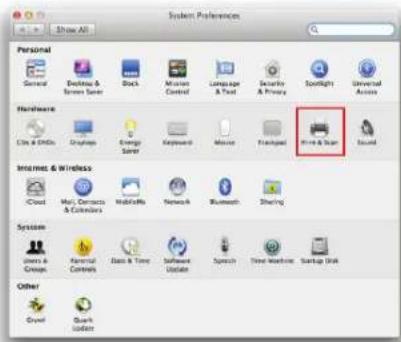
System Preferences Personal General Database & Screen Server Stock Microsoft Control Language & Text Security & Privacy Spotlights Universal Access Hardware Cite & CDs Desktops Energy Server Keyboard Music Transported Drive & Ship Sound Internet & Wireless iCloud Mail, Connects & Customers MobileWorks Network Bluetooth Sharing System Users & Groups External Controls Glass & Tube Software Update Speech Time Windows Startup Disk Other Crystal Search Tools

  1. Click on the + button on the lower left corner
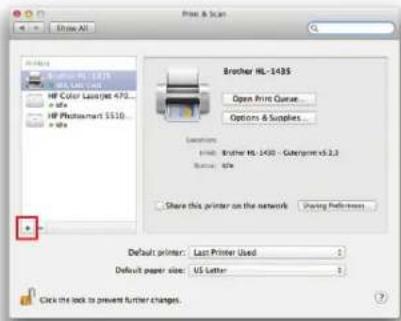
Print & Scan File Edit All Properties Hill, 100% HP Color: Last (NE 470... + file HP Photogram $150... + file Brother HL-1435 Open Print Queue: Options & Supplies Location Print: Brother HL-1435 - Category v3.2.3 Source: 67% Share this printer on the network Loading Properties Default printer: Last Printer Used Default paper size: US Letter Click the lock to prevent further changes.

  1. A list of printers appear. Select the printer you wish to add and click on the Add button.
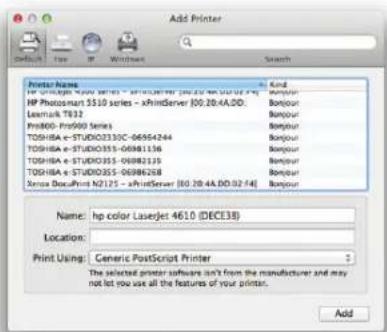
Add Printer Poster Name: And HP Photogram 5510 series - xHindServer (00.20-4A.DD) Lexmark TE32 Pro800 Pro900 Series TOSHBA e-STUDIO330C-06954244 TOSHBA e-STUDIO355-06981156 TOSHBA e-STUDIO355-06982125 TOSHBA e-STUDIO355-06986268 Serus DocuPrint N2125 - xHindServer (00.20-4A.DD.02.14) Name: hp color LaserJet 4610 (DECE38) Location: Print Using: Generic PostScript Printer The selected printer software isn't from the manufacturer and may not let you use all the features of your printer. Add

  1. The printer is now added in your available list of printers and is ready to print.
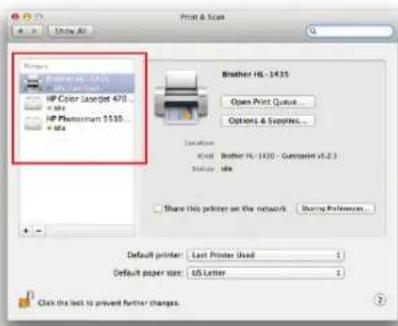
Print & Scan Properties • Printer 1435 HP Color: 1435 HP Photometric 470... HP Photometric 550... • info. Brother HS-1435 Open Print Queue... Options & Supplies... Location: Knot: Brother HS-1430 - Generator v1.2.1 Status: info Share this printer on the network Sharing Preferences... Default printer: Last Printer Used Default paper size: US Letter Click the lock to prevent further changes.

5 HOW TO PRINT FROM WINDOWS OS

BEFORE YOU BEGIN

Ensure the USB printer is working and the printer drivers are installed on the computer before proceeding.

INSTALL BONJOUR PRINT SERVICES

  1. Bonjour Print Services is an Apple application that allows discovery of printers connected to the xPrintServer from a Windows PC. Go to the web address below to download and install Bonjour Print Services for Windows v2.0.2 or higher http://support.apple.com/kb/DL999
  2. Follow the prompts to install Bonjour Print Services
  3. Find the Bonjour Printer Wizard Bonjour Printer Wizard shortcut on your Desktop or in the Start/All programs menu and click to launch

Instructions for Windows XP

  1. The Bonjour Printer Wizard appears with a list of discovered printers. Highlight the printer you wish to install.

Bonjour Printer Wizard Browse for Bonjour Printers Select the printer you want to use from the list below. Shared printers: Canon PS310 Series #2 - xhintServer [00:80A3:95:04:70] HP LaserJet 4.000 Series - xhintServer [00:80A3:95:04:70] Printer information Description: Locations: Auto Discovered (USB) Next > Cancel

  1. Search and select your printer by manufacturer and model number and click Next.
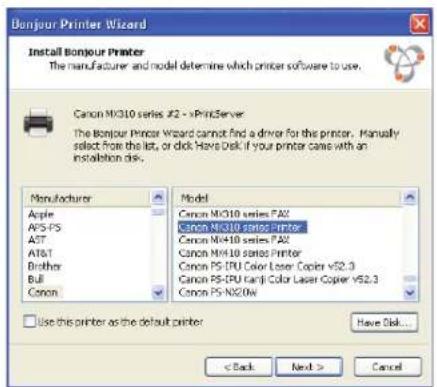
Bonjour Printer Wizard Install Bonjour Printer The manufacturer and model determine which printer software to use. Canon NX310 series #2 - xPrintServer The Bonjour Printer Wizard cannot find a driver for the printer. Manually select from the list, or click Have Disk if your printer came with an installation disk. Manufacturer Apple AVS-PS AST AT&T Brother Bull Canon Model Canon NX310 series PA2 Canon NX310 series Printer Canon NX410 series PA2 Canon NX410 series Printer Canon PS-IPU Color Laser Copier v52.3 Canon PS-IPU Color Laser Copier v52.3 Canon PS-N20W Use this printer as the default printer Have Disk... < Back Next > Cancel

Instructions for Windows 7

  1. The Bonjour Printer Wizard appears with a list of discovered printers. Highlight the printer you wish to install.

Bonnour Printer Wizard Browse for Bonjour Printers Select the printer you want to use from the list below. Shared printers: Canon M3C10 Series #2 - xPrintServer [00:80:836950A7D] HP LaserJet 4000 Series - xPrintServer [00:80:836950A7D] Printer Information Description: Location: Auto Discovered (USB) Next > Cancel

  1. Search and select your printer by manufacturer and model number and click Next.
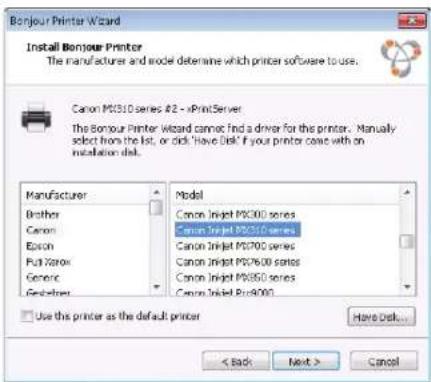
Bonjour Printer Wizard Install Bonjour Printer The manufacturer and model determine which printer software to use. Canon MC310 series #2 - >PrintServer The Bonjour Printer Wizard cannot find a driver for this printer. Manually select from the list, or click "Have Disk" if your printer could with on installation disk. Manufacturer Brother Canon Bosch Pull Xerox Generic Geohexer Model Canon Injet MC310 series Canon Injet MC310 Series Canon Injet MC700 series Canon Injet MC760 series Canon Injet MC850 series Canon Injet Pro4000 Use this printer as the default printer Here Disk... < Back Next > Cancel

5 HOW TO PRINT FROM WINDOWS OS continued

Instructions for Windows XP

  1. To complete the installation, click Finish.
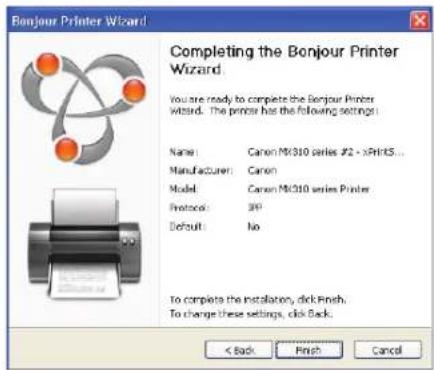
Bonnjour Printer Wizard Completing the Bonjour Printer Wizard. You are ready to complete the Bonjour Printer Wizard. The printer has the following settings: Name: Canon Mt310 series #2 - 3PrintS... Manufacturer: Canon Model: Canon Mt310 series Printer Protocol: 3P Default: No To complete the installation, click Finish. To change these settings, click Back. < Back Finish Cancel

  1. If you wish to configure the printer as the default printer go to: Start, Control Panel and click on Printers and Faxes
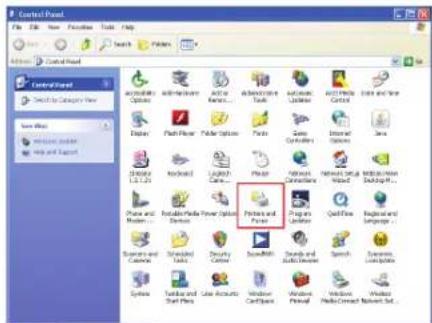
Control Panel File Edit View Edit Tools Help Search Favorites Actions Control Panel Control Panel Select to Category View Save As... Windows Update Help and Report Administrative Options Edit Active... Active to Content... Defaulting Tools Network Linker Active to Control Edit and View Display Push Power Folder Options Tools Game Controls Internal Options Java Windows 1.1.23 Desktop Language... Phone and Paper... Update Media Power Options... Print and Power... Programs under Quick Now Registered Language... Systems Settings Tools Security & Control SoundRack Sound and Audio Devices Speech Systems, Local System Systems Settings and Staff Plans Use Accounts Window CardPens Windows Print Windows Media Connect Network Set...

  1. Select the printer and right click and select Set as default printer
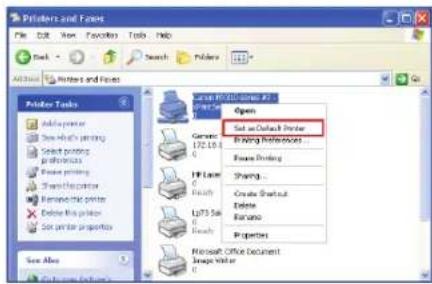
Printers and Faces File Edit View Favorites Tools Help Back Refresh Printers and Faces Printer Tools Add printer Show which printing Select printing Properties Show printing Show the printer Remove this printer Not put for properties Save Alone General 172.10.x F14 F573.5x F573.5x Open Set on Outlook Printer Drawing Professional... Browse Printing Sharing... Create Breakout Delete Rename Properties Microsoft Office Document Image Wizard

Congratulations! Add printer setup is now complete.

Instructions for Windows 7

  1. To complete the installation, click Finish.
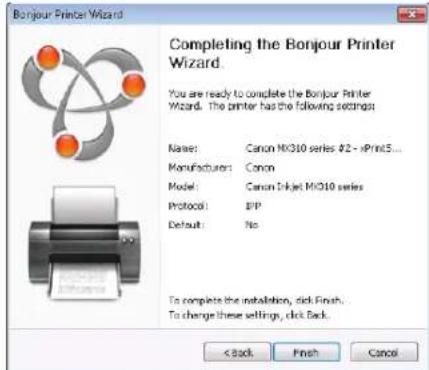
Bonnjour Printer Wizard Completing the Bonjour Printer Wizard. You are ready to complete the Bonjour Printer Wizard. The printer has the following settings: Name: Canon M0310 series #2 - xPrintS... Manufacturer: Canon Model: Canon 2xJet M0310 series Protocol: EPP Default: No To complete the installation, click Finish. To change these settings, click Back. < Back Finish Cancel

  1. If you wish to configure the printer as the default printer go to: Start, Control Panel and click on Devices and Printers
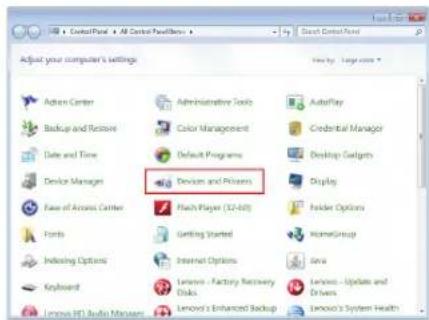
ControlPoint > All Control Preferences Adjust your computer's settings Action Center Backup and Restore Date and Time Device Manager Face of Access Center Fonts Indexing Options Keyboard License HD Audio Manager Administrative Tools Color Management Default Programs Device and Providers Flash Player (32-bit) Getting Started Internet Options Lenovo - Factory Recovery Slots Lenovo's Enhanced Backup AutoPlay Credential Manager Desktop Gadgets Display Folder Options NameGroup Java Lenovo - Update and Drivers Lenovo's System Health

  1. Select the printer and right click and select Set as default printer
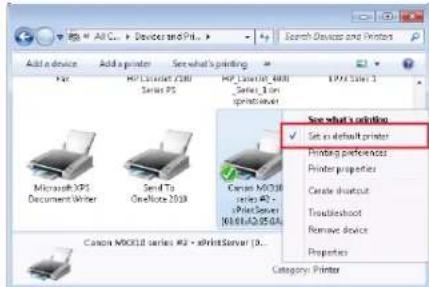
Add a device Add a printer See what's printing HP1 Version 2000 Series PS HP1 Version_4000 Series_1 on productset HP2 Series 1 Microsoft XP5 Document Writer Send To OneNote 2019 Canon MC0318 series #2 - xPrintServer N161LQ-05DA Canon MC0318 series #2 - xPrintServer (0... See what's solution ✓ Set in default printer Printing preferences Printer properties Create shortcut Troubleshoot Remove device Properties Category: Printer

Congratulations! Add printer setup is now complete.

6 FOR CUSTOM CONFIGURATION & PRODUCT DOCUMENTATION

Using a web browser log into the xPrintServer admin interface at xPrintServer.local with USER ID = admin and PASSWORD = PASS (both case sensitive)

Contact Technical Support

For technical support queries, visit http://www.lantronix.com/support or call (800) 422-7044 Monday - Friday from 6:00 a.m. - 5:00 p.m. Pacific Time, excluding holidays.

© 2012 Lantronix, Inc. Lantronix, Inc. and Lantronix are registered trademarks, and xPrintServer is a trademark of Lantronix, Inc. All other trademarks are the property of respective owners. Specifications subject to change without notice. iPad, iPhone, iPod, iPod classic, iPod nano, and iPod touch are trademarks of Apple, Inc., registered in the U.S. and other countries. All other trademarks and trade names are the property of their respective holders. 900-627-R Rev A 06/12

Manual assistant
Powered by Anthropic
Waiting for your message
Product information

Brand : Lantronix

Model : xPrintServer Home Edition

Category : Print Server