Teledat Router 400 - Router T-Mobile - Free user manual and instructions
Find the device manual for free Teledat Router 400 T-Mobile in PDF.


| Product Type | Router |
| Brand | T-Mobile |
| Model | Teledat Router 400 |
| Dimensions (W x D x H) | Approximately 170 x 120 x 35 mm |
| Weight | Approximately 250 g |
| Power Supply | 12 V DC, 1 A |
| Network Interfaces | 1 x WAN (ADSL/DSL), 4 x LAN (10/100 Mbps) |
| Wireless Standard | 802.11b/g (2.4 GHz) |
| Max Wireless Speed | 54 Mbps |
| Security | WEP, WPA, WPA2, SPI Firewall |
| QoS | Supported |
| Management | Web interface (HTTP/HTTPS) |
| LED Indicators | Power, DSL, LAN (4 ports), WLAN, Internet |
| Antenna Type | Internal |
| Operating Temperature | 0°C to 40°C |
| Certifications | CE, FCC |
| Spare Parts & Repair | Not available; device not user-serviceable |
| Maintenance | Keep clean and dry; no internal cleaning required |
Frequently Asked Questions - Teledat Router 400 T-Mobile
User questions about Teledat Router 400 T-Mobile
0 question about this device. Answer the ones you know or ask your own.
Ask a new question about this device
Download the instructions for your Router in PDF format for free! Find your manual Teledat Router 400 - T-Mobile and take your electronic device back in hand. On this page are published all the documents necessary for the use of your device. Teledat Router 400 by T-Mobile.
USER MANUAL Teledat Router 400 T-Mobile
Congratulations on buying your new Teledat Router 400
You have purchased a state-of-the-art product from Deutsche Telekom that has undergone thorough quality checks.
However, should you encounter any technical problems or should you have any questions concerning the router installation, you may call the T-Service Hotline at 0180 5 34 68 68.
You can find updated drivers, User Manuals and additional product information on our web site www.telekom.de/faq
This guide will help you set up your Teledat Router 400 with its default configuration for the first time. If you need information concerning user-specific configurations as well as enhanced features or troubleshooting, please read the supplied User's Manual.
The integrated firewall gives you maximum protection against online attacks without having to adjust numerous settings. The User's Manual will let advanced users personalize the firewall settings.
Prior to installing and operating your Teledat Router 400, please read the following safety instructions in order to avoid personal injuries or equipment damage.
Safety Instructions
Please follow these instructions to avoid personal injuries:
■ Never open or dismantle the unit
■ Never touch the plugs and connectors with sharp or metal objects
■ Never install the Teledat Router 400 during a thunderstorm
■ To avoid electric shocks, do not connect or disconnect any cables
■ Always install cables so that nobody can stumble over them.
Please follow these guidelines when installing, connecting or operating this equipment:
Your router has a RESET button that lets you access the equipment if you have forgotten your password. When pressing the RESET button any individual configuration settings including Internet access information will be lost, and the factory defaults will be loaded. For more information about the RESET button please see page 11.
■ Never operate the router in humid environments.
- Do not expose the device to heating sources and avoid direct sunlight.
■Protect the device from humidity, dust and corrosive liquids or damp
Only connect the cables to their corresponding plugs/connectors (as described below).
■ Never cover the ventilation holes of the router.
■ Do not place any objects on the router.
■ Only connect approved accessories to this device.
Use a soft cloth that has been slightly dampened to clean the device. Always turn off the router and unplug it from the electrical outlet prior to cleaning it. Never use any corrosive or abrasive detergents or organic solvents.
The Teledat Router 400 must only be repaired by authorized service personnel (T-Service) from Deutsche Telekom AG. In case of technical failure, please call the Telekom Service Hotline at 0180 534 6868 (12ct/min).
Deutsche Telekom AG does not assume any responsibility for damage resulting from unauthorized or inappropriate use of the router.
Introduction
About Your Teledat Router 400 Internet Security Gateway
You Teledat Router 400 is a broadband gateway, specifically designed for multiple computers to quickly and easily access the Internet via DSL modem. It is possible to connect up to 4 computers with a standard network cable to your Teledat Router 400 or to connect the router to a switch/hub for connecting more workstations. For more information, please see page 10.
Each computer must have a 10 or 100 Mbps Ethernet network adapter installed (see page 10 and 12)
The main features of the Teledat Router 400 are:
Robust Firewall
- NAT (SUA)
- Stateful Inspection, protection against Denial-of-Service attacks (DoS)
4-port switch (10/100 Mbps auto-detect)
■ Budget Management (connection time and transfer volume)
Easy installation
■ Web-based configuration program in German language
OS-independent
Packaging List
INFO! Please keep the packing materials for your Teledat Router 400 in case you have to send it back in the future.
The following items come with your Teledat Router 400:
This Quick Guide (German/English)
One 5 Volt DC power adapter
One straight-through Ethernet cable
One printed User's Guide
WARNING!
Only use the supplied 5 Volt power adapter. Operating the unit with another power adapter might damage your device.
Hardware Installation
The Front Panel
The LEDs on the front panel show the operational status of the Teledat Router 400.
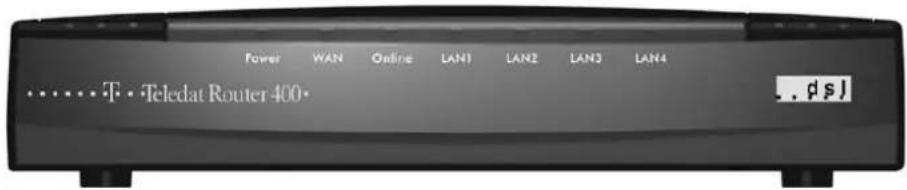
Description of LEDs
LED COLOR STATUS DESCRIPTION
Power Green On The Teledat Router 400 is receiving power. Flashing The Teledat Router 400 is performing a self-test. Off The Teledat Router 400 is not receiving power.
WAN Green On The WAN link is connected and is up and running. Flashing The 10M WAN link is sending/receiving data. Off The WAN link is not ready or has failed.
Online Green On PPPoE connection is up and running. Off No PPPoE connection present.
LAN Green On The Teledat Router 400 is connected to a 10M LAN. 1,2,3,4 Flashing The 10M LAN is sending/receiving packets. Off The 10M LAN is not connected.
Orange On The Teledat Router 400 is connected to a 100M LAN. Flashing The 100M LAN is sending/receiving packets. Off The 100M LAN is not connected.
Rear Panel and Connections
Please connect cables in the following order and make sure that all devices are turned off prior to installing them.
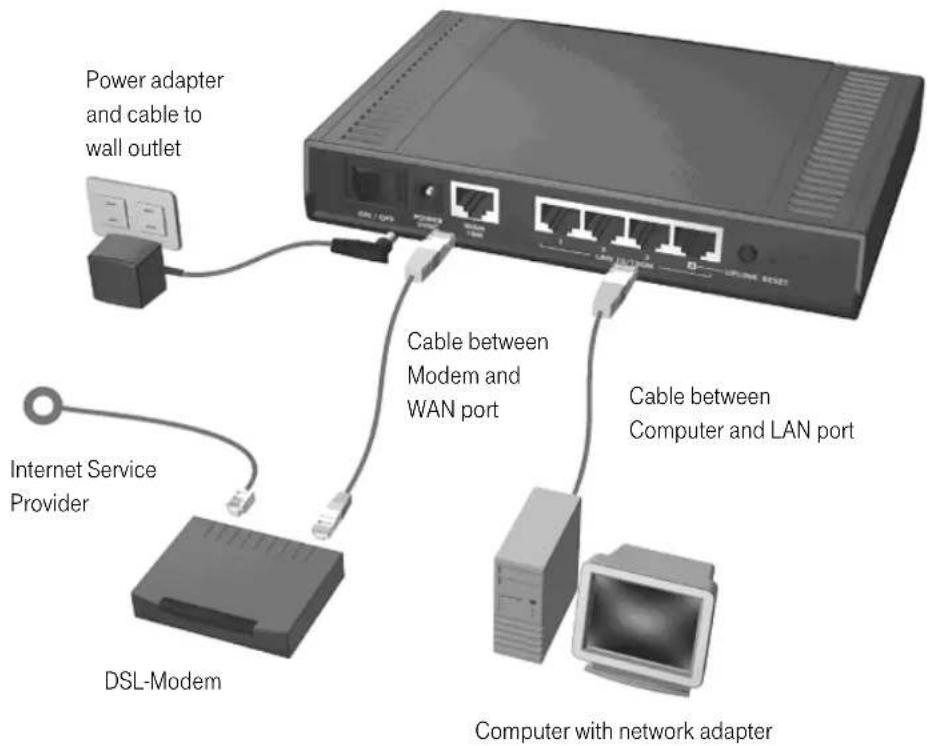
WAN 10M Port
First connect the WAN port (Wide Area Network) of your Teledat Router 400 to your DSL modem's Ethernet port (normally labeled "10BT", "PC" or "Workstation"), using the cable supplied with your modem.
LAN 10/100M Ports
Next, connect the router to your PC's network adapter. Please remember to turn off your PC first.
This table lists the types of Ethernet cable to use for connecting directly to a computer or to an external hub or switch (if connecting more than four computers).
LAN 10/100M PORT ETHERNET CABLE TYPE
COMPUTER HUB/SWITCH
1, 2, 3 straight-through crossover
4 UPLINK button "on" (pushed in) straight-through crossover
4 UPLINK button "off" (out) crossover straight-through
The corresponding LAN LED on the front panel lights up when the Teledat Router 400 is on and properly connected to a computer or a hub.
Power inlet 5 Volts DC/2.4A
WARNING! Only use the supplied power adapter.
Connect the round end of the power adapter to the port labeled 5VDC/2.4A on the rear panel of your Teledat Router 400.
Additional Installation Requirements
1.1. A computer with an installed Ethernet NIC (Network Interface Card).
2.2. A DSL modem and an Internet account
Turning on Your Teledat Router 400, PC and DSL Modem
Connect the power adapter cable to a suitable wall outlet and turn the power switch of your Teledat Router 400 on. The Power LED turns on. The WAN and the LAN LED(s) turn on after the system tests are complete, if the WAN and LAN ports are properly connected.
RESET Button
If you have forgotten your password or cannot establish a connection to your Teledat Router 400 you must press the RESET button on the rear panel. The router's factory default settings (ROM file) will be restored. This means that the current configuration will be overwritten by the default settings. Any individual settings including your Internet access information will be lost. The Password resets to "1234" and the IP address resets to 192.168.1.1.
Using the RESET Button
- Use a pointed object to press the RESET button for at least 10 seconds (the SYS LED flashes from green to orange), then release it.
- If the LAN LED flashes for 30 seconds, the factory defaults have been loaded successfully and the router re-initializes. Otherwise, go to step 3.
- Turn the Teledat Router 400 off.
- While pressing the RESET button, turn the Teledat Router 400 on.
- Continue to hold the RESET button for about 30 seconds. The Teledat Router 400 restarts.
- Release the RESET button and wait about ten seconds for the Teledat Router 400 to finish restarting.
Preparing Your Network
All computers must have a 10M or 100M Ethernet adapter card and TCP/IP installed. TCP/IP should already be installed on computers using Windows NT/2000/XP, Macintosh OS 7 and later operating systems.
Windows 95/98/Me/NT/2000/XP, Macintosh OS 7 and later operating systems and all versions of UNIX/LINUX include the software components you need to install and use TCP/IP on your computer. Windows 3.1 requires the purchase of a third-party TCP/IP application package.
After the appropriate TCP/IP components are installed, configure the TCP/IP settings in order to "communicate" with your network.
The Teledat Router 400 assigns these factory default values if you configure TCP/IP using DHCP:
IP address: between 192.168.1.33 and 192.168.1.64
Subnet Mask: 255.255.255.0
Default Gateway: 192.168.1.1 (the Teledat Router 400)
These procedures are for dynamic IP addresses. Do not assign an arbitrary IP address or subnet mask to your computer. If you do, you will not be able to access the Internet.
Setting up Your Windows 95/98/Me Computer
Installing TCP/IP Components
- Click Start, Settings, Control Panel and double-click the Network icon.
- The Network window Configuration tab displays a list of installed components.
To install TCP/IP:
a. In the Network window, click Add.
b. Select Protocol and then click Add.
c. Select Microsoft from the list of manufacturers.
d. Select TCP/IP from the list of network protocols and then click OK.
Configuring TCP/IP
- In the Network window Configuration tab, select your network adapter's TCP/IP entry and click Properties.
- Click the IP Address tab. Click Obtain an IP address automatically.
- Click the DNS Configuration tab. Select Disable DNS.
- Click the Gateway tab. Highlight any installed gateways and click Remove until there are none listed.
- Click OK to save and close the TCP/IP Properties window.
- Click OK to close the Network window.
- Turn on your Teledat Router 400 and restart your computer (if prompted). Insert the Windows CD if prompted.
Verifying TCP/IP Properties
- Click Start and then Run. In the Run window, type "winipcfg" and then click OK to open the IP Configuration window.
- Select your network adapter. You should see your computer's IP address, subnet mask and default gateway.
Setting up Your Windows NT/2000/XP Computer
Configuring TCP/IP
-
Click Start, Settings, Network and Dial-up Connections and right-click Local Area Connection or the connection you want to configure and click Properties. For Windows XP, click Start, Control Panel, Network and Internet Connections and then Network Connections. Right-click the network connection you want to configure and then click Properties.
-
Select Internet Protocol (TCP/IP) (under the General tab in Win XP) and click Properties.
- The Internet Protocol TCP/IP Properties window opens. Click Obtain an IP address automatically.
- Click Obtain DNS server automatically.
- Click Advanced, IP Settings tab and remove any installed gateways, then click OK.
- Click OK to save and close the Internet Protocol (TCP/IP) Properties window.
- Click OK to close the Local Area Connection Properties window.
- Turn on your Teledat Router 400 and restart your computer (if prompted).
Verifying TCP/IP Properties
- Click Start, Programs, Accessories and then Command Prompt.
- In the Command Prompt window, type "ipconfig" and then press ENTER. The window displays information about your IP address, subnet mask and default gateway.
Setting up Your Macintosh Computer
Configuring TCP/IP Properties
- Click the Apple menu, Control Panel and double-click TCP/IP to open the TCP/IP Control Panel.
- Select Ethernet from the Connect via list.
- Select Using DHCP Server from the Configure list.
- Close the TCP/IP Control Panel.
- Click Save if prompted, to save changes to your configuration.
6 Turn on your Teledat Router 400 and restart your computer (if prompted).
Verifying TCP/IP Properties
Check your TCP/IP properties in the TCP/IP Control Panel.
Checklist
Your ISP (Internet Service Provider) should have given you most of the following information. You do not need to fill in every blank. Use this checklist to complete the Wizard Setup discussed later.
FIELD
DESCRIPTION
NOTE
Encapsulation Ethernet, PPPoE, or PPTP. Default set to PPPoE
Benutzername The user name assigned by your ISP. Mandatory for PPPoE access (User Name) (See example on page 19)
Kennwort Type the password associated with the Mandatory for PPPoE access (Password) user name above. (See example on page 19)
Zeitüberlauf The time in seconds that elapses Default set to 45 sec. (Idle Timeout) before the router automatically disconnects from the PPPoE server.
INFO! You should already have the above information if you have successfully set up your Internet connection.
Using the Web Configurator
Web Configurator Login
The web configurator provides user-friendly setup for your Teledat Router 400.
- Launch your web browser and enter 192.168.1.1 as the URL. The welcome screen appears. The upper part of this screen displays budget information. The lower part of the screen lets you enter your password.
- Enter "1234" (default) as the password and click Anmelden (Login).

- After entering the password for the first time, a message appears prompting you to change the password (highly recommended). Either enter a new password (and retype it to confirm) and click Übernehmen (Login) or click Abbrechen (Ignore). If you forget your password, refer to the previous RESET Button section to see how to reset the default configuration file.

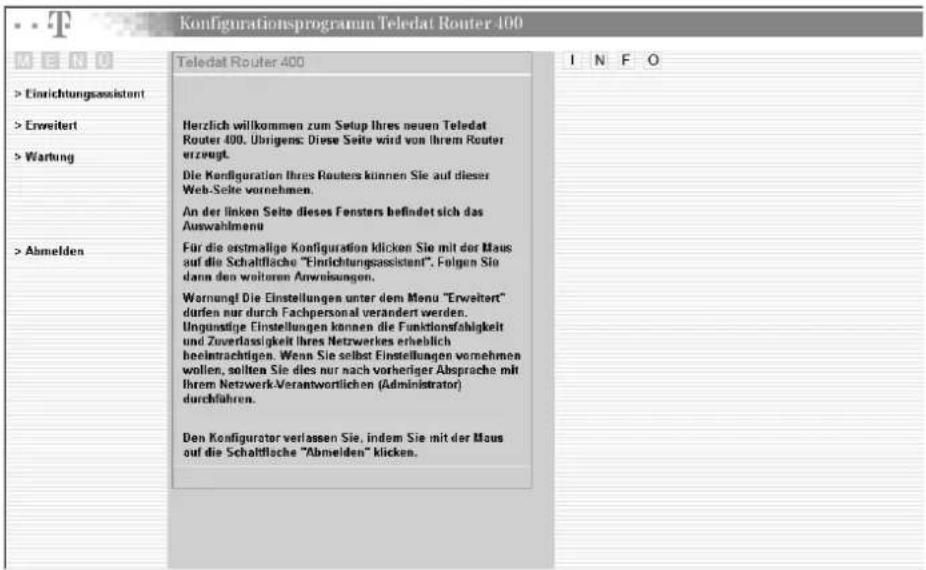
You are now in the web configurator. Follow the directions in the main menu to browse through the different screens, or open the HTML online help found on the right.
Click Einrichtungsassistent (Wizard Setup) for initial configuration.
Click Erweitert (Advanced) for further configuration and setting up advanced features.
Click Wartung (Maintenance) to view information about your Teledat Router 400 or upgrade configuration or firmware files.
Click Abmelden (Logout) at any time to exit the web configurator and finally go back to welcome screen.
INFO! The "Password" field does not refer to your online (Internet access) password but a custom password that will allow you access the Web Configurator.
Basic Configuration with Wizard Setup
You can use the Wizard Setup screens to configure your system for Internet access.
ISP Parameters for Internet Access
Depending on the encapsulation method you choose, the screen may look different. Complete the fields to setup your ISP account.
Encapsulation: Choose an encapsulation method from the drop-down list box. PPPoE forms a dial-up connection (PPPoE is the usual encapsulation in the German net).
Benutzername: Type the user name given to you by your ISP.
(User Name) Example for T-Online: 111111111111222222222222#0001@t-online.de
where "111111111111" designates the connection ID.
"222222222222" designates the T-Online number.
The "#" character is a separator that follows the first 24 characters.
The figures "0001" designate the first co-user.
Kennwort: Type the password associated with the user name above.
(Password)
Trennen nach: Type the time in seconds that elapses before the router automatically (Idle Timeout) disconnects from the PPPoE server.

Click Beenden (Finish) to exit the Einrichtungsassistent (Wizard Setup) screen.
Wizard Setup Complete
You have successfully set up the Teledat Router 400 to operate on your network and access the Internet.

WARNING As long as your computer remains powered on, different applications may request data packets (e.g. an E-Mail program retrieving new e-mails every 15 minutes). This may lead to online connection charges.
For more information about specific configurations please read the Teledat Router 400 User's Guide.


Published by:
Deutsche Telekom AG
Subject to change
Version: October 2002


- SAFETY INSTRUCTIONS
- INTRODUCTION
- ABOUT YOUR TELEDAT ROUTER 400 INTERNET SECURITY GATEWAY
- THE MAIN FEATURES OF THE TELEDAT ROUTER 400 ARE
- PACKAGING LIST
- WARNING
- HARDWARE INSTALLATION
- THE FRONT PANEL
- DESCRIPTION OF LEDS
- LED COLOR STATUS DESCRIPTION
- REAR PANEL AND CONNECTIONS
- WAN 10M PORT
- LAN 10/100M PORTS
- LAN 10/100M PORT ETHERNET CABLE TYPE
- COMPUTER HUB/SWITCH
- WARNING! ONLY USE THE SUPPLIED POWER ADAPTER
- ADDITIONAL INSTALLATION REQUIREMENTS
- TURNING ON YOUR TELEDAT ROUTER 400, PC AND DSL MODEM
- RESET BUTTON
- USING THE RESET BUTTON
- PREPARING YOUR NETWORK
- SETTING UP YOUR WINDOWS 95/98/ME COMPUTER
- INSTALLING TCP/IP COMPONENTS
- TO INSTALL TCP/IP
- CONFIGURING TCP/IP
- VERIFYING TCP/IP PROPERTIES
- SETTING UP YOUR WINDOWS NT/2000/XP COMPUTER
- SETTING UP YOUR MACINTOSH COMPUTER
- CONFIGURING TCP/IP PROPERTIES
- CHECKLIST
- FIELD
- DESCRIPTION
- NOTE
- USING THE WEB CONFIGURATOR
- WEB CONFIGURATOR LOGIN
- BASIC CONFIGURATION WITH WIZARD SETUP
- ISP PARAMETERS FOR INTERNET ACCESS
- WIZARD SETUP COMPLETE
Brand : T-Mobile
Model : Teledat Router 400
Category : Router