Recon3D Fatal1ty Champion - Soundcard CREATIVE - Free user manual and instructions
Find the device manual for free Recon3D Fatal1ty Champion CREATIVE in PDF.


User questions about Recon3D Fatal1ty Champion CREATIVE
0 question about this device. Answer the ones you know or ask your own.
Ask a new question about this device
Download the instructions for your Soundcard in PDF format for free! Find your manual Recon3D Fatal1ty Champion - CREATIVE and take your electronic device back in hand. On this page are published all the documents necessary for the use of your device. Recon3D Fatal1ty Champion by CREATIVE.
USER MANUAL Recon3D Fatal1ty Champion CREATIVE
Congratulations on your purchase of Creative's latest audio revolution, Sound Blaster® Recon3D PCIe! With cutting edge technology from the leaders in PC audio, Sound Blaster Recon3D PCIe will give you years of reliable entertainment on your PCI Express (PCIe®) enabled personal computer. This User's Guide contains software installation and usage information for your audio card.
System Requirements
Minimum Requirements
☐Intel ^® Core ^TM2 Duo or AMD ^® processor equivalent (Core ^TM2 2.0 GHz, AMD processor equivalent or faster recommended)
□Intel or AMD compatible motherboard
☐Microsoft ^® Windows ^® 7 64-bit, Windows 7 32-bit
□1 GB RAM
□>600 MB of free hard disk space
□Available PCI Express slot*
□CD or DVD drive for software installation
☐High quality headphones or powered amplified speakers (available separately)
Additional Requirements (where applicable)
DVD-Video
□6x or faster DVD drive
☐DVD player software such as InterVideo ^® WinDVD ^® or CyberLink ^® PowerDVD ^® (latest version recommended) installed
☐5.1 speakers for optimal listening experience
Notes
- * Some motherboards reserve the PCI Express x16 slots for video cards only. Use a x1 or x4 slot instead. For more information, consult the documentation of your motherboard.
- Other applications may have higher system requirements. For more information, consult the documentation of your application.
More Help
For the latest news and products for Sound Blaster, visit www.soundblaster.com. The site also includes information on making purchases, technical help, and the latest driver updates.
Using Creative Software AutoUpdate
Locating, downloading, and installing updates for your Creative products is now simpler and faster with the web-based Creative Software AutoUpdate system.
When you connect to Creative Software AutoUpdate via the Internet, the web site will analyze your computer system to determine what operating system (OS), language, and Creative products are installed in your system.
After the online analysis, you will be able to select from a list of only the most relevant software and driver updates. The files will then be retrieved and installed on your system for you.
To learn more about Creative Software AutoUpdate, visit www.soundblaster.com/support.
Notes
- First-time users of Creative Software AutoUpdate may be prompted to authorize the download of a browser component required for system inspection. Ensure that the content is signed by Creative Labs, Inc., then click the Yes button.
- Ensure that all your Creative products are connected and installed on the same computer running Creative Software AutoUpdate.
For instructions on installing your Sound Blaster Recon3D PCIe, and any additional accessories, consult the Quick Start leaflet.
To learn more about your product, consult the following sections:
□Your Sound Blaster Recon3D PCIe Audio Card
□Your Sound Blaster I/O Drive*
Notes
- * Available for selected models of your audio device in some regions.
- Actual products may differ slightly from those shown in this chapter.
Your Sound Blaster Recon3D PCIe Audio Card
Your Sound Blaster Recon3D PCIe audio card has the jacks and connectors below to enable the attachment of a wide variety of devices.
SB1350:
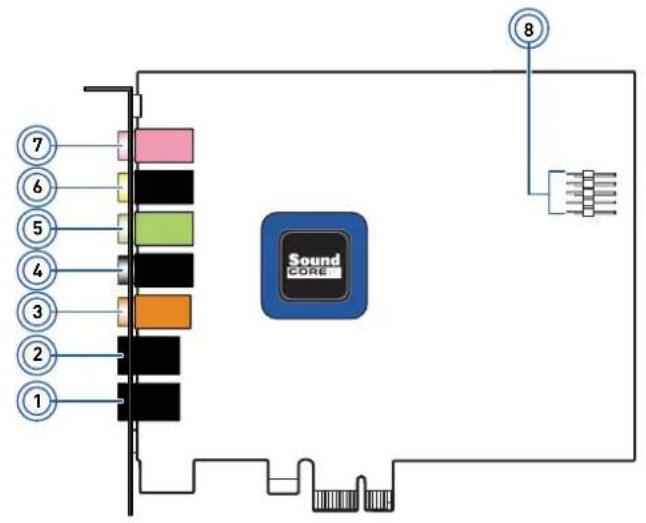
text_image
7 6 5 4 3 2 1 Sound CORE 8SB1354
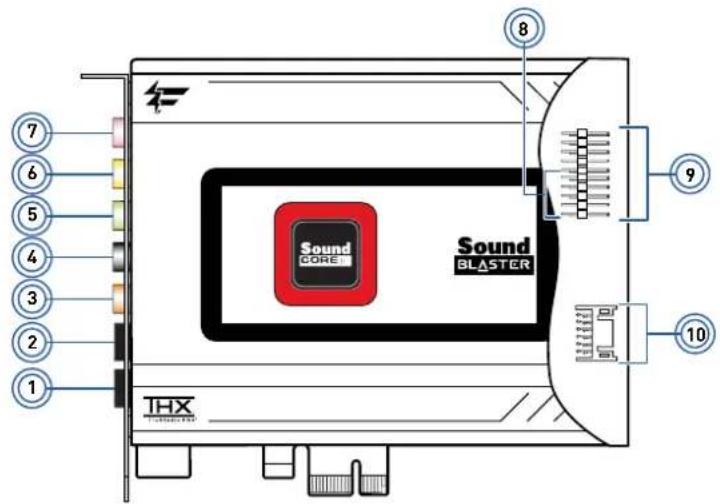
text_image
Sound CORE Sound BLASTER THX 10 9 8SB1356:

text_image
7 6 5 4 3 2 1 8 Sound Core Sound BLASTER THXSB1358:
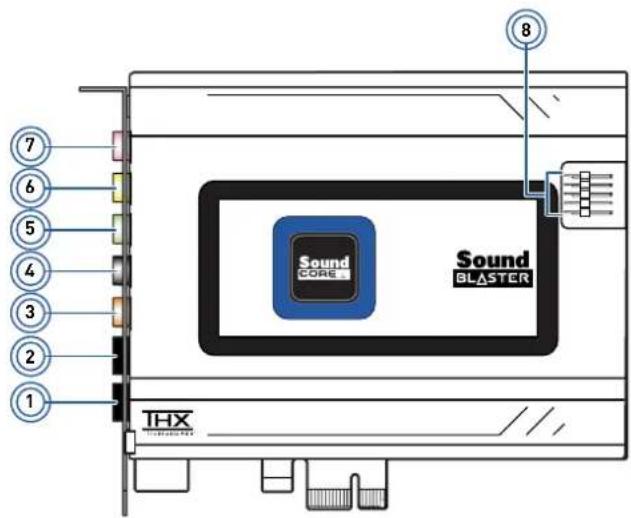
text_image
Sound CORE Sound BLASTER THX| Jack or Connector | Description | |
| 1. Optical S/PDIF In jack | Connects to playback devices with optical connectors (for example, Digital Audio Tape players, MiniDisc players or DVD players). | |
| 2. | Optical S/PDIF Out jack | Connects to recording devices with optical connectors (for example, Digital Audio Tape recorders, MiniDisc recorders or external hard disk recorders). |
| 3. Line Out 3 jack | Connects to the Front Center and Subwoofer inputs on powered analog speakers or an A/V receiver. | |
| 4. Line Out 2 jack | Connects to the Rear Left and Rear Right inputs on powered analog speakers or an A/V receiver. | |
| 5. Line Out 1 jack | Connects to the Front Left and Front Right inputs on powered analog speakers or an A/V receiver. | |
| 6. Headphone jack | Connects to stereo headphones with a 3.50 mm (1/8-inch) plug. | |
| 7. | Line In/Microphone In jack | Connects to line-level sources (for example, MP3 players) or microphones with a 3.50 mm (1/8-inch) plug. |
| 8. | Front Panel Header Audio connector | Connects to one end of the Intel Front Panel Audio cable (available separately). See Front Panel Header Audio Connector for specifications. |
| 9. | Creative proprietary AND_EXT connector | Connects to one end of the analog cable. Connect the other end to the AND_EXT connector on the Sound Blaster I/O Drive. |
| 10. | Creative proprietary DID_EXT connector | Connects to one end of the digital cable. Connect the other end to the DID_EXT connector on the Sound Blaster I/O Drive. |
Your Sound Blaster I/O Drive\*
Your Sound Blaster I/O Drive connects with your Sound Blaster Recon3D Fatal1ty Champion audio card, and provides additional connectivity for a number of other devices.
Front:

text_image
Sound DLASTER THX TAX HEADSHOWN BEASHERS FATALITY MAC VOLUME 1 5678432Back:

text_image
1109| Jack, Connector, Knob or Button | Description | |
| 1. Auxiliary Line In jacks | Connects to playback devices using an RCA cable. | |
| 2. | THX Trustudio Pro LED button | Indicates the current mode THX Trustudio mode. |
| 3. Headphones button Turns on the | headphone as output device. | |
| 4. Speakers button Turns on the speaker as output device. | ||
| 5. Master Volume knob | Controls the volume output on your headphone or headset. Turn the knob clockwise to increase the volume and anti-clockwise to decrease the volume. | |
| 6. Headphone jack | Connects to stereo headphones with a 3.50 mm (1/8-inch) plug or the headphone plug of your headset. | |
| 7. Microphone In jack | Connects to microphones with a 3.50 mm (1/8-inch) plug or the microphone plug of your headset. | |
| 8. Microphone Volume knob | Controls the microphone gain. Turn the knob clockwise to increase the microphone gain and anti-clockwise to decrease the microphone gain. | |
| 9. | Creative proprietary AND_EXT connector | Connects to one end of the analog cable. Connect the other end to the AND_EXT connector on the Sound Blaster Recon3D Fatality Champion audio card. |
| 10. | Creative proprietary AUX_EXT connector | Connects to the auxiliary cable on the 51⁄4-inch drive bay adapter. |
| 11. | Creative proprietary DID_EXT connector | Connects to one end of the digital cable. Connect the other end to the DID_EXT connector on the Sound Blaster Recon3D Fatality Champion audio card. |
Notes
- * Available for selected models of your audio device in some regions.
- Your Sound Blaster I/O Drive comes attached to a 5½-inch drive bay adapter. For instructions on removing the drive bay adapter and installing into a 3½-inch drive bay, consult your Quick Start leaflet.
- Not compatible with the PCI Sound Blaster series of audio cards.
Installing and Uninstalling Software
To take full advantage of your Sound Blaster Recon3D PCIe audio card, you need to install device drivers and applications. At times, you may also need to uninstall some or all of the device drivers and applications to correct problems, change configurations, or to upgrade outdated drivers or applications. To learn how to do so in all supported Windows operating systems, consult the following sections:
□Installing Drivers and Applications
□Uninstalling Drivers and Applications
Installing Drivers and Applications
Ensure that your audio card is installed before proceeding. For instructions on installing your audio card, consult your Quick Start leaflet.
After you have installed your audio card, turn on your computer. Windows automatically detects your audio card and searches for device drivers.
For Windows 7
- Insert the Installation CD into your CD or DVD drive.
Your CD should start automatically. If it does not, follow the steps below:
i. Click Start ▶ Computer.
ii. Right-click the CD or DVD drive icon, and then click Open AutoPlay.
- To complete the installation, follow the instructions on the screen.
- When prompted, restart your computer.
Uninstalling Drivers and Applications
Before you begin, close all running audio applications. Applications that are still running during uninstallation will not be removed.
For Windows 7
- Click Start ▶ Control Panel ▶ Uninstall a program.
- Select the Sound Blaster Recon3D PCIe entry.
- Click the Uninstall button.
If the User Account Control dialog box appears, click the Continue button.
- Click the Yes button.
- When prompted, restart your computer.
After you have completed the steps above, you can install the original or updated device drivers and applications for Sound Blaster Recon3D PCIe. For instructions on installing the software, consult Installing Drivers and Applications.
Connecting Speakers and Headphones
The connectors and associated components shown here may be different from that of your speaker system. Consult the documentation of your speaker system to identify similar input connectors. You can upmix your stereo sources (for example, CD Audio, MP3, WMA, MIDI, and Wave) to enjoy multichannel sound on your speakers or headphones.
To learn how to connect different types of speaker systems to your audio card, consult the following sections:
□Connecting Analog Speaker Systems
□Connecting Digital Speaker Systems
□Connecting Home Theater Systems
□Connecting Headphones and Headsets
For tips on how to arrange your speakers, consult Positioning Your Speakers.
For a list of supported Creative speaker systems or interactive help on speaker connectivity, visit www.soundblaster.com.
Notes
- Actual products may differ slightly from those shown in this chapter.
- Select the correct speaker setup or headphone option in Sound Blaster Recon3D PCIe Control Panel, to get the best experience. For more information, refer to their respective online Help.
- The cables shown in this chapter may be bundled with your peripheral or are available separately from www.creative.com.
- For more information on the Creative peripherals mentioned in this chapter, visit www.creative.com.
Positioning Your Speakers
Good speaker placement is crucial to getting optimal performance from your audio system and achieving an enhanced listening experience. Below are our recommendation for 5.1 channel speakers.
For detailed speaker placement tips, consult the documentation of your speaker system.
For 5.1 channel speakers:

flowchart
graph TD
    A["Room 1"] --> B["Central Device"]
    C["Room 2"] --> B
    D["Room 3"] --> B
    E["Room 4"] --> B
    F["Room 5"] --> B
    G["Room 6"] --> B
    B --> H["Signal Network"]
    style A fill:#f9f,stroke:#333
    style C fill:#f9f,stroke:#333
    style D fill:#f9f,stroke:#333
    style E fill:#f9f,stroke:#333
    style F fill:#f9f,stroke:#333
    style G fill:#f9f,stroke:#333
| Speaker component | |
| 1. Subwoofer | |
| 2. Front Left | |
| 3. Front Center | |
| 4. Front Right | |
| 5. Rear Right | |
| 6. Rear Left | |
Connecting Analog Speaker Systems
Your audio card supports analog speaker systems of up to 5.1 channels. To learn more about connecting different channel speaker systems, consult the following sections:
□2.1 channel analog speakers
□5.1 channel analog speakers
2.1 channel analog speakers
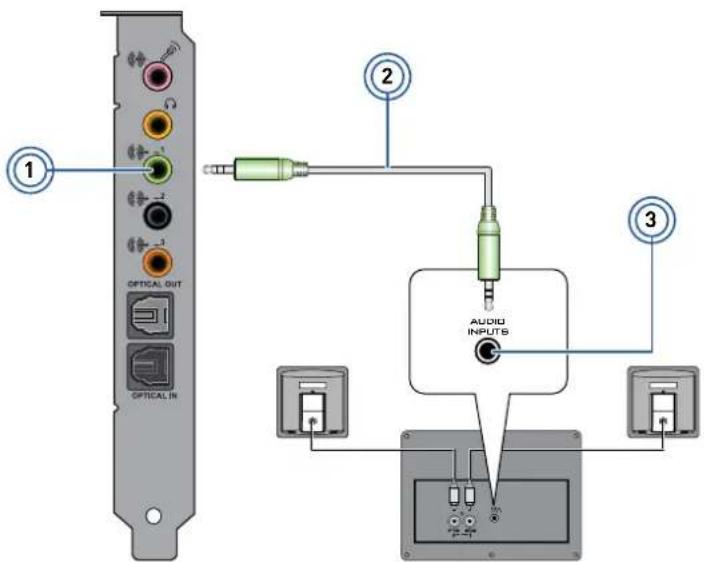
text_image
1 OPTICAL OUT OPTICAL IN 2 AUDIO INPUTS 3| Jack, Connector or Cable | |
| 1. Line Out 1 jack | |
| 2. 2 channel audio cable (available separately) | |
| 3. Audio Input jack | |
5.1 channel analog speakers
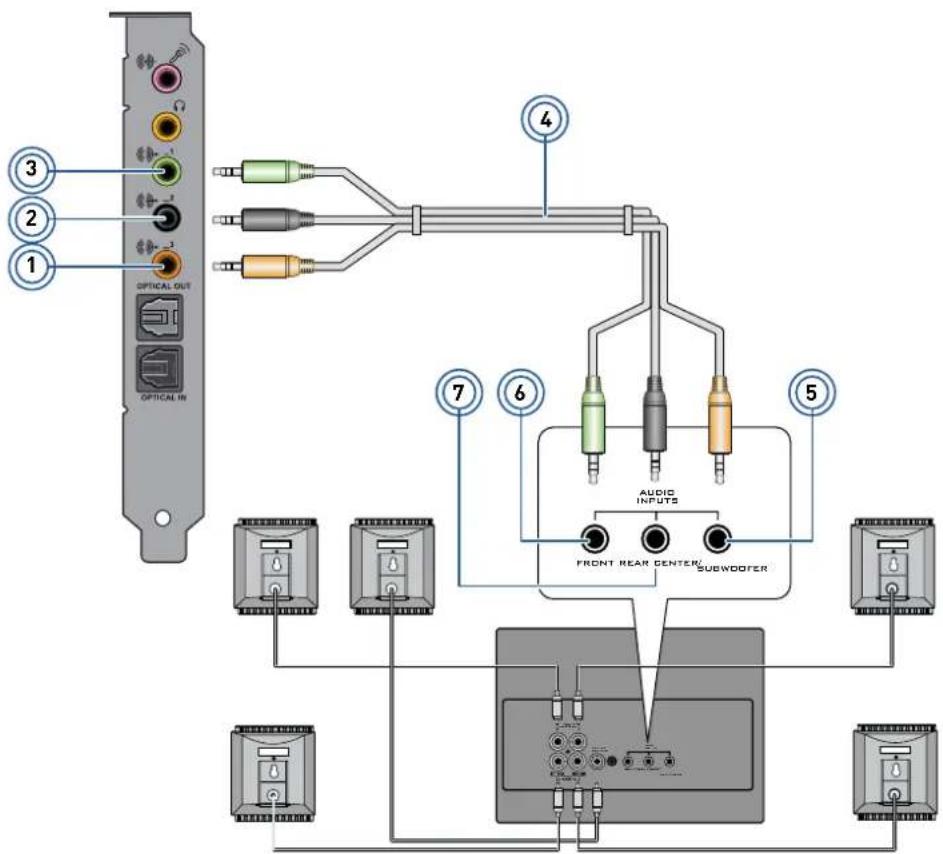
text_image
OPTICAL OUT OPTICAL IN 3 2 1 4 7 6 5 AUDIO INPUTS FRONT REAR CENTER SUEWOOFER| Jack, Connector or Cable | |
| 1. Line Out 3 jack | |
| 2. Line Out 2 jack | |
| 3. Line Out 1 jack | |
| 4. 5.1 channel audio cable (available separately) | |
| 5. Center/Subwoofer (Audio Input) jack | |
| 6. Front (Audio Input) jack | |
| 7. Rear (Audio Input) jack | |
Connecting Digital Speaker Systems
Your Sound Blaster Recon3D PCIe comes with an Optical S/PDIF Out jack which allows you to connect your digital speaker system. Most digital speakers systems connect the audio card to the subwoofer or an external unit.
For more information on your digital speaker connections, consult the documentation of your digital speaker system.
Connecting your digital speakers to the Sound Blaster Recon3D PCIe

text_image
1 2 3 OPTICAL Optical| Jack, Connector or Cable | |
| 1. Optical S/PDIF Out jack | |
| 2. Optical cable (available separately) | |
| 3. Optical S/PDIF In jack | |
Connecting Home Theater Systems
Your Sound Blaster Recon3D PCIe comes with an Optical S/PDIF Out jack which allows you to connect your home theater system. Most home theater systems connect the audio card to an A/V receiver.
For more information on your A/V receiver's speaker connections, consult the documentation of your A/V receiver.
Connecting your A/V receiver to the Sound Blaster Recon3D PCIe
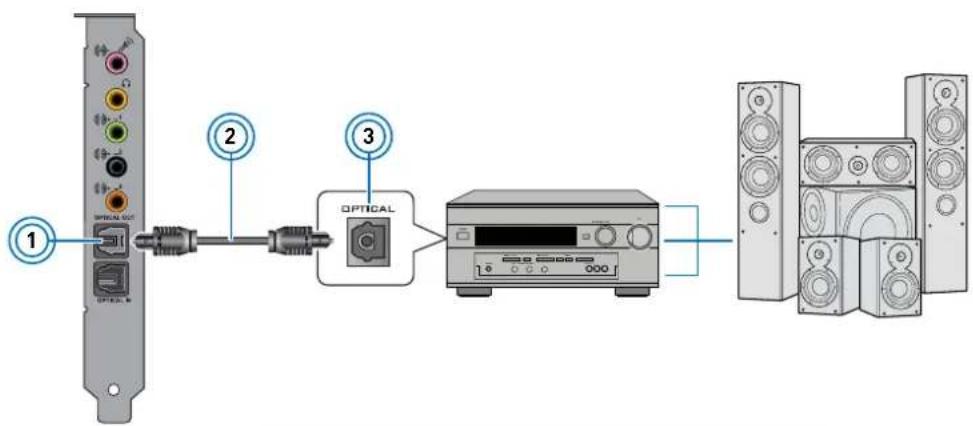
flowchart
graph LR
    A["CD"] -->|1| B["Switch"]
    B --> C["Optical"]
    C --> D["Speaker"]
    D --> E["Output"]
    style A fill:#f9f,stroke:#333
    style E fill:#bbf,stroke:#333
| Jack, Connector or Cable | |
| 1. Optical S/PDIF Out jack | |
| 2. Optical cable (available separately) | |
| 3. Optical S/PDIF In jack | |
Connecting your A/V Receiver using Line level inputs
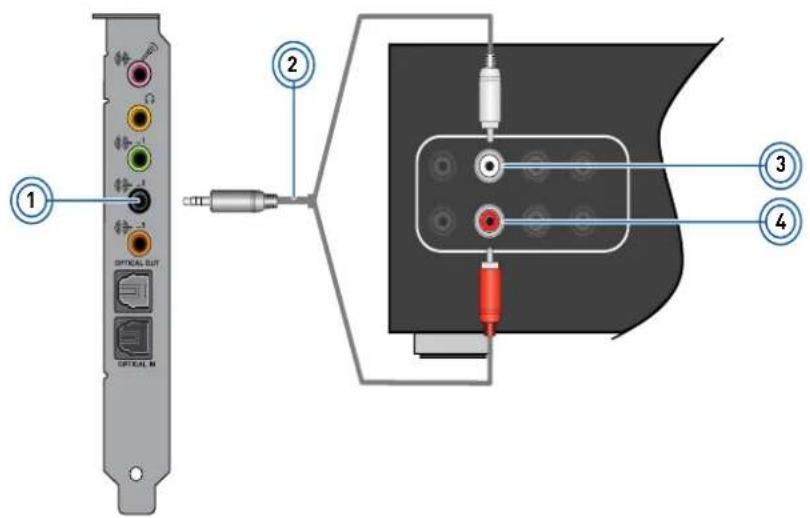
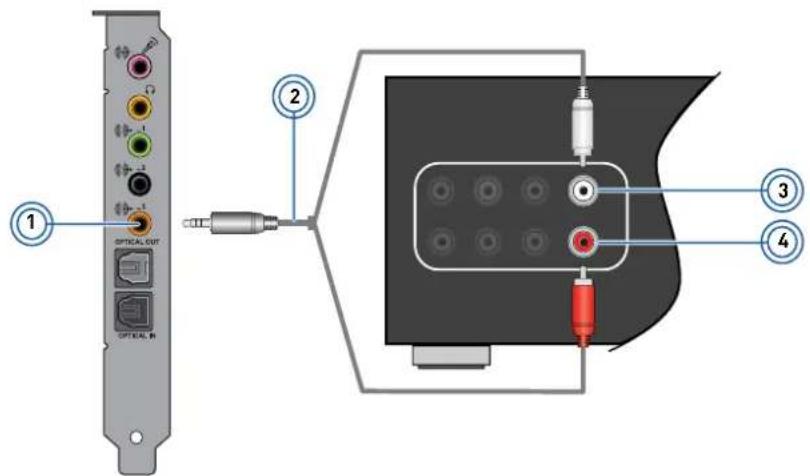
If your A/V receiver supports multichannel line-level inputs, you can connect them directly to your audio card's Line Out jacks instead of the Optical S/PDIF Out jack as shown below.
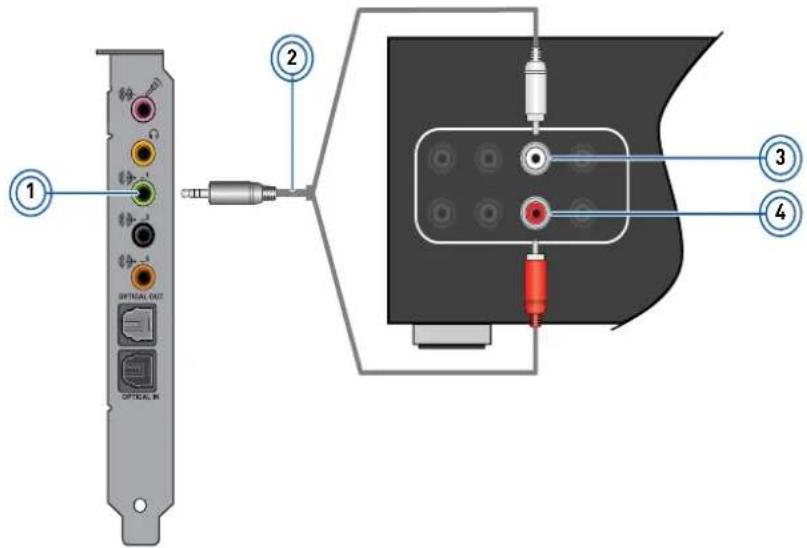
text_image
Diagram showing audio device connection with labeled ports and components, including a USB cable and connector pin| Jack, Connector or Cable | Description | |
| 1. Line Out 1 jack | Connects to the Front Left and Front Right jacks on your A/V receiver, using a 3.50 mm (1/8-inch) stereo-to-RCA cable (available separately) | |
| 2. | 3.50 mm (1/8-inch) surround-to-RCA cable (available separately) | Connects your audio card and A/V receiver. |
| 3. Front Left jack | Connects to the Line Out 1 jack on your audio card, using a 3.50 mm (1/8-inch) stereo-to-RCA cable (available separately). | |
| 4. Front Right jack | Connects to the Line Out 1 jack on your audio card, using a 3.50 mm (1/8-inch) stereo-to-RCA cable (available separately). | |
text_image
Diagram showing audio device connection with labeled ports and components, including a CD output and audio jack.| Jack, Connector or Cable | Description | |
| 1. Line Out 2 jack | Connects to the Rear Left and Rear Right jacks on your A/V receiver, using a 3.50 mm (1/8-inch) stereo-to-RCA cable (available separately) | |
| 2. | 3.50 mm (1/8-inch) surround-to-RCA cable (available separately) | Connects your audio card and A/V receiver. |
| 3. Rear Left jack | Connects to the Line Out 2 jack on your audio card, using a 3.50 mm (1/8-inch) stereo-to-RCA cable (available separately). | |
| 4. Rear Right jack | Connects to the Line Out 2 jack on your audio card, using a 3.50 mm (1/8-inch) stereo-to-RCA cable (available separately). | |
text_image
Diagram showing audio device connection with labeled ports and connectors, including a USB cable and audio jack.| Jack, Connector or Cable | Description | |
| 1. Line Out 3 jack | Connects to the Center and Subwoofer jacks on your A/V receiver, using a 3.50 mm (1/8-inch) stereo-to-RCA cable (available separately) | |
| 2. | 3.50 mm (1/8-inch) surround-to-RCA cable (available separately) | Connects your audio card and A/V receiver. |
| 3. Center jack | Connects to the Line Out 3 jack on your audio card, using a 3.50 mm (1/8-inch) stereo-to-RCA cable (available separately). | |
| 4. Supwoofer jack | Connects to the Line Out 3 jack on your audio card, using a 3.50 mm (1/8-inch) stereo-to-RCA cable (available separately). | |
Connecting Headphones and Headsets
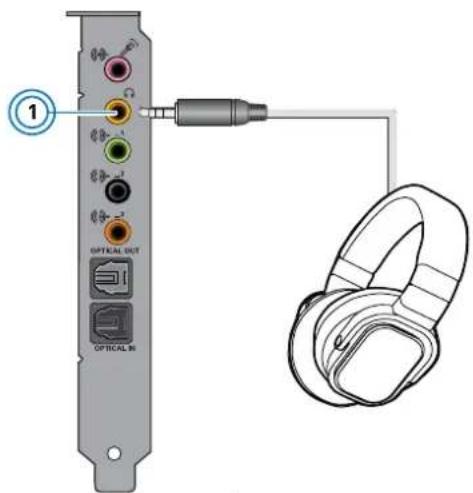
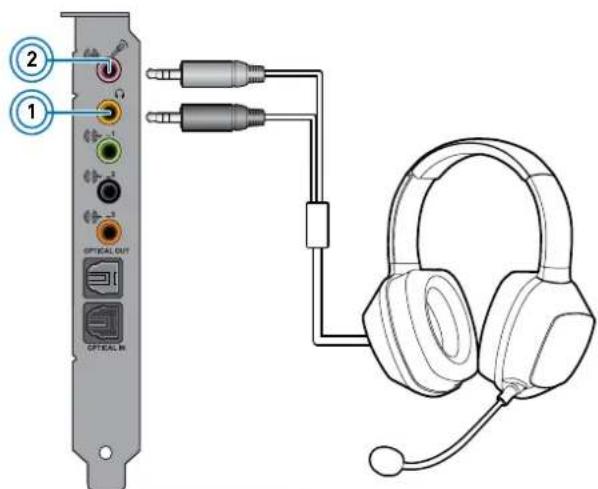
Alternatively, you can also connect your headphones and headsets to the Sound Blaster I/O Drive*. Do not listen to audio on your headphones or headsets at high volumes for prolonged periods of time as hearing loss may result.
Connecting your headphones and headsets to the Sound Blaster Recon3D PCIe
For headphones:
text_image
1 OPTICAL OUT OPTICAL IN| Jack or Connector Description | ||
| 1. Headphone jack | Connects to stereo headphones with a 3.50 mm (1/8-inch) plug. | |
For headsets:
text_image
② ① OFFICAL OUT OFFICAL IN| Jack or Connector Description | ||
| 1. Headphone jack | Connects to the 3.50 mm (1/8-inch) headphone plug of your headset. | |
| 2. Line In/Microphone In jack | Connects to the 3.50mm (1/8-inch) microphone plug of your headset. | |
Connecting your headphones and headsets to the Sound Blaster I/O Drive\*
For headphones:

text_image
Sound BEASTER THX FATA Try OFF NO VOLUME 1| Jack or Connector Description | ||
| 1. Headphone jack | Connects to stereo headphones with a 3.50 mm (1/8-inch) plug. | |
For headsets:
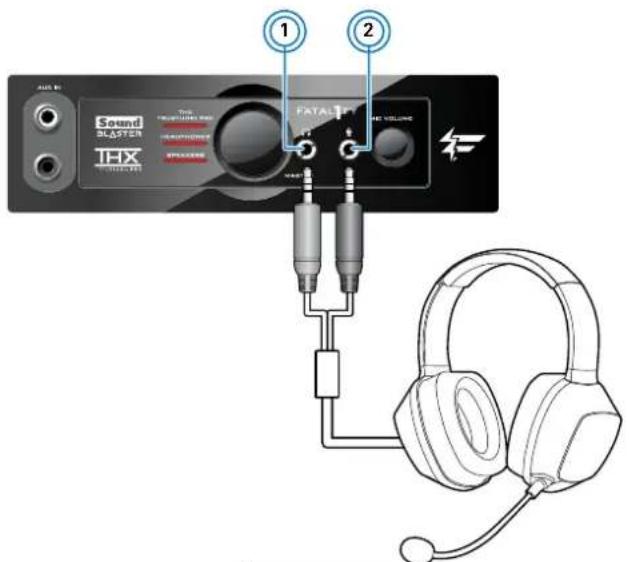
text_image
Sound SLASTER THX FATAL VOLUME 1 2| Jack or Connector Description | ||
| 1. Headphone jack | Connects to the 3.50 mm (1/8-inch) headphone plug of your headset. | |
| 2. Microphone In jack | Connects to the 3.50mm (1/8-inch) microphone plug of your headset. | |
Notes
• * Available as an upgrade accessory for selected models of your audio device in some regions.
- Use an adapter if the plug comes in different size.
Using Your Sound Blaster Recon3D PCIe
Your Sound Blaster Recon3D PCIe works seamlessly with many external devices to perform different tasks. To learn more about these tasks and how to connect additional devices, consult the following sections:
□Playing Games
□Watching DVDs
□Playing/Recording Music
□Creating Music
□Chatting / Gaming
Notes
- Actual products may differ slightly from those shown in this chapter.
- The cables shown in this chapter may be bundled with your peripheral or are available separately from www.creative.com.
- For more information on the Creative peripherals mentioned in this chapter, visit www.creative.com.
Playing Games
Your Sound Blaster Recon3D PCIe is specially designed to enhance audio in games using Creative's cutting edge audio technologies. Playing games will be more exhilarating than ever before!
To learn more about the following audio technologies, visit www.soundblaster.com.
EAX ADVANCED HD
Make your games come alive with EAX ^® ADVANCED HD ^TM and immerse yourself in worlds that their creators envisioned!
Hear multiple audio effects being played simultaneously, and precise environment settings applied to them to create a life-like environment and heighten the sense of realism.
Each effect is also accurately positioned in its 3D environment, allowing you to tell where it is coming from relative to your location, and you will be able to discern where your teammates and enemies are using only these audio cues.
EAX ADVANCED HD is a weapon that will give you the competitive edge, especially in multiplayer games.
Creative ALchemy
Creative ALchemy is a powerful tool that restores the audio for a DirectSound® 3D game running on Windows 7 to its former glory - in full surround sound with hardware accelerated audio mixing, sampling rate conversion and EAX effects.
Dolby Digital Live
Dolby Digital Live is a real-time encoding technology from Dolby Laboratories that converts any audio signal into a Dolby Digital bitstream for transport and playback through your home theater or digital speaker system.
Transform your gameplay into an exciting and realistic experience using Dolby Digital Live. Audio cues and effects that follow the onscreen action are reproduced, immersing you in 5.1 channel surround sound that puts you at the center of the action.
To learn more about Dolby Digital Live, visit www.dolby.com.
Watching DVDs
Your DVDs are encoded with Dolby Digital audio technologies, which have to be decoded to enjoy multichannel audio on your 5.1 speaker systems.
Decoding with a software DVD player
You can use a software DVD player to decode Dolby Digital encoded signals from your DVDs, and output multichannel audio through your audio card to your speakers.
To do so, you need to install a software DVD player such as PowerDVD or WinDVD (latest version recommended).
Decoding with an external decoder
You can pass Dolby Digital encoded signals from your DVDs through your audio card to an external decoder (for example, an A/V receiver), and output multichannel audio to your 5.1 speaker systems. Some digital speaker systems are also capable of decoding Dolby Digital encoded signals.
To learn more, consult the documentation of your external decoder or digital speaker system.
To learn how to connect your A/V receiver or digital speaker system to your audio card, consult the following sections:
□Connecting Home Theater Systems
□Connecting Digital Speaker Systems
Playing/Recording Music
You can play music from, and/or record music to external devices (for example, Digital Audio Tape player/recorder) by connecting them to your Sound Blaster Recon3D PCIe.
Connecting your external device to the Sound Blaster Recon3D PCIe

text_image
Diagram showing connection between a computer interface with labeled components: two ports (1 and 2) connected to a device and a connector (3) via cable routing.| Jack, Connector or Cable | Description | |
| 1. Optical S/PDIF In jack | Connects to playback devices with optical connectors (for example, DAT players, MiniDisc players or DVD players). | |
| 2. Optical S/PDIF Out jack | Connects to recording devices with optical connectors (for example, DAT recorders, MD recorders or external hard disk recorders). | |
| 3. | Optical cable (available separately) | Connects the playback or recording device to your Sound Blaster Recon3D PCIe. |
Creating Music
You can set up a home music studio using your Sound Blaster Recon3D PCIe.
Put together your own productions consisting of multiple music tracks from a MIDI synthesizer or an electric guitar. Alternatively, connect your electric guitar using a pre-amp box to the Line In/Microphone In jack. Use a convertor if your Pre-amp box comes with a larger (for example, a 6.35 mm (1/4-inch)) connector.
You can also connect a microphone to your Sound Blaster Recon3D PCIe.
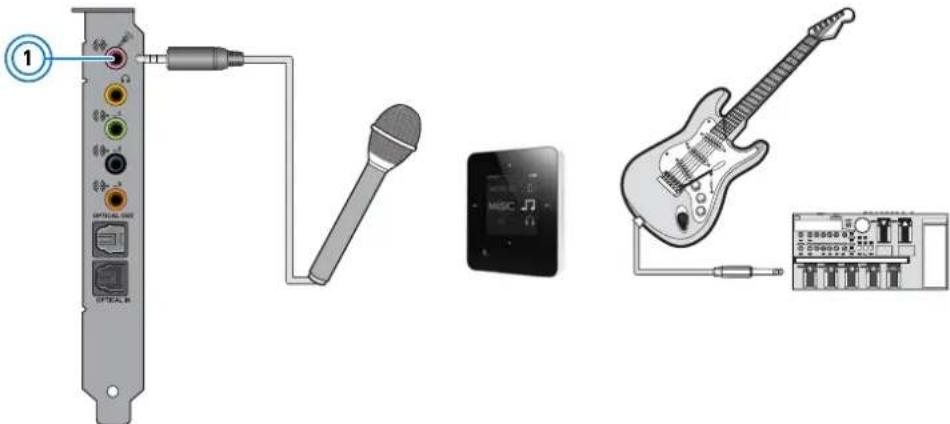
text_image
Diagram showing audio connection components including microphone, music player interface, and guitar with labeled ports| Jack, Connector or Cable | Description | |
| 1. | Line In/Microphone In jack | Connects to line-level sources (for example, MP3 players) or microphones with a 3.50 mm (1/8-inch) plug. |
Chatting / Gaming
Your Sound Blaster Recon3D PCIe can also be connected to hands-free microphones or the Sound Blaster Beamforming Microphone, making over-the-Net chatting a hassle-free affair. Now you can enjoy clear voice chat for gaming and other online chatting purposes.

text_image
1 OPTICAL OUT OPTICAL IN| Jack, Connector or Cable | Description | |
| 1. | Line In/Microphone In jack | Connects to microphones or the Sound Blaster Beamforming Microphone with a 3.50 mm (1/8-inch) plug. |
Creative Software Suite
The following software is designed for you to access the basic as well as the advanced features of your audio card. We recommend that you familiarize yourself with their functions in order to make full use of the rich features of your audio card.
To learn more about each application, consult its online Help. Depending on the application, you can do this by clicking ? on the toolbar of the application, or selecting Help Topics from the Help menu.
Applications
□Sound Blaster Recon3D PCIe Control Panel
□Creative ALchemy
□Creative Software Auto Update
□Creative Information System
□Creative Host Open AL/EAX5.0 HD
□Creative Music Server
□Creative Diagnostics
Bonus Software Available on the Web
□Creative WaveStudio
□Creative Media Toolbox (Trial)
Notes
- The applications included with your audio card may differ from those described here. Your audio card may also come with third party applications.
- Some applications are available for certain operating systems only.
- The colour of Sound Blaster Recon3D PCIe Control Panel may differ for different sound cards.
Sound Blaster Recon3D PCIe Control Panel
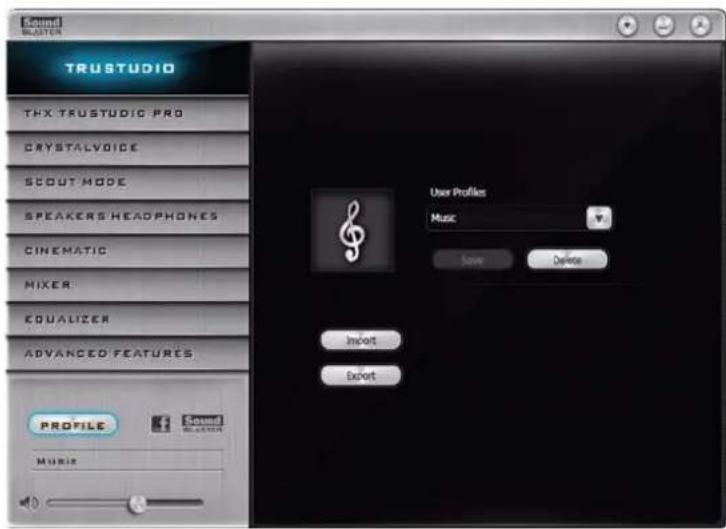
text_image
Sound Blocker TRUSTUDIO THX TRUSTUDIC PRO CRYSTALVOICE SCOUT MODE SPEAKERS HEADPHONES CINEMATIC MIXER EQUALIZER ADVANCED FEATURES Profile Music User Profiles Music Save Delete Import ExportManaging your Profiles
Click the button to display the Profiles pane.
Activate a profile by clicking and selecting it from the list.
Click to save all settings to the current profile or create a new profile. Click to delete the active profile.

text_image
PROFILE Music Sound BLOSTERSharing Profiles
You can export your custom settings and share them with others, or import other gamers' custom settings.
Customizing your avatar
You can customize the avatar for each profile by double-clicking the portrait and selecting another one from the list.
Adjusting your master volume settings
Drag the master volume slider to adjust the volume level.
You can mute/unmute the volume by clicking the speaker icon.
Configuring your software settings
Click each feature to access its settings page. More information on each feature can be found in their respective sections in this manual.

text_image
THX TRUSTUDIO PRO CRYSTALVOICE SCOUT MODE SPEAKERS HEADPHONES CINEMATIC MIXER EQUALIZER ADVANCED FEATURESConfiguring your general settings
You can change the language settings or restore settings to their default values. You can also check for software updates. Click and select the option from the list.

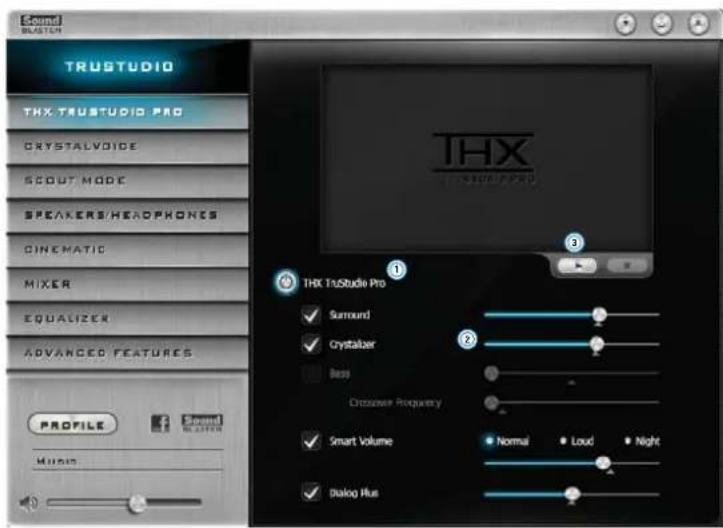
THX TruStudio Pro Settings
text_image
Sound BUSTON TRUSTUDIO THX TRUSTUDIO PRO CRYSTALVOICE SCOUT MODE SPEAKERS/HEADPHONES CINEMATIC MIXER EQUALIZER ADVANCED FEATURES PROFILE MUSIC THX TruStudio Pro ✓ Surround ✓ Crystallar ■ Bass Crossover Frequency ✓ Smart Volume ● Normal ● Loud ● Night ✓ Dialog Plus-
THX TruStudio Pro enhancements Select to turn on or turn off each enhancement.
-
Enhancement Level sliders Adjust the amount of enhancement to apply.
-
Audio Test controls Play/Pause or Stop the demo video.
Enhancing your listening experience
You can adjust the amount to apply for each enhancement by dragging its slider left to decrease or right to increase. To test the effects of the audio enhancements, click and listen to the demo video.
CrystalVoice Settings

text_image
Sound SPRING TRUSTUDIO THA TRUSTUDIO PRO CRYSTALYDISE SSOUT MODE SPEAKERS/HEADPHONES GINEMATIC MIXER EQUALIZER ADVANCED FEATURES PROFILE MUSIC Select a recording device Microphone Set as Windows default Mic Volume Mic Band 1 CrystalVoice ✓ FX Neutral ✓ Smart Volume ✓ Noise Reduction ✓ Acoustic Echo Cancellation ✓ Focus Wedge Angle Narrow Wide Note: Only the selected microphone will have the CrystalVoice effect. Test1. CrystalVoice enhancements
Select to turn on or turn off each enhancement.
Having fun with CrystalVoice
Select a voice preset to use, then click and speak into your microphone to hear how your voice sounds with the preset applied.
Scout Mode

text_image
TRUSTUDIO THX TRUSTUDIO PRO CRYSTALVOICE SOOT MODE SPEAKERS HEADPHONES CINEMATIO MIXER EQUALIZER ADVANCED FEATURES PROFILE MUSIC THIS PROPRIETARY TECHNOLOGY/ALLows YOU TO HEAR YOUR ENEMIES FROM FURTHER AWAY, GIVING YOU A DISTINCT TACTICAL ADVANTAGE IN COMBAT. ① Scout Mode Hot Key Bindings Task Hot Key Enable Scout Mode Alt + S Disable Scout Mode Alt + D Change Hot Key1. Scout mode
Select to turn on or off Scout mode.
Click to configure hotkeys for turning on and turning off Scout mode.
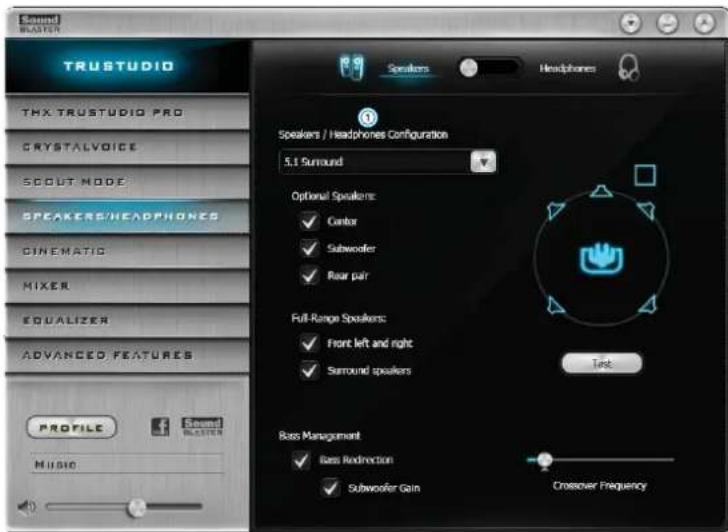
Speakers/Headphones Settings
text_image
Sound WASTEN TRUSTUDIO THX TRUSTUDIO PRO CRYSTALVOICE SCOUT MODE SPEAKERS/HEADPHONES CINEMATIC MIXER EQUALIZER ADVANCED FEATURES PROFILE MUSIC Speaker / Headphones Configuration 5.1 Surround Optional Speakers: ✓ Center ✓ Subwoofer ✓ Rear pair Full-Range Speakers: ✓ Front left and right ✓ Surround speakers Text Bass Management ✓ Bass Redirection ✓ Subwoofer Gain Crossover Frequency1. Device selection
Select the number of speakers or headphones that you are using. Switch between Speakers or Headphones mode.
Testing your audio playback
Select the appropriate configuration based on your setup, then click 📄 to hear a sample audio clip being played back through your setup.
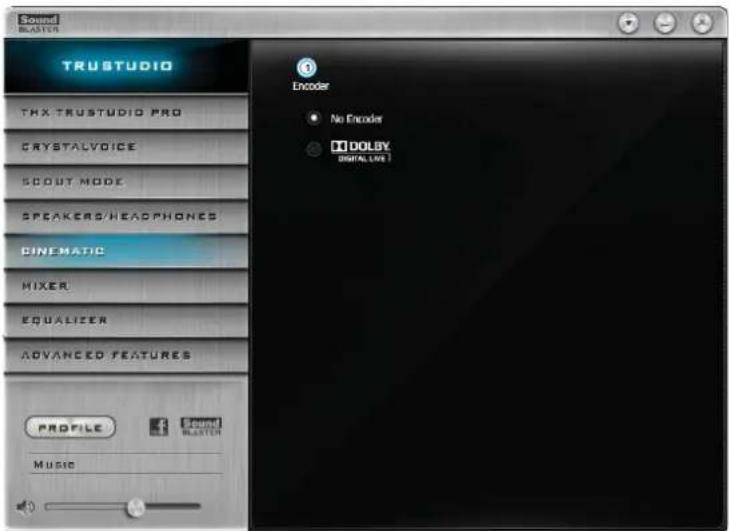
Cinematic Settings
text_image
Sound MASTER TRUSTUDIO THX TRUSTUDIO PRO CRYSTALVOICE SCOUT MODE SPEAKERS/HEADPHONES CINEMATIC MIXER EQUALIZER ADVANCED FEATURES PROFILE Music Encoder No Encoder DOLBY DIGITAL LIVE1. Encoder settings
Select the option to turn on/off the Dolby Digital Live encoder.
Setting your digital audio connection
Select the Dolby Digital option to enable encoding of Dolby Digital audio for superior audio quality. You may also turn off this feature by selecting No Encoder.
Mixer Settings

text_image
Sound BLOSTON TRUSTUDIO THX TRUSTUDIO PRO CRYSTALVOICE SOOUT MODE SPEAKERS/HEADPHONES CINEMATIC MIXER EQUALIZER ADVANCED FEATURES PROFILE MUSIC Playback Speakers ① SPDR-Out Input Device: Balance L R C Sub RL RR Microphone What U Hear Digital-In1. Volume sliders
Adjust the playback and recording volume for your various inputs and outputs.
Adjusting your Mixer settings
Slide the volume level sliders right to increase and left to decrease. Click the 📞 on to mute/unmute the input/output. You can click the 📞 on to adjust the settings for your input/output.
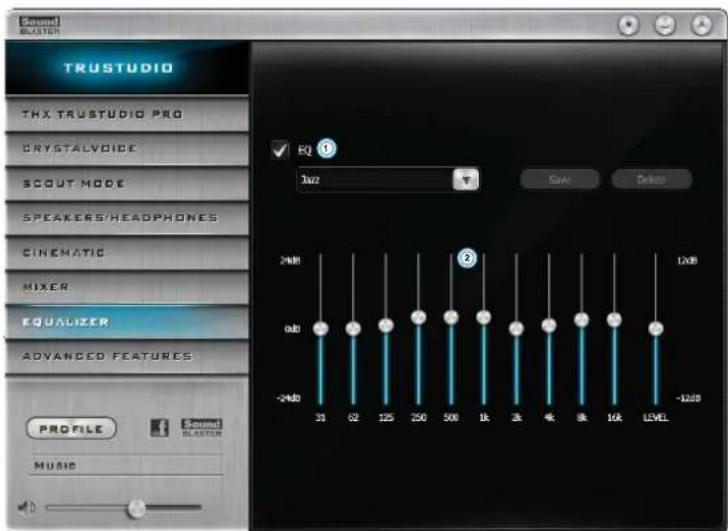
Equalizer Settings
text_image
Sound RUSTER TRUSTUDIO THX TRUSTUDIO PRO CRYSTALVOICE SCOUT MODE SPEAKERS/HEADPHONES CINEMATIC MIXER EQUALIZER ADVANCED FEATURES PROFILE Music 31 62 125 250 500 1k 3k 4k 8k 16k LEVEL EQ ① 3dB Gain Delete 24dB 12dB 0dB -24dB -12dB- EQ presets
Select an equalizer preset to apply to your audio.
- EQ sliders
Adjust the equalizer settings.
Customizing your EQ settings
Select the EQ checkbox to enable this feature, then click the EQ drop-down arrow and select a preset from the list.
Selecting a preset will move the EQ sliders to the appropriate values. You can adjust the equalizer setting by dragging the sliders up or down to the desired level.
Note
- The list of default EQ presets cannot be deleted.
Advanced Features Settings

text_image
TRUSTUDIO THE TRUSTUDIO PRO CRYSTALVOICE SCOUT MODE SPEAKERS/HEADPHONES SINEMATIC MIXER EQUALIZER ADVANCED FEATURES Play stereo mix to digital output PROFILE Music Sound MASTER- Play stereo mix to digital output
Select the checkbox to apply effects to the Digital Output Signals and also down mix to a stereo PCM stream for digital output.
Using Your Audio Device
Playing Games
Your audio device is equipped with cutting edge audio technologies and software to enhance the audio in your games. THX TruStudio Pro will elevate your gaming experience to the next level, allowing you to hear sound details in games you have never heard before!
THX TruStudio Pro Surround provides immersion control of sounds not just around you, but also above and below for a full 3D audio experience. Hear the natural sense of audio depth, spaciousness and stunning 3D surround effects from your audio content. Enjoy an unbelievably true-to-life audio experience, whether it's over stereo speakers or headphones.
THX TruStudio Pro Crystalizer restores the dynamic range that is lost when iTunes and MP3 music gets compressed. This makes the music sound as good as the artist originally intended, and adds an enhanced level of realism for movies and games.
THX TruStudio Pro Bass fills in the low frequency tones and gives the extra impact for a better entertainment experience. It dramatically improves the sound experience without a subwoofer.
THX TruStudio Pro Smart Volume addresses the problem of abrupt volume level changes during playback and between songs by automatically and continuously measuring volume, and intelligently applying gain and attenuation to compensate for those changes.
THX TruStudio Pro Dialog Plus enhances the voices in movies for clearer dialog, allowing the listener to hear the dialog over the rest of the soundtrack and over ambient noise in the listening environment.
Scout Mode transforms your hearing and enables you to hear your opponents from further away, giving you a distinct tactical advantage in combat.
Communicating with Voice over Internet Protocol (VoIP)
Use a headset with your audio device to enjoy outstanding acoustic performance in popular VoIP applications like Ventrilo® and TeamSpeak®. Hear and be heard clearly by teammates during multiplayer games to get the tactical edge.
CrystalVoice FX enables the speaker's voice to be altered with a variety of effects, which can be used to enhance the tone of the speaker's voice, create interesting accents or to sound like a completely different person.
CrystalVoice Smart Volume automatically adjusts the loudness of the speaker's voice to maintain a consistent volume level. This makes it convenient for the speaker to converse normally, regardless of whether the speaker is close to or far away from the microphone.
CrystalVoice Noise Reduction enables the speaker to be heard clearly over background noise by constantly monitoring the environment and eliminate the unwanted noise that interferes with the conversation.
CrystalVoice Acoustic Echo Cancellation eliminates echoes and enables the speaker to listen to the other party clearly. Echoes are a common problem present in voice communication systems that disrupts conversations by making it difficult to hear the other party.
CrystalVoice Focus creates a zone and suppresses noise outside it to enable the speaker within to be heard with amazing clarity. Multiple microphones are used to focus, enhance the speaker's voice, and eliminate sounds outside the zone.
Configuring Creative ALchemy
When playing DirectSound ^® 3D games on Windows 7, the game loses its immersiveness and environmental effects due to changes in audio architecture.
To restore these effects and experience the full audio immersion, follow the steps below:
Enable Windows XP compatibility mode
- Navigate to the folder where you have installed the game.
- Right-click on the game's launcher and select Properties.
- Select the Compatibility tab and select the Compatibility Mode checkbox.
- Click the Compatibility Mode drop-down arrow and Select Windows XP (Service Pack 2), then click OK.
Enable the game in Creative ALchemy
-
Click Start ▶ Programs or All Programs ▶ Creative ▶ ALchemy ▶ Creative ALchemy.
The game should be detected automatically and appear in the left column. -
Select the game and click to move it to the right column.
-
Close the application.
When you launch the game you should hear the original effects.
Note:
- If the game is not detected, do the following:
- Navigate to the folder where you have installed the game.
- Right-click on the game's launcher and select Run as administrator.
- Exit the application and launch Creative ALchemy again. The game should now appear in the left column.
This section details the specifications of your Sound Blaster Recon3D PCIe audio card.
PCI Bus Mastering
□PCI Express Specification Version 1.1 compliant
□Bus mastering reduces latency and speeds up system performance
Sound Blaster Sound Core3D Audio Processor
□Advanced hardware accelerated digital effects processing
☐Dedicated DSP capable of both time and frequency domain audio processing
Professional Digital Audio Processing
☐24-bit Analog-to-Digital conversion of analog inputs at up to 96 kHz sample rate
□24-bit Digital-to-Analog conversion of digital sources to analog outputs
☐16-bit to 24-bit recording sampling rates: 44.1, 48 and 96 kHz
□ Supports Sony/Philips Digital Interface (S/PDIF) format of up to 24-bit/96 kHz quality
☐ S/PDIF output at selectable sampling rate of 44.1, 48 or 96 kHz from Microsoft Control Panel
☐ S/PDIF output not available during playback of protected digital audio content authored with DRM (Digital Rights Management) technology
Notes
- Depending on your system configuration, output sampling frequencies may only be available at 48 and 96kHz .
Flexible Mixer Control
☐ Selectable input source from various audio sources for recording
□Adjustable master volume control
□Independent volume control
THX TruStudio Pro Technology
☐THX TruStudio Pro Crystalizer
☐THX TruStudio Pro Surround
☐THX TruStudio Pro Bass
☐THX TruStudio Pro Dialog Plus
☐THX TruStudio Pro Smart Volume
Sound Blaster CrystalVoice Technology
□CrystalVoice Acoustic Echo Cancellation
□CrystalVoice Noise Reduction
□CrystalVoice Smart Volume
□CrystalVoice FX
□CrystalVoice Focus
Connectivity
This section details the connectivity of your Sound Blaster Recon3D PCIe audio card and Sound Blaster I/O Drive*.
Sound Blaster Recon3D PCIe audio card
Audio Inputs
☐One 3.50 mm (1/8-inch) Line In jack for Analog Line In or Microphone In
☐One Optical S/PDIF jack for Digital In
Audio Outputs
☐Four 3.50 mm (1/8-inch) Line Out jacks for four channel Analog Line Out: Front Left, Front Right, Front Center, Subwoofer, Rear Left and Rear Right channels
☐One Optical S/PDIF jack for Digital Out
Interfaces
☐ One 2 x 5 pin Front Panel Header for connection with Intel HD Front Panel Audio standard header
☐One 2 x 6 pin Header for connection with Sound Blaster I/O Drive
☐One 2 x 10 pin Header for connection with Sound Blaster I/O Drive
Sound Blaster I/O Drive\*
Audio Inputs
☐Two Coaxial jacks for Auxiliary Analog In (on optional bracket)
☐One 3.50 mm (1/8-inch) jack for Microphone In
Audio Outputs
☐One 3.50 mm (1/8-inch) jack for Headphones
Notes
- * Available as an upgrade accessory for selected models of your audio device in some regions.
Front Panel Header Audio Connector
Connection compatibility
□Intel HD Front Panel Audio standard only.
Not compatible with AC97 or Intel-compatible HD Front Panel Audio
Pin configuration
| Pin Signal | Name Description | |
| 1 | PORT 1L | Analog Port 1 - left channel (Microphone) |
| 2 | GND | Ground |
| 3 | PORT 1R | Analog Port 1 - right channel (Microphone) |
| 4 | PRESENCE# | Active low signal that signals BIOS that an Intel HD Audio dongle is connected to the analog header. PRESENCE# = 0 when an Intel HD Audio dongle is connected |
| 5 | PORT 2R | Analog Port 2 - right channel (Headphone) |
| 6 | SENSE1_RETURN | Jack detection return for front panel (JACK1) |
| 7 | SENSE_SEND | Jack detection sense line from the Intel HD Audio CODEC jack detection resistor network |
| 8 | KEY | Connector |
| 9 | PORT 2L | Analog Port 2 - left channel (Headphone) |
| 10 | SENSE2_RETURN | Jack detection return for front panel (JACK2) |
Key
This section provides solutions to problems you may encounter during installation or normal use. This includes:
□Problems with Digital Audio Devices
□Problems with Dolby Digital Live
□Problems with Multiple Audio Devices
□Problems with Older Sound Blaster Audio Devices
□Problems with Sound
If you have a technical problem with this product, you can consult our self-help tool "Knowledge Base" for online troubleshooting and solutions. Go to www.soundblaster.com and select your region.
Problems with Digital Audio Devices
Popping noises are heard during playback.
The DMA feature may not be enabled for your computer's drives.
To solve this problem:
For Windows 7
- Click Start ▶ Control Panel ▶ Hardware and Sound ▶ Device Manager. If the User Account Control dialog box appears, click the Continue button.
- Double-click the IDE ATA/ ATAPI Controllers icon.
- For each ATA Channel in the list, right-click and select Properties.
- Click the Advanced Settings tab and select the Enable DMA checkbox.
- Click the OK button.
Problems with Dolby Digital Live
There are conflicts when enabling Dolby Digital Live.
For Windows 7
Before enabling Dolby Digital Live:
☐ Stop all audio playback through your selected output device. If not, Dolby Digital Live may not be enabled.
Dolby Digital Live is not working for my applications and games.
To solve this problem:
For Windows 7
☐ Set the Speakers component of your audio device as the default playback device in the settings menu of your applications and games, and in the Windows Sound Control Panel.
Notes
- If Dolby Digital Live is enabled, only PCM audio and certain compressed audio (for example, MP3) can be played, which will be encoded by Dolby Digital Live through your selected output device.
Problems with Multiple Audio Devices
The other installed audio card is not working well.
You may have an existing audio device installed in your computer. The audio device may be an audio card or an onboard audio chipset. Before you install your audio device, you are advised to disable or completely uninstall and remove your existing audio device. Operating multiple audio devices in your computer may introduce usability issues.
Alternatively, during the installation of your audio card, do the following:
☐ If your computer detects an installed Sound Blaster Audigy series, Sound Blaster Live! series or Sound Blaster PCI512 audio card, a message box recommending that you completely uninstall and remove the older audio device will appear. Click the Yes button and follow the instructions on the screen to complete the removal of the old audio device. Remove the old audio card from your computer.
☐ If your computer detects any other installed audio card, a message box recommending that you completely uninstall and remove the older audio device will appear. Click the Yes button to continue with the installation of the audio card.
After the installation of the audio card, completely uninstall the existing card and remove the audio card from your computer.
The onboard audio chipset is not working well.
Disable your computer's onboard audio chipset. Consult the documentation of your computer's motherboard for details.
Problems with Older Sound Blaster Audio Devices
Applications installed with older Sound Blaster audio devices are not working.
Apart from normal playback and recording functions, older Sound Blaster audio devices may not work well when your new audio card is installed.
To solve this problem:
Uninstall and remove the older audio device from the computer. Or you can choose to disable it:
For Windows 7
- Click Start ▶ Control Panel ▶ Hardware and Sound ▶ Sound. If the User Account Control dialog box appears, click the Continue button.
- Right-click the name of the audio device you would like to disable and select the Disable option.
- Click the OK button. The audio device's entry disappears from the list.
To enable the audio device again, right-click the list of audio devices, select Show Disabled Devices, right-click the disabled audio device's entry, and select the Enable option.
Problems with Sound
No sound from the headphones.
Check the following:
The headphones are connected to the card's Line Out 1 jack or to the Sound Blaster I/O Drive's Headphone jack.
☐ In the Speakers/Headphones tab of Sound Blaster Recon3D PCIe Control Panel, the Headphones option is selected.
No audio output when playing digital files such as .WAV, MIDI files or AVI clips.
Check the following:
☐ The speakers' volume control knob, if any, is set at mid-range. Adjust the volume in Mixer Settings of Sound Blaster Recon3D PCIe Control Panel, if necessary.
□ The powered speakers or external amplifier are connected to the card's Line Out jacks.
☐ There is no hardware conflict between the card and a peripheral device. See Problems with Digital Audio Devices.
☐ The Speakers/Headphones tab in Sound Blaster Recon3D PCIe Control Panel corresponds to your speaker or headphone configuration.
Information in this document is subject to change without notice and does not represent a commitment on the part of Creative Technology Ltd. No part of this manual may be reproduced or transmitted in any form or by any means, electronic or mechanical, including photocopying and recording, for any purpose without the written permission of Creative Technology Ltd.
Copyright © 2011 Creative Technology Ltd. All rights reserved. Creative, the Creative logo, Sound Blaster, the Sound Blaster logo, Recon3D, CrystalVoice and Creative ALchemy are trademarks or registered trademarks of Creative Technology Ltd. in the United States and/or other countries. THX and the THX TruStudio Pro logo are trademarks of THX Ltd. which may be registered in some jurisdictions. Fatal1ty and Fatal1ty logos are trademarks and/or registered trademarks of Fatal1ty, Inc. and are used under license. Manufactured under license from Dolby Laboratories. Dolby and the double-D symbol are trademarks of Dolby Laboratories. All other trademarks are properties of their respective owners. All specifications are subject to change without prior notice. Use of this product is subject to a limited hardware warranty. Actual contents may differ slightly from those pictured. The software included in this packaging may not be used separately from the hardware. Before using the software, you must agree to be bound by the terms and conditions of the end user license agreement.
Version 1.0
September 2011