
SM01-WPS34 - Wall socket Lanberg - Free user manual and instructions
Find the device manual for free SM01-WPS34 Lanberg in PDF.


| Product Type | Wall Socket |
| Model | SM01-WPS34 |
| Brand | Lanberg |
| Color | White |
| Material | Plastic (ABS) |
| Dimensions (H x W x D) | 86 x 86 x 30 mm |
| Weight | 30 g |
| Rated Voltage | 250 V AC |
| Rated Current | 10 A |
| Number of Sockets | 2 |
| Socket Type | Type E/F (Schuko) |
| Installation | Flush mount, 60 mm mounting box |
| Protection Rating | IP20 |
| Operating Temperature | -25°C to +40°C |
| Wiring | Screw terminals |
| Compliance | RoHS, CE |
| Cleaning | Wipe with dry cloth, no solvents |
| Spare Parts | Replacement screws, socket inserts |
| Warranty | 2 years |
Frequently Asked Questions - SM01-WPS34 Lanberg
User questions about SM01-WPS34 Lanberg
0 question about this device. Answer the ones you know or ask your own.
Ask a new question about this device
Download the instructions for your Wall socket in PDF format for free! Find your manual SM01-WPS34 - Lanberg and take your electronic device back in hand. On this page are published all the documents necessary for the use of your device. SM01-WPS34 by Lanberg.
USER MANUAL SM01-WPS34 Lanberg
natural_image
Simple teal house icon with no text or symbolsLanberg Smart home systems
SMART Wi-7i %9WER STRI%
3 X UNI-SCHUK9 9UT×ET 4 USB %9RT
×ISTWA SMART Wi-7i
3 X GNIAZ69 SCHUK9 4 %9RTY USB
MANUAL 4 INSTRUKCJA OBSŁUGI
Stable Wi-7i 2.4GHz connection is required for the device to work properly.
A. Safety precautions .... 2
B. %roduct description 3
C. %roduct introduction and elements description ...... 3
D. Installation 4
E. %ower 4
F. %ower strip default settings reset 4
G. Using TuyaSmart app .... 5
H. %airing with TuyaSmart app 8
I. Available settings for devices added via TuyaSmart...... 11
J. %product specification 12
K. Warranty 13
A. Safety precautions
- Do not plug this power strip into an existing surge protector or power strip. This practice is called "daisy chaining" or "piggy backing" and can lead to serious problems.
- If at any time the power strip or plug strip is too hot, remove and replace the unit. The electrical load for this strip should be evaluated for overloading.
- This device is for indoor use only. 9 operating temperature should be within -20-60°C. Avoid direct contact with water,
as it will cause serious damages, render the product useless or even threaten the life of user.
- Stable Wi-Fi connection - 2.4Ghz band is required for the device to work properly.
- Please contact the seller / distributor for assistance, if there is any problem with this product. Do not try to disassemble or repair the product yourself, without authority.
- Please do not short-circuit the product.
- Dispose of the product properly. It should be disposed along with electronic waste.
B. Product description
Thank you for purchasing Lanberg Smart power strip.
The following product is an intelligent, easy-to-install power strip with 3 Uni-Schuko (Type-F) outlets (10A) and 4 USB ports (each 2.4A max.).
Every single available outlet, port can be managed remotely via "TuyaSmart" app.
C. Product introduction and elements description
What is inside of the box?
Packaging contains: Smart power strip × 1, Manual × 1, Plastic pin cover × 1.
D. Installation
- Take ×anberg Smart power strip out of the packaging.
- Connect the product to mains (AC). 60 not connect this power strip to another surge protector / power strip.
- To pair this ×anberg device with "TuyaSmart" app follow the instructions from point H: Pairing with TuyaSmart app.
Important note:
60 not install in places with direct contact with water or liquid-based substances. Any exposure to them may lead to serious product damage or render the Smart power strip useless.
E. Power
Before using ×anberg Smart power strip, connect it to the AC power source (mains / wall-mount outlet etc.). The required power is: 100-240V AC, 50-60Hz.
F. Power strip default settings reset
ON / OFF switch found on the power strip's panel can also be used as a Reset button. To do it press and hold it for at least 5 seconds. If the power switch starts flashing the operation was successful.
G. Using TuyaSmart app
×anberg Smart power strip supports external mobile devices, such as smartphones, tablets etc., with i9S 10.0 / Android 5.0 operating systems or newer.
App can be downloaded in two ways"
- 6 download the App from Google %lay or App Store.
a. Android mobile device: Type and search "TuyaSmart" in "oogle Play."
b. i9S mobile devices: Type and search "TuyaSmart" in App Store.
- Use the QR code, on the next page, available for devices with the i9S or Android operating systems.
Important note: After scanning the QR code, the default browser window will open (e.g.
Safari). In the newly opened window, click "Download" and then select the option to open using the
App Store / Google %lay to download the application.

"TuyaSmart" user account registration
- 9pen "TuyaSmart" App installed on your mobile device.
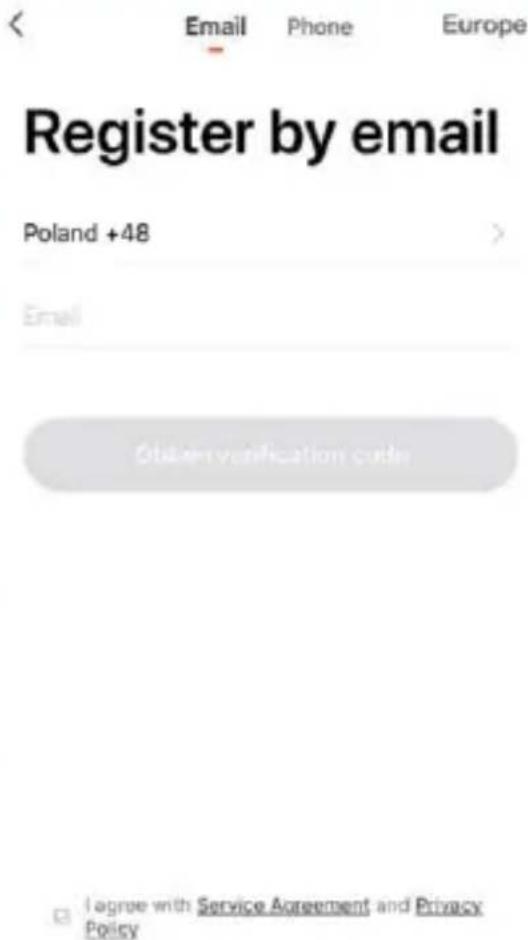
- Select the option "Register" to create a new user account.
- In the next window, select the "Email" or "Phone" tab to choose the method of

natural_image
Orange square app icon with white 't' and wireless signal symbol (no text or numbers)obtaining the verification code. 7ill in the correct data and press the "Obtain verification code" button to get the code.


- You will receive a 6-digit verification code via given the E-mail address or mobile number.
Note: 60 seconds are required to enter the code. After this time elapses, select "Resend" highlighted in blue.
- Set the access password for your account. The password must contain between 6 and 20 characters. In addition, it must also contain letters and numbers.
- Create your "žamily", a list of smart devices compatible with "TuyaSmart" App.
Enter verification code
A verification code has been sent to your email: wjrkra23@gmail.com, Rosend (576)
Set Password
Password must contain 0–20 characters, including alphabets and numbers
Completed

natural_image
Illustration of a person using a laptop with a plant and cloud in the background (no text or symbols)Turn on your smart life
Create family
lng out
H. Pairing with TuyaSmart app
• Establishing Wi-Fi connection
-
Connect ×anberg Smart power strip to mains (AC).
-
Make sure the external mobile device is also connected to the Wi-Fi router.
- Adding new devices
-
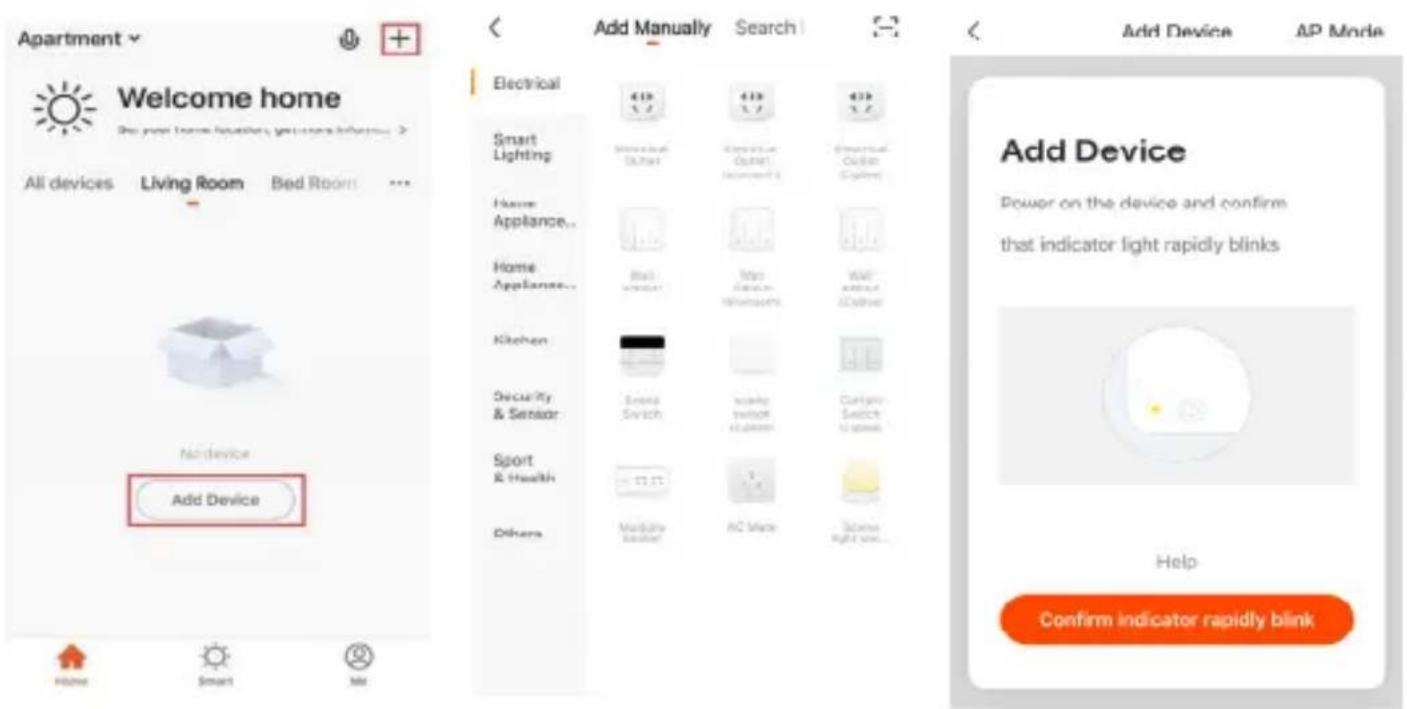
After logging in to your account, open the "TuyaSmart" application. Then press the "+" symbol to add a new device.
-
Select the "Electrical" tab, then click on the selected device, e.g. "Multiple Socket".
-
% prepare and install ×anberg Smart Wi-Fi power strip to mains. Initiate product's pairing mode by pressing and holding the power button for at least 5 seconds. Master switch should start flashing rapidly.
- Enter the password for your local Wi-Fi network. Make sure that Smart IP camera or any other product compatible with the "TuyaSmart" application are in close proximity to each other. within the same network.
Note: Currently only Wi-Fi 2.4Ghz frequency is supported. 5Ghz band compatibility is not yet available.
- Next the product will connect to the application. This process may take a few seconds to complete. When the connection status reaches 100%, the device will be correctly added to "TuyaSmart".


- Newly added product's current status can be checked via the App.
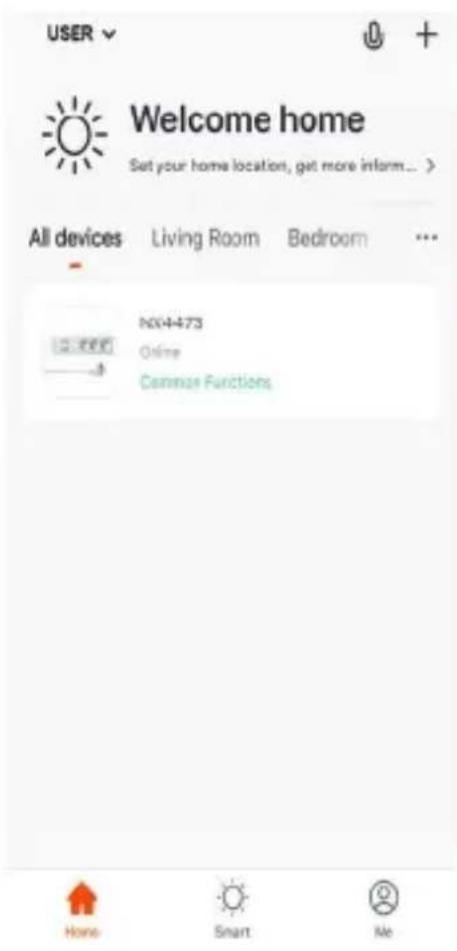
- In the main menu, after selecting the "All devices" tab, you can see all devices that have been added previously.
- Click on the power strip icon and the following window will open. Using it you are able to e.g. control all the outlets, ports at the same time or each one individually.


I. Available settings for devices added via TuyaSmart
The following table contains all the available 2Settings2 of this device added to 2TuyaSmart2 family. To access them click the icon on the upper right icon, shown on the picture from previous page.
| 7feature | 6escription |
| Device name | 6device name. The user has the option of changing / editing the current name of the given equipment. |
| Device location | Room in which product is installed. User has the option to change the location freely. |
| Check device network | 9ption to verify whether the network to which a device is connected is working correctly. |
| Share device | Share options. After selecting it, you can select trusted people to whom you can give access to the device. |
| Create group | Create and edit group/ options of trusted people who can control a given product. |
| Device information | Information about a given product. You can check here who is the owner of the device or device 16, etc. |
| zeedback | 7feedback. Users can publish here problems / suggestions for changes, improvements to the operation of "TuyaSmart" app. |
| Check for firmware | 9ption to check if the current firmware |
| update | version is up-to-date. It is recommended to use the latest firmware version of device. |
| Remove device | Removal of a given equipment from the list of all devices. This operation is also recommended when changing the Wi-Fi local area network. |
Table 1 – list of available “Settings” for devices added to “TuyaSmart”
J. Product specification
| Power | Rated voltage | 100 – 240V AC |
| Rated current | 10A (max.) | |
| Frequency | 50-60Hz | |
| Max. total power output | 3680W | |
| Wireless Wi-Fi | 2.4GHz, IEEE 802.11b/g/n | |
| Environment 9 perating temperature -20~60°C | ||
| Management | Remote management | via TuyaSmart app |
| Supported 9S versions | i9S: 10.0 or newer Android: 5.0 or newer | |
| Alerts and notifications | Notification method | %ush notifications |
| Scheduling | Time-based | |
| Additional information | Warranty 24 months | |
Table 2 – Smart Wi-Fi power strip specification
%roduct specification, as well as its appearance is a subject to change without prior notice. All listed trade names are registered trademarks of their respective owners.
K. Warranty
This ×anberg product is covered by a 24-month warranty from the moment of purchase. In addition, it does not apply in event of a fault and defects resulting from improper use and improper handling of device (not in accordance with this manual). Mechanical damage is the basis for rejecting the complaint.
The WEEE symbol (the crossed-out wheeled bin) using indicates that this product in not home waste. Appropriate waste management aids in avoiding consequences which are harmful for people and environment and result from dangerous materials used in the device, as well as improper storage and processing. Segregated household waste collection aids recycle materials and components of which the device was made. In order to get detailed information about recycling this product please contact your retailer or a local authority.
Frequency range: 2401-2483 MHz Maximum emitted radio frequency power: less than 10dBm.
0
Spis treści
natural_image
Orange square icon with white stylized 't' and wireless signal waves (no text or symbols)


ETSI 300 328 V2.2.02017
ETS(301-489-1.V2.2.0:2017)
ETSI 301-489-17 V3.2.0:2017;
EN 62311:2019
Shenzhen DI Testing Technology Co., Ltd
Shenzhen DL Testing Technology Co., Ltd.
Sneasheim Dc Testing Technology Co., Ltd.
Shenzhen DL Testing Technology Co., Ltd.
Purchasing Director Professional Solutions

Department
DECLARATION OF CONFORMITY
Declaration number:
LANBERG CE/79/2019
Mosina,
on 2018.08.28
Producer,
Impakt S.A., Stanisława Lema 16 street, 62-050, Mosina
hereby would like to declare in this declaration of conformity on its own responsibility, that following product:
Product name : SMART HOME - WI-FI SMART PLUG
Product model : SM01-WPS34
(Legend)
Product brand : LANBERG
is compliant with the essential requirements and other applicable provisions of the directives and the following harmonized standards have been applied:
Low Voltage Directive (LVD)
2014/35/EU
EN 62368-1:2014 - A1:2017
Radio Equipment Directive (RED)
2014/53/EU
ETSI 300 328 V2:2.0:2017;
ETS(301489-1)V2.2.0:2017;
ETSI 301 489-17 V3.2.0:2017
EN 62311:2019
Electromagnetic Compatibility Directive (EMC)
-2014/30/EU
ETSI 301-489-1 V2.2.0:2017;
ETS(301489-17V3.2.0:2017)
Restriction of Hazardous Substances Directive (RoHS)
- 2011/65/EU + 2015/863/EU
IEC 62321-4:2013;
IEC 62321-5:2013; IEC 72321-6:2015;
IEC 62321-7-1:2015:IEC 62321-7-2:2017:
IEC 62321-8:2017:
Compliance with the essential requirements has been confirmed by:
Directive The organization authorized to confirm compliance with the directive
LVD Confirmed by Shenzhen DL Testing Technology Co., Ltd
EMC Confirmed by Shenzhen OJ Testing Technology Co., Ltd.
RED Confirmed by Shenzhen DL Testing Technology Co., Ltd
RoHS Confirmed by Shenzhen DL Testing Technology Co., Ltd.
A person authorized to issue a CE declaration : Łukasz Wardak
Position : Purchasing Director Professional Solutions
Signature : Mosina, on 2018.08.28

IMPAKT S.A.
Staniskawa Lema 16 street
62-050 Mosina
+48 61 10 10 230
@ www.impakt.com.pl
info@impakt.com.pl
① impakt
VAT UE PL7831720485; REGON 360441961; NIP 7831720485


- Lanberg Smart home systems
- MANUAL 4 INSTRUKCJA OBSŁUGI
- Safety precautions
- What is inside of the box?
- Installation
- Important note:
- Power
- Power strip default settings reset
- Using TuyaSmart app
- App can be downloaded in two ways"
- "TuyaSmart" user account registration
- Enter verification code
- Set Password
- Pairing with TuyaSmart app
- • Establishing Wi-Fi connection
- - Adding new devices
- Available settings for devices added via TuyaSmart
- Warranty
- 0
- Spis treści
- DECLARATION OF CONFORMITY
Brand : Lanberg
Model : SM01-WPS34
Category : Wall socket