
7300-0190-10 - Computer Accessories Gamber-Johnson - Free user manual and instructions
Find the device manual for free 7300-0190-10 Gamber-Johnson in PDF.


| Product Type | Cradle for Panasonic CF20 Laptop with Screen Lock |
| Brand | Gamber-Johnson |
| Model Number | 7300-0190-10 |
| Compatibility | Panasonic CF20 Laptop |
| Input Voltage | 15.6Vdc / 7.05A (range 14.5-16Vdc) |
| Locking Mechanism | Key lock for laptop and screen lock module |
| Mounting Pattern | VESA 75mm x 75mm |
| Cable Management | Adjustable cable management bar with slots |
| Docking Indicator | Visual docked/undocked indicator (silver when locked) |
| Screen Lock | Prevents theft of tablet from laptop; includes key lock |
| Included Accessories | Mounting bracket, screws (VESA and dock attachment), key |
| Wiring Recommendation | Hardwire directly to vehicle battery; avoid cigarette socket |
| Screen Lock Module | Sold separately (part no. 7300-0192); attaches to passenger side |
| Adjustment | Screen lock arm can be tightened with 1/4-20 screw using Allen key |
| Material | Robust metal and plastic construction |
| Color | Black |
| Operating Environment | Vehicle interior use |
| Warranty | Refer to Gamber-Johnson warranty policy |
Frequently Asked Questions - 7300-0190-10 Gamber-Johnson
User questions about 7300-0190-10 Gamber-Johnson
0 question about this device. Answer the ones you know or ask your own.
Ask a new question about this device
Download the instructions for your Computer Accessories in PDF format for free! Find your manual 7300-0190-10 - Gamber-Johnson and take your electronic device back in hand. On this page are published all the documents necessary for the use of your device. 7300-0190-10 by Gamber-Johnson.
USER MANUAL 7300-0190-10 Gamber-Johnson
Vehicle Dock
For Panasonic CF20 Laptop Computers
User Guide
| Description | Part Number |
| Dock for Panasonic CF20 Laptop, NPT 7300-0191-00 | |
| Dock for Panasonic CF20 Laptop, DPT 7300-0191-02 | |
| Dock for Panasonic CF20 Laptop, NPT w/ Screen Lock 7300-0191-20 | |
| Dock for Panasonic CF20 Laptop, DPT w/ Screen Lock 7300-0191-22 | |
| Cradle for Panasonic CF20 Laptop 7300-0190-00 | |
| Cradle for Panasonic CF20 Laptop w/ Screen Lock 7300-0190-10 | |
| Screen Lock Module 7300-0192 |
General Instructions
POWER:
- The power input should be 15.6Vdc / 7.05 A. The dock is meant to operate on 14.5 Vdc to 16 Vdc. Use a recommended power supply for the dock. Panasonic recommends using a Lind Auto Adapter (Lind part no: PA 1580-1745) for this dock.
WIRING:
- Gamber-Johnson does not recommend relying on a cigarette socket adaptor for powering vehicle docks. We recommend hard wiring using a good clean ground direct from the vehicle battery (-) post, and (+) supply from a fused 12v location also directly from the vehicle battery. All Peripherals connecting to the docking station should get power and ground from the same location as the dock.
- Visit www.gamberjohnson.com for a copy of our general wiring and troubleshooting guide.
SERVICING [ENTRETIEN]:
- For DPT (Dual Pass Thru) models, there is an option to turn off the external antenna. This switch is located next to power port of the dock. Toggle the switch gently – excess force might break the switch. Turning off the external antenna will let the computer use in-built antenna. By default, the dock comes with the switch in ON position.
Description of Parts and Layout
Note: All pictures used in this guide are of Dual Pass Thru (DPT) with Screen Support vehicle dock (Part no: 7300-0191-22). However processes and information relate to other variants of the same dock mentioned in previous page.
Front View

Description of Parts Continued
Rear View (without mounting plate)

Docking the Laptop
Step 1:
Ensure that the dock is unlocked. If locked, insert key and rotate lock 90 degrees counterclockwise.
Step 2:
Lead the front of the keyboard into the dock suck that the pockets on keyboard line up with the front hooks. The side tabs should help aligning the laptop as well.
Step 3:
Push gently in the back center of the keyboard so that back hook latches. A small click sound should be heard when the back hook latches.
*The laptop can be docked into the dock with lid open or close. If the lid is open, make sure that no keys are pressed while docking.
Step 4:
[Additional security] Rotate key 90 degrees clockwise and remove the key to lock the laptop in the docking station. The tablet is only fully secure once the key is removed.
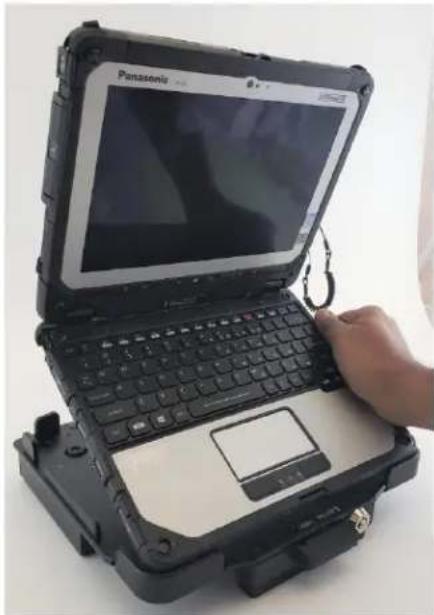


Docking the Laptop (Cont.)
Step 5:
To ensure that the laptop is docked correctly and completely, check the docked/undocked sign in the front of the dock (above the latch). The is docked correctly if the hole turns "silver" completely. The laptop is undocked or not docked if the hole remains "black" or partially "silver".

Undocking the Laptop
Step 1:
Ensure that the dock is unlocked. If locked, insert key and rotate lock 90 degrees counterclockwise.
Step 2:
Use your thumb to push the latch in the front. This will push the back clamp out and the laptop will eject with a small click sound. Once the laptop ejects, gently pull the laptop out of the dock

Cable Management & Mounting

Connect all cables securely to dock ports, and use tie straps to secure cables to the "Cable Management Bar" as shown.
The cable tie bar has slots, so if needed, the location can be adjusted slightly.
Once you have attached all cables to the vehicle dock, attach the mounting bracket to the dock using the 4 supplied #10-24 UNC screws.
The standard mounting bracket that comes with the vehicle dock features an industry standard VESA 75mm x 75mm bolt pattern. This allows easy mounting to many pre-existing mounts as well as dedicated mounts from Gamber Johnson. Use the supplied #1/4-20 hardware for mounting. Attach the mounting bracket in the orientation shown aside.

Screen Lock/Support Instructions
Screen Lock prevents theft deterrence of the tablet from the laptop while it is in the dock. Screen Lock module is not included in all the kits. It comes attached to the dock if it is included in the kit.
A Screen Lock module could be purchased separately and installed later. If the Screen Lock was purchased separately, attach it to the passenger side of the dock using the hardware provided.


Once the Screen Lock module is attached to the dock:
While docking, make sure that the plastic tab is moved all the right so that it is not obstructing while docking the laptop into the dock.
Once the laptop is docked securely, Rotate key 90 degrees clockwise and remove the key to lock the Screen Lock. This would secure the tablet to the keyboard and the dock.

Once the Screen Lock is locked, push the plastic tab to the left. This would minimise the screen rattle during extreme vibration.
Before you undock the laptop, make sure the screen lock is unlocked.
NOTE: The Screen Lock arm might get loose after repetitive use (10,000 cycles). If the arm gets loose, tighten the above shown ¼-20 screw to desired torque using an allen key

- Vehicle dock
- For panasonic CF20 laptop computers
- General instructions
- Power
- Wiring
- Servicing [entretien]
- Description of parts and layout
- Description of parts continued
- Rear view (without mounting plate)
- Docking the laptop
- Step 1
- Step 2
- Step 3
- Step 4
- Docking the laptop (cont.)
- Step 5
- Undocking the laptop
- Cable management & mounting
- Screen lock/support instructions
Brand : Gamber-Johnson
Model : 7300-0190-10
Category : Computer Accessories