
7160-0568 - Docking Station Gamber-Johnson - Free user manual and instructions
Find the device manual for free 7160-0568 Gamber-Johnson in PDF.


| Product Type | Docking Station |
| Brand | Gamber-Johnson |
| Model | 7160-0568 |
| Compatible Devices | Select rugged tablets or laptops (e.g., Getac, Panasonic) |
| Mounting Type | Vehicle mount compatible |
| Dimensions (approx) | 8.0 x 6.0 x 2.0 inches (20.3 x 15.2 x 5.1 cm) |
| Weight (approx) | 2.0 lbs (0.9 kg) |
| Power Input | 12V DC (vehicle power) |
| Power Pass-Through | Yes, charges device when docked |
| Data Ports | USB 2.0/3.0, Serial (RS-232), Ethernet (RJ45) |
| Audio Ports | Headphone/microphone combo jack |
| Video Ports | VGA or HDMI (depending on device) |
| Security Features | Locking mechanism to secure device |
| Operating Temperature | -20°C to 60°C (-4°F to 140°F) |
| Construction Material | Ruggedized plastic and metal |
| Cleaning Instructions | Wipe with dry or slightly damp cloth; mild detergent if needed |
| Safety Precautions | Keep away from liquids; use only in vehicle; ensure proper mounting |
| Spare Parts Availability | Contact Gamber-Johnson for replacement parts |
| Repairability | Authorized service centers; check warranty |
| Warranty | Limited lifetime warranty (check documentation) |
Frequently Asked Questions - 7160-0568 Gamber-Johnson
User questions about 7160-0568 Gamber-Johnson
0 question about this device. Answer the ones you know or ask your own.
Ask a new question about this device
Download the instructions for your Docking Station in PDF format for free! Find your manual 7160-0568 - Gamber-Johnson and take your electronic device back in hand. On this page are published all the documents necessary for the use of your device. 7160-0568 by Gamber-Johnson.
USER MANUAL 7160-0568 Gamber-Johnson
INSTALLATION INSTRUCTIONS
Product
7160-0568
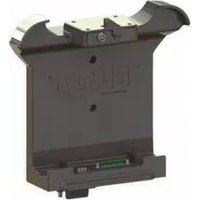
GETAC V110 CRADLE
Revision
Rev.A
Form
INST-645
Printing Spec: PS-001
This instruction sheet is for the V110 cradle only. For instructions on features, setup, and operation of the V110 computer, please refer to the manual provided by Getac with the computer.
This cradle is designed to be used with a variety of Gamber-Johnson mounting systems. Installation instructions for other Gamber-Johnson products are provided with each individual product.
This instruction sheet is for the following products:
Item No. 7160-0568-XX Cradle - Getac - V110
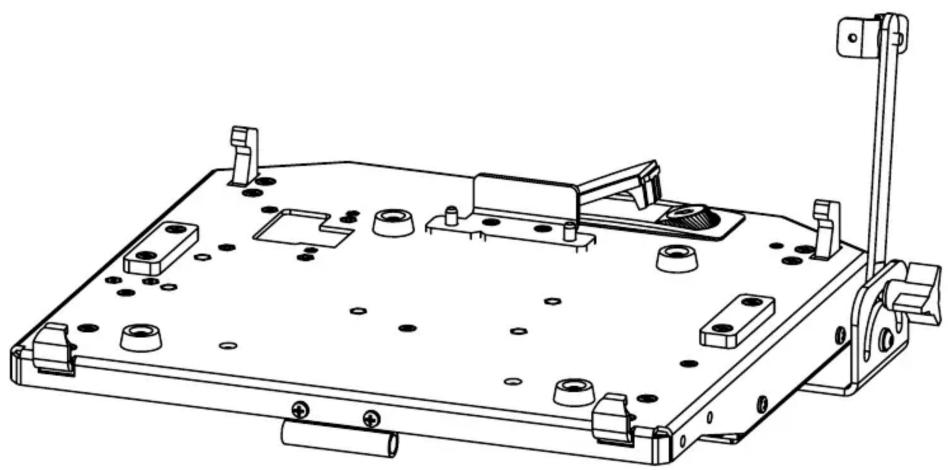
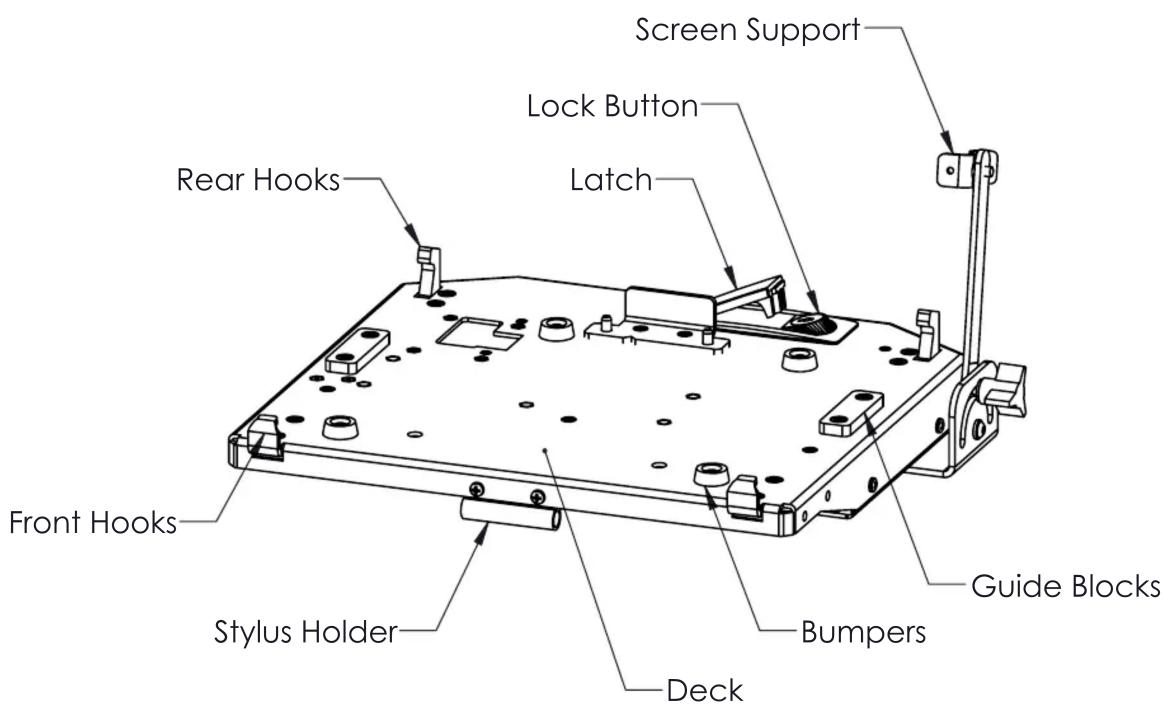
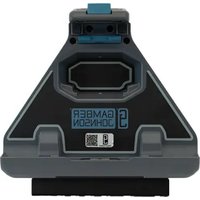
V110 CRADLE FEATURE IDENTIFICATION

INSERTING AND REMOVING THE COMPUTER
INSERTING THE COMPUTER
- Un-latch the cradle, making sure the rear hooks move backward (Figure 1).
- With the computer held at an angle, place the two notches on the front edge of the computer into the front hooks.
(Figure 2)
- Lower the computer down on to the cradle.
- While pushing the computer down, to compress the cradle connector, close the latch to engage the rear hooks into the notches on the back edge of the computer.
(Figure 3)
- Lock the latch, if required, for security.
- Adjust the position of the screen support.
(Figure 4)
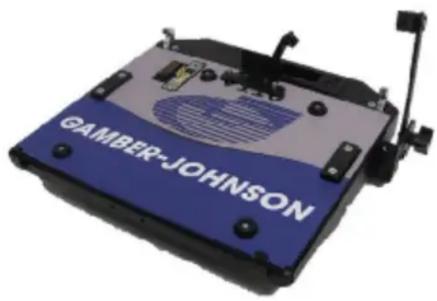
Figure 1
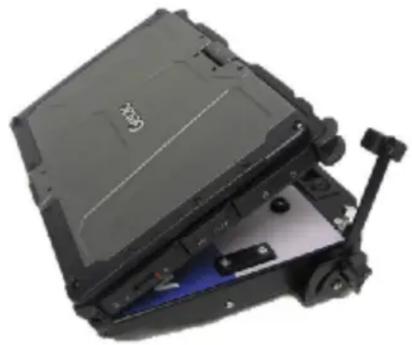
Figure 2

Figure 3

Figure 4
REMOVING THE COMPUTER
- Move screen support back, close display.
- Unlock latch, if locked.
- Press the Lock Button on the latch. The latch will spring open and the rear hooks will disengage from the computer case.
- Lift computer up off cradle, back edge first.
Brand : Gamber-Johnson
Model : 7160-0568
Category : Docking Station