PMI 1BT - Measurement PCE Instruments - Free user manual and instructions
Find the device manual for free PMI 1BT PCE Instruments in PDF.


| Product Type | Portable Measuring Instrument |
| Brand | PCE Instruments |
| Model | PMI 1BT |
| Dimensions | 180 x 80 x 35 mm (approx.) |
| Weight | 250 g (approx.) |
| Power Supply | 2 x 1.5 V AA batteries |
| Battery Life | Approx. 200 hours of continuous use |
| Display | Backlit LCD, 4-digit |
| Measurement Functions | AC/DC Voltage, AC/DC Current, Resistance, Capacitance, Frequency, Temperature |
| Accuracy | ±(0.5% + 3 digits) for DC voltage |
| Sampling Rate | 3 readings per second |
| Connectivity | Bluetooth 4.0 for data transfer |
| Data Logging | Yes, up to 10,000 records |
| Operating Temperature | 0°C to 40°C |
| Storage Temperature | -20°C to 60°C |
| Safety Rating | CAT III 600V |
| Accessories Included | Test leads, thermocouple, batteries, manual |
| Software Compatibility | PCE Connect app (iOS/Android) |
| Warranty | 2 years |
| Maintenance | Clean with dry cloth; avoid moisture |
Frequently Asked Questions - PMI 1BT PCE Instruments
User questions about PMI 1BT PCE Instruments
0 question about this device. Answer the ones you know or ask your own.
Ask a new question about this device
Download the instructions for your Measurement in PDF format for free! Find your manual PMI 1BT - PCE Instruments and take your electronic device back in hand. On this page are published all the documents necessary for the use of your device. PMI 1BT by PCE Instruments.
USER MANUAL PMI 1BT PCE Instruments
PCE Smart Measure Environmental

User manuals in various languages (français, italiano, español, português, nederlands, türk, polski, русский, 中文) can be found by using our product search on: www.pce-instruments.com
1 Safety notes.... 12
2 System requirements ...... 12
2.1 iOS....12
3 Installation 12
4 Description of the user interface....13
5 Meaning of the individual icons of the main menu 14
6 Operation 16
6.1 First use of the app ....16
6.2 Connect to the meter....16
6.3 Disconnect from the meter 17
7 Make a measurement....17
7.1 PCE-MSL 2BT and PCE-HWA 20BT....17
7.2 PCE-PMI 1BT....17
7.3 Representation of the readings....18
7.4 Language....18
8 Share measurement data 19
8.1 Save measurement data....20
8.2 Export series of measurements....22
Acquaint yourself with the operation of the measuring device before using it in combination with the app. For this purpose, use the instruction manual which comes with your PCE Instruments meter. All safety notes from the meter's manual have to be observed as well when the device is used with this app.
The device and the app may only be used by qualified personnel. Damage or injuries caused by non-observance of the manuals are excluded from our liability and not covered by our warranty.
We do not assume liability for printing errors or any other mistakes in this manual.
We expressly point to our general warranty terms which can be found in our general terms of business.
If you have any questions, please contact PCE Instruments. The contact details can be found at the end of this manual.
2 System requirements
2.1 Android
• Android version 9 Pie (API 28) or higher
- Bluetooth interface (version 4.2)
• Screen size 5.71 inches
- A minimum resolution of 1520x720 pixels
- Processor: ARM Cortex-A53, 2000 Mhz, 4 cores
• 2 GB RAM recommended
2.2 iOS
- Current iOS version
- Bluetooth interface (version 4.2)
• Screen size 5.8 inches - 2GB RAM
3 Installation
Please download the app from the Google Play Store or Apple App Store and install it on your smartphone. Then check and grant the access permissions for the location and memory.
4 Description of the user interface
The main window is composed of two sections. In the upper toolbar, there is a menu button on the left which opens a side menu. The side menu contains menu items for software information and company information. More detailed information about these menu items will follow below.
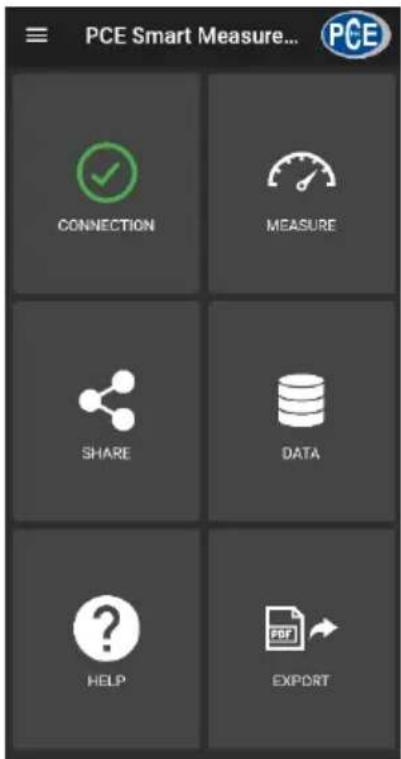
Below the toolbar, there are six buttons, each representing a functionality.
5 Meaning of the individual icons of the main menu
| Main menu | ||
 | Open window for Bluetooth connections | |
 | Open window for measurements | |
 | Open window for sharing | |
 | Open window for data | |
 | Open window for help | |
 | Open window for export | |
 | Open side menu | |
 | "Connection" window | |
 | Device disconnected | |
 | Device connected | |
 | Search for Bluetooth devices | |
 | Disconnect device | |
 | Back to main menu | |
| "Measure" window | ||
 | Initiate new measurement | |
 | Back to main menu | |
 | Save measured value (PCE-PMI 1BT) | |
| "Share" window | ||
 | Back to main menu | |
 | Share selection via messenger | |
| Measurement 8/16/2021 09:49:50 | Select a measurement |
| "Data" window | |
 | Back to main menu |
Measurement 8/16/2021 09:49:50  | Open window for measurement data |
 | Rename data record |
 | Delete data record |
| "Export" window | |
Measurement 8/1  09:49:50 09:49:50 | Select a measurement |
 | Export selection |
 | Back to main menu |
| Side menu | |
| [ATYK] About | Open window for software and company information |
6 Operation
6.1 First use of the app
Before the meter can work with the app, make sure that Bluetooth is activated. Furthermore, the access permissions for location and memory must be granted. These are used exclusively to search for Bluetooth devices in the direct vicinity and to save the measurement data to the smartphone as PDF files. The permissions can be granted, depending on the device, via Settings -> Apps -> PCE Smart Measure Environmental -> Permissions. After the access permissions have been granted, the app can be used to its full extent.
6.2 Connect to the meter
After starting the app, a Bluetooth connection to the meter can be established. It must be ensured that the smartphone and the meter are not more than 5... 10 m apart. To establish the connection, navigate to the corresponding menu by tapping on "Connection" in the main menu. Bluetooth connections can be managed under "Connection". To establish a connection, a suitable meter must be searched for. This can be initiated by tapping on the "Search devices" button. The devices found are then displayed in a list, see figure.
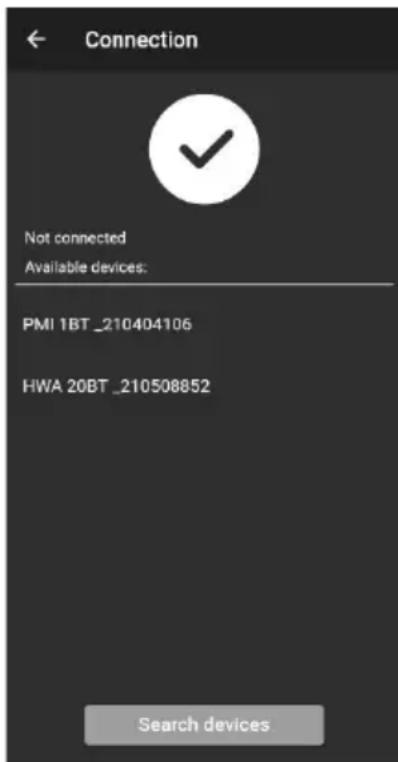
Once the meter has been found (e. g. PCE-HWA 20BT), a connection can be established by tapping on the meter in the list. After the connection has been successfully established, the user immediately receives a confirmation on the display that the devices are connected and is forwarded directly to the main menu.
6.3 Disconnect from the meter
Disconnect
Tap on the icon to disconnect the meter. Closing the app while the
Bluetooth connection is active disconnects the devices. After use and before closing the mobile application, the devices must always be disconnected as described above. This ensures correct functionality of the device.
7 Make a measurement
The menu item "Measure", which can be reached from the main menu, offers the possibility to perform a measurement. Before making the first measurement, ensure that there is an active Bluetooth connection between the smartphone and the meter. Since the meters have different features, a measurement is made differently depending on the meter you are using.
7.1 PCE-MSL 2BT and PCE-HWA 20BT
With the meters PCE-MSL 2BT and PCE-HWA 20BT, the measured values are saved when
viewing mode is opened. To initiate a new measurement, click on the icon in the menu bar. You can then name the measurement and confirm with OK.
7.2 PCE-PMI 1BT
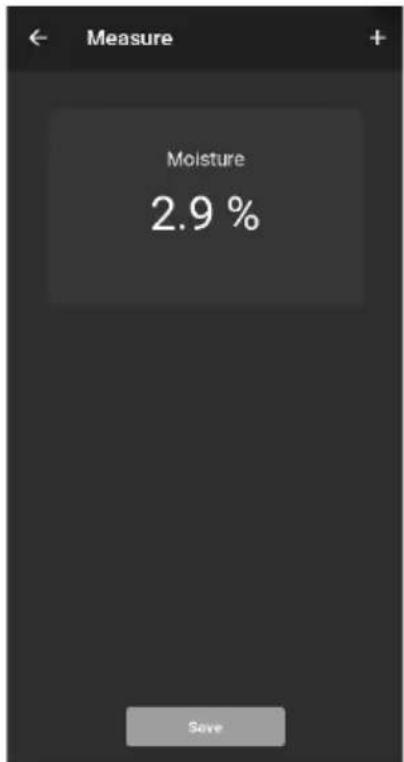
When using the moisture meter PCE-PMI 1BT, you will find the button in the app. Tap on this button to save a value to the database. As it is done with the two meters mentioned above, click on the icon in the menu bar to initiate a new measurement.
7.3 Representation of the readings
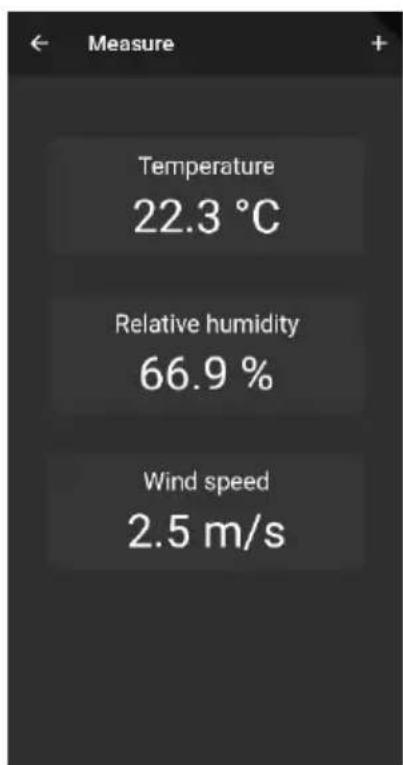
Depending on the meter, different measured values are shown with their units.
PCE-HWA 20BT
PCE-PMI 1BT
PCE-MSL 2BT
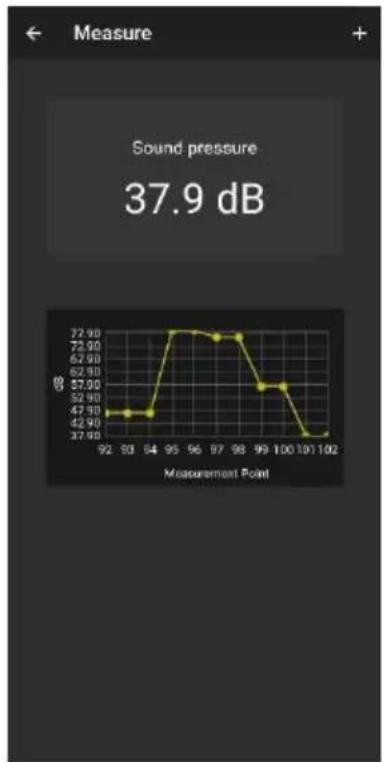
line
Sound pressure | Measurement Point | Sound pressure (dB) | | :--- | :--- | | 92 | 42.90 | | 93 | 42.90 | | 94 | 42.90 | | 95 | 72.90 | | 96 | 72.90 | | 97 | 72.90 | | 98 | 72.90 | | 99 | 57.00 | | 100 | 57.00 | | 101 | 37.90 | | 102 | 37.90 |7.4 Language
Depending on the language set in your smartphone, the language and format will be displayed either in English or German.
8 Share measurement data
All performed measurements can be shared via all common messengers as a PDF file. To do so, call up the menu item "Share" in the main menu. The window contains a list of all measurements that have been made. The desired measurements can be marked accordingly by placing check marks.
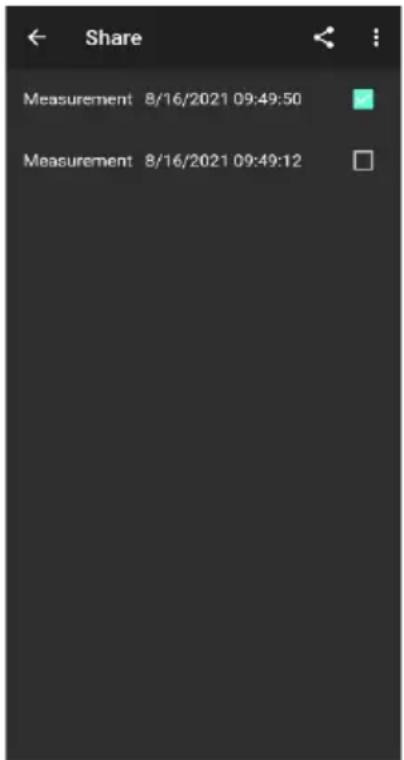
After tapping on the button, you can select the desired export format. An options dialogue opens to select the desired messenger. After the selection, the chosen measurements are attached as PDF or CSV documents and can be sent.
8.1 Save measurement data
All performed measurements are saved to a database in the memory of the smartphone. These can be viewed, edited or deleted at any time. To do this, call up the menu item "Data" in the main menu. The view contains all measurement data named according to the time stamp of the measurement. As the mobile application can be used with several meters, you must select the meter the measurements of which you want to view.
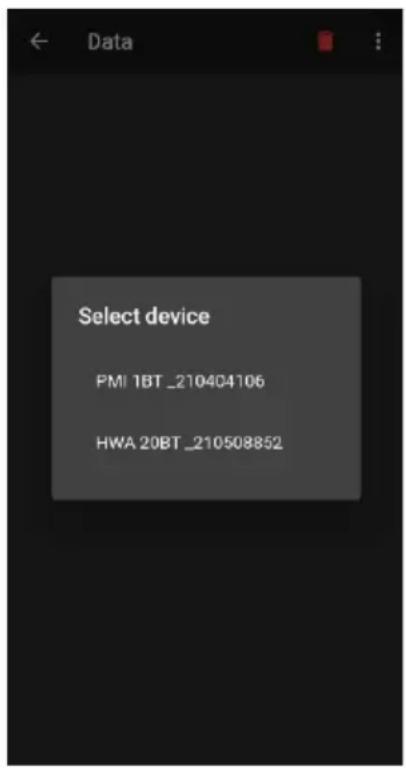
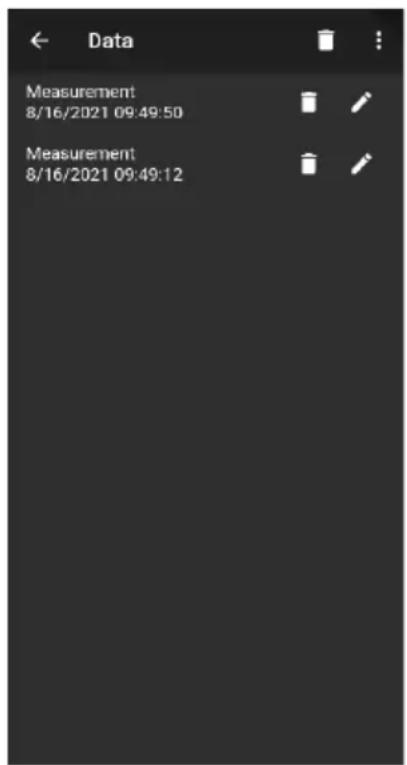
Each measurement can be renamed or deleted via the associated options. Furthermore, it is possible to view the measured values by tapping on the desired measurement.
| Data Details | |||
| Time | Temp. [°C] ↑ | RH [%] | Speed [m/s] |
| 12:06:42 | 0.0 °C | 0.0 % | 0.0 m/s |
| 12:06:42 | 22.0 °C | 0.0 % | 0.0 m/s |
| 12:06:42 | 22.0 °C | 60.8 % | 0.1 m/s |
| 12:06:43 | 22.0 °C | 60.8 % | 0.1 m/s |
| 12:06:43 | 22.0 °C | 60.9 % | 0.1 m/s |
| 12:06:43 | 22.0 °C | 60.9 % | 0.1 m/s |
| 12:06:43 | 22.0 °C | 60.9 % | 0.1 m/s |
| 12:06:44 | 22.0 °C | 60.9 % | 0.1 m/s |
| 12:06:44 | 22.0 °C | 60.9 % | 0.1 m/s |
| 12:06:44 | 22.0 °C | 60.9 % | 0.1 m/s |
| 12:06:44 | 22.0 °C | 61.9 % | 0.1 m/s |
| 12:06:45 | 22.0 °C | 60.8 % | 0.1 m/s |
In the overview of the saved measurement data, the individual values are shown in a chart. Here, you can sort the readings by their value by tapping on the relevant column header.
8.2 Export series of measurements
Series of measurements can be exported via the menu item "Export" in the main menu.
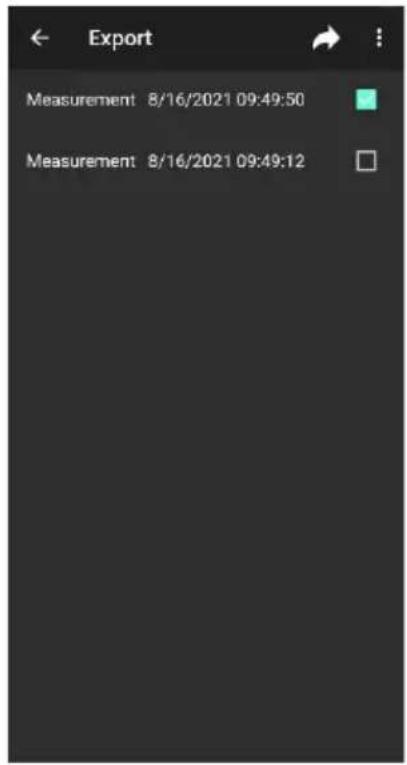
In the "Export" window, individual series of measurements can be selected and then exported by tapping on the button. A progress bar is displayed while the data are being processed for export. After processing, the series of measurements are saved to the "PCE" folder of the smartphone file system as a PDF or CSV file.
PCE Instruments contact information
Germany France Spain
PCE Deutschland GmbH PCE Instruments France EURL PCE Ibérica S.L.
Im Langel 4 23, rue de Strasbourg Calle Mayor, 53
D-59872 Meschede 67250 Soultz-Sous-Forets 02500 Tobarra (Albacete)
Unit 11 Southpoint Business Park
Ensign Way, Southampton
Hampshire
United Kingdom, SO31 4RF
Tel: +44 (0) 2380 98703 0
Fax: +44 (0) 2380 98703 9
info@pce-instruments.co.uk
www.pce-instruments.com/english
Italy
PCE Italia s.r.l.
Via Pesciatina 878 / B-Interno 6
55010 Loc. Gragnano Pehlivan Sok. No.6/C
Capannori (Lucca)
Italia
www.pce-instruments.com/turkish
The Netherlands
PCE Brookhuis B.V..
Institutenweg 15
7521 PH Enschede
Nederland
Telefoon: +31 (0)53 737 01 92
info@pcebenelux.nl
United States of America
PCE Americas Inc.
1201 Jupiter Park Drive, Suite 8
Jupiter / Palm Beach
33458 FL
USA
Tel: +1 (561) 320-9162
www.pce-instruments.com/dutch Fax: +1 (561) 320-9176
info@pce-americas.com
User manuals in various languages (français, italiano, español, português, nederlands, türk, polski, русский, 中文) can be found by using our product search on: www.pce-instruments.com
Specifications are subject to change without notice.
- System requirements
- Android
- iOS
- Installation
- Description of the user interface
- Operation
- First use of the app
- Connect to the meter
- Disconnect from the meter
- Disconnect
- Make a measurement
- PCE-MSL 2BT and PCE-HWA 20BT
- PCE-PMI 1BT
- Representation of the readings
- Language
- Share measurement data
- Save measurement data
- Export series of measurements
- PCE Instruments contact information
- Germany France Spain
- Italy
- The Netherlands
- United States of America
Brand : PCE Instruments
Model : PMI 1BT
Category : Measurement