
AZ1055 - Portable CD player PHILIPS - Free user manual and instructions
Find the device manual for free AZ1055 PHILIPS in PDF.


| Product type | Portable CD player |
| Brand | PHILIPS |
| Model | AZ1055 |
| Audio sources | CD, Cassette, FM/MW Radio |
| Mains power supply | 230 V AC via power cord (in battery compartment) |
| Battery power supply (unit) | 6 R20/UM-1/D batteries (alkaline recommended) |
| Battery power supply (remote control) | 2 R03/UM-4/AAA batteries (alkaline recommended) |
| CD functions | Play, pause, skip, forward/backward search, programming (20 tracks), Shuffle, Repeat, Shuffle+Repeat modes |
| Radio functions | FM (telescopic antenna), MW (built-in antenna), manual tuning |
| Cassette functions | Play, recording from CD or radio, pause, fast forward/rewind, stop with compartment opening |
| Sound settings | Volume, DBB (Dynamic Bass Boost) |
| Headphone jack | 3.5 mm (disables speakers) |
| Display | Digital (shows track number, mode, etc.) |
| Remote control | Infrared with CD buttons (shuffle, repeat, search, etc.) |
| Recommended cassette type | Normal (Type IEC I) - Do not use Chrome or Metal |
| Deck maintenance | Clean heads, capstans and pinch rollers every 50 hours |
| CD maintenance | Clean with soft cloth from center to edge |
| Precautions | Do not expose to moisture, excessive heat; do not attempt to repair yourself |
Frequently Asked Questions - AZ1055 PHILIPS
User questions about AZ1055 PHILIPS
0 question about this device. Answer the ones you know or ask your own.
Ask a new question about this device
Download the instructions for your Portable CD player in PDF format for free! Find your manual AZ1055 - PHILIPS and take your electronic device back in hand. On this page are published all the documents necessary for the use of your device. AZ1055 by PHILIPS.
USER MANUAL AZ1055 PHILIPS
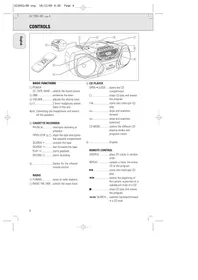
BASIC FUNCTIONS
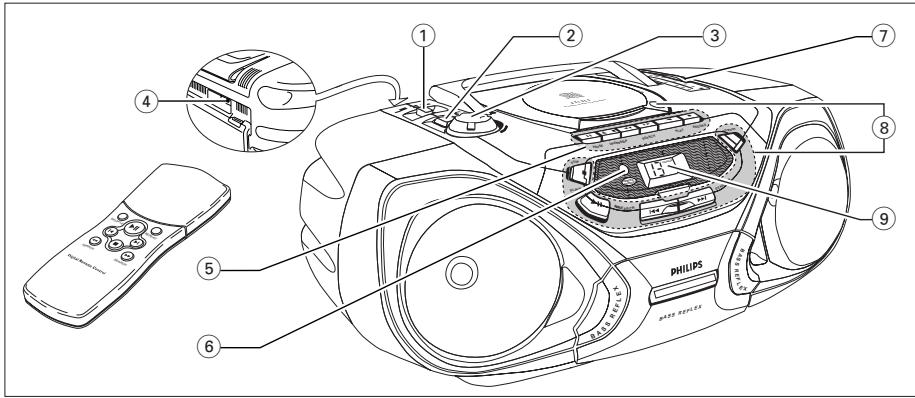
① POWER: CD, TAPE, BAND ....selects the sound source ② DBB......enhances the bass ③ VOLUME ...... adjusts the volume level ④ 📞....3.5mm headphone socket (back of the set)
Note: Connecting the headphones will switch off the speakers.
⑤ CASSETTE RECORDER
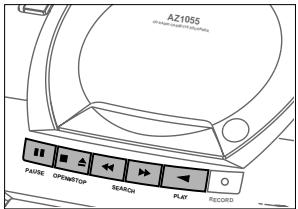
PAUSE 📄......interrupts recording or playback OPEN·STOP △ □ ..stops the tape and opens the cassette compartment SEARCH ▷......rewinds the tape SEARCH ◀ fast forwards the tape PLAY ◀......starts playback RECORD ○ ......starts recording
⑥ ......Sensor for the infrared remote control
RADIO
⑦ TUNING ......tunes to radio stations
① BAND: FM, MW ...selects the wave band
⑧ CD PLAYER
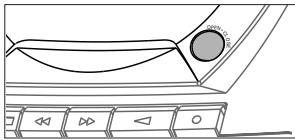
OPEN • CLOSE .....opens the CD compartment □......stops CD play and erases the program ▷III......starts and interrupts CD play ▶▶I ....skips and searches forward ←← ......skips and searches backward CD MODE......selects the different CD playing modes and programs tracks ⑨ ......Display
REMOTE CONTROL
SHUFFLE ......plays CD tracks in random order
REPEAT ....repeats a track, the entire CD or the program
▶II ......starts and interrupts CD play
▶▶......selects the beginning of the current, a previous or a subsequent track of a CD
■ ......stops CD play and erases the program
◀◀▶▶ SEARCH.....searches backward/forward in a CD track
Batteries
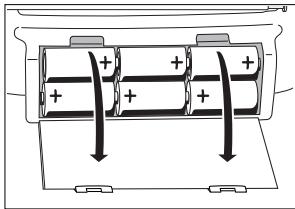
For the set (optional)
Open the battery compartment of the set and insert 6 batteries, type R20, UM-1 or D-cells (preferably alkaline).
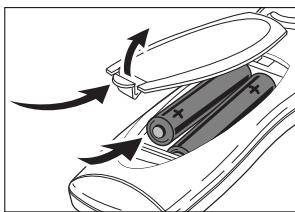
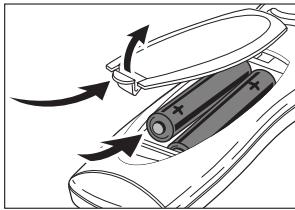
For the remote control (optional)
Open the battery compartment of the remote control and insert 2 batteries, type R03, UM-4 or AAA-cells (preferably alkaline).
Remove batteries if they are flat or if the set is not going to be used for a long time.
Batteries contain chemical substances, so they should be disposed of properly.
Mains
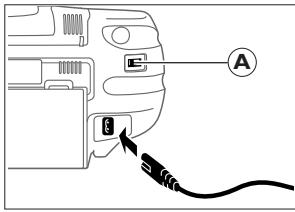
1 Check whether the mains voltage as shown on the type plate corresponds to your local mains voltage. If it does not, consult your dealer or service organisation. The type plate is located on the bottom of the set. 2 If the set is equipped with a VOLTAGE selector Ⓐ, set this selector to the local mains voltage. 3 Connect the mains cable to the AC MAINS socket and the wall socket. This switches on the mains supply. The mains cable is inside the battery compartment.
The battery supply will be switched off when the set is connected to the mains. To change over to battery supply, pull out the plug from the unit's AC MAINS socket.
To disconnect the set from the mains completely, remove the mains plug from the wall socket.
For users in the U.K.: please follow the instructions on page 2.
Switching the set on and off
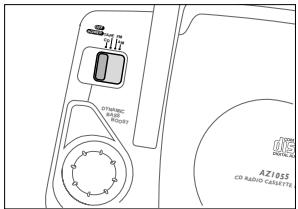
Set the POWER slider to the desired sound source: CD, TAPE, or BAND (for radio).
The set is switched off when the POWER slider is set to OFF/TAPE and the keys of the tape deck are released.
Note: If you use batteries, switch the set off after use. This will avoid unnecessary power consumption.
Adjusting volume and sound
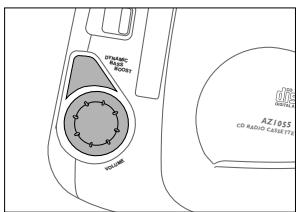
Adjust the volume using the VOLUME control.
Increase and decrease the bass level by pressing DBB.
The bass level can also be emphasised if you place the set against wall or shelf. Do not cover any vents; leave sufficient room around the unit for ventilation.
Radio – tuning to radio stations
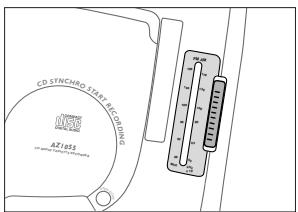
1 Set the POWER slider to FM or MW to select the desired wave band. 2 Tune to the desired radio station by using the TUNING wheel.
Improving RADIO reception
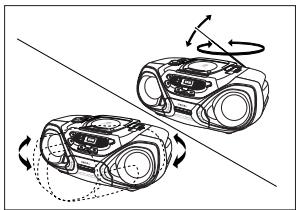
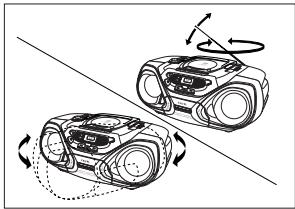
For FM stations, pull out the telescopic antenna. To improve the signal, incline and turn the antenna. Reduce its length if the signal is too strong (very close to a transmitter).
For MW stations, direct the built-in antenna by turning the whole set. The telescopic antenna is not needed.
Playing a CD
1 Set the POWER slider to CD. 2 Press OPEN • CLOSE to open the CD compartment. 3 Insert an audio CD (printed side up) and close the CD compartment.
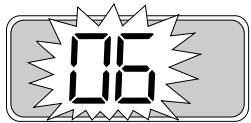
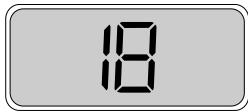
The CD player starts and scans the contents list of the CD. Then, the CD player stops. Display indication: the total number of tracks.
4 Press the ▷ button to start CD play. → Display indication: the current track number. 5 Press the □ button to stop CD play. → Display indication: the total number of tracks.
You can interrupt CD play by pressing ▷. Continue CD play by pressing the button again.
→ Display indication: the current track number (flashing).
Note: CD play will also stop if:
- you open the CD compartment, – the end of the CD is reached, or
- you move the POWER slider.
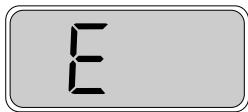
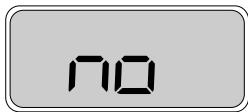
If you make a mistake when operating the CD player, or if the CD player cannot read the CD, the display shows E or no. (See "TROUBLESHOOTING".)
If you press ▷ and there is no CD inserted, the display shows ▷.
18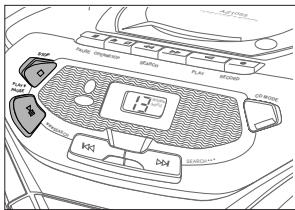
E no
Environmental information
All redundant packing material has been omitted. We have done our utmost to make the packaging easily separable into three mono materials: cardboard (box), polystyrene foam (buffer) and polyethylene (bags, protective foam sheet).
Your set consists of materials which can be recycled if disassembled by a specialized company. Please observe the local regulations regarding the disposal of packing materials, exhausted batteries and old equipment.
Search backward ◀◀ and forward ▶◀
Selecting another track
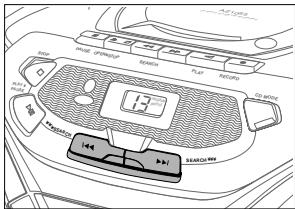
Briefly press the ◀◀ or ▷▶ button once or several times to skip to the beginning of the current, previous, or subsequent track(s).
During CD play:
CD play continues automatically with the selected track.
When CD play is stopped:
Press ▷ to start CD play.
→ Display indication: the selected track number.
Searching for a passage during CD play
1. Hold down the ◀◀ or ▶▶ button to find a particular passage in a forward or backward direction.
→ CD play continues at a low volume.
2. Release the button when you have reached the desired passage.
Note: In the different CD modes or when playing a program, searching is only possible within the particular track.
CD MODE: Shuffle and Repeat
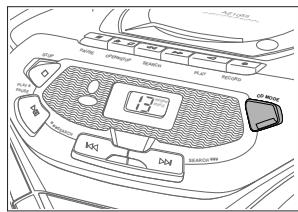
1. During CD play, press CD MODE repeatedly to cause the display to show the different playing modes.
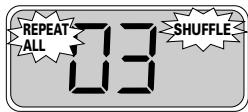
→ SHUFFLE: All tracks of the CD (or program) are played in random order. → SHUFFLE REPEAT ALL: All tracks of the CD (or program) are played repeatedly in random order. → REPEAT: The current track is played repeatedly. → REPEAT ALL: The entire CD (or program) is played repeatedly.
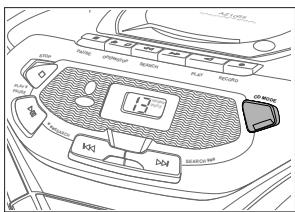
After 2 seconds of flashing display indication, CD play starts in the chosen mode. To return to normal CD play, press CD MODE until the display indication disappears.
CD MODE: Programming track numbers
You can select a number of tracks and store these in the memory in the desired sequence. You can store any track more than once. A maximum of 20 tracks can be stored in the memory.
When CD play is stopped, select the desired track with ≪ or ≫. As soon as the number of the desired track is displayed, press CD MODE to store the track in the memory.
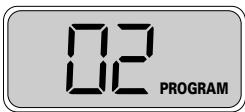
PROGRAM appears on the display. It lights up briefly, then the number of the stored track is shown.
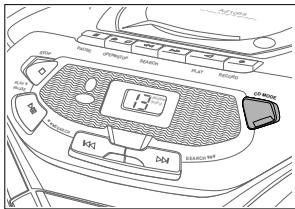
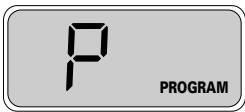
Select and store all desired tracks in this way. You can review your settings by pressing and holding CD MODE for more than 1 second.
The display shows all stored track numbers in sequence.
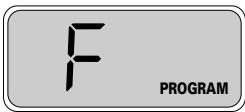
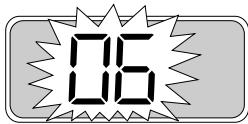
If you try to store more than 20 tracks, the display shows F.
Playing the program
Press ▶ to play the program.
Erasing the program
From the stop position, press □.
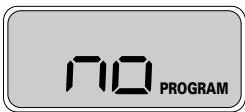
no lights up briefly, PROGRAM disappears and your program is erased.
Note: The program will also be erased if you:
- interrupt the power supply, open the CD compartment, or
- move the POWER slider.
Playing a cassette
1 Set the POWER slider to TAPE. 2 Press OPEN·STOP △ □ to open the cassette compartment. 3 Insert a recorded cassette with the open side upwards and close the cassette compartment. 4 Press PLAY ◀ to start playback. 5 Press ▷ or ◀ to rewind or fast forward the tape. 6 To stop the tape press OPEN·STOP △ □.
Note: The keys are released at the end of the tape.
General information on recording
Recording is permissible insofar as copyright or other rights of third parties are not infringed upon.
For recording on this set you should use a cassette of the type NORMAL (IEC type I). This deck is not suitable for recording on cassettes of the type CHROME (IEC type II) or METAL (IEC type IV).
The recording level is set automatically. The controls VOLUME and DBB do not affect the recording.
At the very beginning and end of the tape, no recording will take place in the 7 seconds during which the leader tape passes the recorder heads.
Protecting tapes from accidental erasure
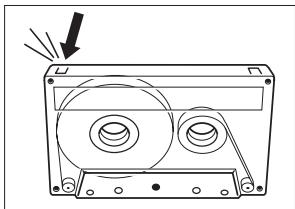
Keep the cassette side to be protected in front of you and snap off the left tab. Now, recording on this side is no longer possible.
To record again on this side of the cassette, cover the opening with a piece of adhesive tape.
Recording from the CD player – CD synchro start
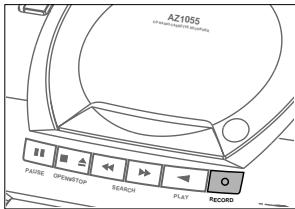
1 Set the POWER slider to CD. 2 Insert a CD and, if desired, program the track numbers. 3 Press OPEN·STOP △ □ to open the cassette compartment. 4 Insert a blank, unprotected, cassette and close the cassette compartment. 5 Press RECORD ○ to start recording. → Playing of the CD or program starts automatically. 6 For brief interruptions press PAUSE ☐. Press the PAUSE ☐ key again to resume recording. 7 To stop recording, press OPEN·STOP △ □.
Note: the recording can be started from different positions: - if the CD player is in pause mode, recording will start from this very position (use ↔ or ▷); - if the CD player is in stop mode, recording will start from the beginning of the CD or program.
Recording from the radio
1 Tune to the desired radio station (see "RADIO"). 2 Press OPEN·STOP △ □ to open the cassette compartment. 3 Insert a blank, unprotected cassette and close the cassette compartment. 4 Press RECORD ○ to start recording. 5 For brief interruptions, press PAUSE ☐. To resume recording, press the PAUSE ☐ key again. 6 To stop recording, press OPEN·STOP △ □.
General maintenance
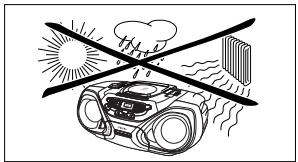
Do not expose the set, batteries, CDs, or tapes to humidity, rain, sand, or excessive heat (caused by heating equipment or direct sunlight).
The mechanical parts of the set contain self-lubricating bearings and must not be oiled or lubricated!
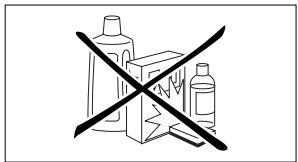
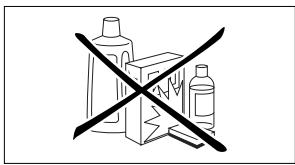
You can clean the set with a soft, slightly dampened, lint-free cloth. Do not use any cleaning agents as they may have a corrosive effect.
Tape deck maintenance
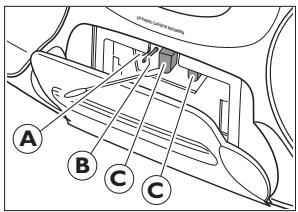
To ensure proper recording and playback quality, clean parts A, B, and C after approximately 50 hours of operation. Use a cotton swab slightly moistened with alcohol or head-cleaner fluid.
Press PLAY ◀ and clean the rubber pressure roller Ⓐ.
Press PAUSE ☐ and clean the capstan Ⓑ and the heads Ⓒ.
Note: Cleaning of the heads Ⓒ can also be done by playing a cleaning tape once.
CD player and CD handling
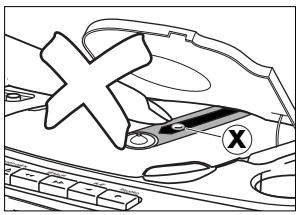
The lens Ⓕ of the CD player should never be touched. Always keep the CD compartment closed to avoid dust on the lens.
The lens may cloud over when the set is suddenly moved from cold to warm surroundings. Playing a CD is not possible then. Leave the CD player in a warm environment until the moisture evaporates.
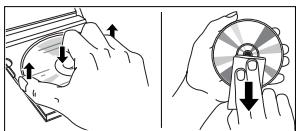
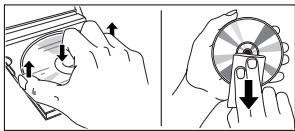
To take the CD out of its box easily, press the centre spindle while lifting the CD. Always pick up the CD by the edge and put it back in its box after use.
To clean the CD, wipe it in a straight line from the center toward the edge using a soft, lint-free cloth. A cleaning agent may damage the disc!
Never write on a CD or attach a sticker to it.
This set complies with the radio interference requirements of the European Community.
WARNING
Under no circumstance should you try to repair the set yourself as this will invalidate the guarantee.
If a fault occurs, first check the points listed below before taking the set for repair.
If you are unable to solve a problem by following these hints, consult your dealer or service center.
| Problem | Possible cause | Solution |
| No sound, no power | VOLUME is not adjusted. | Adjust volume. |
| Headphones are connected. | Disconnect headphones. | |
| Mains cable is not securely connected. | Connect mains cable properly. | |
| Batteries are flat. | Insert fresh batteries. | |
| Batteries are inserted incorrectly. | Insert batteries correctly. | |
| Trying to change over from mains to battery supply without removing the plug. | Remove the mains plug from the unit's AC MAINS socket. | |
| No reaction to operation of any keys | Electrostatic discharge. | Disconnect the set from power supply, reconnect after a few seconds. |
| Poor radio reception | Weak radio signal. | Direct the antenna for optimum reception. |
| Interference caused by electrical equipment like TVs, computers, engines, etc. | Keep the radio away from electrical equipment. | |
| no or E indication | The CD is badly scratched or dirty. | Replace or clean the CD. |
| No CD is inserted. | Insert a CD. | |
| The CD is inserted upside down. | Insert CD with label facing up. | |
| The laser lens is steamed up. | Wait until the lens has cleared. | |
| The CD skips tracks | The CD is damaged or dirty. | Replace or clean the CD. |
| SHUFFLE or PROGRAM is active. | Switch off SHUFFLE or PROGRAM. | |
| Poor cassette sound quality | Dust and dirt on the heads, capstans or pressure rollers. | Clean heads, capstans, and pressure rollers. |
| Use of unsuitable cassette types (METAL or CHROME) for recording. | Only use NORMAL type cassettes for recording. | |
| Recording does not work | Cassette tab(s) may be snapped off. | Apply a piece of adhesive tape over the opening. |
| Remote control does not function properly | Batteries are inserted incorrectly. | Insert batteries correctly. |
| Batteries are flat. | Insert fresh batteries. | |
| Distance to the set is too large. | Reduce distance. |
BASIC FUNCTIONS
Mains
To play a CD
- BASIC FUNCTIONS
- ⑤ CASSETTE RECORDER
- RADIO
- ⑧ CD PLAYER
- REMOTE CONTROL
- BATTERIES
- FOR THE SET (OPTIONAL)
- FOR THE REMOTE CONTROL (OPTIONAL)
- MAINS
- SWITCHING THE SET ON AND OFF
- ADJUSTING VOLUME AND SOUND
- RADIO – TUNING TO RADIO STATIONS
- IMPROVING RADIO RECEPTION
- PLAYING A CD
- ENVIRONMENTAL INFORMATION
- SEARCH BACKWARD ◀◀ AND FORWARD ▶◀
- SELECTING ANOTHER TRACK
- SEARCHING FOR A PASSAGE DURING CD PLAY
- CD MODE: SHUFFLE AND REPEAT
- CD MODE: PROGRAMMING TRACK NUMBERS
- PLAYING THE PROGRAM
- ERASING THE PROGRAM
- PLAYING A CASSETTE
- GENERAL INFORMATION ON RECORDING
- PROTECTING TAPES FROM ACCIDENTAL ERASURE
- RECORDING FROM THE CD PLAYER – CD SYNCHRO START
- RECORDING FROM THE RADIO
- GENERAL MAINTENANCE
- TAPE DECK MAINTENANCE
- CD PLAYER AND CD HANDLING
- WARNING
- TO PLAY A CD
Brand : PHILIPS
Model : AZ1055
Category : Portable CD player