
GX44 - Mouse Natec - Free user manual and instructions
Find the device manual for free GX44 Natec in PDF.


| Product Type | Wired Gaming Mouse |
| Sensor | AVAGO 5050 Optical Sensor |
| Resolution | 2500 DPI (adjustable via software) |
| Programmable Buttons | 6 |
| Illumination | Adjustable backlight modes (color and mode) |
| Polling Rate | 1000 Hz (selectable: 125/250/500/1000 Hz) |
| Tracking Speed | 30 inch/sec |
| Acceleration | 8G |
| Interface | USB 2.0 Full Speed |
| Connection | Wired USB |
| Operating System | Windows (drivers provided) |
| Software | Genesis Gaming Software (profile/macro editor) |
| DPI Profiles | Up to 4 profiles, switchable on the fly |
| Macro Recording | Yes, via software |
| Fire Key Function | Assignable with configurable speed and repeats |
| Combo Key Function | Assignable combination of keys |
| Power Source | USB bus-powered (no battery required) |
| Materials | Plastic (typical gaming mouse) |
| Safety Compliance | CE, RoHS, WEEE |
| Warranty | Standard (void if opened/repaired by unauthorized) |
Frequently Asked Questions - GX44 Natec
User questions about GX44 Natec
0 question about this device. Answer the ones you know or ask your own.
Ask a new question about this device
Download the instructions for your Mouse in PDF format for free! Find your manual GX44 - Natec and take your electronic device back in hand. On this page are published all the documents necessary for the use of your device. GX44 by Natec.
USER MANUAL GX44 Natec
natural_image
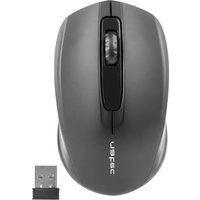
Black and red computer mouse with a circular logo on the front wheel (no visible text or symbols)EN - USER MANUAL DE - BEDIENUNGSANLEITUNG PL - INSTRUKCJA OBSŁUGI CZ - NÁVOD K POUŽITÍ SK - NÁVOD NA POUŽITIE RO - MANUAL DE UTILIZARE
GENESIS GX44 - USER MANUAL - EN
FEATURES
- Precise optical sensor (AVAGO 5050) with 2500 DPI resolution,
- Gaming software with profile/macro editor,
- 6 programmable buttons,
- Adjustable illumination modes,
- Polling rate 1000 Hz,
- Tracking speed: 30 inch/sec.
- Maximum acceleration: 8G
- Full Speed USB 2.0
INSTALLATION
- Connect mouse to the USB port, for first time usage wait around 15 seconds until drivers will be installed.
- To set the programmable buttons and DPI settings you need to download and install the latest software version from our website www.genesis-zone.com,
- Open the installation folder, double click the icon setup.exe.
- Follow the instruction to install the program.
- When the installation has been completed successfully the icon at taskbar will be displayed.
- Double click the icon to pop up setting interface.

BASIC SETTINGS
Basic settings tab allows you to assign individual functions to each button.
-
Each button can be set individually by click on list of programmable buttons, after this action the pop-up window will show available functions which can be selected by left click.
-
Select required function and click "Apply" to save the settings.
![Basic Settings Genesys Key Setting Cutout Shift Bars Fire Light Cefting Resinuency LPT Bars [Default Rate Setting] 125 250 500 1000 OPT Setting OPT/Match Mode: Recognized Parameter: 63 Effect: RGB/IEFFC Color: Select: 1 2 3 4 OK Apply Cancel online generation, online care](/content/2026/05/1004632/images/613d8f3951003004b434a967501692bb331b726f01a9ceedb3e8feef7d9e1e9a.jpg)
Single Key
This function allows you to assign any button from the keyboard. Click on “Single key”, when the pop-up window will come out press any button on keyboard which you want to assign e.g. “Ctrl”, then click “OK” to finish and close the window. Click “Apply” to save settings.

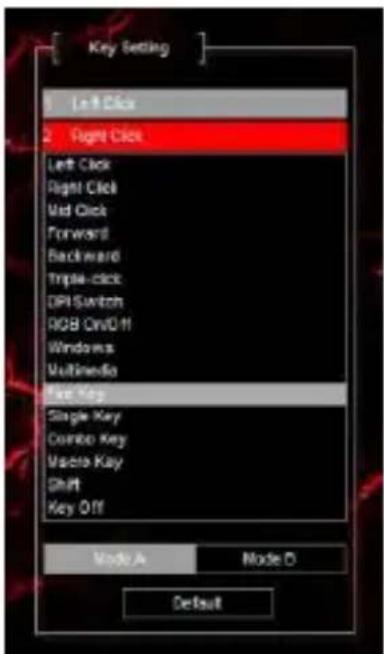
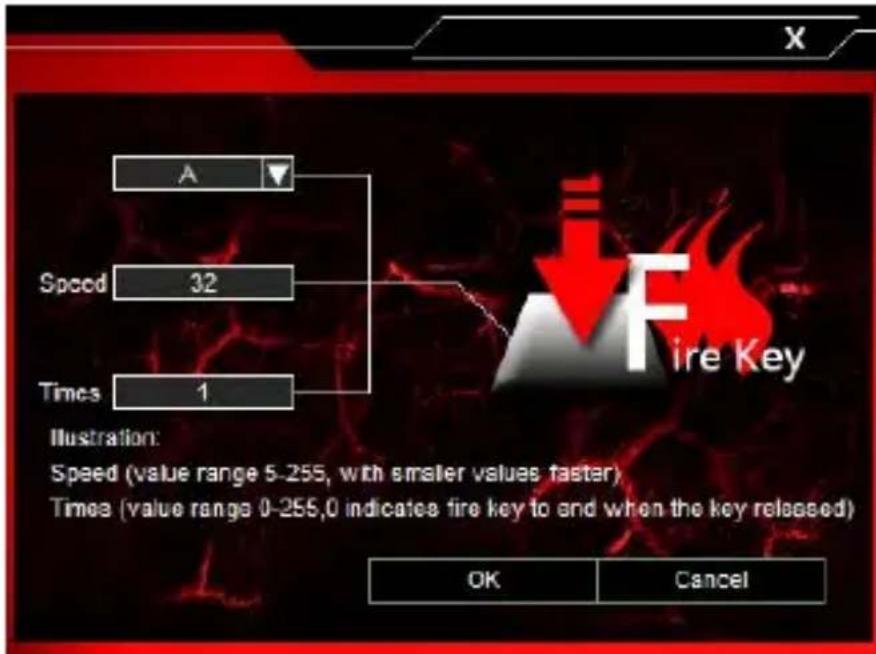
Fire Key
This function allows you to assign any button from your keyboard/mouse as a “Fire key”.
- To set "Fire key" click on the list of programmable buttons and then select "Fire key".
-
When pop-up window will come out select required button which you want to assign e.g. "A". In the pop-up window you can also set the speed and number of how many times you want to use fire key by single button press.
-
Click "OK" to finish and close the window, then click "Apply" to save the settings.
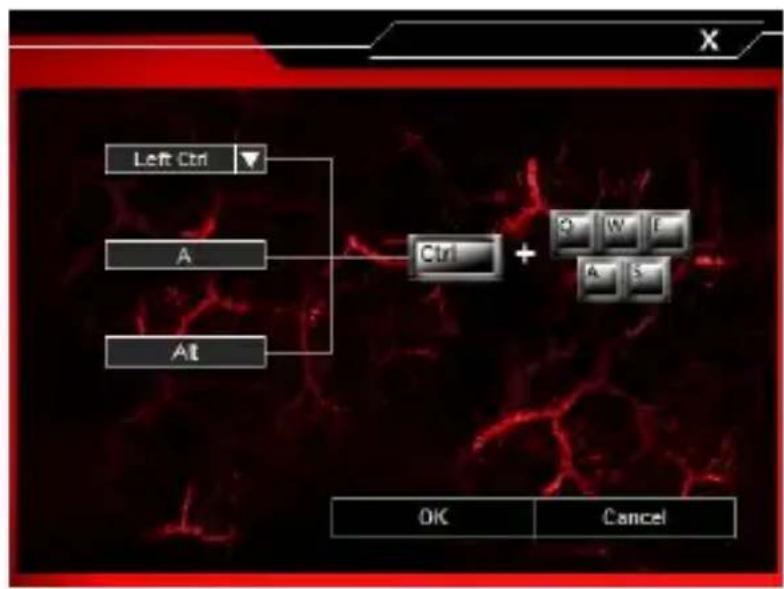
Combo Key
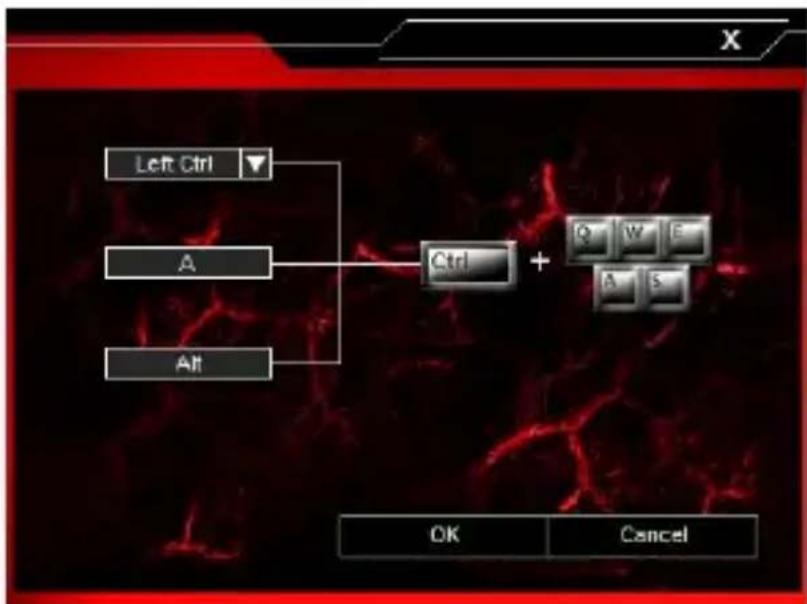
This function allows you to assign combination of buttons from your keyboard or mouse. Click on “Combo Key”, when the pop-up window will come out select required combination of buttons which you want to assign e.g. “Ctrl+A+Alt”, then click “OK” to finish and close the window. Click “Apply” to save settings.


flowchart
graph TD
    A["Left Ctrl"] --> C["Ctrl"]
    B["A"] --> C
    D["Alt"] --> C
    C --> E["OK"]
    C --> F["Cancel"]
DPI settings
Gaming software allows you to predefine up to four DPI profiles, which can be switched “on the fly” using the DPI button. Each profile can be set individually in “Basic Settings” tab. In these settings you can also set backlight color, backlight mode and resolution 250 – 2500 DPI. Click “Apply” to save the settings.

Report Rate
To set report rate (polling rate) select “Basic Settings” tab and choose one of 4 options (125Hz, 250Hz, 500 Hz, 1000 Hz), then click “Apply” to save the settings.

bar
[Report Rate Setting] | Segment | Value | |---|---| | 125 | 125 | | 250 | 250 | | 500 | 500 | | 1000 | 1000 |ADVANCED SETTINGS
Macro and profile editor
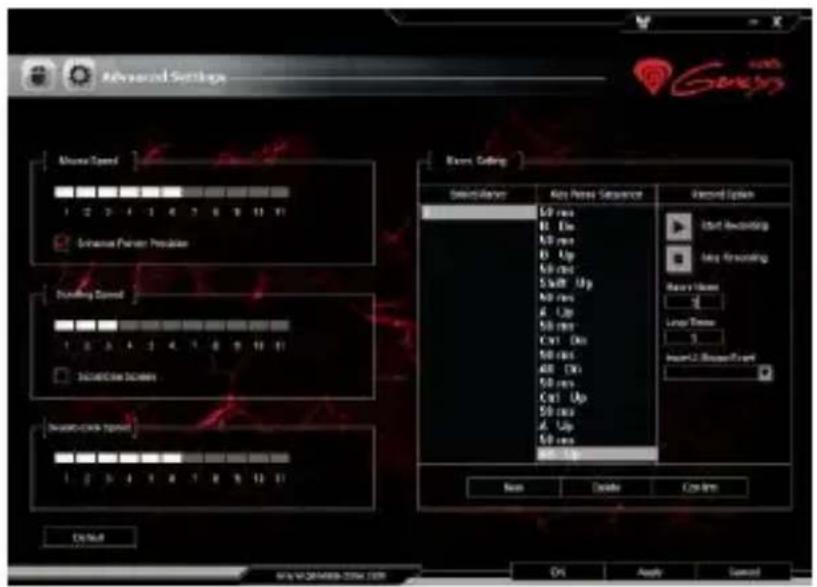
Adding a macro
To add a macro click “Advanced Settings” and enter name of macro in box “Macro name”, e.g. “1”. Click “New” and then “Start recording”. Use the keyboard to enter a combination of buttons which you want to assign into this macro, e.g. “Shift+A+B”, click “Stop recording” to finish recording. Enter a number in box “Loop times” to set how many times macro should be used after single button press. Click “Confirm” to finish and close the window.
Select macro
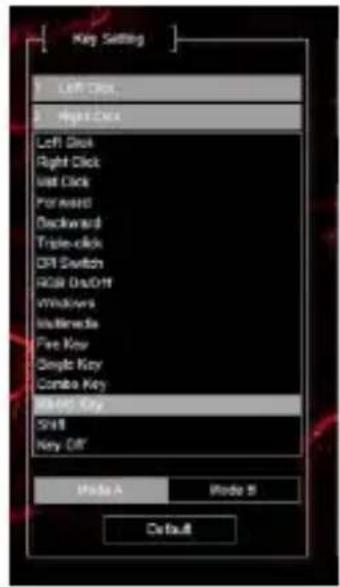
To select macro click “Basic settings” tab and then click on box “Macro Key”. In pop-up window select the name of previously recorded macro. Select one of three options on the right and then click “OK” to finish and close the window. Then Click “Apply” to save the settings.

System settings
In this settings you can adjust mouse moving speed, scrolling speed and double click speed. To set these functions go to “Advanced settings” and select required speed for each function. Then Click “Apply” to save the settings.

GENERAL INFORMATION
- Non-authorized repairs or taking the device to pieces make the warranty void and may cause the product damage.
- Do not use the product in low and high temperatures and in the dusty atmosphere.
- Safe product, conforming to the EU requirements.
- This product is made in accordance with RoHS European standard. The standard was issued in order to decrease the amount of the electronic and electrical waste emitted into the atmosphere.
- The WEEE symbol (the crossed-out wheeled bin) indicates that this product in not home waste. You protect the environment when you recycle hazardous waste appropriately. In order to get detailed information about recycling this product please contact your retailer or a local authority.

Visit our web site to get more information: www.genesis-zone.com
Single Key
Fire Key
Combo Key
flowchart
graph TD
    A["Left Ctrl"] --> B["A"]
    B --> C["Alt"]
    C --> D["Ctrl + Q W F"]
    D --> E["OK"]
    D --> F["Cancel"]
DPI-Einstellungen
Systemeinstellungen
Single Key
Fire Key
Combo Key
USTAWIENIA ZAAWANSOWANE
Edytor makr i profili
Dodawania makra
Fire Key
Combo Key
flowchart
graph TD
    A["Left Ctrl"] --> C["Ctrl"]
    B["A"] --> C
    D["Alt"] --> C
    C --> E["OK"]
    C --> F["Cancel"]
Nastavení DPI
POKROČILÉ NASTAVENÍ
Editor maker i profilù
Dodávání maker

Volba maker
Systémové nastavení
Fire Key
Combo Key

flowchart
graph TD
    A["Left Ctrl"] --> C["Ctrl"]
    B["A"] --> C
    D["Alt"] --> C
    C --> E["OK"]
    C --> F["Cancel"]
Nastavenie DPI
POKROČILÉ NASTAVENIA
Editor makier i profilov
Dodávanie makier
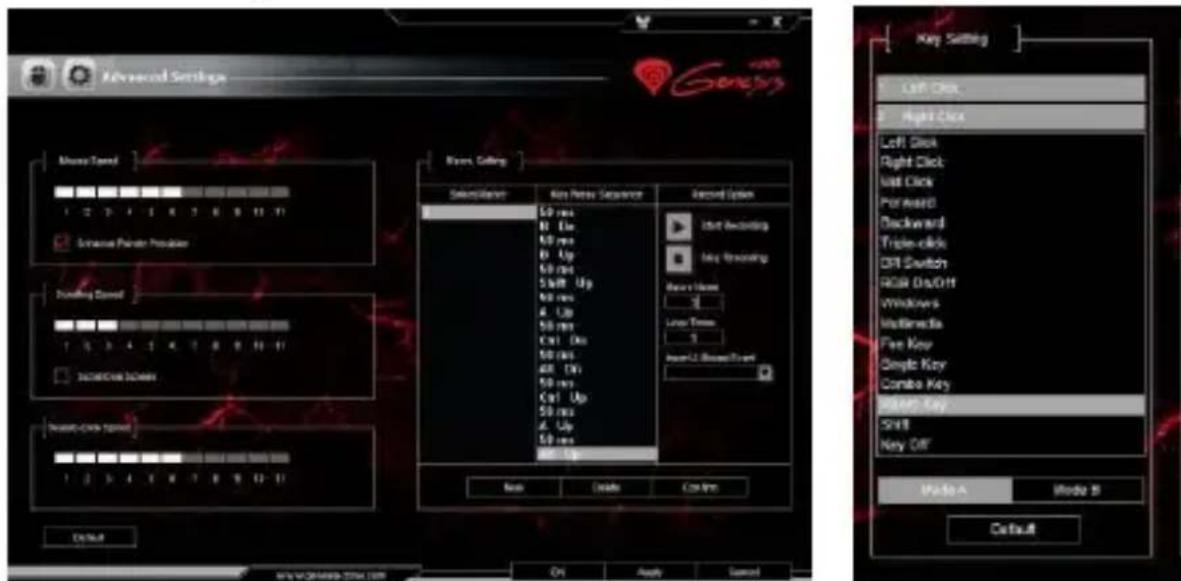
Ak chcete pridat' makrá kliknite na tlačidlo "Advanced Settings" a zadajte názov makra v poli "Macro name", napr. "1". Kliknite na tlačidlo "New" a potom "Start recording" pre spustenie nahrávania. Pomocou klávesnice zadajte kombináciu tlačidiel, ktoré chcete priradit' do tohto makra, napr. "Shift + A + B", kliknite na tlačidlo "STOP recording" pre ukončenie nahrávania. Zadaním čísla do poľa "Loop times" nastavíte slučku, kol'kokrát by sa makro malo použit' po jednom stlačení tlačidla. Kliknite na tlačidlo "Confirm" pre dokončenie a zavretie okna.
Vol'ba makier
Ak chcete zvolit' makro kliknite na tlačidlo "Basic settings" a potom kliknite na box "Macro Key". Vo vyskakovacom okne vyberte názov predtým zaznamenaného makra. Označte jednu z troch možností na pravej strane a potom kliknite na tlačidlo "OK" pre dokončenie a zatvorenie okna. Potom kliknite na "Apply" pre uloženie nastavení.

Single Key
Combo Key
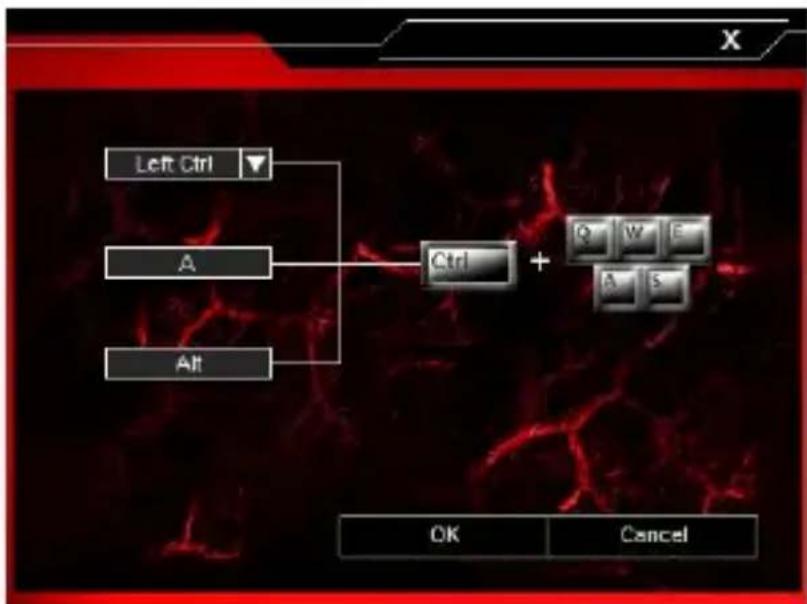
Aceasta functie va permite sa atribuiti combinatii de butoane de la tastatura sau maus.
flowchart
graph TD
    A["Left Ctrl"] --> C["Ctrl"]
    B["A"] --> C
    D["Alt"] --> C
    C --> E["Q"]
    C --> F["W"]
    C --> G["E"]
    C --> H["A"]
    C --> I["S"]
DPI settings (configurarea DPI)
SETARI AVANSATE
System settings (setarile sistem)




- GENESIS GX44 - USER MANUAL - EN
- FEATURES
- INSTALLATION
- BASIC SETTINGS
- Single Key
- Fire Key
- Combo Key
- DPI settings
- Report Rate
- ADVANCED SETTINGS
- Macro and profile editor
- Adding a macro
- Select macro
- System settings
- GENERAL INFORMATION
- DPI-Einstellungen
- Systemeinstellungen
- USTAWIENIA ZAAWANSOWANE
- Edytor makr i profili
- Dodawania makra
- Nastavení DPI
- POKROČILÉ NASTAVENÍ
- Editor maker i profilù
- Dodávání maker
- Volba maker
- Systémové nastavení
- Nastavenie DPI
- POKROČILÉ NASTAVENIA
- Editor makier i profilov
- Dodávanie makier
- Vol'ba makier
- DPI settings (configurarea DPI)
- SETARI AVANSATE
- System settings (setarile sistem)
Brand : Natec
Model : GX44
Category : Mouse