GX78 - Mouse Natec - Free user manual and instructions
Find the device manual for free GX78 Natec in PDF.


| Product Type | Wired Optical Mouse |
| Model | GX78 |
| Brand | Natec |
| Dimensions (L x W x H) | 125 x 70 x 40 mm |
| Weight | 95 g |
| Connection Type | USB 2.0 |
| Cable Length | 1.5 m |
| Sensor Type | Optical |
| Resolution | 1200 DPI (fixed) |
| Number of Buttons | 3 (Left, Right, Scroll) |
| Scroll Wheel | Yes, with tactile feedback |
| Power Source | USB bus-powered |
| Operating Voltage | 5 V DC |
| Compatible Operating Systems | Windows 7/8/10/11, macOS, Linux |
| Plug and Play | Yes, no drivers required |
| Ergonomic Design | Ambidextrous |
| Surface Material | Matte plastic |
| Care Instructions | Wipe with a dry soft cloth; avoid liquids |
| Safety Precautions | Keep away from water and heat sources |
| Spare Parts Availability | Not available; device is not user-serviceable |
| Reparability | Non-repairable; replace unit if faulty |
| Package Contents | Mouse, user manual |
Frequently Asked Questions - GX78 Natec
User questions about GX78 Natec
0 question about this device. Answer the ones you know or ask your own.
Ask a new question about this device
Download the instructions for your Mouse in PDF format for free! Find your manual GX78 - Natec and take your electronic device back in hand. On this page are published all the documents necessary for the use of your device. GX78 by Natec.
USER MANUAL GX78 Natec
text_image
natec Genes18 GX78User's Guide
Introduction
The most revolutionary gaming mouse, built-in the highest advanced laser engine—Avago 9500, reveals a professional gaming spirit and creates the perfect handy match for pioneer gaming users. Innovative changeable side grips provide the best touch and comfortable handling for gaming users, especially for different operational needs of RTS, FPS and online games.
Macro setting technology with inventive gaming software is another smart and efficient feature for expert gamers. This fanciful gaming software tool provides a unique platform for gamers to record, read, and edit scripts which can be saved and assigned to any specific gaming buttons of the mouse.
This powerful feature will help gamers getting rid of repeated practice, reducing burdens, and the most important having more fun. Furthermore, this advanced gaming mouse is equipped innovative ceramic footpads to achieve the most precise and fluidity movement. This unprecedented performance gaming mouse is the ultimate solution for the gamer who are enjoying the pleasure and becoming the winner of game competition at the same time.
text_image
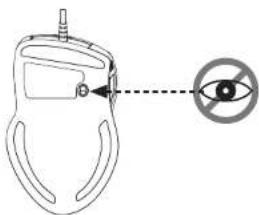
Diagram showing a device with an eye symbol and a prohibition sign, likely for safety or monitoring instructions.Safety Notice
This product complies with IEC 60825-1, Class I laser product
Your product complies with FCC and CE rules.

Please DO NOT direct the laser beam at anyone's eye.
Features:
- Unique 11 programmable buttons plus 5 gaming modes to customize gamers' desired scripts.
- 9+2 buttons USB Gaming Mouse.
• Built to be a winner for gamers in gaming competitions. - Programmable buttons feature as both gaming buttons or Internet buttons.
• Using state-of-art laser technology. - 16 bit ultra-data path for ultimate performance.
- Polling rate 1000 Hz.
• Full speed USB.
• 800/1600/2400/3200 dpi switchable.( Max. to 5700 dpi) - 4-way scrolling.
• Avago ultimate sensor.(11750 Frame Rate) - Tracking Speed: 150 inch/sec.
• Omron Micro Switch Max. Life 5 Million times.
• Rubber side grips and finger grooves.
• Stylish, ergonomic and comfortable shape. - Setting DPI and adjusting wheel scrolling by mouse without any driver or software.

text_image
Button 7 Tilt Wheel button Button 6 Function setting button Mode switch button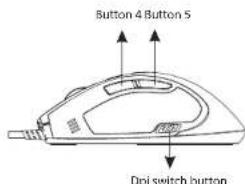
text_image
Button 4 Button S Dip switch buttonDpi Settings
- Press the dpi switch button to change the different resolution.
- The default dpi setting:
Dpl light indicator
* 800 dpi : One Blue LED "On"
* 1600 dpi Two Blue LED "On"
• 2400 dpi : Three Blue LED "On"
* 3200 dpi : Four Blue LED "On"
3.User can change default dpi settings to the range of 100\~5700 dpi with the gaming software tool included.

Dpi switch button
Gaming Modes Setting
* Users can record a macro or get a built-in function from script library, and then save and assign a macro or a function to one of available modes at each gaming button.
* The 4th/5th buttons default is Internet Forward & Backward.
- There are 11 programming gaming buttons for users to assign a macro function.
- There are 5 modes switchable.
- The mode switch button is on the top of the mouse.
Mode light indicator
- Red light on - Mode
- Green light on - Mode 2
- Blue light on - Mode 3
- Pink light on - Mode 4
- Cyan light on - Mode 5

Mode switch button
Gaming button
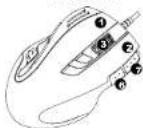

Gaming button
Tips for In-play Sensitivity Switching
- Try the default settings in practice games first before changing these settings
- Practice using the In-game cpi Increase/Decrease buttons on the mouse before engaging in serious combat.
- In first-person shooter games, programming the mouse to use only two tracking sensitivities may work better than using three or more
Use a smaller dpi tracking sensitivity (e.g., 100 dpi) for sniping and shooting, and a higher setting (e.g., 5700 dpi) for quicker movements. - Customize each game according to your specific sensitivity switching needs.
Adjust Lift Button
To have an Adjust Lift Button, please program one button to be the Adjust Lift Button by the gaming software.
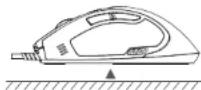
To optimize the vertical distance from the surface for stopping cursor moving, please follow the below steps :
- Put the gaming mouse on the surface you are going to use
- Press and hold the "adjust lift" button.
- Move the mouse on the surface as thoroughly as possible while pressing the "adjust lift" button. Do not lift the mouse off the surface, or you need to re-start from the step one.
- While the mouse is collecting the surface information, the dpi LED is blinking. After the dpi LED stop blinking, release the "adjust lift" button. Now the optimized vertical distance from this surface to stop cursor moving has been set up.
Caution :
While the mouse is in the air, do not click the "adjust lift" button, or the cursor will be stopped.
There are 2 ways to recover
(1) un-plug and re-plug the USB cable
(2) press and hold the "adjust lift" button while the mouse is on a surface.
lift the mouse off the surface, and then release the "adjust lift" button.
Dpi Setting
A. Status inspection
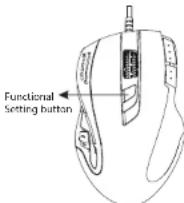
To click F.S. (functional setting) button is the way to switch setting mode.
- X axis - DPI status: click F.S. once, the X axis LED will light on and indicate the X axis resolution is.

- Y axis - DPI status: click F.S. twice, the Y axis LED will light on and indicate the Y axis resolution is.

- Wheel count calculation status: click F.S. 3rd time, the wheel scrolling image graph will light on and indicate how many count of wheel scrolling is.

B. How to Set up :
- X axis setting
press and hold F.S for 3-sec. to enter X axis dpi setting mode, the X axis image graph will flash. The LED will indicate the current resolution, and can be adjusted by wheel scrolling up or down to increase or decrease dpi. Each of squares on behalf of 100 dpi. Scrolling up one count means to increase 100 dpi; contrarily, scroll down one count to decrease 100 dpi. Below shows how to recognize dpi level. The dpi range is from 100 dpi to 5,700 dpi maximum with 57 levels. After setting, press F.S. for 3-sec. to save into memory and drop out of the setting mode.
- Y axis setting
press and hold F.S for 3-sec. is X axis dpi setting mode and then click F.S. once to enter Y axis setting mode, the Y axis image graph will flash. The LED will indicate the current resolution is, and can be adjusted by wheel scrolling up or down to increase or decrease dpi. Each of squares on behalf of 100 dpi. Scrolling up one count means to increase 100 dpi; contrarily, scroll down one count to decrease 100 dpi. Below shows how to recognize dpi level. The dpi range is from 100 dpi to 5,700 dpi maximum with 57 levels. After setting, press F.S. for 3-sec. to save into memory and drop out of the setting mode.
Remark :
100 dpi \~ 400 dpi : LED down >>> up (1st to 4th LED light on)
500 dpi : the 5th LED light on only
600 dpi \~ 900 dpi : LED up >>> down (5th LED to 1st LED light on)
1000 dpi \~ 5000 dpi : LED down >>> up (1st to 5th LED light on)

100 dpi 200 dpi 300 dpi 400 dpi 500 dpi 600 dpi 700 dpi
- Scrolling count setting :
Press F.S. for 3-sec. and then click F.S. twice to enter count calculation mode, the arrow image will flash, and show the current count number. Adjust count calculation to by scrolling wheel, scroll up to increase the count, and scroll down to decrease the count oppositely. Press F.S. for 3-sec. to save into memory and drop out setting mode.

Count 1 Count 2 Count 3 Count 4 Count 5

Count 8 Count 9 Count 6 Count 7
1. Hardware Installation
Connect the Mouse to the USB port.
※ Users need to wait around 10\~15 seconds for moving the cursor at the first time usage.
2. Software Installation
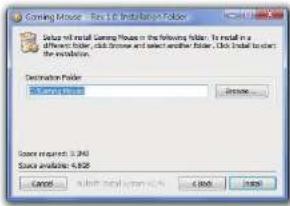
• Install the Gaming Mouse Software
For gaming button settings and dpi adjustment, please install the gaming software in the accompanied CD.
(The Tilt Wheel function will be activated only after the gaming software is installed.)
Please assign the destination folder and go to "Install"
text_image
Starting Mouse - New Ed-inhibitor in Folder Setup will install Gaming Mouse on the following folder. To install in a different folder, click mouse and select another folder. Click folder to create the installation. Destination Folder New Ed-inhibitor Browse... Source required: 3.240 Status available: 6.825 Cancel Next Back Next > Cancel NextPlease "Close" window when the installation has been completed successfully.

text_image
Compared Output: 12.000 GB Output: 12.000 GB Output: 12.000 GB Output: 12.000 GB Output: 12.000 GB Output: 12.000 GB Output: 12.000 GB Output: 12.000 GB Output: 12.000 GB Output: 12.000 GB• Uninstall the Gaming Mouse Software
Please find the Gaming Mouse from the windows program list, and click the "uninstall" to uninstall the gaming software from the PC.
3. Customize Your Settings
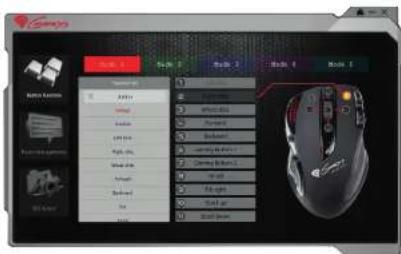
Please choose the function that you would like to make your personal settings.

text_image
Microsoft Office Microsoft Management EPC 1.0.0(1) Button Settings Instruction
text_image
Sang File Edit View Insert Tools Help Tools Help Tools Help Tools Help Tools Help Tools Help Tools Help Tools Help Tools Help Tools Help Tools Help Tools Help Tools Help Tools Help Tools Help Tools Help Tools Help Tools Help Tools Help Tools Help Tools Help Tools Help Tools Help Tools Help Tools Help Tools Help Tools Help Tools Help Tools Help Tools Help Tools Help Tools Help Tools Help Tools Help Tools Help Tools Help Tools Help Tools Help Tools Help Tools Help Tools Help Tools Help Tools Help Tools Help Tools Help Tools Help Tools Help Tools Help Tools Help Tools Help Tools help Sang File Edit View Insert Tools Help Tools Help Tools Help Tools Help Tools Help Tools Help Tools Help Tools Help Tools Help Tools Help Tools Help Tools Help Tools Help Tools Help Tools Help Tools Help Tools Help Tools Help Tools Help Tools Help Tools Help Tools Help Tools Help Tools Help Tools Help Tools Help Tools Help Tools Help Tools Help Tools Help Tools Help Tools Help Tools Help Tools Help Tools Help Tools Help Tools Help Tools Help Tools Help Tools Help Tools Help Tools Help Tools Help Tools Help Tools Help Tools Help Tots Sang File Edit View Insert Tools Help Tools Help Tools Help Tools Help Tools Help Tools Help Tools Help Tools Help Tools Help Tools Help Tools Help Tools Help Tools Help Tools Help Tools Help Tools Help Tools Help Tools Help Tools Help Tools Help Tools Help Tools Help Tools Help Tools Help Tools Help Tools Help Tools Help Tots Sang File Edit View Insert Tools Help Tools Help Tools Help Tools Help Tools Help Tools Help Tools Help Tools Help Tools Help Tots Sang File Edit View Insert Tools Help Tools Help Tools Help Tots Sang File Edit View Insert Tools Help Tots Sang File Edit View Insert Tools Help Tots Sang File Edit View Insert Tots Sang File Edit View Insert Tots Sang File Edit View Insert Tots Sang File Edit View Insert Tots Sang File Edit View Insert Tots Sang File Edit View Insert Tots Sang File Edit View Insert Tots Sang File Edit View Insert Tots Sang File Edit View Insert Tots Sang File Edit View Insert Tots Sang File Edit View Invt.1 Sang File Edit View Invt.2 Sang File Edit View Invt.3 Sang File Edit View Invt.4 Sang File Edit View Invt.5 Sang File Edit View Invt.6 Sang File Edit View Invt.7 Sang File Edit View Invt.8 Sang File Edit View Invt.9 Sang File Edit View Invt.10 Sang File Edit View Invt.11 Sang File Edit View Invt.12 Sang File Edit View Invt.13 Sang File Edit View Invt.14 Sang File Edit View Invt.15 Sang File Edit View Invt.16 Sang File Edit View Invt.17 Sang File Edit View Invt.18 Sang File Edit View Invt.19 Sang File Edit View Invt.20 Sang File Edit View Invt.21 Sang File Edit View Invt.22 Sang File Edit View Invt.23 Sang File Edit View Invt.24 Sang File Edit View Invt.25 Sang File Edit View Invt.26 Sang File Edit View Invt.27 Sang File Edit View Invt.28 Sang File Edit View Invt.29 Sang File Edit View Invt.30 Sang File Edit View Invt.31 Sang File Edit View Invt.32 Sang File Edit View Invt.33 Sang File Edit View Invt.34 Sang File Edit View Invt.35 Sang File Edit View Invt.36 Sang File Edit View Invt.37 Sang File Edit View Invt.38 Sang File Edit View Invt.39 Sang File Edit View Invt.40The mouse offer 5 modes for saving macros. There are Red, Green, Blue, Purple and Cyan light to indicate each mode / profile obviously. What more, each mode / profile is able to record 11 scripts,

Profile Selection / Naming
- Move the cursor to the Profile area and click any color from Red, Green, Blue, Purple, Cyan to define the profile name.
- Each profile represents a customized gaming button setting group. In addition, users can define each profile according to different games.
- Please be noted that the Profile name can consist of maximum 8 letters.
Button Function Settings
- There are 11 gaming buttons for users to set up functions.
- For each of the 11 programmable gaming buttons, users may choose a function from the Function List, and draw it to the button list to assign a new function.

text_image
Start Menu Start Menu Default Create Leftmost Rightmost Headset Forward Forward Command Command Button 1 Command Button 2 T0 & T1 T0 & T1 T0 & T1 T0 & T1 T0 & T1 T0 & T1 T0 & T1 T0 & T1 T0 & T1 T0 & T1 T0 & T1 T0 & T1 T0 & T1 T0 & T1 T0 & T1 T0 & T1 T0 & T1 T0 & T0 & T1Note
- Please keep in mind that, if any other button function is assigned to the Left button, the default Left button function will be inactive until users set it back to the default function.
- All assigned button functions are automatically saved after the assignment.
(2) Macro Settings Instruction
text_image
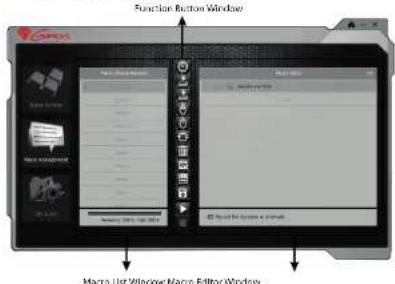
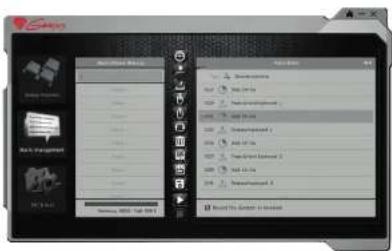
Function Button Window Macro List Window Macro Editor WindowI. Macro List Window
Macro List has maximum 64 lines to be set up by users. Every line can be named to indicate the meaning of the macro. The Macro List provides 5788 Bytes totally.
Please be noted that the space per line can accommodate 14 letters at most.
II. Macro Editor Window
This window is for gamers to record all the keyboard and mouse commands through this powerful recording function.

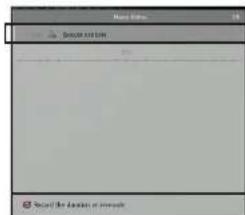
Before starting Macro recording, you have to choose one command from "Excute One Time", "Loop mode" or "Firekey mode" in the first line of Macro Editor Window. Click twice on this line to check the next command until your required command appears.

Excute One Time :
The recorded script will be executed once.

Run Loop :
After you click once a gaming button, the assigned function will be repeatedly executed until you click again the button.

Firekey mode :
The assigned function will be repeatedly executed while you keep pressing the gaming button, and will stop once you release the button.
text_image
Model 100 Model 100 Model 100 Model 100 Model 100 Model 100 Model 100 Model 100 Model 100 Model 100 Model 100 Model 100 Model 100 Model 100 Model 100 Model 100 Model 100 Model 1 Model 1 Model 1 Model 1 Model 1 Model 1 Model 1 Model 1 Model 1 Model 1 Model 1 Model 1 Model 1 Model 1 Model 1 Model 1 Model 1 Model 1 Model 1 Model 1 Model 1 Model 1 Model 1 Model 1 Model 1 Model 2 Model 2 Model 2 Model 2 Model 2 Model 2 Model 2 Model 2 Model 2 Model 2 Model 2 Model 2 Model 2 Model 2 Model 2 Model 2 Model 2 Model 2 Model 2 Model 2 Model 2 Model 2 Model 2 Model 3 Model 3 Model 3 Model 3 Model 3 Model 3 Model 3 Model 3 Model 3 Model 3 Model 3 Model 3 Model 3 Model 3 Model 3 Model 3 Model 3 Model 3 Model 3 Model 3 Model 3 Model 3 Model 3 Model 3 Model 3 Model 4 Model 4 Model 4 Model 4 Model 4 Model 4 Model 4 Model 4 Model 4 Model 4 Model 4 Model 4 Model 4 Model 4 Model 4 Model 4 Model 4 Model 4 Systematic Analysis of Microsoft
Duration :
This is to allow you to record the duration of a command or intervals between two commands. The default is active. You can cancel it if it is unnecessary to record the duration.
Duration ms(0.001 second) :
Double click the button, you can manually modify the duration time directly.
After finishing the macro editing, drag the scripts to Macro List Window and name it. The script is automatically saved once it is dragged into the Marco list.
text_image
Screenshot of a software interface showing a desktop application with file list and toolbar icons, likely from an older or older software development environment.III. Function Button Window
Please kindly use below command icons to amend / insert the script details when you have done the record.

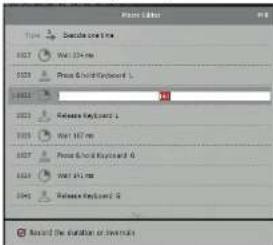
insert Duration of Intervals :
Drag "Insert Duration of Intervals" icon to Macro Editor area and insert into between two single scripts. Double-click the new duration and key in the specific second.
text_image
Font Editor Type: Sequence one line RGB1 Word 124 mm RGB2 Press & Solid Keyboard 1 RGB3 90 RGB4 Release Keyboard 1 RGB5 Word 167 mm RGB6 Press & Solid Keyboard 0 RGB7 Word 415 mm RGB8 Release Keyboard 0 Record the duration or seconds
Insert Key-Down Command :
Drag "Insert Key-Down Command" icon to Macro Editor area and insert into between 2 script. A message of "Please press a keyboard" will pop-up, meanwhile, please press a key on keyboard to insert the key-down into scripts.
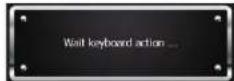

Insert Key-Up Command
Drag "Insert Key-Up Command" icon to Macro Editor area and insert into between 2 scripts. A message of "Please press a keyboard" will pop-up, meanwhile, please press a key on keyboard to insert the key-up into scripts.

Insert Click Mouse Button Command :
Drag "Insert Click Mouse Button Command" icon to Macro Editor area and insert into between 2 scripts. A message of "Please click a mouse button" will pop-up, at the same time, please click any mouse button to insert the mouse button function into scripts.
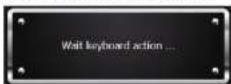

Insert Release Mouse Button Command :
Drag "Insert Release Mouse Button Command" Icon to Macro Editor area and insert into between 2 scripts. A message of "Please click a mouse button" will pop-up, at the same time, please click any mouse button to insert the "release mouse button" function into scripts.

Insert Scrolling Command :
Drag "Insert Scrolling Command" icon to the Macro Editor area and insert into between 2 scripts. A message of "Please scroll the wheel" will pop-up, at the same time, please scroll the wheel up or down to insert scrolling up or down function into scripts.
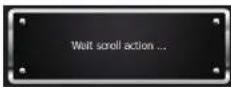

Recycle
Choose and drag the specific scripts, which you want to delete to the "Recycle" icon. The scripts will be deleted forever.

Reset :
Click "Reset" to get back to the default status, clearing all the recorded contents by gamers. Before starting Macro recording, you have to choose one command from "Excute One Time", "Loop mode" or "Firekey mode" in the first line of Macro Editor Window. Click twice on this line to check the next command until your required command appears.

Import Macro / Script
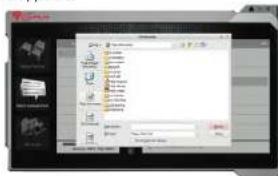
"Import" allows you to have the scripts / macros as the same as what your friends have. Save the scripts / macros provided from your friends in a certain path. Then, click "Import" from software panel and choose the scripts / macros you need. Congratulations! You have imported macros successfully.

Export Macro / Script :
Click "Export" and the scripts / macros which you set through the gaming software will be saved to the destination folder you choose.
text_image
Screenshot of a software interface displaying a file selection dialog with folder navigation and file list
text_image
Screenshot of a software interface displaying a list box with Chinese text and a dropdown menu open, likely for data entry or report.
Start / Stop Recording
Click the "start" icon to start recording. Click the "stop" icon to stop recording. Between the 2 clicks, all of your operations on keyboard and mouse are recorded and shown on the Macro Editor Window. To press the "Pause/Break" button on keyboard can also stop recording.
(3) DPI & Tools Instruction
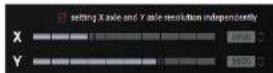
The product provide 4 levels resolution switch, and the default is 800 (One Blue LED On) /1600 (Two Blue LED On) /2400 (Three Blue LED On) / 3200 (Four Blue LED On). Users can define the own resolution from 100 dpi - 5700 dpi for each of the 4 level. Furthermore, the X axis and Y axis resolution can be set up individually by users.

text_image
4 3 2 1 Report data Report coordinatesa. Click the level of DPI you are going to adjust. There are 4 levels available.

b. In the DPI adjustment area, drag the axis along the DPI scale. Meanwhile, the DPI figure is changing and shown on the right side of the DPI scale. Note: The computer will save new resolution into mouse automatically.
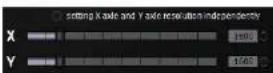
c. Tick the option of "Setting X axle and Y axle resolution independently" if you would like to adjust the 2 axles individually.

Backup : Backup your mouse settings to file.

Restore : Restore mouse settings from file.

Reset: It will reset all settings of mouse.(macro will be deleted)

text_image
natec Genesys GX78Instrukcja obsługi
Wprowadzenie
text_image
Diagram showing a device with an eye symbol and a prohibition sign, likely for safety or monitoring instructions.text_image
Starting Mouse - New List Implementation Folder Setup will install Gaming House on the following folder. To install in a Software folder, this is also to create another folder. Click under to start the installation. Destination Folder To Install Browse... Source requirements: 12.243 Source available: 12.243 Cancel Auto and Application Edit Nexttext_image
Running Mouse - Red LED Operating Connected Output: Red LED Operating Red LED Operating area: 100% Connected output: 100% Connected output: 100% Connected output: 100% Connected output: 100%text_image
Scanned image of a computer mouse with labeled icons and text, likely from an older software interface.text_image
Screenshot of a software interface showing a context menu with options like 'Forward', 'Forward Button1', and 'Tide' alongside a mouse graphic.Uwaga
text_image
Menu Items Balance and Time Record the balance in every day√ Record the duration or intervals
Czas trwania :
text_image
Mac OS File Edit View Insert Add to Remove Delete Edit Paste Delete Edit Paste Delete Edit Paste Delete Edit Paste Delete Edit Paste Delete Edit Paste Delete Edit Paste Delete Edit Paste Delete Edit Paste Delete Edit Paste Delete Edit Paste Delete Edit Paste Delete Edit Paste Delete Edit Paste Delete Edit Paste Delete Edit Paste Delete Edit Paste Delete Update: 100% / 100% (Note) Apply the Document or Printouttext_image
Screenshot of a software interface displaying a file selection dialog with folder navigation and file list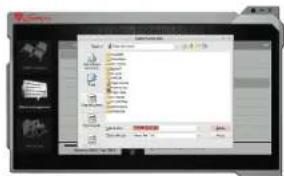
text_image
Screenshot of a software interface displaying a list box with Chinese text and a dropdown menu open, likely for data entry or report.