
Dialog 3210 - Phone ERICSSON - Free user manual and instructions
Find the device manual for free Dialog 3210 ERICSSON in PDF.


| Product Type | Corded Telephone |
| Brand | Ericsson |
| Model | Dialog 3210 |
| Dimensions (HxWxD) | 230 x 200 x 120 mm |
| Weight | Approx. 800 g |
| Power Supply | Powered via telephone line (no external power) |
| Display | Backlit LCD display with 2x16 characters |
| Keypad | 12 numeric keys, 4 function keys (Hold, Redial, Mute, Transfer) |
| Speakerphone | Yes, full-duplex |
| Ringer Volume | Adjustable with 5 levels + off |
| Memory | 10 programmable memory keys for speed dial |
| Connection | RJ-11 modular jack |
| Headset Compatible | Yes (via 2.5mm jack) |
| Handset | Standard coiled cord handset |
| Wall Mountable | Yes (requires wall mount adapter) |
| Color Options | Gray or black |
| Operating Temperature | 0°C to 40°C |
| Product Certifications | CE, FCC |
| Maintenance | Clean with a soft dry cloth; avoid liquids and abrasives |
| Spare Parts & Repairability | Spare handset cords and wall mounts available; repair by authorized service centers |
Frequently Asked Questions - Dialog 3210 ERICSSON
User questions about Dialog 3210 ERICSSON
0 question about this device. Answer the ones you know or ask your own.
Ask a new question about this device
Download the instructions for your Phone in PDF format for free! Find your manual Dialog 3210 - ERICSSON and take your electronic device back in hand. On this page are published all the documents necessary for the use of your device. Dialog 3210 by ERICSSON.
USER MANUAL Dialog 3210 ERICSSON
Dialog 3210/3211/3212
System Telephones for MD110 Communication System
User Guide
Welcome to the User Guide for the Dialog 3210, 3211 and 3212 system telephones in the Ericsson MD110 communication system, release BC11. It is a state-of-the-art business communications system. Its alliance of features and facilities effectively improves communications for virtually any kind of organization.
To take full advantage of these advanced features and facilities there is a line of telephones, designed for ease of use in every situation.
Function descriptions that do not include speaking in the handset, are described off-hook, if nothing else is stated. Instead of pressing the "Clear-key", you can always replace the handset.
Some markets use differing codes for some functions. In this guide, all functions are described using the most common code for every specific function. As a note the markets and their differing code is shown.
The User Guide describes the facilities of the Dialog 3210, 3211 and 3212 system telephones as they are programmed at delivery from the factory. There may be some differences in the way your phone is programmed. Please consult your system administrator if you need further information.
The latest version of this User Guide can also be downloaded from: http://www.ericsson.com/enterprise/archive/manuals.shtml
Note Dialog 3210, 3211 and 3212 are system telephones, i.e. they can only be used for an Ericsson private branch exchange that supports these types of telephones.
ERICSSON MAKES NO WARRANTY OF ANY KIND WITH REGARD TO THIS MATERIAL, INCLUDING, BUT NOT LIMITED TO, THE IMPLIED WARRANTIES OF MERCHANTABILITY AND FITNESS FOR A PARTICULAR PURPOSE. Ericsson shall not be liable for errors contained herein nor for incidental or consequential damages in connection with the furnishing, performance or use of this material.
Hereby, Ericsson Enterprise AB, declares that this telephone, is in conformity with the essential requirements and other relevant provisions of the European R&TTE directive 1999/5/EC. Please refer to http://www.ericsson.com/sdoc.
EN/LZT 102 2552 RE
© Ericsson Enterprise AB 2002
All rights reserved. No parts of this publication may be reproduced, stored in retrieval system, or transmitted in any form or by any means, electronic, mechanical, photocopying, recording or otherwise, without prior written permission of the publisher.
Table of Contents
page
Description 4
Free Seating (optional) 6
Incoming Calls 8
Outgoing Calls 10
During Calls 13
When You Receive a Busy Tone 21
Call Forwarding 25
Internal Messages 37
Voice Mail 40
Information 43
Abbreviated Numbers 45
Group Facilities 49
Other Useful Facilities 51
Paging (optional) 61
Authority 66
Programming and Adjustments 72
Audible Signals 85
Visible Signals 87
Display Information 88
The 3211 is not equipped with a display.
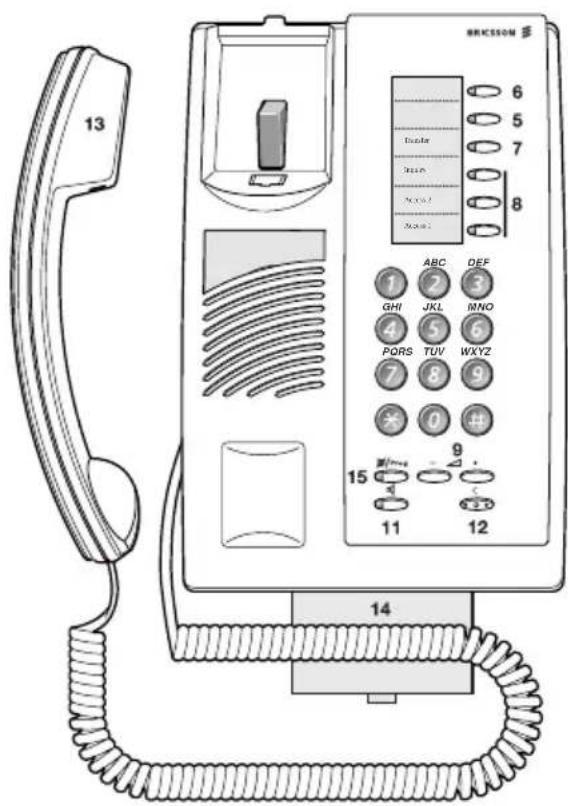
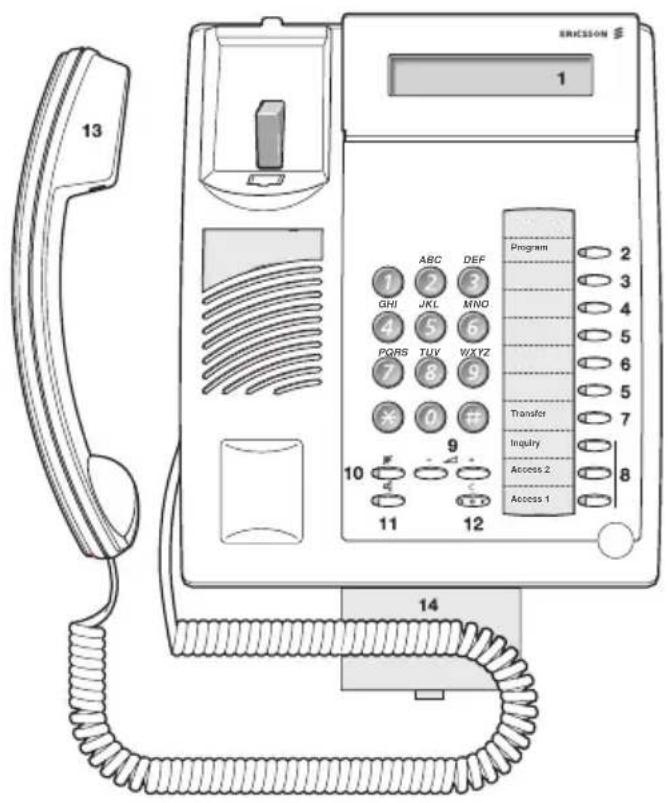
Note: The functions available on each model vary. If any functions differ or are unavailable, this will be indicated in the relevant section of the User Guide.
1 Display (3212 only)
2x20 characters. See section "Display Information" on page 88.
2 Programming
See section "Programming and Adjustments" on page 72.
3
C a l l b a c k
See section "When You Receive a Busy Tone" on page 21. Function can be removed or moved to other programmable function key by system administrator.
4 Diversion (follow-me)
See section "Call Forwarding" on page 25. Function can be removed or moved to other programmable function key by system administrator.
5 Programmable function keys
See section "Programming and Adjustments" on page 72.
6 Programmable function key/Headset key
Normally a programmable function key as described at 5. With Option unit DBY 410 02 (optional accessory) installed under the telephone, the key is dedicated to be programmed by the system administrator as the Headset key. See section “Other Useful Facilities” on page 51.
7 T r a n s f e r
See section "During Calls" on page 13.
8 Triple access line
For handling calls. Access 1 and 2 are available both for incoming and outgoing calls. Inquiry can only be used for outgoing calls.
9 Volume control
See section "Programming and Adjustments" on page 72.
10 Mute
a To switch the microphone on or off during a call. b To switch off the ringing signal in idle state or when ringing. See sections "During Calls" on page 13 and "Audible Signals" on page 85.
11 Loudspeaker on/off
See section "During Calls" on page 13.
12 Clear
To disconnect calls or exit a function. Can always be pressed instead of replacing the handset. Also to clear the display in programming mode (3212 telephone only).
13 Handset
Supplied with hearing aid function as standard.
Please note: The handset may attract and retain small metal objects in the earcap region.
14 Optional pull-out leaf for easy guide
See inside of the back cover.
15 Mute and Programming
See section “During Calls” on page 13 (for Mute) and section “Programming and Adjustments” on page 72.
Free Seating (optional)
The free seating function is used for persons who have an office extension number but no telephone set of their own. For example, flexible office workers, persons mostly working outside the office, etc. As a free seating user and working from the office, you logon to any free telephone set that temporarily will be assigned with your extension number and your system authorities.
To log on
\*11\*
Press
Enter the authorization code and press
Enter your telephone number and press
Press to finish the procedure
The display shows your telephone number.
Note: An earlier version of the free seating function use another procedure: To log on, press ✦10 ✦ extension No. #.
To log off
11# Press
Press to finish the procedure
Note: An earlier version of the free seating function use another procedure: To log off, press #10#.
Incoming Calls
Answer calls
A ringing signal and a flashing lamp indicate an incoming call.
On Access 1
Normally you will receive calls on the Access 1 line.

Lift the handset

On any other line key
Lift the handset

Press the flashing line key
Handsfree
(3211 and 3212 telephones only).

Press the flashing line key
You are connected to the caller via the loudspeaker and microphone.
Press to terminate a handsfree call
On another extension
You can answer a call to a phone in another room:
Call the ringing extension
8 Press
Notes:
You can also press On-hold/Pick-up (function key pre-programmed by you).
France press 4; Sweden press 6
Answer a second call during an ongoing call
If your telephone is pre-programmed with a "Free on 2nd access" key, you can receive another call, if this function is activated.
Free on 2nd Access

Press to activate / deactivate
When Free on 2nd access is active the lamp is lit.
Note: Function key pre-programmed by system administrator.
You have an ongoing call on Access 1, when the Access 2 key flashes to indicate a new incoming call:
Access 2

Press to answer
The first call is put on hold.
Access 1

Press to switch back to the first call
The second call is put on hold. You are connected to the first caller.
Press to terminate the connected call
Note: If the calling party has activated Call waiting, you can receive a second call even if Free on 2nd access is not activated.
Outgoing Calls
Make calls
How to make internal and external calls:

Lift the handset and proceed depending on call type:
Internal calls

Dial the extension number
External calls
0 Dial the digit or digits to get an external line Dial tone.
Note: The particular digit or digits used in your office, e.g. 0 or 00.

Dial the external number
Press to end the call
Note: If you receive a queue tone when the digit or digits to get an external line are dialled (optional function Least Cost Routing is used in the system), keep waiting. Once a line becomes free you will receive a dial tone. If a warning tone is heard, the selected line is marked "Expensive".
Handsfree
(3211 and 3212 telephones only).
With the handset on hook:

Dial the number
You are connected via the loudspeaker and microphone.
Press to terminate a handsfree call
Note: You can make your calls faster by using common abbreviated numbers and by using your own programmed abbreviated numbers. See section "Abbreviated Numbers" on page 45.
Individual external line
To make a call on a specific external line:
*0*
Press
① ② ③ ④ ⑤ ⑥ ⑦ ⑧ ⑨
⑩
Dial the individual external line number and press

Dial the digit or digits to get an external line and the external number
Last external number redial
When you initiate an external call the system automatically stores all the dialled digits, irrespective of whether the call was successful or not.

Lift the handset

Press to redial the saved number
The last external number is automatically redialed.
Notes:
You can also press Last number redial (function key pre-programmed by you).
Finland and Sweden press 0
Save external number
When you make an external call, you can save the number in order to redial the same number easily. Any previously saved number is erased.
To save an external number:
Redial

Press before you finish the call
Note: Function key pre-programmed by system administrator.

Redial number
Lift the handset
Redial

Press to redial the number
Note: Function key pre-programmed by system administrator.
During Calls
Monitoring
(3210 telephone only).
This function lets you listen to the loudspeaker while the handset is onhook, e.g. while waiting for a called busy person to become free, passive listening to an ongoing telephone conference, etc.

During an ongoing call:
Press and replace the handset
When the key lamp is lit, you monitor the call via the loudspeaker. The handset (including the microphone) is disconnected. Also the mute key lamp is lit to inform that there is no microphone connected.
Note: You can adjust the volume. See section "Programming and Adjustments" on page 72.
Press to end the call

From monitoring to handset
Lift the handset
Group listening (loudspeaking)
(3211 and 3212 telephones only).
This function lets other people in your room listen to your telephone conversation. You speak in the handset while the other party's voice is heard on the loudspeaker.
During an ongoing conversation:
Press to switch between loudspeaker and handset
When the key lamp is lit, the other party's voice is heard on the loudspeaker.
Note: You can adjust the volume, See section "Programming and Adjustments" on page 72.

From loudspeaking to handsfree
Replace the handset
Handsfree conversation.
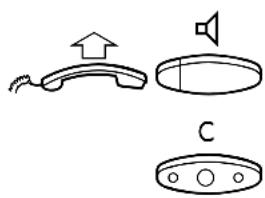
From handsfree to loudspeaking
Lift the handset and press
Press to end the call
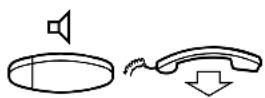
From handset to handsfree
Press and replace the handset
Handsfree conversation.
Press to end the call
From handsfree to handset

Lift the handset
Conversation via the handset.
Mute
When the lamp is lit, the person on the line cannot hear what is being said in your room.
Note: Key designation differs on the telephones.
∅/Prog

3210 telephone
Press to switch the microphone on or off
3211 and 3212 telephones
Press to switch the microphone on or off
Inquiry
You have speech connection on Access 1 and want to make an inquiry to an internal or external party.
Inquiry

Press
Note: You can also press Access 2.

Call the second party
The first party is put on hold (the Access 1 key lamp flashes slowly). When the other party answers you can switch between the calls (refer back), transfer the call, create a conference and end one of the calls.
Press to end the inquiry call
The second party is disconnected.
Access 1

Press to return to the first party
Refer back
The key lamp flashes for the call put on hold.
Access 1

Press to put second party on hold
First party is connected.
Inquiry

Press to put first party on hold
Second party is connected.
Press to terminate the connected call
Transfer
You want to transfer an ongoing call.
Inquiry

Press

Call the second party
Transfer

Press before or after answer
The ongoing call is transferred.
Note: If you have put more than one call on hold, the last call that was put on hold will be transferred. If the dialled extension is busy or transfer is not allowed, your phone will ring again.
Conference
With this procedure you can include up to seven parties in a conference. Only the conference leader can admit participants. During the conference a tone will be heard every 15th second.
Note: The conference tone might be disabled for your system.
You have an ongoing conversation (Access 1) and want to establish a telephone conference. You will become the conference leader.
Inquiry

Press
Note: You can also press Access 2.

Call the second party
Wait for answer.
3 Press to establish a conference
Note: You can also press: Conference (function key pre-programmed by you).

Repeat the procedure to add more conference members
Replace the handset to leave the conference
On hold
You can temporarily put the ongoing call on hold. Calls put on hold can be resumed on your own telephone or another.
Individual

Press the ongoing call line key and replace the handset
The key lamp flashes slowly.

Press the line key again to resume the call
Common
8 Press
Notes:
You can also press: On hold/Pick-up (function key pre-programmed by you).
France press 4; Sweden press 6

Replace the handset
The key lamp flashes slowly. If your number is multiple represented on other telephones, the key lamp that represents your number flashes slowly on these telephones.
To resume the call on your own extension:

Press the line key
To resume the call on another extension:

Call the extension where the call was put on hold
8 Press
Notes:
You can also press: On hold/Pick-up (function key pre-programmed by you).
France press 4; Sweden press 6
If your number is multiple represented on the telephone, you can also press the key that represents your number.
Send caller identity code at transfer
When transferring a call you can send the caller's identity code or number to the receiver's display.
You have speech connection with an external party on Access 1.
Inquiry

Press to put the call on hold
Note: You can also press Access 2.
\*77\*
Press
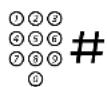
Dial the caller's identity code or number and press

Call the second party
Transfer

Press before or after answer
The ongoing call is transferred with the caller's identity code or number.
Note: You can only use this function if the receiver's telephone is programmed to handle identity codes. This function is only available in newer versions of the telephone exchange.
Dialling during a connected call
When calling interactive tele services, e.g. telephone banks, you need to use Dual Tone Multi Frequency (DTMF) signals. If your exchange is not already programmed to automatically convert your entered digits into DTMF signals, you need to activate the function during the call.
During an ongoing call:

Press and dial the requested digits
Entered digits are transferred as DTMF signals.
Note: Finland press 1 and dial the required digits.
When You Receive a Busy Tone
Busy extension or external line
If you call an extension and receive a busy tone or get no answer or all external lines are busy you can use these methods:
Automatic callback
If a called extension is busy or there is no answer:
6 Press
Notes:
You can also press: Callback (function key pre-programmed by you).
France, Finland and Sweden press 5

Replace the handset to finish procedure
You are called back (recall ringing signal) when the ongoing call is finished or the next time a new call is finished. You have to answer within eight seconds, otherwise the Callback service is cancelled.

Lift the handset when you are called back
The system calls the extension.
Note: Callbacks can be activated on several extensions at the same time. Callbacks from additional lines will recall on the Access 1 line.
If all external lines are busy (after dialling the digit or digits to get a line):
6 Press
Notes:
You can also press: Callback (function key pre-programmed by you).
France, Finland and Sweden press 5
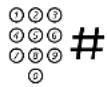
Dial the external number and press

Replace the handset to finish procedure
When an external line becomes free you will be called back (recall ringing signal). You have to answer within eight seconds, otherwise the Callback service is cancelled.

Lift the handset when you are called back
The system calls the external number.
Note: Only one Callback can be activated on a busy external line. Callbacks from additional lines will recall on the Access 1 line.
Cancel any single callback
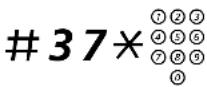
Press and dial the extension number
Note: To cancel a single Callback on a specific external line, dial the digit or digits to get a line instead of the extension number.
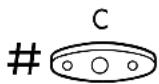
Press
Cancel all callbacks
#37#
Press
Press
Activate call waiting
If you urgently wish to contact a busy extension or external line, you can notify it by a call waiting signal.
5 Press
Notes:
You can also press: Call waiting (function key pre-programmed by you).
France and Finland press 6; Sweden press 4
Keep handset off-hook. When the called extension or the external line becomes free, it will be called automatically.
Note: The call waiting function might be blocked for use on your extension (programmed by system administrator). If call waiting is not allowed you will continue to receive a busy tone.
Intrusion on a busy extension
You can intrude on an ongoing call on a busy extension.
4 Press
Notes:
You can also press: Intrusion (function key pre-programmed by you).
France and Sweden press 8
Before the intrusion is executed a warning tone is sent to the parties in the ongoing call. A three party call is established and a warning tone is heard.
Note: The warning tone might be disabled for your system. The Intrusion function might be blocked for use on your extension (programmed by system administrator). If Intrusion is not allowed you will continue to receive a busy tone.
Intrusion on a busy external line
You can intrude on an ongoing call on a busy external line.
*44* ①②③ ④⑤⑥ ⑦⑧⑨ ⑩
Press and dial the individual external line number
①②③ ④⑤⑥ ⑦⑧⑨ ⑩
Press and dial the digit or digits to get an external line Busy tone.
4 Press
Notes:
You can also press: Intrusion (function key pre-programmed by you).
France and Sweden press 8
Before the intrusion is executed a warning tone is sent to the parties in the ongoing call. A three party call is established and a warning tone is heard.
Notes:
The warning tone might be disabled for your system.
The Intrusion function might be blocked for use on your extension (programmed by system administrator). If Intrusion is not allowed you will continue to receive a busy tone.
Call Forwarding
Diversion
If you do not want to be disturbed or will be out of the office, you can have all calls to your extension diverted to a pre-programmed answering position. During diversion you will hear a special dial tone and the diversion lamp indicates that your triple access line is diverted. You can still make calls as usual.
Diversion can be direct, on no answer, on busy or to another information service facility.
Note: If your telephone is programmed with “Multiple Directory Diversion and Do not disturb” (ask your system administrator), Diversion is ordered and cancelled simultaneously on all lines.
Order direct diversion from your own extension
The call is diverted to an individual position or up to three predetermined common answering positions (depending on the type of the incoming call). Programmed by the system administrator.
Diversion

Press
Note: Function key pre-programmed by system administrator. If you order diversion with the handset off-hook or the loudspeaker on, press the diversion key twice. You can also use the procedure below.
*21# Press
Press
Note: U.K. press *2#
Note: Diversion can also be ordered and cancelled from the answering position, use the same procedure as in section.
Cancel direct diversion from your own extension
Diversion

Press
Note: Function key pre-programmed by system administrator. You can also use the procedure below.
#21# Press
Note: U.K. press #2#
Press
Note: Diversion can also be ordered and cancelled from the answering position, use the same procedure as in section "Internal follow-me" on page 28.
Diversion when there is no answer
\*211# Press to order
Note: Finland and Norway press *6 1#
The incoming call is diverted after 3 signals.
Press
#211# Press to cancel
Note: Finland and Norway press # 6 1 #
Press
Diversion when caller receives a busy tone
*212#
Press to order
Note: Finland and Norway press *67#
Press
212
Press to cancel
Note: Finland and Norway press #67#
Press
Diversion to another information service facility
*218#
Press to order
Press
218
Press to cancel
Press
Internal follow-me
All calls to your extension are diverted to an extension of your choice (within the private network). During follow-me you will hear a special dial tone and the diversion lamp indicates that your triple access line has follow-me. You can still make calls as usual.
Note: If your telephone is programmed with “Multiple Directory Diversion and Do not disturb” (ask your system administrator), Internal follow-me is ordered and cancelled simultaneously on all lines.
Order from your own extension

Lift the handset
Diversion
Press and dial the answering position number
Note: Function key pre-programmed by system administrator.
Diversion

Press to order

Replace the handset
Note: You can also use the procedure below.
Press and dial the answering position number
Note: U.K. press *2* No.
Press
Cancel from your own extension
Diversion

Press
Note: Function key pre-programmed by system administrator. You can also use the procedure below.
21
Press
Note: U.K. press #2#
Redirect from answering position
*21* ①②③ ④⑤⑥ ⑦⑧⑨ ⑩
Press and dial your own extension number
Note: U.K. press *2* No.
①②③ ④⑤⑥ ⑦⑧⑨
Press and dial the diversion number
# C
Press to redirect
Calls are diverted to the answering position.
Note: Internal follow-me must be ordered from your own extension before you can redirect from answering position.
Cancel from answering position
21*
Press and dial your own extension number
Note: U.K. press #2* No.
# C
Press
External follow-me
If external follow-me is allowed you can have all calls to your extension diverted to an external number of your choice. A special dial tone will be heard. You can still make calls as usual.
Order
*22# ⑦②③ ④⑤⑥ ⑦⑧⑨ ⑩
Press and dial the digit or digits to get an external line and the external number
Press
Cancel
Diversion

Press
Note: Function key pre-programmed by system administrator. You can also use the procedure below.
22
Press
Press
Bypass diversion
If bypass diversion is allowed from your extension, you can bypass an activated diversion/follow-me on a specific extension.
*60* ①②③ ④⑤⑥ ⑦⑧⑨ ⑩
Press and dial the extension number
# Press and wait for answer
Personal number (optional)
With this function you can be reached on your normal office telephone number even if you are in another room, out of the office, at home, etc. Depending on the functionality of your office exchange, you can have either one individual single search profile or you can choose between five individual search profiles. A search profile can be designed to fit the situation, i.e. In the office, On travel, At home, etc. Both internal or external telephone numbers can be used in a profile.
On your request, the search profiles are programmed or modified by the system administrator. See section "To design and order your search profiles" on page 33.
When the function is activated, incoming calls are transferred to different telephones or back-up services in your decided order. If an answering position in the profile is busy, the call can be transferred to another predefined position in the profile, i.e. Voice mail or a colleague. You can activate the function from your own office telephone or when out of the office, by using the Direct Inward System Access function (DISA).
To activate or change to another profile from your office telephone
*10*
Press
(1-5)
Dial the search profile digit
Press
On the 3212 telephone the display shows the chosen search profile digit.
Notes:
In newer versions of the telephone exchange you can also activate and change to another profile by programming one function key/search profile (the function keys has to be pre-assigned by your system administrator). When the search profile is active the key lamp is on. See section "Programming and Adjustments" on page 72.
If the operator is included in the activated profile as an answering position, always inform the operator if you are absent. Use the Absence information function or call the operator. If Voice Mail is included in the activated profile, always update your greeting with absence information.
To cancel from your office telephone
#10#
Press
Press
Note: If you have activated a profile via a function key, you can press this key instead of using the procedure above.
To activate or change to another profile from an external telephone
The external telephone must be of push button type provided with hash (#) and star (*) keys or a mobile telephone adapted for dial tone pulses (DTMF).

Call the DISA function at your office Dial tone.
\*75\*
Press
Enter the authorization code and press
Dial your own extension number and press Dial tone.
\*10\*
Press
Dial your own extension number and press
(1-5)
Dial the search profile digit

Press and replace the handset
Note: If the operator is included in the activated profile as an answering position, always inform the operator if you are absent. Use the Absence information function or call the operator. If Voice Mail is included in the activated profile, always update your greeting with absence information.
To cancel from an external telephone
The external telephone must be of push button type provided with hash (#) and star ( × ) keys or a mobile telephone adapted for dial tone pulses (DTMF).

Call the DISA function at your office
Dial tone.
*75*
Press
Enter the authorization code and press
Dial your own extension number and press
Dial tone.
10*
Press
Dial your own extension number and press

Replace the handset
To design and order your search profiles
The search profiles are installed or changed by the system administrator. In order to set up your profiles, copy the setting form, fill in your new or changed profiles and give it to your system administrator.
Note: If Personal Screen Call Server is connected to your system, you can edit the profiles via your Intranet. See instructions for the server!
Important notes when designing your search profiles:
- Avoid a ringing time longer than 45 seconds for your profiles Usually the caller hangs up after 3–6 ringing signals. If you need a longer ringing time, the maximum time is 60 sec.
- Consider the time you need to react and answer on each answering position in your profiles
You might need up to 15 seconds to react and answer on a desk or cordless telephone and 20–25 seconds for a mobile telephone.
- There must be an answering position at the end of every profile (voice mail or operator/secretary) If not, calls might end up unanswered.
- Consider what should happen when you are busy on a telephone
The available options are:
- Activate Free on 2nd (if available)
– Diversion to Voice mail
– Diversion to the operator
- If an answering machine, a FAX or other answering service is used as an early answering position, it might interrupt the searching
Disconnect the answering service, or design the ringing times so they do not affect the searching.
- If your system admits just one single personal profile, design the profile only with your 2–3 most frequently used positions If you add more numbers, there is a risk that the caller hangs up before a late position is called.
- If your system admits 1–5 personal profiles, design the different profiles to fit your most used positions
Make sure you use as few answering positions as possible for each profile. Profile examples:
- In office
- At home
- On travel
– Absent/not reachable
Example:
How to fill in your setting form for search profiles:
Profile 1 In office
| Search order | Type of telephone or answering position* Telephone number | Ring time (seconds) |
| 1 Desk 1234 10 | ||
| 2 Cordless 5234 15 | ||
| 3 Voice Mail |
* Examples: Desk, Cordless, Mobile, External, Voice Mail, Operator, etc.
Profile 2 At home
| Search order | Type of telephone or answering position* Telephone number | Ring time (seconds) |
| 1 External 2 | 22222 20 | |
| 2 Mobile 07 | 06666666 25 | |
| 3 Voice Mail |
Setting form for search profiles
Name:
Department:
Telephone No:
Account:
Profile 1 ....
| Search order | Type of telephone or answering position* Telephone number | Ring time (seconds) |
| 1 | ||
| 2 | ||
| 3 | ||
| 4 |
* Examples: Desk, Cordless, Mobile, External, Voice Mail, Operator, etc.
Profile 2 ......
| Search order | Type of telephone or answering position* Telephone number | Ring time (seconds) |
| 1 | ||
| 2 | ||
| 3 | ||
| 4 |
Profile 3 ......
| Search order | Type of telephone or answering position* Telephone number | Ring time (seconds) |
| 1 | ||
| 2 | ||
| 3 | ||
| 4 |
Profile 4 ......
| Search order | Type of telephone or answering position* Telephone number | Ring time (seconds) |
| 1 | ||
| 2 | ||
| 3 | ||
| 4 |
Profile 5 ......
| Search order | Type of telephone or answering position* Telephone number | Ring time (seconds) |
| 1 | ||
| 2 | ||
| 3 | ||
| 4 |
Internal Messages
Manual message waiting (MMW)
If the called extension does not answer you can initiate a message waiting indication on that extension (if this function is allowed).
Answer
Message

Press
Note: Function key pre-programmed by system administrator.
A call is initiated to the extension that requested message waiting.
Checking the party that requested MMW
Note: This function is only available on the 3212 telephone.
Program

Press
The program key lamp turns on and all other lamps turn off.
Message

Press
Note: Function key pre-programmed by system administrator.
The number that requested message waiting is shown in the display.
Program

Press to finish procedure
Cancel MMW at your own extension
31
Press
Press
Order MMW to another extension
*31*
Press

Dial the extension number
Press
The message waiting key lights up on the called extension.
Cancel MMW to another extension
31*
Press

Dial the extension number
Press
Message waiting (optional)
If assigned this function and your telephone is diverted to an interception computer, a function key (programmed by the system administrator) will flash when there are messages stored for you in the computer. The messages will be printed out on a printer connected to the computer.
To print out messages
Message

Press
The display shows the identity of the computer and the number of messages stored for you (3212 telephone only).
If you find that the notification of message waiting is intrusive or you want to shut off the notification:
91#*
Press
Acknowledgement tone.
Voice Mail
Integrated voice mail (optional)
This function allows you to leave a voice message to the caller when you are unable to answer calls, e.g. when out of office, in a meeting, etc. Then the caller can leave a message in your mailbox. When back in office you can enter your mailbox and listen to received messages.
You can choose to divert all incoming calls to your mailbox, or calls when there is no answer, or calls when your telephone is busy.
When you enter your mailbox, you will hear recorded instructions how to handle listening, recording, storing and deleting messages, and how to change your security code.
To activate and deactivate your mailbox
For all incoming calls:
See "Call Forwarding" on page 25, section (function code 21). Use the number to the voice mail system as the "answering position number".
When incoming calls get no answer:
See "Call Forwarding" on page 25, section when there is no answer (function code 211).
When incoming calls get a busy tone:
See “Call Forwarding” on page 25, section when caller receives a busy tone (function code 212).
To enter your mailbox
From your office telephone:
Dial the number to the voice mail system
Note: If a function key is programmed for your mailbox and the key lamp is lit or flashing (= a new message is received), you can also press this key.
If you are asked to enter your security code:
Enter your security code
Code at delivery = your extension number.
From another telephone:
Dial the number to the voice mail system
If you are asked to enter your security code (the used telephone has a mailbox of its own):
# Press
Enter your mailbox number
(normally your office extension number)
Enter your security code (if required)
To enter someone else's mailbox
Dial the number to the voice mail system
If you are asked to enter your security code (the used telephone has a mailbox of its own):
# Press
Enter the mailbox number
(normally the office extension number of the person served)
Enter the security code of the person served (if required)
To handle the mailbox
Recorded information on the line informs about the number of new and stored messages. If you have too many messages stored, you will first be asked to delete saved messages.
Recorded instructions ask you to press different digits in order to listen to caller's messages, record your own greetings, change your password or exit your mailbox, etc.
The following diagram gives an overview of the mailbox system and the digits to be used.
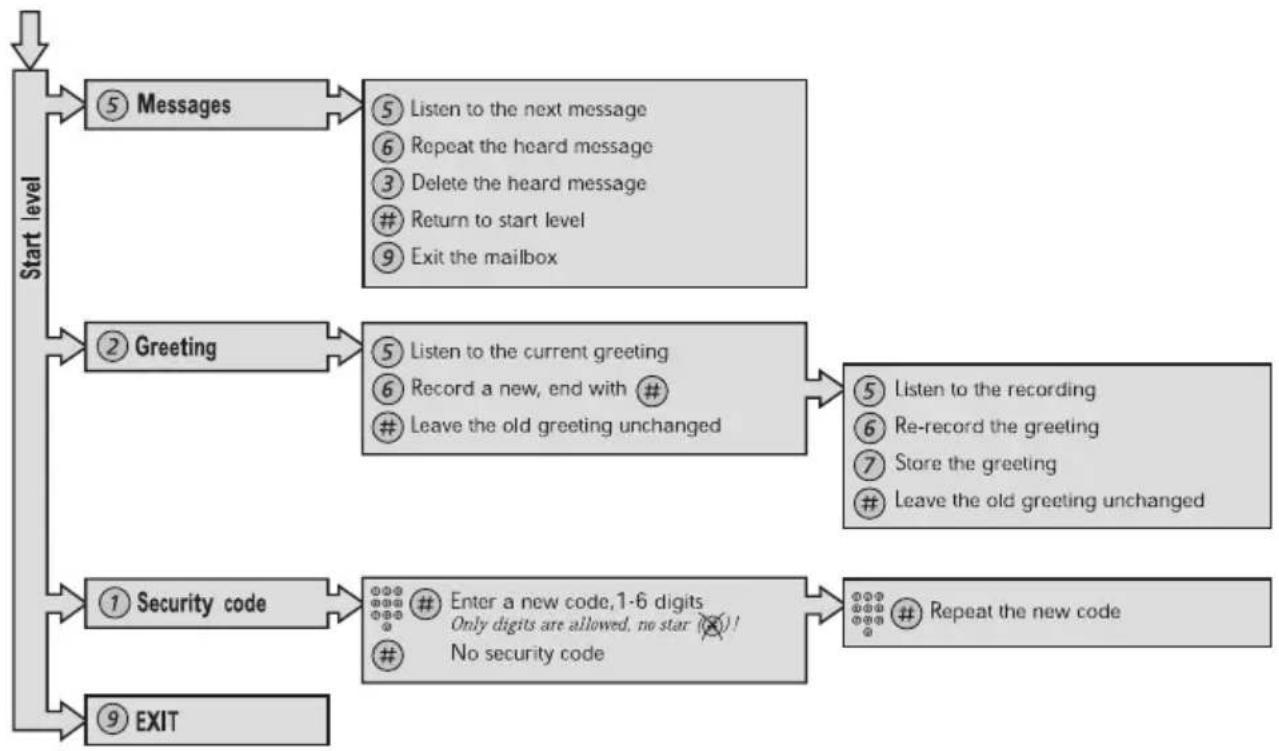
flowchart
graph TD
    A["Start level"] --> B["⑤ Messages"]
    B --> C["⑤ Listen to the next message\n⑥ Repeat the heard message\n③ Delete the heard message\n# Return to start level\n⑨ Exit the mailbox"]
    A --> D["② Greeting"]
    D --> E["⑤ Listen to the current greeting\n⑥ Record a new, end with #\n# Leave the old greeting unchanged"]
    E --> F["⑤ Listen to the recording\n⑥ Re-record the greeting\n⑦ Store the greeting\n# Leave the old greeting unchanged"]
    A --> G["① Security code"]
    G --> H["Enter a new code, 1-6 digits\nOnly digits are allowed, no star (×)!\n# No security code"]
    H --> I["Repeat the new code"]
    A --> J["⑨ EXIT"]
Information
Absence information (optional)
To be used during absence to inform callers about the reason and time or date of your return. If you are authorized, you can also enter absence information on another extension from your own extension.
Order
Example: Back on September 15th (=0915).
*23*
Press
(0-9)
Enter the absence code
Note: The absence codes consist of one digit which
depends on the system connected to the exchange.
Contact your system administrator regarding your available absence codes.
*0915
Press and enter the date (MMDD) or time (HHMM) of your return
Note: If no return time or date is needed, this step can be excluded.
Press
On the 3212 telephone the display shows the reason, and if entered, time or date of return.
Cancel
#23#
Press
Press
The programmed information is erased.
Order for another extension
\*230\*
Press

Dial the extension number and press
(0-9)
Enter the absence code
\*0915
Press and enter the date or time of the other person's return
Press
The display on the other person's extension shows the reason, and if entered, time or date of return.
Cancel for another extension
#230\*
Press
Dial the extension number and press
Note: If the special dial tone is received, the authorization code for the other extension is required. Add the code and press # before pressing the Clear key.
Press
Abbreviated Numbers
Common abbreviated numbers
By using abbreviated numbers, you can make calls simply by pressing a few keys. The common abbreviated numbers consist of 1–5 digits and are stored in the exchange (by the system administrator).
Lift the handset and dial the common abbreviated number
Individual abbreviated numbers
You can program up to ten frequently used telephone numbers on the dFigit keys 0–9 and use them as individual abbreviated numbers (if this function is allowed).
Note: In Finland up to nine numbers, keys 1 - 9.
To use
(0 - 9)
Press and dial the relevant digit
Note: Finland press ✗×(1 - 9); Sweden press (0 - 9) #
Program and alter individual abbreviated numbers
*51*(0-9)
Press and dial selected digit
Note: Finland press *5 1* (1 - 9)
Press and dial the telephone number
Press
Note: The programmed number may consist of a maximum of 20 digits plus a “✗”, which indicates the second dial tone from the public network. On the 3212 telephone, the display only shows the last 20 characters in a number.
Erase one programmed number
51*(0-9)
Press and dial selected digit
Note: Finland press #51*(1 - 9)

Press
Erase all programmed numbers
51
Press
Press
Dial by a function key
Head office

Press the function key
Program on Dialog 3210
Both telephone numbers and function codes can be programmed on a function key.


Keep pressed while programming
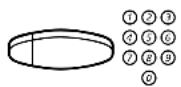
Press the selected function key and dial the telephone number or function code

Press the function key again

Release

Assign the key.

Erase programmed number on Dialog 3210

Keep pressed while programming

Press the selected function key
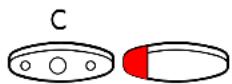
Press to erase the stored number

Release

Program on Dialog 3211/3212
Both telephone numbers and function codes can be programmed on a function key.
Program

Press
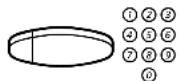
Press the selected function key and dial the telephone number or function code

Press the function key again
Program

Press to finish programming
Assign the key.
Erase and verify programmed number on Dialog 3211/3212
Note: The verify programmed number function is only available on the 3212 telephone.
Program

Press

Press the selected function key
On the 3212 telephone the stored number is shown on the display.
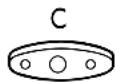

Press if you want to erase the stored number
The stored number is erased.
Program

Press
Group Facilities
Call pick-up group
People working in a team can have their telephones programmed by the system administrator to form Call Pick-up groups.
In a Call Pick-up group, any member can answer any individual call to group members.
8 Press to answer
Notes:
One Call Pick-up group can serve as an alternative to another group. Calls to the alternative group can only be answered when there are no calls to your own group.
Finland and Sweden press 0
Common bell group
Calls are signalled on a common bell.
8 Press to answer
Note: Finland and Sweden press 0
Group hunting
As a member of a group of extensions that is called by a common number, you can temporarily leave the group.
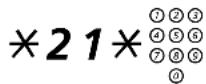
Press and dial your own extension number
Note: U.K. press *2* No.
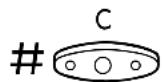
Press
To re-enter the group
21
Press
Note: U.K. press #2#
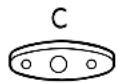
Press
If you are authorized you can divert all calls to a group to another extension or group:
*24*
Press
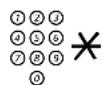
Dial the number of the group to be diverted and press

Dial the extension number of the new answering position
Press
To cancel the diversion:
24*
Press

Dial the number of the group that has been diverted
Press
Other Useful Facilities
Account code (optional)
This function is used to charge a call to an account number or to prevent unauthorised calls from your telephone. The account code can have 1 to 15 digits.
\*61\* Press
Note: Finland and Norway press *71*
Enter the account code and press
Dial tone.

Dial the digit or digits to get an external line and the external number
Ongoing external call
When used to charge a call it is also possible to connect an ongoing external call to an account code.
During the call:
Access

*61*
Press the line key to put the ongoing call on hold
Press
Note: Finland and Norway press *71*
Enter the account code and press
Dial tone.
Access

Press the line key for the call put on hold
Immediate speech connection
On the Dialog 3211 and 3212 telephones calls are automatically answered without lifting the handset or pressing any keys. The call starts in handsfree mode.
On the Dialog 3210 telephone calls are automatically answered and the caller can leave a message over the built-in loudspeaker. To answer the call you have to lift the handset.
The function can be permanently active or activated by use of a function key (programmed by system administrator).
Permanently active
Program the ringing option with “Immediate speech connection with single tone burst”, option 6, on the Access line key. See section “Programming and Adjustments” on page 72.
Activated on a function key
Automatic answer

Press to order or cancel
Note: Function key pre-programmed by system administrator.
The incoming call is signalled with a tone burst. When the key lamp is lit you can use this function.
General cancellation
The following features can be simultaneously cancelled:
- Callback (all Callbacks are cancelled).
- Diversion/Internal and External Follow-me.
- Manual message waiting/Message diversion.
- Do not disturb.
- Flexible night service.
Order
#001#
Press
Press
Night service
When the exchange is in night service mode, all your incoming calls to the operator are transferred to a selected extension or group of extensions. The exchange is equipped with four different night service modes:
Common night service
All incoming calls to the operator are transferred to one specific extension. Answer the call in the normal way.
Individual night service
Selected external calls to the operator are transferred to one specific extension. Answer the call in the normal way.
Universal night service
All incoming calls to the operator are transferred to a universal signalling device, e.g. the common bell. Answer the call as described in section "Common bell group" on page 49.
Flexible night service
This function permits you to order an external line and connect it directly to your telephone. Ask your operator for the external line numbers.
To order flexible night service
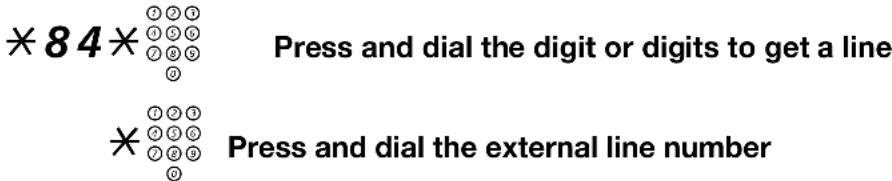

Cancel

Press
Hot line
Ask your system administrator if you require this function.
Delayed hot line
When the handset of the delayed hot-line telephone is lifted or when the line key is pressed, a timer is started. If no digit is pressed before time out, a call is automatically generated to a specific extension or external line. If a digit is pressed before time out the telephone works as an ordinary telephone.
Note: This function is only available in newer versions of the telephone exchange.
Direct hot line
The same function as described above, but no delay. Only hot line calls can be placed from this line. To be used e.g. as alarm phone, door phone etc.
Alarm extension
An extension can be programmed by system administrator as an alarm extension. A call to an alarm extension obtains automatic intrusion if the extension is busy. Up to seven calling parties may be connected at the same time.
Emergency state
In the event of an emergency the operator can switch the exchange into emergency state, during which only pre-programmed extensions are permitted to make calls.
Data communication
Your telephone can be used together with a PC as an integrated voice and data terminal. Contact your system administrator if you require this function.
Additional directory number
You can be assigned (programmed by system administrator) one or more additional directory numbers (lines) on free function keys.
To answer, make calls and use functions on the additional directory lines, use the same procedure as for triple access lines if nothing else is stated. However, you have to press the additional line key after lifting the handset.
Example:
To make a call on an additional directory line:
Additional line


Lift the handset
Press
Note: Function key pre-programmed by system administrator.

Dial the extension number
Multiple represented directory number
Your extension number can be programmed on a dedicated key on other system telephones, i.e. the number is “represented” on these telephones.
This means that incoming calls to your extension can be answered on any of these other telephones by just pressing the dedicated key. The dedicated key can also be assigned the possibility to call your extension when pressed. This function has to be programmed by your System Administrator.
Malicious call tracing
If you are disturbed by malicious external incoming calls, you can request a number tracing from the network provider.
You can invoke tracing during or after an ongoing conversation.
The external line can be held for a limited period of time.
Order
During an ongoing conversation:
Mal. Call Tracing

Press
Note: Function key pre-programmed by system administrator.
The system acknowledges with different tones whether the tracing request was accepted or rejected.
Headset
If your telephone is equipped with Option unit DBY 410 02, the following headset functions are available.
Note: How to install Option unit and headset, see installation instruction provided with the Option unit.
Activate/Deactivate the headset
Headset

Press the headset key to activate/deactivate the headset
Note: Function key pre-programmed by system administrator.
See section "Description" on page 4. All calls can be handled via the headset.
Answer calls

Press the flashing line key to answer
Press to terminate a headset call
Make calls

Dial the number
Press to terminate the call
Headset to handset

Lift the handset
Handset to headset
Headset

Press the headset key
Note: Function key pre-programmed by system administrator.
Headset with loudspeaking
(3211 and 3212 telephones only).
Press to toggle between headset with or without loudspeaking
Headset to handsfree
(3211 and 3212 telephones only).
Press
Headset

Press the headset key
Note: Function key pre-programmed by system administrator.
Handsfree to headset
(3211 and 3212 telephones only).
Headset

Press the headset key
Note: Function key pre-programmed by system administrator.
Direct Inward System Access (DISA) (optional)
If you are assigned to use this function and you are working externally, you can call your office and get access to an external line in order to make business calls. The business call will be charged your office extension number or an account number. You will just be charged for the call to the office.
The external telephone must be of push button type provided with hash (#) and star (*) keys or a mobile telephone adapted for dial tone pulses (DTMF).
After a completed DISA call you must hang up before a new DISA call can be made.
Depending on the type of authorization code and if an account code is used, different procedures must be used:
With common authorization code

Call the DISA function at your office Dial tone.
\*72\*
Press
Enter the authorization code and press Dial tone.

Dial the external number

With individual authorization code
Call the DISA function at your office Dial tone.
\*75\*
Press
Enter the authorization code and press
Dial your own extension number and press Dial tone.

Dial the external number
Paging (optional)
Persons equipped with a wireless paging receiver or assigned to a lamp signal, can be paged from a telephone set. Depending on the type of paging system it is possible to send digit messages or voice messages to the paged person.
Paging can also be initiated and answered during an ongoing call. Make an Inquiry call and proceed according to the appropriate procedure for the type of connected paging system. You can then either return to the ongoing call or transfer the paging call to the person that was put on hold. If this person is an external subscriber, your exchange must be programmed for this function.
If you receive a congestion tone when paging, this indicates that the paged person has his paging receiver in the charging rack and is probably out of the office.
Paging receivers without a display and paging via lamp signals
To initiate
When there is no answer or a busy tone, keep the handset off hook:
7 Press
Wait for an answer with the handset off hook.
If you want to start paging without calling the person:
*81*
Press

Dial the extension number and press
Wait for an answer with the handset off hook.
To answer
From any telephone within the system and within the predetermined paging time:
*82*
Press
Dial your own extension number and press
Or if only one paging call is permitted at the time:
*82#
Press
Paging receivers with a display
To initiate
When there is no answer or a busy tone, keep the handset off hook:

Press and replace the handset
Wait for the paged person to call back.
If you want to start paging without calling the person:
*81*
Press
Dial the extension number and press
Wait for the acknowledgement tone.

Replace the handset
Wait for the paged person to call back.
If you want to send a digit message code:
*81*
Press
Dial the extension number and press
Dial the message code (1–10 digits) and press
Wait for the acknowledgement tone.

Replace the handset
If expected, wait for the paged person to call back.
To answer
From the nearest telephone within the system: Call the extension number shown in the display of your paging receiver. If zeros are shown it indicates that you are being paged from an external subscriber. To answer:
\*82\*
Press

Dial your own extension number and press
Or if only one paging call is permitted at the time:
\*82#
Press
If a message code is shown in the display, take the appropriate action.
Paging receivers with voice message
To initiate
When there is no answer or a busy tone, keep the handset off hook:
7 Press
Leave your message after the tone. Just before the predetermined speech time is ended, a warning tone will be heard.
If you want to start paging without calling the person:
\*81\*
Press
Dial the extension number and press
Leave your message after the tone. Just before the predetermined speech time is ended, a warning tone will be heard.
To an s wer
If your paging receiver has bothway voice connection, press the answer button to speak. If no bothway connection exists, take the appropriate action according to the message or answer the paging in the same way as paging without a voice message.
Alarm paging
To initiate
*810*
Press
Dial the extension number and press
Wait for the acknowledgement tone.

Replace the handset
If you want to send an alarm message code:
*810*
Press

Dial the extension number and press

Dial the message code (1–5 digits) and press
Wait for the acknowledgement tone.

Replace the handset
To acknowledge an alarm
You must acknowledge the alarm to be terminated:
*820*
Press
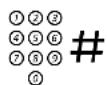
Dial your own extension number and press
To acknowledge an alarm for another extension:
*820*
Press

Dial the other extension number and press
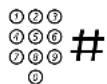
Dial your own extension number and press
Authority
Data privacy
Data privacy allows you to make a call without any disturbances, i.e. intrusion. This function is automatically cancelled when the call is finished.

Order
Lift the handset
*41# ⑦②③ ④⑤⑤ ⑦⑧⑤ ⑩
Press and dial the number
Do not disturb, DND
When you activate DND, calls to your extension are not indicated. Outgoing calls can be made as usual.
DND

Press to activate or deactivate DND
Note: You can also use the procedure below.
\*27#
Dial to activate
Special dial tone.
or
#27#
Dial to deactivate
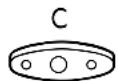
Press to finish activation/deactivation
Note: If your telephone is programmed with “Multiple Directory Diversion and Do not disturb” (ask your system administrator), DND is ordered and cancelled simultaneously on all lines. (This function is only available in newer versions of the telephone exchange).
Group do not disturb
If your extension is defined as a master extension (programmed by system administrator), you can mark a group of extensions as Group do not disturb. The group can be bypassed by you.
Order
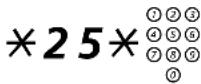
Press and dial the group number
Note: Germany and South Africa press ✦ 2 8 ✦ No.
# Press
Special dial tone.
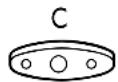
Press
Cancel
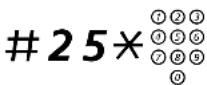
Press and dial the group number
Note: Germany and South Africa press #28* No.
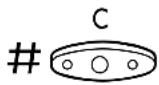
Press
Bypass
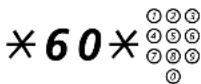
Press and dial the extension number
# Press
The call is made to the specified extension in the group.
Authorization code, common (optional)
If you are assigned to use a common authorization code (1 to 7 digits) you can temporarily change any used telephone within the exchange to the authority level connected to this code. You can use the code for one call only or you can open the phone for some calls and lock it when leaving the phone.
To use for a single call
\*72\*
Press
Enter authorization code and press
Verification tone.

Dial the digit or digits to get an external line and the external number
To open an extension for some calls
#73\*
Press
Enter authorization code and press
Verification tone.
To lock an extension
\*73\*
Press
Enter authorization code and press
Verification tone.
Authorization code, individual (optional)
If you are assigned to an individual authorization code (1 to 7 digits, affiliated to your own extension) you can lock your own extension to a common authority level, e.g. when out of the office. You can also temporarily change any other used telephone within the exchange to the same authority level as you have on your own phone.
The individual code can be changed from your own extension.
To lock your telephone
\*76\*
Press

# Enter authorization code and press
Verification tone.
To make calls with your authority level when your telephone is locked
\*75\*
Press

# Enter authorization code and press
Verification tone.

Dial the digit or digits to get an external line and the external number
To open your telephone
#76\*
Press

# Enter authorization code and press
Verification tone.
To assign your own authority level to another telephone
\*75\*
Press
Enter authorization code and press
Verification tone.
Dial your own extension number and press
Verification tone.

Dial the digit or digits to get an external line and the external number
To change your individual authority code
\*74\*
Press
Enter old authorization code and press
Enter new authorization code and press
Verification tone.
Programming and Adjustments
Programming of functions
Frequently used functions and telephone numbers can be programmed on the function keys for easy access. When you want to use the function, just press the key. Certain functions must be pre-programmed by the system administrator.
Program or change a function on Dialog 3210
∅/Prog



Keep pressed while programming
Press selected function key
Enter telephone number or a function code according to the list in Functions and required data
Note: If a wrong number is entered, press the Clear key to erase it, and then enter the number again.

∅/Prog

Press the function key again
Release
Remove the transparent cover and write the function name or telephone number beside the key.
Note: To erase a programmed function, press the Clear key, instead of the telephone number or function code, in the sequence above.
Program or change a function on Dialog 3211/3212
Program

Press

Press selected function key
Note: If the key is already programmed, the number or function will be displayed (3212 telephone only).

Enter telephone number or a function code according to the list in Functions and required data
Note: If a wrong number is entered, press the Clear key to erase it, and then enter the number again.
Program

Press the function key again

Press to finish programming
Remove the transparent cover and write the function name or telephone number beside the key.
Note: To erase a programmed function, press the Clear key, instead of the telephone number or function code, in the sequence above.
Verify a programmed number or function on Dialog 3212
Note: This function is only available on the 3212 telephone.
Program

Press

Press selected function key
The stored number or function is displayed.
Program

Press
Functions and required data
Function Function code or Associated number
| Most common | Finland France Sweden | ||
| Call pick up: | |||
| Group 8 | 4 | 6 | |
| Individual | No. + 8 | No. + 4 | No. + 6 |
| Call waiting 5 | 6 | 6 | 4 |
| On hold, common 8 | 4 | 6 | |
| Conference | 3 | ||
| Dial by a function key | Extension No. | ||
| Flexible night service | * 8 4 * 0 *+ External line number + # | ||
| Intrusion on busy extension | 4 | 8 | 8 |
| Last external number redial | *** | **0 | **0 |
| Personal number (list No.) | (1-5) | ||
Functions that need to be programmed by the system administrator:
- Additional lines • Automatic callback*
• Dedicated intercom link • Diversion* - Do not disturb* • External line
- Free on 2nd access • Immediate speech connection*
- Individual external line • Malicious call tracing
- Manual message waiting • Multiple representation
- Search profile lists and pre-assigning of function keys for personal number
*Function can be programmed by you.
When the function is programmed by you, you will not get a toggle function. Instead you will have one key for activation and another key for deactivation. The key lamp will not indicate that the function is activated.
When the function is programmed by the System Administrator you will get a toggle function and the key lamp will indicate that the function is activated.
Programming of ringing signals
Program on Dialog 3210
You have 6 programmable ringing signals on your telephone. The different signals can be programmed on access lines, additional lines and multiple represented lines.
∅/Prog

Keep pressed while programming

Press the corresponding line key
(0-6)
Select the ringing signal you want to use according to the list below
0 = Silent.
1 = Periodic ringing signal.
2 = Delayed periodic ringing signal.
3 = One muted ringing signal.
4 = One muted delayed ringing signal.
5 = Immediate one way speech connection with single tone burst controlled by function key.
6 = Immediate one way speech connection with single tone burst.
Note: Options 5 and 6 are not available for multiple represented lines.

Press

Release

Program on Dialog 3211/3212
You have 6 programmable ringing signals on your telephone. The different signals can be programmed on access lines, additional lines and multiple represented lines.
Program

Press
Access 1

Press the corresponding line key
A digit (0–6) is shown in the display (3212 telephone only).
(0-6)
Select the ringing signal you want to use according to the list below
0 = Silent.
1 = Periodic ringing signal.
2 = Delayed periodic ringing signal.
3 = One muted ringing signal.
4 = One muted delayed ringing signal.
5 = Immediate speech connection with single tone burst controlled by function key.
6 = Immediate speech connection with single tone burst.
Note: Options 5 and 6 are not available for multiple represented lines.
Access 1

Press
Program

Press to finish programming
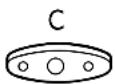
Press to clear the display during programming
Note: 3212 telephone only.
To verify a ringing signal on Dialog 3212
Note: This function is only available on the 3212 telephone.
Program

Press
Access 1

Press the corresponding line key
A digit (0–6) is shown in the display.
Program

Press to finish programming
Programming of ringing signal tone character
There are 10 different programmable ringing signal tone characters on your telephone, each corresponding to a digit between 0 and 9.
Note: If you use melodies to signal incoming calls (3212 telephone only), this will replace the tone character. See section "Melody ringing" on page 80.
∅/Prog

Program on Dialog 3210
Keep pressed while programming
(0-9)
Press the corresponding digit
The telephone rings with the chosen character.
∅/Prog

Release
Program on Dialog 3211/3212
Program

Press
The current tone character is displayed (3212 telephone only).
(0-9)
Press the corresponding digit
The telephone rings with the chosen character.
Program

Press to finish programming
Handset and loudspeaker volume
Use the volume keys to change the volume of the handset or loudspeaker during a call. Adjust handset listening volume in handset mode. Adjust loudspeaker volume when the loudspeaker key is activated, e.g. when the key lamp is lit.
Press to change the volume
Ringing signal volume
Use the volume keys to adjust the ringing signal volume when the telephone is idle or ringing. Adjusted volume is stored.
Press to change the volume
Mute ringing signal
You can suppress the ringing signal for an incoming call.
Note: This function is only available in newer software versions of your telephone. If the Mute key lamp is turned on when you press the key in idle state, your telephone supports this function.
Press to suppress the ringing signal
The ringing signal is switched off for the current call.
Silent ringing
If you do not want to be disturbed by the ringing signal but still want to be able to answer an incoming call, you can switch off the ringing signal. Incoming calls are only indicated by a flashing access line lamp and display information.
Note: This function is only available in newer software versions of your telephone. If the Mute key lamp is turned on when you press the key in idle state, your telephone supports this function.
Press to switch off the ringing signal
The Mute key lamp is switched on to indicate silent ringing. The ringing signal will automatically be switched on the next time you lift the handset or press any key.
Melody ringing
(3212 telephone only).
If you want personal melodies when your telephone rings, you can program one melody to signal an internal call, a second melody for an external call and a third melody to signal a callback call.
Note: This function is only available in newer software versions of your telephone. If you can enter "Melody mode", your telephone supports this function.
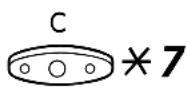
Press and hold simultaneously to enter melody mode
Melody Mode
If there is a stored and activated melody for internal calls (Access 1 key), external calls (Access 2 key) or callback calls (Inquiry key), the corresponding key lamp is switched on.
In melody mode you can:
- Program new melodies
- Edit or delete stored melodies
- Activate or deactivate stored melodies
# Press to exit melody mode
Note: If you do not press any key within 30 seconds, melody mode is automatically cancelled.
Program a new melody, edit or delete a current melody
Program

Press
Program Melody
Press the key for the requested type of call:
If there is a current melody, the melody is played and the last 19 notes or signs are displayed.
Access 1

Press for internal calls
or
Access 2

Press for external calls
or
Inquiry

Press for callback calls
To edit the current melody:
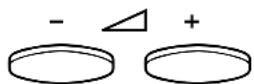
Move the cursor to the right of the position to be edited
Keep pressed to go to the beginning or to the end.
Press to erase the note to the left of the cursor
Keep pressed to erase all the notes.
To enter a new melody or new notes, see section "To enter notes" on page 83.
Program

To store the current melody:
Press the flashing line key (Access 1 or Access 2 or Inquiry)
Press
The current melody is stored.
Note: The melody is not activated, see section "Activate or deactivate a stored melody" on page 82.
To delete the current melody:
Press and hold until no notes are displayed
Program

Press the flashing line key (Access 1 or Access 2 or Inquiry)
Press
Activate or deactivate a stored melody
A stored melody has to be activated in melody mode to be heard when you get an incoming call.
To activate (in melody mode):

Press the key for the requested type of call (Access 1 or Access 2 or Inquiry)
The corresponding key lamp is switched on:
Access 1 key = Internal calls
Access 2 key = External calls
Inquiry key = Callback calls
Note: If you want to return to an ordinary ringing singnal but keep the melody stored, just press the key for the requested type of call again. When key lamp is off the stored melody is deactivated.
# Press to exit melody mode
To enter notes
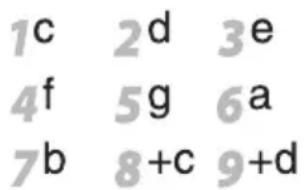
In melody mode, the keypad is used to enter notes, pauses, etc. A maximum of 40 notes can be programmed for incoming calls, and 20 notes for recalls.
This is how the keys are used:
Press to insert notes (1–9)
Note: A short press gives a short note, a long press gives a long tone (displayed by a capital letter), +c and +d means the higher octave.
\* Press to insert a short pause (p)
Hold to get a long pause (P). Repeat to get a longer pause (pp...p).
0 Press to get a higher octave for the inserted note
A + is shown in front of the note to indicate the higher octave.
Example: 30 to get +e
# Press to increase or decrease the pitch for the inserted note
Press once for sharp pitch, twice for flat pitch and three times to get the normal pitch.
Press to move the cursor to the left or to the right
Keep pressed to go to the beginning or to the end.
Press to listen to the entered notes
Press to erase the note to the left of the cursor
Keep pressed to erase all the notes.
Melody example:
James Bond theme programmed for Internal calls:
C d d D D pp C C C C #d #d #D #D pp D D D ##A G pppp G F G
Enter the notes
Grey digit = Long press.
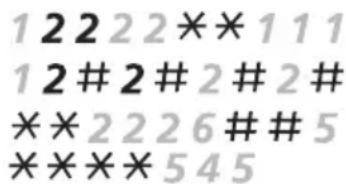
Note: The # key (to get a sharp or flat tone) is pressed after the note, but is displayed before the note.
When the first 19 positions are entered, the display shows (only last entered 19 positions can be shown):
Program Intern
CddDDPPCCCC#d#d#D#DK
When all the notes are entered, the display shows (only last entered 19 positions are shown):
Program Intern
#0#0F=000bAGPFPFGG
Note: The flat A (##A) is shown as bA, i.e. b is used to show both the note b and the flat sign.
Audible Signals
The following different tones and signals are sent from the exchange to your telephone.
Tone characteristics
The tones shown in this section are the most used tones worldwide. Many markets use a differing tone for one or more situations
Dial tone
Special dial tone
Ringing tone or Queue tone every 4th second
Busy tone
Congestion tone
Number unobtainable tone
Call waiting tone
Intrusion tone
Conference tone every 15th second (to all parties)
Verification tone
Warning tone, expensive route
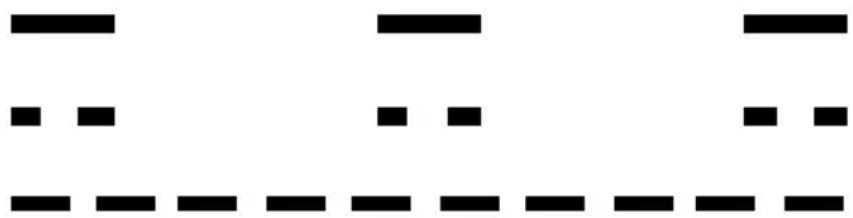
Ringing signals
Three different ringing signals inform you about the type of the incoming call. The signals shown in this section are the most used signals worldwide. Many markets use signals that are adapted for the local standards. If you get a signal that is not described or you cannot identify, ask your system administrator.
Internal ringing signal
External ringing signal
Recall signal (automatic callback reminder)
Visible Signals
Lamp indications

Extinguished lamp The function is not active.

Steady light
The function is active or supervised line is busy.

Slowly flashing lamp The line (or function) is put on hold.

Rapidly flashing lamp An incoming call.

Light with short breaks Ongoing call.
Display Information
Notes:
The display is only available on the 3212 telephone.
There are two versions of display texts, an earlier and a later version. Both versions are shown in this section.
The display gives you feedback information such as time and date, traffic state and connected telephone numbers. The following displays show examples of the different states your telephone is in.
For the later display text version:
When an information end with three dots (...), this means that the system is working or waiting for your action. When an information ends with a exclamation mark (!), this means that no further action is possible.
Idle telephone
When your phone is idle, the upper line shows general information. The lower line shows your extension number.
Earlier version:
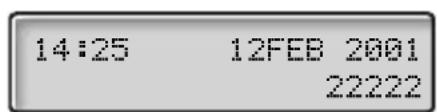
Later version:
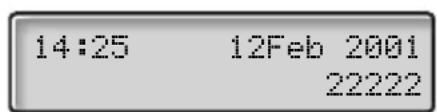
Outgoing call
When you make an outgoing call on your telephone, the upper line shows the traffic state and the lower line shows the dialled number.
Earlier version:
CALLING
22222
Later version:
Calling...
22222
If the called party's telephone is diverted, the upper line shows the dialled number and diversion state. For the later version, is the diversion symbol.
Earlier version:
33333 DIV DIR.
55555
Later version:
33333 >Direct
55555
The dialled number (3333) is directly diverted to number 5555.
Incoming call
When you receive an incoming call the upper line flashes the calling party's extension number.
33333
If a diverting extension is calling, the upper line shows the diversion information. The calling party's number is flashing on the lower line. For the later version, is the diversion symbol.
Earlier version:
44444 DIV DIR. 22222
Later version:
44444 >Direct 22222
Number 22222 has dialled number 44444 and the call is directly diverted to you.
Choice of language (optional)
One of the following languages can be chosen to be used for the display information on your telephone.
Digit 0–9 = the language code:
0 English 1 French 2 German 3 Spanish 4 Italian
5____6____7____8____9____
Note: By default 5-9 are programmed for English. To be changed locally to other languages.
To choose a language
*08*
Press
(0-9)
Enter the language code
Press
The Option unit DBY 410 02 is an optional accessory, to be installed under your telephone set. The following devices can be installed via the Option unit:
- Tape recorder
- Extra bell or busy signal outside your door
- Headset or conference unit
Note: Regarding the headset functions see Facilities section.
- Second handset
Note: For people with impaired hearing the Option unit offers the possibility to amplify the receiving volume in the handset and headset.
Vocabulary
Additional lines One or more additional extension numbers can be assigned to your telephone, these are programmed on free function keys.
Idle message A message shown in the display when the telephone is idle. This message is programmed by your system administrator. (3212 telephone only).
Multiple represented line Your extension number can be represented on a function key on other extensions (two or more).
Triple access line A collective name for the Access 1, Access 2 and Inquiry lines. Access 1 and Access 2 forms your extension number and are available both for incoming and outgoing calls. Inquiry can only be used for outgoing calls.
Installation
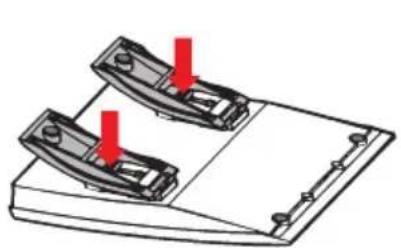
Install stand and adapt telephone
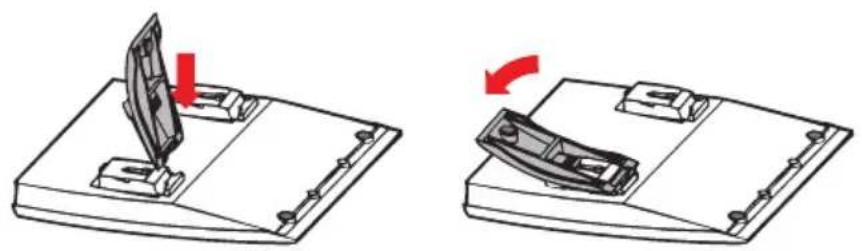
Press to decrease angle Pull to increase angle
natural_image
Diagram of two mechanical components with red arrows indicating alignment or movement, placed on a flat surface (no text or symbols)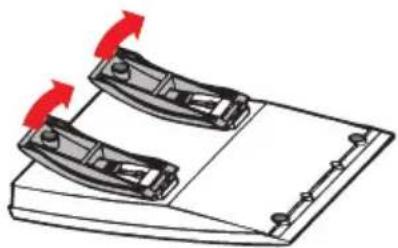
natural_image
Illustration of two mechanical components on a document holder with red arrows indicating motion (no text or symbols)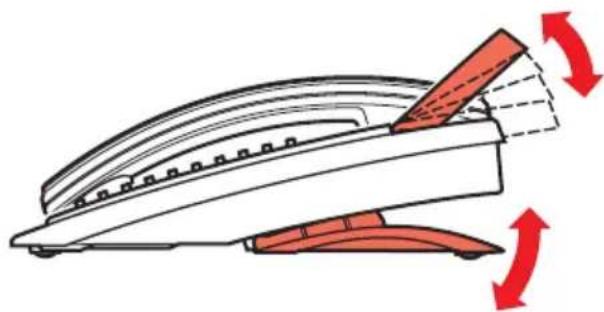
natural_image
Diagram of a curved mechanical component with red arrows indicating rotation or force direction (no text or symbols)Tiltable display
Adjustable angle
Install cables
On Dialog 3210
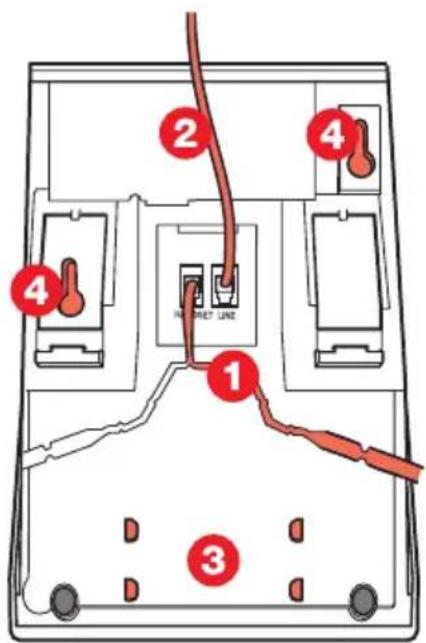
1 C a b l e t o h a n d s e t
2 Cable to exchange
3 Space for personal directory list (optional)
4 Wallmounting screw holes
On Dialog 3211/3212
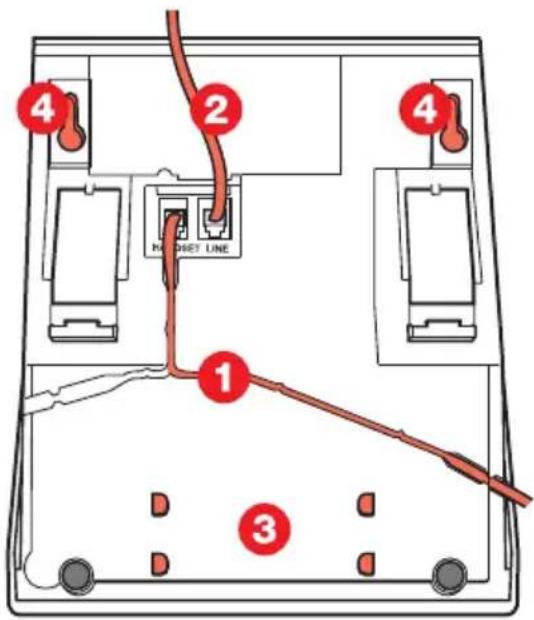
1 C a b l e t o h a n d s e t
2 Cable to exchange
3 Space for personal directory list (optional)
4 Wallmounting screw holes
Wall mounting handset hook
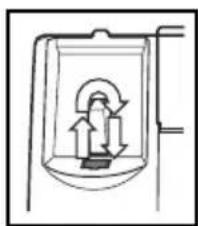
natural_image
Simple line drawing of a container with internal arrows indicating flow or movement (no text or symbols)Index
A
Abbreviated Numbers 45
Absence information 43
Account code 51
Additional directory number 56
Alarm extension 55
Alarm paging 65
Answer calls 8
Audible Signals 85
Authority 66
Authorization code, common 69
Authorization code, individual 70
Automatic callback 21
B
Busy extension or external line 21
Bypass diversion 30
C
Call Forwarding 25
Call pick-up group 49
Call waiting 23
Choice of language 91
Common abbreviated numbers 45
Common bell group 49
Conference 17
D
Data communication 56
Data privacy 66
Description 4
Dial by a function key 47
Dialling during a connected call 20
DISA 60
Display Information 88
Diversion 25
Do not disturb, DND 67
DTMF signals 20
During Calls 13
During calls
Conference 17
Conversation via the handset 15
DTMF signals 20
Handsfree conversation 14
Handsfree to loudspeaking 14
Hold 18
Inquiry 16
Loudspeaking to handsfree 14
Send caller's identity code 19
Transfer 17
E
Emergency state 55
Functions and required data 74
G
General cancellation 53
Group do not disturb 68
Group Facilities 49
Group hunting 50
Group listening (loudspeaking) 14
H
Handset and loudspeaker volume 79
Handset to handsfree 14
Handsfree to handset 15
Headset 57
Hot line 55
|
Immediate speech connection 52
Incoming Calls 8
Incoming calls
On Access 8
Individual abbreviated numbers 45
Information 43
Inquiry 16
Installation 93
Integrated voice mail 40
Internal follow-me 28
Internal Messages 37
Intrusion on a busy extension 23
L
Lamp indications 87
Language 91
M
Mailbox 42
Make calls 10
Malicious call tracing 57
Manual message waiting (MMW) 37
Melody ringing 80
Message waiting 39
Monitoring 13
Multiple represented directory number 56
Mute 15
Mute ringing signal 79
N
Night service 53
0
On hold 18
Option Unit 92
Option unit 92
Other Useful Facilities 51
Outgoing Calls 10
Outgoing calls
Save external number 12
P
Paging 61
Alarm paging 65
Paging receivers with a display 63
Paging receivers with voice message 64
Paging receivers without a display and paging via lamp signals 62
Personal number 31
Programming and Adjustments 72
Programming of functions 72
Programming of ringing signal tone character 78
Programming of ringing signals 76
Put a call on hold 18
R
Redial number 12
Refer back 16
Ringing signals 86
S
Send caller identity code at transfer 19
Setting form for search profiles 36
Short numbers 45
Silent ringing 80
T
Tone characteristics 85
Transfer 17
V
Visible Signals 87
Vocabulary 92
Voice Mail 40
Volume 79
W
When You Receive a Busy Tone 21
When you receive a busy tone
Call waiting 23
Callback 21
Intrusion 23
Ericsson is shaping the future of Mobile and Broadband Internet communications through its continuous technology leadership. Providing innovative solutions in more than 140 countries, Ericsson is helping to create the most powerful communication companies in the world.
- Dialog 3210/3211/3212
- Table of Contents
- Display (3212 only)
- Programming
- Diversion (follow-me)
- Programmable function keys
- Programmable function key/Headset key
- T r a n s f e r
- Triple access line
- Volume control
- Mute
- Loudspeaker on/off
- Clear
- Handset
- Optional pull-out leaf for easy guide
- Mute and Programming
- Free Seating (optional)
- To log on
- \*11\*
- To log off
- 11# Press
- Incoming Calls
- Answer calls
- On Access 1
- Lift the handset
- On any other line key
- Press the flashing line key
- Handsfree
- Press to terminate a handsfree call
- On another extension
- Call the ringing extension
- Press
- Notes:
- Answer a second call during an ongoing call
- Press to activate / deactivate
- Press to answer
- Press to switch back to the first call
- Press to terminate the connected call
- Outgoing Calls
- Make calls
- Internal calls
- External calls
- Dial the number
- Individual external line
- Last external number redial
- Press to redial the saved number
- Save external number
- Press before you finish the call
- Redial number
- Press to redial the number
- During Calls
- Monitoring
- Press and replace the handset
- Group listening (loudspeaking)
- Press to switch between loudspeaker and handset
- From loudspeaking to handsfree
- Replace the handset
- From handsfree to loudspeaking
- Lift the handset and press
- Press to end the call
- From handset to handsfree
- From handsfree to handset
- Mute
- Inquiry
- Press
- Call the second party
- Press to end the inquiry call
- Access 1
- Press to return to the first party
- Refer back
- Press to put second party on hold
- Press to put first party on hold
- Transfer
- Press before or after answer
- Conference
- Press to establish a conference
- Repeat the procedure to add more conference members
- Replace the handset to leave the conference
- On hold
- Individual
- Press the ongoing call line key and replace the handset
- Press the line key again to resume the call
- Common
- Press the line key
- Call the extension where the call was put on hold
- Send caller identity code at transfer
- Press to put the call on hold
- \*77\*
- Dialling during a connected call
- Press and dial the requested digits
- When You Receive a Busy Tone
- Busy extension or external line
- Automatic callback
- Press
- Replace the handset to finish procedure
- Lift the handset when you are called back
- Dial the external number and press
- Cancel any single callback
- Press and dial the extension number
- Cancel all callbacks
- #37#
- Activate call waiting
- Press
- Intrusion on a busy extension
- Press
- Intrusion on a busy external line
- Press and dial the individual external line number
- Call Forwarding
- Diversion
- Order direct diversion from your own extension
- Cancel direct diversion from your own extension
- #21# Press
- Diversion when there is no answer
- \*211# Press to order
- #211# Press to cancel
- 212
- 218
- Internal follow-me
- Order from your own extension
- Press and dial the answering position number
- Cancel from your own extension
- 21
- Redirect from answering position
- Press and dial your own extension number
- Press and dial the diversion number
- Press to redirect
- Cancel from answering position
- 21*
- External follow-me
- Order
- Cancel
- 22
- Bypass diversion
- Personal number (optional)
- To activate or change to another profile from your office telephone
- To cancel from your office telephone
- #10#
- To activate or change to another profile from an external telephone
- \*75\*
- \*10\*
- (1-5)
- To cancel from an external telephone
- 10*
- To design and order your search profiles
- Example:
- Setting form for search profiles
- Internal Messages
- Manual message waiting (MMW)
- Answer
- Checking the party that requested MMW
- Press to finish procedure
- Cancel MMW at your own extension
- 31
- Order MMW to another extension
- Cancel MMW to another extension
- 31*
- Message waiting (optional)
- To print out messages
- 91#*
- Voice Mail
- Integrated voice mail (optional)
- To activate and deactivate your mailbox
- To enter your mailbox
- Dial the number to the voice mail system
- Enter your security code
- # Press
- Enter your mailbox number
- Enter your security code (if required)
- To enter someone else's mailbox
- Enter the mailbox number
- Enter the security code of the person served (if required)
- To handle the mailbox
- Information
- Absence information (optional)
- #23#
- Order for another extension
- \*230\*
- Dial the extension number and press
- (0-9)
- Enter the absence code
- \*0915
- Press and enter the date or time of the other person's return
- Cancel for another extension
- #230\*
- Abbreviated Numbers
- Common abbreviated numbers
- Individual abbreviated numbers
- To use
- Program and alter individual abbreviated numbers
- Erase one programmed number
- 51*(0-9)
- Erase all programmed numbers
- 51
- Dial by a function key
- Program on Dialog 3210
- Program on Dialog 3211/3212
- Program
- Group Facilities
- Call pick-up group
- Press to answer
- Common bell group
- Group hunting
- 24*
- Other Useful Facilities
- Account code (optional)
- \*61\* Press
- Ongoing external call
- Access
- Press the line key to put the ongoing call on hold
- Enter the account code and press
- Press the line key for the call put on hold
- Immediate speech connection
- Permanently active
- Activated on a function key
- Automatic answer
- Press to order or cancel
- General cancellation
- #001#
- Night service
- Common night service
- Individual night service
- Universal night service
- Flexible night service
- To order flexible night service
- 84# ①②③
- Hot line
- Delayed hot line
- Direct hot line
- Alarm extension
- Emergency state
- Data communication
- Additional directory number
- Dial the extension number
- Multiple represented directory number
- Malicious call tracing
- Headset
- Activate/Deactivate the headset
- Press the headset key to activate/deactivate the headset
- Headset to handset
- Handset to headset
- Headset with loudspeaking
- Headset to handsfree
- Handsfree to headset
- Direct Inward System Access (DISA) (optional)
- With common authorization code
- \*72\*
- With individual authorization code
- Paging (optional)
- Paging receivers without a display and paging via lamp signals
- To initiate
- Press
- To answer
- Dial your own extension number and press
- Paging receivers with a display
- Dial the message code (1–10 digits) and press
- \*82\*
- \*82#
- Paging receivers with voice message
- \*81\*
- To an s wer
- Alarm paging
- Authority
- Data privacy
- Do not disturb, DND
- Press to activate or deactivate DND
- \*27#
- #27#
- Press to finish activation/deactivation
- Group do not disturb
- Bypass
- Authorization code, common (optional)
- To use for a single call
- Enter authorization code and press
- Dial the digit or digits to get an external line and the external number
- To open an extension for some calls
- #73\*
- To lock an extension
- \*73\*
- Authorization code, individual (optional)
- To lock your telephone
- \*76\*
- To open your telephone
- #76\*
- To assign your own authority level to another telephone
- To change your individual authority code
- \*74\*
- Programming and Adjustments
- Programming of functions
- Program or change a function on Dialog 3210
- Release
- Program or change a function on Dialog 3211/3212
- Verify a programmed number or function on Dialog 3212
- Functions and required data
- Programming of ringing signals
- ∅/Prog
- Keep pressed while programming
- Press the corresponding line key
- (0-6)
- Select the ringing signal you want to use according to the list below
- Press to finish programming
- Press to clear the display during programming
- To verify a ringing signal on Dialog 3212
- Programming of ringing signal tone character
- Press the corresponding digit
- Handset and loudspeaker volume
- Ringing signal volume
- Mute ringing signal
- Silent ringing
- Press to switch off the ringing signal
- Melody ringing
- Press and hold simultaneously to enter melody mode
- # Press to exit melody mode
- Program a new melody, edit or delete a current melody
- Press the key for the requested type of call:
- Press for internal calls
- Access 2
- Press for external calls
- Press for callback calls
- Move the cursor to the right of the position to be edited
- Press to erase the note to the left of the cursor
- Press the flashing line key (Access 1 or Access 2 or Inquiry)
- Press and hold until no notes are displayed
- Activate or deactivate a stored melody
- Press the key for the requested type of call (Access 1 or Access 2 or Inquiry)
- To enter notes
- Press to insert notes (1–9)
- \* Press to insert a short pause (p)
- Press to get a higher octave for the inserted note
- # Press to increase or decrease the pitch for the inserted note
- Press to move the cursor to the left or to the right
- Press to listen to the entered notes
- Enter the notes
- Audible Signals
- Tone characteristics
- Ringing signals
- Visible Signals
- Lamp indications
- Display Information
- Idle telephone
- Outgoing call
- Incoming call
- Choice of language (optional)
- To choose a language
- Vocabulary
- Installation
- Install stand and adapt telephone
- Install cables
- On Dialog 3210
- On Dialog 3211/3212
- Wall mounting handset hook
- Index
- A
- B
- C
- D
- E
- G
- H
- |
- L
- M
- N
- 0
- P
- R
- S
- T
- V
- W
Brand : ERICSSON
Model : Dialog 3210
Category : Phone