
Alliance - Keyboard Ozone - Free user manual and instructions
Find the device manual for free Alliance Ozone in PDF.


| Product Type | Mechanical Keyboard |
| Brand | Ozone |
| Model | Alliance |
| Layout | Full-size (104 keys) |
| Switch Type | Mechanical (Blue/Brown/Red options) |
| Backlight | RGB per-key lighting |
| Connection | USB 2.0 Type-A |
| Cable Length | 1.8 m braided |
| Dimensions (W x D x H) | 440 x 140 x 40 mm |
| Weight | 1.1 kg |
| Material | Plastic case, aluminum top plate |
| Polling Rate | 1000 Hz |
| Key Rollover | N-key rollover |
| Onboard Memory | Yes, for macro storage |
| Multimedia Keys | Yes, via Fn layer |
| Wrist Rest | Detachable, magnetic |
| Power | USB bus-powered |
| Compatibility | Windows, macOS, Linux |
| Software | Ozone Gaming Hub |
| Warranty | 2 years |
Frequently Asked Questions - Alliance Ozone
User questions about Alliance Ozone
0 question about this device. Answer the ones you know or ask your own.
Ask a new question about this device
Download the instructions for your Keyboard in PDF format for free! Find your manual Alliance - Ozone and take your electronic device back in hand. On this page are published all the documents necessary for the use of your device. Alliance by Ozone.
USER MANUAL Alliance Ozone
natural_image
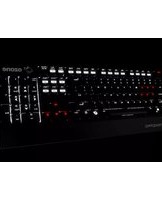
Black and white image of a computer keyboard with glowing green and red keys, no visible text or symbols on the keys themselves.USER MANUAL
WITHIN THE GAME
ALLIANCE
SYSTEM REQUIREMENTS
- Operation System
Windows, Mac, Linux or Android
- Free USB 2.0 port
INSTALLATION INSTRUCTIONS
- Plug USB connector of Alliance to a USB port of your PC
- Wait until your system detects, configures the plug and play device and finishes the installation
- Enjoy gaming with Alliance
ALLIANCE KEY FUNCTIONS
- Fully 104/105 mechanical hybrid switched gaming keyboard with back-lighting effects.
- Press 📋 + 1 to 9 on keyboard to set the lighting effect

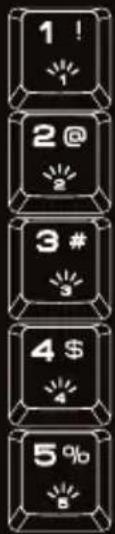
Spectra Wave
Spectra Scanning
Spectra Breathing
3 Color Wipe
Static Color (press to change the color)

Spectra Growing
Defined Areas*
Color Explosion
Sound Reactive**
Defined Areas\*
Press FN + 7 twice in 2s, backlit will flash twice in white.
Repress FN+ArrowUp or Arrow Down to choose the color for the selected area.
FN + ArrowLeft or ArrowRight to choose the area.
Sound Reactive**
Press FN + 9 once for 7 colors effects one by one.
Press FN + 9 twice for red color effect.
- Multimedia and othershortcut keys on keyboard Press Ⓞ + F1 to F11 key for media playback and other functions
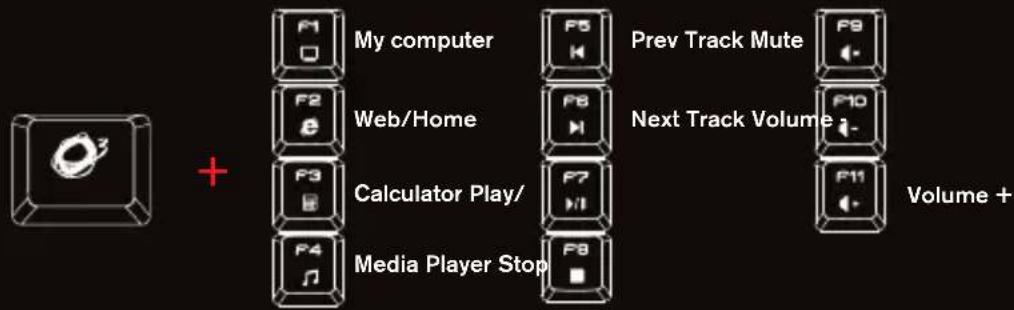
flowchart
graph LR
    A["Game Icon"] --> B["+"]
    B --> C["My computer"]
    B --> D["Web/Home"]
    B --> E["Calculator Play/"]
    B --> F["Media Player Stop"]
    C --> G["Prev Track Mute"]
    D --> H["Next Track Volume"]
    E --> I["Volume +"]
    F --> J["Prev Track Mute"]
    G --> K["F9"]
    H --> L["F10"]
    I --> M["F11"]
- Press 🎨 + ArrowUp or ArrowDn on keyboard to increase or decrease back lighting brightness in 4 different levels. Press 🎨 + ArrowLeft or ArrowRight on keyboard to increase or decrease back lighting breathing frequency and circle running control.

- Press Q^2 + W (3 sec) on keyboard to swap WASD and the ARROW KEYS

- Gaming Mode: Press 📄 + Windows key on keyboard to enter gaming mode (G-Mode) and block windows key.

- Reset to default: Press Ⓞ + Esc + F1 + F3 + F5 on keyboard to reset the keyboard to the default configuration.

- Macro setting:
Recording macros:

Playing macros:

Deleting macros:

1st: Under G-Mode.
2nd : Press ⬆+ (Flashing as Rec indicator). Insert a series of keystrokes (max 32 strokes including press and release).
3th : When finish, Choose one from M1 to M6 and press it to save the Macro. (lighted up).
1st : Under G-mode. Single press M1 to M6 keys.
1st : Under G-mode. Press 🔒 + 📋 to start deleting a macro. (flashing).
2nd : Press one key from M1 to M6 to delete the macro. (☐ ligthed up).
DIRECTIVES
CE STATEMENT OF COMPLIANCE WITH EUROPEAN UNION DIRECTIVES
Ozone declares that this product is in compliance with the essential requirements and other relevant provisions from the following Directive: 2014/30/EU, as applicable. The technical documentation required by the Conformity Evaluation process is in Ozone's possession and can be requested through info@ozonegaming.com

DISPOSAL OF BATTERIES AND ELECTRICAL OR ELECTRONIC EQUIPMENT WASTE
The existence of this symbol on the product, batteries or respective packaging, signifies that this product and the contained batteries can not be disposed as domestic waste. It is the user's responsibility to deliver this product at a battery, electrical or electronic recycling pick-up point. The pick-up and separate recycling contributes for the preservation of natural resources and suppresses potential negative consequences for the human health and the environment resultant of inadequate disposal of dangerous substances contained in batteries and electrical or electronic equipment. For additional informations regarding batteries, electrical or electronic recycling pick-up points, please contact your local municipal services.
WARRANTY
Who the warranty Protects:
This warranty is valid to the original purchaser only.
What the warranty protects:
For your warranty claims, please contact Ozone gaming overseas distribution partners in your country. Find the distribution partner list at www.ozonegaming.com
Warranty: 2 years from purchasing date. (Depending on the laws of each country)
URL: www.ozonegaming.com
E-mail: support@ozonegaming.com
What the warranty does not cover:
- Any product, on which the serial number has been defaced, modified or removed.
- Accident, misuse, neglect, fire, water, lightning, or other acts of nature, unauthorized product modification, or failure to follow instructions supplied with the product.
- Repair or attempted repair by anyone not authorized by Ozone gaming.
- Damage to or loss of any programs, data or removable storage media.
- Software or data loss occurring during repair or replacement.
- Any damage of the product due to shipment.
- Removal or installation of the product.
- External causes, such as electric power fluctuations or failure.
- Use of supplies or parts not meeting Ozone gaming's specifications.
- Normal wear and tear.
- Any other cause which does not relate to a product defect.
If you have any questions regarding technical problems please contact us via our website:
www.ozonegaming.com
Ozone reserves the right for any modifications in text and/or images.

natural_image
Abstract red logo design with a stylized circular shape and the number '3' on a black background (no text or symbols)ozone
ITs all about EVOLUTION
www.ozonegaming.com

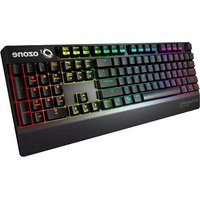
Brand : Ozone
Model : Alliance
Category : Keyboard